Category: Tutorials

  • Desktop Google Drive for Windows, Mac and Linux

    Desktop Google Drive for Windows, Mac and Linux

    In this article, we will show how you can download and use Desktop Google Drive for Windows, Mac & Linux. When we talk about Google Drive it makes sense a lot, Because this drive makes it easy to access and use your cloud storage files. It is very popular, useful, and also compatible with Google online tools. We should mention that if you want to use this drive, you should have a Google account and if you desire to have it, then the best way is to install it on your desktop and mount it to access. Google Drive consolidates with Google’s other services and systems like Chrome, Gmail, Google Docs, YouTube, Google+, and so on.

    If you need to use a Windows VPS or Linux VPS server, we suggest you visit our website plans, which are offered with a wide variety and location of your choice.

    Google Drive Features

    Now let’s analyze some main features of Google Drive:

    – Capability of storing files and folders and serving a backup solution

    – Integration of Google Office apps

    – Include different apps and icons like Google Docs, Google Sheets, Google Forms, and so on

    – Allow to share files and invite others to view, edit, and download them

    – Accessibility of files from any smartphone, tablet, or computer online or offline

    –  Possibility of comprehensive search

    – Saving files safely and protecting them with an AES256 or AES128 encryption

    How to Download and Use Google Drive on Windows / Mac

    Now that you’re familiar with Google Drive, let’s see how we can install it on your desktop for Windows or MacOS. Actually, you can easily do the installation process and it is entirely free for you, so follow our instructions and enjoy your application.

    Navigate to the Google Drive download page and select the option to download Drive for Desktop. As the website is intelligent, it can automatically recognize your operating system and will download the appropriate file type for you:
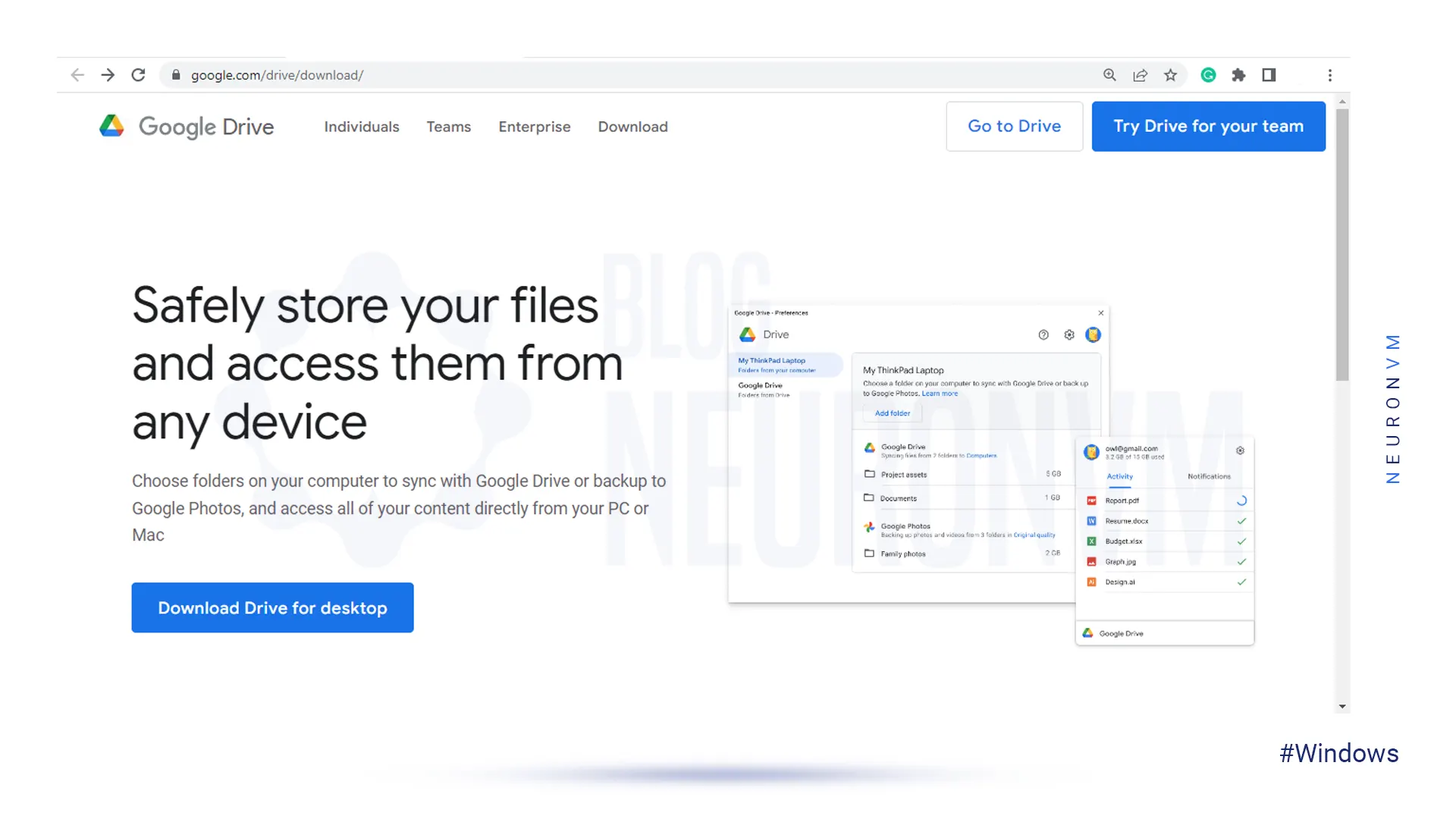
    how to download google drive

    At this step, as soon as the window appears, select which folder you need to save the installation file and click the Save button.

    For Windows, you should use Googledrivesetup.exe, and for Mac Googledrive.dmg file name.

    Also, you can choose to open files automatically:
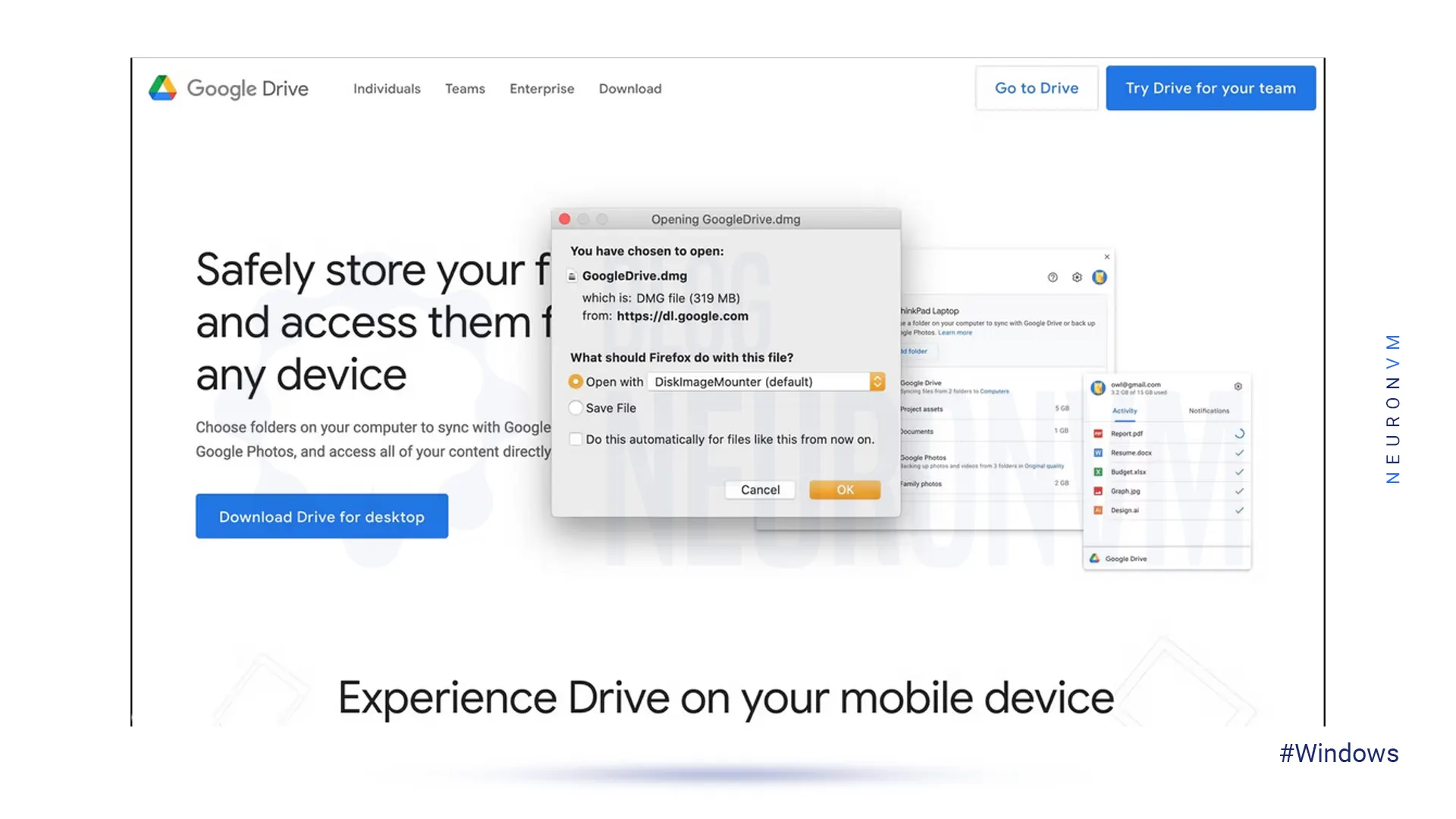
    save google drive on desktop

    Now you can click the Install button to start the process.

    Note: on MacOS, an extra window will appear, requiring your Mac password to confirm the installation.

    So enter the Password and click Install Software:
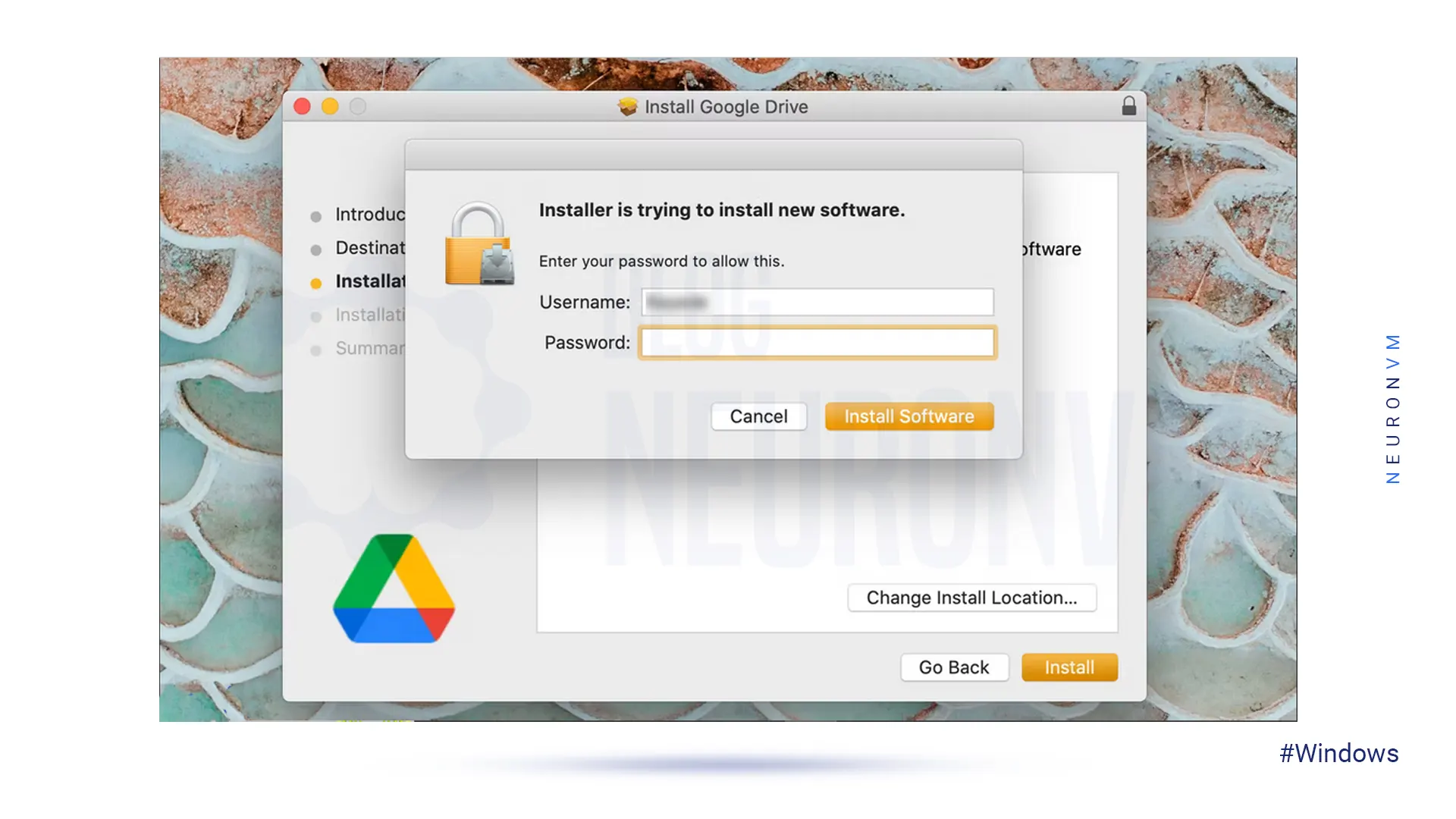
    install google drive on windows

    Wait for the installation to complete.

    If your operating system is Windows, a new drive named Google  Drive (G:) will be added to the desktop. But if it is MacOS the Drive icon will show up in the top menu bar:

    Download and use Google Drive on mac

    In the last step, sign in to your Google account to complete your task. On Windows, you will be redirected to the browser and go to the login page. But on Mac, first of all, you should click the drive icon on the top menu bar and if you complete the installation successfully then you can log in to Google Drive.

    How to Download and Use Google Drive on Linux

    As you see, we can use Google Drive on Windows and Mac. But Google hasn’t released an official version for Linux. Don’t worry cause we can use other tools to fill the gap.

    You should know that Google officially recommended using the Google Driver Website on Linux. But if you want to find it on your desktop, then follow our instructions:

    First of all, you should know that Gnome supports Google Drive on its version 3.18 desktop environment. Also, the Ubuntu desktop includes Nautilus which is part of Gnome. You need to spend extra time getting the Google Drive integration. To start this process you should install the Gnome Control Center and Gnome Online accounts package. So open the terminal and use the command below:

    sudo apt install gnome-control-center gnome-online-accounts

    Enter your password and type “y” to install the software.

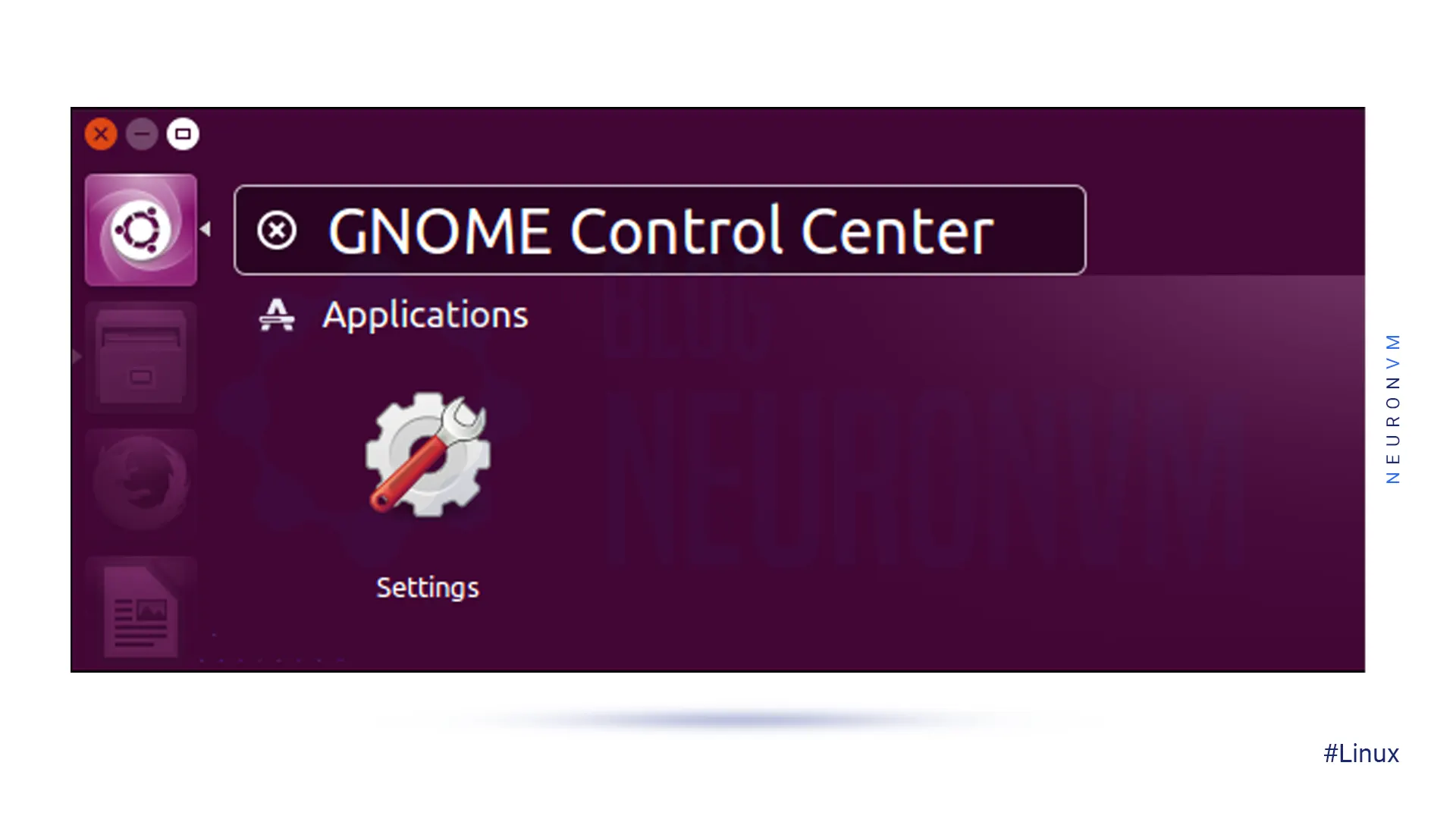
    Then open the dashboard and search for “Gnome Control Center“. Navigate to the application settings:
    setting linux

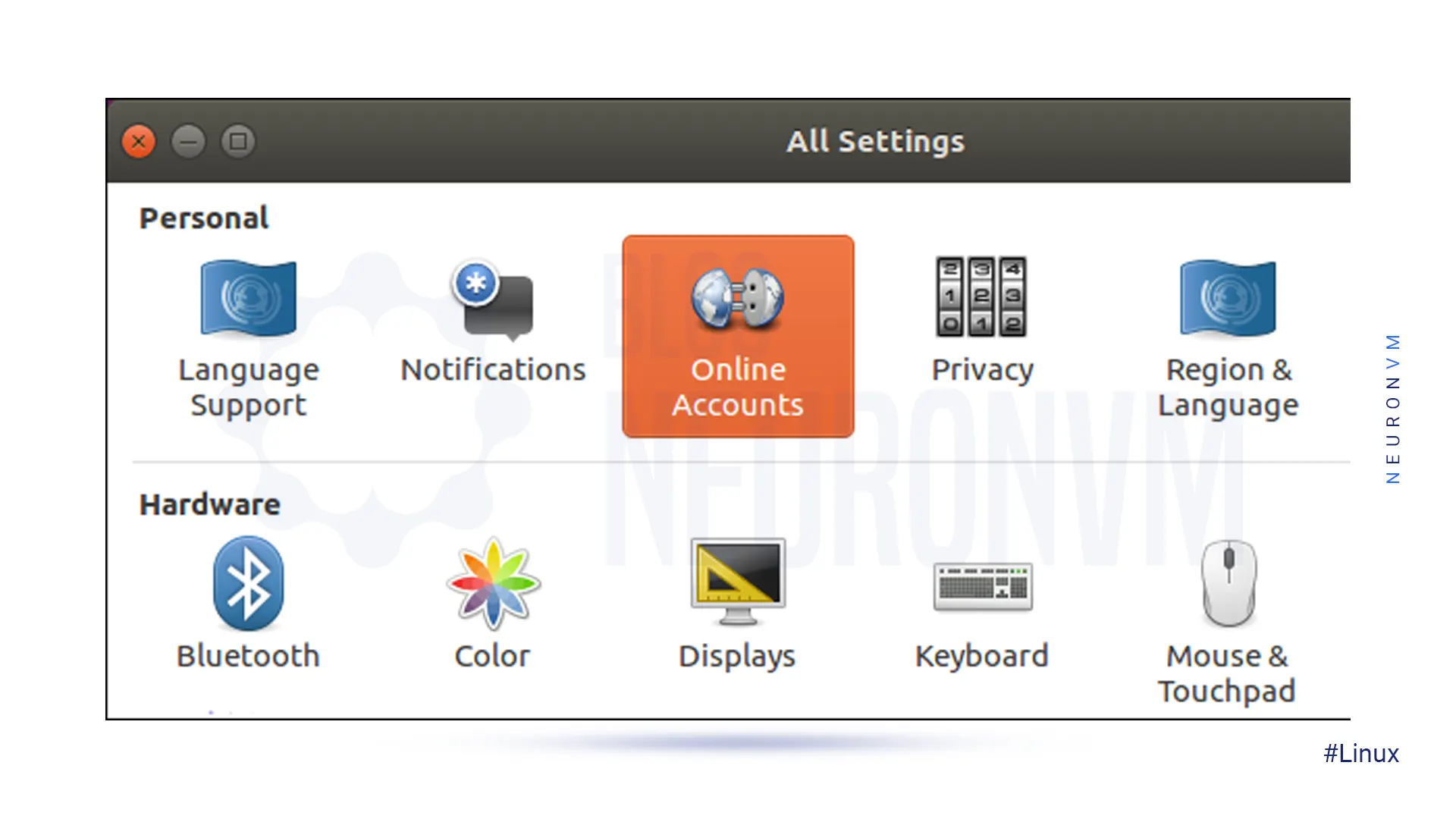
    At the window, click the “Online Accounts” icon in the Gnome Control Center window:
    online accounts on linux

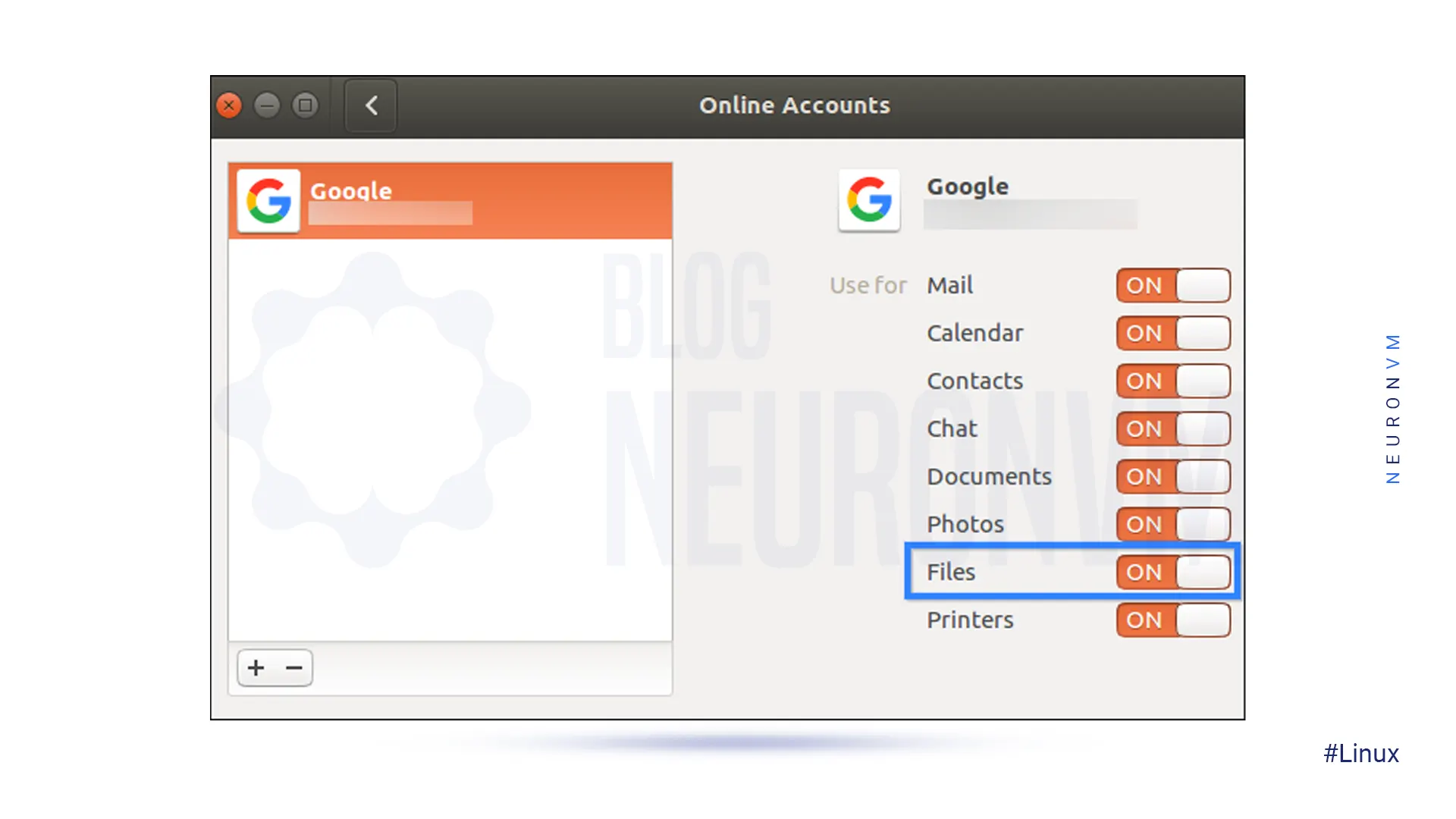
    Now click the “add account” then select “Google” and sign into your Google account.

    You can give access to your account and ensure that the files option is enabled:
    running google drive on linux

    You can see the Google Account email address as an option in the sidebar at the file manager window.

    Then click to view Google Drive files. You can browse, open, and save files, but files are not synced offline to the desktop. The modified copy will be automatically uploaded by the system:
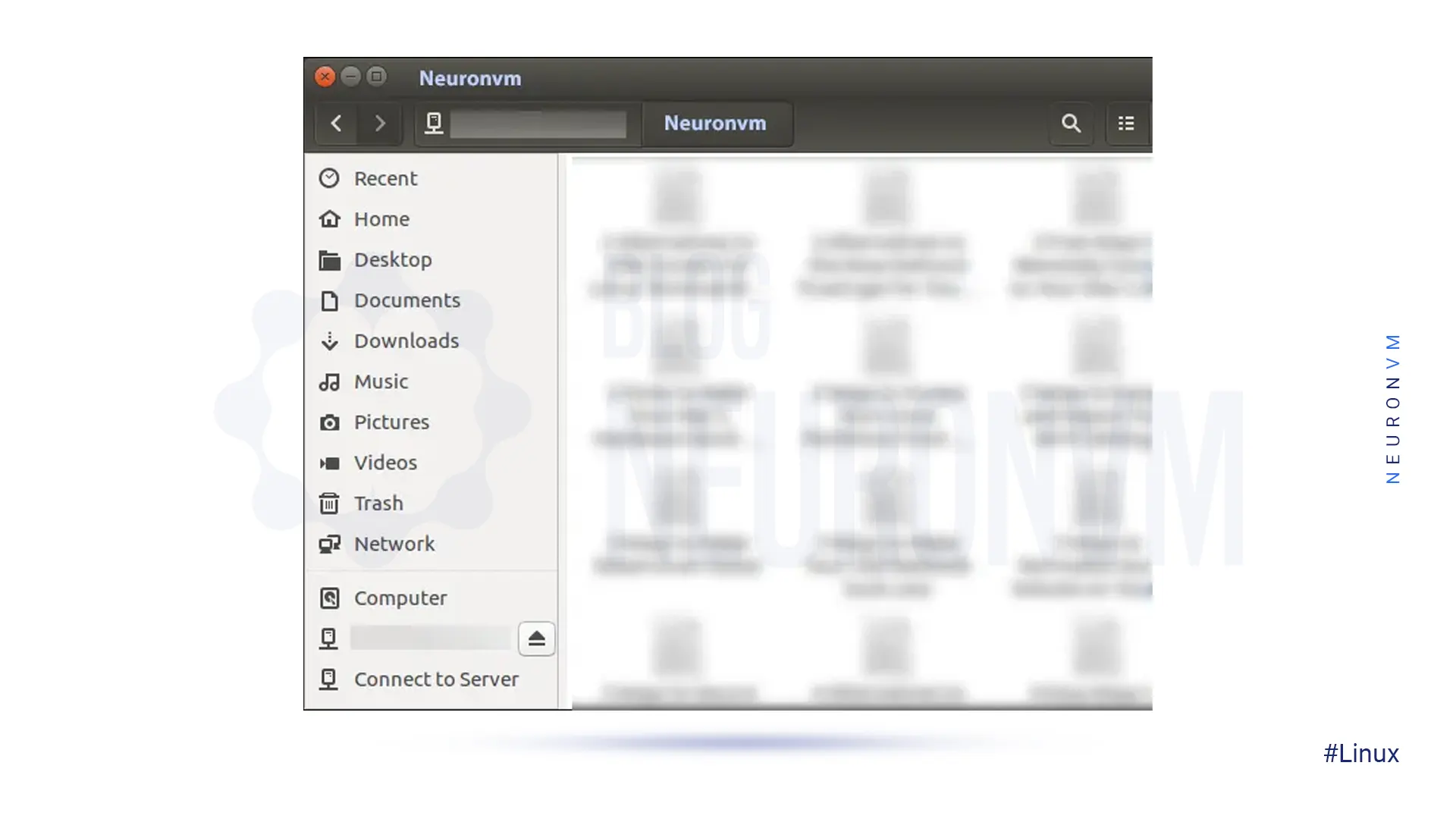
    Download-and-use-Google-Drive-on-Linux

    If you want to see the thumbnail preview, follow the pass below and then select “always“:

    Edit >> Preferences >> Preview, click the “Show Thumbnail”   
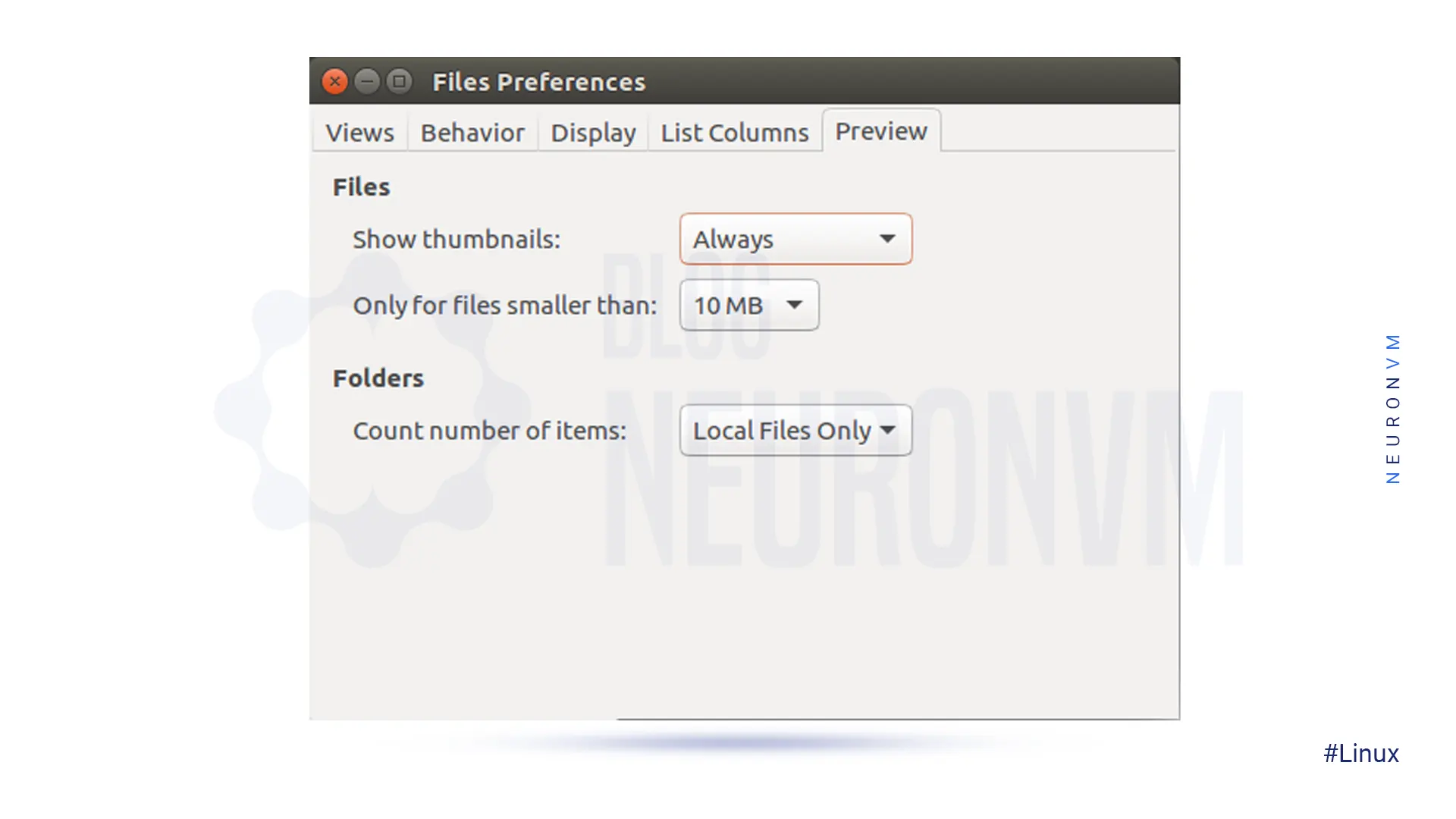
    how to use google drive on linux

    That’s it! Now you can use Google Drive on your desktop.

    Conclusion

    Ok, guys! We tried to guide you in learning how to download and use Google Drive on Windows, Mac, and Linux. Now you can easily download it on your operating system, and also manage and access your cloud storage files without any worries about security. We hope you enjoy this article and suggest that you read the interesting infographic post, Cloud Computing Structure.

    FAQ

    1) Is there any difference between Google Drive and Google Drive for Desktop?

    The desktop version synchronizes and stores the content of Google Drive locally on the computer, but the first one streams all files and folders from the cloud.

    2) What is the maximum storage for desktop Google Drive?

    Actually, it comes with 15 GB storage, but if you upgrade it to Google One, your total storage increases to 100 GB or more.

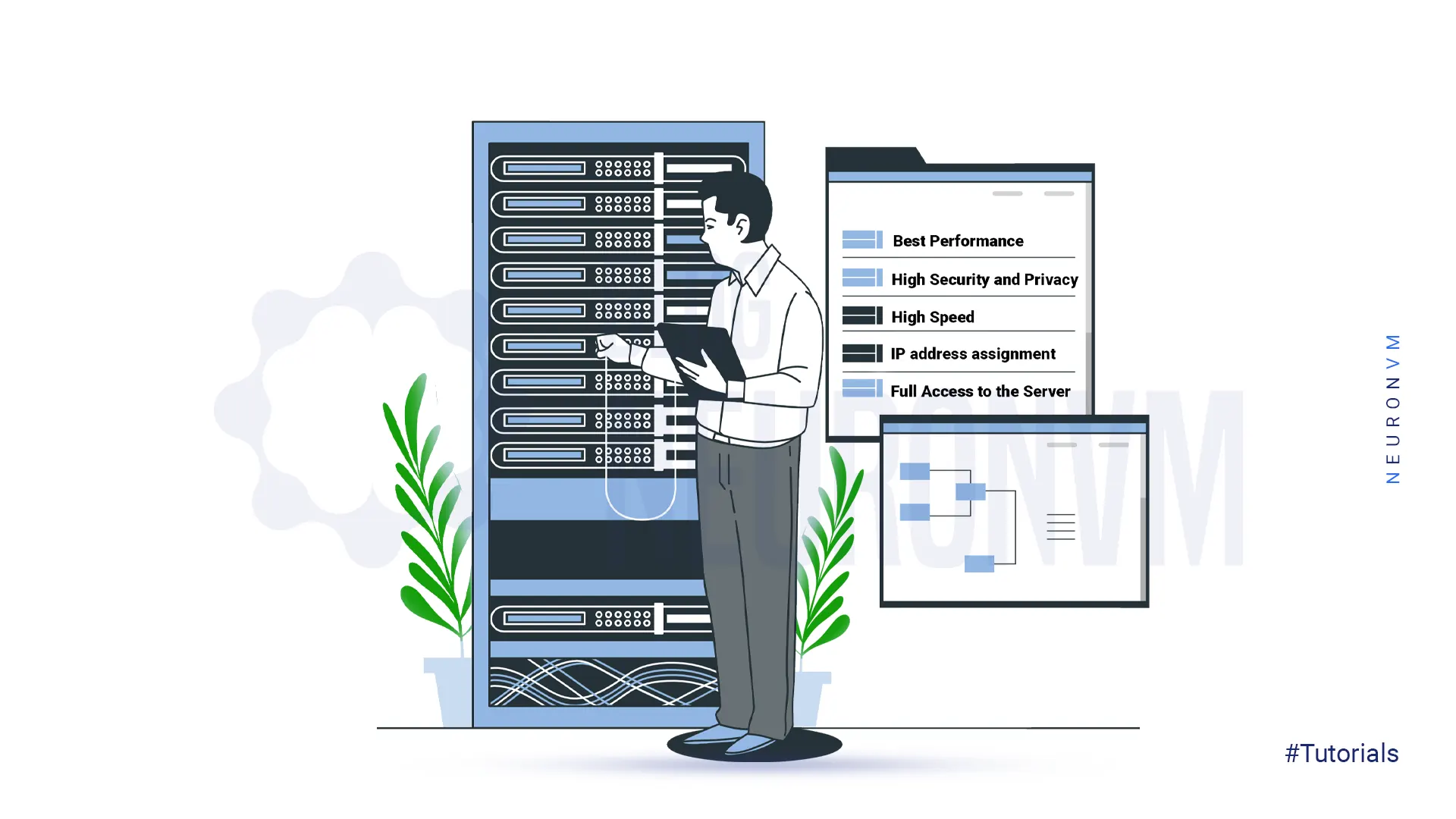
  • Why You Should Move to a More Powerful Dedicated Server?

    Why You Should Move to a More Powerful Dedicated Server?

    In this article, we are going to explain to you Why You Should Move to a More Powerful Dedicated Server. When you plan to set up a website to start your business, you also need a hosting space for it. In the meantime, you have different choices. From shared hosting and virtual server to dedicated server. Each of these spaces can serve you in some way. If your site is newly established and is not going to grow much, or in other words, you have a small online business, it is better to go for shared hosting. But if you want to bring the best performance to your site, our Dedicated Server plans will undoubtedly be the best option for you.

    Before buying a dedicated server, we suggest you read the article What to Consider When Purchasing a Dedicated Server.

    5 Reasons for choosing a powerful Dedicated Server

    In general, a dedicated server is considered to be your most powerful choice for hosting your website and software. The power and speed that these servers give you is incredible. The amount of resources you have available is very high and you can see the best performance of your site or software. There are various reasons for choosing a dedicated server. In the following, we will discuss the main reasons for this choice.

    Why You Should Move to a More Powerful Dedicated Server

    1. Get the best Performance of the site or Software

    By purchasing a dedicated server, you can witness the best performance of your website or software. The high bandwidth and uptime of NeuronVM dedicated servers ensures that you see the best version of your site’s performance. Even when you receive a lot of traffic, you can serve visitors without any problem due to the high processing power of these servers. These benefits do not exist in shared services such as shared hosting, and if you are looking for such features, you should consider getting a dedicated server.

    2. High Security and Privacy

    Security is one of the most important parts of business. When your business operates in virtual space and online, the importance of security increases many times. One of the risks that threaten you in shared services is the loss of information. Even your website may not be attacked directly, but due to the shared service, your site will be at risk during attacks. But these problems do not exist in powerful dedicated servers. Because this service is completely provided to you and you are responsible for establishing and maintaining security and installing the required software. So, if you have sensitive data or customer information, it is better to be careful in choosing a powerful dedicated server.

    3. High Speed

    These days, speed is the first word for users. Today’s users don’t give your website a chance to load. If your site does not load in less than 3 seconds, they will simply leave it and never visit it again. Therefore, you should pay a lot of attention to this issue. Slowness is one of the main problems people face when using shared services. But if you use NeuronVM dedicated server, you will experience high and incredible speed because all the resources are at your disposal. The use of more optimized and stable infrastructure, high-level data center equipment and powerful CPU will increase the speed of your site.

    4. IP address assignment

    When you use shared services such as shared hosting, you must also share your IP address with other sites. Because you share the resources with them and it works in the same way in IP. But in a dedicated server, this issue is different. Maybe you think what is the importance of this issue? In fact, it should said that if one of the sites on your server has a low rank or produces spam, it can negatively affect the performance or rank of your site. But having a powerful dedicated server ensures that your site has a unique IP address. Also, NeuronVM has the ability to provide users with additional IPs at the lowest cost.

    5. Full ownership and Access to the Server

    This is one of the main reasons why website owners are looking for a dedicated server. Especially those people whose site is full of important and vital information. With a powerful dedicated server, you can choose the software and operating system you want. In fact, by purchasing a dedicated server, you will have complete control over the root or SSH level of your server.

    Conclusion

    In this article, we explained 5 reasons why you should move to a more powerful dedicated server. By purchasing a dedicated server from the NeuronVM website, you can see the best performance in every part you use. Affordable prices, high security, high speed, bandwidth, etc. are the advantages of our powerful dedicated servers. It is also possible to change the configurations according to the customer’s request. If you want to buy a dedicated server, you can choose and buy the plan you want by sending a ticket and receiving a consultation.

  • What is RDP Server and How to can connect to Admin RDP?

    What is RDP Server and How to can connect to Admin RDP?

    RDP Server, or Microsoft Windows Server OS, is a series of Enterprise-class server operating systems designed to share services with multiple users and extensive control over data storage, applications, and shared networks. One of the most common and convenient ways to connect to a Windows server is to use Remote Desktop Connection or Admin RDP. This article is about  What is RDP Server and How to can connect to Admin RDP. You can connect to a remote computer or Windows server using the RDP admin over the Internet or over a local area network. RDP gives users full access to the tools and software installed on the Windows server.

    What is an RDP Server?

    RDP Servers are versions of Microsoft Windows operating systems that are specifically designed to be installed and run on servers. Due to the fact that organizations, offices, and many companies have large or medium-sized computer networks, they use servers. These servers have to service and manage hundreds and sometimes thousands of computers. Therefore, the operating system that is installed on these servers must have the necessary facilities and capabilities to manage the network and respond to it.

    RDP Server or Windows Server is mainly using in business and enterprise suites. The appearance of Windows Server may not be much different from regular Windows of the same age. Because the programming foundation of both types of Windows is common, many of their capabilities are common. Because of this, programs such as web browsers and image editors can be downloaded and installed on both types of Windows. Even their desktop environment, including the taskbar, start button, and page layout, is similar, and native Windows applications such as Notepad can be seen on Windows Server. However, there are many differences between a normal Windows application and a Windows server.

    What is RDP Server and How to can connect to Admin RDP

    What does the RDP Server do?

    Because RDP Server is designed for large businesses and enterprise environments, it has a variety of enterprise software. Some of the features of Windows Server for this purpose are:

    1. Active Directory: Active Directory is one of the most important features of Windows Server, consisting of several different services that are used to manage computers and other networked equipment. The network administrator uses Active Directory to create domains and users on the network and grant them various permissions.

    2. Dynamic Host Configuration Protocol (DHCP): DHCP automatically assigns a unique IP address to each network-connected device. DHCP facilitates and accelerates the addressing of network nodes and avoids problems such as duplicate IP address allocation.

    3. File Server: A file Server can consider as a centralized storage system that can be accessed by multiple systems and network users. Large companies and organizations usually need this feature, so this possibility is anticipating in Windows Server. Users with related work tasks can share their files on the network using File Server if they have the relevant permissions.

    Advantages of RDP Server

    RDP Server, or Windows Server operating system, was added to the Microsoft Windows family in 2000 and was particularly popular from the beginning. Numerous roles and features of the Windows Server operating system were very useful for network administrators in setting up service and network control, and this was the reason for its increasing popularity.

    Some of the roles of the Windows Server operating system are:

    1. Active Directory Certificate Services

    2. Active Directory Domain Services

    3. Active Directory Federation Services

    4. Active Directory Rights Management Services

    5. File and Storage Services

    6. Hyper-V

    7. Remote Desktop Services

    8. Web Server IIS

    9. Windows Deployment Services

    Today, with the development of the network world, many roles and features have been added to the RDP server operating system, each of which has its own important and unique capabilities.

    How to Connect to Admin RDP

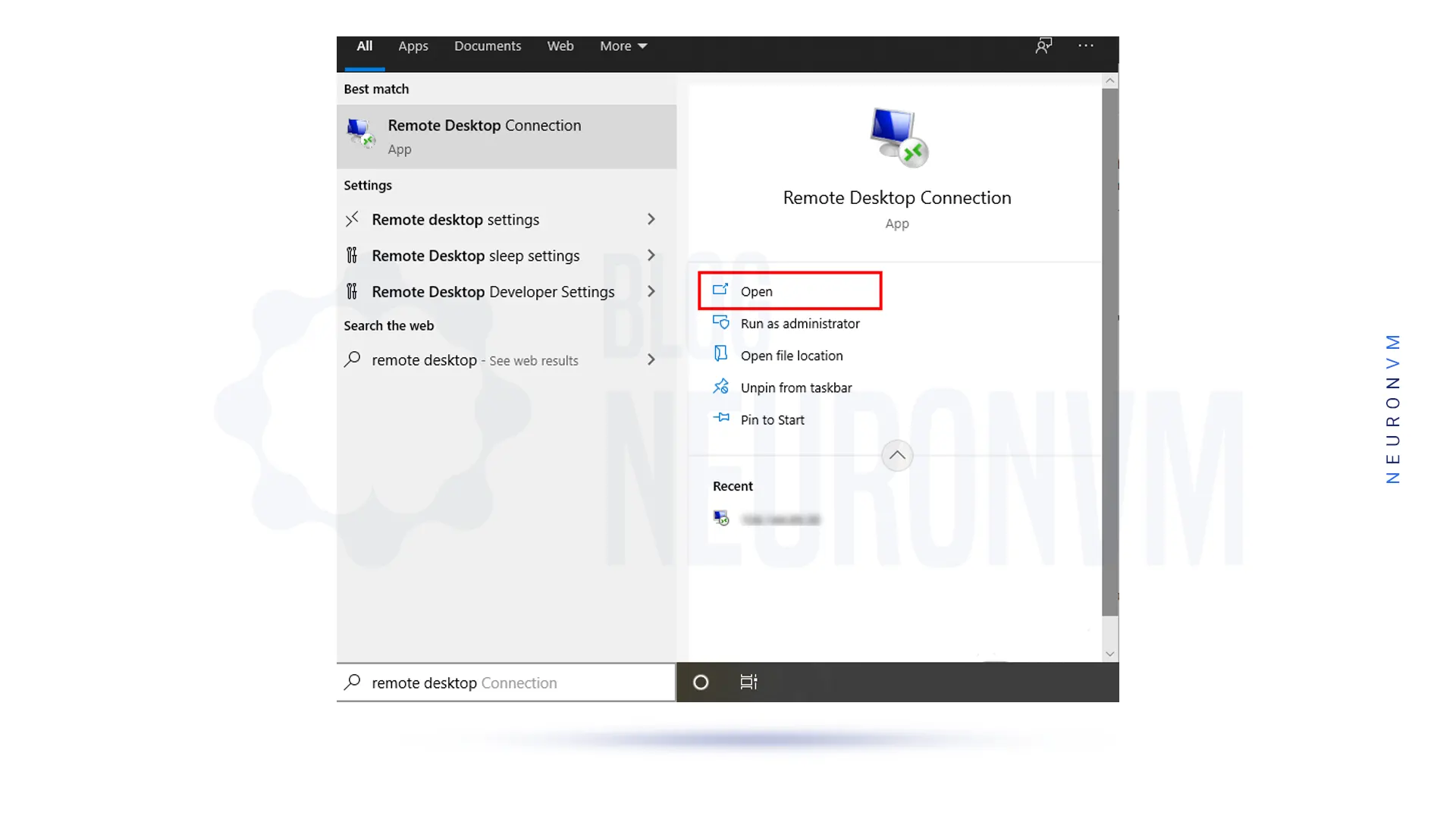
    In the first stage, you should type the phrase remote desktop in the search section of the taskbar menu. Then you see Remote Desktop Connection as one of the options, select it:

    how-to-open-rdp-admin

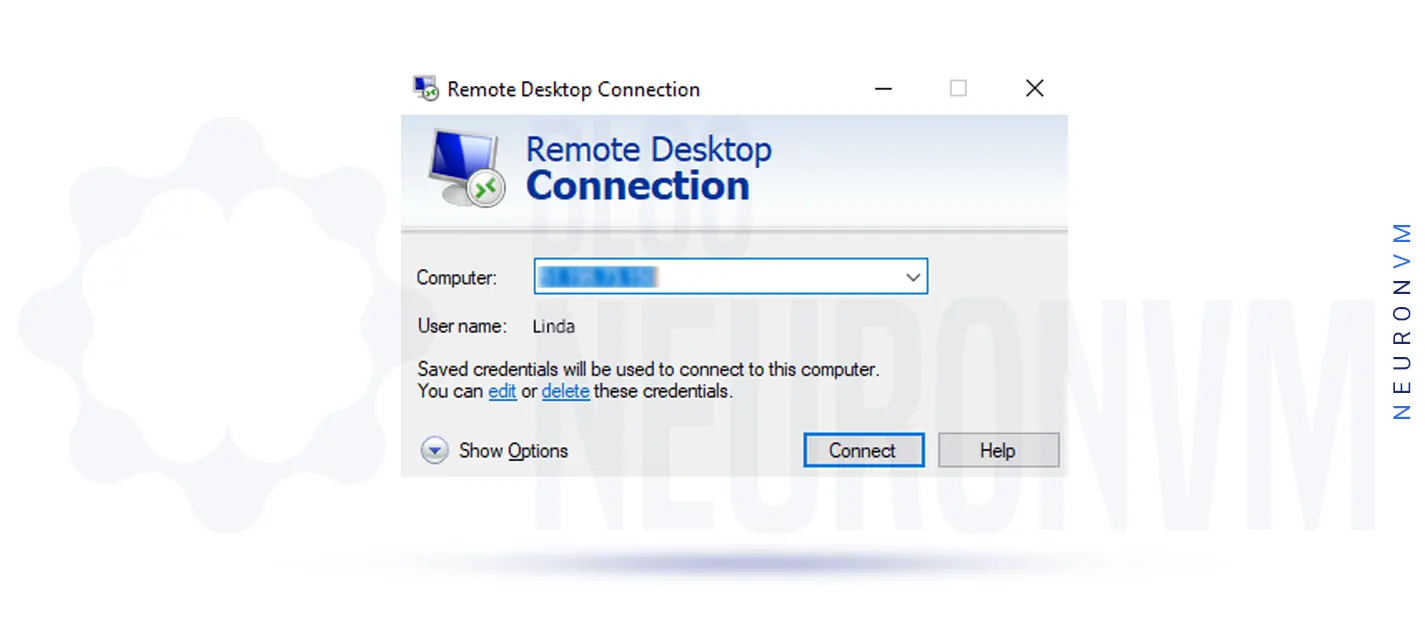
    Then in the Remote Desktop Connection window, you need to enter the destination IP address and then click Connect:

    Connect-to-Admin-RDP

    Note: If the default remote port direction has changed, you need to enter IP: Port. For example, you need to enter 123.456.7.8:12345. Which is 123.456.7.8 destination IP address and 12345 connection port.

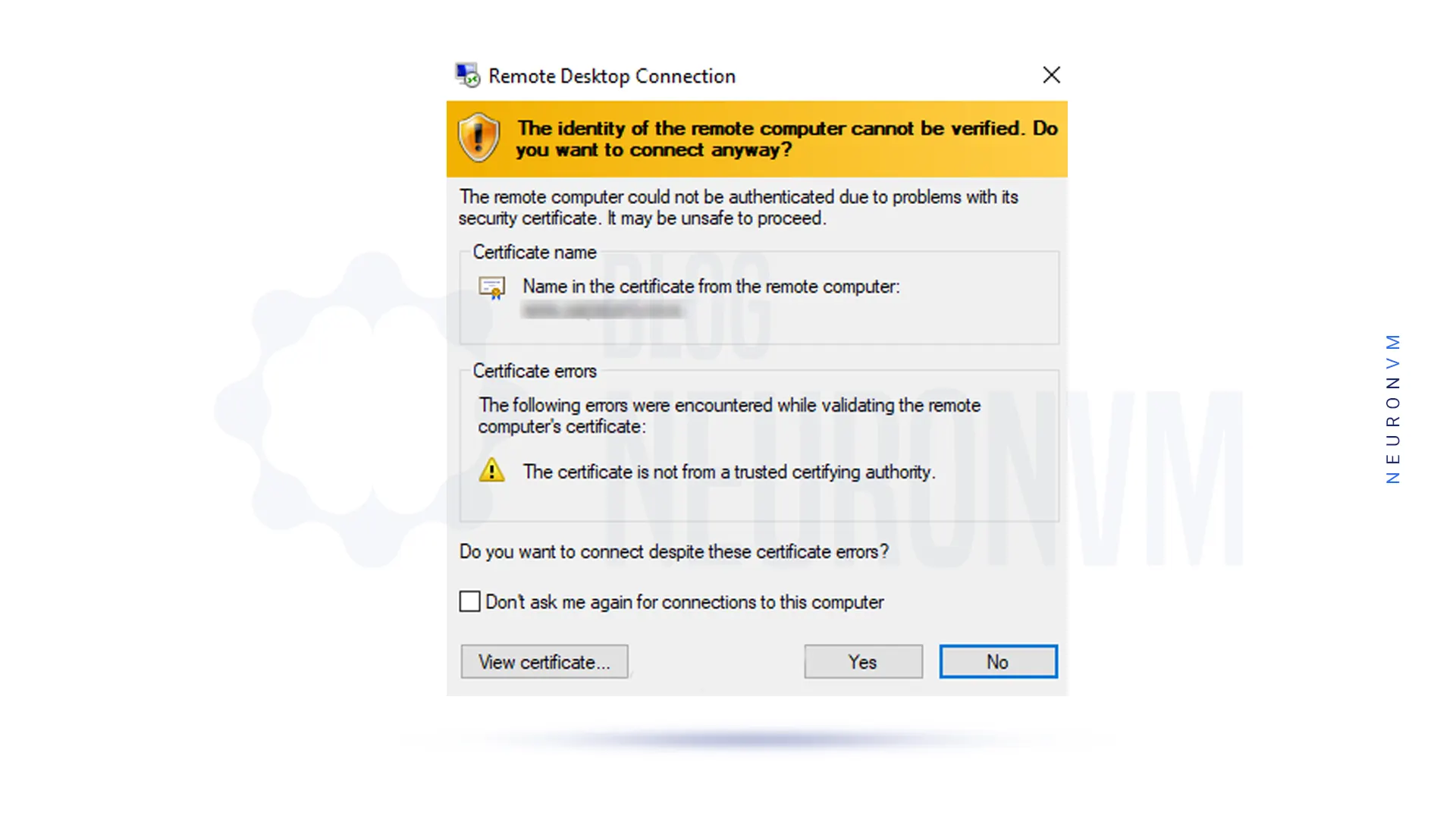
    In this step, if the security message appears to confirm the identity of the second system, click Yes:

    remote-desktop-connection

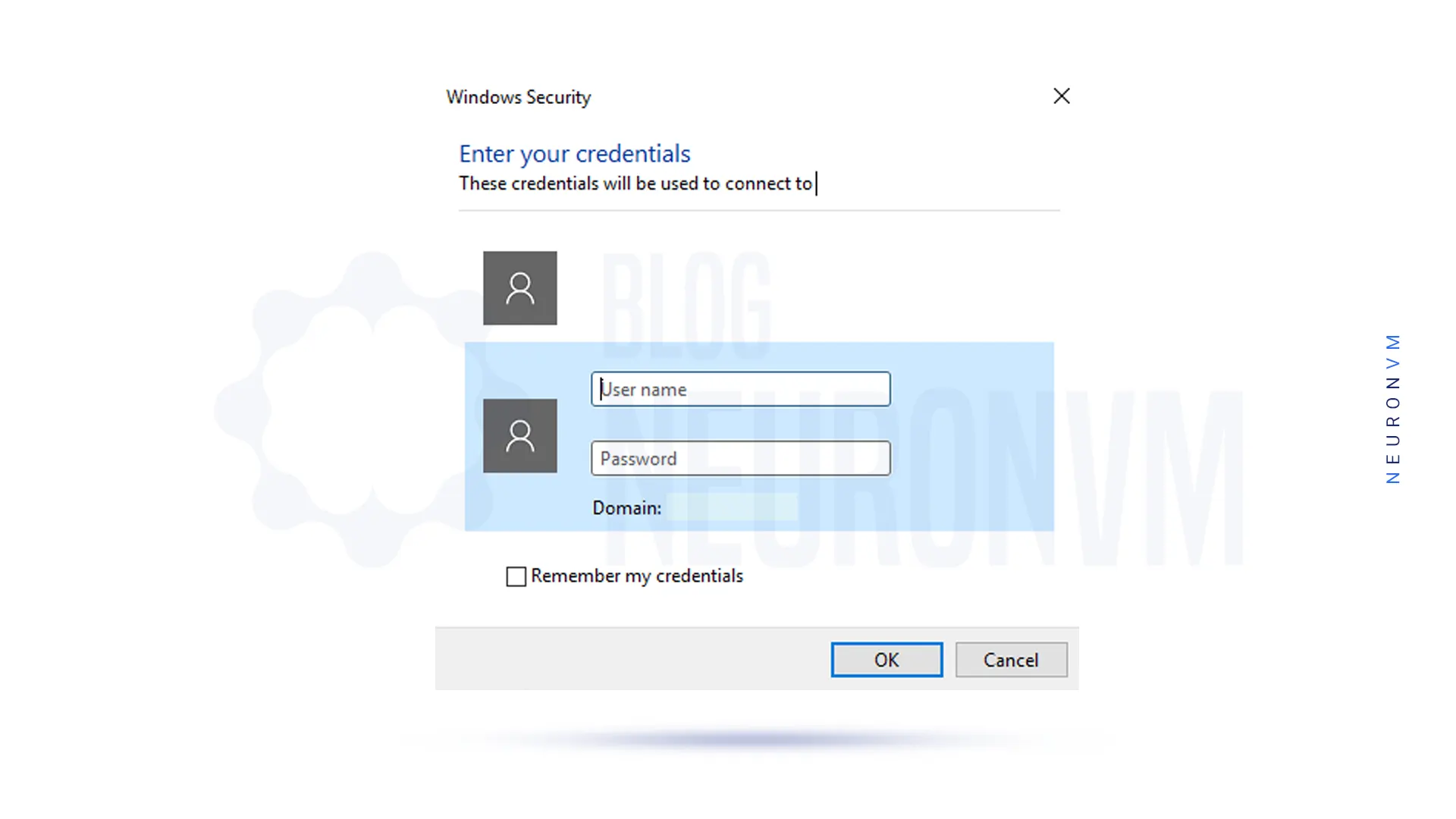
    In the next step, you will be asked for your username and password, and you will need to enter the username and password of the destination Windows user interface.

    Then click on OK:

    windows-security-in-opening-windows-server

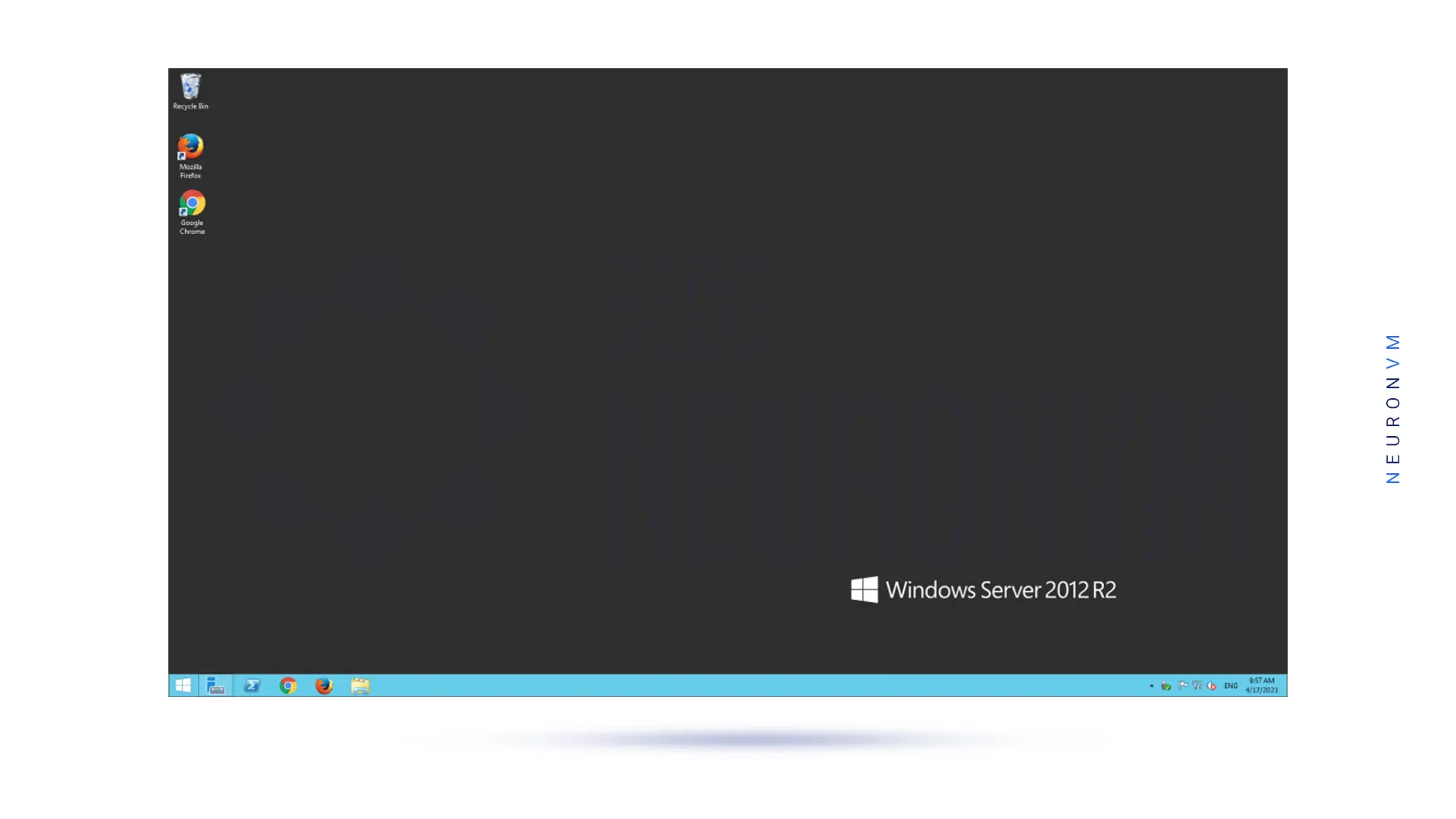
    By performing the above steps correctly, you will enter the desktop environment of the second system and have full access to it:

    windows-server-environment

    Conclusion

    Connecting to an Admin RDP server can provide users with the flexibility and convenience of accessing their computers remotely. By following the steps outlined in this guide, users can easily set up and connect to an Admin RDP server to access their desktops, files, and applications from anywhere in the world. The Remote Desktop Protocol is a powerful tool that can improve productivity, streamline IT support, and enhance remote collaboration. We suggest you read the article The Best Way to Buy Cheap Admin RDP Server With BTC.

  • How to Connect Firestick Remote to TV

    How to Connect Firestick Remote to TV

    The Firestick remote is an essential accessory for operating your Fire TV device. It allows you to control various functions such as navigating menus, selecting content, and adjusting settings. Connecting the Firestick remote to your TV is a simple process that ensures a seamless and user-friendly experience. This guide will walk you through the steps required to connect the Firestick remote to the TV.

    Prerequisites:

    Before connect Firestick remote to TV, make sure you have the following:

    1) A Firestick device: Ensure you have a compatible Fire TV device such as a Firestick, Fire TV Cube, or Fire TV Stick Lite.

    2) TV with HDMI port: Your TV must have an HDMI port to connect the Firestick device.

    3) Batteries: Get two AAA batteries for your Firestick remote.

    You might want to use a Windows VPS to host a media server or a streaming platform like Firestick. In this case, we suggest you visit the plans presented on our website and ask us for help if you have any questions.

    firestick remote

    Step 1: Inserting Batteries

    To start, insert the two AAA batteries provided with your Firestick remote.

    1 inserting batteries to firestick remote

    Open the battery compartment at the back of the remote and ensure you insert the batteries correctly, matching the positive and negative terminals.

    Step 2: Power On Your Firestick Device

    – Plug your Firestick device into your TV’s HDMI port.

    – Connect the power adapter to your Firestick device and plug it into a power outlet.

    – Turn on your TV and change the input source to the HDMI port where your Firestick device is connected.

    power on your firestick device

    Step 3: Pairing the Firestick Remote

    Now, it’s time to pair the remote. Follow the steps below:

    A) If Your Firestick Remote Is Already Connected:

    It should automatically pair if you have previously connected the Firestick remote to your Firestick device. Wait for a few seconds, and you should be ready to use your remote.

    B) If Your Firestick Remote Isn’t Connected:

    If your Firestick remote isn’t connected or you have a new remote, you need to follow these steps to pair it:

    B.1: Hold down the Home button on your Firestick remote for about 10 seconds.

    B.2: On your TV screen, you will see a prompt indicating that the remote is ready to pair.

    B.3: Once the pairing process is complete, the prompt will disappear, and you can start using your remote.

    3 Pairing the Firestick Remote

    Step 4: Verifying Connection and Navigation

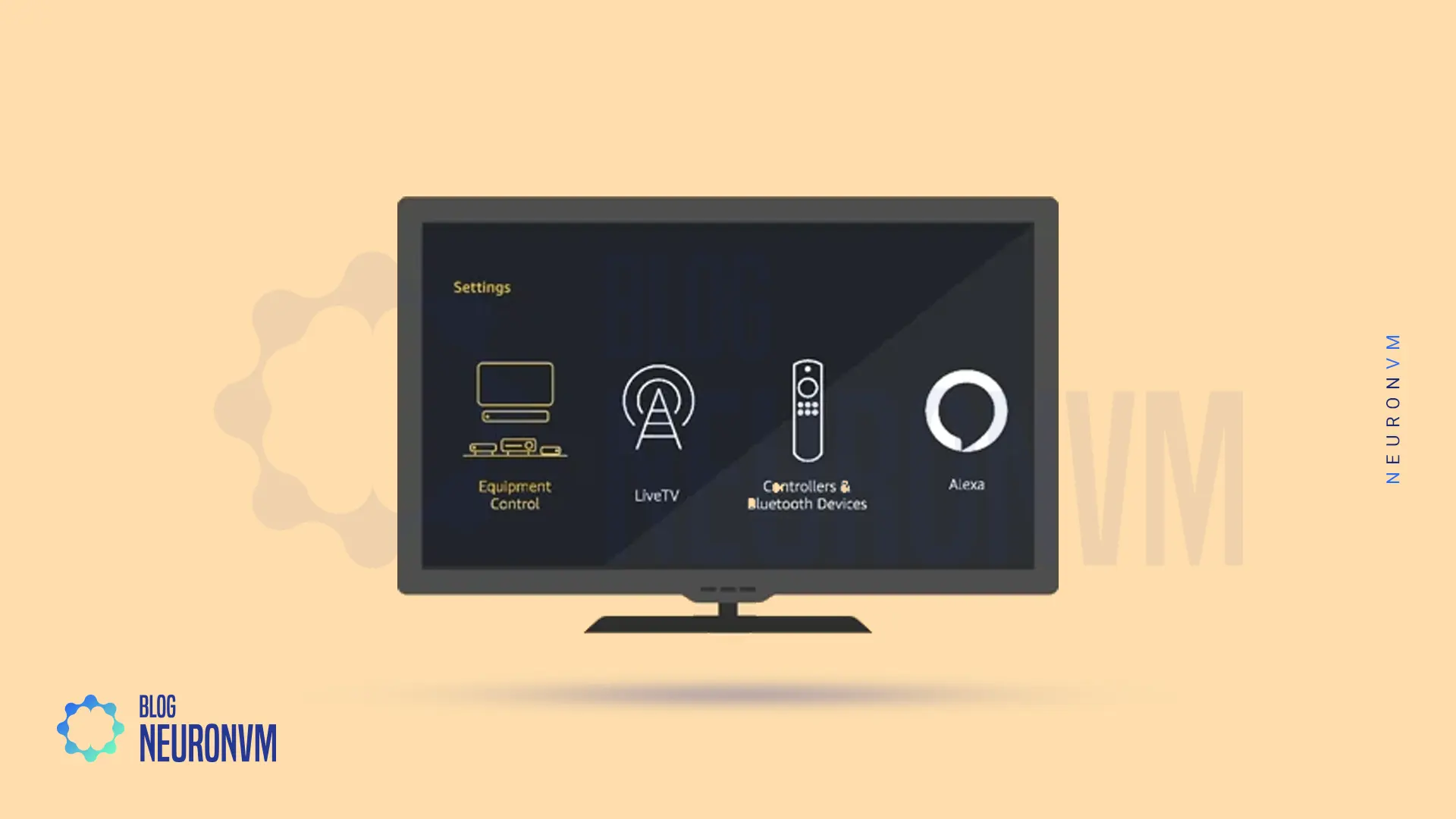
    To ensure a successful connection, test your remote by navigating through the Firestick home screen and accessing various functions.

    If the remote responds and controls your Firestick device, it successfully connects.

    4 verifying connection and navigationfirestick remote

    Conclusion

    Connecting your Firestick remote to your TV is a straightforward process that enhances your Fire TV experience. By following the steps outlined above, you can easily pair your Firestick remote with your Firestick device. Once connected, you’ll be able to control and navigate through your favorite apps, stream content, and enjoy an immersive entertainment experience.

  • Get Game VPS with Bitcoin: The Ultimate Gamer’s Paradise

    Get Game VPS with Bitcoin: The Ultimate Gamer’s Paradise

    In the ever-evolving world of gaming, players are constantly searching for ways to enhance their gaming experiences. From immersive graphics to seamless multiplayer modes, the quest to conquer virtual realms has never been more exhilarating. And now, with the emergence of Game VPS with Bitcoin, the ultimate gamer’s paradise is within reach like never before. In this article I’m going to take you into the world of Gaming VPS and show you how can you buy one with Bitcoin or any other cryptocurrency you’ve got in your wallet. So let’s dive in!

    A Brief Introduction

    Game VPS, or Virtual Private Server, is a game-changer for every avid gamer out there. It provides a dedicated virtual environment solely for gaming, ensuring optimal performance and zero latency. With Game VPS, you no longer have to worry about sharing server resources with other users, as you have complete control over your gaming environment. This means no more frustrating lag, no more interruptions, and no more compromises on your gaming experience.

    1 Introduction-to-Game-VPS

    By choosing Game VPS, you can enjoy a seamless and immersive gaming experience like never before. Bitcoin offers a convenient and secure payment method, allowing gamers from all around the world to easily acquire their own Game VPS. Basically you don’t have to use traditional payment methods and pay lots of commission per transaction. Embrace the future of gaming with Game VPS and Bitcoin.

    Future of Game VPS in the Gaming World

    Now, let’s talk about the future of Game VPS in the gaming world. Brace yourselves, because it’s going to be mind-blowing! As technology continues to advance at warp speed, we gamers crave nothing less than the most immersive and seamless gaming experiences. And that’s where Game VPS steps in to save the day. With its lightning-fast connections and dedicated resources, it’s the ultimate game-changer. But wait, it gets even better!

    2 Future-of-Game-VPS-in-the-Gaming-World

    Thanks to the rise of cryptocurrencies like Bitcoin, getting your hands on a Game VPS has become easier than ever. Just imagine, enhanced gameplay, reduced latency, and an overall improved gaming experience, all while using your favorite digital currency. The future holds endless possibilities for Game VPS, my fellow gamers. Get ready to level up and embrace the gaming revolution of Game VPS with Bitcoin. It’s time to conquer new virtual worlds like never before!

    Which Games You Can Play on a Game VPS?

    The beauty of Game VPS is that it supports a wide range of games, catering to every gamer’s taste. Whether you’re a fan of intense first-person shooters, immersive role-playing games, or adrenaline-pumping racing games, Game VPS has got you covered. Popular titles like Fortnite, Call of Duty, Minecraft, World of Warcraft, and many more can be played effortlessly on a Game VPS.

    3 Which-Games-You-Can-Play-on-a-Game-VPS

    With the dedicated resources and high-speed connections provided by Game VPS, you can experience these games like never before. Say goodbye to frustrating lag and say hello to seamless gameplay with Game VPS with Bitcoin. It’s time to take your gaming adventures to the next level and explore a whole new realm of possibilities.

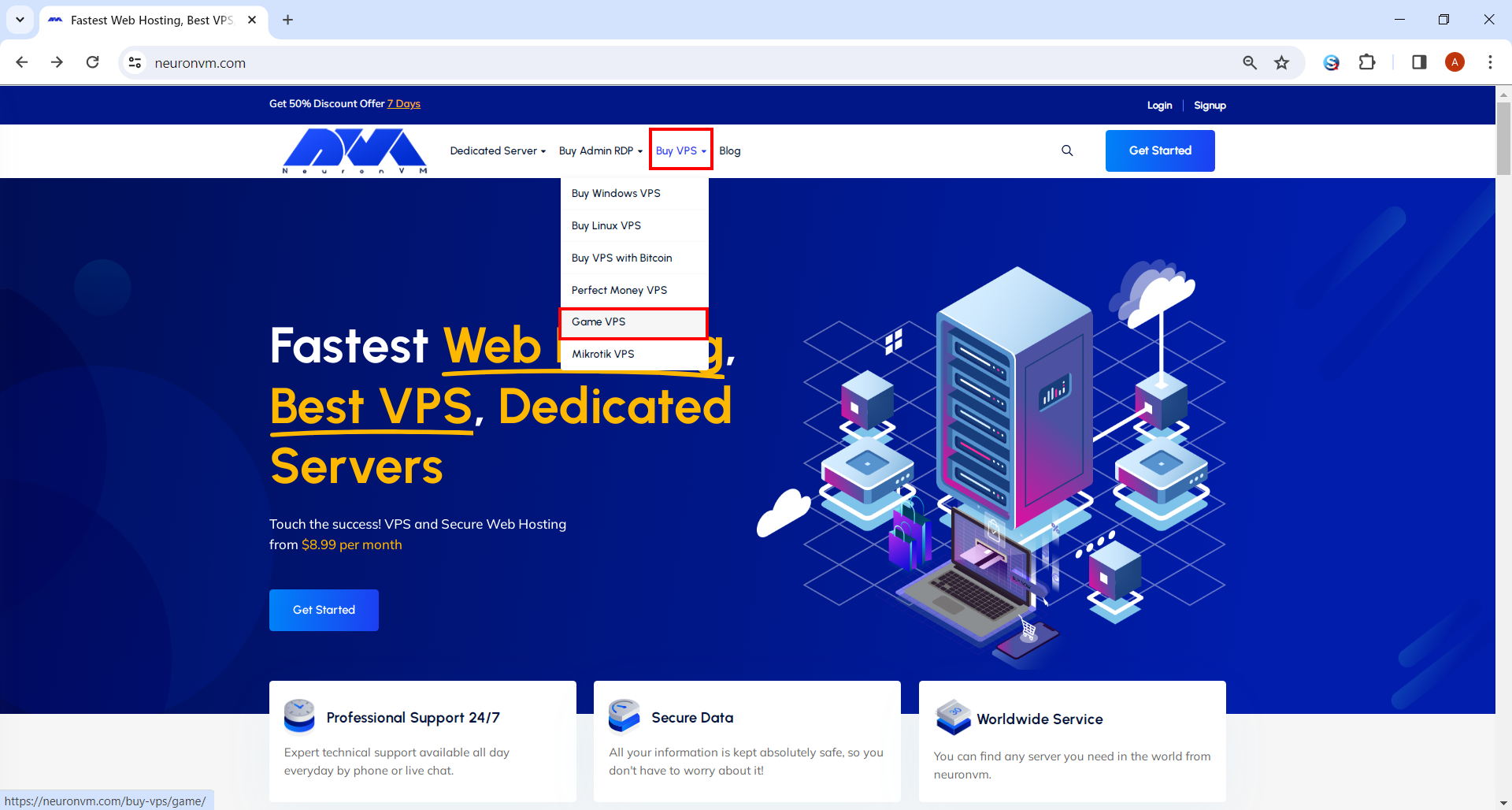
    How to Get Game VPS with Bitcoin

    Game VPS page in neuronvm
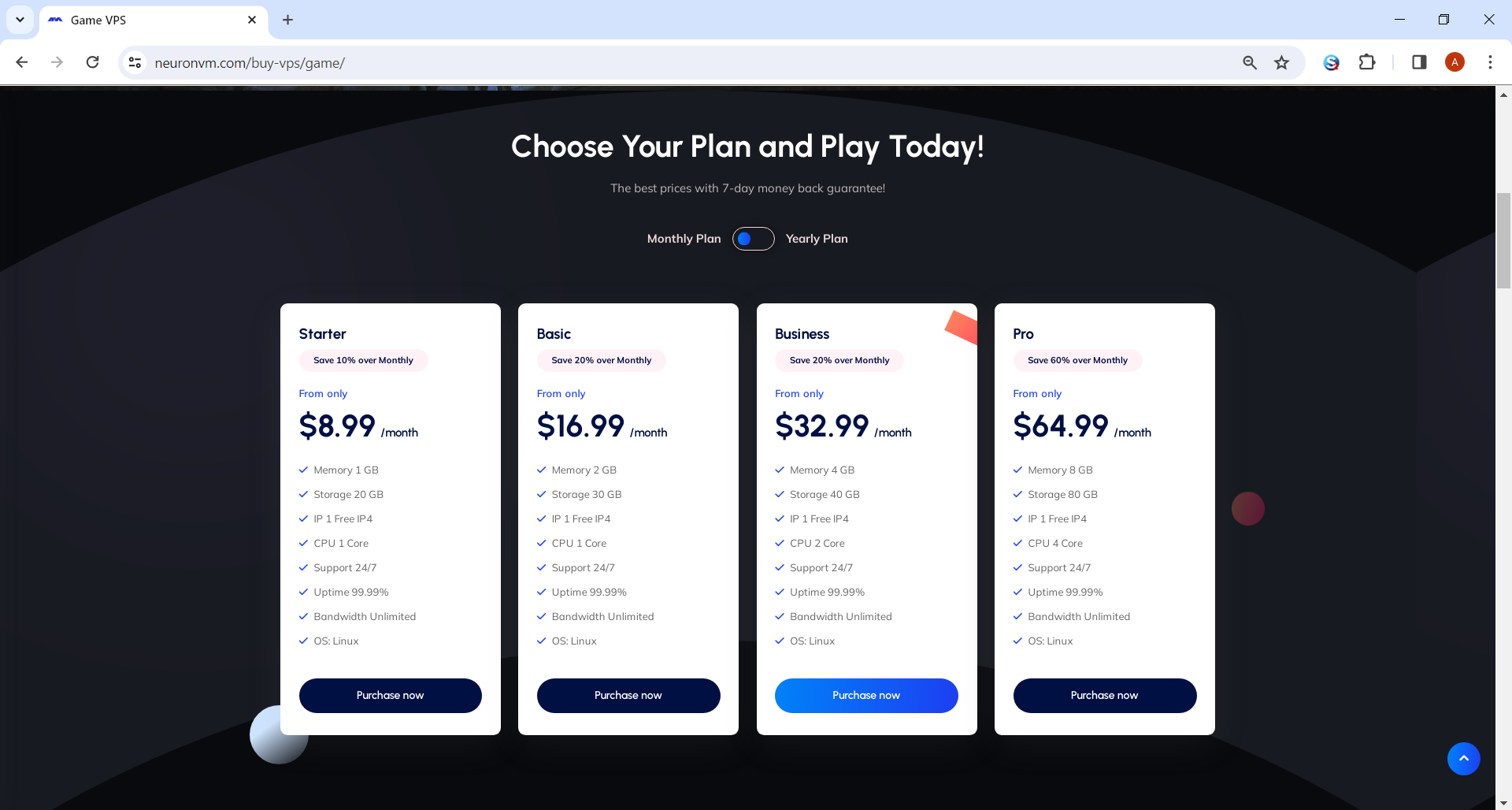
    • Choose the plan you need and click on Purchase Plan.
    Choosing game vps plan
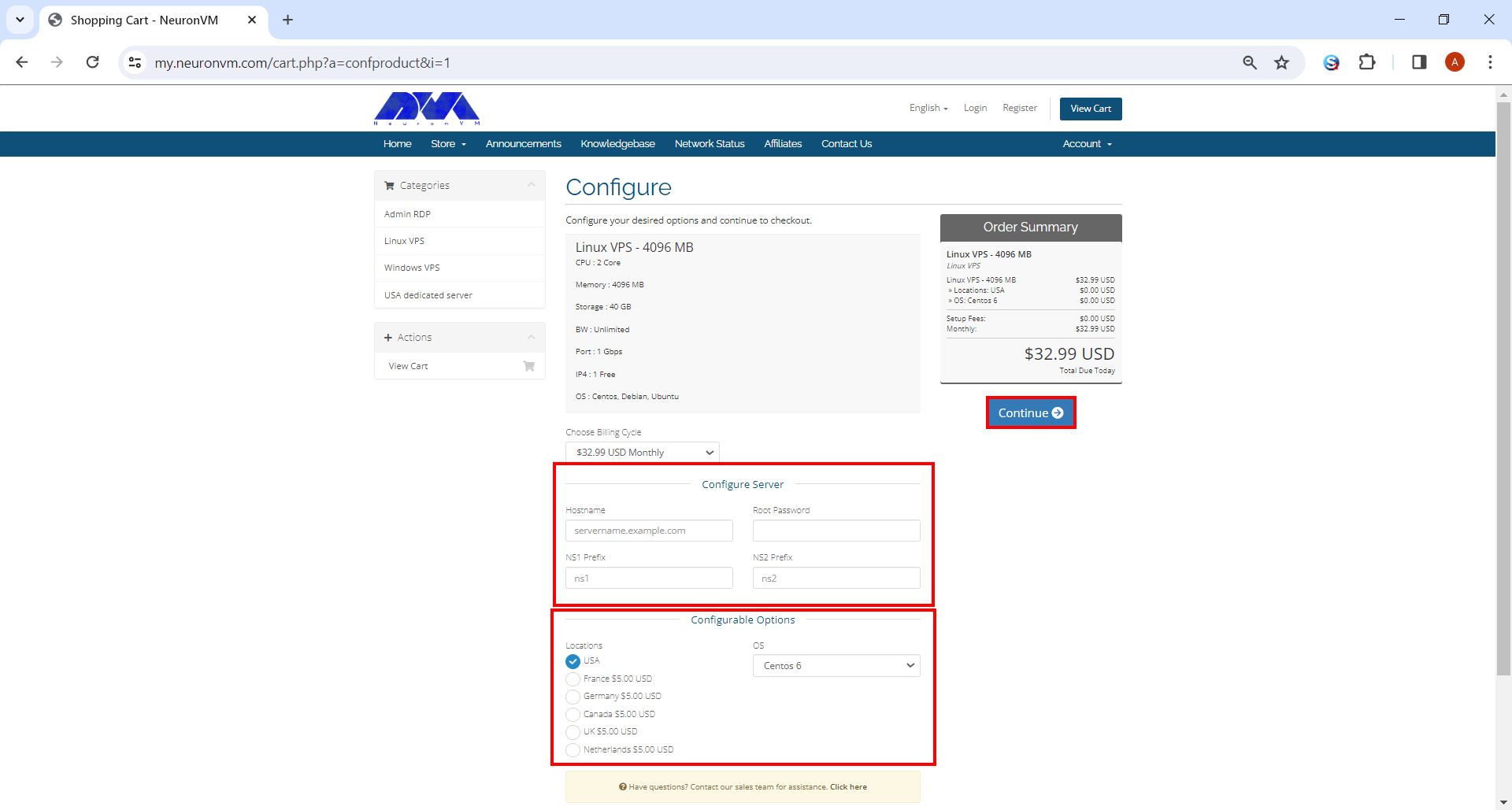
    • It will direct you to the page shown below. Under “Configure Server” section you should fill the boxes like Hostname, Root Password, NS1 and NS2 Prefix. You can also choose the OS and the location of your liking. When you’re done, click on Continue and proceed.
    Configure server to Buying Game VPS
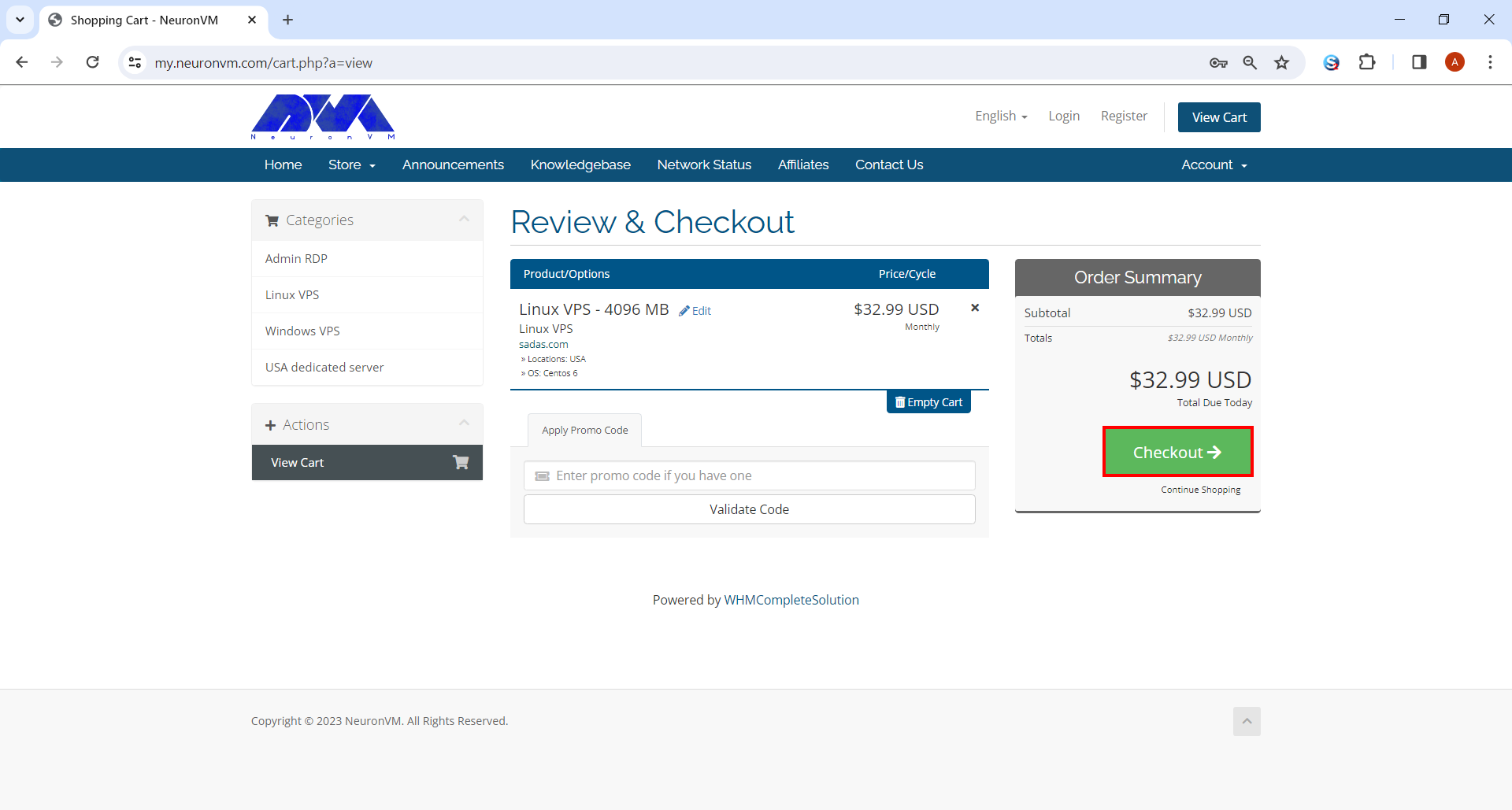
    • You’ll be landed on Review and Checkout pay where you can simply review the items in your shopping cart and enter a promo code to apply discounts. After you’re done, click on the Checkout button and proceed.
    Review and Checkout
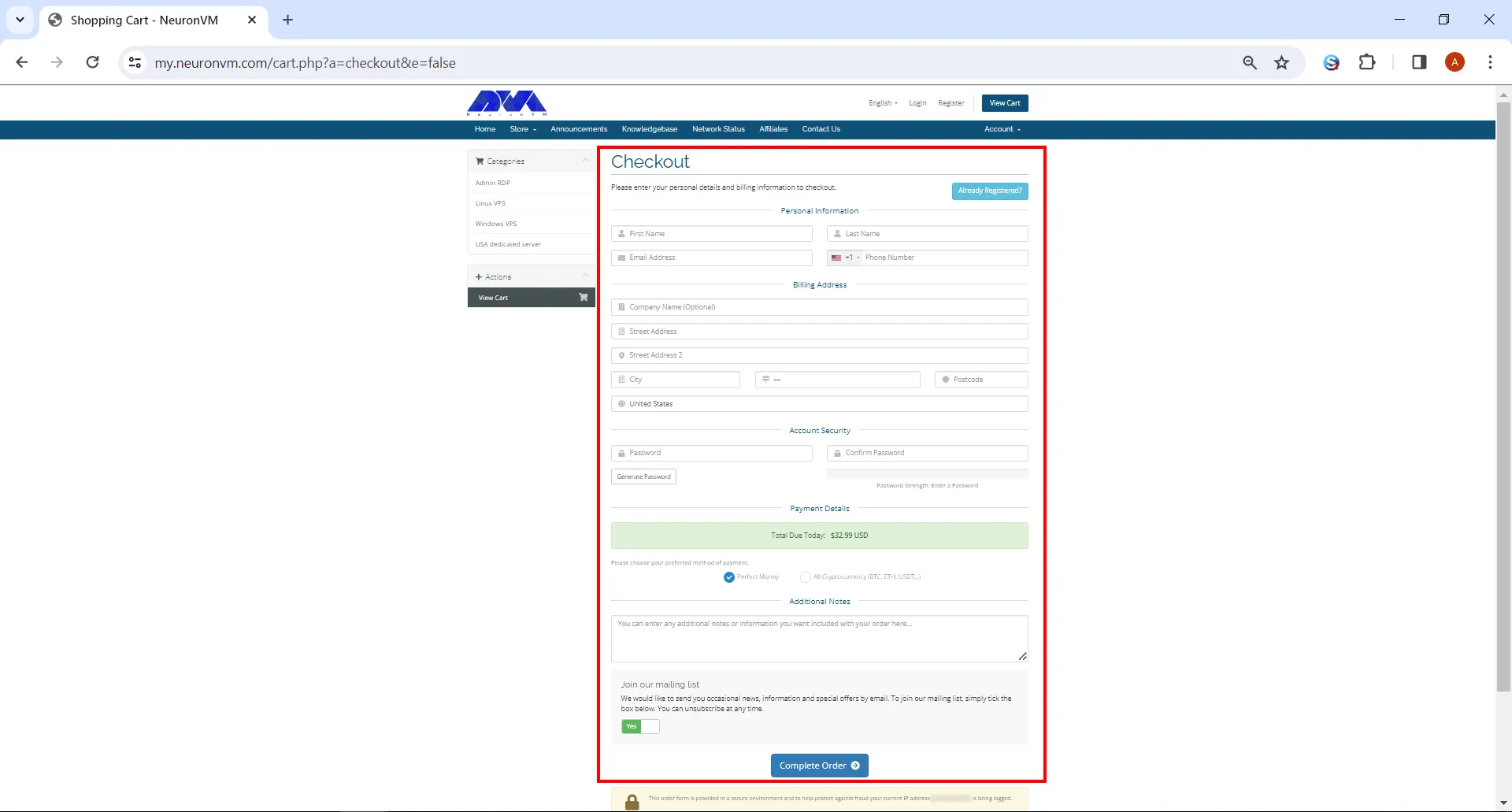
    • Fill out the form if you haven’t signed up before. After that you can choose your All Cryptocurrency and click on the Complete Order button down below.
    get game vps with bitcoin
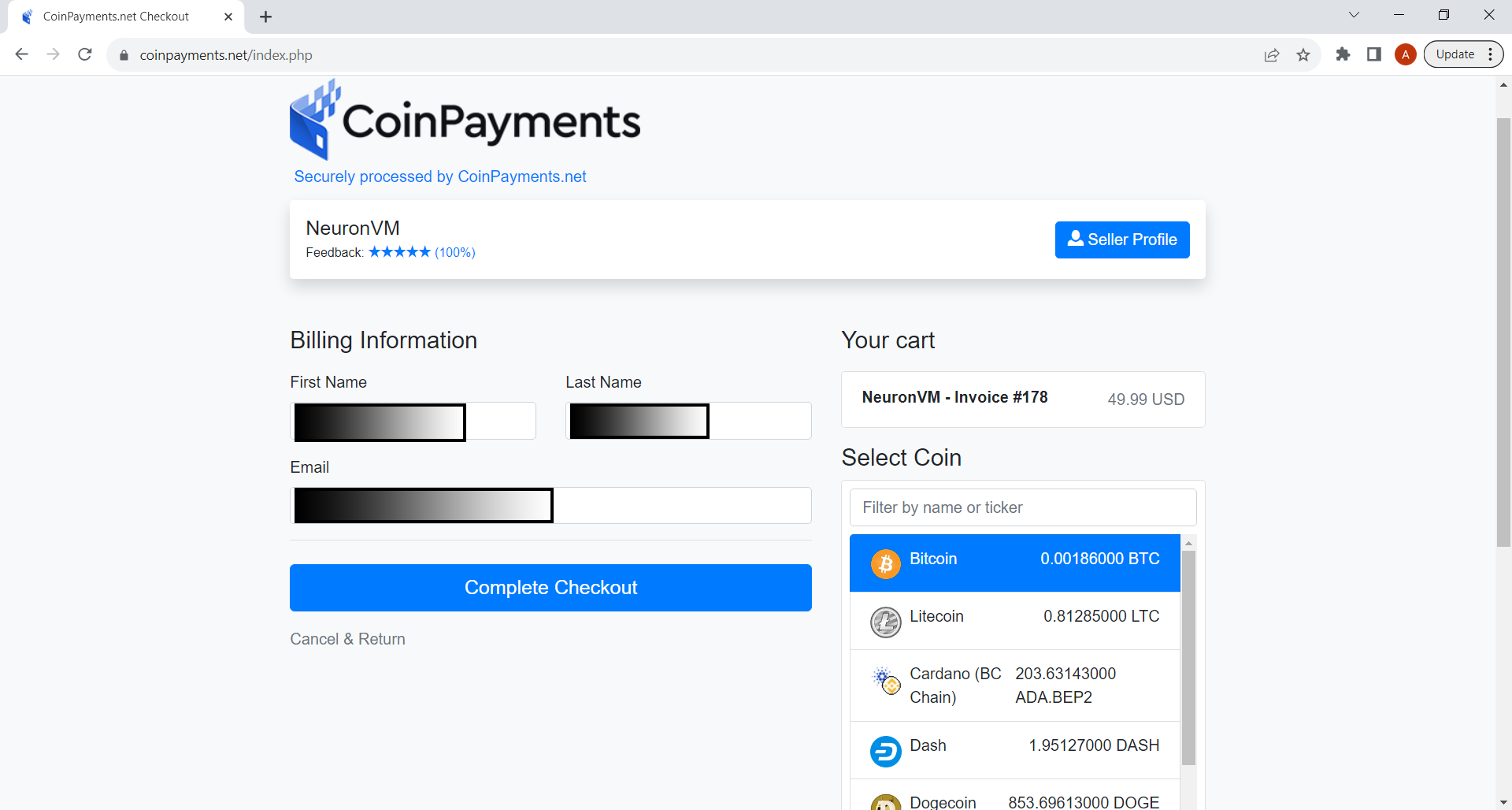
    • In the last section, you can choose Bitcoin as your preferred method of payment and finalize the purchase.
    Bitcoin Game VPS

    Final Words

    With its dedicated virtual environment, high-speed connections, and support for a vast array of games, Game VPS ensures an unparalleled gaming experience. Say goodbye to laggy servers and interruptions, and say hello to a world where you can fully immerse yourself in your favorite games. Bitcoin provides a convenient and secure payment method, allowing you to acquire your Game VPS hassle-free. Embrace the future of gaming today and get your Game VPS with Bitcoin. Your gaming adventures await!

  • The Future Is Now: Unveiling the Best Server Processor of 2024

    The Future Is Now: Unveiling the Best Server Processor of 2024

    In today’s rapidly evolving technological landscape, server processors have become the backbone of modern computing systems. These processors play a vital role in enabling the seamless functioning of various applications, from online platforms and cloud computing to data analytics and artificial intelligence. As we move toward the year 2024, an era marked by unprecedented advancements in computing power and efficiency, this article aims to delve into the future of server processors and unravel the Best Server Processor of 2024.

    We suggest you test and use the best server processors from among the dedicated server plans provided on our website.

    Current Landscape of Server Processors

    To understand the upcoming developments in server processors, it is essential first to grasp the current state of affairs. As of now, the market is dominating by a few key players, such as Intel and AMD. These companies continually strive to outperform each other in terms of processing power, energy efficiency, and scalability.

    However, the landscape could witness a significant shift in the coming years due to emerging technologies and evolving market demands.

    Emerging Technologies Shaping the Future of Server Processors

    A) Quantum Computing:

    Alongside traditional computing paradigms, quantum computing is poising to revolutionize server processors. Quantum processors, which utilize quantum bits (qubits) instead of classical bits, have the potential to solve highly complex problems exponentially faster.

    While currently in their infancy, quantum processors are projected to play a substantial role in data-intensive applications and advanced analytics by 2024.

    B) Neuromorphic Computing:

    Inspired by the human brain’s neural structure, neuromorphic computing aims to develop processors that can process information in parallel, mimicking the brain’s exceptional efficiency. Such processors have the potential to revolutionize machine learning, enabling faster and more accurate decision-making processes.

    With ongoing research and development efforts, neuromorphic computing could significantly impact the server processor landscape shortly.

    The Best Server Processor of 2024: A Breakdown

    A) Intel’s Xeon Family

    Intel has long been a dominant force in the server processor market, and it shows no signs of slowing down. The Xeon family is renowning for its excellent performance, scalability, and reliability.

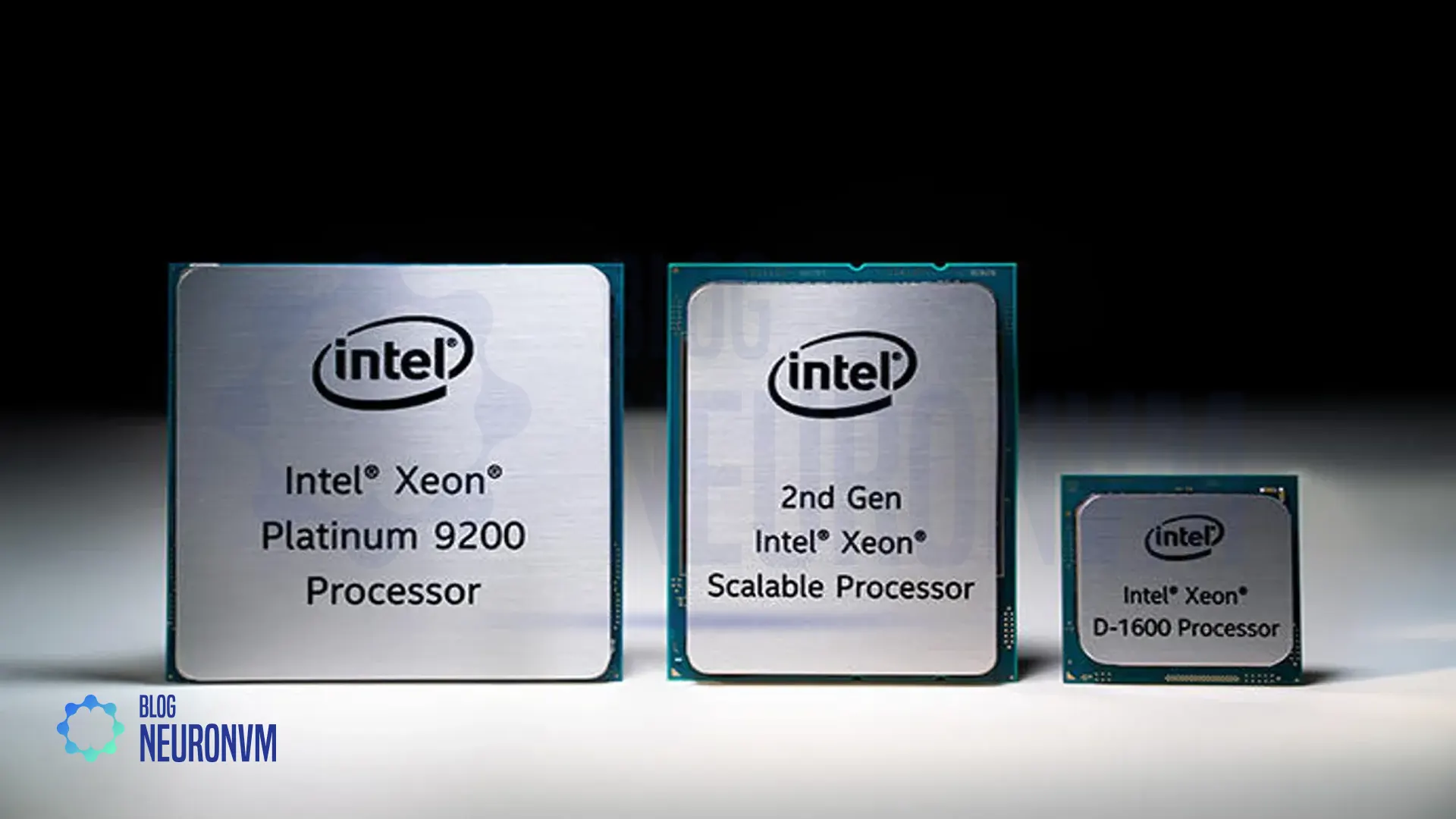
    Intel Xeon Family - Best Server Processor of 2024

    By 2024, Intel is expected to introduce the next generation of Xeon processors, boasting higher core counts, improved power efficiency, and advanced security features. These processors aim to cater to the increasing demands of cloud computing and data-intensive workloads.

    B) AMD’s EPYC Processors

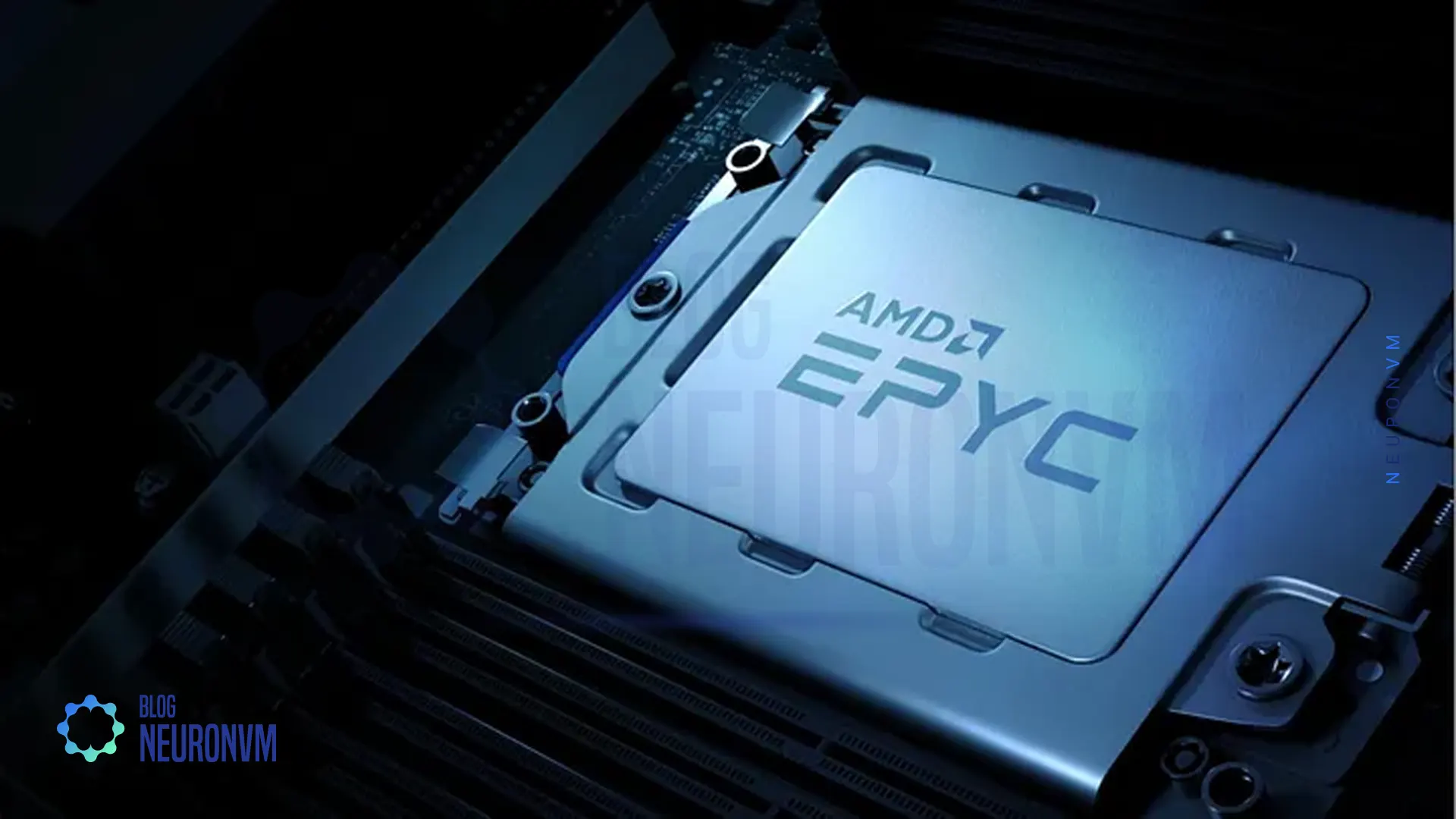
    AMD has also been making significant strides in the server processor realm, particularly with its EPYC series. With their innovative Chiplet architecture and extensive memory capacity, EPYC processors rival Intel’s offerings in terms of performance and cost-effectiveness.

    AMD's EPYC Processors - Best Server Processor of 2024

    Looking ahead, AMD is likely to continue its upward trajectory, launching enhanced EPYC processors with improved clock speeds, higher core counts, and enhanced security features to meet the evolving needs of server environments.

    C) ARM-Based Processors

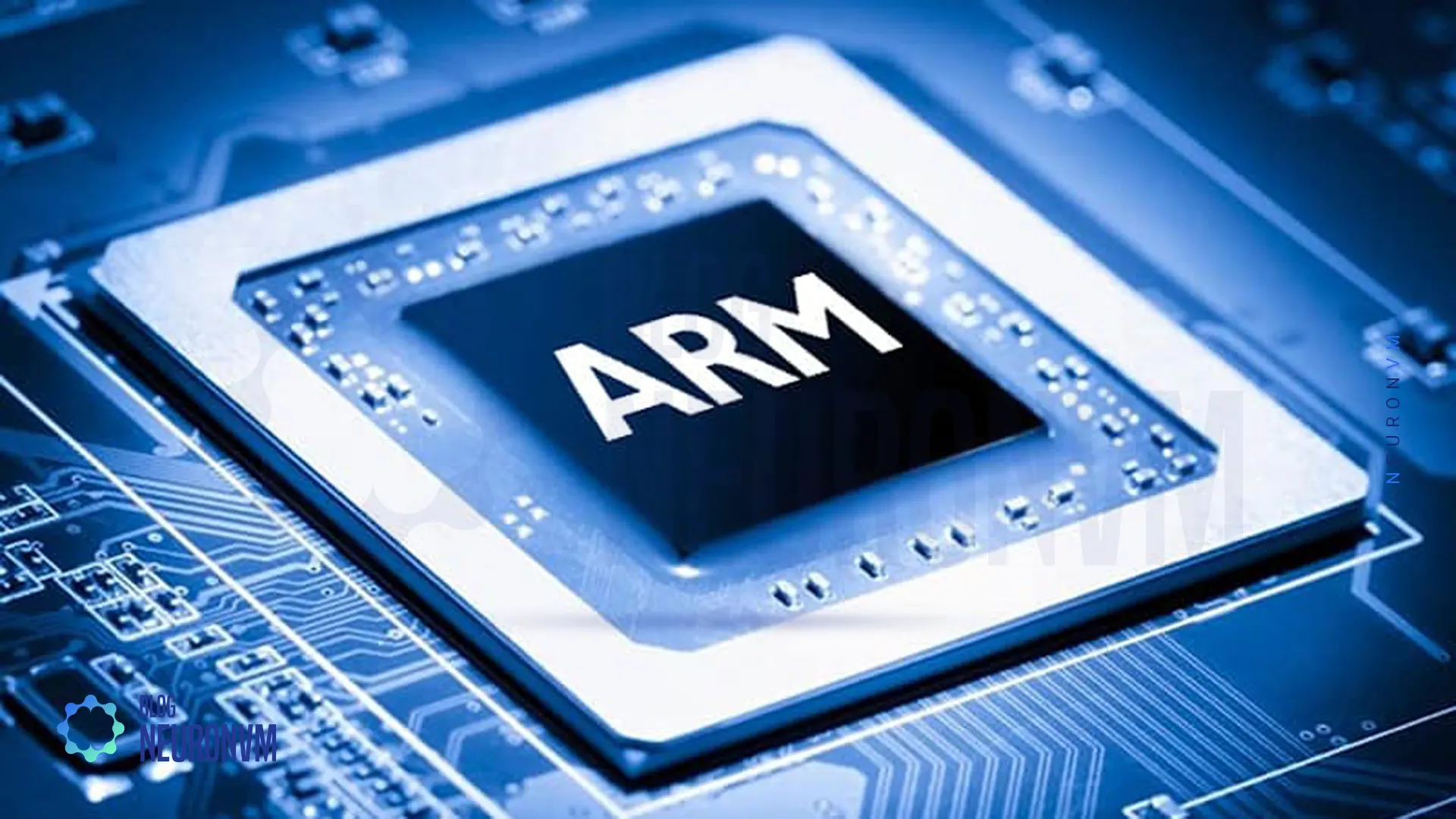
    In recent years, ARM-based processors have gained traction due to their energy efficiency and scalability. While traditionally associated with mobile devices, ARM processors are making their way into server environments as well. Companies like Amazon have already embraced ARM-based processors for their cloud services.

    ARM-Based Processors

    In 2024, ARM will take further steps in the server processor market and offer processors with advanced features and competitive performance.

    Comparison of Server Processors

    Processor ModelCoresBase Frequency (GHz)Max Boost Frequency (GHz)Cache (MB)TDP (W)
    Intel Xeon Platinum 8280282.704.0038.5300
    AMD EPYC 7742642.253.40256225
    Intel Xeon Gold 6258R282.704.0038.5205
    AMD EPYC 7452322.353.35128155
    Intel Xeon Silver 4214122.203.201685
    AMD EPYC 7302163.003.30128155
    Comparison of features of server processors

    Conclusion

    As technology advances at an unprecedented pace, the future of server processors in 2024 is brimming with possibilities. Quantum and neuromorphic computing will likely pave new paths for innovation, while industry titans like Intel, AMD, and ARM continue to push the boundaries of performance, energy efficiency, and security. The best server processor of 2024 is expected to be a testament to these advancements, offering unparalleled computing power and scalability. Whether it be Intel’s Xeon family, AMD’s EPYC processors, or ARM-based alternatives, the future is undeniably promising. As the demand for robust computing solutions continues to rise, the server processors of 2024 will play a pivotal role in shaping the digital landscape and driving innovation across various sectors.

  • The Power of Access: Harnessing SSH Remote Connection

    The Power of Access: Harnessing SSH Remote Connection

    SSH (Secure Shell) is a network protocol that allows secure remote access and control of computer systems. It provides a secure channel over an unsecured network, greatly enhancing the security of remote connections. SSH remote connection has become an essential tool for system administrators, developers, and network engineers, enabling them to manage and administer servers and devices remotely. This article will explore the power of SSH remote connection, its benefits, and how it can be harnessed effectively.

    We have a piece of special news for Linux users, and that is that if you want to buy a Linux VPS server, you can use quality plans with excellent performance and immediate delivery.

    Understanding SSH Remote Connection

    SSH remote connection is a cryptographic network protocol that enables secure access to remote systems. It also provides authentication, encryption, and integrity of data transmitted over the network.

    SSH operates on the client-server model, with client software initiating the connection to the remote server. It should be noted that SSH utilizes public-key cryptography to authenticate the client and establish a secure connection.

    Benefits of SSH Remote Connection

    – Enhanced Security: SSH encrypts all data, including passwords, preventing eavesdropping and unauthorized access.

    – Remote Administration: SSH allows system administrators to manage servers and devices remotely, reducing the need for physical access.

    – File Transfer: SSH provides secure file transfer capabilities, allowing users to securely transfer files between systems.

    – Tunneling: SSH facilitates the creation of secure tunnels, enabling secure access to services running on remote systems.

    Effective Harnessing of SSH Remote Connection

    A) Setting up SSH

    – Install SSH server software on the remote system, ensuring proper configuration and security practices.

    Generate SSH key pairs for clients to establish secure connections.

    – Disable password-based authentication and enforce key-based authentication for added security.

    B) Securely Accessing Remote Systems

    – Open an SSH client on the local system and connect to the remote server using its IP address or hostname.

    – Provide the necessary credentials (private key and passphrase) for authentication.

    – Once connected, the user gains access to the remote system’s command-line interface or can execute specific commands remotely.

    C) Advanced Usage

    – Utilize SSH port forwarding for securely accessing services or applications running on remote systems.

    – Employ SSH agent forwarding to enable authentication without storing private keys on intermediate systems.

    – Utilize SSH-based VPN (Virtual Private Network) for secure and encrypted communication between networks.

    How to Install SSH on Windows

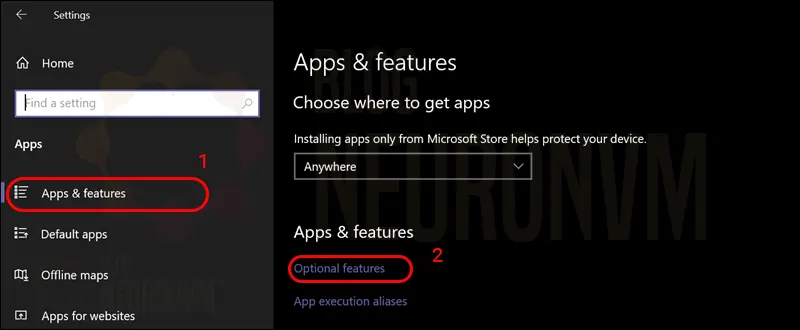
    To enable SSH in Windows, just follow the following path:

    – First, search for Settings and open it.

    – Then click on Apps & features in the left column.

    – On the right side, click Optional features:

    1 windows settings

    Now it’s time to click Add a feature:

    2 windows optional features

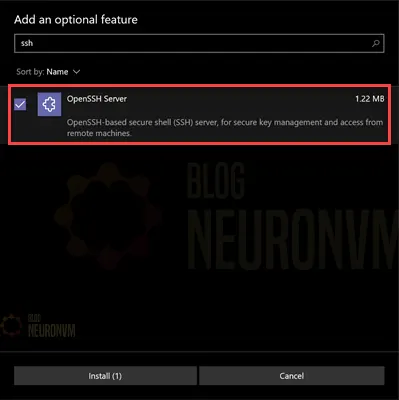
    Type OpenSSH in the search field and install it when it appears:

    3 openssh server optional feature windows

    How to Install SSH on Linux

    On Debian/Ubuntu:

    To install the OpenSSH client component in Ubuntu and Debian, you can run the following command:

    sudo apt install openssh-client

    On CentOS/Fedora:

    Also, to install the OpenSSH client component in CentOS and Fedora, you can run the following command:

    sudo dnf install openssh-clients
    sudo yum install openssh-clients

    On Debian/Ubuntu:

    To install the OpenSSH Server component in Ubuntu and Debian, you can run the following command:

    sudo apt install openssh-server

    On CentOS/Fedora:

    Also, to install the OpenSSH Server component in CentOS and Fedora, you can run the following command:

    sudo dnf install openssh-server
    sudo yum install openssh-server

    Finally, start and enable SSH by running the following commands:

    sudo systemctl start sshd
    sudo systemctl enable sshd

    Conclusion

    SH remote connection is a powerful tool that brings numerous benefits to individuals and organizations. It provides a secure means of accessing and managing remote systems, enhancing both convenience and security. By harnessing SSH effectively, users can administer servers, transfer files securely, and create encrypted tunnels for accessing services. When properly configured and employed, SSH remote connection becomes an indispensable asset for system administrators, developers, and network engineers, empowering them to perform their tasks efficiently and securely in today’s interconnected world.

  • The Ultimate Memory Showdown: Which Browser Use the Last Memory?

    The Ultimate Memory Showdown: Which Browser Use the Last Memory?

    Nowadays, our web browsers have become an integral part of our lives. Whether browsing the internet, accessing important information, or multitasking with multiple tabs, the efficiency of our browser’s memory usage can greatly affect our overall experience. With so many browser options available, it can be challenging to determine which is the best regarding memory usage. That’s precisely why we will delve into “The Ultimate Memory Showdown: Which browser uses the least memory?” In this comprehensive tutorial, we will explore various popular web browsers, analyze their memory usage, and provide you with insights to help you make an informed decision.

    If you want to use a Windows VPS server, we suggest you use the plans provided with immediate delivery. You can easily install any browser you want on these servers and use it without any problems.

    Understanding Memory Usage in Web Browsers

    To comprehend the memory usage of different web browsers, it’s crucial to understand the concept of memory allocation in computer systems. When a browser is launched, it allocates a certain amount of memory to perform its tasks efficiently. This memory includes RAM (Random Access Memory) and cache, among other resources. Each browser handles memory allocation differently, resulting in varying levels of efficiency and performance.

    Analyzing Popular Web Browsers

    web browsers memory use

    1) Google Chrome

    Google Chrome has gained unparalleled popularity due to its extensive features and user-friendly interface. However, this browser has often faced criticism for its high memory consumption. Chrome’s multi-process architecture, where each tab runs as a separate process, can lead to increased memory usage.

    Despite this downside, Google has been actively working on optimizing memory management to enhance performance and reduce memory footprint.

    2) Mozilla Firefox

    Firefox is a renowned open-source browser known for its privacy features and customizable options. Over the years, Mozilla has focused on improving memory usage and performance. With the introduction of “Project Quantum,” Firefox has adopted a more efficient multi-process architecture known as Electrolysis (E10s).

    This update helps distribute the browser’s workload, improving memory management.

    3) Microsoft Edge

    Microsoft Edge, the successor to Internet Explorer, has made significant strides in memory management. Built on the Chromium engine, Edge shares similarities with Google Chrome in terms of memory usage. However, Microsoft has implemented specific optimizations that prioritize memory efficiency.

    Edge’s Sleeping Tabs feature helps conserve memory by freezing inactive tabs, thereby reducing memory consumption while maintaining performance.

    4) Safari

    Safari, Apple’s proprietary browser, is known for its seamless integration with macOS and iOS devices. Apple has focused on optimizing Safari in terms of speed, energy efficiency, and memory management. Safari utilizes a process isolation feature called App Nap, which suspends background tabs and conserves memory. Additionally, Safari employs cutting-edge technologies like Intelligent Tracking Prevention (ITP) to enhance privacy while minimizing memory usage.

    Performance Comparison and Memory Benchmarks

    To evaluate the memory usage of different browsers, various benchmarks, and real-world tests are conducted. These tests measure factors such as memory consumption during idle usage, the number of tabs before noticeable slowdown, and memory release efficiency after closing tabs.

    Several independent organizations regularly assess browser performance and provide comparative data that aids in understanding memory usage patterns.

    Here is a table comparing memory usage in popular web browsers:

    Web BrowserMemory Usage (minimum*)Features
    Google Chrome350 – 500 MBTabbed browsing, extensions, Omnibox (address bar with search functionality), developer tools, etc.
    Mozilla Firefox300 – 400 MBTabbed browsing, add-ons, private browsing, integrated search bar, developer tools, etc.
    Apple Safari250 – 350 MBTabbed browsing, reader mode, integrated search bar, iCloud Keychain, developer tools, etc.
    Microsoft Edge350 – 450 MBTabbed browsing, collections, integrated PDF viewer, sidebar for quick access, developer tools, etc.
    Opera200 – 300 MBTabbed browsing, built-in ad blocker, VPN, messenger integration, sidebar panel, developer tools, etc.
    Memory usage of Web Browsers

    Apart from memory usage, it’s essential to consider other factors when choosing a browser. Factors like browsing speed, privacy and security features, compatibility, extensions, and user interface play a significant role in our browsing experience. Therefore, while memory usage is an important aspect, it should be assessed in conjunction with these other factors to make a well-rounded decision.

    Conclusion

    Choosing the best browser based on memory usage depends on individual preferences and requirements. Each browser discussed in this guide offers unique features and performance characteristics. Google Chrome, despite its relatively higher memory consumption, excels in its extensive range of extensions and services. Firefox, with its focus on privacy and customization, has made great strides in optimizing memory usage. Microsoft Edge, built on the Chromium foundation but enhanced with memory-efficient features, strikes a balance between performance and resource consumption. Safari, designed for Apple users, prioritizes memory efficiency and privacy. Therefore, by considering your specific needs, assessing memory benchmarks, and exploring additional features, you can make an informed decision and choose the browser that best suits your requirements.

  • The Battle of Firewalls: Hardware vs. Software

    The Battle of Firewalls: Hardware vs. Software

    In today’s technologically advanced world, ensuring cybersecurity is of utmost importance. Firewalls play a crucial role in protecting networks and systems from potential threats. However, a common dilemma faced by organizations is whether to opt for hardware or software firewalls. This comprehensive guide will provide an in-depth analysis of both approaches. Outlining their advantages, and disadvantages, and concluding with a comparison to assist in making an informed decision.

    If you are looking for a quality VPS, we suggest you use the Windows VPS plans provided on our website.

    A. Hardware Firewalls

    Hardware firewalls are dedicated devices that act as a barrier between an organization’s internal network and the external internet. Here are their key features:

    hardware firewalls

    Advantages of Hardware Firewalls

    – Enhanced Security: Hardware firewalls offer robust security capabilities, inspecting incoming and outgoing traffic at the network level, and protecting against various threats. Such as malware, DoS attacks, and unauthorized access.

    – Ease of Management: Hardware firewalls are relatively simpler to set up and manage. They provide a centralized control point for network security, making it convenient to implement and enforce security policies across multiple devices.

    – Performance: Hardware firewalls are designing to handle high volumes of network traffic. Their dedicated hardware allows for efficient packet filtering, resulting in minimal impact on network performance.

    Disadvantages of Hardware Firewalls

    – Cost: Hardware firewalls may require a significant initial investment, making them less affordable for small-scale organizations.

    – Limited Scalability: Upgrading or expanding hardware firewalls can be challenging, especially if the network architecture undergoes changes.

    – Maintenance and Updates: Often require firmware updates and periodic maintenance checks which could involve additional costs and time investment.

    B. Software Firewalls

    Software firewalls are applications that installing on individual devices, providing protection at the operating system or individual software level. Let’s explore their characteristics:

    software firewalls

    Advantages of Software Firewalls

    – Cost-effectiveness: Software firewalls are generally more affordable, as they can installed on existing devices without the need for dedicated hardware.

    – Flexibility and Customization: Software firewalls allow users to configure security settings based on individual needs, providing a higher degree of customization.

    – Mobility: Software firewalls can protect devices on the go, making them suitable for remote workers or individuals operating outside a typical network environment.

    If you intend to set up a software firewall on a dedicated server, we suggest you read How to Setup a Firewall on a Dedicated Server.

    Disadvantages of Software Firewalls

    – Performance Impact: As software firewalls operate on the device itself, they can potentially consume system resources and impact overall performance, especially on older or low-powered devices.

    – Device-Specific Protection: Software firewalls primarily safeguard the device they are installing on, leaving the network susceptible to threats from other devices.

    – Managing Multiple Instances: Organizations with numerous devices require manual installation and monitoring of software firewalls on each device, resulting in more administrative effort.

    Comparison of Hardware and Software Firewalls

    Here is a comparison between hardware and software firewalls:

    AspectHardware FirewallSoftware Firewall
    InstallationInstalled as a physical device or integrated into network devicesInstalled on individual computers or servers
    PerformanceHigher performance and throughput due to dedicated hardware resourcesMay consume system resources and impact overall performance
    ScalabilityCan handle a higher number of simultaneous connectionsSuitable for smaller networks or individual computers
    ConfigurationConfiguration through a web-based interface or command line interfaceConfiguration through a graphical user interface
    CostHigher upfront cost due to dedicated hardwareGenerally lower cost as it does not require dedicated hardware
    MaintenanceMinimal maintenance requiredSoftware updates and maintenance required
    SecurityOffers strong network-wide protectionProtects individual computers or servers
    Network CoverageProtects the entire networkLimited to protecting individual devices
    Hardware Firewalls vs. Software Firewalls

    Conclusion

    Choosing between hardware and software firewalls depends on the specific needs and resources of an organization. Hardware firewalls provide robust security, centralized management, and better performance at the cost of initial investment. Software firewalls offer greater flexibility, customization, and cost-effectiveness, but may burden individual devices and require manual management. It is crucial to carefully weigh the advantages and disadvantages outlined in this guide while considering factors such as budget, network architecture, and scalability requirements to make an informed decision about the most suitable firewall solution for an organization’s cybersecurity needs.