Tag: Linux Tutorials

  • How to Manage JSON Data with PostgreSQL

    How to Manage JSON Data with PostgreSQL

    Want to know the way to manage JSON data with PostgreSQL? Read this article to have a full understanding of this issue. I believe that most people don’t use it correctly, and it causes problems and unhappiness in the long run. So, first of all, we will explain PostgreSQL and JSON data briefly and then go on with the rest of this article.

    Brief Explanation of PostgreSQL JSON Data Type

    We have another data type in PostgreSQL, which is called JSON data and stands for Javascript Object Notation. JSON data is a user-friendly data format for users who are willing to transfer data in a network at high-speed. JSON replaces XML in various fields rapidly. Also, nowadays, developers enhance their software capability by pairing their application’s JSON data with PostgreSQL to reach a query processing environment.

    In other words, the main purpose and role of JSON is transporting data between a server and a web application. JSON has a human-readable format. Since, version 9.2, PostgreSQL supports native JSON data and provides a lot of functions and operators to control JSON data.

    Manage JSON Data With PostgreSQL

    Now that you have a clear understanding of this issue, let’s go further and learn the way to manage JSON data step by step with PostgreSQL. We suggest that you visit the Linux VPS server plans provided on our website before starting the process of Managing JSON Data with PostgreSQL.

    How to Create a New Table to Practice JSON Data Type

    – In the first step, let’s create a new table to practice JSON data type:

    CREATE TABLE orders (
    id serial NOT NULL PRIMARY KEY,
    info json NOT NULL
    );

    As you see above, our orders table includes 2 columns:

    1- The id column is the primary key column that identifies the order.

    2- The info column saves the data in the form of JSON data type.

    How to Insert JSON Data after Creating a Table

    – The next step is to insert JSON data after creating a table.

    Now that you have created a PostgreSQL table, to insert data, you have to make sure that data is in a valid format. So, apply the following Insert statement and then put a new row into your order table, as we do here:

    INSERT INTO orders (info)
    VALUES('{ "customer": "Terri Person", "items": {"product": "coffee","qty": 6}}');

    The above command represents that our customer, Terri Person bought 6 cups of coffee. Now, use the below command to insert multiple rows at the same time in your table:

    INSERT INTO orders (info)
    VALUES('{ "customer": "Linda Evanty", "items": {"product": "Toy Car","qty": 24}}'),
    ('{ "customer": "Will Path", "items": {"product": "Teddy bear","qty": 1}}'),
    ('{ "customer": "Jannson Miller", "items": {"product": "Doll","qty": 2}}');

    Querying JSON Data

    – The last step is to query JSON data. Finally, if you want to query the JSON data, you should use the select statement and present your data in a manner similar to other native data types. So, use the below command:

    SELECT info FROM orders;

    Now, you will see that PostgreSQL converts a result set in the form of JSON.

    Key Operators of PostgreSQL to Get the JSON Data

    PostgreSQL JSON provides several operators to manipulate your data in a useful way. Some of the operators that are useful for inserting JSON data in PostgreSQL are as follows:

    -> operator: This operator helps to return the JSON object field by key.

    ->> operator: This operator helps to return the JSON object field by text.

    e.g: In the following query, the -> operator is used to get all customers in the form of JSON:

    SELECT info -> 'customer' AS customer
    FROM orders;

    e.g For this query, the ->> operator is used to get all customers in the form of text:

    SELECT info ->> 'customer' AS customer
    FROM orders;

    At this point, you can chain operator -> with operator ->> to retrieve a specific node.

    e.g, the following statement returns all products sold:

    SELECT info -> 'items' ->> 'product' as product
    FROM orders
    ORDER BY product;

    As the last part, use the JSON operator in the Where clause:

    To filter the returning rows, you can use JSON operators in the WHERE clause.

    For example, to figure out who bought the Toy Car, you should use the following query:

    SELECT info ->> 'customer' AS customer
    FROM orders
    WHERE info -> 'items' ->> 'product' = 'Toy Car';

    If you want to know who bought 2 products at the same time, you should use the query below:

    SELECT info ->> 'customer' AS customer,
    info -> 'items' ->> 'product' AS product
    FROM orders
    WHERE CAST ( info -> 'items' ->> 'qty' AS INTEGER) = 2

    Conclusion

    Well, Done! In this article, we tried to show how you can manage JSON data with PostgreSQL, and you learned how to use operators to process JSON data efficiently. Now, you can easily use this data and manage it.


  • Tutorial Install and enable OpenSSH on Ubuntu 22.04

    Tutorial Install and enable OpenSSH on Ubuntu 22.04

    OpenSSH is the premier connection tool for remote login with SSH protocol. If you follow us until the end of this article, you will learn the steps to install and enable OpenSSH on Ubuntu 22.04.

    Introduction To OpenSSH

    OpenSSH encrypts all traffic and eliminates eavesdropping, hijacking, and other attacks. It also provides a large set of secure tunneling capabilities, multiple authentication methods, and sophisticated configuration options. The OpenSSH suite consists of remote operation tools using ssh, scp, and sftp. It also includes key management with ssh-add, ssh-keysign, ssh-keyscan and ssh-keygen.

    Prerequisites

    First, before starting the OpenSSH installation process, you should have a Linux VPS with Ubuntu 22.04. Then, open Ubuntu 22.04 terminal by pressing CTRL+ALT+T then confirm that your system is updated.

    How to Install OpenSSH on Ubuntu 22.04

    Use the following command to update the repository list:

    sudo apt update
    sudo apt upgrade

    Now install the SSH Server package using the following apt command:

    sudo apt install openssh-server
    sudo apt install openssh-client

    How To Enable OpenSSH on Ubuntu 22.04

    At this point, the SSH server service should start automatically, check the status of the SSH server service by running the following commands:

    sudo systemctl start ssh
    sudo systemctl enable ssh

    Now in this step confirm that OpenSSH is working correctly and there are no problems with the help of the following systemctl command:

    sudo systemctl status ssh

    How To Connect SSH Server on Ubuntu 22.04

    After the installation of OpenSSH is complete, once it is in working mode, now connect to another remote system, computer, or server. However, you must ensure that OpenSSH is installed and enabled on the remote system. Before connecting to the server, have the internal/external IP address or hostname or username of the account you want to connect. Then run the following command:

    ssh username@ip-address/hostname

    How To Disable OpenSSH on Ubuntu 22.04

    If you don’t want to use OpenSSH, use the following command to disable it for security purposes so that you don’t get detected by malicious bots:

    sudo systemctl disable ssh –now

    Conclusion

    In this article, you have learned how to Install and enable OpenSSH on Ubuntu 22.04. Now after enabling OpenSSH, you can connect to other devices that have OpenSSH installed and enabled on their systems. We hope this educational article was useful for you. Share your comments with us through the form below.

  • Tutorial Setup and Use Linux Telnet on Ubuntu 22.04

    Tutorial Setup and Use Linux Telnet on Ubuntu 22.04

    Linux telnet is used to communicate between different machines. This command allows you to manage remote devices using the CLI (Command Line Interface). Use TCP port 23, which is dedicated to the telnet protocol. In the continuation of this article, we are going to teach you how to Setup and Use Linux Telnet on Ubuntu 22.04.

    Introduction to Telnet

    Telnet is installed in isolated networks for historical purposes and for use in local environments. Telnet is not used for open network connections to the Internet because data is sent over the connection, including information such as passwords and other confidential information that is not encrypted. So the data can be easily intercepted by hackers. Use SSH (Secure Shell) to securely connect to remote servers over public networks.

    Prerequisites

    1. Recommended a Linux VPS Server with Ubuntu 22.04 OS

    2. User account with sudo or root access

    How To Setup Linux Telnet on Ubuntu 22.04

    Ubuntu 22.04 repository Telnet is available by default. As the first step, use the following command to install it:

    sudo apt install telnetd -y

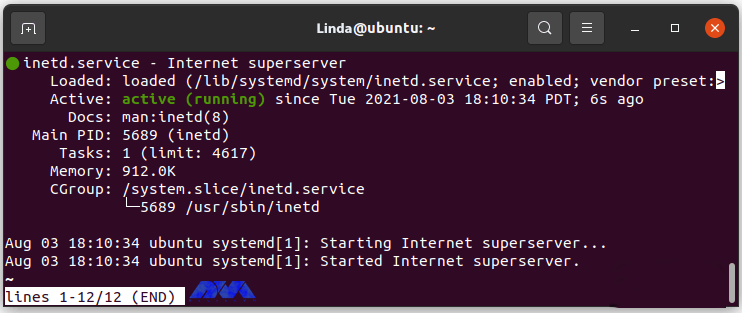
    After installation, check if the Telnet status works correctly with the following command:

    sudo systemctl status inetd

    Output

    system-status-telnet-ubuntu

    How to Use Linux Telnet on Ubuntu 22.04

    In this section, we are going to show you step-by-step how to use Linux Telnet on Ubuntu 22.04. In the first step, we will teach you how to connect to a remote system running Telnet.

    To connect to a remote system running Telnet, you must set a permission rule. By default, Telnet runs on port 23. There are several ways to regulate the UFW. It is recommended that you provide the connecting IP server only if the subnet is much worse. Do not leave port 23 open for everything, and this will lead to brute force efforts.

    The rule for single IP using the following command:

    sudo ufw allow from your_ip_address to any port 23

    Allow from the subnet using the following command:

    sudo ufw allow from your_ip_address to any port 23

    How to Connect to the Remote Server Using Telnet

    Now that you have set the UFW rules so that you can connect to the remote server using Telnet, use the following command (telnet):

    telnet your_ip_address

    How to Uninstall Telnet from Ubuntu 22.04

    Use the following command to remove Telnet from Ubuntu 22.04 operating system:

    sudo apt autoremove telnetd --purge

    This command completely removes Telnet and traces.

    Conclusion

    In general, the safest form of communication of this nature is to use SSH instead of Telnet. Development environments running on isolated Telnet LANs can be more useful. In this tutorial, you learned how to Setup and Use Linux Telnet on Ubuntu 22.04. We hope you find this article useful. Share your comments with us via the form below.

    FAQ

    Is it possible to customize the Telnet setting?

    Yes, you can customize various settings in Telnet. All you have to do is to the command prompt by entering ctrl+], and then use the commands to change the setting.

    Can we trust Telnet?

    Telnet is insecure because it transmits important data like passwords in plain text. It means that all ao the transmitted data can be intercepted and read by someone with malicious intent.

  • How to Install Virtualizor on AlmaLinux 8

    How to Install Virtualizor on AlmaLinux 8

    By reading the step-by-step guide of this article, you can easily Install Virtualizor on AlmaLinux 8. Virtualization is a creative and very practical idea and solution to create a virtual version of storage devices, servers, networks, and other resources that were once only physically available to users. You can virtualize with Virtualizor.

    What is Virtualizor?

    Virtualizor is a powerful web-based admin control panel for KVM, XEN, and OpenVZ virtualizers. This control panel forms a very powerful virtualization system by combining the virtualizers. One of the most important features of this powerful panel is the limitation of bandwidth for each virtual server.

    Virtualizor lets you create virtual servers with just one click. Virtualizor uses the OS Template feature and through this option, installing operating systems and creating a virtual server is done in less than a few seconds.

    Features of Virtualizor

    1. Configure the Server on which Virtualizor is installed

    2. Create or edit a Virtual Server

    3. Manage Server IPs

    4. Storage management

    5. User management

    6. Create and manage invoices

    7. Manage ISO or manages to create VPS

    Prerequisites

    Linux VPS Server with AlmaLinux 8 OS

    – yum/apt-get

    – Storage to create the VPS disks

    Stay with us in the continuation of this article on How to Install Virtualizor on AlmaLinux 8.

    How to Install Virtualizor on AlmaLinux 8

    At first, you should open the Shell and SSH Terminals on your server and enter the following commands:

    wget -N http://files.virtualizor.com/install.sh
    chmod 0755 install.sh
    ./install.sh [email protected] kernel-kvm

    Remember to give the email address correctly.

    What are the Virtualizor Installation Parameters?

    email: The Admin email address

    kernel: Its KVM

    noos: Add noos=true as a parameter to avoid downloading the DomU operating system for DomU

    beta: If you add beta=true as a parameter, you can test the new version of the existing Virtualizor

    nested_virt: Adding nested_virt=1 as a parameter enables nested virtualization on the server. Enabling this will install a new kernel to enable nested virtualization

    Ivg (optional): If you are going to use LVM for the VPS storage

    interface: You can specify the default interface you want to set. If not specified, it is considered eth0

    license: You will get the internal license key, by opening the support ticket

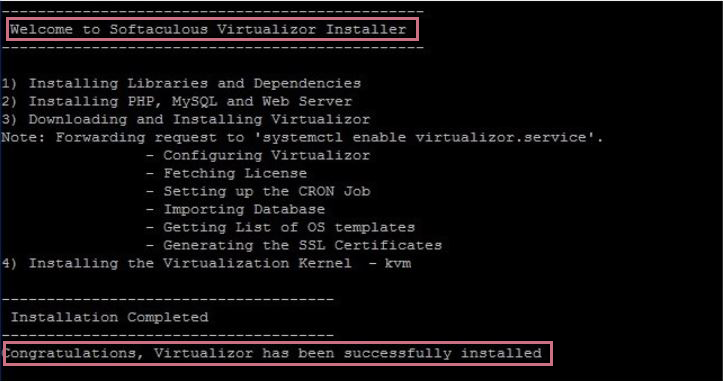
    After completing the installation process, you will see the following output:

    install Virtualizor on AlmaLinux

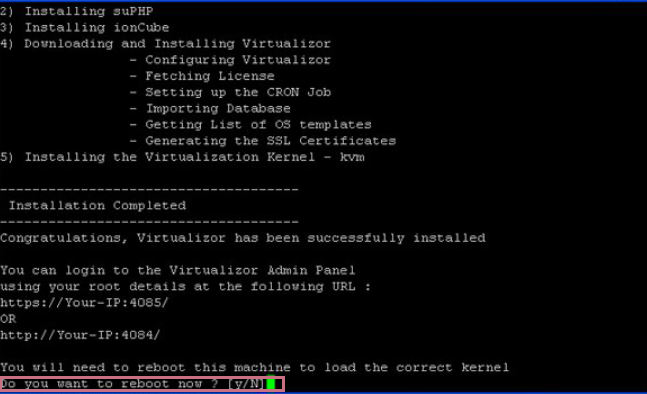
    After the installation is complete, restart the system by typing and running “Y“:

    install KVM

    /root/virtualizor.log is an installation process log file that is created after installation.

    You can create a Storage and Virtual Server and also manage your server from the Admin Panel.

    How to Login to the Virtualizor Admin Panel

    Go to the following URL:

    https://Your-Server-IP:4085/
    http://Your-Server-IP:4084/

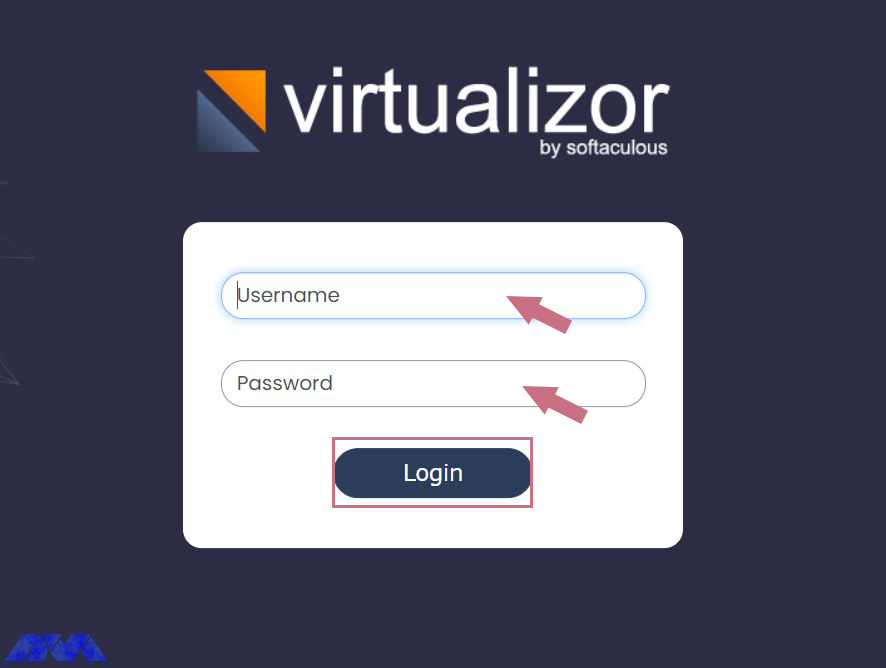
    Log in with your server’s root details:

    virtualizor login

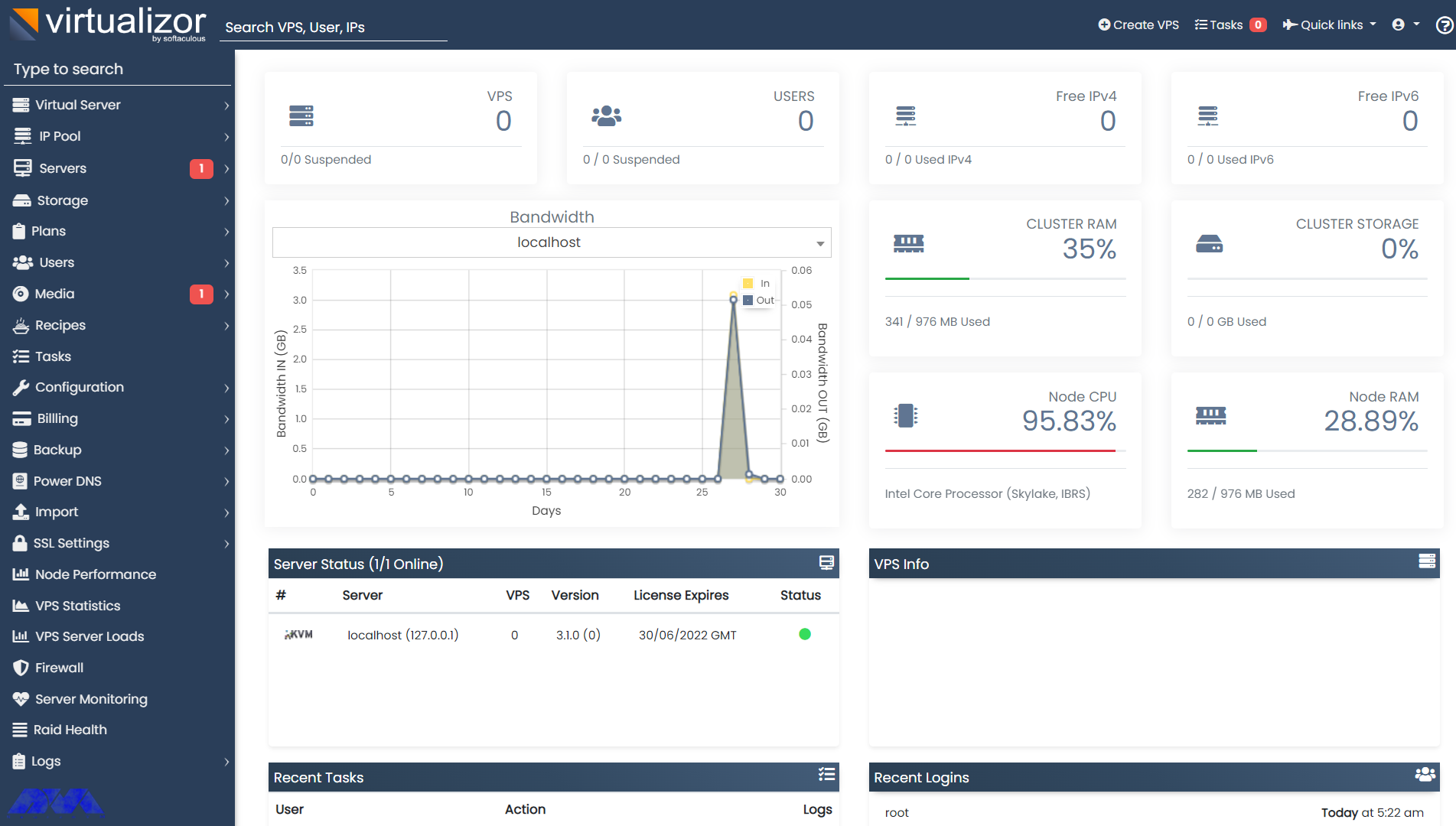
    Now, you will see the following Dashboard:

    virtualizor dashboard

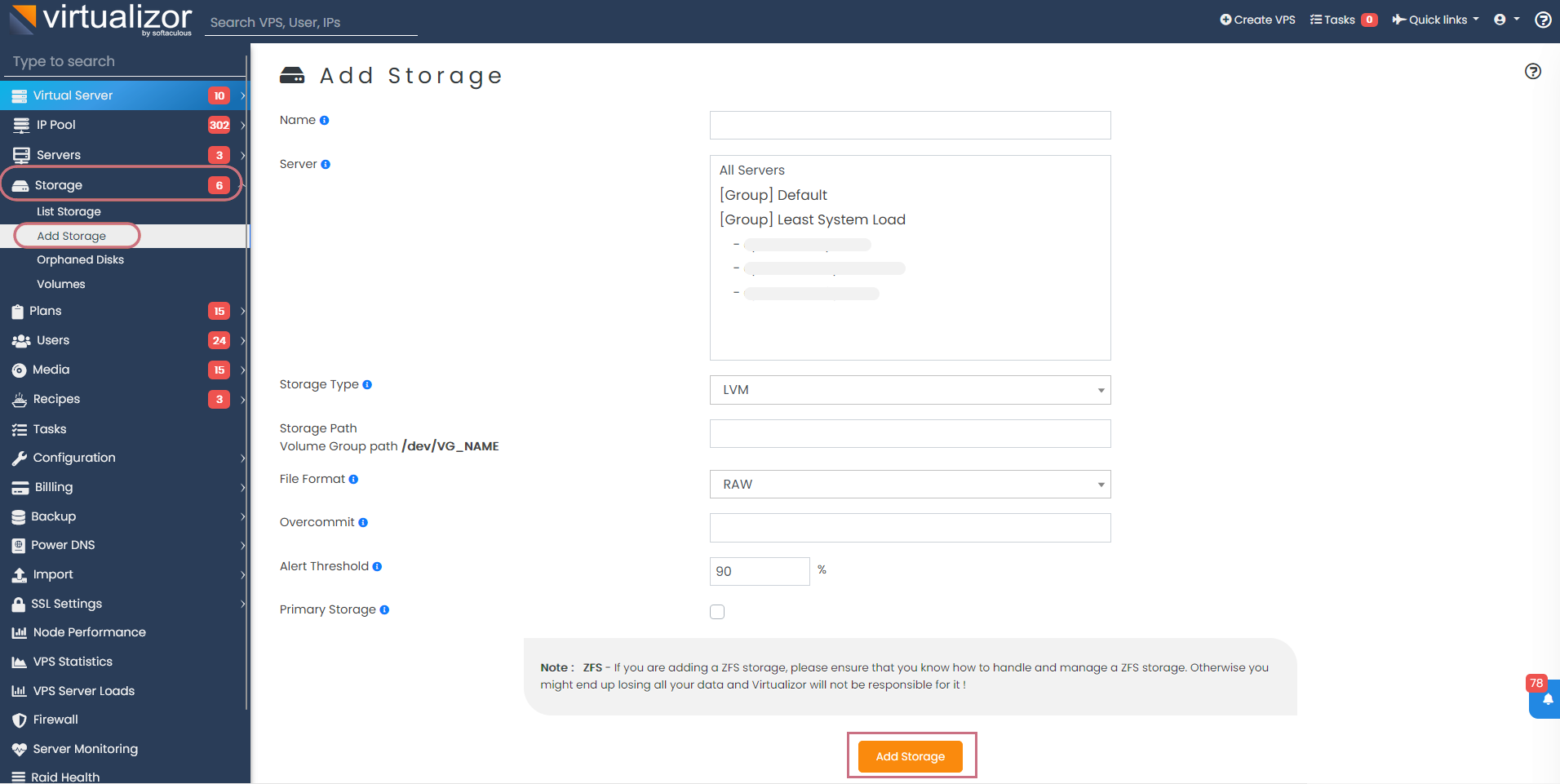
    At this point, you need to define storage. To do this first, go to the Virtualizor Admin Panel and select Storage from the left column, and finally click Add Storage. Then fill in the details and define the storage:

    add storage on virtualizor

    As mentioned earlier, the network interface is considered eth0 by default. Therefore, to add the desired network interface to Virtualizor, you need to do the following steps:

    1) Go to Virtualizor Admin Panel

    2) Select Configuration

    3) Click Save Settings

    Manage the Bridge 

    A viifbr0 bridge is created by Virtualizor that detects the IP, Netmask, and GATEWAY from the following:

    /etc/sysconfig/network-scripts/ifcfg-INTERFACE_NAME

    If you change the above file, remember to restart the Virtualizor network with the following command:

    service virtnetwork restart

    Enter the following command to start Virtualizor:

    service virtnetwork start

    And you can use the following command to stop Virtualizor:

    service virtnetwork stop

    You can Make the bridge permanent

    Run the following commands to make the bridge permanent, so that, it can be started as soon as the operating system is booted, and the network is created.

    Tip: You should have the bridge-utils package on your server backup ifcfg-eth0.

    – Take a Backup from ifcfg-eth0.

    /etc/sysconfig/network-scripts/ifcfg-eth0 directory will contains the content below:

    cat /etc/sysconfig/network-scripts/ifcfg-eth0
    DEVICE=eth0
    BOOTPROTO=static
    TYPE=Ethernet
    HWADDR=00:25:90:98:35:90
    IPADDR=10.0.0.93
    NETMASK=255.255.255.0
    GATEWAY=10.0.0.1
    IPV6INIT=yes
    IPV6ADDR=2607:f0d0:1002:0011:0000:0000:0000:0002
    IPV6_DEFAULTGW=2607:f0d0:1002:0011:0000:0000:0000:0001
    ONBOOT=yes

    Then you should make a copy of that directory:

    cp /etc/sysconfig/network-scripts/ifcfg-eth0 /etc/sysconfig/network-scripts/ifcfg-eth0.bak

    Now, it is time to create the bridge file. This is the directory:

    vi /etc/sysconfig/network-scripts/ifcfg-viifbr0

    You should copy some sections of ifcfg-eth0 to ifcfg-viifbr0. Here is the content:

    DEVICE=viifbr0 
    TYPE=Bridge
    BOOTPROTO=static
    IPADDR=10.0.0.93
    NETMASK=255.255.255.0
    GATEWAY=10.0.0.1
    ONBOOT=yes
    IPV6INIT=yes
    IPV6ADDR=2607:f0d0:1002:0011:0000:0000:0000:0002
    IPV6_DEFAULTGW=2607:f0d0:1002:0011:0000:0000:0000:0001

    Then you should save the copied file.

    To edit the ifcfg-eth0 file, go through this way:

    vi /etc/sysconfig/network-scripts/ifcfg-eth0

    The result would be like this:

    DEVICE=eth0
    HWADDR=00:25:90:98:35:90
    IPV6INIT=yes
    ONBOOT=yes
    BRIDGE=viifbr0

    Tip: If the eth0 is the NIC name, then you should change the interface name in that route file to viifbr0:

    root# mv route6-eth0 route6-viifbr0

    As the last step, you should restart the network.

    We should mention that virtnetwork is out of work now and you should restart only with the network, so use the command below:

    service network restart

    Conclusion

    This article taught you how to install Virtualizor on AlmaLinux 8 and also you learned how to log in to the Virtualizor Admin Panel. Users can manage VPS on dedicated servers with the help of Virtualizor. I hope this tutorial was useful for you.

    FAQ

    Is virtulizor suitable for AlmaLinux?

    Yes, you can install virtulizor for this operating system. It is proper for Linux distributions, including AlmaLinux.

    What is the maximum RAM and CPU for Virtualzor?

    At least, you should dedicate 4 GB RAM and 64-bit CPU for using virtualizor. (8 GB is recommended)

  • Tutorial Install RainLoop on Debian 11

    Tutorial Install RainLoop on Debian 11

    RainLoop is a webmail application that allows you to access your external mail server from a web server. This article is presented to show How to Install RainLoop on Debian 11. Rainlop is an alternative program to web email programs like Squirrelmail and Roundcube and supports two-step authentication, so it’s highly secure.   

    What is RainLoop?

    RainLoop is a free, web-based, open-source, and web-based email application written in PHP and is an alternative to other web-based email applications such as RoundCube and SquirrelMail. RainLoop is a simple, modern solution, powerful and flexible. It is interesting to know that RainLoop email has an internal storage mechanism that improves the overall performance of the application while reducing the load on the web server and email server, supports two-step authentication with SMTP and IMAP, and can be done with Facebook.

    RainLoop Features

    – Sieve scripts

    – Direct access to the email server

    – Administrative panel for configuring main options

    – Modern user interface

    – Integrating with Facebook, Google, Twitter, and Dropbox

    – Autocomplete email addresses

    – Minimalistic resources requirements

    – Manage folders list

    – Drag and drop option for emails and attachments

    – Simple installation and update

    – The configurable multi-level caching system

    – Keyboard shortcuts support

    – Additional identities

    – Extend the functionality with plugins installed via the admin panel

    – Perfect rendering of complex HTML mails

    – Ability to add multiple accounts to the primary account

    Prerequisites

    1) PHP and PHP-required packages

    2) Nginx

    3) MariaDB

    4) A non-root user account with sudo access

    5) A Linux VPS with a Debian 11 server

    How to Install RainLoop on Debian 11

    It’s better to check your Debian version with the help of the following command:

    lsb_release -ds

    Now update your system by entering the following command:

    apt update
    apt upgrade -y

    Then you should install the necessary packages by running the following command:

    apt install -y sudo dirmngr wget curl vim

    You can create a non-root user account with sudo access by executing the following command:

    adduser lindaevanty --gecos "Linda Evanty"
    usermod -aG sudo lindaevanty
    su - lindaevanty

    Tip: Remember to replace your username with “lindaevanty”.

    Now you should setup the timezone by executing the following command:

    sudo dpkg-reconfigure tzdata

    In this step, you should download and install PHP and the necessary extensions by entering the following command:

    sudo apt install -y php7.0 php7.0-cli php7.0-fpm php7.0-curl php7.0-json php7.0-mbstring php7.0-mysql php7.0-pgsql php7.0-sqlite3 php7.0-common php7.0-xml

    To check the PHP version just run the following command:

    php --version

    In this step, you can install MariaDB by executing the following command:

    sudo apt install -y mariadb-server

    To check the MariaDB version just enter the following command:

    mysql --version

    You can run the following command to improve the security of the MariaDB installation:

    sudo mysql_secure_installation

    Then you should log into MariaDB as the root user by entering the following command:

    sudo mysql -u root -p
    # Enter password:

    Now you should create a MariaDB database by executing the following command:

    CREATE DATABASE dbname;

    Then you need to create a MariaDB user. To do this just enter the following command:

    CREATE USER 'username'@'localhost' IDENTIFIED BY 'password';
    GRANT ALL ON 'dbname'.*TO 'username'@'localhost';
    FLUSH PRIVILEGES;
    EXIT;

    Next, you need to install Nginx using the following command:

    sudo apt install -y nginx

    You can check the Nginx version by executing the following command:

    sudo nginx -v

    Now you should configure Nginx for RainLoop. To do this first enter the following command:

    sudo vim /etc/nginx/sites-available/rainloop.conf

    And then enter the following configuration:

    server {
    
      listen 80;
    
      server_name example.com;
      root /var/www/rainloop;
    
      index index.php;
    
      location / {
        try_files $uri $uri/ /index.php?$query_string;
      }
    
      location ~ \.php$ {
        fastcgi_index index.php;
        fastcgi_split_path_info ^(.+\.php)(.*)$;
        fastcgi_keep_conn on;
        include fastcgi_params;
        fastcgi_pass unix:/var/run/php/php7.0-fpm.sock;
        fastcgi_param SCRIPT_FILENAME $document_root$fastcgi_script_name;
      }
    
      location ~ /\.ht {
        deny all;
      }
    
      location ^~ /data {
         deny all;
      }
    
    }

    Now you need to activate the new rainloop.conf configuration. To do this link the file to the sites-enabled directory:

    sudo ln -s /etc/nginx/sites-available/rainloop.conf /etc/nginx/sites-enabled

    You can test the configuration with the help of the following command:

    sudo nginx -t

    Finally, reload Nginx with the following command:

    sudo systemctl reload nginx.service

    You need to create a document root directory before downloading Rainloop:

    sudo mkdir -p /var/www/rainloop

    Then you should change the ownership of the /var/www/rainloop directory to your name as shown below:

    sudo chown -R lindaevanty:lindaevanty /var/www/rainloop

    If you do not have the unzip app, you can install it with the following command:

    sudo apt install -y unzip

    Now it’s time to download Rainloop. To do this, just run the following command:

    cd /var/www/rainloop
    wget http://www.rainloop.net/repository/webmail/rainloop-latest.zip

    Then you should unzip it with the following command:

    unzip rainloop-latest.zip -d /var/www/rainloop
    rm rainloop-latest.zip

    Finally, you have to change the ownership of the /var/www/rainloop directory to www-data:

    sudo chown -R www-data:www-data /var/www/rainloop

    How to Access RainLoop Dashboard on Debian 11

    First, you need to open your web browser and access the RainLoop Dashboard using the following URL:

    http://rainloop.example.com/?admin


    rainloop dashboard


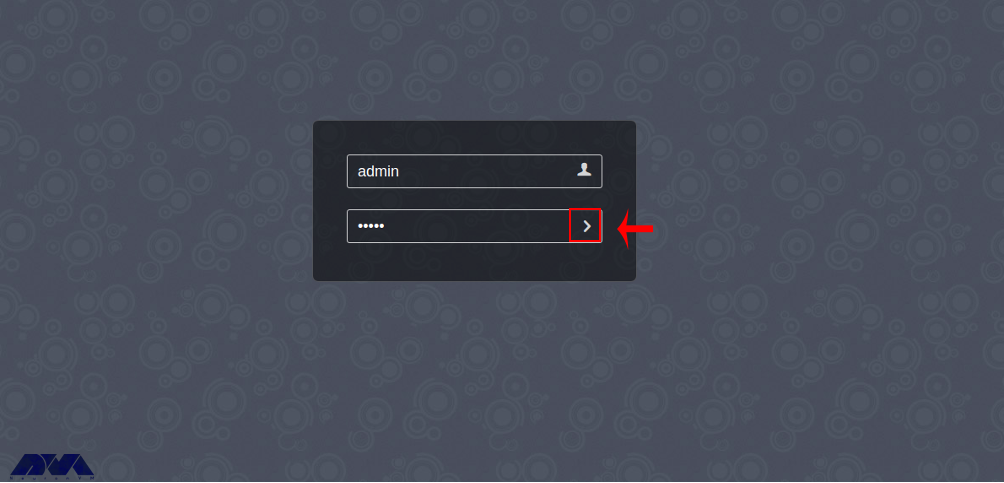
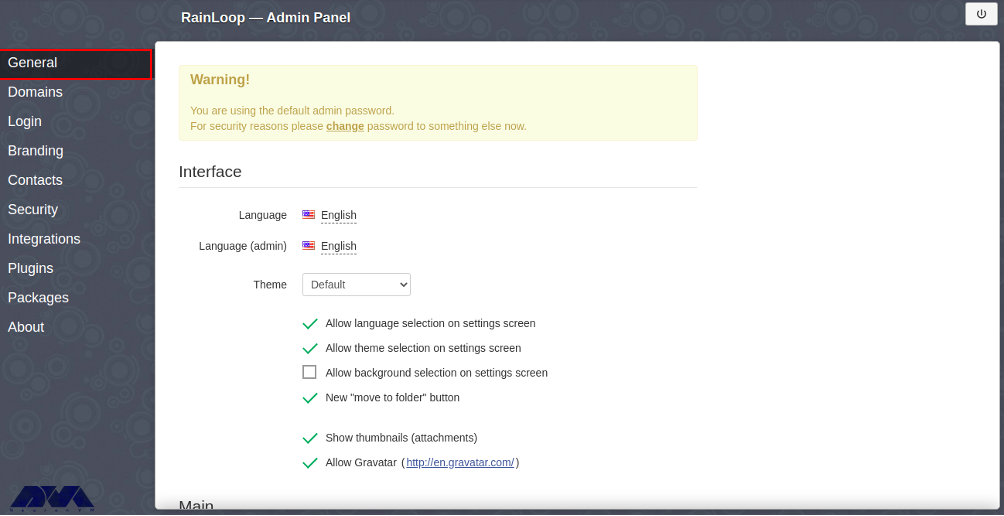
    Then you should enter the default username admin and password 12345 and click on the “>” button. You should see the following screen:


    rainloop admin access


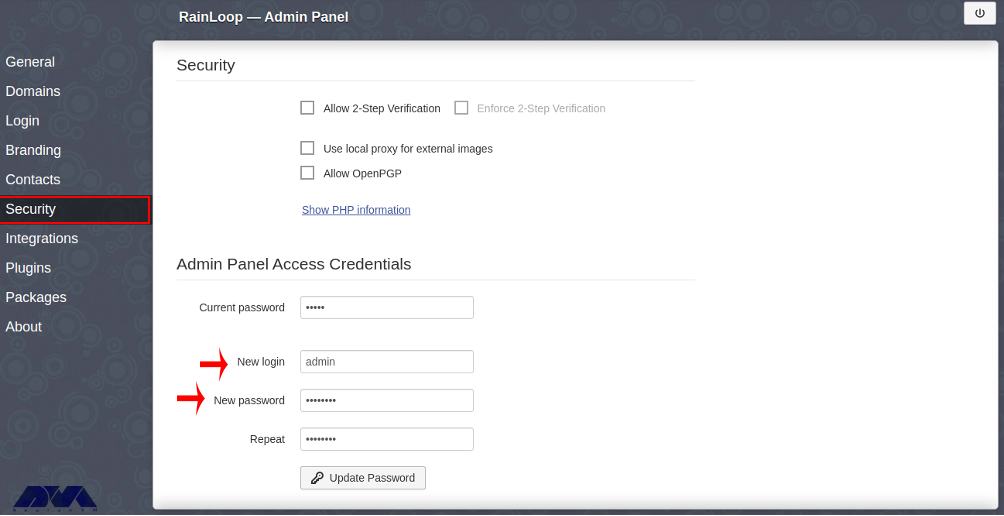
    You can change the default admin password by clicking the Change Password button. After entering the new password, click the Update Password button to change the password:


    install rainloop on debian 11


    Conclusion

    This article taught you how to install RainLoop on Debian 11. After installing RainLoop with the help of this article, you can add your email server from the RainLoop web interface and access your email through a web browser.

    FAQ

    Where can I find additional support for Rainloop?

    Refer to the Rianloop documentation and community support.

    What is the limitation of file size for Rainloop?

    You can use a maximum of 1 GB file size limit set by Nginx.

  • How To Install CloudLinux on Dedicated Server

    How To Install CloudLinux on Dedicated Server

    After reading this post, you will learn How to Install CloudLinux on Dedicated Server step by step. This platform is a great operating system that can be deployed on various systems like dedicated servers, cloud servers, or virtual machines. It can be said that one of the best solutions to secure the hosting environment on servers is to isolate the file system and keep the user’s process secret.

    What is CloudLinux?

    CloudLinux is an operating system that helps create a secure and stable platform for shared hosting. This cloud computing system is based on CentOS and Cause users to have more control over server resources:

    Features of CloudLinux

    – Isolation of user accounts prevents users from influencing each other.

    – It prevents users from seeing each other’s configuration files or private information.

    – Allows you to monitor and control limits such as RAM, CPU, and I/O.

    – Monitor and implement MySQL usage.

    – It provides CageFC, which is a type of file system.

    – It allows users to choose between different versions of php

    – Prevent symbolic link attacks

    – It is compatible with all major control panels.

    Install CloudLinux on a Dedicated Server

    Now, it’s time to find out how to install CloudLinux on your dedicated server. To start and install CloudLinux on a dedicated server, you must have a dedicated server in the first step. Therefore, we suggest you visit the Cheap Dedicated Server plans presented on our website. So follow the instructions in this section carefully so that you can do the installation successfully.

    The first step is to run the following command to download cldeploy script:

    wget https://repo.cloudlinux.com/cloudlinux/sources/cln/cldeploy

    The installation step should be done based on the activation key, so run the command below:

    sh cldeploy -k < CL activation_key >

    If you want to get permission based on IP, use the following command:

    sh cldeploy -i

    When you finish the installation part, it’s time to run the command below to reboot the Linux server:

    reboot

    Now you have CloudLinux on your system. After rebooting, you can run the server through CloudLinux shared OS.

    Configure CloudLinux on Dedicated Server

    After installing CloudLinux on your server, you should apply the configuration by using the following commands:

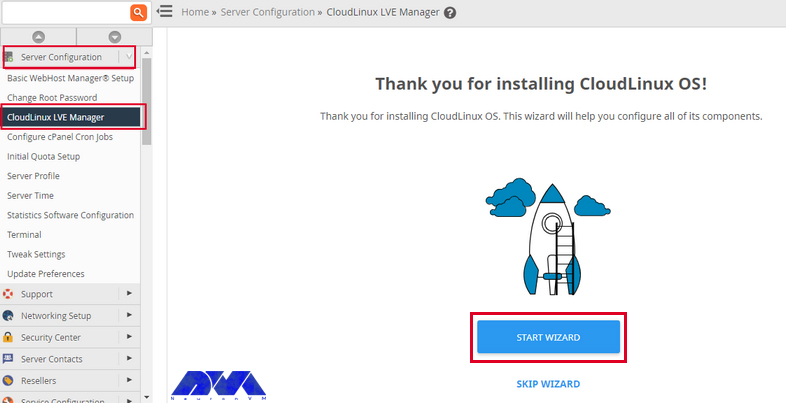
    If your control panel is Cpanel, navigate WHM, then LVEmanager.

    If you use DirectAdmin, then go through Dashboard and then CloudLinux Manager.

    Tip: The CoudLinux user interface is always the same for every control panel.

    At last, open CloudLinux through the control panel. In this case, you will face a welcome page, and you can click on the Start wizard option to finish the process:

    Configure CloudLinux on Dedicated Server

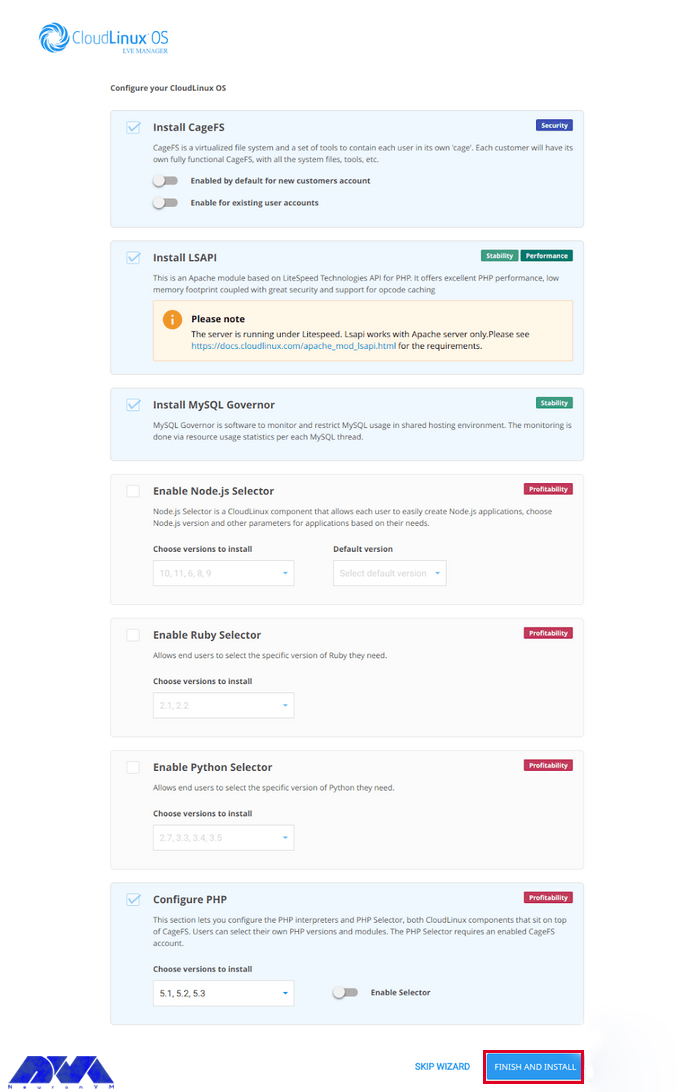
    Now, you can continue the configuration part. Here, your first choices are like this:

    Cagefc- It is a kind of virtual file system and set of tools that keeps the user hidden.

    LSAP- This case is actually a kind of Apache module, based on Lightspeed API technology for PHP and great performance of that.

    MySQL Governor- This software integrates and monitors MySQL in a shared hosting environment.

    Node.js selector- This tool is one of the components of CloudLinux that allows the user to easily create Node.js applications and also select them and other parameters based on their needs.

    Configure PHP- With this tool, you can also configure selectors and PHP interpreters. It also allows users to choose their versions and modules.

    After you have made your selection, click Finish & Install, and keep in mind that the installation may take a few minutes depending on the hardware:

    configure cloudlinux on dedicated server

    Now we are going to take a look at the interface of CloudLinux by presenting pictures.

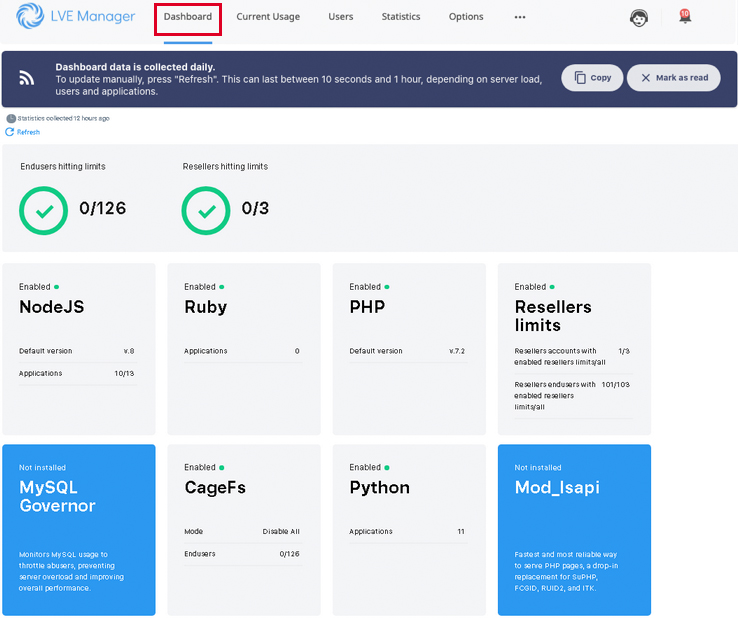
    Dashboard:

    Here, you can see the summary interface for CloudLinux. This summary gives information about the status of every other feature enabled with CloudLinux. In addition, you can see the number of users and resellers hitting the resource limits.

    configure cloudlinux on dedicated server

    Current usage:

    This interface is used to get information about the live usage of users who hit the limits. (like CPU, RAM, etc.)

    Configure CloudLinux on Dedicated Server

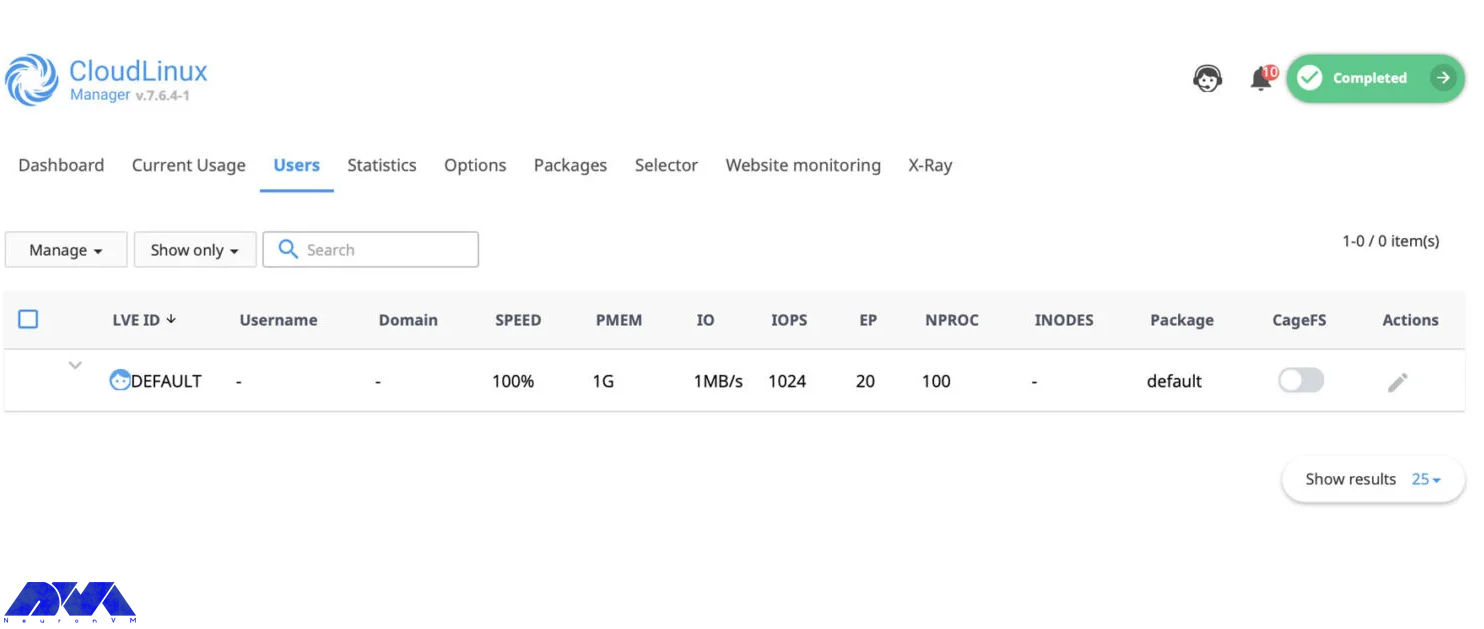
    Users:

    This interface shows the list of users and their adjusted limits. In addition, you can change the individual user’s custom assignment of the resources.

    Configure CloudLinux on Dedicated Server

    Statistics:

    This one is called the statistics interface. This interface will filter the average usage of every parameter for users according to the time.

    Configure CloudLinux on Dedicated Server

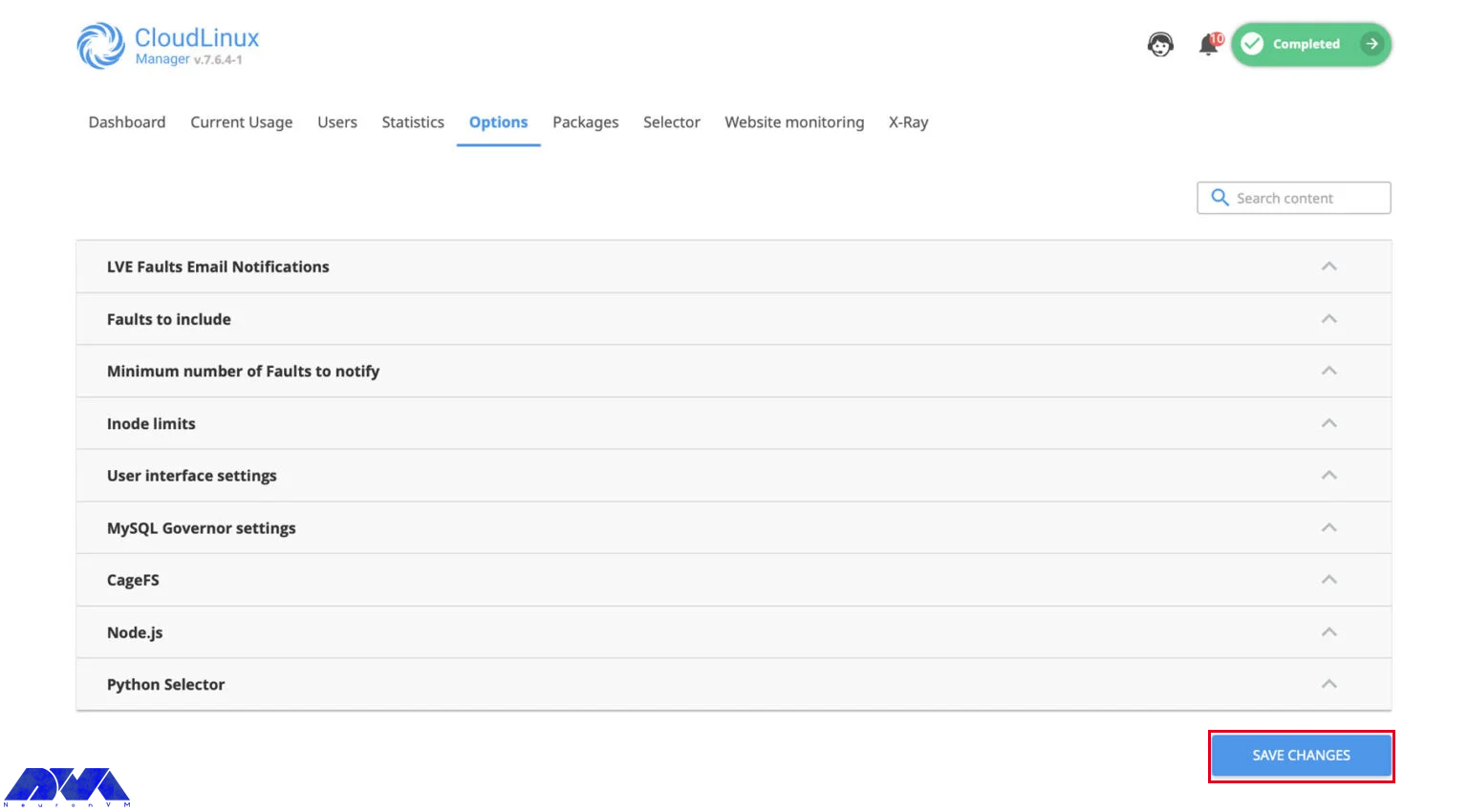
    Options:

    This interface is a configurable option used to configure notifications, MySQL, Python Selector, CageFS, and so on.

    Configure CloudLinux on Dedicated Server

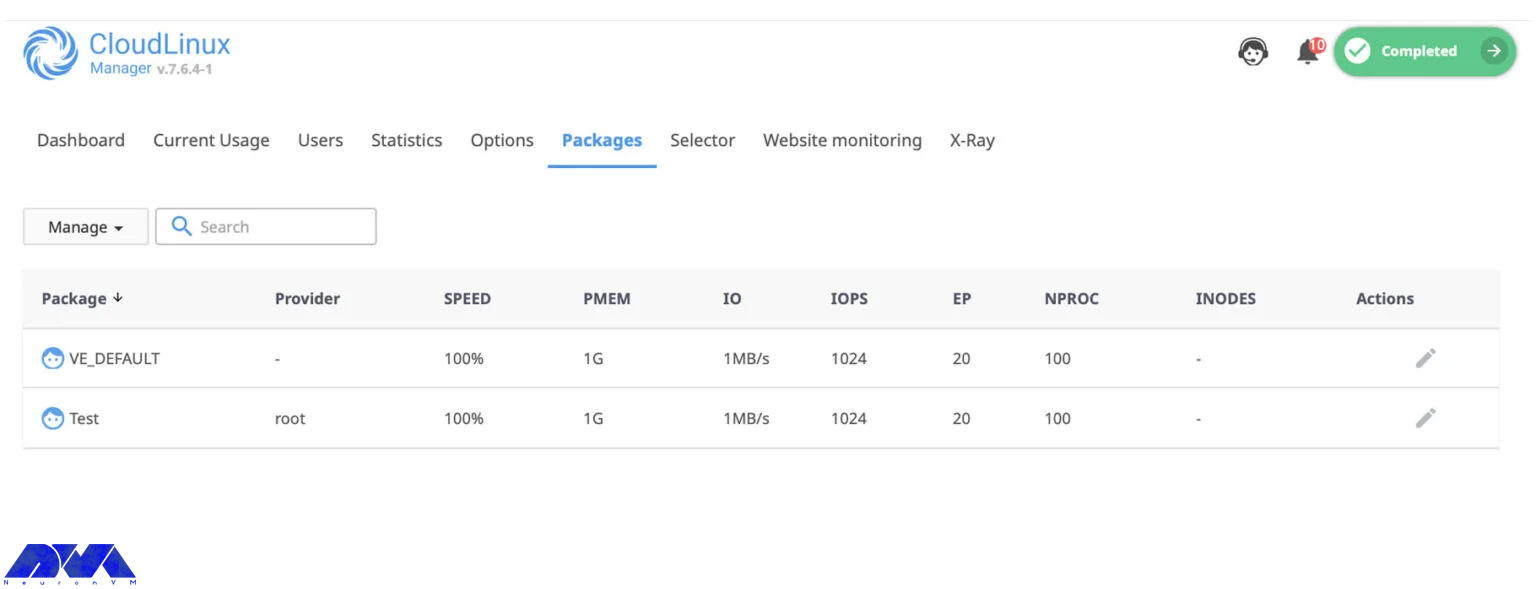
    Packages:

    The package interface is used to configure the limitations of the packages.

    Configure CloudLinux packages

    Selectors:

    You can configure the PHP selector setting using this interface.

    Configure CloudLinux on Dedicated Server

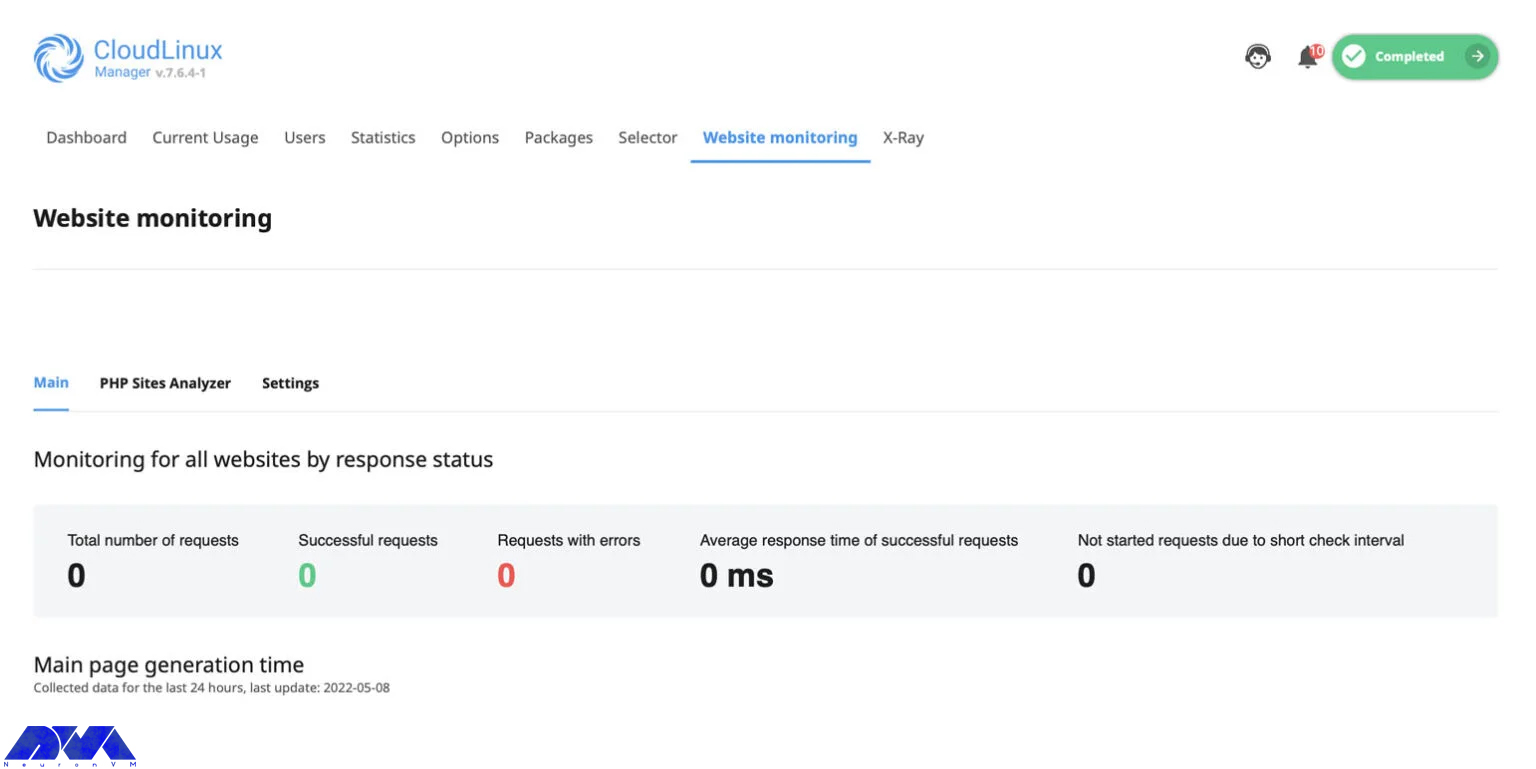
    Website Monitoring:

    Use this interface to monitor the website’s number of requests and PHP reports.

    website monitoring on CloudLinux

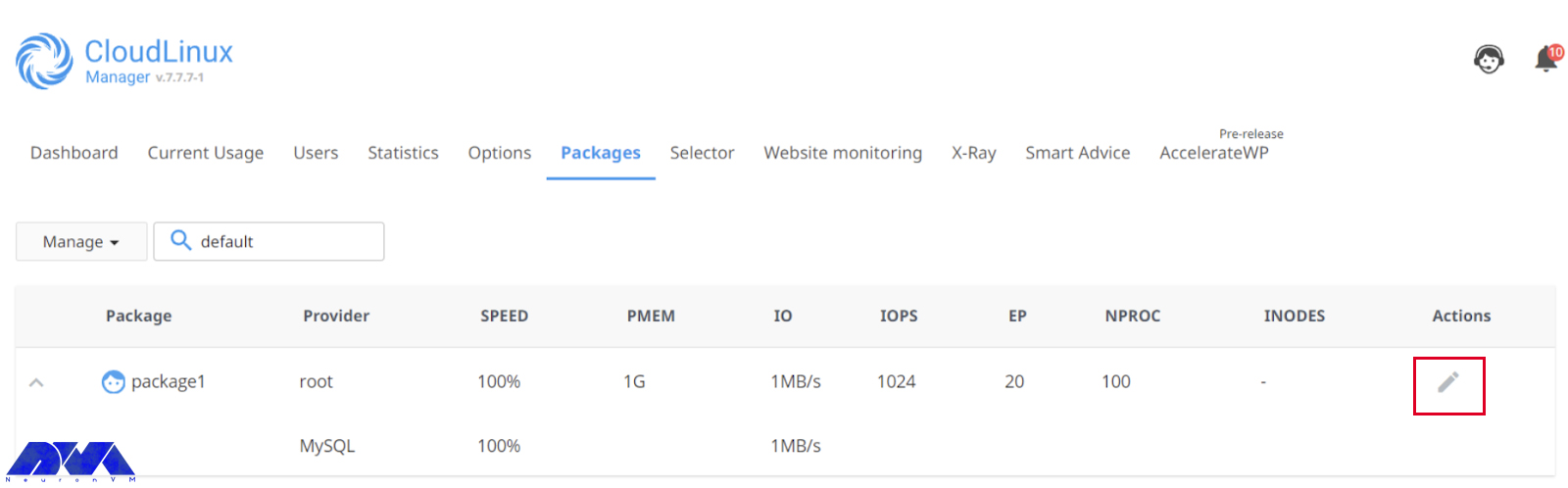
    Configure CloudLinux Package

    After you have created the packages, go to the CloudLinux packages section to configure package restrictions. Now, you can see a list of already created packages. Then click the Pencil icon to edit the package:

    Configure CloudLinux package

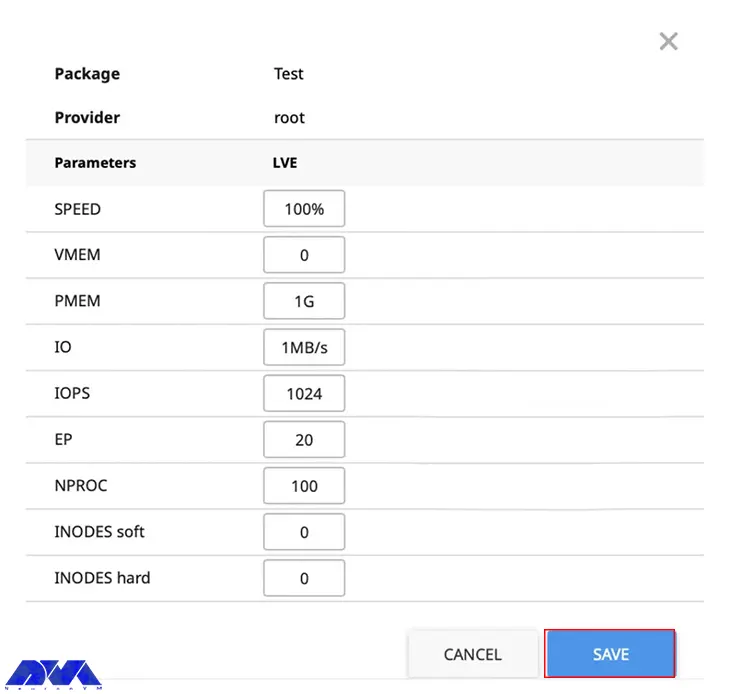
    The Limits of CloudLinux are shown here, and you can configure them for every individual package:

    Speed: Speed limit for CPU

    VMEM: limitation of Virtual memory

    PMEM: Limitation of Physical memory

    IO: Combines the operation of reading and writing.

    IOPS: This limit restricts the total number of reading and writing per second

    NPROC: Maximum number of processes on LVE

    EP: It represents a maximum number of connections that happen simultaneously to dynamic Apache scripts and SSH and corn jobs.

    Now that you have set the limit of the required parameters, you can click the save button. Note that you can apply the same procedure to other packages:

    package-limits-parameters-cloudlinux-1

    Conclusion

    In this article, we tried to teach how you can install CloudLinux on a dedicated server. We hope you enjoy this useful content. It represents a complete guide for you. If you have any questions, just comment.

    FAQ

    Does cloudLinux include technical support?

    Yes, it offers technical support services.

    Can we test CloudLinux before purchase?

    CloudLinux offers a trial period. So you can use it to test the service. Go to the website to get the trial.

  • Tutorial Install and Configure Cacti on AlmaLinux 8

    Tutorial Install and Configure Cacti on AlmaLinux 8

    Certainly, one of the important pillars of any network is having a monitoring system to check the structure of the network. Cacti is one of the free network monitoring software. If you want to compare the monitoring tools, Cacti is in a higher position in order to its open-source and availability of resources. If you follow this post until the end, you will learn how to Install and Configure Cacti on AlmaLinux 8 step by step.

    What is Cacti?

    Cacti make a connection to your devices using the SNMP protocol and analyze them during the interval. Cacti software is based on PHP/MySQL, which is basically installed on Linux Operating Systems and uses the RRDTool software to present its graphs. It should be noted that Cacti also allows you to provide a monitoring panel to your customers. In this software, you can specify which ports the subscriber will have access to after logging in. Cacti has made the monitoring process powerful by having a web-based management environment and various templates for different operating systems and devices.

    Prerequisites

    – A Linux VPS Server with AlmaLinux OS

    – Apache Webserver

    – MariaDB Database Server

    – PHP and PHP extensions

    – SNMP and RRDTool

    Follow us in the continuation of this article by teaching how to install and configure Cacti on Almalinux.

    How to Install Cacti on AlmaLinux 8

    Cacti is a web-based tool, so you need to create an Apache web server on which to run Cacti. You can install the Apache web server by entering the following command:

    sudo dnf install httpd -y

    To start the Apache web server, execute the following command:

    sudo systemctl start httpd

    Now you should enter the following command to enable the Apache webserver:

    sudo systemctl enable --now httpd

    At this point, Cacti requires a database to store the collected data, which in this article uses the MariaDB database. To install the MariaDB database, execute the following command:

    sudo dnf install -y mariadb-server mariadb

    You should enter the following command to start the MariaDB database:

    sudo systemctl start mariadb

    Then you can use the following command to enable MariaDB to start on boot:

    sudo systemctl enable mariadb

    Since Cacti is written in PHP, PHP and PHP extensions should be installed. So use this command to add the Remi repository:

    sudo dnf install dnf-utils http://rpms.remirepo.net/enterprise/remi-release-8.rpmmi

    Then you should enable the DNF module for PHP installation by entering the following command:

    sudo dnf module reset php
    sudo dnf module enable php:remi-7.4

    Now you can install PHP and PHP extensions by executing the following commands:

    sudo dnf install @php
    sudo dnf install -y php php-{mysqlnd,curl,gd,intl,pear,recode,ldap,xmlrpc,snmp,mbstring,gettext,gmp,json,xml,common}

    Use the following command to enable the PHP-fpm service:

    sudo systemctl enable --now php-fpm

    In this step, you should install SNMP and RRDTool, which are needed to gather and analyze system metrics:

    sudo dnf install -y net-snmp net-snmp-utils net-snmp-libs rrdtool

    You can start it with the following command:

    sudo systemctl start snmpd

    Enter the following command to enable snmpd:

    sudo systemctl enable snmpd

    The next step is to create a database and user for the Cacti and then grant all the necessary privileges to the Cacti user. So, enter the following command:

    mysql -u root -p
    
    MariaDB [(none)]> CREATE DATABASE cactidb;
    MariaDB [(none)]> GRANT ALL ON cactidb.* TO cacti_user@localhost IDENTIFIED  BY 'passwd123';
    MariaDB [(none)]> FLUSH PRIVILEGES;
    MariaDB [(none)]> EXIT;

    Now you should import the mysql test data timezone.sql file into the MySQL database:

    mysql -u root -p mysql < /usr/share/mariadb/mysql_test_data_timezone.sql

    Now you should enter the following command to connect to the MySQL database and then provide the Cacti user access to the mysql.time zone name table:

    MariaDB [(none)]> GRANT SELECT ON mysql.time_zone_name TO cacti_user@localhost;
    MariaDB [(none)]> FLUSH PRIVILEGES;
    MariaDB [(none)]> EXIT;

    Then you should add the following configuration to the mariadb-server.cnf file under the [ mysqld ] section:

    sudo vi /etc/my.cnf.d/mariadb-server.cnf

    Remember to paste the following configuration.

    collation-server=utf8mb4_unicode_ci
    character-set-server=utf8mb4
    max_heap_table_size=32M
    tmp_table_size=32M
    join_buffer_size=64M
    # 25% Of Total System Memory
    innodb_buffer_pool_size=1GB
    # pool_size/128 for less than 1GB of memory
    innodb_buffer_pool_instances=10
    innodb_flush_log_at_timeout=3
    innodb_read_io_threads=32
    innodb_write_io_threads=16
    innodb_io_capacity=5000
    innodb_file_format=Barracuda
    innodb_large_prefix=1
    innodb_io_capacity_max=10000

    You can exit after saving the changes.

    Because the Cacti package is available in the EPEL (Extra Packages for Enterprise Linux) repository. First release it with the following command:

    sudo dnf install epel-release -y

    Now you can install the Cacti monitoring tool by executing the following command:

    sudo dnf install cacti -y

    Then you should verify the installation of Cacti with the following command:

    rpm -qi cacti

    Now to determine the default Cacti database path, execute the following command:

    rpm -ql cacti | grep cacti.sql

    Then you should import the default cacti database tables into the MariaDB cacti database using the following command:

    mysql -u root -p cactidb < /usr/share/doc/cacti/cacti.sql

    You should modify the cacti configuration file according to the following database details:

    sudo vim /usr/share/cacti/include/config.php

    Now you should change the database name, username, and password to reflect the name you have already created and then set the timezone in the php.ini file. Remember to change the following parameters:

    date.timezone = Africa/Nairobi
    memory_limit = 512M
    max_execution_style = 60

    At this point, you need to set the cron for Cacti. To do this, you should first edit the /etc/cron.d/cacti file:

    sudo vim /etc/cron.d/cacti

    To have a Cacti poll for data every 5 minutes, you can uncomment the following line:

    */5 * * * *   apache /usr/bin/php /usr/share/cacti/poller.php > /dev/null 2>&1

    After saving the changes, you can exit the configuration file.

    Modifying the Apache configuration file enables remote access to Cacti. To do this, enter the following command:

    sudo vim /etc/httpd/conf.d/cacti.conf

    Now you should change the following lines in the file:

    – Modify Require host localhost to require all grants.

    – Change Allow from localhost to Allow from network subnet.

    – Specify your network subnet.

    To apply the changes, just restart the Apache and PHP-fpm services with the following command:

    sudo systemctl restart httpd
    sudo systemctl restart php-fpm

    Finally, you need to enable HTTP service on your Firewall by executing the following command:

    sudo firewall-cmd --permanent --add-service=http
    sudo firewall-cmd --reload

    How to Configure Cacti on AlmaLinux 8

    First, you should visit your server’s IP with the following command:

    http://server-ip/cacti

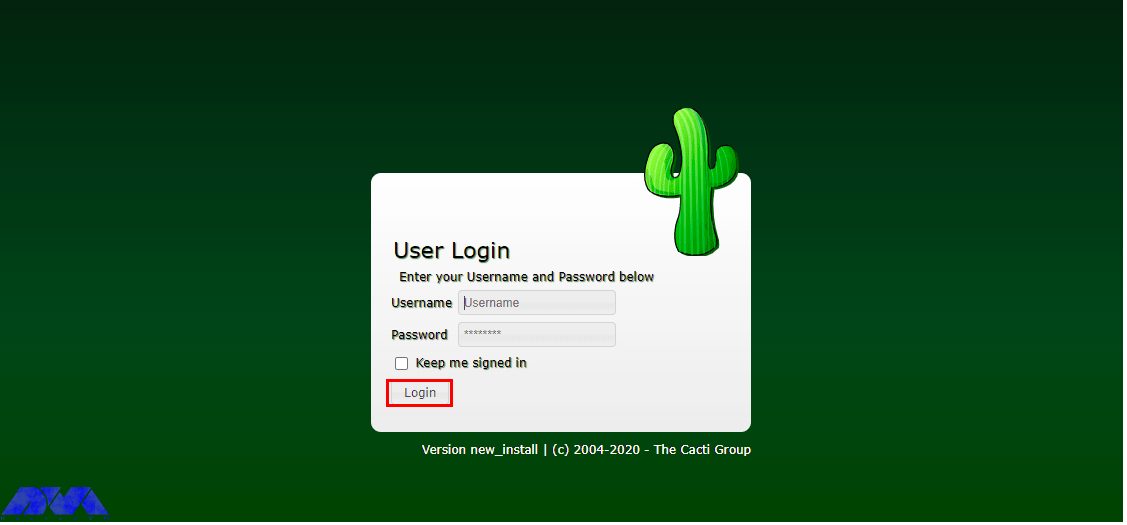
    After viewing the login page, you should log in with the default credentials:

    Username: admin
    Password: admin

    Then click on Login:

    Cacti-Login-page


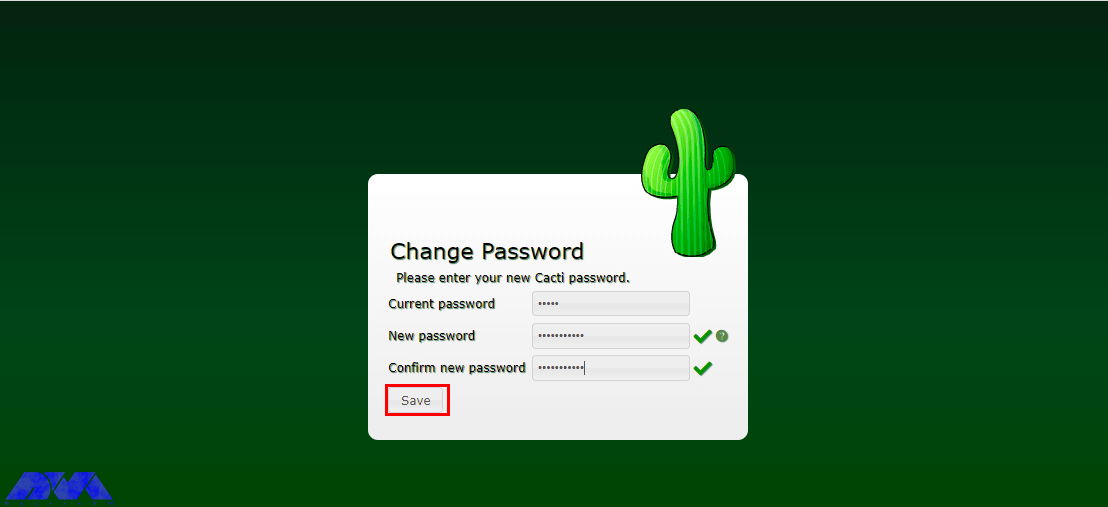
    Now you need to set the default Cacti admin login password:


    Change-Cacti-Admin-Password


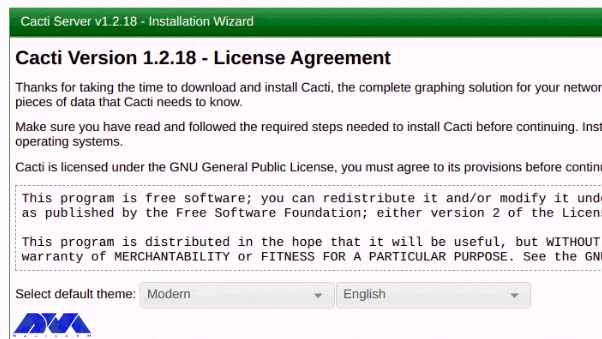
    Next, you should accept the GPL license agreement and then click on Begin:


    Cacti-Agreement


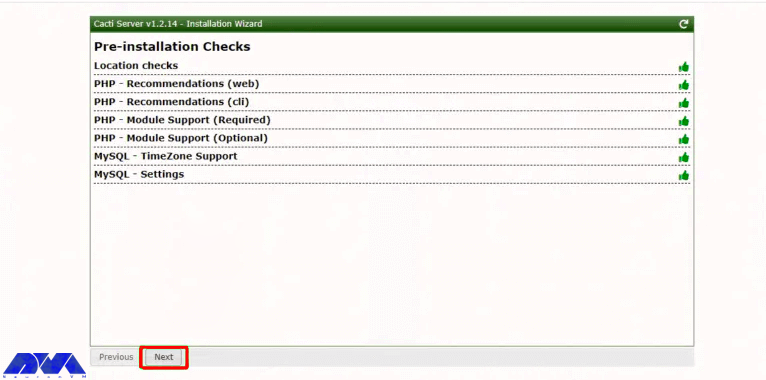
    Cacti execute pre-installation tests to ensure that the necessary PHP modules and database settings are installed. Then, click Next to continue:


    Cacti-Pre-Installation-Check


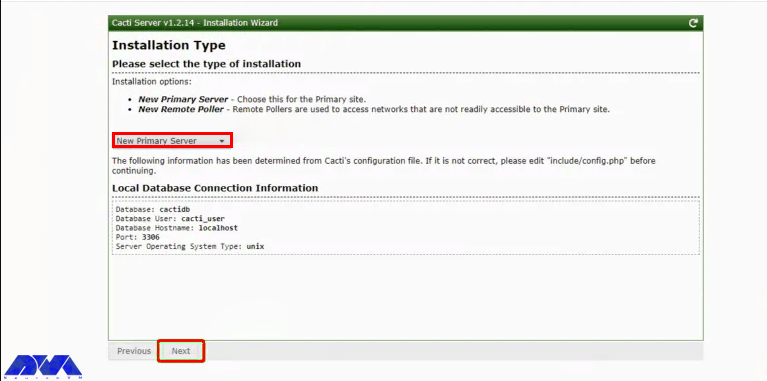
    Now you should choose the New Primary Server as the type of installation and then verify the database connection parameters are right:


    Cacti-Installation-Type-5


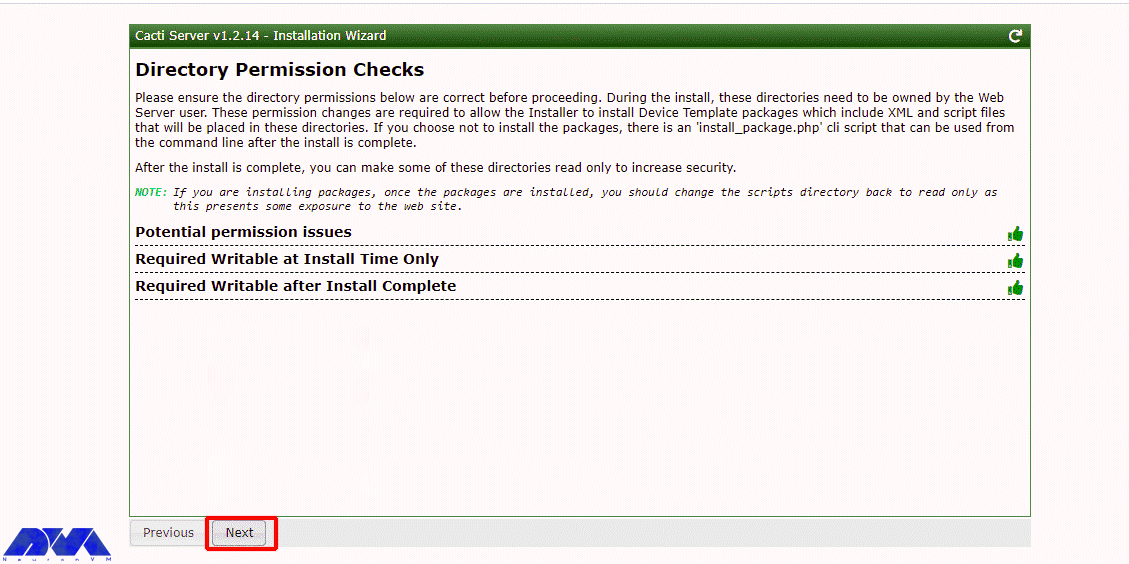
    At this point, you can check for directory issues and confirm that there are proper permissions. Then click on Next; but if there is a problem you should click on Previous and correct the problems:


    Cacti-Permission-Check-6


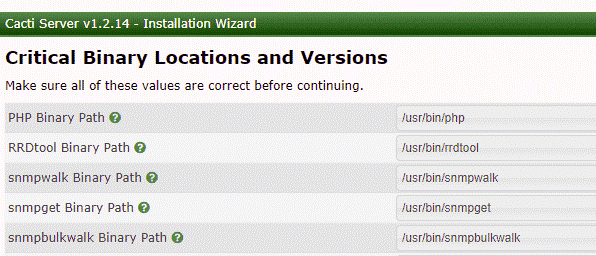
    Then the installation of binary paths of the required packages is checked by the installer:


    Cacti-Binary-Checks


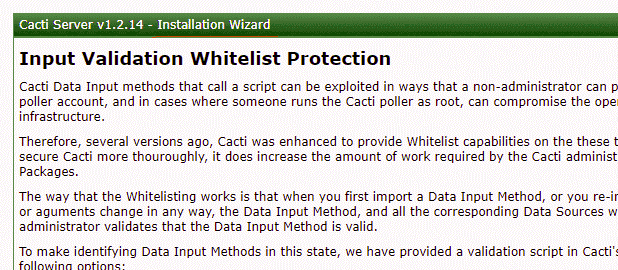
    Now you should validate the data input methods and read the instructions; then check the ‘I have read this statement’ box:


    Cacti-Validation-Whitelist-Protection


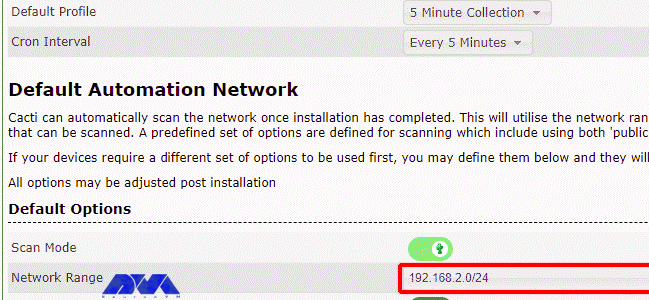
    Next, you need to choose the cron interval and input your network subnet. Then click Next:


    Cacti-Network-Settings


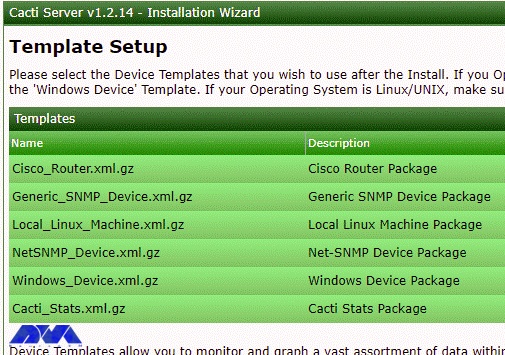
    Cacti has templates with which you can monitor and graph a variety of network devices, including Linux and Windows computers. Check all the options to make sure you get all the templates you need. Then click on Next:


    Cacti-Templates


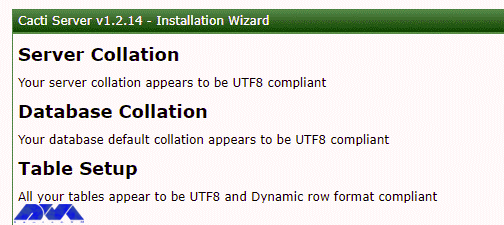
    Now it is being checked whether the database/server collation is compatible with UTF8. Then click on Next:


    Cacti-UTF8 - Install and Configure Cacti on AlmaLinux


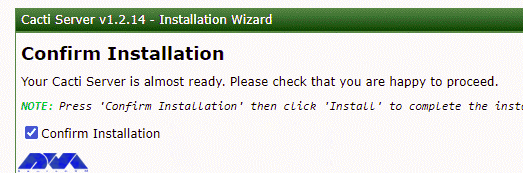
    Now you should click on the Confirm Installation checkbox and then click on the Install:


    Cacti-Installation on almalinux


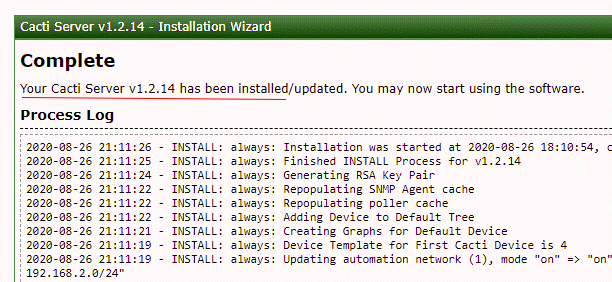
    After completing the installation of the necessary packages, you can click on Get Started:


    configure cacti on almalinux


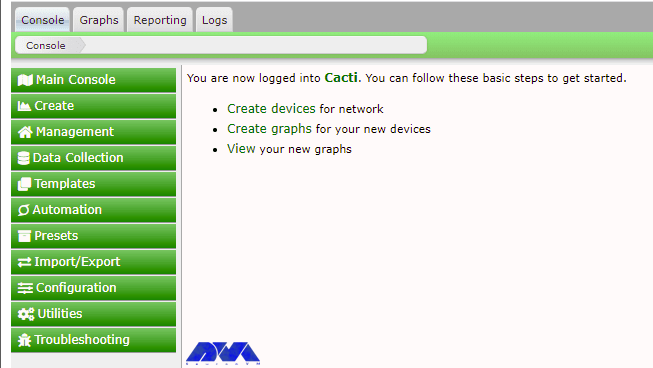
    Finally, you can see the Cacti dashboard:


    Cacti-Dashboard - Install and Configure Cacti on AlmaLinux


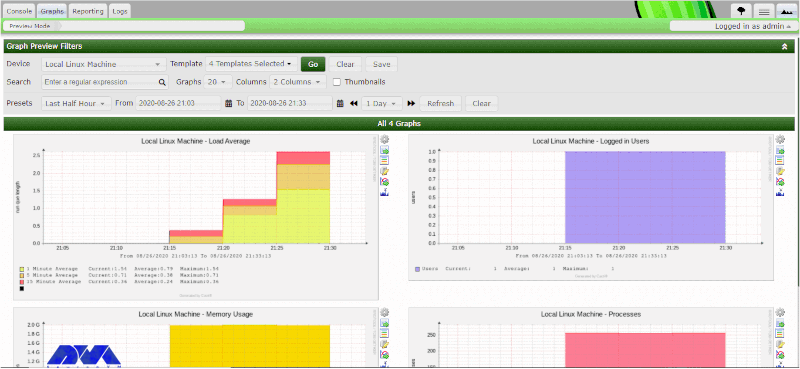
    You can navigate through Graph –> Default Tree –> Local –> Choose Your Device to view the graphs:


    Cacti-Linux-Server-Monitoring - Install and Configure Cacti on AlmaLinux


    Conclusion

    This article introduced one of the best monitoring tools called Cacti. In the continuation of the article, we taught how to install and configure Cacti on AlmaLinux 8. If you want to install Cacti on your AlmaLinux system, you can get inspired by this tutorial.

    FAQ

    Do we need any additional steps after installing Cacti?

    Yes, you should setup device polling, configure graphs and you should define devices in cacti monitoring.

    Is it possible to install Cacti on other distributions?

    Yes, you can install it o various Linux distributions like CentOS, Rocky Linux, Ubuntu, and so on.

  • Tutorial Set Up Time Synchronization on Rocky Linux

    Tutorial Set Up Time Synchronization on Rocky Linux

    Accurate timekeeping is a critical component in the deployment of modern software. On the other hand, it should be noted that out-of-sync time can cause errors, data corruption, and other difficult debugging issues. By reading this article, you will learn how to Set Up Time Synchronization on Rocky Linux. Therefore, if you are interested in Rocky Linux distribution, we suggest that you stay with us until the end of this article.

    What is Time Synchronization?

    Time Synchronization is the process of synchronizing the time of independent clocks. Clocks will diverge without synchronization. Clocks and timepieces often use relatively low-cost components that are not accurate. Time Synchronization creates time accuracy between computer clocks in an Ethernet system.

    A client’s time may be synchronized with another server, a reference time source such as a radio or satellite receiver, or a GPS time server. Typical time service configurations use additional servers and diverse network paths to provide high accuracy and reliability. In the continuation of this article, learn about the setup time synchronization on Rocky Linux.

    How to Set Up Time Synchronization on Rocky Linux

    First, you should buy a Linux VPS with the Rocky Linux Operating system. We recommend that you visit the quality and affordable plans on our website. In the beginning, you should list the available time zone by entering the following command:

    sudo timedatectl list-timezones

    Now you need to set the timezone of your location using the following command:

    sudo timedatectl US/Canada

    There are two types of NTP daemons including chronyd and ntpd. To avoid two NTP daemons from running on the same machine at a time, select one and use it.
    In this article, you can synchronize time with the help of two NTP daemons:

    1) Time Synchronization using chronyd which is suitable for virtual systems.

    2) Time Synchronization using ntpd which is suitable for the network systems.

    Time Synchronization Using chronyd

    First, you can install the chronyd package with the following command:

    sudo yum install chrony

    chronyd can be used to manually synchronize Rocky Linux server time with the remote NTP server:

    chronhyd -q 'server 0.europe.pool.ntp.org iburst'

    Then run the following command to start the chronyd service:

    sudo systemctl start chronyd

    Now you should edit the configuration file:

    sudo vi /etc/chrony.conf

    Next, you should add the following lines:

    server 0.centos.pool.ntp.org iburst
    server 1.centos.pool.ntp.org iburst
    server 2.centos.pool.ntp.org iburst
    server 3.centos.pool.ntp.org iburst
    server 0.rhel.pool.ntp.org iburst
    server 1.rhel.pool.ntp.org iburst
    server 2.rhel.pool.ntp.org iburst
    server 3.rhel.pool.ntp.org iburst

    Now save the file and exit and then restart the services by entering the following command to apply the changes:

    sudo systemctl restart chronyd

    You need to enable these services to run at every boot:

    sudo systemctl enable chronyd

    You can verify if your time system is synchronized or not with the following command:

    chronyc tracking

    Reference ID is the ID and name of the server with which your system time is currently synchronized. Stratum indicates the number of hops away from the server connected to the reference clock.

    The following command can list information about the current time sources that chronyd uses:

    chronyc sources

    You can list information about drift speed and offset estimation of any source that uses chronyd with the following command:

    chronyc sourcestats -v

    Time Synchronization Using ntpd

    First of all, install the ntpd package by executing the following command:

    sudo yum install ntp

    Next, you need to start the ntpd services using the following command:

    sudo systemctl start ntpd

    Now you should edit the configuration file.

    sudo vi /etc/ntp.conf

    Then you should add the following lines:

    server 0.centos.pool.ntp.org iburst
    server 1.centos.pool.ntp.org iburst
    server 2.centos.pool.ntp.org iburst
    server 3.centos.pool.ntp.org iburst
    server 0.rhel.pool.ntp.org iburst
    server 1.rhel.pool.ntp.org iburst
    server 2.rhel.pool.ntp.org iburst
    server 3.rhel.pool.ntp.org iburst

    Save the file and exit.
    Now you need to restart the services by executing the following command for the changes to take effect:

    sudo systemctl restart ntpd

    Finally, you should enable services using the following command to run them on every boot:

    sudo systemctl enable ntpd

    Conclusion

    Time Synchronization is essential to determine certain activities of a computer. Every modern system has a mechanism that automatically sets the time of the machine. NTP is one of these mechanisms, and this article taught you how to synchronize time with your NTP server. In this article, you were taught how to set up Time Synchronization on Rocky Linux.

  • Tutorial Install and Use Webmin on AlmaLinux 8.4

    Tutorial Install and Use Webmin on AlmaLinux 8.4

    The Control Panel is a set of sub-programs that can be used to configure various aspects of the Operating System. The Control Panel is the center of all operating system settings and is designed to make changes to the mouse, keyboard, sound, speakers, and screen. Webmin is also a Control Panel and Graphical User Interface for hosting. After reading this article, you can learn how to Install and Use Webmin on AlmaLinux 8.4 from the AlmaLinux training series.

    What is Webmin?

    Webmin is a web-based Control Panel and Graphical User Interface for Linux systems that can be used for free. You can configure all aspects of the system through your web browser with Webmin. It should note that Webmin removes the need to manually edit Linux/Unix configuration files, allowing you to manage a server from the console or remotely. It also allows you to control many machines through a single interface or seamless access to other Webmin hosts on the same subnet or LAN.

    Webmin Features

    1- Configure Email Server 2- Configure Apache Web Server 3- Configure DNS Server 4- Data Backup 5- Manage users and User groups

    How to Install Webmin on AlmaLinux 8.4

    First, you should buy a Linux VPS with the AlmaLinux Operating system. Then, switch to root user and log in as root to run all commands:
    sudo -i

    You need to add the yum Webmin repository to AlmaLinux 8.4 so that you can fetch Webmin packages for installation. Enter the following command in your Terminal and press Enter:

    cat << EOF > /etc/yum.repos.d/webmin.repo
    [Webmin]
    name=Webmin
    mirrorlist=https://download.webmin.com/download/yum/mirrorlist
    enabled=1
    gpgkey=http://www.webmin.com/jcameron-key.asc
    EOF
    Then you should update the system by entering the following command, which refreshes the repository cache and makes the system recognize the latest added repo of Webmin:
    dnf update
    In this step, you can download and install Webmin on the AlmaLinux RPM-based Linux Operating System:
    dnf install webmin
    Next, you should open Webmin port 10000 in the firewall to access the web interface of this web-based system configuration tool from any system browser that can access the IP address of the server or domain. Run the following command:
    firewall-cmd --add-port=10000/tcp --permanent
    firewall-cmd --reload

    How to Use Webmin on AlmaLinux 8.4

    Open Webmin through your web browser and specify the name of the computer and port that Webmin is running on. Note that if the Webmin installed in AlmaLinux is managed through a browser, its IP address or domain should be specified in the URL box along with port 10000. But if you are using Webmin in a GUI system, the management should be done using the local URL in the web address http://localhost:10000 and if only encrypted communication is possible in the system, just replace http with https:
    https://server-ip-address:10000
    or
    https://example.com:10000
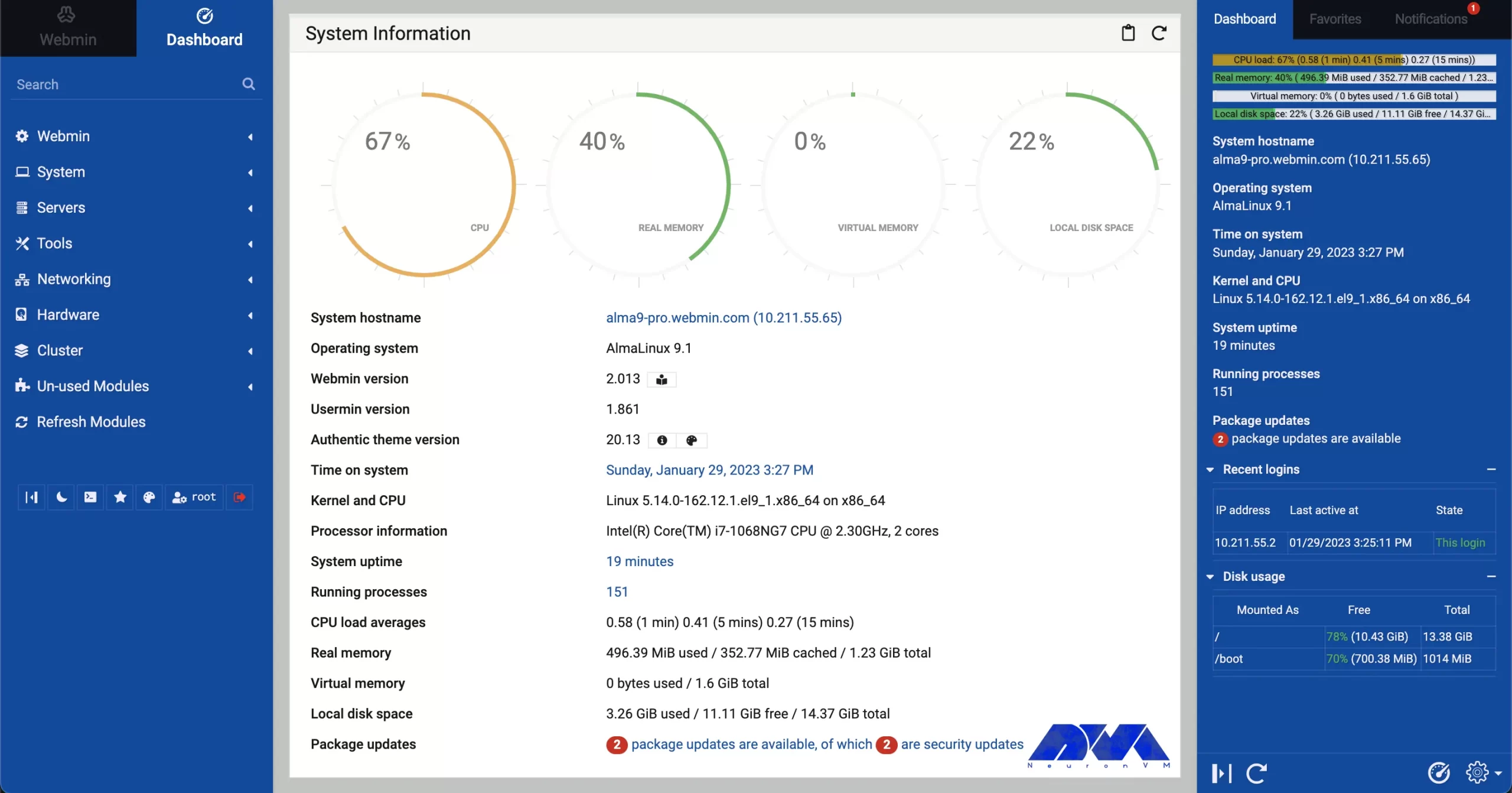
    If SSL isn’t implemented, you will receive a ‘Your connection is not private‘ alert. You should click on Advanced and then click the Proceed to x.x.x.x link. Now you should enter your username and password. Be sure to enter AlmaLinux 8.4 server root as your username and password. The Webmin Dashboard running on AlmaLinux is as follows, where the user can manage its server:
    webmin dashboard on almalinux

    Conclusion

    Webmin is easy to use and offers several options for administrators to manage their Linux server through web-based remote access. In this article, Webmin Control Panel was introduced and how to install and use Webmin on AlmaLinux 8.4 was taught.