Tag: Linux Tutorials

  • Elevate Your Music Experience: Installing Koel on CentOS Made Easy

    Elevate Your Music Experience: Installing Koel on CentOS Made Easy

    Koel is a simple web-based personal audio player. It is interesting to know that this program is written in Vue on the client side and Laravel on the server side. The interesting point is that the Koel source code is hosted on GitHub. In this post, we will tell you how you can Elevate Your Music Experience. Also, after reading this article, you will see that installing Koel on CentOS is easy.

    Benefits of installing Koel on CentOS

    In this section, we are going to examine the benefits of installing Koel on CentOS. Koel is a web-based personal audio streaming service that lets you access your music collection from anywhere. In the following, we will introduce you to some advantages of installing Koel on CentOS:

    1) Easy installation of Koel on CentOS: To install Koel on CentOS, just install the required dependencies. These dependencies include installing PHP, Node.js, yarn, and FFmpeg, cloning the Koel repository, configuring the database and web server, and running the installation script.

    2) Enjoy modern web technologies: As mentioned in the introduction of the article, Koel is written in Vue on the client side and Laravel on the server side, which are popular and powerful web frameworks. You may be interested to know that Koel also uses CSS grid, sound, and drag-and-drop API to provide a stylish and responsive user interface.

    3) The possibility of customization and expansion with Koel: Since Koel is open-source and free, you can modify it according to your preferences and needs. You can also help develop and improve the project by reporting issues, submitting pull requests, or donating to the project.

    4) Possibility of using HTTPS server and storage: Unlike other streaming services that require you to upload your music to their cloud, Koel lets you use your own server and storage. Koel gives you more control and privacy over your data. On the other hand, you can choose a database system that suits your needs. such as MySQL, MariaDB, PostgreSQL, or SQLite.

    Elevate Your Music Experience - Installing Koel on CentOS Made Easy

    System requirements for installing Koel on CentOS

    • A Linux VPS with CentOS Operating System
    • PHP version 5.6.4 or greater, with OpenSSL, PDO, Mbstring, Tokenizer, and XML extensions
    • The latest stable version of Node.js
    • Nginx
    • MariaDB
    • Composer

    Setting up CentOS for Koel installation

    Before starting the Koel installation process, you need to take some steps to set up CentOS. In the first step, you should check the CentOS version by running the following command:

    cat /etc/centos-release

    Then you need to create a new non-root user account and switch to it. It should be noted that you can substitute your username instead of Jannson in the following commands.

    useradd -c "Jannson" jannson&& passwd jannson
    usermod -aG wheel jannson
    su - jannson

    In the next step, it is necessary to set the timezone by executing the following commands:

    timedatectl list-timezones
    sudo timedatectl set-timezone 'Region/City'

    Then you need to update the system:

    sudo yum update -y

    Install the required packages with the help of the following command:

    sudo yum install -y wget curl vim git && sudo yum groupinstall -y "Development Tools"

    Finally, you can disable SELinux and the firewall using the following commands:

    sudo setenforce 0
    sudo systemctl stop firewalld
    sudo systemctl disable firewalld

    Installing dependencies for Koel on CentOS

    As mentioned, the dependencies that need to be installed before installing Koel are PHP, MariaDB, Nginx, Node.js, Yarn, and Composer. In the following, we will learn how to install each of these tools.

    1) Installing PHP on CentOS:

    Follow the steps below to install PHP:

    sudo rpm -Uvh https://mirror.webtatic.com/yum/el7/webtatic-release.rpm
    sudo yum install -y php72w php72w-cli php72w-fpm php72w-common php72w-mysql php72w-curl php72w-json php72w-zip php72w-xml php72w-mbstring

    Now you can start and enable PHP:

    sudo systemctl start php-fpm.service
    sudo systemctl enable php-fpm.service

    2) Installing MariaDB on CentOS:

    To create the MariaDB repository, open the configuration file by running the following command:

    sudo vi /etc/yum.repos.d/MariaDB.repo

    Add the following commands to the configuration file. Then save it and exit:

    [mariadb]
    
    name = MariaDB
    baseurl = https://yum.mariadb.org/10.2/centos7-amd64
    gpgkey=https://yum.mariadb.org/RPM-GPG-KEY-MariaDB
    gpgcheck=1

    Install MariaDB. Then start and enable it:

    sudo yum install -y MariaDB-server MariaDB-client

    sudo systemctl start mariadb.service
    sudo systemctl enable mariadb.service

    To increase security, you can run the following command and then set your password:

    sudo mysql_secure_installation

    Now you can connect as a root user:

    mysql -u root -p
    #Enter password

    Create an empty MariaDB database and user for Koel by running the following commands:

    CREATE DATABASE dbname;
    GRANT ALL ON dbname.* TO 'username' IDENTIFIED BY 'password';
    FLUSH PRIVILEGES;
    EXIT

    3) Installing Nginx on CentOS:

    Run the following commands to install, start and enable Nginx:

    sudo yum install -y nginx
    sudo systemctl start nginx.service
    sudo systemctl enable nginx.service

    Open the configuration file by running the following command:

    sudo vim /etc/nginx/conf.d/koel.conf

    Do the following configurations inside the file. Then save the file and exit:

    server {
    
      listen 80;
    
      server_name example.com;
    
      root /var/www/koel;
    
      index index.php;
    
    
      # Allow only index.php, robots.txt, and those start with public/ or api/ or remote
    
      if ($request_uri !~ ^/$|index\.php|robots\.txt|api/|public/|remote) {
    
        return 404;
    
      }


      location /media/ {
    
        internal;
    
        # A 'X-Media-Root' should be set to media_path settings from upstream
    
        alias $upstream_http_x_media_root;
    
       }
    
    
       location / {
    
         try_files $uri $uri/ /index.php?$args;
    
       }


       location ~ \.php$ {
    
         try_files $uri $uri/ /index.php?$args;
    
         fastcgi_param PATH_INFO $fastcgi_path_info;
    
         fastcgi_param PATH_TRANSLATED $document_root$fastcgi_path_info;
    
         fastcgi_param SCRIPT_FILENAME $document_root$fastcgi_script_name;
    
         fastcgi_pass 127.0.0.1:9000;
    
         fastcgi_index index.php;
    
         fastcgi_split_path_info ^(.+\.php)(/.+)$;
    
         fastcgi_intercept_errors on;
    
         include fastcgi_params;
    
       }
    
    }

    Test the configuration file and then reload Nginx:

    sudo nginx -t
    sudo systemctl reload nginx.service

    4) Installing Node.js on CentOS:

    You can install Node.js by running the following commands:

    curl --silent --location https://rpm.nodesource.com/setup_8.x | sudo bash -
    sudo yum -y install nodejs

    You can check the Node.js version by running the following command:

    node --version

    5) Installing Yarn on CentOS:

    In this section, you can install Yarn by running the following commands:

    curl --silent --location https://dl.yarnpkg.com/rpm/yarn.repo | sudo tee /etc/yum.repos.d/yarn.repo
    sudo yum install -y yarn

    6) Installing Composer on CentOS:

    Finally, you can install the Composer using the following commands:

    php -r "copy('https://getcomposer.org/installer', 'composer-setup.php');"
    php -r "if (hash_file('sha384', 'composer-setup.php') === '93b54496392c062774670ac18b134c3b3a95e5a5e5c8f1a9f115f203b75bf9a129d5daa8ba6a13e2cc8a1da0806388a8') { echo 'Installer verified'; } else { echo 'Installer corrupt'; unlink('composer-setup.php'); } echo PHP_EOL;"
    php composer-setup.php
    php -r "unlink('composer-setup.php');"
    sudo mv composer.phar /usr/local/bin/composer

    Downloading and configuring the Koel installation package

    Finally, we have reached the installation stage of Koel. In order for Koel to be installed in your desired location, you need to create an empty folder:

    sudo mkdir -p /var/www/koel

    Now navigate to the desired folder by running the following command:

    cd /var/www/koel

    Now it is necessary to change the ownership of the /var/www/koel folder to the user Jannson using the following command. Note that you can replace Jannson with your desired username in the following command:

    sudo chown -R jannson:jannson /var/www/koel

    Clone the Koel repository with the following command:

    git clone https://github.com/phanan/koel.git .

    Now you need to check the latest tagged version:

    git checkout v3.7.2

    Finally, you can install its dependencies with the help of the following command:

    composer install

    Configuring the database for Koel on CentOS

    In this section, we want to teach you how to configure the database for Koel on CentOS. Run the following command to start the database and management account:

    php artisan koel:init

    Run the following command:

    vim .env

    Now you can set the following command to your URL:

    APP_URL=http://example.com

    Again, you can use the following command to compile and install front-end dependencies:

    yarn install

    In this section, use the following command and change the ownership of the /var/www/koel folder to Nginx:

    sudo chown -R nginx:nginx /var/www/koel

    Set the user and group for Nginx using the following commands:

    sudo vim /etc/php-fpm.d/www.conf
    
    # user = nginx
    
    # group = nginx

    After completing all the mentioned steps, it is now necessary to restart PHP-FPM:

    sudo systemctl restart php-fpm.service

    Setting up user authentication for Koel on CentOS

    To set up user authentication for Koel on CentOS, you need to follow these steps:

    1) Configure your web server (Nginx or Apache) to use PHP-FPM and enable the rewrite module.

    2) Configure your database (MySQL, MariaDB, PostgreSQL, or SQLite) to create a database and a user for Koel.

    3) Run php artisan koel:init in the Koel root directory to populate the necessary configurations. You will be prompted to enter the database details and create an admin account for Koel.

    4) Optionally, you can configure your system to use a centralized authentication service, such as FreeIPA, LDAP, or Active Directory. You can use SSSD or authselect to configure the communication between your system and the authentication service.

    Customizing the Koel interface on CentOS

    To customize the Koel interface on CentOS, you need to follow these steps. Note that in order for Nginx to be able to read the files, you must grant it the correct rights and permissions:

    sudo mkdir /var/www/html/streaming/koel/storage/logs
    sudo chown -R www-data:www-data /var/www/html/streaming/
    sudo chmod -R 755 /var/www/html/streaming/
    sudo systemctl restart nginx php7.4-fpm

    Troubleshooting common issues during Koel installation on CentOS

    Some of the common issues that you may encounter during Koel installation on CentOS are:

    1) Permission errors: You may need to set the correct permissions for the Koel directories and files, such as the sqlite database, the logs, the covers cache, and the .env file. You can use the chmod and chown commands to do so.
    For example:

    sudo chown -R www-data:www-data /var/www/koel.

    2) Migration errors: You may need to run php artisan migrate:fresh –seed to reset and seed the database if you encounter any errors during the migration step. This will delete all your existing data, so make sure you have a backup before doing this.

    3) Authentication errors: You may need to generate a new JWT secret by running php artisan jwt:secret if you encounter any errors during the authentication step. This will invalidate any existing tokens, so make sure you log out and log in again after doing this.

    4) Node errors: You may need to update your Node version to the latest stable one by running the following command if you encounter any errors during the asset compilation step:

    sudo npm install -g n && sudo n stable

    Conclusion and next steps

    As we told you in this tutorial, Koel is a web-based audio streaming service written in the Laravel PHP framework. If you have followed all the steps mentioned in this post correctly, you can use this tool to stream your personal music collection and access it from anywhere. It is interesting to know that this program supports multiple media formats including AAC, OGG, WMA, FLAC, and APE.


  • The Great Linux Debate: Comparing CentOS and Ubuntu

    The Great Linux Debate: Comparing CentOS and Ubuntu

    Choosing an operating system for your server can be a really confusing task due to the huge list of options available. Especially if you want to use your own server with a Linux distribution. There are many choices, but none are as popular as Ubuntu or CentOS. Whether you’re a pro or a beginner, it usually comes down to choosing between the two options. It is safe to say that there is no direct decision. In the post you will read, the comparison of CentOS and Ubuntu will be done using different parameters.

    What is Linux?

    The Unix operating system was developed and expanded in 1971 by the American Telephone and Telegraph Company. This operating system was expensive and not all people could easily use it. Therefore, the Linux system, which is very similar to Unix and its sub-branches, was chosen as a successor.

    In 1991 Torvalds Linux created the Linux kernel. Linux operating system is supported by many companies. Among the most important tasks of the Linux kernel, the following can be mentioned:

    • Data storage: Data storage is done in memory that works with random access, in permanent memory, or virtual file system.
    • Access to the computer network
    • Timing
    • Using input and output tools such as a mouse, keyboard, webcam, and USB flash drive
    • Security: This security can include the security of resources as well as users and different user groups.

    Types of Linux distribution (distro) is an operating system that is made of a software package based on the Linux kernel and often a package management system. Linux users usually get their operating system by downloading one of the Linux distributions. A typical Linux distribution includes the Linux kernel, GNU tools and libraries, additional software, documentation, a window system, a window manager, and a desktop environment.

    To know more about Linux software, you should know its famous distributions. The following distributions are among the most famous:

    • Debian
    • Cloud Linux
    • CentOS
    • AlmaLinux
    • Rocky Linux
    • Ubuntu
    • Mint
    • Kali Linux
    • OpenSUSE

    In the rest of this article, we will do a full review of CentOS and Ubuntu distributions and compare them in terms of security, stability, ease of use, and package management.

    centos vs ubuntu

    What is CentOS?

    The CentOS operating system (Community Enterprise Operating System) is a server operating system. CentOS is a free distribution of Linux supported by communities and there is no need to pay for it. CentOS is based on the Enterprise version, which is known as the server version of the RedHat Linux distribution. The versions of CentOS that enter the market are basically the mirror version of the versions introduced in Red Hat Enterprise Linux. By choosing this popular distribution, there is no need to pay exorbitant fees to buy Enterprise products.

    In most organizations, RHEL is used as the main server, and CentOS is used as a backup and redundant server. This issue will cause other organizations not to need to hire several system administrators, and only by hiring a system administrator who has mastered RHEL, the organization’s CentOS management will be done.

    From the perspective of architecture, this distribution has the ability to support x86, x64, and i386 architectures and even PowerPCs. CentOS also supports GNOME and KDE desktops and this operating system can be used as a server and workstation.

    Advantages of CentOS:

    This operating system is chosen by many users and organizations for several reasons. Some of the important advantages of CentOS are:

    • Open-Source
    • Establishment in the industry
    • Long term support
    • Active community
    • Stability

    What is Ubuntu?

    Ubuntu is a popular free and open-source Linux-based operating system that you can use on your PC or Linux VPS server. It’s a massive project that helps millions of people worldwide run machines built with free and open-source software on various devices.

    Linux comes in many shapes and sizes, with Ubuntu being the most popular version on desktops and laptops. Note that when we say Ubuntu is free, we don’t mean that it costs only; Rather, unlike most proprietary software (such as Windows and macOS), free and open-source software allows you to edit its code and install and distribute as many copies as you like. You don’t pay to use it; So, so not only is Ubuntu free to download; But you can use it as you want.

    Advantages of Ubuntu:

    There are many reasons to use Ubuntu, but here are the most important ones:

    • This program is free and open source.
    • It is easy to install and test. In fact, you don’t need to be an expert to install it.
    • It is beautiful and user-friendly.
    • It’s stable and fast, typically loading in less than a minute on modern computers.
    • It does not have any important viruses and is immune to harmful Windows viruses.
    • is up to date; Because Canonical releases new versions every 6 months and provides regular updates for free.
    • It is supported and you can get all the backups and guidance you need from the global FOSS community and Canonical.
    • Among the different versions of the Linux operating system, Ubuntu has the most support.

    The differences between CentOS and Ubuntu

    CentOS and Ubuntu are both popular operating systems for web servers in the software operations market. CentOS is basically built on the Linux framework and Linux distribution to provide a free and supported computing platform. Ubuntu is also basically an open-source distribution of Linux and it is considered one of the popular cloud operating systems it runs in most cases and places such as desktop and cloud environments and almost everything related to the Internet.

    In the rest of this article, we will compare Ubuntu and CentOS in terms of security, stability, ease of use, and package management.

    CentOS vs. Ubuntu: Security

    Ubuntu is updated frequently. A new version is published every six months. Ubuntu offers LTS (Long Term Support) releases every two years, supported for five years. These different versions allow users to choose whether they want the “latest and greatest” or the “tried-and-true”. Due to frequent updates, Ubuntu often includes newer software in newer versions. This feature can be fun to play with new features and technologies but can conflict with existing software and configurations.

    CentOS is rarely updated. This is partly because the CentOS development team is smaller. It is also due to extensive testing on each component before release. CentOS versions are supported for ten years from the release date and include security and compatibility updates. However, a slow release cycle means a lack of access to software updates. If they have failed to release these updates to the main repository, you can either install the updates manually.

    CentOS, on the other hand, is based on the Linux framework and is therefore very secure and protected through 3 layers of security. Ubuntu also has good security layers, but sometimes it may be prone to web threats due to frequent updates.

    Regardless of the differences between CentOS and Ubuntu, both are secure with regular updates.

    CentOS vs. Ubuntu: Stability

    The stability of an operating system means that its bugs are fixed quickly. Stability is one of the most important things that affect the performance of servers because an error can lead to the loss of information or server down. This in itself is considered an irreparable disaster, which is associated with a large financial burden. CentOS operating system consists of a strong kernel so its stability is guaranteed and it is better than other Linux distributions.

    One of the reasons that makes Ubuntu suitable for beginners is its stability. You may have heard that if you use Linux, you should be well aware of how to manually fix things and use the command line. This is definitely not the case with Ubuntu. Stability is the main reason why Ubuntu is the first choice of operating system for beginners. Once you’re done with the installation process, all you have to do is keep the packages up-to-date on your system, nothing else. Since packages are tested before being included in the official repositories, you can be sure that your system won’t crash when you install new software. Ubuntu is stable enough to run on servers where uptime and performance are a priority.

    CentOS vs. Ubuntu: Ease of Use

    Ubuntu has gone a long way in designing its system to be user-friendly. The graphical interface is intuitive and easy to manage with useful functionality. Running applications from the command line is simple. But on the other hand, CentOS is more suitable for users with more expertise in this field.

    CentOS is primarily based on Red Hat Linux and is more difficult to learn than Ubuntu due to its smaller community and less documentation. In Ubuntu, it is easier to learn due to the support of more communities and the large number of tutorials and books on the market and the Internet.

    CentOS vs. Ubuntu: Package Management

    A software package is an archive of compiled binary files, resources needed to build the software, and scripts to install and run the software. A package also includes a list of packages in the form of dependencies that must be installed on the system to run the desired software. While the features and facilities of this package manager are very similar in different Linux distributions, the format of packages, tools, and commands are different.

    In Ubuntu, the package format is deb. APT (Advanced Packaging Tool) provides commands for various tasks with packages, including installing, updating, removing, and finding packages in repositories. APT commands act as front-end and high-level commands for the low-level dpkg tool. dpkg can be used to install package files that are on the system. You can also use the apt-get and apt-cache commands (the older version of the apt command) to manage packages in most Debian-based distributions.

    CentOS uses rpm format packages. In CentOS, the yum tool is used to manage the packages in the repositories as well as the packages on the system. The low-level rpm tool can also be used to install the package files that are on the system. In recent versions, the dnf command is used instead of yum.

    Which is better for your needs: CentOS or Ubuntu?

    In this section, in general, by providing several different parameters, including the origin, purpose, support model, how to install programs and application communities, we will give you the opportunity to decide which is better for your needs depending on your needs.

    CentOS and Ubuntu are both Linux operating systems, but they are based on different Linux distributions. Next, we explore the key differences between CentOS and Ubuntu.

    1) Origin: CentOS is developed from Red Hat’s commercial operating system. For this reason, CentOS is commonly used as a commercial-grade Linux distribution. While Ubuntu is developed from the roots of Debian and is known as a Linux distribution based on the Debian family.

    2) Purpose: CentOS is primarily designed for server environments and business and enterprise uses. Ubuntu is often considered a general purpose, desktop distribution and is suitable for everyday use, servers, and desktop systems.

    3) Support model: CentOS typically uses a long-term support model. This means that released versions of CentOS will be updated and supported for a long time. In contrast, Ubuntu comes with two standard versions, namely LTS (Long-Term Support) and regular (non-LTS) versions. LTS versions receive security updates and support for five years, while non-LTS versions receive support for about nine months.

    CentOS consists of a set of Red Hat software, including the Apache web service, MySQL, and Python programming language. On the other hand, Ubuntu uses software such as LibreOffice, Evolution e-mail program, and Firefox browser.

    4) How to install applications: CentOS uses the YUM (Yellowdog Updater Modified) package manager, while Ubuntu uses the APT (Advanced Package Tool) package manager. These two package managers work with differences in syntax and functionality.

    5) User Communities: Both CentOS and Ubuntu have strong and active user communities. However, the Ubuntu user community is much larger and more active, and there are more discussions about Ubuntu. This means more resources, online tutorials, and community support from users.

    Ultimately, choosing between CentOS and Ubuntu depends on your needs, preferences, and uses. If you need a stable and reliable operating system for servers and business use, CentOS is a good choice. If you need a desktop Linux distribution for daily use and development of software and games, Ubuntu can be a good option. Also, if you’re looking for a larger user community and the most training and support resources, Ubuntu might be the best option. However, to choose between CentOS and Ubuntu, it is better to consider your personal needs, skills, and experience and determine the best option for you by testing and experimenting with both distributions.

    Conclusion

    To conclude this comparison of CentOS and Ubuntu, both are famous and one of the best Linux distributions that have their own advantages and disadvantages. Choosing one is easy if you consider your needs and are willing to do some work. The purpose of this article was to compare CentOS and Ubuntu and provide an overview of the differences between these two Linux distributions to facilitate the decision-making process.

  • Experience Lightning-Fast Website Loading with Varnish Cache on AlmaLinux

    Experience Lightning-Fast Website Loading with Varnish Cache on AlmaLinux

    Varnish Cache technology increases performance by keeping duplicate web pages in memory. In effect, when a user searches for a web page, it receives a cached copy, bypassing the time-consuming process of waiting for the original web server to recreate the page. This function provides better control over the performance of your website and allows for more fine-tuning for the main results. Because Varnish Cache is open source and user-friendly, it is used by millions of websites worldwide to increase performance. In this post, we will tell you how you can Experience Lightning-Fast Website Loading with Varnish Cache on AlmaLinux.

    What is Varnish Cache?

    Varnish Cache is an open-source web application accelerator that helps optimize web pages for faster loading. It does this by storing copies of web pages in memory. When a user requests a web page, it retrieves the cached version instead of waiting for the original web server to generate the page from scratch.

    This reduces server load and page load times, making websites more responsive and improving user experience. Varnish also allows you to control how pages are stored in your cache using HTTP cache control headers. Using these, you can specify when the cached version of a page should expire before Varnish sends it back to the origin server to be regenerated.

    This gives you more control over the performance of your website and allows you to fine-tune it even more for optimal results. Because it’s open-source and relatively easy to use, millions of websites around the web now use Varnish Cache to improve performance.

    Experience Lightning-Fast Website Loading with Varnish Cache on AlmaLinux2

    Benefits of using Varnish Cache on AlmaLinux

    Varnish Cache on AlmaLinux offers several significant benefits that enhance the performance and user experience of a website:

    1- Faster Content Delivery: Varnish Cache stores a copy of the most commonly accessed pages on your website in memory. This reduces the need for frequent requests to your server, resulting in significantly faster delivery of content to end users.

    2- Reducing Server Load: Because Varnish Cache serves content from its own cache instead of relying on the server to regenerate content for each request, it significantly reduces server load and increases the overall performance of your website.

    3- Scalability: Cache Varnish can help your website handle increased traffic more easily by serving cached content to a large number of concurrent users. This feature makes it a great tool for scalability.

    4- Ability to Customize: Varnish Cache uses a flexible programming language called VCL. This allows you to create specific storage rules and policies tailored to your website’s needs.

    5- Increasing Accessibility: In cases where the backend server is down or unreachable, Varnish Cache can serve the old version of the content from its cache. As a result, the availability and uptime of your site will increase.

    6- Edge Side Includes (ESI) support: Cache Varnish supports ESI. A technology that allows you to cache different parts of a web page separately. This feature is especially useful for websites with dynamic content.

    7- GeoIP support: With Varnish, you can serve localized content using GeoIP extensions to identify users’ geographic locations.

    These benefits make Varnish Cache an invaluable tool on AlmaLinux for anyone looking to increase the performance, scalability, and reliability of their web server.

    Installing Varnish Cache on AlmaLinux

    Before we start teaching how to install Varnish Cache on AlmaLinux, it is necessary to have a Linux VPS server with the AlmaLinux operating system.

    In the first step, you must log in to the server using the following command through SSH as the root user:

    ssh root@IP_ADDRESS -p PORT_NUMBER

    Update the packages on the server with the help of the following command:

    dnf update -y

    Disable the default Varnish repo by running the following command:

    dnf module disable varnish

    Now you need to install the EPEL repository:

    dnf install epel-release -y

    Then you can install the Varnish repo using the following command:

    curl -s https://packagecloud.io/install/repositories/varnishcache/varnish70/script.rpm.sh | bash -

    Finally, you can install Varnish on Almalinux using the following command:

    dnf install varnish -y

    After the successful installation of Varnish, you should now verify the version of Varnish by running the following command:

    rpm -qi varnish

    You can start and enable Varnish using the following commands and view the installation status:

    sudo systemctl start varnish
    sudo systemctl enable varnish
    sudo systemctl status varnish

    Configuring Varnish Cache for your website

    In this section, we will teach how to configure the varnish cache on AlmaLinux. In order for Varnish to listen on port 80, you need to open the configuration file using a text editor:

    nano /usr/lib/systemd/system/varnish.service

    Now you can change the default port 6081 to port 80 using the following command:

    ExecStart=/usr/sbin/varnishd -a :80 -a localhost:8443,PROXY -p feature=+http2 -f /etc/varnish/default.vcl -s malloc,2g

    After saving the configuration file and exiting it, you can now reload the systemd daemon by running the following command:

    sudo systemctl daemon-reload

    Finally, to apply the changes, restart Varnish with the help of the following command:

    sudo systemctl restart varnish

    To configure Nginx to work with Varnish, you need to first install the Nginx package:

    sudo dnf install nginx

    Then you need to run the Nginx configuration file using a text editor:

    nano /etc/nginx/nginx.conf

    Change the listening port to 8080 as follows:

    .....
    server {
            listen       8080 default_server;
            listen       [::]:8080 default_server;
            server_name  _;
            root         /usr/share/nginx/html;
    .....

    After saving the configuration file, restart Nginx to apply the changes:

    sudo systemctl restart nginx

    In the final step, it is necessary to open access to the HTTP service in the firewall:

    sudo firewall-cmd --zone=public --permanent --add-service=http

    Also, reload the firewall settings to apply the new changes:

    sudo firewall-cmd --reload

    Testing website performance with Varnish Cache

    In this section, we are going to check the performance of cache varnish using wrk. Note that wrk is a modern tool written in C language and used to measure HTTP. This tool can be used to load test web servers with many requests per second. To install wrk, it is necessary to first install some build tools for C and git using the following command:

    sudo apt-get install build-essential libssl-dev git unzip -y

    In the next step, you can clone the git repository for wrk in the wrk directory by running the following command:

    git clone https://github.com/wg/wrk.git work

    Now you can easily change to that new directory:

    cd wrk

    After changing to the new directory, it’s time to build the wrk executable with the make command:

    make

    Copy wrk to the corresponding folder as in the command below. By doing this you will be able to access it from anywhere in your directory structure:

    sudo cp wrk /usr/local/bin

    You can use wrk to test Apache responsiveness:

    wrk -t2 -c1000 -d30s --latency http://server_ip/

    The meaning of the parameters in the above command is as follows:

    • -t2: Run two threads.
    • -c1000: Keep 1000 HTTP connections open.
    • -d30s: Run the test for 30 seconds.
    • –latency: Print latency statistics.

    The output of the above command will be as follows:

    output
    Running 30s test @ http://your_ip_address/
      2 threads and 1000 connections
      Thread Stats   Avg      Stdev     Max   +/- Stdev
        Latency    44.45ms  104.50ms   1.74s    91.20%
        Req/Sec     8.29k     1.07k   12.40k    71.00%
      Latency Distribution
         50%   11.59ms
         75%   22.73ms
         90%  116.16ms
         99%  494.90ms
      494677 requests in 30.04s, 5.15GB read
      Socket errors: connect 0, read 8369, write 0, timeout 69
    Requests/sec:  16465.85
    Transfer/sec:    175.45MB

    Now it’s time to run the same test for the Varnish server by running the following command:

    wrk -t2 -c1000 -d30s --latency http://server_ip:8080/

    The output of the above command will be as follows:

    output
    Running 30s test @ http://server_ip:8080/
      2 threads and 1000 connections
      Thread Stats   Avg      Stdev     Max   +/- Stdev
        Latency    14.41ms   13.70ms 602.49ms   90.05%
        Req/Sec     6.67k   401.10     8.74k    83.33%
      Latency Distribution
         50%   13.03ms
         75%   17.69ms
         90%   24.72ms
         99%   58.22ms
      398346 requests in 30.06s, 4.18GB read
      Socket errors: connect 0, read 19, write 0, timeout 0
    Requests/sec:  13253.60
    Transfer/sec:    142.48MB

    Troubleshooting common issues

    In some cases, the varnish may show incorrect behavior. In other words, it doesn’t behave the way you want it to. There are a few places you can check to troubleshoot these, including:

    • varnishlog
    • /var/log/syslog
    • /var/log/messages

    In the following, we will introduce you to the basic troubleshooting method in Varnish.

    1) Varnish won’t Start

    Sometimes the varnish may not start. There are many reasons for not starting Varnish. Start Varnish in debug mode with the following command:

    varnishd -f /usr/local/etc/varnish/default.vcl -s malloc,1G -T 127.0.0.1: 2000 -a 0.0.0.0:8080 -d

    The output of the above command will be as follows:

    Using old SHMFILE
    Platform: Linux,2.6.32-21-generic,i686,-smalloc,-hcritbit
    200 193
    -----------------------------
    Varnish Cache CLI.
    -----------------------------
    Type 'help' for command list.
    Type 'quit' to close CLI session.
    Type 'start' to launch worker process.

    Now you can tell the main process to start the cache by running the command:

    start
    bind(): Address already in use
    300 22
    Could not open sockets

    2) Varnish is Crashing (panics)

    The next thing is that when the varnish wears off, the child’s processing may be damaged. Note that when Varnish encounters this, the save process will be disabled in a controlled manner. It should be noted that this failure may be due to incorrect configuration. You can check the status of panic messages by running the following command:

    panic.show

    The output of the above command may be as follows:

    Assert error in ESI_Deliver(), cache_esi_deliver.c line 354:
      Condition(i == Z_OK || i == Z_STREAM_END) not true.
    thread = (cache-worker)
    ident = Linux,2.6.32-28-generic,x86_64,-sfile,-smalloc,-hcritbit,epoll
    Backtrace:
      0x42cbe8: pan_ic+b8
      0x41f778: ESI_Deliver+438
      0x42f838: RES_WriteObj+248
      0x416a70: cnt_deliver+230
      0x4178fd: CNT_Session+31d
      (..)

    3) Varnish is Crashing (segfaults)

    The next error you may encounter is Varnish crashing (segfaults). In other words, Varnish may encounter a segmentation fault. When this event is registered by the child process, the core is unloaded and the child process is restarted. But to debug a segfault, you need to provide some data.

    First, you need to make sure you have installed Varnish with debug symbols. After that, you need to make sure that kernel dump is allowed in the main shell:

    ulimit -c unlimited

    Open the kernel with gdb and issue the following command. By doing this you will get a stack trace of the thread that caused the segfault error:

    bt

    4) Varnish gives me Guru Meditation

    To fix this problem, it is necessary to first find the corresponding log entries in varnishlog. Since it can be difficult to trace the entries, you can set varnishlog to log all your 503 errors using the following command:

     $ varnishlog -q 'RespStatus == 503' -g request

    To get varnishlog to process the entire shared memory log, just run the following command:

    $ varnishlog -d -q 'RespStatus == 503' -g request

    Best practices for using Varnish Cache on AlmaLinux

    To get the most out of Varnish Cache in AlmaLinux, it’s important to follow best practices. Some key best practices include:

    1) Fine-tune the Varnish configuration: Experiment with different TTL values and URL patterns to find the optimal configuration for your website.

    2) Monitor website performance: Regularly monitor website performance using tools like GTmetrix or Pingdom.

    3) Keep Varnish Cache up-to-date: Update Varnish Cache regularly to make sure you’re using the latest version with the latest features and bug fixes.

    Alternatives to Varnish Cache

    10 alternatives to Varnish Cache are:

    1) ApacheBooster

    2) Squid-Cache

    3) Speed Kit

    4) WampServer

    5) W3 Total Cache

    6) Amazon DynamoDB Accelerator (DAX)

    7) TwicPics

    8) F5 NGINX

    9) F5 NGINX Plus

    10) Varnish Software

    Conclusion

    As you read in this article, Varnish Cache is a powerful open-source web application accelerator that is widely used to increase the speed and performance of websites. By storing cached versions of web pages, it significantly reduces server load and improves page load times. Customization through its configuration language allows tailored storage rules based on specific website needs. Due to the use of Varnish cache and its importance, in this article, we tried to teach you how to Lightning-Fast Website Loading with Varnish Cache on AlmaLinux.

  • How Netdata is Revolutionizing Monitoring on Rocky Linux

    How Netdata is Revolutionizing Monitoring on Rocky Linux

    If you are looking for an open-source and real-time server monitoring tool, Netdata is definitely a good choice that offers hundreds of tools to monitor servers, CPU, system processes, memory usage, disk usage, IPv4 and IPv6 networks, a firewall, and more. Netdata works in such a way that it uses collectors to help you collect metrics from your favorite programs and services, and you can view them in interactive and simultaneous graphs. Here we will examine how Netdata is revolutionizing monitoring on Rocky Linux.

    Traditional Monitoring vs. Netdata Monitoring

    Traditional system monitoring involves collecting performance data from servers and network devices and analyzing that data to identify issues. This process can be time-consuming and prone to errors, and it often fails to provide the level of real-time insight that businesses need to stay ahead of potential problems. Netdata, on the other hand, provides real-time monitoring of system metrics, with dashboards and alerts that allow organizations to quickly detect and respond to issues as they arise.

    Netdata’s approach to monitoring is significantly different from traditional methods. Rather than collecting data at set intervals, Netdata continuously monitors system metrics, providing real-time insights into system performance. This approach allows businesses to detect and address issues faster than ever before, minimizing downtime and improving overall system performance.

    Benefits of Using Netdata on Rocky Linux

    Here we will show you some benefits of using the Netdata monitoring tool on Rocky Linux:

    Scalability

    Storing distributed data as close to the edge as possible has made Netdata incredibly scalable. Whether in bare-metal servers or containers, cloud deployments, and IoT devices, Netdata offers lightweight operations, high fidelity, protected privacy, and even good scalability at a fraction of the cost.

    Open-Source

    Netdata is provided as an open-source program. This means that the entire software and the main building block of the ecosystem (the Netdata agent) is distributed as open-source under the GPL-v3+ license. This tool collects thousands of hardware and software metrics from physical and virtual systems that we call nodes. Also, these criteria are organized in an easy-to-use interface.

    Enjoyable Monitoring

    Monitoring with Netdata is fun because it doesn’t force you to have a deep understanding of each metric and spend a lot of time configuring monitoring. The tool itself collects, stores, queries, sets alerts, visualizes, and even trains machine learning models for everything. This makes it easier to understand the metrics when you are reviewing your infrastructure and applications or trying to troubleshoot application problems.

    Cost Effective

    The database you install on your system is the Netdata agent. Cloud Netdata is also such that it integrates all agents into a large distributed database. It uses memory, CPU, and disk resources that can be stored and accessed in your production systems in the current state. Each Netdata installation can scale to millions of benchmarks per second, even when you need centralized points to provide higher data access. These things make this tool affordable.

    Features of Netdata Monitoring

    Netdata includes lots of significant features which you can not ignore. These features are:

    – Netdata is an easy-to-use and easy and fast setup with full automation.

    – It has more than 1000 Plugins and Integrations.

    – Real-time and high-fidelity and low latency are other features of Netdata.

    – It is equipped with powerful visualizations and dashboards.

    – There are powerful notifications and alerts.

    – It is flexible and scalable.

    – Netdata provides high Security and Privacy.

    How to install Netdata on Rocky Linux

    As mentioned, Netdata is a real-time server monitoring tool that collects real-time data such as CPU, RAM, SWAP usage, bandwidth, etc. We suggest you choose from the Linux VPS servers offered on our website to use the Rocky Linux operating system. Now we will show how to install this applicable tool on Rocky Linux:

    The first step is to update your system to the latest version, so use the following command:

    dnf update

    Then you should run this command to install EPEL repositories:

    dnf install epel-release -y

    The next step is to install the necessary packages for Netdata. Here is the related command:

    wget -O /tmp/netdata-kickstart.sh https://my-netdata.io/kickstart.sh && sh /tmp/netdata-kickstart.sh

    Tip: If the script prompts you to enter before installing each package, you must type y or yes and accept the package being installed.

    As you finished the installation, start and enable Netdata to boot or reboot automatically and verify the status of the application:

    systemctl start netdata
    systemctl enable netdata
    systemctl status netdata

    It is time to configure the firewall on Netdata. The default port for Netdata is 19999. Enable ports in the firewall to use Netdata from your browser:

    firewall-cmd --permanent --add-port=19999/tcp
    firewall-cmd --reload

    Use the URL below on the browser to access the Netdata dashboard:

    http://<your IP address>:19999/
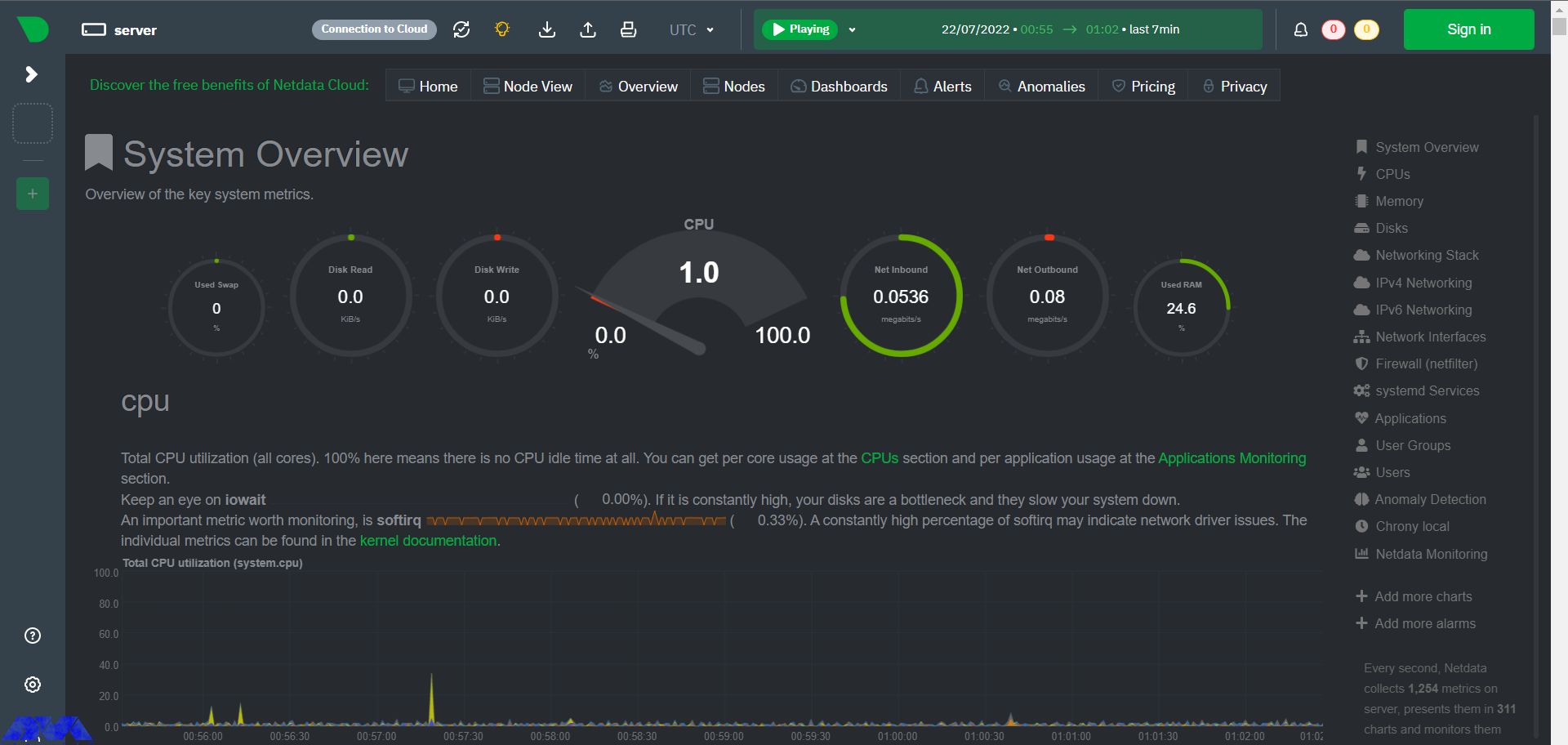
    netdata dashboard

    Configuring Netdata for optimal performance

    Use the configuration file to configure and modify Netdata. This configuration file is located at the at /etc/netdata/netdata.conf directory. You can find this setting by referring to the following URL in your browser:

    https://netdata.example.com/netdata.conf

    The default configuration will be enough to get started. You can use the desired text editor like Nano to make changes to the configuration options based on your requirements. At last, you have to restart the Netdata service using the following command to apply the changes:

    sudo systemctl restart netdata

    Real-time monitoring with Netdata

    Netdata agent searches hundreds of standard applications and groups them by purpose. These applications are supported through aggregators. Now for better understanding suppose you want to monitor MySQL database using Netdata. The NetData agent knows that it should look for processes with the string MYSQL along with a few others and put them in the SQL group. After this process, the SQL group is changed to one dimension in all process-specific graphs. Process and group settings are done by two special and powerful collectors.

    apps.plugin: This plugin monitors the Linux process tree every moment, like fax top or ps, and collects resource usage information on each running process. Then adds a layer of meaningful visualization automatically on top of these metrics and makes charts for each application.

    ebpf.plugin: This plugin collects Berkeley Packet Filter or ebpf in Netdata which monitors Linux kernel-level metrics for file descriptors, process management, or virtual file system IO and then passes processes-specific metrics to apps.plugin in order to monitor. This aggregator aggregates metrics at event frequency. This is more accurate than the standard Netdata detail per second.

    Advanced monitoring with Netdata plugins

    Netdata includes a comprehensive set of built-in plugins, but there are also several advanced monitoring plugins to improve its performance, here we will mention some of the best ones:

    – Redis: Monitor status by reading the server response to the INFO ALL command from any number of database instances.

    – Elasticsearch: With this plugin, you can collect dozens of search engine performance metrics from local nodes and local indexes, including cluster health and statistics.

    – Solr: This plugin helps to collect application search requests, search errors, update requests, and error statistics.

    – Apache: Apache web server performance metrics can be collected with this plugin through an automated server health endpoint.

    – MongoDB: This can be used to collect server, database, replication and sharing performance, and health metrics.

    – Nginx: Monitor web server status information by collecting metrics via the ngx_http_stub_status_module.

    – MySQL: This widely used plugin collects global database, replication, and statistics for each user.

    Netdata vs. other monitoring tools

    Netdata is not the only monitoring tool available, but it is one of the most powerful and feature-rich. Here are some of the key differences between Netdata and other monitoring tools:

    – Real-time monitoring: Netdata provides real-time monitoring of system metrics, allowing businesses to quickly detect and address issues as they arise.

    – Highly customizable dashboard: Netdata’s dashboard is highly customizable, allowing businesses to track the metrics that matter most to them. This can help businesses stay on top of potential problems and improve overall system performance.

    – Advanced analytics and troubleshooting tools: Netdata provides a range of advanced analytics and troubleshooting tools, including the ability to analyze historical data and identify trends over time.

    – Plugin architecture: Netdata’s plugin architecture allows businesses to extend its monitoring capabilities beyond the built-in metrics, providing a more comprehensive view of their systems and applications.

    Conclusion

    If you are interested in Monitoring tools, you should know that Netdata is one of the best. So we focused on this amazing tool to give a clear understanding of Netdata and give a full explanation about its benefits, features and also show how you can install and configure it on Rocky Linux. You can also figure out some differences between Netdata and other monitoring tools. We hope this tutorial was helpful enough for you.

    FAQ

    What is the related command to uninstall Netdata?

    Use the following commands:

    wget -O /tmp/netdata-kickstart.sh https://my-netdata.io/kickstart.sh && sh /tmp/netdata-kickstart.sh –uninstall.

    curl https://my-netdata.io/kickstart.sh > /tmp/netdata-kickstart.sh && sh /tmp/netdata-kickstart.sh –uninstall.

    Is it possible to extend Netdata’s functionality with plugins?

    Yes, you can use plugins because Netdata architecture supports plugins and allows you to extend functionality.

  • Wireshark: An Excellent Network Protocol Analyzer in Kali Linux

    Wireshark: An Excellent Network Protocol Analyzer in Kali Linux

    Today, we’re diving into the world of network protocol analysis with Wireshark in Kali Linux. Wireshark is an awesome open-source tool that captures and analyzes network traffic. It helps you understand how different protocols work and ensures the security and efficiency of your network. Let’s explore the power of Wireshark and how it can make your network troubleshooting a breeze!

    Introduction to Kali Linux and its features

    If you are a bit familiar with what’s going on in the IT world, you probably know that Kali Linux is a powerful and versatile operating system widely used for ethical hacking, penetration testing, and digital forensics. It is specifically designed for security professionals and enthusiasts, providing a wide range of tools and utilities for testing and assessing the security of computer systems. With its user-friendly interface and extensive collection of pre-installed software, Kali Linux allows users to identify vulnerabilities, simulate attacks, and enhance the overall security posture of their systems.

    There are many key tools that come with Kali Linux that makes the experience of using this OS a pure delight. Wireshark is one of these awesome tools that is used by experts to troubleshoot network issues, analyze and develop software and communication protocol. We recommend you use the Linux VPS server plans prepared for you on our website in line with this tutorial.

    What is Wireshark and how does it work?

    So, imagine you’re someone who’s really into the tech world, and you’re trying to solve a mystery in the digital world. Well, Wireshark is one of the best tools in Kali Linux that you can use to see what’s really happening behind the scenes. It’s a super cool network protocol analyzer that lets you peek into the communication between devices on a network.

    Now, here’s the cool part: Wireshark works by capturing and analyzing the packets of data that flow through a network. It’s like listening in on all the conversations happening between devices. You can think of these packets as tiny envelopes containing information, like who’s sending it, where it’s going, and what it contains. This tool sniffs out these packets and displays them in a user-friendly interface, showing you the core details of each conversation.

    But there’s more! Wireshark doesn’t just show you the packets; it also decodes the data, so you can understand what’s actually being said. It can dissect various network protocols like HTTP, TCP, and DNS, and display the contents of each packet in a readable format. This helps you troubleshoot network issues, analyze network performance, and even detect potential security threats. With Wireshark, you become the Sherlock Holmes of the digital world, solving mysteries one packet at a time.

    What is Wireshark and how does it work?

    How to Install Wireshark on Kali Linux

    So let’s see how you can install this awesome tool on your Kali machine. Here’s a short instruction for you:

    1. Open the terminal on your Kali Linux system. You can do this by clicking on the terminal icon in the taskbar or by pressing Ctrl+Alt+T.

    2. You can update your package lists by executing the command below:

    sudo apt update

    3. Once the update is complete, you can install Wireshark by running the following command:

    sudo apt install wireshark

    4. During the installation process, you’ll be prompted to configure Wireshark to allow non-superusers to capture packets. Press the ‘Tab‘ key to select ‘Yes‘ and hit ‘Enter’ to continue.

    5. After the installation is complete, you may need to add yourself to the ‘wireshark’ group to be able to capture packets without running Wireshark with superuser privileges. Run the following command:

    sudo usermod -aG wireshark your_username

    Replace ‘your_username‘ with your actual username.

    6. Finally, log out and log back in for the group changes to take effect.

    That’s it! You’ve successfully installed Wireshark on Kali Linux. You can now launch it by searching for it in the applications menu or by running the ‘wireshark’ command in the terminal. Remember to use this tool responsibly and adhere to ethical guidelines when capturing and analyzing network traffic.

    Network protocol analysis using Wireshark

    Network protocol analysis using Wireshark is a powerful technique that allows for in-depth examination and troubleshooting of network traffic. Wireshark, a widely-used network packet analyzer, captures and displays network packets, enabling users to analyze various protocols such as TCP, UDP, HTTP, and more.

    By examining packet headers and contents, it helps identify potential issues, bottlenecks, or anomalies within the network. Wireshark provides valuable insights into network behavior, helping network administrators and analysts understand the flow of data, detect potential security threats, and optimize network performance. Its user-friendly interface, extensive filtering options, and robust analysis capabilities make it an essential tool for network troubleshooting, performance tuning, and ensuring the smooth operation of networks.

    Network protocol analysis using Wireshark

    Troubleshooting Wireshark Issues in Kali Linux

    Like any other tool we use, Wireshark is not free of trouble. Don’t worry though, we got your back! Here are five common issues that users face when using Wireshark and a brief explanation on how to solve the issue.

    Issue: Wireshark not capturing packets

    Troubleshooting:

    • Verify that you have sufficient privileges to capture packets by running Wireshark with root/administrator privileges using the “sudo” command.
    • Check if the network interface you are trying to capture is correctly selected in Wireshark’s interface list.
    • Ensure that no other applications or services are already using the network interface, as this may conflict with Wireshark’s packet capturing.

    Issue: No network interfaces are listed in Wireshark

    Troubleshooting:

    • Check if the necessary drivers for your network interfaces are installed. Use the “lsmod” command to verify if the required kernel modules are loaded.
    • Ensure that the network interface is properly connected and recognized by the operating system. Use the “ifconfig” command to check the interface status.
    • Restart the network-manager service or the entire system to refresh the network interfaces list in Wireshark.

    Issue: Wireshark displays only local traffic

    Troubleshooting:

    • Confirm that your network interface is set to promiscuous mode, allowing it to capture all network traffic. Go to “Capture Options” in Wireshark and check the “Enable promiscuous mode” box.
    • Verify that your network interface is connected to a network with active traffic. If you are testing on a local network, ensure that other devices are generating network traffic.

    Issue: Wireshark captures packets but shows them as encrypted or unreadable

    Troubleshooting:

    • Check if the captured packets are encrypted using protocols like SSL/TLS. In such cases, you may need to configure Wireshark to decrypt the traffic by providing the necessary encryption keys or certificates.
    • Ensure that you have the required decryption plugins installed in Wireshark to handle specific encryption protocols. Install any missing plugins or update the existing ones.

    Issue: Wireshark crashes or becomes unresponsive

    Troubleshooting:

    • Ensure that you are using the latest version of Wireshark and that it is compatible with your Kali Linux distribution. Update Wireshark if necessary.
    • Disable unnecessary protocols and dissectors in Wireshark’s preferences to reduce the processing load.
    • Check if your system has enough resources (CPU, memory) to handle the packet capturing and analysis. Close any other resource-intensive applications running concurrently.

    Remember to consult the Wireshark documentation or community forums for more specific troubleshooting steps if needed.

    what is wireshark

    Conclusion

    In conclusion, Wireshark is an excellent network protocol analyzer in Kali Linux. It offers a user-friendly interface, powerful features, and extensive protocol support, making it a valuable tool for network administrators, security professionals, and anyone interested in analyzing and troubleshooting network traffic. Wireshark’s ability to capture, dissect, and analyze network packets in real time provides valuable insights into network performance, security vulnerabilities, and potential threats. Its availability in Kali Linux further enhances its functionality and usefulness for network monitoring and analysis. Overall, Wireshark is a reliable and indispensable tool for network analysis in Kali Linux.

  • Secure Your AlmaLinux with Firewall: Ultimate Guide to Protect Your System from Cyber Threats

    Secure Your AlmaLinux with Firewall: Ultimate Guide to Protect Your System from Cyber Threats

    If you are going to prevent malicious traffic or data coming from the Internet or other networks to your system, you need to know what a firewall is and how it works. Generally, a firewall is a device and network security mode that monitors incoming and outgoing network traffic and blocks or allows packets or information data to pass based on its security rules. In this post, with an Ultimate Guide to Protect Your System from Cyber Threats, we will tell you how to Secure Your AlmaLinux with Firewall.

    Introduction to Firewall in AlmaLinux

    A firewall is used to prevent sabotage and security of any system of this system. We must say that every system connected to the Internet needs its firewall to be active to prevent malware attacks and the penetration of dangerous data. It is interesting to note that AlmaLinux and other RHEL-based Linux distributions use firewalls to manage firewall rules. Before we start and explain to you the methods of Secure Your AlmaLinux with Firewall, we recommend you choose and buy a plan from the Linux VPS server plans presented on our website. After installing AlmaLinux on our servers, you will enjoy their high quality.

    How to Secure Your AlmaLinux with Firewall

    In the rest of this article, we will comprehensively teach you how to Secure Your AlmaLinux with Firewall.

    Harden Access with SSH

    If we want to describe SSH with a simple example, we should say that it is like the door of your house. Therefore, securing the front door will keep your home safe. When you purchase a Linux server, your service provider will provide you with SSH root access. To increase security, you should start with SSH access. In the following, we will teach you 5 ways to harden SSH access.

    To carry out the steps that we will tell in the rest of this article, it is enough to open the configuration file using your desired text editor:

    nano /etc/ssh/sshd_config

    It is also necessary to save and exit the configuration file after completing each step. Then, to apply the changes, you must restart the sshd file by running the following command:

    systemctl restart sshd

    1: Setting an idle timeout

    The first method is to exit SSH if the user is inactive. Therefore, you can search for the following command inside the configuration file:

    #ClientAliveInterval 0

    Now, if you want to set the idle time to 5 minutes, for example, you need to set it in seconds. That is 300 seconds:

    ClientAliveInterval 300

    2: Limit the maximum authentication attempts

    In the second method, you can reduce the number of unsuccessful attempts to enter the system. (3 unsuccessful logins):

    MaxAuthTries 3

    3: Changing the SSH Port number

    Another very effective method is to change the SSH port. Given that the default SSH port is 22, you can easily change it to the desired number by running the following command. (for example port 1022):

    #Port 22

    and change it to:

    Port 1022

    4: Disable Tunneling and forwarding

    It should be noted that SSH tunnels allow connections made to a local port to be forwarded to a remote device over a secure channel. To disable some unnecessary options related to tunneling and forwarding, you can search for the following commands in the configuration file:

    #AllowAgentForwarding yes
    #AllowTcpForwarding no
    #PermitTunnel no

    Now you need to change the above commands as below and save the configuration file and exit it:

    AllowAgentForwarding no
    AllowTcpForwarding no
    PermitTunnel no

    5: Using authentication without a password and public key

    To generate your public key on a desktop computer on different platforms, you need to do the following. If you are using OpenSSH Client on Windows, you must use the following command in the command prompt:

    ssh-keygen

    But if you don’t use OpenSSH Client, you can generate SSH keys using PuTTYgen.

    Also, if you use MacOS or Linux operating systems, you can use the following command:

    ssh-keygen

    Again, it is necessary to run the configuration file after entering the server by running the following command:

    nano /.ssh/authorized_keys

    Put your public key in a row in the file and save it. After doing this you can connect to SSH using your private key. Now it’s time to run the following command:

    /etc/ssh/sshd_config

    Finally, you need to paste the following lines in the desired path:

    Password Authentication yes
    PubkeyAuthentication yes

    Installing CSF Firewall

    AlmaLinux has a default firewall but we recommend CSF firewall for intrusion detection, intrusion detection, and security in this article. This firewall is very popular among the users of the popular control panels CPanel, DirectAdmin, and Webmin. To install the CSF firewall, you must first install the necessary prerequisites using the following command:

    dnf install perl-libwww-perl.noarch perl-LWP-Protocol-https.noarch perl-GDGraph wget tar perl-Math-BigInt

    Now you can run the following commands to download, extract and install CSF Firewall:

    cd /usr/src
    wget https://download.configserver.com/csf.tgz
    tar -xzf csf.tgz
    cd csf
    sh install.sh

    In the next step, you can use the following command to check if your server has iptable modules or not:

    perl /usr/local/csf/bin/csftest.pl

    After learning the relevant explanations, you should turn off the test mode:

    sed 's/TESTING = "1"/TESTING = "0"/g' /etc/csf/csf.conf

    Finally, you can restart the CSF firewall by running the following command:

    csf -r

    Install ClamAV Antivirus

    ClamAV is an open-source, cross-platform, anti-malware toolkit developed by Cisco Systems Inc. This kit contains a new protection system to deal with Trojans, viruses, worms, and other types of malware. This antivirus is basically a light and command-line-based system that is combined with other tools such as FreshClam, ClamDaemon, ClamDTop, ClamScan, and Clamtk and offers many valuable features such as automatic database update and real-time scanning and scheduled scanning.

    You can run the following commands to install ClamAV on AlmaLinux:

    dnf install clamav
    dnf install clamd

    You should know that ClamAV uses FreshClam to check for new database versions periodically. Run ClamAV to update the signature database. To do this, just follow the instructions below step by step.

    Stop the freshclam service by running the following command:

    systemctl stop clamav-freshclam

    You can also run Freshclam using the following command:

    freshclam

    Run the following command again to start the Freshclam:

    systemctl start clamav-freshclam

    After completing the installation process, you can use the following command to run a full system scan and remove malware:

    clamscan --infected --recursive --remove /

    AlmaLinux update

    As you know AlmaLinux is a binary-compatible fork of the RHEL and CentOS base. On the other hand, RHEL and CentOS are secure enough for an enterprise environment. However, it is important to try to always keep AlmaLinux up-to-date by running the following command:

    dnf update all

    How to enable the Firewall on AlmaLinux

    In the first step, you can check the status of the firewall on AlmaLinux by running the following command:

    systemctl status firewalld

    Check the services configured in the firewall using the following command:

    sudo firewall-cmd --list-all

    You can stop the firewall with the help of the following command:

    sudo systemctl stop firewalld

    You can also run the following command to start the firewall again:

    sudo systemctl start firewalld

    To restart the process, use the following command:

    sudo systemctl restart firewalld

    As you know, by default, the firewall starts automatically after the system boots. To disable the firewall, you can use the following command:

    systemctl disable firewalld

    It should be noted that if the above command is executed with the systemctl stop firewalld command, the firewall will be disabled forever.

    The interesting thing is that you can reactivate the firewalld service at any time:

    sudo systemctl enable firewalld

    Conclusion

    In this article that you read, we tried to fully familiarize you with the steps to secure AlmaLinux so that you can be safe from cyber-attacks. We also tried to teach you how to Secure Your AlmaLinux with Firewall. In this way, now you can easily install FirewallD on AlmaLinux and other RPM-based Linux systems. By doing this you will partially secure your system from the outside world.

  • Protecting Your Ubuntu Server: A Comprehensive Guide to Firewalls

    Protecting Your Ubuntu Server: A Comprehensive Guide to Firewalls

    If you want to secure your Ubuntu system, you should configure a firewall. If you want to setup and manage a firewall, various flexible utilities are designed by Linux. One of these tools is called iptables. But, it should note that new users in network security may be a little afraid of iptables, so it is better to start with UFW first. This article proposes to give a comprehensive guide to firewalls.

    What is UFW on Ubuntu?

    UFW or Uncomplicated Firewall is a default firewall configuration tool. This user-friendly tool has been developed to facilitate the configuration of iptables firewalls and is provided for creating ipv4 or ipv6 host-based firewalls. It is initially disabled by default from the UFW man page. Also, UFW gives an easy way to add or remove simple rules, but it is not intended to provide complete firewall functionality.

    How to Configure a Firewall on Ubuntu Server?

    Here, we are going to show how you can setup a firewall on Ubuntu servers using UFW with a Comprehensive Guide to Firewalls. Follow the steps to protect your Ubuntu system. But, first of all, you should prepare the necessary requirements.

    setup firewall on ubuntu

    A Comprehensive Guide to Firewalls

    Prerequisites

    – A Linux VPS Server with Ubuntu operating system

    – A user account with sudo privileges

    – accessing a Windows command line

    Installing UFW on Ubuntu

    UFW is disabled by default. So, the first thing to do is to enable it from the terminal prompt:

    sudo ufw enable

    Note that UFW is installed by your Ubuntu server as default, if not, you can check the status and install it using the commands below and then enable it:

    sudo ufw status
    sudo apt install ufw

    Wait to complete the installation process. Now you have UFW enabled on your server.

    Configuring UFW on Ubuntu

    Now that you enabled UFW, you can configure UFW using both IPv4 and IPv6. To support both protocols you should modify the UFW configuration file, so go through these instructions.

    First, you can use Nano or any text editor to open the default settings file:

    sudo nano /etc/default/ufw

    In your output, you will see the IPv6. If this value is set as no, change the value to yes and enable your IP. Then save and close the file.

    Setting up Default UFW Policy

    By default, UFW is set to allow all outgoing connections and deny all incoming connections. These rules are typical for PCs that do not need to respond to incoming requests. So, if you have changed the default settings and want to return to the default settings, run the following command:

    sudo ufw default deny incoming

    To allow outgoing connections use the following command:

    sudo ufw default allow outgoing

    So return the statute to the default settings by these comments.

    Allowing SSH Connections

    If your connection is from remote locations, you should setup UFW to allow incoming SSH connections.

    Use the command below to configure UFW to allow the SSH connections:

    sudo ufw allow ssh

    To add a rule for IPv4 (or IPv6 if enabled) use this command and allow incoming and outcoming traffic from SSH connections.

    Enabling UFW

    After the configuration, to apply changes, disable and enable the UFW firewall again:

    sudo ufw disable
    sudo ufw enable

    With these actions, you succeeded in setting up and activating the firewall.

    Checking the Status of UFW

    If you need to check the status and get detailed information, execute the following command:

    sudo ufw status verbose

    How to Work with UFW Rules?

    UFW determines the rules for how the server communicates with other devices. Now you need to specify which connections are allowed to control firewall settings and which are prohibited.

    Allowing Incoming Connections on Other Ports

    You should allow specific incoming connections to control additional connections, depending on the purpose of the server. Now create UFW rules to add connections. Below is a list of commands requiring for configuration:

    1- Apply the command below to set the server and listen to HTTP:

    sudo ufw allow http

    You can use port 80 as an alternative for HTTP connection:

    sudo ufw allow 80

    You can see the rule in UFW status:

    sudo ufw status verbose

    2- Run the following command to enable HTTPS connections:

    sudo ufw allow https

    You can use port number 443 as an alternative for HTTPS connection:

    sudo ufw allow 443

    Now to check the status run this command:

    sudo ufw status verbose

    3- Apply the command below to modify a rule that allows access to all ports from a specific IP:

    sudo ufw allow from to any port

    This allows all traffic from a remote server to a local machine or local server.

    4- Apply this command to allow access from a particular machine to a specific port. This rule will limit access to the specific port:

    sudo ufw allow from to any port

    5- Determine the range values and the protocol type to allow access to a range of sports. The following is using to allow connections from 2000 to 2004 for TCP:

    sudo ufw allow 2000:2004/tcp

    To change the protocol for UDP use the following command:

    sudo ufw allow 2000:2004/udp

    Denying Incoming Connections on the Other Ports

    If you want to forbid connection from a specific IP address create a deny rule:

    sudo ufw deny from

    Or, you can use the following command to deny access to particular ports:

    sudo ufw deny from to any port

    How to Delete UFW Ports

    It is possible to delete UFW rules. You can use two ways for this reason:

    1- You can disable the list of all rules and find the determined number of the rule. Now you can see the list in your output:

    sudo ufw status numbered

    Choose the related rule number and use the command below to delete the rule, so the rule will be removed from the list:

    sudo ufw delete

    2- The second way is to specify it word for word:

    sudo ufw delete

    For Example:

     sudo ufw delete allow 2000

    Checking Application Profiles

    Since you use the apt command to install UFW, each package has an application profile in the /etc/ufw/applications.d directory. This profile includes information about the software and its UFW settings. So to see the list of the application profiles use this command:

    sudo ufw app list

    To see more detailed information about a specific package run this command:

    sudo ufw app info 'package name'

    To give an example, put Apache full to see all the information about this application profile:

    sudo ufw app info 'Apache Full'

    Conclusion

    Security is one of the most important parts of servers and to provide this security, you should set a firewall for your server. Here, we taught how to setup a firewall using UFW on the Ubuntu server after a Comprehensive Guide to Firewalls. We also gave some extra commands and instructions to show the way it works. We hope you enjoyed this article.

  • Exploring the Features of Kali Linux: A Comprehensive Overview

    Exploring the Features of Kali Linux: A Comprehensive Overview

    If you are looking for a popular operating system that is useful in security positions and for computer forensic experts, you should turn your attention to Kali Linux. This operating system has many features that are very important in the field of cyber security. This article is presented for exploring the features of Kali Linux and will try to give a comprehensive overview of that.

    What is Kali Linux?

    Kali Linux is an open-source Linux distribution that is based on Debian and introduced in 2013. The Kali Linux operating system is a powerful tool developed to perform tasks such as ethical hacking and manipulation of network tools. The most important advantage of this system is that it is free. To install and run Kali Linux, we recommend you use our high-speed and high-quality Linux VPS servers.

    What are the Most Significant Features of Kali Linux?

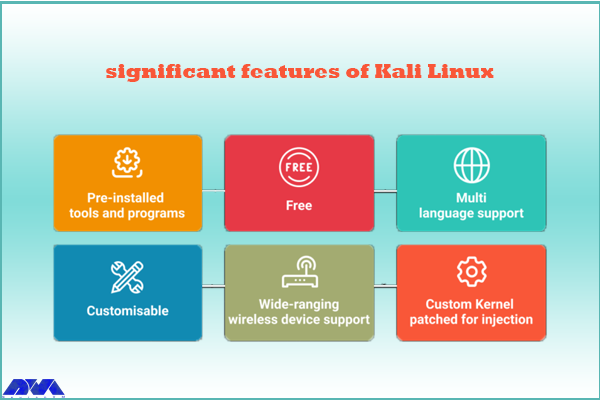
    The perception of penetration testing has changed over the years. Kali Linux is also a penetration testing tool and is one of the systems that comes with many features. These features are as follows:

    features of Kali Linux

    – Kali Linux contains more than 600 penetration testing tools like Burn Suite, Nmap, Wireshark, Air crack-ng, Metasploit framework, John the Ripper, and so on. These are practical tools for penetration testing and hacking.

    – Kali Linux is provided free and open-source.

    – It is capable of supporting various USB and wireless devices and interfaces.

    – Packages and repositories in Kali Linux are GPG signed.

    – Filesystem Hierarchy Standard (FHS) is maintained in Kali Linux.

    – It supports multiple languages.

    – The users can customize Kali Linux appearance as their choice cause it is completely customizable.

    – It supports MRMEL and ARMHF which makes it available on a wide range of ARM devices like Raspberry Pi.

    – Another prominent feature of Kali is that it supports accessibility features for visually impaired users with voice feedback and braille hardware support.

    – There is regular customization and patching of the kernel for any vulnerability in Kali Linux.

    What are Some Other Special Features of Kali Linux?

    – Live Boot system is supported by Kali Linux using a USB device without any touching of the host operating system.

    – ISOs are customizable on Kali Linux. Every security researcher has their own needs. Users can produce a custom-optimized ISO file with a selected set of meta-packages.

    – Kali is equipped with an encryption mechanism for persistent volume(s). This way, The saved files are able to be secured using Luks Nuck containers.

    – You can use Kali from the Windows Subsystem for Linux or WSL. Use Win-Kex for this reason.

    – Kali NetHunther is a free, open-source Android application and is useful for common attacks such as Bluetooth attacks or USB HID attacks, and so on.

    – Another feature is Kali Undercover. You can blend the appearance of Kali with Windows OS. So, if you activate the Kali Undercover feature, the menu and your desktop will look like Windows OS.

    – Kali is able to support any platform. You can run Kali on ARM, Bare Metal, Cloud, Containers like Ducker and Alsovirtual box, and VMware.

    What are the Negative Points Of Kali Linux?

    – This operating system is a little bit complicated and is not beginners friendly.

    – If you run this system from a virtual machine, It’s possible that all the hacking tools do not work properly.

    – A lot of junk space is taken by Kali.

    Conclusion

    Kali Linux is one of the most advanced operating systems for penetration testing and as mentioned in this article, it contains more than 600 tools such as Nmap and Wireshark. It is mainly used for advanced penetration testing and security auditing. we recommended this platform to professionals and advanced users because it is not beginners friendly. Read this content to get more familiar with the greater features of Kali Linux. If you have any questions, leave a comment here.

    FAQ

    Is Kali a good choice for gaming?

    Game developers don’t focus on Linux because it contains just 2% of the users. As a result, It is not designed for hardcore gaming and Kali is not either.

    How much RAM is needed for Kali Linux?

    You can setup Kali as your basic secure shell server with no desktop with 128 MB RAM but note that 512 is recommended. Also, 2 GB of disk space is needed.

  • The Ultimate Guide to Install MariaDB on Debian

    The Ultimate Guide to Install MariaDB on Debian

    MariaDB is a popular database and enables you to meet all your workload. MariaDB platform contains more features, better performance, and new storage engines. It is very similar to MySQL and in fact, it is a fork of MySQL. This article will give an ultimate guide to install MariaDB on Debian operating system.

    What is MariaDB?

    MariaDB is an open-source relational database management system used as an alternative to MySQL in the database components of the LAMP (Linux, Apache, MySQL, PHP/Python/Perl) stack. This platform is used for different proposes such as data warehousing, enterprise-level features, E-commerce, and logging applications. You can use it on any scale and any cloud database. MariaDB is well-documented, so if you need to solve a problem, you can get plenty of help online.

    Steps to Install MariaDB on Debian

    If you decide to install MariaDB and you use the Debian operating system, you can follow the step-by-step instruction presented in this article. Before starting the process of installing MariaDB on Debian, we recommend you buy and use the Linux VPS server plans provided on our website and enjoy its high quality and speed.

    install mariaDB on debian

    Prerequisites

    These are the requirements before you start the installation process:

    – Updated Debian operating system

    – Non-root administrative user

    – Firewall Configured with UFW

    Installing MariaDB on Debian

    The first step you have to do before installation is to update your system. You can use the following apt command:

    sudo apt update

    Now, install the necessary packages using the command below:

    sudo apt install mariadb-server

    You should use the script that the mariadb-server package provides so that it can restrict access to the server and makes it possible to remove unused accounts. You should do this cause the default configuration leaves your installation insecure.

    Configuring MariaDB on Debian

    If you want to do a fresh installation of MariaDB, your next step is to run the existing security script. This script is highly effective because it overrides some of the less secure options, such as remote root login and sample users. The command below is to run the security script:

    sudo mysql_secure_installation

    Using this command will take you to a series of prompts with which you can make changes to your MariaDB installation security options.

    As you have a protected root account you can skip the next step by typing n and then pressing enter.

    At the next prompt, you will be asked to change your root password. Answer the question by Typing n and answering no. It’s better to not change the configured authentication methods for that account.

    At the next prompt, you can choose Y and press enter to accept the defaults for all other questions. This action will remove some anonymous users and the test database and also the login to the root will be disabled. After all these steps, you successfully finished MariaDB’s initial security configuration.

    Creating an Administrative User that Uses Password Authentication (Optional)

    Changing the root account is not recommended because most things like rotating logs or stopping the server are done by this user. This change in the /etc/mysql/debian.cnf configuration file may work initially, but updating the package will potentially overwrite these changes. So, instead of changing the root account, it is recommended to create a separate administrative account with a password.

    You should open the MariaDB terminal and use the command below:

    sudo mariadb

    Create a new user with root privileges and password-base access. To match your preferences, you should ensure to change the username and password:

    GRANT ALL ON . TO 'admin'@'localhost' IDENTIFIED BY 'password' WITH GRANT OPTION;

    If you want to ensure that changes are saved and available in your current section, flush the privileges:

    FLUSH PRIVILEGES; 

    The last step is to exit the MariaDB shell:

    exit

    Testing MariaDB

    Now, it is time to test the MariaDB installation. As you installed the repositories, MariaDB will start running automatically. Use the following command to check the status:

    sudo systemctl status mariadb

    If you couldn’t start MariaDB, use the command below for this reason:

    sudo systemctl start mariadb

    Tip: For further checkout, you can connect to the database using mysqladmin tool. This will allow you to run administrative commands.

    Conclusion

    This Guide was a simple and step-by-step explanation for installing MariaDB on Debian operating system. Here, you learned how to install, configure, and as the last action, how to test MariaDB on your system. You also learned how to create an extra administrative user. We hope this was a useful tutorial for you.

    FAQ

    What is the default user for MariaDB in Debian?

    Default MariaDB user accounts and privileges
    The default configuration consists of: A privileged account with a username of root. The root user has remote access to the database.

    Why use MariaDB instead of MySQL?

    When it comes to performing queries or replication, MariaDB is faster than MySQL. So if you need a high-performance relational database solution, MariaDB is a good choice. In addition, MariaDB also easily supports a high concurrent number of connections without much performance degradation.