Blog

  • How to Manage JSON Data with PostgreSQL

    How to Manage JSON Data with PostgreSQL

    Want to know the way to manage JSON data with PostgreSQL? Read this article to have a full understanding of this issue. I believe that most people don’t use it correctly, and it causes problems and unhappiness in the long run. So, first of all, we will explain PostgreSQL and JSON data briefly and then go on with the rest of this article.

    Brief Explanation of PostgreSQL JSON Data Type

    We have another data type in PostgreSQL, which is called JSON data and stands for Javascript Object Notation. JSON data is a user-friendly data format for users who are willing to transfer data in a network at high-speed. JSON replaces XML in various fields rapidly. Also, nowadays, developers enhance their software capability by pairing their application’s JSON data with PostgreSQL to reach a query processing environment.

    In other words, the main purpose and role of JSON is transporting data between a server and a web application. JSON has a human-readable format. Since, version 9.2, PostgreSQL supports native JSON data and provides a lot of functions and operators to control JSON data.

    Manage JSON Data With PostgreSQL

    Now that you have a clear understanding of this issue, let’s go further and learn the way to manage JSON data step by step with PostgreSQL. We suggest that you visit the Linux VPS server plans provided on our website before starting the process of Managing JSON Data with PostgreSQL.

    How to Create a New Table to Practice JSON Data Type

    – In the first step, let’s create a new table to practice JSON data type:

    CREATE TABLE orders (
    id serial NOT NULL PRIMARY KEY,
    info json NOT NULL
    );

    As you see above, our orders table includes 2 columns:

    1- The id column is the primary key column that identifies the order.

    2- The info column saves the data in the form of JSON data type.

    How to Insert JSON Data after Creating a Table

    – The next step is to insert JSON data after creating a table.

    Now that you have created a PostgreSQL table, to insert data, you have to make sure that data is in a valid format. So, apply the following Insert statement and then put a new row into your order table, as we do here:

    INSERT INTO orders (info)
    VALUES('{ "customer": "Terri Person", "items": {"product": "coffee","qty": 6}}');

    The above command represents that our customer, Terri Person bought 6 cups of coffee. Now, use the below command to insert multiple rows at the same time in your table:

    INSERT INTO orders (info)
    VALUES('{ "customer": "Linda Evanty", "items": {"product": "Toy Car","qty": 24}}'),
    ('{ "customer": "Will Path", "items": {"product": "Teddy bear","qty": 1}}'),
    ('{ "customer": "Jannson Miller", "items": {"product": "Doll","qty": 2}}');

    Querying JSON Data

    – The last step is to query JSON data. Finally, if you want to query the JSON data, you should use the select statement and present your data in a manner similar to other native data types. So, use the below command:

    SELECT info FROM orders;

    Now, you will see that PostgreSQL converts a result set in the form of JSON.

    Key Operators of PostgreSQL to Get the JSON Data

    PostgreSQL JSON provides several operators to manipulate your data in a useful way. Some of the operators that are useful for inserting JSON data in PostgreSQL are as follows:

    -> operator: This operator helps to return the JSON object field by key.

    ->> operator: This operator helps to return the JSON object field by text.

    e.g: In the following query, the -> operator is used to get all customers in the form of JSON:

    SELECT info -> 'customer' AS customer
    FROM orders;

    e.g For this query, the ->> operator is used to get all customers in the form of text:

    SELECT info ->> 'customer' AS customer
    FROM orders;

    At this point, you can chain operator -> with operator ->> to retrieve a specific node.

    e.g, the following statement returns all products sold:

    SELECT info -> 'items' ->> 'product' as product
    FROM orders
    ORDER BY product;

    As the last part, use the JSON operator in the Where clause:

    To filter the returning rows, you can use JSON operators in the WHERE clause.

    For example, to figure out who bought the Toy Car, you should use the following query:

    SELECT info ->> 'customer' AS customer
    FROM orders
    WHERE info -> 'items' ->> 'product' = 'Toy Car';

    If you want to know who bought 2 products at the same time, you should use the query below:

    SELECT info ->> 'customer' AS customer,
    info -> 'items' ->> 'product' AS product
    FROM orders
    WHERE CAST ( info -> 'items' ->> 'qty' AS INTEGER) = 2

    Conclusion

    Well, Done! In this article, we tried to show how you can manage JSON data with PostgreSQL, and you learned how to use operators to process JSON data efficiently. Now, you can easily use this data and manage it.

  • How to Protect Against Brute Force Attacks on Dedicated Server

    How to Protect Against Brute Force Attacks on Dedicated Server

    A Brute Force attack is one of the hacker’s methods to find passwords. Usually, this work is done by special software. In this attack, the hackers do not take any steps to decrypt the password. Rather, using software, it tries to guess the password and check all possible situations to find the correct password. After reading this comprehensive article, you will learn how to Protect Against Brute Force Attacks on Dedicated Server.

    What is a Brute Force attack?

    Brute Force attack is a trial-and-error method to decode important and sensitive data. The most common applications of brute force attacks include cracking passwords and encryption keys.

    This type of attack requires two factors, a lot of time and high processing power, which have reduced the efficiency of hackers to some extent. The decoding process is a complex computational operation. To do it, a high-power of a computer software system is needing. Since computers with better hardware and thus higher processing speed have been launched, finally these operations and attacks have become faster and more effective.

    How does Brute Force work?

    You might imagine that the brute force attack creates a lot of load on the CPU. But it is not bad to know that the most effective hardware for brute force attacks is the graphics card (GPU).

    In this type of attack, all possible modes of the password are checked as a combination of characters, including different permutations of numbers, lowercase and uppercase letters, and special characters. This check usually starts with one character, and after checking all cases of one character, check all cases of two characters, three characters, etc., and this process will continue until the relevant password is discovered. Theoretically, this method will eventually reach the answer, for example, if the corresponding 6-digit password is 123456, it can be easily guessed by this method in a relatively short time.

    But imagine that the corresponding password is very long and complicated; In this case, this process will take a long time. According to the complexity of the password and algorithms used, it may take a few hours, a few days, a few months, or even several years.

    Protection against Brute Force attacks on a Dedicated Server

    In the rest of this article, we will explain 6 ways to prevent brute force attacks on a dedicated server. To get started, you can buy a cheap dedicated server from NeuronVM and run the steps mentioned in this post on it.

    1. Microsoft Windows Firewall

    Microsoft Windows Firewall is a powerful security tool that can help protect your dedicated server from malware. Activating a firewall, prevents unauthorized access to the server and the installation of spyware and protects data from theft.

    Microsoft Windows Firewall

    2. CSF Firewall

    Config Server Firewall, also known as CSF, is a firewall configuration script that is installing on servers to maintain security. CSF provides an advanced user interface for complete firewall management in cPanel, DirectAdmin, Webmin, etc. Also, among the features of CSF, we can mention preventing public access to services and allowing connection only through FTP and LFD systems. If you want to increase the security of your server, you need to enable CSF.

    CSF Firewall to preventing brute force attack on dedi cated server

    3. Use Strong Passwords

    One of the basic steps to prevent brute force attacks is choosing a strong password. A strong password is one that is difficult for others to guess and that you can easily remember. One thing you should pay attention to is that your password should be long. A strong password should have at least 20 characters. If your password is 8 characters or less, it will crack in 58 seconds.

    Use Strong Passwords to prevent brute force attack

    A strong password should contain symbols, numbers, lowercase, and uppercase letters. Including symbols and numbers makes your password more difficult to guess because you create more possible combinations using these symbols.

    4. Strengthen Your Login Process

    Another effective way to deal with brute force attacks is to strengthen the login processes. For this purpose, you can use two-step authentication. Another way is to ask users for a confirmation code when they log in. Another way to protect the login page is to restrict the login page to certain IPs. It means that only the IPs you specify can access this page.

    Strengthen Your Login Process

    5. Monitor User Activity

    User activity should always be monitored to identify suspicious behavior. If the system administrator notices an increase in the number of logins or login attempts from unknown users, he can take action to protect his system.

    Monitor User Activity to brute force attack

    6. Use Captcha

    Normally, a login form contains two fields: username and password. By adding a captcha box with a specific phrase written inside it, the user must enter it in the lower box, which is called the security phrase. You can also use the security question instead of the security phrase, which the user must answer in the box below.

    use capcha to prevent Brute Force Attacks on Dedicated Server

    Until the phrase or security question is answering, even if the username or password is correct, it is not possible to log in, which is an important security barrier against brute force attacks. Considering that Brute Force attacks are carried out by robots and software, therefore, by creating a captcha code, the robot or software does not have the necessary intelligence to respond to the captcha code; Because human questions are raised.

    Conclusion

    In this article, you learned How to Protect Against Brute Force Attacks on Dedicated Server. What distinguishes Brute Force attacks from other cracking methods is that it does not use any intellectual strategy, but try to combine different characters to achieve the correct combination. Just like a thief trying different combinations of numbers to open a safe.

  • What is KVM?

    What is KVM?

    KVM stands for Kernel-based Virtual Machine, an open-source Linux virtualization technology that allows the Linux kernel to be used as a hypervisor. Introduced in 2006 and was then integrated into the original version of the Linux kernel. Also, it is part of the Linux code and uses every Linux feature, maintenance, and development without engineering. In this article, we are going to teach you What is KVM?

    What is Virtualization?

    Virtualization refers to a simulated computing resource that mimics the corresponding real resource and makes many resources, from software to specialized hardware devices, to complete hardware platforms. It also covers virtual machines, which include devices such as CPU, memory, network card, disk, graphics adapter, and operating system. The software in question that creates and runs virtual machines is called a hypervisor.

    Necessities and Benefits of Virtualization

    Years ago, in data centers, development, and practice organizations, all machines ran a version of the same operating system, such as Windows, FreeBSD, and Linux. But today, different operating systems such as Linux and Windows and even different versions of an operating system are placed in a computer environment without virtual machines; several physical machines are deployed and maintained to run programs on multiple operating platforms. Virtualization also allows multiple virtual machines, each potentially running a different operating system, to run on a single physical machine.

    In the rest of this article, we are going to introduce the KVM to you.

    Introduction to KVM

    KVM is classified as a type 2 hypervisor, which means it runs on a host operating system. It is also based on the kernel, more precisely, the Linux kernel. It only supports Linux as its host operating system. If you need a type 2 open-source multi-platform hypervisor, VirtualBox is the right choice. VirtualBox also runs natively on Windows, Linux, Mac OS X, and Solaris.

    We recommend that you visit the cheap dedicated server that is offered on our website, and after choosing the plan you want, install KVM on it.


    what is kvm

    It competes in an industry with open-source alternatives such as Xen VirtualBox and proprietary products such as VMware vSphere, Citrix XenServer, and Microsoft Hyper-V. In the past, hypervisor solutions at the time, such as Xen and VirtualBox, were all software-based, and the x86 architecture could not support virtualization. It wasn’t until 2005 that the introduction of the Intel VT and AMD-V extension instruction sets permanently changed the virtualization landscape.

    You can currently install KVM on any 32-bit or 64-bit x86 computer, the “host machine” in Hypervisory parlance, that supports the Intel VT or AMD-V plug-in. Today, modern hypervisors typically support hybrid virtualization, which is hardware-assisted and software-assisted for older chipsets.

    KVM Features

    KVM supports the virtualization of the following guest operating systems:

    1- Linux distributions including Debian, Ubuntu, Centos, Fedora, RedHat Enterprise Linux

    2- BSD like OpenBSD, FreeBSD, and NetBSD

    3- Solaris

    4- Windows

    It currently runs unmodified guest OS images. This feature is also known as full virtualization, in contrast to para-virtualization, where the guest operating system is modified to specifically handle operations that are much more difficult to execute on the virtual machine than on the host machine.

    How does KVM Work?

    KVM has 2 technology components: kernel and user space. The kernel component consists of 2 loadable kernel modules: kvm.ko and kvm-intel.ko or kvm-amd.ko

    kvm.ko module: provides kernel architecture-independent virtualization processing.

    kvm-intel.ko and kvm-amd.ko modules: correspond to modules for Intel and AMD processors. Also, these modules were integrated into the Linux kernel version 2.6.20.

    KVM uses QEMU, which runs in user space, to create virtual machines that interact with the guest operating system. Each virtual machine is simply a normal Linux process, and you can use Linux commands like top and kill to monitor and manage virtual machines.

    Virtual Machine Manager appears in the Applications -> System Tools menu. First, create a new connection to the local QEMU instance from the File -> Add Connection menu. Localhost (QEMU) or QEMU/KVM should appear in the virtual machine list. You can now create a virtual machine by pressing the top left button and the new virtual machine toolbar button.

    Conclusion

    After more than several years of development and operation, KVM has become the standard machine-level virtualization tool in many Linux distributions. In this educational article, you learned What is KVM? We hope this educational article was useful for you. Share your comments with us through the form below.

  • Tutorial Install and enable OpenSSH on Ubuntu 22.04

    Tutorial Install and enable OpenSSH on Ubuntu 22.04

    OpenSSH is the premier connection tool for remote login with SSH protocol. If you follow us until the end of this article, you will learn the steps to install and enable OpenSSH on Ubuntu 22.04.

    Introduction To OpenSSH

    OpenSSH encrypts all traffic and eliminates eavesdropping, hijacking, and other attacks. It also provides a large set of secure tunneling capabilities, multiple authentication methods, and sophisticated configuration options. The OpenSSH suite consists of remote operation tools using ssh, scp, and sftp. It also includes key management with ssh-add, ssh-keysign, ssh-keyscan and ssh-keygen.

    Prerequisites

    First, before starting the OpenSSH installation process, you should have a Linux VPS with Ubuntu 22.04. Then, open Ubuntu 22.04 terminal by pressing CTRL+ALT+T then confirm that your system is updated.

    How to Install OpenSSH on Ubuntu 22.04

    Use the following command to update the repository list:

    sudo apt update
    sudo apt upgrade

    Now install the SSH Server package using the following apt command:

    sudo apt install openssh-server
    sudo apt install openssh-client

    How To Enable OpenSSH on Ubuntu 22.04

    At this point, the SSH server service should start automatically, check the status of the SSH server service by running the following commands:

    sudo systemctl start ssh
    sudo systemctl enable ssh

    Now in this step confirm that OpenSSH is working correctly and there are no problems with the help of the following systemctl command:

    sudo systemctl status ssh

    How To Connect SSH Server on Ubuntu 22.04

    After the installation of OpenSSH is complete, once it is in working mode, now connect to another remote system, computer, or server. However, you must ensure that OpenSSH is installed and enabled on the remote system. Before connecting to the server, have the internal/external IP address or hostname or username of the account you want to connect. Then run the following command:

    ssh username@ip-address/hostname

    How To Disable OpenSSH on Ubuntu 22.04

    If you don’t want to use OpenSSH, use the following command to disable it for security purposes so that you don’t get detected by malicious bots:

    sudo systemctl disable ssh –now

    Conclusion

    In this article, you have learned how to Install and enable OpenSSH on Ubuntu 22.04. Now after enabling OpenSSH, you can connect to other devices that have OpenSSH installed and enabled on their systems. We hope this educational article was useful for you. Share your comments with us through the form below.

  • Tutorial Setup and Use Linux Telnet on Ubuntu 22.04

    Tutorial Setup and Use Linux Telnet on Ubuntu 22.04

    Linux telnet is used to communicate between different machines. This command allows you to manage remote devices using the CLI (Command Line Interface). Use TCP port 23, which is dedicated to the telnet protocol. In the continuation of this article, we are going to teach you how to Setup and Use Linux Telnet on Ubuntu 22.04.

    Introduction to Telnet

    Telnet is installed in isolated networks for historical purposes and for use in local environments. Telnet is not used for open network connections to the Internet because data is sent over the connection, including information such as passwords and other confidential information that is not encrypted. So the data can be easily intercepted by hackers. Use SSH (Secure Shell) to securely connect to remote servers over public networks.

    Prerequisites

    1. Recommended a Linux VPS Server with Ubuntu 22.04 OS

    2. User account with sudo or root access

    How To Setup Linux Telnet on Ubuntu 22.04

    Ubuntu 22.04 repository Telnet is available by default. As the first step, use the following command to install it:

    sudo apt install telnetd -y

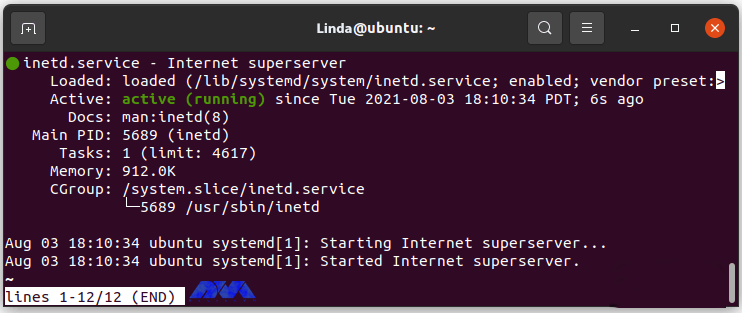
    After installation, check if the Telnet status works correctly with the following command:

    sudo systemctl status inetd

    Output

    system-status-telnet-ubuntu

    How to Use Linux Telnet on Ubuntu 22.04

    In this section, we are going to show you step-by-step how to use Linux Telnet on Ubuntu 22.04. In the first step, we will teach you how to connect to a remote system running Telnet.

    To connect to a remote system running Telnet, you must set a permission rule. By default, Telnet runs on port 23. There are several ways to regulate the UFW. It is recommended that you provide the connecting IP server only if the subnet is much worse. Do not leave port 23 open for everything, and this will lead to brute force efforts.

    The rule for single IP using the following command:

    sudo ufw allow from your_ip_address to any port 23

    Allow from the subnet using the following command:

    sudo ufw allow from your_ip_address to any port 23

    How to Connect to the Remote Server Using Telnet

    Now that you have set the UFW rules so that you can connect to the remote server using Telnet, use the following command (telnet):

    telnet your_ip_address

    How to Uninstall Telnet from Ubuntu 22.04

    Use the following command to remove Telnet from Ubuntu 22.04 operating system:

    sudo apt autoremove telnetd --purge

    This command completely removes Telnet and traces.

    Conclusion

    In general, the safest form of communication of this nature is to use SSH instead of Telnet. Development environments running on isolated Telnet LANs can be more useful. In this tutorial, you learned how to Setup and Use Linux Telnet on Ubuntu 22.04. We hope you find this article useful. Share your comments with us via the form below.

    FAQ

    Is it possible to customize the Telnet setting?

    Yes, you can customize various settings in Telnet. All you have to do is to the command prompt by entering ctrl+], and then use the commands to change the setting.

    Can we trust Telnet?

    Telnet is insecure because it transmits important data like passwords in plain text. It means that all ao the transmitted data can be intercepted and read by someone with malicious intent.

  • How to Install Virtualizor on AlmaLinux 8

    How to Install Virtualizor on AlmaLinux 8

    By reading the step-by-step guide of this article, you can easily Install Virtualizor on AlmaLinux 8. Virtualization is a creative and very practical idea and solution to create a virtual version of storage devices, servers, networks, and other resources that were once only physically available to users. You can virtualize with Virtualizor.

    What is Virtualizor?

    Virtualizor is a powerful web-based admin control panel for KVM, XEN, and OpenVZ virtualizers. This control panel forms a very powerful virtualization system by combining the virtualizers. One of the most important features of this powerful panel is the limitation of bandwidth for each virtual server.

    Virtualizor lets you create virtual servers with just one click. Virtualizor uses the OS Template feature and through this option, installing operating systems and creating a virtual server is done in less than a few seconds.

    Features of Virtualizor

    1. Configure the Server on which Virtualizor is installed

    2. Create or edit a Virtual Server

    3. Manage Server IPs

    4. Storage management

    5. User management

    6. Create and manage invoices

    7. Manage ISO or manages to create VPS

    Prerequisites

    Linux VPS Server with AlmaLinux 8 OS

    – yum/apt-get

    – Storage to create the VPS disks

    Stay with us in the continuation of this article on How to Install Virtualizor on AlmaLinux 8.

    How to Install Virtualizor on AlmaLinux 8

    At first, you should open the Shell and SSH Terminals on your server and enter the following commands:

    wget -N http://files.virtualizor.com/install.sh
    chmod 0755 install.sh
    ./install.sh [email protected] kernel-kvm

    Remember to give the email address correctly.

    What are the Virtualizor Installation Parameters?

    email: The Admin email address

    kernel: Its KVM

    noos: Add noos=true as a parameter to avoid downloading the DomU operating system for DomU

    beta: If you add beta=true as a parameter, you can test the new version of the existing Virtualizor

    nested_virt: Adding nested_virt=1 as a parameter enables nested virtualization on the server. Enabling this will install a new kernel to enable nested virtualization

    Ivg (optional): If you are going to use LVM for the VPS storage

    interface: You can specify the default interface you want to set. If not specified, it is considered eth0

    license: You will get the internal license key, by opening the support ticket

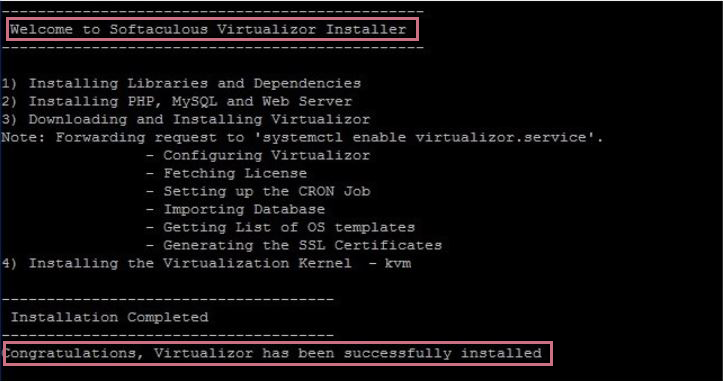
    After completing the installation process, you will see the following output:

    install Virtualizor on AlmaLinux

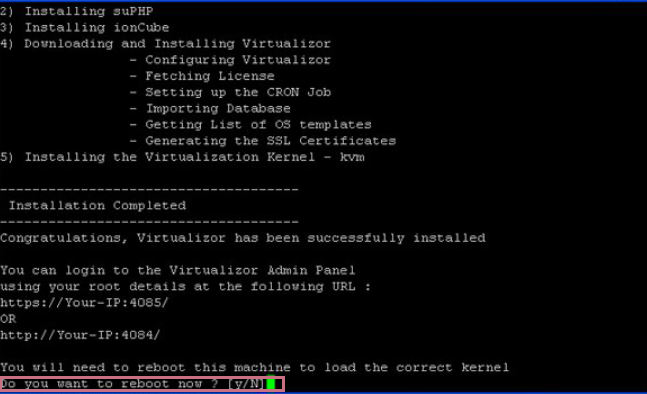
    After the installation is complete, restart the system by typing and running “Y“:

    install KVM

    /root/virtualizor.log is an installation process log file that is created after installation.

    You can create a Storage and Virtual Server and also manage your server from the Admin Panel.

    How to Login to the Virtualizor Admin Panel

    Go to the following URL:

    https://Your-Server-IP:4085/
    http://Your-Server-IP:4084/

    Log in with your server’s root details:

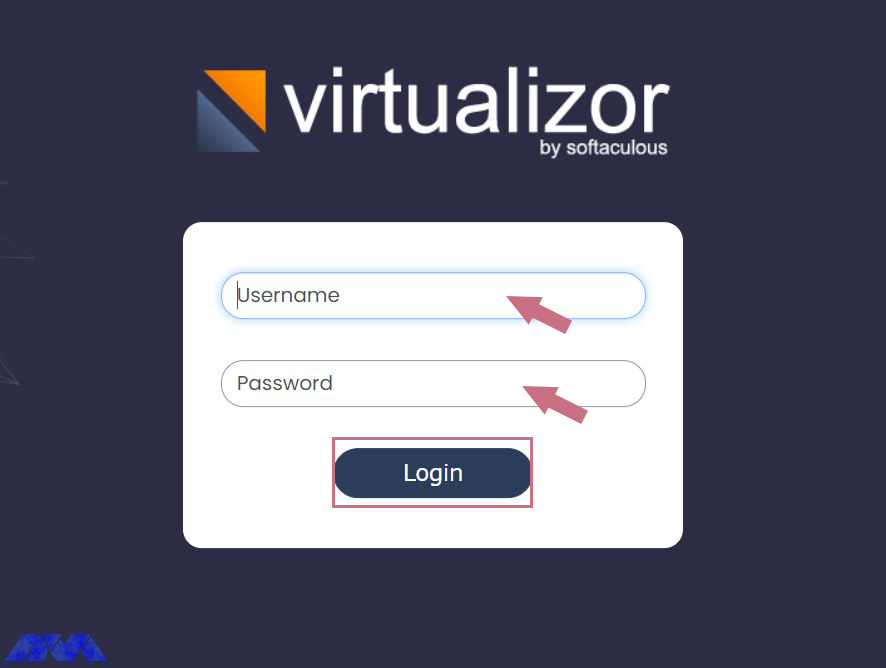
    virtualizor login

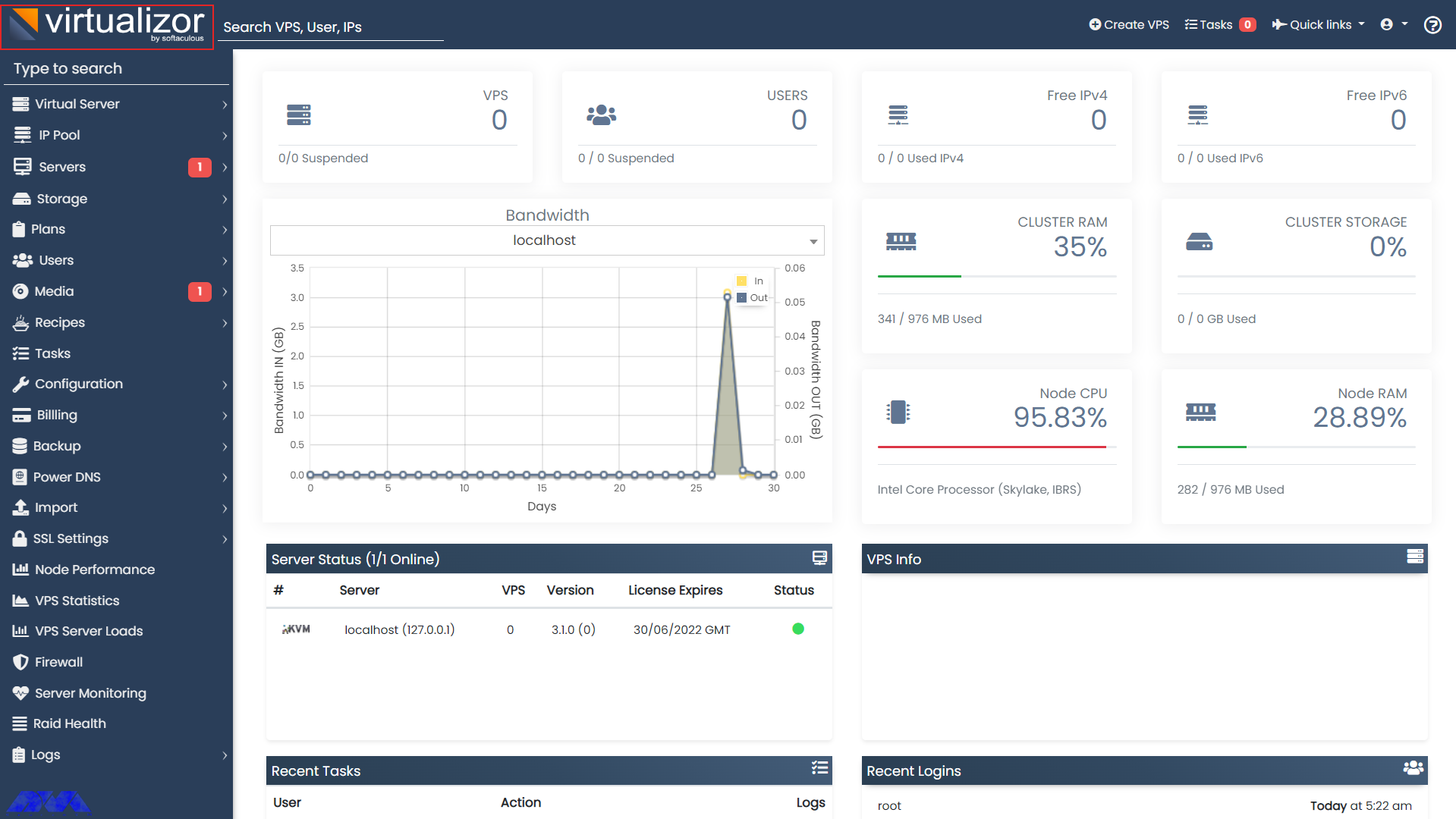
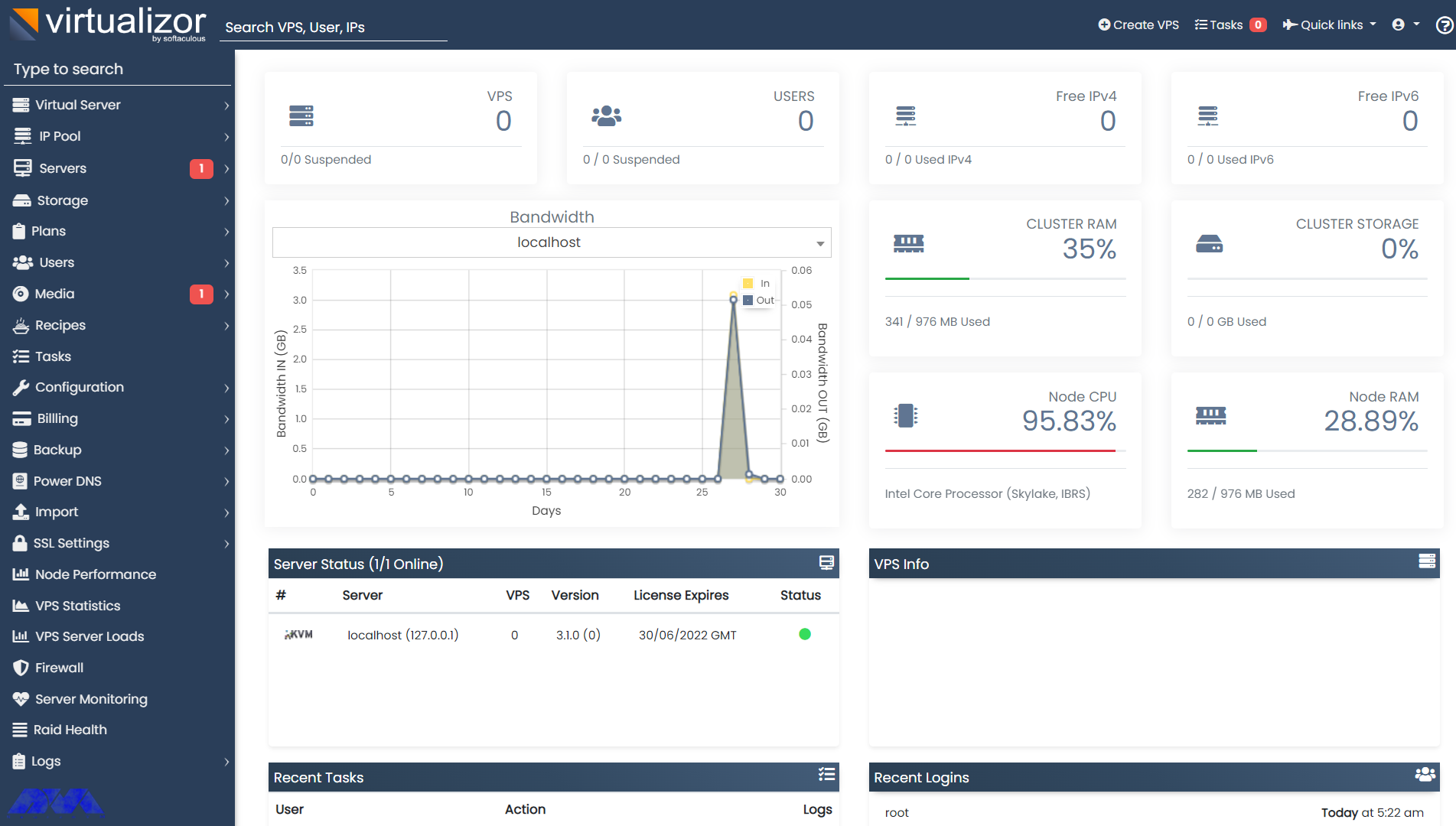
    Now, you will see the following Dashboard:

    virtualizor dashboard

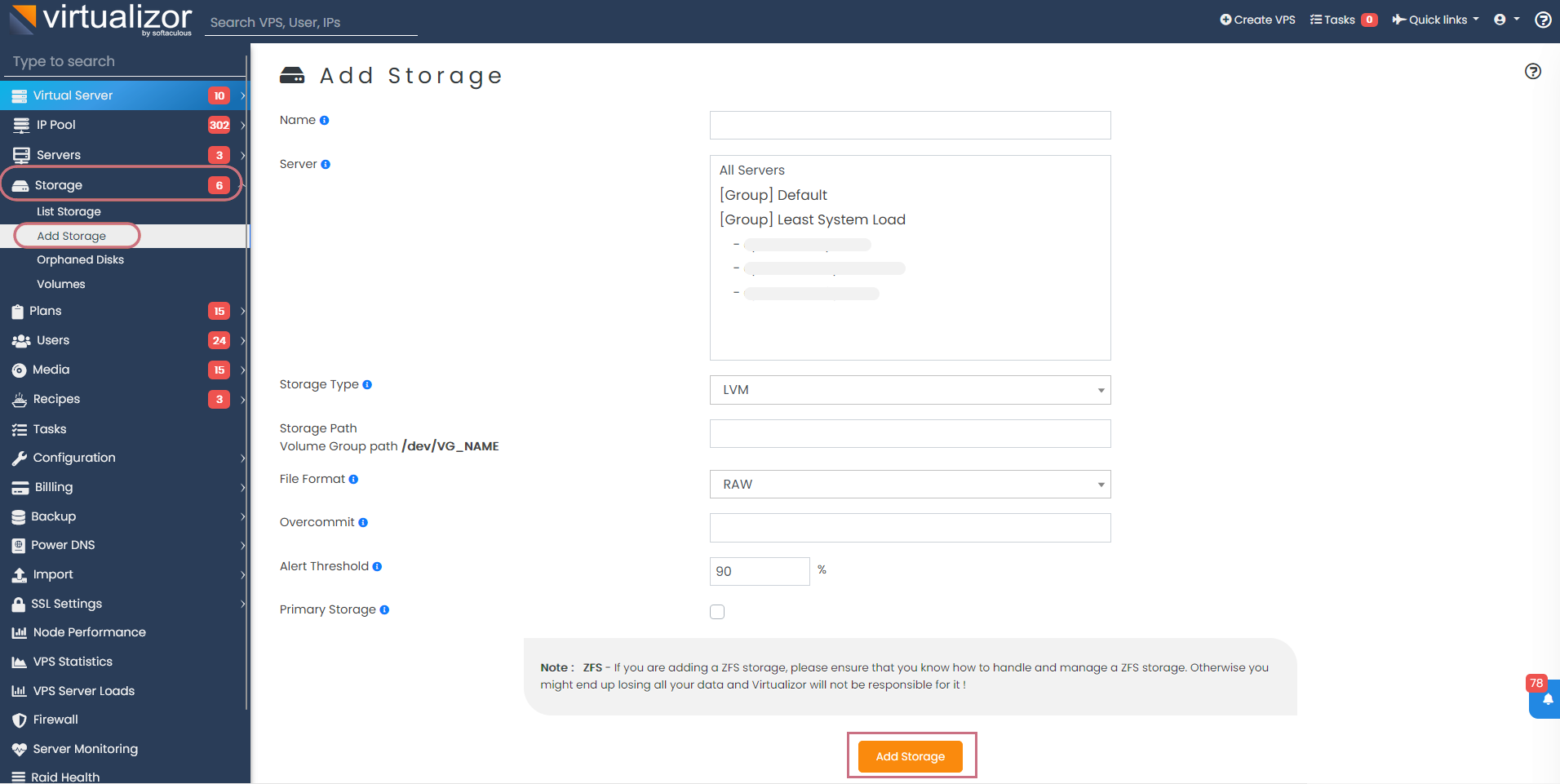
    At this point, you need to define storage. To do this first, go to the Virtualizor Admin Panel and select Storage from the left column, and finally click Add Storage. Then fill in the details and define the storage:

    add storage on virtualizor

    As mentioned earlier, the network interface is considered eth0 by default. Therefore, to add the desired network interface to Virtualizor, you need to do the following steps:

    1) Go to Virtualizor Admin Panel

    2) Select Configuration

    3) Click Save Settings

    Manage the Bridge 

    A viifbr0 bridge is created by Virtualizor that detects the IP, Netmask, and GATEWAY from the following:

    /etc/sysconfig/network-scripts/ifcfg-INTERFACE_NAME

    If you change the above file, remember to restart the Virtualizor network with the following command:

    service virtnetwork restart

    Enter the following command to start Virtualizor:

    service virtnetwork start

    And you can use the following command to stop Virtualizor:

    service virtnetwork stop

    You can Make the bridge permanent

    Run the following commands to make the bridge permanent, so that, it can be started as soon as the operating system is booted, and the network is created.

    Tip: You should have the bridge-utils package on your server backup ifcfg-eth0.

    – Take a Backup from ifcfg-eth0.

    /etc/sysconfig/network-scripts/ifcfg-eth0 directory will contains the content below:

    cat /etc/sysconfig/network-scripts/ifcfg-eth0
    DEVICE=eth0
    BOOTPROTO=static
    TYPE=Ethernet
    HWADDR=00:25:90:98:35:90
    IPADDR=10.0.0.93
    NETMASK=255.255.255.0
    GATEWAY=10.0.0.1
    IPV6INIT=yes
    IPV6ADDR=2607:f0d0:1002:0011:0000:0000:0000:0002
    IPV6_DEFAULTGW=2607:f0d0:1002:0011:0000:0000:0000:0001
    ONBOOT=yes

    Then you should make a copy of that directory:

    cp /etc/sysconfig/network-scripts/ifcfg-eth0 /etc/sysconfig/network-scripts/ifcfg-eth0.bak

    Now, it is time to create the bridge file. This is the directory:

    vi /etc/sysconfig/network-scripts/ifcfg-viifbr0

    You should copy some sections of ifcfg-eth0 to ifcfg-viifbr0. Here is the content:

    DEVICE=viifbr0 
    TYPE=Bridge
    BOOTPROTO=static
    IPADDR=10.0.0.93
    NETMASK=255.255.255.0
    GATEWAY=10.0.0.1
    ONBOOT=yes
    IPV6INIT=yes
    IPV6ADDR=2607:f0d0:1002:0011:0000:0000:0000:0002
    IPV6_DEFAULTGW=2607:f0d0:1002:0011:0000:0000:0000:0001

    Then you should save the copied file.

    To edit the ifcfg-eth0 file, go through this way:

    vi /etc/sysconfig/network-scripts/ifcfg-eth0

    The result would be like this:

    DEVICE=eth0
    HWADDR=00:25:90:98:35:90
    IPV6INIT=yes
    ONBOOT=yes
    BRIDGE=viifbr0

    Tip: If the eth0 is the NIC name, then you should change the interface name in that route file to viifbr0:

    root# mv route6-eth0 route6-viifbr0

    As the last step, you should restart the network.

    We should mention that virtnetwork is out of work now and you should restart only with the network, so use the command below:

    service network restart

    Conclusion

    This article taught you how to install Virtualizor on AlmaLinux 8 and also you learned how to log in to the Virtualizor Admin Panel. Users can manage VPS on dedicated servers with the help of Virtualizor. I hope this tutorial was useful for you.

    FAQ

    Is virtulizor suitable for AlmaLinux?

    Yes, you can install virtulizor for this operating system. It is proper for Linux distributions, including AlmaLinux.

    What is the maximum RAM and CPU for Virtualzor?

    At least, you should dedicate 4 GB RAM and 64-bit CPU for using virtualizor. (8 GB is recommended)

  • Tutorial Install RainLoop on Debian 11

    Tutorial Install RainLoop on Debian 11

    RainLoop is a webmail application that allows you to access your external mail server from a web server. This article is presented to show How to Install RainLoop on Debian 11. Rainlop is an alternative program to web email programs like Squirrelmail and Roundcube and supports two-step authentication, so it’s highly secure.   

    What is RainLoop?

    RainLoop is a free, web-based, open-source, and web-based email application written in PHP and is an alternative to other web-based email applications such as RoundCube and SquirrelMail. RainLoop is a simple, modern solution, powerful and flexible. It is interesting to know that RainLoop email has an internal storage mechanism that improves the overall performance of the application while reducing the load on the web server and email server, supports two-step authentication with SMTP and IMAP, and can be done with Facebook.

    RainLoop Features

    – Sieve scripts

    – Direct access to the email server

    – Administrative panel for configuring main options

    – Modern user interface

    – Integrating with Facebook, Google, Twitter, and Dropbox

    – Autocomplete email addresses

    – Minimalistic resources requirements

    – Manage folders list

    – Drag and drop option for emails and attachments

    – Simple installation and update

    – The configurable multi-level caching system

    – Keyboard shortcuts support

    – Additional identities

    – Extend the functionality with plugins installed via the admin panel

    – Perfect rendering of complex HTML mails

    – Ability to add multiple accounts to the primary account

    Prerequisites

    1) PHP and PHP-required packages

    2) Nginx

    3) MariaDB

    4) A non-root user account with sudo access

    5) A Linux VPS with a Debian 11 server

    How to Install RainLoop on Debian 11

    It’s better to check your Debian version with the help of the following command:

    lsb_release -ds

    Now update your system by entering the following command:

    apt update
    apt upgrade -y

    Then you should install the necessary packages by running the following command:

    apt install -y sudo dirmngr wget curl vim

    You can create a non-root user account with sudo access by executing the following command:

    adduser lindaevanty --gecos "Linda Evanty"
    usermod -aG sudo lindaevanty
    su - lindaevanty

    Tip: Remember to replace your username with “lindaevanty”.

    Now you should setup the timezone by executing the following command:

    sudo dpkg-reconfigure tzdata

    In this step, you should download and install PHP and the necessary extensions by entering the following command:

    sudo apt install -y php7.0 php7.0-cli php7.0-fpm php7.0-curl php7.0-json php7.0-mbstring php7.0-mysql php7.0-pgsql php7.0-sqlite3 php7.0-common php7.0-xml

    To check the PHP version just run the following command:

    php --version

    In this step, you can install MariaDB by executing the following command:

    sudo apt install -y mariadb-server

    To check the MariaDB version just enter the following command:

    mysql --version

    You can run the following command to improve the security of the MariaDB installation:

    sudo mysql_secure_installation

    Then you should log into MariaDB as the root user by entering the following command:

    sudo mysql -u root -p
    # Enter password:

    Now you should create a MariaDB database by executing the following command:

    CREATE DATABASE dbname;

    Then you need to create a MariaDB user. To do this just enter the following command:

    CREATE USER 'username'@'localhost' IDENTIFIED BY 'password';
    GRANT ALL ON 'dbname'.*TO 'username'@'localhost';
    FLUSH PRIVILEGES;
    EXIT;

    Next, you need to install Nginx using the following command:

    sudo apt install -y nginx

    You can check the Nginx version by executing the following command:

    sudo nginx -v

    Now you should configure Nginx for RainLoop. To do this first enter the following command:

    sudo vim /etc/nginx/sites-available/rainloop.conf

    And then enter the following configuration:

    server {
    
      listen 80;
    
      server_name example.com;
      root /var/www/rainloop;
    
      index index.php;
    
      location / {
        try_files $uri $uri/ /index.php?$query_string;
      }
    
      location ~ \.php$ {
        fastcgi_index index.php;
        fastcgi_split_path_info ^(.+\.php)(.*)$;
        fastcgi_keep_conn on;
        include fastcgi_params;
        fastcgi_pass unix:/var/run/php/php7.0-fpm.sock;
        fastcgi_param SCRIPT_FILENAME $document_root$fastcgi_script_name;
      }
    
      location ~ /\.ht {
        deny all;
      }
    
      location ^~ /data {
         deny all;
      }
    
    }

    Now you need to activate the new rainloop.conf configuration. To do this link the file to the sites-enabled directory:

    sudo ln -s /etc/nginx/sites-available/rainloop.conf /etc/nginx/sites-enabled

    You can test the configuration with the help of the following command:

    sudo nginx -t

    Finally, reload Nginx with the following command:

    sudo systemctl reload nginx.service

    You need to create a document root directory before downloading Rainloop:

    sudo mkdir -p /var/www/rainloop

    Then you should change the ownership of the /var/www/rainloop directory to your name as shown below:

    sudo chown -R lindaevanty:lindaevanty /var/www/rainloop

    If you do not have the unzip app, you can install it with the following command:

    sudo apt install -y unzip

    Now it’s time to download Rainloop. To do this, just run the following command:

    cd /var/www/rainloop
    wget http://www.rainloop.net/repository/webmail/rainloop-latest.zip

    Then you should unzip it with the following command:

    unzip rainloop-latest.zip -d /var/www/rainloop
    rm rainloop-latest.zip

    Finally, you have to change the ownership of the /var/www/rainloop directory to www-data:

    sudo chown -R www-data:www-data /var/www/rainloop

    How to Access RainLoop Dashboard on Debian 11

    First, you need to open your web browser and access the RainLoop Dashboard using the following URL:

    http://rainloop.example.com/?admin


    rainloop dashboard


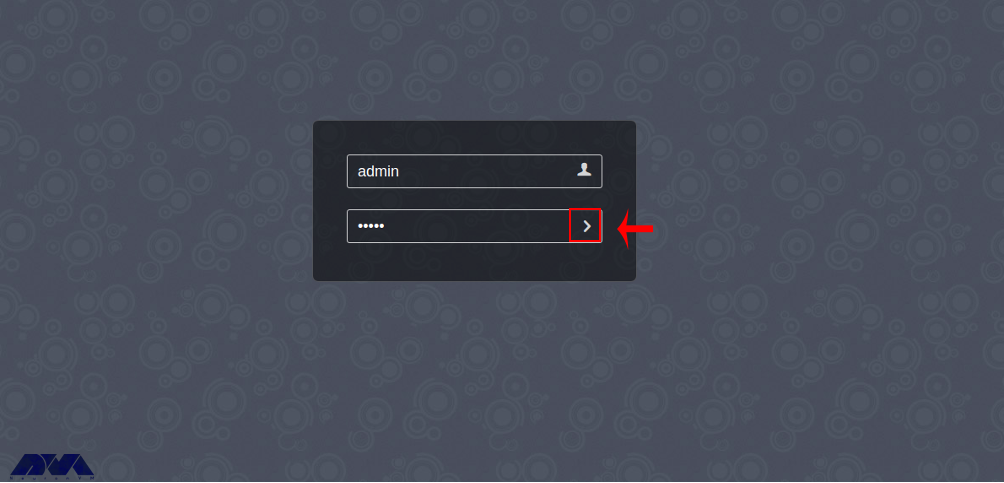
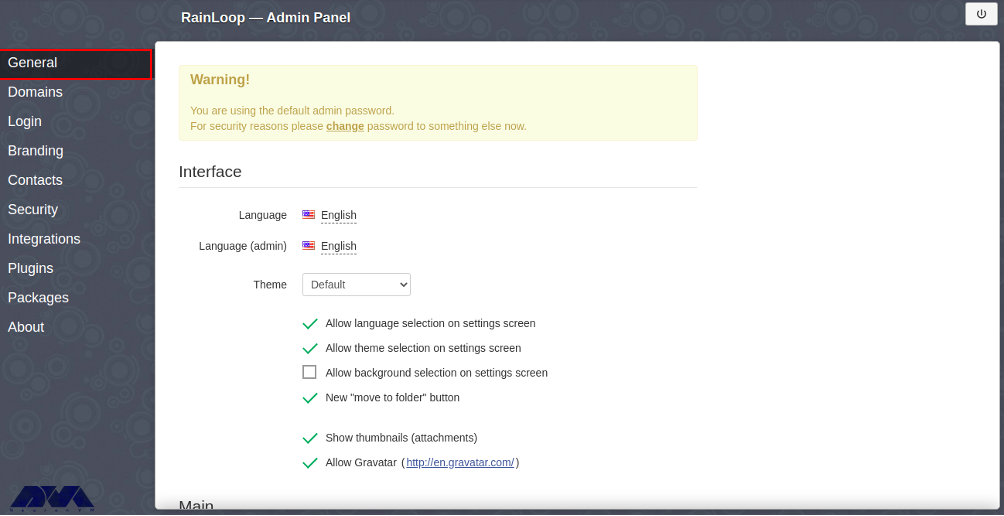
    Then you should enter the default username admin and password 12345 and click on the “>” button. You should see the following screen:


    rainloop admin access


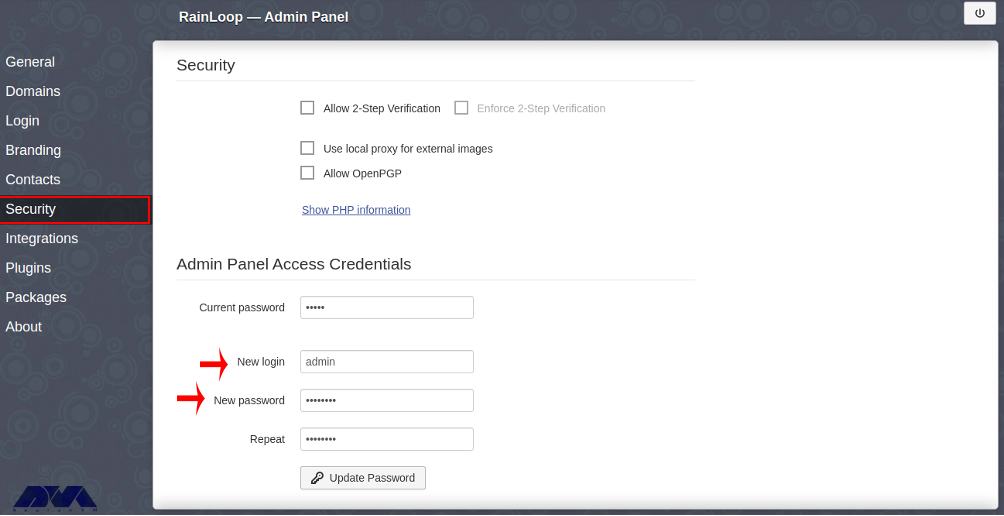
    You can change the default admin password by clicking the Change Password button. After entering the new password, click the Update Password button to change the password:


    install rainloop on debian 11


    Conclusion

    This article taught you how to install RainLoop on Debian 11. After installing RainLoop with the help of this article, you can add your email server from the RainLoop web interface and access your email through a web browser.

    FAQ

    Where can I find additional support for Rainloop?

    Refer to the Rianloop documentation and community support.

    What is the limitation of file size for Rainloop?

    You can use a maximum of 1 GB file size limit set by Nginx.

  • Tutorial Configure Firewall on Windows Server 2016

    Tutorial Configure Firewall on Windows Server 2016

    A firewall generally prevents dangerous attacks on the local network and computer. In simple terms, a wall that prevents fire from moving from one part to another is called a firewall. Generally, a firewall controls the information that is transmitted between computers and the Internet. In this article, we are going to teach you How to Configure Firewall on Windows Server 2016.

    What is Firewall?

    A Firewall is a network security system that controls and monitors incoming and outgoing network traffic based on predefined security rules. A firewall is a network security device that monitors inbound and outbound network traffic. It protects the network against threats and creates a barrier between a trusted internal network and an unreliable external network such as the Internet. This process is governed by a set of predefined security instructions. It is interesting to know that a Firewall is designed to secure the communication process between different networks. The Firewall prevents unauthorized data from entering computers where ports called ports enter.

    How to Configure Firewall on Windows Server 2016

    Before starting the steps to configure the firewall, we suggest you visit the Windows VPS and Admin RDP plans provided on our website and configure the firewall after installing Windows Server 2016.

    By default, the Windows Firewall with Advanced Security is turned on. Note that you should confirm the current status and turn on the firewall.

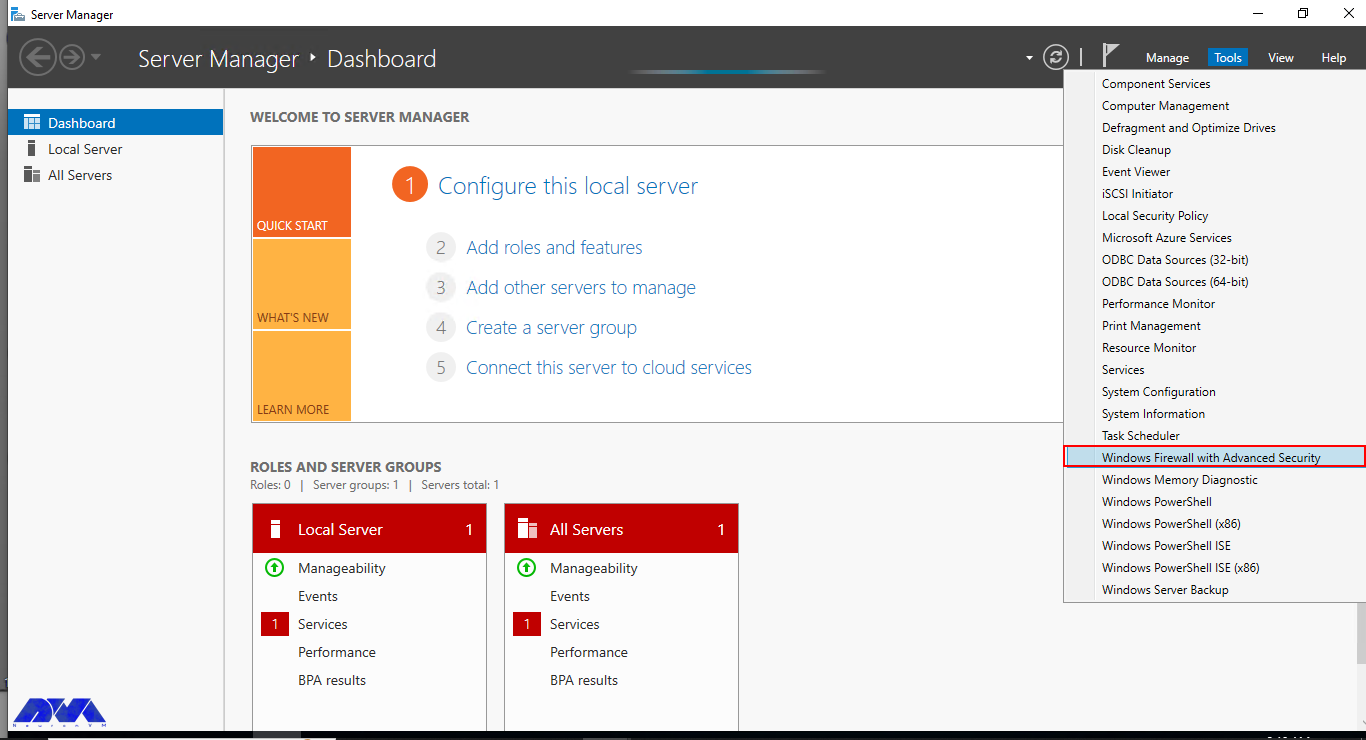
    To turn on the firewall first, you need to open “Server Manager“, then click on the Tools tab, and then select Windows Firewall with Advanced Security:


    windows firewall with advanced security


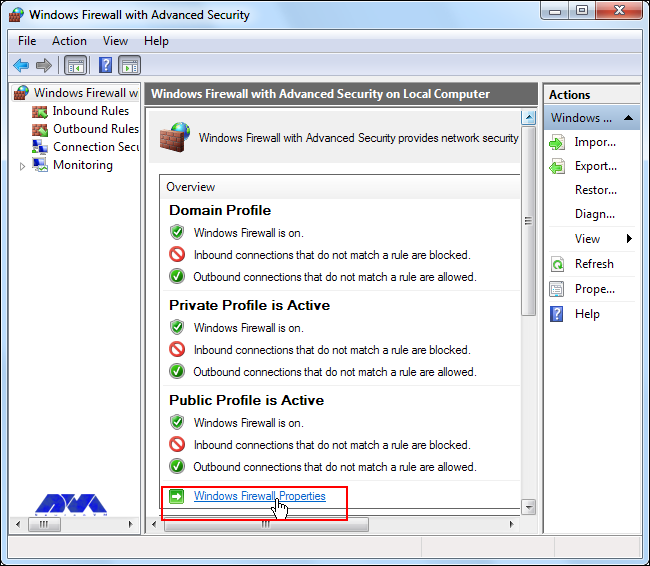
    Now you can check the current status of Windows Firewall profiles from open group policy management and if it was not set to On. You need to click on Windows Firewall properties and turn on the service in each profile:


    firewall console


    You can permit or block specific input and output network packets on your server and select multiple parameters for each inbound or outbound rule with the help of a Windows Firewall. Windows server profiles include Domain, Private, and Public groups. The Domain represents your server’s connection to a corporate domain network, Private is used to connecting to your home or workplace network, and Public represents insecure public network locations.

    How to Open an Inbound Port

    First, you need to launch the Windows Firewall with Advanced Security from the Tools sub-menu under Server Manager. Select Inbound Rules from the left panel of the Firewall console. Then click on New Rule under the right sub-menu of Inbound Rules under Actions: 


    choose inbound rule on windows server


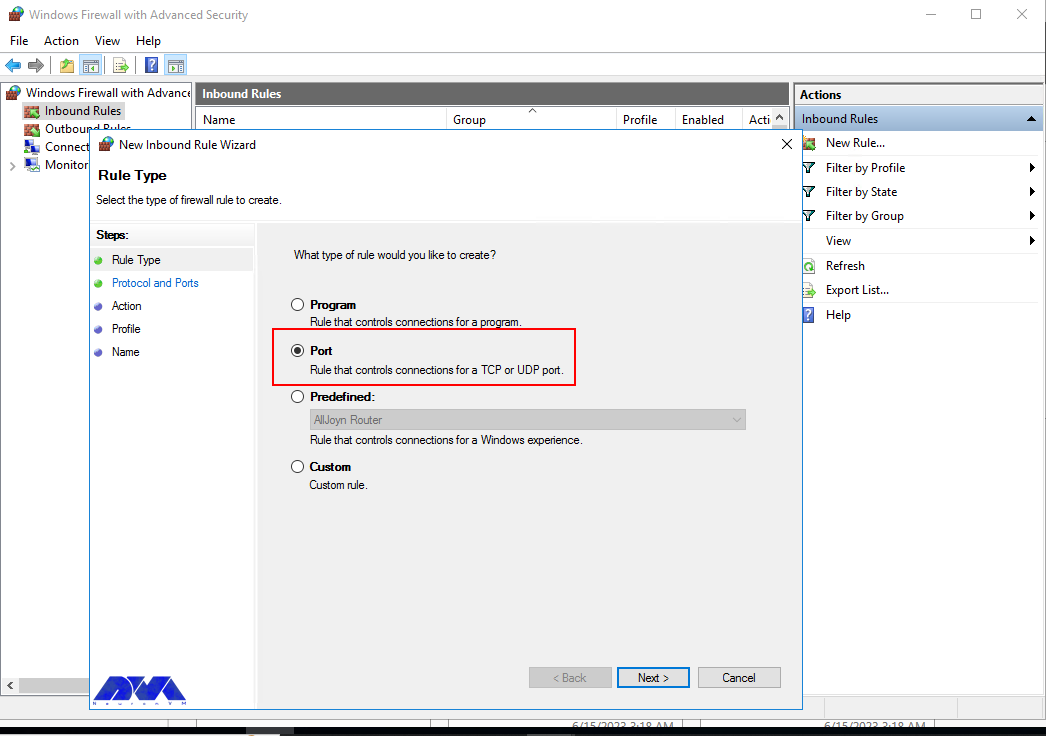
    Now you should select Port in the rule wizard section and then click on Next:


    choose port for windows firewall


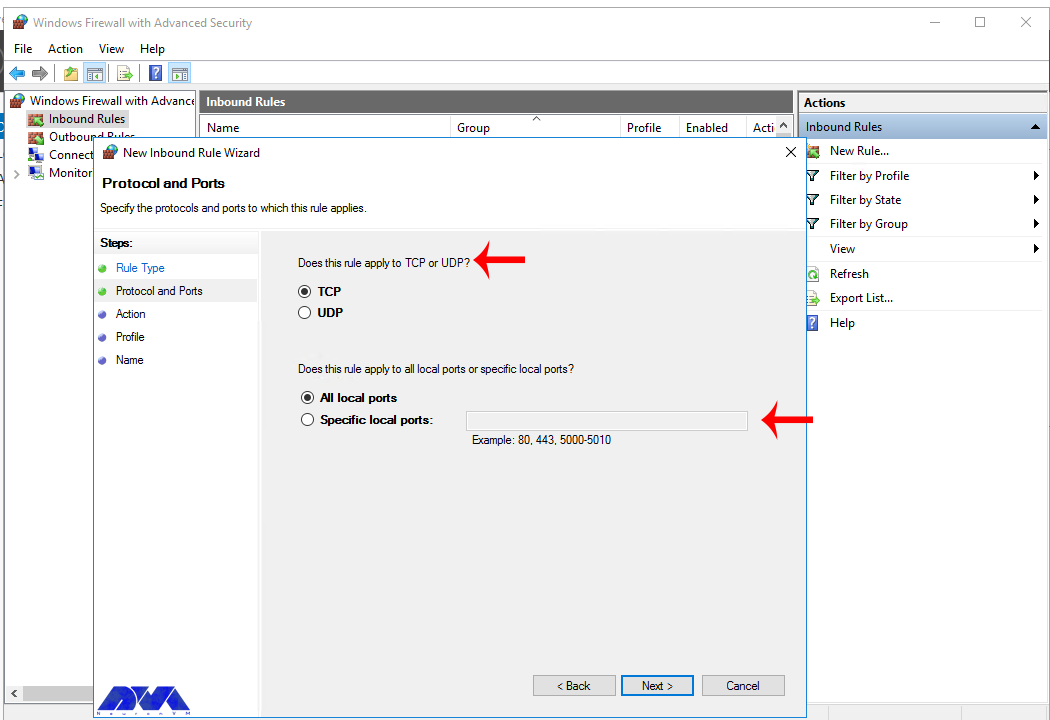
    In this step, you have to choose whether the new rule applies to a TCP or UDP port on the server. Then select your desired ports and enter their number. Also, you can enter ports range or multiple ports separated by – and, respectively, and finally click Next:


    choose the port rule for windows firewall


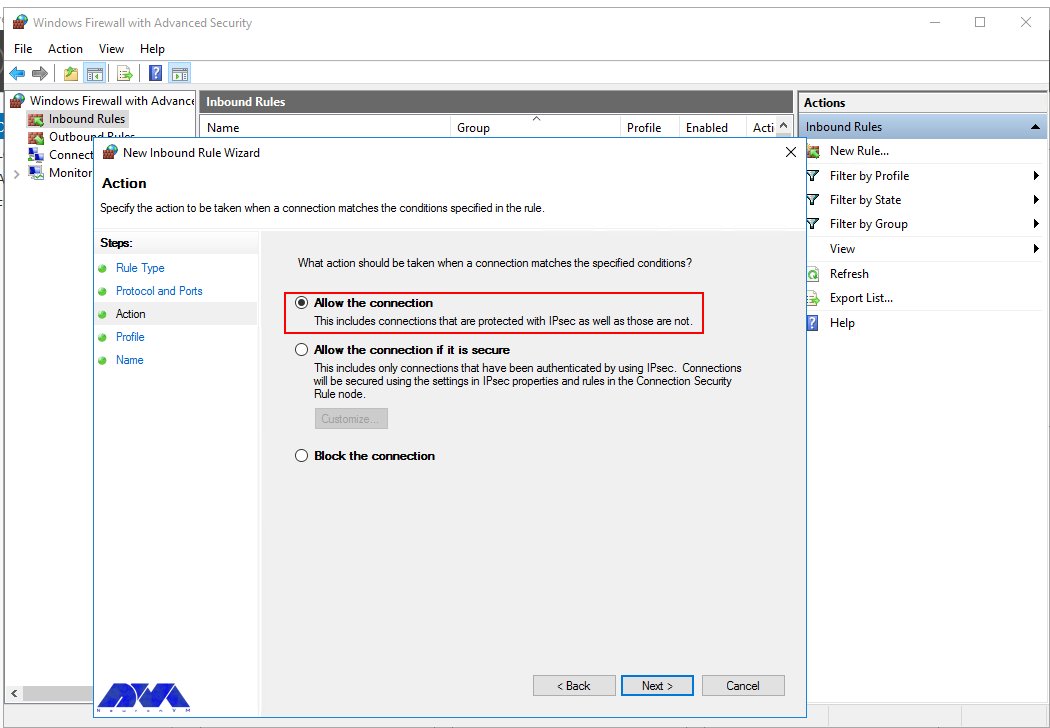
    You can use Allow the connection to allow incoming connections to the specified server port.

    Allow the connection if it is secure will authenticate with IP security and you can deny or allow the connection. For example, HTTP connections will be allowed and HTTP blocked.

    Block the connection will block all incoming connections to your server through the specified port.

    In this step, you should select the allow the connection to open port option and then click Next to assign a new rule to the profile:


    type of connection in windows firewall


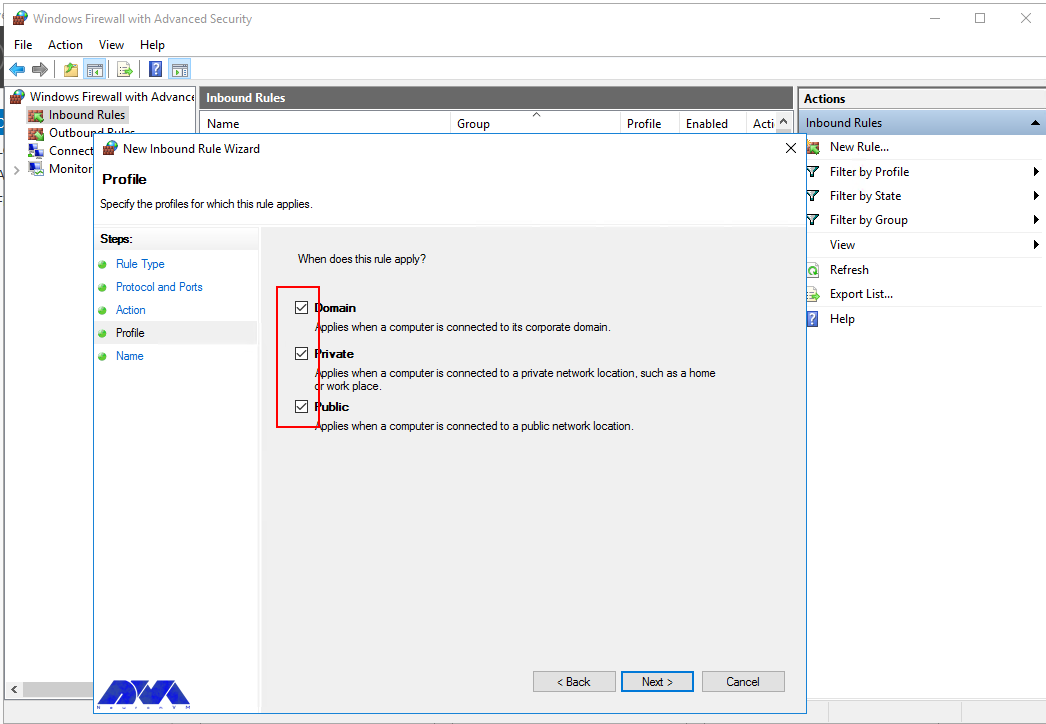
    Now select Domain, Private, and Public, or select all to apply the Firewall rule in multiple profiles:


    apply the firewall rule in windows server


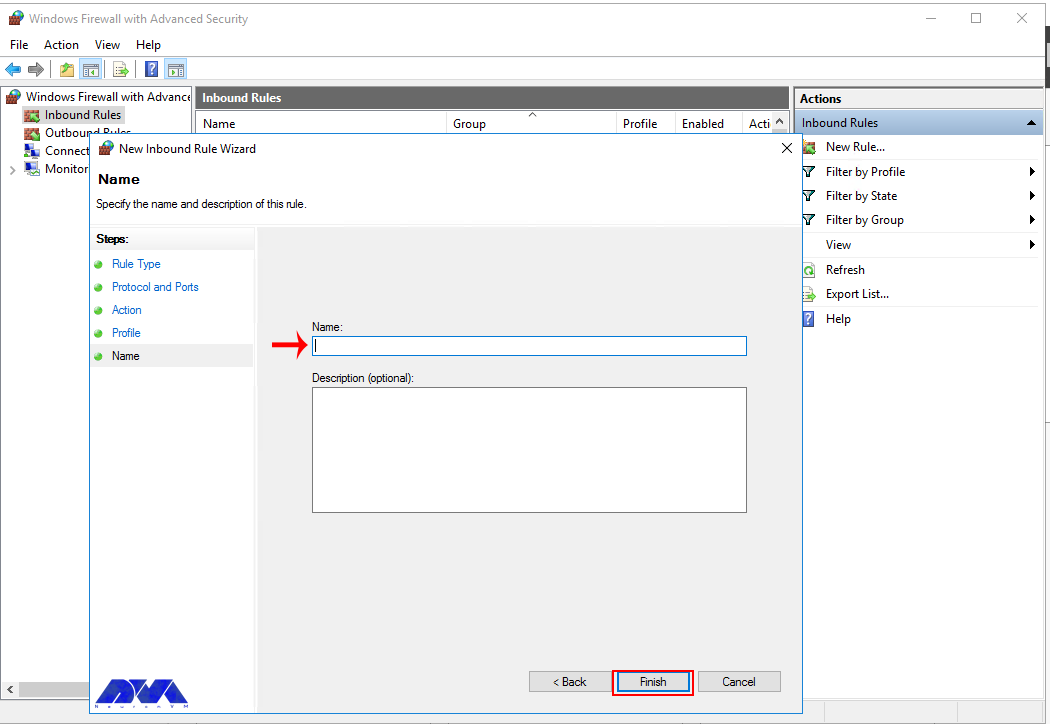
    Remember to give your new firewall rule a name and description. Finally, you should click on Finish to enable the new rule. All connections to the server that match the port are accepted:


    choose name for windows server firewall


    How to Open an Outbound Port

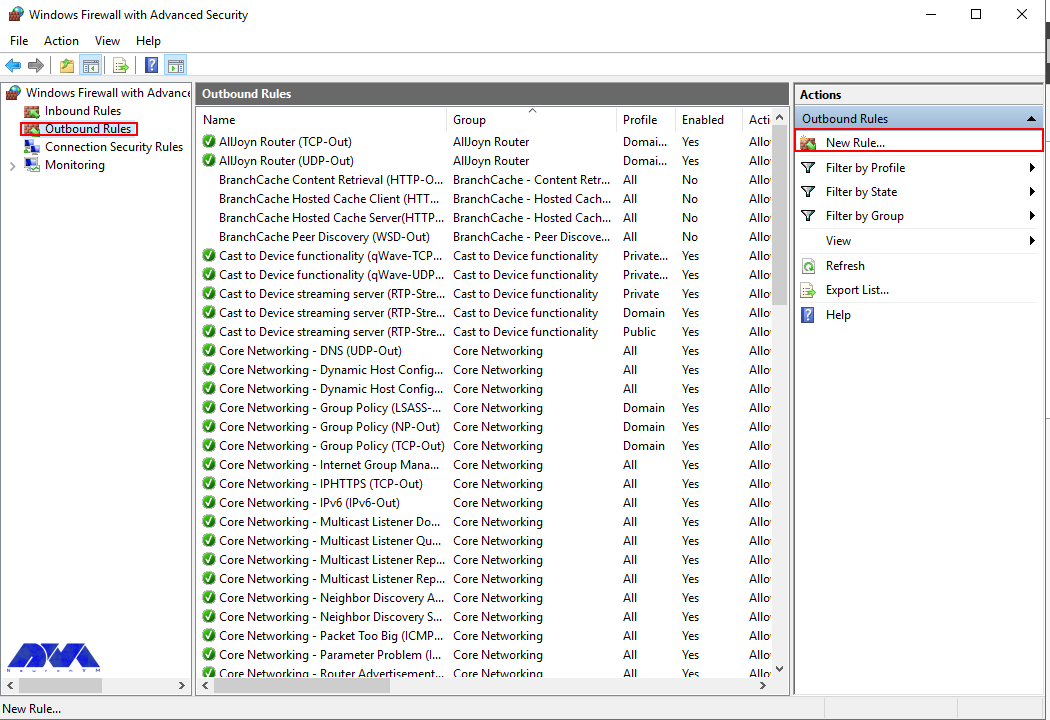
    First, you should go to the Windows Firewall with Advanced Security console and click on Outbound Rules on the left pane. Now you will see a list of available outgoing connection rules. Then, you need to click on New Rule on the right pane under the outbound rules node.


    outbound rule on windows firewall


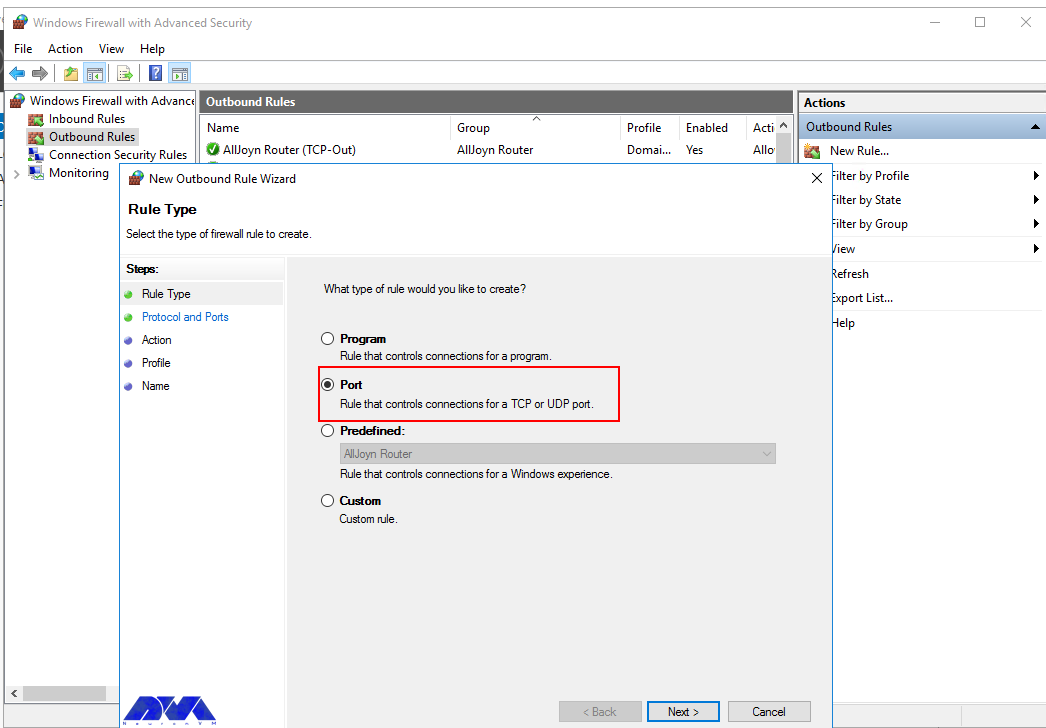
    In the next step, you should select Port as the rule type in the new output rule wizard and then click Next:


    choose rule type on firewall - Configure Firewall on Windows Server 2016


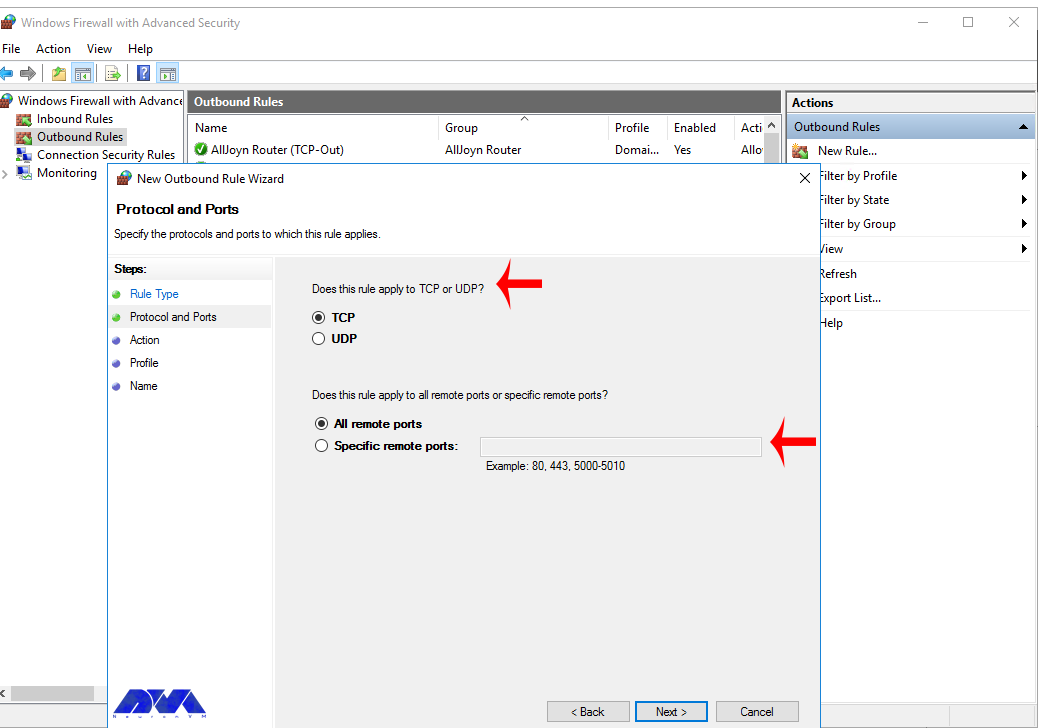
    Next, you have to choose whether the new rule applies to the TCP port or UDP. Select specific remote ports and then enter the port number of the server you want:


    choose the port rule for windows firewall


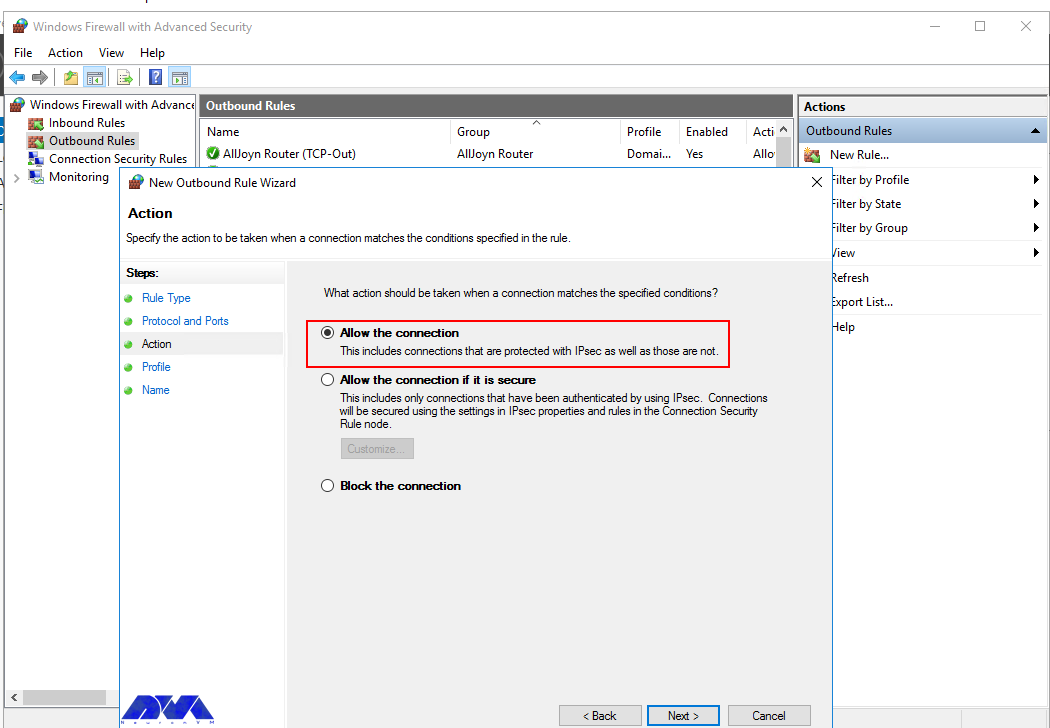
    In this step, after selecting Allow the connection on the Action page, you should click Next:


    type of connection in windows firewall - Configure Firewall on Windows Server 2016


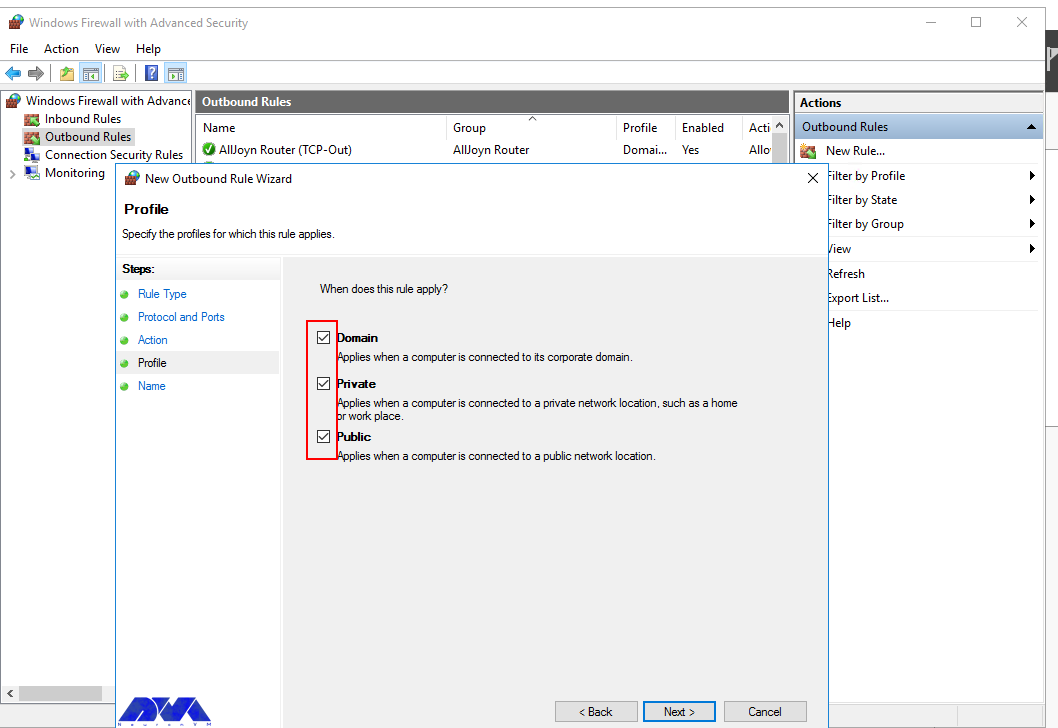
    Then you need to select the Server Profile on which the rule should be enabled:


    choose server profile for windows server firewall


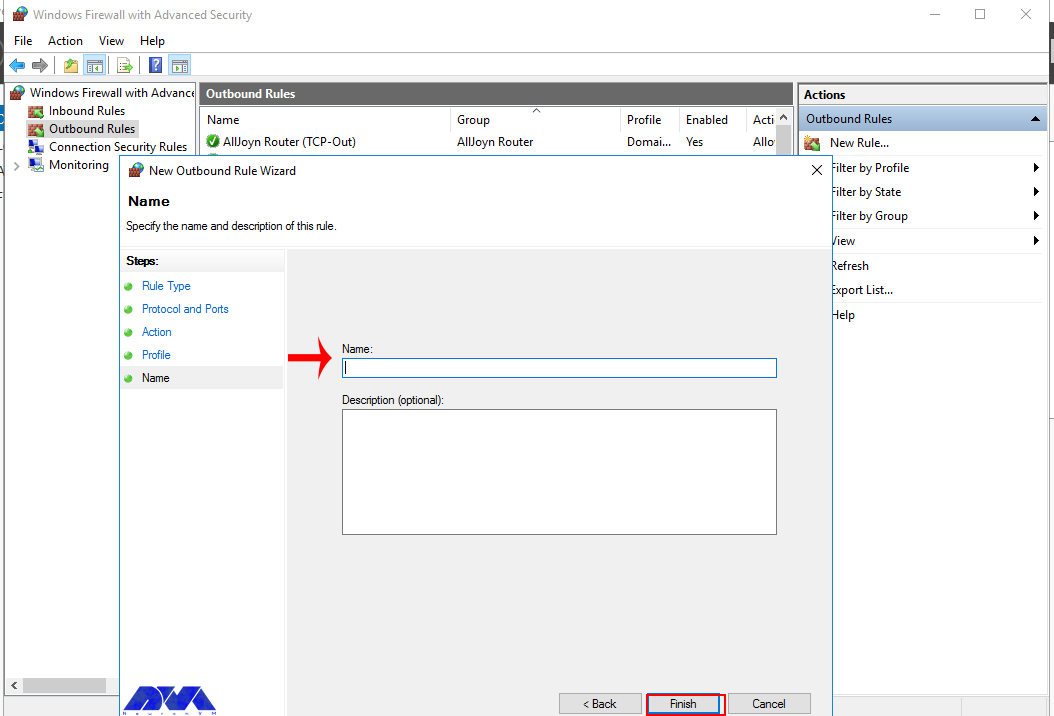
    Remember to name the new output rule and describe it. Finally, you should click Finish to enable the outbound rule for the target port on all selected server profiles:
     

    choose the name of firewall - Configure Firewall on Windows Server 2016


    How to Open a Port through Windows PowerShell

    To do this first, you should go to the Windows Start menu and search for PowerShell and open it. Then you have to replace your settings in the following command:
    New-NetFirewallRule  -Enabled:True  -LocalPort 21  -Protocol TCP  -Direction Inbound  -Profile Domain  -Action Allow  -DisplayName example opening a port rule"

    The words in the above command indicate:

    New-NetFirewallRule: It will create a new Firewall rule.

    Enabled: It enables the new rule and by default, it will be set to True.

    LocalPort: It is your target port number.

    Protocol: It specifies the protocol associated with your port number.

    Direction: It sets your target direction to either Inbound or Outbound.

    Profile: It assigns the new rule to a server profile.

    Action: It defines the state for the new firewall rule. You should enter Allow.

    DisplayName: It sets a custom name for the new firewall rule.

    Output:

    PS C:\Users\Administrator> New-NetFirewallRule -Enabled:True -LocalPort 21 -Protocol TCP -Direction Inbound -Profile Domain -Action Allow -DisplayName "example opening a port rule"
    
    
    Name : {427a1b12-ece6-4d54-847d-de482b227c6c}
    DisplayName : example opening a port rule
    Description :
    DisplayGroup :
    Group :
    Enabled : True
    Profile : Domain
    Platform : {}
    Direction : Inbound
    Action : Allow
    EdgeTraversalPolicy : Block
    LooseSourceMapping : False
    LocalOnlyMapping : False
    Owner :
    PrimaryStatus : OK
    Status : The rule was parsed successfully from the store. (65536)
    EnforcementStatus : NotApplicable
    PolicyStoreSource : PersistentStore
    PolicyStoreSourceType : Local

    That is it!

    Conclusion

    This article taught you how to configure the Firewall on Windows Server 2016. You can use this article to open a network port on your Windows Server 2016. The server accepts incoming and outgoing connections through selected ports, but the Firewall blocks profile connections that don’t comply with port rules.

    FAQ

    Are there any other tools available for managing Windows Firewall?

    Yes, you can use a command line provided by Microsoft.

    Is it dangerous to turn off Windows Firewall?

    It allows all the data packets to enter your network easily and makes it vulnerable to all kinds of Cyber attacks.
  • How to Buy NL RDP Server with Bitcoin

    How to Buy NL RDP Server with Bitcoin

    The way RDP Protocol works is that it connects a computer to a remote computer and the client computer can view the remote computer screen. The purpose of this post is to teach How to Buy NL RDP Server with Bitcoin.

    What is an RDP Server?

    Remote Desktop is the ability of computers to connect to each other remotely and also control their desktop. In Remote Desktop, the user controls that system, except that this connection is established through the network platform. It should be noted that Remote Desktop or RDP is a protocol owned by Microsoft and is available for most versions of Windows and other Operating Systems, including Linux, macOS, iOS, Unix, and Android.

    The port for this protocol is 3389 by default and you can change it to another desired port by making settings in the Windows registry. The Remote Desktop feature should enable the destination operating system to connect to a remote destination computer or server. The username that is authenticating on the destination system should be used. To use the Remote Desktop protocol, the user should use RDP client software or Remote Desktop Connection, while the host computer should run the RDP Server service software.

    Introducing Bitcoin

    Bitcoin is an electronic currency that allows you to send money anywhere in the world or use it to buy goods and services. Bitcoin is a digital currency based on blockchain. Blockchain is a platform for recording digital transactions. Blockchain actually does the job of the Central Bank differently, and the platform is officially cryptocurrency-based. Compared to other online payment gateways, Bitcoin charges a lower fee for moving customers. It is interesting to know that Bitcoin is managed in a decentralized manner, and it isn’t controlled by any entity or organization.

    Get NL RDP Server with Bitcoin

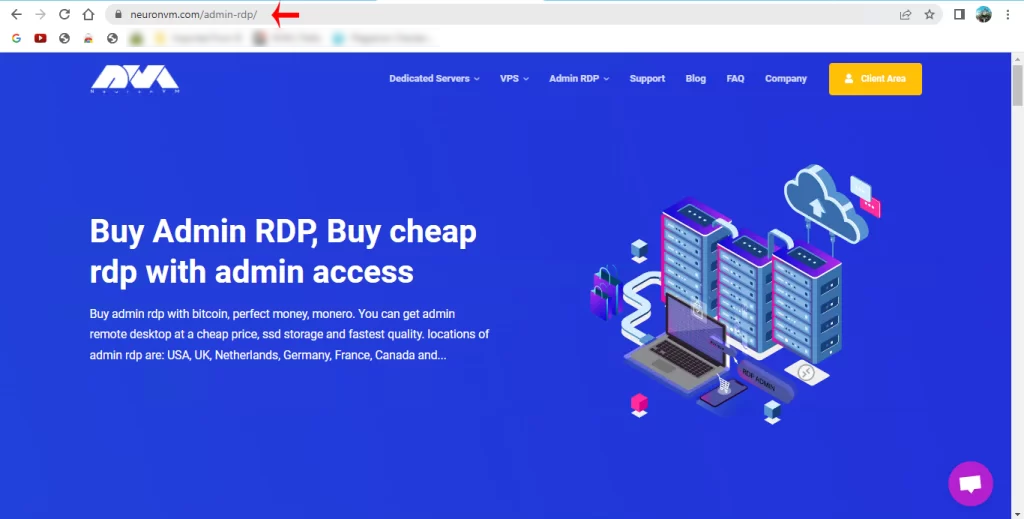
    In the first step, you should go to our website and select Admin RDP on the main page or directly go to the Admin RDP page:

    how to buy rdp server with btc

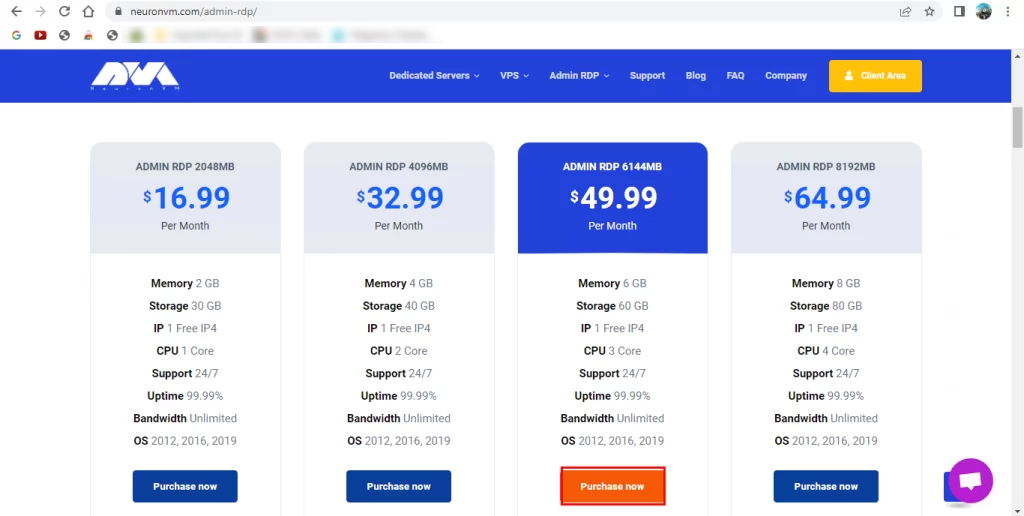
    Now go down to this page, choose your favorite Admin RDP plan to purchase, and click on the Purchase Now button:

    choose the rdp plan on neuronvm

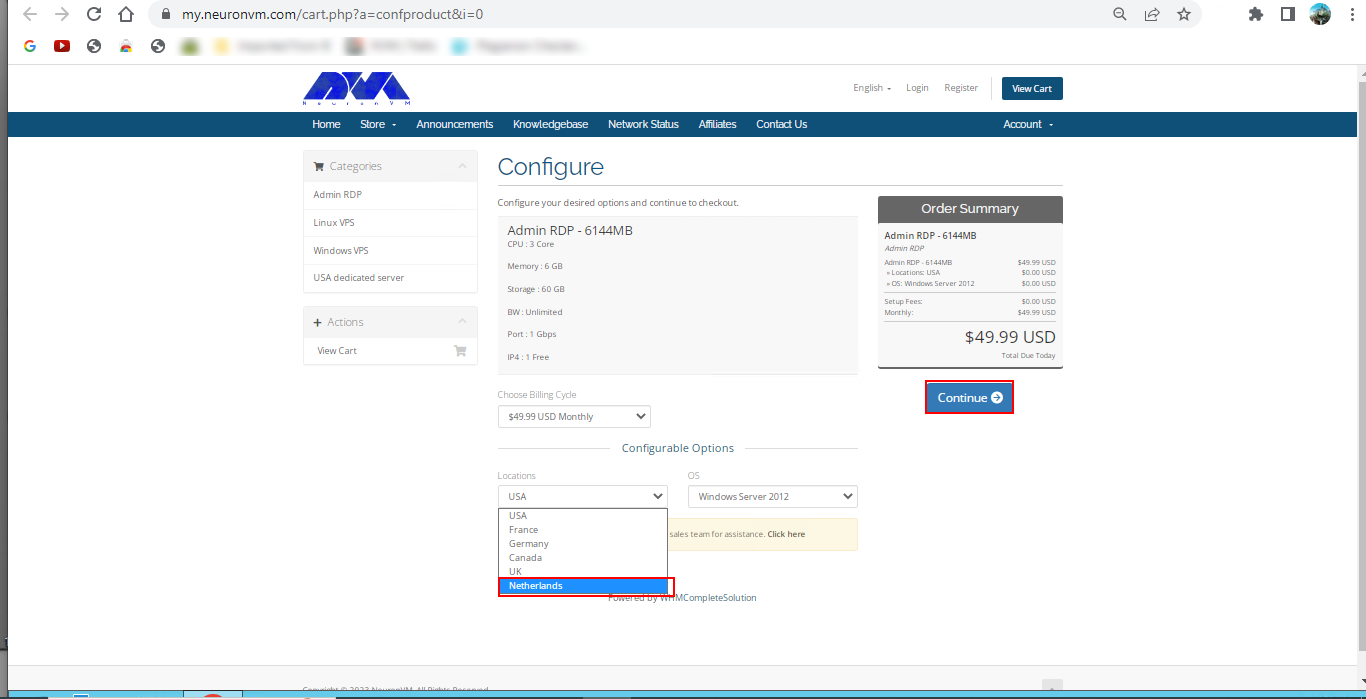
    Next, you should choose the Netherlands (NL) from the Location section and also choose your desired Operating System, and then click Continue:

    choose rdp location

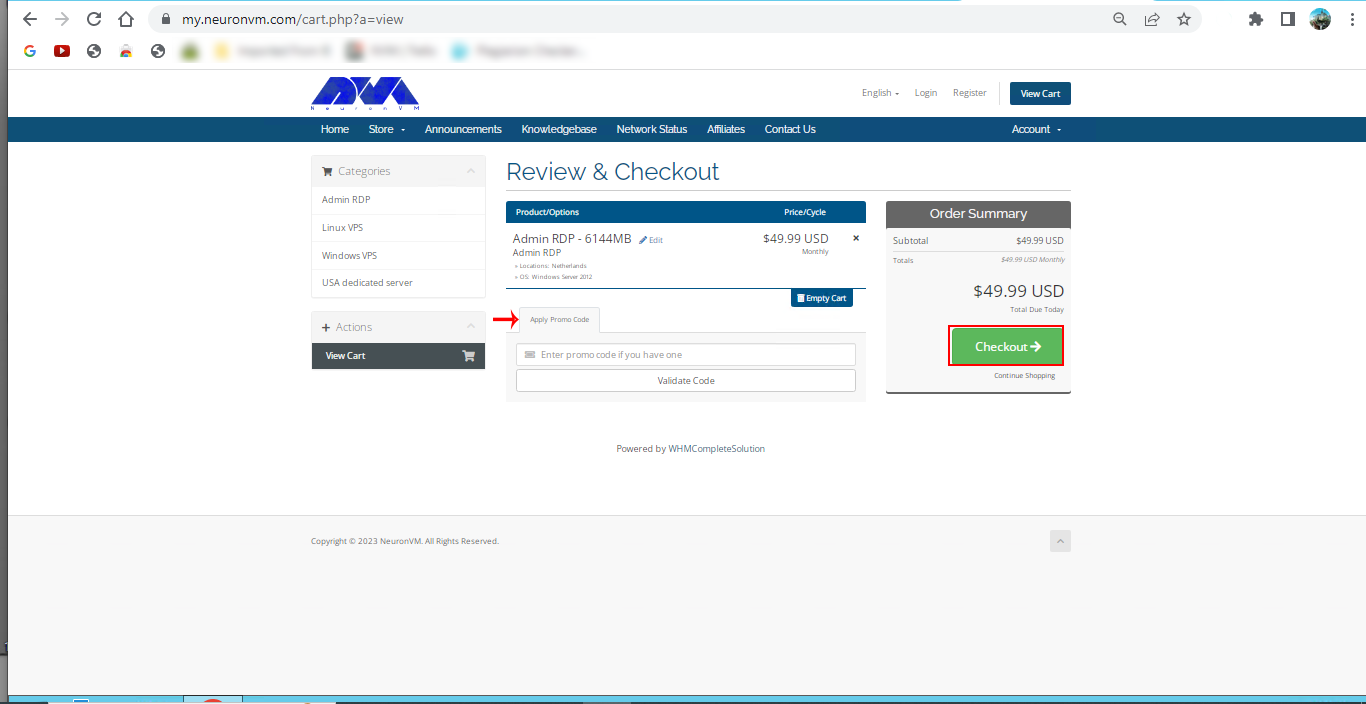
    Check the details and Click on Checkout.

    Tip: If there are any Promo Codes, insert them in the box for discount.

    purchase details of rdp plan on neuronvm - buy nl rdp server with bitcoin

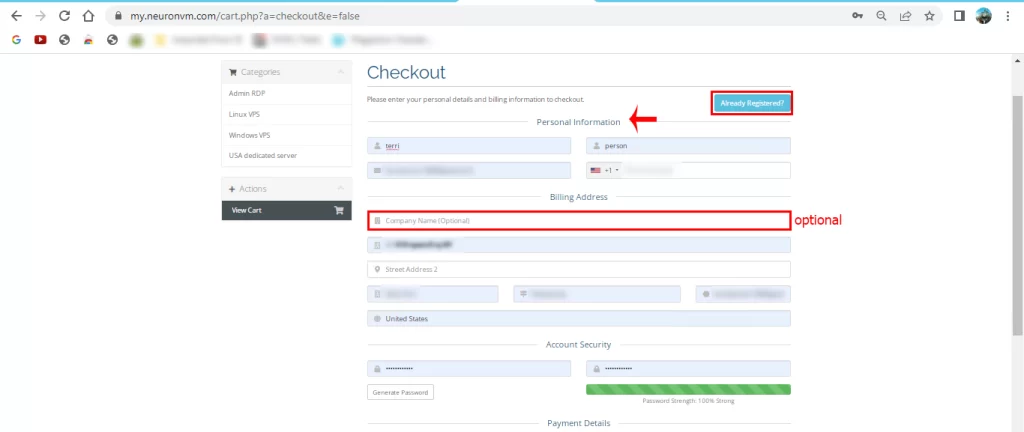
    Here, you should fill in your personal information and sign in to the NeuronVM website, or if you have an account, click on the Already Registered button:

    registration part of neuronvm

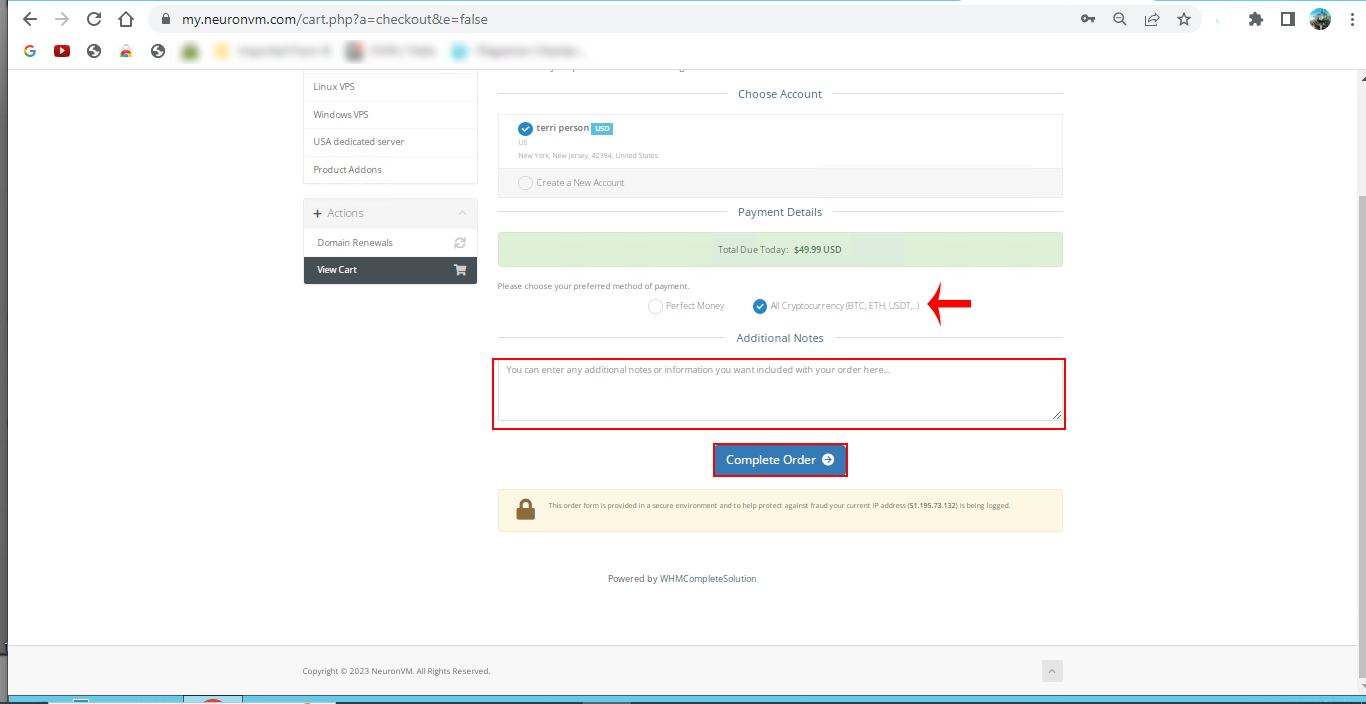
    In this step, as the last option on this page, select the All Cryptocurrency option. Also, you can add extra information about your purchase in the Additional Note box and click on Complete Order:

    get nl rdp server with bitcoin

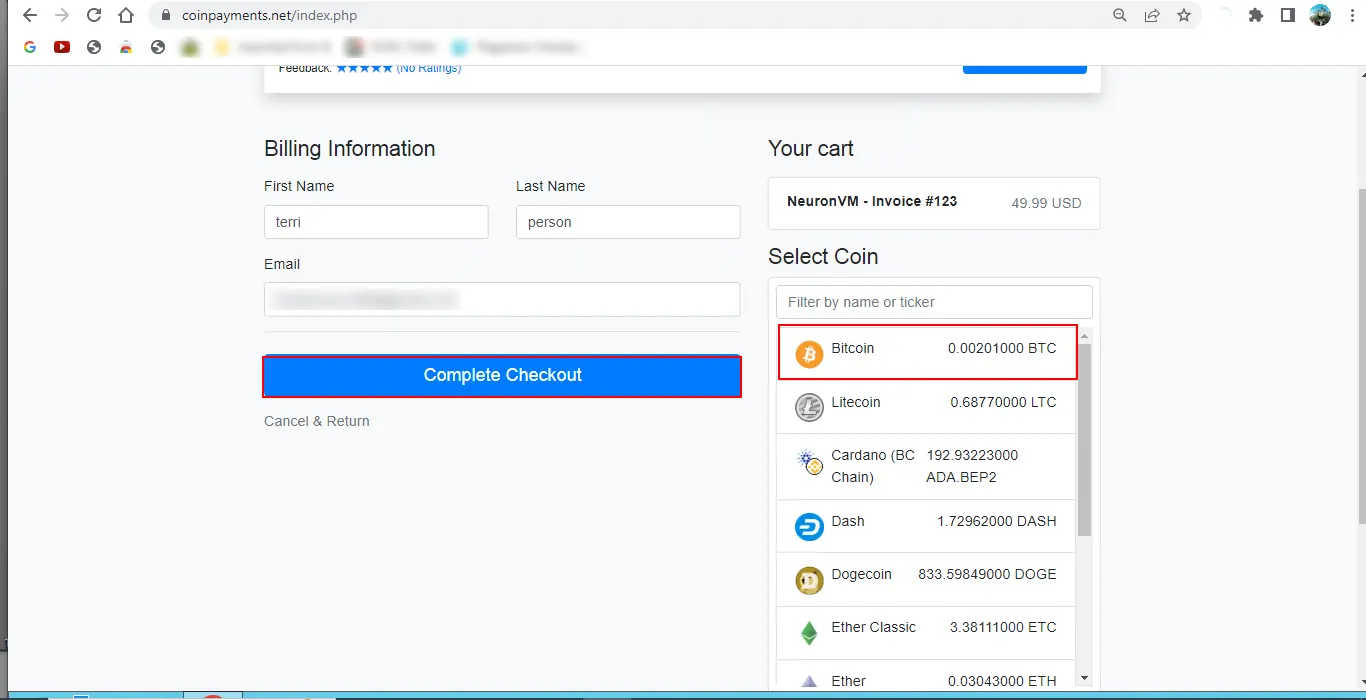
    Finally, you will be redirected to the payment page. Choose Bitcoin as your preferred currency and click on Complete Checkout:


    how to buy admin rdp wit btc

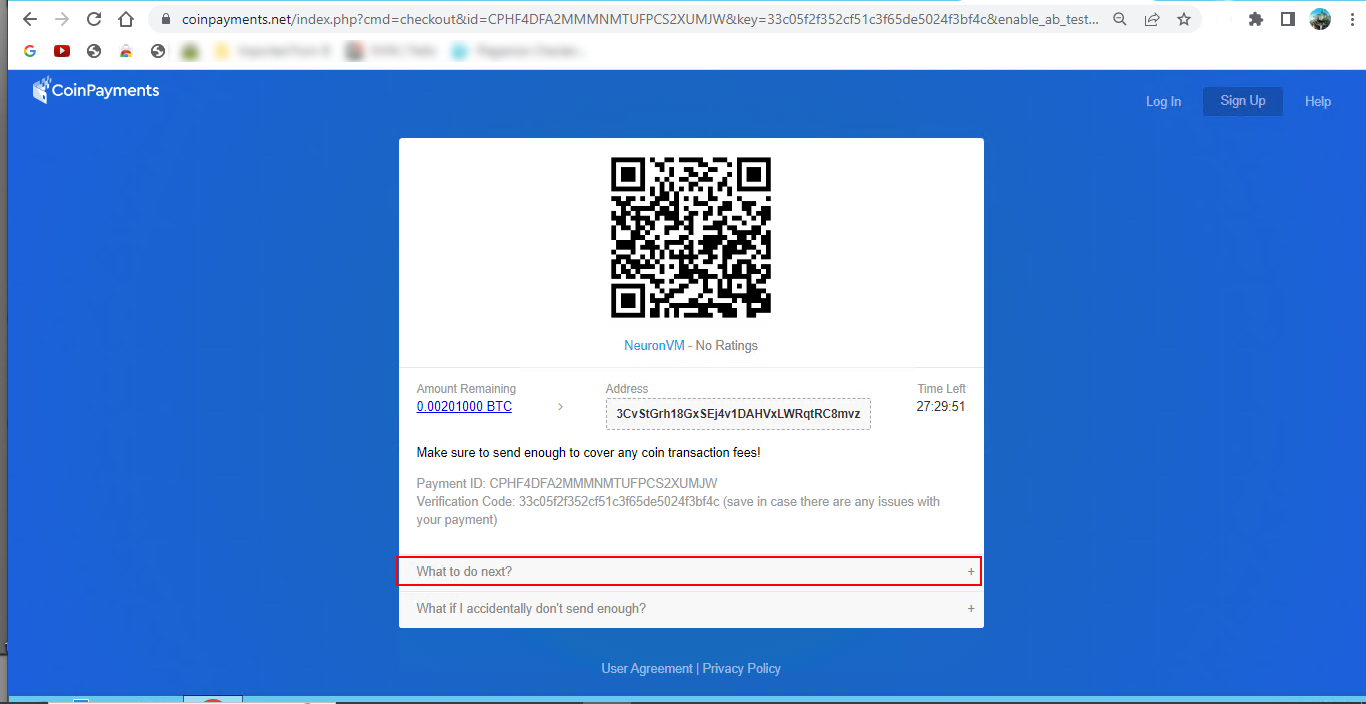
    At last, you should open the relevant code in your wallet and complete the payment process:

    payment ID for purchasing rdp

    Conclusion

    In this article, the Remote Desktop protocol and Bitcoin digital currency were introduced. In the continuation of the article, how to register on NeuronVM and how to buy NL RDP Server with Bitcoin were taught. I hope you can easily buy the Netherlands RDP Server from our site with the help of this article.

    FAQ

    What is an NL RDP server?

    It refers to the Netherland server, which is physically located in the Netherlands and provides remote desktop access to users.

    Can we use any payment methods to buy Admin RDP?

    Yes, you can use most of the cryptocurrencies and perfect money to make the payment.