Blog

  • Troubleshooting Joomla Errors on DirectAdmin

    Troubleshooting Joomla Errors on DirectAdmin

    Joomla is an easy-to-use content management system. This software is based on the Internet. By implementing this system on your host you will be able to store files, text, and display images in an organized way. Here, we will analyze various issues and problems of Joomla and try to give a solution for each of them, so study the article on troubleshooting Joomla errors on DirectAdmin carefully if you encounter any of these problems.

    What is Joomla?

    Joomla is an old site builder based on PHP, which is very popular, and the main reason for its popularity is its easy installation with a few clicks. That means you can program your website without any technical knowledge. Also, website designers and internet users prefer Joomla for website design. Because it is a free content management system and has a beautiful GUI that is easy to develop.

    troubleshooting Joomla errors on DirectAdmin

    Troubleshoot Joomla Errors on DirectAdmin

    As you decided to install Joomla to build your site and work, you may encounter different problems and errors. Here, we will introduce and analyze some of them.

    ERR_Content_Decoding_Failor

    When you want to enable the cache plugin in Joomla 3.x, you may encounter the error ERR_CONTENT_DECODING_FAILED and stop rendering the page. The cause of this problem is that the cache plugin doesn’t properly support Gzip compression. Even if you enable it by the server.

    Solution: You can disable Jzip-compression:

    Go to System -> Configuration -> Server and GZIP-Compression to No

    Tip: If you are unable to access the website’s backend anymore, you can find this setting in the /configuration.php file. The option can be set like this:

    public $gzip = '0';

    Could Not Create Directory Error

    Three reasons may cause these problems:

    1- There is no tmp directory or it is not located correctly in the configuration.php file.

    2- The tmp directory is located but Joomla is not allowed to write to it.

    3- Joomla is not allowed to write to one of the following:

    directories: /administrator/components, /administrator/modules, /administrator/templates, /components, /modules, /plugins, /templates.

    The last one is very common and usually happens when there is a problem with Joomla’s hosting environment.

    Solution 1: You can create the tempt directory if it doesn’t excite and give Joomla the proper permissions to write to it, there is a quick and dirty solution that is effective but will render your website completely insecure. Chmod the following directories to 777 through the FTP client:

    /administrator
    /administrator/components
    /administrator/modules
    /administrator/templates
    /components
    /logs (not necessary to solve this problem but if Joomla has write permissions across the board then doing this will ensure that you don’t have a problem elsewhere on your website)
    /modules
    /plugins
    /templates
    /tmp

    This is a temporary solution.

    Solution 2: There is another solution but it is the best one and requires that you have FTP access to the website. Using the following commands, Apache can create files or folders in the server’s file system. Follow the instructions below:

    – Use the Cpanel file manager to zip the Joomla website and name the resulting website joomlawebsitebackup.zip. The resulting file should be pressed into the main folder of the website.

    – You should add 1_ to top-level folders and files in Joomla. That is, to remain the folder administrator to 1_ administrator and index.php to 1_index.php.

    – you should create an unzip.php file with the following codes:

    open('joomlawebsitebackup.zip'); if ($isZipOpen === true ) { $objZip->extractTo('/home/[yourcpanelusername]/public_html/'); $objZip->close(); echo "unzipping finished"; }other { echo "unzip failed"; } ?>

    Go to yourjoomlawebsite.com/unzip.php. and run unzip.php on your browser. Then you will see the message contain telling you the PHP script has been unzipped.

    Now test your website. When you became sure about the proper functionality, delete all folders and files that start with _1. once you are done, do another test, to make sure everything is correct.

    Allowed Memory Size Exhausted

    Joomla is a type of CMS that provides a high percentage of memory and sometimes a lot of memory is needed to process a page especially if the page has a lot of third-party extensions. So when a client tries to run an extension, encounters an error about “Allowed Memory size”

    Solution:

    You should increase the PHP memory limit. You can increase the memory limitation in 4 different ways:

    1- Increase the PHP memory limit at several levels: It can be done if your website is running on just a dedicated server or VPS. To do this, visit our website for cheap dedicated server plans.

    2- Increase the PHP memory limit at the application level: It can be done by making a copy of the global php.ini

    3- Increase the PHP memory limit at the .htaccess level: add the below line for this reason to the beginning of .htaccess file:

    php_value memory_limit 512M

    4- Increase the PHP memory limit at the code level: Add the following line to the beginning of your index.php:

    ini_set('memory_limit', '512M');

    Site User Rename Error

    This error will occur when you want to rename the username of the Joomla site and change the change_username.sh. So as a result, you will discover that Joomla hardcoded paths, especially username and as I turned back to the old username, Joomla says that it failed to connect to the database.

    Solution: This problem can be dependent on the number of characters in the username. While this number is 16 character capacity for db usernames. This amount is 14 for DA in addition, 1 for underscore, and 1 for db name. Also, DA analyzes for valid usernames and also there is a setting for that in directadmin.conf.

    For example:

    max_username_length=10

    So, if your username number is 13, as your limitation is 10, DA is going to consider it invalid and will not display it until you enhance the limitation in directadmin.conf. Keep your username below the limitation. change_username.sh script will not go through any of your PHP files. So, you have to set config paths manually.

    Moving Cpanel to DirectAdmin Error (Error 403)

    When you try to move your site from Cpanel to DirectAdmin, it is successful. But, when you try to access any page suddenly you receive a 403 error.

    Solution: The reason is that, upon extraction of the Gzipped backup which you move from Cpanel permissions of public_html changed to 750. But these permissions should be 755.

    Conclusion

    Here, we tried to make you familiar with troubleshooting Joomla errors on DirectAdmin. We divided the issues and give solutions for these problems. So read this article carefully. We hope this was a helpful article for you.

  • Tutorial how to install Cowsay Linux Command

    Tutorial how to install Cowsay Linux Command

    Cowsay is a program that can generate ASCII art pictures of a cow with a message. Also generate images using pre-made images of other animals, such as Tux the Penguin, the mascot of Linux. You can fully learn how to install Cowsay Linux Command after reading this article. Therefore, we suggest you to stay with us until the end.

    Introduction to Cowsay

    Cowsay is written in Perl. It also includes programs called Cow Thinking where cows have thought bubbles instead of speech bubbles. There are .cow files for Cowsay, which are able to generate different types of “cows”, with different types of “eyes”, etc. Used in IRC, desktop screenshots, and software documentation, this is more or less a term in hacker culture. If you want to prevent interpolation, you should reduplicate any backslashes.. Also, at-signs (”@”) must be backslashed because that is what Perl 5 expects.

    Cowsay Features

    Cowsay has the ability to show a customizable massage through a Cow image. It comes with various options to help to customize the Cow image and speech bubble and let the user use different types of speech bubbles like a Cow head, a speech bubble with a border, or a Think bubble. It provides quick information and debug information.

    Installing Cowsay Linux Command

    Before starting the installation process, we suggest that if you have not yet purchased a VPS server or if you are dissatisfied with its quality, purchase and use the Linux VPS server plans provided on our website.

    You can install cowsay using the following command:

    sudo dnf install cowsay

    After running the command, call it with cowsay and then your message:

    fortune | cowsay

    Cowsay has been shipped with a few changes to the name cow files, which are usually found in /usr/share/cowsay. Use the -l flag after cowsay to see the cow file options available on the system. Also use the -f flag:

    cowsay -f dragon "Run for cover, I feel a sneeze coming on."

    As you installed Cowsay, when you run a playbook you will get your output from a series of cows. For example, run the playbook using the following command:

    - hosts:
        - localhost
      tasks:
        - action: ping

    After executing the command of the playbook, the following items will be displayed to you:

    ansible-playbook playbook.yml

    Cowsay is accessible under the GPLv3 license and you can find the Perl source code on GitHub. There are also versions floating in other languages, see the rest of the sections for other variants. There is one in R, for example. Implementing a version in your language of choice might even be a fun thing to learn programming.

    Conclusion

    We have explained the steps required for installation in order. When working with Linux, playing with Cowsay is an option. This tool also allows you to create different exploratory art and define which message and state of mind they should convey. In this article, you learned how to install Cowsay Linux Command. We hope you find this article useful. You can Share your comments with us via the form below.

    FAQ

    Are there any additional packages for Cowsay?

    No, it doesn’t have any additional dependencies.

  • Tutorial Encrypt and Decrypt with PGP on Ubuntu 20.04

    Tutorial Encrypt and Decrypt with PGP on Ubuntu 20.04

    PGP is used to encrypt and decrypt data. Methods such as hashing, public key encryption, and data compression are used in PGP encryption. In the continuation of this comprehensive article, you will learn how to Encrypt and Decrypt with PGP on Ubuntu 20.04. Therefore, we recommend that you stay with us until the end.

    Introduction to PGP

    GPG or GnuPG, which is a free PGP-based signature and encryption software, uses it to export and import public and private keys, and to encrypt and decrypt data. GPG key pairs include two types of keys: private and public keys. Use the public key to encrypt the data, and the encrypted data will be decrypted using the recipient’s secret or private key.

    Prerequisites

    The process of encrypting and decrypting files with PGP involves a few simple steps. First, the sender must issue your public key and send it to the recipient. Second, the receiver enters the public key into its key. The recipient can then encrypt any file using the sender’s public key. Also, the recipient decrypts the shared file using his private key.

    To start at the beginning Create two pairs of GPG keys for the purpose of display for two people in two separate systems (Linda and Dominique). Now, issue the public key and then enter it into another system.

    We also recommend you use Linux VPS server plans available on our website to Encrypt and Decrypt with PGP on Ubuntu 20.04.

    Encrypt and Decrypt with PGP on Ubuntu 20.04

    How to Export Public Key with GPG

    Before sending your public key to a reporter, you must first issue it using the GPG command. In the GPG command, an additional argument is specified to identify the public key that will be the user ID, and the “-a” or “-armor” option is added to generate the output of the export file in ASCII format. In the “GPG” command. To export a specific public key, first list the GPG keys generated on the system and select the key you want to export.

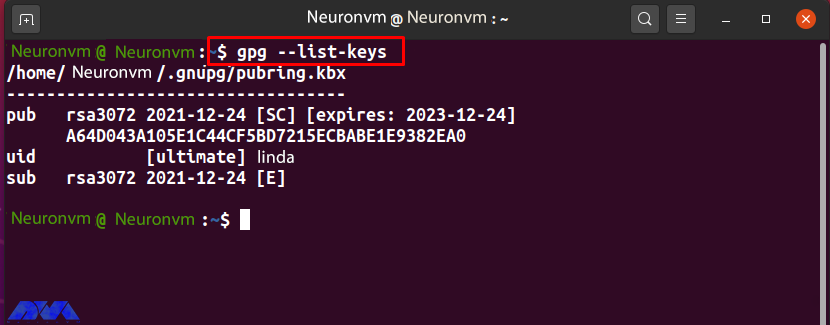
    To do this, use the following “GPG” command:

    gpg --list-keys

    For example, to issue the public key “Linda“, note the “uid” user ID from the list:

    How to Export Public key with GPG

    Now add the “-export” option to the GPG command to export the “Linda” public key. Here, the “-a” option is used to create an ASCII display of the public key, and the redirect operator “>” is used to redirect the output of the GPG command to the “public.key” file:

    gpg --export -a Linda > public.key

    The “.key” extension indicates that there is encrypted content inside the specified file.

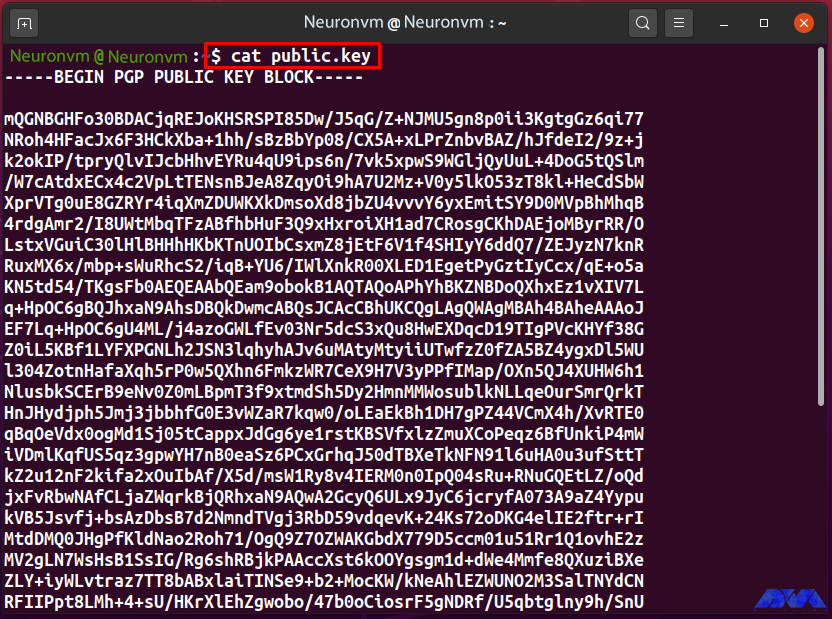
    If the output is error-free, it declares that the “public.key” file is ready for export. To check its content, run the following “cat” command:

    cat public.key

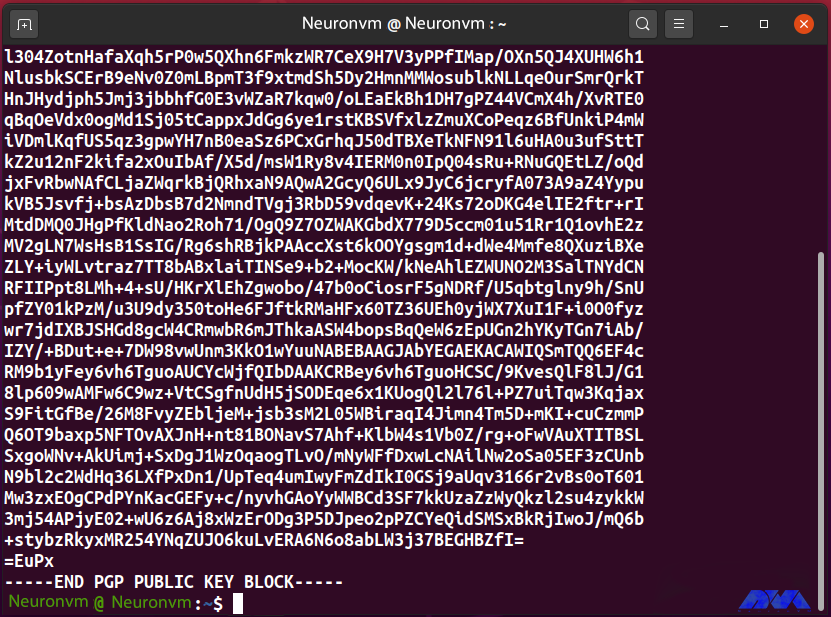
    “public.key” saves the ASCII display of Linda’s public key as follows:

    How to export public key with GPG

    #####

    How to export public key with GPG

    In this step, you created the “public.key” file that contains the ASCII display of the public key “Linda”. Now, share the file with another system user so that the “new user” can enter the GPG key into their key.

    How to Enter a Public Key with GPG

    With the GPG command, inserting a public key into a key is simply exporting them. Decrypt incoming encrypted files, documents, or emails by entering the sender’s public key. Before entering “public.key”, list the keys in the new user key:

    gpg --list-keys

    “Neuronvm” now has a pair of GPG keys for “Dominique” uid, which can be seen in the following output:

    How to Export Public key with GPG

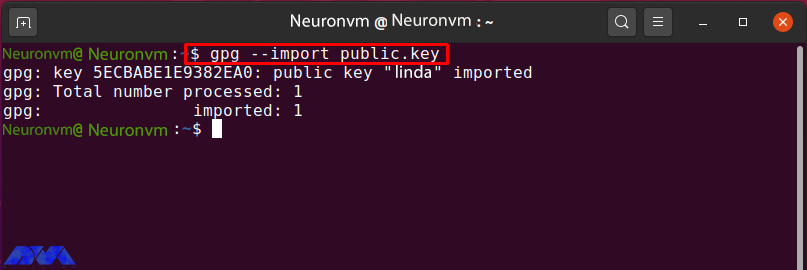
    To enter Linda’s “public.key”, run the “gpg” command with the “import” option:

    gpg --import public.key

    The following output indicates that the public key “Linda” has been entered correctly:

    Encrypt and Decrypt with PGP on Ubuntu

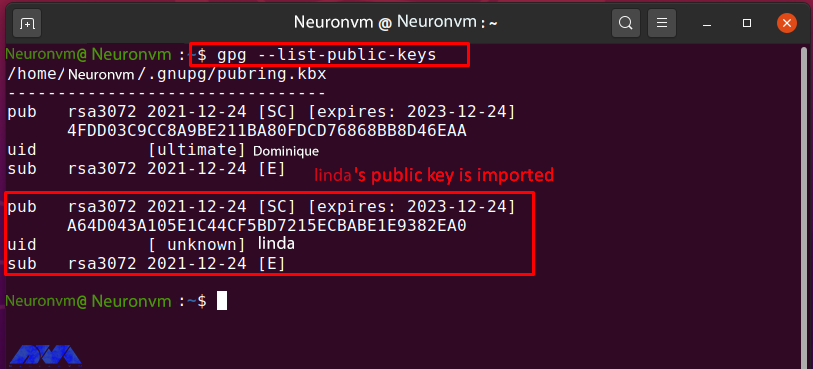
    List the “Neuronvm” public key to confirm the specified operation:

    gpg --list-public-keys

    The successfully entered Linda public key can be seen in the image below:

    How to enter a public key with GPG

    How to Edit the key trust Value with GPG

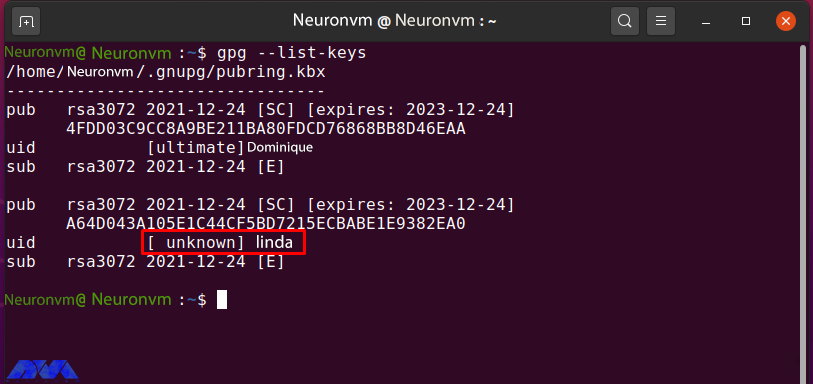
    After entering Linda’s public key into the “Neuronvm” key, enter the amount of trust that is unknown at this point:

    gpg --list-keys

    How to Editing the key trust Value with GPG

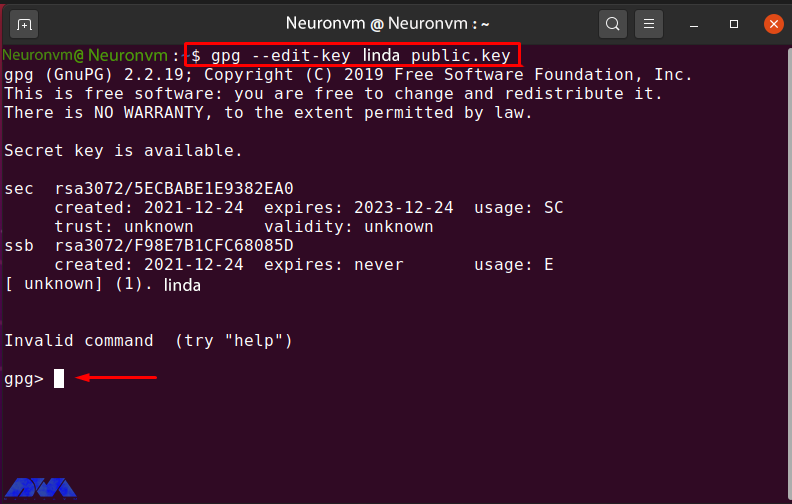
    Enter the following GPG command to edit Linda’s public key trust value:

    gpg --edit-key linda public.key

    How to editing the key trust value with GPG

    Type “trust” and hit “Enter” to check the trust menu options:

    gpg> trust

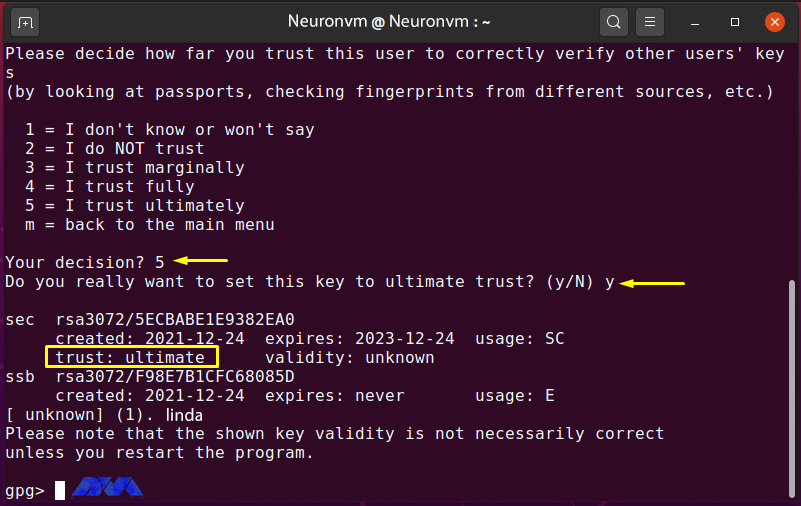
    Then enter “5” to make sure you “finally” trust Linda’s public key:

    Encrypt and Decrypt with PGP on Ubuntu

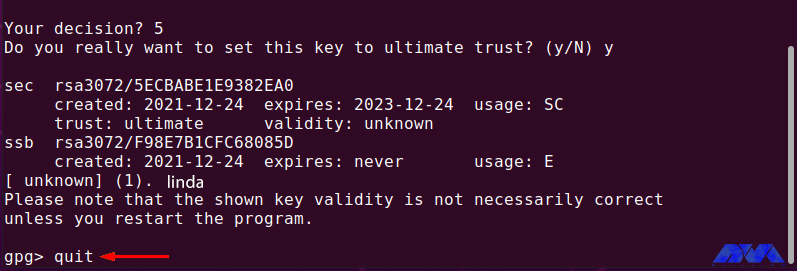
    Exit GPG edit by typing “quit” and pressing “Enter“:

    gpg> quit

    How to edit the key trust value with GPG

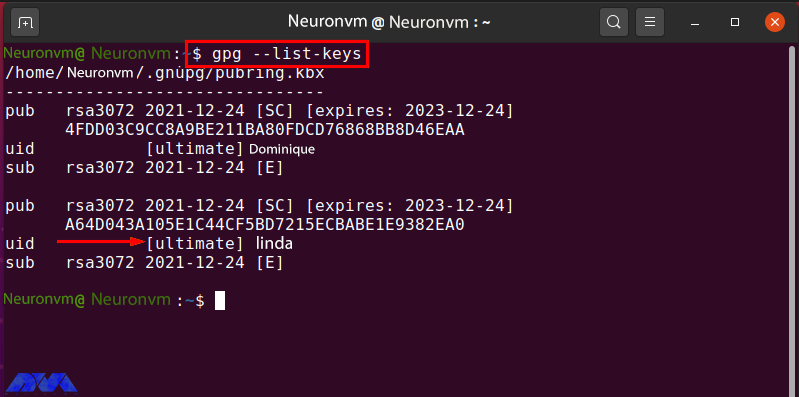
    Now list the “gpg” keys again and check the trust value of the “linda” key:

    gpg --list-keys

    How to editing the key trust value with GPG

    How To Encrypt Files with GPG 

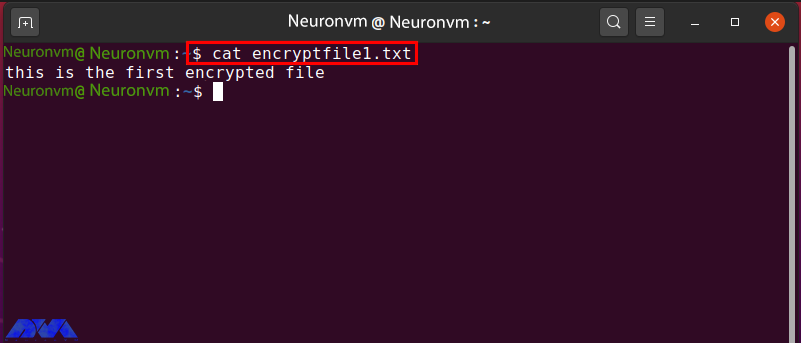
    In the “Neuronvm” system there is a file called “encryptfile1.txt” which is encrypted with the public gpg key of Linda. Before moving on to the encryption procedure, check the content in the specified file:

    How To encrypt file with GPG 

    To encrypt a file using the gpg command, enter the following command:

    gpg -e -u [Sender_uid] -r [Receiver_uid] [Filename]

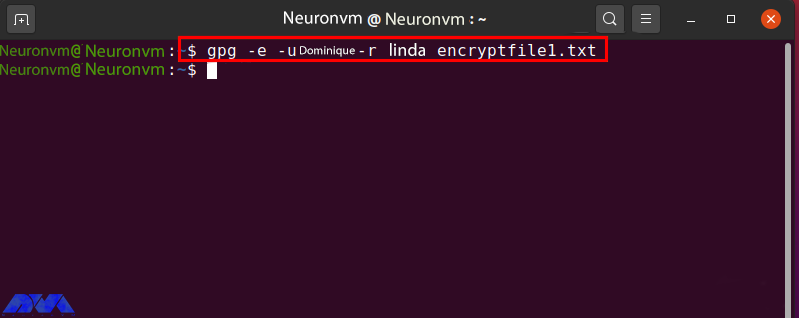
    The “-u” option is now used to specify the sender uid and the “-r” option for the receiver. The secret key of the sender and the public key of the receiver is used to encrypt the file. Now enter the following command to encrypt “encryptfile1.txt” with the individual secret key and Linda’s public key:

    gpg -e -u Dominique-r linda encryptfile1.txt

    How To encrypt file with GPG 

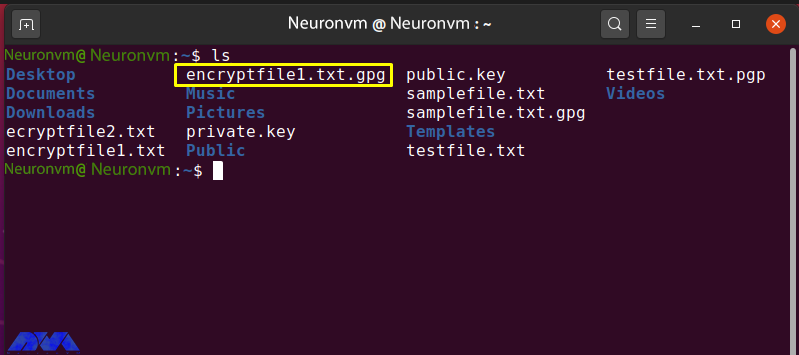
    If the output is error-free, it means that an encrypted file has been successfully registered. To confirm this step, browse the contents of the current directory:

    ls

    The following output indicates that “encrypt file1.txt.gpg” was created for the file of your choice:

    Encrypt and Decrypt with PGP on Ubuntu

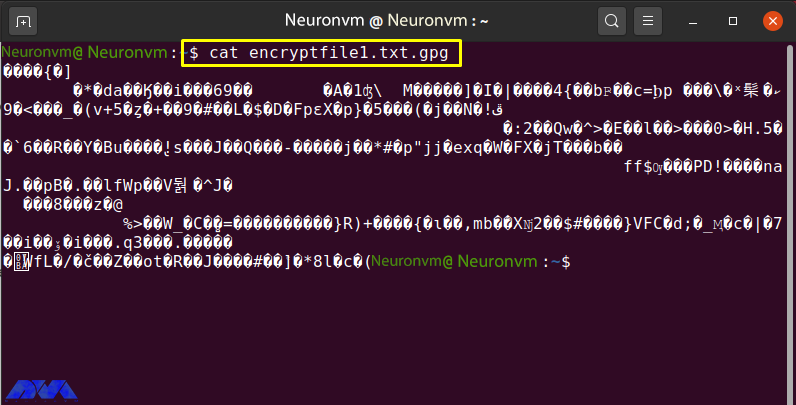
    Check the contents of “encryptfile1.txt.gpg” by running the “cat” command:

    cat encryptfile1.txt.gpg

    The encrypted content “encryptfile1.txt.gpg” in the terminal is shown as follows:

    How To encrypt file with GPG 

    Share the encrypted file with the recipient via email or another method.

    How To Decrypt Files with GPG

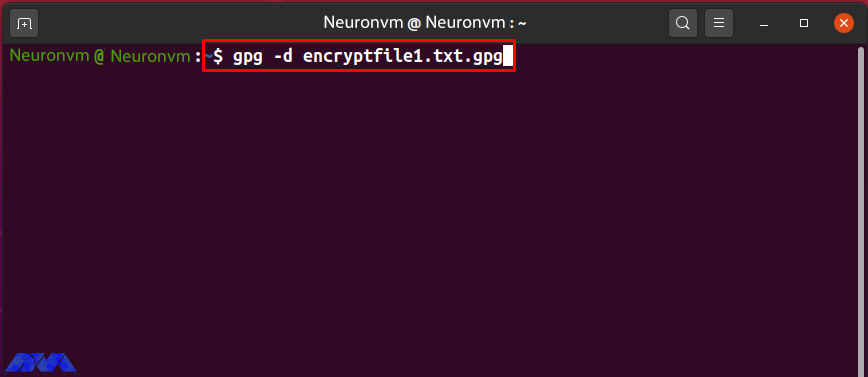
    The “-d” option is added to the “gpg” command to decrypt the encrypted file. Share “encryptfile1.txt.gpg” with the “Neuronvm” user who owns the Linda GPG key pair. Now to decrypt the received file, type the following command:

    gpg -d encryptfile1.txt.gpg

    Decrypt Files with GPG

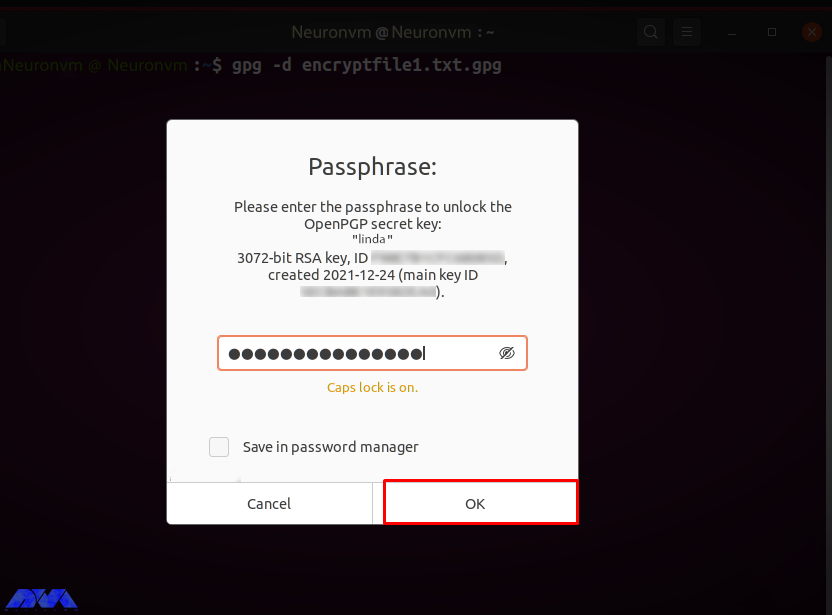
    You are prompted to enter “Passphrase” to unlock Linda’s secret key. Enter the password in the input field and click the “OK” button:

    Encrypt and Decrypt with PGP on Ubuntu

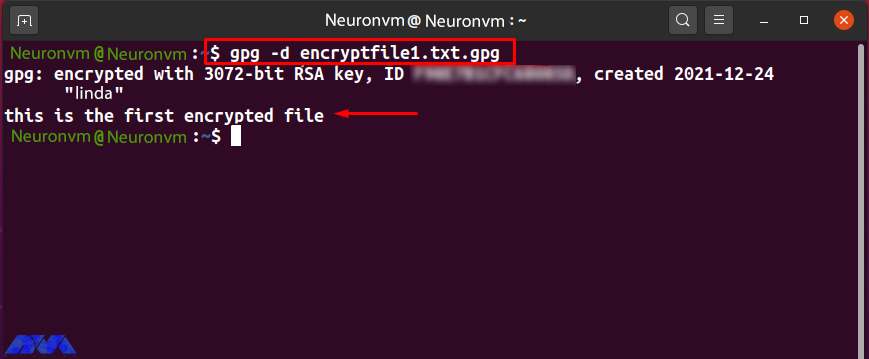
    After entering the correct password, the specified file is decrypted and its contents are displayed in the terminal as follows:

    Encrypt and Decrypt with PGP on Ubuntu

    Conclusion

    PGP encryption is used by companies to exchange data such as files, documents, and emails over the Internet. Also, Protects important information from being misused through email attacks. Public and private GPG keys are used to encrypt and decrypt files. Without the GPG key, no one can decrypt the data. In this tutorial, you learned how to encrypt and decrypt with PGP on Ubuntu 20.04. We hope you find this tutorial useful. Share your comments with us via the form below.

    FAQ

    How many keys are needed in the PGP encryption and decryption process?

    There should be two different keys for encrypting and decrypting each file, and also, two more keys to sign and verify each file.

    Is it possible to break PGP encryption?

    It is almost impossible to hack or break PGP encryption.

  • How to Install WordPress on Dedicated Server (2 Methods)

    How to Install WordPress on Dedicated Server (2 Methods)

    WordPress is a common and well-known content management system provided as an open-source and accessible tool. You can install WordPress on a dedicated server in different ways. Here, we will mention two practical ways to install this CMS. One of these methods is via FTP and the other is an installer provided by a web hosting service.

    2 Methods to Install WordPress on Dedicated Server

    Now follow the steps below to have a successful installation process for WordPress. We should say that installing WordPress on dedicated servers has some advantages like great speed and performance, the safety of the website and the least concern about hackers and malware, the ability to customize your website, more control over your hardware and software, and so on. We recommend that you use the cheap dedicated server plans that are available on our website to install WordPress and enjoy its speed and quality.

    1. Instant Install WordPress with Softculous

    One of the excellent and simple ways to install WordPress on your website is by making a few clicks through the Softaculous app installer. WordPress is an applicable and popular content management system and more than one million websites are powered by it. let’s see how we can install WordPress using this beautiful software.

    Install WordPress through Softaculous. Most companies will offer Cpanel when you sign up:

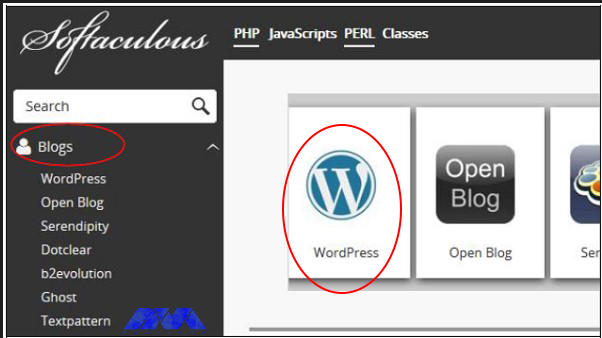
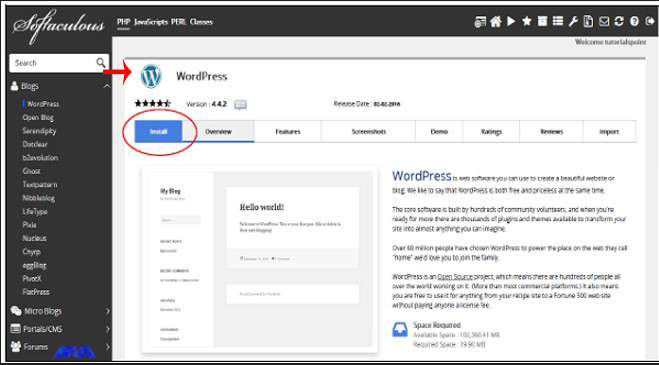
    1. click on Blogs on the left side of your menu and press WordPress:

    adding wordpress on directadmin

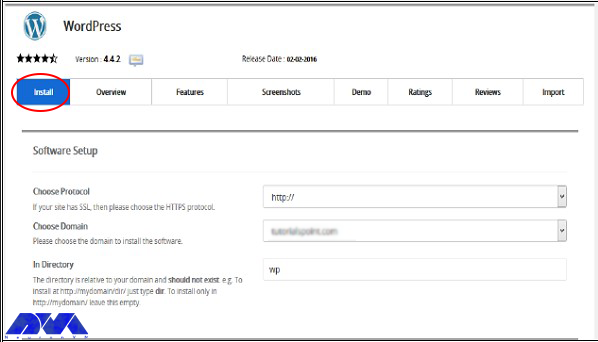
    2. Click on the Install button to start the process of installing WordPress:

    install wordpress on dedicated server

    3. Now you should do some configuration to complete the installation process:

    configuring wordpress on direct admin

    Here, you will have three options for software setup

    Protocol: You should choose the appropriate WordPress protocol. These protocols can be HTTP or HTTPS. Note that if you choose HTTPS, you should have an SSL certificate.

    Domain: Here, you can open the dropdown menu and choose any root domain or subdomain that you created.

    Directory: You can select the directory, in which you wish to install WordPress. But if you desire to install the program on the root website, leave this one empty.

    Three options for Site setting

    Site Name: create a name for your website.

    Site Description: give a short description of your website.

    Enable Multisite: As you mark this field, it will install a WordPress network installation

    Three options for Admin Account

    Username: Insert the administrator username.

    Password: Insert the administrator password here.

    Email: Put the email address on which you prefer to receive the necessary notifications.

    As the final touch, select your language for the installation and install some extra plugins, and also do the advanced settings. This part is optional.

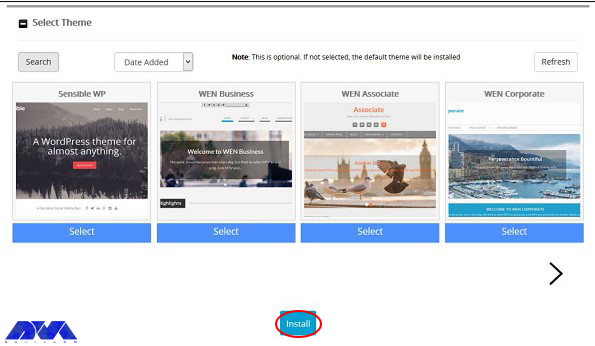
    Last, select your desired Theme and click on the Install button:

    adding theme of wordpress

    2. Install WordPress Via FTP

    This method is not necessary, cause most hosting companies will already install WordPress for your server or you can use automatic installers on your Cpanel. But if you want to install manually follow the instructions here:

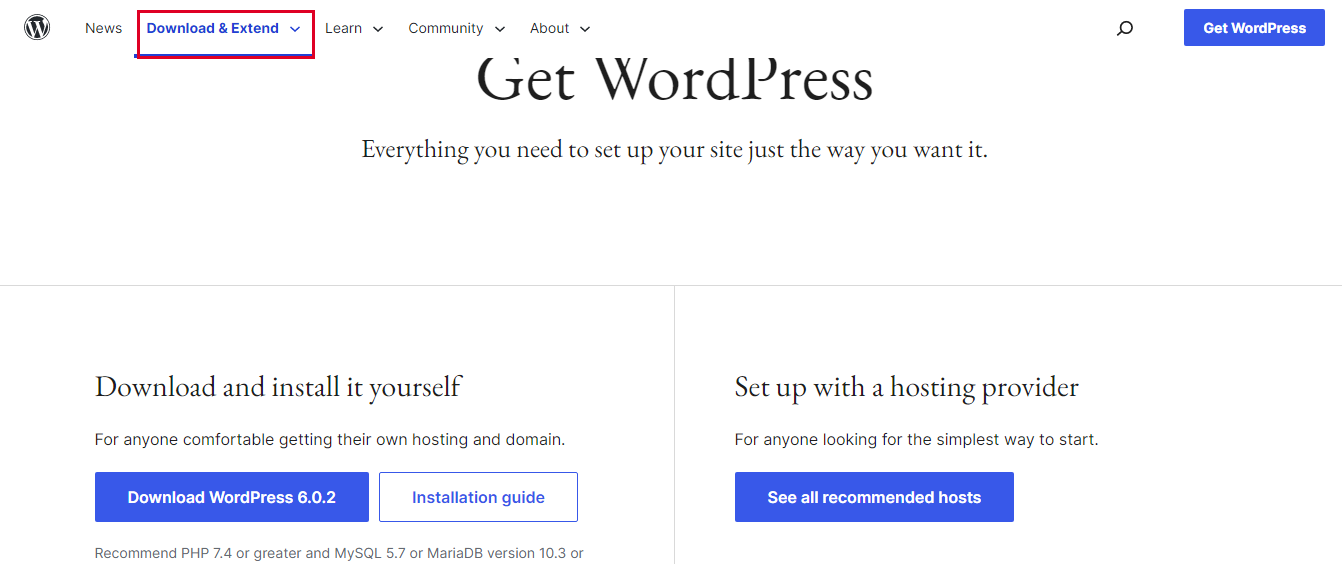
    You should use an FTP application like FileZilla or SmartFtp before starting installation. Now go to the official page of WordPress and download the last version:

    Install WordPress Via FTP

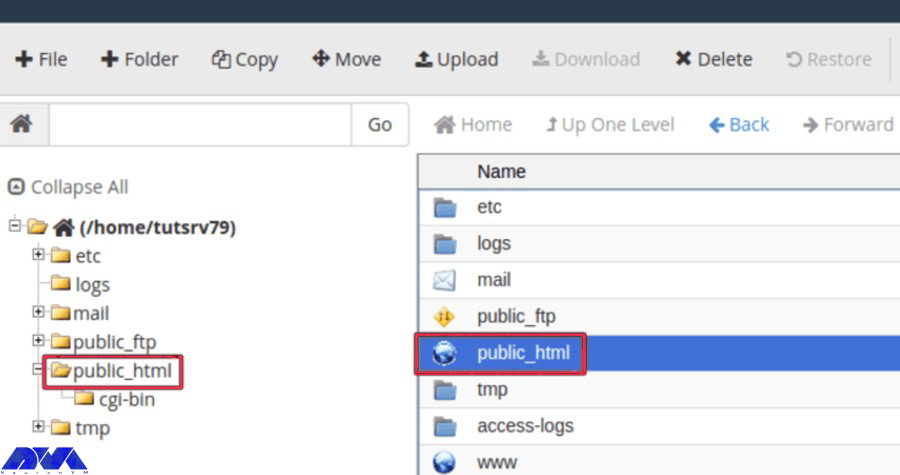
    Unzip the WordPress archive and place it in your public directory which is called public_html:

    Install WordPress on dedicated server Via FTP

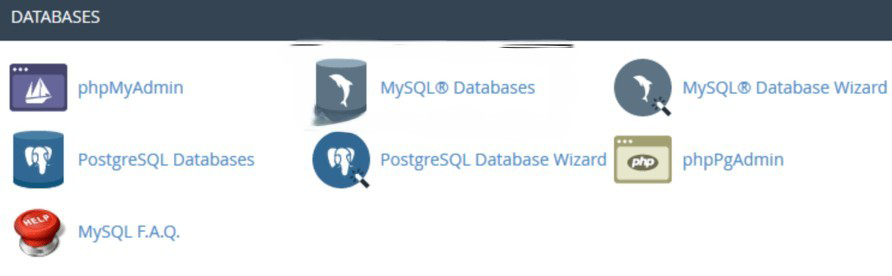
    Find the “MySQL Databases” button on your Cpanel:

    . Install WordPress Via FTP

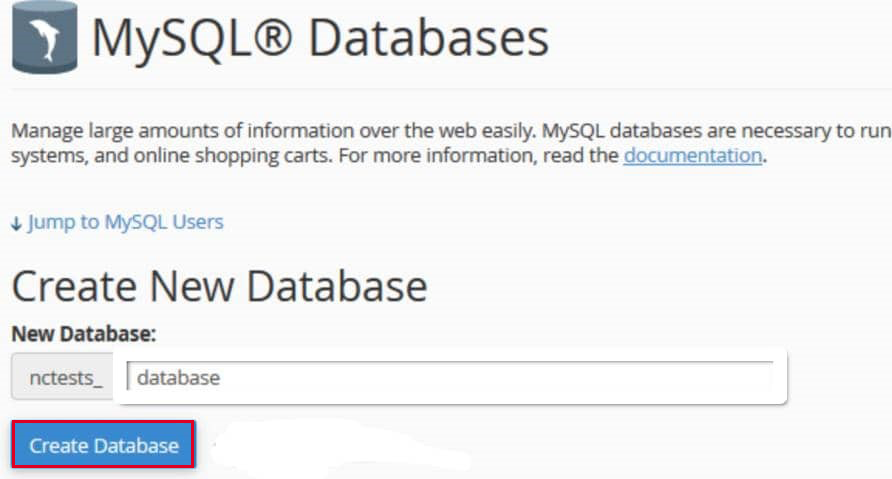
    When it is needed insert your database name and as you have finished select the “Create Database” option:

    Install WordPress Via FTP

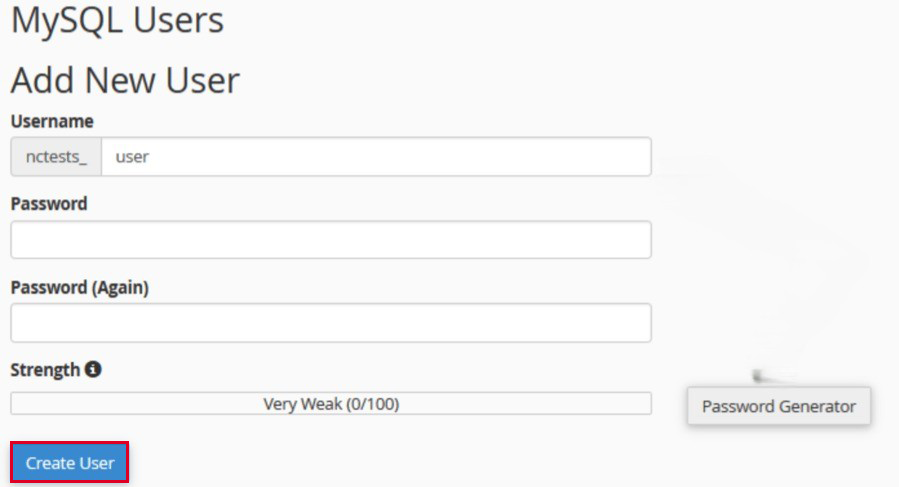
    As you created the database, it’s time to establish a “User” from the MySQL account.

    After entering the username and password, click on the “Create user” button:

    Install WordPress Via FTP

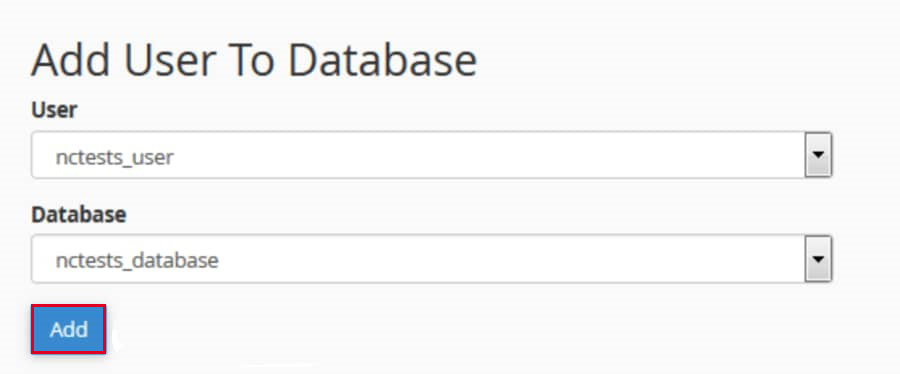
    Once you have entered the required details and the name of the database, you can allow the user to access:

    Install WordPress Via FTP

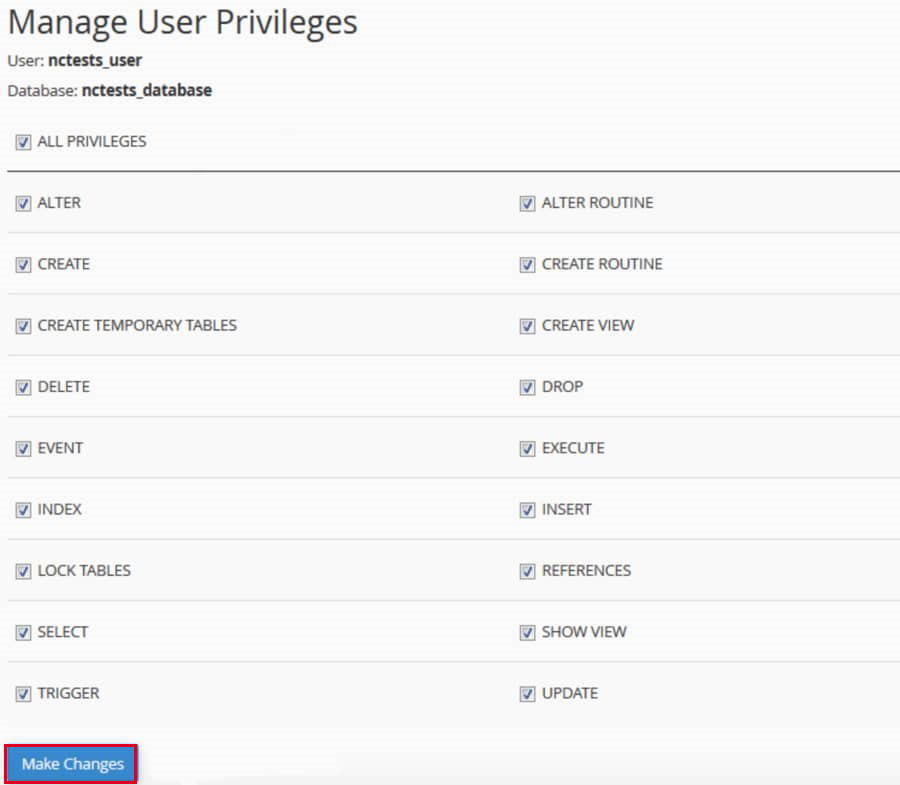
    Be sure to check all the permissions you want to grant on the page below:

    Install WordPress Via FTP

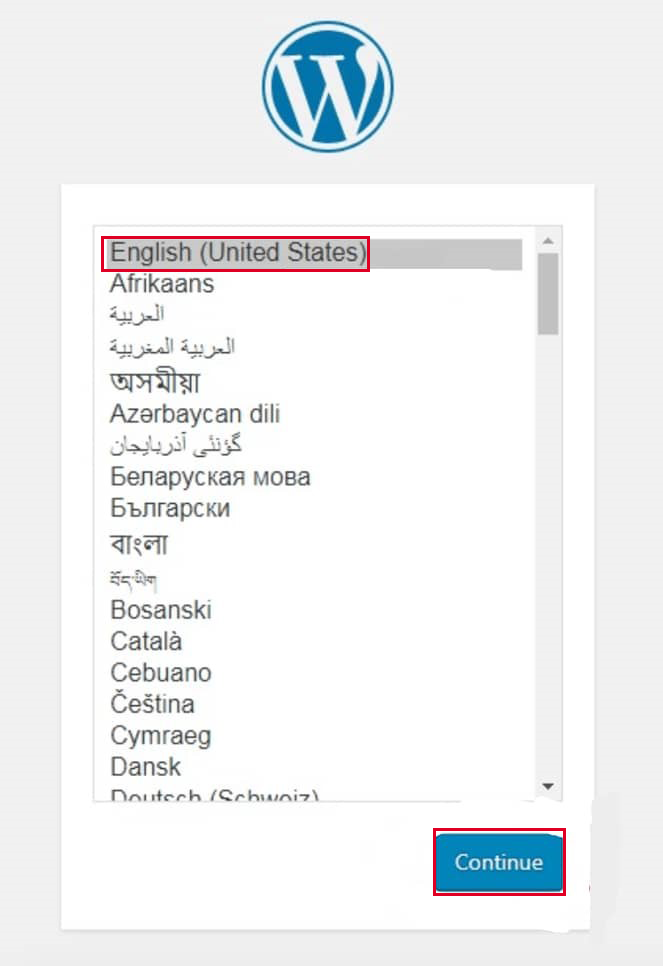
    Now you need to go to your site domain and finish the installation, so that, your FTP transfer is finished. When you visit your domain, then you will need to select your language after a successful transfer:

    Here, select your language and press Continue:

    Install WordPress Via FTP

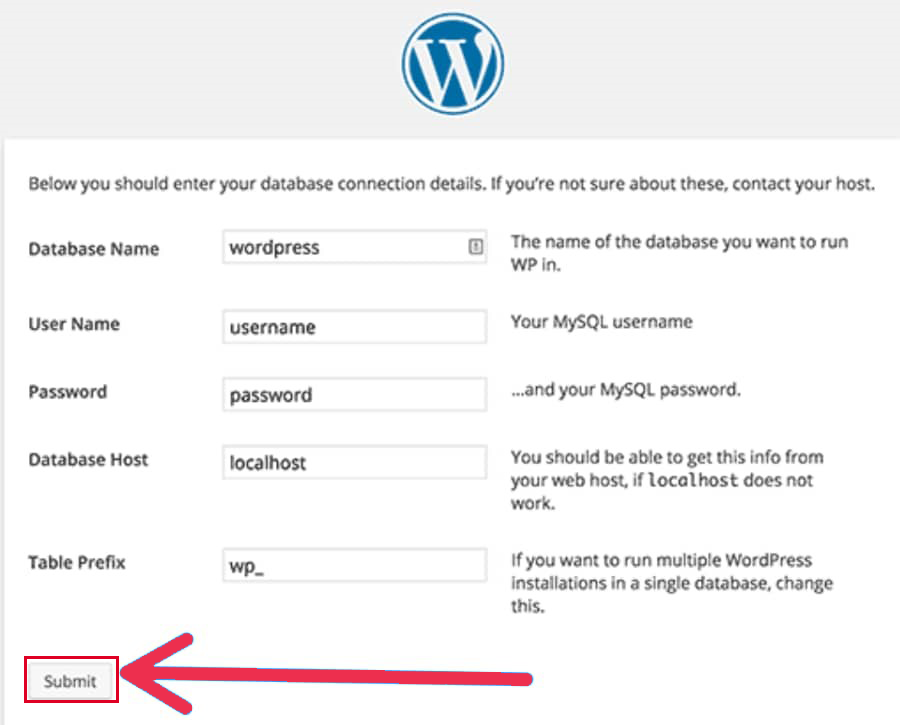
    Now, insert your database information like Name, Username, Password, Database Host, and table prefix, and once you are finished, click Submit:

    Install WordPress Via FTP

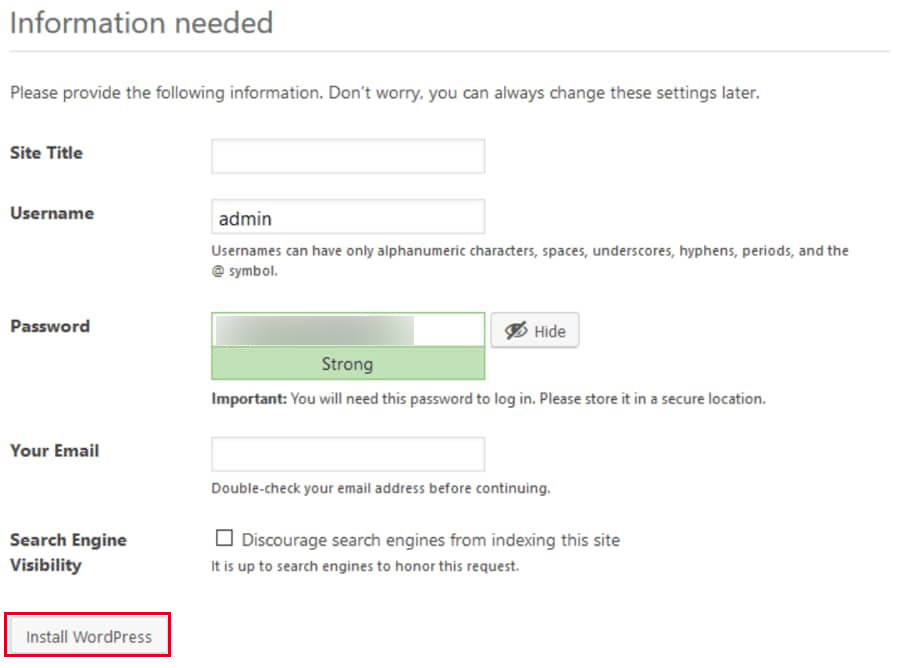
    You should select “run the install” from the menu. Then you have to insert admin information like Site Title, Username, Password, and Email:

    Install WordPress Via FTP

    In the end, click Install WordPress” and finish your task. the only thing you have to do is to enter your username and password.

    Well done! WordPress is manually installed on your server.

    Conclusion

    In this tutorial, we thought about how to install WordPress on a dedicated server. Now you can use this popular CMS and enjoy controlling your system as you wish. Hope this guide was useful for you. If you have any questions, leave a comment.

    FAQ

    Can I host WordPress on my server?

    Yes, by hosting WordPress, you can tweak caching rules and optimize your site on the server. You can have your dedicated CPU and memory.

    Is it recommended to install WordPress on a Windows-based dedicated server?

    WordPress is suitable for Linux-based dedicated servers but it is technically possible to install it on a Windows server.

  • Tutorial Install and Access Plex Media Server on Debian 11

    Tutorial Install and Access Plex Media Server on Debian 11

    Plex is a free media server that lets you organize your music, videos, and TV shows into a user interface. The purpose of this tutorial is to teach you How to Install and Access Plex Media Server on Debian 11. Therefore, we recommend you stay with us until the end of this article.

    Introduction to Plex Media

    Plex is versatile; media can be accessed and shared using a client app such as a mobile app, Roku, etc. Plex Media runs on a variety of platforms that may run on a single desktop computer. The most obvious examples are Windows and Mac. It should be noted that Plex also supports Linux, FreeBSD, and several NAS platforms. You’ll find Plex apps for most platforms and smart TV boxes like Apple TV, Chromecast, and Fire TV, as well as consoles like Xbox One and PlayStation 4.

    Features of Plex Media

    – Supports cloud sync and encrypted connections with multiple accounts.

    – You can also easily select and share what you want.

    – It has a media optimizer and supports video streaming from one device to another.

    – It supports voice fingerprinting and automatic photo tagging and encrypted connections with multiple accounts.

    Prerequisites 

    – A Linux VPS with Debian OS

    – Update Debian packages to the latest version

    How to Install Plex Media Server on Debian 11

    First, before starting the installation process, update the Debian package using the following command:

    sudo apt update
    sudo apt upgrade -y

    Also, install the required packages with the help of the following command:

    sudo apt install apt-transport-https curl vim wget -y

    Plex Repository on Debian 11

    The available repository provides Plex packages. To install Plex on Debian 11, add the repository to your system. Add the Plex repository using the following command:

    echo "deb https://downloads.plex.tv/repo/deb public main" | sudo tee /etc/apt/sources.list.d/plexmediaserver.list

    Enter the required GPG keys for the repository using the following command:

    curl https://downloads.plex.tv/plex-keys/PlexSign.key | sudo apt-key add -

    Installing Plex Media Server on Debian 11

    After the repository is added, continue the steps in order and install the latest version of Plex on Debian 11 and also update the APT package list using the following command:

    sudo apt update

    Now create the added Plex repository and then install the Plex media server using the following command:

    sudo apt install plexmediaserver

    After finishing the installation process, the Plex service will start automatically. Verify the item using the command:

    systemctl status plexmediaserver

    Use the following command to get started:

    sudo systemctl start plexmediaserver

    Now enable the service to run automatically at system boot using the following command:

    sudo systemctl enable plexmediaserver

    How to Configure the Apache Reverse Proxy for Plex

    Now, the Plex dashboard can be accessed using the URL http://localhost:32400/web. Configure a reverse proxy to access Plex remotely. Also, secure it with HTTPS. Install the Apache web server on Debian, Debian 11 with the following command:

    sudo apt install apache2 -y

    After you finish installing Apache, create a virtual host file for Plex:

    sudo vim /etc/apache2/sites-available/plex.conf

    In the desired file, add the following commands:

    <VirtualHost *:80>
    ServerName plex.neuronvm.com
    ErrorDocument 404 /404.html
    
    #HTTP proxy
    ProxyPreserveHost On
    ProxyPass / http://localhost:32400/
    ProxyPassReverse / http://localhost:32400/
    
    #Websocket proxy
    <Location /:/websockets/notifications>
    ProxyPass wss://localhost:32400/:/websockets/notifications
    ProxyPassReverse wss://localhost:32400/:/websockets/notifications
    </Location>
    </VirtualHost>

    Now save the file, then activate the site and proxy module using the following command:

    sudo a2enmod proxy_http
    sudo a2enmod rewrite
    sudo a2ensite plex.conf

    Move the Assumption Apache Conf to a backup file using the following command:

    sudo mv /etc/apache2/sites-enabled/000-default.conf /etc/apache2/sites-enabled/000-default.conf.bak

    Now restart Apache using the following command:

    sudo systemctl restart apache2

    How to Access Plex Web UI on Debian 11

    You can also access the plex at this stage using the URL http://IP_address/web or http://domain_name/web:

    Install-and-Configure-Plex-Media-Server-on-Debian

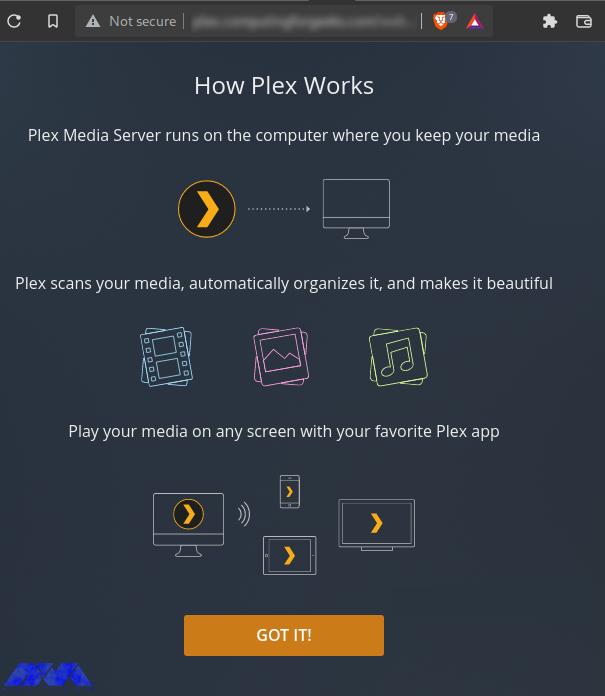
    Login to Plex using the preferred methods then go to the page that explains what Plex is and how it works:

    How Plex Works

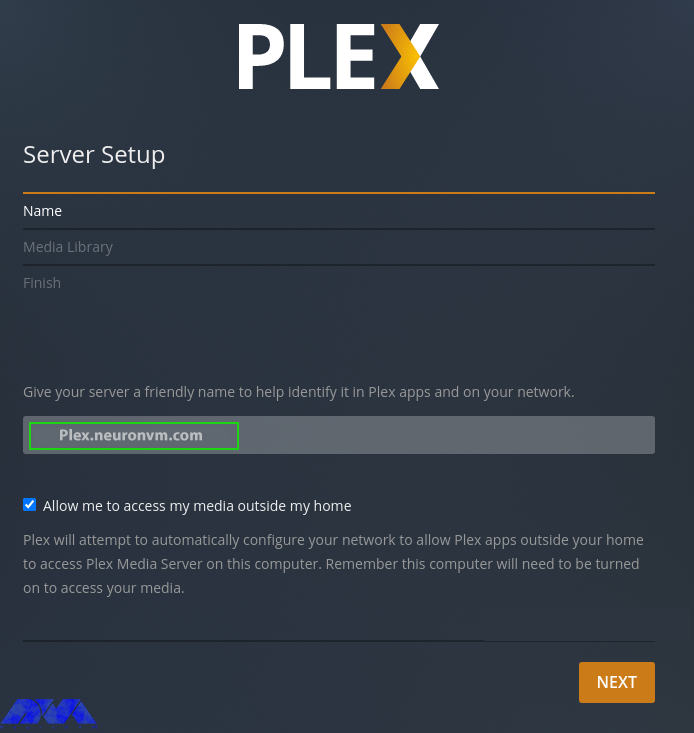
    Now configure Plex as follows, starting by setting the server name:

    Install-and-Configure-Plex-Media-Server-on-Debian

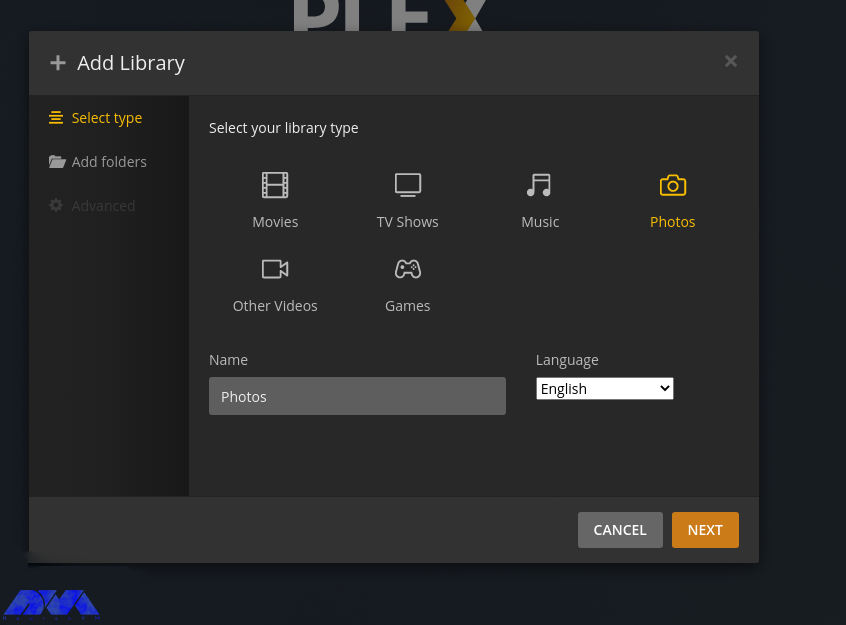
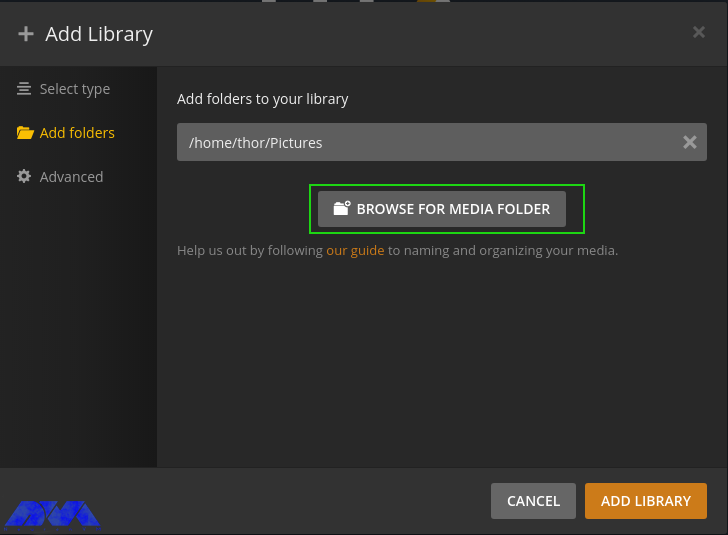
    Now launch the media library. This step allows you to add media lists if you have already imported them. Click on Add Library and proceed as follows:

    Install and Access Plex Media Server on Debian

    Select the Library type, then search for media in your local storage and add it:

    Install and Access Plex Media Server on Debian

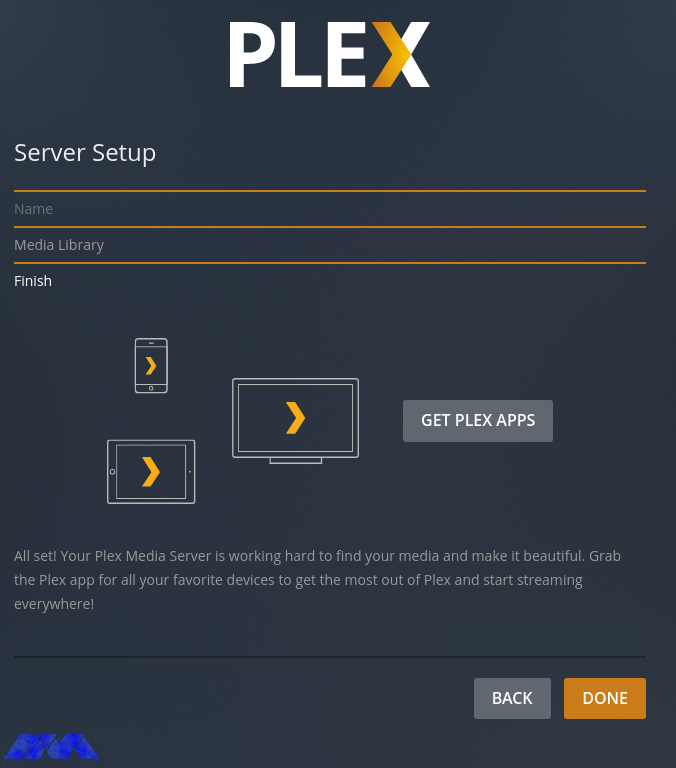
    With the media library configured, proceed to the next step and finish setting up the server:

    plex server setup

    The Plex dashboard will now be displayed as below:

    Install and Access Plex Media Server on Debian

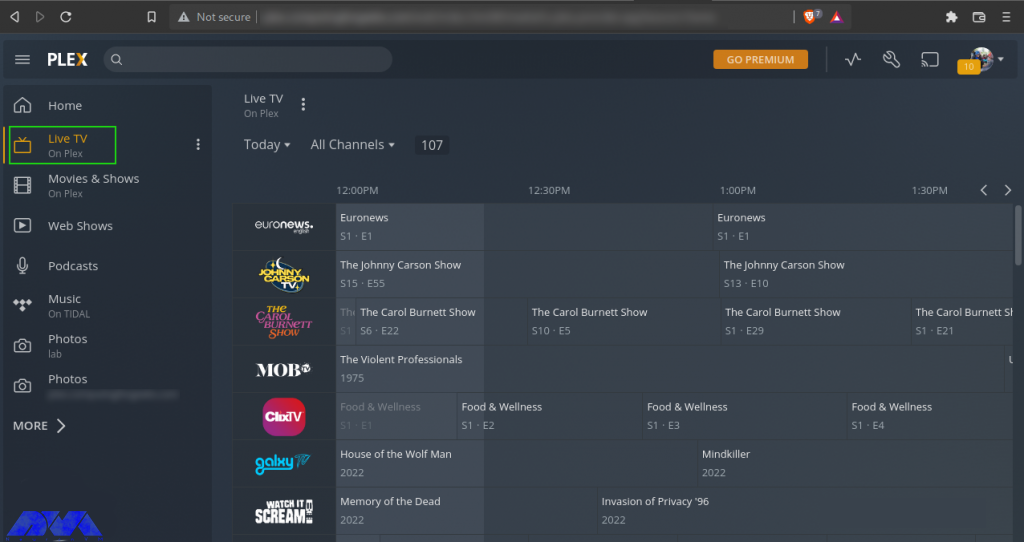
    Go ahead and watch live TV, movies, podcasts, and listen to music. For example, while watching live TV, you have to select the live TV channel from the list provided:

    Access Plex Web UI

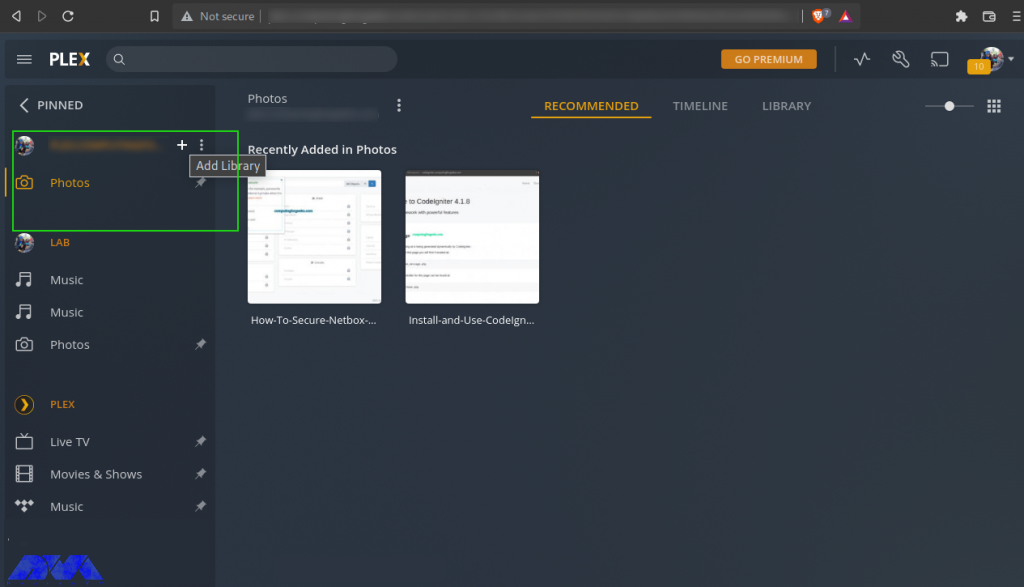
    Now click More to view the local storage files and your media server will appear with the libraries added. Also, more libraries can be added here:

    Access Plex Web UI

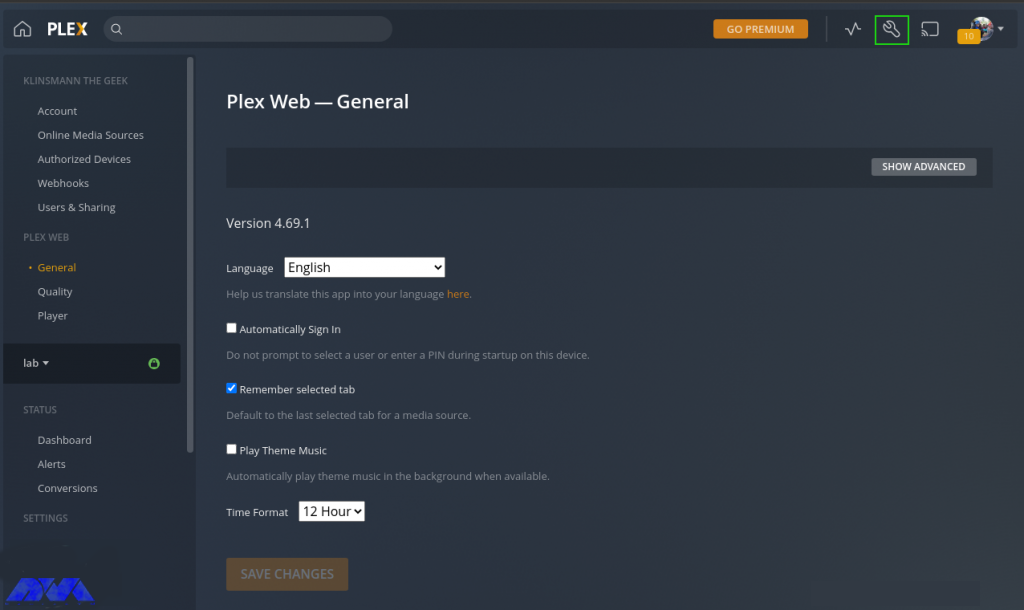
    Then add settings like language, interface, plugins, etc. for Plex in the settings tab:

    Setup a Plex Client

    How to Setup a Plex Client on Debian 11

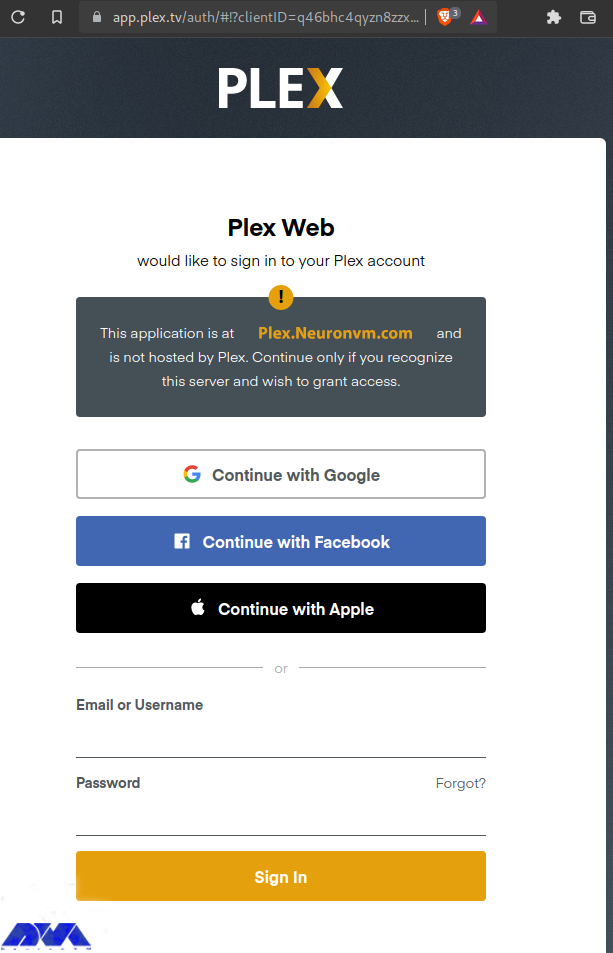
    Plex client can be installed on multiple platforms such as Android, Mac, Apple TV, Windows, etc. Client applications are provided on the Plex Applications page. Also, using an Android client, you can play media libraries. Added view of watched channels in your account. You can now sign in to your Plex account. Now choose how to sign in to your Plex account as below:

    sign up plex

    Select how to sign in to your Plex account as shown in the image:

    sign up plex-2

    Now if you have more than one Plex server, go ahead and select the server you want to connect to:

    Setup a Plex Client

    Now optimize the navigation in the Plex client, then go to the Plex dashboard as below:

    Setup a Plex Client

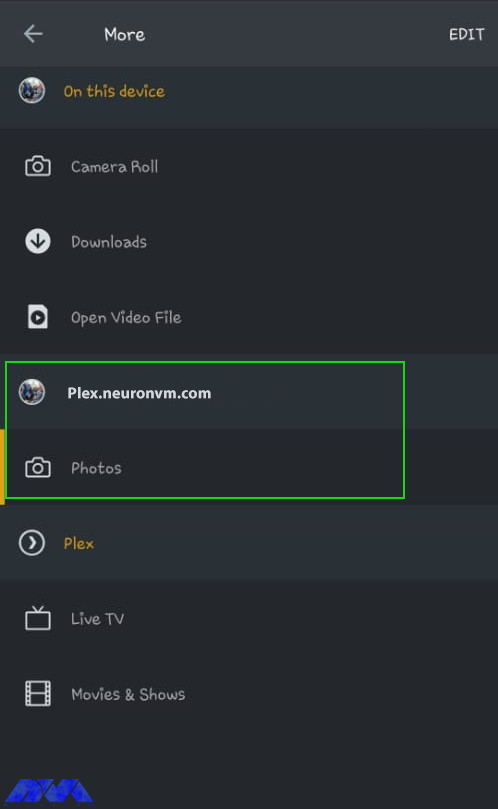
    Also in the More section, you can view media from the Plex server media library as below:

    Setup a Plex Client

    Conclusion

    With the Plex media server running on Debian 11, you can easily store digital media like music, video, photos, etc., and access them anywhere on the Internet. In this article, you learned how to Install and Access Plex Media Server on Debian 11. We hope this educational article was useful for you. Share your comments with us through the form below.

    FAQ

    Which one is better; Plex or Netflix?

    Netflix is produced to manage TV shows and movies and is not a free app, plex puts you in charge of finding all the stuff to watch. The exception is just ad-supported content.

    What is Plex used for?

    It is software that is used to store, locate and access all of your media in one place.

  • What is VMware?

    What is VMware?

    VMware is a virtualization software vendor based in Palo Alto, California, founded in 1998 and now a subsidiary of Dell Technologies. Also, bases its virtualization technologies on the ESX/ESXi metal hypervisor in the x86 architecture. In this comprehensive article, we will explain to you what is VMware. 

    A Brief Explanation of VMware

    VMware products now include virtualization, network and security management tools, data center software, and storage software, and VMware vSphere is a server virtualization platform for implementing and managing large-scale VM infrastructures. Desktop products include VMware Workstation, VMware Fusion, and VMware Player.

    VMware’s server software line includes VMware ESX Server, VMware ESXi Server, and VMware Server. Since 2004, VMware has been working as a partner of SUSE Alliance, and supporters the Linux system in VMware software, and supports Linux on VMware software, on-premises, or in the cloud. Also, apart from providing a reliable data center virtualization solution, SUSE, and VMware have partnered to provide cloud solutions for both private and public clouds. SUSE Linux Enterprise Server is currently certified and supported on the latest version of vSphere.

    You can visit the Windows VPS server plans offered on our website and then run VMware on it.

    Introduction of VMware products

    Currently, VMware products include virtualization, network and security management tools, data center software, and storage software.

    Cloud infrastructure and Data Center

    VMware vSphere is VMware’s suite of virtualization products, known as VMware Infrastructure before 2009, and includes:

    – ESXi

    – vCenter Server

    – vSphere Client

    – vMotion

    vSphere is available in three versions: Standard, Enterprise Plus, and Platinum. In addition, there are two three-server kits for small and medium businesses called vSphere Essentials and Essentials Plus. Also with VMware Cloud on AWS, customers can run a cluster of vSphere hosts with vSAN and NSX in an Amazon data center and manage their workloads with VMware’s famous tools and skills.

    Introduction to Network and Security Tools

    In the rest of the article, we will introduce VMware tools.

    VMware NSX

    It provides virtual networking and security software and was created when VMware acquired Nicera in 2012. NSX allows the administrator to virtualize network components. It also enables them to develop, extend, and configure virtual networks and switches through software rather than hardware.

    In this network, a software layer is placed on top of the hypervisor to allow the administrator to divide a physical network into several virtual networks. With the latest version of this product, the NSX-T data center, network virtualization can be added to both ESXi and KVM as hypervisors and bare-metal servers, and containerized workloads can be virtualized and protected in a Kubernetes cluster.

    The NSX-T data center now offers network performance virtualization, which enables functions such as firewalls, load balancers, and VPNs to be implemented within the virtualization software stack.

    VMware vRealize Network Insight

    VMware vRealize Network Insight is a network operations management tool that enables admins to schedule micro-partitioning and monitor the health of VMware NSX. VRealize Network Insight also relies on technology from VMware’s 2016 acquisition of Arkin. VRealize Network Insight collects information from NSX Manager and displays errors in its user interface to help troubleshoot an NSX environment.

    Understanding the SDDC platform

    VMware Cloud Foundation

    It is an integrated software stack that brings together vSphere, VMware vSAN, and VMware NSX into a single platform through SDDC Manager, and an administrator can deploy the software package on-premise as a private cloud or as a service in a public cloud. Run, the administrator can also instantly provision an application for network or storage.

    Storage and availability Training

    VMware vSAN

    It is now a software-based storage feature built into the ESXi hypervisor and integrated with vSphere that aggregates disk space from multiple ESXi hosts and allocates it through intelligent policies, such as protection limits, thin provisioning, and clean-up coding. It also combined with vSphere High Availability to increase compute and storage availability.

    VMware Site Recovery Manager (SRM)

    A disaster recovery management product that allows administrators to create recovery plans that run automatically in the event of a disaster and allows administrators to automatically configure failover and failback of virtual machines, as well as SRM with NSX Integrated to protect network and security policies on migrated VMs.

    VMware vCloud NFV

    Network functions virtualization platform that allows a service provider to run network functions as virtualized applications from different vendors. It also offers the benefits of virtualization and the cloud for a communications service provider that previously relied on hardware.

    Getting to Know the Cloud Management Platform

    vRealize Suite

    There is now a group of software that allows users to create and manage hybrid clouds, and the vRealize suite includes vRealize Operations for monitoring, vRealize Log Insight for centralized logging, vRealize Automation for data center automation, and vRealize Business for Cloud for management. It is a cost.

    VMware Tanzu

    VMware Tanzu allows customers to build containerized applications, run enterprise Kubernetes, and manage Kubernetes for developers and IT. Also, with the help of the software package, an administrator can deploy and manage VMs on multiple hypervisors or cloud platforms from a single management console.

    Introduction of Virtual Desktop Infrastructure

    VMware Horizon

    Here, VMware Horizon allows organizations to run Windows desktops in the data center or in the VMware Cloud on AWS, eliminating the need to place and manage entire desktops in the workplace, as well as management and security for the environment. Centralizes the user and integrates with VMware App Volume and Dynamic Environment Manager products for application delivery and Windows desktop management.

    Organizational Mobility and digital workspace Management Departments

    Workspace ONE

    The Workspace ONE suite includes VMware AirWatch, Horizon Air, and Identity Manager, which allow administrators to manage mobile devices and cloud-hosted virtual desktops and applications from a single management platform. Cloud or on-premise control.

    Identity Manager

    It enables SSO access to any application from any device based on established policies and is an identity-as-a-service product that provides single sign-on (SSO) capabilities for web, cloud, and mobile applications.

    VMware AirWatch

    VMware AirWatch is also an enterprise mobility management (EMM) software platform, where administrators are empowered to deploy and manage mobile devices, applications, and data.

    Personal Desktop

    VMware Workstation

    It is the first product offered by a software company that allows users to create and run on a Windows or Linux desktop or laptop, and VMs run concurrently with the physical machine. In fact, each virtual machine runs its own operating system such as Windows or Linux, and this allows users to simultaneously run Windows on a Linux machine with the native operating system installed, or vice versa.

    VMware Fusion

    Currently, VMware Fusion is software like VMware Workstation that virtualizes Windows or Linux operating systems on Mac computers.

    Advantages and necessity of using VMware Products

    – Better provision of applications and resources and simple data center management

    – Increasing efficiency along with the agility of data center systems

    – Security based on a zero-trust model and more secure than container systems like Kubernetes

    Disadvantages of VMware Products

    – Suitability of Hyper-V and Xen Hypervisor alternatives and high licensing costs

    – Lack of support and  the existence of various bugs when used alongside Oracle products and hardware compatibility issues

    Introducing Alternative Virtual Machines

    Other VMware vSphere hypervisors

    – Linux KVM

    – Microsoft Hyper-V

    – Red Hat Virtualization

    – Proxmox VE

    – Virtuozzo

    – Citrix XenServer

    – Oracle VM server

    VMware Workstation alternatives for Personal Desktop use

    – VirtualBox

    – QEMU

    – bhyve

    – Parallels

    Introducing the top 27 tools for VMware Administrators

    As-Built Report

    As Built Report is an open-source configuration documentation framework that generates and builds documents in XML, Text, HTML, and MS Word formats using Windows PowerShell and PScribo. It is also used to easily run and generate reports against the IT environment, allowing contributors to easily create new reports for any vendor and IT technology with RESTful API and/or Windows PowerShell support.
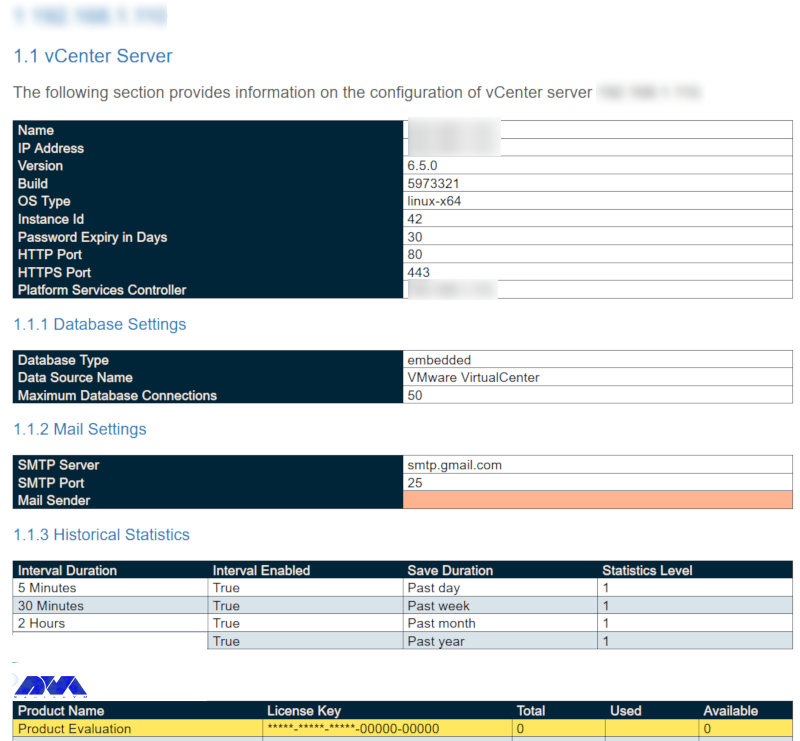
    As-Built Report - vcenter server

    Cross vCenter Workload Migration Utility

    It is now a tool to easily move virtual machines between vCenter Servers through the Cross-vCenter vMotion feature using a GUI. Also automatically fills this inventory for ease of management and enables batch migration of multiple virtual machines in parallel. It then implements a REST API to automate migration tasks.
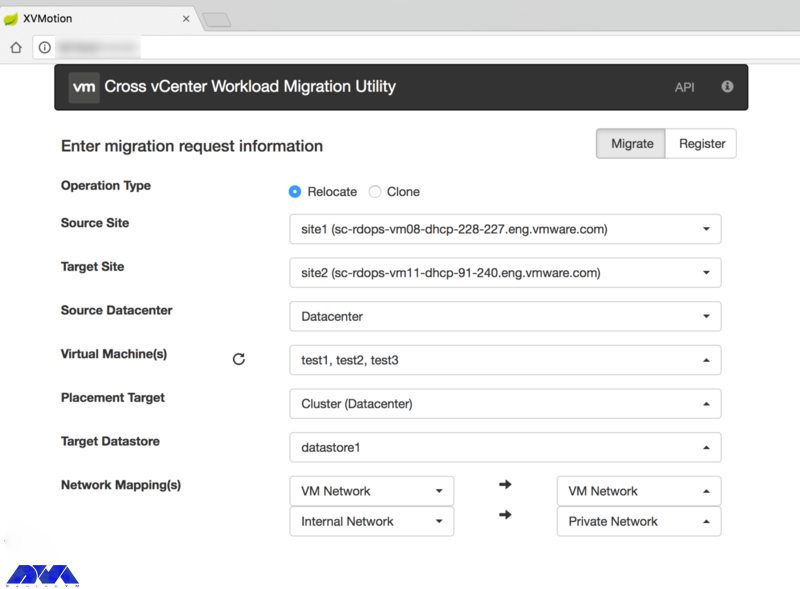
    Cross vCenter Workload Migration Utility

    ESXTOP

    A powerful command-line tool is included with vSphere to help administrators identify and fix performance issues in real-time, and then provide information about the resource management of the vSphere environment with details on disk, CPU, network, and memory usage. Displays real-time.
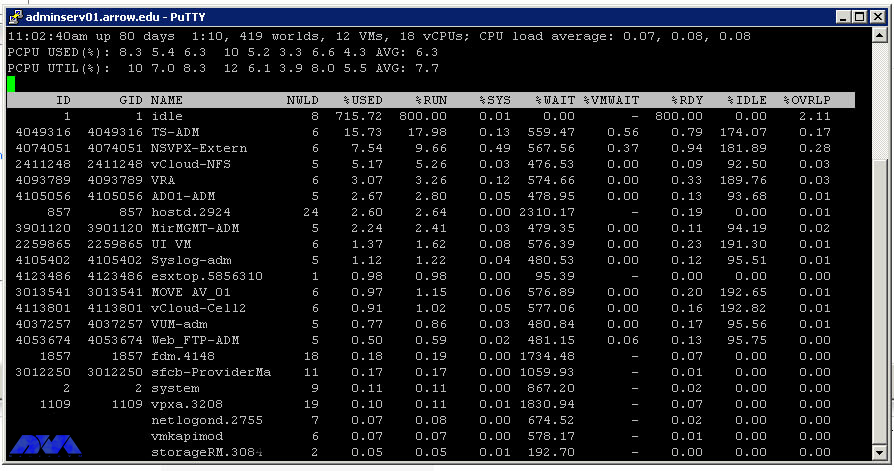
    ESXTOP

    Vmware Git

    Git is an open-source version control system created by Linux developer Mr. Linus Torvalds in 2005. In fact, this system has thousands of contributors, a large community base for support, and is also compatible with several IDEs and operating systems, including VMware.

    HCI Bench

    Here, HCI Bench aims to accelerate customer POC performance testing through a controlled and consistent method by fully automating the end-to-end process of setting up test virtual machines, setting workloads, collecting test results, and collecting valuable data for troubleshooting. Also, the Hyperconverged Infrastructure Benchmark, defined as HCI Bench, is an automated wrapper for the open-source VDbench benchmark tool that simplifies automated testing on HCI clusters.

    Hyper

    A cross-platform, customizable, open-source terminal program built on modern web standards and aiming to be the simplest and most powerful of its kind.
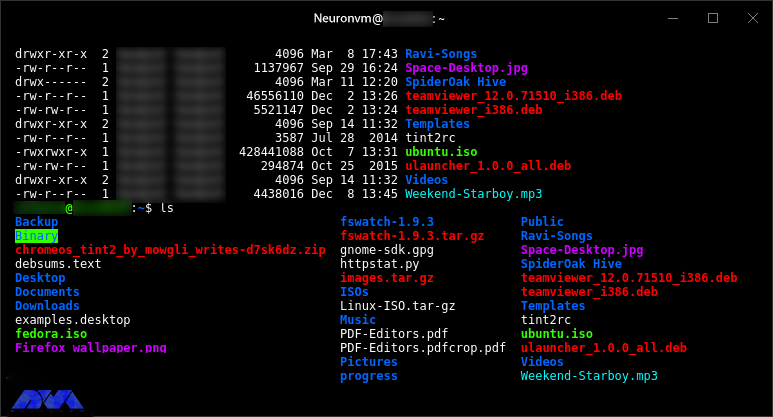
    Hyper-Linux-Terminal-App-4

    IOInsight

    It is a virtual appliance that comes with VMware. Allows users to understand the storage I/O behavior of their virtual machine. It also has a web-based user interface through which users can select a VMDK to monitor and display the results to make better choices about tuning performance and storage capacity.
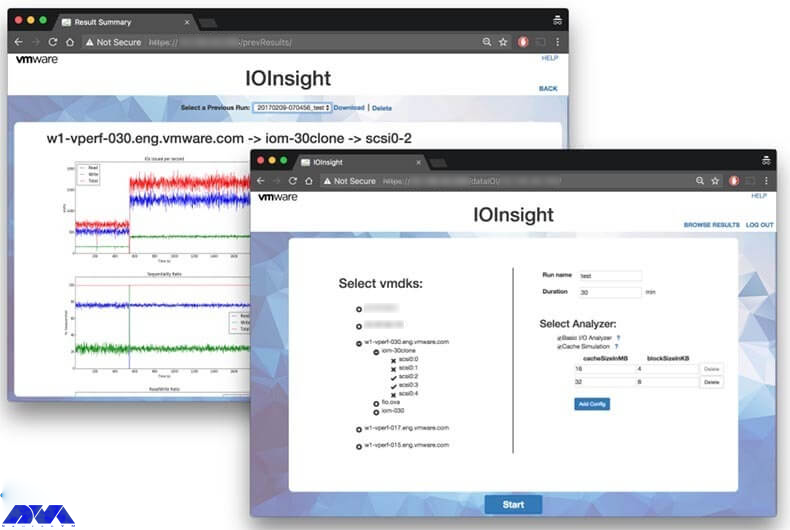
    VMware-IOInsight-Tool

    Linux VSM

    There is now an improved port of Linux Software Manager for VMware, which allows users to log into My VMware and access download information, then view the subsets of downloads that VSM allows. Also, Linux VSM is designed to be smarter than the version of VSM for macOS and Linux, for example, instead of breaking operations, it also ignores missing files.

    vRealize Log Insight

    A virtual tool that administrators can use to view, manage, and analyze Syslog data, and then gain the ability to troubleshoot vSphere and perform compliance and security checks.
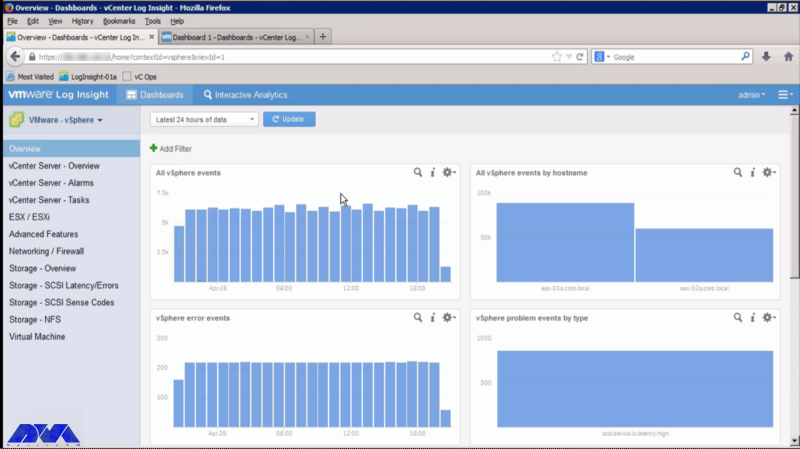
    vRealize Log Insight

    mRemoteNG

    Remote Connection Manager is a multi-protocol and tabbed resource created as a fork of mRemote with new features and bug fixes. In fact, the software supports Virtual Network Computing (VNC), SSH, rlogin, HTTP[S], Citrix Independent Computing Architecture (ICA), and Remote Desktop/Terminal Server (RDP).
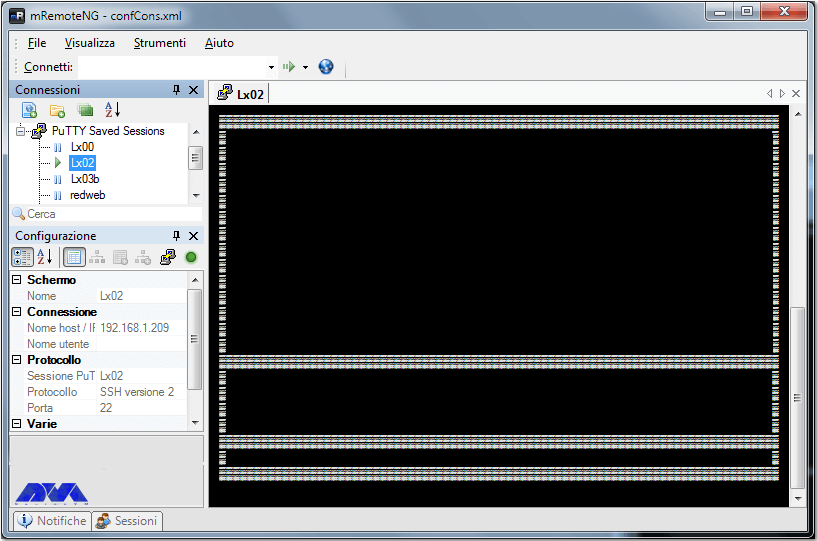
    mRemoteNG

    pgAdmin

    It is one of the most popular feature-rich tools for managing PostgreSQL and its derivative databases. One of its most important features is its availability of Windows, macOS, and Linux extensive online documentation. It also has a powerful search tool for syntax highlighting, multiple deployment models, and support for most PostgreSQL server-side encryptions, among other features of pgAdmin.
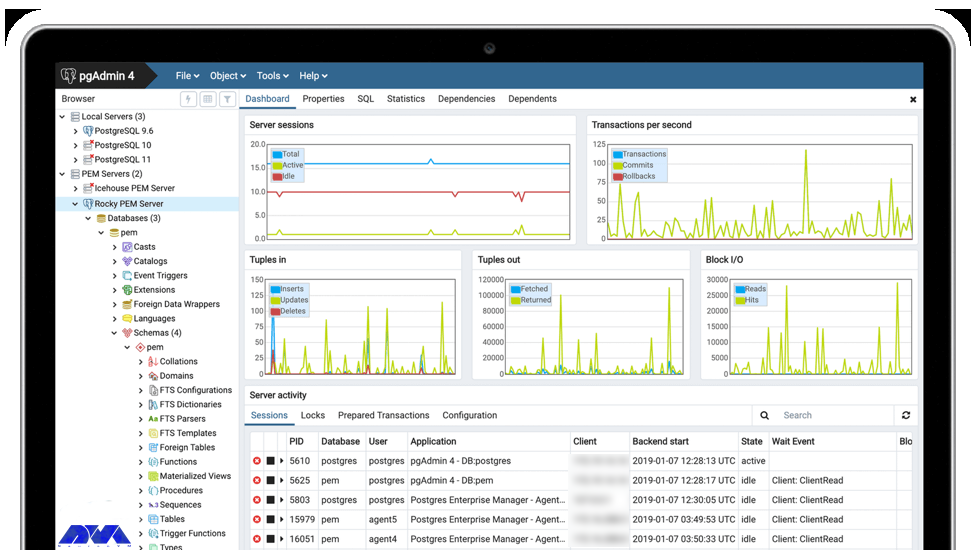
    pgAdmin

    Pocli

    It is a Python-based tool that provides a lightweight command-line client for ownCloud for basic file operations such as uploading, downloading, and directory management. Pocli was also motivated by the lack of a tool to quickly upload or download files on computers without The GUI working.

    Postman

    In fact, Postman is free for individuals and small teams but also offers monthly subscriptions with advanced features for teams of up to 50 users and enterprise solutions. Currently, the HTTP client is very suitable for testing web services and was created to simplify the process of developing, testing, and documenting APIs by allowing users to create simple and complex HTTP requests quickly.

    PowerCLI

    Here this command-line tool is built on Windows PowerShell to provide more than 600 cmdlets to manage not only vSphere and VMware but also vCloud, vSAN, VMware Site Recovery Manager, NSX-T, VMware HCX, and more. It is also a powerful program for automating and managing VMware vSphere settings and is able to work with any VMware product.
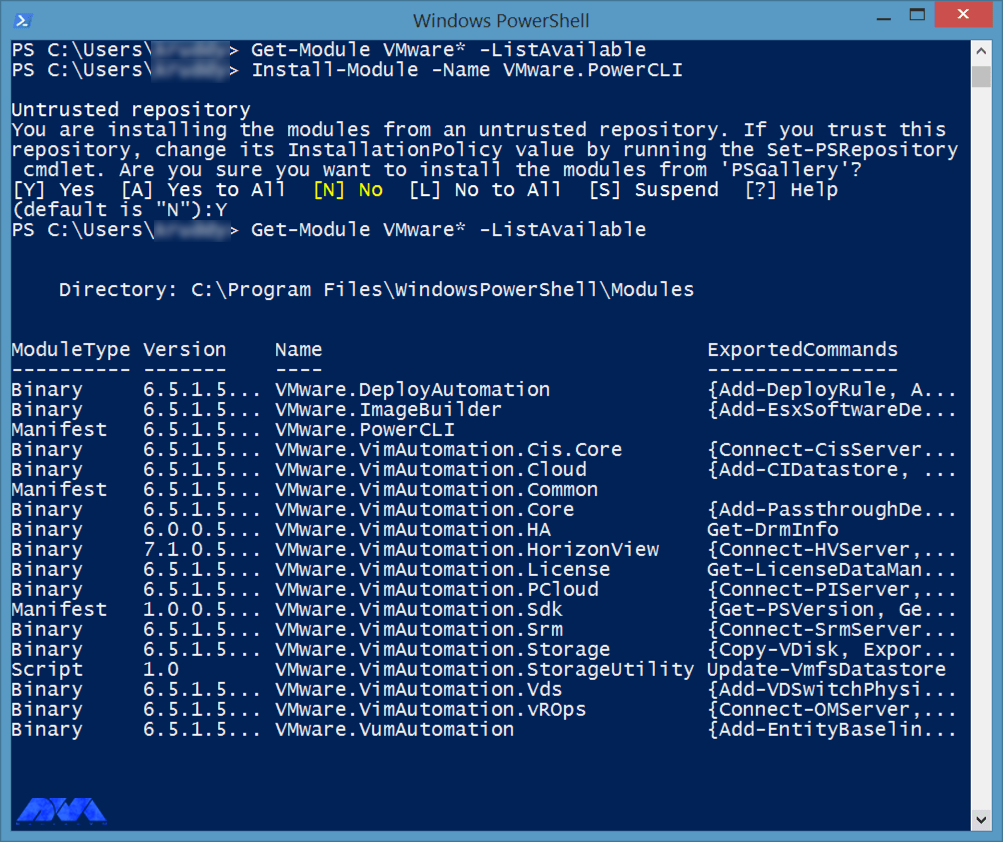
    PowerCLI

    RVTools

    With over a million downloads, RVTools excels at displaying information about your virtual environment’s CD drive, snapshots, ESX hosts, VM cores, data stores, health checks, license information, resources, and more. Use it to update. It is actually a .NET application that uses the VI SDK to display critical data about your virtual environments and is compatible with several technologies including VirtualCenter Appliance, ESX Server 4i, ESX Server 4.x, ESX Server 3i, VirtualCenter 2.5 It interacts. You can also update your VMTools to the latest version. It is free to download and use after subscribing to the Veeam mailing list, which provides subscribers with excellent VMware product offerings.
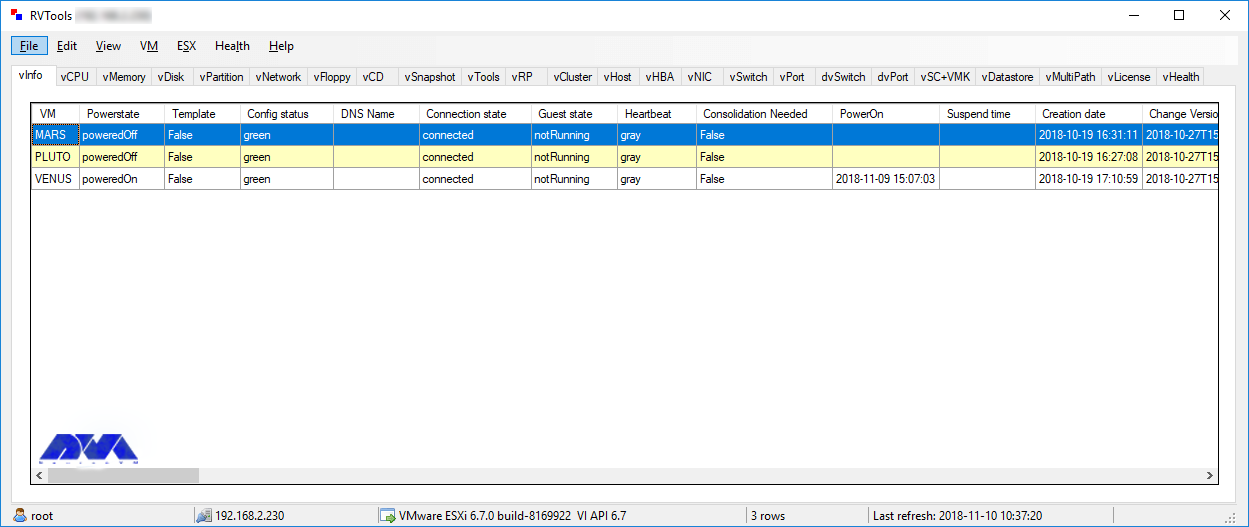
    RVTools

    vCenter Converter

    It is one of the tools to convert local and remote physical machines to virtual machines without any downtime and also has a centralized console to manage multiple simultaneous conversions both locally and remotely.

    vCheck

    vCheck is actually an HTML framework script designed to work with PowerShell to schedule automated tasks to send you the information in a readable format via email. If there is enough space, you will not get any information about the storage disk space. It is now a smart script and sends you vital information. It also removes unnecessary details.
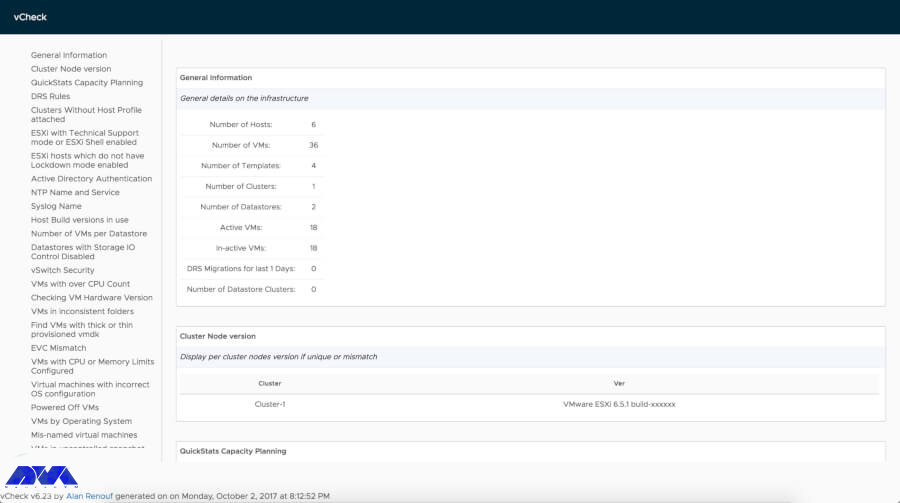
    vCheck

    vDocumentation

    vDocumentation, maintained by Ariel and Edgar Sanchez, provides a set of PowerCLI scripts created by the PowerShell community to give users with infrastructure documentation of vSphere environments in CSV or Excel formats.
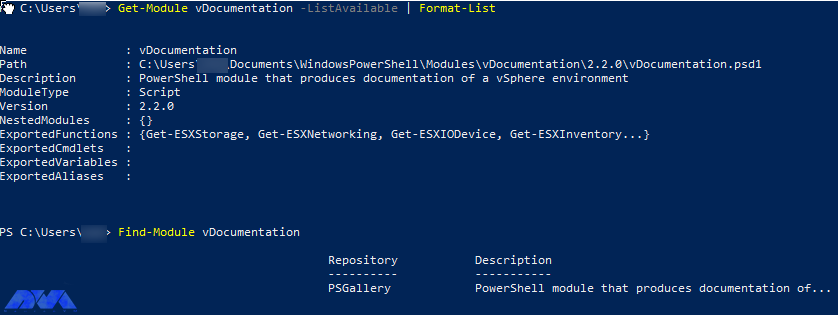
    vDocumentation

    VMware API Explorer

    This platform helps you browse, search, and inspect APIs on every major VMware platform except vRealize, NSX, vCloud Suite, and vSphere. Also use the explorer for easy access to SDKs and code samples, among other resources, specific to selected APIs.

    VMware Capacity Planner

    The tool allows managers to analyze, predict and plan the required capacity of their virtual desktop environment or data centers.

    VMware Health Analyzer

    This tool helps evaluate VMware environments based on standard practices. It is also used by VMware partners and solution providers. Currently available only to customers with access to Partner Central and VMware employees.

    VMware OS Optimization Tool

    Its top features include customizable templates across multiple systems that you can use to optimize VMware OS, manage templates, optimize history and rollback, and perform remote and local analytics. Currently, this is a VMware operating system optimization tool that allows administrators to optimize Windows 7 to 10 systems for use with VMware Horizon View.
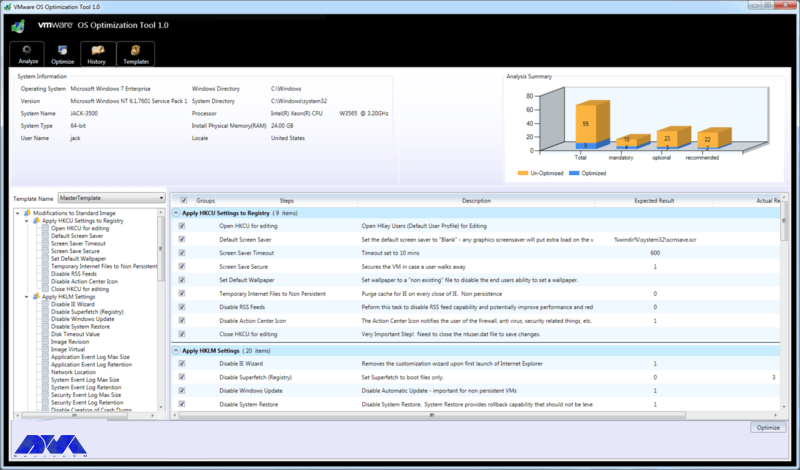
    VMware OS Optimization Tool - what is VMware

    VMware Project Onyx

    Project Onyx monitors the network communication between vSphere Client and vCenter Server and translates it into executable PowerShell code that can be turned into a reusable script or function. It’s also a tool for generating code based on mouse clicks made in the vSphere client and aims to make it easy to visualize what’s going on under the hood to speed up script development.

    VMware Skyline

    It has automated support technology that aims to improve the overall reliability of VMware environments and increase team productivity by helping customers avoid potential problems.

    VMware vRealize Orchestrator

    The tool has an extensive library of plugins on the VMware Solution Exchange for third-party solutions and extends its features. Currently one of the most potent VMware management tools, it allows users to create workflows that automate multiple daily tasks using a drag-and-drop graphical interface.

    WinSSHterm

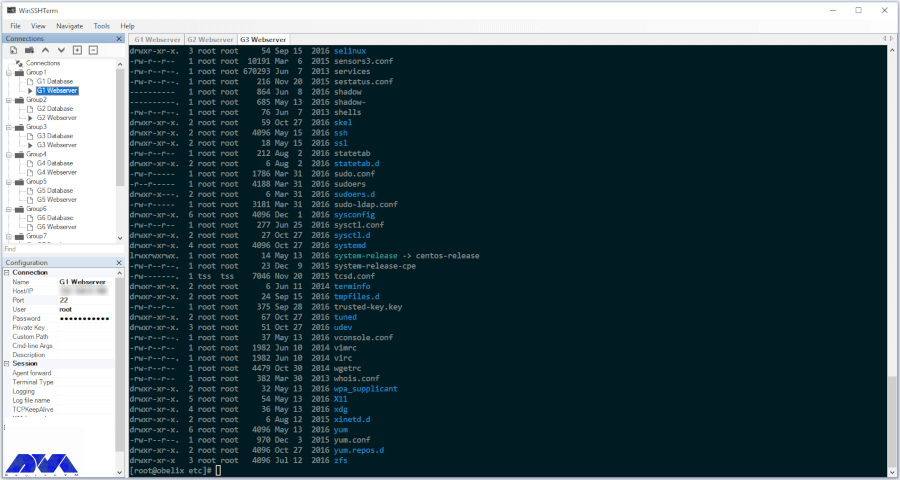
    A production-ready SSH client tool for Windows combines WinSCP, PuTTY/KiTTY, and VcXsrv into one tabbed solution. It also features the use of a master password, template variables, eye-friendly terminal colors, and keyboard shortcuts.
    WinSSHterm - what is VMware

    Runecast

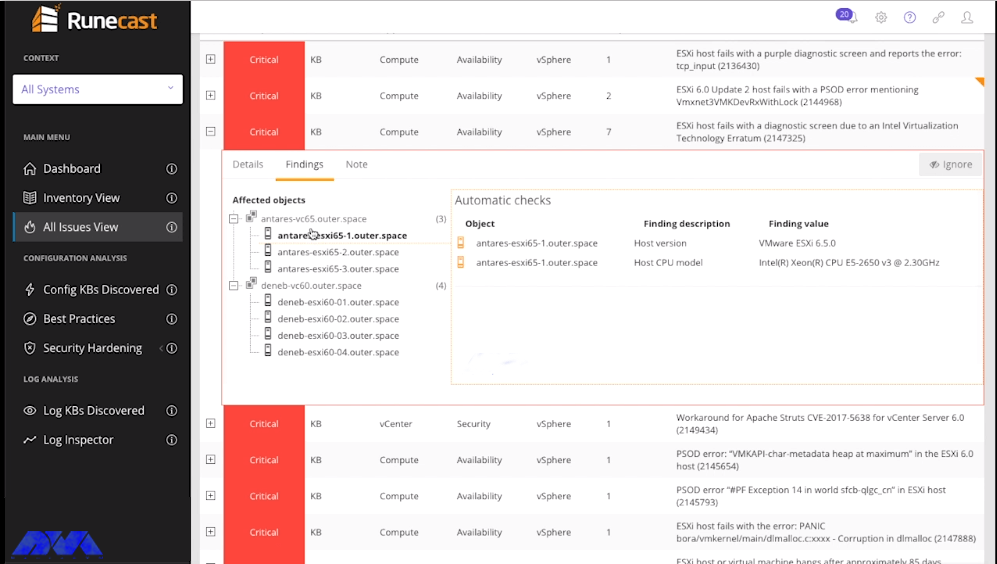
    This tool empowers users to perform proactive troubleshooting, analyze specific patterns in reports, and implement VMware SDDC best practices without sacrificing speed and simplicity. In fact, Runecast is the real-time security and compliance analyzer for BSI security audits.
    WinSSHterm - what is VMware

    Conclusion

    VMware is known as a cloud operating system or a virtual data center platform. It also enables IT departments to place application workloads on the most cost-effective computing resources available. It offers applications for desktops as well as servers and VMware desktop software with Linux, Microsoft Windows, and Mac. OS X is compatible. In this educational article, you learned What is VMware? Also got acquainted with many of its tools. We hope this educational article was useful for you. Share your comments with us through the form below.

    FAQ

    Can we use WMvare for free?

    Yes, you can use the free version for non-commercial, personal, and home usage.
  • How To Install CloudLinux on Centos 7

    How To Install CloudLinux on Centos 7

    If you are one of the online businesses that provide hosting services to your customers, you may encounter various problems in your field such as performance, source leaks, or security issues. All these issues are recovered by the CloudLinux operating system that is used for the shared hosting environment. So, we will show you how to install CloudLinux on CentOS 7.

    What is CloudLinux Operating System?

    As mentioned, CloudLinux is an operating system for commercial use and can replace CentOS. The system uses LVE kernel-level technology, allowing you to manage CPU and memory on a per-tenant basis. Some of the benefits that CloudLinux Offers are advanced resource management, performance optimization, and advanced security, which are specially provided for Multi-client hosting environments. This improved performance enables data centers to provide better customer support.

    install cloudlinux on centos 7

    Installing CloudLinux on CentOS 7

    To set up and use the CloudLinux operating system, we suggest you purchase from the Linux VPS plans provided on our website and then apply the continuation of this tutorial on our high-speed servers.

    According to the usual procedure, you should start the installation by updating the operating system. This important step must be done because CentOS security comes first and security is sent at the CentOS upgrade. So follow the command to upgrade the operating system:
    yum -y update && shutdown -r now

    The next part is to register a CloudLinux user key. It is a commercial product, So you will need to purchase the correct number of keys depending on your needs.
    You will get the installer as a runnable script, So fetch the script before the execution:

    wget https://repo.cloudlinux.com/cloudlinux/sources/cln/cldeploy

    Then, you should run the script you have just retrieved:

    sh cldeploy -k # if you have activation key

    Or you can execute it as follow:

    sh cldeploy -i # if you have IP based license

    As you complete the process, reboot your server. As a result, various CloudLinux services will be running and all the kernel modules and modifications will be active:

    reboot

    That’s it. Now you have CloudLinux installed on your CentOS system.

    Conclusion

    CloudLinux is a great way to upgrade your hosting. So, we tried to introduce a way to install it on the CentOS operating system. It was easy and will takes just a few minutes to install. If you enjoyed this article please share it with those who may also be interested.

    FAQ

    What are the benefits of using CloudLinux?

    This OS is useful to improve server stability, enhance security, and allocate and control resources.

    Is it possible to install CloudLinux on an existing CentOS server?

    Yes, it is possible. However, it is better to perform a clean installation of CloudLinux to avoid potential problems and conflicts.

  • Troubleshooting SSL Certificate Errors on Nginx

    Troubleshooting SSL Certificate Errors on Nginx

    In online businesses, maintaining customer security and brand reputation is very important, So these businesses need a valid SSL certificate. Today, thanks to the Open Certificate Authority (CA) Let’s Encrypt, you can get this certificate for free. If there is a problem with the certificate or its configuration, you may encounter SSL errors. As a result, Keep studying this article because here we will Troubleshoot SSL certificate Errors on Nginx.

    What is an SSL Certificate?

    If you want to ensure the security of your online transactions and sensitive information, you should use SSL (Secure Socket Layer). Nowadays, there are alternatives to SSL, but this certificate is the most well-known type.

    SSL is a digital certificate that verifies the identity of the website and encrypts the connection. Website communications can be in different types, like server to server, browser to server, or another network. The SSL algorithm is complicated and is used to encrypt sensitive and confidential data.

    Troubleshoot SSL Certificate Errors

    Here, we will introduce some most common SSL Certificate issues and provide effective solutions for them. We suggest that you visit the Windows VPS server plans offered on our website.

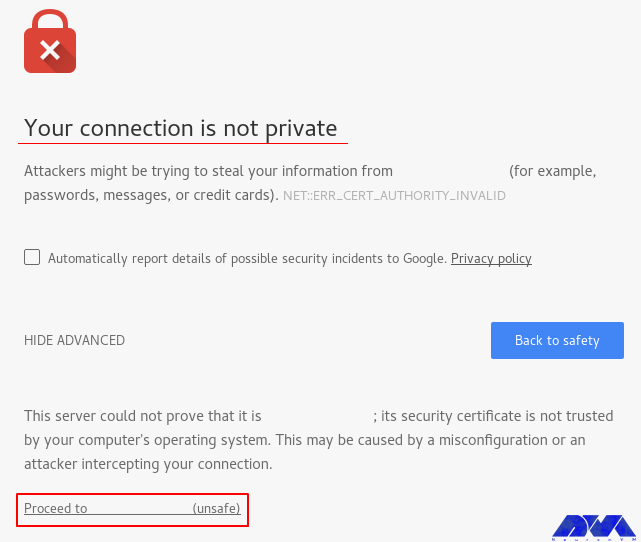
    SSL certificate warning

    Invalid or Expired SSL Certificate Error

    This error occurs when the SSL certificate on the server has reached its expiration date. This means that this certificate is no longer valid.

    Solution: To solve this problem, you should get and install a new SSL/TLS certificate for your Nginx server. So first, identify the certificate authority (CA) that provides the original certificate. It can be Let’s Encrypt. Then, contact the provider and ask for a new certificate. After that, you should create a certificate signing request for the new one. Present the CSI to the certificate provider or CA as part of the issuance process. Then, update the configuration and restart the Nginx to apply changes.

    Incomplete or Missing Certificate Files

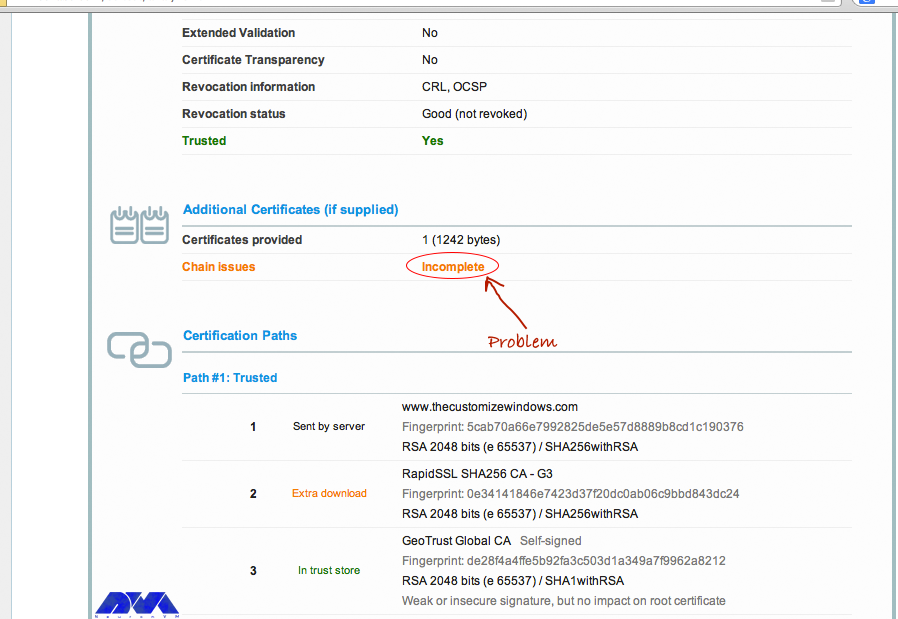
    When you encounter this error, it means that there is an issue with the SSL/TLS certificate file that is configured for your website. This error will prevent Nginx from properly establishing secure connections:

    Incomplete or Missing Certificate Files

    Solution: To fix this problem, you should modify or add an active intermediate certificate, and you should be careful about certificate chain order. The order of certificates should be SSL certificate, Intermediate Certificate, and Root Certificate.

    Forbidden Error (403 Forbidden) While Running Cert Renew

    The method that is used to authenticate users by Automatic Certificate Installers such as Let’s Encrypt or Certbot uses hidden folders (/path/to/docroot/.well-known). The downside is that if the protection of these folders is enabled, such validation measures will fail.

    Solution: If you encounter the forbidden error (403 Forbidden) in the certificate renewal report file, you should look for such limitations and delete them until a new certificate has been installed.

    Nginx Crashes After Certificate Renewal

    Most of the critical problems are often related to crashed Nginx servers after a failed upgrade. Automatic installers can change configuration entries, but if the installer dies for different reasons, it will corrupt the Nginx configuration file, too.

    Solution: In this case, you should restore the Nginx configuration file from the backup to bring up the site online as quickly as possible. But if the backup is not accessible, you can reset the SSL configuration section to bring the site online, which most automated tools target. So when your site is back online, you should make the changes manually to bring the new certificate online.

    Conclusion

    As you are trying to achieve an SSL certificate for your Nginx server, and as it is a crucial action for your system’s security, we concentrated on this topic. We tried to introduce some of the common issues with SSL certificates on the Nginx server. So, keep tracking and study this article carefully to troubleshoot SSL Certificate Errors on Nginx. If you encounter any other issues, please share them with us in a comment.

  • Tutorial Install CWP on Centos 8

    Tutorial Install CWP on Centos 8

    CWP, or CentOS Web Panel, is a control panel for web hosting on Linux and is a free alternative to Cpanel. This tutorial has been prepared to introduce you to the Tutorial Install CWP on CentOS 8. Its easy-to-use interface and several other features make it a good choice for beginners. The reason for the ease of using this control panel is that you don’t need to access the server with SSH for every task.

    What Is CWP?

    As we mentioned in the introduction, Control Web Panel is a management tool that is generally created on unmanaged VPS for users who are interested in working with the command line. If you need to get more information about CWP you can refer to A Full Introduction to CWP.

    Some Points to Mention Before CWP Installation

    There are some critical points that you should consider before the installation process of CWP:

    – It is not possible to remove it after the installation.

    – If you want to remove CWP from your Linux VPS, you should reinstall the server.

    – Your hostname should be different from the other names on any domain on your server.

    – The installation should be on the newly installed operating system without any configuration changes.

    – The dynamic, Sticky, or internal IP addresses are not supported.

    Steps to Install CWP on CentOS 8

    Now let’s find out how we can install CWP on CentOS 8. Follow the instructions below to have a successful installation process.

    The first step is to prepare the server by installing the EPEL repository on CentOS 8:

    sudo dnf install epel-release

    Use the command below to install the required packages like wget to install CWP:

    sudo dnf install wget -y

    The next step is to update your server using the following command:

    sudo dnf update -y

    You should reboot your system to make the changes applied:

    reboot

    Now the system is completely ready to install CWP. So, use the cd command to change the directory /usr/local/src by this command:

    sudo wget http://dl1.centos-webpanel.com/files/cwp-el8-latest

    Here, you should run the command below to install the downloaded shell script:

    sudo sh cwp-el8-latest

    Now you have successfully installed CWP on your CentOS system. Reboot the server again to apply changes:

    reboot

    Also, you can use the command below to automatically reboot the system after the installation:

    sudo sh cwp-el8-latest -r yes

    Configuring CWP on CentOS 8

    In the configuration section, your first step is to access the web panel user interface by giving the IP address and port number 2030.

    http://server_IP_address:2030/

    You can check the server’s IP by opening the terminal of your system on which you installed CWP. Use the following command:

    ip a

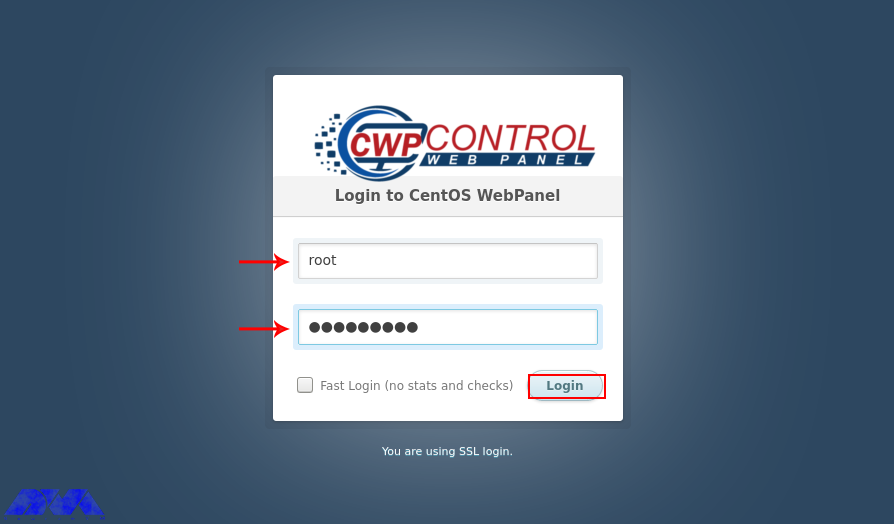
    Her, you can access the admin control panel using your IP address. Use the root username and password to login to the CWP:

    CWP login page

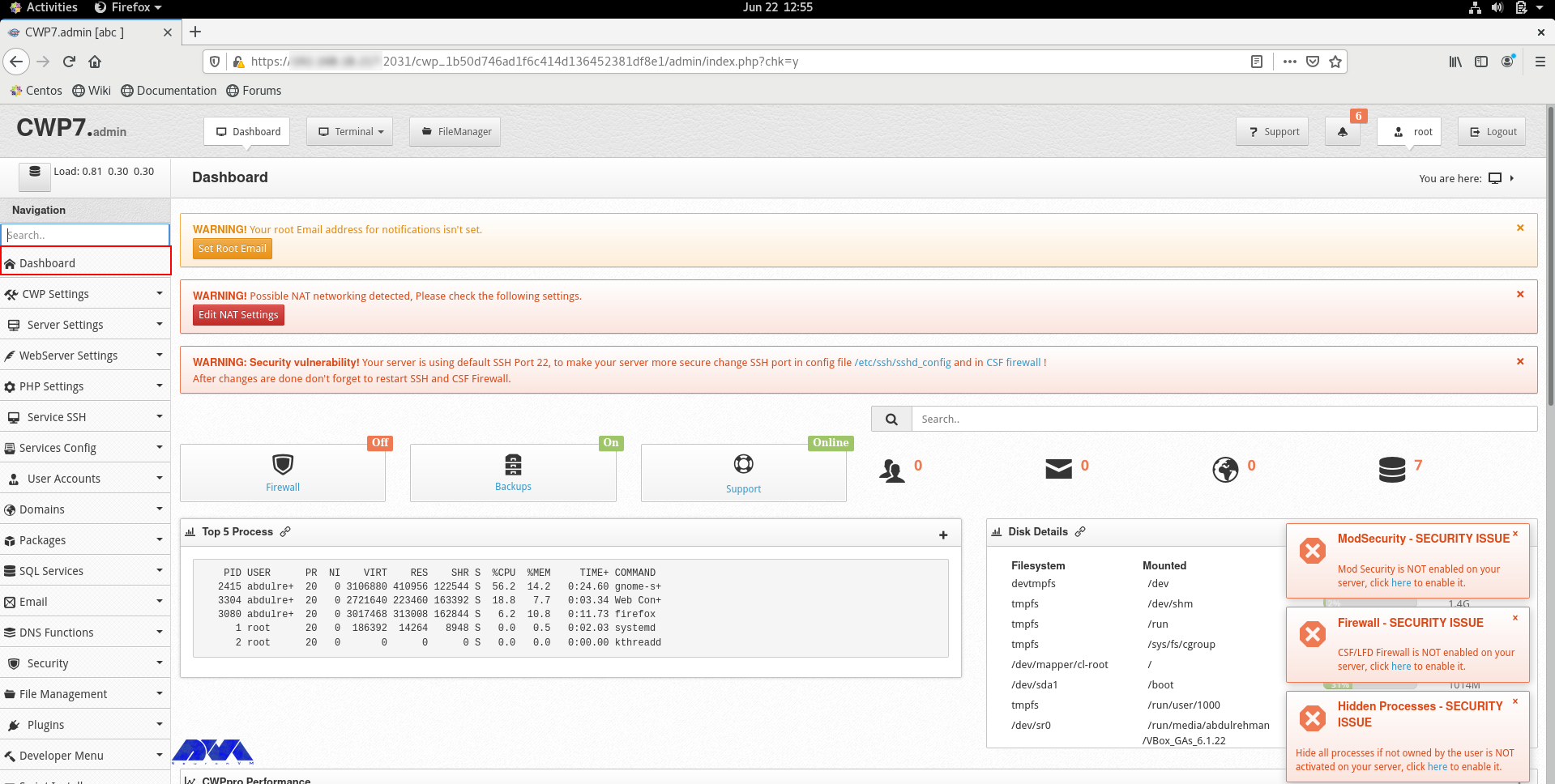
    You can see the dashboard here:

    cwp dashboard - install cwp on centos 8

    If you can log in to the dashboard easily, it shows that your installation is successful.

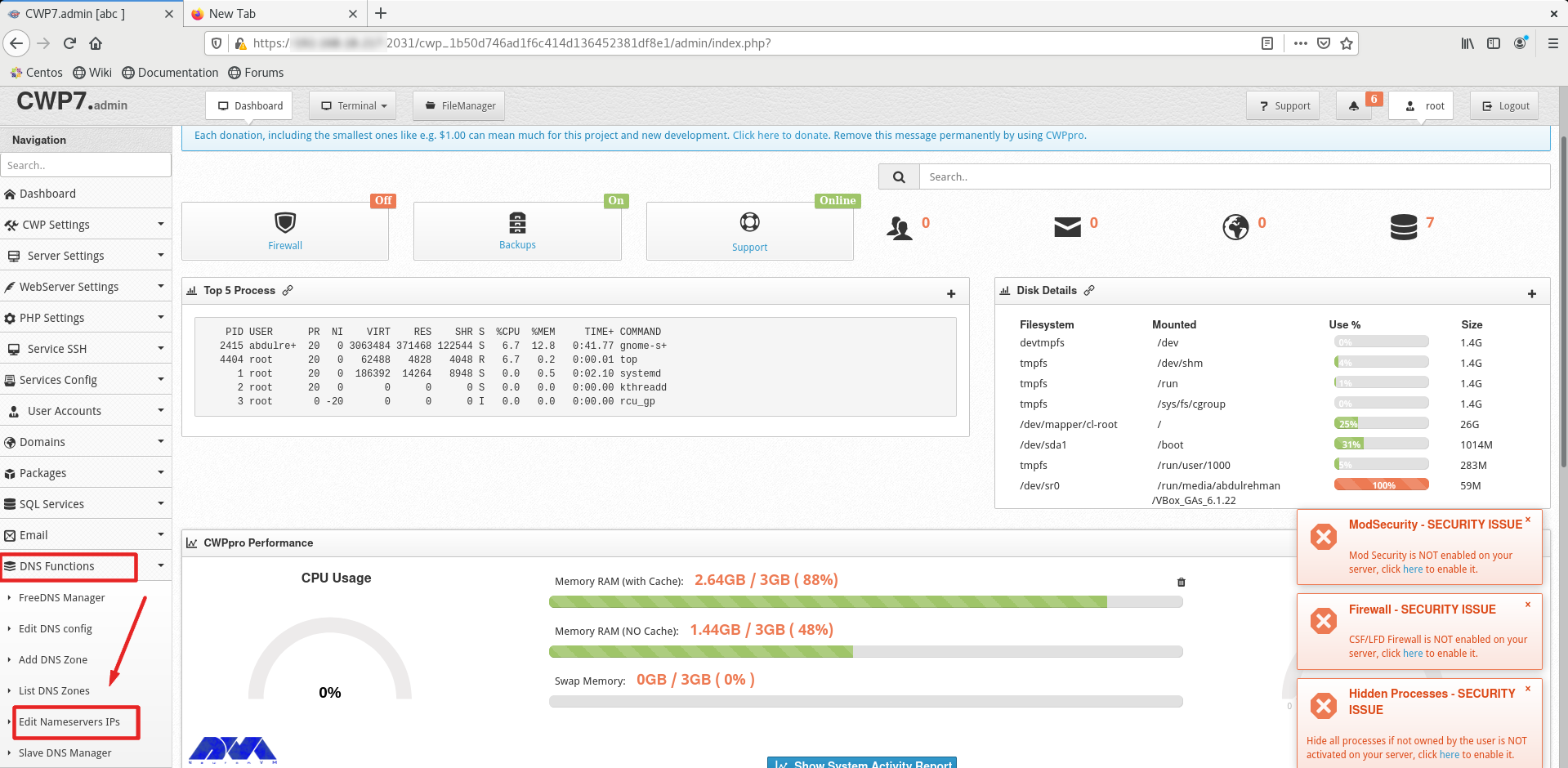
    You should do a couple of instructions, to prepare the domain for domain hosting. On the dashboard, you should refer to DNS Functions part and choose Edit Name Server IPs:

    configuring cwp on centos

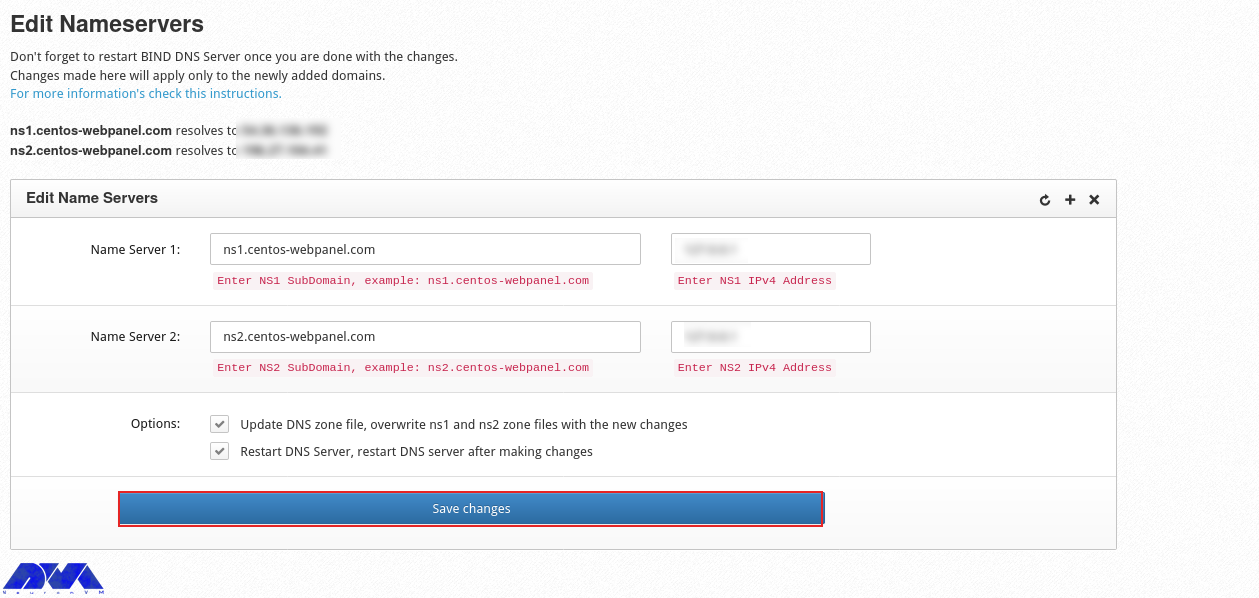
    You should add nameserver 1 and 2 with related IP addresses and click on Save Changes Button:

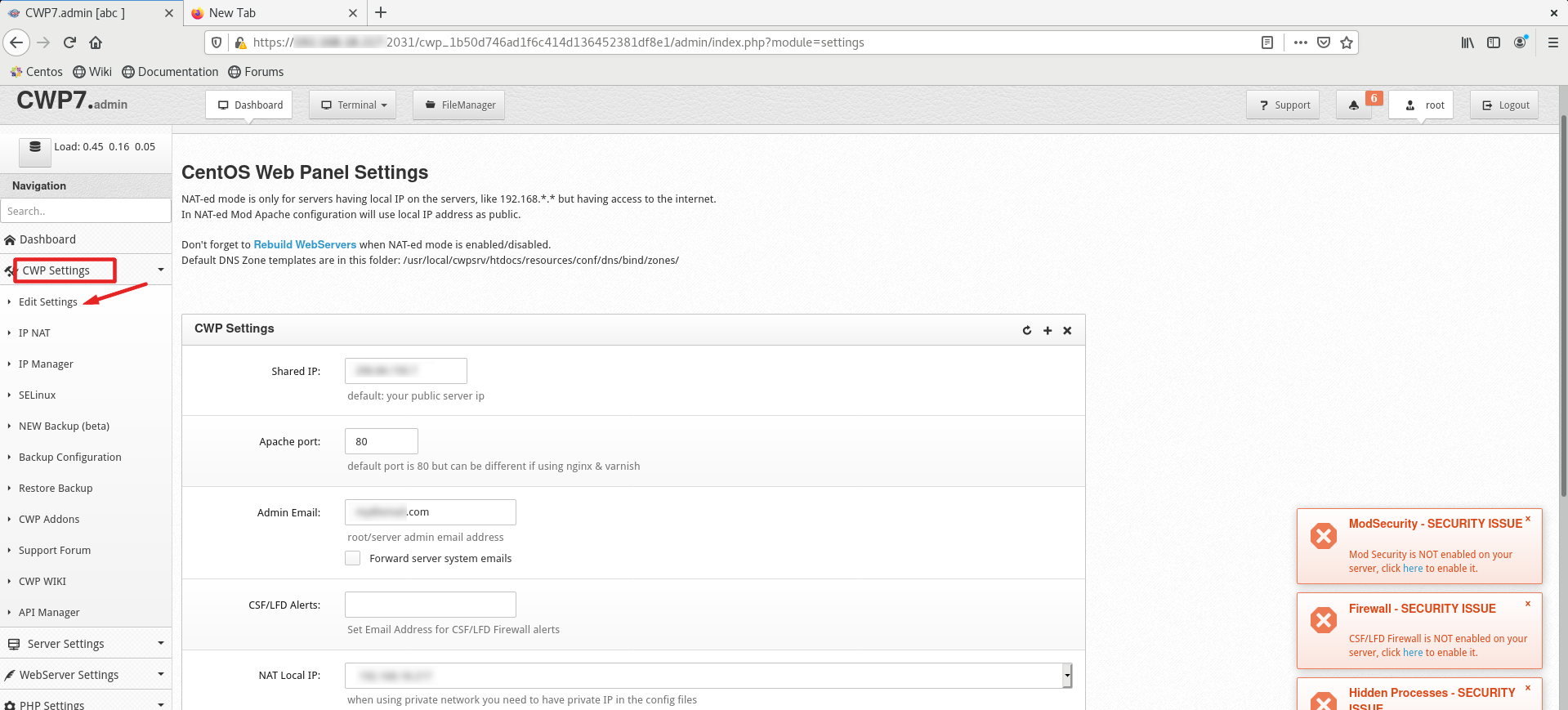
    Then go to the CWP Settings and select Edit Settings to determine the shared IP address:

    cwp settings - install cwp on centos 8

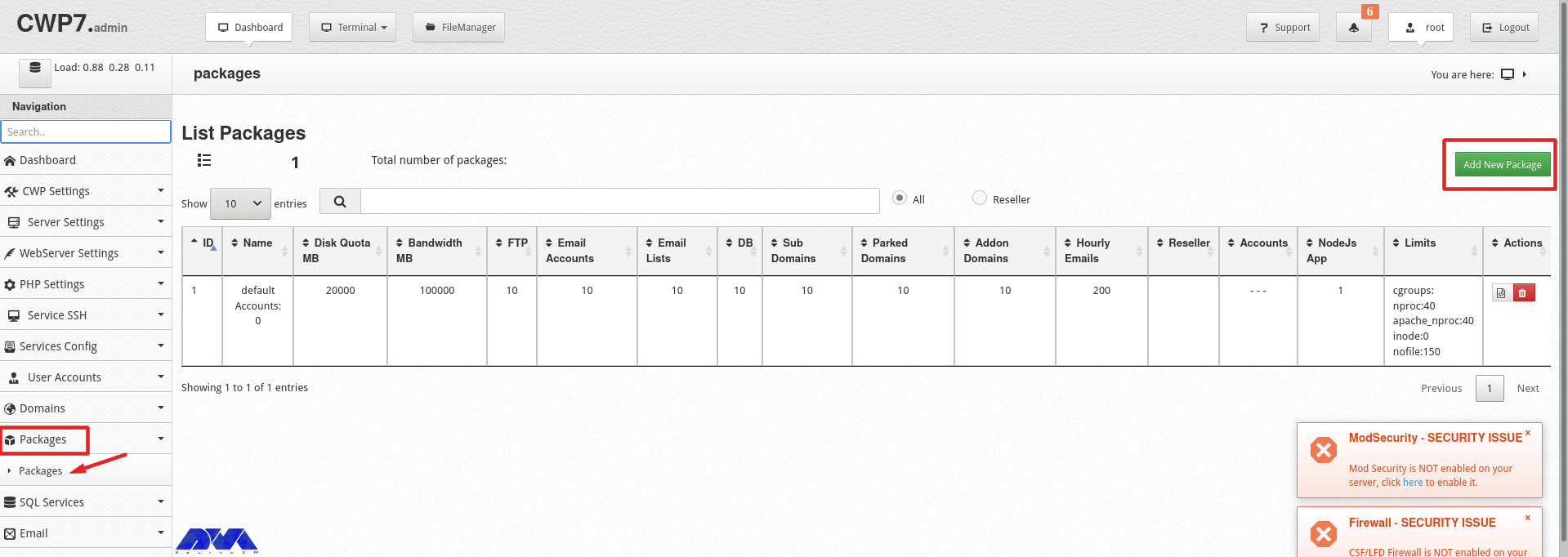
    Go to the Packages part and choose to Add a Package:

    add packages on cwp

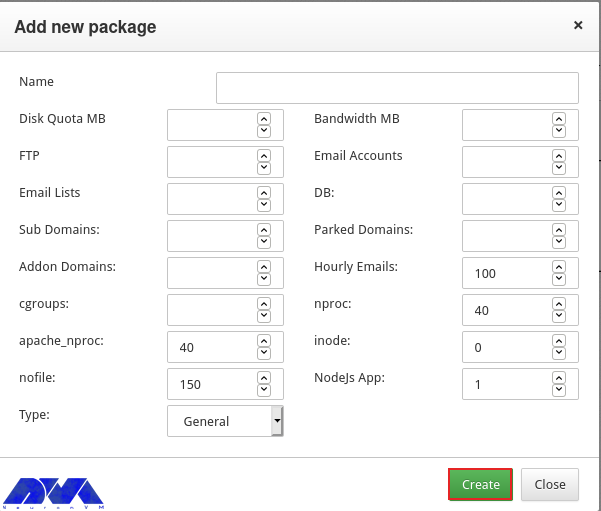
    In the end, you will see a pop-up window to add a package, insert the needed values and click on Create button:

    add packages on cwp-2

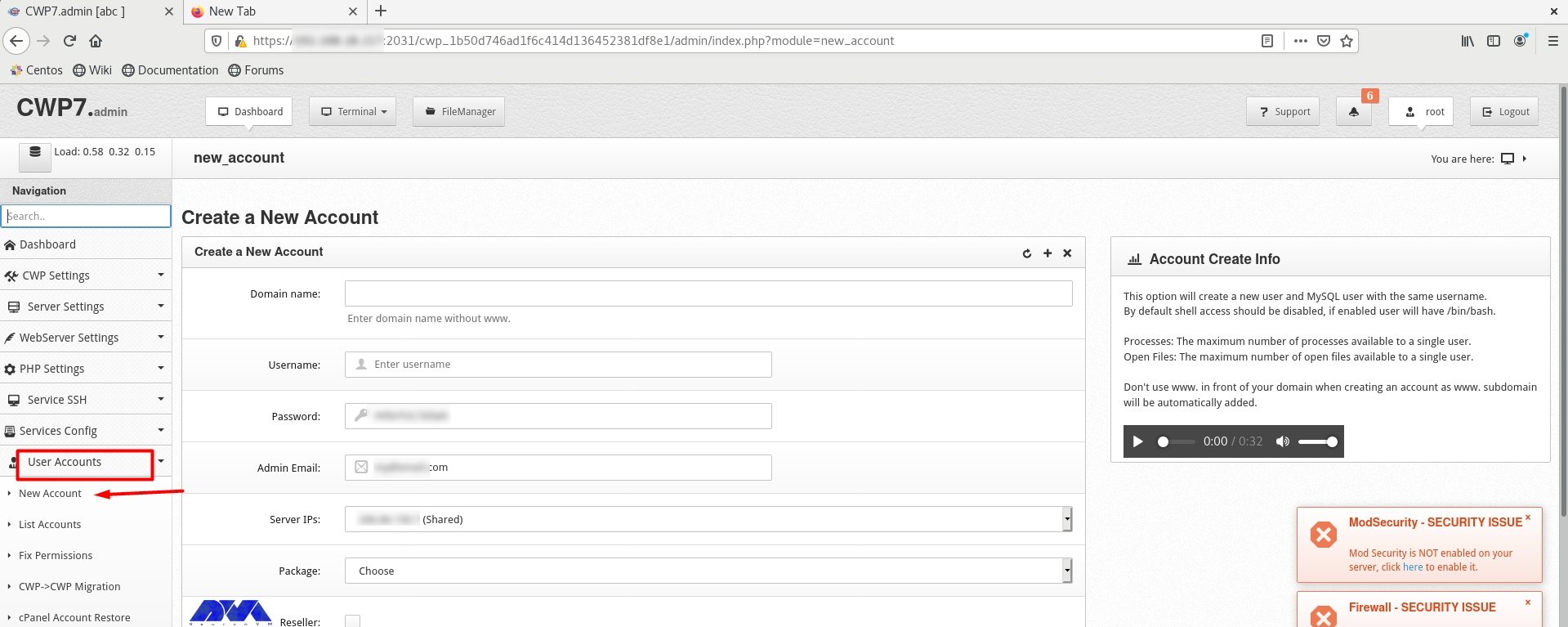
    Go to the User Accounts and click on the New Account, to create an account and fill in the necessary information:

    create account on cwp

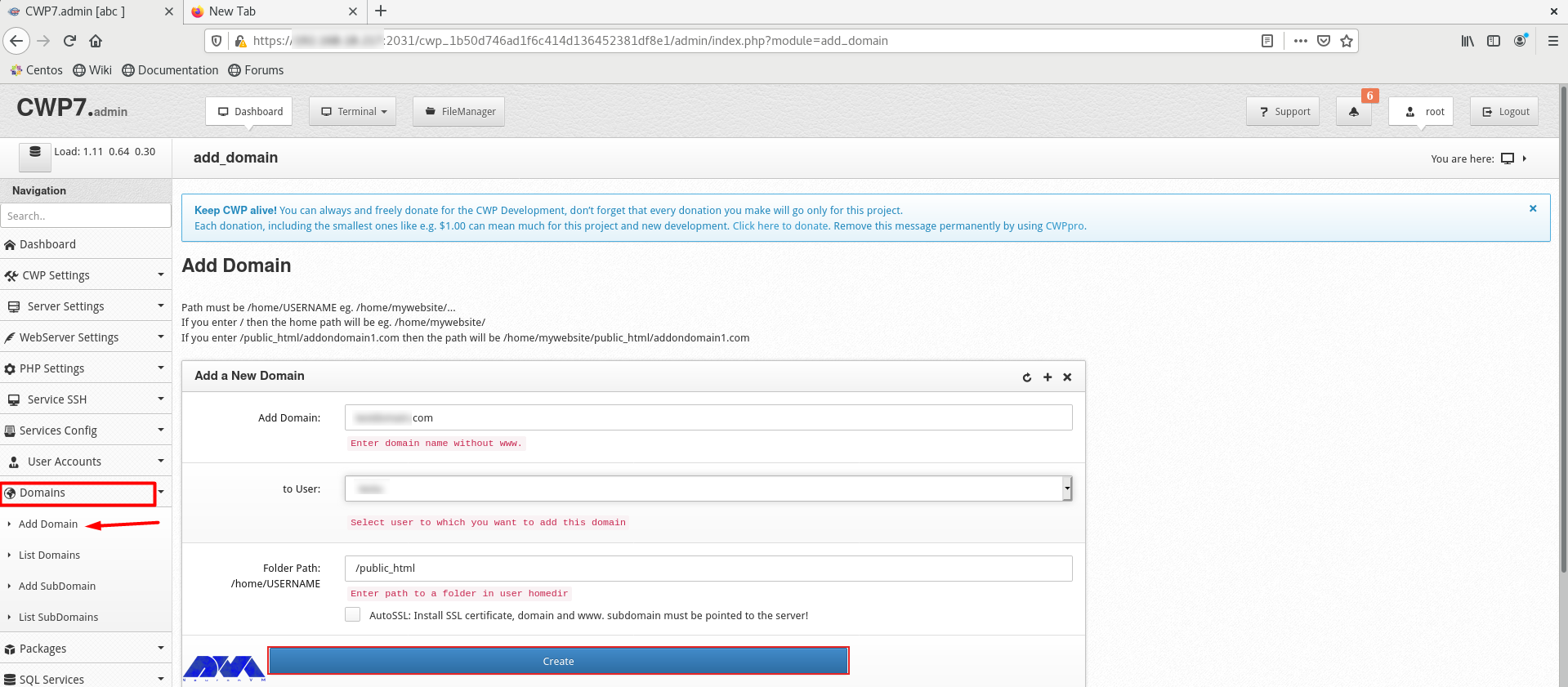
    As the final step, add a domain. Click on Domains and then Add Domain by providing the name of the domain and pressing Create button:

    add domian on cwp

    Conclusion

    CWP is a practical control panel for web hosting with an intuitive interface and great features to manage servers. So, we decided to analyze it and show the way to install CWP on CentOS 8. We also presented all the instructions to configure this management tool.

    FAQ

    What is required before CWP installation?

    A minimum of 2 GB RAM and a 64-bit operating system. Although we recommend using 4 GB RAM.

    Which port is used by CWP on CentOS?

    The console access ports are 2030 (without SSL) and 2031 (with SSL).