If you are worried about the penetration of viruses, malware, exploits, or shell scripts into your system, then you should do it. For this, there are tools and antivirus software for your Linux system’s WHM panel that you can use to scan your damaged content. After reading this post you will learn How to Install and Configure Antivirus on Linux Dedicated Server.
Install and Configure Antivirus on Linux Dedicated Server
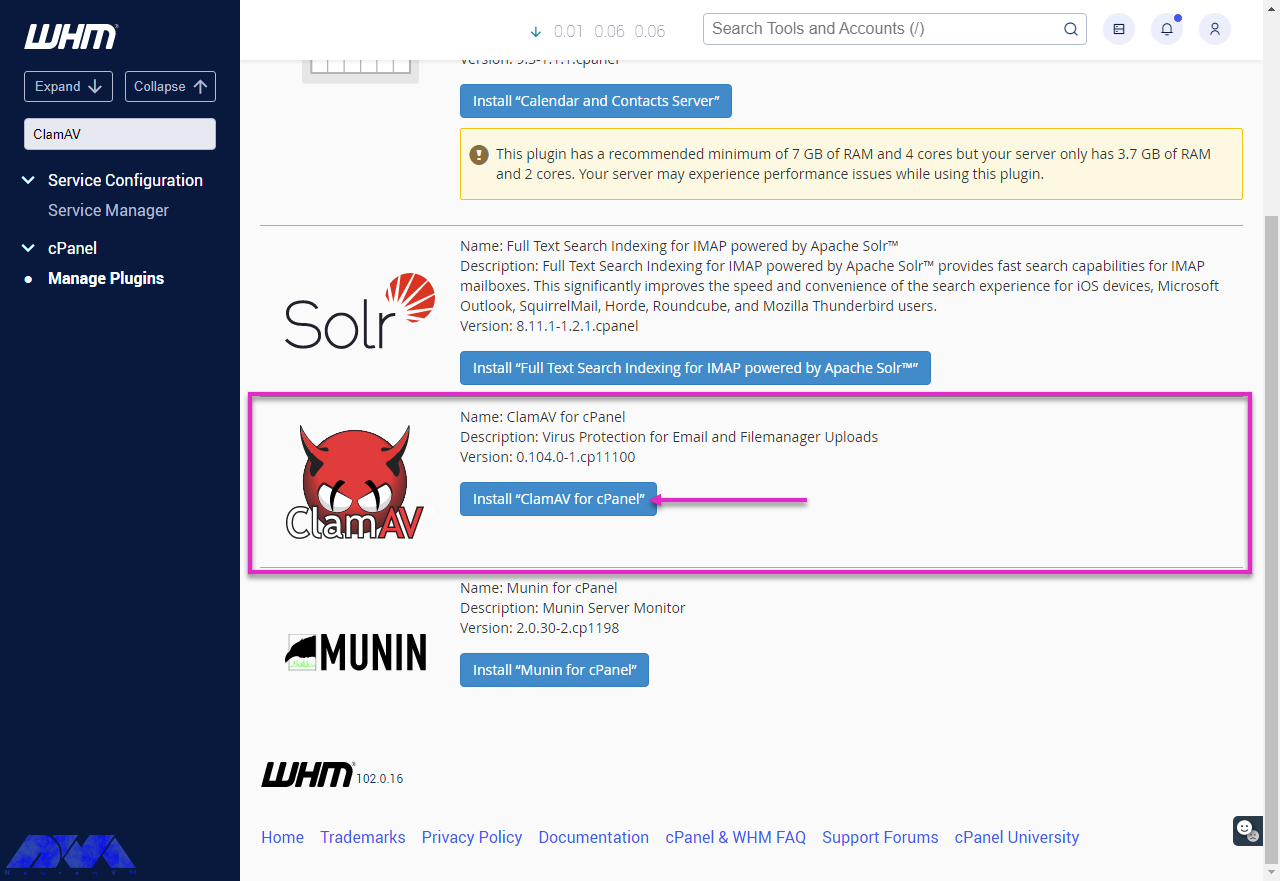
In this article, we will teach installing antivirus on CentOS, Ubuntu, and Debian distributions of Linux dedicated servers. To do this you can use different antivirus software the most popular among them is ClamAV which is an open-source solution against security threats. So follow the instructions here to secure your system.
Prerequisite
– A Dedicated Server (We recommend you visit the Cheap Dedicated Server plans presented on our website and choose a plan.)
Here you can find the steps to configure ClamAV on CentOS. But before configuring the first step is to remove the example string from the configuration:
sudo sed -i -e "s/^Example/#Example/" /etc/clamd.d/scan.conf
Now it’s time to specify the type of server. Open the configuration file using your text editor (here is nano):
sudo yum install nano -y
Then, open the ClamAV configuration file:
Sudo nano/Etc/cmd.d/scan.conf
You should find the line below :
#LocalSocket /var/run/clamd.scan/clamd.sock
On the command below, remove the example string from the ClamAV fresh clam update configuration file:
sudo sed -i -e "s/^Example/#Example/" /etc/freshclam.conf
At last, use this command to run the ClamAV database update:
Install ClamAV on Dedicated Server (Ubuntu/Debian)
In this section, we are going to show how to install ClamAV antivirus on Ubuntu or Debian. Since the installation process and commands are the same in both operating systems, we will examine the instruction as follow.
In both operating systems, use the command line below to update your system:
sudo apt update
Now, go to the installation process using this command:
sudo apt install clamav clamav-daemon
To check the installation status, you can run the command below:
clamscan --version
How to Configure ClamAV on Ubuntu/Debian
To configure ClamAV on Ubuntu or Debian follow the commands below:
First, you should stop the daemon to update the ClamAV database manually and then Usenet command to update:
sudo systemctl stop clamav-freshclam
sudo freshclam
The next step will be to download the latest database signature file by the command below:
sudo wget https://database.clamav.net/daily.cvd
Copy the file to the required directory with the related command:
sudo cp daily.cvd /var/lib/clamav/
In the end, start the fresh clam daemon using the following command:
sudo systemctl start clamav-freshclam
Conclusion
That’s all! Here we tried to teach how to install and configure antivirus on Linux dedicated server. Now you can safely use and protect your system. We hope you enjoy this article. Don’t forget that if you own a Linux dedicated server, you must install an antivirus to protect from danger and malicious files. For any question leave command.
FAQ
Is it essential to use antivirus?
Yes, Operating systems do need antivirus protection. Linux is really safe among other operating systems but it can also be affected by malware and viruses.
Is it possible to use the same antivirus on a dedicated server and my personal computer?
After reading this article, you will be completely familiar with Create a FTP Account with SSH on Dedicated Server. To be able to setup a functional and fully secure FTP server with key components in minutes without wasting time, follow the given instructions:
Steps to Create a FTP Account with SSH on Dedicated Server
Before starting work, we recommend you visit the Cheap Dedicated Server plans presented on our website and choose a plan. Then you will easily be able to Create a FTP Account with SSH on Dedicated Server.
In this section, we will examine step by step how to create an FTP account using SSH.
1- In the first step, to access FTP you should install the vsftpd package. But if you have installed that before then skip this part:
sudo apt-get install vsftpd
2- Your second step, will be to change the configuration setting for vsftpd. For this, you need to open /etc/vsftpd.conf with your favorite text editor which here is nano:
Sudo nano /etc/vsftpd.conf
3- Here, in this file, you should change the setting below:
Listen=YES
By this action, you order vsftpd to run as a standalone daemon (the simplest way to run).
Anonymous-Enable=NO
This function prohibits anonymous FTP users. These users are preferred for security reasons.
Local-Enable=YES
This function also allows the user’s accounts defined in the /etc/passwd file to access the FTP server.
Write-Enable=YES
This one is given by default. But removing the hash (#) will cause the files to be uploaded to the FTP server.
Chroot_Local_User=YES
It causes users to be selected to the main directory and is also set by default.
If you want to test your setting and make sure that everything is working well, make the following setting for the above parameters:
Now you have to save the vsftpd.conf file and then you can run the vsftpd service again with the commands in this section:
sudo service vsftpd restart
Add a FTP User on Server
Here, you should add a user using the below command:
sudo adduser testes
Now you have to permit the user that you have created, so use the following command:
sudo chown root:root /home/testuser
You can assign the directory to the user here:
usermod --home /var/www/html/test-dir/testuser
Use this command to restart vsftpd service:
sudo service vsftpd restart
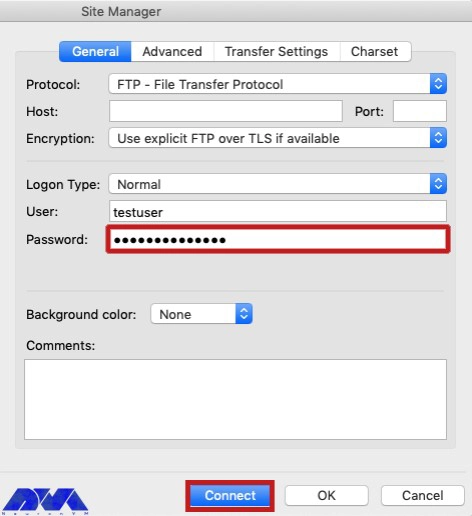
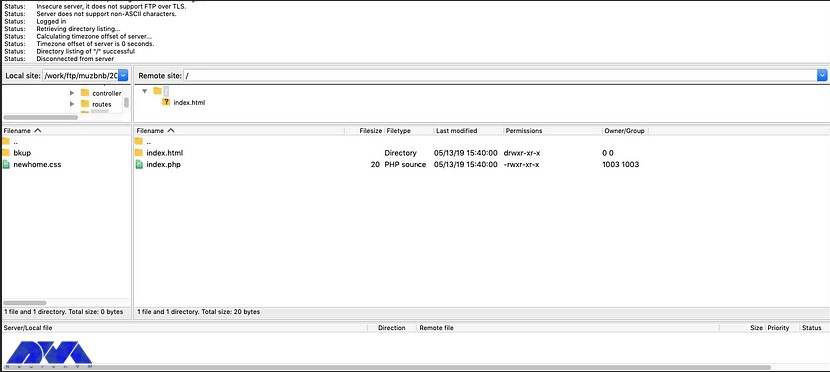
Now you create a user, open FileZilla, and connect the user as you see in this image:
In this part, you can check if the user has been connected to the folder assigned or not:
And if you are about to update the user folder again use the command below:
usermod -d /var/www/html/test-dir testuser
sudo service vsftpd restart
Updating FTP User Password on Dedicated Server
To update your FTP user password, you have to apply this command:
passwd testuser
You can permit the folders for the new user by running the following command:
chmod -R 755 /var/www/html/test-dir
Delete FTP User on Dedicated Server
Here you will learn how to delete an FTP user on a dedicated server:
userdel testuser
Deleting User with the Directory
And the last command shows how to delete a user with a directory:
userdel -r testuser
That’s it. Now you are able to add or configure any FTP user on a dedicated server.
Conclusion
Now that you find out how to add a FTP user with SSH on a dedicated server, you are able to add extra users. Also, you learned how to delete users here. Hope this article will help you. If you have any questions or ideas, please add a comment.
FAQ
Which type of FTP allows users without any account on the server?
Anonymous FTP, which is the most basic form of it. It provides support for data transfer without encrypting data or using a username
RDP Admin is a great service and helpful feature that can bring many features. Fortunately, there are many sites like NeuronVM, that give you the possibility to purchase this service using cryptocurrencies. So, the purpose of this tutorial is to prepare a comprehensive and practical guide. You can learn how to buy USA Admin RDP by crypto and become familiar with this service.
Reasons to Buy USA Admin RDP
As mentioned, you can get Admin RDP from different locations, one of which is the United States. This state which is one of the strong providers in the field of server and hosting brings benefits like full server access, dedicated RDP, unlimited bandwidth, High speed, and full support for the users.
Admin RDP has an easy-to-use panel that ultimately aims for high-quality hardware and software, and provides at a low price.
Steps to Buy Admin RDP by Cryptocurrency
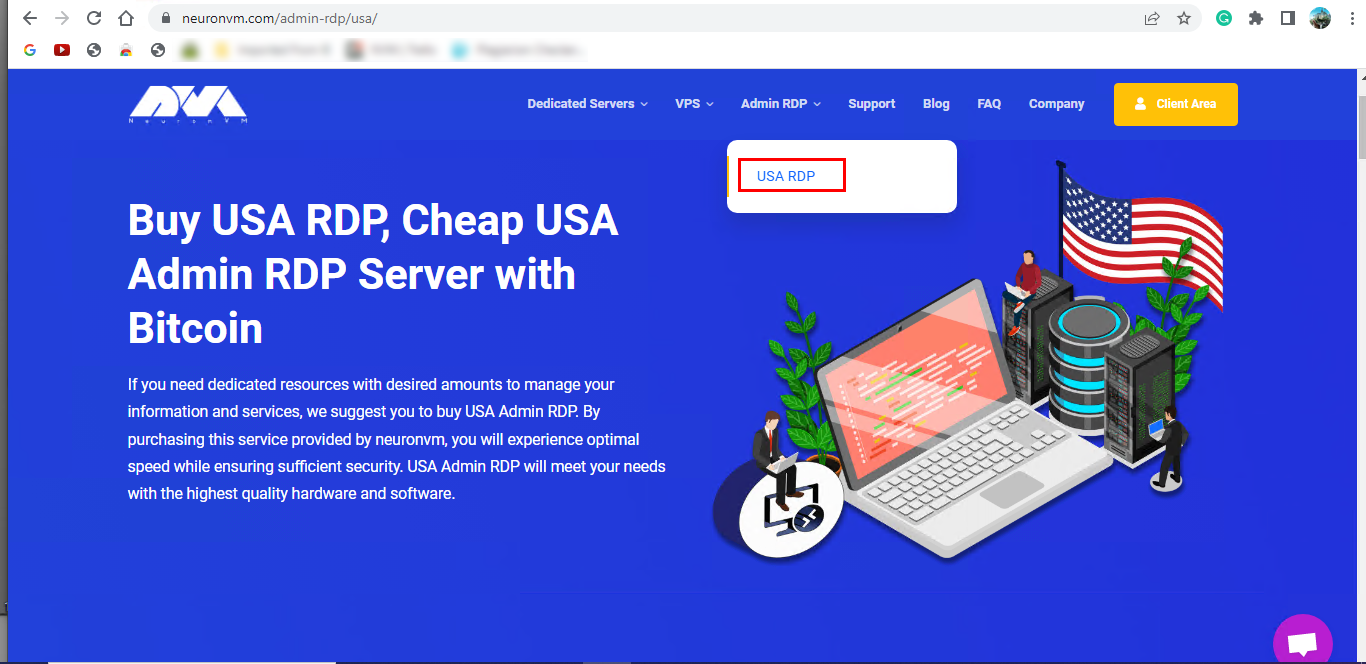
If you are willing to buy Admin RDP using Crypto, the first step is to go to our website and click onUSA RDP on the Admin RDP tab:
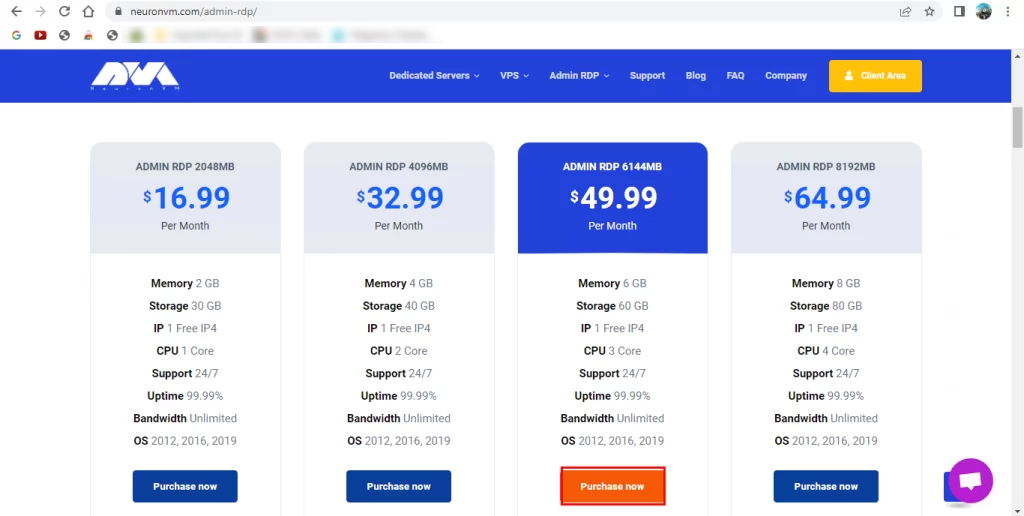
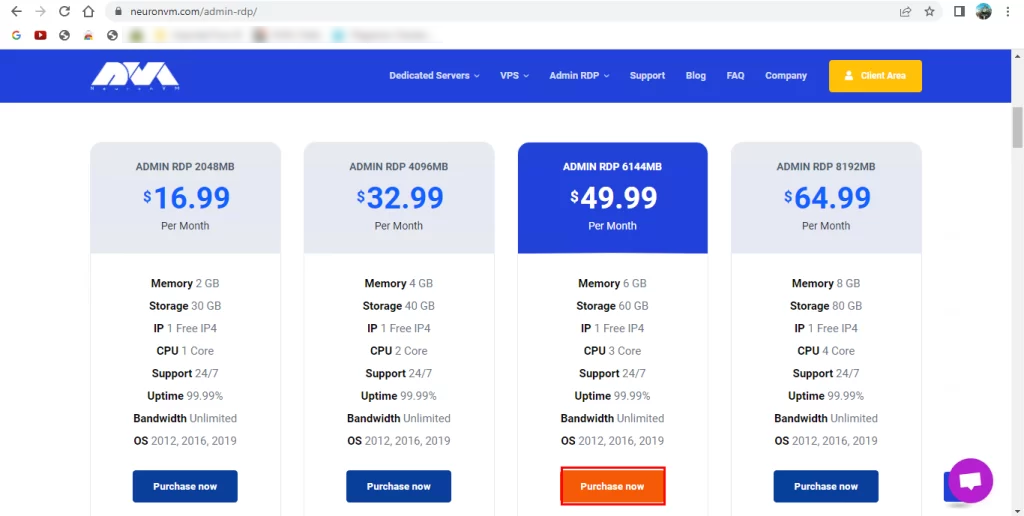
– The next step, is to choose the plan you desire to purchase. You can see these plans in the image below:
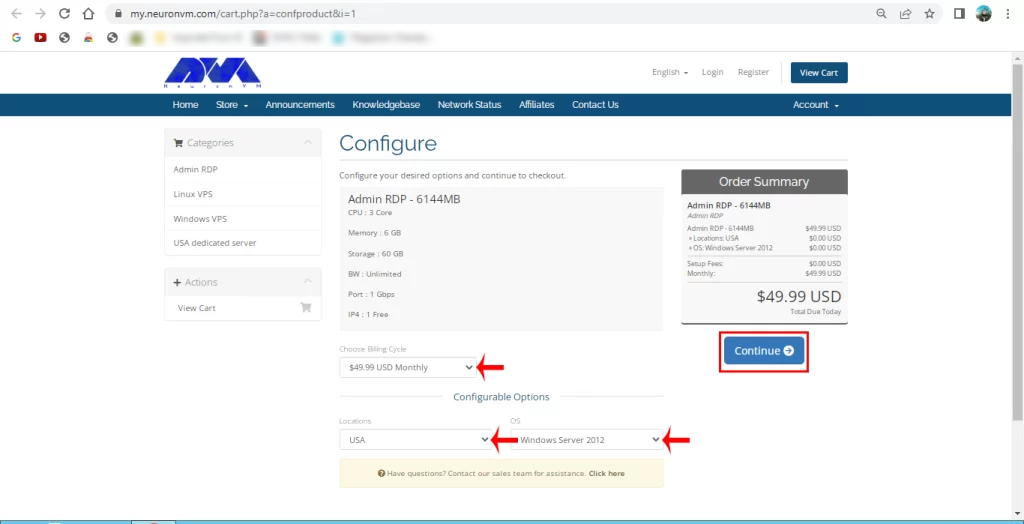
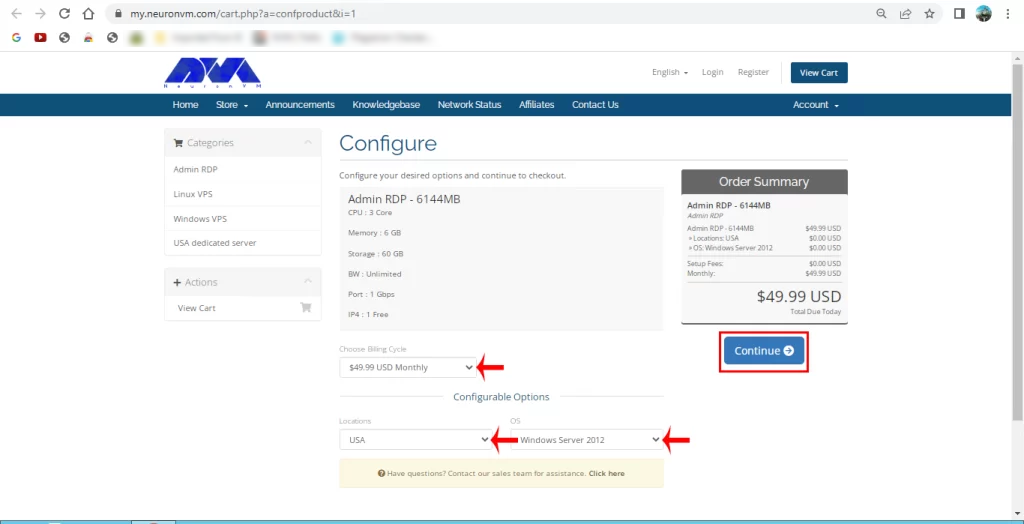
– In this section, you will enter the configuration part. Here, you can choose the operating system, your server’s location which should be the USA, and the cycle of your payment then press Continue:
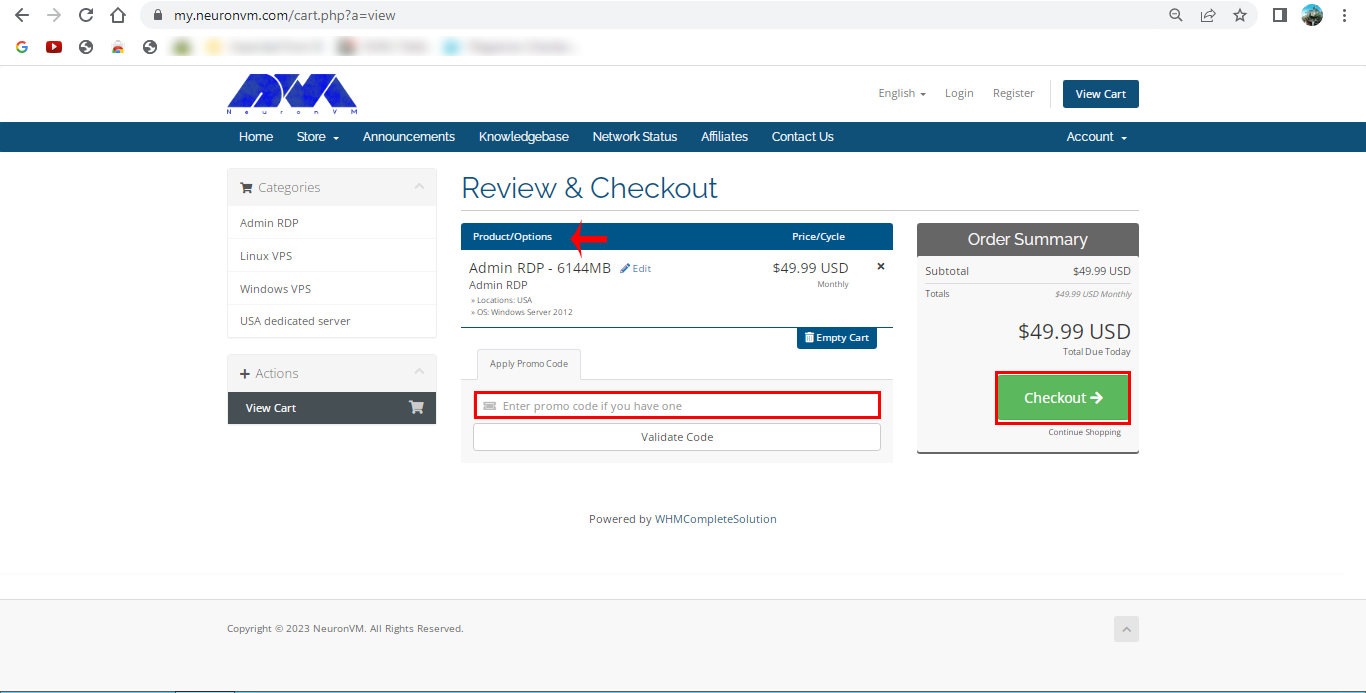
Now, you will encounter the Review & Checkout section. Check the details of the chosen plan and press the Checkout button. Also, If you have any Promo Code for Discount, you can enter it in the box below:
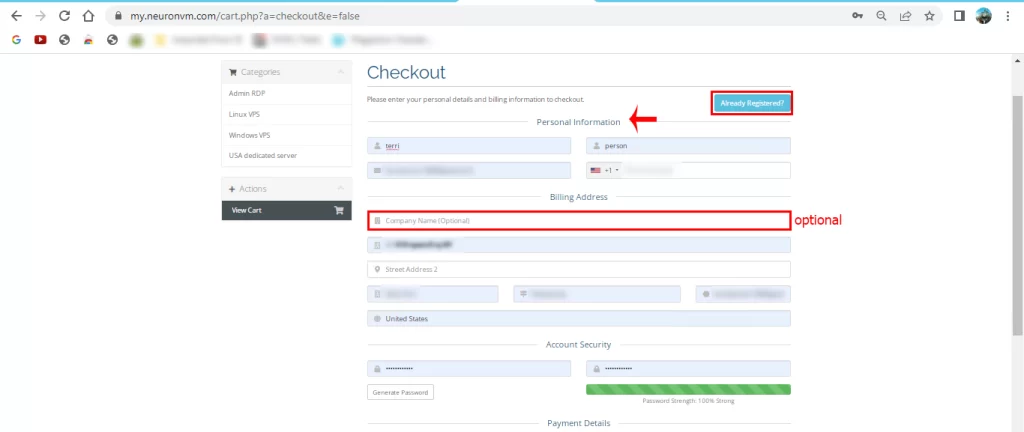
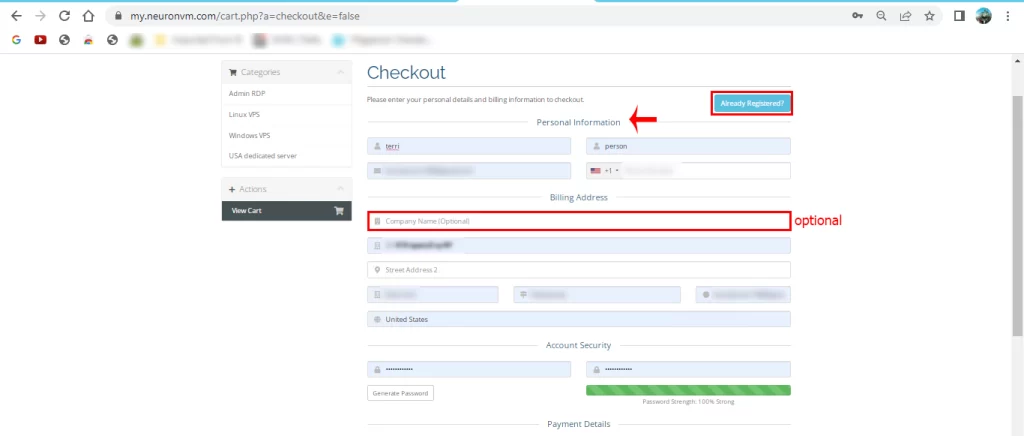
As you choose your plan for Admin RDP, it is time to sign up for NeuronVM and fill in the personal information which is required. But, if you created an account before, click on the Already Registered button:
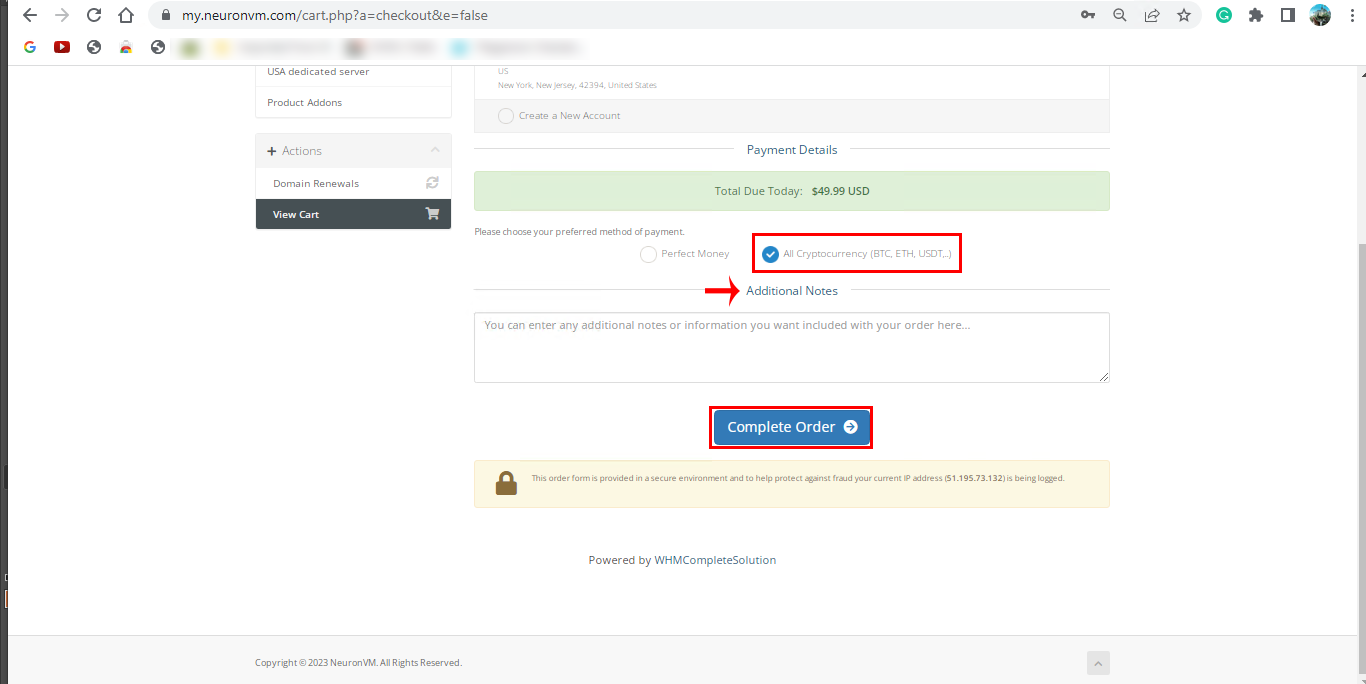
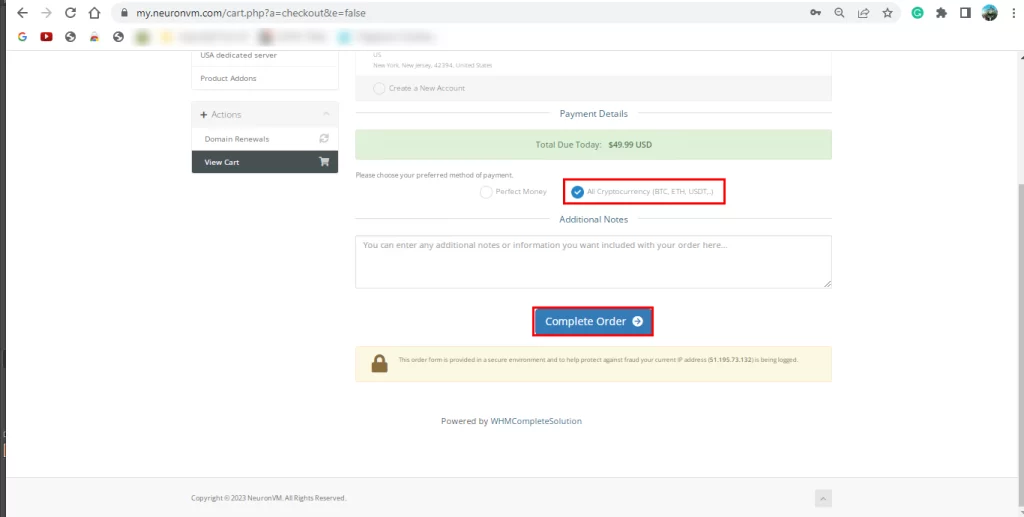
This section is related to the payment details. Check the All Cryptocurrency icon and add notes or other information if it’s required and click on the Complete Order button:
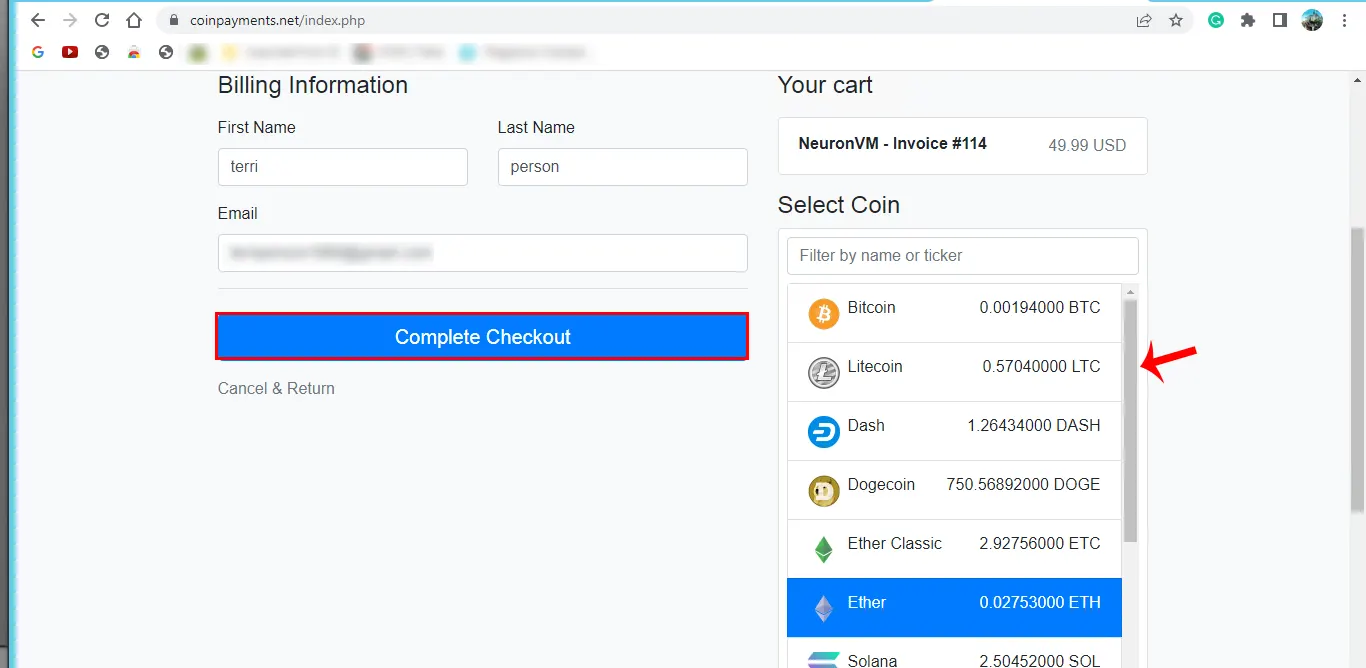
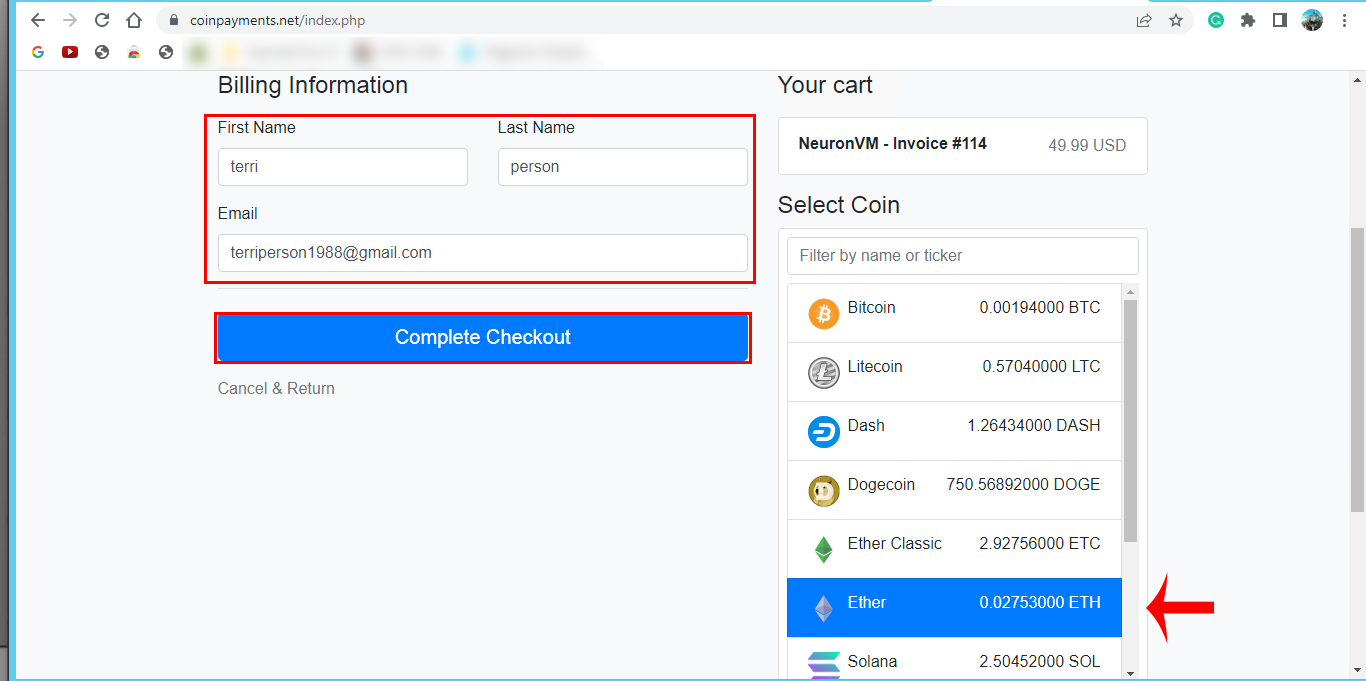
Here, you can view your personal information. You can scroll and select the desired crypto and press Complete Checkout to finish your process:
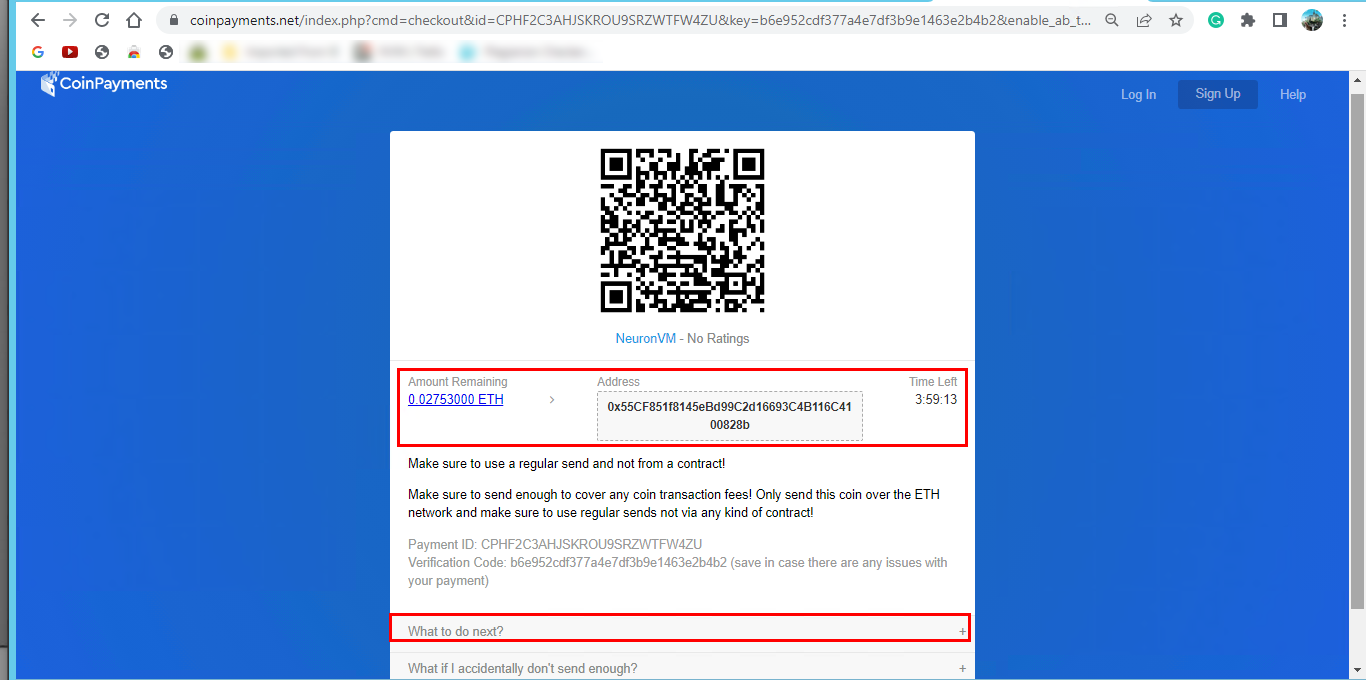
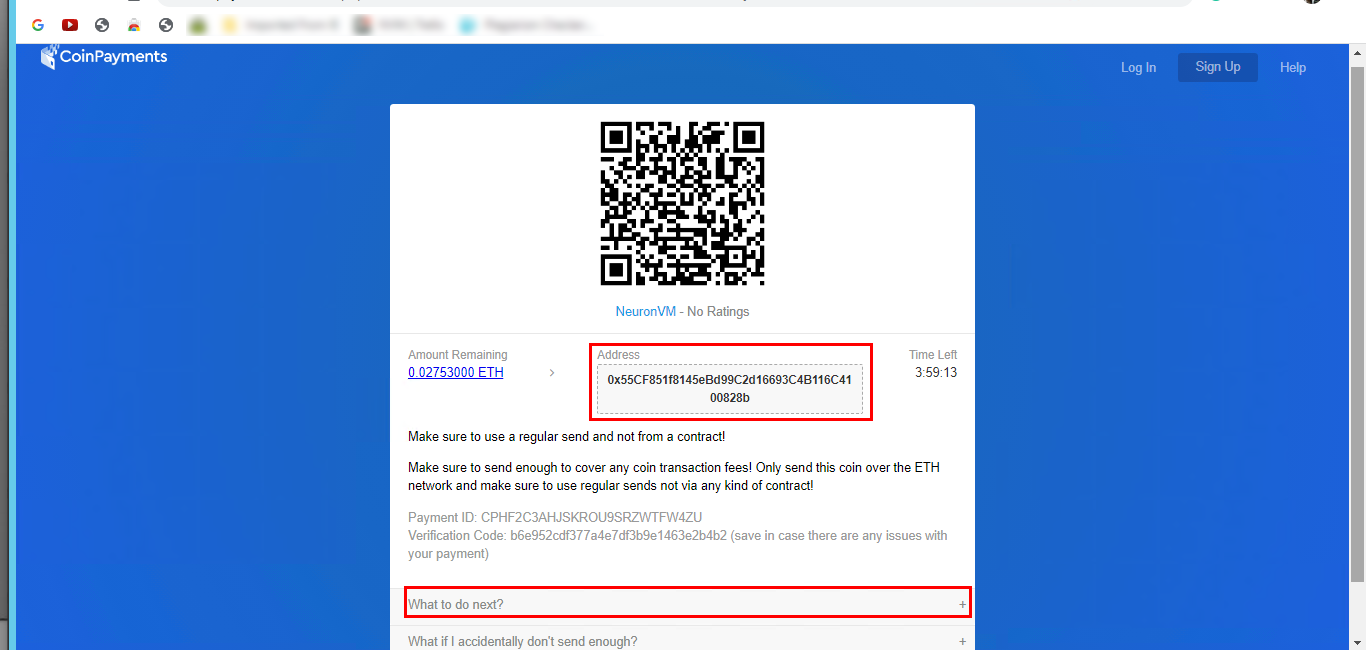
Your Crypto Payment ID and Verification Mode will be shown in this window. To get more information about your payment refer to the What to do Next icon and click to see the information and confirm your payment.
Conclusion
By reading this article, you will have a clear vision of the steps to purchase USA Admin RDP using crypto. Get it now and you will see how easy and practical this service is, as it is secure and delivered to you with convincing speed and quality. If you have any problem or question, just comment here.
FAQ
What is the benefit of buying RDP?
The most brilliant feature that encourages users to buy Admin RDP is that everything you do is private and you have full access to the server.
If you want to know how to configure a DNS server on admin RDP, the following article will be a helpful guide for you. You can use two practical methods for this. Also, this article contains the installation process in two ways, configuration of the DNS server and removing the DNS server role.
How to Configure DNS Server on Admin RDP
Before we start to explain the way to install and configure DNS, there are some requirements that you have to prepare. So let’s analyze them first. Then we will discuss how to install and configure DNS Server using PowerShell and GUI and we will teach you step by step.
We can install and configure admin RDP in two different ways. These two methods include a graphical user interface and PowerShell. Now let’s examine each one.
If you prefer to install Active Directory Domain Services and use the installation wizard, you have the automatic install option and configure a DNS server. In this way, the DNS zone is merged with the AD DS namespace. But if you decided to do the installation manually (as a standalone server), go through the steps below:
How to Install DNS Server Using PowerShell
You can use the install-Windowsfeature command below to install the DNS server role.
First, in an elevated session, Run PowerShell on your system by searching for PowerShell from the Start Menu.
Second, apply the following command to install the DNS role. Here you don’t need to reboot:
Install-WindowsFeature -Name DNS
How to Install DNS Server Using GUI on Admin RDP
Use the server manager of your Windows desktop to install the DNS server role and follow the instructions:
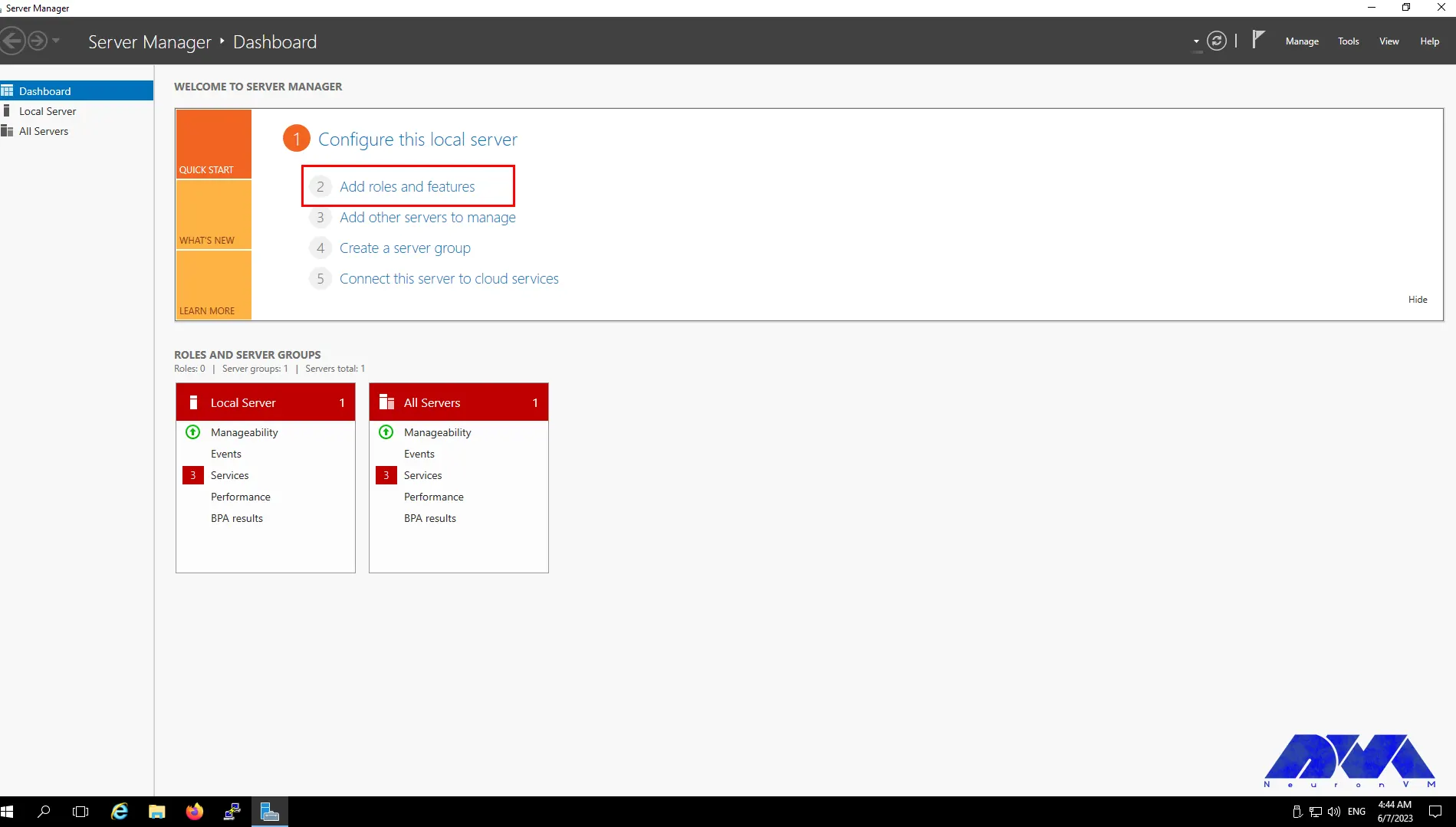
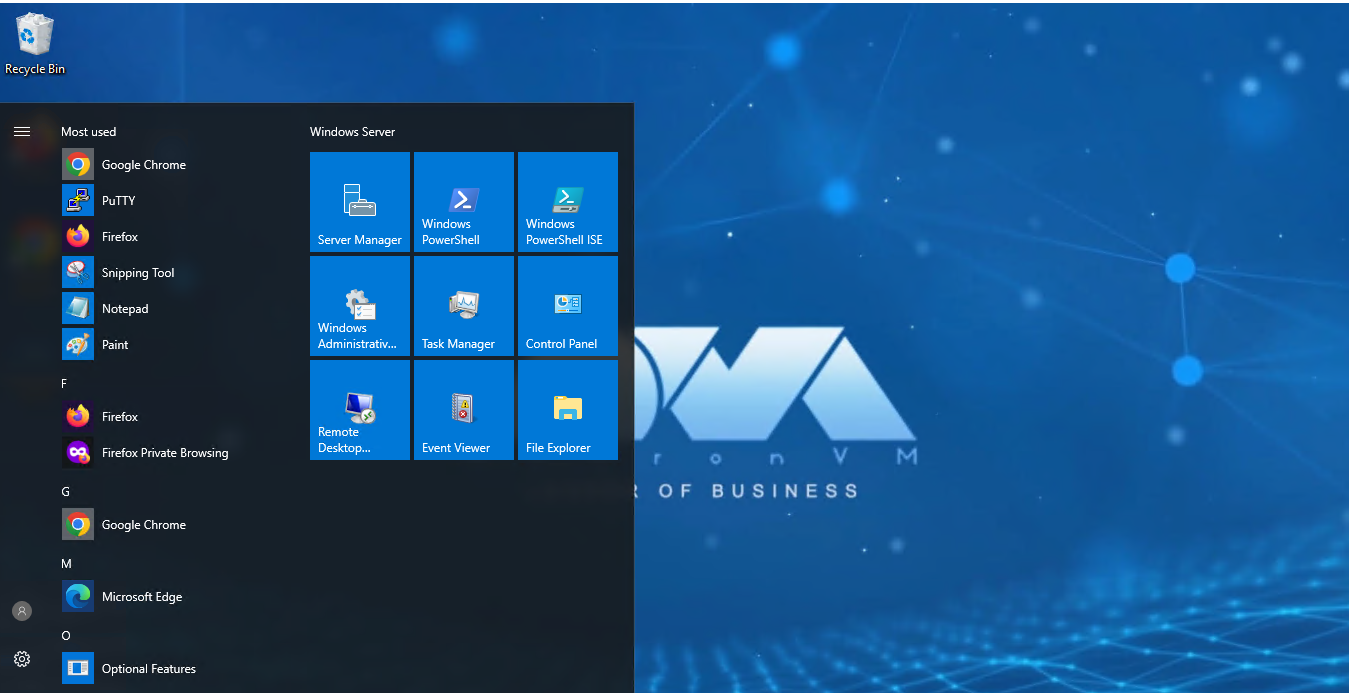
– The first step here is to click on the Start Menu on the desktop and select the Server Manager option.
– Then go to the Manage part and choose to Add Roles and Features option.
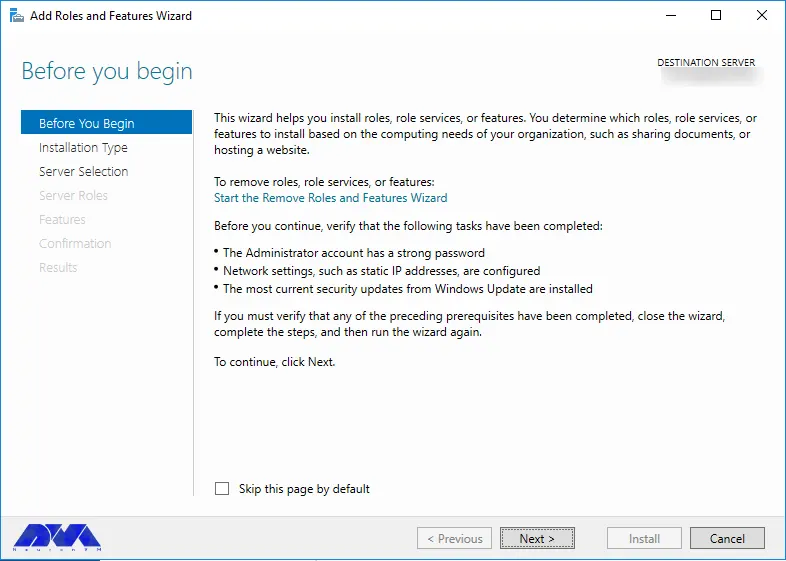
– Now you will visit the Before You Begin and click on Next to begin.
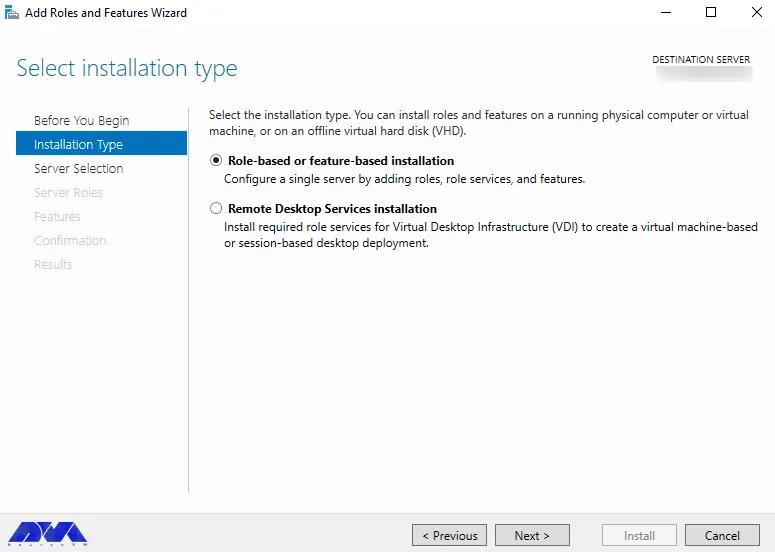
– On this page, go to the Select Installation Type, select the Role-basedor featured-based option, and press on the Next button.
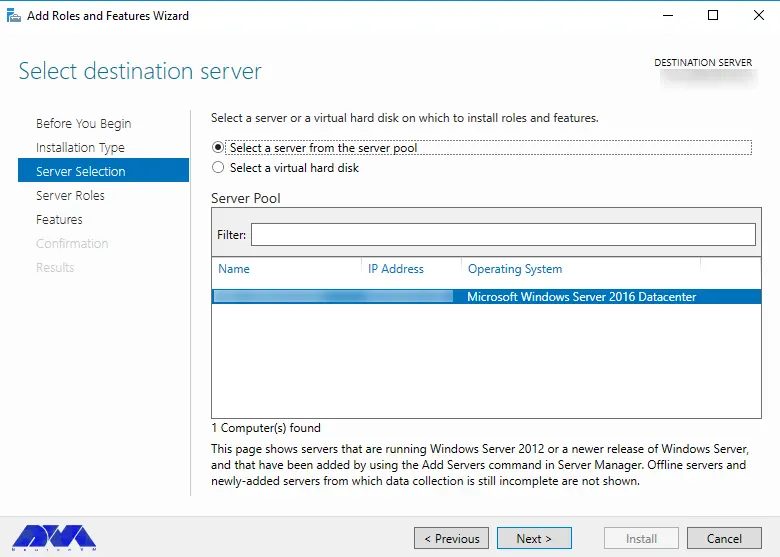
– Here, you can select the destination. Go to the Select Destination Server and leave it as default, then press Next.
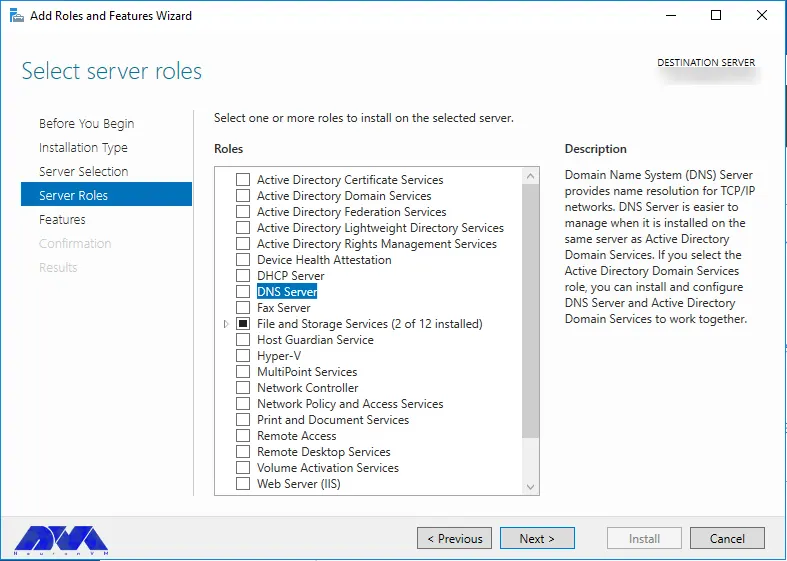
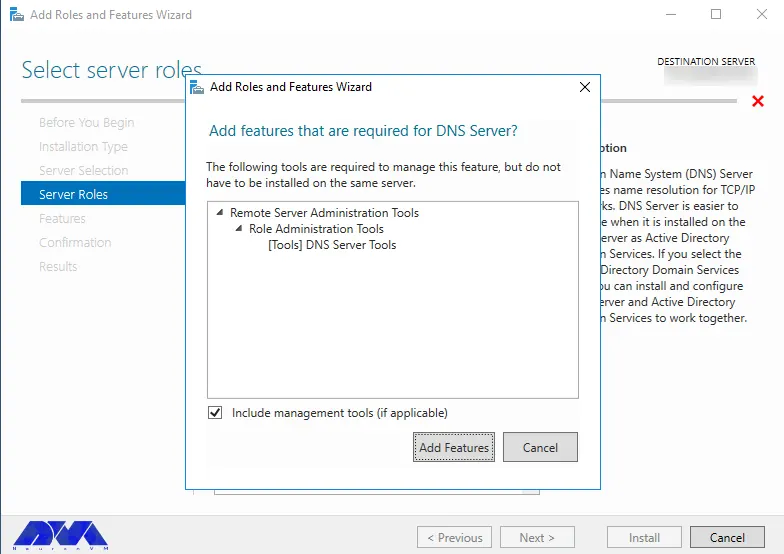
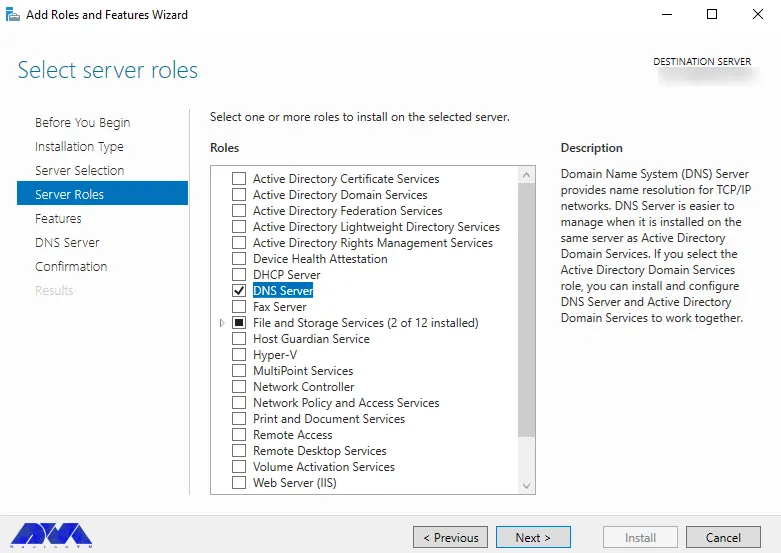
– To select server roles, you can go to the Select Server Roles option, then mark the DNS Server checkbox and click Next. In this part, you should add features that are required for DNS. If the default setting is acceptable to you, press Add Features.
###
###
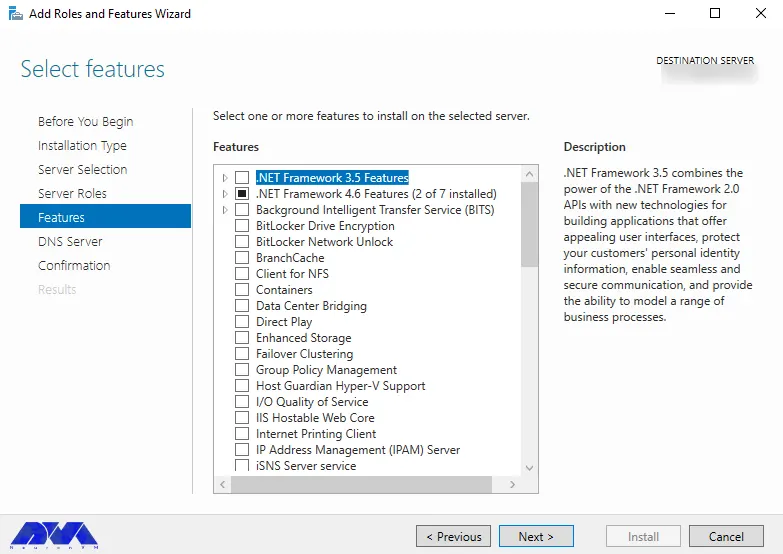
– On the next page, you can leave the setting as default and select next.
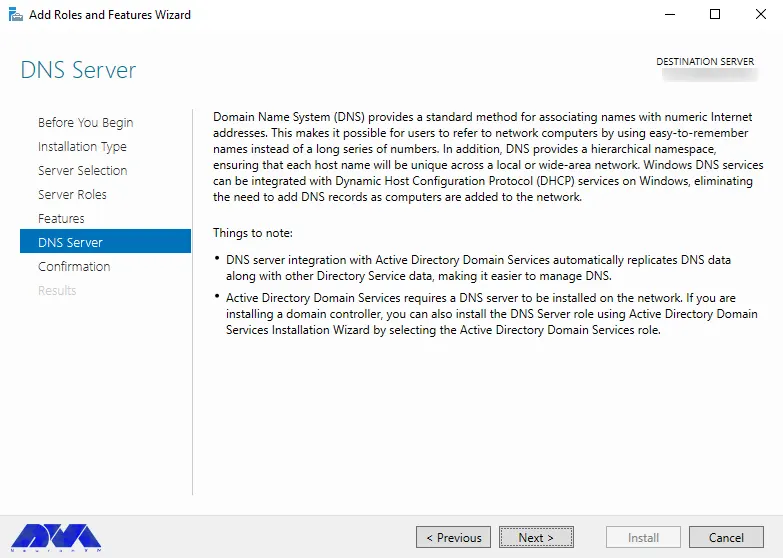
– Now you can see the DNS server page, review the descriptions carefully and press next.
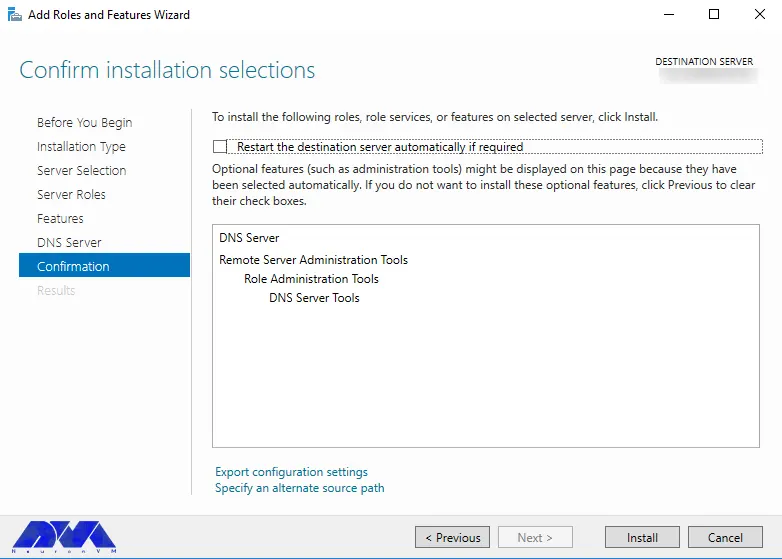
– Here, you should confirm your installation selections by reviewing the selected roles and features, and at the end select the Install button to begin the installation.
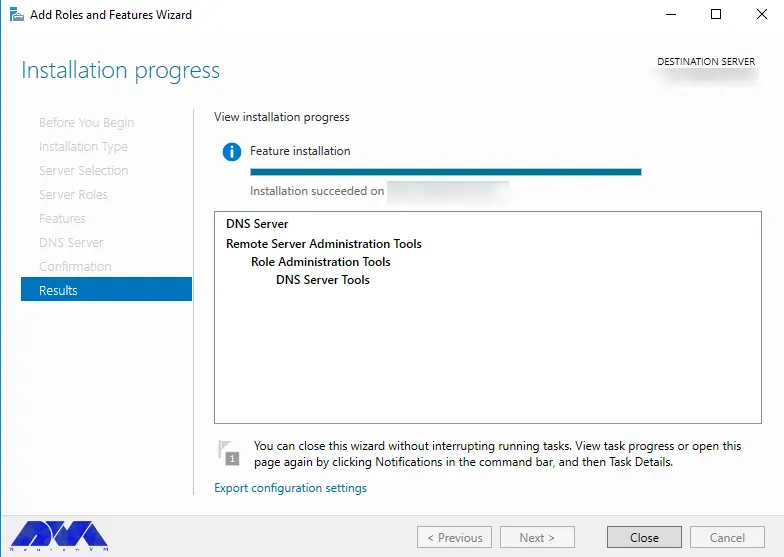
– When you complete the installation press the close button, and take note that there’s no need to reboot.
Configure DNS Server on Admin RDP
As you finished the installation part, it’s time to set the configuration for your DNS server. A DNS server can listen for requests on all IP address interfaces. But you can configure the DNS server to listen for a specific interface using PowerShell or GUI.
Configure DNS Using Powershell
If you want to set the configuration using PowerShell, follow the instructions here:
– First, you should go through set-DNSServerSetting.
– In an elevated session, run PowerShell on your system.
– Apply the related command to find your system’s exciting IP address and make a note of that:
Get-NetIPAddress | fl IPAddress,InterfaceAlias
– Here, you should store the current setting in an impermanent variable and adjust the ListeningIpAddress. Then apply your new settings using the following command. Replace the <IP_Address> with the IP you stored before:
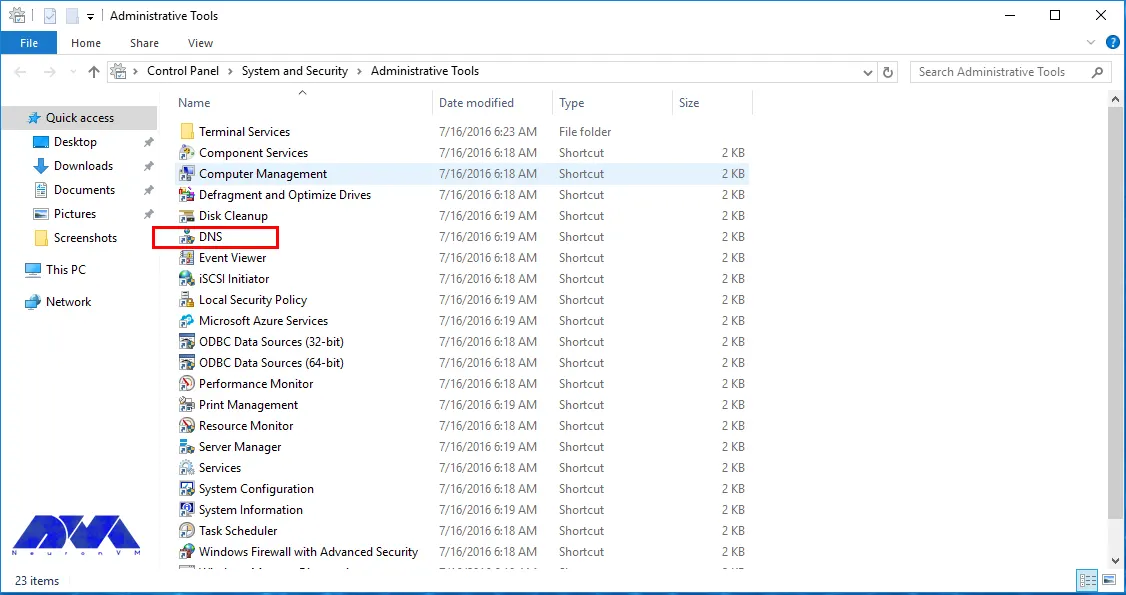
– The first step is to open the Start Menu and go to the Windows Administrative Tools then DNS.
###
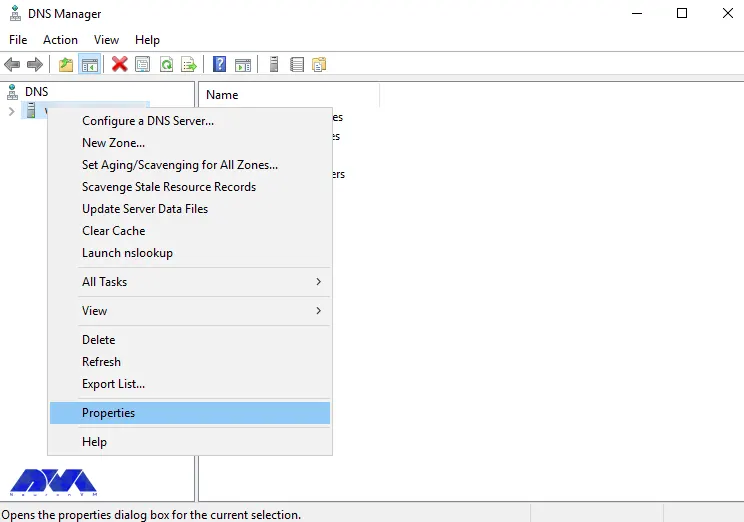
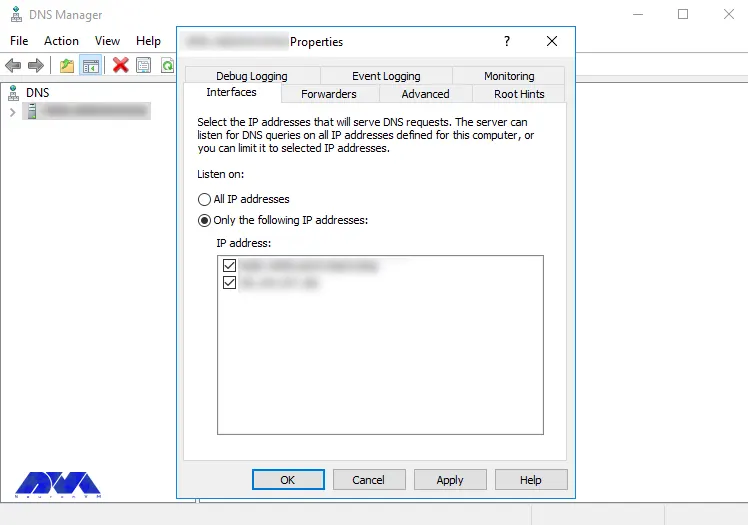
– Next, you can Right-click on your server and choose Properties.
– By selecting Only the following IP addresses and choosing the IP address you wish to use, you can limit the DNS server to use a specific IP address.
Configuring Root Hints Server on Admin RDP
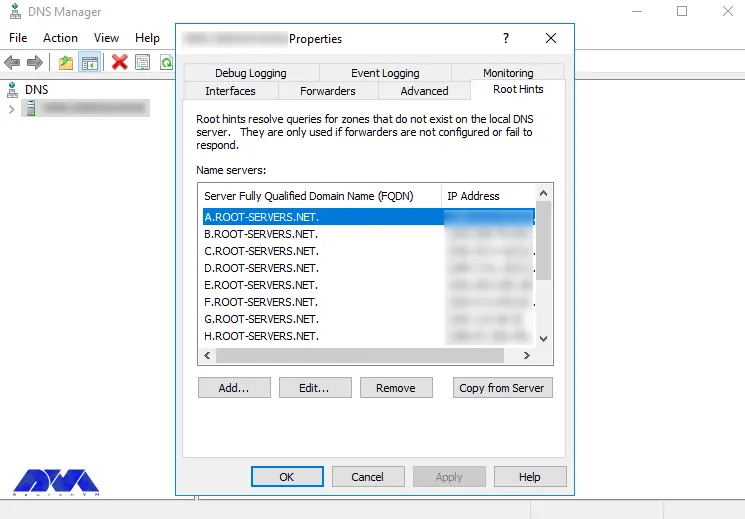
You can use Root hints servers for resolving DNS address information, for the time when the DNS server is unable to resolve the query locally from a hosted zone or DNS cache. The root hint name server is populated by default in your new installations. Again you can use PowerShell or GUI to edit the list of root name servers.
Actually, you can not remove all root hint servers, But you can go through this pass to disable it.
Configure Root Hints Using PowerShell
Go to the DNS manager console and choose advanced tab. Select the disable recursion server option. This act will disable any configured forwarders.
To start the instruction to configure root hints server, you should apply the Set-DnsServerRootHint command. Now follow the steps below:
– Execute PowerShell on your system In an elevated session.
– Run the Get-DnsServerRootHint cmdlet command to find your system’s IP address. Notice that you should save the name server:
Get-DnsServerRootHint
– Use the following command to save the current DNS server setting in a variable and put the placeholder of <root-hint-name-server> instead of the stored root hint name server.
– Use the command below to insert the updated record:
Set-DnsServerRootHint $RootHintServer
– At last, if you want to check the updated root hints, use the following command:
Get-DnsServerRootHint
Configuring Root Hints Using GUI
Here, you can use the Manager console to root hints:
– Go to the Start Menu and then Window Administrative Tools, and select DNS.
– Right-click or select on your server and choose properties.
– Choose the Root hints tab and select your item and choose edit.
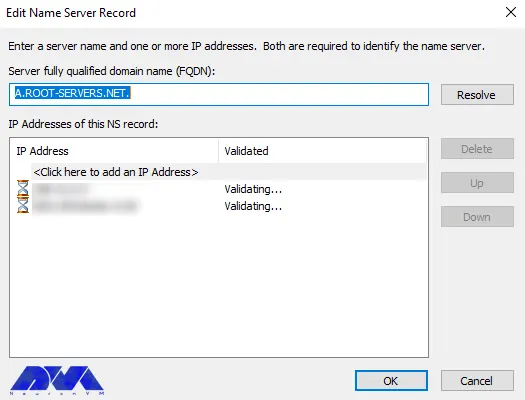
– Now you should enter the domain name and click on Resolve. You should verify your IP address and edit if necessary.
– Click on Ok button.
– As the last action, check the updated root hint server in the list and when your done, click on ok.
Configuring Forwarders on Admin RDP
This part is optional and it is to configure a forwarder to resolve DNS address information. You can use PowerShell or GUI for this reason.
Tip: You should use the DNS root hints Just the time your forwarders fail to response.
Configure forwarder using PowerShell
By using Install-WindowsFeature command, you can install DNS server role. In the same direction follow the instructions below.
– In an session, execute PowerShell on your system.
– Put the placeholders <ip_forwarder_1> and <ip_forwarder_2> instead of IP address of the DNS server, to be used as your forwarders and run the command below:
Here, we will show the way of configuring forwarder using GUI. So follow the steps:
– Go to start menu and select Windows Administrative Tools then DNS.
– Right-click on your server and select Properties.
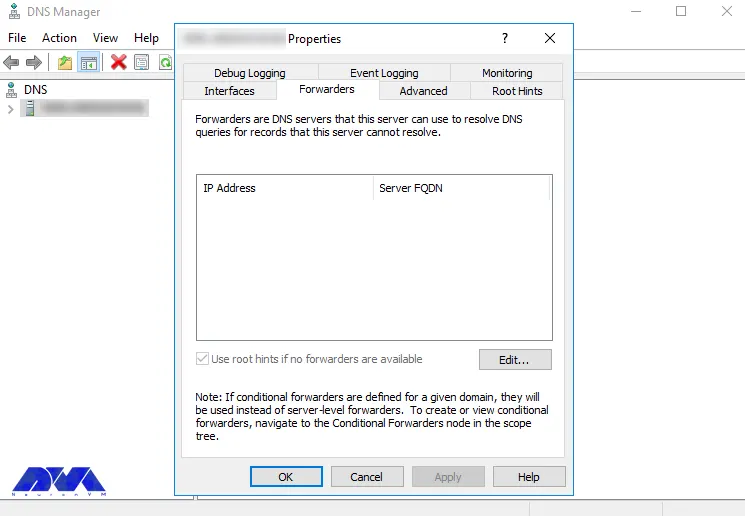
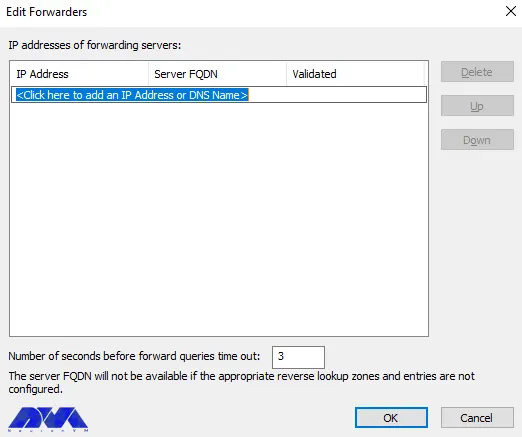
– Choose the forwarders tab and click on Edit.
– Enter DNS IP address to forward requests to. You should repeat this action as many time as it is needed and select Ok.
– As the last action, check the DNS server in the list. Select Ok and confirm configuration.
Remove DNS Server Role
Follow the instruction in this section to remove DNS server:
Remove DNS Using PowerShell
Use the following command in an elevated prompt:
Uninstall-WindowsFeature -Name DNS
Remove DNS Using GUI
– Go to the Start menu and select the Server Manager.
– Go to the Manage part and select Removes roles and features .
– Here, you will encounter Before you begin page and select Next.
– On Destination page, choose the serer that you want to remove DNS server role service from and click Next.
– On the list, you should clear the DNS server checkbox . In this part, you should remove features that requires DNS server. Select Remover Features and click on Next button.
– Here, on the Remove Features page, Leave the default setting and press Next button.
– Then you will see Confirm Removal Selections page, check the selected roles and features and choose Remove.
– As you removed the roles and features, select Close.
– At last, restart your system and complete the uninstallation process.
Tip: Pay attention to these points as you are removing the DNS server role service:
– If a DNS server is hosting AD DS-integrated zones, the saving or deleting action will be done according to their storage type.
– If a DNS server is hosting standard DNS zones, the zones file will be stayed in the %systemroot%\System32\Dns directory, but you can reload them if the DNS server is reinstalled.
Conclusion
This article tried to show you the way to install and configure DNS server on Admin RDP. Also we tried to give a complete explanation of DNS server configuration steps, so that, you will encounter no problem during the installation. If you have any questions or if you know any other method please share.
FAQ
Which one is faster; DNS or VPN?
A smart DNS is faster than VPN because it only changes your DNS address while a VPN encrypts data traffic and spoof the location by changing your IP.
Can DNS effects your internet speed?
DNS is not related to internet speed in a direct way, but it can influence the speed of appearing individual webpage on your computer.
This tutorial proposes to give a complete guide for whom needs to know to troubleshoot WampServer problems on Windows 10. These problems may occur during the working process or running this server on your system. Read this article, if you have any problems on WampServer and solve them yourself.
How toTroubleshoot WampServer on Windows 10
It is possible that you will encounter problems during various stages such as the installation, startup, or working process of WampServer on Windows VPS or Windows 10. So, we will deal with some of these problems and show how to solve them in this section.
Problem 1. Why WampServer Icon Is Not Turning Green?
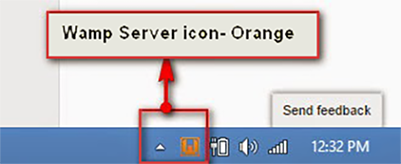
As you have installed WampServer, you will see the Icon in the trey. In a normal process, this icon goes red, then orange, and after that green. But it may stuck on orange. So you can not enter the MySQL console. As a result, you can not go to the phpMyAdmin site too:
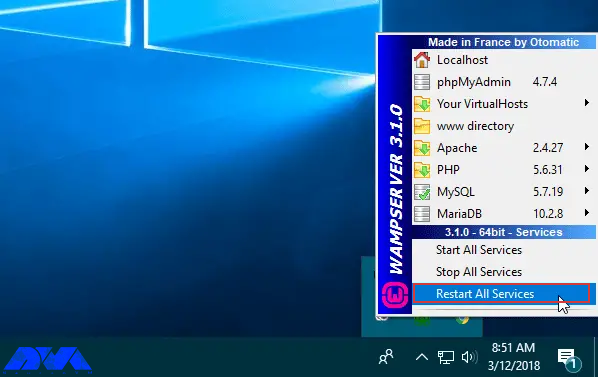
One of the solutions is to right-click on the WampServer icon in the tray and select Restart All Services to be sure that all of the services are running in the right way:
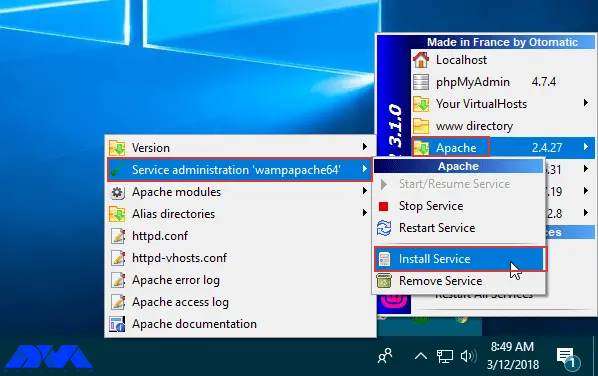
Another reason may be that the Apache service doesn’t start. So, click on the icon and select Apache. Then choose service administration ‘wampapache64’ and Install service:
Then you will see the command prompt. Close it and go through the same pass to press the start/resume service. Now it will turn green.
If non of the solutions worked for you. Then, you should check the error log in the logs folder of the WampServer installation part, to find the exact problem.
Problem 2. Why WampServer is not Working Well?
One of the reasons for this problem can be insufficient system resources. These resources can be your computer’s memory, CPU, and so on. If you have enough resources then Wampserver will run smoothly. So, if your system is working slowly, it will affect your server’s performance.
Problem 3. How to Solve Port 80 problem?
If localhost/PHPMyAdmin is not accessible in the browser, it means that it is in use by another service and requires Apache to function. Apache is set on port 80. So, the solution is to change the port number instead of disabling or removing any other service. Go through this way:
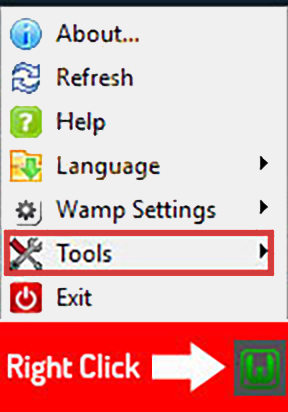
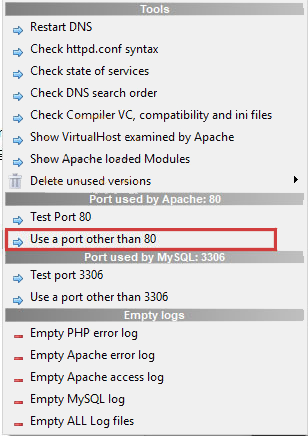
– Right-click on the wamp icon and select on Tools option. So, you will be able to change the port number:
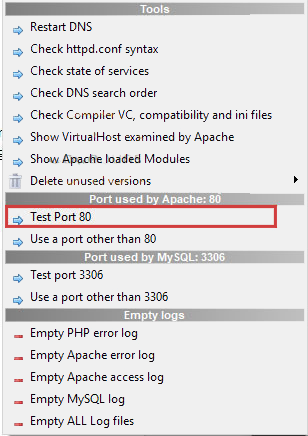
– Now, choose Test Port 80 option for Apache:
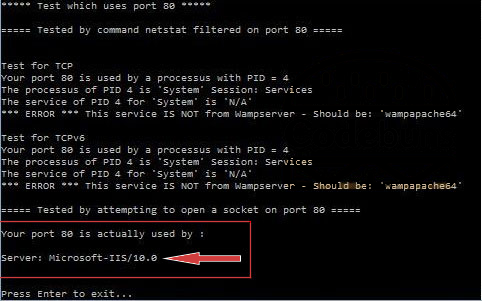
– Here, you will see the command prompt. It will show which program is using the port:
– Then, go to the option again and choose the Use a port other than 80 option:
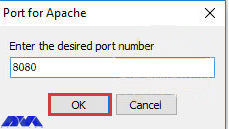
Here, enter the desired port for Apache. E.g. 8080:
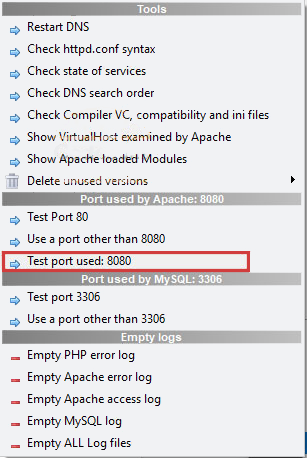
In the end, test the port to confirm that Apache is using it:
Problem 4. Why the WampServer Is Blocked?
There may be a verification problem with the firewall section. A firewall or antivirus may block WampServer for security issues. So, you should disable them for a short period and see if your problem is solved. If the problem is with the firewall, then add rules and exceptions to let the WampServer through the firewall or antivirus.
Conclusion
Here, we tried to focus on some common Wampserver problems on Windows 10. Also, we analyzed the issues and give some solutions for these problems. So, it can be a helpful guide for you. If you encounter any other issues or have any questions about WampServer, please share in a comment.
Ethereum is one of the most popular and well-known digital currencies that is used all over the world and in many fields. We provided a definition of Admin RDP in previous articles. This service is a remote desktop system and allows you to connect to other devices or Windows services using a browser and manage them. NeuronVM has provided various ways to buy RDP services. One of these ways is through Ethereum which is a popular digital currency. Read this content to get more information about the buying process.
Reasons toBuy Admin RDP with Ethereum
Now we would like to point out some positive factors about the purchase of Admin RDP. As mentioned before, it allows you to manage the remote system from everywhere you want. Providing RDP services by our site is fast and continuous. It’s also very affordable in price and boosts your business. Access as an admin user should also be added to the benefits of this applicable operating system.
Admin RDP Locations
Another advantage to buying Admin RDP is the variety of locations that provide this service. You can have this server from different locations like the US, Uk, Germany, Netherlands, France, Canada, and so many other regions.
Steps to Buy Admin RDP Using Ethereum
As you figure out what is Admin RDP server and the good points of using this operating system, it’s time to learn how to buy it in step-by-step guidance using Ethereum digital currency.
1- To buy Admin RDP the first step is to visit the Admin RDP page:
2- In this section, as you scroll down the page you can see different plans for this service. choose the proper one and click on the Purchase Now button:
3- Now, it’s time to do the configuration part. As indicated in the image below, choose the Billing Cycle of your payment, the Location of the server you want, and the suitable Operating System then click on the continue button:
4- Then, you will get the Review and Checkout section. Here you can review the details of the desired product and if you have any Promo Code enter it in the related box. Go to the next part by clicking on Checkout:
5- This part is related to Personal Information. Fill in the related boxes, so that, you can continue the steps. Notice that, if you have registered before, just press on Already Registered and enter the next part by inserting your email and password:
Tip: You don’t need to fill company name as it is optional.
6- Scroll down to choose the Payment Method. Here, you should select the All Cryptocurrency option and if you need to add extra information write in the Additional Notes box and click on Complete order:
7- The last part is related to the payment process. Here, you can see your personal information filled out automatically, as you signed up before. Also, you can choose your cryptocurrency in the Select Coin section (Ether) and click on Complete Checkout.
As the last step, you can see your Eth payment ID and Verification Code. For more information about your payment, you can click on What to do next option. Here, you will find out all the needed information to confirm your payment.
Conclusion
Now that you got familiar with the steps of purchasing Admin RDP using Ethereum, you can easily buy it from the NeuronVM website and use this affordable and user-friendly server on your system to manage remote devices. If you have any questions, please share them in the comments.
FAQ
Does Admin RDP offer full admin access?
Yes, all of the RDP plans are privately owned and give full access to users.
Is it possible to use RDP for free?
Free remote desktop software is possible but users should connect to a device in a different location than their own.
After reading this post, you will learn how to configure cron jobs on a Dedicated server by using your shell user. This process includes entering the server through SSH to execute commands. Also, you can use these commands to edit an existing cron job that you created in the panel and continue editing it from the panel.
What is Cron Jobs?
Cron is a useful tool for users and can be used on any Unix-like operating system. The cron program is dedicated to scheduling commands at a specific time, and these commands and activities are known as cron jobs. This program is used to run monitor disk space, schedule backups and periodically deleted files that you don’t need anymore and etc.
Important Points Before Configuring Cron Jobs
There are some points you should be aware of before setting up. Crontab files are files that hold job lists and other instructions for cron daemons there. Each of the users is accessible by executing the commands here under the shell user:
crontab -e
Crontab files include simple text files that have a specific format. Every line of crontab files has five time and date fields which are followed by a command and then followed by a new line character (‘\n’). But you can’t add a newline so push enter/return at the end of your command.
Automatic word-wrap breaking up of the long line into multiple lines is another problem of Crontab, so make sure your text editor doesn’t do this.
Tip: In our example, the username is your shell user and the website is example.com.
How to Configure Cron Jobs on Dedicated Server
Here, we will show how to configure and use the Cron job on a dedicated server. We recommend you to visit the Cheap Dedicated Server plans offered by NeuronVM. By following our commands you can add a custom cron job in the user shell. These commands assume that you have not yet added a cron job to the panel, so the cron job file will be empty. Follow the instructions below.
First, You should enter your server using your shell user through ssh. Then after login, to open your crontab file you should use the following command:
crontab -e

It looks like you don't have a MAILTO line in your crontab file
For performance reasons we ask that you specify an address where
cronjob output will be delivered. If you do not wish to receive
cronjob output, simply press enter and cronjob output will not be
mailed to you.
For more information regarding this, please visit:
https://help.***.com/hc/en-us/articles/215088608
Where would you like cronjob output delivered? (leave blank to disable)
: [email protected]
cronjob output will be emailed to [email protected]
confirm? (y/N): y
Now you should add your email or leave it blank and after that, you should choose the proper text editor:
Select an editor. To change later, run ‘select-editor’.
Then you will have an empty crontab file. Now add the code to the cron job. In this example, we run a file named mail.php under the username of “username”. you should choose the name same as the one you logged in with, currently:
At last, save the file. you will see the final response below:
crontab: installing new crontab
The mission is completed now and your cron job should run every day at 8:13 pm.
Some Crontab Commands
For replacing your existing crontab with a custom crontab file:
crontab /home/username/filename
For editing your server’s crontab:
crontab -e
To view your crontab:
crontab -l
To remove your crontab:
crontab -r
An Explanation for The Date & Time Files
The five fields that you see at the beginning are the time and date fields which specify how much and when a command should be executed.
We have another graphical way, as you can see here:
You can use several ways of specifying multiple values in these fields:
_ The comma (,) specifies a list of values.
_ The dash (-) specifies a range of values and is equivalent to a comma (,)
_ The asterisk (*) or wildcard specifies all of the possible values for a field.
_ The slash (/) is used in conjunction with an asterisk, to skip a given number of values.
_ And at last, (/3) means you can skip to every third value, and in the hour field is equivalent to (0،3،6،9،12،15،18،21). you have to mention that (*) specifies every hour but /3 cause only 1,4,7 value are used.
One of these specific strings can be used in place of the date & time:
Some Examples of Custom Cron Scripts
Here you can find some examples showing what to add to a new file in order to create a cron job:
1: This example runs a command at 5:10 pm PDT/PST, then will emails you the regular and error output to the destination specified by Mailto:
10 17 * * * perl /home/username/bin/yourscript.pl
2: This one runs a command at 1:00 am PDT/PST on Saturday and the only output is errors:
0 1 * * 6 sh /home/username/weekly/weekly-pruning.sh > /dev/null
3: This runs a PHP script which is calling cron.php at the top of every hour:
0 * * * * php /home/username/cron.php
Edit Dedicated Server
If you log in as a dedicated server admin user, you will be able to edit the crontab file directly. Follow the command below:
/var/spool/cron/crontabs/username
Then if you want to access that file, you will need to use sudo on your dedicated server.
Tip: If you are asking for sudo or admin access, you must upgrade to a dedicated server.
Here we have an example for opening the file with a vi text editor:
sudo vi /var/spool/cron/crontabs/username
Conclusion
Now you know how to configure and use cron jobs on a dedicated server. This tool is a useful assistant for you. It also makes the system recover automatically and work around the clock without human intervention. We hope you enjoy this article. If you have any suggestions, just leave a comment.
FAQ
What is the meaning of ***** in cron?
A cron schedule expression wildcard. It means your cron job should run every minute of every hour of every day of every month each day.
One of the most famous virtualization platforms is virtulizor, which helps you to create and manage VPS with all kinds of virtualization through a graphical user interface. Here, we will review the steps of setting up vietualizor with KMV on a dedicated server. After reading this post, you will learn about how to install virtualizor on Dedicated Server.
Some Good Features of KVM on Dedicated Server
1- Capability of migration from one node to another one
2- Backup and restores of VMs (local, FTP, SSH backup servers)
3- Capability of cloning the VM
4- Having multiple storage support
5- Configuring internal IP supported with virtual domain forwarding
6- Storage overcommit option
Prerequisites
– A Cheap Dedicated Server with Centos 7, 8, or RedHat Enterprise Linux 7 or Ubuntu 18.04, 20.04, or AlmaLinux 8
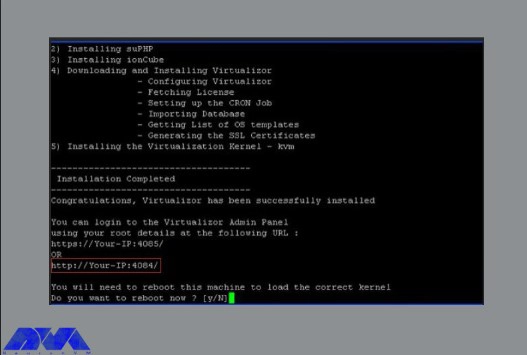
_ You have to be sure that you are providing the correct email ID and then you should wait for the installation:
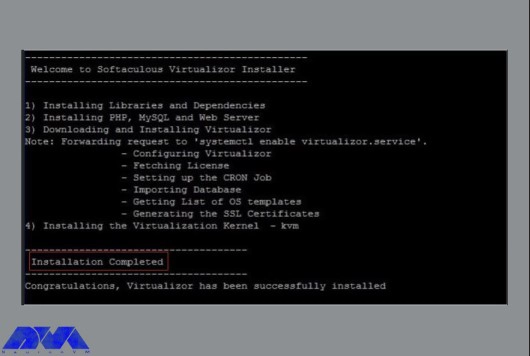
_ You have to be patient cause it will take some time to complete this process. Once the installation is done carefully, you should reboot your system:
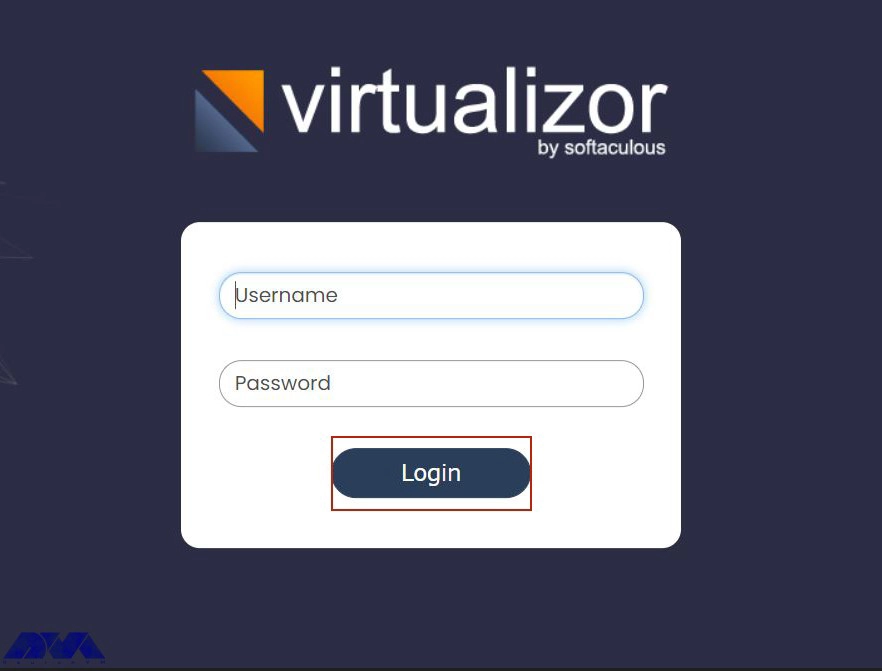
_ When you finished all these parts and reboot the system, you will be able to access the panel with the link below:
Done! Now you can use your virtualizor on a dedicated server and enjoy using the simple interface of that.
Conclusion
Here we showed how you can install virtualizor on your dedicated server and the prerequisites you need before installation. Virtualizor makes it easier for you to control systems. Have any ideas or problems, leave a comment.
FAQ
Is Virtualizor free?
If you want to test this tool, it contains a one-month free trial license for all users.
What is the default port for Virtualizor?
You can use ports from 4081 – 4085. If there is any firewall restriction, you will need to allow these ports.
Backup is a vital part of a server and a helpful action to save data and important information about your system. So read this guide and follow the instruction to backup your system in the best way. After reading this article, you will learn a superior method to Configure a backup Server on a dedicated Server using JetBackup, just follow us until the end of this article.
What Is Backup Server?
A great way to store important files is to save them in a zip file using a backup server. This server is affordable and can be zipped into the system of the hard drive. of course, some of these servers are also available for free but some good options are only accessible in paid version. If you are computer savvy, you can upload the backup file to your server safely and easily using the built-in FTP function. Note that to track supporting files the log for supported and unsupported ones.
Installing a Backup Server on a Dedicated server
You can use a backup server to backup your data, applications, and databases. That is, you can rent a cheap dedicated server from a host and then lunch your backup solution. Now to learn the configuration of this backup server follow the steps below:
Tip: We will use the JetBackup server for this process.
Prerequisites
you should prepare the minimum system requirements to use Jetbackup on your server:
– Centos 7/ Cloudlinux 7/ Redhat 7
– 64-bit OS
– cPanel version 68 and above
– WHM Tweak Settings, Max CPanel process memory, require at least 2 GB
You should follow to steps to install Jetbackup:
Step1. Login as a root user
You should enter to server as a root user and then run the following commands on the CLI to start the processes of installation of the JetApps repository and plugin manager on the cpanel server:
Tip: If LFD is enabled on your cPanel. You have to be sure to restart LFD before passing to the next step and making changes in csf.pignore.
Step2. Start Installation with Command-line / GUI
As you have finished the installation of the repo and plugin manager, you can proceed to install Jetbackup for cpanel using one of the two options here:
The firstoption (using the command line): Run the following command with your chosen tier on the same console.
jetapps --install jetbackup stable
Now JetBackup will start the installation and then specifies the version and will inform you that the installation is complete.
The second option (using GUI): Use your root account to access the cPanel WHM server GUI. Then go to the plugin menu and click on JetApps > JetBackup (More Details). Choose your favorite tier and confirm the installation.
After a complete and successful installation, go to the WHM interface and go to the plugin section to access JetBackup. You can spend a little time reviewing the Getting Started guide to setup and run JetBackup.
Configure Backup Server on Dedicated Server
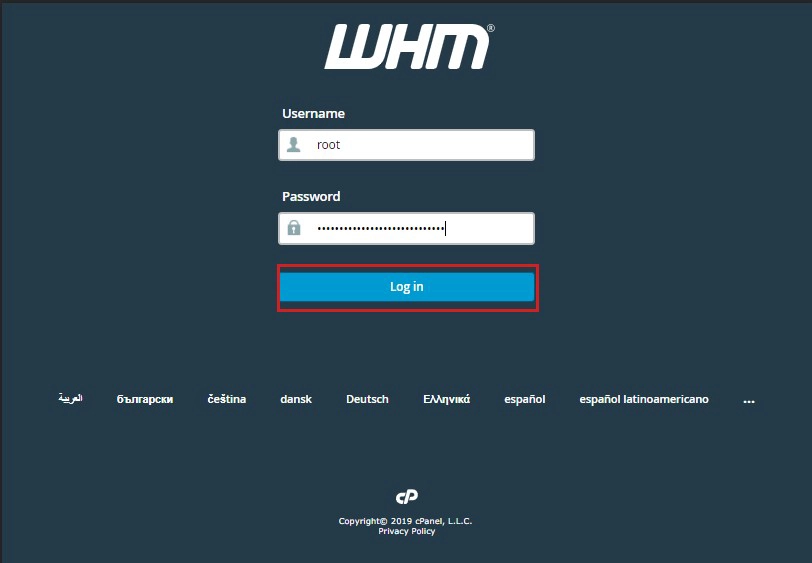
Now it’s time to configure JetBackup. Login to cPanel/WHM by using https:://{hostname/ip}:2087 address on your browser:
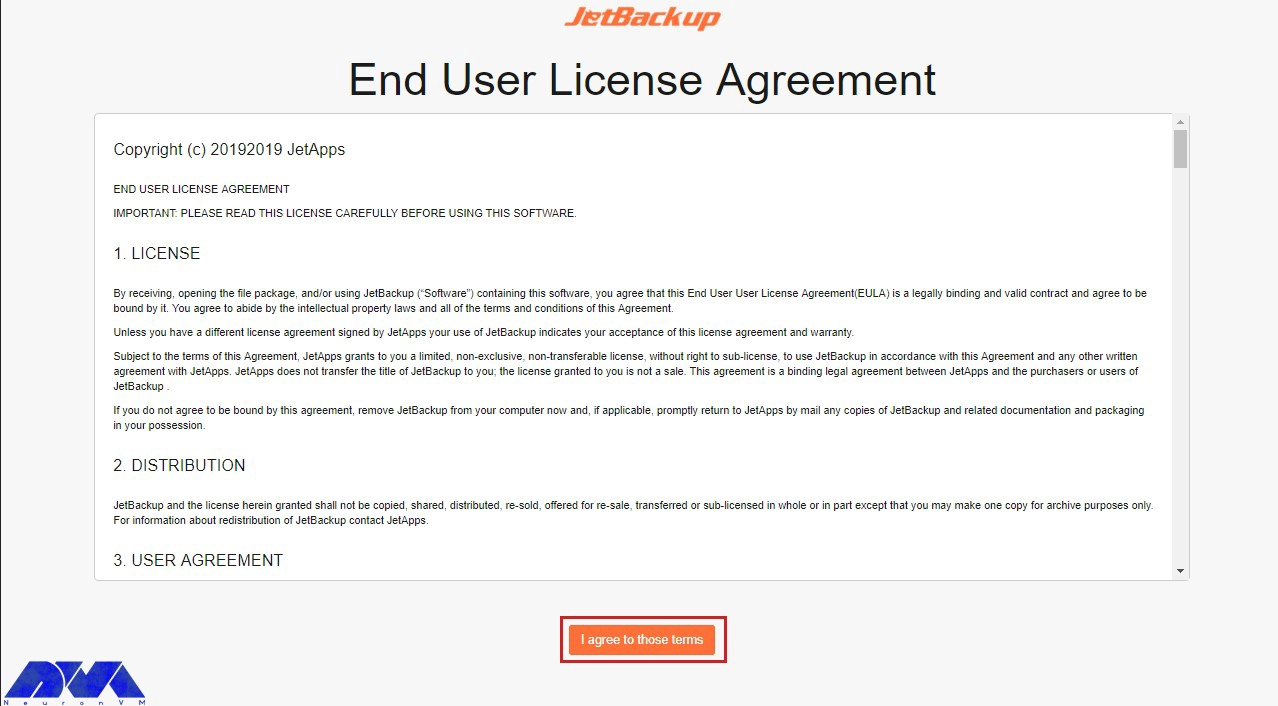
As you open JetBackup you will encounter JetBackup End User License Agreement. After you have read and agreed to the terms included in the EULA, select the “I agree to those terms” option:
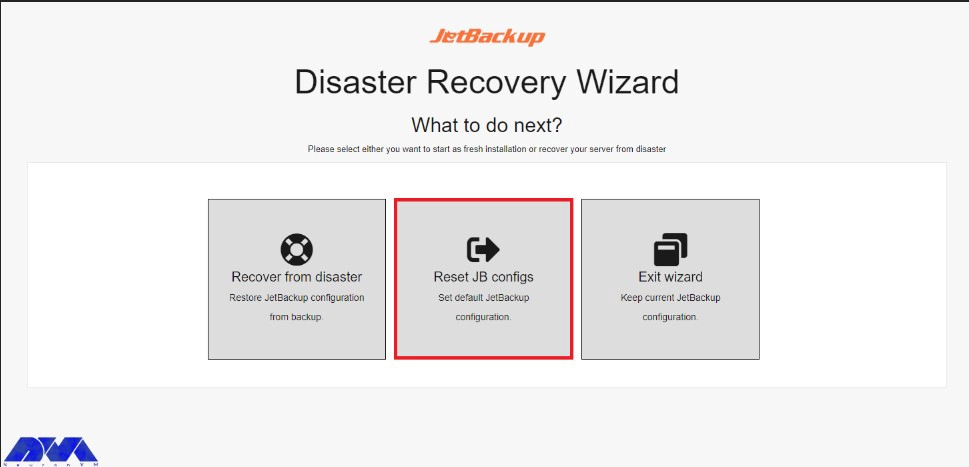
If you already have an exciting JetBackup configuration on your server, then just click the Exit Wizard tab.
Or click on the “Reset JB Configs” tab to login to your panel and start with a new installation and default configuration:
As you entered the dashboard area, start your task by adding a backup destination Which will be saved as your storage location.
In the next part, we recommend you enable Export JB Config on a destination to backup your JetBackup settings and configurations. This action will allow more seamless Disaster Recovery. Now you can start the backup process.
Here you can see some backup types:
_ Local to Local: Used to copy cPanel accounts to a specific local folder
_ Local to Remote: Used to copy cPanel accounts to remote folder
_ General Files Backup: Used to only backup files
_ MySQL Backups: Used to backup cPanel accounts database
By default, JetBackup creates backup copies using its internal backup engine. If you select the cPanel backup engine, you can restore backups created in the cPanel backup system.
Conclusion
As we mentioned here, you can backup your files and important data on your dedicated server using a system like backup server. So the purpose of this tutorial is to show how to configure a backup on a dedicated server. We hope you enjoyed the article.
FAQ
How often should we run a full backup?
Important data should be backed up at least once a week, but we recommended this action once every twenty-four hours.