Blog

  • Tutorial Configure ModSecurity for Apache on Ubuntu

    Tutorial Configure ModSecurity for Apache on Ubuntu

    Apache Web Server is a modular web server that can have flexibility, power, and high performance on all different platforms and environments. The modularity of this web server means that most of the key features in it are designed in the form of modules that can be enabled or unenabled during compilation or even during execution, and using this allows a webmaster to configure the Apache webserver. ModSecurity is one of the Apache Web Server modules. After reading this article, you will fully understand how to Configure ModSecurity for Apache on Ubuntu.

    What is ModSecurity?

    ModSecurity is an open-source web-based firewall software that can work as a reverse proxy and is supporting by Apache, Nginx, and IIS web servers. Web application firewalls are using to create an external security layer that increases the level of protection, detecting and preventing attacks before they reach web applications.

    ModSecurity is also one of the Apache web server modules that prevent the execution of dangerous web scripts and also adds intrusion detection and prevention features to the web server. It is basically similar to IDS used to analyze network traffic. Contains a set of core rules that include various rules for website scripting, malicious user agents, SQL injection, Trojans, sessions, and other exploits.

    modsecurity.

    ModSecurity features against attacks

    – HTTP Protection: Violation of HTTP protocol and locally defined usage policy detection

    – Protection against common web attacks: Identify common attacks against web applications

    – Automatic detection: bots, crawlers, scanners, and other malicious activities

    – Trojan protection: detection of Trojan access

    – Hide Error Messages: Hide error messages sent by the server

    Introducing Apache Web Server

    Apache is free and open-source software that runs on 67% of all web servers in the world. This software has high speed, reliability, and high security and can customize using plugins and modules to meet the needs of all users in all environments. WordPress hosts use Apache as web server software. Apache web server was originally developed for Linux and Unix operating systems, which was later adapted to work with other systems including Windows and Mac. The difference in using Apache in different operating systems is the type of directory path and installation steps.

    Prerequisites

    – A Linux VPS plan that runs the Ubuntu OS

    – A non-root user who can perform sudo tasks

    How to Configure ModSecurity for Apache on Ubuntu

    First, you should update the Ubuntu package by entering the following command:

    sudo apt-get update

    Now you can install Apache by executing the following command:

    sudo apt-get install Apache2

    Next, you have to press Y and then Enter. Also, the ModSecurity module for Apache is available in the default Ubuntu repository. You should just execute the following command to install it:

    sudo apt install libapache2-mod-security2

    Enter the following command to enable ModSecurity:

    sudo a2enmod security2

    To make the changes take effect, just restart Apache with the following command:

    sudo systemctl restart apache2

    Now you should find the following line in the /etc/apache2/mods-enabled/security2.conf configuration file:

    IncludeOptional /etc/modsecurity/*.conf

    Apache includes all *.conf files in the folder written in the following command. To do this, you need to rename the Modsecurity.conf file:

    sudo mv /etc/modsecurity/modsecurity.conf-recommended /etc/modsecurity/modsecurity.conf

    Then in this step, you should edit the above file with your desired command-line text editor:

    sudo nano /etc/modsecurity/modsecurity.conf

    Now you need to find the following line:

    SecRuleEngine DetectionOnly

    Configuration allows ModSecurity to log HTTP transactions but takes no action when the attack is detecting. ModSecurity detects and blocks web attacks by entering the following command:

    SecRuleEngine On

    The following line tells ModSecurity what information should be included in the audit report. You should find it:

    SecAuditLogParts ABDEFHIJZ

    The default settings should changed as follows:

    SecAuditLogParts ABCEFHJKZ

    Finally, save and close the file. You should restart Apache to apply the changes by entering the following command:

    sudo systemctl restart apache2

    ModSecurity can protect your web applications by setting rules to detect and block malicious agents. Also, install existing rule sets and get start quickly. There are several free rules for ModSecurity. The OWASP Core Rule Set (CRS) is a standard set of rules using with ModSecurity.

    The OWASP Core Rule Set is free, community-maintained, and the most widely used rule set that provides the default configuration sold for ModSecurity. It can be integrated with the Honeypot project and contains rules that help stop command attack vectors, including SQL injection (SQLi), cross-site scripting (XSS), and many others that can be used to detect bots and Identification of scanners used. Adjusted through wide exposure to have very few false positives.

    By installing ModSecurity from the default Ubuntu repository, the modsecurity-crs package is also installing, which includes the OWASP core rule set version 3.x. You can download the latest CRS OWASP from GitHub, and execute the following command:

    wget https://github.com/coreruleset/coreruleset/archive/v3.3.0.tar.gz

    Then you should extract the file with the following command:

    tar xvf v3.3.0.tar.gz

    Now you need to create a directory to store CRS files. To do this, enter the following command:

    sudo mkdir /etc/apache2/modsecurity-crs/

    Then you need to move the extracted directory to the desired folder in the following command:

    sudo mv coreruleset-3.3.0/ /etc/apache2/modsecurity-crs/

    Navigate to that directory by entering the following command:

    cd/etc/apache2/modsecurity-crs/coreruleset-3.3.0/

    Then Remember to rename the crs-setup.conf.example file:

    sudo mv crs-setup.conf.example crs-setup.conf

    Now you need to edit the desired file with the following command:

    sudo nano /etc/apache2/mods-enabled/security2.conf

    The following line loads the default CRS files. You should find it:

    IncludeOptional /usr/share/modsecurity-crs/*.load

    Now change the above line as shown below:

    IncludeOptional /etc/apache2/modsecurity-crs/coreruleset-3.3.0/crs-setup.conf
    IncludeOptional /etc/apache2/modsecurity-crs/coreruleset-3.3.0/rules/*.conf

    Remember to save the file and close it. Then test the Apache configuration by executing the following command:

    sudo apache2ctl -t

    Finally, restart Apache with the following command:

    sudo systemctl restart apache2

    How To Test the ModSecurity Configuration on Ubuntu

    In the last step, you should test that ModSecurity can detect and block suspicious HTTP traffic. To do this you need to edit the default virtual host file with the following command:

    sudo nano /etc/apache2/sites-available/000-default.conf

    Now In this step, create a blocking rule that blocks access to a specific URL when accessing a web browser. You should append these lines at the end before closing the ‘Virtualhost’ tag. To do this, enter the following command:

    SecRuleEngine On
    SecRule ARGS:testparam "@contains test" "id:254,deny,status:403,msg:'Test Successful'"

    Now you need to set the “id” and “msg” tags to any desired value. Then you should restart the Apache webserver to apply the changes to the host configuration file by executing the following command:

    sudo systemctl restart apache2

    You need to visit the URL shown ?testparam=test at the end:

    http://server-ip/?testparam=test

    If you get a “403 Forbidden error“, it indicates that access to the resource is blocked. In this step, you should check the error logs by entering the following command. This will confirm that the client is blocked:

    cat /var/log/apache2/error.log | grep "Test successful"

    Conclusion

    ModSecurity is using to detect and block unwanted traffic. In this article, you learned how to configure ModSecurity for Apache on Ubuntu. By following our step-by-step tutorial, you can easily install and configure it on your Ubuntu system. We hope this educational article was useful for you. Share your comments with us through the form below.

    FAQ

    What is the role of Modsecurity?

    Mode security is a vital piece of PCI DSS compliance and helps to shield your site against external threats.

    How we can check if Modesecurity is Enabled?

    If you installed Modesecurity, you can find it under your plugins.
  • How to Configure DNS Server on Debian 11

    How to Configure DNS Server on Debian 11

    Did you know that you can have your own DNS server to manage name resolution for domain names instead of using your domain registration’s DNS server? So you should definitely setup an authoritative server. This authoritative server can be used to store DNS records by the owners of the domain. After reading this article, you will learn how to configure DNS Server on Debian 11 completely.

    What Is DNS Server?

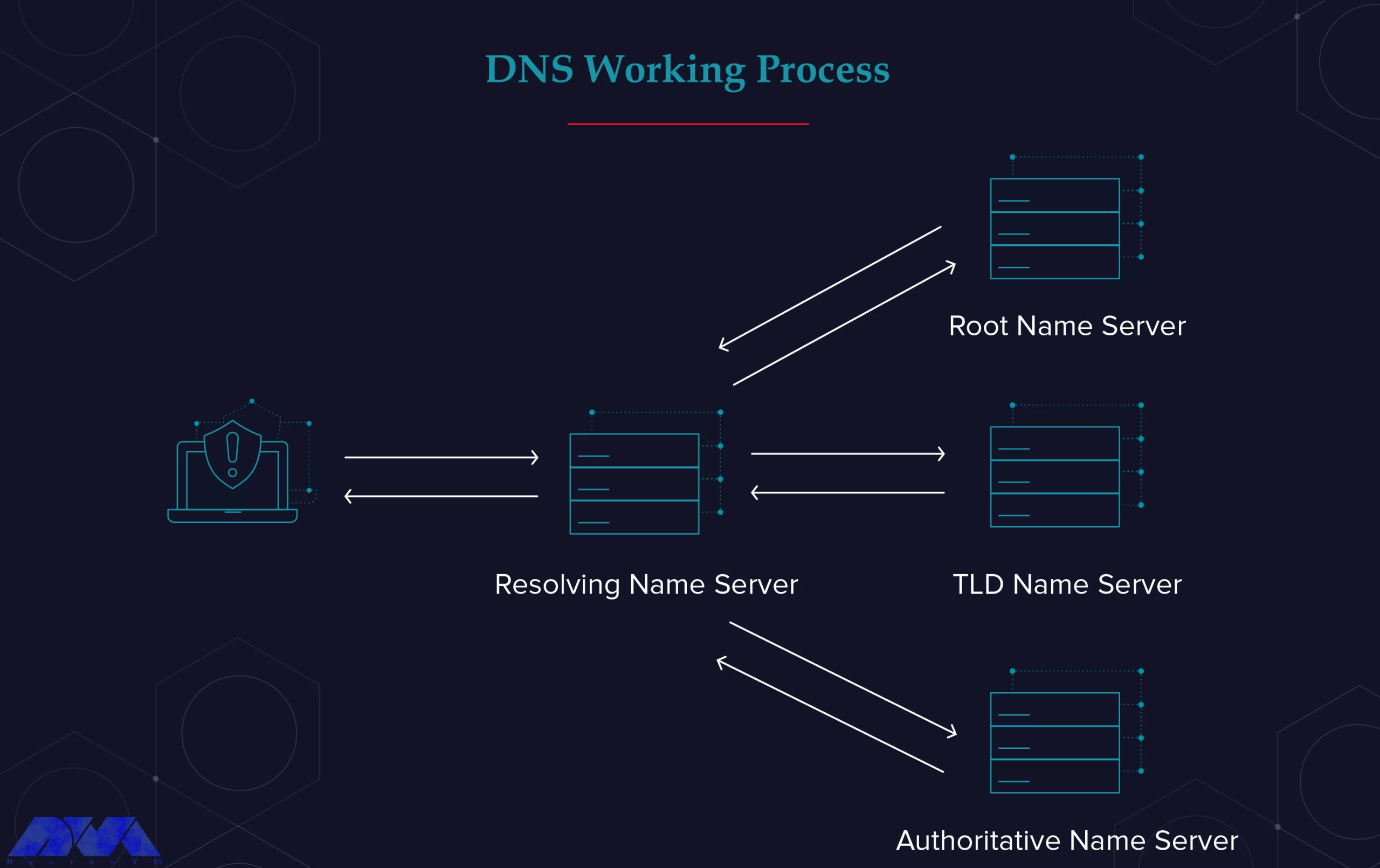
    DNS is a type of internet service and its function is in a way that it can be used to assign a domain name to an IP address and vice versa. DNS translates the domain name to a specific IP so that the initiating client can download the requested internet resources. this system actually works like a phone book.

    what is dns server

    Here we’re going to use Bind as a flexible, open-source, and full-featured DNS software that works as a valid DNS server and is responsible convert domain names to IP addresses.

    Configure DNS Server on Debian 11

    First, we recommend you choose and purchase a plan from the Linux VPS server plans provided on the NeuronVM website to configure DNS Server on Debian 11. Then install the Debian 11 operating system on it.

    Before you start the configuration part, you should install a DNS server which here is Bind, and follow the steps below:

    1. Installing Bind DNS Server

    The first step before starting the installation process is to update the Debian 11 system. You can run the following command to update your system:

    sudo apt update -y

    Now, you are ready to install the DNS server. Here we use the name bind9 for our DNS server and you can find it in the default base repository. To install this server use the APT command:

    sudo apt-get install -y bind9 bind9utils bind9-doc dnsutils

    2. Configuring Bind Master DNS Server

    /etc/bind/ is the configuration directory for Bind9. This directory is holding both configuration files and Zone lookup files. On the other hand, /etc/bind/named.conf is a global configuration that is not used for local DNS configuration. You can use /etc/bind/named.conf.local instead.

    Creating Zone

    In this section, you can use /etc/bind/named.conf.local file and create zones by editing the content of this file. For this reason, you can choose your favorite editor like Vim. Use the following command to install Vim:

    sudo vim /etc/bind/named.conf.local

    To create forward and reverse zone. You can create an entry for your forward zone for neuronvm.local domain. Then replace it with your set domain name:

    zone "neuronvm.local" IN { // Domain name
    type master; // Primary DNS
    
     file "/etc/bind/forward.neuronvm.local.db"; // Forward lookup file
    
     allow-update { none; }; // Since this is the primary DNS, it should be none.
    };

    As you can see, in this file forward.neuronvm.local.db is the name of forward lookup zone.

    Here, to create a forward zone for neuronvm.local.db follow the instructions below. In the exciting file, add the lines you see below instead of your parameters such as the front area:

    zone "1.168.192.in-addr.arpa" IN { //Reverse lookup name, should match your network in reverse order
    type master; // Primary DNS
    
     file "/etc/bind/reverse.neuronvm.local.db"; //Reverse lookup file
    allow-update { none; }; //Since this is the primary DNS, it should be none.
    };

    The name of the reverse DNS in the file above is 1.168.192.in-addr.arpa. Also, reverse.neuronvm.local.db is the reverse DNS lookup zone.

    3. Configuring Bind DNS Lookup Files

    If you want to keep DNS records for both forward and reverse zone, use lookup zones.

    The first step here is to create the front area lookup file, which we copy the sample zone lookup file as below:

    sudo cp /etc/bind/db.local /etc/bind/forward.neuronvm.local.db

    We have syntax here and all domain names end with a dot (.)

    Here are some acronyms that you should understand:

    _ MX: To show mail for exchange

    _ A: To show A record

    _ CN: To show the canonical name

    _ SOA: To show starting of authority

    _ AS: To show the name server

    Here, you can see how to edit the zone file:

    sudo vim /etc/bind/forward.neuronvm.local.db

    You should change it as per your set domain name:

    $TTL 604800
    @ IN SOA ns1.neuronvm.local. root.ns1.neuronvm.local. (
    3 ; Serial
    604800 ; Refresh
    86400 ; Retry
    2419200 ; Expire
    604800 ) ; Negative Cache TTL
    ;
    ;@ IN NS localhost.
    ;@ IN A 127.0.0.1
    ;@ IN AAAA ::
    ;Name Server Information
    @ IN NS ns1.neuronvm.local.
    ;IP address of Name Server
    ns1 IN A 192.168.1.12
    ;Mail Exchanger
    neuronvm.local. IN MX 10 mail.neuronvm.local.
    ;A – Record HostName To Ip Address
    www IN A 192.168.1.13
    mail IN A 192.168.1.14
    ;CNAME record
    ftp IN CNAME www.neuronvm.local.

    Here, also we have some acronyms:

    _ PTR: To show the pointer

    _ SOA: To show starting of authority

    Use the /etc/bind directory to copy your sample reverse zone file called reverse.neuronvm.local.db:

    sudo cp /etc/bind/db.127 /etc/bind/reverse.neuronvm.local.db

    Then, edit the content of your file:

    sudo vim /etc/bind/reverse.neuronvm.local.db

    Now, in the file, replace your IP and domain name in the proper way:

    ; BIND reverse data file for local loopback interface
    ;
    $TTL 604800
    @ IN SOA neuronvm.local. root.neuronvm.local. (
    3 ; Serial
    604800 ; Refresh
    86400 ; Retry
    2419200 ; Expire
    604800 ) ; Negative Cache TTL
    ;
    ;Name Server Information
    @ IN NS ns1.neuronvm.local.
    ns1 IN A 192.168.1.12
    ;Reverse lookup for Name Server
    12 IN PTR ns1.neuronvm.local.
    ;PTR Record IP address to HostName
    13 IN PTR www.neuronvm.local.
    14 IN PTR mail.neuronvm.local.

    4. Checking Bind DNS Syntax

    Use the instructions below to check the syntax of created config files. We will use named-checkconf to check syntax and if you encounter no error, the command will return to shell:

    By doing the following steps, you can check the syntax of forward and reverse zone files:

    – For forwarding zone files use:

    sudo named-checkzone neuronvm.local /etc/bind/forward.neuronvm.local.db

    – For reverse zone files, use:

    sudo named-checkzone 1.168.192.in-addr.arpa /etc/bind/reverse.neuronvm.local.db

    You should note that the serial output from both checks should be the same. If not, edit the configuration part.

    By using the following command, you can restart and enable the Bind DNS server:

    sudo systemctl restart bind9
    sudo systemctl enable bind9

    For checking the status of your service, go through this command:

    systemctl status bind9

    5. Testing Bind DNS Server

    For testing your DNS you can go to a client machine and add a new DNS IP address in /etc/resolv.conf file:

    sudo vim /etc/resolv.conf

    Now you can add the DNS IP address:

    nameserver ***.***.*.**

    Save changes and Exit. Then go on as shown here.

    We have two options to use in this section:

    nslookup and dig command

    dig www.neuronvm.local

    Use the command below to confirm your reverse lookup:

    you -x ***.***.*.**

    Conclusion

    In this article, we tried to show how to configure DNS server on Debian 11. After a successful installation, now you know how to configure the DNS server yourself. A DNS server is very useful for admins who have applications to communicate over domain names. We hope you enjoy this tutorial.

    FAQ

    Is DNS the same as address IP?

    It is the resolution of a domain name to an IP address through a DNS server.

    Do we have a DNS for every IP address?

    Every domain has DNS and this DNS is pointing to servers that redirect different domains.
  • How to Buy Admin RDP with Perfect Money

    How to Buy Admin RDP with Perfect Money

    Perfect Money is one of the most used and popular electronic payment methods worldwide. This service helps users to transfer money safely and quickly through the internet. Here, we tried to prepare a full guide to show how you can buy Admin RDP using perfect money on Neuronvm. You can follow the instructions step-by-step and get your Admin RDP service. It is also possible to buy RDP this way. So stay with us to learn how to do this together.

    Reasons to Buy Admin RDP

    Using Admin RDP has positive effects on the functioning of your system, and you can obtain optimal security and speed by providing this service from the NeuronVM website. Admin RDP allows users to remotely manage and use the Windows system, as the admin of the server, on any device in any other location. So, you can connect to other servers using the internet or a local network.

    Buying RDP from NeuronVM allows you to get the best RDP servers from all over the world such as the US, UK, Germany, Netherlands, Canada, France, and many other Regions.
    Steps to Buy Admin RDP on NeuronVM

    After a short explanation about Perfect Money and Admin RDP, let’s see how you can buy this service. Follow the step-by-step guide to having an easy process.
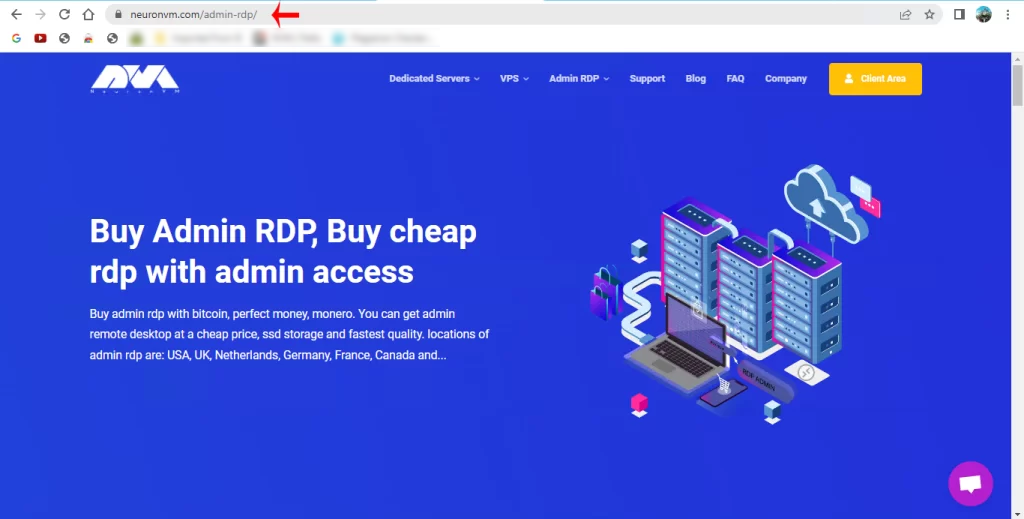
    1- The first step is to visit our site and click on the Admin RDP tab.
    Buy Admin RDP on NeuronVM

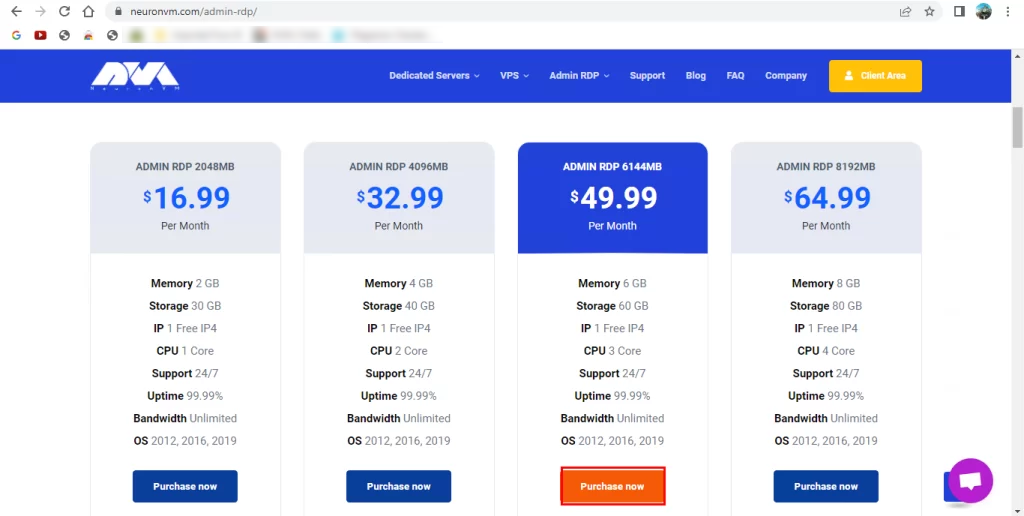
    2- Then you will see different plans for this service. Select the plan you prefer to buy and click on the Purchase Now tab to go to the next step.

    Neuronvm admin rdp plans

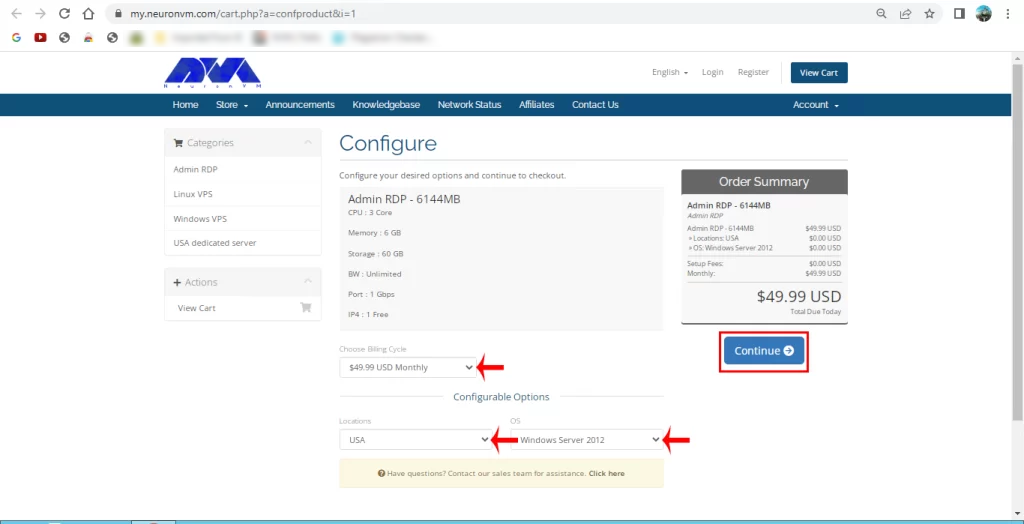
    3- In this section, you will see the configuration part. As we specified, choose the Billing Cycle of your payment, the location of your server, and the proper Operating System then click on continue:

    buy Admin RDP with Perfect Money - configure section

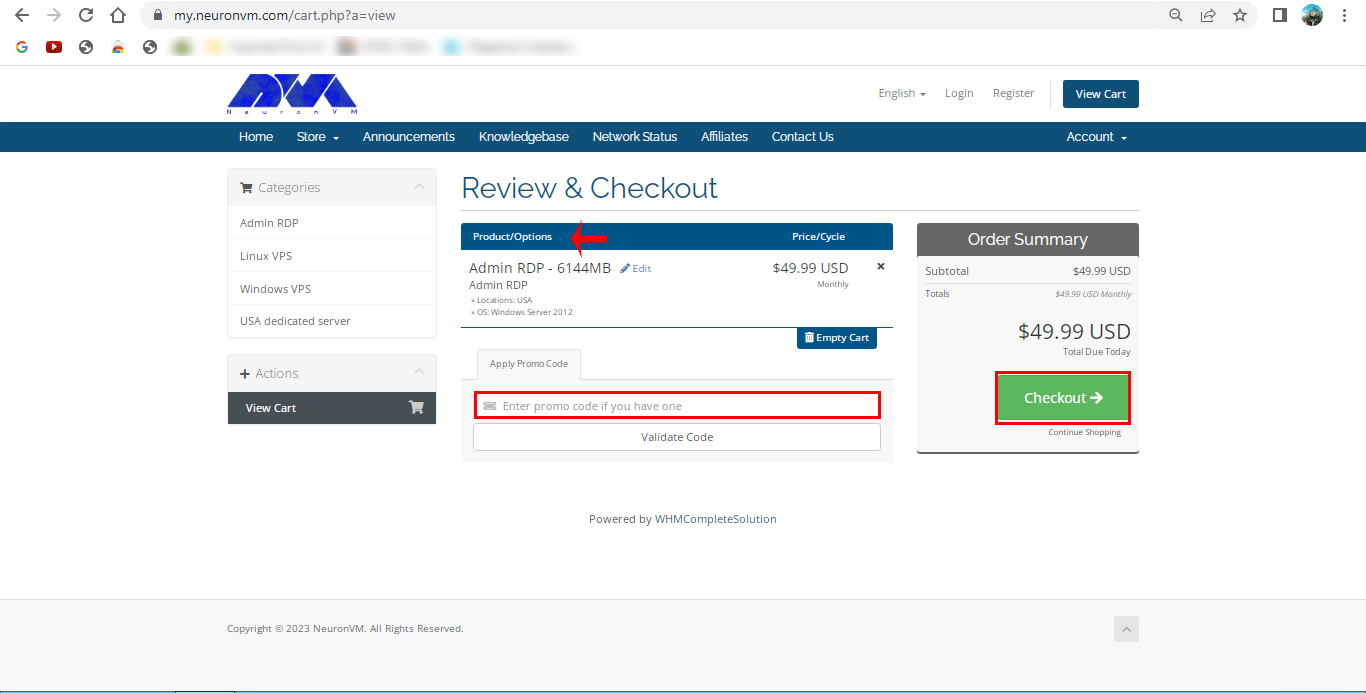
    4- In the Review and Checkout section, you can review the details of the chosen product. Also, you can enter your Promo Code in the related box and go to the next step by pressing Checkout:

    review and checkout - buy Admin RDP with Perfect Money

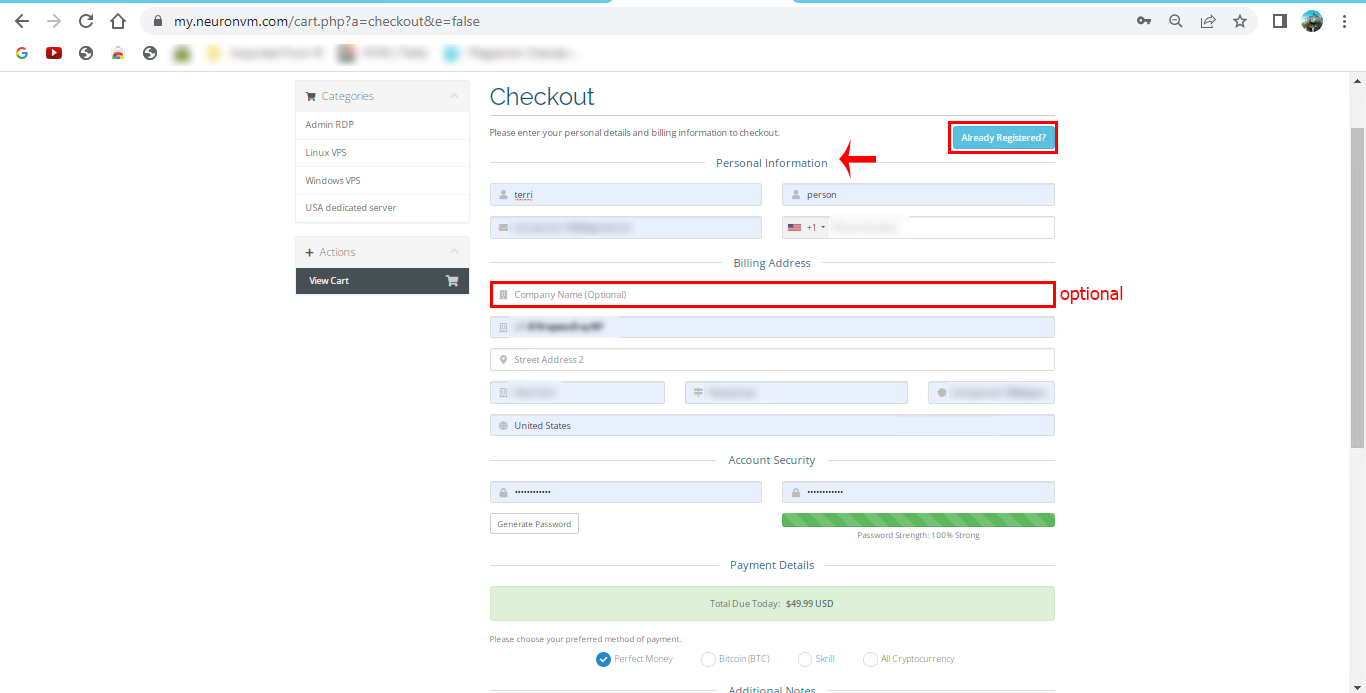
    5- Here, you must enter the required information, so that you can continue the process. But if you have registered before, just press the Already Registered button:

    TIP: Company name is optional so you don’t have to feel this part.

    how to register on neuronvm

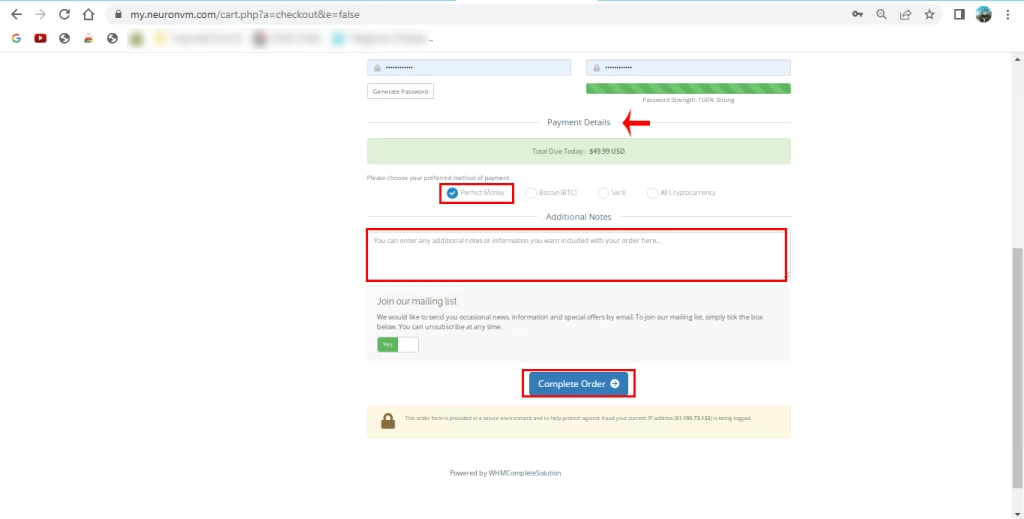
    6- At the bottom of this page and after giving the related information, you can choose the payment method and if there are any additional notes, add them to the explanation box and press Complete Order:

    Note: We choose Perfect Money as our payment method.

    register on neuronvm

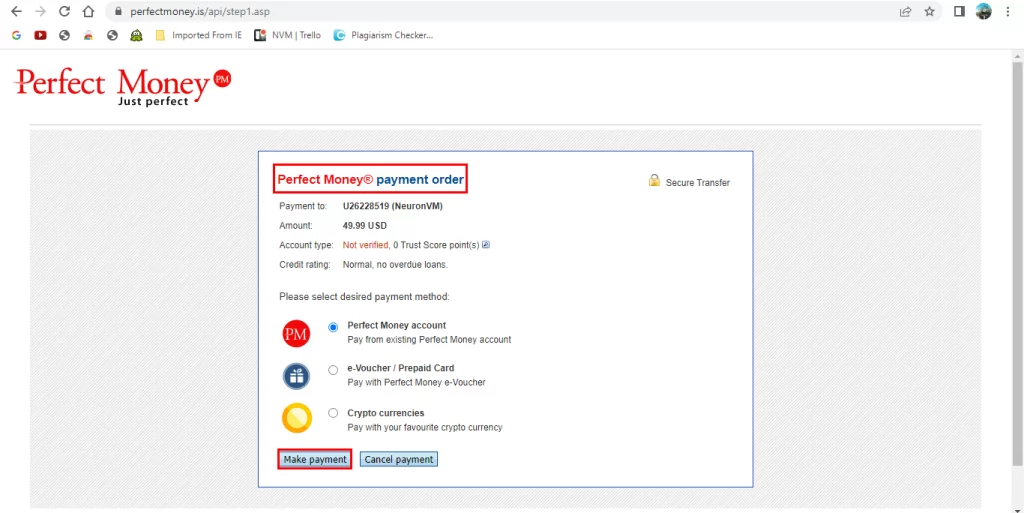
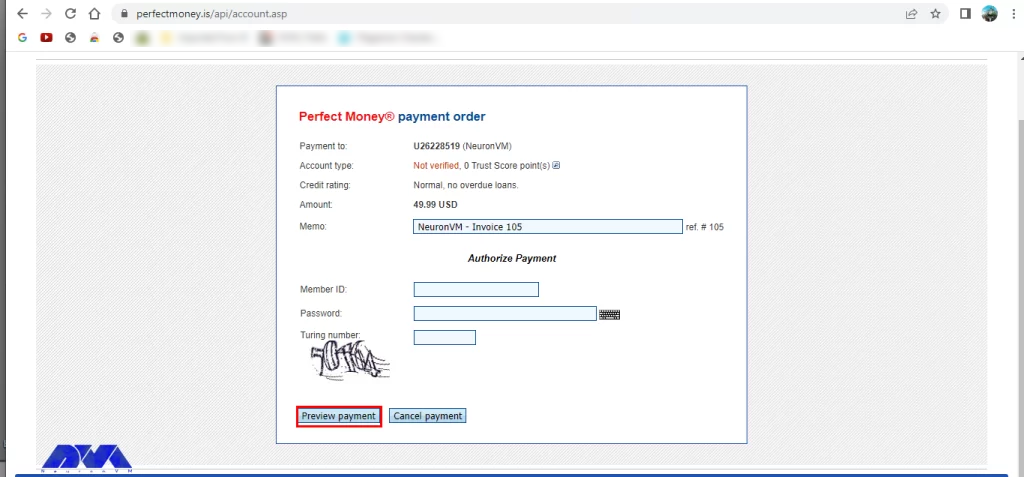
    7- This is the last part. In this section, you should do the payment. Choose the Perfect Money icon and press Make Payment:

    perfect money payment

    As the last step, fill in the related parts and do the payment:

    buy Admin RDP with Perfect Money

    As a result, the details of your payment will be sent to your email account and you will get your service as soon as possible.

    Conclusion

    This article helped you easily and simply to learn how you can buy an Admin RDP service. As we mentioned before, This service is a great tool to monitor and manage other devices or systems remotely. If you have any questions or problems with this issue, please share them in a comment.

    FAQ

    Is Admin RDP supported by NeuronVM?

    NeuronVM has 24/7 support for all its services.

    Why do we need to use Admin RDP?

    This service is the global standard and easy to use. Also, it’s affordable among other operating systems.

  • The Best Solution to Install PhpStorm on Admin RDP

    The Best Solution to Install PhpStorm on Admin RDP

    The purpose of this article is to show how to install PhpStorm on Admin RDP. PhpStorm is a functional and powerful integrated development environment (IDE) that is used to work on large-scale development projects. Many features can be considered for this platform. Also, if you learn how to work with PhpStorm, you can strengthen your programming skills and develop your career in this field.

    How to Install PhpStorm on Admin RDP

    Now that you know what is PhpStorm, it’s time to learn how you can install it on Admin RDP. But first, you need to prepare some requirements:

    Prerequisites

    – An Admin RDP Server

    – Minimum of 2 GB free RAM (8 GB is recommended)

    – Multicore CPU is the ideal

    – 3.5 GB disk space

    Use the ToolBox App

    You can use the JetBrains Toolbox program to install the products. So, you can use Jetbrains to install multiple products or multiple versions of the same product containing early access program (EAP), remove easily any tools or nightly release of products, and so on. This program keeps the list of all your projects and allows you to open your project in the appropriate IDE.

    Installing The ToolBox App

    Follow the steps below to install the ToolBox app:

    First, you should download the installer .exe. You can get it from the official web page of the toolbox app.

    Then, it is time to execute the installer wizard and follow the related steps.

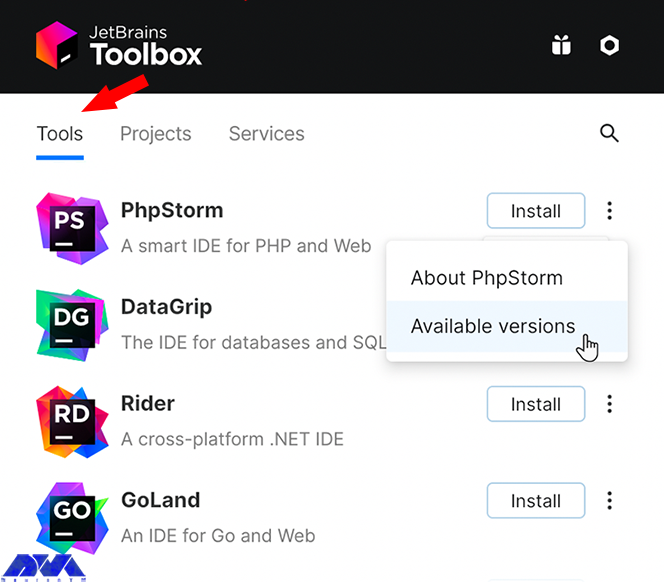
    Here you can see the toolbox app. Choose the toolbox icon and select the product you want to install.

    If you are looking for a specific one, click the option which is shown in the below image and select Available versions.

    Installing The ToolBox App

    Login to your Jetbrain account through the toolbox app to install the necessary permissions automatically.

    Note that if you used the toolbox app, you can find the installation directory there.

    Standalone Installing process

    In a standalone installation, you can do it manually and manage the location, also you can configure files. To figure out this method, follow the instructions below:

    You should start by downloading the installer .exe.

    The next step is to execute the installer and go through the wizard steps.

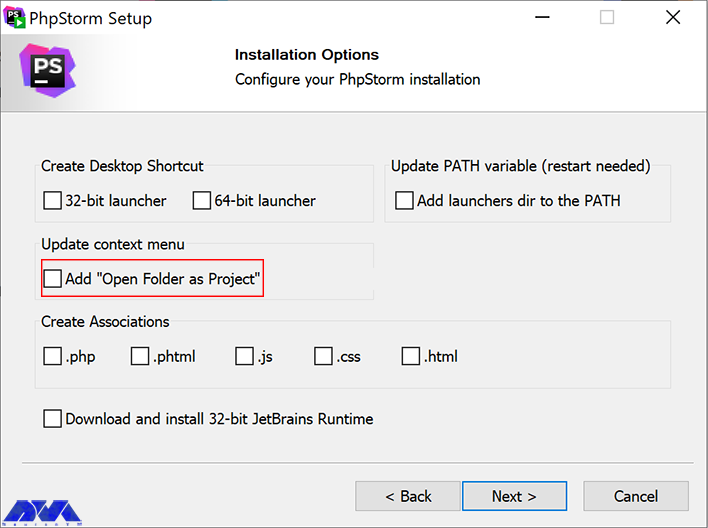
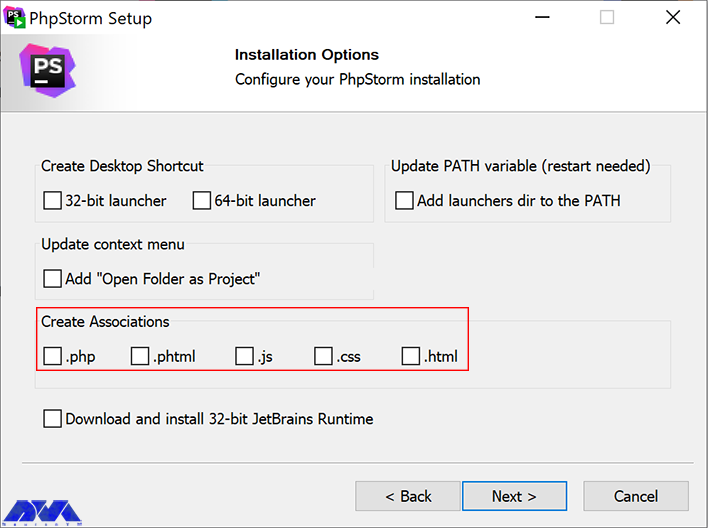
    Do the actions below on the installation options:

    – To Setup PhpStorm create a desktop shortcut.

    – Use the PhpStorm command-line launchers to add the directory to the PATH environment variable to work with them from any directory in the command prompt.

    – In setup section select Add the open folder as a project option under the context menu:

    Standalone Installing process of phpstorm

    – Then you should associate file extensions that you need. This way you can open them by double-clicking:

    Install PhpStorm on Admin RDP

    Tip: To find and start PhpStorm, go to the start menu or use the desktop shortcut.

    For extra and detailed information about PhpStorm usage, go running PhpStorm for the first time.

    Silent Installing Process on Windows

    If you choose the silent installation method, you should know that there is no user interface. This method is suitable for network administrators, which is performed on a number of machines and prevents disruption to other users.

    Use the switches below to do the silent installation:

    /S: To enabling silent installation

    /CONFIG: To clarify the path to silent configuration file

    /D: To lead to the installation directory

    Tip: This parameter should not contain any quotes. For instance:

    PhpStorm-*.exe /S /CONFIG=d:\temp\silent.config /D=d:\IDE\PhpStorm 

    You can add the /LOG switch file to the LOG path and put a name between /S and /D parameters. To check for problems during the installation process. For instance:

    PhpStorm-*.exe /S /CONFIG=d:\temp\silent.config /LOG=d:\JetBrains\PhpStorm\install.log /D=d:\IDE\PhpStorm

    Instructions for silent configuring file

    Go to https://download.jetbrains.com/webide/silent.config to download the default configuration file. This file unifies the installation option for you. This setting is for the current user. That is you should set the mode to user. If you want to consider all users set the mode on admin and run the installer.

    Note that the configuration file settings are specific to each JetBrains product. But you can enable or disable this option. Also, you can perform the silent installation without the configuration file.

    How to Run PhpStorm

    In the previous part, you learned how to install PhpStorm. Here, we will explain how to run this platform on your system, So follow the instructions.

    Using the toolbox app is easy for running process Cause you can use it for any product, But if you desire to use a standalone installation, you should go through some steps depending on your operating system.

    First, go to the start menu or use the desktop shortcut. Another way is the launcher batch script or running the installation directory under Bin.

    To run the PhpStorm from the command line go to the command-line interface.

    Run PHPStorm - Install PhpStorm on Admin RDP

    Configuring the Default settings

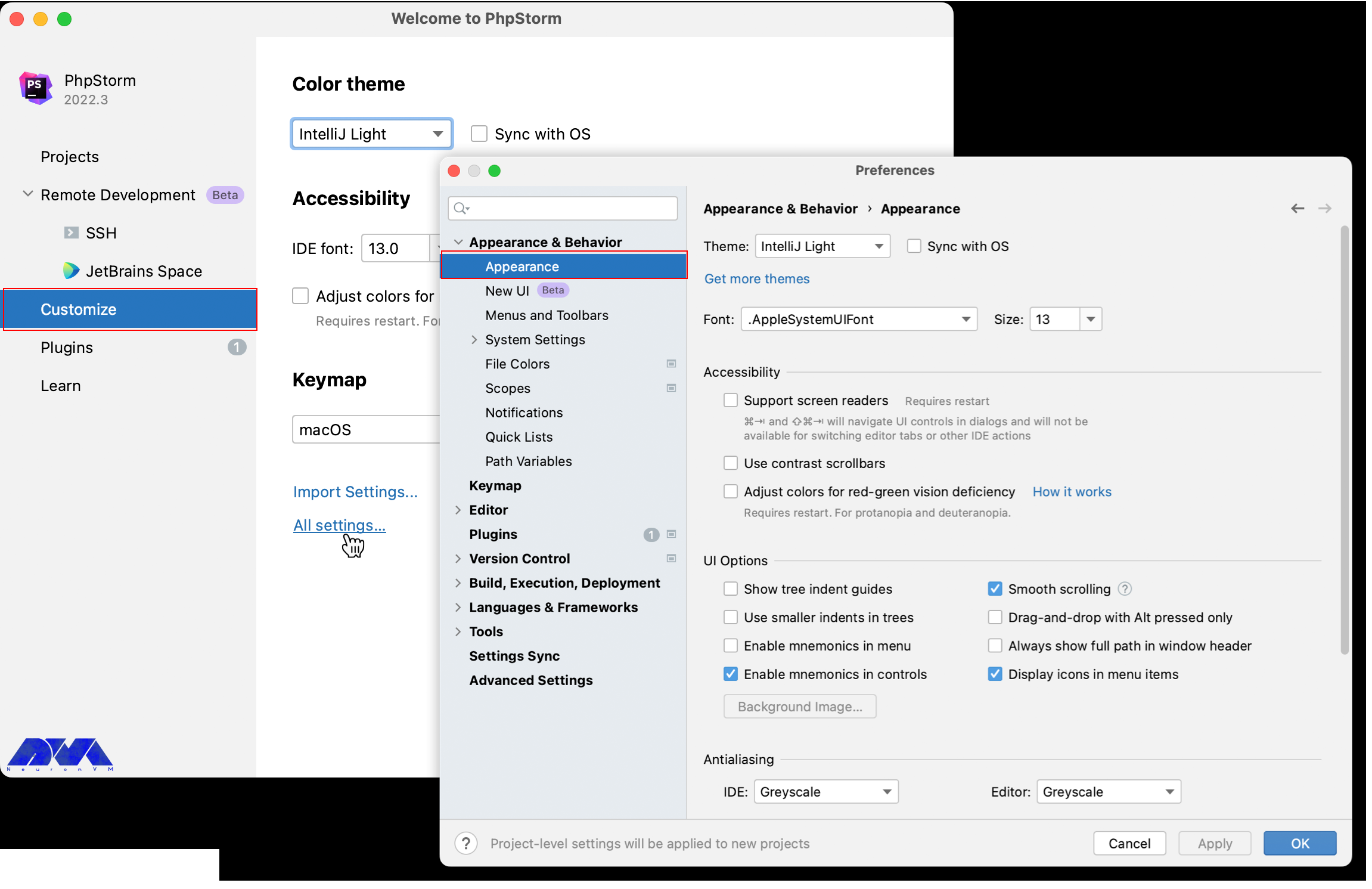
    Go to Customize > import settings. Also, you can click all settings options and open setting dialogs to modify this part:

    Configuring the Default settings - Install PhpStorm on Admin RDP

    Installing Additional Plugins

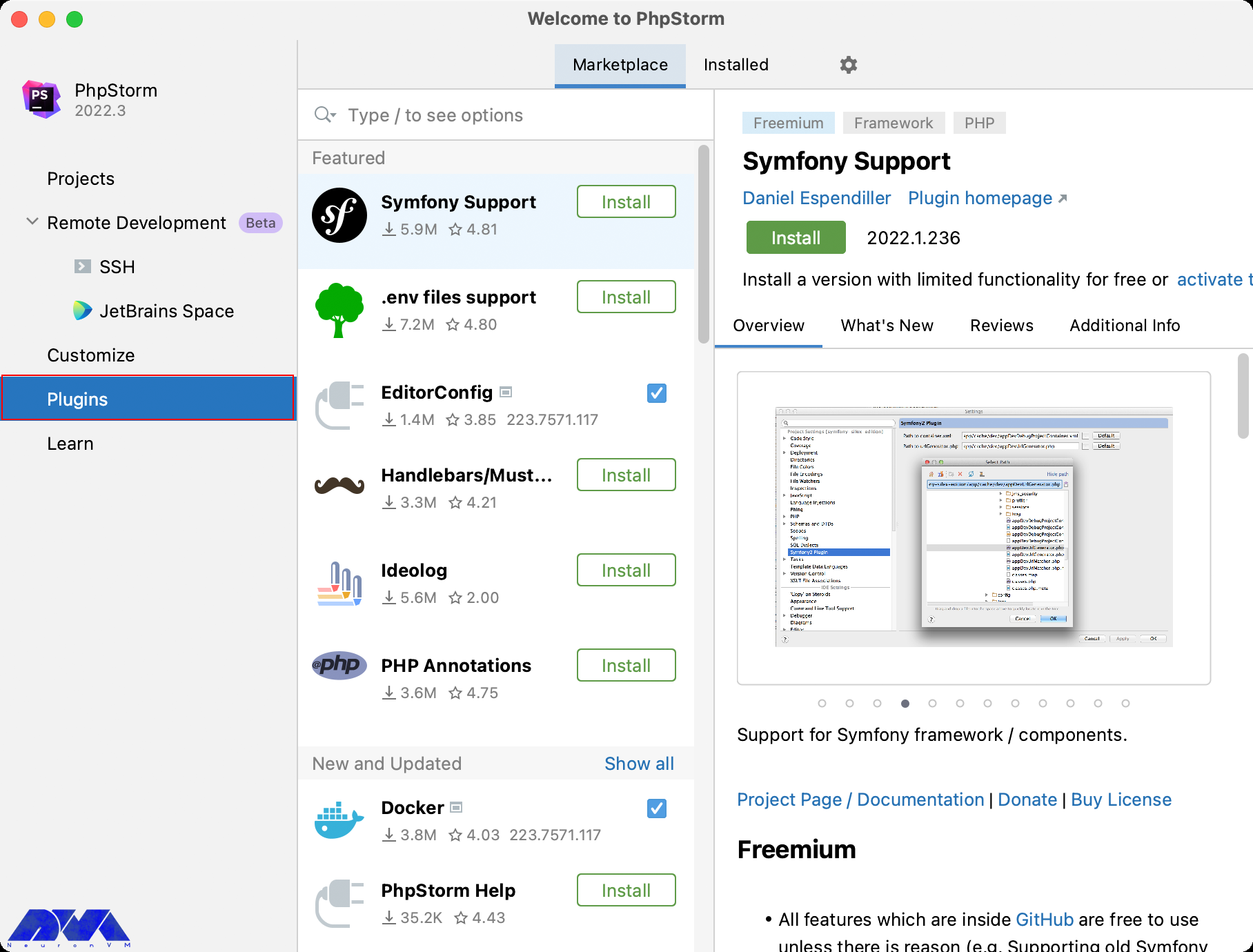
    You can see the plugins in the left side pane. Then you can install additional plugins from the PhpStorm plugins repository:

    Installing Additional Plugins - Install PhpStorm on Admin RDP

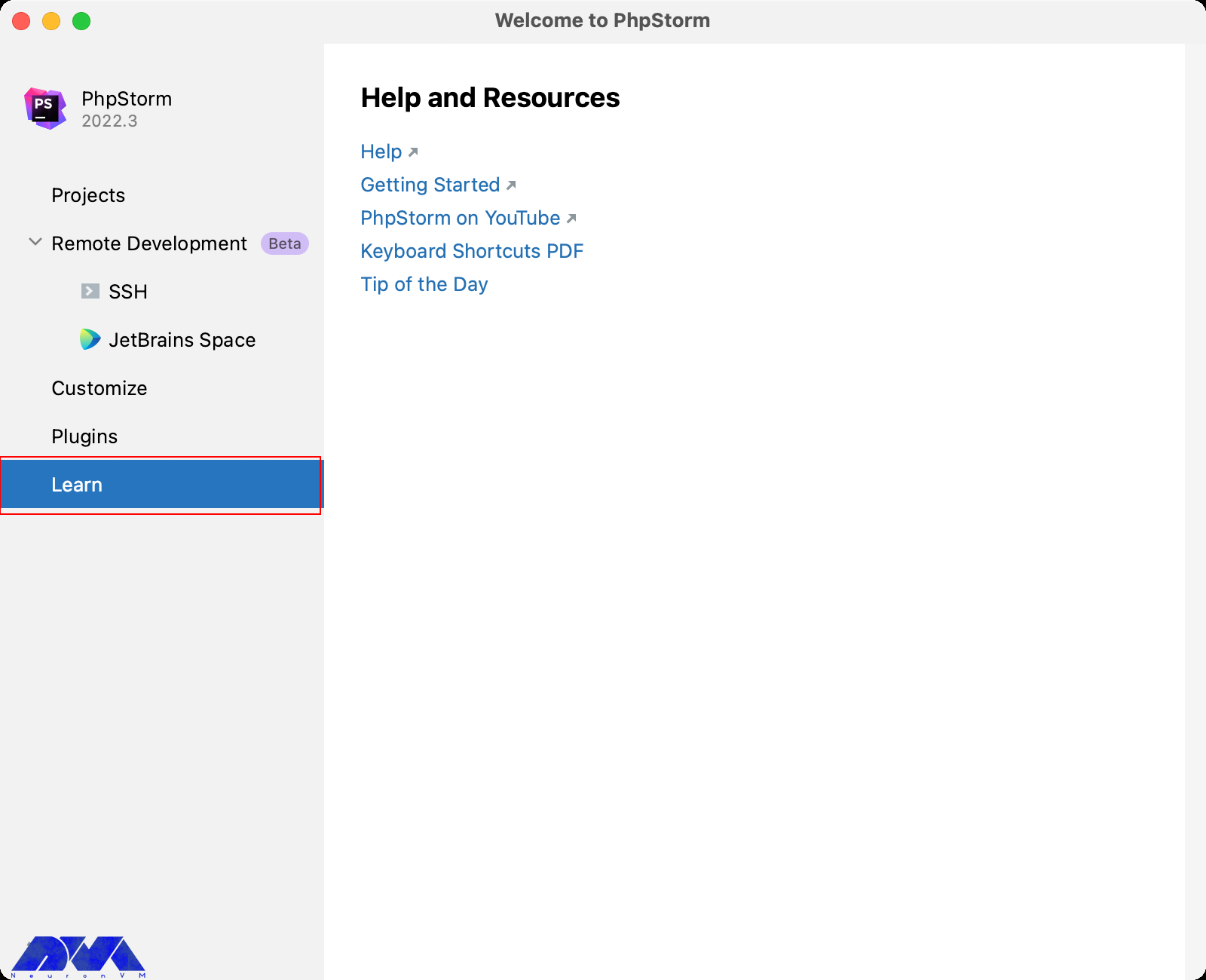
    There is another part which you can refer to get more information about shortcuts, features, and IDE workflows:

    Installing Additional Plugins of phpstorm

    You can click on the remote development option so that you can create a remote connection and handle other system issues.

    Starting A Project in PhpStorm

    To start your task follow the instructions below:

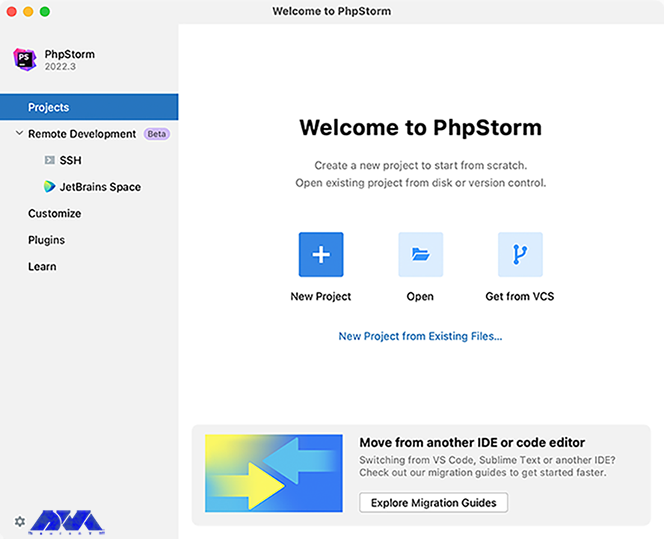
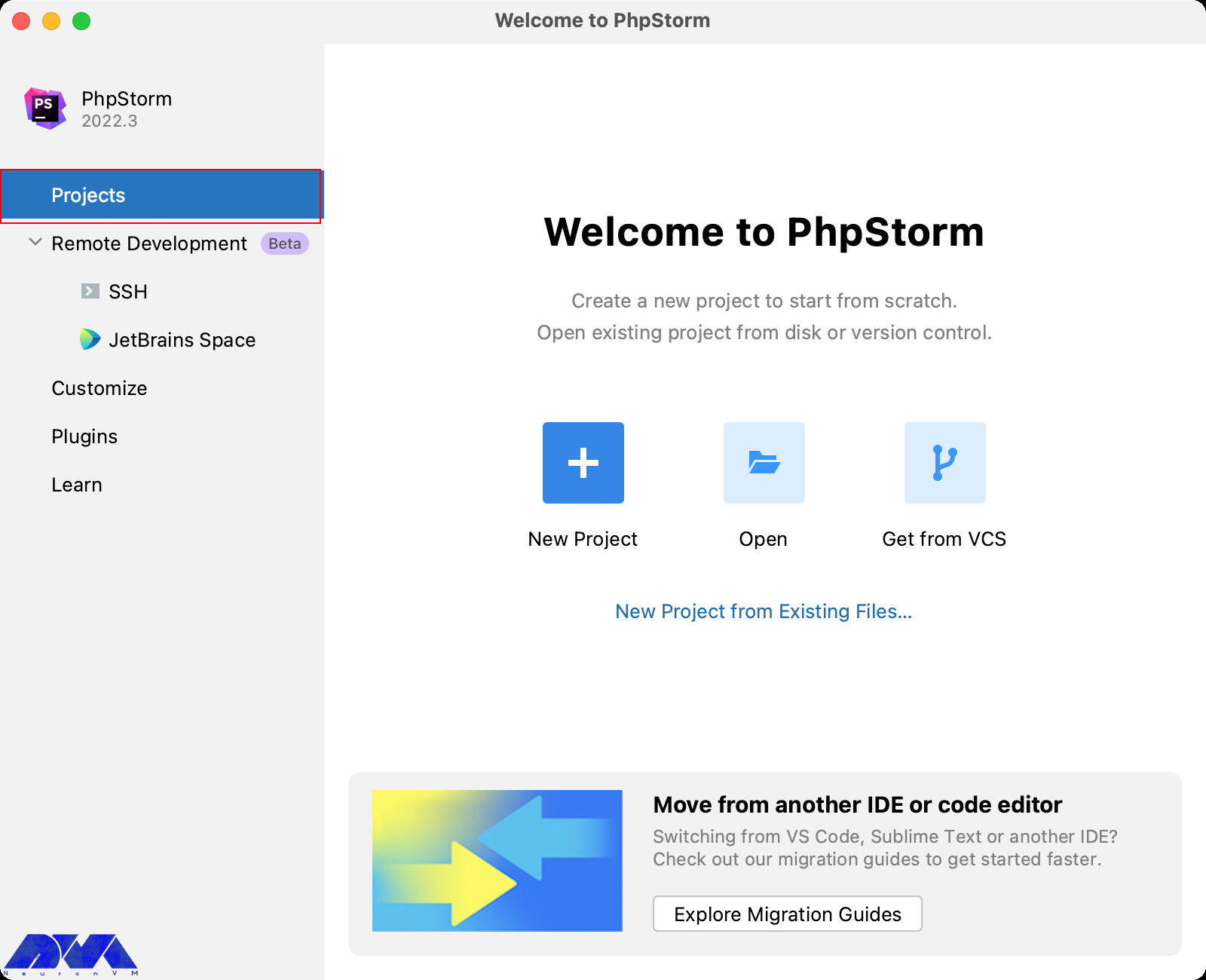
    – On your welcome page, go to the Project section and open a new project. Then receive your project from a version control system:

    new PhpStorm project

    Registration Section of PhpStorm

    You have 30 days to test PhpStorm. So go to your JetBrains account to start using the PhpStorm trial version. (logging will be done automatically )

    Go through the following instruction:

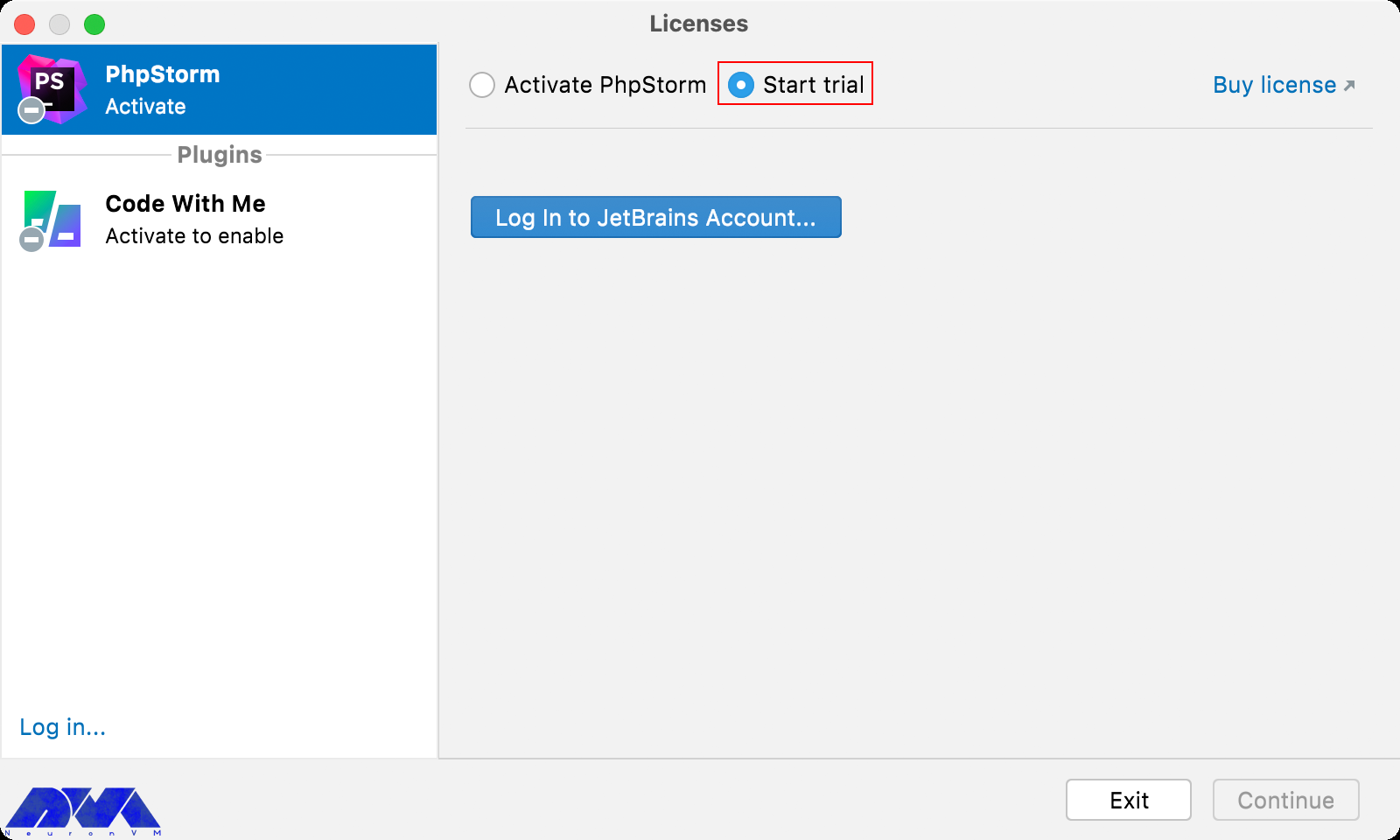
    1- Start your journey by license dialog. Select the start trail tab and click on log in to JetBrains account. As a result, you will see JetBrains website:

    start trial for registration phpstorm

    2- Here, you should choose the Start Trial button in the license dialog to start the period:

     Start Trial button in phpstorm

    Tip: After the expiration, you should buy the license to continue using PhpStorm.

    Activating PhpStorm License

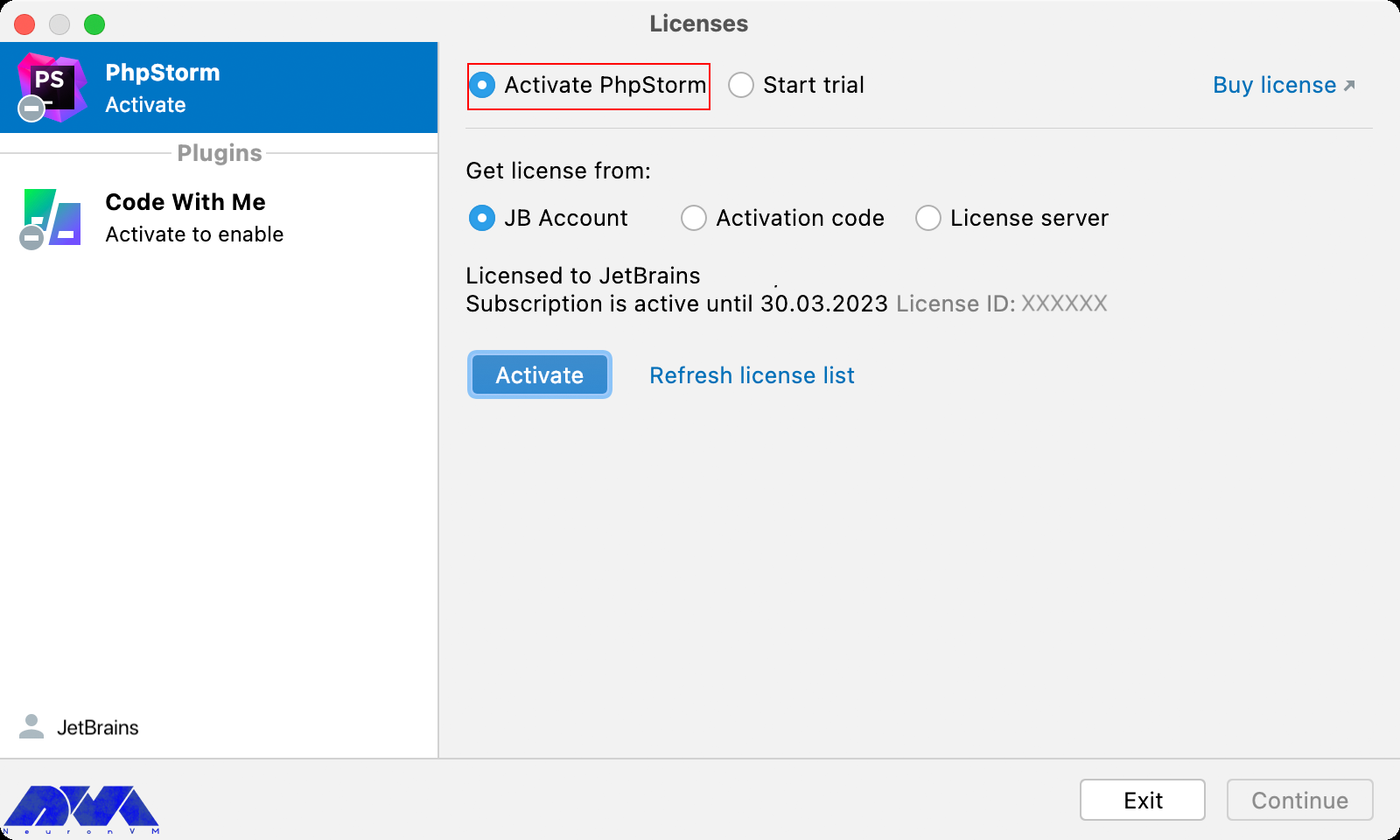
    Go to the main menu and select help>register part. Then click manage license on the welcome screen and open the licenses dialog.

    2- Select the registration type or a plugin that requires a license (PhpStorm shows the list of licenses automatically, so click activate to start using your license).

    Tip: If you don’t see the related list, click refresh license list.

    Changing the Active User

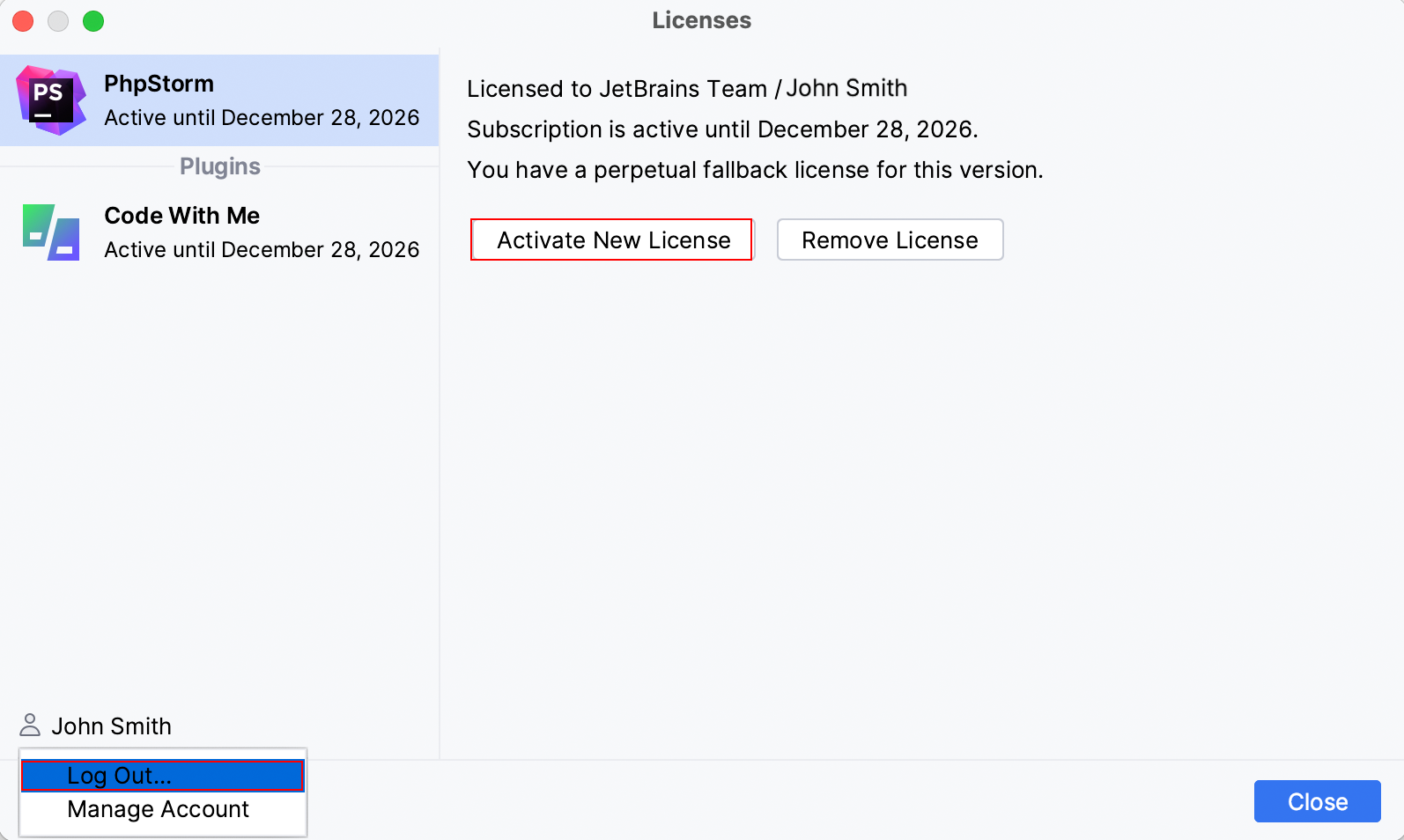
    As we mentioned before, You should click the welcome screen to open the licenses dialog.

    Now, you should click the name on the down left corner of the dialog and choose to log out:

    Changing the Active User

    As you logged out, you are able to register using another JetBrains account.

    Updating PhpStorm

    Generally, you can follow the instruction in this part to update PhpStorm:

    If your operating system is Windows go through this way: file > settings > appearance and behavior > system settings > updates

    But if your system is MacOS: PhpStorms > settings > appearance and behavior > system settings > updates

    Also, you can use the Ctrl+Alt+S keys.

    Notice that if you installed PhpStorm using the ToolBox app, This tool will inform you and advise you to update the IDE when a new version is released.

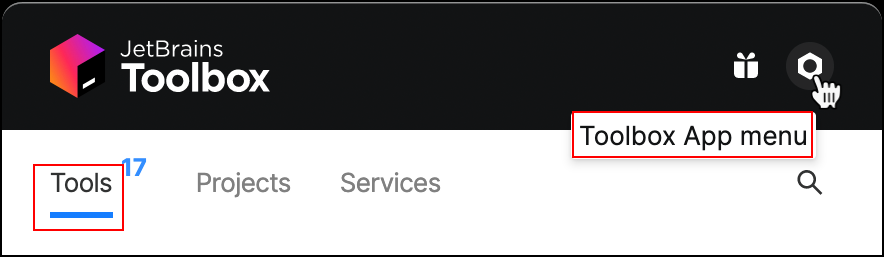
    – In the toolbox app, click on the menu icon. Then on the setting dialog, open the tools option and select update tools automatically:

    update on toolbox app

    Also, you can update every managed IDE instance separately. This way, follow the steps below:

    1- Open your toolbox app and choose the relevant IDE instance then select settings.

    2- Here you have two update channels: Release and Early Access Program.

    The first one updates only stable releases and the second one is for updating candidates, beta releases or EAP builds.

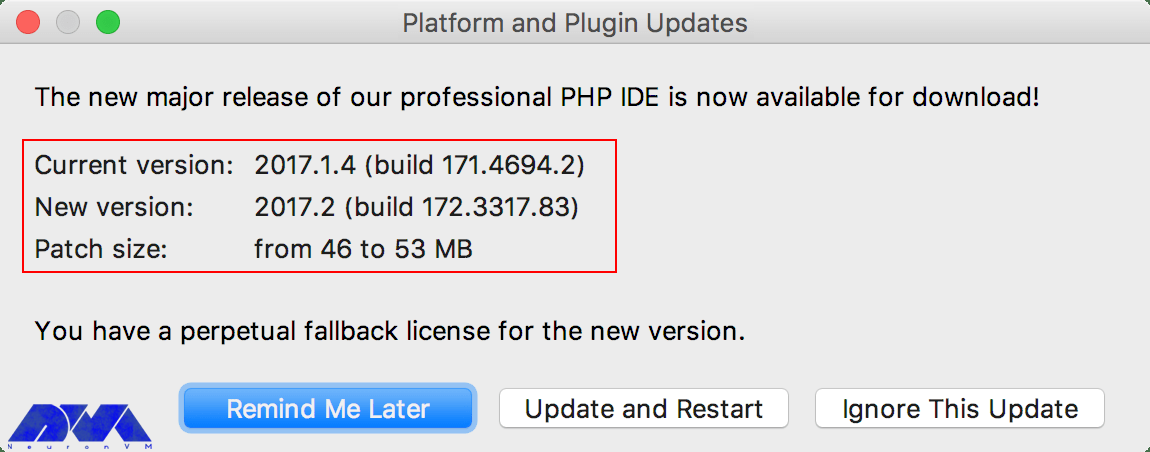
    If you are using a manual update, you should know that a standalone instance will manage to update the process itself. You will be informed if there is a new update.

    update using standalone instance

    Now to configure the updated policy go through this way: settings > appearance and behavior > system settings > updates.

    Uninstalling PhpStorm

    As we have different ways to install PhpStorm, we will show you how to uninstall this tool in every method:

    Uninstalling in ToolBox App Method

    Follow the instruction below:

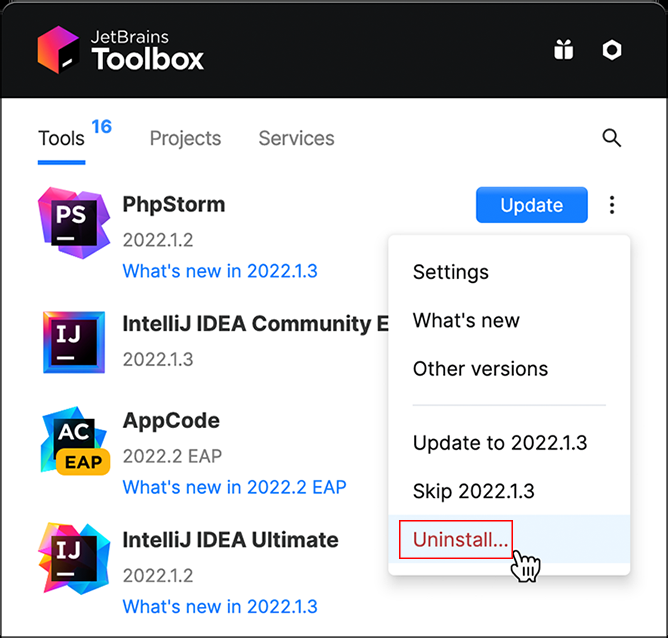
    In the toolbox app go to the setting icon and click on the icon which is showing on the image below, then select uninstall:

    Uninstall in toolbox app

    Uninstalling in Standalone Instance Method

    Go through this instruction: settings > apps & features > PhpStorm app > uninstall.

    Depending on your Windows version uninstalling is different. For manually uninstalling process:

    1- run the Uninstall.exe command under /bin.

    2- Then remove the directories below:

    Syntax
    %APPDATA%\JetBrains\
    %LOCALAPPDATA%\JetBrains\

    Example:

    C:\Users\JohnS\AppData\Roaming\JetBrains\PhpStorm2023.1
    C:\Users\JohnS\AppData\Local\JetBrains\PhpStorm2023.1

    Uninstalling Silently on Windows

    In this way, you can run the process with the /S uninstaller switch as an administrator. This uninstaller is in the installation directory under /bin.

    On the Windows command prompt, run cmd and change to the PhpStorm installation directory and run the following command:

    bin\uninstall.exe /S

    Conclusion

    Here, we tried to provide a full guide to teach the way to install PhpStorm on admin RDP. This article is made of different parts to show the installation process, ways to install PhpStorm, running part, registration guide, and at last the way to uninstall this functional tool. We hope this content was useful for you. If you have any questions, just leave a comment.

    FAQ

    Is it possible to use Phpstorm for free?

    This tool is a paid Java-based IDE developed by JetBrains.

    How much space do we need for PhpStorm?

    You need at least 200 GB of free space and 8 GB RAM and 4 CPUs.

  • Tutorial Install DirectAdmin on Rocky Linux

    Tutorial Install DirectAdmin on Rocky Linux

    DirectAdmin helps you manage your web server and website easily. Also, this control panel manages files and provides web server hosting, DNS, backup, and a database. Although DirectAdmin does not include many features of Cpanel, it is still cheaper. After reading this article, you will learn how to install DirectAdmin on Rocky Linux step by step.

    What Is DirectAdmin?

    As we explained before, DirectAdmin is a control panel for hosting websites and allows you to manage all aspects of your site. The technology which is used on this control panel is based on the solid LAMP stack. DirectAdmin is available to install and use on almost all popular Linux operating systems like FreeBSD.

    Prerequisites 

    – Having root access

    – A Linux VPS Server with the Rocky Linux operating system

    – Minimum of 2 GB free space

    – Minimum of 4 GB RAM 

    – 500 GHz CPU 

    Installing DirectAdmin on Rocky Linux

    Here are step-by-step instructions to install DirectAdmin. So follow this guide carefully to have this useful tool on your system.

    In DirectAdmin Installation, first of all, you must obtain the IP license of the server you intend to install. In this regard, you can go to the DirectAdmin website and create an account. Here, you will get a username and password. Now, create a trial license from the created user account and add the IP address of the server where you want this control panel to be installed.  

    Use the command below to find the server IP:

    ip a

    After creating the license, you should return to your Rocky Linux server and run the system update using the following command. This way, you can be sure all the system default packages are up to date. Also, the repo is flushed:

    dnf update

    Now, to install DirectAdmin, you should log in as a root user and run the following script. So, there is no need to go through many commands to do this task cause everything is preconfigured in this script:

    bash <(curl -Ss https://www.directadmin.com/setup.sh || wget -O - https://www.directadmin.com/setup.sh) auto

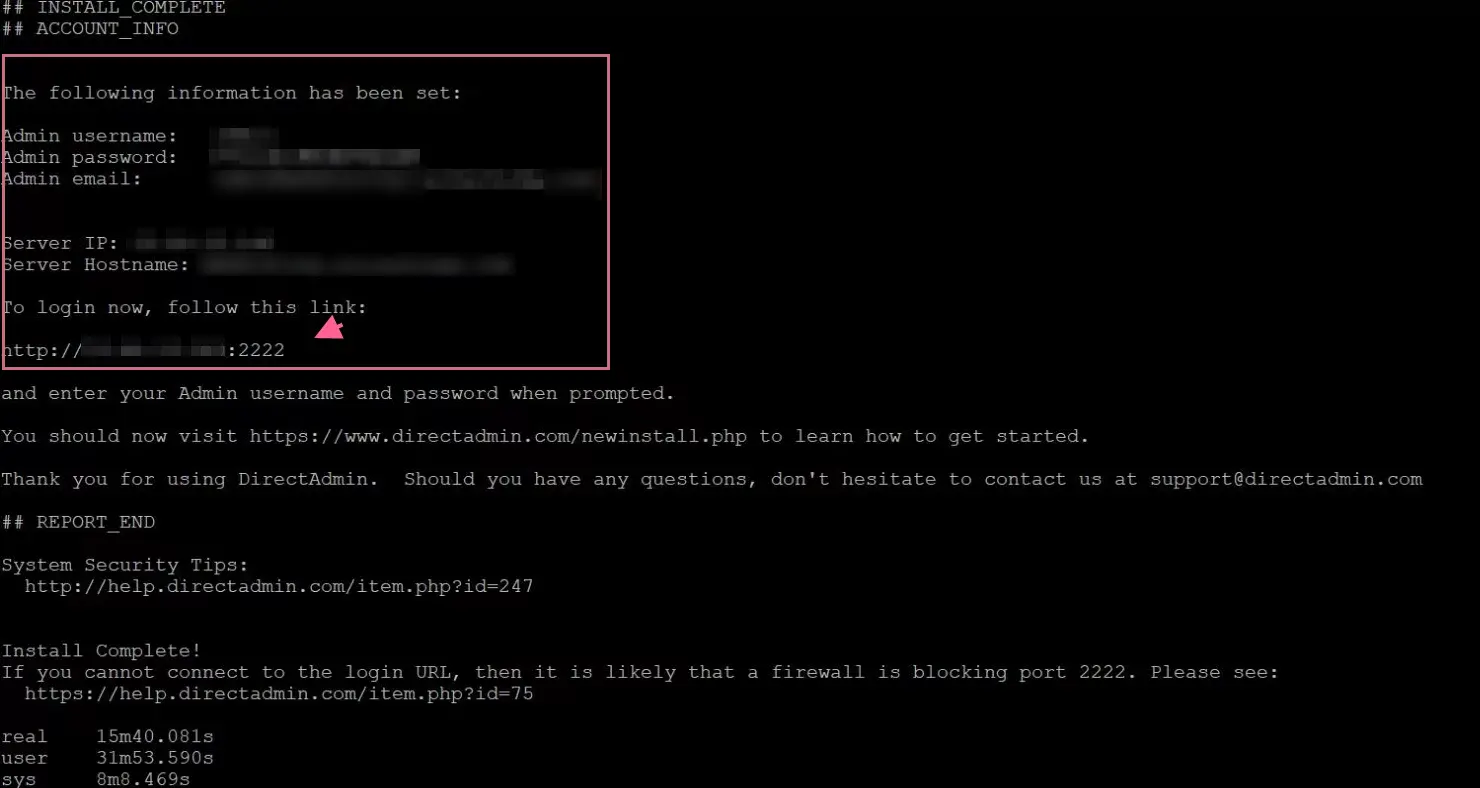
    When you have finished the installation part successfully, it’s time to set by entering the admin username and password along with the login URL, which is your server IP and 2222 port:

    install directadmin on rocky linux

    In case, you don’t have your password or forget it, then there is a command which will help you to recover it.

    So login to the server as root user and run one of the commands below:

    grep adminpass /usr/local/directadmin/scripts/setup.txt

    or

    cat /usr/local/directadmin/scripts/setup.txt

    How to use DirectAdmin

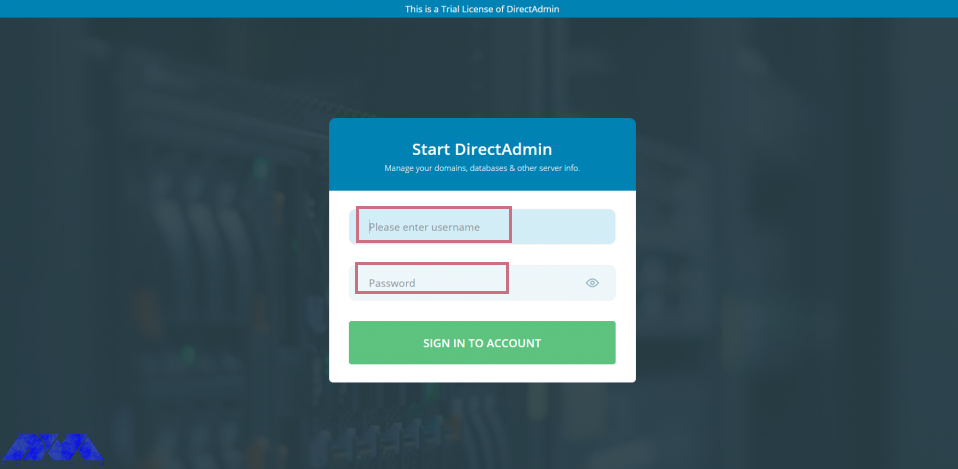
    You can use any system browser to access your server IP address along with the 2222 port:

    http://your-server-ip-address:2222

    Tip: Open the 2222 port in the system or cloud firewall if you can’t access the web interface:

    start direct admin

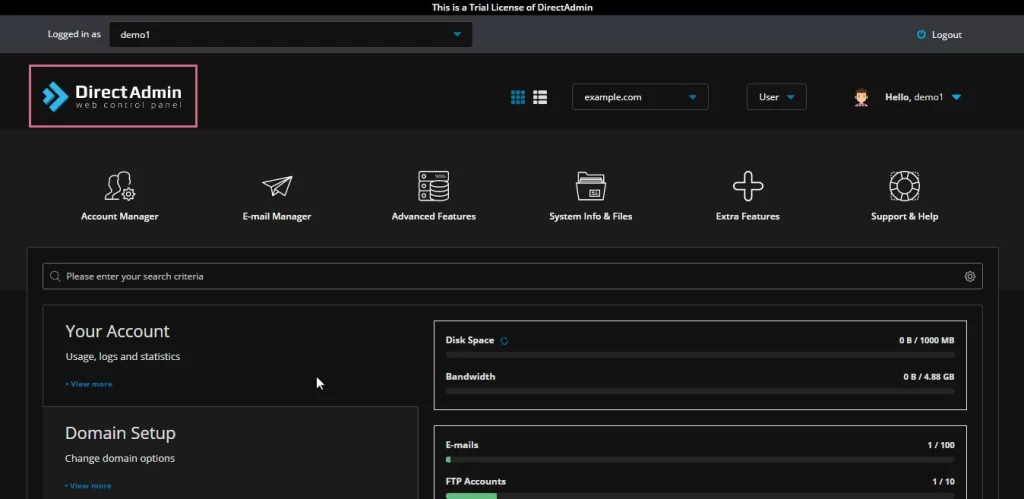
    As the final step, you can see the interface to create user, manager domains, reseller, and all other settings:

    direct admin dashboard

    Conclusion

    In this article, you learned how to install DirectAdmin on Rocky Linux. Now, you are familiar with this useful control panel, and you can manage your website easily. We hope you enjoy it. For any question or idea, just leave a comment.

    FAQ

    How can we Uninstall DirectAdmin?

    It is not possible to uninstall DirectAdmin completely. So you have to reinstall your server if you need another web control hosting panel.

  • Introduction and Run Screaming Frog on Admin RDP

    Introduction and Run Screaming Frog on Admin RDP

    Screaming Frog is a website crawler that plays a role in the SEO optimization of your site by extracting and checking the data on the site. After reading this article you will learn how to Run Screaming Frog on Admin RDP. So, read this article carefully and you will see how useful it is for your website. We have to mention that this plugin is really valuable for search engine optimization. because it is helpful to analyze the site’s structure and find technical problems.

    What Is Screaming Frog?

    You can use the screaming frog plugin (SEO spider) to crawl websites and collect data about them. It is a kind of quick SEO audit tool, and famous companies like Amazon, Google, Disney, and Apple all use screaming tools. So As you notice, Screaming Frog crawls small and large websites for you.

    Features of Screaming Frog

    1- Unlimited list mode

    2- Reporting the crawl pass

    3- The ability of AJAX to crawl

    4- The ability to edit page titles and meta descriptions by SERP snippet emulator

    5- SERPmode

    7- The ability of auditing XML sitemap

    and so on.

    Prerequisites

    1- An Admin RDP server

    2- Equipped with 64-bit or 32-bit OS

    3- 4 GB RAM.

    Installing Screaming Frog on Admin RDP

    Screaming Frog is available in operating systems such as Windows, Mac, and, Linux. The first action to install this plugin is to decide which operating system you have and then download it. We are going to install it on the Admin RDP server.

    How to Download Screaming Frog

    The first action is to go to the screaming frog download page. Then click download under SEO spider and select your operating system which here is Windows. Most likely the downloaded file will take place in the downloads directory accessible through file explorer.

    Installation Process

    The file you downloaded is an executable file that runs to execute SEO Spider. Now, as the first step, go to your downloads folder as mentioned above and double-click on the downloaded file as you can see here:

    Installation Process

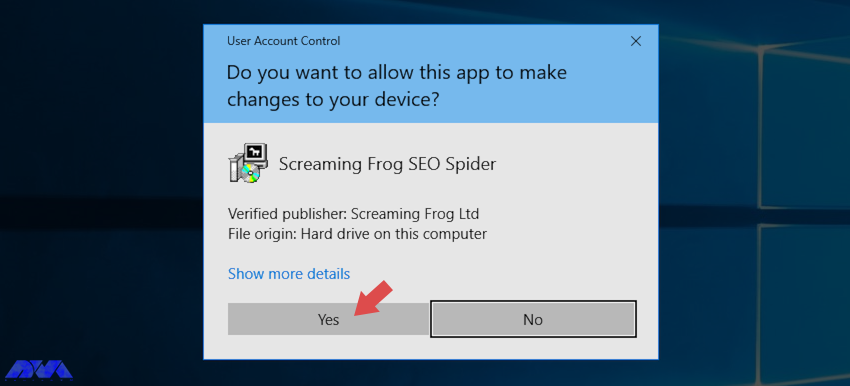
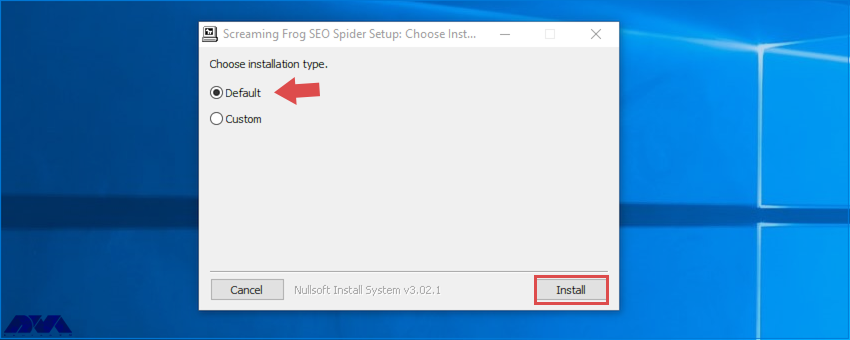
    Just click Yes and choose the Install button as you see on the screen below:

    Installation Process

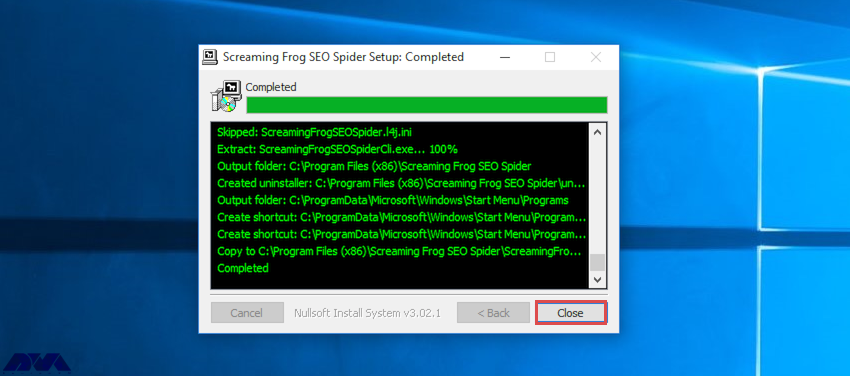
    The installation will start, and the necessary files of SEO Spider will be copied into your system. As you finished this part, the screen below will appear on your computer and you should press close to end your task:

    Installation Process

    Run Screaming Frog on Admin RDP

    You can run SEO spider (screaming frog) using one of the two ways:

    1- GUI:

    In this way, you should go to the left downside of your screen on the start button and click on the search box to type SEO spider. As soon as you find it, click on it to start the program.

    2- Command Line:

    The first action here is to open a command prompt and type cmd or you can search programs and files for Windows command prompt and move into the SEO spider directory to enter related commands:

    32-bit

    cd "C:\Program Files (x86)\Screaming Frog SEO Spider" 

    64-bit

    cd "C:\Program Files\Screaming Frog SEO Spider"

    There is a separate build for SEO spider which is like ScreamingFrogSEOSpiderCli.exe. You can run it from a Windows command line and type:

    ScreamingFrogSEOSpiderCli.exe --help

    You can use the command below to view arguments and loggings out of the command line. So type the command below:

    –-help export-tabs, –-help bulk-export, –-help save-report, or –-help export-custom-summary

    And to start auto crawling action run the command here:

    ScreamingFrogSEOSpiderCli.exe --crawl https://www.example.com

    Then if you want to load any crawl just use this command:

    ScreamingFrogSEOSpiderCli.exe --headless --load-crawl "C:\Users\Your Name\Desktop\crawl.dbseospider"

    Conclusion

    We tried to guide you with the introduction and run Screaming Frog on Windrows admin RDP. As you start using this tool, you will use it as a helpful assistant for yourself. Hope you have enjoyed this article. Don’t forget to leave a comment and share your ideas with us.

    FAQ

    What is the limitation of using the Screaming Frog license?

    The licenses can be used by the same user on multiple devices and these licenses belong to every user.

    Is SEO Spider a free tool?

    Yes, it is free, but if you need to crawl more than 500 URLs and access advanced features, purchase a license.

  • How to Install Linux Mint on VirtualBox

    How to Install Linux Mint on VirtualBox

    If we want to recommend a suitable distribution for beginners, Linux Mint is definitely one of the best. This distribution is based on the Ubuntu operating system and is very stable. You can use this distribution as the main system for testing on a virtual machine. After reading this article step by step, you will learn how to Install Linux Mint on VirtualBox.

    Install Linux Mint on VirtualBox

    The first step here is to install a VirtaulBox on your system. If you use Windows, go to the official download page to download the exe file and install it from the page. But if your operating system is Linux, use the commands below to install it on your system.

    If your system is Ubuntu or based on Ubuntu, use the following command:

     sudo apt install VirtualBox

    If your system is Arch Linux, use the following command:

    sudo pacman -S VirtualBox

    And on the Fedora workstation:

    sudo dnf install VirtualBox

    As you have installed the software, it’s time to create a virtual machine.

    Enabling the Virtualization and Download the ISO File

    The Virtualizor may not be enabled by default on your system, in which case you need to enable it yourself. Of course, most systems have activated it. But if you encounter a problem at this stage, Follow the steps below:

    Now, you need to reboot your system. You should also check the boot menu to make sure that virtualization is enabled.

    Tip: You can also access the boot menu through the F2, F10, and F12 and delete keys, as you see the manufacturer information on the screen.

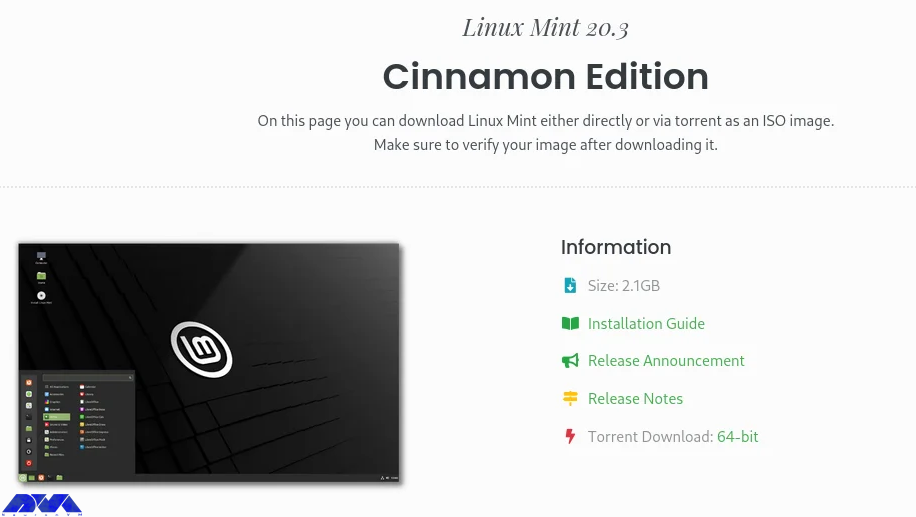
    Then, it’s time to download Linux Mint ISO from the official page.

    Enabling the Virtualization

    Creating the Virtual Machine

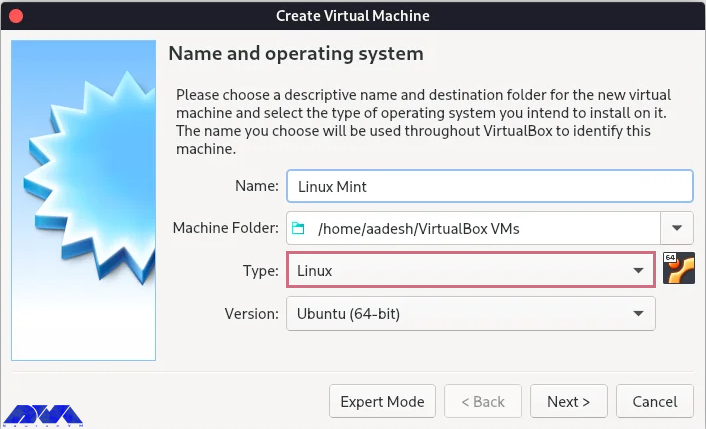
    After the downloading process, open your application and click on the new button. Here you should fill in the details of the given parts on the virtual machine (Linux Mint) and go to the next part:

    Creating the Virtual Machine

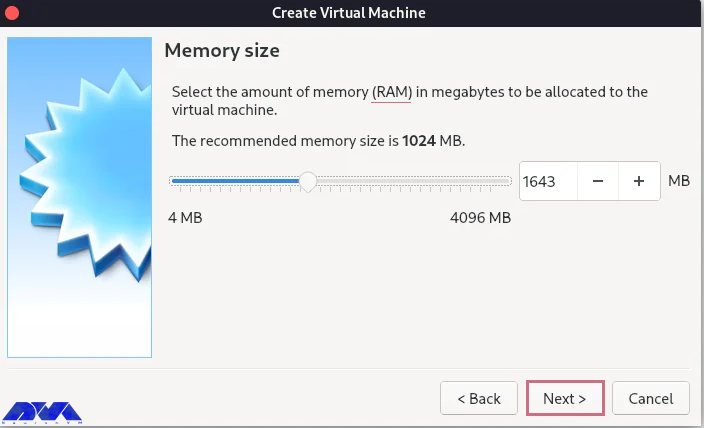
    Determine how much memory to use on your virtual machine and click the next button: (we recommend allocating 50% or less)

    Creating the Virtual Machine

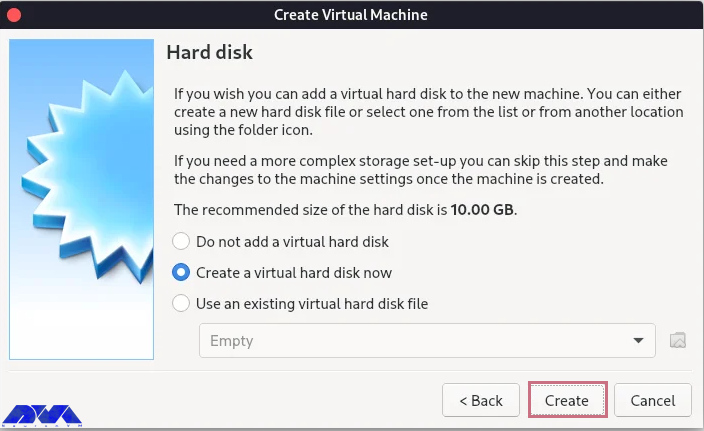
    Now, you will see the hard disk setting. do not change the default setting and select create:

    Creating the Virtual Machine

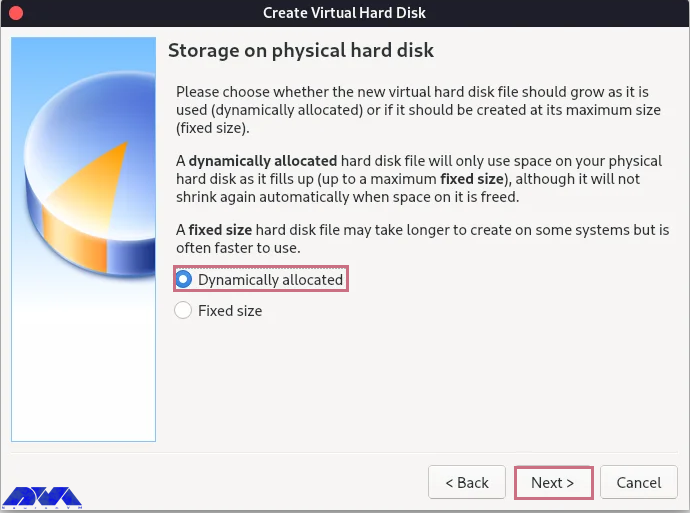
    You will go to the next menu. Again don’t change the default option. Then in the next section, stay on the Dynamically allocated option and click the next button:

    Creating the Virtual Machine

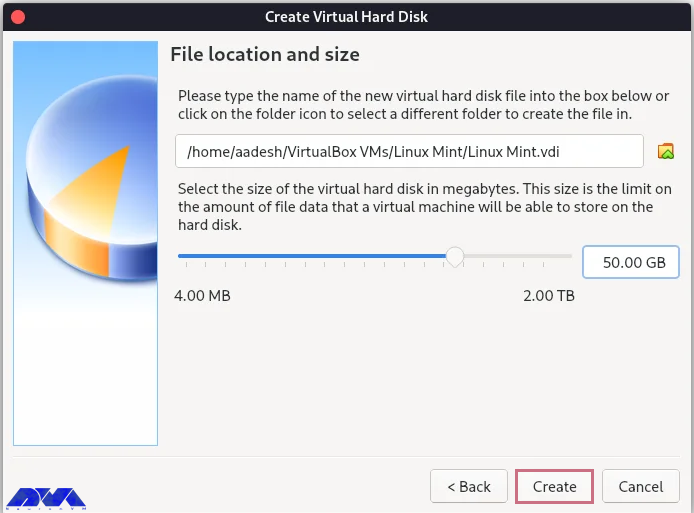
    In this section, you must select the size of the disk you need. If it is only for testing a new distribution, 30 GB will be enough. But if you intend to install software, 30 to 100 GB is recommended. After selecting the value, click the Create option:

    Creating the Virtual Machine

    Your machine is created, but you still have some work to do. Press the setting button to configure more options.

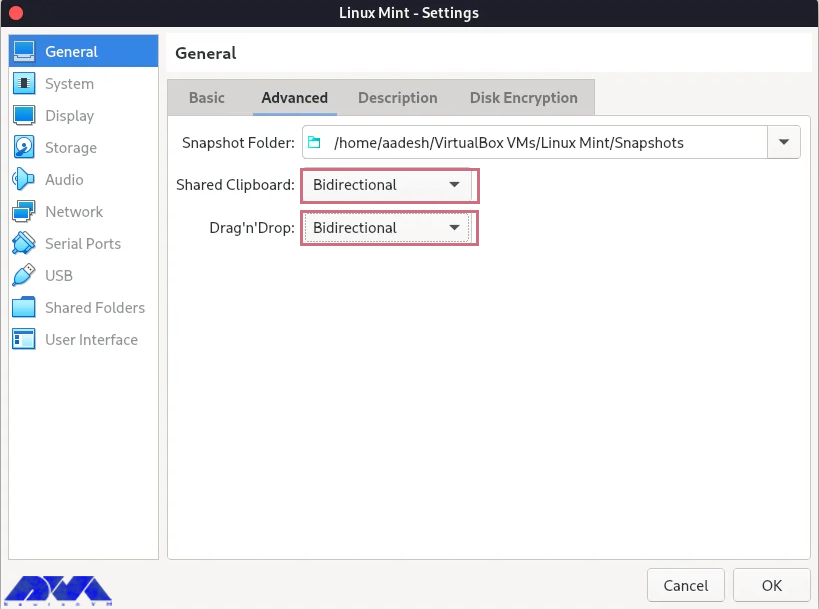
    Here you will see the dialog menu. Go to the General -> Advanced part and choose Bidirectional for both, shared clipboard, and drag and drop.

    Creating the Virtual Machine

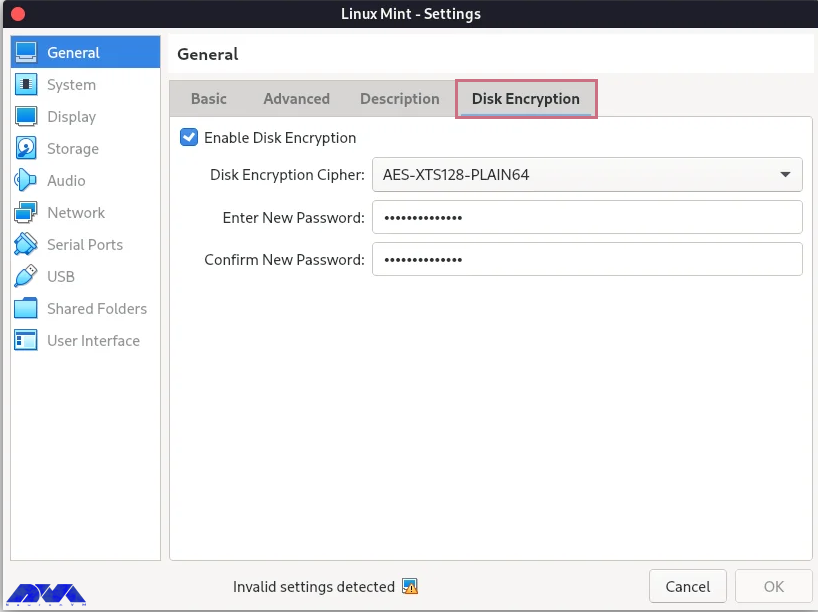
    You can enable disk encryption, but it is optional:

    Install Linux Mint on VirtualBox

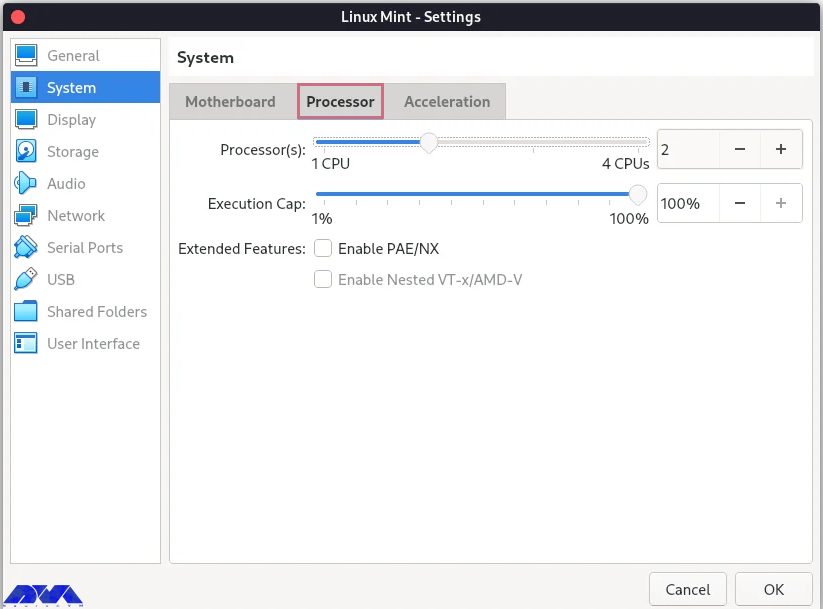
    You need to allocate at least 2 GB RAM and 2 CPU cores to the virtual machine:

    Creating the Virtual Machine - Install Linux Mint on VirtualBox

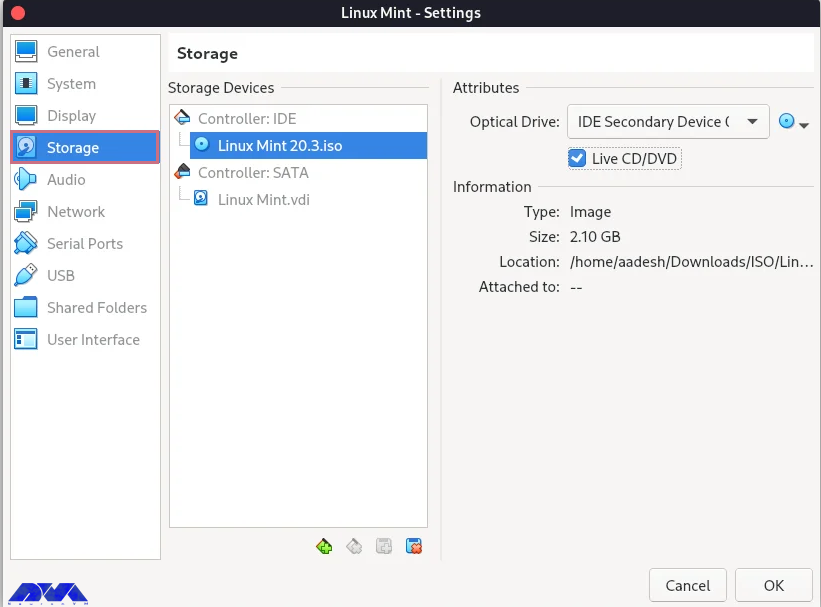
    This part is important. Go through this direction:

    Storage -> empty -> Live CD/DVD checkbox -> CD icon

    Then navigate to the download folder, select the Linux mint ISO, and press OK.

    Creating the Virtual Machine - Install Linux Mint on VirtualBox

    Installing Linux Mint on Virtual Machine

    Now you have your virtual machine, and you can install the Linux Mint operating system on it. So follow the instructions below:

    _ You can see the start button on top. Click on it to open the related window and make it full-screen.

    _ You will see two options: open-source and proprietary drivers. Then select open-source and press the enter key.

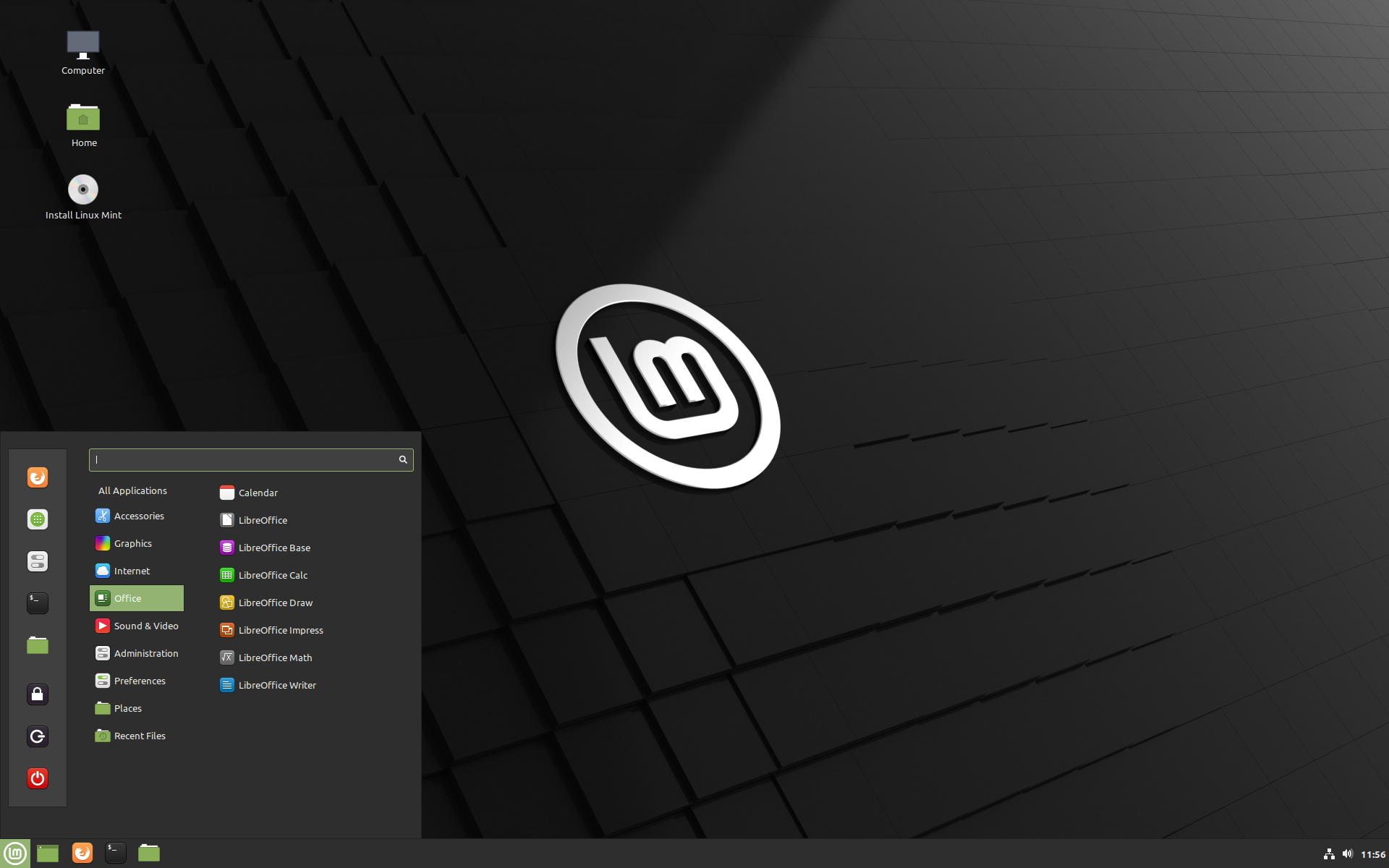
    _ As the Linux Mint Live CD booted up, start the installer and do the installation steps like selecting your language, allocating the disk space, choosing your locale and time zone, adding your hostname and password etc.

    _ At the final step, as the installation ends, restart your virtual machine:

    Install Linux Mint on VirtualBox

    You should separate the installation media from the Setting -> Storage part. Then to set the resolution of the VM, adjust it to the custom with the help of xrandr command:

    xrandr -s

    Conclusion

    In this tutorial, we tried to show how you can install Linux Mint on VirtualBox. This distribution is one of the best operating systems for beginners. You can follow the steps and images here to have a successful installation process. If you have any ideas or questions, just leave a comment.

    FAQ

    Does VirtualBox use RAM?

    VirtualBox uses the computer’s physical RAM for virtual RAM.

    Is using a VirtualBox safe for Linux?

    Yes, it is safe to use on every platform.

  • Top Way to Install Docker on AlmaLinux

    Top Way to Install Docker on AlmaLinux

    Docker is a free and open-source containerization tool that allows developers to package their applications in containers. The installation of these software packages can be done in the same way as the usual installation by the package manager of your operating system to download a program. The only difference is that Docker does everything automatically. After reading this post you will earn a top way to install Docker on AlmaLinux.

    Installing Docker on AlmaLinux

    After a little explanation about Docker, now we have a step-by-step guide for you, so you can install this useful tool easily.

    Prerequisites

    – A Linux VPS Server with the AlmaLinux operating system

    – Minimal 10 Gb free disk space

    – Sudo privileges with admin rights

    – Have a good internet connection

    – 2 GB RAM and 2 CPU/vCPU

    Step1. Uninstalling Podman and Buildah

    In order not to get confused and have an easy installation process, you should remove Podman and Buildah from your AlmaLinux system before installing Docker. You can use the following command:

    sudo dnf remove -y podman buidah

    Tip: If you don’t have them on your system as a default, skip this part.

    Step 2. Enabling Docker Repository

    You should use the following command to enable Docker official repository because the Docker package is not available in the default AlmaLinux:

    sudo dnf config-manager --add-repo=https://download.docker.com/linux/centos/docker-ce.repo

    Step 3. Installing Docker with dnf Command

    You can run the command below to install the latest Docker from the official repository:

    sudo dnf install -y docker-ce docker-ce-cli containerd.io docker-compose-plugin

    Step 4. Starting and Enabling Docker Service on ALmaLinux

    Now that you have installed Docker and its dependencies on your AlmaLinux system, you can start this tool and enable it using the following command:

    sudo systemctl start docker
    sudo systemctl enable docker

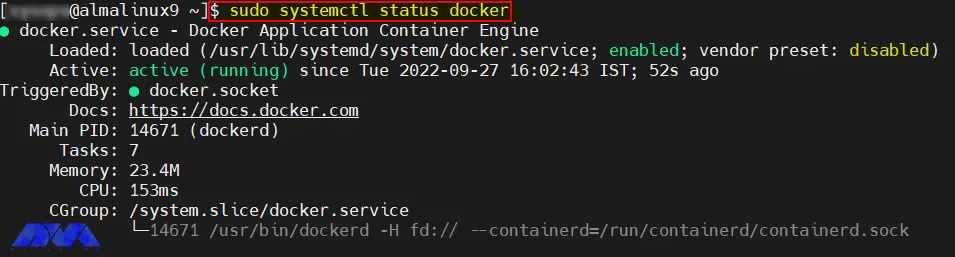
    Use this command to verify the Docker service:

    sudo systemctl status docker
    Docker-Service-Status-AlmaLinux

    You should use the Docker command without sudo for adding your local user to the Docker group:

    sudo usermod -aG docker $USER
    newgrp docker

    Use the following command to see the Dockers version:

    docker --version
    Docker version 20.10.18, build b40c2f6

    In addition, we have another easy and quick way to see how many Docker containers are running. Also you can see some of docker’s configured options:

    sudo docker info 

    Step 5. Testing Docker Installation

    If you want to test your Docker installation, use the following command:

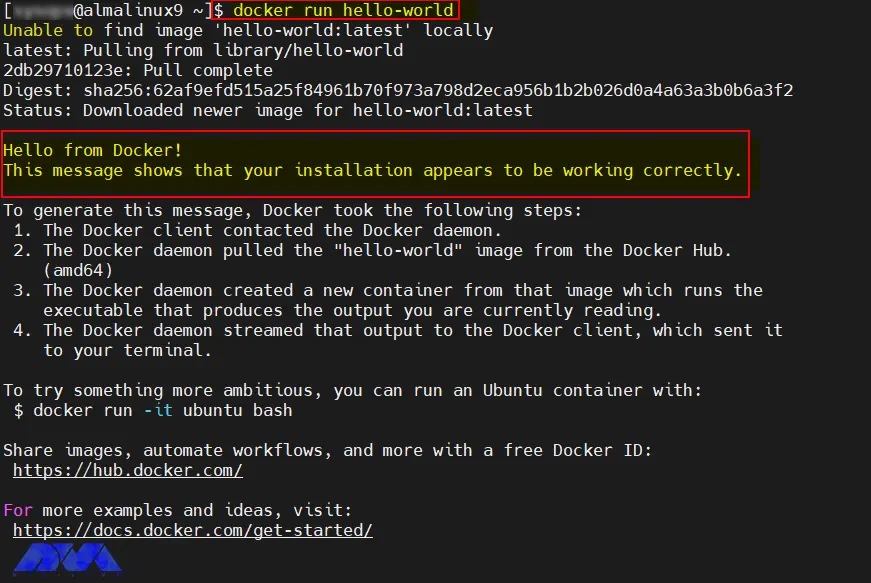
    docker run hello-world

    If you see the below message from the Docker container, you can be sure that the Docker is working perfectly and the installation process is successful:

    Hello-World-Docker-Container-AlmaLinux9

    How to Remove Docker from AlmaLinux

    At last, if you decide to remove Docker from your system, you should run the command below:

    sudo dnf remove -y docker-ce docker-ce-cli containerd.io docker-compose-plugin
    sudo rm -rf /var/lib/docker
    sudo rm -rf /var/lib/containerd

    Conclusion

    FAQ

    Here, we tried to show a simple installation guide for install Docker on AlmaLinux. Now, you can use Docker to install software packages. We hope this guide was useful to you. If you have any ideas or questions please share them with a comment.

    How we can install the Docker plugin on Linux?

    You should use the Docker plugin install command which pulls the plugin from Docker Hub or your private registry and prompts you to grant permissions if necessary.

    Is Docker only for Linux?

    You can run this tool on both Linux and Windows programs and executable in Docker containers.

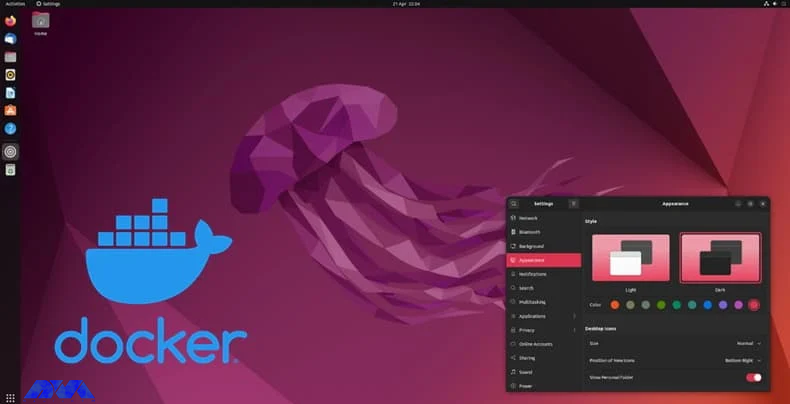
  • How to Install Docker on Ubuntu 22.04

    How to Install Docker on Ubuntu 22.04

    What you will read in this article will be familiarization with Docker and then how to install Docker on Ubuntu 22.04. The following content will help you to install Docker successfully and to find out how to work with images and containers. Also, you can add an image to a Docker repository.

    What is Docker?

    Dockers is actually a platform that helps users to package and run applications in containers. These containers are like virtual machines and are isolated. They are also portable and compatible with resources. The isolation factor allows multiple containers to run simultaneously on a single host. Docker has a client-server structure and relies on the Docker daemon to manage containers:

    Install Docker on Ubuntu 22.04

    Prerequisites

    Before you start the installation part, you need to prepare some requirements:

    – A Linux VPS server with Ubuntu 22.04

    – A non-root user with sudo privileges and a firewall

    – A docker Hub account

    Installing Docker on Ubuntu 22.04

    When we want to start, the installation package in the repository may not be the latest version, So we install Docker from the official Docker repository. First, add a new package source and then install the package. Let’s update the list of packages:

    sudo apt update

    Now, you should install the required package that allows apt use packages over HTTPS:

    sudo apt install apt-transport-https ca-certificates curl software-properties-common

    After that, you have to add the GPG key to your system for the official Docker repository:

    curl -fsSL https://download.docker.com/linux/ubuntu/gpg | sudo gpg --dearmor -o /usr/share/keyrings/docker-archive-keyring.gpg

    Using this command, it is time for adding the Docker repository to apt sources:

    echo "deb [arch=$(dpkg --print-architecture) signed-by=/usr/share/keyrings/docker-archive-keyring.gpg] https://download.docker.com/linux/ubuntu $(lsb_release -cs) stable" | sudo tee /etc/apt/sources.list.d/docker.list > /dev/null  

    To be recognized, in addition, you should update the exciting list of packages:

    sudo apt update

    You have to be sure to install your package from the Docker repo instead of the default Ubuntu repo:

    apt-cache policy docker-ce

    TIP: As you got the output, you will see that docker-ce is not installed, but it is the candidate for installation from the Docker repository for Ubuntu 22.04 (that is jammy)

    Now, you can install Docker:

    sudo apt install docker-ce

    After all these steps, Docker can be installed, the daemon started and the process enabled until it starts again after booting the system:

    sudo systemctl status docker

    As you installed this platform, you will have the Docker service available and both the Docker command line tool and the Docker client.

    Run the Docker Command Without Sudo (optional)

    By default, the Docker command is executed only by the main user or the user in the Docker group. But if you don’t want to log in as the sudo user, you should go through the following instructions.

    To run the Docker command without sudo, add your user name to the Docker group:

    sudo usermod -aG docker ${USER}

    Then, to apply for the membership, exit the server and turn back in or type the following command:

    su - ${USER}

    Now, you should enter the user’s password to continue:

    groups

    Then to add a user to the Docker group that you are not logged in as notify the username explicitly using:

    sudo usermod -aG docker username

    When you finished all these sections, you will have the Docker platform on your system.

    Conclusion

    Here, we tried to show how to install Docker on the Ubuntu operating system. Docker is a useful assistant for you. We hope you enjoy this article. If you have any ideas or questions, just leave a comment.

    FAQ

    Is Docker free on Linux?

    Yes, Docker is free to use as part of the Docker personal subscription.

    Does Docker use more RAM?

    Docker doesn’t apply memory limitations to containers by default. It is possible for a Docker container to consume the entire host’s memory.