Blog

  • How to Change Password on RDP 2016

    How to Change Password on RDP 2016

    This tutorial presents the way to Change Password on RDP 2016, 2012, and 2019 step by step. One of the security measures after purchasing an Admin RDP VPS server is changing its password. You may want to change the password on your Windows server for security reasons. Changing the Windows server password is not difficult; you can change your password on Windows servers with a few simple steps. Join us for How to Change Password on RDP 2016.

    Importance of changing RDP 2016 password

    Because AD Administrator is a very powerful user for Active Directory and you can restrict or open features to other users and computers, install or remove programs, and you can turn off any member computer using Admin. So you need to keep the AD Administrator user in a safe place.

    You may also sometimes need to change the Administrator password or other users that connect to the server via a Remote Desktop Connection. You may want to do this for added security.

    Changing your password is essential because when you use Windows as a server, you must use secure passwords so that you do not have security problems and no one can hack your server. It should be noted that you can change your RDP 2016 password at any time.

    First method: Change Password on RDP 2016

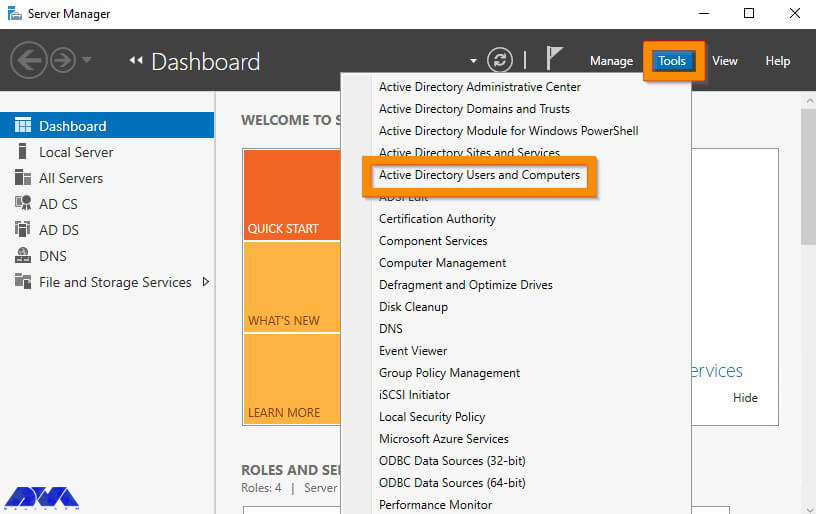
    You can change the passwords of the domain users by using the following method. The first step is to log in to the Domain Controller and open the Server Manager.

    In the next step, you have to click Tools from the Server Manager and then click Active Directory Users and Computers.

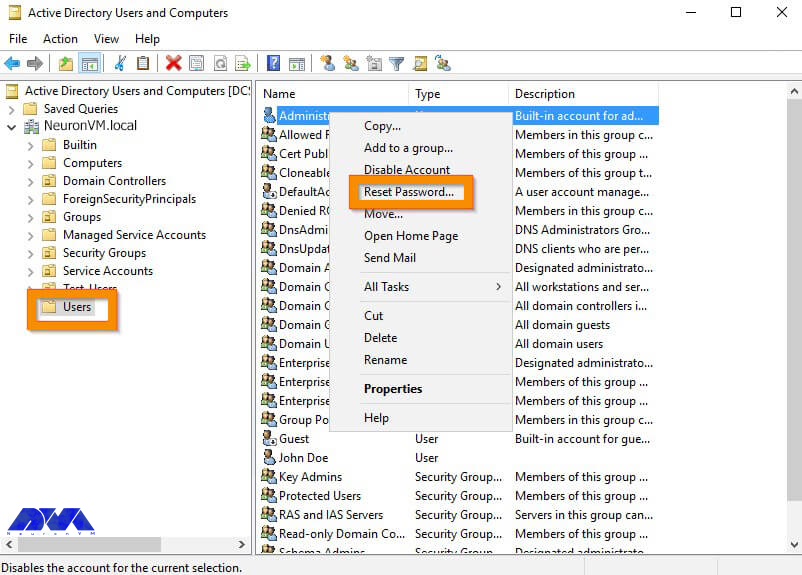
    Active Directory Users and Computers

    After opening Active Directory Users and Computers, go to the AD container where the user is. Now you need to right-click on the user and click Reset Password.

    how to reset password from active directory

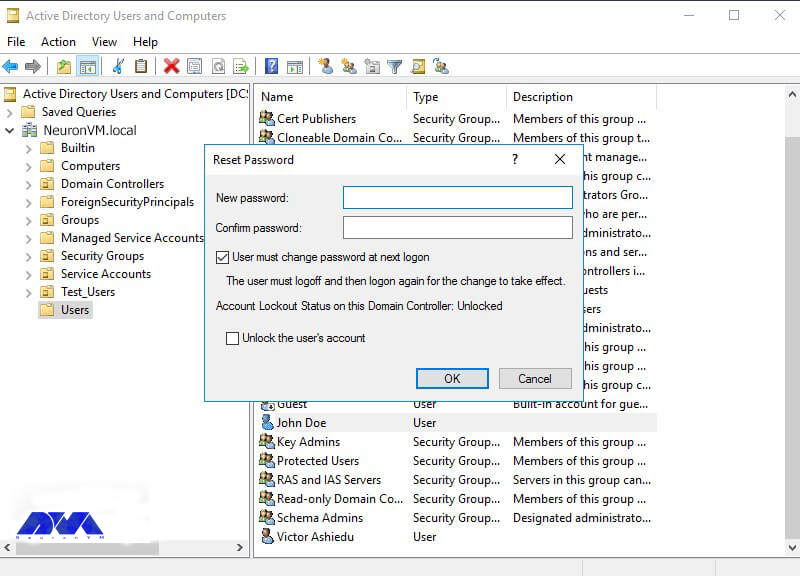
    In this field, you must type the password in the New password field. Then type the same password in the password confirmation field. To not force the user to change the password when they log in, the box next to “User must change the password on the next login” must be unchecked. To unlock a locked account, you should check the unlock the user’s account box.
    Finally, click on OK.

    how to Change Password on RDP 2016

    How to Change RDP 2016 password through the control panel

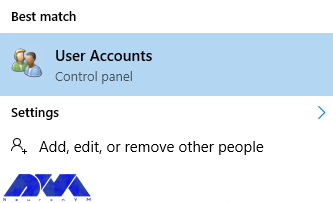
    First, type “user accounts” in the search field from the Start menu of your Windows server. Then click on it.

    user accounts

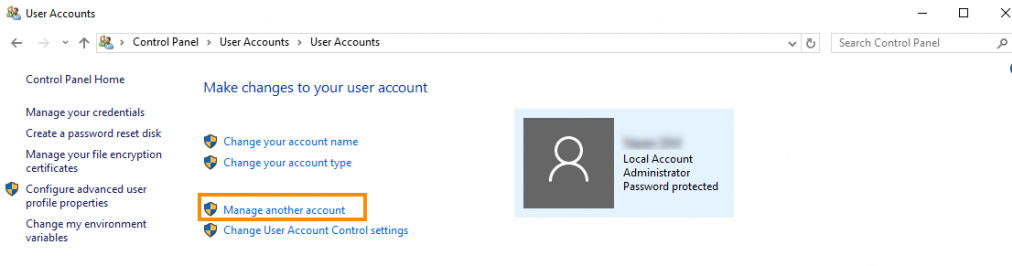
    After opening the User Accounts window, click on the Manage another account option as shown below.

    manage another account on windows server

    Note: This operation must be done with users who have admin access.

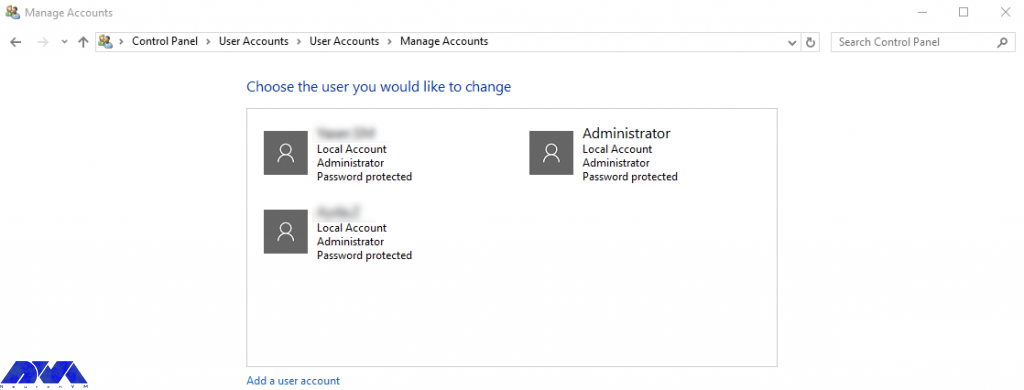
    On the opened page, the list of users on your server can be seen. By default, the Administrator user is the entire server with full access.

    Please click on the desired username.

    change rdp password using control panel

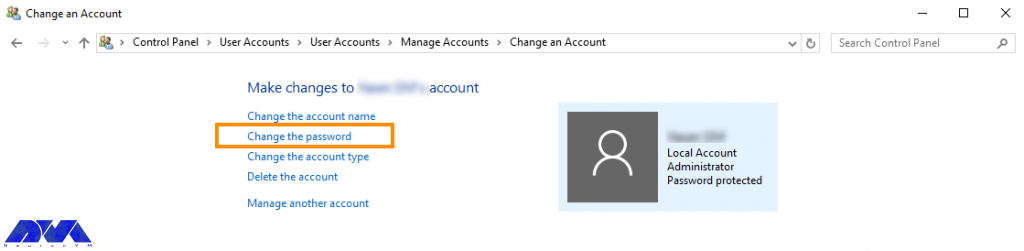
    After selecting the desired user in the open window, click on Change the password.

    how to change rdp password using control panel

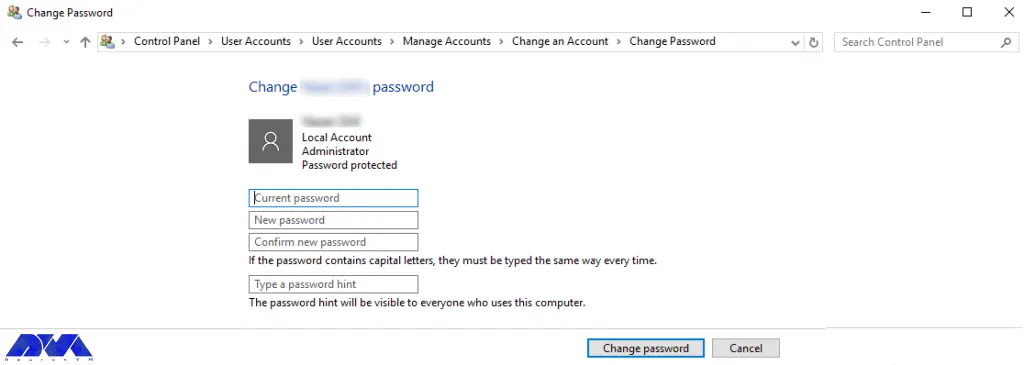
    In the Current password field, enter the current server password. Then you must consider a new server password in the New Password section. Enter the new password again in the Confirm new password field.

    Finally, click on Change password.

    tutorial-change-rdp-2016-password-using-control-panel-8

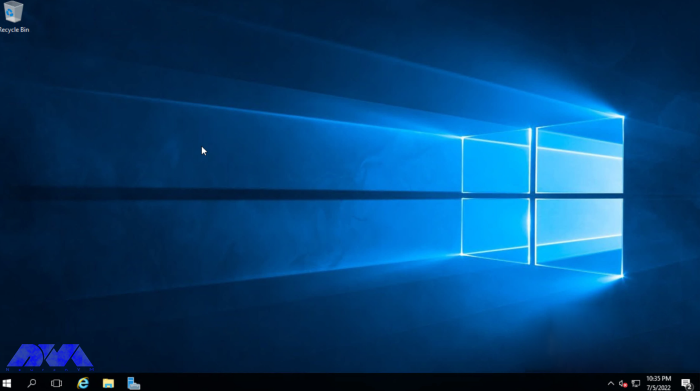
    Now the password of RDP 2016 has changed and you can use your new password in the subsequent logins. Be sure to use strong passwords and change your password at short intervals.

    Second method: Changing the password in RDP 2016 through server settings

    First, log in to the server directly or using Remote Desktop before starting.

    Changing the password in RDP 2016 through server settings

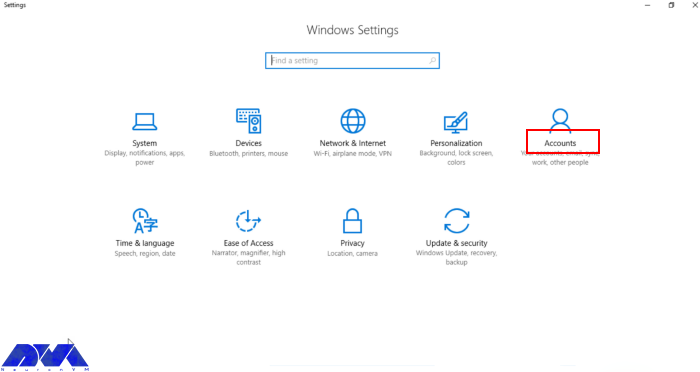
    Then press the Windows key+i or enter the settings section through the Windows menu.

    windows setting

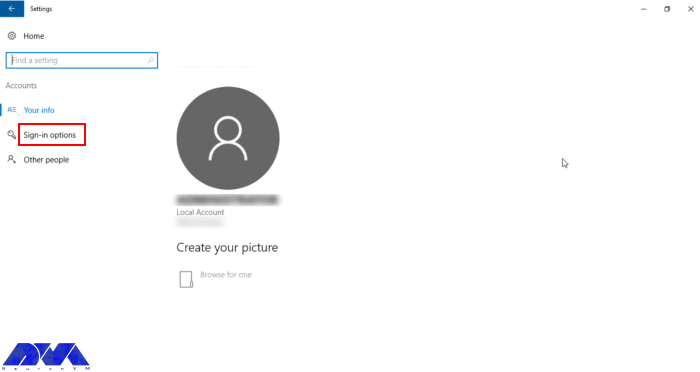
    Go to the Accounts section and open the Sign-in options.

    account sign-in for windows

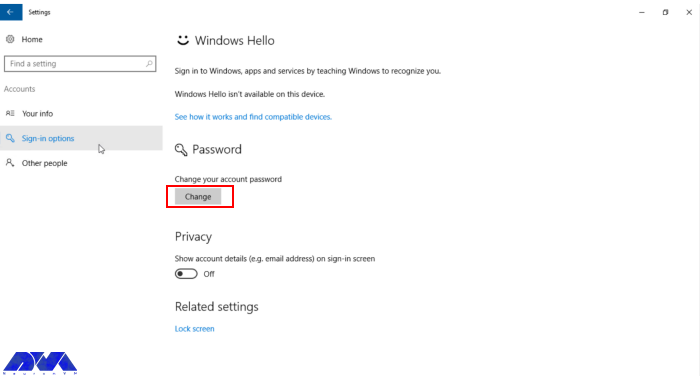
    Then go to the Password section and click on Change.

    change password on rdp

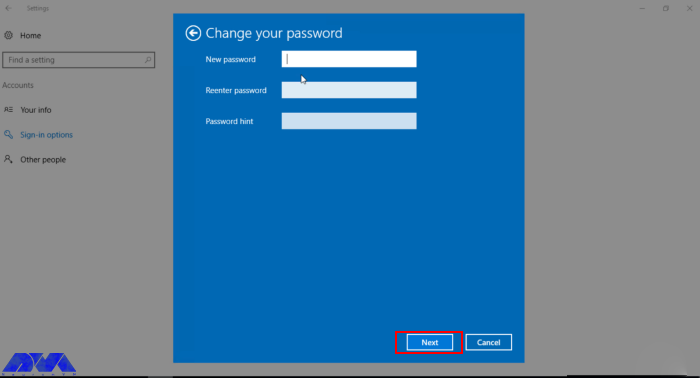
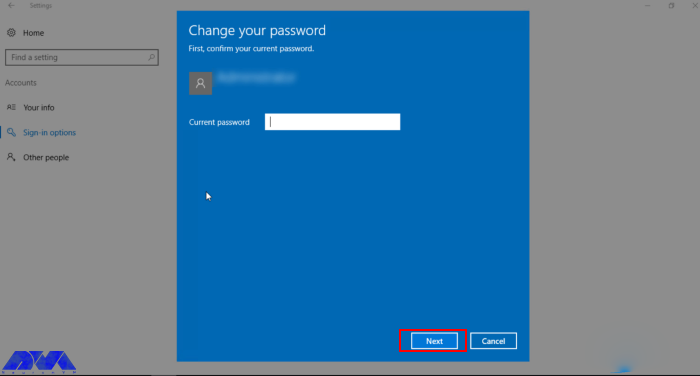
    Now enter the current password and click Next.

    insert new password on rdp

    Then enter and confirm the new password.

    rdp password

    The password has now been successfully changed.

    Conclusion

    As we mentioned above, this article was prepared to teach you how to change the password on RDP 2016 using two methods. Password and authentication are some of the most critical issues for the security of your system. So after purchasing an Admin RDP, it is better to change the account password and make your server more secure. If you have any other questions or ideas please share.

  • Top 5 Secret Techniques To Improve Dedicated Server

    Top 5 Secret Techniques To Improve Dedicated Server

    Are you ready to take your online presence to the next level? Well, get ready to unlock the secrets! In this guide, we’ll reveal five awesome techniques that will improve your dedicated server’s performance. So, brace yourselves and prepare to immerse in the world of dedicated servers.

    Introducing a Dedicated Server

    First things first, what exactly is a dedicated server? Well, imagine having a server all to yourself. Yep, that’s right! A dedicated server is like having your own personal playground in the world of web hosting. Unlike shared hosting where you share server resources with other users, a dedicated server is exclusively yours. This means you get to enjoy enhanced performance, speed, and security. It’s perfect for businesses or individuals who have high-traffic websites, or simply crave more control over their online presence.

    Now let’s talk about the perks of having a dedicated server. One of the biggest advantages is the level of customization it offers. Since you have the entire server to yourself, you can configure it to meet your specific needs. Another great perk is the reliability and stability that comes with a dedicated server. With no other users hogging up the resources, you can ensure a consistent and smooth performance for your website or application.

    Also, let’s talk about scalability. As your online presence grows, so do your needs. With a dedicated server, you have the flexibility to scale up or down as required. Whether you need more CPU power, RAM, or storage, you can easily upgrade your server to accommodate the increasing demands of your website or application.

    So there you have it folks, an introduction to the wonderful world of dedicated servers. It’s like having your own little corner of the internet, tailored to your exact needs. We also suggest you visit the Cheap Dedicated Server plans presented on our website.

    Introducing a Dedicated Server

    What is the impact of a Dedicated Server in improving your business?

    There are many ways that a dedicated server can help you improve your business. First of all, it will enhance the performance and reliability of your website. With a dedicated server that’s all yours, you’ll have access to all its resources, ensuring you high speed, strong bandwidth, and storage capabilities. This means your website or application can handle increased traffic without experiencing slowdowns or crashes, which results in a smooth user experience and improved customer satisfaction. Additionally, a dedicated server offers better security measures as you have full control over your server’s configuration and can implement advanced security protocols to guard your data and protect against hackers and cyber-attacks.

    Also, a dedicated server allows you to customize the server environment to meet your specific business requirements. You have the flexibility to install and configure software, choose the operating system, and optimize settings for better performance. This level of customization ensures that your server aligns perfectly with your business needs.

    How can we improve the performance of a Dedicated Server?

    To improve the performance of a dedicated server, there are a few simple ways you can try. Some of these ways are well known. For example allocating the server’s resources, like CPU and RAM to avoid overloading or updating the server’s software. Monitoring and optimizing the performance of your database, such as improving queries and indexing, is also important. But there are a few other ways to improve dedicated servers, which we’re gonna tell you about.

    How can we improve the performance of a Dedicated Server?

    Here are 5 secret techniques to improve a dedicated server:

    Enable caching on Your Dedicated Server

    By caching frequently accessed data or content, the server can store and deliver it more efficiently. This reduces the time it takes to retrieve information and minimizes the load on the server’s resources. This also leads to faster response times and increased website or application loading speeds for visitors or users. Caching also helps to optimize the server’s bandwidth usage, as it reduces the need to repeatedly fetch and transmit data from external sources. Overall, enabling caching on your dedicated server significantly enhances its efficiency and ensures a smoother and more responsive experience for your audience.

    Optimize JavaScript and CSS delivery

    Another technique to improve the dedicated server is optimizing JavaScript and CSS delivery. By efficiently delivering these resources, the server can reduce the time it takes to load web pages, resulting in a faster and smoother user experience. This optimization technique involves minimizing the file sizes of JavaScript and CSS files, combining multiple files into a single one, and utilizing techniques like compression. All things considered, optimizing JavaScript and CSS delivery helps to maximize the server’s resources, improve website loading times, and enhance user satisfaction.

    Adjust priority settings

    Prioritizing tasks such as database queries, network traffic, or system maintenance can significantly optimize server performance. This leads to improved user experience and overall productivity. Also by carefully managing the priority levels of different processes and applications, server administrators can ensure that critical tasks receive the necessary attention they require. This allows for better utilization of server resources, enhanced responsiveness, and smoother operation.

    Adjust priority settings

    Use a proxy server

    A beneficial technique for improving a dedicated server is using a proxy server. By acting as an intermediary between a user and the internet, a proxy server can mask the user’s IP address, making it difficult for websites to track their online activities. This helps protect sensitive information and maintain anonymity. Additionally, a proxy server can cache frequently accessed web pages, reducing the load on a dedicated server and improving its overall performance. This allows for faster and more efficient browsing, benefiting both the user and the server.

    Keep your server updated and secure

    Regular updates ensure that your server is benefiting from the latest software and security patches and bug fixes. Updating the server means you can benefit from improved stability, increased efficiency, and optimized performance. Additionally, keeping your server secure, protects it from potential cyber-attacks and vulnerabilities. Regular security measures such as installing firewalls, using strong passwords, and implementing intrusion detection systems help safeguard your server and its data. By maintaining the security and updating your dedicated server, you can ensure its optimal performance and protect it from potential risks.

    Conclusion

    So there you have it! five techniques that you can use to step up your dedicated server today. Implementing the five techniques to improve the performance of a dedicated server can significantly enhance its efficiency and effectiveness. It’s important to always monitor and find better ways to improve the performance of your servers.

  • How to choose the best USA RDP for your business

    How to choose the best USA RDP for your business

    In today’s digital era, Remote Desktop Protocol (RDP) has become an essential tool for businesses to enhance their productivity and streamline operations. Choosing the right USA RDP provider can greatly impact your business’s efficiency, security, and overall success. This article will guide you through the key factors to consider when selecting the best USA RDP for your business needs.

    Advantages of using USA RDP

    USA Admin RDP offers a range of benefits that make it an ideal choice for businesses and individuals alike. One of the key advantages of using USA Admin RDP is the enhanced security measures it provides. The United States has stringent data protection regulations, ensuring that your sensitive information and data are safe. With USA Admin RDP, you can benefit from robust encryption protocols and firewall protection, reducing the risk of unauthorized access and data breaches. This added layer of security is crucial, especially for businesses that handle confidential client information or conduct financial transactions online.

    Furthermore, USA Admin RDP offers excellent network performance and reliability. The United States boasts a highly developed and advanced internet infrastructure, ensuring fast and stable connections. This is particularly advantageous for businesses that rely on seamless remote access to their systems and applications. With USA Admin RDP, you can experience minimal latency and downtime, enabling you to work efficiently and effectively. Additionally, the reliable network infrastructure ensures that your data transfers are smooth and uninterrupted, allowing for quick and easy file sharing and collaboration. Overall, USA Admin RDP provides a secure and reliable remote access solution that is essential for businesses operating in today’s digital landscape.

    Advantages of using USA RDP - best USA RDP

    Factors to consider when choosing USA RDP

    Certain parameters should be taken into account when choosing USA RDP. Starting with security, it is a crucial metric when it comes to accessing remote systems. Look for an RDP solution that offers robust encryption to protect data during transmission. Features like SSL/TLS encryption, two-factor authentication, and session recording can enhance the security of your remote connections. It’s also necessary to ensure that the RDP solution is compatible with the operating systems and devices you plan to use. It should support various platforms such as Windows, macOS, Linux, iOS, and Android. Compatibility with different versions of RDP and remote desktop clients is also important.

    You better look for an RDP that offers fast and responsive performance. This includes low latency, smooth screen rendering, and quick file transfer speeds. Consider the network bandwidth requirements and the ability to optimize performance for different network conditions. Not only that, you’ll also need an RDP solution that provides good technical support. Look for a vendor with a good track record, regular updates, and responsive customer support.

    If you need to support multiple simultaneous connections or a large number of users, consider the scalability of the RDP solution. Look for features like load balancing, session management, and centralized administration tools that can handle your scalability requirements.

    Last but not least, pricing is an important factor for almost everyone these days. Be sure the choose a plan that is budget-friendly, but doesn’t cut the quality because of the low price.

    Factors to consider when choosing USA RDP

    Types of USA RDP

    There are several types of RDPs that we’ve listed below:

    ICA: Independent Computing Architecture is a proprietary protocol developed by Citrix that works with Citrix-based remote desktop software, such as Citrix Virtual Apps and Desktops, Citrix Workspace app, and Citrix Receiver. ICA supports multiple monitors, dynamic resolution, smart sizing, device redirection, and multi-factor authentication.

    VNC: Virtual Network Computing is an open-source protocol that works with cross-platform remote desktop software, such as RealVNC, TightVNC, UltraVNC, and TigerVNC. VNC supports multiple monitors and smart sizing.

    NX: NX is a proprietary protocol developed by NoMachine that works with Linux-based remote desktop software, such as NoMachine NX Server and X2Go. NX supports multiple monitors and dynamic resolution.

    SPICE: Simple Protocol for Independent Computing Environments is an open-source protocol that works with virtualization-based remote desktop software, such as Red Hat Virtualization and oVirt. SPICE supports multiple monitors and dynamic resolution.

    Server specifications and performance

    When choosing the right USA RDP, server specifications and performance play a crucial role. The server specifications determine the capabilities and resources of the RDP server, such as the processor, memory, storage, and network connectivity. These specifications directly impact the overall performance and responsiveness of the RDP connection.

    A powerful processor and ample memory ensure smooth multitasking and fast data processing, while sufficient storage allows for storing and accessing files and data. Additionally, a stable and high-speed network connection is essential for seamless remote access and efficient data transfer. Therefore, carefully considering and selecting the appropriate server specifications and performance is vital in ensuring a reliable and satisfactory RDP experience.

    Scalability and future growth

    Scalability refers to the ability of the RDP service to handle increasing demands and accommodate growth in terms of users, data, and functionality. It is essential to choose an RDP provider that offers flexible and scalable solutions, allowing businesses to easily scale up or down their resources as needed. Future growth is equally important, as businesses must consider their long-term goals and ensure that the chosen RDP service can support their anticipated growth and expansion. By selecting an RDP service that prioritizes scalability and future growth, businesses can seamlessly adapt to changing needs and ensure a smooth and uninterrupted workflow.

    So it goes without saying that if you have a long-term plan for your business, you should definitely see your business in one year, five years, or even ten years from now. This makes scalability an important factor that must be taken into consideration.

    Scalability and future growth

    Security features and protocols

    These features and protocols are like the superheroes of the digital world, protecting your data and privacy from potential threats. They help create a secure tunnel between your device and the RDP server, encrypting your data so that it can’t be intercepted by cyber-criminals. Think of it as a virtual fortress that shields your information from unauthorized access, giving you peace of mind while you navigate the vast online landscape. So, when choosing a USA RDP, make sure it has robust security features and protocols in place because, in this digital age, it’s better to be safe than sorry!

    USA admin RDP can provide you with the safety you need for your business. As mentioned, The United States has rigid data protection regulations, ensuring that your sensitive information and data are safe.

    Choosing the right hosting provider

    When you’re choosing a USA RDP hosting provider, there are several factors to ensure you make the right decision. Firstly, reliability and uptime should be a top priority. Look for a hosting provider that guarantees high uptime and has a robust infrastructure to minimize any potential downtime.

    Secondly, consider the server’s performance and speed. Search for a hosting provider that offers fast and efficient servers to ensure smooth operation and quick response times. Additionally, security is crucial when dealing with remote desktop protocols. Ensure the hosting provider offers robust security measures, such as firewalls and encryption, to protect your data from potential threats. Lastly, consider the customer support provided by the hosting provider. Look for a company that offers 24/7 customer support to address any issues or concerns promptly. By considering these factors, you can choose the right hosting provider for your USA RDP needs, ensuring a reliable, secure, and high-performing hosting experience.

    Here at NeuronVM, we offer reliable USA Admin RDP with 24/7 customer support, tailored for your personal or business needs.

    Budgeting and pricing considerations

    It’s important to strike a balance between affordability and the quality of service you receive. First and foremost, assess your needs and determine the features and specifications required for your specific tasks. This will help you avoid overspending on unnecessary resources. Additionally, consider the pricing structure offered by different providers. Some may charge a flat rate, while others offer flexible plans based on usage. Take into account any additional costs such as data transfer or storage fees. Lastly, don’t forget to check for any discounts or promotions that could help you save money without compromising on performance. By carefully considering your budget and pricing options, you can find a USA RDP that meets your needs without breaking the bank.

    Case studies and success stories

    An international company that deals with software development, faced challenges in managing their remote workforce spread across different countries. They decided to invest in USA-based Remote Desktop Protocol (RDP) services to improve their efficiency and productivity. By purchasing USA RDP, they gained access to high-speed internet connections, superior infrastructure, and advanced security features. As a result, their teams were able to collaborate seamlessly, share resources effortlessly, and complete projects promptly. The USA RDP solution significantly enhanced their remote work setup, leading to improved team performance and increased client satisfaction.

    There are also many entrepreneurs selling products to customers worldwide. In a case study, some of them planned to provide a smooth and reliable shopping experience and they used USA RDP services. By purchasing USA RDP, they gained access to a stable and high-speed internet connection, enabling them to manage their online store efficiently. The USA RDP solution allowed them to handle large volumes of customer orders, process payments securely, and maintain a responsive website. This resulted in increased sales, improved customer satisfaction, and expanded their business reach globally.

    Conclusion and final thoughts

    All in all, finding the best USA RDP is crucial for individuals and businesses alike. By carefully considering factors such as performance, security, customer support, and pricing, users can ensure they make an informed decision. Whether it’s for remote work, accessing geo-restricted content, or enhancing online privacy, selecting a reliable and efficient USA RDP will undoubtedly contribute to a seamless and productive online experience.

  • Secure Your AlmaLinux with Firewall: Ultimate Guide to Protect Your System from Cyber Threats

    Secure Your AlmaLinux with Firewall: Ultimate Guide to Protect Your System from Cyber Threats

    If you are going to prevent malicious traffic or data coming from the Internet or other networks to your system, you need to know what a firewall is and how it works. Generally, a firewall is a device and network security mode that monitors incoming and outgoing network traffic and blocks or allows packets or information data to pass based on its security rules. In this post, with an Ultimate Guide to Protect Your System from Cyber Threats, we will tell you how to Secure Your AlmaLinux with Firewall.

    Introduction to Firewall in AlmaLinux

    A firewall is used to prevent sabotage and security of any system of this system. We must say that every system connected to the Internet needs its firewall to be active to prevent malware attacks and the penetration of dangerous data. It is interesting to note that AlmaLinux and other RHEL-based Linux distributions use firewalls to manage firewall rules. Before we start and explain to you the methods of Secure Your AlmaLinux with Firewall, we recommend you choose and buy a plan from the Linux VPS server plans presented on our website. After installing AlmaLinux on our servers, you will enjoy their high quality.

    How to Secure Your AlmaLinux with Firewall

    In the rest of this article, we will comprehensively teach you how to Secure Your AlmaLinux with Firewall.

    Harden Access with SSH

    If we want to describe SSH with a simple example, we should say that it is like the door of your house. Therefore, securing the front door will keep your home safe. When you purchase a Linux server, your service provider will provide you with SSH root access. To increase security, you should start with SSH access. In the following, we will teach you 5 ways to harden SSH access.

    To carry out the steps that we will tell in the rest of this article, it is enough to open the configuration file using your desired text editor:

    nano /etc/ssh/sshd_config

    It is also necessary to save and exit the configuration file after completing each step. Then, to apply the changes, you must restart the sshd file by running the following command:

    systemctl restart sshd

    1: Setting an idle timeout

    The first method is to exit SSH if the user is inactive. Therefore, you can search for the following command inside the configuration file:

    #ClientAliveInterval 0

    Now, if you want to set the idle time to 5 minutes, for example, you need to set it in seconds. That is 300 seconds:

    ClientAliveInterval 300

    2: Limit the maximum authentication attempts

    In the second method, you can reduce the number of unsuccessful attempts to enter the system. (3 unsuccessful logins):

    MaxAuthTries 3

    3: Changing the SSH Port number

    Another very effective method is to change the SSH port. Given that the default SSH port is 22, you can easily change it to the desired number by running the following command. (for example port 1022):

    #Port 22

    and change it to:

    Port 1022

    4: Disable Tunneling and forwarding

    It should be noted that SSH tunnels allow connections made to a local port to be forwarded to a remote device over a secure channel. To disable some unnecessary options related to tunneling and forwarding, you can search for the following commands in the configuration file:

    #AllowAgentForwarding yes
    #AllowTcpForwarding no
    #PermitTunnel no

    Now you need to change the above commands as below and save the configuration file and exit it:

    AllowAgentForwarding no
    AllowTcpForwarding no
    PermitTunnel no

    5: Using authentication without a password and public key

    To generate your public key on a desktop computer on different platforms, you need to do the following. If you are using OpenSSH Client on Windows, you must use the following command in the command prompt:

    ssh-keygen

    But if you don’t use OpenSSH Client, you can generate SSH keys using PuTTYgen.

    Also, if you use MacOS or Linux operating systems, you can use the following command:

    ssh-keygen

    Again, it is necessary to run the configuration file after entering the server by running the following command:

    nano /.ssh/authorized_keys

    Put your public key in a row in the file and save it. After doing this you can connect to SSH using your private key. Now it’s time to run the following command:

    /etc/ssh/sshd_config

    Finally, you need to paste the following lines in the desired path:

    Password Authentication yes
    PubkeyAuthentication yes

    Installing CSF Firewall

    AlmaLinux has a default firewall but we recommend CSF firewall for intrusion detection, intrusion detection, and security in this article. This firewall is very popular among the users of the popular control panels CPanel, DirectAdmin, and Webmin. To install the CSF firewall, you must first install the necessary prerequisites using the following command:

    dnf install perl-libwww-perl.noarch perl-LWP-Protocol-https.noarch perl-GDGraph wget tar perl-Math-BigInt

    Now you can run the following commands to download, extract and install CSF Firewall:

    cd /usr/src
    wget https://download.configserver.com/csf.tgz
    tar -xzf csf.tgz
    cd csf
    sh install.sh

    In the next step, you can use the following command to check if your server has iptable modules or not:

    perl /usr/local/csf/bin/csftest.pl

    After learning the relevant explanations, you should turn off the test mode:

    sed 's/TESTING = "1"/TESTING = "0"/g' /etc/csf/csf.conf

    Finally, you can restart the CSF firewall by running the following command:

    csf -r

    Install ClamAV Antivirus

    ClamAV is an open-source, cross-platform, anti-malware toolkit developed by Cisco Systems Inc. This kit contains a new protection system to deal with Trojans, viruses, worms, and other types of malware. This antivirus is basically a light and command-line-based system that is combined with other tools such as FreshClam, ClamDaemon, ClamDTop, ClamScan, and Clamtk and offers many valuable features such as automatic database update and real-time scanning and scheduled scanning.

    You can run the following commands to install ClamAV on AlmaLinux:

    dnf install clamav
    dnf install clamd

    You should know that ClamAV uses FreshClam to check for new database versions periodically. Run ClamAV to update the signature database. To do this, just follow the instructions below step by step.

    Stop the freshclam service by running the following command:

    systemctl stop clamav-freshclam

    You can also run Freshclam using the following command:

    freshclam

    Run the following command again to start the Freshclam:

    systemctl start clamav-freshclam

    After completing the installation process, you can use the following command to run a full system scan and remove malware:

    clamscan --infected --recursive --remove /

    AlmaLinux update

    As you know AlmaLinux is a binary-compatible fork of the RHEL and CentOS base. On the other hand, RHEL and CentOS are secure enough for an enterprise environment. However, it is important to try to always keep AlmaLinux up-to-date by running the following command:

    dnf update all

    How to enable the Firewall on AlmaLinux

    In the first step, you can check the status of the firewall on AlmaLinux by running the following command:

    systemctl status firewalld

    Check the services configured in the firewall using the following command:

    sudo firewall-cmd --list-all

    You can stop the firewall with the help of the following command:

    sudo systemctl stop firewalld

    You can also run the following command to start the firewall again:

    sudo systemctl start firewalld

    To restart the process, use the following command:

    sudo systemctl restart firewalld

    As you know, by default, the firewall starts automatically after the system boots. To disable the firewall, you can use the following command:

    systemctl disable firewalld

    It should be noted that if the above command is executed with the systemctl stop firewalld command, the firewall will be disabled forever.

    The interesting thing is that you can reactivate the firewalld service at any time:

    sudo systemctl enable firewalld

    Conclusion

    In this article that you read, we tried to fully familiarize you with the steps to secure AlmaLinux so that you can be safe from cyber-attacks. We also tried to teach you how to Secure Your AlmaLinux with Firewall. In this way, now you can easily install FirewallD on AlmaLinux and other RPM-based Linux systems. By doing this you will partially secure your system from the outside world.

  • The Benefits of Using VMware ESXi for Virtualization

    The Benefits of Using VMware ESXi for Virtualization

    The purpose of this article is to familiarize you with the benefits of using VMware ESXi for virtualization. If you need to install a virtualizer on your system, we can introduce you to VMware, which is one of the most reliable and well-known virtualizations. With this security virtualizer, you can provide virtual machine management and reliability on physical servers and use ERP and CRM systems to run applications with intensive resources.

    What is VMware ESXi?

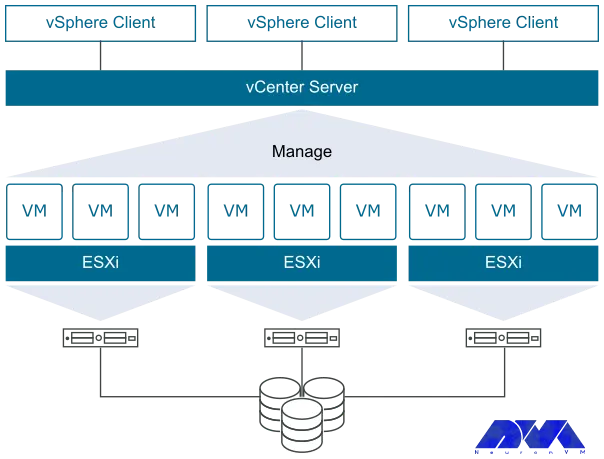
    VMware ESXi, also known as VMware ESXi Server, was developed by VMware for VSphere and is a bare metal hypervisor. ESXi is a core component of VMware’s infrastructure software suite. This is a type 1 hypervisor. That is, it runs directly on system hardware without the need for an OS and can run directly on hardware. Hypervisors are very applicable because they run multiple virtual machines on a single physical server.

    vmware esxi virtualization

    ESXi virtualizer is aimed at small organizations and individuals. Administrators can also use the Vsphere client to configure ESXi and update it with the help of the lifecycle manager plugin. The installation location of this virtualizer is directly on a local disk in the host device. After the VMkernal receives a resource request, it forwards the request to the kernel on the host’s physical hardware.

    What are the Benefits of VMware ESXi?

    After a short description of VMware ESXi, we will now examine the benefits of this efficient virtualizer to give a clearer vision.

    1) Enhanced Security

    VMware ESXi includes a strong encryption system to protect sensitive data with virtual machines. It also restricts access for a streamlined administration, expands auditing and logging capabilities to create more transparent reporting, and simplifies the retrospective analysis.

    2) Stable Operation and Performance

    Applications with the ability to deploy powerful virtual machines of any size (it can be up to 128 vCPU, 6 TB RAM, and 120 different devices) are supported by this hypervisor to meet the needs of various applications.

    3) Comfortable Working Conditions

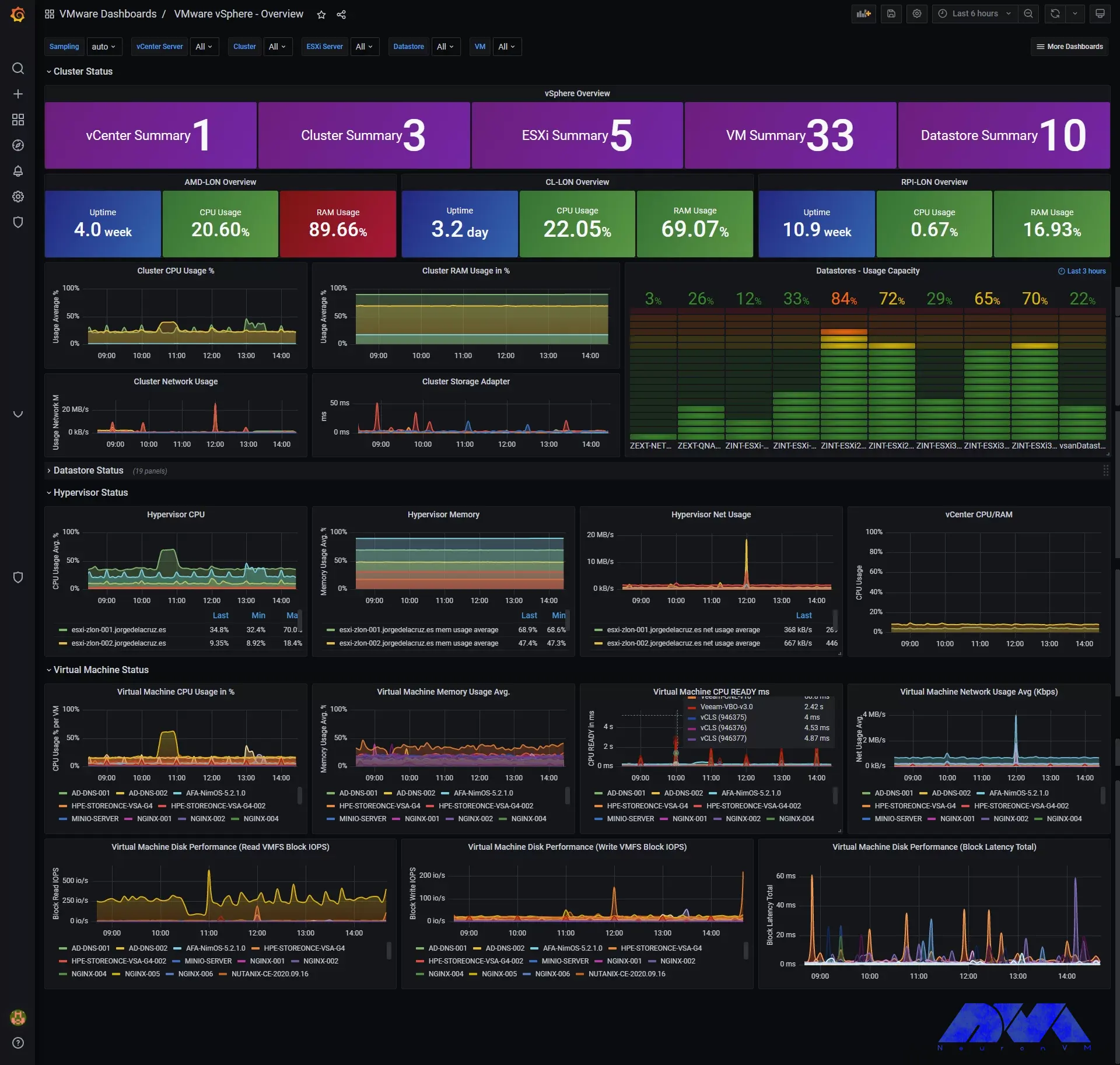
    VMware ESXi includes a modern and integrated interface based on html5 standards to support daily management. But VMware uses CLI Vsphere and rest-based APIs suitable for developers to automate processes. Also, you can run basic administrative commands from any computer with network access by having the Vsphere CLI command interface available.

    advantages of vmware esxi - vsphere

    4) Quick Installation Process

    Installing VMware ESXi in a data center is very easy and quick because it has a lightweight footprint. You can experience the high quality of servers by viewing and purchasing one of the cheap dedicated server plans from our website and installing and running VMware ESXi on it.

    5) Simple and User-friendly GUI

    VMware ESXi provides a direct console user interface, a web client, and a Vsphere client to manage the Vsphere environment. If we want to give an example in this field, we can say that the web client allows an administrator to manage virtual infrastructures without installing Vsphere.

    6) Ability to use Virtual Graphics Processors

    VMware ESXi can used repeatedly in virtual graphics processor technology or vGPU. This technology is where users can run heavy programs remotely. For example Autocat, Maya, or 3Ds max.

    What is Meant by Vsphere in VMware?

    According to the definition provided by VMware itself, Vsphere is a virtualization platform in an enterprise format. It is worth noting that Vsphere is the brand name of VMware virtualization products and features. One of the advantages of this solution is that it allows you to build a flexible and reliable infrastructure that meets every business need while saving money.

    The solution also enables existing data centers to shift to cloud computing and provides a means to increase hardware utilization from 15 percent to 80 percent or more without compromising performance. Vsphere reduces unplanned downtime.

    Conclusion

    As mentioned above, VMware is a virtualization system that contains many features. This hypervisor has a light structure and allows you to allocate resources in a more efficient way. You can use a single physical machine and create multiple VMs, each running different operating systems and applications. Here, we tried to define VMware for you and introduce some benefits of using this technology for virtualization. If you have any questions, please leave a comment.

  • Protecting Your Ubuntu Server: A Comprehensive Guide to Firewalls

    Protecting Your Ubuntu Server: A Comprehensive Guide to Firewalls

    If you want to secure your Ubuntu system, you should configure a firewall. If you want to setup and manage a firewall, various flexible utilities are designed by Linux. One of these tools is called iptables. But, it should note that new users in network security may be a little afraid of iptables, so it is better to start with UFW first. This article proposes to give a comprehensive guide to firewalls.

    What is UFW on Ubuntu?

    UFW or Uncomplicated Firewall is a default firewall configuration tool. This user-friendly tool has been developed to facilitate the configuration of iptables firewalls and is provided for creating ipv4 or ipv6 host-based firewalls. It is initially disabled by default from the UFW man page. Also, UFW gives an easy way to add or remove simple rules, but it is not intended to provide complete firewall functionality.

    How to Configure a Firewall on Ubuntu Server?

    Here, we are going to show how you can setup a firewall on Ubuntu servers using UFW with a Comprehensive Guide to Firewalls. Follow the steps to protect your Ubuntu system. But, first of all, you should prepare the necessary requirements.

    setup firewall on ubuntu

    A Comprehensive Guide to Firewalls

    Prerequisites

    – A Linux VPS Server with Ubuntu operating system

    – A user account with sudo privileges

    – accessing a Windows command line

    Installing UFW on Ubuntu

    UFW is disabled by default. So, the first thing to do is to enable it from the terminal prompt:

    sudo ufw enable

    Note that UFW is installed by your Ubuntu server as default, if not, you can check the status and install it using the commands below and then enable it:

    sudo ufw status
    sudo apt install ufw

    Wait to complete the installation process. Now you have UFW enabled on your server.

    Configuring UFW on Ubuntu

    Now that you enabled UFW, you can configure UFW using both IPv4 and IPv6. To support both protocols you should modify the UFW configuration file, so go through these instructions.

    First, you can use Nano or any text editor to open the default settings file:

    sudo nano /etc/default/ufw

    In your output, you will see the IPv6. If this value is set as no, change the value to yes and enable your IP. Then save and close the file.

    Setting up Default UFW Policy

    By default, UFW is set to allow all outgoing connections and deny all incoming connections. These rules are typical for PCs that do not need to respond to incoming requests. So, if you have changed the default settings and want to return to the default settings, run the following command:

    sudo ufw default deny incoming

    To allow outgoing connections use the following command:

    sudo ufw default allow outgoing

    So return the statute to the default settings by these comments.

    Allowing SSH Connections

    If your connection is from remote locations, you should setup UFW to allow incoming SSH connections.

    Use the command below to configure UFW to allow the SSH connections:

    sudo ufw allow ssh

    To add a rule for IPv4 (or IPv6 if enabled) use this command and allow incoming and outcoming traffic from SSH connections.

    Enabling UFW

    After the configuration, to apply changes, disable and enable the UFW firewall again:

    sudo ufw disable
    sudo ufw enable

    With these actions, you succeeded in setting up and activating the firewall.

    Checking the Status of UFW

    If you need to check the status and get detailed information, execute the following command:

    sudo ufw status verbose

    How to Work with UFW Rules?

    UFW determines the rules for how the server communicates with other devices. Now you need to specify which connections are allowed to control firewall settings and which are prohibited.

    Allowing Incoming Connections on Other Ports

    You should allow specific incoming connections to control additional connections, depending on the purpose of the server. Now create UFW rules to add connections. Below is a list of commands requiring for configuration:

    1- Apply the command below to set the server and listen to HTTP:

    sudo ufw allow http

    You can use port 80 as an alternative for HTTP connection:

    sudo ufw allow 80

    You can see the rule in UFW status:

    sudo ufw status verbose

    2- Run the following command to enable HTTPS connections:

    sudo ufw allow https

    You can use port number 443 as an alternative for HTTPS connection:

    sudo ufw allow 443

    Now to check the status run this command:

    sudo ufw status verbose

    3- Apply the command below to modify a rule that allows access to all ports from a specific IP:

    sudo ufw allow from to any port

    This allows all traffic from a remote server to a local machine or local server.

    4- Apply this command to allow access from a particular machine to a specific port. This rule will limit access to the specific port:

    sudo ufw allow from to any port

    5- Determine the range values and the protocol type to allow access to a range of sports. The following is using to allow connections from 2000 to 2004 for TCP:

    sudo ufw allow 2000:2004/tcp

    To change the protocol for UDP use the following command:

    sudo ufw allow 2000:2004/udp

    Denying Incoming Connections on the Other Ports

    If you want to forbid connection from a specific IP address create a deny rule:

    sudo ufw deny from

    Or, you can use the following command to deny access to particular ports:

    sudo ufw deny from to any port

    How to Delete UFW Ports

    It is possible to delete UFW rules. You can use two ways for this reason:

    1- You can disable the list of all rules and find the determined number of the rule. Now you can see the list in your output:

    sudo ufw status numbered

    Choose the related rule number and use the command below to delete the rule, so the rule will be removed from the list:

    sudo ufw delete

    2- The second way is to specify it word for word:

    sudo ufw delete

    For Example:

     sudo ufw delete allow 2000

    Checking Application Profiles

    Since you use the apt command to install UFW, each package has an application profile in the /etc/ufw/applications.d directory. This profile includes information about the software and its UFW settings. So to see the list of the application profiles use this command:

    sudo ufw app list

    To see more detailed information about a specific package run this command:

    sudo ufw app info 'package name'

    To give an example, put Apache full to see all the information about this application profile:

    sudo ufw app info 'Apache Full'

    Conclusion

    Security is one of the most important parts of servers and to provide this security, you should set a firewall for your server. Here, we taught how to setup a firewall using UFW on the Ubuntu server after a Comprehensive Guide to Firewalls. We also gave some extra commands and instructions to show the way it works. We hope you enjoyed this article.

  • Admin RDP vs. User RDP: What’s the Difference?

    Admin RDP vs. User RDP: What’s the Difference?

    Remote Desktop Connection Protocol (or RDP for short) is a proprietary protocol, developed by Microsoft and used to graphically represent a connection to a computer connected to a network. RDP is a protocol for working with another system completely offsite. But in the rest of this post, we will explain the difference between Admin RDP and User RDP.

    The Difference between Admin RDP and User RDP

    In the rest of this article, we will explain the definition and benefits of each of the Admin RDP and User RDP services. Then we will compare these two services from the aspects of Resources, Security, Virtualization, Accounts, OS, Port, Installing Programs, IP, and Access Level.

    What is Admin RDP?

    The RDP protocol was introduced in 1998 by Microsoft. This protocol allows the user to connect to another server instead of going to the server room or sitting behind the destination system to remotely connect to the server or the destination system and do his work. So, the RDP protocol allows the user to remotely connect to the server or target system through the network. RDP is used for remote work and management of services and windows that are started on the main server. We recommend you choose one according to your needs after viewing Admin RDP plans and enjoy the high quality and speed of this service.

    Advantages of Admin RDP

    In this section, we are going to mention some features of Admin RDP. These features include the following:

    • Faster and more reliable RDP connection using a dedicated resource pool.
    • Full root access to the server
    • Dedicated IP address
    • The adjustability of programs and operating system
    • Full root access to the server
    • Ability to create firewall options and access security features
    • Ability to increase resources

    What is User RDP?

    In this part of the paper, we are going to introduce you to User RDP. User RDP is like an account, not a server. In User RDP, the developer does not receive any personal resource or IP address. All the main resources like RAM, CPU, connection, and bandwidth on the host server will be shared among other developers.

    Users will only get dedicated storage space on a server. In User RDP, all user accounts use the same server to store data. Also, the number of developers or other users with whom you must share resources is defined by the type of sharing plan.

    In User RDP, accounts are managed through the Active Directory Service of Windows Server. User RDP has no regular maintenance except maybe once a month. If any RDP subscriber consumes too many resources, it may affect other users. If the server does not have any security or configuration, there will be some security issues in the user accounts. A webmaster does not perform the basic tasks of installing/uninstalling software on the server. It limits the possibilities of a website. Such resource-limited websites are only good for browsing-related uses.

    Advantages of User RDP

    In this section, we are going to mention some features of User RDP. These features include the following:

    • High computing speed compared to regular servers
    • No need for a website administrator
    • High network speed
    • Dedicated storage space
    • Lowest fees for single-user accounts

    Admin RDP vs User RDP

    In the continuation of this article, we will compare Admin RDP and User RDP with 10 parameters.

    1) Resources

    All resources in a User RDP are shared by the hosting company’s customers. Only the provided storage space is allocated and inaccessible to any other client. Limited resources often affect the user experience on the server. When a single client uses a high amount of resources, it also affects the performance of other users.

    When the customer wants to allow several users to access their server, the quality of the server will not be good. This is why User RDP is only preferred for browsing websites and has no facility for user accounts or user data storage where multiple people can log in at the same time.

    The resources in the Admin RDP are exclusively owned by the customer and no other customer of the hosting company has access to them. Dedicated resources allow a client to make maximum use of resources regardless of whether another client is using them or not. Such dedicated resources help the developer to have a website with multiple registered accounts with additional storage facilities.

    2) Security

    The security in User RDP is very low. The server host performs security checks once or twice a month. For websites with risk factors, this is very low. Poor security affects the integrity of data transmission over RDP connections.

    With an Admin RDP connection, the user can use whatever security actions they need. They can perform security and error checking at any specified time interval. As security increases, so does the integrity of data transmission. Prevents data leaks and hacks during transmission.

    3) Virtualization

    Hosting accounts in Admin RDP is via virtualization. User RDP has no virtualization feature.

    4) Accounts

    Most companies that provide single User RDP servers can facilitate only one user. This means that only one user can log in to the server through the provided credentials. If multiple users want to use the account, they must use the same login credentials.

    Some RDP Admins allow up to 50 users on a single RDP server. Admin RDP allows different members in different ranks to have limited or open access to details according to their level. Multiple users also allow different website administrators to manage the server.

    5) OS

    In User RDP, the user has no choice but to go with the server OS provided by the host. It may affect performance because sometimes the host may not necessarily update or upgrade versions after release, making new features unavailable to the customer.

    Admin RDP has complete control over the operating system used and when and how it is installed. The user can choose any server operating system they prefer and install it directly on the server without the help of the server host. They can patch updates and upgrades to access new features of the server operating system. They can also restore the server operating system to restore the changes made to the system.

    6) Port

    Another parameter to compare between Admin RDP and User RDP is the port. It is interesting to know that TCP port 3389 is one of the most User RDP ports. Port 25 is the only primary port User RDP is connected. However, this port is the only important port User RDP is connected.

    On the other hand, all ports are accessible for Admin RDP. The important thing to know is that Admin RDP programs provide user access to all RDP connection capabilities.

    7) Installing Programs

    Another parameter that can be checked is the permission to install programs and bots in Admin RDP and User RDP. In User RDP, the user cannot configure any application or program due to a lack of permissions or resources. It limits the compatibility of the server with the needs of the developer.

    On the other hand, it is very easy to install programs and bots on the server with Admin RDP. The hosting business has no control over the customer’s ability to add, remove, or change plans.

    8) IP

    Clients using User RDP access the same RDP. Like other customers of the same hosting company, they log in using the same credentials. Because they all have the same IP address, there is no distinct identity for websites generated in this area.

    An Admin RDP hosting provider uses unique IP addresses for each of its clients.

    9) Access Level

    Administrator privileges on the server are not granted to users using User RDP. Any significant changes must be approved by the user or, failing that, requested by the user. Installing or removing programs, wiping the hard drive, resetting data, changing the operating system, and adding or removing users are all examples of system changes.

    Admin RDP gives the client administrator-level access. The user has full control over the server configuration thanks to the hierarchy. Moreover, they can customize the server according to their needs and plans. When something goes wrong, you don’t have to depend on your hosting provider to fix it because you have a lot of control over the server.

    10) Price

    User RDP costs less because it has fewer resources than Admin RDP. User RDP costs less because the hosting server business only needs to invest a small amount of money. All clients have access to RAM, CPU, and bandwidth at the same time, and storage space is prorated based on the number of new consumers joining the service. Their RDP server business does not require much capital, so the client is spared the cost of paying for it.

    Admin RDP can cost three to four times as much as User RDP for the same amount of resources. In some cases, depending on the number of resources available, the cost can increase significantly. Dedicated resources are the reason for the high price. Furthermore, the IP address provided is unique and will not be shared with any other website hosted by the same server business.

    Conclusion

    Even though all major server hosting companies offer RDP hosting through User RDP and Admin RDP, you should choose one that suits your needs. But if you have the ability to pay and have only one user, Admin RDP has better security features and we recommend you use this service. If you have specific questions about Admin RDP or User RDP, you can Write to us in the comments section so that we can answer them as soon as possible.

  • The Benefits of Using Admin RDP for Remote Administration

    The Benefits of Using Admin RDP for Remote Administration

    One of the beauties that the world of technology has brought to us is remote access to systems. It is a convenient phenomenon for IT personnel of companies to remotely connect to devices so that they can Install, configure, remove, or troubleshoot software. This technology is popular due to its ease of use. We have decided to focus on rdp systems and examine the benefits of using admin rdp for remote administration.

    What is Admin RDP?

    RDP is provided by Microsoft as a secure network communication protocol. This protocol is a great help for network administrators because it allows them to check and diagnose user problems remotely. Users can also access their physical systems remotely.

    RDP is mostly used by people who are traveling or working from home and need to access their main system remotely. This system is a great help for support technicians who need to troubleshoot and repair other systems. There are various providers of Admin RDP and NeuronVM is one of them. You can buy cheap and applicable Admin RDP by referring to our website.

    What Is Admin RDP

    What is Remote Administration?

    Remote administration allows you to use technologies such as RDP to monitor and manage computer programs from a remote location without a physical location, and even diagnose and fix their problems. It can work on any computer with a local area network, internet connection, or IP.

    What are the Benefits of Admin RDP for Remote Administration?

    Now we want to take a closer look at this issue and examine the benefits of choosing Admin RDP for remote administration.

    Using a Remote Desktop Connection Ensures an Easy Access

    There may be a situation where you don’t have access to your system or devices, remote access can make your job easier. This allows IT managers to monitor and control devices located in remote areas. Also, employees who are always on the move are monitored and issues on their devices can be easily fixed remotely. This feature also ensures the safety of employees while dealing with device-related issues.

    RDP Admin Eases the Challenge of Device Management

    Troubleshooting technical problems is the responsibility of IT managers and this work should be done with remote access of administrators. They must be vigilant to ensure that all systems are compliant with the principles. For example, the appropriate software versions have been assigned. admin RDP allows administrators to provide a remote desktop connection and thus edit permissions, change settings or perform other tasks without physical access to the system.

    Remote Access Helps in Saving Money

    The use of remote access means that technicians do not have to visit the site for repairs and troubleshooting, and users do not need to take their systems to them. Therefore, companies can avoid high travel costs and save money. Also, there is no waste of time. These items increase productivity. AdminRDP software also optimizes ROI.

    Ensure the Security of the Remote Desktop Connection

    Advanced security features are among the prominent benefits of remote desktop software. This software protects business information, so its security must be very strong. The security process in these systems is that they encrypt data and access to user’s information becomes very difficult. Remote service providers have a team of professionals who maintain the servers and always have the latest security measures.

    How Does Admin RDP Work?

    How RDP works is that a user or executive uses RDP client software to connect to a remote Windows PC or server running rdp. Also, a graphical user interface helps the admin or user to open programs and edit files directly. Admin RDP also has an open-source version.

    To use Admin RDP, you need to have a compatible device, such as a Windows PC, an Android phone, or an iOS tablet. You also need to have an internet connection and the Admin RDP software installed on both your device and the remote computer. Once you have installed the software, you need to set up the remote computer to allow remote connections and provide you with an ID and a password. Then, you need to enter the ID and password of the remote computer on your device and click Connect. After that, you will see the screen of the remote computer on your device and be able to control it as if you were sitting in front of it.

    Conclusion

    Admin RDP is a great way to take control of devices from different locations. It is a helpful solution and protocol for administrators to ease their work in controlling and monitoring other computers. So this software is not an option, it’s a must. Here, we gave a short explanation of Admin RDP and tried to show the benefits of this protocol for remote administration.

  • Top 10 Benefits of Using MariaDB for Your Database

    Top 10 Benefits of Using MariaDB for Your Database

    The database is one of the main and most important elements that every software element needs to work. A website, a simple mobile application, an operating system, or an accounting application that is supposed to work with specific data, content, or information needs a database to store this information in a systematic classification for use in the application. MariaDB is one of these databases that we are going to fully review in this article and tell you the Top 10 Benefits of Using MariaDB for Your Database.

    What is MariaDB?

    MariaDB is a professional database that can fully cover your database needs. Many big names in the world of software and the internet have changed their process and addressed the users of this robust database. MariaDB is a well-rooted database that has evolved from one of the most powerful databases out there.

    what is mariadb - Benefits of Using MariaDB

    This database started its work in early 2008. Compared to other database programs and platforms that exist, MariaDB can be considered a new program. Of course, other platforms have been presented after this platform and have made good progress, but MariaDB, using MYSQL foundations, was able to make good progress and gain the attention of many programmers. We suggest you visit the Linux VPS server plans provided on our website and don’t miss the exceptional opportunity to have a powerful and high-speed server.

    Top 10 Advantages of MariaDB for Database

    1) Security measures

    Security is a major concern for any website owner. Hacking attempts are increasing every year and a breach can have serious consequences. Consequently, it is important to ensure that your database management software is properly secured.

    MariaDB security measures include:

    • Built-in security checks and passwords
    • PAM and LDAP authentication
    • User role
    • Database encryption

    Another unique point of MariaDB is its RBAC role-based access control. This feature has been introduced since version 10.0.5 and makes access management easier.

    2) Fast and Efficient Performance

    The performance of your site is very important. Especially when the site’s loading speed drops. For example, most users expect a website to load in less than two seconds. Failure to achieve this time can lead to an increase in the bounce rate.

    MariaDB considers engine-independent table statistics when optimizing queries. The MariaDB-based website also offers a range of useful resources on how to further optimize performance, as well as performance strategies, for various data representations. This includes system variables, buffers, stores, threads, performance improvements in database type, and encryption technology. This means that MariaDB is much less likely to negatively impact your site’s page speed.

    3) Proper Support

    Whether you’re a beginner or an experienced user, there will likely be times when you need extra support. Those licensed to dedicated MySQL products have access to Oracle Premier Support, which provides 24/7 assistance. MariaDB support is the same but has some additional features, such as a guaranteed response within 30 minutes! The continued use of this platform by these companies can be another reason for the importance of using MariaDB.

    4) Storage Engines

    Storage engines have been well developed in MariaDB and can provide new features to users. XtraDB and Aria can be mentioned among the mentioned storage engines.

    5) Database Views

    One of the main things that has been optimized is database views. A database view shows the information that will be provided to the user in the form of a virtual table based on the user’s request from the database. This virtual table can have related columns, each of which is in a separate table. Likewise, it may also collect different records and provide the user with a query answer at once.

    mariadb for your database server

    6) Virtual Columns

    Virtual columns can consider one of the great innovations for MariaDB, which greatly reduced the computational load of various programs. At the end of the tables of this database, a virtual column that does not belong to the database and is located in software and virtual form is created. This column will be able to perform mathematical operations and formulas that are requested from it on different rows of the application table and save it.

    With this, it is no longer necessary to extract information from the tables in the program source and perform calculations on them. The program simply accesses that column and reads the necessary calculated information from it. If the calculation is done in the program, the system resources are consumed, and the execution time increases. This makes the database a little bigger, but the system resources are used more optimally.

    7) Column Store

    Columnar storage is one of the features built into MariaDB. By using this possibility, you can store the desired data in column form. This is in stark contrast to previous methods where data was stored in rows. In row storage, a lot of volume and time was spent due to the different data of each column. But this work has made it possible to use compressions and different techniques to increase the speed, and it can be very useful for big data as well as in the topic of Big Data.

    8) MyRocks Support

    MyRocks offers a database system (RockDB), which can considering the best in data compression. By using the MyRocks engine, you will have the ability to take advantage of the compression features of this database. It is also possible to move data between these two databases and change the basis of your database without making any changes.

    9) Thread Pooling

    Thread Pooling was created exclusively for MariaDB. This feature completely revolutionized the way databases work, allowing each access to the database to have a thread. This feature gives the database a special account that handles data requests with pooling software techniques. In this technique, a section named Pool is created, which acts like a list, and all requests are placed in it. Then the database elements manage and respond to these requests with different and sometimes multiple threads.

    With this, your database will be able to respond to queries and requests for information faster. This feature provided by MariaDB has been expanding and many databases are leaning towards it.

    10) Implementation and Authorization

    This software runs on Windows, Linux, and macOS operating systems. It is available on Intel and IBM Power8 hardware platforms and runs as a service on multiple cloud platforms. Supported programming languages include C++, C#, Java, Python, and others. MariaDB Galera’s Linux-based cluster implementation has also been developed to provide a concurrent multi-master cluster option for MariaDB users. However, the API that connects the database to Galera Cluster, another open-source technology, starts in MariaDB by default, eliminating the need to load a separate cluster.

    Conclusion

    MariaDB is one of the reliable platforms that has proven itself in practice according to the comments and reviews we have done. Perhaps these introduced benefits are so tempting that you have thought of building your site’s database or the application you are planning to build on MariaDB and use it.

    FAQ

    What is the solution for the MariaDB server not accepting connections from other hosts or networks?

    To fix this problem, you need to configure the server to allow remote access, give privileges to the remote user, and check the firewall settings.