Blog

  • Unleashing the Power of Admin RDP

    Unleashing the Power of Admin RDP

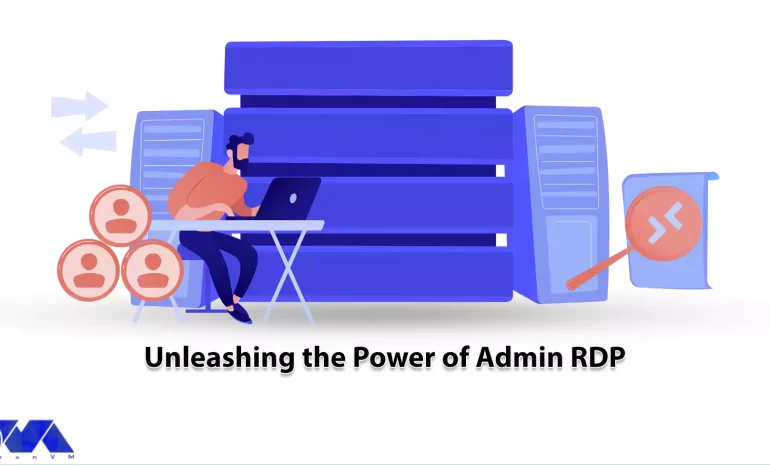
    Admin RDP is a term that refers to the use of Remote Desktop Protocol (RDP) to access and control a computer with administrative privileges. RDP is a protocol that allows a user to interact with another computer’s graphical user interface over a network connection. Admin RDP can use for various purposes, such as managing servers, troubleshooting problems, performing maintenance tasks, or running applications that require high. In the rest of this post, stay with us as we explain Unleashing the Power of Admin RDP to you.

    Advantages of using Admin RDP

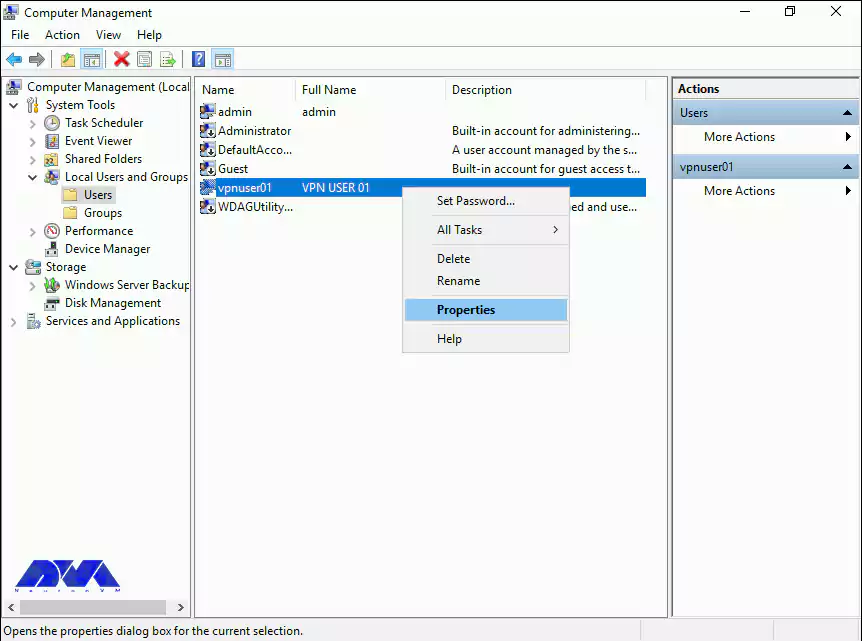
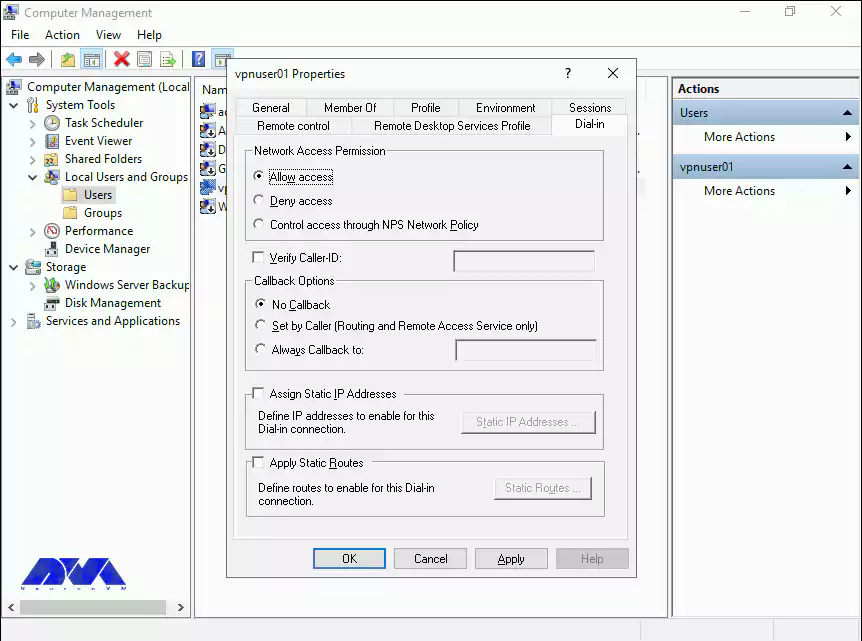
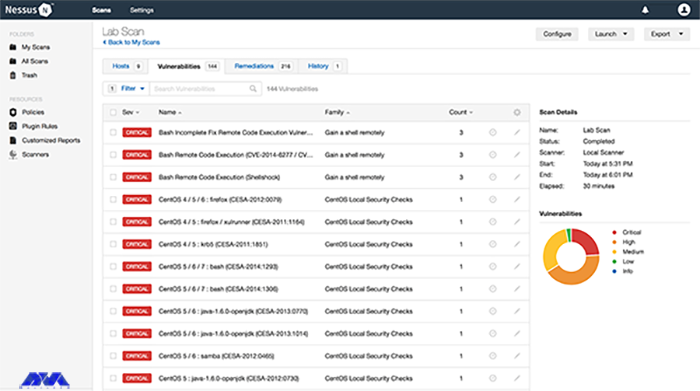
    Nowadays, the term Admin RDP has become very popular among network professionals. Using this service allows users to do their work easily by accessing their desired location. Some of the most important advantages of Admin RDP are:

    • Admin RDP has a dedicated IP.
    • It has dedicated resources. These resources include CPU, RAM, and Storage.
    • Full access to the server is possible.
    • Installation of any program is possible.
    • RDP security is covered by yourself.
    • You can change the RDP port.
    • It is possible to add multiple RDP users.
    • It is possible to choose a custom operating system.
    • Created by virtualization technology.
    • There is access to the server administrator.
    • Hardware can be upgraded.
    Power of Admin RDP

    Understanding performance optimization for Admin RDP

    Optimizing performance for Admin RDP is a topic that involves various factors and settings that can affect the speed and quality of your remote desktop sessions. Depending on network conditions, hardware specifications, and application requirements, you may need to adjust some parameters to achieve the best performance.

    It is interesting to note that using a modern RDP client supports the latest protocols and features such as RemoteFX, UDP transport, and adaptive graphics. Then you can try the new Remote Desktop client from the Microsoft Windows 10 Store, which is designed to work with Windows Virtual Desktop and offers better performance than the standard Remote Desktop Client.

    Another important and interesting point is that you will be able to compress the data transfer between the client and the server by using Configure compression for RemoteFX. This can help reduce network bandwidth consumption and improve the responsiveness of your sessions. You can choose memory, network bandwidth, or a balance of both.

    We recommend adjusting the programs you run on the server to make them more suitable for remote desktop sessions. For example, you can reduce the resolution, color depth, or frame rate of graphics-intensive programs, or disable some features that aren’t necessary for your tasks. In other words, it is better to adjust the visual effects and display settings on the server to reduce the graphic complexity and improve the rendering speed of your sessions. You can use the System Properties dialog box to select the Adjust for best performance option, which disables most animations, shadows, and transparency effects on the server.

    Choosing the right Windows distribution for your VPS

    Choosing the right Windows distribution for your server is a decision that depends on a variety of factors, including your budget, performance requirements, security needs, and compatibility with other software and hardware. There are different editions and versions of Windows Server that offer different features and capabilities. Some of the most common are:

    1) Windows Server 2012 R2: This is the older version of Windows Server that was released in October 2013. Windows Server 2012 R2 enhanced the virtualization, storage, networking, and management capabilities of the server platform. It also added new features such as Work Folders, Storage Tiering, Desired State Configuration, and Workplace Join. Windows Server 2012 R2 is available in four editions: Essentials, Foundation, Standard, and Datacenter.

    2) Windows Server 2016: This version of Windows Server was released in September 2016. It introduced new features such as Nano Server, Storage Spaces Direct, Shielded Virtual Machines, and Windows Server Containers. It also improves the security, scalability, and reliability of the server platform. Windows Server 2016 comes in three editions: Essentials, Standard and Datacenter.

    3) Windows Server 2019: This version of Windows Server was released in October 2018. It offers improved security, hybrid cloud integration, container support, and faster innovation for applications. It also supports Linux workloads and has a new Windows admin center for managing servers. Windows Server 2019 comes in four editions: Essentials, Standard, Datacenter, and Hyper-V Server.

    4) Windows Server 2022: Windows Server 2022 has provided new and advanced features for users in the field of virtualization, network, storage, user experience, cloud computing, automation, etc. Simply put, Windows Server 2022 will help you make your company’s IT operations much easier and at a whole new level while reducing costs. In the 2022 version, the Microsoft Edge browser has replaced the old browser in the Windows Server version.

    Steps to secure your Admin RDP

    Securing Admin RDP is a very important step to protect your computer and data from unauthorized access. There are several steps you can take to secure your admin RDP, such as:

    1) Enable Network Level Authentication (NLA) in your RDP settings. This requires the user to authenticate before establishing a remote connection, which can prevent man-in-the-middle attacks.

    2) Use a strong and complex password for your account and change it regularly. You can also use a password manager to store and generate your passwords securely.

    3) Encrypt your RDP connection with SSL/TLS. This method ensures that the data transferred between the client and the server is protected from eavesdropping and manipulation.

    4) Change the default RDP port from 3389 to a random port number. This makes it more difficult for attackers to scan and find your RDP service on the network.

    5) Use a firewall to restrict access to your RDP port and only allow connections from trusted IP addresses or networks. You can also use a gateway service to create a secure tunnel for your RDP traffic.

    6) Use the privileged access management (PAM) solution to manage your administrator credentials and access policies. It allows you to store your passwords in an encrypted vault, give access only when needed, and monitor and inspect your RDP sessions.

    Hardening your Admin RDP for enhanced security

    RDP is a convenient way to access and manage remote systems, but it can also pose security risks if not configured properly. Here are some tips and resources to help you secure your RDP connections.

    The first step is to use the latest version of RDP and Windows. Older versions of RDP may have vulnerabilities that can be exploited by attackers. Make sure you have the latest updates and security patches for your Windows operating system and your RDP client and server.

    The next step is to enable SSL/TLS encryption for RDP. This prevents your RDP traffic from being intercepted or tampered with. You can use the Microsoft Remote Desktop Services gateway to encrypt RDP connections using SSL/TLS.

    Restrict RDP access with Windows Firewall. You can use Windows Firewall to prevent unauthorized hosts and networks from accessing your system through RDP. You can also specify which ports and protocols are allowed for RDP.

    Use multi-factor authentication (MFA) for RDP. MFA adds an extra layer of security by requiring a second factor, such as a code or biometric, to verify your identity before granting RDP access. You can use Windows Hello for Business or other third-party solutions to enable MFA for RDP.

    Finally, you can configure session security and auditing policies for RDP. You can use Group Policy or Local Security Policy to set various options for RDP sessions, such as encryption level, idle time, clipboard redirection, and printer redirection. You can also enable auditing and logging of RDP events to monitor and track remote access activities.

    Optimizing your Admin RDP for speed and efficiency

    RDP can consume a lot of network bandwidth and affect the performance of your applications. Here are some tips and resources to help you improve your RDP experience. Configure transport protocols for RDP. RDP can use both TCP and UDP protocols to send and receive data over the network. TCP is more reliable but slower, while UDP is faster but less reliable. You can choose the protocol to use for your RDP sessions based on your network conditions and requirements.

    On the other hand, you can set up applications to host remote desktop sessions. If you use the Remote Desktop Session Host (RD Session Host) server to host multiple remote sessions, we recommend that you optimize the programs that run on the server. You can use Group Policy or Local Security Policy to set various options for applications, such as process priority, CPU affinity, memory allocation, and more.

    We recommend customizing visual settings for your remote meetings based on your connection speed and preferences. You can enable or disable features like desktop background, font smoothing, menu animations, window dragging, etc. These properties can affect the amount of data transferred over RDP and the responsiveness of your applications.

    Monitoring and managing your Admin RDP

    To monitor remote client activity and status, you can use the Remote Access Management Console on the Remote Access Server. This console allows you to view the list of users connected to the server, connection details, and resource usage. You can also use Windows PowerShell commands to get the same information.

    To secure your Admin RDP, you must use the latest version of RDP and Windows, enable SSL/TLS encryption, restrict access with Windows Firewall, use multi-factor authentication, and configure security policies and session auditing. These measures help you prevent unauthorized access, data interception, and malicious attacks.

    Troubleshooting common issues with Admin RDP

    Here are some of the most common problems and how to troubleshoot them.

    1) Disconnecting from the remote computer: One of the most common problems experienced when trying to use the Remote Desktop Protocol (RDP) is disconnecting from the remote computer. This error can be caused by a variety of factors, including a dropped or unstable user connection, server settings, or authentication issues. To fix this problem, you can try the following steps:

    Solution:

    • Check your network connection and make sure it is stable and reliable. You can use a tool like ping or trace to test the connection between the client and your host computer.
    • Check the server settings and make sure that RDP is enabled and configured correctly. You can use Remote Access Management Console or Windows PowerShell commands to check and change RDP settings on the server.
    • Check your authentication credentials and make sure they are correct and valid. If your credentials have expired or been blocked, you may need to reset your password or use a different account.

    2) Unable to log into the remote computer: One of the most common errors encountered when using Remote Desktop Protocol (RDP) is the “Unable to Log You On” error. This can be due to a variety of issues such as incorrect credentials, server connection issues, or an expired password. To fix this problem, follow the steps below:

    Solution:

    • Verify that you have entered the correct username and password for the remote computer. Make sure you use the domain name or IP address of the remote computer, not the local one.
    • Verify that the remote computer is online and accessible. You can use a tool like ping or trace to test the connection between the client and your host computer.
    • Check that your password has not expired or been changed. If your password is no longer valid, you may need to change your password on the remote computer or use a different account.

    3) Remote Desktop cannot find the computer: The most common reason for this problem is that the Remote Desktop Protocol is not enable on the server. Other possible reasons for this error include an incorrect IP address or hostname of the remote computer, network connectivity issues, port blocking, and more. To solve this problem, you can try the following steps:

    Solution:

    • Enable RDP on the server using the System Properties dialog box or Windows PowerShell commands. You can also check and change the RDP status in the registry editor.
    • Make sure you entered the correct IP address or hostname of the remote computer. You can use a tool like nslookup or ipconfig to find the IP address or hostname of the remote computer.
    • Check your network connection and firewall settings and make sure they are not blocking RDP traffic. You may need to open port 3389 on your firewall or router to allow RDP communication.

    Conclusion and final thoughts

    Admin RDP is a powerful and convenient feature that allows you to remotely access and manage other computers on your network. However, it also has some security and performance challenges that require proper configuration and optimization. In this article, we’ve provided you with tips on how to harden, optimize, monitor, and troubleshoot RDP Admin. If you have any questions about different parts of this article, you can ask us in the comments section.

  • Enhancing Remote Access with Windows RDP 2012: The Ultimate Solution

    Enhancing Remote Access with Windows RDP 2012: The Ultimate Solution

    Windows RDP 2012 is a feature of Windows Server 2012 that allows users to connect to remote desktops and applications from any device. RDP stands for Remote Desktop Protocol, which is a protocol that enables remote desktop connections over a network. In this comprehensive article, we intend to teach you about Enhancing Remote Access with Windows RDP 2012.

    Benefits of using Windows RDP 2012 for remote access

    Some of the benefits of using Windows RDP 2012 for remote access include:

    Compatibility: RDP is compatible with Windows operating systems, which means it can use with different devices and platforms. You can also use the Microsoft Remote Desktop program to connect from non-Windows operating systems.

    Security: RDP uses strong encryption to secure remote desktop connections and prevent unauthorized access. You can also configure security settings and policies to control who can access your remote desktop and applications.

    Multiple sessions: RDP supports multiple sessions, which means that multiple users can connect to the same computer at the same time. You can also use session shadowing to monitor and control other Windows RDP 2012 R2 user sessions.

    Reliability: Remote Desktop Services in Windows RDP 2012 are reliable across a wide range of network configurations, hardware devices, and administrative scenarios. It also supports features such as network load balancing, failover clustering, and dynamic fair share scheduling to improve performance and availability.

    User Personalization: User profile disks allow you to maintain user personalization settings across session sets and pooled virtual desktop sets. You can also use RemoteApps to deliver apps to users without installing them on their devices.

    We assure you that you will enjoy the high quality of these servers by purchasing a Cheap Admin RDP from the plans provided on our website.

    Features and capabilities of Windows RDP 2012

    Some of the most important features and capabilities of Windows RDP 2012 will be explained below:

    Management: Windows RDP has a powerful management console. In this console (Server Manager) you can manage all rules.

    Server Core: Using this ability, you can install your Windows minimally (without a graphical interface).

    Virtualization: Using this feature, your operating system becomes a virtual machine. That means you can have other operating systems on top of your current operating system.

    IP Address Management: The IP AM feature was first introduced in Windows RDP 2012. Manages the IP structure under the network.

    Using IIS 8 with advanced security capabilities: By IIS8, it provides the possibility of using advanced security protocols. You will be able to install each section separately. This feature increases the efficiency and security of your system.

    Brand Cache feature: Brand cache is a capability that allows us to increase the responsiveness of applications on low-speed connections such as WAN networks. In this case, the files can be cached on the user’s computer.

    File Server Resource Management: A set of tools that allow network administrators to control and manage the type and amount of data stored on the server. By using this feature, the network administrator will be able to manage. On the other hand, it will have complete control over file management, disk quota management or codes, detailed reporting, and discussion of file classification. It has the power to support magnetic smart cards (Smart Cart) for authentication. These intelligent cards increase network security.

    Windows Deployment Service feature: With this feature, the remote network manager installs the operating system without the need for DVDs or other portable discs on the network through the user’s computer, which does not even have an operating system on it.

    Setting up Windows RDP 2012 for remote access

    Prerequisites for installing Windows RDP 2012:

    • A Windows VPS with windows server 2012 OS
    • A minimum amount of RAM is 1 GB
    • The minimum required space is 15 GB

    First, put the boot of your computer or server on the CD-ROM and put the Windows CD in the CD-ROM and wait for the Windows installation section to load:

    1 setup windows rdp 2012

    *

    2 setup windows rdp 2012

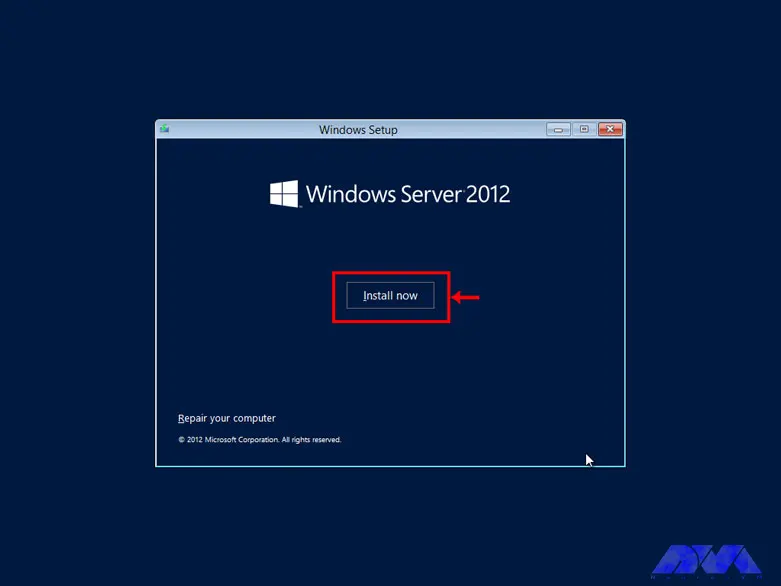
    According to the image, click on the Install Now option to enter the Windows installation:

    3 how to install windows server 2012

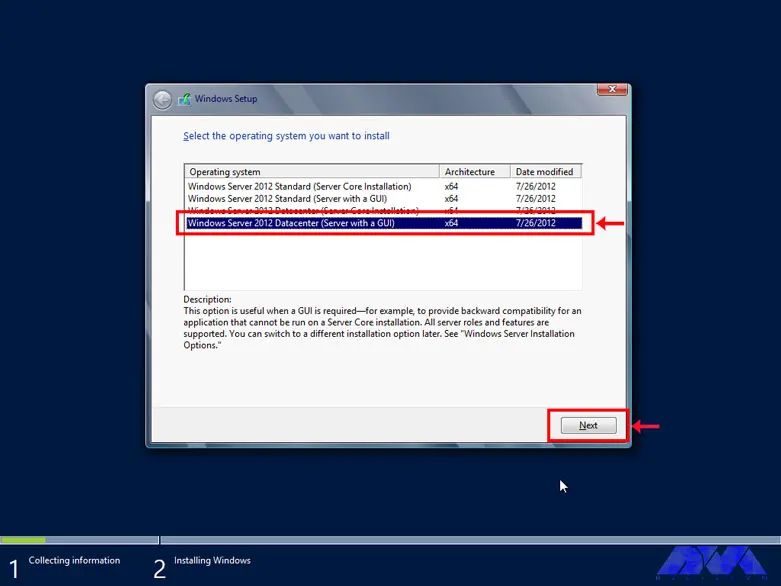
    Choose one of the GUI options, either the standard Windows GUI or the datacenter GUI that is specific to the server:

    4 how to select the operating system

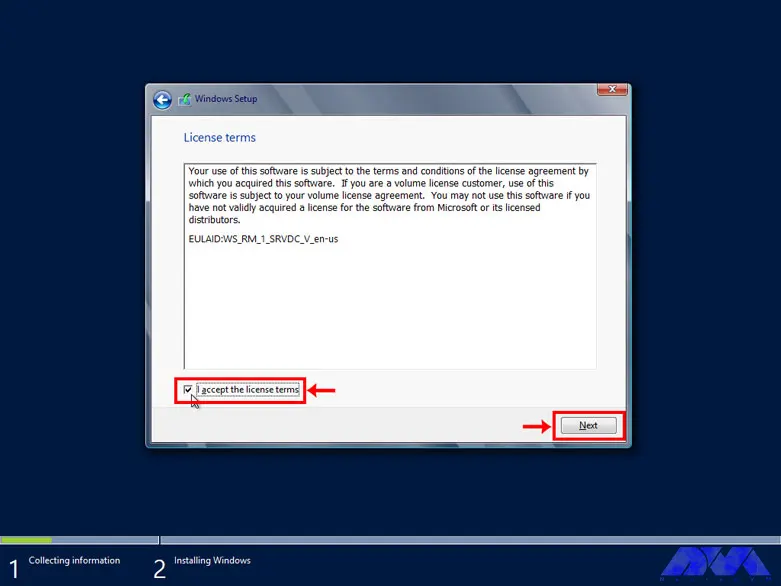
    Confirm the copyright and license server rules to allow Windows installation:

    5 windows rdp 2012 license agreement

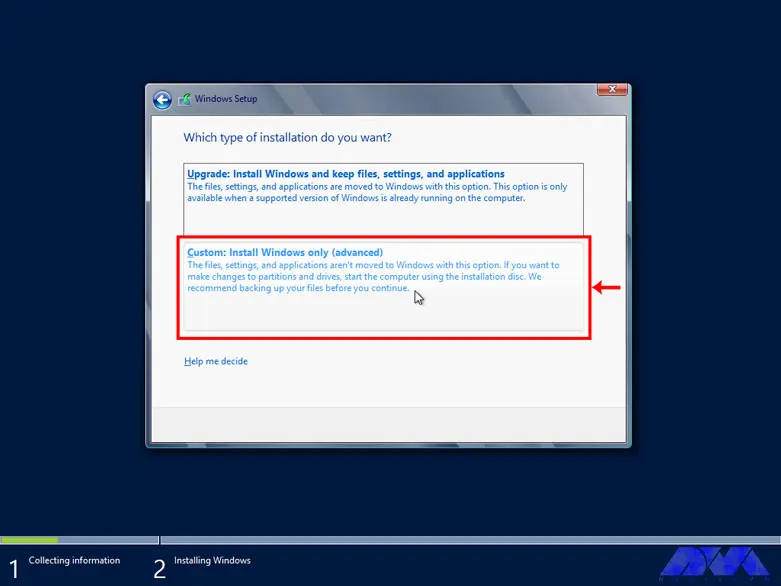
    Select the Custom option for custom Windows installation. In this section, you will be given the option of partitioning and installing Windows in your desired partition:

    6 windows server 2012 installation type

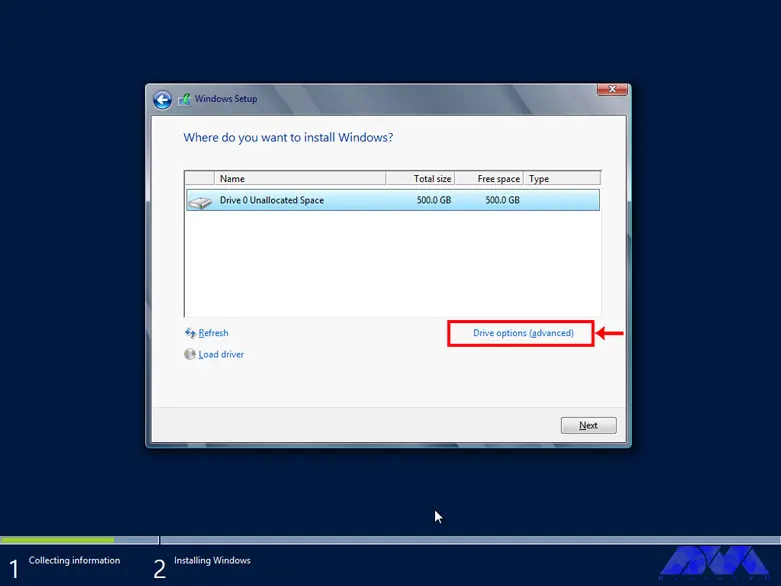
    Select Drive Options (advanced) to select the desired partition and partitioning:

    7 installing windows rdp 2012 - Select Drive Options (advanced)

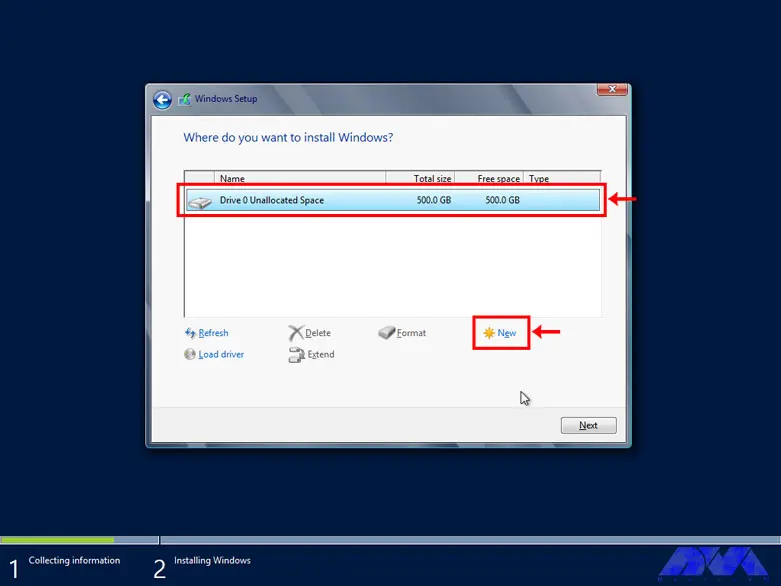
    First, click on the hard drive and select the New option to create a new partition. In high-volume hard drives, it is recommended to choose 50 GB for Windows and software required by Windows and partition the rest of the hard drive as desired:

    8 installing windows rdp 2012 - Select Drive Options (advanced)

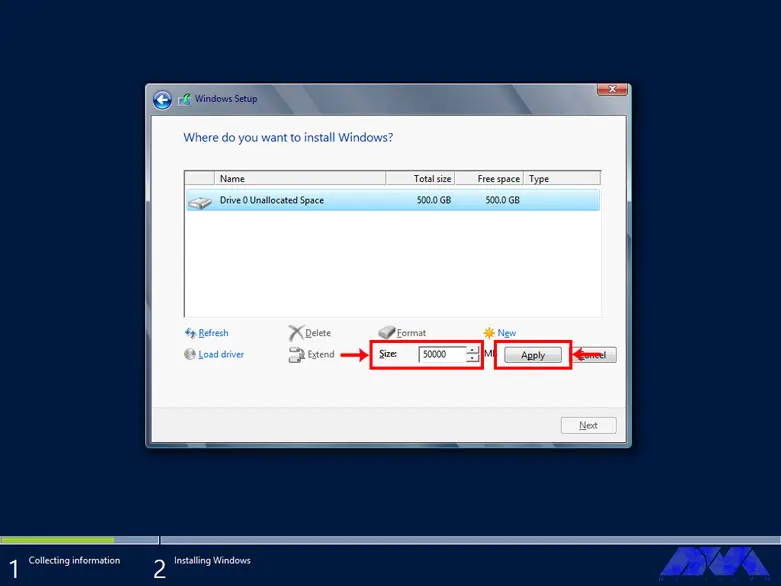
    Choose the volume of your desired partition to create your desired partition:

    9 volume of your desired partition

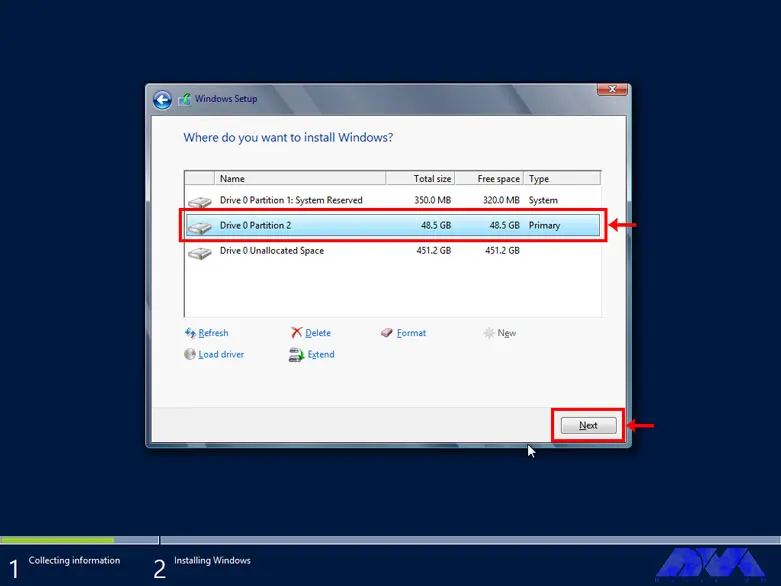
    From the created partitions, choose your desired partition to install Windows:

    10 volume of your desired partition

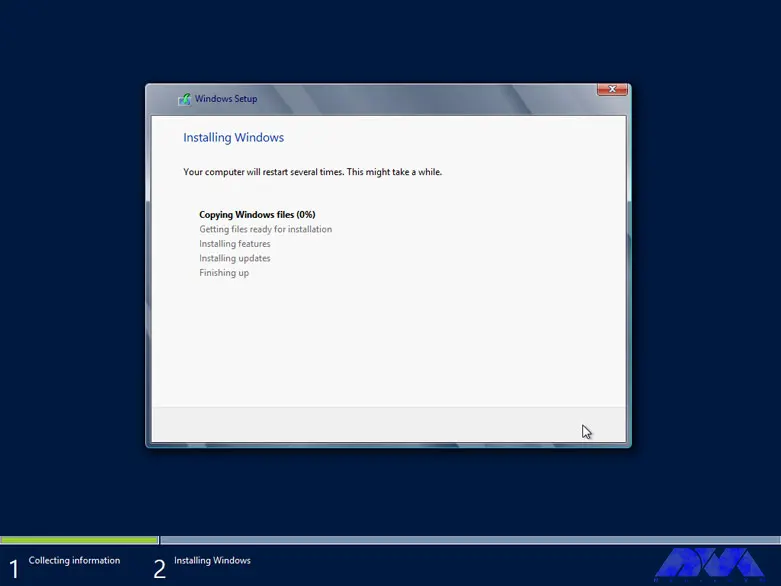
    Wait for Windows to be completely installed on your hard drive:

    11 how to setup windows server 2012

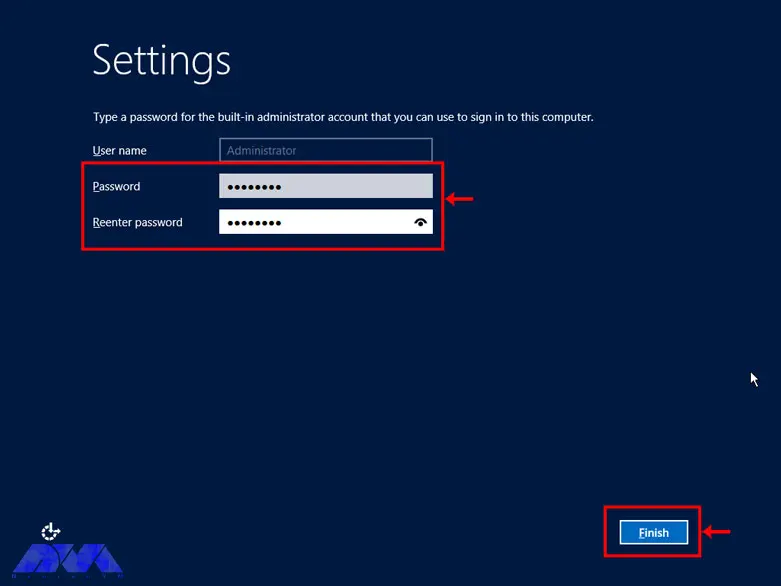
    Choose a desired password for the administrator and repeat it twice:

    12 privacy setting on windows rdp 2012

    Press Ctrl+Alt+Delete to enter the Windows login section:

    13 windows server 2012 login page

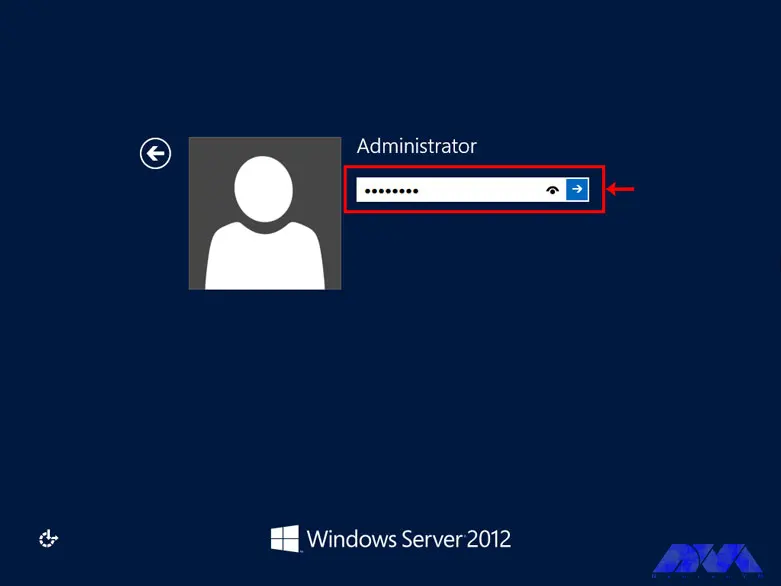
    Enter your Windows password to enter Windows:

    14 windows server 2012 login page

    Enhancing security with Windows RDP 2012

    There are several ways to increase Windows RDP security. Next, we will introduce the solutions to increase the security of Windows RDP 2012:

    • Pay attention to Windows Update messages
    • Manage your server better with free MMC
    • Check the latest support date
    • Use the feature of the lowest access point in the Windows RDP
    • Increase the security of the Windows RDP by configuring the network
    • Remove unnecessary ports and software and services
    • Consider security considerations in NTP configuration
    • Periodically check the server logs
    • Establish specific security policies
    • Use a powerful firewall to increase the security of the Windows RDP
    • Use the Windows MBSA feature to identify vulnerable parts of the server

    Troubleshooting common issues with Windows RDP 2012

    Windows RDP is much more powerful than regular Windows and is able to perform much heavier tasks. But if there is a problem with it, the activity of all the clients connected to it will be disrupted. Such problems can be mentioned as Windows not booting, blue screen after startup, inability to open files and folders on the desktop, inability to update Windows, etc.

    Most of these problems are caused by corrupt system files, damaged boot records, etc., which are mainly caused by individual mistakes or negligence of client system users. In this situation, the importance of creating a level of access to files for clients is very necessary and vital.

    Windows RDP troubleshooting using the Image file

    1) You can scan system files by using the SFC scannow command in the CMD environment. For this, connect the flash drive containing the image file to your server and turn on the server.

    2) Enter the BIOS environment and boot the server to DVD or USB.

    3) After the server is booted from the desired media, click the Repair Your Computer option.

    4) Select the operating system you want to repair and click Next.

    5) A dialogue box called System Recovery Options will open for you, choose Command prompt from it.

    Tip: Note that you can use the SFC command only with Administrator access.

    6) After opening CMD, type the following command and press Enter:

    SFC/scannow

    In addition, using the SFC command, you can repair damaged boot files and records. Just enter the following commands and press Enter at the end of each line:

    bootrec / fixmbr
    bootrec / fixboot
    bootrec / rebuildbcd

    After you have entered all the commands and the process has been completed successfully, restart your server. You will see that your Windows RDP has been repaired.

    Tips and best practices for optimizing Windows RDP 2012 performance

    Decreased performance and speed of servers is a common problem that may occur for various reasons. Servers may also suffer from the same problems as a standard computer, except that the way servers work, unlike normal computers, is set in a more precise way.

    In the rest of the article, we have provided a list of things that can increase the performance and speed of servers. Before looking into any of these, we recommend that you take a backup of your computer’s data and settings. Make a note of any changes you make to the main system settings and record the changes made by this change as well.

    • Switch to High-Performance Power mode.
    • Disable shorthand naming in DOS 8.3.
    • Check for commands and processes with high CPU or memory usage rates.
    • Scan the system for malware.
    • Check network speed.
    • Update necessary drivers.
    • Take the signs of external attacks seriously.
    • Disable login via SMB packets.
    • Run SFC/Scannow.
    • Check for hardware errors.
    • Consider the Tuning Guide functionality.

    Comparing Windows RDP 2012 with other remote access solutions

    Windows RDP 2012 is a remote access solution that allows you to connect to a remote computer and control it over the network. This protocol uses Remote Desktop Protocol (RDP), which is a proprietary protocol. RDP is fast and efficient because it transfers low-level screen drawing operations and stores pixmaps on the client side. It also supports encryption, authentication, compression, and redirection of various devices and resources.

    Other remote access solutions may use different protocols or methods to capture and transmit screen changes, such as VNC, SSH, HTTP, etc. Some of them may be faster or slower than RDP depending on network conditions, screen resolution, and compression algorithm.

    To compare Windows RDP 2012 with other remote access solutions, you may want to consider the following factors:

    Performance: How fast and smooth is the remote control experience? How much bandwidth and CPU does it consume? How well does it deal with latency and packet loss?

    Security: How secure is the connection between the client and the server? What encryption and authentication methods are used? How vulnerable is it to attacks or intrusions?

    Functionality: What features and capabilities does it offer other than remote control? How easy is it to configure and use? How compatible is it with different operating systems and devices?

    Cost: How much does it cost to acquire and maintain? Is it free for personal or commercial use? What are the terms and conditions of licensing?

    Windows RDP 2012 licensing and pricing options

    Windows RDP 2012 licensing and pricing options depend on the version and number of processors you need for your server deployment. There are four editions of Windows RDP 2012:

    The Datacenter edition is designed for highly virtualized private cloud environments. You can run any number of virtual operating system environments (OSE) on a licensed server. It also includes advanced features such as tiered storage, software-defined networking, and the Windows Azure package. The licensing model is processor-based, meaning you must license each processor on the server. You must also obtain client access licenses (CALs) for each user or device accessing the server.

    The standard edition is designed for non-virtualized or slightly virtualized environments. It offers two virtualization rights, which means you can run up to two virtual OSEs on one licensed server. The licensing model is also processor-based and requires a CAL for each user or device that accesses the server.

    The Essentials edition is designed for small businesses with up to 25 users and 50 devices. It also includes features such as simple management, integration with cloud services, and remote web access. The licensing model is server-based, meaning you must license each server with up to two processors. No need to get CAL for this version.

    The Foundation version is designed for small businesses with up to 15 users and no need for virtualization. It also includes basic features such as file and print services, remote access services, and Active Directory domain services. The licensing model is also server-based, meaning you must license each server with one processor. No need to get CAL for this version.

    Pricing for Windows RDP 2012 editions varies by volume licensing program, agreement type, license type, and region. You can use the Microsoft License Advisor tool to estimate pricing for your specific scenario.

    Conclusion

    Windows RDP 2012 provides advanced features in virtualization, networking, storage, user experience, cloud computing, and automation. In simpler words, this Windows helps you to do IT-related things much easier and with reduced costs. After mastering the basics of Windows Server, it is recommended to use Windows Server as an operating system instead of using the provided client Windows. Because it works much better than Windows clients in terms of resource allocation (both hardware and software).

  • The Future is Here: Exploring the New Features of Windows Server 2019

    The Future is Here: Exploring the New Features of Windows Server 2019

    One of the most powerful operating systems offered for servers is Windows Server 2019. This operating system is a supplementary version of the previous version and has added new features. But what are these new features? Windows Server 2019, which is based on the previous version, has undergone changes and optimization in various parts, and these changes have been made in the security, application platform, and hybrid performance sections. In this article, we fully explore the New Features of Windows Server 2019.

    Key features and improvements in Windows Server 2019

    In the main appearance and interior of Windows Server 2019, two major changes have been made, the first is Desktop Experience and the second is System Insights. The first feature is essentially the Windows Server appearance changes that have been created to improve customer satisfaction and users can choose to create new appearance changes for Windows Server 2019.

    The second change, called System Insights, is a new feature built into Windows Server 2019. This feature analyzes your server data and evaluates everything that happens on your server, and gives you a report so that you can optimize your server. This feature can identify and report all the weak points of the server.

    We recommend you choose and buy a plan according to your needs from the Windows VPS server plans provided on our website. After installing Windows Server 2019 on these servers, you will see the excellent performance of these servers. In the continuation of this article, we will fully review the key features of Windows Server 2019.

    windows server 12019

    Enhanced security measures in Windows Server 2019

    Windows Server 2019 has introduced a series of special platforms called Windows Defender ATP for more server security. This platform has 4 new features which are as follows:

    1) Attack Surface Reduction: This feature, which is a set of instructions, identifies any corrupted files, emails containing corrupted attachments, and strange behavior of servers and ransomware and prevents them from penetrating the system and server.

    2) Network protection: This feature also detects and blocks any anonymous or invalid IPs from the web.

    3) Access to files is controlled: Critical data of the server and devices are protected by this new feature to prevent the penetration of programs such as ransomware.

    4) Protection against security holes: A series of instructions have been designed for this platform to protect and prevent security holes. Note that you can activate this feature manually.

    But the security optimizations are not only limited to the platform, these optimizations are also included in the virtualization section. In the previous versions, the troubleshooting problems were a bit too much and exhausting, but in Windows Server 2019, these problems have been solved and users can solve virtualization problems. On the other hand, these changes do not need to be adjusted manually and can be done automatically. Finally, if users want to have a mixed environment of the operating system, Windows Server 2019 can support Ubuntu, Linux, and Red Hat Hamel systems.

    Improved performance and scalability in Windows Server 2019

    Another benefit of Windows Server 2019 Standard is that it is highly scalable, meaning it can grow with your business as your server needs to grow. In addition, the platform also offers excellent performance, ensuring that your applications and systems run fast and smoothly.

    One of the features of Windows Server 2019 that has improved performance and scalability is support for hybrid environments. Windows Server 2019 is designed to run in both on-premise and cloud environments, allowing enterprises to make the most of available resources and adapt to changing business needs.

    Next is storage optimization. With Storage Spaces Direct (S2D), companies can easily group storage units into a single pool. Interestingly, this feature will improve storage efficiency and performance. In addition, the data deletion and compression feature reduces the space required for data storage.

    It is interesting to note that Windows Server 2019 introduces network virtualization improvements. Such as hardware acceleration and support for container-based virtualization, which improves application performance and network efficiency.

    Windows Admin Center: A powerful tool for managing Windows Server 2019

    Server management is a very difficult task and many risks threaten it, so to reduce risks and simplify management, it is better to use a tool called Windows Admin Center, which has many features. Windows Admin Center installed on an internal server can manage standard Windows 2019 servers. It can also manage HyperV R2 and higher servers, Windows Server Core, Hyper-Converged systems, or Azure.

    Windows Admin Center can increase the speed of doing things with the ability to personalize dashboards. This tool offers a modern view of monitoring, using which you can change the design of dashboards, put them in different sections, and separate the charts in them from each other. Each of these dashboards is a workspace where information can be saved and shared.

    There are always tasks that require access to the server console, and in Windows Admin Center, the Remote Desktop feature has been placed to do this, which can be used through a browser. The interesting feature of this tool is to access the console of each managed server, without the need to open additional ports in the firewall. All engine traffic goes to Windows Admin Center through HTTPS protocol and is encrypted on the way.

    Accessing files from Windows Admin Center has become a trivial matter. You can do things like create new folders, rename or delete files, upload and download files, cut, copy, paste, and even extract archives. Apart from these simple and routine things, you can also set file sharing, set file sharing permissions, and create and manage files. Also, with Admin Center, you can perform disk management, including formatting and resizing, creating and attaching VHD files, and saving information on disk and server.

    Hybrid cloud capabilities in Windows Server 2019

    A hybrid cloud is a combination of one or more public and private clouds. A hybrid cloud is a collection of virtual resources. These resources are powered by hardware that is owned, managed, and organized by a third party. Resources in the hybrid cloud are provided to a customer in a dedicated manner. These computing and storage resources are automatically provided and allocated through a self-service user interface.

    Interoperability is the fundamental basis of a hybrid cloud. Without it, the public cloud and the private cloud can exist independently of each other, but they are not considered hybrid clouds. Even if they are used by a company or organization. Hybrid clouds include multiple connection points, and software services integrated into the core allow resources, operating systems, and applications to move across the environment.

    Nowadays, it is impossible to imagine an IT environment without virtualization and hybrid cloud. Therefore, in Windows Server 2019, Microsoft has improved the connection between the Azure cloud platform and the Windows Server operating system. This connection is not only limited to the Admin center, but the Azure network adapter also provides the possibility of connecting to the cloud computing platform. In addition, the Windows Server 2019 release includes better support for Azure Backup, File Sync, Disaster Recovery (DR), and other Azure services.

    Cloud management tools provide you with one-piece platforms for managing hybrid clouds. Thus, they free you from manual management of the hybrid environment using management and planning tools for multiple implementations and additional expert operators. These single-fabric platforms encapsulate the core technologies and centralize management tasks so that operators and users can control the system lifecycle, automated services, automation, policy enforcement, and costs when deploying services.

    Containerization and virtualization advancements in Windows Server 2019

    The interesting thing about Windows Server 2019 is that it supports both Windows and Linux containers that can run on the same container host. In addition, Windows Server 2019 includes built-in support for Kubernetes, which can significantly improve container networking. Additional container improvements include integrated Windows authentication in containers, improved application compatibility, and reduced size of base container images. These Hyper-V features can increase the speed of container workflows, make containers more secure and reliable, and ensure the efficiency of container networks.

    Similar to the way Linux containers share host operating system kernel files, Windows Server containers do so in a similar way. In other words, while namespaces, filesystems, and network isolation are enforced to isolate containers from each other, vulnerabilities can exist between different Windows Server containers running on the same host. For example, if you want to log into the host operating system on your container server, you can see the processes running on each container.

    The container is not able to see the host or other containers and is still isolated from the host in various ways, but knowing that the host can see the processes inside the container tells us that some interaction with the host may be shared. Windows Server containers are useful in situations where the server hosting the container and the container itself are in a secure domain and trust each other. Windows Server Containers are more useful for servers that are owned by the company and the company itself can manage them. If you trust your host server and container, using Windows Server containers provides the most efficient way to use hardware resources.

    Upgrading to Windows Server 2019: Considerations and best practices

    To upgrade to Windows Server 2019, you must log in as an administrator of the server you want to upgrade.

    Then, in the next step, you need to insert the Windows Server 2019 DVD or install the installation ISO.

    In the third step, you can go to the root of the installation media and double-click on setup.exe. After doing this, you will see the Windows Server 2019 setup window appear.

    Now you can follow the steps in the wizard. Pay attention to the following:

    Tip: If you are upgrading from a DVD, you may be prompted to boot from the DVD. You can let the request time out and the upgrade will continue.

    When the upgrade is finished, a screen will be displayed that the settings are being finalized. When the upgrade is complete, you will be presented with the Windows Server 2019 login screen.

    Case studies and success stories of organizations using Windows Server 2019

    Windows Server 2019 is a version of Windows built. It is designed to meet business needs such as access control, data management, cloud integration, and virtualization. It comes in three editions: Datacenter, Essentials, and Standard, each suitable for different use cases and environments. Here are the success stories of many organizations using Windows Server 2019 to improve their performance, security, and efficiency.

    1) ZDNet reviewed Windows Server 2019 and praised its features, particularly its improvements in security, hyper-converged infrastructure, and hybrid cloud. They also noted that Windows Server 2019 provides a solid foundation for future data center advancements, including edge locations.

    2) Microsoft published a case study of Coles Group, an Australian retailer that migrated to Windows Server 2019 to modernize its IT infrastructure and reduce costs. Coles Group reported that Windows Server 2019 helped them achieve faster deployment, better scalability, increased security, and easier management.

    Conclusion: The future of Windows Server 2019 and its impact on businesses.

    Windows Server 2019 is another Microsoft operating system designed for servers. It can be used by large information centers of the world or even small companies. Windows Server 2019 has provided new and advanced features for users in the field of virtualization, network, storage, user experience, cloud computing, automation, etc. In simple words, Windows Server 2019 helps you to do your company’s IT affairs much easier and at a whole new level along with reducing costs. Businesses that are currently using Windows Server 2019 in their business receive a very positive impact compared to other operating systems. Because Windows Server 2019 has been able to perform better than other competitors in online businesses.

  • From Zero to Hero: Becoming a Metasploit Expert on Kali Linux

    From Zero to Hero: Becoming a Metasploit Expert on Kali Linux

    Every year, breaches of users’ information and privacy cause huge financial and credit losses to organizations, half of which are caused by cyber-attacks. By conducting a penetration test, companies can prevent data breaches caused by cyber-attacks. Because penetration testing projects include attack simulation along with other techniques. Penetration testing allows businesses to identify vulnerabilities in their IT infrastructure. In the rest of this article, we will tell you how to become a Metasploit Expert on Kali Linux.

    Understanding the basics of penetration testing

    Penetration testing, also known as Pen Test, is one of the most common and standard methods of security and penetration testing of web applications. Pen Test runs simulated attacks on the website from inside and outside to find out which parts of our website have security weaknesses. It is recommended that all websites in the world use Pen Test so that they can find out the security weakness of their site before hackers and correct it quickly.

    The main issue here is that many web applications request sensitive user data and store it in their database. This makes web applications a mine of valuable information. Therefore, hackers have shown great interest in databases. The situation becomes dire when we consider the generality of web applications!

    By performing pen test, we pursue the following goals:

    • Detecting system vulnerabilities that were previously unknown
    • Checking the effectiveness of the current website security rules
    • Testing active security components on a site such as a firewall and DNS
    • Identifying the weakest parts of the program
    • Identifying the appropriate parts of the site for data leakage

    Getting started with Kali Linux

    Kali Linux is a security distribution of Linux derived from Debian and used specifically for computer crime prevention and advanced penetration testing. This version was developed through the BackTrack rewrite by Mati Aharoni and Devon Kearns of Offensive Security.

    metasploit on kali linux

    Kali Linux includes several hundred tools that have been assembled to perform various tasks in the field of information security, such as penetration testing, security research, computer crimes, and reverse engineering.

    Kali Linux has more than 600 penetration testing applications installed on it, each of which you need to discover. Each program has its own flexibilities and uses. Kali Linux has done a great job of separating these useful tools into the following categories:

    • Information gathering
    • Vulnerability analysis
    • Wireless attacks
    • Web applications
    • Exploit tools
    • stress test
    • Criminological tools
    • wiretapping and forgery
    • Password attacks
    • Maintenance accesses
    • Reverse Engineering
    • Reporting tools
    • Hardware hacking

    In the rest of this article, we will teach how to install and set up Metasploit on Kali Linux.

    Installing and setting up Metasploit on Kali Linux

    Before starting the installation and configuration process, we recommend you use the Linux VPS server plans provided on our website. In this section, we want to teach you how to install and run Metasploit. To do this, simply run the following command in the Kali terminal:

    sudo apt install metasploit-framework

    One thing to note is that the Metasploit Service Framework requires the PostgreSQL database service to run. Therefore, you can activate the PostgreSQL service using the following command:

    sudo systemctl enable --now postgresql

    Now you can start PostgreSQL by running the following command:

    sudo /etc/init.d/postgresql start

    Confirm PostgreSQL using the following command:

    systemctl status postgresql@*-main.service

    or

    sudo /etc/init.d/postgresql status

    Considering that PostgreSQL’s default port is 5432, it is necessary to confirm that the service is active:

    sudo ss -ant | grep 5432

    In the next step, it is necessary to enter the Rapid7 signature key with the following command:

    curl https://raw.githubusercontent.com/rapid7/metasploit-omnibus/master/config/templates/metasploit-framework-wrappers/msfupdate.erb> msfinstall && chmod 755 && msfinstall && ./msfinstall

    Start the Metasploit PostgreSQL database by running the following command:

    sudo msfdb init

    or

    sudo msfdb run
    sudo msfdb init && msfconsole

    You can now configure the Metasploit Framework Service and launch the Metasploit Service Framework (msf) console on your system. Therefore, in the first step, you need to check the database connection:

    sudo msfconsole -q
    msf5 > db_status

    Metasploit modules and functionalities

    Metasploit modules are the main components of the Metasploit framework. A module is a piece of software that can perform a specific action such as scanning or exploiting. Every task you can do with Metasploit is defined in a module.

    There are four main types of Metasploit modules:

    1) Exploit modules: These modules execute code on a target using a vulnerability. Exploit modules can be used to gain access, elevate privileges, or execute commands on a target system.

    2) Auxiliary modules: These modules perform various support tasks such as scanning, fingerprinting, sniffing, or brute-forcing. Auxiliary modules can be used to gather information, test for vulnerabilities, or launch denial-of-service attacks.

    3) Payload modules: These modules define the code that is executed on a target after a successful exploit. Payload modules can be used to create a shell, execute commands, upload or download files, or create processes on a target system.

    4) Post-exploitation modules: These modules are executed after the successful implementation of the exploit and payload. Post-exploitation modules can be used to maintain access, collect data, rotate to other targets, or cover routes to a target system.

    To use Metasploit modules you must search for them using the search command and appropriate search operators such as name, platform, type, program, author, etc. You can also use the show command to view a list of all available modules of a specific type.

    For example, to search for an exploit module for Windows that has the name “ms08-067”, you can use the following command:

    search name:ms08-067 platform:Windows type:exploit

    To view all the payload modules, you can use the following command:

    show payloads

    Exploitation techniques using Metasploit

    Exploitation techniques using Metasploit are the methods and steps that you can use to exploit vulnerabilities in systems or applications with the help of Metasploit modules and tools.

    These are some of the exploitation techniques using Metasploit that you can use to test or compromise systems or applications:

    1) Automated exploitation: Metasploit Pro can build an attack plan based on the service, operating system, and vulnerability information it has for the target system and use it to execute an automated exploit. An attack plan defines the exploit modules that Metasploit Pro will use to attack target systems. To run an automated exploit, you need to specify the hosts you want to exploit and the minimum reliability settings that Metasploit Pro should use.

    2) Autopwn: Autopwn is a tool that can be used to automatically execute all exploits against open ports of a target system. This is a feature of Metasploit Express and Metasploit Pro, but can also be used with the Metasploit framework using the db_autopwn command. Autopwn requires a database to store scan results and exploit options.

    3) AutoSploit: AutoSploit is a Python-based tool that uses Shodan and Metasploit modules to automate mass exploitation of remote hosts. This allows you to search for targets based on keywords or filters in Shodan and then launch Metasploit exploits against them. You can also customize exploit options and load-outs or use random ones. Scan and/or exploit results appear in the Metasploit console and in the output file(s).

    4) Manual Exploitation: Manual Exploitation is the process of selecting and configuring an Exploit Module according to the target system or application, setting required options such as RHOSTS, RPORT, LHOST, LPORT, etc. Manual exploitation gives you more control and flexibility over the exploitation process, but it also requires more knowledge and skill.

    Post-exploitation and gaining control

    Post-exploitation and gaining control are the processes of performing actions on a target system or network after successful exploitation. It can include collecting information, maintaining access, escalating privileges, pivoting to other targets, or covering tracks. Gaining control can involve creating shells, executing commands, uploading or downloading files, or spawning processes on a target system.

    Some of the tools and techniques you can use to post-exploit and gain control include:

    1) Meterpreter: Meterpreter is a powerful payload that runs in memory and provides an interactive shell for the target system. It supports various commands and modules that can perform post-exploitation tasks, such as collecting system information, removing passwords, taking screenshots, recording keystrokes, migrating processes, etc.

    2) Post-Exploitation Modules: Metasploit has a class of modules called post-exploitation modules that are executed after the successful execution of the exploit and payload. These modules can perform various actions on the target system or network, such as collecting data, maintaining access, routing to other targets, or masking routes. For example, the post/windows/gather/hashdump module dumps password hashes from the SAM database on a Windows system.

    3) C2 frameworks: C2 frameworks are tools that allow you to remotely control vulnerable machines through a command and control (C&C) infrastructure. C2 frameworks can help you manage multiple sessions, execute commands, transfer files, or perform further attacks on the target network. Some popular C2 frameworks include Cobalt Strike, Covenant, Empire, etc.

    4) Privilege escalation techniques: Privilege escalation is the process of obtaining higher privileges or access rights on a target system or network. The increase in score can be vertical (from a lower score to a higher score) or horizontal (from one user account to another with the same score level). Elevation can be achieved by exploiting vulnerabilities in the system or application, misconfiguration, weak passwords, etc.

    Advanced Metasploit techniques and tools

    Advanced Metasploit techniques and tools are methods and features that you can use to perform more complex and sophisticated penetration testing tasks with Metasploit. Some advanced Metasploit techniques and tools include:

    1) Database Support: Metasploit can integrate with a database to store and manage scan results, hosts, services, vulnerabilities, credentials, loot, etc. It can help you organize and analyze data and share it with other users or tools. Metasploit supports PostgreSQL, MySQL, and SQLite databases.

    2) Evading anti-virus: Metasploit can help you evade antivirus detection by using various techniques such as encoding, encryption, obfuscation, or polymorphism. You can use the msfvenom tool to generate payloads with different codecs or formats or use escape modules to create executables that can bypass standard antivirus solutions.

    3) Exploit ranking: Metasploit assigns a ranking to each exploit module based on its reliability, stability, and side effects. The ranking can help you choose the best exploit for your target system or application. The ranking levels are excellent, great, good, normal, average, low, and manual.

    4) Hashes and password cracking: Metasploit can help you collect and crack password hashes from various sources such as Windows SAM database, Linux shadow files, or network protocols.

    5) Metasploit plugins: Metasploit plugins are Ruby scripts that extend the functionality of Metasploit by adding new features or commands. You can use the load command to load a plugin or the show plugins command to view the available plugins. Some useful plugins are auto_add_route, sounds, wmap, etc.

    6) Payload UUID: Payload UUID is a feature that allows you to track and identify your shipments by assigning an identifier (UUID). This can help you manage loads and multiple meetings more easily and also avoid conflicts or collisions. You can use msfvenom tool to generate payload with UUID.

    Metasploit best practices and ethical considerations

    Regarding Metasploit’s best practices, you should know that you need to use a VPS or VPN server or a proxy to hide your real IP address and protect your anonymity. In other words, it is recommended not to expose your identity or location to the target or third parties. The next thing is to watch out for payloads that can cause damage to the target system or network. Do not use payloads that can delete files, corrupt data, or disrupt services unless you have a specific reason and permission to do so.

    Keep your Metasploit up to date with the latest exploits and patches. Do not use outdated or unreliable exploits that may fail or cause unintended consequences.

    In the following, we will explain some ethical considerations that you should keep in mind when using Metasploit.

    Do not harm the target system or network beyond the scope of penetration testing or exploitation. In other words, don’t use Metasploit to harm, disrupt, or steal data or resources. We recommend that you do not violate the laws or regulations of the country or region where you are conducting penetration testing or exploitation. Do not use Metasploit to attack systems or networks protected by law or owned by government, military, or critical infrastructure entities.

    One of the most important ethical issues when using Metasploit tools is not to disclose vulnerabilities or exploits you discover or use to anyone who might exploit them. Do not share or sell information or tools you obtain from Metasploit to hackers, criminals, or competitors. Do not impersonate the owner or administrator of the target system or network. We also recommend that you do not use Metasploit to gain unauthorized access to accounts, credentials, or privileges that do not belong to you.

    Becoming a certified Metasploit expert

    If you want to become a certified Metasploit expert, you have a few options to learn. You must learn how to:

    1. Perform network discovery and vulnerability scanning
    2. Exploit and validate vulnerabilities
    3. Conduct phishing campaigns and test web applications
    4. Use post-exploitation modules and pivot techniques
    5. Report production and project management
    6. Master the Metasploit console and command line interface
    7. Use Metasploit modules, exploits, payloads, and utilities
    8. Avoid antivirus detection and bypass security controls
    9. Conduct spear-phishing attacks and social engineering campaigns
    10. Use Meterpreter for post-exploitation detection and manipulation

    These are some of the options you can consider if you want to become a certified Metasploit expert.

    Conclusion

    Today, the Metasploit framework has more than 1,677 Metasploit applications organized on more than 25 platforms and operating systems, including Java, Android, Python, PHP, Cisco, and more. Static payloads that enable port forwarding and communication between networks and shell worker payloads that allow users to execute random scripts or commands against the host and target are among Metasploit payloads. In this article, we tried to explain Metasploit Zero to Hero to you to become a Metasploit Expert on Kali Linux.

  • Why MongoDB is the Best NoSQL Database for Ubuntu: Benefits and Features

    Why MongoDB is the Best NoSQL Database for Ubuntu: Benefits and Features

    We live in a data-driven world and these data should be organized and easily accessible information. This leads to the need for a database. The database is the structured data or information that is organized and stored in a computer for fast searching and retrieval. The purpose of this guide is to introduce MongoDB and examine why MongoDB is the best NoSQL database for Ubuntu. Read the article carefully to understand the benefits of this great database.

    What is MongoDB?

    We can use two main types of databases: SQL (relational) and NoSQL (non-relational). MongoDB is a non-relational database system. It is a non-relational database system. This database is flexible and is now used as backup information storage for many prominent businesses and organizations such as Forbes and Facebook. If we want to compare two databases, it should be said that relational databases store data in columns and rows. Organizations such as Oracle use a relational database management system (RDBMS). However, NoSQL databases store schema-less and unstructured data inside multiple collections and nodes. Non-relational databases do not require static tables, scale horizontally, and support bounded join queries. If you need to set up a virtual server, we recommend you use the Linux VPS server plans provided on our website.

    Why MongoDB is the Best NoSQL Database for Ubuntu

    MongoDB Database for Ubuntu

    Benefits of using MongoDB

    MongoDB has lots of features that we will introduce most important ones:

    – It is easier and cheaper to maintain the Nosql database. Also, NoSQL databases have features such as easier data distribution, automatic repair, and simpler data models. All these benefits require lower administrative costs and thus lower costs.

    – This database is open-source, so include lower server costs. NoSQL databases like MongoDB use cheaper servers, which means that the price of storing and processing data per gig is significantly lower.

    – MongoDB is highly scalable and easy to use. Because NoSQL databases like MongoDB scale horizontally, you are able to scale by adding more machines to your resources.

    – MongoDB has an integrated cache system. System cache improves data output performance.

    – There are no scheme problems for MongoDB. It means you can put data into a NoSQL database without a predefined schema, so you are able to change data models and formats without any disruption in applications.

    – MongoDB offers many useful features (Ad-hoc queries, aggregates, bounded aggregates, file storage, indexing, load balancing, replication, and server-side JavaScript execution), so we can say it is user-friendly.

    Features of MongoDB

    In this section, you can find out 5 most important features of the MongoDB database:

    – Scalability: vertical and horizontal scaling is supported by MongoDB.

    – MongoDB keeps and stores data in documents using key-value pairs instead of rows and columns, which makes the data more flexible.

    – MongoDB performs load balancing through vertical or horizontal scaling, without a separate or dedicated load balancer.

    – There is no need for a blueprint for managing data cause MongoDB is a schema-less database.

    – High availability is provided in MongoDB because two or more MongoDB instances are used, so it is replicable.

    MongoDB vs. other NoSQL databases

    We mentioned before that MongoDB is a type of NoSQL. It is an open-source and user-friendly software written in C++ that makes it fast and flexible. The main difference between NoSQL and MongoDB is that NoSQL is a tool that you can store and retrieve data in a non-relational database while MongoDB is actually document-oriented and belongs to NoSQL.

    NoSQL is the abbreviation of “not only SQL” or “no SQL”. which is called We have different types of NoSQL databases like documents, key-value, graphs, etc. and MongoDB is a type of NoSQL. As a result, MongoDB is easy to use and free. It is scalable and has high performance. On the other hand, NoSQL databases have distributed architecture and help increase data consistency.

    MongoDB and Ubuntu compatibility

    MongoDB and Ubuntu have been widely compatible, which seems to continue in later versions. It is a popular NoSQL database, and Ubuntu is a widely used Linux distribution. Both are well-supported platforms with active communities, making it relatively straightforward to run MongoDB on Ubuntu.

    To check the compatibility with the latest versions available in 2023, I recommend consulting the official documentation and release notes for MongoDB and Ubuntu. The official websites for MongoDB and Ubuntu will provide you with the most up-to-date information on system requirements and compatibility.

    Setting up MongoDB on Ubuntu

    MongoDB and Ubuntu have been widely compatible, which seems to continue in later versions. MongoDB is a popular NoSQL database, and Ubuntu is a widely used Linux distribution. Both are well-supported platforms with active communities, making it relatively straightforward to run MongoDB on Ubuntu. To check the compatibility with the latest versions available in 2023, it is recommended to consult the official documentation and release notes for MongoDB and Ubuntu. The official websites for MongoDB and Ubuntu will provide you with the most up-to-date information on system requirements and compatibility.

    Key features of MongoDB for Ubuntu users

    As told before, MongoDB is a popular NoSQL database that provides a flexible and great platform to manage and process large amounts of unstructured data. Here you will figure out some other features of MongoDB for Ubuntu users:

    1- There is no need for predefined schema. MongoDB can store any type of data so users have flexibility to create fields in a document.

    2- A good feature of using documents is that they map to native data types in various programming languages. Also, embedded documents reduce the need for database joins.

    3- Mongodb is a useful database for companies with big data applications because horizontal scalability is its main function.

    4- Various storage engines are supported by MongoDB and it provides pluggable storage engine APIs to let third parties develop their own storage engines.

    5- One of the most impressive features of DBMS is the built-in aggregation that allows the user to run MapReduce code directly on the database. MongoDB also has its own file system called GridFS. The advantage of using a file system is to save files larger than the limit of 16 MB per document.

    Best practices for using MongoDB on Ubuntu

    Here, we will show some of the best practices for using MariaDB on Ubuntu:

    – By default, MongoDB allows access without authentication, which can be a security risk. Always enable authentication and create strong passwords for users with appropriate privileges. This can help protect your data from unauthorized access.

    – Configure your firewall to restrict access to the MongoDB server. Limit access to only the necessary IP addresses or ranges, and block public access if not required.

    – Keep an eye on your MongoDB server’s performance. Use tools like MongoDB’s built-in profiler and third-party monitoring tools to identify performance bottlenecks and optimize your queries and indexes accordingly.

    – Implement a backup strategy to prevent data loss. MongoDB provides various backup methods, such as mongodump or replica sets. Choose the one that suits your needs and schedule regular backups.

    – Query performance can be improved by properly designed indexes. Analyze your queries and create lists of frequently used fields in queries to speed up data retrieval.

    – High availability and data redundancy is provided by replica sets. They ensure that your data is replicated across multiple servers and prevent data loss in case of hardware failure.

    – Journaling helps ensure data consistency in the event of a system failure. It is recommended to enable journaling in the MongoDB configuration.

    – Updating large documents in MongoDB, can lead to fragmentation. Instead, consider using the “$set” operator to change specific fields in the document.

    – Connection pooling helps manage the number of open connections to the MongoDB server, optimizing resource usage and improving performance.

    – It is recommended to use the official MongoDB repository. This ensures that you get the latest stable version and updates.

    Conclusion

    Many organizations use MongoDB for their customer service applications. This applicable database is an open-source and document-oriented tool to save your data. Our tutorial is a good guide to give a brilliant comprehension of MongoDB structure and helps you get more information about its benefits and features on the Ubuntu operating system. Also, some points to compare this database and its relation to NoSQL were examined for a better result. Finally, if you have any questions, leave a comment here.

    FAQ

    What makes MongoDB prominent among others?

    MongoDB offers many advantages. A full cloud-based developer data platform is the significant one. Also, flexible document schema and code native data access are other good features of this tool.

    How many spaces are needed for MongoDB?

    1 GB of RAM per 100,000 assets is required for MongoDB.

  • Elevate Your Music Experience: Installing Koel on CentOS Made Easy

    Elevate Your Music Experience: Installing Koel on CentOS Made Easy

    Koel is a simple web-based personal audio player. It is interesting to know that this program is written in Vue on the client side and Laravel on the server side. The interesting point is that the Koel source code is hosted on GitHub. In this post, we will tell you how you can Elevate Your Music Experience. Also, after reading this article, you will see that installing Koel on CentOS is easy.

    Benefits of installing Koel on CentOS

    In this section, we are going to examine the benefits of installing Koel on CentOS. Koel is a web-based personal audio streaming service that lets you access your music collection from anywhere. In the following, we will introduce you to some advantages of installing Koel on CentOS:

    1) Easy installation of Koel on CentOS: To install Koel on CentOS, just install the required dependencies. These dependencies include installing PHP, Node.js, yarn, and FFmpeg, cloning the Koel repository, configuring the database and web server, and running the installation script.

    2) Enjoy modern web technologies: As mentioned in the introduction of the article, Koel is written in Vue on the client side and Laravel on the server side, which are popular and powerful web frameworks. You may be interested to know that Koel also uses CSS grid, sound, and drag-and-drop API to provide a stylish and responsive user interface.

    3) The possibility of customization and expansion with Koel: Since Koel is open-source and free, you can modify it according to your preferences and needs. You can also help develop and improve the project by reporting issues, submitting pull requests, or donating to the project.

    4) Possibility of using HTTPS server and storage: Unlike other streaming services that require you to upload your music to their cloud, Koel lets you use your own server and storage. Koel gives you more control and privacy over your data. On the other hand, you can choose a database system that suits your needs. such as MySQL, MariaDB, PostgreSQL, or SQLite.

    Elevate Your Music Experience - Installing Koel on CentOS Made Easy

    System requirements for installing Koel on CentOS

    • A Linux VPS with CentOS Operating System
    • PHP version 5.6.4 or greater, with OpenSSL, PDO, Mbstring, Tokenizer, and XML extensions
    • The latest stable version of Node.js
    • Nginx
    • MariaDB
    • Composer

    Setting up CentOS for Koel installation

    Before starting the Koel installation process, you need to take some steps to set up CentOS. In the first step, you should check the CentOS version by running the following command:

    cat /etc/centos-release

    Then you need to create a new non-root user account and switch to it. It should be noted that you can substitute your username instead of Jannson in the following commands.

    useradd -c "Jannson" jannson&& passwd jannson
    usermod -aG wheel jannson
    su - jannson

    In the next step, it is necessary to set the timezone by executing the following commands:

    timedatectl list-timezones
    sudo timedatectl set-timezone 'Region/City'

    Then you need to update the system:

    sudo yum update -y

    Install the required packages with the help of the following command:

    sudo yum install -y wget curl vim git && sudo yum groupinstall -y "Development Tools"

    Finally, you can disable SELinux and the firewall using the following commands:

    sudo setenforce 0
    sudo systemctl stop firewalld
    sudo systemctl disable firewalld

    Installing dependencies for Koel on CentOS

    As mentioned, the dependencies that need to be installed before installing Koel are PHP, MariaDB, Nginx, Node.js, Yarn, and Composer. In the following, we will learn how to install each of these tools.

    1) Installing PHP on CentOS:

    Follow the steps below to install PHP:

    sudo rpm -Uvh https://mirror.webtatic.com/yum/el7/webtatic-release.rpm
    sudo yum install -y php72w php72w-cli php72w-fpm php72w-common php72w-mysql php72w-curl php72w-json php72w-zip php72w-xml php72w-mbstring

    Now you can start and enable PHP:

    sudo systemctl start php-fpm.service
    sudo systemctl enable php-fpm.service

    2) Installing MariaDB on CentOS:

    To create the MariaDB repository, open the configuration file by running the following command:

    sudo vi /etc/yum.repos.d/MariaDB.repo

    Add the following commands to the configuration file. Then save it and exit:

    [mariadb]
    
    name = MariaDB
    baseurl = https://yum.mariadb.org/10.2/centos7-amd64
    gpgkey=https://yum.mariadb.org/RPM-GPG-KEY-MariaDB
    gpgcheck=1

    Install MariaDB. Then start and enable it:

    sudo yum install -y MariaDB-server MariaDB-client

    sudo systemctl start mariadb.service
    sudo systemctl enable mariadb.service

    To increase security, you can run the following command and then set your password:

    sudo mysql_secure_installation

    Now you can connect as a root user:

    mysql -u root -p
    #Enter password

    Create an empty MariaDB database and user for Koel by running the following commands:

    CREATE DATABASE dbname;
    GRANT ALL ON dbname.* TO 'username' IDENTIFIED BY 'password';
    FLUSH PRIVILEGES;
    EXIT

    3) Installing Nginx on CentOS:

    Run the following commands to install, start and enable Nginx:

    sudo yum install -y nginx
    sudo systemctl start nginx.service
    sudo systemctl enable nginx.service

    Open the configuration file by running the following command:

    sudo vim /etc/nginx/conf.d/koel.conf

    Do the following configurations inside the file. Then save the file and exit:

    server {
    
      listen 80;
    
      server_name example.com;
    
      root /var/www/koel;
    
      index index.php;
    
    
      # Allow only index.php, robots.txt, and those start with public/ or api/ or remote
    
      if ($request_uri !~ ^/$|index\.php|robots\.txt|api/|public/|remote) {
    
        return 404;
    
      }


      location /media/ {
    
        internal;
    
        # A 'X-Media-Root' should be set to media_path settings from upstream
    
        alias $upstream_http_x_media_root;
    
       }
    
    
       location / {
    
         try_files $uri $uri/ /index.php?$args;
    
       }


       location ~ \.php$ {
    
         try_files $uri $uri/ /index.php?$args;
    
         fastcgi_param PATH_INFO $fastcgi_path_info;
    
         fastcgi_param PATH_TRANSLATED $document_root$fastcgi_path_info;
    
         fastcgi_param SCRIPT_FILENAME $document_root$fastcgi_script_name;
    
         fastcgi_pass 127.0.0.1:9000;
    
         fastcgi_index index.php;
    
         fastcgi_split_path_info ^(.+\.php)(/.+)$;
    
         fastcgi_intercept_errors on;
    
         include fastcgi_params;
    
       }
    
    }

    Test the configuration file and then reload Nginx:

    sudo nginx -t
    sudo systemctl reload nginx.service

    4) Installing Node.js on CentOS:

    You can install Node.js by running the following commands:

    curl --silent --location https://rpm.nodesource.com/setup_8.x | sudo bash -
    sudo yum -y install nodejs

    You can check the Node.js version by running the following command:

    node --version

    5) Installing Yarn on CentOS:

    In this section, you can install Yarn by running the following commands:

    curl --silent --location https://dl.yarnpkg.com/rpm/yarn.repo | sudo tee /etc/yum.repos.d/yarn.repo
    sudo yum install -y yarn

    6) Installing Composer on CentOS:

    Finally, you can install the Composer using the following commands:

    php -r "copy('https://getcomposer.org/installer', 'composer-setup.php');"
    php -r "if (hash_file('sha384', 'composer-setup.php') === '93b54496392c062774670ac18b134c3b3a95e5a5e5c8f1a9f115f203b75bf9a129d5daa8ba6a13e2cc8a1da0806388a8') { echo 'Installer verified'; } else { echo 'Installer corrupt'; unlink('composer-setup.php'); } echo PHP_EOL;"
    php composer-setup.php
    php -r "unlink('composer-setup.php');"
    sudo mv composer.phar /usr/local/bin/composer

    Downloading and configuring the Koel installation package

    Finally, we have reached the installation stage of Koel. In order for Koel to be installed in your desired location, you need to create an empty folder:

    sudo mkdir -p /var/www/koel

    Now navigate to the desired folder by running the following command:

    cd /var/www/koel

    Now it is necessary to change the ownership of the /var/www/koel folder to the user Jannson using the following command. Note that you can replace Jannson with your desired username in the following command:

    sudo chown -R jannson:jannson /var/www/koel

    Clone the Koel repository with the following command:

    git clone https://github.com/phanan/koel.git .

    Now you need to check the latest tagged version:

    git checkout v3.7.2

    Finally, you can install its dependencies with the help of the following command:

    composer install

    Configuring the database for Koel on CentOS

    In this section, we want to teach you how to configure the database for Koel on CentOS. Run the following command to start the database and management account:

    php artisan koel:init

    Run the following command:

    vim .env

    Now you can set the following command to your URL:

    APP_URL=http://example.com

    Again, you can use the following command to compile and install front-end dependencies:

    yarn install

    In this section, use the following command and change the ownership of the /var/www/koel folder to Nginx:

    sudo chown -R nginx:nginx /var/www/koel

    Set the user and group for Nginx using the following commands:

    sudo vim /etc/php-fpm.d/www.conf
    
    # user = nginx
    
    # group = nginx

    After completing all the mentioned steps, it is now necessary to restart PHP-FPM:

    sudo systemctl restart php-fpm.service

    Setting up user authentication for Koel on CentOS

    To set up user authentication for Koel on CentOS, you need to follow these steps:

    1) Configure your web server (Nginx or Apache) to use PHP-FPM and enable the rewrite module.

    2) Configure your database (MySQL, MariaDB, PostgreSQL, or SQLite) to create a database and a user for Koel.

    3) Run php artisan koel:init in the Koel root directory to populate the necessary configurations. You will be prompted to enter the database details and create an admin account for Koel.

    4) Optionally, you can configure your system to use a centralized authentication service, such as FreeIPA, LDAP, or Active Directory. You can use SSSD or authselect to configure the communication between your system and the authentication service.

    Customizing the Koel interface on CentOS

    To customize the Koel interface on CentOS, you need to follow these steps. Note that in order for Nginx to be able to read the files, you must grant it the correct rights and permissions:

    sudo mkdir /var/www/html/streaming/koel/storage/logs
    sudo chown -R www-data:www-data /var/www/html/streaming/
    sudo chmod -R 755 /var/www/html/streaming/
    sudo systemctl restart nginx php7.4-fpm

    Troubleshooting common issues during Koel installation on CentOS

    Some of the common issues that you may encounter during Koel installation on CentOS are:

    1) Permission errors: You may need to set the correct permissions for the Koel directories and files, such as the sqlite database, the logs, the covers cache, and the .env file. You can use the chmod and chown commands to do so.
    For example:

    sudo chown -R www-data:www-data /var/www/koel.

    2) Migration errors: You may need to run php artisan migrate:fresh –seed to reset and seed the database if you encounter any errors during the migration step. This will delete all your existing data, so make sure you have a backup before doing this.

    3) Authentication errors: You may need to generate a new JWT secret by running php artisan jwt:secret if you encounter any errors during the authentication step. This will invalidate any existing tokens, so make sure you log out and log in again after doing this.

    4) Node errors: You may need to update your Node version to the latest stable one by running the following command if you encounter any errors during the asset compilation step:

    sudo npm install -g n && sudo n stable

    Conclusion and next steps

    As we told you in this tutorial, Koel is a web-based audio streaming service written in the Laravel PHP framework. If you have followed all the steps mentioned in this post correctly, you can use this tool to stream your personal music collection and access it from anywhere. It is interesting to know that this program supports multiple media formats including AAC, OGG, WMA, FLAC, and APE.

  • A Step-by-Step Guide: How to Install RabbitMQ Server on Ubuntu

    A Step-by-Step Guide: How to Install RabbitMQ Server on Ubuntu

    Today we want to talk about one of the relational applications, the RabbitMQ message broker, which plays an important role in providing reliable and stable communication. The task of these programs is to store received requests in a queue and provide them one by one to receive services. So, make your services more scalable by decoupling them. Let’s figure out how to install RabbitMQ server on Ubuntu.

    Understanding the Ubuntu Operating System

    Ubuntu is a well-known Linux-based distribution. It is free and open-source and can be widely used on a computer and system or virtual private server (VPS). One of the significant features of Ubuntu is the use of Gnome, which is a graphical user interface. The Ubuntu Canonical maintenance center is a community of developers. It is updated every six months and its support is two years. This operating system contains most of the applications like LibreOffice, Thunderbird, and some other simple games. 

    If you want to add additional applications, you can install them using the APT package management system or Ubuntu software. This package is the default app store for Ubuntu. 

    Preparing the Ubuntu Environment for RabbitMQ Installation

    Here are the requirements before you start the installation:

    – A Linux VPS with the Ubuntu operating system

    – A user account with sudo privileges

    – Python 3 with pip package installed

    Installing RabbitMQ on Ubuntu

    Now you can start the installation steps of RabbitMQ on Ubuntu. The first step is to install the related prerequisites:  

    apt-get install curl gnupg apt-transport-https -y

    The next step is to add a repository that is not available by default, so add signing keys and a related repository:

    curl -1sLf "https://keys.openpgp.org/vks/v1/by-fingerprint/0A9AF2115F4687BD29803A206B73A36E6026DFCA" | sudo gpg --dearmor | sudo tee /usr/share/keyrings/com.rabbitmq.team.gpg > /dev/null

    curl -1sLf "https://keyserver.ubuntu.com/pks/lookup?op=get&search=0xf77f1eda57ebb1cc" | sudo gpg --dearmor | sudo tee /usr/share/keyrings/net.launchpad.ppa.rabbitmq.erlang.gpg > /dev/null

    curl -1sLf "https://packagecloud.io/rabbitmq/rabbitmq-server/gpgkey" | sudo gpg --dearmor | sudo tee /usr/share/keyrings/io.packagecloud.rabbitmq.gpg > /dev/null

    Tip: Make a new file at /etc/apt/sources.list.d/rabbitmq.list directory and add the repositories for ErLang and RabbitMQ that are proper for Ubuntu 22.04 jammy release:

    deb [signed-by=/usr/share/keyrings/net.launchpad.ppa.rabbitmq.erlang.gpg] http://ppa.launchpad.net/rabbitmq/rabbitmq-erlang/ubuntu jammy main

    deb-src [signed-by=/usr/share/keyrings/net.launchpad.ppa.rabbitmq.erlang.gpg] http://ppa.launchpad.net/rabbitmq/rabbitmq-erlang/ubuntu jammy main

    deb [signed-by=/usr/share/keyrings/io.packagecloud.rabbitmq.gpg] https://packagecloud.io/rabbitmq/rabbitmq-server/ubuntu/ jammy main

    deb-src [signed-by=/usr/share/keyrings/io.packagecloud.rabbitmq.gpg] https://packagecloud.io/rabbitmq/rabbitmq-server/ubuntu/ jammy main

    Now update the package list for the second time after saving the file:

    apt-get update -y

    Go on installing ErLang packages:

    apt-get install -y erlang-base \

    As the final part, you can install the RabbitMQ server and other dependencies:

    apt-get install rabbitmq-server -y --fix-missing

    As you passed all of the levels well, you can see the RabbitMQ server process is working correctly: 

    systemctl status rabbitmq-server

    That’s it. You finished the installation part.

    Configuring RabbitMQ for optimal performance

    A Management Console plugin has been implemented in RabbitMQ that allows you to perform various management and monitoring tasks through a web-based interface. So if you need to check the list of all RabbitMQ plugins, run the following command:

    rabbitmq-plugins list

    You will see that all the plugins are disabled. Use the command below to enable them:

    rabbitmq-plugins enable rabbitmq_management 

    Managing RabbitMQ Server on Ubuntu

    Now it is time to setup and manage RbbitMQ on your system. 

    The first step is connecting to the RabbitMQ web interface. You should open the web browser and type the related URL which is http://your-server-ip:15672:

    managing rabbitmq

    Install RabbitMQ Server on Ubuntu

    The default username and password are guest, but you are allowed to choose any other user. If you forget or don’t know your IP address, type the following command:

    hostname -I

    The next step is to setup an administrative user. It would be beneficial if you create a new user and assign administrative permissions to it as you want to setup a RabbitMQ server. Choose a unique username and set a reliable password:

    Tip: Our preferred administrator username is Thewhiterabbit.

    rabbitmqctl add_user thewhiterabbit MyS3cur3Passwor_d

    Now use the command below to set a tag for your user:

    rabbitmqctl set_user_tags rabbitadmin administrator

    It is good to delete the default user because of security reasons:

    rabbitmqctl delete_user guest

    To check the list of users, you can also this command:

    rabbitmqctl list_users

    In the next part, you should create RabbitMQ virtual host. A virtual host is suitable for providing logical grouping and separating different resources.  These resources include connections, exchanges, user permissions, and other objects. So run the command below to add a new virtual host:

    rabbitmqctl add_vhost neuronvm_broker

    You can do many configuration settings on a virtual host. These settings can be the maximum number of queues or the maximum number of concurrent client connections. Run the command below to list the available virtual hosts:

    rabbitmqctl list_vhosts

    It is good to delete the default virtual host:

    rabbitmqctl delete_vhost /

    To assign user permissions on your virtual host, you should adjust specific user permissions for the administrative user on the virtual host. Use the following command:

    sudo rabbitmqctl set_permissions -p <virtual_host> <user_name> <permissions>

    Then to have full permissions execute the following command:

    sudo rabbitmqctl set_permissions -p cherry_broker thebigrabbit ".*" ".*" ".*"

    To see the permissions go through this way:

    sudo rabbitmqctl list_permissions -p neuronvm_broker

    After all these instructions, it is time to setup RabbitMQ by web management console. To connect to the management console and insert your newly created username and password:

    authenticate username and password in rabbitmq - Install RabbitMQ Server on Ubuntu

    Install RabbitMQ Server on Ubuntu

    After the authentication process, you can see the dashboard:

    rabbitmq dashboard - Install RabbitMQ Server on Ubuntu

    Install RabbitMQ Server on Ubuntu

    Integrating RabbitMQ with Other Applications

    If you want to add messaging functionality to your system, the best way is to integrate RabbitMQ with other applications in Ubuntu. This allows different programs to communicate with each other in a scalable and flexible way. Note that to make this action possible you need a library that supports AMQP and the most common one is Pika for Python applications. So to install Pika go through this command:

    You have to be sure that you have the appropriate package manager:

    sudo apt-get install python-pip git-core

    Now install Pika:

    pip install pika

    You should find the appropriate library or client for the other programming languages.

    Troubleshooting Common RabbitMQ Installation Issues

    When you decide to install the RabbitMQ server, you may encounter some problems. In this section, we will mention some of them for you:

    – Connection Problems: 

    If you have any trouble connecting to RabbitMQ from clients, you should ensure that the client application uses the correct credentials, port, hostname, and virtual host settings.

    By checking the listener configuration in the RabbitMQ configuration file, note that the RabbitMQ server is listening on the correct interface and port.

    – Your plugins are not loading:

    Use sudo rabbitmq-plugins enable <plugin_name>. to verify that you have enabled the plugins correctly. 

    If you have problems with plugin loading, Check the RabbitMQ Logs.

    Best Practices for RabbitMQ Server Management on Ubuntu

    Here are the best practices to ensure optimized performance, reliability, and security:

    – Regularly back up your RabbitMQ data, including configurations and message data, to facilitate recovery in case of data loss or system failure.

    – Configure the firewall to allow only necessary ports to be accessible from external sources. By default, RabbitMQ listens on port 5672 for AMQP and 15672 for the management interface. Restrict access to these ports as needed.

    – Always keep your Ubuntu system up to date with the latest security patches and updates. Run sudo apt update followed by sudo apt upgrade to update all packages, including RabbitMQ.

    – For high availability and fault tolerance, consider setting up RabbitMQ clustering with multiple nodes. This way, if one node goes down, the others can continue to handle messages.

    – Instead of using the Ubuntu default repositories, use the official RabbitMQ repository for the latest stable versions. This ensures you get the most recent updates and features.

    – Change default credentials for the RabbitMQ management interface. Create a new administrative user with a strong password and configure RabbitMQ to use it. Remove or disable the default guest user to minimize security risks.

    – RabbitMQ can be resource-intensive, especially when handling large amounts of data. Ensure your server has enough CPU, memory, and disk space to handle the expected workload.

    – Configure resource and connection limits in RabbitMQ configuration files to prevent resource exhaustion and potential denial-of-service attacks.

    – Implement monitoring tools to keep track of RabbitMQ performance and identify potential issues proactively. Enable logging to record important events for troubleshooting purposes

    Conclusion

    This tutorial presented to introduces RabbitMQ and presents a comprehensive guide about this message broker and the installation process, configuration, and management of RabbitMQ on the Ubuntu operating system. Also, you learned what can be useful practices to optimize the performance of this tool. For any additional information, you can refer to the RabbitMQ official page.  

    FAQ

    Is it necessary to change the default admin name?

    Yes, it is recommended to change the administrator’s name and choose a unique one.

    Is it possible to access the RabbitMQ server remotely?

    Yes, you can create a new RabbitMQ user and set permissions for that. So open the browser and use the http://localhost:15672/ URL.

  • Tutorial Create VPN Connection on RDP 2016

    Tutorial Create VPN Connection on RDP 2016

    Using a VPN (Virtual Private Network) means you’ll leave no trace of yourself on the Internet for the ISP or anyone else. Instead of connecting directly to a crowded and insecure Internet space, a VPN connects you to a private Internet network that is limited to you. A VPN chooses your location based on IP, where it does not belong to you at all. In this way, you can ensure your security in the Internet space. Another use of a VPN is to remotely run a company’s employees to the office’s private network, even if they are not physically present in the office. Due to the importance of VPN, we decided to teach you in this article about the Tutorial Create VPN Connection on RDP 2016.

    Introduction to VPN and its benefits

    Using a VPN can be beneficial for you in two different ways. Firstly, activating it allows you to access the internet from another country through VPN hosting servers, which can be useful for accessing content that is not available in your country of residence. Secondly, and most importantly, using a VPN encrypts all your traffic data over the internet, providing you with enhanced security.

    By connecting to VPN servers, you are provided with an encrypted connection with trusted links, and you can use the Internet normally and without any restrictions. Keep in mind that using a VPN slows down download and upload speed. That’s because when using a VPN data transfer speed reduces.

    How to Create VPN Connection on RDP 2016

    Before starting the training on how to create a VPN account, we recommend you choose and buy the plan you need from the cheap Admin RDP plans provided on our website. The first step is to type PowerShell in the Windows Start menu and right-click on Run as Administrator and open it in Administrative mode.

    Administrative mode

    By running the following command, you will install the Windows Update module for PowerShell:

    Install-Module PSWindowsUpdate

    If you are asked to confirm, you can press Y and enter.

    Then run the following command to get a list of the latest updates:

    Get-WindowsUpdate

    Finally, run the following command to install the updates.

    Install-WindowsUpdate
    Powershell Custom Config

    After the updates are installed, run the following command to restart the computer:

    Restart-Computer

    How to Install a Remote Access Role

    To install the Remote access feature with Direct Access and VPN (RAS) and Routing with the management tools, you must first open PowerShell in administrative mode again and then enter the following commands:

    Install-WindowsFeature RemoteAccess
    
    Install-WindowsFeature DirectAccess-VPN -IncludeManagementTools
    
    Install-WindowsFeature Routing -IncludeManagementTools
    How to Install a Remote Access Role

    How to Configure Routing and Remote Access

    First, open the Server Manager in your RDP 2016 and click on Routing and Remote Access from the Tools section.
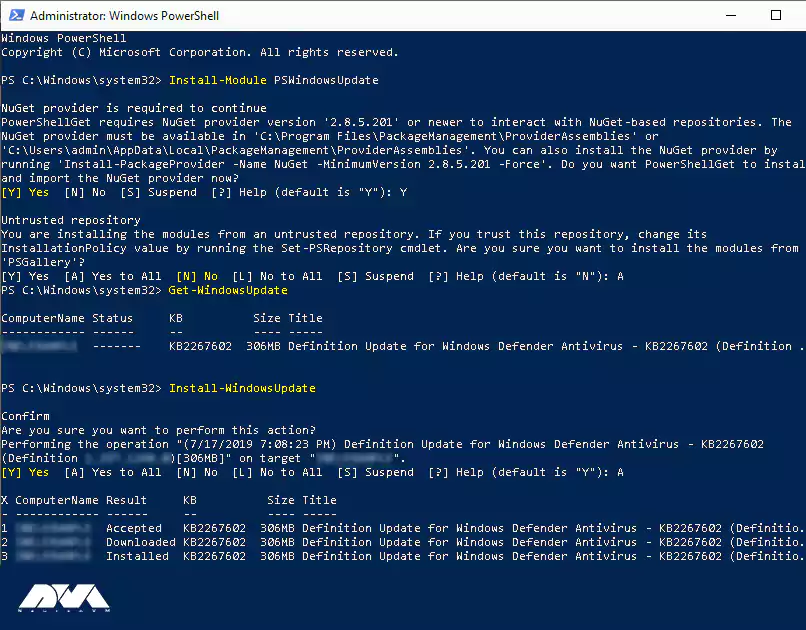
    How to Configure Routing and Remote Access

    In this step, you must right-click on the local server and click on Configure and Enable Routing and Remote Access.

    Configure and Enable Routing and Remote Access

    Because the routing and access configuration is done manually, select the Custom Configuration button here and click Next.

    Powershell Custom Config

    Now you must select the VPN and NAT boxes and click Next.

    how to select the VPN and NAT

    Finally, click Finish. Then click on Start Service after seeing the instruction to start Routing and Remote Access Services.

    start Routing and Remote Access Services

    How to Configure VPN Properties

    Now it’s time to configure VPN. First, right-click on your local server and then click Properties.

    how to configure VPN - Create VPN connection on rdp

    Now you need to go to the Security tab and mark the check box of Allow custom IPSec policy for L2TP/IKEv2 connection, insert a very long PSK (Pre-shared key). Remember to write down the PSK as the PSK must be shared with any user who connects to the server. You can use any tool to generate a random key.

    Allow custom IPSec policy for L2TP/IKEv2 connection

    In this step, you have to go to the IPv4 section and select the Static address pool option from the IPv4 address assignment section and click Add. After the pop-up window opens, enter the IP address ranges. You must put the starting address and ending address of the IP address range you want users to assign.

    Static address pool in vpn connection settings

    Now click OK to save the address range and finally click OK again to save the changes. Click OK if you receive the “you need to restart the Routing and Remote Access for changes to apply” warning.

    How to Create VPN User

    In the Start menu, type, and then open the Computer Management window. Open the Local Users and Groups window on the left, right-click Users, and then click New User.

    Computer Management window - Create VPN connection on rdp

    In the New User prompt, you must enter a username, full name, and strong password, Uncheck the “User must change password at next logon” box and then click Create.

    Computer Management window - Create VPN connection on rdp

    After creating the user, if you return to the computer management interface, you can find a new user in the list of users. To view the list of users in the Computer Management section, right-click Users and click Properties.

    Computer Management window - Create VPN connection on rdp

    In the VPN users properties section, go to the Dial-in tab. Then select the Allow access option from the Network Access Permission settings. Finally, click OK to save the properties.

    Computer Management window - Create VPN connection on rdp

    Finally, the L2TP/IPSec VPN server can accept connections.

    To connect to VPN Clients you must share the PSK and Windows username and password with the user who wishes to connect to the remote VPN server.

    Conclusion

    Creating a VPN connection on RDP 2016 is a simple and effective way to enhance security and privacy when accessing remote servers or networks. By following the step-by-step tutorial provided, users can establish a secure connection and ensure that their data remains encrypted and protected. Implementing a VPN not only safeguards sensitive information but also provides a seamless and efficient remote working experience. With the increasing importance of remote access, understanding how to create a VPN connection on RDP 2016 is a valuable skill for any user or organization.

  • The Key to Safeguarding Your Digital Assets from Potential Attacks

    The Key to Safeguarding Your Digital Assets from Potential Attacks

    In today’s evolving digital landscape, Safeguarding digital assets from potential attacks is more important than ever. With cyber threats increasing alarmingly, businesses and individuals need a reliable and effective solution to protect their sensitive information. Enter Nessus, the key to fortifying your digital fortress against potential vulnerabilities. As a powerful vulnerability scanning tool, Nessus provides comprehensive insights into your network’s security posture, allowing you to identify and fix potential vulnerabilities before malicious actors exploit them. With its advanced features and user-friendly interface, Nessus empowers organizations of all sizes to proactively defend their digital assets, ensuring peace of mind and maintaining the trust of customers and stakeholders. In this article, we’ll look at the incredible capabilities of Nessus and explore how this essential tool can revolutionize your cybersecurity strategy. Get ready to unlock a more secure digital future with Nessus.

    Understanding the Importance of Safeguarding Digital Assets

    Protecting digital assets is of great importance in today’s world, which is completely dependent on virtual and digital technologies. In this regard, the users of these technologies have obtained assets that are offered digitally. These assets are information, data, and valuable resources such as personal information, material data intellectual property, and sometimes business strategies. Here we will mention some cases of safeguarding digital assets:

    – Financial security especially for businesses.

    – National security at the level of government and public institutions

    – Customer loyalty in businesses and organizations.

    – Safeguarding digital assets to manage the reputation of organizations.

    – Respect data privacy and protection for sensitive personal and financial information.

    We suggest you use the high-speed Windows VPS servers provided on our website for investing and trading in digital markets.

    Common Types of Cyber Attacks

    Cyber attack is the attempt of cyber criminals and hackers to gain access to computer systems. The purpose of this attack is to change, steal, disclose information, or destroy systems. This action is very dangerous and may target a wide range of users of organizations and companies. The purpose of hackers is to gain access to sensitive and valuable company resources for profit and abuse. Let’s examine some of these attacks in the digital world:

    1- Phishing: This is a kind of cyberattack that uses email, SMS, social media, phone, and social engineering techniques to encourage victims to share sensitive information like passwords.

    2- Malware: This is a kind of malicious software like a code or program that is created to harm a computer or system. This one is the most common type of attack.

    3- Dos and DDoS attacks: This malicious and targeted attack, floods a network with false requests to ruin business operations. The significant difference between Dos and DDos is that Dos originates from just one system while DDos starts from multiple systems.

    4- Spoofing: This attack is a technique that is used by a cybercriminal to disguise himself as a trusted and known source.

    5- Code injection attacks: An injection attack includes injecting malicious code in a vulnerable computer or network to change the course of action.
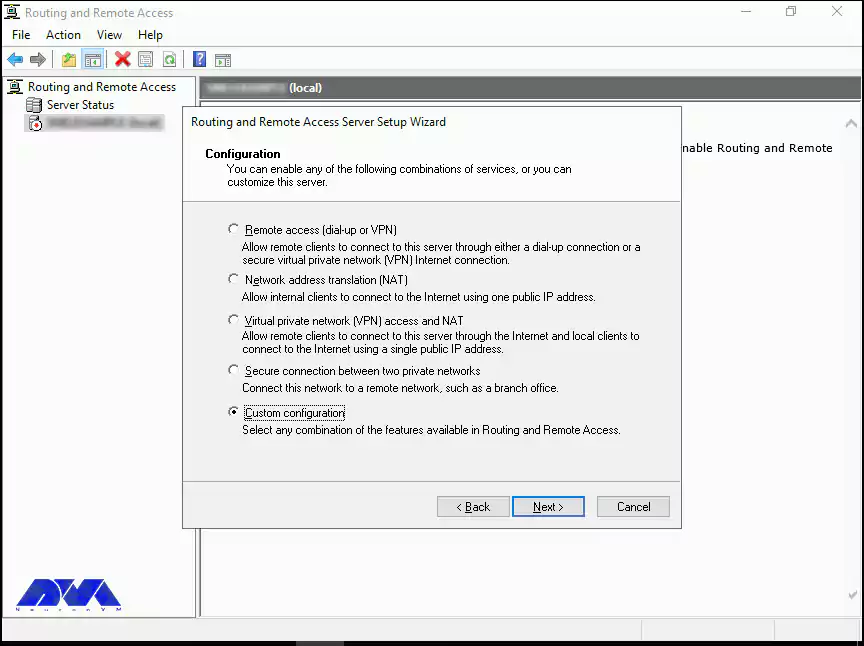
    6- DNS Tunneling: This type of cyber attack works in such a way that it uses DNS questions and answers to bypass security operations and transfer code data in the network.

    How Nessus Works as a Vulnerability Scanner

    Nessus is a scanning tool that performs its scans through several plugins that run on every host on the network to detect vulnerabilities. These plugins are considered separate pieces of code that Nessus uses to perform individual scans. These plugins have extensive features. For example, a plugin can be launched and placed on a specific host to do the following:

    • Operating system identification and services run on ports.
    • Identifying vulnerable software components.
    • Determining whether compliance requirements are met on different hosts.
    nessus-vulnerability-scanner

    Safeguarding Digital Assets

    Benefits of Using Nessus for Vulnerability Assessment

    – A valuable benefit of Nessus is the creation of a fast and user-friendly method to find and fix vulnerabilities in many IT assets, containing cloud-based and virtualized resources.

    – Over 450 pre-configured templates are provided for standard vulnerability scans and configuration audits to simplify platform usage.

    – Another benefit of Nessus is its low false positive rate of 0.32 defects in every 1 million scans. If there is too many false positive, it can suppress security teams cause alert fatigue, and ignore legitimate threats.

    – It is beneficial for security professionals because it is a highly portable, and helpful tool.

    Key Features of Nessus

    Nessus has great features like:

    1) Ability to discover assets at high speed

    2) The capability of listening to the configuration

    3) Ability to detect and detect malware

    4) The feature of discovering sensitive data

    Steps to Implement Nessus for Digital Asset Protection

    Nessus is a vulnerability scanner and assessment tool that can help protect digital assets by identifying and prioritizing security vulnerabilities. The implementation of Nessus for the protection of digital assets has several steps, which are as follows:

    1- It is time to download and install Nessus, so go to the Nessus Home landing page, enter your name and email address, and then click on the register button. Since you want to install it on your system, Click download.

    2- As you downloaded Nessus, run the installation package and follow the given instructions to complete the installation.
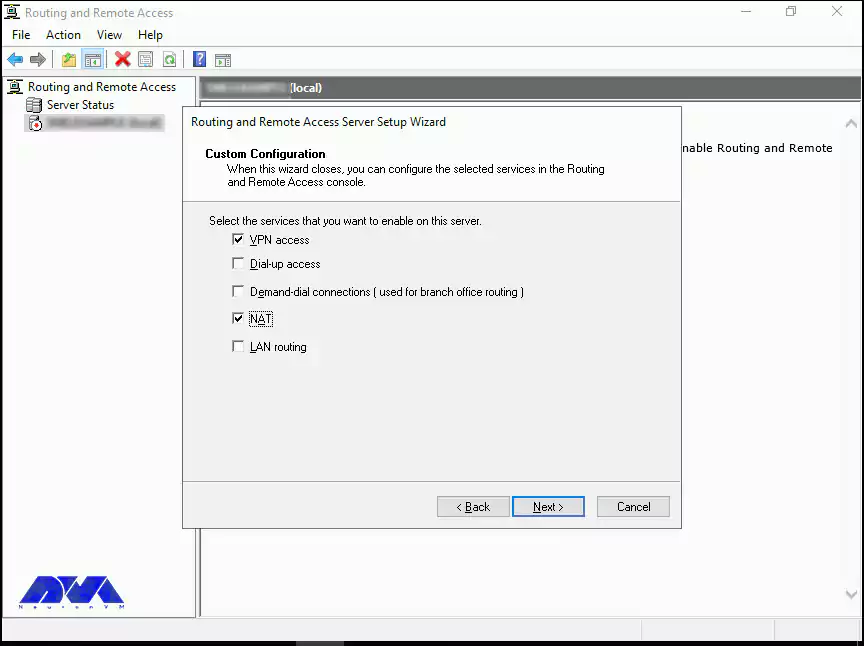
    Tip: Nessus will create a local server on your computer and run from there.

    3- Now go to your browser and insert https://localhost:8834/ to complete the sign-up and activate your Nessus copy. You will encounter the message “Your connection is not secure“. Go to “advanced” and then “proceed to localhost” to bypass the warning.

    4- Create an account and leave the registration as “Home, Professional, or Manager,” then enter the activation code and press continue. At last, Nessus will download several plugins to scan your network.

    5- Now you have a Nessus scanner and you can test it on your network. go through the instructions below:

    – Click on New Scan.

    – Then click on Network Basic Scan.

    – Choose a name for your scan and add a description.
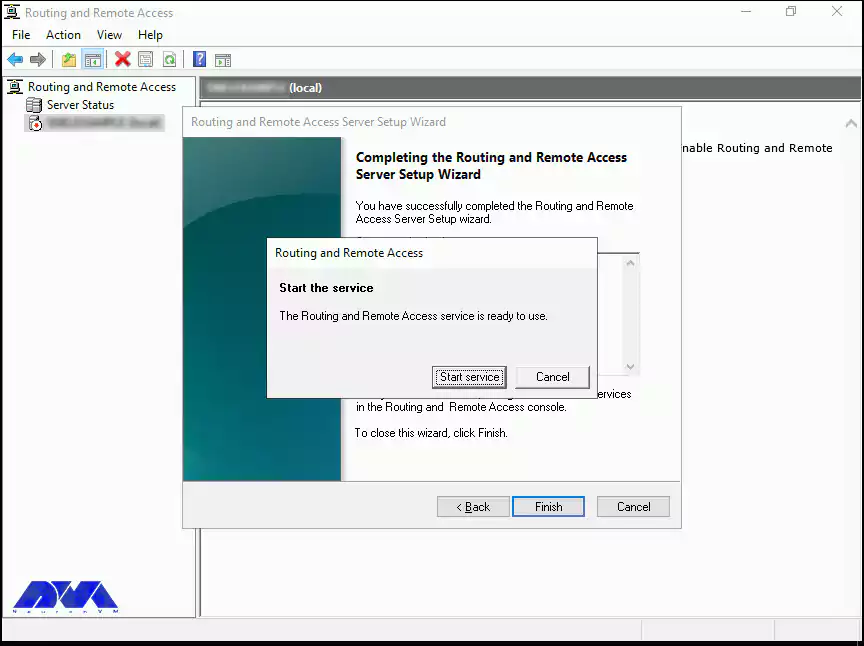
    – In the “Targets” field, enter IP scanning details about your network, and Nessus will scan all the devices on your network.

    – Click the Save button and on the next part, click on the Play icon to start the scan.

    Best Practices for Using Nessus Effectively

    You can use Nessus to identify security weaknesses in networks, systems, and applications. These are the best practices for Nessus:

    – Try to keep Nessus up-to-date.

    – Configure scan policies.

    – You should scan segmented networks.

    – It is recommended to schedule the scan appropriately. 

    – You should review and validate the results.

    –  It is better to prioritize vulnerabilities, you can use the CVSS score or Common Vulnerability Scoring System.

    Case Studies of Successful Vulnerability Assessments Using Nessus

    To demonstrate the effectiveness of Nessus as a vulnerability scanning tool, let’s explore some real-world case studies:

    1. **XYZ Corporation**: XYZ Corporation, a global financial institution, implemented Nessus as part of its vulnerability management strategy. By conducting regular scans and prioritizing remediation efforts, the company significantly reduced its vulnerability. This proactive approach resulted in a 50% reduction in successful cyber attacks and increased customer trust.

    2. **ABC Healthcare**: ABC Healthcare, a leading healthcare provider, used Nessus to assess the security posture of its network infrastructure and medical devices. By identifying vulnerabilities and implementing appropriate controls, the organization improved patient data protection and achieved compliance with regulatory frameworks such as HIPAA.

    3. **DEF Manufacturing**: DEF Manufacturing, a large-scale manufacturing company, integrated Nessus with its SIEM system to enhance threat detection capabilities. By leveraging the real-time data provided by Nessus, the organization was able to quickly identify and respond to potential vulnerabilities, minimizing the impact of cyber-attacks and ensuring uninterrupted operations.

    Comparing Nessus with Other Vulnerability Scanners

    In this section, we will try to compare Nessus with some other vulnerability scanners like Openvas, Openscap, and Rapid7nexpose.

    Openvas: OpenVAS is open-source and is often compared to Nessus due to its similar feature set. Both tools have a plugin-based architecture to identify vulnerabilities in systems. Since OpenVAS is free to use, it is suitable for budget-conscious organizations. However, Nessus is better known for its performance, user interface, and support.

    Rapid7nexpose: Nexpose or InsightVM is another popular vulnerability management tool that can be compared to Nessus. This tool provides real-time vulnerability assessment and risk analysis. Rapid7expose offers additional features such as usability evaluation and integration with other Rapid7 products. Nessus, on the other hand, has a wider user base and may have a wider library of vulnerability checks.

    Openscape: Openscape is also an open-source, compliance-friendly scanner that focuses entirely on security standards. Assessing compliance with security standards and policies is the main task of this scanner, so it is an excellent choice for organizations with compliance requirements. But Nesus provides a more comprehensive vulnerability scan.

    Conclusion: Importance of Proactive Vulnerability Management with Nessus

    With cyber threats becoming increasingly sophisticated, organizations and individuals need a reliable and effective solution to protect their sensitive information. As a powerful vulnerability scanning tool, Nessus provides the key to fortifying your digital fortress against potential vulnerabilities.
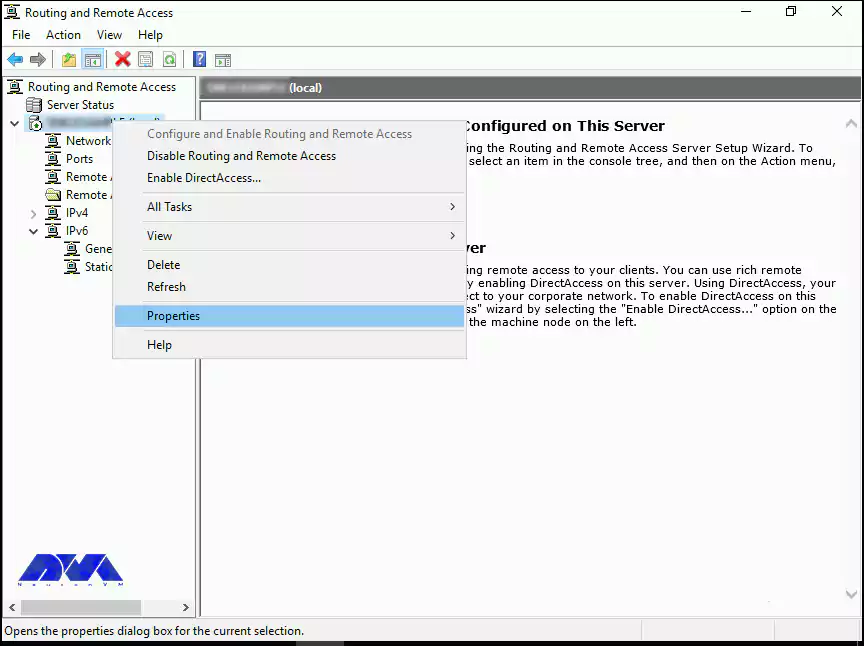
    By implementing Nessus as part of your vulnerability management strategy, you can proactively identify and address potential weaknesses in your network infrastructure and applications. The comprehensive insights provided by Nessus enable you to prioritize remediation efforts and reduce the risk of exploitation. With its cutting-edge features, scalability, and ease of use, Nessus empowers organizations of all sizes to defend their digital assets effectively.
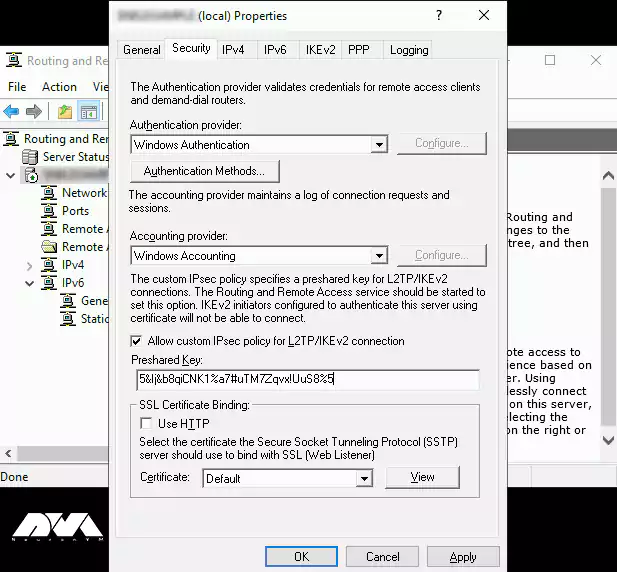
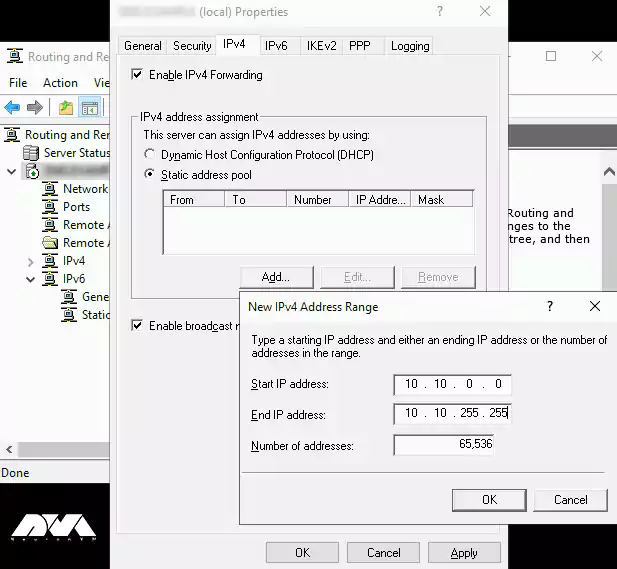
    In an era where the consequences of a successful cyber attack can be devastating, Nessus offers peace of mind and ensures the continuity of your operations. By investing in proactive vulnerability management with Nessus, you can unlock the door to a safer digital future and maintain the trust of both customers and stakeholders. Safeguard your digital assets today with Nessus and fortify your defenses against potential attacks.

    FAQ

    What are the reasons that make Nessus the best scanner?

    It is a fast and user-friendly tool to find and fix vulnerabilities in most IT assets like cloud-based and virtualized resources.

    Are there any limitations to the Nessus scanner?

    Nessus is free to use and scan any environment but it is limited to 16 IP addresses per scanner.