Author: Jannson Miller

  • A Clever Guide on Generating SSH Keys Like a Pro

    A Clever Guide on Generating SSH Keys Like a Pro

    SSH key (Secure Shell) is a type of access credential using in SSH protocol. SSH protocol is essential in Infrastructure as a Service (IaaS) platforms. They are using to authenticate and establish a secure connection between a client and a server. This article will provide a comprehensive guide on generating SSH keys, which are essential for secure SSH connections.

    If you need to buy a Windows VPS server or a Linux VPS server, you can use the plans provided with high quality and immediate delivery on our website.

    Understanding SSH Keys

    SSH keys are cryptographic keys that consist of a private key and a public key. The private key should be kept secure and never shared, while the public key can be freely distributed. The private key is used for authentication, while the public key is used for encryption.

    How to Generate the SSH Keys on Linux

    First, open the terminal on your Linux system. This can usually be done by searching for “Terminal” in the applications menu or by pressing Ctrl+Alt+T.

    – You can run the following command to generate the SSH key pair:

    ssh-keygen -t rsa -b 4096

    This command generates a 4096-bit RSA key pair, a commonly used encryption algorithm. You may choose a different key type or bit length according to your requirements.

    – Once you press Enter, the terminal will prompt you to select the file location to save the SSH key pair. Press Enter to save it in the default location (~/.ssh/id_rsa), or specify a custom path if desired.

    – You will be prompted to set a passphrase for the SSH key. While not mandatory, setting a passphrase adds an extra layer of security to the key. Type your desired passphrase and press Enter. Note that the passphrase will not be visible as you type.

    – The terminal will display information about the newly generated SSH key pair, including the key fingerprint and location. The public key file will have a .pub extension. Your SSH keys are now ready for use.

    How to Generate the SSH Keys on Windows

    Start by downloading PuTTY and follow the installation instructions provided. Ensure that you download both PuTTYgen and PuTTY tools.

    Open PuTTYgen from the installed PuTTY folder or from the Start menu. PuTTYgen provides a graphical interface to generate SSH key pairs on Windows:

    putty key generator

    Please select the default key type as SSH-2 RSA, which is the latest version of the SSH protocol and incompatible with SSH-1. RSA and DSA are two algorithms utilized for computing digital signatures:

    ssh2rsa

    Specify the bit length (e.g., 2048, 4096, etc.) for the key pair generation:

    number of bits in generated ssh keys

    Click “Generate” to generating the key pair:

    generating_key

    ***

    generated public key

    In the next section, you can save or create a generated key comment:

    key_comment

    Once the key pair is generated, enter a passphrase if desired, then click on “Save private key” to save the private key in a secure location.

    ssh private key passphrase

    ***

    save private key _as_ppk

    The interesting point is that you can also save the key in OpenSSH format. To do this, just select Export SSH key from the Conversions menu:

    export_as_openssh

    ***

    save_as_openssh - Generating SSH keys

    The next step is to generate a public key to pair with the private key. You can easily do this by clicking the save public key button.

    Copy the contents of the public key completely as shown in the following image:

    select_pub_key_chars - Generating SSH keys

    ***

    pasted_public_key - Generating SSH keys

    Finally, save the generated key. We recommend that the format .pub. Use to store a public key:

    save_pasted_pub_key_as_pub - Generating SSH keys

    Conclusion

    Generating SSH keys is a crucial step in establishing secure connections and managing remote access to servers on both Linux and Windows systems. This comprehensive guide has provided step-by-step instructions for generating SSH keys on Linux using the terminal and on Windows using PuTTY. By following these instructions, you can ensure a more secure and efficient way to manage your systems, thus enhancing the overall security of your network. Remember to protect your private key and passphrase, and regularly update your SSH keys for added security.

  • A Clever Guide to Installing SteamCMD on your VPS

    A Clever Guide to Installing SteamCMD on your VPS

    SteamCMD is a command-line tool developed by Valve. This tool is used to download, update, and manage dedicated servers for various games available on the Steam platform. By installing SteamCMD on your VPS, you can easily set up and maintain dedicated game servers for your favorite multiplayer games. This article will take you through the step-by-step process of installing SteamCMD on your VPS. If you are planning to buy VPS, we have an attractive offer for you. You can visit our website to see the various VPS server plans that are offered in various locations and after choosing the plan you want, buy and enjoy it.

    Step 1: Connecting to Your VPS

    Before proceeding with the installation, make sure you have SSH (Secure Shell) access to your VPS. You can use an SSH client like PuTTY (for Windows) or OpenSSH (for Linux) to establish a secure connection to your VPS:

    login to vps using putty - installing SteamCMD on your VPS

    Step 2: Updating System Packages on VPS

    Once connected to your VPS, it is essential to update the system packages to ensure you have the latest versions installed. Run the following commands to update the packages on your VPS:

    For Ubuntu/Debian-based systems:

    sudo apt update
    sudo apt upgrade

    For CentOS/RHEL-based systems:

    sudo yum update
    sudo yum upgrade

    Step 3: Installing Required Dependencies

    SteamCMD requires a few dependencies to be installed on your VPS before its installation. Use the appropriate commands for your system:

    Ubuntu/Debian-based systems:

    sudo apt install lib32gcc1 lib32stdc++6 libtcmalloc-minimal4

    CentOS/RHEL-based systems:

    sudo yum install glibc libstdc++ glibc.i686 libstdc++.i686 libcurl

    Step 4: Downloading and Installing SteamCMD

    Now, let’s proceed with the installation of SteamCMD on your VPS. Follow the steps below:

    – Create a new directory where you want to install SteamCMD. For example:

    mkdir steamcmd
    cd steamcmd

    – Download the SteamCMD installation package using the following command:

    wget https://steamcdn-a.akamaihd.net/client/installer/steamcmd_linux.tar.gz

    – Extract the downloaded package using the following command:

    tar -xvzf steamcmd_linux.tar.gz

    – Run SteamCMD for the first time. This step will download and install additional necessary files:

    ./steamcmd.sh

    Troubleshooting Issues about Installing SteamCMD

    1) Verify prerequisites: SteamCMD requires certain dependencies to be installed on your VPS. Make sure you have the required packages, such as lib32gcc1, libc6, lib32stdc++6, lib32z1, and lib32z1-dev installed. You can install them using the package manager specific to your server’s operating system.

    2) Check SteamCMD documentation and forums: SteamCMD has an official wiki and a community forum that can be valuable resources for troubleshooting. Search for the error message you encountered to see if it has been discussed before. Browse through the documentation to ensure you are following the correct installation steps.

    3) Try alternative installation methods: If the error persists, consider using alternative methods to install SteamCMD. For example, you can try downloading the SteamCMD package manually from the official website and manually installing it on your VPS.

    Conclusion

    By following this guide, you have successfully installed SteamCMD on your VPS. You can now use SteamCMD to easily download, update, and manage dedicated game servers for a wide range of multiplayer games available on the Steam platform. Enjoy hosting your own game servers with SteamCMD!

  • A Clever Guide to cPanel to cPanel Migration

    A Clever Guide to cPanel to cPanel Migration

    A cPanel to cPanel migration refers to the process of moving all data, settings, and configurations from one cPanel account to another. This is often done when you want to transfer your website from one hosting provider to another or when you need to create a backup of your existing cPanel account. Migrating your cPanel account ensures a seamless transition without any data loss or downtime. In this article, we will provide a comprehensive step-by-step guide on how to perform a cPanel to cPanel migration.

    You can confidently launch your website on Linux VPS servers that are offered on our website with various plans.

    Requirements

    To perform a successful cPanel to cPanel migration, you will need the following requirements:

    – Access to both the source and destination cPanel accounts

    – Sufficient disk space on the destination server

    – Stable internet connection

    – WHM (Web Host Manager) access

    – Backup of the source cPanel account

    – Compatible cPanel versions

    – Permission to access firewall settings

    Step.1: Backup Your Source cPanel Account

    – Log in to your source cPanel account:

    login to cpanel

    – Navigate to the “Backup” or “Backup Wizard” section within cPanel:

    backup cpanel account

    – Click on “Download a Full Website Backup” to create a full backup of your account, including the home directory, databases, email forwarders, and filters:

    download full backup cpanel

    *

    generate-a-cpanel-full-backup

    – Save the backup file to a safe location, either on your computer or in cloud storage by clicking on “Generate Backup“:

    download-cpanel-backup-file

    Step.2: Create a Destination cPanel Account

    – Sign up with the new hosting provider or create a new cPanel account with your existing provider for the destination website.

    – Make note of the destination cPanel login details.

    Step.3: Upload and Restore the Backup

    – Login to the destination cPanel account.

    – Navigate to the “Backup” section.

    – Click on “Restore a Full Backup/cpmove File” to restore a backup and upload the backup file you created earlier.

    – Please complete the restoration process by following the instructions displayed on the screen:

    how-ro-restore-cpanel-acount-cpanel-to-cpanel-migration

    Note: Wait until the restoration process finishes, which may take some time depending on the size of your backup file.

    Step.4: Update DNS Settings

    Once the restoration is complete, you need to update your domain’s DNS settings to point to the new server.

    1- Log in to your domain registrar or DNS provider.

    2- Locate the DNS settings for your domain and update the nameservers to those provided by the new hosting provider.

    3- Save the changes and allow some time for the DNS propagation to take effect (usually 24-48 hours).

    Step.5: Test the New Website

    1. After the DNS propagation, access your website using the domain name or the new server’s IP address.

    2. Make sure all the pages, functionalities, and configurations are working correctly.

    3. Test email accounts, forms, databases, and any other features associated with your website.

    Step.6: Update any Additional Configurations

    – If you are using any website-specific configurations or plugins, ensure they are properly configured on the new server.

    – Update any relevant paths, URLs, or settings in your website’s configuration files or database to match the new server structure.

    Conclusion

    Migrating from one cPanel account to another involves creating a backup of the source cPanel account, creating a destination cPanel account, restoring the backup to the new server, updating DNS settings, testing the new website, and updating any additional configurations. By following these steps, you can successfully migrate your website without any data loss or downtime. Remember to take regular backups and ensure proper testing to ensure a smooth transition.

  • A Clever Guide on Install Mikrotik on a VPS

    A Clever Guide on Install Mikrotik on a VPS

    Mikrotik is a powerful and versatile operating system that can be installed on various hardware platforms, including a Linux-based VPS. In this guide, we will provide a step-by-step tutorial on how to install Mikrotik on a Linux VPS. By following these instructions, you will be able to leverage the full potential of the Mikrotik software suite for networking and administration.

    First method: Installing Mikrotik on Linux VPS

    The first method to install Mikrotik involves setting up the Mikrotik RouterOS on a VPS running Linux. In the following, we will teach you this method.

    Step 1: Connect to the VPS

    Once you have rented a Linux VPS, you will need to connect to it.

    Use an SSH client like PuTTY (for Windows) or the Terminal (for Linux/Mac). Enter the IP address of your VPS, along with the provided username and password, to establish an SSH connection:

    login to vps using putty

    Step 2: Update System Packages

    Before proceeding with the installation, it is essential to update the system packages to ensure that you have the latest software versions. Run the following commands:

    sudo apt update
    sudo apt upgrade

    Step 3: Find the Storage Name

    You may need to know some parameters about your server. One of these parameters is the storage name. You can find and see the storage name by executing the below command:

    lsblk | grep disk | cut -d ' ' -f 1 | head -n 1

    Step 4: Find the Ethernet Name

    You can also see the ethernet name by running the following command:

    ip route show default | sed -n 's/.* dev \([^\ ]*\) .*/\1/p'

    Step 5: Find the IP Address Name

    To view the IP address, run the following command:

    ip addr show $ETH | grep global | cut -d' ' -f 6 | head -n 1

    Step 6: Find the Gateway Name

    To view the Gateway name, run the following command:

    ip route list | grep default | cut -d' ' -f 3

    Step 7: Installing Mikrotik on a VPS

    Finally, you can easily install Mikrotik on your server using the following command. Note that in this command we will install version 7.10.2. Therefore, if you wish, you can replace the latest version of Mikrotik in the following command:

    bash -c "$(curl -L https://raw.githubusercontent.com/azadrahorg/Install-MikroTik-CHR-on-VPS/main/mik78.sh)"

    Step 8: Access the Mikrotik Web Interface

    Once the VPS has restarted, you can access the Mikrotik Web Interface by opening a web browser and entering the IP address of your VPS. Alternatively, you can use the Winbox utility provided by Mikrotik for a more advanced configuration.

    On the login page, you can enter admin:

    admin

    Be careful to only press Enter when prompted for a password.

    Now you can easily change your password because RouterOS prompts you to request a password change.

    Second method: Buy Mikrotik VPS from NeuronVM

    Open the NeuronVM Mikrotik VPS page. Choose your desired plan and click on “Purchase Now“:

    mikrotik vps plans

    In the next section, fill in the available fields with the required information. These fields are Billing cycle, Hostname, Root password, NS prefixes, and location. Then click on Continue:

    setup mikrotik on vps

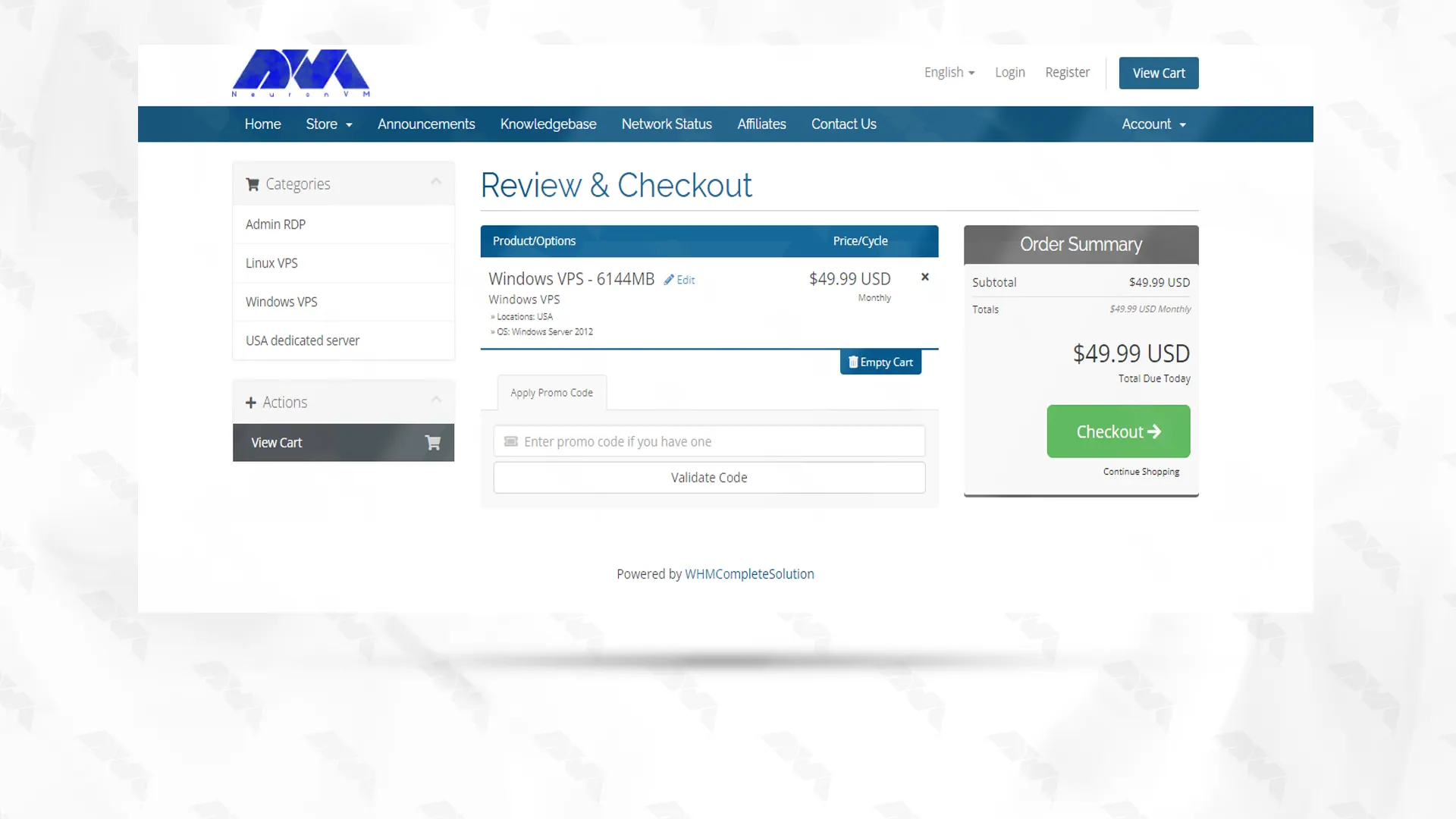
    Do you have a discount code? If yes, enter it and click on Validate Code to apply. Click on Checkout to continue shopping:

    how to install mikrotik on a vps

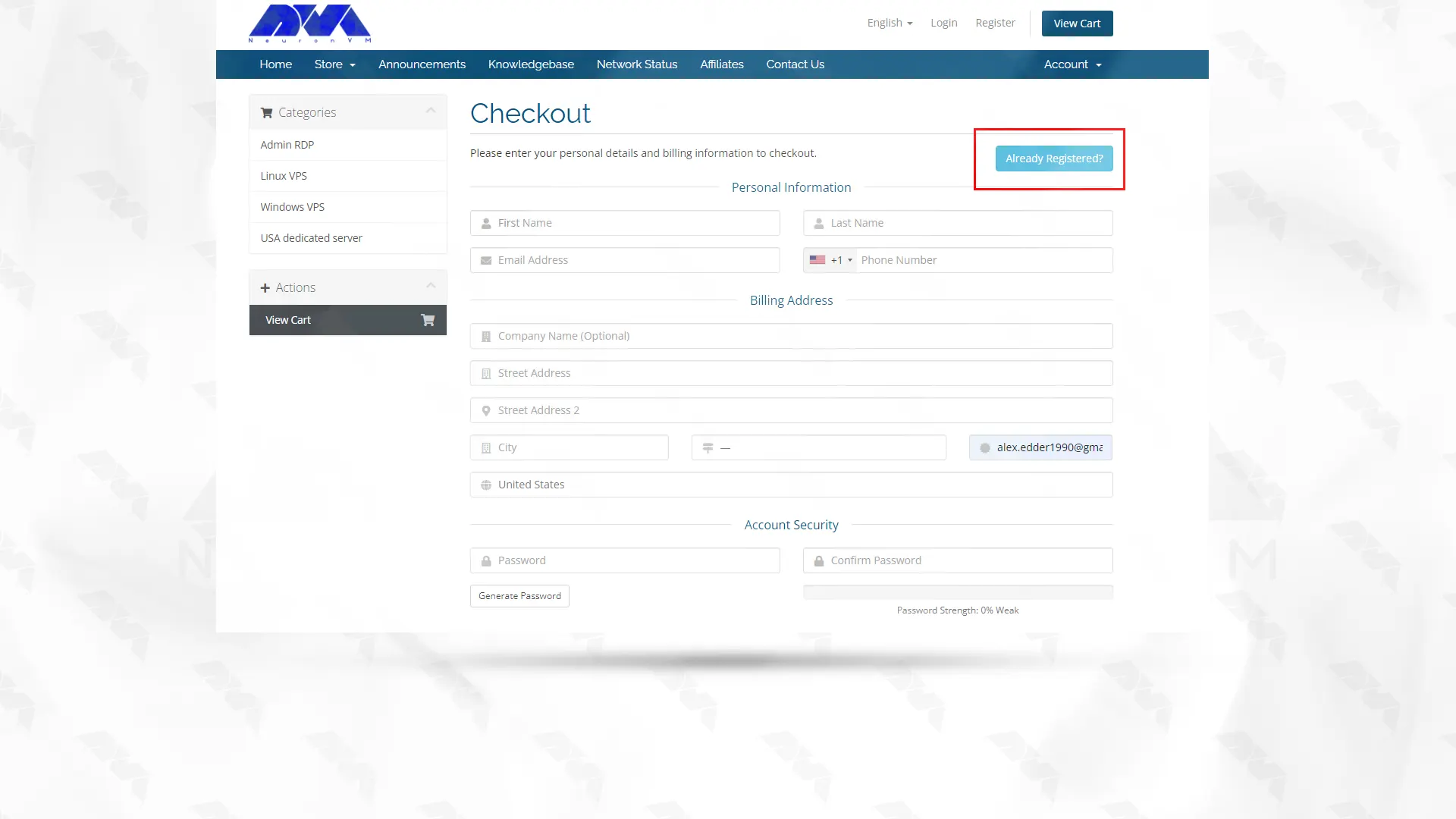
    Have you registered on the site? If not, enter the required information in the requested fields and register. If you are already registered, click on Already Registered and enter your account:

    register in neuronvm website

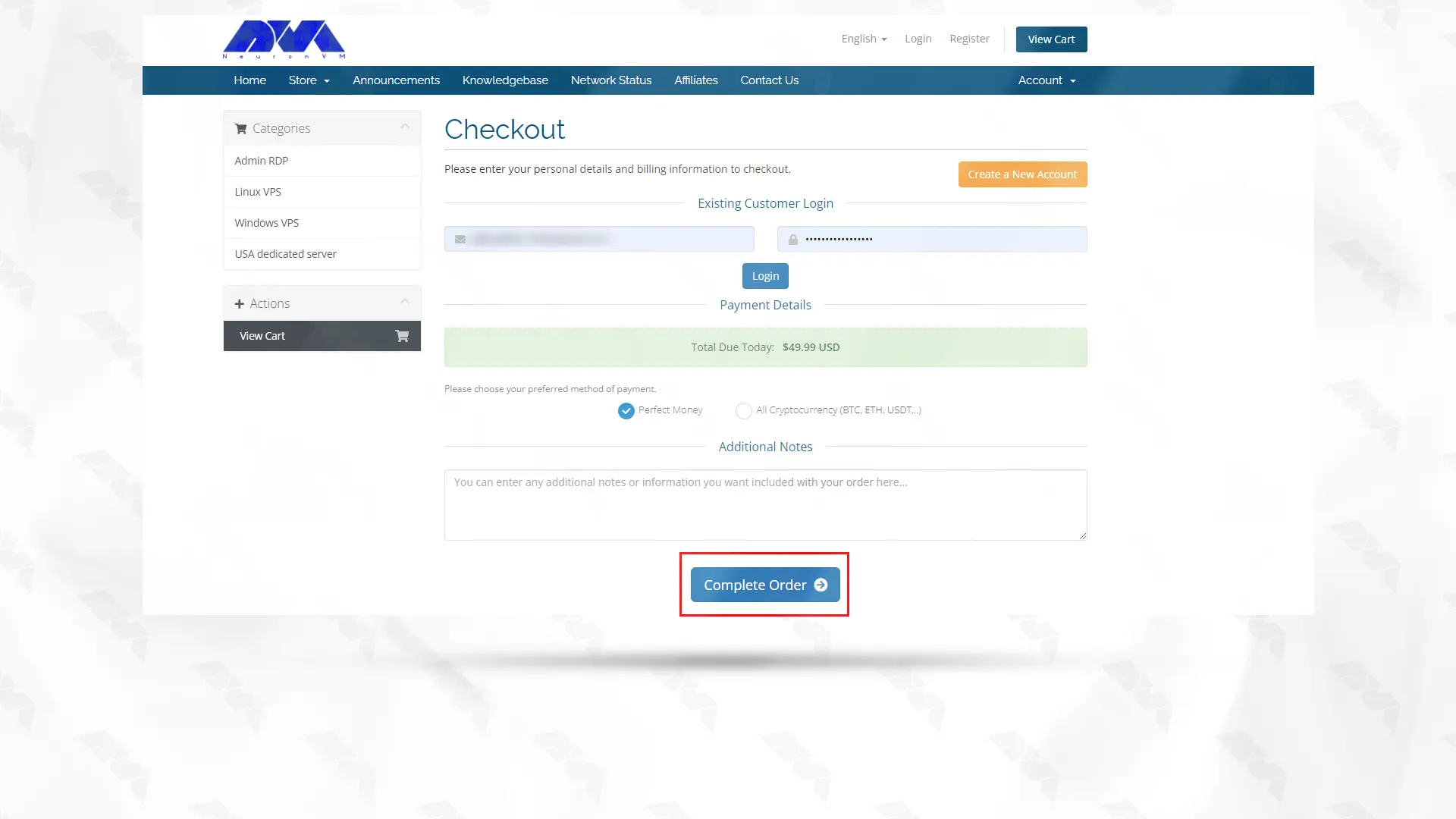
    In this step, you can choose your preferred payment method. After that click on Complete Order:

    login to neuronvm website to buy mikrotik vps

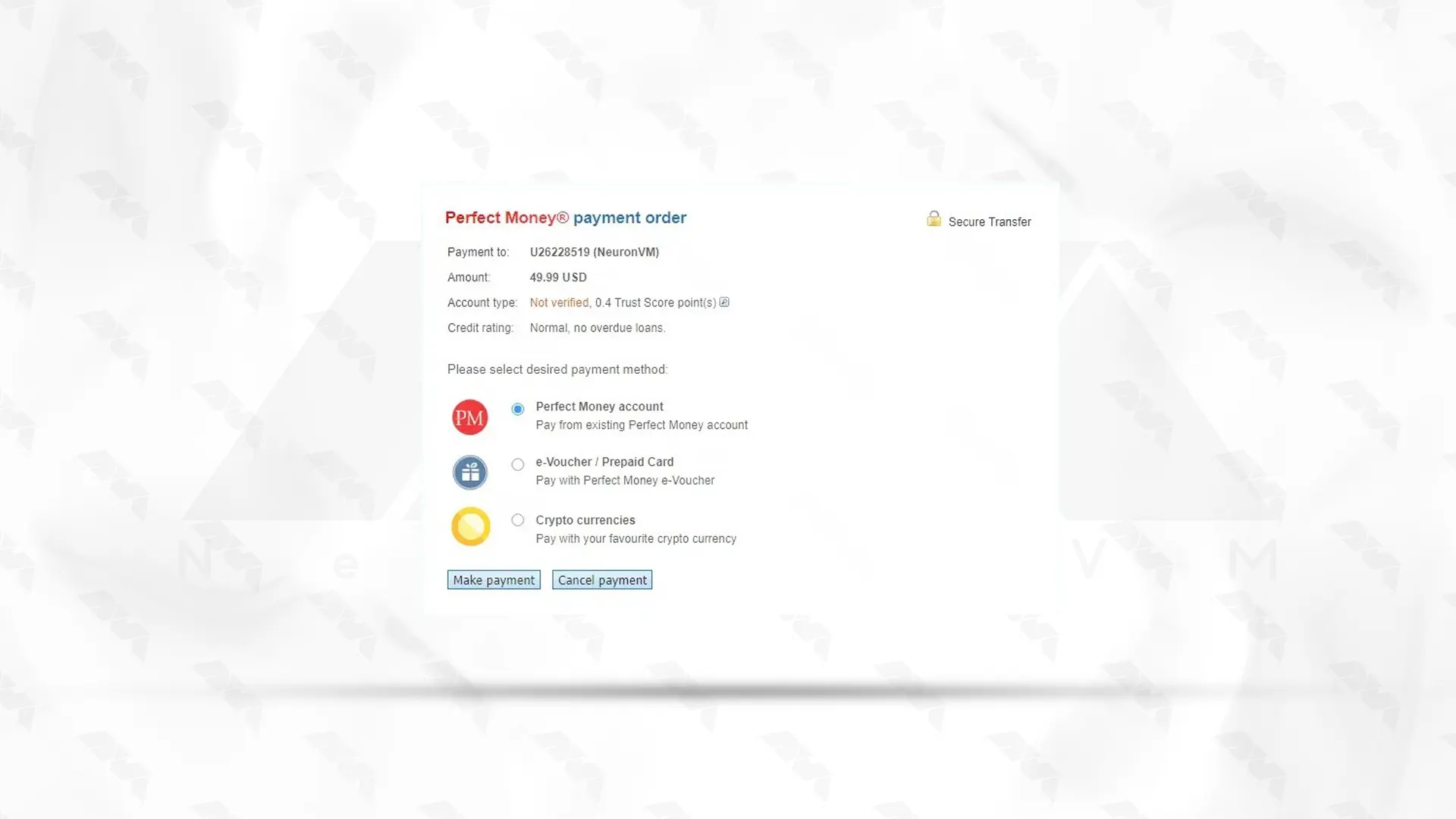
    Click on Make Payment and enter your card information to complete the purchase. Your server information will be sent to your email address as soon as possible.

    buy mikrotik vps with perfect money

    ***

    buy mikrotik vps with perfect money

    Conclusion

    Setting up Mikrotik on a VPS is a convenient solution for network management. By purchasing a Mikrotik VPS from the reliable NeuronVM website, one can easily deploy and utilize the powerful features of Mikrotik RouterOS. This enables efficient control and administration of networks, ensuring enhanced performance and security.

  • How to Connect to Mikrotik Router

    How to Connect to Mikrotik Router

    If you’re unfamiliar with networking and router configurations, connecting to the Mikrotik router can be intimidating. However, this step-by-step guide will walk you through the process to ensure a successful connection. Following these instructions, you can easily access and configure your router settings.

    Requirements

    Before you connect to Mikrotik router, make sure you have the following equipment ready:

    1) A computer or laptop with an Ethernet port

    2) An Ethernet cable for a wired connection to the router

    If you want to buy a Mikrotik VPS server, we suggest you test and use the plans provided on our website, which are delivered immediately.

    Step 1: Physical connection

    To start, plug one end of the Ethernet cable into your computer’s Ethernet port and the other end into any available Ethernet port on the Mikrotik router.

    Step 2: Configure IP settings

    To establish communication between your computer and the Mikrotik router, follow these steps to configure the IP settings:

    For Windows users

    1) Open the Control Panel and go to “Network and Sharing Center.”

    Network and Sharing Center

    2) Now, you should click on “Change adapter settings“.

    Change adapter settings

    3) Right-click on the Ethernet adapter connected to the Mikrotik router and select “Properties.”

    Ethernet adapter connected to the MikroTik router

    4) Highlight “Internet Protocol Version 4 (TCP/IPv4)” from the list and click on “Properties.”

    Internet Protocol Version 4 (TCP-IPv4)

    5) Select “Use the following IP address” and enter the following details:

    – IP address: 192.168.88.2 (choose any IP address within the 192.168.88.x range)

    – Subnet mask: 255.255.255.0

    – Leave the rest of the fields empty and click “OK” to save the changes.

    how to connect to mikrotik router

    For MacOS users

    1) Click on the Apple logo at the top-left corner and choose “System Preferences.”

    2) Select “Network.”

    3) Choose the Ethernet adapter connected to the Mikrotik router from the sidebar.

    4) Click on the “Advanced” button at the bottom-right corner.

    5) Go to the “TCP/IP” tab.

    6) Select “Manually” from the “Configure IPv4” dropdown menu.

    7) Enter the following details:

    – IP address: 192.168.88.2 (choose any IP address within the 192.168.88.x range)

    – Subnet mask: 255.255.255.0

    8) Click “OK” to save the changes.

    Step 3: Access the Mikrotik router’s web interface

    With the physical and IP settings in place, you can now connect to the Mikrotik router using its web interface. Here’s what you should do:

    Open your favorite web browser (e.g., Google Chrome, Mozilla Firefox, Microsoft Edge).

    Enter “192.168.88.1” (the default IP address of Mikrotik routers) in the address bar and press Enter.

    You will be directed to the Mikrotik router’s login page:

    Step 4: Log in to the router

    To access and configure the router settings, log in using the following default credentials:

    - Username: admin
    - Password: admin
    mikrotik router login page

    If you have previously changed these credentials, enter the updated login details.

    mikrotik roter dashboard

    Conclusion

    While connecting to a Mikrotik router may appear complex at first, this comprehensive guide will help you establish a connection and access the router’s web interface with ease. Remember the necessary steps: obtaining the required equipment, making the physical connection, configuring IP settings, accessing the web interface, and finally logging in with the correct credentials. With these instructions, you can confidently connect and manage your Mikrotik router.

  • How to Install Kubernetes on Ubuntu 22.04

    How to Install Kubernetes on Ubuntu 22.04

    Kubernetes is a cutting-edge open-source platform for orchestrating containers. It effectively streamlines the deployment, scaling, and management of containerized applications. It allows you to efficiently manage and run applications across multiple hosts, making deploying and scaling applications in a distributed system easier. This guide will walk you through the steps to install Kubernetes on Ubuntu 22.04.

    Prerequisites

    Before you install Kubernetes on Ubuntu, ensure that your system meets the following requirements:

    – A Linux VPS with Ubuntu 22.04 Operating system

    – A minimum of 2 CPU cores

    – 2GB of RAM

    – A stable internet connection

    install kubernetes on ubuntu 22.04

    Step 1: Update System Packages

    To ensure that your Ubuntu system is up-to-date, please execute the following command in your terminal:

    sudo apt update
    sudo apt upgrade

    Step 2: Disable Swap

    Kubernetes requires that swap be disabled on your system. You can disable the swap temporarily by running the following command:

    sudo swapoff -a

    Step 3: Install Docker

    Kubernetes relies on Docker for container runtime. Install Docker with the below command:

    sudo apt install docker.io

    Then, you should start the Docker using the following command:

    sudo systemctl start docker

    Finally, enable Docker by running the following command:

    sudo systemctl enable docker

    Step 4: Install Kubernetes Components

    To install Kubernetes components, execute the following commands:

    sudo apt install curl
    sudo apt install apt-transport-https

    You should add a Kubernetes Signing Key using the following command:

    curl -s https://packages.cloud.google.com/apt/doc/apt-key.gpg | sudo apt-key add -

    You can also add Kubernetes Repository with the help of the following command:

    sudo apt-add-repository "deb http://apt.kubernetes.io/ kubernetes-xenial main"

    Update the system packages again by running the following command:

    sudo apt update

    Finally, you can install Kubernetes using the following commands:

    sudo apt install kubectl
    sudo apt install kubelet
    sudo apt install kubeadm

    Step 5: Initialize Kubernetes Master Node

    On the master node, initialize Kubernetes by running the following command:

    sudo kubeadm init

    Make a note of the provided kubeadm join command, as you will need it later to join worker nodes to the cluster.

    Step 6: Configure Kubernetes for Non-Root User

    To use kubectl as a non-root user, execute the following commands:

    mkdir -p $HOME/.kube
    sudo cp -i /etc/kubernetes/admin.conf $HOME/.kube/config
    sudo chown $(id -u):$(id -g) $HOME/.kube/config

    Step 7: Join Worker Nodes

    On each worker node, join the cluster by executing the kubeadm join command noted in Step 5:

    sudo kubeadm join : --token --discovery-token-ca-cert-hash

    Step 8: Verify Cluster Status

    To verify the cluster status, run the following command on the master node:

    kubectl get nodes

    You should see all the worker nodes listed as ready.

    Troubleshooting

    1) Compatibility issues: Ensure that the version of Kubernetes you are trying to install is compatible with Ubuntu 22.04. Check the Kubernetes documentation for the supported versions.

    2) Dependencies: Kubernetes has dependencies on various components, such as Docker and kubelet. Make sure you have the correct versions of these components installed and properly configured.

    3) Networking issues: Kubernetes relies on networking for communication between its various components. Verify that your network setup is properly configured, including any firewall rules or network policies that may be blocking communication.

    Conclusion

    Congratulations! Kubernetes has been installed successfully on Ubuntu 22.04. You now have a fully functional Kubernetes cluster that can be used to deploy and manage containerized applications. Feel free to explore further Kubernetes features and start deploying your applications on the cluster.

  • 2 Ways to Install Aircrack-ng on Kali Linux

    2 Ways to Install Aircrack-ng on Kali Linux

    In today’s digital landscape, ensuring the security of computer networks and systems is of utmost importance. Penetration testing, also known as ethical hacking, plays a crucial role in identifying vulnerabilities and strengthening the overall security posture. One such powerful tool used by security professionals is Aircrack-ng, a suite of wireless network assessment tools. This article aims to show you how to install Aircrack-ng on Kali Linux, a popular ethical hacking operating system, enabling you to harness the capabilities of this versatile tool for effective penetration testing. For this tutorial, you can also use Linux VPS and save yourself a lot of time and resources. So, let’s dive in and explore the installation process step-by-step, unlocking the potential of Aircrack-ng on your Kali Linux environment.

    Requirements

    1. Kali Linux OS: Aircrack-ng is usually pre-installed in Kali Linux. Make sure you have the latest version of Kali Linux installed.
    2. Root Access: You need to have root access or superuser privileges to install and use Aircrack-ng.
    3. Wireless Adapter: Aircrack-ng requires a compatible wireless adapter that supports monitor mode and packet injection. Not all wireless adapters are compatible, so ensure that you have a supported adapter. You can check the Aircrack-ng website for a list of compatible wireless adapters.
    4. Dependencies: Aircrack-ng has some dependencies that you need to install. To install these dependencies, open a terminal and run the following command:
    sudo apt-get install build-essential libssl-dev libnl-3-dev libnl-genl-3-dev ethtool

    If you need to buy Linux VPS server, we suggest you to use the various plans offered on our website, which have a wide variety of locations and immediate delivery.

    Aircrack-ng Installing Methods on Kali Linux

    Once you have met these requirements, you should be able to install and use Aircrack-ng on Kali Linux.

    A security tool for penetration testing - How to Install Aircrack-ng on Kali Linux

    A. Installing Aircrack-ng on Kali Linux Using the apt Package Manager

    Well, now it’s time to learn how you can install Aircrack-ng on Kali Linux using the apt package manager. This is the first method of the two methods explained in this article.

    • Open a Kali Linux terminal.
    • Update the package lists by running the command:
    sudo apt update
    • Install Aircrack-ng by running the command:
    sudo apt install aircrack-ng

    The installation process will begin, and you will be prompted to confirm the installation. Type ‘Y‘ and hit Enter.

    • Once the installation is complete, you can start using Aircrack-ng.

    That’s it! Using this method you can easily download and install Aircrack-ng on your Kali Linux machine. Some people may prefer to manually install this tool. If you’re one of those people, we’ve written the next section for you.

    B. Aircrack-ng Manual Installation on Kali Linux

    Another way of installing Aircrack-ng is the manual installation from the source. Here’s how:

    • Open a Kali Linux terminal.
    • Download the latest version of Aircrack-ng by running the command
    wget https://download.aircrack-ng.org/aircrack-ng-1.6.tar.gz
    • Extract the downloaded archive by running the command:
    tar -zxvf aircrack-ng-1.6.tar.gz
    • Change into the extracted directory by running the command:
    cd aircrack-ng-1.6
    • Compile Aircrack-ng by running the command:
    make
    • Install Aircrack-ng by running the command:
    sudo make install
    • The installation process will be complete, and you can start using Aircrack-ng.

    And here’s how you can manually install Aircrack-ng on your machine. Both methods are somehow similar but you can choose the method that suits you better.


    A security tool for penetration testing-How to Install Aircrack-ng on Kali Linux

    Troubleshooting Common Issues

    There are certain factors that you need for Aircrack-ng to run smoothly. We gathered a short list of them for you, so you can find the issue easier and faster.

    • Monitor mode not supported: Some wireless cards do not support monitor mode, which is required for certain Aircrack-ng functions. Check if your card supports it.
    • Driver issues: Ensure that your wireless card is compatible with Aircrack-ng and you’ve installed the correct drivers.
    • Interface not detected: If Aircrack-ng does not detect your wireless interface, try restarting the network manager or manually configuring the interface using commands like “ifconfig” or “iwconfig.”
    • Incorrect password or handshake capture: Make sure you have captured a valid handshake or have the correct password when attempting to crack a Wi-Fi password.
    • Insufficient signal strength: Weak signal strength can affect the success rate of Aircrack-ng attacks. Try moving closer to the target access point or using a more powerful wireless card.
    • False positives: Some antivirus software may falsely detect Aircrack-ng as a malicious tool. Disable or whitelist Aircrack-ng in your antivirus software if necessary.

    Conclusion

    In conclusion, Aircrack-ng is a powerful tool for assessing the security of wireless networks. By understanding its capabilities and following the installation guide provided, you can successfully install Aircrack-ng on Kali Linux. Remember to ensure compatibility with your wireless card, troubleshoot any issues that may arise, and exercise responsible and ethical usage. With Aircrack-ng at your disposal, you can enhance your network security knowledge and protect against potential vulnerabilities.

  • How to Manage Cron Jobs on CWP

    How to Manage Cron Jobs on CWP

    Cron jobs are scheduled tasks that run automatically at specified intervals on a Unix-like system. CentOS Web Panel (CWP) is a control panel for managing web hosting environments on CentOS servers. This article focuses on teaching you how to manage Cron Jobs on CWP (CentOS Web Panel), But first of all, you should understand completely what are Cron Jobs and how you can benefit from that. keep studying.

    Note that to work with cron jobs, you should have a proper Linux distribution. If you want to buy Linux VPS server, we suggest you to visit the plans with a large variety of locations and high quality presented on our website.

    Functionality of Cron Jobs

    The function of cron jobs for system administrators in Linux is that they can automate and schedule various tasks such as system maintenance, data backups, updates with security patches, disk space monitoring, storage checks, etc. Use cron jobs to send notifications and other things. These tasks are written in a text editor to create a simple text file called crontab.

    The crontab shows the current user’s profile, such as what they want to automate and when it should run.

    So, this system is beneficial in two ways:

    1- The first advantage is automation: You can automate repetitive tasks using cron. This saves time and reduces the risk of error.

    2- Scheduling: Cron jobs allow you to schedule tasks at a certain time, bringing order to the work and systematic performance.

    How-to-Manage-Cron-Jobs-on-CWP

    How We Can Manage Cron Jobs on CWP?

    If you want to maintain and schedule Cron Jobs you can use Crontab or Cron Table, which is a Linux program. So to execute Cron Jobs on CWP, follow these steps:

    – Login to the CWP as an administrative user by navigating to your server’s IP address or domain name.

    – Now navigate to the Cron Jobs section. Go to the left and select Crontab for root under the Server Settings. Activate Cron Jobs:

    manage-cron-jobs-on-cwp

    – If you need to quickly automate tasks and run every once or twice a day, week, etc. use the Common cron jobs Option.

    – If you want to set more unique schedules, use Add Custom Cron Jobs. This option is good for ensuring two resource-intensive tasks will not run concurrently.

    – If you want to type or paste a full Cron Jobs, choose Add Full Custom Cron Jobs.

    – As the last action select Save Changes.

    Here we gave you an example of the way your command looks like:

    Example of job definition:
    .---------------- minutes (0 - 59)
    | .------------- Hour (0 - 23)
    | | .---------- day of month (1 - 31)
    | | | .------- month (1 - 12) OR jan,feb,mar,apr …
    | | | | .---- day of week (0 - 6) (Sunday=0 or 7)
    | | | | |
    * * * * * user-name command to be executed

    How to Configure Cron Jobs on CWP

    You’ll need to configure various settings for the cron jobs. Options to change are these:

    Select User: Choose the user for whom the cron jobs will run. This user should have the necessary permissions for the task.

    Common Settings: You can often select from common time intervals (e.g., hourly, daily, weekly) or set a custom cron expression.

    Command: Enter the command you want to run as cron jobs. Provide the full path to the command and any necessary arguments.

    Email: You can enter an email address to which the output of the cron jobs will be sent. This can be useful for debugging and monitoring.

    How-to-Configure-Cron-Jobs-on-CWP

    After configuring the settings, click the Add or Save button to create the cron jobs. The cron jobs will be added to the system and will run according to the schedule you defined.

    Conclusion

    Cron jobs are scheduled tasks that run automatically at specified intervals on a Unix-like operating system. We tried to give a simple and useful explanation to show the way of creating and configuring Cron Jobs on CWP. Besides, it is a good idea to consult the official documentation for CWP or seek assistance from their support if you encounter any issues or need more specific guidance.

  • How to Install Photoshop on Admin RDP

    How to Install Photoshop on Admin RDP

    Photoshop is one of the most popular graphic software that is used to edit, reconstruct, and make changes to images within spaces and different color models such as RGB, CMYK, black and white, and so on. This software can run on Windows, Mac, and Linux operating systems through interface software. Activating and installing Photoshop is done in several ways for each of these operating systems. Photoshop software is a graphic software product of Adobe. The features, speed and AI of Photoshop have been greatly improved in the new versions. We will examine this perfect app and teach you how to install Photoshop on Admin RDP.

    Requirements

    To install Photoshop on an Admin RDP, the following requirements are recommended:

    – Processor: Intel Core i5 or higher

    – RAM: 8GB or more

    – Storage: At least 10GB of free disk space for installation and additional space for files.

    – Graphics card: NVIDIA GeForce GTX 1050 or higher with at least 2GB of VRAM.

    If you want to buy Admin RDP Server, we suggest you to test and use different plans with different locations that are presented on our website.

    How to Install Photoshop on Admin RDP

    At first, You must log in to your Creative Cloud account, but if you do not have one, sign up.

    After logging in to your account, now you can download the Photoshop program from the Creative Cloud website. Just click Download.

    Tip: First you have to buy Photoshop, then download it.

    download-photoshop

    Now you have to double-click on the downloaded file to start the installation progress.

    At this point, just follow the onscreen instructions to complete the installation of Photoshop. So in the window that opens, select the language you want and click Continue:

    installing-photoshop-on-windows-server

    Wait a few moments for Photoshop to finish. Finally, click Close:

    how-to-install-photoshop-on-windows-server

    How to Run Photoshop on an Admin RDP Server

    After installing Photoshop, you can run it by clicking on its icon on the desktop or the Start menu. In the image below, you can see the Photoshop environment:

    adobe photoshop on admin rdp

    Troubleshooting

    If you are encountering issues while trying to install Photoshop on admin RDP session, there are a few troubleshooting steps you can try:

    1) Administrative privileges: Make sure you have administrative privileges on the RDP session. To do this, right-click on the installer file and select “Run as administrator.”

    2) Antivirus software: Temporarily disable any antivirus or security software running on the RDP session. Some security applications may interfere with the installation process. Remember to re-enable the antivirus software after installation.

    3) Compatibility mode: Right-click on the installer file and select “Properties.” Under the “Compatibility” tab, enable the option to run the program in compatibility mode. Choose a previous version of Windows that you know is compatible with Photoshop.

    Conclusion

    If you Install Photoshop on Admin RDP, it provides the convenience of accessing and using the software remotely. By following this comprehensive guide, you can successfully install Photoshop on an Admin RDP by setting up the remote desktop connection, downloading and installing the Adobe Creative Cloud application, and then installing and activating Photoshop itself. With Photoshop readily available on your Admin RDP, you can now enjoy all its features and functionalities from anywhere with an internet connection.