Author: Jannson Miller

  • Tutorial Install DirectAdmin on Rocky Linux

    Tutorial Install DirectAdmin on Rocky Linux

    DirectAdmin helps you manage your web server and website easily. Also, this control panel manages files and provides web server hosting, DNS, backup, and a database. Although DirectAdmin does not include many features of Cpanel, it is still cheaper. After reading this article, you will learn how to install DirectAdmin on Rocky Linux step by step.

    What Is DirectAdmin?

    As we explained before, DirectAdmin is a control panel for hosting websites and allows you to manage all aspects of your site. The technology which is used on this control panel is based on the solid LAMP stack. DirectAdmin is available to install and use on almost all popular Linux operating systems like FreeBSD.

    Prerequisites 

    – Having root access

    – A Linux VPS Server with the Rocky Linux operating system

    – Minimum of 2 GB free space

    – Minimum of 4 GB RAM 

    – 500 GHz CPU 

    Installing DirectAdmin on Rocky Linux

    Here are step-by-step instructions to install DirectAdmin. So follow this guide carefully to have this useful tool on your system.

    In DirectAdmin Installation, first of all, you must obtain the IP license of the server you intend to install. In this regard, you can go to the DirectAdmin website and create an account. Here, you will get a username and password. Now, create a trial license from the created user account and add the IP address of the server where you want this control panel to be installed.  

    Use the command below to find the server IP:

    ip a

    After creating the license, you should return to your Rocky Linux server and run the system update using the following command. This way, you can be sure all the system default packages are up to date. Also, the repo is flushed:

    dnf update

    Now, to install DirectAdmin, you should log in as a root user and run the following script. So, there is no need to go through many commands to do this task cause everything is preconfigured in this script:

    bash <(curl -Ss https://www.directadmin.com/setup.sh || wget -O - https://www.directadmin.com/setup.sh) auto

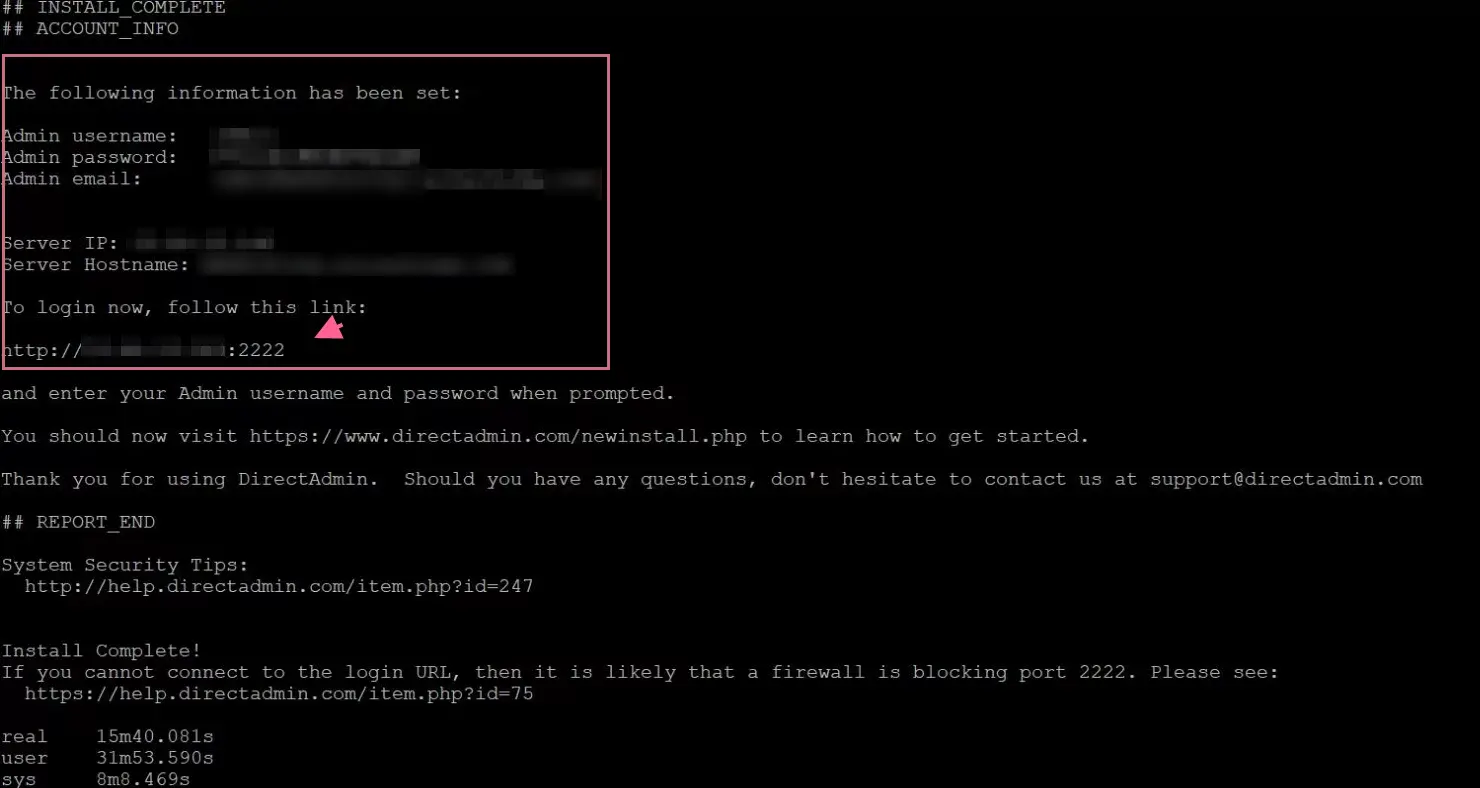
    When you have finished the installation part successfully, it’s time to set by entering the admin username and password along with the login URL, which is your server IP and 2222 port:

    install directadmin on rocky linux

    In case, you don’t have your password or forget it, then there is a command which will help you to recover it.

    So login to the server as root user and run one of the commands below:

    grep adminpass /usr/local/directadmin/scripts/setup.txt

    or

    cat /usr/local/directadmin/scripts/setup.txt

    How to use DirectAdmin

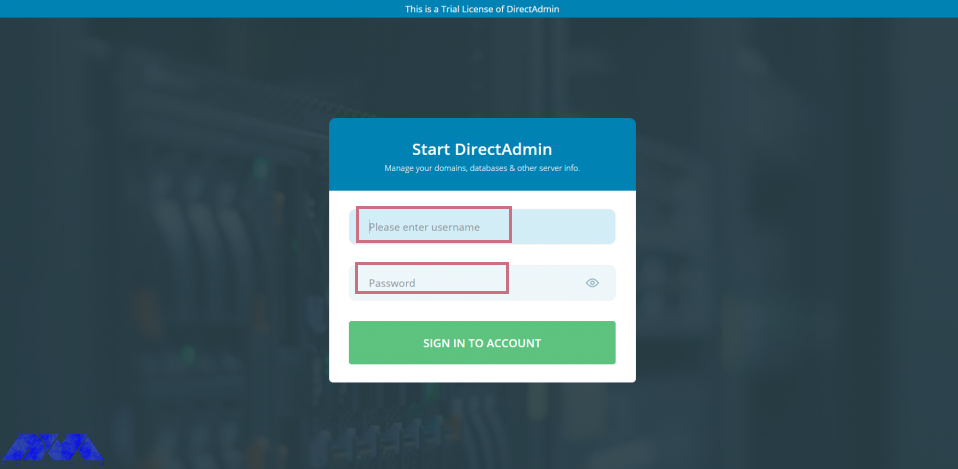
    You can use any system browser to access your server IP address along with the 2222 port:

    http://your-server-ip-address:2222

    Tip: Open the 2222 port in the system or cloud firewall if you can’t access the web interface:

    start direct admin

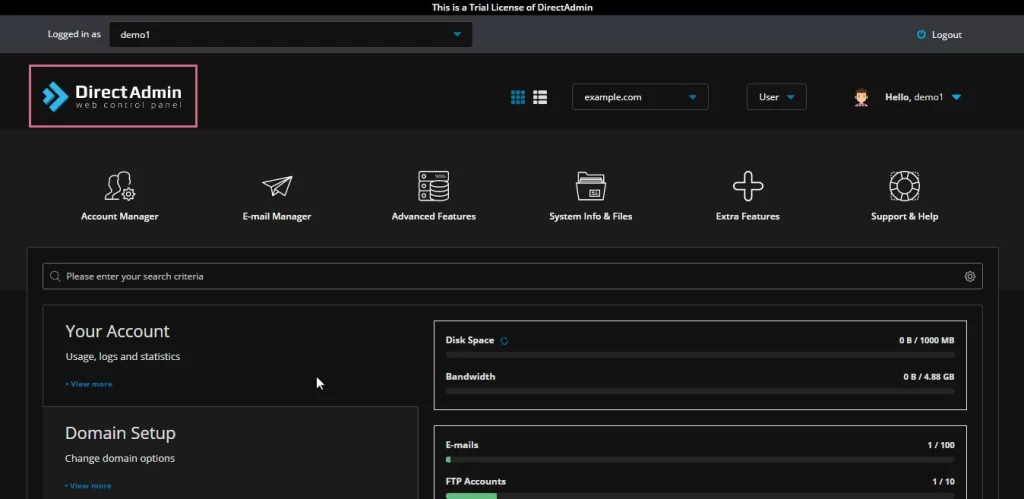
    As the final step, you can see the interface to create user, manager domains, reseller, and all other settings:

    direct admin dashboard

    Conclusion

    In this article, you learned how to install DirectAdmin on Rocky Linux. Now, you are familiar with this useful control panel, and you can manage your website easily. We hope you enjoy it. For any question or idea, just leave a comment.

    FAQ

    How can we Uninstall DirectAdmin?

    It is not possible to uninstall DirectAdmin completely. So you have to reinstall your server if you need another web control hosting panel.

  • How to Install Linux Mint on VirtualBox

    How to Install Linux Mint on VirtualBox

    If we want to recommend a suitable distribution for beginners, Linux Mint is definitely one of the best. This distribution is based on the Ubuntu operating system and is very stable. You can use this distribution as the main system for testing on a virtual machine. After reading this article step by step, you will learn how to Install Linux Mint on VirtualBox.

    Install Linux Mint on VirtualBox

    The first step here is to install a VirtaulBox on your system. If you use Windows, go to the official download page to download the exe file and install it from the page. But if your operating system is Linux, use the commands below to install it on your system.

    If your system is Ubuntu or based on Ubuntu, use the following command:

     sudo apt install VirtualBox

    If your system is Arch Linux, use the following command:

    sudo pacman -S VirtualBox

    And on the Fedora workstation:

    sudo dnf install VirtualBox

    As you have installed the software, it’s time to create a virtual machine.

    Enabling the Virtualization and Download the ISO File

    The Virtualizor may not be enabled by default on your system, in which case you need to enable it yourself. Of course, most systems have activated it. But if you encounter a problem at this stage, Follow the steps below:

    Now, you need to reboot your system. You should also check the boot menu to make sure that virtualization is enabled.

    Tip: You can also access the boot menu through the F2, F10, and F12 and delete keys, as you see the manufacturer information on the screen.

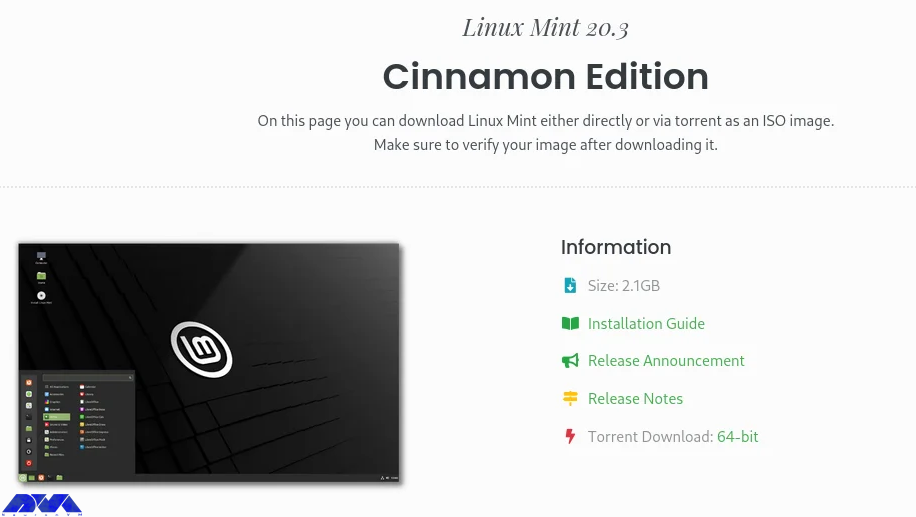
    Then, it’s time to download Linux Mint ISO from the official page.

    Enabling the Virtualization

    Creating the Virtual Machine

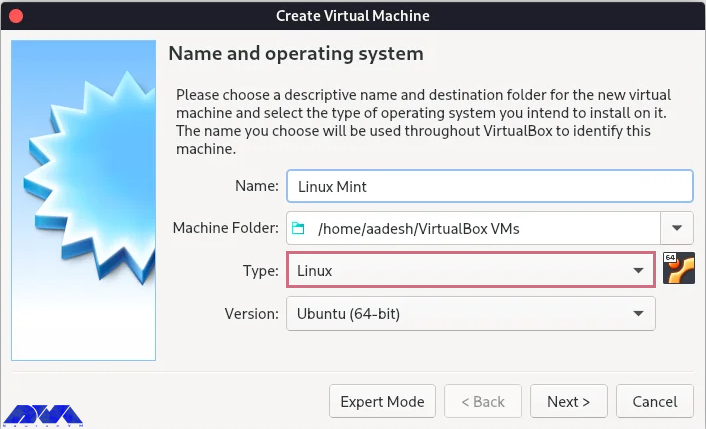
    After the downloading process, open your application and click on the new button. Here you should fill in the details of the given parts on the virtual machine (Linux Mint) and go to the next part:

    Creating the Virtual Machine

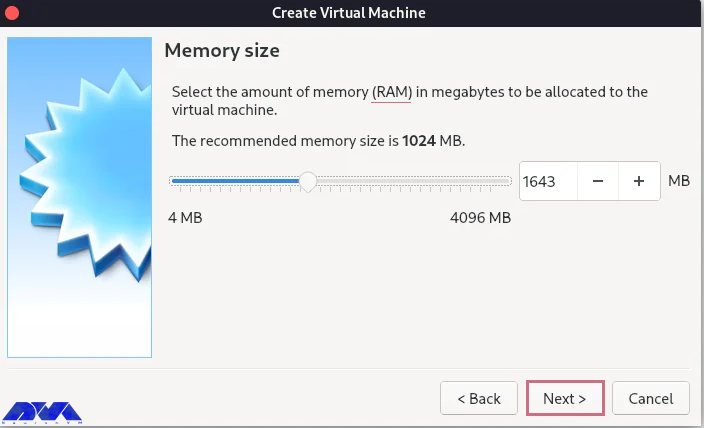
    Determine how much memory to use on your virtual machine and click the next button: (we recommend allocating 50% or less)

    Creating the Virtual Machine

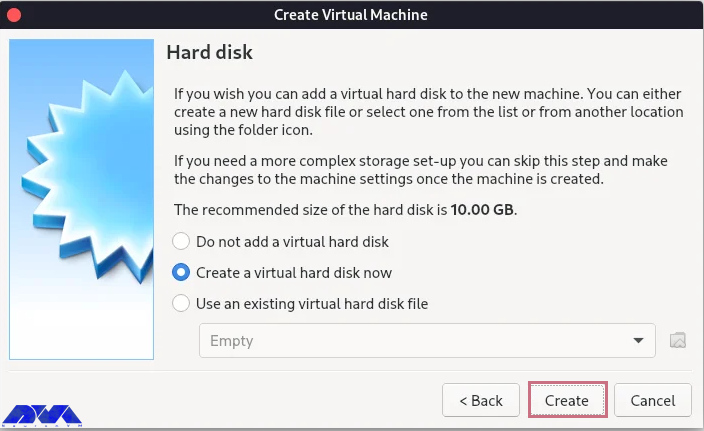
    Now, you will see the hard disk setting. do not change the default setting and select create:

    Creating the Virtual Machine

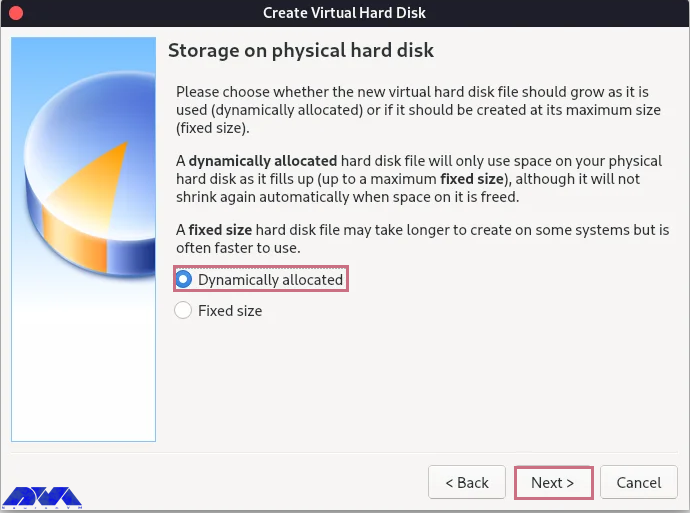
    You will go to the next menu. Again don’t change the default option. Then in the next section, stay on the Dynamically allocated option and click the next button:

    Creating the Virtual Machine

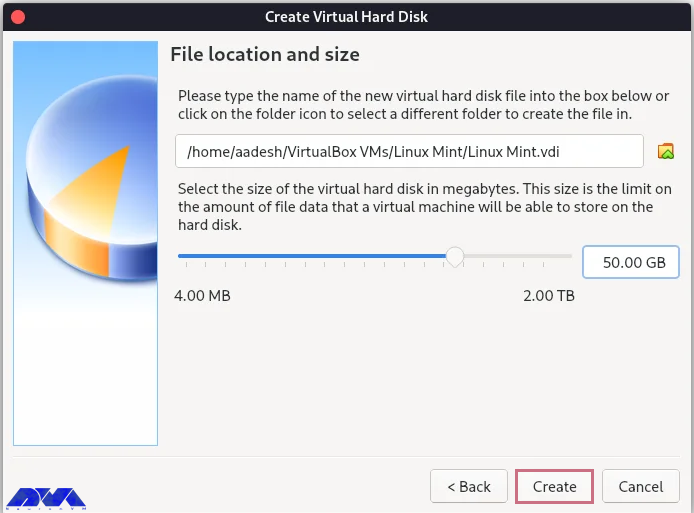
    In this section, you must select the size of the disk you need. If it is only for testing a new distribution, 30 GB will be enough. But if you intend to install software, 30 to 100 GB is recommended. After selecting the value, click the Create option:

    Creating the Virtual Machine

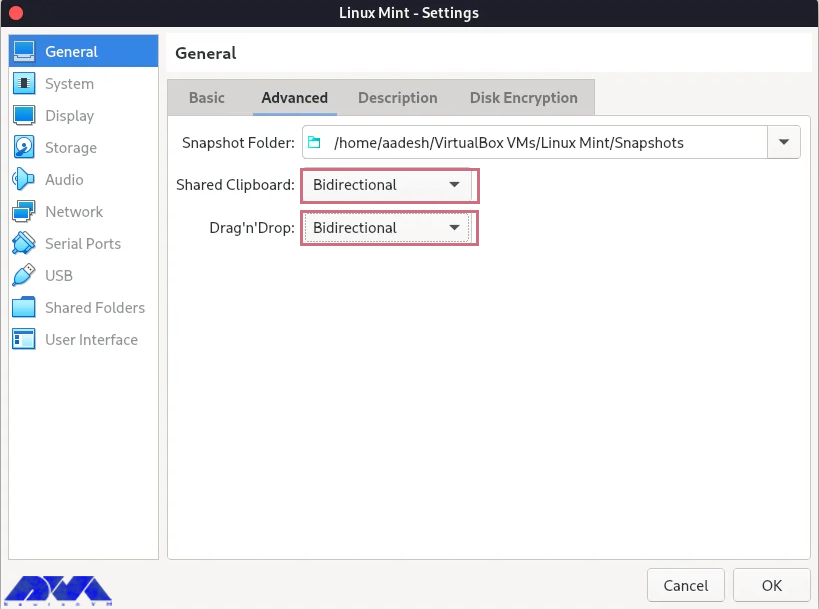
    Your machine is created, but you still have some work to do. Press the setting button to configure more options.

    Here you will see the dialog menu. Go to the General -> Advanced part and choose Bidirectional for both, shared clipboard, and drag and drop.

    Creating the Virtual Machine

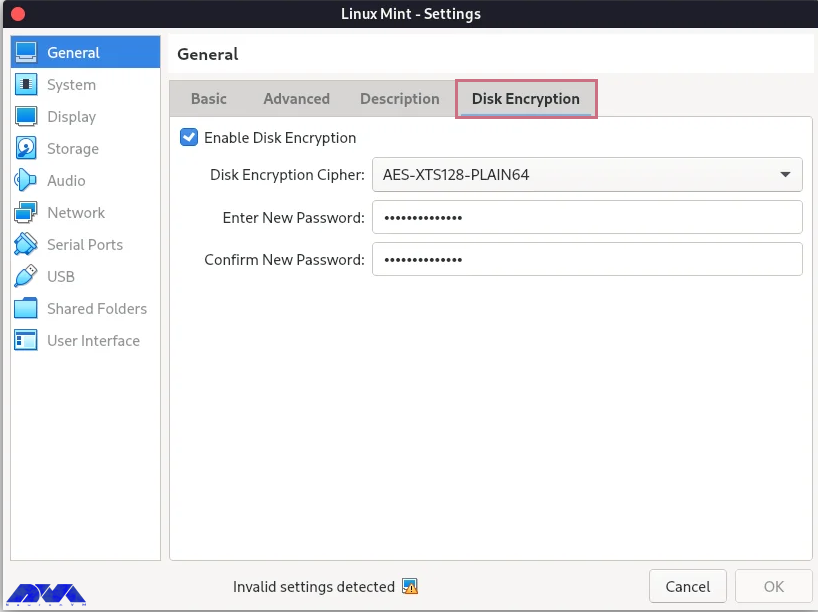
    You can enable disk encryption, but it is optional:

    Install Linux Mint on VirtualBox

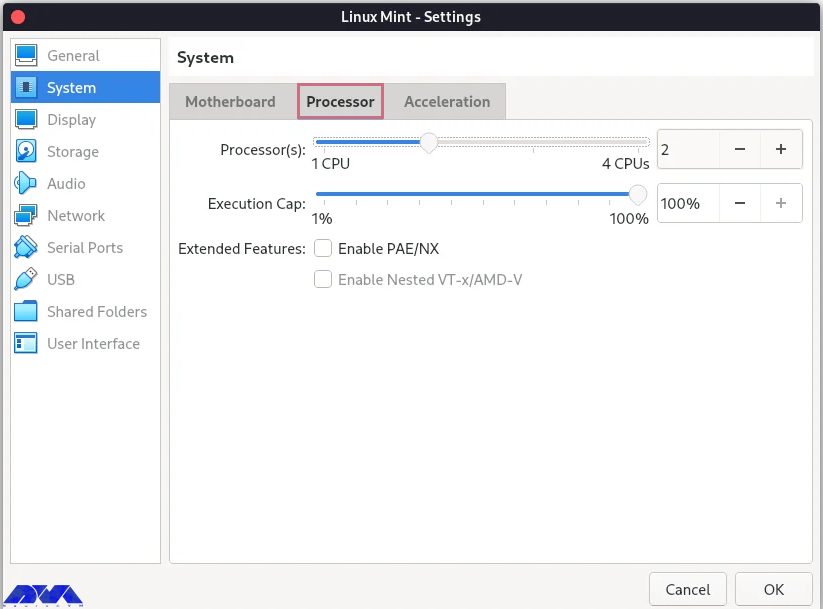
    You need to allocate at least 2 GB RAM and 2 CPU cores to the virtual machine:

    Creating the Virtual Machine - Install Linux Mint on VirtualBox

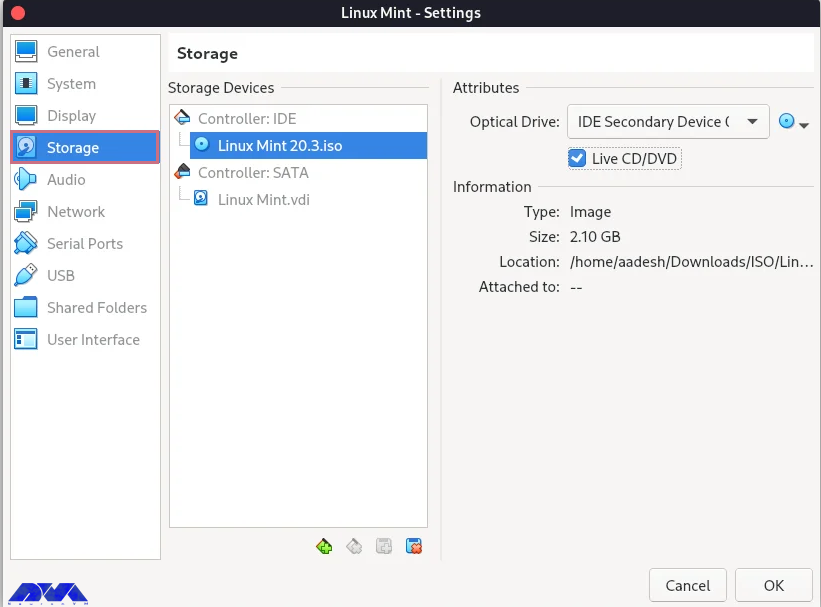
    This part is important. Go through this direction:

    Storage -> empty -> Live CD/DVD checkbox -> CD icon

    Then navigate to the download folder, select the Linux mint ISO, and press OK.

    Creating the Virtual Machine - Install Linux Mint on VirtualBox

    Installing Linux Mint on Virtual Machine

    Now you have your virtual machine, and you can install the Linux Mint operating system on it. So follow the instructions below:

    _ You can see the start button on top. Click on it to open the related window and make it full-screen.

    _ You will see two options: open-source and proprietary drivers. Then select open-source and press the enter key.

    _ As the Linux Mint Live CD booted up, start the installer and do the installation steps like selecting your language, allocating the disk space, choosing your locale and time zone, adding your hostname and password etc.

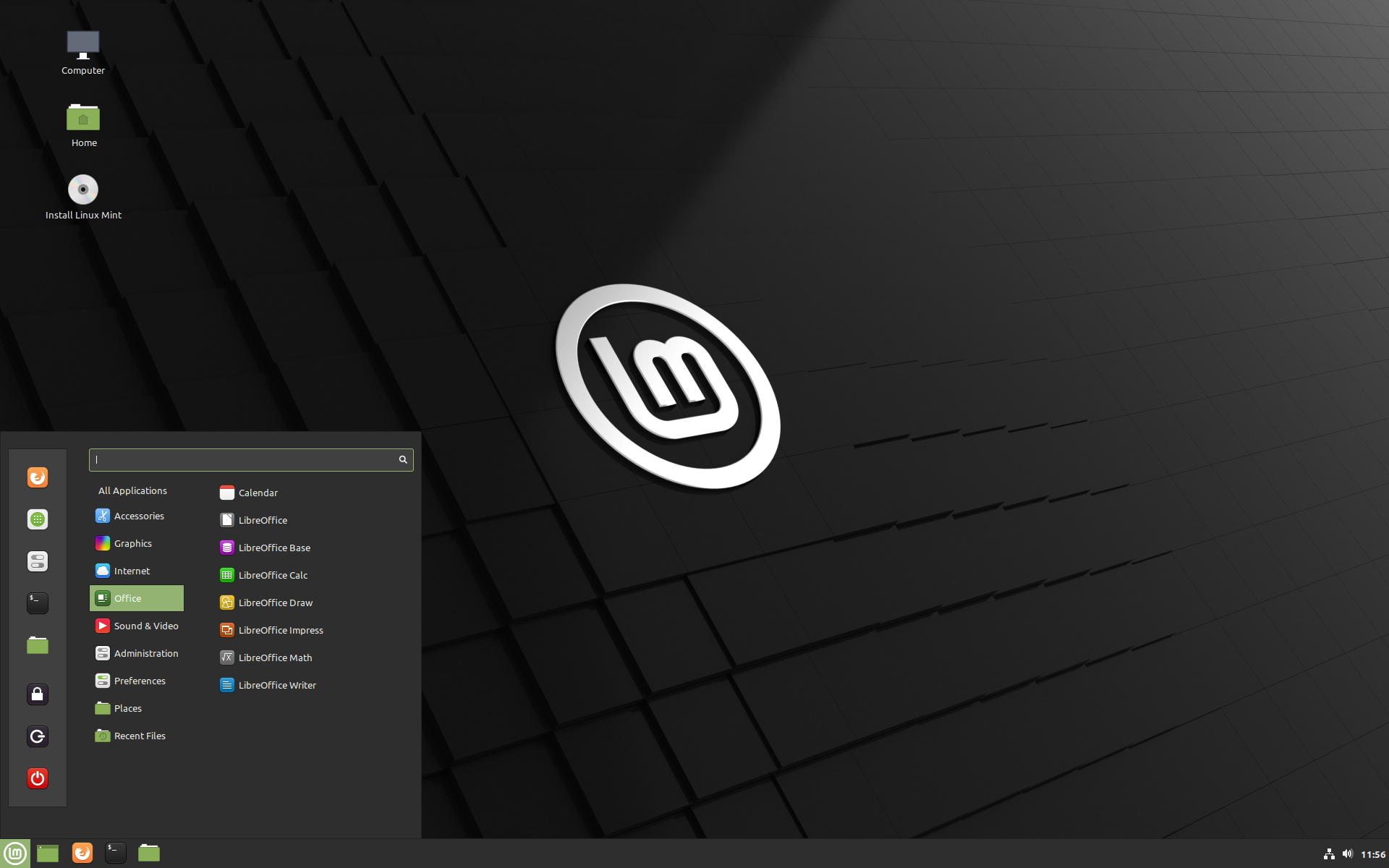
    _ At the final step, as the installation ends, restart your virtual machine:

    Install Linux Mint on VirtualBox

    You should separate the installation media from the Setting -> Storage part. Then to set the resolution of the VM, adjust it to the custom with the help of xrandr command:

    xrandr -s

    Conclusion

    In this tutorial, we tried to show how you can install Linux Mint on VirtualBox. This distribution is one of the best operating systems for beginners. You can follow the steps and images here to have a successful installation process. If you have any ideas or questions, just leave a comment.

    FAQ

    Does VirtualBox use RAM?

    VirtualBox uses the computer’s physical RAM for virtual RAM.

    Is using a VirtualBox safe for Linux?

    Yes, it is safe to use on every platform.

  • Tutorial Configure Parse Server on CentOS 8

    Tutorial Configure Parse Server on CentOS 8

    In this article, we are going to teach you How to Configure Parse Server on CentOS 8. Modern applications store data and interact with other services on the Internet. User accounts shared content, documents, and purchases need to be linked and stored elsewhere. All of these programs require complementary server-side applications to communicate with. Before Parse, these items had to be made separately, which requires knowledge in many disciplines. Few people can do this alone. The rest were grouped together and worked with others to complete the whole picture.

    What is a Parse Server?

    Parse Server is an open-source and self-hosted backend. Parse server can be deployed on any infrastructure that can run Node.js. You can deploy and run the Parse Server on your infrastructure. One of the biggest successes of Parse Server is that you can develop and test your application locally.

    The analytics server can be hosted anywhere, and you can even run multiple instances in different regions to serve a global audience. Parse uses MongoDB and PostgreSQL to store information and create new features. Also, Parse has stored all the files in its Amazon S3 bin. Using Parse Server, adapters are written that allow developers to control the database platform and file storage system they want to use. You can develop and test your application using Node.

    Prerequisites to Install Parse Server on CentOS 8

    1. CentOS Linux VPS

    2. A privileged Sudo account

    3. Login via SSH as the root account

    How to Install Parse Server on CentOS 8

    First, you should install Node.js from the official Yum repository. You can configure the Yum repository using the following command:

    dnf install -y gcc-c++ make
    curl -sL https://rpm.nodesource.com/setup_12.x | sudo -E bash -

    Now to install Node.js on your server, run the following command:

    sudo dnf install -y nodejs

    In this step, you must install Yarn. You can install Yarn with the NPM repository or using the DNF package manager tool. By entering the following command, the Yarn repository will be added to your system:

    sudo rpm --import https://dl.yarnpkg.com/rpm/pubkey.gpg
    curl -sL https://dl.yarnpkg.com/rpm/yarn.repo -o /etc/yum.repos.d/yarn.repo

    Now you can install Yarn by entering the following command:

    sudo dnf  install yarn --disablerepo=AppStream

    Next, you should install MongoDB according to the required version and architecture of your system. To do this, add the following content to the Yum repository configuration file:

    sudo vi /etc/yum.repos.d/mongodb.repo
    [MongoDB]
    name=MongoDB Repository
    baseurl=http://repo.mongodb.org/yum/redhat/$releasever/mongodb-org/4.2/$basearch/ 
    gpgcheck=1
    enabled=1
    gpgkey=https://www.mongodb.org/static/pgp/server-4.2.asc

    Remember to save your file and close it.

    Then run the following command to install the MongoDB server:

    sudo dnf install mongodb-org

    After installing the required packages, you can install Parse Server. The Parse Server package is available in the global repository and can be installed using the Yarn packaging manager. To install Parse Server, run the following command:

    yarn global add parse-server

    How to Configure Parse Server on CentOS 8

    Now you should create a configuration file for your Parse Server. In the configuration file, you can define parse server attributes. Create a configuration file by entering the following command and editing it in your desired text editor:

    nano config.json

    Remember to add the following content to the file:

    {
    "appName": "My Parse Server",
    "databaseURI": "mongodb://localhost:27017/dev",
    "appId": "KSDJFKDJ9DKFDJDKF",
    "masterkey": "KJDF89DFJ3H37JHFJDF8DFJDF",
    "serverURL": "https://localhost:1337/parse",
    "publicServerURL": "https://0.0.0.0:1337/parse",
    "port": 1337
    }

    The configuration details are as follows:

    appName – Set a name for your Parse Server

    databaseURI – Connection string to the MongoDB database

    appID – Set a random string as appID, which is used to connect to the server

    masterKey – Set a random string for the master key

    serverURL – Set a URL for your parse server

    publicServerURL – This allows you to access the parse server from the public network

    port – Enter a port to run on the parse server. The default port is 1337

    After saving the file, run the parse server by entering the following command. Also, run it as a background process.

    nohup parse-server config.json &

    How to Install Parse Dashboard on CentOS 

    In this step, you are going to install a web interface to access the Parse Server called the Parse Dashboard, which is also available as a node module. You can install Parse Dashboard by entering the following command:

    yarn global add parse-dashboard

    Now you should create a configuration file for the Parse Dashboard using the following command and edit it in your desired text editor:

    nano parse-dashboard-config.json

    Then add the following content:

    {
      "apps": [
        {
          "serverURL": "http://your_server_ip:1337/parse",
          "appId": "KSDJFKDJ9DKFDJDKF",
          "masterKey": "KJDF89DFJ3H37JHFJDF8DFJDF",
          "allowInsecureHTTP": "true",
          "appName": "MyApp1"
        }
      ],
     "users": [
        {
          "user":"admin",
          "pass":"password"
        }
      ],
      "iconsFolder": "icons"
    }

    Multiple Parse Servers can be added to your Parse Dashboard. Add your Parse Server with the server URL and use the same appID and master key you defined for your Parse Server.

    After saving the file, start the Parse Dashboard by running the following command:

    nohup parse-dashboard --dev --config parse-dashboard-config.json &

    Finally, the Parse Server is set up on port 4040.

    Next, you should set the FirewallD Rules. Because systems have a firewall enabled, they must allow access to the ports running the Parse Server. Use port 1337 for the parse server and 4040 for the dashboard. By running the following commands, Parse server access will be possible for public users. Run the following commands to open the port type:

    sudo firewall-cmd --permanent --zone=public --add-port=1337/tcp
    sudo firewall-cmd --permanent --zone=public --add-port=4040/tcp

    By running the following command, the above changes will be applied:

    firewall-cmd --reload

    How to Access Parse Dashboard on CentOS 

    By accessing your server on port 4040, you access the web interface of your Parse dashboard. You must log in with the username and password of the dashboard as defined in the parse configuration file (parse-dashboard-config.json).
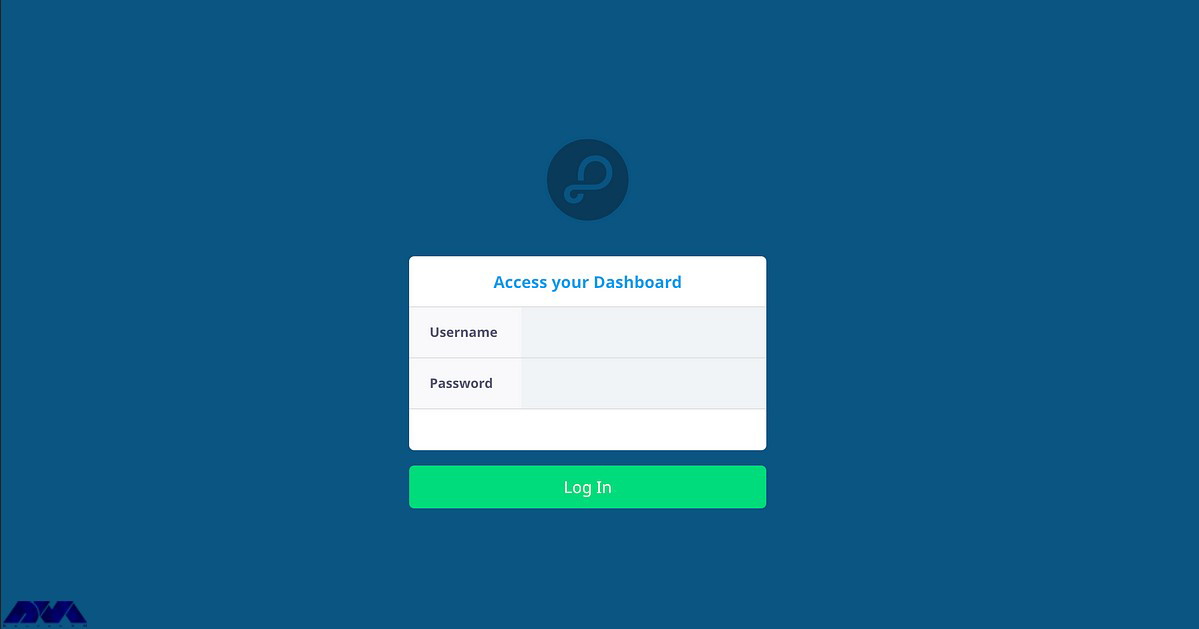
    How to Access Parse Dashboard on CentOS Linux

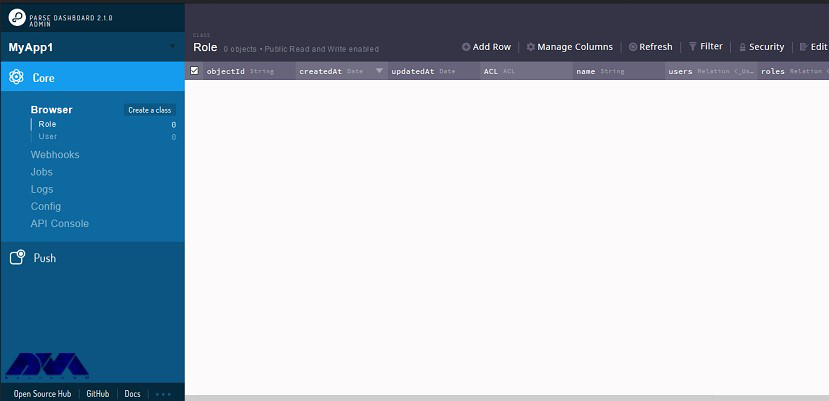
    Now you can see the dashboard:

    How to Access Parse Dashboard on CentOS Linux

    Conclusion

    In this article, you learned how to configure Parse Server on CentOS 8. Also, you were taught how to install the Parse Dashboard and how to access it. Note that using Parse, developers will have the opportunity to provide a scalable and powerful back end for an application filled with facilities, android, javascript, windows, and so on.