Author: Jannson Miller

  • Top 10 Benefits of Using MariaDB for Your Database

    Top 10 Benefits of Using MariaDB for Your Database

    The database is one of the main and most important elements that every software element needs to work. A website, a simple mobile application, an operating system, or an accounting application that is supposed to work with specific data, content, or information needs a database to store this information in a systematic classification for use in the application. MariaDB is one of these databases that we are going to fully review in this article and tell you the Top 10 Benefits of Using MariaDB for Your Database.

    What is MariaDB?

    MariaDB is a professional database that can fully cover your database needs. Many big names in the world of software and the internet have changed their process and addressed the users of this robust database. MariaDB is a well-rooted database that has evolved from one of the most powerful databases out there.

    what is mariadb - Benefits of Using MariaDB

    This database started its work in early 2008. Compared to other database programs and platforms that exist, MariaDB can be considered a new program. Of course, other platforms have been presented after this platform and have made good progress, but MariaDB, using MYSQL foundations, was able to make good progress and gain the attention of many programmers. We suggest you visit the Linux VPS server plans provided on our website and don’t miss the exceptional opportunity to have a powerful and high-speed server.

    Top 10 Advantages of MariaDB for Database

    1) Security measures

    Security is a major concern for any website owner. Hacking attempts are increasing every year and a breach can have serious consequences. Consequently, it is important to ensure that your database management software is properly secured.

    MariaDB security measures include:

    • Built-in security checks and passwords
    • PAM and LDAP authentication
    • User role
    • Database encryption

    Another unique point of MariaDB is its RBAC role-based access control. This feature has been introduced since version 10.0.5 and makes access management easier.

    2) Fast and Efficient Performance

    The performance of your site is very important. Especially when the site’s loading speed drops. For example, most users expect a website to load in less than two seconds. Failure to achieve this time can lead to an increase in the bounce rate.

    MariaDB considers engine-independent table statistics when optimizing queries. The MariaDB-based website also offers a range of useful resources on how to further optimize performance, as well as performance strategies, for various data representations. This includes system variables, buffers, stores, threads, performance improvements in database type, and encryption technology. This means that MariaDB is much less likely to negatively impact your site’s page speed.

    3) Proper Support

    Whether you’re a beginner or an experienced user, there will likely be times when you need extra support. Those licensed to dedicated MySQL products have access to Oracle Premier Support, which provides 24/7 assistance. MariaDB support is the same but has some additional features, such as a guaranteed response within 30 minutes! The continued use of this platform by these companies can be another reason for the importance of using MariaDB.

    4) Storage Engines

    Storage engines have been well developed in MariaDB and can provide new features to users. XtraDB and Aria can be mentioned among the mentioned storage engines.

    5) Database Views

    One of the main things that has been optimized is database views. A database view shows the information that will be provided to the user in the form of a virtual table based on the user’s request from the database. This virtual table can have related columns, each of which is in a separate table. Likewise, it may also collect different records and provide the user with a query answer at once.

    mariadb for your database server

    6) Virtual Columns

    Virtual columns can consider one of the great innovations for MariaDB, which greatly reduced the computational load of various programs. At the end of the tables of this database, a virtual column that does not belong to the database and is located in software and virtual form is created. This column will be able to perform mathematical operations and formulas that are requested from it on different rows of the application table and save it.

    With this, it is no longer necessary to extract information from the tables in the program source and perform calculations on them. The program simply accesses that column and reads the necessary calculated information from it. If the calculation is done in the program, the system resources are consumed, and the execution time increases. This makes the database a little bigger, but the system resources are used more optimally.

    7) Column Store

    Columnar storage is one of the features built into MariaDB. By using this possibility, you can store the desired data in column form. This is in stark contrast to previous methods where data was stored in rows. In row storage, a lot of volume and time was spent due to the different data of each column. But this work has made it possible to use compressions and different techniques to increase the speed, and it can be very useful for big data as well as in the topic of Big Data.

    8) MyRocks Support

    MyRocks offers a database system (RockDB), which can considering the best in data compression. By using the MyRocks engine, you will have the ability to take advantage of the compression features of this database. It is also possible to move data between these two databases and change the basis of your database without making any changes.

    9) Thread Pooling

    Thread Pooling was created exclusively for MariaDB. This feature completely revolutionized the way databases work, allowing each access to the database to have a thread. This feature gives the database a special account that handles data requests with pooling software techniques. In this technique, a section named Pool is created, which acts like a list, and all requests are placed in it. Then the database elements manage and respond to these requests with different and sometimes multiple threads.

    With this, your database will be able to respond to queries and requests for information faster. This feature provided by MariaDB has been expanding and many databases are leaning towards it.

    10) Implementation and Authorization

    This software runs on Windows, Linux, and macOS operating systems. It is available on Intel and IBM Power8 hardware platforms and runs as a service on multiple cloud platforms. Supported programming languages include C++, C#, Java, Python, and others. MariaDB Galera’s Linux-based cluster implementation has also been developed to provide a concurrent multi-master cluster option for MariaDB users. However, the API that connects the database to Galera Cluster, another open-source technology, starts in MariaDB by default, eliminating the need to load a separate cluster.

    Conclusion

    MariaDB is one of the reliable platforms that has proven itself in practice according to the comments and reviews we have done. Perhaps these introduced benefits are so tempting that you have thought of building your site’s database or the application you are planning to build on MariaDB and use it.

    FAQ

    What is the solution for the MariaDB server not accepting connections from other hosts or networks?

    To fix this problem, you need to configure the server to allow remote access, give privileges to the remote user, and check the firewall settings.


  • A Beginner’s Guide to Setting Up Varnish Cache for Your Website

    A Beginner’s Guide to Setting Up Varnish Cache for Your Website

    Varnish Cache can act as an intermediary between the server and users. In such a way that it receives user requests and instead of sending the request to the server, it returns the corresponding web page from the cache memory to the user. Due to the application and importance of this issue, we decided to teach you how to set up Varnish Cache for Your Website after introducing you to Varnish Cache.

    What is Varnish Cache?

    Varnish Cache is a type of cache system that is used to accelerate website pages. This system receives website requests from users’ browsers and sends them to core or edge servers for processing. Then, the response to the request is stored in the cache memory and delivered to the users at a higher speed. This method improves the performance and loading speed of web pages.

    If a similar request is sent to the website, Varnish Cache compares the new request with the previous request and returns the processing result from its cache memory to the user in case of similarity.

    Another feature of Varnish Cache is the management of website user requests. If the user needs to display certain information from the website, it is possible to store the information related to the user in the cache using Varnish Cache. Therefore, whenever a new request is sent by him, the response will be sent to the user quickly from the cache memory.

    Regarding the use of Varnish cache, it should be noted that this system is not effective by default for content that has an expiration time. In this case, this problem should be solved by using TTL in cache varnish.

    Varnish Cache can also be useful for websites in terms of security. It will give attackers less opportunity to attack the main server infrastructure and protect your site from DDoS attacks. We suggest you use the Windows VPS server plans provided on our website to run your website.

    Features of Varnish Cache

    • Speed
    • Savings
    • Scalability
    • Protection Against Outages
    • Flexibility
    • Experience

    Use and Configuration of Varnish Cache

    Varnish Cache is located on the server side and is deployed as a software module among the server layers. This software is designed using C language and can be installed on different operating systems.

    In order to activate the Varnish cache for the website, we must place it as a layer between the server and the browser. If the content of the request is available in Varnish’s cache, Varnish will respond directly to the browser. Otherwise, the request is sent to the main server and after receiving the response, it is stored in the Varnish cache. With this, the page load time is reducing and the server load is also reducing.

    To install and configure Varnish Cache for your website:

    1- First, install the Varnish software.

    To install Varnish on the Linux operating system, you can use the software repositories available on the operating system. There is also software available to install Varnish on Windows and Mac.

    2- Find and open the Varnish configuration file in /etc/varnish/ or /usr/local/etc/varnish/ (depending on the operating system and Varnish version).

    3- In this configuration file, specify the port number of Apache or Nginx where your web server works. For example, if your web server is running on port 80, change the port number to 8080.

    4- Allocate some system memory to Varnish Cache. This value should be greater than the volume of web server responses. Usually, 20 to 30% of the total system memory is considering cache memory.

    5- Launch Varnish Cache by running the following command:

    sudo service varnish start

    6- Now you can connect your web server to Varnish Cache so that its responses are storing as a cache in Varnish Cache. To do this, you need to specify the Varnish port number as the web server port in your web server configuration file.

    Functional Codes for Varnish Cache Management

    Some useful code for Varnish Cache is listed below:

    vcl_recv: This code is executed when a request is received. By using this code, you can make changes to the received requests.

    vcl_backend_response: This code is executed when receiving a response from the Backend.

    vcl_deliver: This code is executed when the response is sent to the user. You can use it to deliver responses that have been manually modified.

    vcl_miss: This code is executed when a request is missed with the cache key.

    vcl_pass: This code is executed when a request is completely sent to the backend. Using this code, you can also edit the operation before sending the response.

    vcl_pipe: This code is executed when a request is sent as a pipeline.

    How to Install and Setup Varnish Cache for Your Website

    First, you need to disable the Varnish version in the default repository by running the following command:

    sudo dnf module disable varnish -y

    In the next step, you need to install the EPEL repository using the following command:

    sudo dnf install epel-release -y

    Now it’s time to download and install Varnish Cache by running the following commands:

    wget https://packagecloud.io/install/repositories/varnishcache/varnish70/script.rpm.sh
    sudo bash script.rpm.sh
    sudo dnf install varnish -y

    Finally, you can enable the varnish cache by running the following command:

    sudo systemctl enable --now varnish

    Open the Varnish configuration file using the following command:

    sudo nano /usr/lib/systemd/system/varnish.service

    Considering that the default port in Almalinux for Varnish is 6081, you need to search for it and change it to port 80:

    ExecStart=/usr/sbin/varnishd \
    -a :6081 \
    -a localhost:8443,PROXY \
    -p feature=+http2 \
    -f /etc/varnish/default.vcl \
    -s malloc,256m
    ExecReload=/usr/sbin/varnishreload

    Finally, you should save the configuration file and exit. Then restart Varnish Cache:

    sudo systemctl daemon-reload
    sudo systemctl restart varnish

    How to Install and Configure Varnish Cache in Litespeed

    To install Varnish cache in the LiteSpeed environment, you can use the following commands:

    yum install varnish

    Now you can start and enable Varnish Cache by running the following commands and view the installation status:

    systemctl start varnish
    systemctl enable varnish
    systemctl status varnish

    For settings in LiteSpeed, it is necessary to enter the LiteSpeed environment. To do this, click the Add button in the Varnish section from the Configuration > Server > External App menu. Then enter the following values:

    Name: Varnish
    Address: localhost
    Port: 80
    Load Balancing: No
    Max Connections: 1000
    Environment: production
    Initial Request Timeout (secs): 60
    Retry Timeout (secs): 0

    Then click on the Save button to save the changes. Go to Configuration > Server > General and change the port to 8088 in the Default section.

    How to Configure Varnish Cache in Apache

    First, install, start, and enable Apache with the following commands:

    sudo dnf install httpd -y
    sudo systemctl enable --now httpd

    Now you can enable HTTP traffic through the firewall:

    sudo firewall-cmd --zone=public --permanent --add-service=http
    sudo firewall-cmd --reload

    In the next step, you can open the Apache configuration file with the following command:

    sudo nano /etc/httpd/conf/httpd.conf

    Look for the Listen 80 line and then change it to:

    Listen 8080

    Save the Apache configuration file and exit it, and then restart it by running the following command:

    sudo systemctl restart httpd

    Conclusion

    Varnish Cache is one of the most popular cache software in the web world. This software is used to increase the speed of sites and improve the user experience. By using this software, the web pages are loaded faster and the loading time is reduced. Varnish Cache is a basic tool for some big sites like Wikipedia and Facebook. Using Varnish Cache is also very effective on high-traffic sites that have a lot of data and can significantly improve page loading speed. To use Varnish Cache, you can install it on your server and apply the necessary settings. In some cases, you may need to use plugins or extensions designed to manage Varnish Cache. Also, some web servers such as Apache and Nginx support Varnish Cache as one of their modules.

  • The Top Bitcoin VPS Server Providers for Crypto Enthusiasts

    The Top Bitcoin VPS Server Providers for Crypto Enthusiasts

    When it comes to web hosting, one of the most popular options for businesses is virtual private server (VPS) hosting. A VPS offers more control and flexibility compared to shared hosting, while still being more affordable than dedicated hosting. In this article, we review some of the top Bitcoin (BTC) VPS server providers for Crypto Enthusiasts.

    Top 5 Bitcoin VPS Server Providers in 2023

    In the continuation of this article, stay with us to introduce you to the Top 5 Bitcoin VPS Server Providers in 2023. You can buy and use the services provided on these websites by purchasing with Bitcoin and other cryptocurrencies.

    1) NeuronVM

    Are you looking for a hosting solution that combines the benefits of a Virtual Private Server (VPS) with the convenience and security of Bitcoin (BTC) payments? With a Bitcoin VPS server, you can enjoy fast and reliable hosting while maintaining your privacy and harnessing the power of cryptocurrency. Bitcoin is a consensus network that has created a new payment system and a completely digital form of money. It is the first decentralized peer-to-peer payment network provided by its users without any central authority or intermediary.

    Windows VPS server plans on NeuronVM start at $16.99 per month. This plan includes a dual-core processor, 2GB of RAM, 30GB of storage space, and unlimited bandwidth For more information, you can visit the NeuronVM website.

    neuronvm

    2) Hostinger

    Hostinger was launched in 2004 in Latvia under the name Hosting Media and changed its name to Hostinger in 2011. Since then, this hosting service provider has reached 24 million fixed customers. The best data centers for this collection are located in Brazil, Netherlands, Lithuania, America, and Singapore.

    Hostinger’s VPS server plans start at $4.99 per month. This plan includes a single-core CPU, 4GB of RAM, 50GB of NVMe storage, 1TB of bandwidth, and weekly backups. This site offers more diverse services such as VPS and domain registration to its customers. You can buy the various services you want, including a VPS server, using Bitcoin from this website.

    hostinger

    3) AccuWebHosting

    AccuWebHosting is a hosting provider that specializes in Windows hosting. Their Linux and Windows VPS plans start at $6.99 per month and include 1GB of RAM, a single-core CPU, 40GB of storage space, and 500GB of bandwidth. AccuWebHosting also offers managed hosting services, which means they take care of server management and security. They also offer 24/7 customer support. On this website, you can buy the service you want using Bitcoin or other digital currencies.

    accuwebhosting

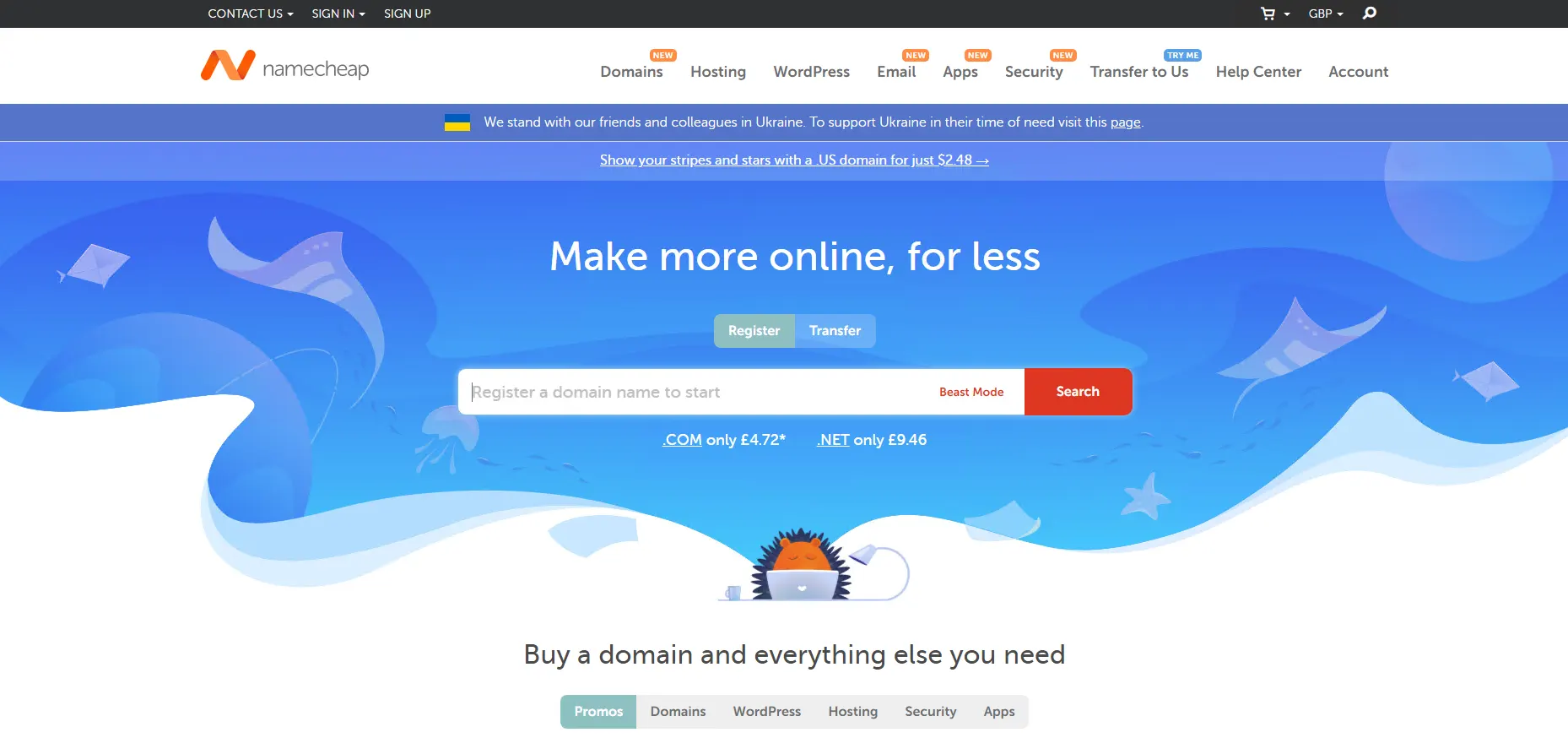
    4) Namecheap

    Over the past years, hosting services have improved and gained many fans. You can use Namecheap website hosting packages. When you use the hosting services of this company, this hosting is done in two stages. First, this site will access your information and data such as passwords, DNS information, and user activity, and will help you against any problems you may have with your site. In the next step, all the information inside the site, contents, SSL files, and email logs will be stored entirely for you.

    Namecheap’s VPS server plans start at $5.43 per month. This plan has a dual-core CPU, 2GB of RAM, 40GB of SSD RAID 10 storage, and 1TB of bandwidth. You can use Bitcoin to buy VPS on the Namecheap website.

    namecheap

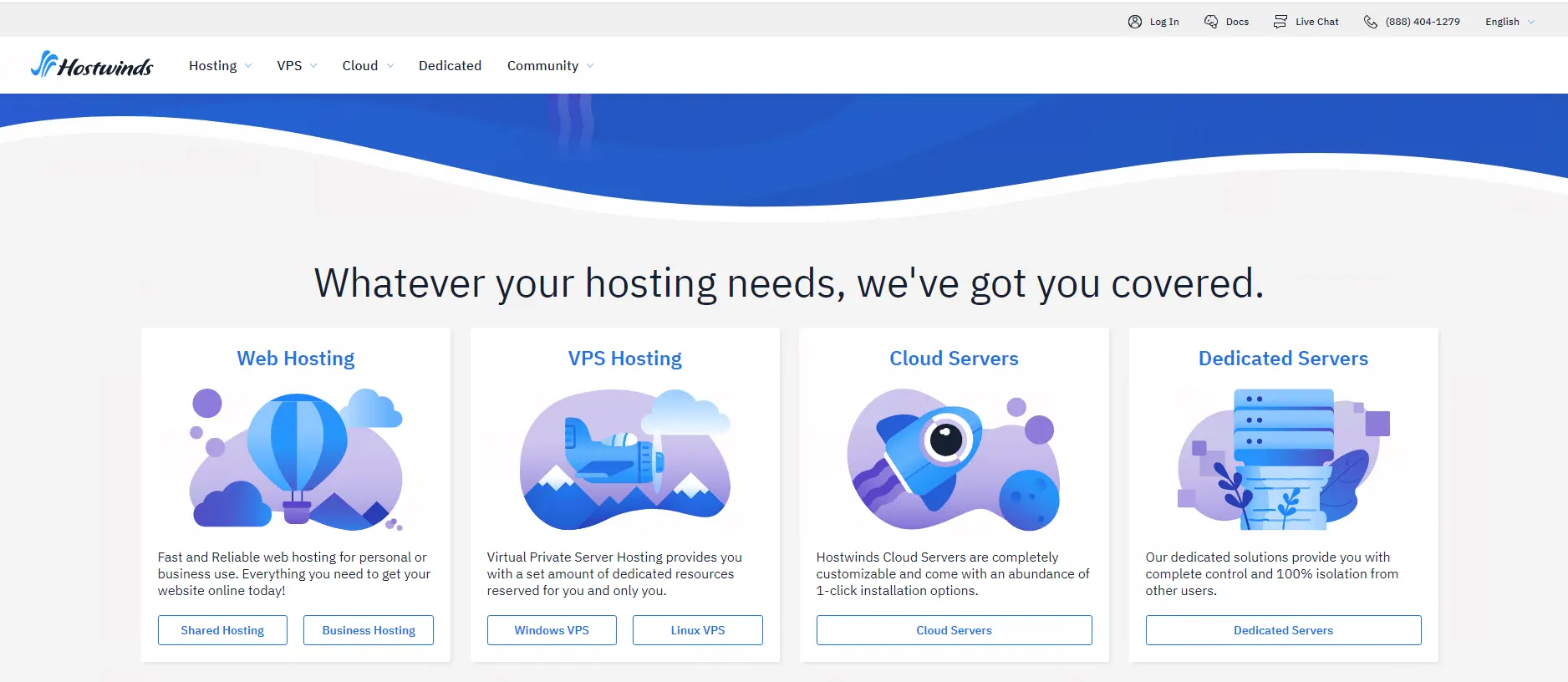
    5) Hostwinds

    Hostwinds is a hosting provider that offers a variety of hosting plans including Windows and Linux VPS hosting. Their VPS plans start at $12.74 per month and include 1 GB of RAM, 1 CPU core, 30 GB of storage, and 1 TB of bandwidth. Hostwinds also offers 24/7 customer support and a 60-day money-back guarantee. You can choose the service you want and pay using Bitcoin or other digital currencies.

    hostwinds

    Conclusion

    With the increase in the price of VPS servers, the attractive offers of VPS vendor companies have become very tempting. In this article, we have introduced the list of The Top Bitcoin (BTC) VPS Server Providers for Crypto Enthusiasts, which have good quality, competitive prices, and easy payment with crypto. If you have any questions, you can share them with us in the comments section.

  • Why a Dedicated Server is Essential for High-Traffic Websites

    Why a Dedicated Server is Essential for High-Traffic Websites

    Websites need servers for all the information they provide to their users 24 hours a day. This server stores all the texts, images, and data displayed on a website. With the increase in visits and traffic of your website and due to the limitations of shared hosting and VPS server, the need for a dedicated server will become necessary. Therefore, in this post, we will explain the reasons for the importance of a dedicated server for highly visited websites.

    What is a Dedicated Server?

    At the beginning of the way of setting up a website, it is more likely to use shared hosting. Because the costs of renting shared hosting are much lower than the costs of renting or buying a dedicated server. But with the growth of a website and the increase in its visits or the need to increase security, the efficiency of the shared server decreases. Because the resources of a shared server are shared among several websites. But the resources of a dedicated server are dedicated to only one website. Therefore, a dedicated server will provide a more stable and reliable user experience in case of heavy traffic. You can test our dedicated servers for easy control of your website during visits and high traffic. With a cheap dedicated server from our website, you will experience the best feedback.

    Dedicated Server for High-Traffic Websites

    Features of Dedicated Server

    The advantages of buying a dedicated server are:

    • 24/7 Uptime
    • Faster Connection Speed
    • Less risk of virus attacks
    • Automatic Maintenance
    • Dedicated to High Performance
    • Better Security
    • More Reliability
    • Custom Configuration
    • High availability and Monitoring

    The Reasons for the Importance of a Dedicated Server for High-traffic Websites

    Most of the websites start their work with shared hosting. But usually after some time and with the increase in visits and website traffic, they move to a dedicated server. In the following, we will introduce the reasons for the importance of a dedicated server on popular websites.

    1- Increasing website traffic

    Some of the greats of the digital marketing world believe that a website should be ready for 30 times more traffic than its usual daily traffic. Being prepared to handle increased traffic volume in the event of promotions, product enhancements, or other special events is critical. Otherwise, the website may crash or lead to a negative user experience (UX) resulting in financial loss.

    Therefore, it is very important to switch to a dedicated server as soon as you foresee the possibility of growth and an increase in site visits. Although dedicated server costs are high, with shared hosting, the possibility of losing customers and financial losses is more.

    2- Website information security

    In the web world, despite all its advantages, there are also risks such as viruses, hackers, etc. On the other hand, some websites contain confidential emails, card numbers, or other sensitive customer information. So to protect customers’ privacy (like medical information), you absolutely cannot share a server with another company.

    It is important to know that if one of the websites hosted on a shared server is identified as a source of spam, other neighboring websites are also at risk. Because if that website is spam or malicious, it can also open the way for viruses or other malware to spread to your website. For this reason, the use of a dedicated server is considered vital to guarantee the website’s security to some extent. Because the configuration and optimization of a dedicated server are completely based on the opinion and ideals of the website owner.

    Dedicated Server is Essential for High-Traffic Websites

    3- Optimizing Website Loading Time

    Neighbors on a shared server have no idea where a server’s resources are being used the most. In a shared server, the bandwidth used cannot be equal, and this can lead to a decrease in the loading time of the pages of a good blog. As a result of the low interaction of users and the high bounce rate of the site, the SEO of the website is also reduced and its rank is lowered. But choosing a dedicated server ensures that you have enough bandwidth to increase your page load times.

    4- Increasing Website Speed and Improving SEO

    Undoubtedly, more processing resources increase the speed of the site. This increase in speed has a direct impact on improving SEO. Site speed is one of the factors that Google uses to determine the rank of the site in the search engine and to determine the position of the site.

    According to experts, Google uses the “time to first byte” measure as an official site speed measurement tool. Therefore, out of a slow website and a fast website but with equal content, the fast website will rank higher in Google search results. A slow website will have a lower visitor-to-customer conversion rate and therefore less revenue generation. So that every second of the loading time is equal to a 7% less conversion rate, 11% fewer visits, and 16% less customer satisfaction. According to research, 46% of people abandon their shopping carts due to the slow speed of the website.

    5- Coping with the concept of Throttling

    Throttling is the intentional slowing down of online services in response to increased server traffic and demand. That is, the shared server provider can reduce the speed of a particular user or group of users. This action is usually applied due to exceeding a certain usage threshold or excessive pressure on the network. But the bandwidth (data transfer rate through a network path) on a dedicated server is specific to a website. Therefore, it will not suffer from these problems.

    Conclusion

    In all the cases mentioned above, the word control is hidden. Full control over your website server is very important. A dedicated host gives you complete control over the settings and responsibilities of your website. You can freely install any software, operating system, hardware, program, etc. you want on your server. In fact, all the configuration of the server is done by you or based on your opinions and ideals, but by a third party. Two-step authentication, strong firewalls, regular security updates, etc. are all possible through a dedicated server.

  • What is a DNS Server and How Does it Work?

    What is a DNS Server and How Does it Work?

    Every domain or website you visit uses one or more specific DNS. Now what is DNS and where is it located on the website and how does it work? These are the questions that may arise in the minds of users. DNS is a universal system that all websites and domains use, and without it, no website will survive. In this article, we are going to tell you What is a DNS Server and How Does it Work? We suggest that you do not miss this interesting post and stay with us until the end.

    What is DNS?

    DNS stands for Domain Name System, which converts a website’s domain name to an IP address. All computers on the Internet, from smartphones or laptops to website servers, identify and communicate with each other using numbers. These are called IP numbers.

    When you want to enter a website and communicate with its server, you don’t need to enter its IP address. Instead, you only need to enter the domain name of the website and leave the operation of converting the “domain name to IP” to DNS. By doing this, the human-understandable domain name becomes a machine-understandable IP.

    what is dns server

    There are various plans for a dedicated server on our website. You can do the DNS configuration on a cheap dedicated server provided on our website.

    What is a DNS Server or Nameserver?

    When you enter a website address, you need to connect to the server IP associated with your domain. Now, where is this information and how does the system understand which domains belong to which server? A DNS server or Nameserver acts like a phone book and records all DNS records and IPs related to them. In other words, its task is to provide DNS information related to domains.

    Usually, web hosting services manage nameservers. Every host or server you buy has its own IP address that needs to be registered. Each DNS server is responsible for storing information about the domain and IP servers in itself so that it can send the information when called. The DNS inside the Nameservers are spread all over the world and it should be available to all of them for identification. Therefore, domain DNS registration may take up to 48 hours.

    how does dns work

    Each Nameserver has its own DNS address that can store records of many domains and IPs. For example:

    Ns1.neuronvm.com

    Ns2.neuronvm.com

    Each domain name must be at least two-way bound to DNS. Because the server and the main server and subsequent servers are used for times when the main server is not available. When a website’s domain address is called, your server’s IP information is read from the DNS server and sent to the browser, and then a request to receive the information is sent to your server.

    How Does DNS Work?

    As we said, DNS is responsible for returning the IP from the domain. This operation is carried out in several steps until finally, a valid and healthy IP address reaches the user. It is a little difficult to find the IP address of the website among all the DNS servers in the world, which is made easy by the DNS architecture. Each of these steps will help you find the original DNS by sorting out where the DNS is stored. For example, first, the DNS zone and then the DNS servers related to their back-domain are checked in order to reach a suitable location.

    1) DNS Recursor

    In the first step, the user’s request is sent to this section. This section communicates with the set DNS servers to find the IP. To do this, it sends queries to the next three parts, i.e. Root Nameservers, Top-level Domain Nameservers, and Authoritative Nameservers, to find the right IP.

    2) Root Nameservers

    This section is for finding the DNS root zone or DNS from its zone. This section is responsible for responding to requests placed in the same DNS zone. Finally, a list of valid servers matching the domain’s TLD will help find the IP address.

    3) Top-level Domain Nameservers

    It is responsible for keeping the IP related to the TDL of the domain and sends the existing IP and reaches the fourth stage.

    4) Authoritative Nameserver

    Returns the real and final IP address. At this stage, there are two types of servers: the first server is the main server, which is the main IP set in the first DNS, and the second server is your alternate and backup DNS. If the primary server fails, it uses the secondary server and returns the final IP.

    What is a DNS Cache?

    A cache system means temporarily storing data in a closer location, which leads to improved performance and faster response. DNS caching means storing DNS information in the closest location to the user. When sending subsequent requests, the DNS response is read from the user’s cache and no more requests are sent to the DNS chain. Finally, CPU bandwidth consumption decreases, and website loading speed increases. DNS data can be stored in various cache locations and for a specific time period in terms of TTL.

    DNS Cache Location in the Browser

    By default, web browsers support DNS caching and store information about each DNS for a certain period of time so that the DNS response can be read from the browser when it is reloaded. When you open a domain address, before sending a DNS request, the browser cache is first checked, and if there is no information, the request is sent to the DNS chain. In the Chrome browser, you can see the status of the current DNS cache by going to the following address:

    chrome://net-internals/#DNS

    The Best DNS Servers

    Usually, the web hosting service provides you with DNS servers, but you can still change your domain’s DNS. There are free and paid DNS servers that are very fast and secure and use security tools such as firewalls and request filters. Next, we will introduce some of the top DNS servers.

    Cloudflare: Cloudflare is one of the DNS provider services that provides many features to users. In addition to security, Cloudflare prevents DDoS attacks and other attacks and optimizes the security and loading speed of your website with security services and optimized architecture.

    Google Public DNS: Google’s DNS service, which is called Google Public DNS, is slightly different from Cloudflare’s service and is designed for more experienced users. This service has its own uses and facilities that you can use if needed.

    Quad9: Quad9 DNS service is famous for its speed. Also, the service claims to be able to block malicious websites and users using its data.

    Conclusion

    DNS is the communication system between the domain name and the server IP, which ultimately shows the server information to the user. DNS consists of 4 parts, all of which eventually reach the IP server. Also, there are different ways to change domain DNS records (such as NS records and A records) you can connect your server IP to your domain in different ways. Another point is that you can use DNS services to maintain security and speed.

    FAQ

    Is it safe to change DNS?

    It depends. They are always at risk of hacking and to increase security, you can use DNS services.

    Should we use private DNS?

    Yes, private DNS can provide you with more security compared to other DNS.

  • Top way to Install Node.js on Kali Linux

    Top way to Install Node.js on Kali Linux

    Nowadays, JavaScript is present in different places, and various things are done with it. Although JavaScript is considering to be the core of the web along with HTML and CSS. This high-level and interpretive language is also using as part of the web in creating mobile applications, computer games, desktop programs, etc. Since a long time ago, one of the dreams of JavaScript programmers was to be able to run their codes on the server side, except for the user’s browser. One of the environments that allows programmers to run their JavaScript code on the server side is Node.js. By following this tutorial, you will learn How to Install Node.js on Kali Linux.

    Introducing Kali Linux

    Kali Linux is a Linux distribution based on Debian. This operating system is specifically used for tasks such as network analysis and penetration testing. The presence of many tools installed by default on this distribution has made Kali a Swiss army knife for hackers.

    Kali Linux, formerly known as Backtrack, claims to be more focused on testing tools than previous versions and has removed unnecessary tools, unlike Backtrack, which had different tools for different purposes.

    This operating system is mainly used for advanced penetration testing and security checks. Kali has several hundred tools designed to perform various tasks related to information security such as penetration testing, security research and reverse engineering.

    What is Node.js?

    Node.js is a server-side platform based on the Google Chrome JavaScript engine (V8 Engine). Node.js provides everything you need to run a program written in JavaScript. Mr. Ryan Dahl introduced Node.js in 2009 to show that JavaScript is more powerful than just being used for front-end dynamic web pages. In fact, with the help of Node.js, the JavaScript programming language is executed in the server environment instead of in the browser. Node.js allows you to easily and simply write scalable and large networked applications.

    JavaScript has been evolving since 1995. Although this language did not have a successful presence on the server side until a long time ago, the efforts made by the programmers faded from the minds of other developers over time. Until the introduction of Node.js in 2009, the tide turned and over time JavaScript was used more and more on the server side.

    Features of Node.js

    – High efficiency and flexibility

    – Node.js is cross-platform

    – Ability to combine with microservices

    – The possibility of creating single-page programs (SPA)

    – Ability to build RTA programs

    – The ability to create a chat room

    – The possibility of making online games under the web browser

    How to Install Node.js on Kali Linux

    Before starting the process of installing Node.js on Kali Linux, we suggest you visit the Linux VPS server plans provided on our website, and don’t miss the exceptional opportunity to have a powerful and high-speed server.

    In the first step, it is necessary to install all the required tools by running the following command:

    sudo apt-get install python g++ make check install fakeroot

    Now you need to create the tmp dir with the help of the following command:

    src=$(mktemp -d)

    Then you need to move to:

    cd $src

    At this stage, you can download the latest version of Node.js by running the following command:

    wget -N http://nodejs.org/dist/node-latest.tar.gz

    If you want to use NodeJS LTS 10, you can use the following command:

    wget -N https://nodejs.org/dist/v10.16.3/node-v10.16.3.tar.gz

    Extract the downloaded file with the help of the following command:

    tar xzvf node-latest.tar.gz

    You can also extract the NodeJS LTS 10 version by running the following command:

    tar xzvf node-v10.16.3.tar.gz

    It’s time to go to the directory of the extracted file by running the following command:

    ls
    cd <directory_name_you_know_from_ls_command>/

    As:

    cd node-v10.16.3/

    Run the configuration file using the following command:

    ./configure

    Now the important thing is that you create the .deb for Node using the following command:

    sudo fakeroot checkinstall -y --install=no --pkgversion $(echo $(pwd) | sed -n -re's/.+node-v(.+)$/\1/p') make -j$(( $(nproc)+1)) install

    Finally, it is necessary to replace [node_*] with the name of the .deb package generated in the previous step in the following command:

    sudo dpkg -i node_*

    Conclusion

    Node js is not only in the field of web applications. It can be used in various projects of Rest APIs, Operating Systems, Robotics, and Microcontrollers, and finally, it’s flourishing to build advanced applications such as drones. In this article, we tried to teach you How to Install Node.js on Kali Linux fully and step by step. If you have any questions in this field, you can send them to us in the comments section.

  • The Best Solution to Install Node.js on Linux Mint

    The Best Solution to Install Node.js on Linux Mint

    Most likely, you are already familiar with the node.js platform. This platform is provided as an open-source and asynchronous backend JavaScript runtime and is in JavaScript language. One of its features is non-blocking I/O, which has turned node.js into a convenient, powerful, and high-speed environment. This article proposes to teach you the best solution to install Node.js on Linux Mint.

    Best Features of Node.js

    In the introduction, you got acquainted with one of the prominent features of node.js. Now, we want to introduce you to other features of this platform:

    Node.js library is in high-speed in code execution

    – It is asynchronous and event-driven

    – No buffering

    – It is highly scalable but single Threaded

    – It is released under the MIT license

    Installing Node.js on Linux Mint

    Before starting the Install Node.js on Linux Mint training, we recommend you choose and buy the Linux VPS Server plans provided on our website and enjoy its high quality. In this part, you will learn how to install Node.js step-by-step.

    You should start the installation process by updating the system repository. Use the command below:

    sudo apt update

    Now you should install all the dependencies as it is necessary before the installation. Run the following command for this reason:

    sudo apt install software-properties-common apt-transport-https ca-certificates gnupg2 curl build-essential

    Next, After installing dependencies, you should get the non-source repository in your system by the command below:

    curl -sL https://deb.nodesource.com/setup_18.x | sudo -E bash -

    Now that you successfully set the node.js source repository, you are ready to install the program on Linux Mint:

    sudo apt install nodejs

    If you want to check the status and verify the installed version, apply the command below:

    node --version 

    Well done! Now, you can enjoy using this platform.

    Testing Node.js on Linux Mint

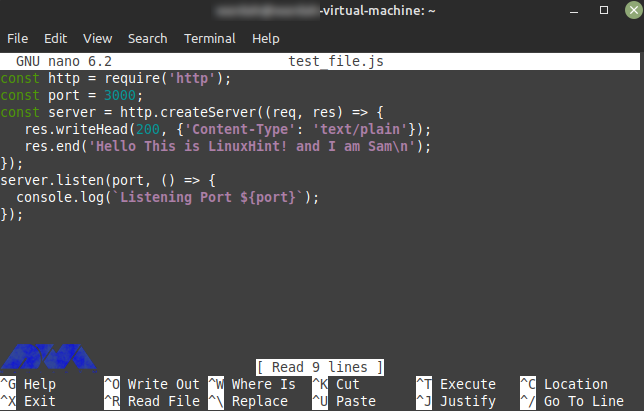
    Use a nano editor or any editor you desire to create a simple JavaScript file and type a simple program:

    nano test_file.js

    The output should be like this:

    testing Node.js on Linux mint

    You should save this program in your editor, and if you want to see the output, open any browser. To do this, execute the following command.

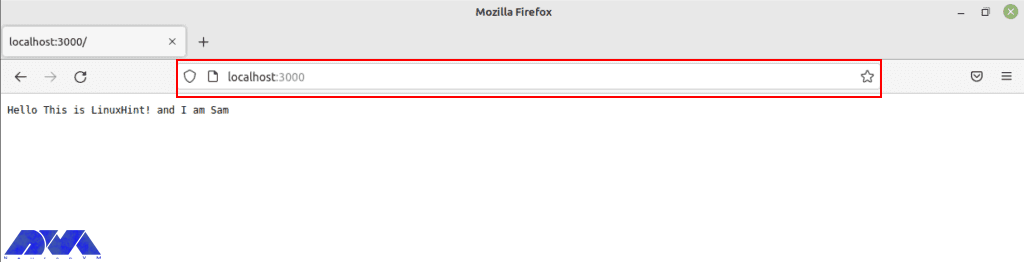
    Note that the local port to run a web server is 3000.

    node test_file.js

    The image below shows the way to verify the installation of Node.js. Type the port in the browser:

    verifying nodejs installation on browser

    Uninstall Node.js on Linux Mint

    If you don’t need Node.js anymore and you want to remove it from your system, use the mentioned command below in the terminal:

    sudo apt remove nodejs

    Conclusion

    Here, you learned how to install Node.js on Linux Mint with an easy method. We also tried to show the way to test the program with an editor and the way to remove Node.js if you don’t need it. Install and enjoy using this Java program. If you need any help, please let us know by leaving a comment.

    FAQ

    Which Linux type is better for Node.js?

    Ubuntu or Linux Mint are the best matches for Node.js, especially if you are a beginner.

    What are the system requirements for Node.js?

    A minimum of 50-100 MB of free disk space and 512 MB RAM is needed to use this program but 1 GB is recommended.

  • How to Install Antivirus on Linux Dedicated Servers

    How to Install Antivirus on Linux Dedicated Servers

    Viruses or malware are malicious programs that are used to destroy your system. Now, if you suspect this type of malware or viruses and shell scripts in your dedicated system, there are tools that you can access in the WHM panel and scan this malicious content. But first, you have to enter WHM. This article concentrates on the way to learn how to install Antivirus on a Linux Dedicated server.

    Setup Antivirus on a Dedicated Server

    As you notice, having an antivirus on your dedicated server is really essential because of your system’s security. You can use some apps for scanning viruses on the server. Before you start Installing Antivirus on Linux Dedicated Servers, you need to install Cpanel on the dedicated server first. We also suggest you use the Cheap Dedicated Server plans with instant delivery provided on our website.

    When you want to install and setup antivirus on a dedicated server, you have two options:

    – The first one is using ClamAV

    – The second one is ImunifyMV

    Let’s see how these two work.

    How to Install ClamAV on a Dedicated Server

    As we mentioned before, ClamAV is one of the ways to scan viruses on the dedicated server. Here, we are going to show how you can install and setup ClamAV.

    First, you should log in to the WHM.

    Then, Click on the Cpanel option in the WHM and search for the Cpanel menu:

    Now, you can see the Manage Plugins option. Using this option, you can manage the plugins for the Cpanel account:

    manage plugins option on Cpanel

    Here, different plugins are available for you. Click on the ClamAV option. Note that you can use this option to uninstall the plugin, too.

    Install ClamAV on Cpanel

    The installation process will take a few minutes. After the installation, the Log Entry will be produced along the process and displayed on your screen. After the successful installation, you will see the message about that:

    Installation process of ClamAV - install Antivirus on a Linux Dedicated server

    Configure ClamAV on a Dedicated Server

    Now we will show you the way to configure ClamAV on your system. Here is a step-by-step instruction to follow:

    1- On WHM, search for a Feature and choose the Feature Manager. Then go to the Manage Feature List, select Just Host, and click Edit.

    2- Activate Virus scanning and click the Save button.

    clamav scanner configuration - install Antivirus on a Linux Dedicated server

    How to Install ImunifyAV on a Dedicated Server

    Another app to scan viruses on your system is ImunifyAV. Here, we will show how you can do the installation and setup in steps. Follow the instructions:

    1- Use SSH or Putty to connect to your server.

    2. You can download the ImunifyAV shell script from Imunify360.com/antivirus. Here is the command:

    wget https://repo.imunify360.cloudlinux.com/defence360/imav-deploy.sh

    3- Execute the installation shell script using the following command:

    bash imav-deploy.sh

    4- Now, use the command below to update ImunifyAV:

    yum update imunify-antivirus

    5. Enter the WHM.

    6. On the left side of the panel, select ImunifyAV.

    7- Choose the right arrow button under the actions column to scan the account.

    8- Now, click on Yes, Scan to confirm the user’s file, or choose Scan All to scan the entire files, and at last, Yes, Scan All to scan all Cpanel user files.

    ImunifyAV dashboard - install Antivirus on a Linux Dedicated server

    Configure ImunifyAV on a Dedicated Server

    Select the Settings button with the gear icon.

    Adjust Resource Consumption according to your needs.

    Then, configure the background scan time or disable run scanning from the drop-down menu.

    Unmark the enable sentry error reporting option and save the changes.

    ImunifyAV setting

    Conclusion

    As you learned from this article, you can install and configure different apps to scan viruses and malware on your system. Here, we analyzed ClamAV and ImunifyAV. Two popular tools for scanning viruses. We hope you enjoyed the tutorial. If you have any ideas or questions please share in a comment.

    FAQ

    Why an antivirus is essential for a dedicated server?

    It is crucial for maintaining the security of your system and also for the integrity of your data and applications. It is helpful in detecting viruses and malware.

    Is it possible to install various antiviruses on a single system?

    It is not recommended. It causes conflicts, performance issues, and false positives in your system.

  • Troubleshooting SSL Certificate Errors on Nginx

    Troubleshooting SSL Certificate Errors on Nginx

    In online businesses, maintaining customer security and brand reputation is very important, So these businesses need a valid SSL certificate. Today, thanks to the Open Certificate Authority (CA) Let’s Encrypt, you can get this certificate for free. If there is a problem with the certificate or its configuration, you may encounter SSL errors. As a result, Keep studying this article because here we will Troubleshoot SSL certificate Errors on Nginx.

    What is an SSL Certificate?

    If you want to ensure the security of your online transactions and sensitive information, you should use SSL (Secure Socket Layer). Nowadays, there are alternatives to SSL, but this certificate is the most well-known type.

    SSL is a digital certificate that verifies the identity of the website and encrypts the connection. Website communications can be in different types, like server to server, browser to server, or another network. The SSL algorithm is complicated and is used to encrypt sensitive and confidential data.

    Troubleshoot SSL Certificate Errors

    Here, we will introduce some most common SSL Certificate issues and provide effective solutions for them. We suggest that you visit the Windows VPS server plans offered on our website.

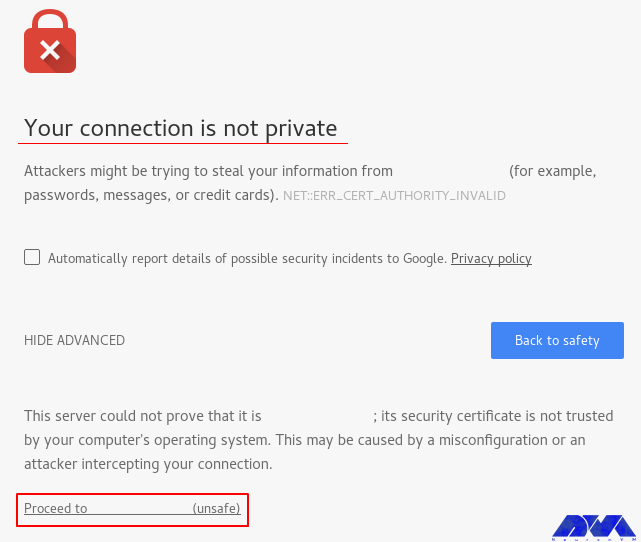
    SSL certificate warning

    Invalid or Expired SSL Certificate Error

    This error occurs when the SSL certificate on the server has reached its expiration date. This means that this certificate is no longer valid.

    Solution: To solve this problem, you should get and install a new SSL/TLS certificate for your Nginx server. So first, identify the certificate authority (CA) that provides the original certificate. It can be Let’s Encrypt. Then, contact the provider and ask for a new certificate. After that, you should create a certificate signing request for the new one. Present the CSI to the certificate provider or CA as part of the issuance process. Then, update the configuration and restart the Nginx to apply changes.

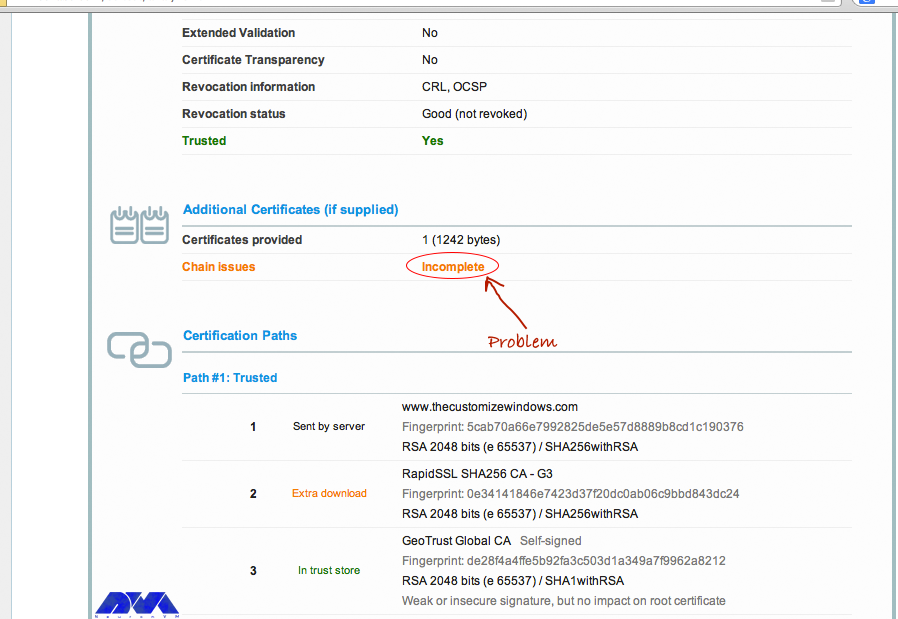
    Incomplete or Missing Certificate Files

    When you encounter this error, it means that there is an issue with the SSL/TLS certificate file that is configured for your website. This error will prevent Nginx from properly establishing secure connections:

    Incomplete or Missing Certificate Files

    Solution: To fix this problem, you should modify or add an active intermediate certificate, and you should be careful about certificate chain order. The order of certificates should be SSL certificate, Intermediate Certificate, and Root Certificate.

    Forbidden Error (403 Forbidden) While Running Cert Renew

    The method that is used to authenticate users by Automatic Certificate Installers such as Let’s Encrypt or Certbot uses hidden folders (/path/to/docroot/.well-known). The downside is that if the protection of these folders is enabled, such validation measures will fail.

    Solution: If you encounter the forbidden error (403 Forbidden) in the certificate renewal report file, you should look for such limitations and delete them until a new certificate has been installed.

    Nginx Crashes After Certificate Renewal

    Most of the critical problems are often related to crashed Nginx servers after a failed upgrade. Automatic installers can change configuration entries, but if the installer dies for different reasons, it will corrupt the Nginx configuration file, too.

    Solution: In this case, you should restore the Nginx configuration file from the backup to bring up the site online as quickly as possible. But if the backup is not accessible, you can reset the SSL configuration section to bring the site online, which most automated tools target. So when your site is back online, you should make the changes manually to bring the new certificate online.

    Conclusion

    As you are trying to achieve an SSL certificate for your Nginx server, and as it is a crucial action for your system’s security, we concentrated on this topic. We tried to introduce some of the common issues with SSL certificates on the Nginx server. So, keep tracking and study this article carefully to troubleshoot SSL Certificate Errors on Nginx. If you encounter any other issues, please share them with us in a comment.