Author: Jannson Miller

  • Take Your Computing Experience to the Next Level with Windows 10 VPS!

    Take Your Computing Experience to the Next Level with Windows 10 VPS!

    If you want to upgrade your computer system and increase the scalability and technology of your Windows system, you should choose the best Windows VPS hosting. Necessary investigations show that the best VPS host is Windows 10, which provides you with remote access. This way, you will have more and easier control and management of your system and other users. Let’s take a look at Windows 10 VPS to find out how much it can boost your system and take your computing experience to the next level.

    What Makes Windows 10 the Best Windows VPS Server?

    Choosing a Windows 10 VPS will bring more satisfaction to your webmasters because it creates a good balance between flexibility in management functions and deep customization if needed. So, this server allows you to have full access to do anything on the server and direct control over the parts of your system.
    What Makes Windows 10 the Best Windows VPS Server?


    On the other hand, the simplicity of the user interface and great functionality of Windows 10, along with the efficiency and low cost of a dedicated VPS environment, have made a powerful and attractive combination for users to choose from.

    If you are already familiar with the Windows virtual server structure, then it is easy for you to understand that these virtual servers will be a beneficial choice for you. You can have simpler access to the rental server with Windows 10 VPS, SSD storage is accessible as the default, and it has a perfect security feature and protects you from attacks like DDoS.

    If you are equipped with a system that runs Windows 10, you will figure out that this server is a great solution for online businesses that want to use a virtual server and for a newly established startup in a small town.

    NeuronVM is one of the providers that offer this great solution besides other various services for users.

    What is the Functionality of Windows 10 VPS?

    In the modern world, online businesses are widely looking for advanced hosting solutions to power their websites. One of these solutions that has become very popular is Windows VPS. One of them is Windows 10 VPS. Let’s find out about the functionality of Windows VPS. The functionality of a Windows 10 VPS is similar to that of a physical Windows 10 computer, but there are some key differences and advantages:

    – Users can access a Windows 10 VPS remotely using remote desktop software or protocols like RDP.

    – Each Windows 10 VPS is isolated from other VPS instances on the same physical server, providing a level of security and privacy.

    – Users can install and customize software, configure settings, and manage the Windows 10 environment just like they would on a physical computer.

    – This solution is often more cost-effective than physical hardware, especially for businesses requiring multiple Windows environments.

    – Windows 10 VPS can be easily scaled up or down to meet changing resource requirements.

    What Are the Considerable Factors when Choosing a Windows Server Provider?

    Here, we will analyze the factors to choose the best provider. Choosing a Windows 10 server provider is an important decision for businesses and individuals looking to host Windows-based applications, websites, or services. Some factors to consider when choosing a good provider can be:
    Considerable Factors when Choosing a Windows Server Provider

    – Uptime and Reliability: Look for a provider with a strong track record of uptime and reliability. A reliable server is crucial for business-critical applications.

    – Operating System Compatibility: Confirm that the provider supports Windows 10 as the operating system if that’s what you need. Some providers may only offer Windows Server editions.

    – Security: Assess the provider’s security measures, including firewalls, intrusion detection systems, and data encryption. Security is critical if you are handling sensitive data.

    – Data Center Locations: Check the geographical locations of the provider’s data centers. Select data centers that are close to your target audience to reduce latency. NeuronVM is one of the few Providers with more than 60 locations.

    – Support and Customer Service: Consider the level of customer support offered by the provider. Responsive customer support can be crucial when you encounter issues.

    – Scalability: Ensure that the provider offers scalability options. You may need to upgrade or downgrade your server resources as your needs change.

    – Cost and Pricing Structure: Evaluate the cost of the Windows 10 server hosting. Understand the pricing structure, including any hidden fees or additional costs. If you are looking for an affordable Windows VPS plan, Hurry up and refer to NeuronVM.

    – Bandwidth and Data Transfer Limits: Be aware of any bandwidth limitations and data transfer caps. Overages can lead to unexpected charges.

    – Control Panel and Management Tools: Check if the provider offers a user-friendly control panel or management tools for server administration. This can simplify server management tasks.

    – Terms and Conditions: Carefully review the provider’s terms and conditions, including cancellation policies and service-level agreements.

    And so many other factors. As a result, if you want to have all these features to buy Windows VPS securely, which aligns with your needs, visit NeuronVM.

    What Are the Steps to Purchase Windows 10 VPS?

    As we mentioned in the previous section, NeuronVM is one of the best providers of Windows 10 VPS. To build a highly scalable and customizable website with Windows technologies, you should choose the best Windows server for you.

    NeuronVM experts have tried their best in this field. By comparing disk space, server hardware, update time, operating systems, or program compatibility, they prepare and offer the best solution for you, including Windows 10.

    To find out how you can purchase a Windows 10 VPS from NeuronVM, you can refer to the official website or study the article Get Instant Activation with A Cheap Windows 10 VPS and follow the instructions.

    Most Common Use Cases For Windows 10 VPS

    Now that you have a clear vision about this server, Let’s see what are some use cases of that:

    It is useful for Remote work: Businesses can provide employees with remote access to a consistent Windows 10 environment. It can ensure productivity regardless of location.

    Hosting applications: You can run Windows-based software applications in a VPS environment, making them accessible to remote users.

    Hosting websites and databases: Windows 10 VPS can host websites and databases, especially for small to medium-sized projects.

    Data analysis: Data scientists and analysts may use Windows 10 VPS instances to perform data analysis tasks using Windows-based tools and software.

    Use it for development and testing: Developers often use Windows 10 for testing software across different Windows versions and configurations.

    Conclusion

    Please note that Windows 10 VPS solutions are typically offered by hosting providers who manage the underlying hardware and virtualization infrastructure. Users are responsible for managing the Windows environment within the VPS, including software installation, updates, and security configurations. By studying this article, you received useful information about this profitable server. Also, we tried to show how our services can be a wise choice and good for your business.
  • Why NeuronVM is the Best Place to Buy USA Admin RDP?

    Why NeuronVM is the Best Place to Buy USA Admin RDP?

    Have you ever thought about what admin RDP is and what positive effects it can have on your business? If you have read our previous articles, you are familiar with this widely used service, and you know how much it can help you. In this article, we want to introduce you to USA admin RDP and show how NeuronVM can be the best place to buy USA admin RDP. So keep studying until the end.

    Learn More About USA Admin RDP

    Admin RDP typically refers to Remote Desktop Protocol access with administrative privileges. Remote Desktop Protocol is a proprietary protocol developed by Microsoft that allows the user to connect to a remote computer over a network connection. When you have administrative RDP access, it means you have the highest level of control and access rights to a remote Windows computer or server. But If it is specified as “USA admin RDP” it implies that the remote server or desktop is physically located in the United States or that the service is being offered by a U.S.-based provider.

    With Admin RDP, you have full control over the remote system. You can perform tasks such as installing and uninstalling software, configuring settings, managing user accounts, and more. RDP access should be granted only to trusted users because it provides extensive control over a system. Access should be carefully managed to prevent unauthorized use.

    Learn More About USA Admin RDP

    What to consider when buying USA Admin RDP?

    When considering buying a USA Admin RDP, which typically provides remote access to a Windows-based server or computer with administrative privileges, you need to be cautious and make an informed decision. Here are some important factors to consider:

    • The type of RDP is important. An Admin RDP typically grants you administrative control over the remote server or computer. Make sure it meets your specific requirements.
    • Ensure you get the USA Admin RDP from a reputable and trusted provider. Look for reviews, recommendations, and customer feedback. Avoid purchasing RDP from unknown or suspicious sources to reduce the risk of scams or poor service.
    • Since you are looking for a USA Admin RDP, verify that the server is physically located in the United States. This can be important for low-latency connections.
    • Ensure the provider offers reliable customer support and guarantees a high level of uptime.
    • Compare pricing plans from different providers. Be wary of exceptionally low prices, as they may indicate a lack of quality or security. NeuronVM offers affordable prices with high quality and up-to-date services.
    • Carefully review the terms of service and acceptable use policy of the provider. Ensure they don’t violate any legal or ethical boundaries.
    • Inquire about data backup and recovery options.
    • Assess the performance of the RDP, including CPU, RAM, and storage specifications. Ensure it meets your requirements for running the applications or tasks you intend to use it for.
    • Understand the provider’s refund and cancellation policies in case you need to make changes or cancel your subscription. You will have the chance to test and 7 days refund payback in NeuronVM if you are not fully satisfied.
    • Determine how many users can access the RDP simultaneously, as some providers may limit the number of concurrent users.

    Why You Should Choose NeuronVM as a Provider?

    The factors mentioned above are very important points that you should pay attention to when buying USA admin RDP. But the important thing is that you can guarantee all these things by purchasing NeuronVM RDP servers. The NeuronVM site is one of the most reliable and prominent sites that is fully trying to satisfy its users and be with its users in all stages of purchase and use, with the help of an experienced and expert staff.

    At the same time, this provider of USA RDP services, which provides ease-to-use panels and equips users with the best hardware and software, and full access increases the pleasure of using Admin RDP services. Also, suppose you are looking for dedicated resources, the ability to upgrade the server in the shortest possible time, the highest utilization, low ping time, etc. In that case, NeuronVM is sure to be a great option for all your needs.

    Another important point about this USA RDP provider is that this site also allows users to purchase services using digital currencies, and this way, you can make your purchase in the easiest and fastest way possible from anywhere in the world. And get your server as soon as possible.

    What are the Features of NeuronVM USA Admin RDP?

    NeuronVM, as a USA admin RDP provider, considers all aspects of security for you and tries to ensure that you can purchase this service safely and use it without any worries. So, let’s examine the basic features of this server on the NeuronVM site.

    What Are the Features of NeuronVM USA Admin RDP?
    • By purchasing USA Admin RDP from NeuronVM, you can receive and manage your service immediately after purchase.
    • Another advantage of NeuronVM is 24/7 support and a specialized support team to help you at any time and solve your technical problems.
    • By providing a user-friendly control panel, this site allows the user to take full control of his panel, manage it, and customize it according to his taste.
    • As already mentioned, NeuronVM, with confidence in its services, has also enabled a 7-day money-back guarantee so that if you are not satisfied, you can get back the amount paid.
    • Another outstanding feature of NeuronVM is a 100% uptime guarantee. That means you can experience full and lag-free access with NeuronVM’s rock infrastructure. Also, know that your USA Admin RDP is always up and running.
    • Finally, the most important advantage of NeuronVM is that by serving from more than 60 locations worldwide, it has provided complete access and shown a lot of flexibility in providing different servers.

    Tip: To learn about how to buy a USA admin RDP, you can refer to the guide Buy USA Admin RDP by Crypto.

    Best Practices For Securing USA Admin RDP

    Here are some practices for securing RDP access in a USA administrative context:

    – Ensure that your RDP client and server software are up to date with the latest security patches and updates.

    – Avoid default passwords and implement a password policy that enforces regular password changes.

    – Set account lockout policies to prevent brute force attacks. After a certain number of failed login attempts, the account should be locked out temporarily.

    – Only allow RDP access to users who absolutely need it. Implement the principle of the least privilege.

    – Changing the default RDP port (TCP 3389) can help thwart automated scans looking for RDP servers.

    – Isolate RDP servers from the public internet whenever possible.

    – Keep detailed logs of RDP access attempts and review them regularly for suspicious activity. Consider using intrusion detection systems (IDS) and intrusion prevention systems (IPS) to detect and block malicious activity.

    – Ensure that RDP sessions are encrypted using strong encryption protocols, such as TLS.

    – Regularly back up critical data and have a disaster recovery plan in place in case of a security breach.

    – Ensure that your RDP configuration complies with relevant regulatory requirements, such as those specified by NIST, HIPAA, or other applicable standards.

    Conclusion

    Remember that administrative RDP access is a powerful tool that should be used responsibly and securely. Unauthorized access to RDP can lead to security breaches and data loss. Always follow best practices for securing remote connections and regularly review and update your security measures to stay protected against evolving threats. Meanwhile, USA Admin RDP is the most powerful that is served from the United States and is one of the best services on the NeuronVM website. We hope this guide was useful enough for you. Try this service and enjoy full access and hassle-free usage to rock your business and reach your goals.

  • The Benefits Of Buying VPS With Ethereum

    The Benefits Of Buying VPS With Ethereum

    Are you looking for a fast and hassle-free way to purchase VPS hosting? Do you want to enjoy safe shopping without restrictions? So focus your attention on digital currencies like Ethereum. Follow this article to find out the benefits and how to do this. Meanwhile, NeuronVM has tried its best to provide users with the best facilities in the field of VPS hosting purchases using currencies such as Ethereum. Let’s find out what is the benefits of buying VPS with Ethereum.

    What is Ethereum (ETH)?

    Ethereum is a decentralized, open-source blockchain platform that was created to enable the development of decentralized applications (DApps) and smart contracts. It was proposed by Vitalik Buterin in late 2013, and development began in early 2014, with the network going live on July 30, 2015.

    Ethereum’s flexibility and programmability have made it a popular choice for developers and organizations looking to create blockchain-based solutions for various industries. It has played a pivotal role in the growth of the decentralized finance (DeFi) sector, non-fungible tokens (NFTs), and many other blockchain-based innovations.

    You can use Ethereum to purchase Virtual Private Servers (VPS) from certain hosting providers like NeuronVM that accept cryptocurrency as a payment method.

    What Is Ethereum?

    What are the Key Aspects of Ethereum?

    To have a better understanding of Ethereum, let’s examine some important aspects of this popular cryptocurrency:

    • Constant Development: Ethereum has a vibrant developer community constantly working on improving the platform. Ethereum has undergone several upgrades and hard forks, aiming to improve scalability, security, and sustainability.
    • Ethereum Virtual Machine (EVM): The Ethereum Virtual Machine is a runtime environment that executes smart contracts on the Ethereum network.
    • Smart Contracts: One of the most significant innovations introduced by Ethereum is the concept of smart contracts. Smart contracts are self-executing contracts with the terms and conditions of the agreement directly written into code.
    • Blockchain Technology: Like Bitcoin, Ethereum operates on a blockchain, which is a distributed ledger that records all transactions across a network of computers.
    • Decentralization: Ethereum, like other cryptocurrencies and blockchain networks, is decentralized, meaning it is not controlled by a single entity, government, or organization.
    • Ether (ETH): Ethereum has its native cryptocurrency called Ether (ETH), which is used to pay for transactions and computational services and as a store of value.

    What Are the Significant Benefits of Buying VPS By Ethereum?

    Buying a Virtual Private Server using Ethereum, a cryptocurrency, can offer several benefits, especially if you value privacy, security, and decentralization. Here we will analyze some benefits of usingEthereum to buy VPS.

    Benefits of Buying VPS By Ethereum

    Having High Security by Purchasing VPS

    When buying VPS and aiming for high security, there are several important considerations and steps you should take to ensure the safety of your server. These steps are: Choosing a reputable VPS provider, Having a secure operating system, Implementing a firewall, Using SSH, Securing database access, Regular backups, Monitoring server logs, and so on.

    Ethereum transactions are secured using blockchain technology, making it difficult for unauthorized parties to tamper with your payment. When you buy a VPS with Ethereum, you can trust that your payment information is secure.

    Remember that security is an ongoing process. Regularly assess and update your security measures to adapt to evolving threats. High-security VPS hosting requires diligence and a proactive approach to protect your data and systems.
    The Advantage of Anonymity Using Ethereum

    Ethereum transactions can be relatively anonymous, as they don’t require you to disclose personal information. This level of privacy can be appealing to users who want to maintain anonymity while purchasing online services, including VPS hosting. In other words, Another advantage of using Ethereum can be anonymity and a layer of privacy. So when you buy a VPS host from a site like neuronvm, you can be sure of the anonymity and confidentiality of your personal information and payment details.

    Also, anonymity can enable individuals to express their opinions, thoughts, and ideas without fear of retaliation or judgment. This is especially important in situations where expressing dissenting or controversial views could lead to social, professional, or legal consequences.

    In research and surveys, anonymity can encourage more honest responses from participants, especially when dealing with sensitive or stigmatized topics. People may be more willing to share their experiences and opinions when they know their responses won’t be linked back to them.

    Lastly, We can say that anonymity can help reduce biases based on factors like race, gender, age, or social status when evaluating ideas or content. It allows people to focus on the content itself rather than the identity of the person presenting it.

    Decentralization option of Ethereum When Buying VPS

    When buying VPS for hosting applications or services that require a decentralized infrastructure, you can consider various options within the Ethereum ecosystem. Ethereum is a blockchain platform that supports smart contracts and decentralized applications (DApps), making it suitable for certain decentralized hosting and computing needs.

    Ethereum is decentralized and it means it’s not controlled by a central authority. When you use Ethereum to buy a VPS, you are supporting a decentralized ecosystem that operates without intermediaries, providing you with more control over your financial transactions.

    The Power of Global Accessibility By Ethereum When Buying VPS

    Ethereum is a global cryptocurrency, and its use is not restricted by geographical boundaries. You can use Ethereum to purchase VPS hosting from providers around the world, increasing your options and accessibility. While Ethereum itself doesn’t provide VPS hosting, it can indirectly impact the accessibility and availability of VPS hosting through various mechanisms and applications built on the Ethereum blockchain.

    Here’s how the Ethereum ecosystem can potentially enhance the accessibility of VPS hosting:

    • Decentralized Applications (DApps)
    • Smart Contracts
    • Tokenization
    • Payment Flexibility
    • Trust and Transparency

    It’s worth noting that while Ethereum can improve the accessibility and transparency of VPS hosting, it doesn’t directly provide hosting services. Users should conduct due diligence when choosing VPS providers to ensure they meet their specific requirements for performance, security, and support.

    Fast Transaction With Ethereum

    Ethereum, like many other blockchain networks, aims to provide fast and secure transactions. However, transaction speed on this currency network can vary depending on several factors. These are network congestion and the gas fee you’re willing to pay.

    Ethereum transactions tend to be faster compared to traditional banking systems. This may involve delays due to intermediaries and complex verification processes. This speed can be advantageous when you need to set up your VPS quickly.

    Some features that can help you have a faster transaction on the Ethereum network are: Using Ethereum wallets that have fast transaction options, Using Layer 2 solutions, Batch transactions, setting an appropriate gas limit, and so on.

    Why You Should Choose NeuronVM to Buy VPS With Ethereum?

    As mentioned before, not all hosting providers offer cryptocurrencies like Ethereum. Only a few of them have made it possible to pay with Ethereum, one of these providers being NeuronVM. This site has tried to open the way for you as much as possible and provide you with the possibility of an easy and fast VPS purchase.

    By choosing NeuronVM, you can experience high security, reliability, speed, 24/7 technical support, and communication with professional experts. With complete confidence in the quality of its products, this site also guarantees a 7-day money-back period.

    Conclusion

    Buying a VPS using Ethereum can provide benefits such as security, privacy, decentralization, and global accessibility. However, it’s essential to be aware of the potential downsides and ensure that you are comfortable with cryptocurrency transactions. Additionally, the availability of Ethereum as a payment option may vary among VPS providers. So it’s advisable to check with your chosen provider before making a purchase. Here we tried to get you familiar with this valuable crypto and the benefits of using Ethereum to buy VPS from a provider like NeuronVM.

  • The Ultimate Guide to Buy RDP: Everything You Need to Know

    The Ultimate Guide to Buy RDP: Everything You Need to Know

    If you have read our previous articles, you must be familiar with the RDP server and know what advantages it brings to you. Here, we will try to provide an ultimate guide to buy RDP and introduce you to everything you need to know. Buying RDP is not a difficult task, but you should be careful to make your purchase at affordable prices. Some providers offer premium RDP servers at cheap prices. Choosing high-quality but low-cost servers is one of the priorities of users. You should know important things about servers and key points in choosing and buying RDP in order to make your purchase easily and confidently. Go ahead and enjoy an easy process to buy RDP!

    A Comprehensive Explanation of RDP

    RDP stands for Remote Desktop Protocol, and it is a proprietary protocol developed by Microsoft. RDP allows a user to remotely connect to and control another computer or server over a network connection. It is commonly used for remote administration, technical support, and accessing virtual desktops.

    A Comprehensive Explanation of RDP

    This platform is a network communication tool that enables a user to connect to and interact with a remote computer or server from a different location over a network, typically the Internet. It facilitates the remote control of the host system’s desktop, applications, and resources as if the user were physically present at the remote machine. Its security features, multi-platform support, and resource-sharing capabilities make it a valuable tool for professionals. Now, keep studying to get more!

    Why Buy RDP?

    You can provide remote input and display through network connections by using RDP and running it on the server. Now read on to find out why you should use RDP:

    – With the help of RDP, you will be able to save time. In other words, you can do things like download, update programs, or even backup and maintain any desktop program from just one system. So, time is saved, and you can focus on your other business matters.

    – With RDP, users will only wait for changes to be applied to their device page as resources are done for each application on the server. This makes RDP a popular hosting for applications with high amounts of bandwidth and processing power.

    – Everything is encrypted in RDP, so remote desktop connections are safe from hackers. So, if you buy an RDP server, don’t worry about your security.

    – If you have an RDP host, you can access your system from home or anywhere using a web browser. You can also access your device from any other system. This allows you to have complete monitoring and control of other devices remotely.

    – If you want to provide a reliable solution for your business, it will probably be expensive. But this is not true for RDP servers. Because you don’t have to invest in virtual servers hosting your own programs or pay to maintain your servers. On the other hand, employees can also access their desktop computers from their devices and save on hardware costs.

    – By using RDP there is no need to carry flash drives, and there is no need to install any software. Since everything is in one place, accessing your data and files is easy, as long as you have an internet connection.

    – You don’t need to worry about any configuration on your desktop or network. You just need to connect to your server.

    Types of RDP Available in the Market

    There are several types of RDP available in the market, and all are provided in NeuronVM, each with its own features and capabilities. Here are some of the most common types:

    • Windows RDP 10
    • Windows RDP 2012
    • Windows RDP 2016
    • Windows RDP 2019
    • Windows RDP 2022

    Factors to Consider Before Buying RDP

    When looking to buy Admin RDP, it’s essential to consider several key features to ensure that you choose the right server for your specific needs. RDP servers allow you to remotely access and manage a computer or server, making them a valuable tool for various purposes. Here are some key features to consider when you want to buy RDP servers:

    Factors to consider before buying RDP
    • Choose an RDP server that runs your preferred operating system, whether it’s Windows, Linux, or another OS. The choice of OS should align with your specific use case and software requirements.
    • Look for RDP servers that offer robust security features, including encryption, firewalls, and authentication mechanisms, such as multi-factor authentication (MFA).
    • The performance of the RDP server is critical. Look for servers with powerful CPUs, sufficient RAM, and fast storage (SSD recommended) to ensure smooth operation.
    • Evaluate the availability of remote management tools that come with the RDP server. These tools should simplify server administration and troubleshooting tasks.
    • Ensure the server has a reliable network connection with sufficient bandwidth for your needs.
    • Ensure compatibility with the devices and software you plan to use for remote access. RDP should be compatible with various client devices and operating systems.
    • Data protection is crucial. Check if the RDP server offers backup and recovery options, which can help you safeguard your data in case of unexpected issues.
    • Evaluate the total cost of ownership, including upfront costs, ongoing maintenance expenses, and any licensing fees for the RDP server software or operating system.

    There are a lot of other features that you have to consider when buying RDP or Admin RDP; here, we mentioned the most important ones.

    Choosing the Right RDP Provider

    Choosing the right Remote Desktop Protocol provider is essential to ensure secure and efficient remote access to your computers or servers. In this section, we will discuss three factors that should be prioritized when choosing a professional provider.

    The RDP service provider should include various payment methods. You can access all these payment methods from our website and have a safe and comfortable purchase. Of course, another important issue is to pay attention to the amount of services provided and their prices in an agency. Is the received service worth the money paid or not?

    For more information regarding the best RDP providers, refer to Discover the Best Affordable RDP Providers in 2023.

    How to Buy RDP Online

    Buying RDP online is not a challenging task, and you can go through this process successfully by following a few simple steps. We have previously presented articles in this regard, for example, How to buy Admin RDP with Perfect Money.

    Setting up and Configuring your RDP

    After you have prepared the RDP server you want, it is time to implement it on your system and make the relevant settings to run this platform.

    To setup RDP on your system, follow the steps below:

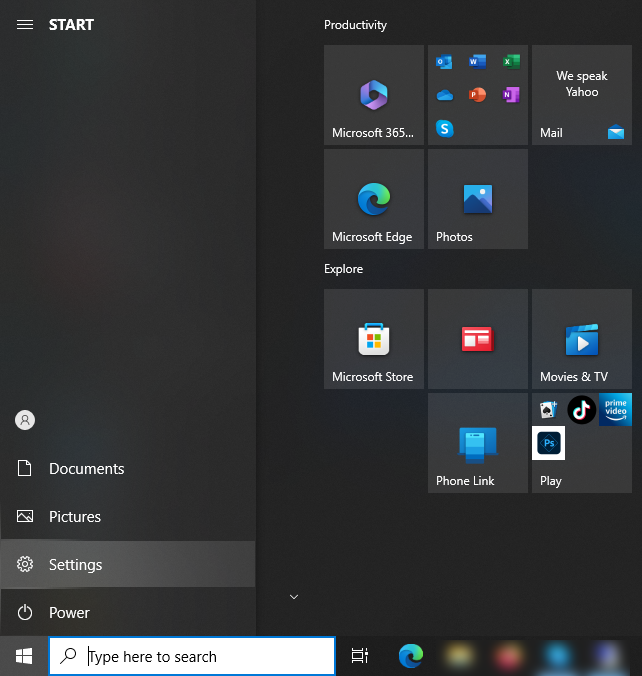
    1- Press Start on your desktop environment and click on the Setting icon on the left.

    configure RDP

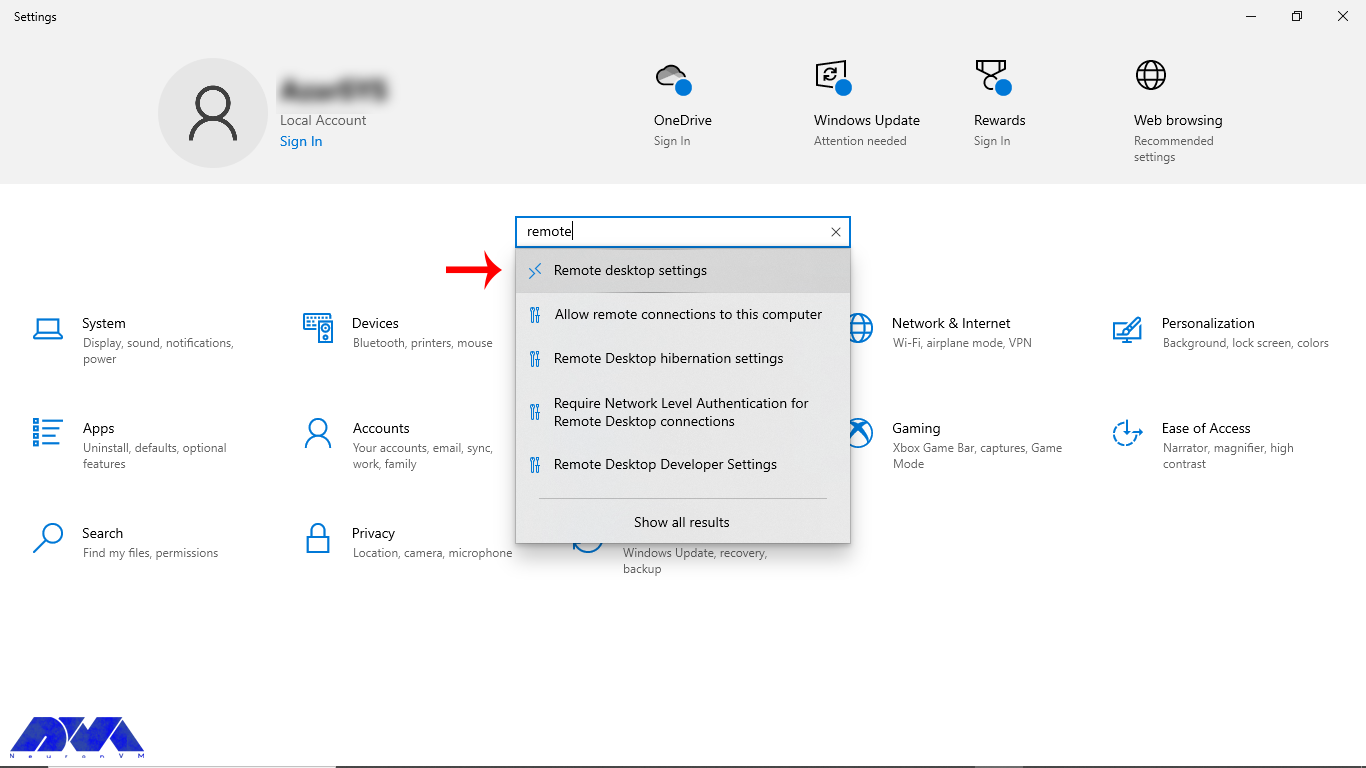
    2- Choose the System group followed by the Remote Desktop item.

    remote desktop setting

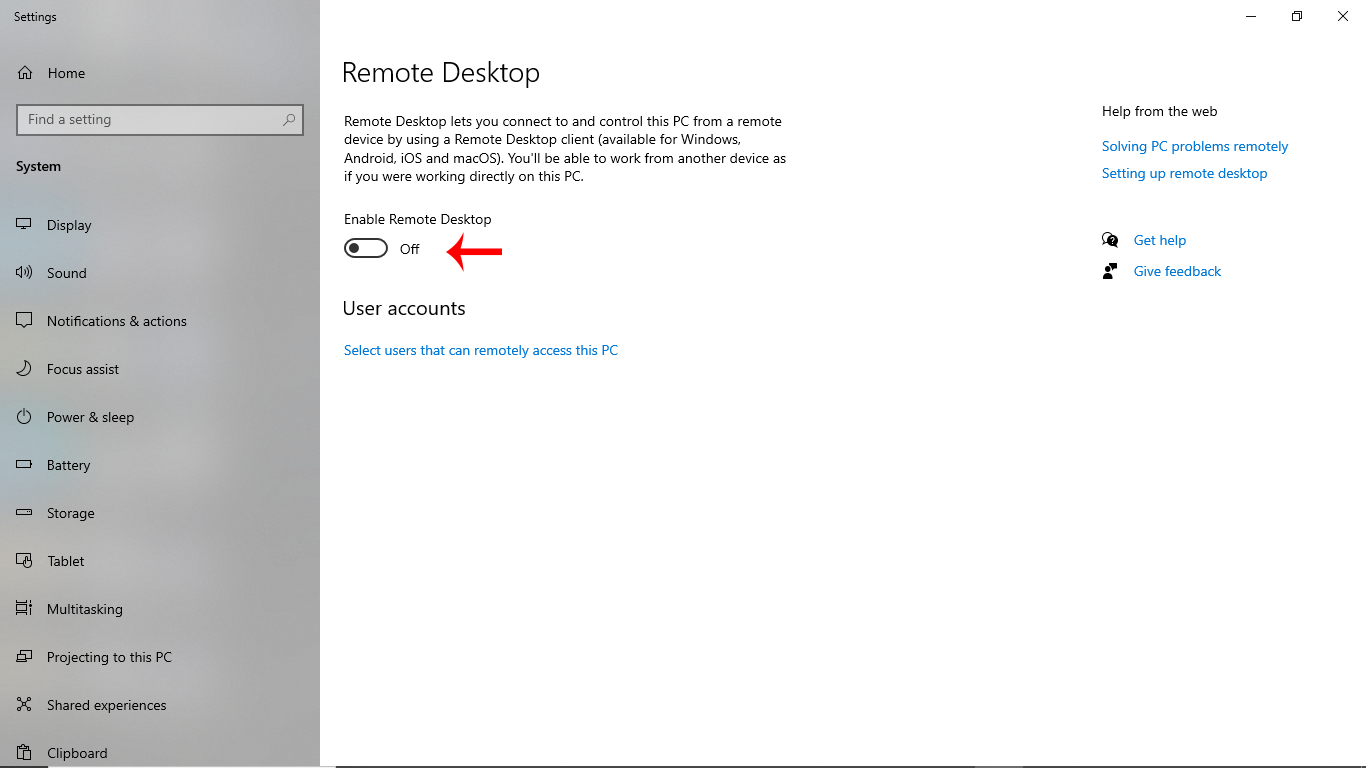
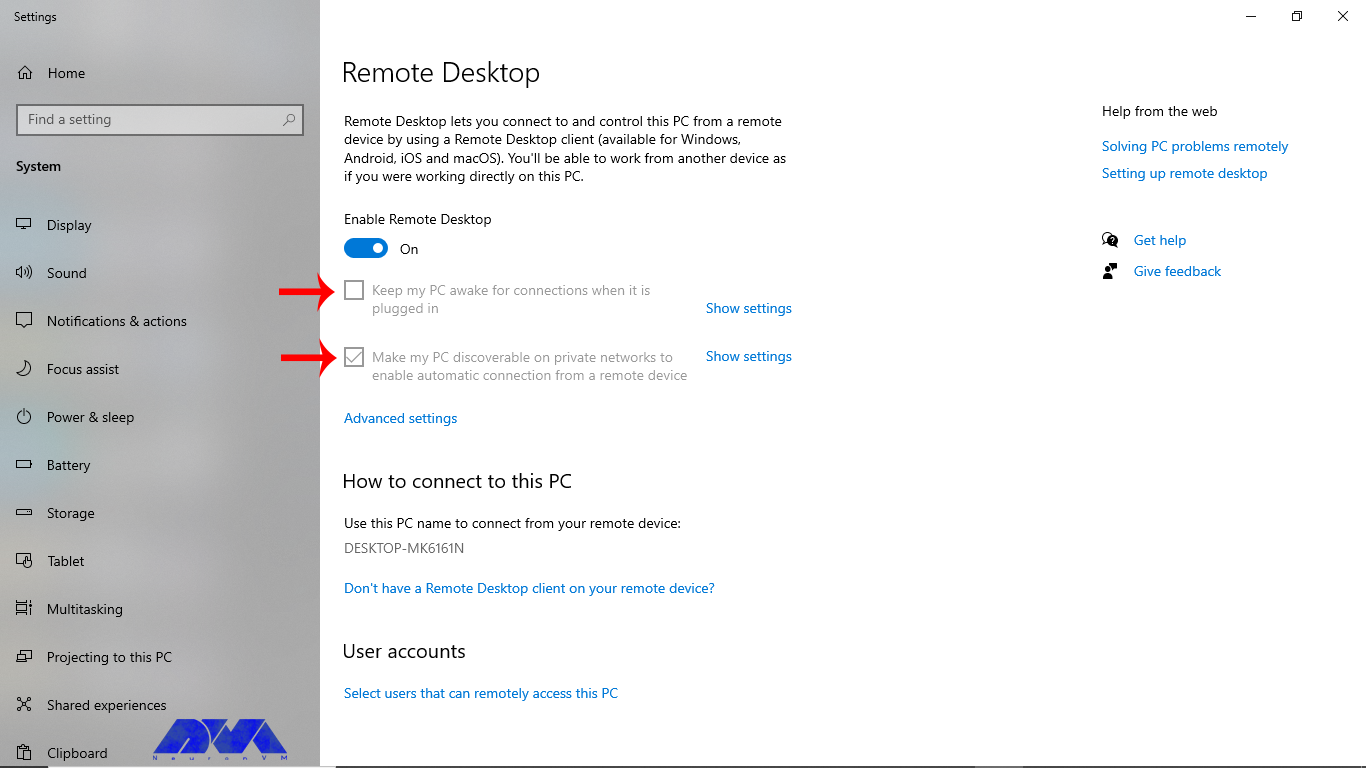
    3- You can choose the slide button to enable Remote Desktop.

    enable remote desktop

    4- Keep your device awake and discoverable to ease the connection, and then press Show Setting.

    make pc discoverable

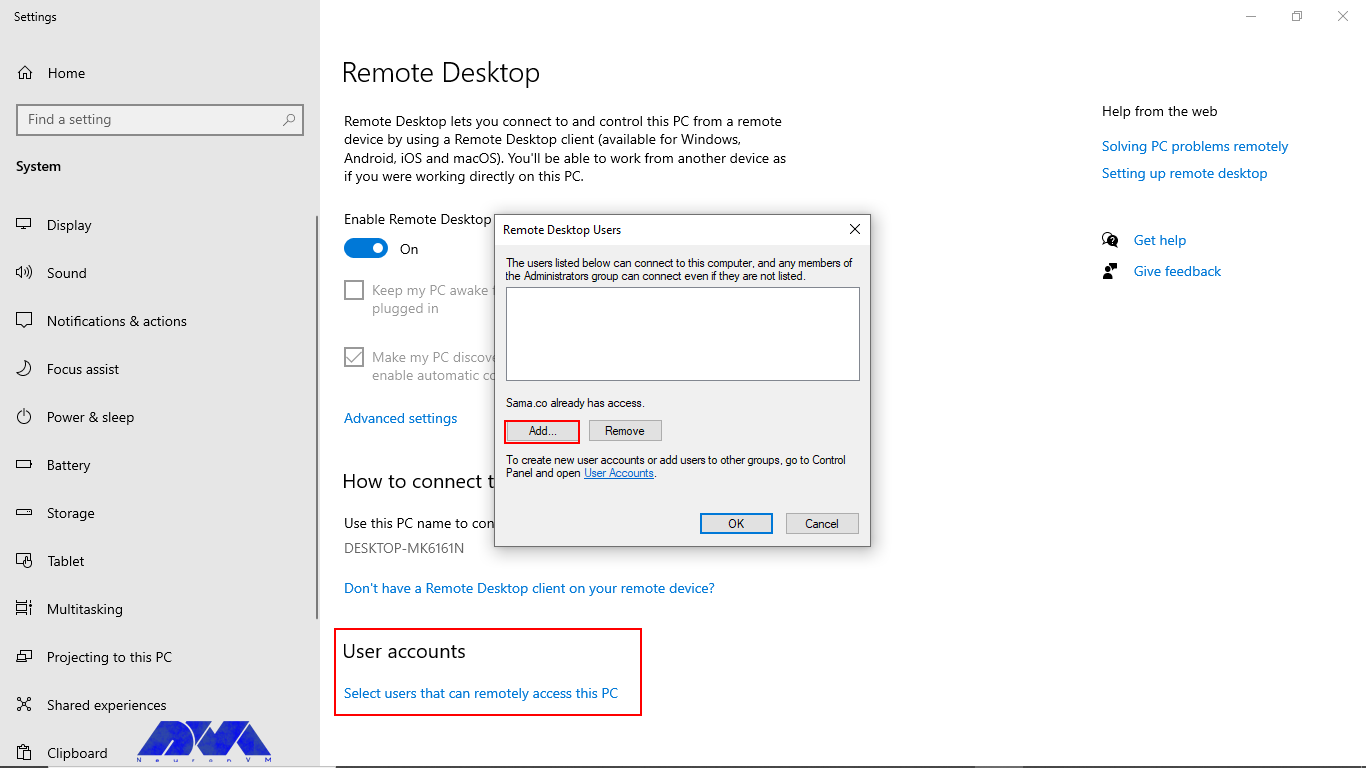
    5- Now, you can add the number of users you want to allow to connect remotely.

    add users for rdp connection

    Tip: The administrator group can access it automatically.

    6- Save and make note of the PC name under the part of How to connect to this PC.

    That’s it! Now you can use Your RDP server easily.

    Tips for Maximizing the Benefits of RDP

    Remote Desktop Protocol is a valuable tool for remotely accessing and managing Windows-based computers. To maximize the benefits of RDP, consider the following tips:

    Tips for maximizing the benefits of RDP

    – Security: Always use strong, complex passwords for RDP access. Also, you can enable Network Level Authentication (NLA) to add an extra layer of security. Use a VPN or firewall to restrict RDP access to trusted IP addresses.

    – Change Default Port: Consider changing the default RDP port (3389) to a custom port to reduce the risk of automated attacks.

    – Keep Software Updated: Keep both the local and remote computers updated with the latest security patches and RDP updates.

    – Limit Access Permissions: Only grant RDP access to users who need it. Or Assign the least privilege necessary to perform required tasks.

    – Use Network Level Authentication (NLA): NLA requires users to authenticate before establishing an RDP session, adding an extra layer of security.

    – Enable RDP Logging: Enable RDP logging to monitor who is accessing the server and for troubleshooting purposes.

    – Set Session Time Limits: Configure session timeout settings to automatically log out idle sessions to free up resources.

    – Optimize Network Connection: Ensure a stable and high-speed internet connection for smooth RDP performance.

    – Monitor RDP Sessions: Use monitoring tools to keep track of RDP sessions, including login/logout times and activities.

    – Backup and Recovery: Regularly back up critical data and system configurations to ensure you can recover in case of issues.

    – Disable Copy-Paste and Drive Redirection: In sensitive environments, consider disabling features like clipboard sharing and drive redirection to prevent data leaks.

    – Test and Document: Conduct thorough testing of RDP connections before deploying them in production.

    – Monitor for Anomalies: Setup alerting and monitoring for unusual or suspicious RDP activities.

    – Regularly Audit and Review: Periodically review and audit your RDP setup to identify and address any potential security weaknesses.

    What Are the Main Advantages to Buy RDP from NeuronVM?

    NeuronVM is one of the main providers that offer great and up-to-date services like RDP or Admin RDP, Cheap VPS, and so on. So, if you are looking for a secure and worry-free service provider with full support, NeuronVM is a wise choice. Let’s see what can be the significant advantages of buying RDP from NeuronVM:

    – You will have 24/7 professional support.

    – You can be sure about the security of your information because a lot of sensitivity has been spent on this matter.

    – There is a wide range of locations to choose from. (60+ Locations)

    – You will have the ability to pay with digital currencies like Bitcoin.

    – Unlimited bandwidth is another amazing advantage of RDP servers in NeuronVM

    – High-quality and affordable RDP prices

    – The ability to expand RAM and storage

    In What Cases Can RDP Be Used?

    RDP can be used in various scenarios and for different purposes, depending on the needs of users. These cases can be:

    • Remote administration by IT administrators to remotely manage and troubleshoot servers and workstations.
    • Telecommuting and Remote Work to help employees access their work computers from home or other remote locations.
    • Server Hosting and Data Centers in which providers use RDP to manage and maintain servers and virtual machines hosted in remote locations.
    • Remote Training and Collaboration for remote training sessions and collaborative work.
    • Software Development and Testing in which Developers can use RDP to access remote development and testing environments.
    • Security Monitoring to remotely access security cameras.
    • Monitoring systems and security appliances to observe and manage security incidents.
    • And Remote Access for Personal Use and personal computers and devices.

    Common Issues and Troubleshooting to Buy RDP

    Buying RDP services can raise various legal, security, and ethical concerns. Here are some issues you may encounter when buying RDP and potential solutions:

    1- RDP can be vulnerable to security threats if not properly configured or if you are purchasing services from untrustworthy sources.

    Solution:

    – Choose reputable RDP service providers with a track record of security.

    – Use strong, unique passwords and enable multi-factor authentication.

    – Regularly update and patch the RDP software and underlying operating system.

    – Restrict access to only trusted IPs.

    – Employ security software to detect and prevent unauthorized access.

    2- Using RDP means your data and potentially sensitive information are transmitted over the Internet. This could be intercepted or accessed by unauthorized parties.

    Solution:

    – Use secure, encrypted RDP connections.

    – Consider using a Virtual Private Network (VPN) in conjunction with RDP for an additional layer of security.

    – Be cautious about sharing sensitive information while using RDP.

    3- Some RDP service providers may not offer reliable uptime, customer support, or adequate resources.

    Solution:

    – Research and choose RDP providers with a good reputation and reliable service.

    – Look for customer reviews and testimonials.

    – Consider a trial period before making a long-term commitment.

    4- RDP services can have associated costs, which can add up over time.

    Solution:

    – Budget for RDP expenses.

    – Consider free or open-source alternatives if cost is a concern.

    Conclusion

    The specific features and requirements for an RDP server will vary depending on your use case and business needs. It’s important to thoroughly assess your requirements and choose an RDP server solution that is compatible with your goals and budget. Notice that while RDP is a versatile tool, security considerations are paramount when using it. At last, We tried to present ideal content to help you choose the proper RDP service and enjoy a perfect and secure connection to control and manage users’ devices.

  • 2 Ways to Migrate from cPanel to CWP

    2 Ways to Migrate from cPanel to CWP

    Migrating from cPanel to CWP can be a seamless process if you follow the right steps. cPanel, a popular control panel for managing web hosting environments, has a free alternative called CWP that offers similar functionality. Whether you’re switching hosting providers or seeking a change, this guide will walk you through the steps to migrate your website from cPanel to CWP successfully. By following these instructions, you can ensure a smooth transition and minimize any downtime or disruption to your website and email services. You can simply get a VPS and start your journey from cPanel to CWP.

    What is a Web Hosting Control Panel?

    A web hosting control panel is an interface that allows website owners to manage various aspects of their hosting account. It provides a centralized platform to control and configure different settings, such as managing domains, email accounts, databases, FTP accounts, and more. Essentially, it acts as a control panel for your web hosting services.

    Using a web hosting control panel has several benefits. First, it simplifies the management of your hosting account, even for beginners. Second, instead of manually configuring each aspect of your hosting account, you can easily make changes and updates through the control panel, which saves you a lot of time. Additionally, some popular control panels like cPanel and CWP offer additional functionalities like automated backups, website builders, and one-click installations, making it easier to set up and maintain your website.

    Some website owners might decide to change the control panel to the one that suits them better. CWP and cPanel are two of the most common control panels out there. In the next section, we’re gonna talk about the key differences between these two.

    Migrate from cPanel to CWP

    CWP and cPanel Key Differences

    cPanel and CWP (CentOS Web Panel) are both popular web hosting control panels that provide users with an interface to manage their websites and server settings. While they are similar in many aspects, there are some key differences you need to know about.

    One major difference is the operating system they are built on. cPanel is primarily designed for Linux-based servers, while CWP is specifically built for the CentOS operating system. This means that if you are using a different Linux distribution, cPanel may be a better choice for compatibility.

    Another difference lies in their pricing models. cPanel is a commercial control panel that requires a paid license, which can be quite expensive for small-scale users. On the other hand, CWP is an open-source control panel that is available for free. This makes CWP a more cost-effective option, especially for those on a tight budget. So, if you are using CentOS as your server operating system and looking for a free control panel, CWP can be a great choice.

    The rest of the article will focus on the process of migrating from cPanel to CWP.

    Migrate from cPanel to CWP.

    There are two methods for Migrating from cPanel to CWP, and each method requires a few steps. We have covered both methods in this article. The first one is the manual ways, in which you’ll read the complete guide on how to do it.

    First Method

    • In the first step, you have to set up a new server with CentOS 7 and install CWP. Ensure that the server meets the system requirements for this control panel.
    • Take a backup of the cPanel account. Log in to your cPanel account on the old server. Then, navigate to the Backup section and click on Download a Full Website Backup.
    Download Backup
    • Next, you will see this window. Select Secure Copy (SCP) and click on Generate Backup.
    Generating Backup
    • Choose a destination and click on Generate Backup. Wait until the backup process is complete and download the backup file to your local computer.
    • Transfer the backup to the new server. Connect to the new server via FTP or any other file transfer method and upload the backup file to a directory on the new server. Restore the backup in CWP.
    • Log in to CWP on the new server. Navigate to the File Manager section and then select Advanced File Manager.
    Advanced file manager
    • You will see a list of folders. Click on the “home” folder.
    selecting home directory
    • You can see the Upload option on the top bar on this page. Click on that and upload your backup file there.
    Uploading the backup
    • Navigate to the User Accounts section on the left side menu, then select cPanel Account Restore.
    • In the drop-down menus under Account Import, choose the backup file name. If the file name is not visible, it indicates that you did not save it under the /home directory. Follow the instructions mentioned earlier to upload the backup file to the /home directory.
    cPanel Account Restore
    • Go through this step as the picture shown below and click the Import button:
    Import

    That’s it! Here’s one way to migrate from cPanel to CWP. Now it’s time to learn about the second method which is a relatively easier way to do it.

    Second Method

    • Log in to your CWP control panel using your credentials.
    • On the left-hand menu, locate and click on the “cPanel” option.
    • From the expanded menu, select “cPanel to CWP Migration.”
    • In the migration interface, you will see several input fields to fill in the cPanel server details.
      These fields include:


    Server IP: Enter the IP address of your cPanel server.

    Username: Provide the cPanel username associated with the account you want to migrate.

    Password: Enter the cPanel account password.

    API Key: This is an optional field. If you have an API key for your cPanel server, you can enter it here.

    • Once you have filled in the required information, click on the “Test & Save” button to initiate the connection and verify the details provided.
    Second way of migrating cPanel to CWP

    By following these steps, you can easily migrate your website from cPanel to CWP using the built-in migration feature, simplifying the process and saving time and effort.

    Conclusion

    Migrating from cPanel to CWP (CentOS Web Panel) can be a smooth and efficient process with proper planning and execution. By following the step-by-step instructions and utilizing the available tools and resources, users can successfully transfer their websites, email accounts, databases, and other essential data from cPanel to CWP. While the migration process may require some technical knowledge and experience, the benefits of switching to CWP, such as cost savings, improved performance, and increased control, make it a worthwhile endeavor for many users.

    Here at NeuronVM, we offer Linux VPS servers with the OS of your choice. We also have an article addressing how you can install CWP on CentOS 8, which might come in handy.

  • BlackArch Linux: A Comprehensive Overview of Features and Applications

    BlackArch Linux: A Comprehensive Overview of Features and Applications

    BlackArch Linux is a powerful and comprehensive penetration testing and security research operating system. It is designed to provide a wide range of tools and applications for ethical hackers, cyber security professionals, and enthusiasts. In this article, we will explore the features, applications, and benefits of BlackArch Linux.

    Introduction to BlackArch Linux

    BlackArch Linux is built on Arch Linux, a lightweight and flexible Linux distribution known for its simplicity and user-centric approach. It takes the solid foundation of Arch Linux and extends it with a vast collection of specialized tools and packages tailored explicitly for penetration testing, vulnerability assessment, and digital forensics. This distribution primarily focuses on security professionals and individuals with knowledge and experience in penetration testing and security auditing. We recommend you buy and use the cheap Linux VPS server plans provided on our website.

    BlackArch-Linux-A-Comprehensive-Overview-of-Features-and-Applications

    Key Features of BlackArch Linux

    BlackArch Linux offers several key features that make it a popular choice among security professionals and enthusiasts. Here are some of its notable features:

    Extensive Tool Repository

    BlackArch Linux offers a massive repository of over 2,500 tools categorized into different groups, including information gathering, network analysis, web application analysis, exploitation, password attacks, and more. So, these tools cover various aspects of cyber security and provide users with a diverse arsenal to perform comprehensive security assessments.

    Rolling Release Model

    BlackArch Linux follows a rolling release model. This means that users can receive regular updates without reinstalling the entire operating system. In fact, it ensures that users always have access to the latest versions of tools and packages, keeping their systems up-to-date with the ever-evolving cybersecurity landscape.

    Easy Installation and Configuration

    Installing BlackArch Linux is straightforward, thanks to the provided installation scripts. These scripts automate the installation process and guide users through the necessary steps. Additionally, BlackArch Linux provides detailed documentation and a helpful community that can assist users in configuring their system and resolving any issues they may encounter.

    Lightweight and Minimalistic

    BlackArch Linux is designed to be lightweight and minimalistic, allowing users to run it on resource-constrained systems without sacrificing performance or functionality. In fact, the minimal installation footprint ensures efficient resource utilization, making it suitable for both physical machines and virtual environments.

    Customizable and Flexible

    BlackArch Linux provides users with the flexibility to customize their environment according to their specific needs. Users can choose from various desktop environments, window managers, and themes to create a personalized working environment. Additionally, BlackArch Linux supports the Arch User Repository (AUR). This allows users to access a vast collection of additional packages to enhance their system.

    Documentation and Community Support

    BlackArch Linux offers extensive documentation that covers installation, configuration, usage guides, and troubleshooting. Also, the documentation is regularly updated and provides detailed information about each tool and its usage. Moreover, it has an active and friendly community where users can seek support, share knowledge, and collaborate on security-related topics.

    Top BlackArch Linux Tools for Penetration Testing and Security Auditing

    Here are the top BlackArch Linux tools for penetration testing and security auditing:

    Nmap

    Nmap is a powerful network scanning tool that allows users to discover hosts, services, and open ports on a network. It provides various scanning techniques and advanced features such as OS detection, version detection, and scriptable interaction with the target systems. However, this tool is widely used for network mapping, vulnerability assessment, and penetration testing.

    Metasploit Framework

    Metasploit Framework is a well-known tool for exploiting vulnerabilities in systems and applications. It provides a comprehensive set of exploits, payloads, and auxiliary modules that can be used to test the security of target systems. This Framework also offers a user-friendly interface and automation capabilities, making it a preferred choice among security professionals.

    Wireshark

    Wireshark is a popular network protocol analyzer that allows users to capture and analyze network traffic in real time. Also, it supports a wide range of protocols and provides powerful filtering and analysis capabilities. This protocol is an essential tool for network troubleshooting, packet analysis, and identifying potential security issues.

    John the Ripper

    John the Ripper is a password-cracking tool that can be used to test the strength of passwords on various systems and applications. It supports multiple password hash types and employs different cracking techniques, including dictionary attacks and brute-force attacks. John the Ripper is a valuable tool for assessing the security of password-based authentication systems.

    Aircrack-ng

    Aircrack-ng is a complete suite of Wi-Fi security tools that enables users to assess the security of wireless networks. It includes tools for packet capturing, network monitoring, WEP and WPA/WPA2-PSK key cracking, and wireless network discovery. You can use this tool for auditing the security of Wi-Fi networks and identifying potential vulnerabilities.

    Burp Suite

    Burp Suite is a powerful web application security testing tool that provides a range of features for assessing the security of web applications. It includes tools for capturing and manipulating HTTP requests and responses, scanning for vulnerabilities, and performing automated attacks. Generally, this tool is widely used for web application penetration testing and security auditing.

    Hydra

    Hydra is a popular password-cracking tool that specializes in online attacks, including brute-force and dictionary attacks, against various network services. It supports multiple protocols, including HTTP, FTP, SSH, and more. Also, this tool is a versatile tool for testing the security of systems with weak or easily guessable passwords.

    Maltego

    Maltego is a unique tool that focuses on open-source intelligence gathering and footprinting. It allows users to gather information from various sources and visualize the relationships between different entities, such as domains, IP addresses, and social media profiles. You can use Maltego for reconnaissance and gathering intelligence in the early stages of a security assessment.

    Sqlmap

    Sqlmap is a specialized tool for detecting and exploiting SQL injection vulnerabilities in web applications. It automates the process of identifying vulnerable parameters, extracting data from databases, and even gaining remote command execution on the underlying server. This tool is a valuable tool for assessing the security of web applications that interact with SQL databases.

    OpenVAS

    OpenVAS is a comprehensive vulnerability scanning and management tool. It allows users to scan networks and systems for known vulnerabilities and provides detailed reports with remediation suggestions. Also, remember that you can use OpenVAS for vulnerability management and periodic security assessments.

    BlackArch-Linux-A-Comprehensive-Overview-of-Features-and-Applications

    Who Can Benefit from Using BlackArch Linux?

    BlackArch Linux can be used by various individuals and groups involved in cyber security and related fields. Here are some examples of who can benefit from using BlackArch Linux:

    Security Professionals

    BlackArch Linux is a valuable resource for security professionals and ethical hackers. It provides a comprehensive collection of tools for conducting thorough security assessments, vulnerability scanning, and penetration testing. Also, security professionals can leverage BlackArch Linux to identify and fix potential security vulnerabilities within systems and networks, ensuring robust protection against cyber threats.

    IT Administrators

    IT administrators responsible for managing and securing networks can greatly benefit from BlackArch Linux. With its extensive toolset, they can assess the security posture of their networks, identify potential weaknesses, and implement appropriate security measures. Also, BlackArch Linux enables IT administrators to stay one step ahead of potential attackers by proactively addressing vulnerabilities and strengthening the overall security infrastructure.

    System Administrators

    System administrators can utilize BlackArch Linux to enhance the security of their systems. Generally, by exploring the tools available in the distribution, they can identify any weaknesses in their system configurations, conduct security audits, and take necessary actions to mitigate risks. Also, BlackArch Linux empowers system administrators with the ability to fortify their systems against unauthorized access and potential threats.

    Cybersecurity Students and Enthusiasts

    BlackArch Linux serves as an excellent learning tool for cybersecurity students and enthusiasts. It provides a hands-on platform to develop practical skills in penetration testing and security auditing. By working with the diverse range of tools available in BlackArch Linux, students can gain real-world experience in identifying vulnerabilities, exploiting weaknesses, and implementing effective security measures.

    Understanding the Security of BlackArch Linux

    BlackArch Linux offers a wide range of security tools and software to support ethical hacking and vulnerability assessment. The security of BlackArch Linux is maintained through several measures. Firstly, the distribution follows a rolling release model, receiving regular updates to ensure that the included software and tools are up to date with the latest security patches and bug fixes. This helps to keep the system secure and protected against potential vulnerabilities.

    Secondly, BlackArch Linux maintains its own repository of packages, which undergo thorough testing for security and compatibility before being included. The maintainers of BlackArch Linux prioritize the reliability and security of the software in the distribution. However, users need to regularly update their systems and apply security patches to maintain a secure environment.

    Finally, users have a responsibility to practice good security habits, such as using strong passwords, keeping software up to date, and being cautious with third-party software installations or external repositories. While BlackArch Linux strives to provide a secure environment, users play a crucial role in ensuring the security of their own systems.

    Final Thoughts

    BlackArch Linux is a powerful and versatile operating system that empowers cyber security professionals and enthusiasts with a comprehensive suite of tools for various security tasks. Its extensive tool repository, rolling release model, ease of installation, customization options, and active community support make it a preferred choice for penetration testing, digital forensics, malware analysis, and other security-related activities.

  • Crunch: A Powerful Password Generation Tool in Kali Linux

    Crunch: A Powerful Password Generation Tool in Kali Linux

    Kali Linux is a Debian distribution operating system that comes with many installed tools. This operating system is provided to help with security checks and penetration testing. In this post, we decided to introduce a powerful password-generation tool in Kali Linux (Crunch).

    What is Kali Linux?

    When we use the word Linux, we mean the entire Linux operating system. All Linux operating systems have different distributions, each of which has its name and is privately distributed and supported by a company. One of the types of Linux distribution is Kali Linux.

    Kali Linux is a security version of the Linux operating system that is mostly designed for security penetration testing. With the variety of plugins and security applications that come with it, this operating system makes it a suitable tool for penetration testing, reverse engineering, and security research.

    kali linux

    Kali Linux is actually a unique operating system that is using by everyone, both good and bad. It can be used to discover and fix security vulnerabilities. One of the applications of Kali Linux is hacking with Kali Linux and penetration testing with Kali Linux, which both security experts and hackers do. In other words, Kali is like a sharp knife in the toolbox.

    What is Crunch and how does it work?

    The crunch tool is a tool in the field of creating a password list and is one of the most powerful in this field. In other words, the Crunch tool is a word list generator where you can use a standard or any character set to generate word lists. Word lists are creating by combining and permuting a set of characters. You can select the number of characters and the size of the list.

    This program supports numbers and symbols, uppercase and lowercase letters separately, and Unicode. Among the important features of this tool, the following capabilities can be mentioned:

    • The possibility of generating a password list with 2 different combinations and replacement methods
    • Support letters, numbers, symbols
    • Ability to combine letters, numbers, symbols
    • Ability to be case-sensitive
    • The ability to stop and resume the password list creation process

    How to install Crunch in Kali Linux

    Before starting the installation, we recommend that you use the Linux VPS server plans provided on our website and benefit from the high quality and speed of these servers. After getting familiar with Crunch and its capabilities in the previous sections, now it’s time to learn how to install it. Installing Crunch on Kali Linux is very easy, just run the following command:

    sudo apt install crunch

    This will download and install the crunch package from the official Kali Linux repository. You may need to enter your password and confirm the installation.

    To check if Crunch is installed correctly, you can run the following command:

    crunch -h

    This will display the help page of Crunch, which shows the usage, syntax, and options of the tool. You can also see some examples of how to use Crunch to generate wordlists.

    Generating passwords with Crunch

    After installing Crunch, at this stage, we want to teach you how to generate passwords with Crunch. To do this, you must follow the steps below.

    password generation in kali linux

    To create a word list of specific numbers, you can run the following command. Note that this command produces a list of 110 one- and two-digit number words with all combinations of the numbers 0, 1, 2, 3, 4, 5, 6, 7, 8, 9. It is interesting to know that you can use the alphabet.

    crunch 1 2 0123456789

    Now you can save the created word list in a file by running the following command. The command you see creates a list, and then it copies the same into a text file called wordlist.txt:

    crunch 1 2 0123456789 >wordlist.txt

    Now you can use the following command to save the list of words in a file with the -o option:

    crunch 1 2 0123456789 -o wordlist.txt

    Another way to create a password list is to use the rainbow charset file that you can see below:

    crunch 2 3 -f /user/share/rainbowcrack/charset.txt

    You can use the pattern to create a list of words. In the following command, you can use 4 characters, @ % and ^:

    crunch 10 10 -t manav^%%%%

    ,: used for all capital letters.

    @: Used for all lowercase letters.

    %: Used for all numeric characters.

    ^: Used for all special characters.

    Finally, to create a list of words by changing strings or characters, you can use the following command:

    crunch 1 10 -p Hello Manav

    Tips for creating strong and secure passwords

    As you read in this article, Crunch is a password-generation tool in Kali Linux. But it is interesting to know some tips about generating strong passwords. A good and secure password is one that cannot be guessed and is not exposed by the methods used by hackers. Hackers use Kali Linux OS to find your password by combining numbers, letters, and symbols. They can easily find short passwords in seconds.

    As such, strong passwords consist of a combination of upper and lower case letters, numbers, and special symbols such as punctuation. A good password should be at least 12 characters long, although we recommend using a longer password. In general, the following are the necessary parameters for a good and secure password:

    1) A good password has at least 12 characters; The longer your password is, the better.

    2) It has uppercase and lowercase letters, numbers, and symbols; A password that is a combination of these is harder for hackers to find.

    3) It’s not made of a memorable keyboard track.

    4) It is not made according to your personal information.

    5) It is unique and different for each account.

  • Unleashing the Power of Admin RDP

    Unleashing the Power of Admin RDP

    Admin RDP is a term that refers to the use of Remote Desktop Protocol (RDP) to access and control a computer with administrative privileges. RDP is a protocol that allows a user to interact with another computer’s graphical user interface over a network connection. Admin RDP can use for various purposes, such as managing servers, troubleshooting problems, performing maintenance tasks, or running applications that require high. In the rest of this post, stay with us as we explain Unleashing the Power of Admin RDP to you.

    Advantages of using Admin RDP

    Nowadays, the term Admin RDP has become very popular among network professionals. Using this service allows users to do their work easily by accessing their desired location. Some of the most important advantages of Admin RDP are:

    • Admin RDP has a dedicated IP.
    • It has dedicated resources. These resources include CPU, RAM, and Storage.
    • Full access to the server is possible.
    • Installation of any program is possible.
    • RDP security is covered by yourself.
    • You can change the RDP port.
    • It is possible to add multiple RDP users.
    • It is possible to choose a custom operating system.
    • Created by virtualization technology.
    • There is access to the server administrator.
    • Hardware can be upgraded.
    Power of Admin RDP

    Understanding performance optimization for Admin RDP

    Optimizing performance for Admin RDP is a topic that involves various factors and settings that can affect the speed and quality of your remote desktop sessions. Depending on network conditions, hardware specifications, and application requirements, you may need to adjust some parameters to achieve the best performance.

    It is interesting to note that using a modern RDP client supports the latest protocols and features such as RemoteFX, UDP transport, and adaptive graphics. Then you can try the new Remote Desktop client from the Microsoft Windows 10 Store, which is designed to work with Windows Virtual Desktop and offers better performance than the standard Remote Desktop Client.

    Another important and interesting point is that you will be able to compress the data transfer between the client and the server by using Configure compression for RemoteFX. This can help reduce network bandwidth consumption and improve the responsiveness of your sessions. You can choose memory, network bandwidth, or a balance of both.

    We recommend adjusting the programs you run on the server to make them more suitable for remote desktop sessions. For example, you can reduce the resolution, color depth, or frame rate of graphics-intensive programs, or disable some features that aren’t necessary for your tasks. In other words, it is better to adjust the visual effects and display settings on the server to reduce the graphic complexity and improve the rendering speed of your sessions. You can use the System Properties dialog box to select the Adjust for best performance option, which disables most animations, shadows, and transparency effects on the server.

    Choosing the right Windows distribution for your VPS

    Choosing the right Windows distribution for your server is a decision that depends on a variety of factors, including your budget, performance requirements, security needs, and compatibility with other software and hardware. There are different editions and versions of Windows Server that offer different features and capabilities. Some of the most common are:

    1) Windows Server 2012 R2: This is the older version of Windows Server that was released in October 2013. Windows Server 2012 R2 enhanced the virtualization, storage, networking, and management capabilities of the server platform. It also added new features such as Work Folders, Storage Tiering, Desired State Configuration, and Workplace Join. Windows Server 2012 R2 is available in four editions: Essentials, Foundation, Standard, and Datacenter.

    2) Windows Server 2016: This version of Windows Server was released in September 2016. It introduced new features such as Nano Server, Storage Spaces Direct, Shielded Virtual Machines, and Windows Server Containers. It also improves the security, scalability, and reliability of the server platform. Windows Server 2016 comes in three editions: Essentials, Standard and Datacenter.

    3) Windows Server 2019: This version of Windows Server was released in October 2018. It offers improved security, hybrid cloud integration, container support, and faster innovation for applications. It also supports Linux workloads and has a new Windows admin center for managing servers. Windows Server 2019 comes in four editions: Essentials, Standard, Datacenter, and Hyper-V Server.

    4) Windows Server 2022: Windows Server 2022 has provided new and advanced features for users in the field of virtualization, network, storage, user experience, cloud computing, automation, etc. Simply put, Windows Server 2022 will help you make your company’s IT operations much easier and at a whole new level while reducing costs. In the 2022 version, the Microsoft Edge browser has replaced the old browser in the Windows Server version.

    Steps to secure your Admin RDP

    Securing Admin RDP is a very important step to protect your computer and data from unauthorized access. There are several steps you can take to secure your admin RDP, such as:

    1) Enable Network Level Authentication (NLA) in your RDP settings. This requires the user to authenticate before establishing a remote connection, which can prevent man-in-the-middle attacks.

    2) Use a strong and complex password for your account and change it regularly. You can also use a password manager to store and generate your passwords securely.

    3) Encrypt your RDP connection with SSL/TLS. This method ensures that the data transferred between the client and the server is protected from eavesdropping and manipulation.

    4) Change the default RDP port from 3389 to a random port number. This makes it more difficult for attackers to scan and find your RDP service on the network.

    5) Use a firewall to restrict access to your RDP port and only allow connections from trusted IP addresses or networks. You can also use a gateway service to create a secure tunnel for your RDP traffic.

    6) Use the privileged access management (PAM) solution to manage your administrator credentials and access policies. It allows you to store your passwords in an encrypted vault, give access only when needed, and monitor and inspect your RDP sessions.

    Hardening your Admin RDP for enhanced security

    RDP is a convenient way to access and manage remote systems, but it can also pose security risks if not configured properly. Here are some tips and resources to help you secure your RDP connections.

    The first step is to use the latest version of RDP and Windows. Older versions of RDP may have vulnerabilities that can be exploited by attackers. Make sure you have the latest updates and security patches for your Windows operating system and your RDP client and server.

    The next step is to enable SSL/TLS encryption for RDP. This prevents your RDP traffic from being intercepted or tampered with. You can use the Microsoft Remote Desktop Services gateway to encrypt RDP connections using SSL/TLS.

    Restrict RDP access with Windows Firewall. You can use Windows Firewall to prevent unauthorized hosts and networks from accessing your system through RDP. You can also specify which ports and protocols are allowed for RDP.

    Use multi-factor authentication (MFA) for RDP. MFA adds an extra layer of security by requiring a second factor, such as a code or biometric, to verify your identity before granting RDP access. You can use Windows Hello for Business or other third-party solutions to enable MFA for RDP.

    Finally, you can configure session security and auditing policies for RDP. You can use Group Policy or Local Security Policy to set various options for RDP sessions, such as encryption level, idle time, clipboard redirection, and printer redirection. You can also enable auditing and logging of RDP events to monitor and track remote access activities.

    Optimizing your Admin RDP for speed and efficiency

    RDP can consume a lot of network bandwidth and affect the performance of your applications. Here are some tips and resources to help you improve your RDP experience. Configure transport protocols for RDP. RDP can use both TCP and UDP protocols to send and receive data over the network. TCP is more reliable but slower, while UDP is faster but less reliable. You can choose the protocol to use for your RDP sessions based on your network conditions and requirements.

    On the other hand, you can set up applications to host remote desktop sessions. If you use the Remote Desktop Session Host (RD Session Host) server to host multiple remote sessions, we recommend that you optimize the programs that run on the server. You can use Group Policy or Local Security Policy to set various options for applications, such as process priority, CPU affinity, memory allocation, and more.

    We recommend customizing visual settings for your remote meetings based on your connection speed and preferences. You can enable or disable features like desktop background, font smoothing, menu animations, window dragging, etc. These properties can affect the amount of data transferred over RDP and the responsiveness of your applications.

    Monitoring and managing your Admin RDP

    To monitor remote client activity and status, you can use the Remote Access Management Console on the Remote Access Server. This console allows you to view the list of users connected to the server, connection details, and resource usage. You can also use Windows PowerShell commands to get the same information.

    To secure your Admin RDP, you must use the latest version of RDP and Windows, enable SSL/TLS encryption, restrict access with Windows Firewall, use multi-factor authentication, and configure security policies and session auditing. These measures help you prevent unauthorized access, data interception, and malicious attacks.

    Troubleshooting common issues with Admin RDP

    Here are some of the most common problems and how to troubleshoot them.

    1) Disconnecting from the remote computer: One of the most common problems experienced when trying to use the Remote Desktop Protocol (RDP) is disconnecting from the remote computer. This error can be caused by a variety of factors, including a dropped or unstable user connection, server settings, or authentication issues. To fix this problem, you can try the following steps:

    Solution:

    • Check your network connection and make sure it is stable and reliable. You can use a tool like ping or trace to test the connection between the client and your host computer.
    • Check the server settings and make sure that RDP is enabled and configured correctly. You can use Remote Access Management Console or Windows PowerShell commands to check and change RDP settings on the server.
    • Check your authentication credentials and make sure they are correct and valid. If your credentials have expired or been blocked, you may need to reset your password or use a different account.

    2) Unable to log into the remote computer: One of the most common errors encountered when using Remote Desktop Protocol (RDP) is the “Unable to Log You On” error. This can be due to a variety of issues such as incorrect credentials, server connection issues, or an expired password. To fix this problem, follow the steps below:

    Solution:

    • Verify that you have entered the correct username and password for the remote computer. Make sure you use the domain name or IP address of the remote computer, not the local one.
    • Verify that the remote computer is online and accessible. You can use a tool like ping or trace to test the connection between the client and your host computer.
    • Check that your password has not expired or been changed. If your password is no longer valid, you may need to change your password on the remote computer or use a different account.

    3) Remote Desktop cannot find the computer: The most common reason for this problem is that the Remote Desktop Protocol is not enable on the server. Other possible reasons for this error include an incorrect IP address or hostname of the remote computer, network connectivity issues, port blocking, and more. To solve this problem, you can try the following steps:

    Solution:

    • Enable RDP on the server using the System Properties dialog box or Windows PowerShell commands. You can also check and change the RDP status in the registry editor.
    • Make sure you entered the correct IP address or hostname of the remote computer. You can use a tool like nslookup or ipconfig to find the IP address or hostname of the remote computer.
    • Check your network connection and firewall settings and make sure they are not blocking RDP traffic. You may need to open port 3389 on your firewall or router to allow RDP communication.

    Conclusion and final thoughts

    Admin RDP is a powerful and convenient feature that allows you to remotely access and manage other computers on your network. However, it also has some security and performance challenges that require proper configuration and optimization. In this article, we’ve provided you with tips on how to harden, optimize, monitor, and troubleshoot RDP Admin. If you have any questions about different parts of this article, you can ask us in the comments section.

  • Enhancing Remote Access with Windows RDP 2012: The Ultimate Solution

    Enhancing Remote Access with Windows RDP 2012: The Ultimate Solution

    Windows RDP 2012 is a feature of Windows Server 2012 that allows users to connect to remote desktops and applications from any device. RDP stands for Remote Desktop Protocol, which is a protocol that enables remote desktop connections over a network. In this comprehensive article, we intend to teach you about Enhancing Remote Access with Windows RDP 2012.

    Benefits of using Windows RDP 2012 for remote access

    Some of the benefits of using Windows RDP 2012 for remote access include:

    Compatibility: RDP is compatible with Windows operating systems, which means it can use with different devices and platforms. You can also use the Microsoft Remote Desktop program to connect from non-Windows operating systems.

    Security: RDP uses strong encryption to secure remote desktop connections and prevent unauthorized access. You can also configure security settings and policies to control who can access your remote desktop and applications.

    Multiple sessions: RDP supports multiple sessions, which means that multiple users can connect to the same computer at the same time. You can also use session shadowing to monitor and control other Windows RDP 2012 R2 user sessions.

    Reliability: Remote Desktop Services in Windows RDP 2012 are reliable across a wide range of network configurations, hardware devices, and administrative scenarios. It also supports features such as network load balancing, failover clustering, and dynamic fair share scheduling to improve performance and availability.

    User Personalization: User profile disks allow you to maintain user personalization settings across session sets and pooled virtual desktop sets. You can also use RemoteApps to deliver apps to users without installing them on their devices.

    We assure you that you will enjoy the high quality of these servers by purchasing a Cheap Admin RDP from the plans provided on our website.

    Features and capabilities of Windows RDP 2012

    Some of the most important features and capabilities of Windows RDP 2012 will be explained below:

    Management: Windows RDP has a powerful management console. In this console (Server Manager) you can manage all rules.

    Server Core: Using this ability, you can install your Windows minimally (without a graphical interface).

    Virtualization: Using this feature, your operating system becomes a virtual machine. That means you can have other operating systems on top of your current operating system.

    IP Address Management: The IP AM feature was first introduced in Windows RDP 2012. Manages the IP structure under the network.

    Using IIS 8 with advanced security capabilities: By IIS8, it provides the possibility of using advanced security protocols. You will be able to install each section separately. This feature increases the efficiency and security of your system.

    Brand Cache feature: Brand cache is a capability that allows us to increase the responsiveness of applications on low-speed connections such as WAN networks. In this case, the files can be cached on the user’s computer.

    File Server Resource Management: A set of tools that allow network administrators to control and manage the type and amount of data stored on the server. By using this feature, the network administrator will be able to manage. On the other hand, it will have complete control over file management, disk quota management or codes, detailed reporting, and discussion of file classification. It has the power to support magnetic smart cards (Smart Cart) for authentication. These intelligent cards increase network security.

    Windows Deployment Service feature: With this feature, the remote network manager installs the operating system without the need for DVDs or other portable discs on the network through the user’s computer, which does not even have an operating system on it.

    Setting up Windows RDP 2012 for remote access

    Prerequisites for installing Windows RDP 2012:

    • A Windows VPS with windows server 2012 OS
    • A minimum amount of RAM is 1 GB
    • The minimum required space is 15 GB

    First, put the boot of your computer or server on the CD-ROM and put the Windows CD in the CD-ROM and wait for the Windows installation section to load:

    1 setup windows rdp 2012

    *

    2 setup windows rdp 2012

    According to the image, click on the Install Now option to enter the Windows installation:

    3 how to install windows server 2012

    Choose one of the GUI options, either the standard Windows GUI or the datacenter GUI that is specific to the server:

    4 how to select the operating system

    Confirm the copyright and license server rules to allow Windows installation:

    5 windows rdp 2012 license agreement

    Select the Custom option for custom Windows installation. In this section, you will be given the option of partitioning and installing Windows in your desired partition:

    6 windows server 2012 installation type

    Select Drive Options (advanced) to select the desired partition and partitioning:

    7 installing windows rdp 2012 - Select Drive Options (advanced)

    First, click on the hard drive and select the New option to create a new partition. In high-volume hard drives, it is recommended to choose 50 GB for Windows and software required by Windows and partition the rest of the hard drive as desired:

    8 installing windows rdp 2012 - Select Drive Options (advanced)

    Choose the volume of your desired partition to create your desired partition:

    9 volume of your desired partition

    From the created partitions, choose your desired partition to install Windows:

    10 volume of your desired partition

    Wait for Windows to be completely installed on your hard drive:

    11 how to setup windows server 2012

    Choose a desired password for the administrator and repeat it twice:

    12 privacy setting on windows rdp 2012

    Press Ctrl+Alt+Delete to enter the Windows login section:

    13 windows server 2012 login page

    Enter your Windows password to enter Windows:

    14 windows server 2012 login page

    Enhancing security with Windows RDP 2012

    There are several ways to increase Windows RDP security. Next, we will introduce the solutions to increase the security of Windows RDP 2012:

    • Pay attention to Windows Update messages
    • Manage your server better with free MMC
    • Check the latest support date
    • Use the feature of the lowest access point in the Windows RDP
    • Increase the security of the Windows RDP by configuring the network
    • Remove unnecessary ports and software and services
    • Consider security considerations in NTP configuration
    • Periodically check the server logs
    • Establish specific security policies
    • Use a powerful firewall to increase the security of the Windows RDP
    • Use the Windows MBSA feature to identify vulnerable parts of the server

    Troubleshooting common issues with Windows RDP 2012

    Windows RDP is much more powerful than regular Windows and is able to perform much heavier tasks. But if there is a problem with it, the activity of all the clients connected to it will be disrupted. Such problems can be mentioned as Windows not booting, blue screen after startup, inability to open files and folders on the desktop, inability to update Windows, etc.

    Most of these problems are caused by corrupt system files, damaged boot records, etc., which are mainly caused by individual mistakes or negligence of client system users. In this situation, the importance of creating a level of access to files for clients is very necessary and vital.

    Windows RDP troubleshooting using the Image file

    1) You can scan system files by using the SFC scannow command in the CMD environment. For this, connect the flash drive containing the image file to your server and turn on the server.

    2) Enter the BIOS environment and boot the server to DVD or USB.

    3) After the server is booted from the desired media, click the Repair Your Computer option.

    4) Select the operating system you want to repair and click Next.

    5) A dialogue box called System Recovery Options will open for you, choose Command prompt from it.

    Tip: Note that you can use the SFC command only with Administrator access.

    6) After opening CMD, type the following command and press Enter:

    SFC/scannow

    In addition, using the SFC command, you can repair damaged boot files and records. Just enter the following commands and press Enter at the end of each line:

    bootrec / fixmbr
    bootrec / fixboot
    bootrec / rebuildbcd

    After you have entered all the commands and the process has been completed successfully, restart your server. You will see that your Windows RDP has been repaired.

    Tips and best practices for optimizing Windows RDP 2012 performance

    Decreased performance and speed of servers is a common problem that may occur for various reasons. Servers may also suffer from the same problems as a standard computer, except that the way servers work, unlike normal computers, is set in a more precise way.

    In the rest of the article, we have provided a list of things that can increase the performance and speed of servers. Before looking into any of these, we recommend that you take a backup of your computer’s data and settings. Make a note of any changes you make to the main system settings and record the changes made by this change as well.

    • Switch to High-Performance Power mode.
    • Disable shorthand naming in DOS 8.3.
    • Check for commands and processes with high CPU or memory usage rates.
    • Scan the system for malware.
    • Check network speed.
    • Update necessary drivers.
    • Take the signs of external attacks seriously.
    • Disable login via SMB packets.
    • Run SFC/Scannow.
    • Check for hardware errors.
    • Consider the Tuning Guide functionality.

    Comparing Windows RDP 2012 with other remote access solutions

    Windows RDP 2012 is a remote access solution that allows you to connect to a remote computer and control it over the network. This protocol uses Remote Desktop Protocol (RDP), which is a proprietary protocol. RDP is fast and efficient because it transfers low-level screen drawing operations and stores pixmaps on the client side. It also supports encryption, authentication, compression, and redirection of various devices and resources.

    Other remote access solutions may use different protocols or methods to capture and transmit screen changes, such as VNC, SSH, HTTP, etc. Some of them may be faster or slower than RDP depending on network conditions, screen resolution, and compression algorithm.

    To compare Windows RDP 2012 with other remote access solutions, you may want to consider the following factors:

    Performance: How fast and smooth is the remote control experience? How much bandwidth and CPU does it consume? How well does it deal with latency and packet loss?

    Security: How secure is the connection between the client and the server? What encryption and authentication methods are used? How vulnerable is it to attacks or intrusions?

    Functionality: What features and capabilities does it offer other than remote control? How easy is it to configure and use? How compatible is it with different operating systems and devices?

    Cost: How much does it cost to acquire and maintain? Is it free for personal or commercial use? What are the terms and conditions of licensing?

    Windows RDP 2012 licensing and pricing options

    Windows RDP 2012 licensing and pricing options depend on the version and number of processors you need for your server deployment. There are four editions of Windows RDP 2012:

    The Datacenter edition is designed for highly virtualized private cloud environments. You can run any number of virtual operating system environments (OSE) on a licensed server. It also includes advanced features such as tiered storage, software-defined networking, and the Windows Azure package. The licensing model is processor-based, meaning you must license each processor on the server. You must also obtain client access licenses (CALs) for each user or device accessing the server.

    The standard edition is designed for non-virtualized or slightly virtualized environments. It offers two virtualization rights, which means you can run up to two virtual OSEs on one licensed server. The licensing model is also processor-based and requires a CAL for each user or device that accesses the server.

    The Essentials edition is designed for small businesses with up to 25 users and 50 devices. It also includes features such as simple management, integration with cloud services, and remote web access. The licensing model is server-based, meaning you must license each server with up to two processors. No need to get CAL for this version.

    The Foundation version is designed for small businesses with up to 15 users and no need for virtualization. It also includes basic features such as file and print services, remote access services, and Active Directory domain services. The licensing model is also server-based, meaning you must license each server with one processor. No need to get CAL for this version.

    Pricing for Windows RDP 2012 editions varies by volume licensing program, agreement type, license type, and region. You can use the Microsoft License Advisor tool to estimate pricing for your specific scenario.

    Conclusion

    Windows RDP 2012 provides advanced features in virtualization, networking, storage, user experience, cloud computing, and automation. In simpler words, this Windows helps you to do IT-related things much easier and with reduced costs. After mastering the basics of Windows Server, it is recommended to use Windows Server as an operating system instead of using the provided client Windows. Because it works much better than Windows clients in terms of resource allocation (both hardware and software).