Minecraft is a popular sandbox video game created by Markus Persson and developed by Mojang Studios. It allows players to build and explore virtual worlds made up of blocks in a 3D procedurally generated environment. In Minecraft, players have the freedom to gather resources, craft tools and items, and engage in various activities such as mining, farming, and combat. The game features different modes, including survival mode where players must gather resources to stay alive and creative mode where they have unlimited resources to build and create. Minecraft has a large community and is available on various platforms, including PC, consoles, and mobile devices. In the continuation of this article, we will teach you step by step How to Install Minecraft on Ubuntu 20.04.
Prerequisites
Before install Minecraft on Ubuntu 20.04, you should first ensure that your system meets the following prerequisites:
Step2: After downloading the Debian package, install the DEB file by running the gdebi command:
sudo apt install gdebi-core
Step3: Finally, install the Minecraft.deb file using the following command:
sudo gdebi ~/Minecraft.deb
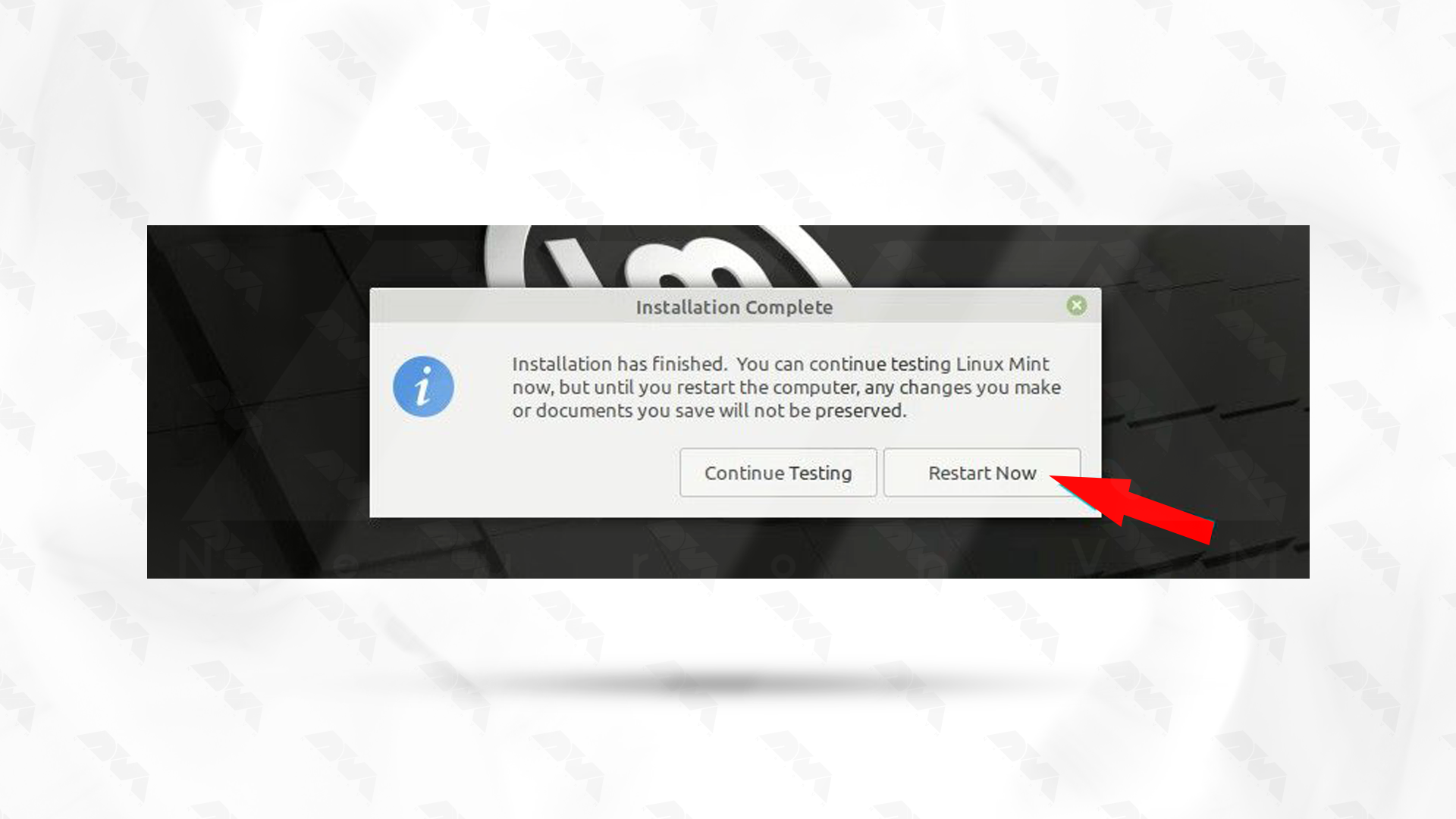
Tip: During the installation process, if you encounter the question “Do you want to install the software package?” hit “y” and press enter to complete the installation process successfully.
How to Launch Minecraft on Ubuntu 20.04
In the Ubuntu desktop manager environment, search for Minecraft in the application search section and click on it:
***
Troubleshooting Minecraft on Ubuntu 20.04
You may encounter issues while running Minecraft on Ubuntu 20.04, here are some troubleshooting steps you can follow:
1- Graphics/Performance Issues:
– Make sure your graphics drivers are up to date.
– Adjust the graphics settings within Minecraft.
– Allocate more memory to Minecraft. Open the launcher, go to Installations, select your Minecraft version, and click on “More Options“. Under “JVM Arguments” increase the value of -Xmx to allocate more memory.
– Try enabling vsync in the Minecraft options, which can help with screen tearing.
2- Authentication/Login Issues:
– Make sure you are using the correct Minecraft account credentials.
– Check if the Minecraft login servers are experiencing any downtime by visiting the official Minecraft server status page.
– Try logging in with your account on the Minecraft website to ensure there are no account-related issues.
– Reset your password if necessary through the Minecraft website.
3- Multiplayer Connection Issues:
– Ensure that both you and the server are using the same Minecraft version.
– Check if you can connect to other multiplayer servers to ensure it’s not a network issue.
– If connecting to a specific server fails, check if the server is online and if there are any IP or port-related issues.
– Verify that your firewall is not blocking the Minecraft application or port used by the server.
– Attempt to connect using direct IP address rather than domain name to rule out DNS issues.
4- Mods/Modpack Issues:
– Ensure that the mods you’re using are compatible with your version of Minecraft.
– Check if the mods require any specific dependencies or additional setup steps.
– Verify that you have installed the necessary mod loader, such as Forge or Fabric, and correctly set it up.
Conclusion
In conclusion, installing Minecraft on Ubuntu 20.04 is a straightforward process. By downloading the official Minecraft launcher and setting appropriate permissions, users can easily install and run the game on their Ubuntu system. The installation process ensures compatibility with Ubuntu 20.04, allowing players to enjoy Minecraft seamlessly on their Ubuntu machines.
Plesk is a popular web hosting control panel that simplifies server management and allows you to easily host multiple websites on a single server. In this guide, we will walk you through the step-by-step process of installing Plesk on Ubuntu 20.04.
Prerequisites
To install Plesk on Ubuntu 20.04, you will need the following prerequisites:
– A freshly installed and updated Ubuntu 20.04 on a Linux VPS server.
– A static IP address assigned to the server.
– SSH access to the server with the root user or a user with sudo privileges.
– Sufficient disk space (at least 10 GB is recommended).
– A fully qualified domain name (FQDN) pointing to the server’s IP address.
How to Install Plesk using a Web Installer
Installing Plesk on Ubuntu 20.04 is a straightforward process. This guide will walk you through the steps to ensure a successful installation. Follow the next steps with us.
Step.1: Update Your Server
Login to the server as a regular user with permissions using Putty or SSH and then run the following command:
sudo apt-get update
Step.2: Configuring UFW
To proceed, you must configure UFW using the specified commands. Executing these commands will grant access to the ports necessary for the Plesk web interface, such as 80, 443, 8443, and 8880.
You must be careful to enable the read, write and execute permissions of the downloaded Plesk script using the following command:
sudo chmod 755 plesk-installer
Start the Plesk web installation interface using the following command:
sudo ./plesk-installer --web-interface
Open your favorite browser. Then type your IP server with port 8447 in the address field of the browser as below and run it.
https://example.com:8447/
To continue the installation process, you need to type your server login name and password in the fields you see and log in:
As shown in the image, you must now click Install or upgrade product:
Then you have to tick Plesk and click on continue:
Here you can choose the type of installation you want with the following explanations:
– Recommended: Installs default Plesk components.
– Full: Installs all supported programs and features.
– Custom: Allows you to choose which components you want to install on your Plesk panel.
If you choose Custom from the available options, a list of components available for installation on the Plesk server will be displayed to you as shown in the image below:
Allow the installation to complete. Then open the terminal session again and stop the script by pressing CTRL+C.
Then, restart your server using the following command:
sudo shutdown -r 0
To acquire a one-time login link, execute the subsequent command. This link is vital for establishing a Plesk administrator account and inserting your license key:
plesk login
Finally, to finish, you need to agree to the license agreement and press Enter to continue.
To access the Plesk control panel, open a browser and execute one of the following commands:
By following the above steps, you have successfully installed Plesk on Ubuntu 20.04. You can now utilize Plesk’s intuitive interface to manage your websites, domains, email accounts, and other services effectively. Take advantage of its vast range of features to simplify your server administration tasks and enhance your web hosting experience.
PhpMyAdmin is a web-based application that provides a graphical interface to manage MySQL databases. It enables users to easily perform various administrative tasks like creating, editing, and deleting databases, tables, rows, and fields. Sometimes we may encounter errors while working with phpMyAdmin. For this reason, in this article, we decided to prepare a guide for when phpMyAdmin is not working in cPanel.
Requirements to Setup phpMyAdmin in cPanel
To setup phpMyAdmin in cPanel, you need to meet the following requirements:
– Make sure that your cPanel account supports phpMyAdmin
– MySQL Database
Troubleshooting phpMyAdmin Not Working errors in cPanel
If phpMyAdmin is not working in cPanel, there could be a few possible reasons for this. Here is a troubleshooting guide to help you resolve the issue:
Check Server Requirements
– Ensure that your server meets the minimum requirements for running phpMyAdmin. Confirm that PHP and MySQL are properly installing and up to date.
– Make sure the PHP extension mysqli is enabled in your server’s PHP configuration file (php.ini).
Check cPanel error logs
Check the cPanel error logs for any specific error messages related to phpMyAdmin. The error logs can be accessed from cPanel -> Metrics -> Errors.
Check phpMyAdmin configuration file
Verify that the phpMyAdmin configuration file (config.inc.php) is properly configuring The configuration file is located in the phpMyAdmin installation directory. Make sure the database credentials and other settings are correct.
Confirm phpMyAdmin is enabled
Check that phpMyAdmin is enabling in the cPanel feature manager. To do this, go to cPanel -> Feature Manager and ensure phpMyAdmin is checked.
Clear Browser Cache
– Firstly, clear your browser cache and try accessing phpMyAdmin again.
Sometimes, cached data can cause issues with loading the application.
Verify Permissions
– Check the permissions of the phpMyAdmin directory and its files. The appropriate permissions are usually 755 for directories and 644 for files.
– If the permissions are incorrect, correct them using a FTP client or the file manager in cPanel.
Disable Extensions
If you have any browser extensions or add-ons installed, try disabling them temporarily. Extensions like ad blockers and privacy tools can sometimes interfere with phpMyAdmin’s functionality.
Check PHP Configuration
– Make sure that the “upload_max_filesize” and “post_max_size” settings in your server’s “php.ini” file are large enough to accommodate the size of the SQL files you are trying to import/export.
– For example: “upload_max_filesize = 50M” and “post_max_size = 50M” should allow a maximum file upload size of 50 megabytes.
– Restart the web server (Apache or Nginx) after making any changes to the “php.ini” file.
Verify cPanel Access
Confirm that you have proper access to cPanel and that your account has sufficient privileges. If you are not the server administrator or do not have root access, contact your hosting provider for assistance.
Check for Errors
– Review the cPanel error logs for any relevant error messages. These logs can often provide clues about the root cause of the phpMyAdmin issue.
– You can find the error logs within cPanel. Look for the “Error logs” or “Logs” section and check the appropriate log file(s).
Conclusion
phpMyAdmin is a web-based application used to manage and manipulate MySQL databases in cPanel. PhpMyAdmin errors in cPanel can occur due to various reasons, including database connection issues, incorrect configuration, or insufficient privileges. If none of the above steps solve the problem, write us your problem in the comments section so that we can answer you as soon as possible.
Multicraft is a powerful and versatile control panel software for managing and managing game servers. It is specifically designed to host multiple Minecraft servers, but can be used for other types of game servers as well. We recommend that you read this article, an Easy Guide to Install Multicraft on Windows.
What is Multicraft?
Multicraft is a popular game server control panel that allows users to easily manage and configure game servers. It supports various games such as Minecraft, Rust, Ark: Survival Evolved, and more.
With Multicraft, server owners have full control over their game servers, allowing them to modify settings, install mods and plugins, create and manage game worlds, and monitor server performance. The control panel provides an intuitive and user-friendly interface, making it accessible for both beginners and experienced server administrators.
One of the key features of Multicraft is its extensive support for customization. Users can access a wide range of configuration options, enabling them to tailor their game server to their specific preferences. Additionally, Multicraft supports automatic server backups, making it easier to restore data in case of any issues.
Multicraft also provides tools for server owners to interact with their player base. Through the control panel, admins can manage player permissions, ban players, and monitor server chat. It also offers a web-based console, allowing server owners to execute commands and troubleshoot any issues without launching the game client.
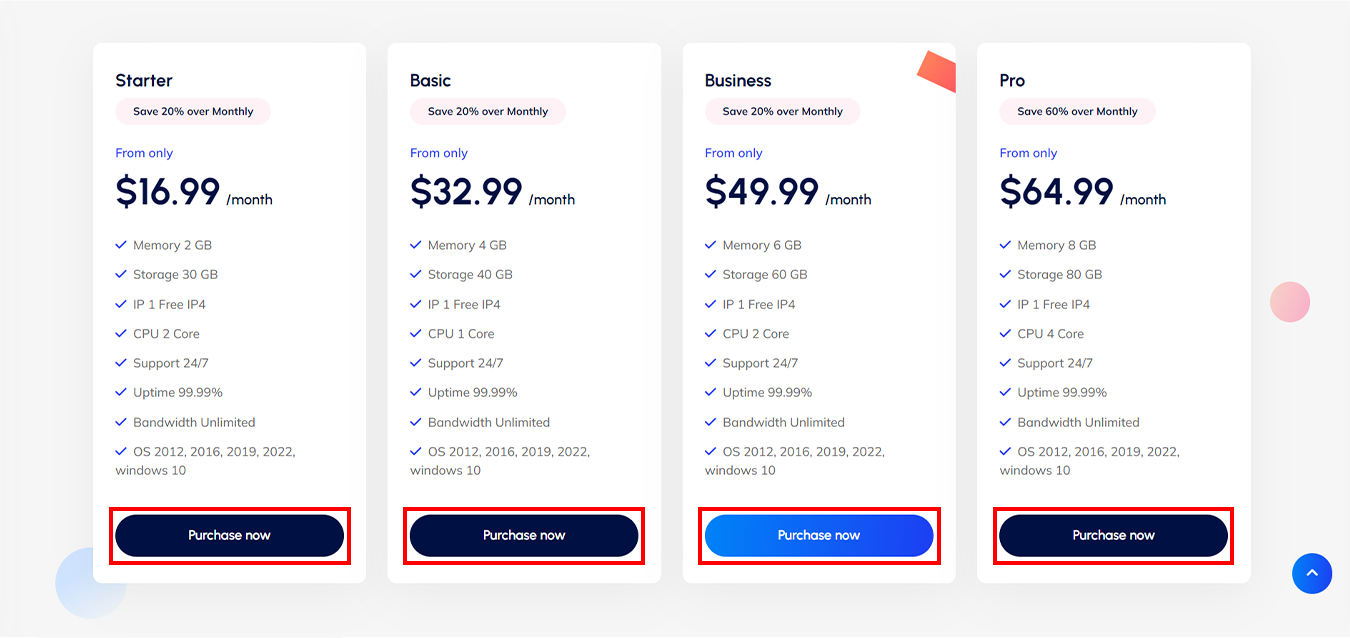
We recommend you to use our Windows VPS plans to better understand the high speed, great performance and 24/7 support.
Prerequisites to Install Multicraft on Windows
– CPU: A multi-core CPU with at least 2 cores, but more is better for better performance.
– RAM: At least 2GB of RAM is recommended for the VPS, but you may need more if you plan to host multiple servers or have a large number of players. Consider allocating more RAM to each Minecraft server as well.
– Storage: Sufficient storage space to store the Multicraft application files and any Minecraft server data.
– Network: A stable and fast internet connection is essential to ensure smooth gameplay and reduce latency. A minimum of 100Mbps dedicated bandwidth is recommended.
Step-by-Step Guide: Setting up Multicraft on Windows
To install Multicraft on Windows, you can follow these steps:
Open your desired web browser and open Multicraft website. Then, Click on Pricing from the menu. Here you can choose the plan you want and buy it. We choose the free plan:

Download the latest version of Multicraft from the official website. Make sure to download the Windows version:
Once the download is complete, navigate to the folder where the Multicraft installation file is located:
Double-click the installation file to start the installation process:
Follow the on-screen instructions to proceed with the installation. You will be prompted to choose the installation directory. It’s recommended to keep the default directory, but you can choose a different one if needed:
To confirm the agreement, click I accept and then click Next:
Click Next:
If you want to enter the desired port, click on Yes and select it. Otherwise, click No:

Enter the desired password in the first field and repeat it in the second field:
Enter the license key you purchased and click Next:
Click on Next:
***
Click on Install to start Multicraft installation:
***
Finally, click on Finish:
After the installation is complete, open your web browser and enter the IP address of your VPS followed by “:8080“:
http://your-server-ip:8080
The Multicraft web installer will open in your browser. Follow the on-screen instructions to setup your Multicraft server:
To create a new server and start working, it is necessary to click on Create Server from the Servers menu:
In the next section, you need to configure your server as shown below:
“Name”: The name of the new server
“Slots Player”: Maximum number of slots for players
“Port”: The port required by the client to access the Minecraft server must be specified. (Port 25565 is used by default.
“Memory”: Maximum allowed RAM size
Finally, click on the “Create” button.
Multicraft Installation Troubleshooting on Windows
To troubleshoot the setup of Multicraft on a Windows, you can follow these steps:
Verify System Requirements:
Ensure that your server meets the minimum system requirements for Multicraft, including the supported Windows version, Java version, and hardware specifications.
Check that you have administrative access to the server.
Install Required Software:
Install the latest version of Java Development Kit (JDK) on your server.
Download and install any dependencies required by Multicraft, such as Microsoft Visual C++ Redistributable Packages.
Firewall and Network Configuration:
Make sure that the required ports used by Multicraft are open in your server’s firewall and network settings.
Check if any other software, such as antivirus or firewall programs, are blocking Multicraft’s access to the necessary resources. Temporarily disable them to see if it resolves the issue.
Verify Installation and Setup Steps:
Carefully go through the installation and setup steps provided by the Multicraft documentation.
Check if you have followed all the required configurations, such as providing the correct paths, database information, and permissions.
Review the logs and error messages generated during the installation and setup process. They can provide valuable insights into the issues you’re facing.
Test Multicraft Functionality:
Start the Multicraft service and check if it is running without any errors. Look for any error messages in the logs.
Access the Multicraft web interface using the server IP address and the configured port. If it fails, check if the port is open and accessible.
Try creating a server instance and check if it starts without any issues.
Conclusion
In, installing Multicraft on a Windows provides a user-friendly control panel for managing a Minecraft server. It allows for easy configuration, monitoring, and control of various server settings. The installation process involves downloading and running the setup file, following step-by-step instructions, and providing necessary information. Once installed, Multicraft enhances the server management experience and enables efficient administration of Minecraft servers on a Windows platform.
When dealing with database management systems, such as MySQL, it is common to encounter errors or issues related to character sets and collations. One such error is “Unknown collation: utf8mb4_0900_ai_ci.” This error indicates that the specified collation is not recognized by the database server. In this comprehensive guide, we will delve into the causes of this error and provide step-by-step troubleshooting solutions to resolve it.
We recommend you to use our Windows VPS plans to better understand the high speed, great performance and 24/7 support.
Understanding collation
Collation refers to the rules that determine how characters are compared and sorted in a database. MySQL supports various collations, including utf8mb4_0900_ai_ci, which is commonly using to support Unicode characters.
Checking MySQL version and compatibility
The utf8mb4_0900_ai_ci collation was introduced in MySQL version 8.0. While earlier versions of MySQL only supported utf8mb3 as the default character set, it is crucial to ensure that your MySQL version is compatible with utf8mb4_0900_ai_ci. If you are using an older version, consider upgrading to a compatible version.
Verifying support for utf8mb4 character set
Apart from collation, the character set plays a vital role in determining the encoding and representation of characters. Before using utf8mb4_0900_ai_ci collation, check if your MySQL installation supports the utf8mb4 character set. If not, you may need to modify MySQL settings or upgrade to a version that supports utf8mb4.
Checking database and table collation
Ensure that the database and table collation match the collation you are trying to use. Use the following SQL query to verify and change database and table collations:
1- To check a database collation:
SELECT @@collation_database;
2- To change a database collation:
ALTER DATABASE database_name CHARACTER SET utf8mb4 COLLATE utf8mb4_0900_ai_ci;
3- To check a table collation:
SHOW CREATE TABLE table_name;
4- To change a table collation:
ALTER TABLE table_name CONVERT TO CHARACTER SET utf8mb4 COLLATE utf8mb4_0900_ai_ci;
Modifying MySQL configuration
If you have verified that your MySQL version and character set support utf8mb4_0900_ai_ci collation, but the error still persists, it might be necessary to modify MySQL configuration files. Locate your MySQL configuration file (my.cnf or my.ini) and add the following lines under the [mysqld] section:
Save the changes and restart the MySQL server for the modifications to take effect.
Encoding issues
Sometimes, this error occurs due to encoding issues with the client application. Ensure that your client application, such as a web application or database management software, is using UTF-8 encoding. This can often be configure in the application settings or connection parameters.
Conclusion
The “Unknown collation: utf8mb4_0900_ai_ci” error in MySQL can be resolved by ensuring the compatibility of the MySQL version, character set support, and correct collation settings. By following the comprehensive troubleshooting steps outlined in this guide, you should be able to resolve the error and successfully use the utf8mb4_0900_ai_ci collation in your database environment. Remember to check the MySQL version, modify collations at the database and table levels, adjust MySQL configuration files if necessary, and verify encoding settings in client applications.
MongoDB is a popular open-source NoSQL database that offers high performance, scalability, and flexibility. To take advantage of its benefits and ensure the security of your data, it is essential to install and securing MongoDB on Ubuntu 22.04 system. In this guide, we will provide a step-by-step walkthrough to help you install MongoDB and implement necessary security measures.
Prerequisites
To install and securing MongoDB on Ubuntu, you need to satisfy the following requirements:
Update the repository by running the following command:
sudo apt update
Now you are ready to install MongoDB on Ubuntu 22.04. You can proceed with the installation by running the following command:
sudo apt install -y mongodb-org
Once the installation is complete, verify the version of MongoDB installed:
mongod --version
After the installation, MongoDB will be running as a service on your Ubuntu system. You can start and then enable MongoDB using the following command:
sudo systemctl start mongod
sudo systemctl enable mongod
Then, you can confirm if the service is running:
sudo systemctl status mongod
How to Secure MongoDB on Ubuntu 22.04
To secure MongoDB on Ubuntu 22.04, you can follow these steps:
Step.1: Update MongoDB
Start by updating your MongoDB installation to the latest version by running the following commands:
sudo apt update sudo apt upgrade mongodb
Step.2: Enable Authentication
MongoDB does not enable authentication by default. So, you need to enable it for secure access. Open the MongoDB configuration file using a text editor:
sudo nano /etc/mongodb.conf
Add the following line at the end of the file:
security: authorization: enabled
Save and exit the file.
Step.3: Create Administrative Use
Switch to the MongoDB shell:
mongo
Switch to the admin database:
use admin
Create the administrative user with a username and password:
You will be prompted for the password. If you can successfully log in, it means authentication is working.
Step.6: Adjust Firewall Rules
If you have a firewall enabled, allow access to the MongoDB port (default is 27017) to ensure network security.
By following these steps, you can secure MongoDB on Ubuntu 22.04 by enabling authentication and creating an administrative user.
Troubleshooting
Here are some common issues that you may encounter when installing MongoDB on Ubuntu 22.04 and their corresponding troubleshooting steps:
1. Repository not found:
– Make sure you have added the MongoDB repository correctly. Check if the repository URL is correct and accessible.
– Check if the package repository is enabled in the “/etc/apt/sources.list” file or “/etc/apt/sources.list.d/” directory.
2. Dependency issues:
– Run the following command to fix any dependency issues:
sudo apt --fix-broken install
– Ensure that you have installed the required dependencies for MongoDB.
3. Unable to locate package:
– Double-check if you have entered the correct package name.
– Update the package lists:
sudo apt update
4. Permission issues:
– Make sure you have proper permissions to install packages. Use “sudo” if necessary.
– Check the ownership and permissions of relevant directories.
5. MongoDB service not starting:
– Check the MongoDB service status using the following command:
sudo systemctl status mongod
– Inspect the MongoDB logs in “/var/log/mongodb/” for any error messages.
– Restart the MongoDB service:
sudo systemctl restart mongod
6. Port in use:
– If MongoDB fails to start due to the port being already in use, identify the process using the port and terminate it.
– Check for open ports using below command:
sudo netstat -tuln | grep
– Kill the process:
sudo kill
Conclusion
You have successfully installed and secured MongoDB on your Ubuntu 22.04 system. By following these steps, you have ensured that MongoDB is running on the local interface only and authentication is required to access the database. This will help protect your data and minimize the risk of unauthorized access. Remember to always keep your MongoDB installation up to date with security patches and follow best practices for securing your entire system.
PowerShell is a powerful scripting language and command-line shell that allows automation and management of Windows operating systems. One of the essential commands in PowerShell is the “Echo” command, which is using to display text or variables on the console. Mastering the PowerShell Echo command is crucial for effectively managing and troubleshooting PowerShell scripts and commands. Echo is using to display information or messages on the console or output stream. In this comprehensive guide, we will delve into the various ways to utilize Echo and explore examples of its usage.
We recommend you to use our Windows VPS plans to better understand the high speed, great performance and 24/7 support.
Understanding the Echo Command
The Echo command is a command using in scripting languages and command-line interfaces to print text or variables back to the user or output device. It is commonly using to display messages, prompt for user input, or debug code. The Echo command is useful for displaying information or manipulating data in a script. It is a simple and versatile command that can help automate various tasks and provide feedback to the user.
Basics of the PowerShell Echo Command
The Echo command in PowerShell is primarily using for displaying text messages on the console or output stream. It serves as a tool for communication between the script and the user, enabling feedback, information display, or user interaction. To utilize the Echo command, the following syntax is using:
Write-Host <Message>
Here, <Message> represents the text or information that needs to be displayed. The Write-Host command is an alias for the Echo command, making them interchangeable.
Echo Command Syntax
The basic syntax of the echo command is:
echo [options] [string]
Here are some examples of how to use the echo command:
1. Echo a string:
echo "Hello, World!"
Output: Hello, World!
2. Redirect the output to a file:
echo "This is a message" > output.txt
This will create a file named “output.txt” and write the string “This is a message” into it.
3. Append the output to an existing file
echo "This is another message" >> output.txt
This will add the string “This is another message” to the end of the existing “output.txt” file.
Note: The behavior of the echo command may vary slightly depending on the operating system and shell being use.
Basic Echo Command Usage
The basic usage of the echo command in PowerShell is to display text on the console. Here’s how you can use it:
1. To display the contents of a variable:
$myVar = "This is a variable" echo $myVar
Output:
This is a variable
2. To concatenate multiple variables or strings:
$firstName = "Jannson" $lastName = "Miller" echo "My name is " + $firstName + " " + $lastName
Output:
My name is Jannson Miller
Note: In PowerShell, the “echo” command is equivalent to “Write-Host”. If you want to write to the console without using the “echo” command, you can simply use:
Write-Host "Hello, world!"
Concatenating Strings with Echo
In PowerShell, you can concatenate strings using the “+” operator or by using the ‘”Jannson-Miller” cmdlet.
Both methods allow you to concatenate strings in PowerShell. Choose the one that best suits your needs.
Advanced Techniques with Echo
– Changing the Foreground and Background Colors of the Echo Output:
You can use the “-ForegroundColo” and “-BackgroundColor” parameters with the “Write-Host” cmdlet to change the colors of the echo output. For example, to display a message in yellow on a blue background, you can use:
Write-Host "This is a message" -ForegroundColor Yellow -BackgroundColor Blue
– Using Formatting Options:
You can use formatting options to control the appearance of the echoed output. For example, you can use the “-f” operator to format a string and include variables. Here’s an example:
$name = "Jannson" $age = 30 $formattedString = "My name is {0} and I am {1} years old" -f $name, $age Write-Host $formattedString
Output: “My name is Jannson and I am 30 years old”
– Displaying Progress Bars:
You can use the “Write-Progress” cmdlet to display progress bars during lengthy operations. This can be helpful to keep users informed about the progress of a script. For example:
– Displaying Colored Text with ASCII Escape Codes:
You can use ASCII escape codes to customize the appearance of the echoed output, including colors and text effects like bold or underline. Here’s an example:
$escape = [char]27 $reset = "${escape}[0m" $red = "${escape}[31m" Write-Host "${red}This is a red message${reset}"
Note: The ASCII escape codes might not work in all console applications or environments.
These are just a few examples of advanced techniques you can use with echo in PowerShell. Experiment and explore the various options and functionalities available to customize and enhance your scripts.
Conclusion
In this comprehensive guide, we explored the PowerShell Echo command and learned its various applications. By now, you should be equipped with the knowledge to effectively utilize Echo for outputting text and manipulating strings in your PowerShell scripts. Remember, the Echo command is a powerful tool that can enhance your PowerShell experience, and practice will help you master it.
Importing math in Java is essential for performing advanced mathematical operations and calculations. Java provides a built-in package called “java.lang.Math” that includes various math methods. In this comprehensive guide, we will cover the basics of importing math in Java, explore different math methods, and provide examples to illustrate their usage.
We recommend you to use our Windows VPS plans to better understand the high speed, great performance and 24/7 support.
Importing the Math package
Importing the Math package is necessary to access all the math-related methods and functions provided by Java. To import the package, include the following line at the beginning of your Java class:
import java.lang.Math;
Basic Math Operations
The Math package offers several basic mathematical operations, such as addition, subtraction, multiplication, and division. Here are a few commonly used methods:
– Math.addExact(a, b): Returns the sum of two integers a and b without any overflow.
– Math.subtractExact(a, b): Returns the difference between two integers a and b without any overflow.
– Math.multiplyExact(a, b): Returns the product of two integers a and b without any overflow.
– Math.divide(a, b): Returns the quotient of dividing a by b as a double value.
Example:
int a = 10;
int b = 5;
int sum = Math.addExact(a, b);
int difference = Math.subtractExact(a, b);
int product = Math.multiplyExact(a, b);
double quotient = Math.divide(a, b);
System.out.println("Sum: " + sum);
System.out.println("Difference: " + difference);
System.out.println("Product: " + product);
System.out.println("Quotient: " + quotient);
Output:
Sum: 15 Difference: 5 Product: 50 Quotient: 2.0
Trigonometric Functions
The Math package also includes several trigonometric functions, useful for dealing with angles and triangles. Some commonly used trigonometric methods include:
– Math.sin(angle): Returns the sine of the specified angle.
– Math.cos(angle): Returns the cosine of the specified angle.
– Math.tan(angle): Returns the tangent of the specified angle.
– Math.toRadians(degrees): Converts degrees to radians.
In this comprehensive guide, we have explored the process of importing math in Java. We covered the basics of importing the Math package, discussed various math methods, and provided examples to demonstrate their usage. By utilizing the powerful math functions offered by Java, you can perform complex calculations and solve mathematical problems efficiently within your Java programs.
Mastering MySQL on Windows Server is crucial for efficient database management. This comprehensive guide will provide step-by-step instructions for various aspects, from installation to troubleshooting common issues. From system requirements to database scaling and replication, this guide will cover all the essential topics to help you become proficient in MySQL administration on Windows Server.
System Requirements
To ensure smooth operation, your Windows Server must meet certain requirements before installing MySQL.
– Operating System: Windows Server 2019, Windows Server 2016, Windows Server 2012 R2, Windows Server 2012
– Processor: 1 GHz or faster.
– Memory: At least 1 GB RAM
– Disk Space: Minimum of 2 GB of free disk space
– Administrator Privileges
We recommend you to use our Windows VPS plans to better understand the high speed, great performance and 24/7 support.
Download and Installation
To download and install MySQL on a Windows server, follow these steps:
1. Visit the official MySQL website. Then, click on the “Download” button for the MySQL Installer appropriate for your system.
2. On the next page, scroll down and click on the “No thanks, just start my download” link:
3. Once the installer file is downloaded, double-click on it to start the installation process:
4. In the installer window, choose the “Server only” option and click “Next“:
5. Select the desired MySQL version and click “Next“:
*
6. Choose the installation type. The “Development Computer” option is recommended for most users, as it includes MySQL Server, MySQL Workbench, and other helpful tools. Click “Next“.
7. Set a password for the root account, and click “Next“:
*
8. The Windows Service screen enables you to set up MySQL Server as a Windows service and assign a specific name to the MySQL service. Additionally, you have the option to automatically launch the service during System Startup and choose whether to run it using the standard system account or a personalized user account. Once you’ve made your choices, proceed by selecting “Next.”:
9. Finally, click on the “Finish” button to close the installer:
Initial Configuration
After installing MySQL on a Windows server, there are a few initial configurations that need to be done. Here are the steps to follow:
1. Open the command prompt as an administrator.
2. Navigate to the MySQL bin directory. The default path is usually as below:
C:\Program Files\MySQL\MySQL Server X.X\bin
3. Run the following command to initialize the MySQL installation:
mysqld --initialize --console
Note: This command will generate a temporary password for the root user.
4. Start the MySQL service by running the following command:
net start MySQL
If the service is already running, you can skip this step.
5. Connect to the MySQL server using the mysql command-line client:
mysql -u root -p
You will be prompted to enter the temporary password generated in step 3.
6. Once you are logged in to the MySQL server, you can change the root password by running the following command:
ALTER USER 'root'@'localhost' IDENTIFIED BY 'new_password';
Note: Replace “new_password” with your desired password.
7. Exit the MySQL command-line client by typing “exit” and pressing Enter.
These steps will help you complete the initial configuration of MySQL on a Windows server.
Securing Your MySQL Server
Securing a MySQL server on a Windows server involves implementing several security measures to protect the server from unauthorized access and potential vulnerabilities. Here are some steps to secure your MySQL server:
1. Set a strong root password: During the MySQL installation, make sure to set a strong password for the root user.
2. Create separate user accounts: Avoid using the root account for regular operations. Instead, create separate user accounts with limited privileges for day-to-day tasks.
3. Restrict remote access: By default, MySQL allows remote access to the server. Consider allowing access only from specific IP addresses or networks that need it, and disable access for others. Update the server’s firewall to only allow incoming connections on the necessary MySQL ports.
4. Enable SSL/TLS encryption: Configure MySQL to use SSL/TLS encryption for secure communications between the server and clients.
5. Use strong authentication methods: Consider using more secure authentication methods like MySQL Native Password or Kerberos instead of the default authentication method.
6. Regularly update MySQL: Keep your MySQL server up to date by regularly applying patches and updates.
7. Monitor and log activities: Enable MySQL’s logging feature to track and monitor all database activities. Regularly review the audit logs for any suspicious activities.
8. Backup your MySQL databases: Implement regular backups of your MySQL databases to ensure you have a copy of your data in case of any security incident or data loss.
9. Regular security audits: Conduct periodic security audits to assess the overall security of your MySQL server. Use tools like MySQL Enterprise Audit or third-party security scanning tools to identify vulnerabilities.
Creating and Managing Databases
To create a new database, use the following command:
CREATE DATABASE database_name;
Note: Replace “database_name” with the desired name for your database.
To list all existing databases, use the following command:
SHOW DATABASES;
To select a specific database for further operations, use the following command:
USE database_name;
Note: Replace “database_name” with the name of the database you want to use.
To delete a database, use the following command:
DROP DATABASE database_name;
Note: Replace “database_name” with the name of the database you want to delete.
User and Privilege Management
By default, the root user has full control over all databases. However, for security reasons, it’s recommended to create a separate user with limited privileges for each database. To create a new user and grant privileges to a specific database, use the following commands:
CREATE USER 'username'@'localhost' IDENTIFIED BY 'password';
GRANT ALL PRIVILEGES ON database_name.* TO 'username'@'localhost';
FLUSH PRIVILEGES;
Replace “username” and “password” with your desired values, and “database_name” with the name of the database.
Importing and Exporting Data
1. Open Command Prompt: Click on the Start menu, type “cmd”, and press Enter to open Command Prompt.
2. Change directory to the MySQL installation folder: In Command Prompt, type the following command and press Enter. Replace “X.X” with the version number of your MySQL server installation.
cd C:\Program Files\MySQL\MySQL Server X.X\bin
3. Export Data: To export data from a MySQL database, use the “mysqldump” command. Type the following command and press Enter:
Replace “[username]” with your MySQL username, “[database_name]” with the name of the database you want to export, and “[path_to_save_file.sql]” with the desired path and file name where you want to save the exported data.
Example:
mysqldump -u root -p mydatabase > C:\backup.sql
You will be prompted to enter your MySQL password. Once done, the data in the specified database will be exported and saved in the provided file.
4. Import Data: To import data into a MySQL database, you can use the “mysql” command. Type the following command and press Enter:
mysql -u [username] -p [database_name] < [path_to_import_file.sql]
Replace “[username]” with your MySQL username, “[database_name]” with the name of the database you want to import into, and “[path_to_import_file.sql]” with the path and file name of the SQL file you want to import.
Example:
mysql -u root -p mydatabase < C:\backup.sql
You will be prompted to enter your MySQL password. Once done, the SQL file will be imported, and the data will be added to the specified database.
Backing Up and Restoring Databases
1.Backup a MySQL database:
– Open the Command Prompt as an administrator.
– Navigate to the MySQL installation directory using the “cd” command. For example:
cd C:\Program Files\MySQL\MySQL Server 8.0\bin
– Run the following command to create a backup of the database:
Replace “username” with your MySQL username, “database_name” with the name of the database you want to backup, and “backup_file.sql” with the desired name for your backup file.
– Enter your MySQL password when prompted.
2. Restore a MySQL database:
– Open the Command Prompt as an administrator.
– Navigate to the MySQL installation directory, similar to step 1.
– Run the following command to restore the database:
mysql -u username -p database_name < backup_file.sql
– Enter your MySQL password when prompted.
Note: Make sure you have MySQL installed and the “mysql” and “mysqldump” commands available in your PATH environment variable.
Performance Optimization
There are several approaches you can take to optimize the performance of MySQL on a Windows Server:
1. Upgrade hardware
2. Tune MySQL configuration
3. Enable query caching
4. Optimize database schema and queries
5. Monitor performance
6. Utilize partitioning and sharding
7. Use connection pooling
8. Enable query, slow query, and error log
9. Regularly optimize and repair tables
10. Upgrade MySQL version
It’s important to note that the specific optimizations required may vary depending on your specific workload and requirements. It’s recommended to experiment with different settings and monitor performance to find the optimal configuration for your MySQL server on Windows Server.
Monitoring and Logging
1. Enable the general query log: The general query log records all queries received by the MySQL server. To enable it, open the MySQL configuration file (my.ini) located in the installation directory. Uncomment the line below by removing the ‘#‘ symbol. Save the file and restart the MySQL service for the changes to take effect.
#general_log=1
2. Configure the log file location: By default, MySQL logs are stored in the data directory. To specify a different location, add the following line to the my.ini file:
general_log_file = C:/path/to/log/file.log
Replace “C:/path/to/log/file.log” with the desired path and filename. Remember to create the directory and make sure the MySQL service has write permissions.
3. Enable the error log: The error log records critical errors encountered by MySQL. Open the my.ini file and uncomment the line below by removing the ‘#‘ symbol. Save the file and restart the MySQL service:
#log-error
4. Use a third-party monitoring tool: Consider using a monitoring tool like MySQL Enterprise Monitor or Percona Monitoring and Management (PMM). These tools provide comprehensive monitoring and alerting capabilities, along with historical data and performance analysis.
5. Enable slow query log (optional): The slow query log records queries that take longer than a predefined threshold to execute. To enable it, open the my.ini file and add the following lines:
Replace “C:/path/to/slowquery.log” with the desired path and filename. Restart the MySQL service for the changes to take effect.
Troubleshooting Common Issues
1. Connection Errors: If you are unable to connect to the MySQL server, first check if the MySQL service is running and ensure that the correct port (default is 3306) is open in the Windows Firewall. You should also verify the credentials being used to connect.
2. Performance Issues: Sluggish response times or high CPU usage may indicate performance issues. This can be resolved by optimizing the queries and indexes used in the database, increasing hardware resources like RAM, or tuning the MySQL configuration parameters.
3. Disk Space: As the database grows, it can consume a significant amount of disk space. Monitor the disk space regularly and ensure that there is enough free space for database operations. You may also consider partitioning the data or moving it to a larger disk.
4. Database Corruption: If the database becomes corrupt, it can lead to data loss or inaccessible data. Regularly backup the database and create automated tasks to verify the integrity of the data files. If corruption is detected, restore from a known good backup or use inbuilt database repair tools.
5. Resource Limits: MySQL’s default configuration may have resource limits that can cause issues with large databases or heavy workloads. Adjusting parameters like “max_connections“, “innodb_buffer_pool_size“, and “tmp_table_size” can help optimize resource utilization.
Integration with Applications
To integrate applications with MySQL on a Windows Server, you can follow the steps below:
– Install and Configure MySQL Server
– Create a Database
– Grant User Permissions
– Connect the Application to MySQL
– Test the Connection
– Implement Data Access
– Secure the Connection
By following these steps, you can integrate your application with MySQL on a Windows Server and leverage the power of a robust relational database system for managing your application’s data.
Scaling and Replication
Scaling and replication of MySQL on Windows Server can be achieved through various methods and techniques. Here are some common approaches:
1. Vertical scaling: This involves increasing the resources of the MySQL server, such as CPU, RAM, and storage capacity.
2. Horizontal scaling: This strategy involves distributing the workload across multiple MySQL database servers. With this approach, you can set up multiple MySQL instances on different Windows Server machines and distribute the data between them. This can be done through sharding, where data is partitioned and stored on different servers based on a specific criterion (e.g., customer ID or region).
3. MySQL replication: MySQL provides built-in replication features that allow you to replicate data from one MySQL server to another. You can set up a master-slave replication configuration on Windows Server, where the master server handles write operations and the slave server(s) replicate the data.
4. MySQL cluster: MySQL Cluster is a distributed, shared-nothing database architecture that provides high availability and scalability. With MySQL Cluster, you can set up multiple nodes across different Windows Server machines, allowing for automatic sharding and replication of data. This helps distribute the workload and offers improved fault tolerance.
5. Load balancing: Implementing a load balancer can help distribute incoming traffic across multiple MySQL servers. This can be accomplished using various load balancing techniques, such as round-robin, least connections, or IP hashing. Load balancing ensures that requests are evenly distributed, preventing any single server from being overloaded.
6. Database partitioning: MySQL supports table partitioning, where large tables are divided into smaller, manageable pieces called partitions. Each partition can be stored on a separate Windows Server machine, allowing for distributed storage and query optimization.
Upgrading MySQL
To upgrade MySQL on a Windows server, follow these steps:
– Backup Data: Before upgrading, it is essential to backup your MySQL databases and configuration files as a precautionary measure.
– Download Latest Version: Go to the official MySQL website, select the Windows platform, and download the latest version of MySQL Community Server.
– Stop MySQL Service: Open the Windows Services Manager (services.msc), find the MySQL service, and stop it. Ensure that no MySQL processes are running.
– Uninstall Current Version: Open the Control Panel, go to “Programs and Features” (or “Add or Remove Programs“), find MySQL in the list of installed programs, and uninstall it.
– Delete MySQL Installation Folder: By default, MySQL is installed in “C:\Program Files\MySQL” or “C:\Program Files (x86)\MySQL“. Delete this folder and all its contents.
– Install New Version: Run the downloaded MySQL installer and follow the installation wizard. Choose the relevant options, including installation path, type of setup (Developer, Server only, or Custom installation), and necessary components like MySQL Server, MySQL Workbench, etc.
– Import Data: If you had taken a backup in the first step, you can import your databases and configuration files back into the upgraded MySQL installation. You can use tools like MySQL Workbench or Command Line to import the data.
– Start MySQL Service: Once all the steps are completed, start the MySQL service from the Windows Services Manager. Verify that the service starts successfully.
– Verify Upgrade: Check for any errors or issues in the MySQL error log and run basic tests to ensure that the upgraded MySQL installation is functioning correctly.
Conclusion
In conclusion, Mastering MySQL on Windows Server offers a comprehensive and user-friendly approach to mastering MySQL database management on Windows Server. With clear instructions and practical examples, this article equips readers with the knowledge and skills needed to efficiently manage MySQL databases on Windows Server platforms.