Blog

  • The Best Guide for Installing Linux via USB

    The Best Guide for Installing Linux via USB

    Have you ever faced a situation where you want to use another system that is not yours but has your own settings? This is possible with Linux distributions. That is, you can use your customized Linux operating system on any other device, and this will only be possible with the help of a USB drive. So, let’s use the simple steps of this post to learn how to installing Linux via USB drive.

    Requirements to Install Linux via USB

    In order to be able to install Linux distros with a USB drive, you must provide the following items:

    • Choosing one of the Linux operating system distributions, for example, a simple and user-friendly distribution such as Linux Mint
    • Unetbootin program
    • A USB drive

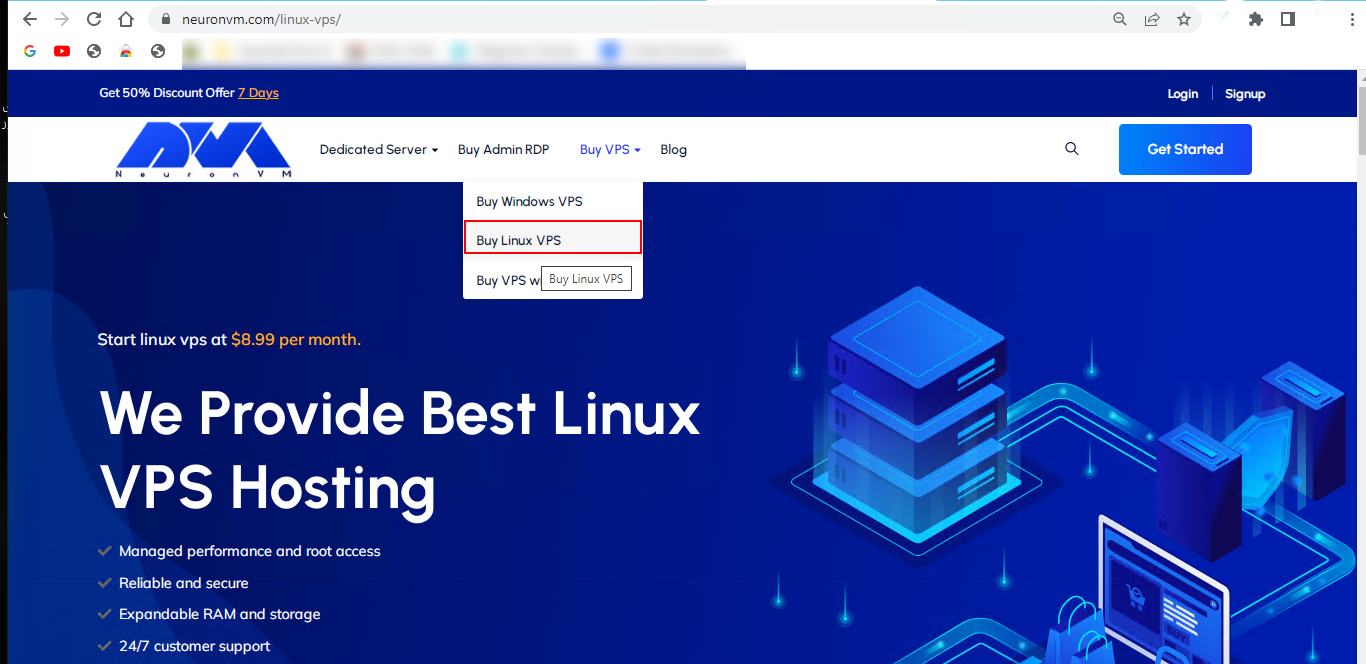
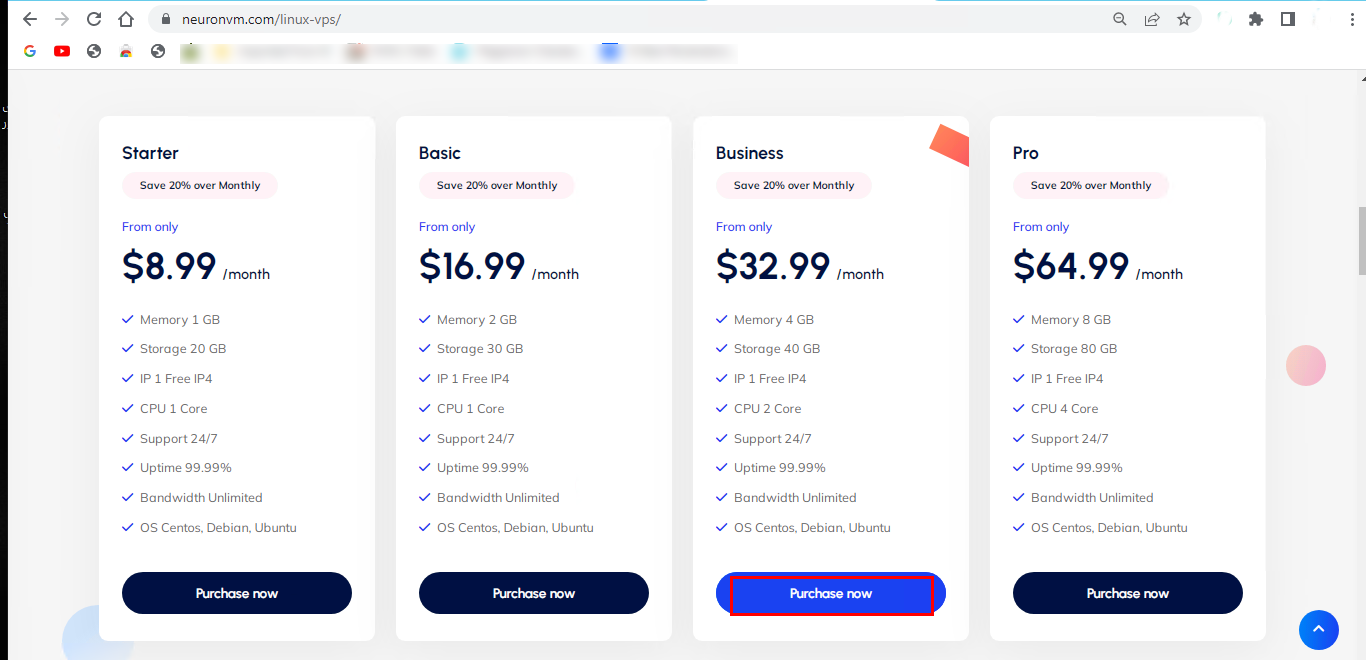
    Here we suggest you to use the various Linux VPS server plans provided for you on the NeuronVM website.

    How to Install Linux Via USB

    An important thing to always note is that there are many tools for creating a bootable horse drive. Since different operating systems are used by users, we decided to install the steps with a software called Unetbootin, which is as follows:

    Step 1: Creating a Bootable USB Drive

    First of all, you should download a program to create a bootable live USB drive. You will follow a simple instructions for that:

    1- Put your USB device in and find the corresponding drive section.

    2- Now open the related program.

    3- Mark the Diskimage radio button.

    4- Choose your Diskimage.

    5- Now choose the correct drive name for the USB drive.

    6- Click the OK button to confirm the changes and see the magic.

    Use unetbootin to install Linux

    ***

    Use unetbootin to install Linux

    Step 2: Run USB for Linux

    Now you are ready to install the preferred operating system via USB on your device.

    In the next step, you need to go to BIOS and set it to read from USB when running. Note that this section is different for each device. After the app reboot is enabled by connecting the USB, you will see the image below. Now select the default mode and take it easy.

    Run USB for Linux

    Step 3: Install Linux

    Now you can see the loaded file on the main page. You will see an icon that looks like a disk. Click on it and wait for your Linux installation.

    inatalling Linux distro via usb

    Note that the system will ask you questions during installation so that the desired settings can be made correctly. Now restart the system to apply the changes. So simple!

    Tip: The distribution we are considering is Linux Mint.

    Troubleshooting Issues about Installing Linux Via USB

    Installing Linux via USB is a common and convenient method. However, like any installation process, it can sometimes encounter issues. Here are some common problems and solutions:

    1- The USB drive is not bootable.

    Solution:

    Ensure that you have created a bootable USB drive using a reliable tool like Rufus, UNetbootin, or the dd command (Linux). Double-check that the ISO image is compatible and not corrupted.

    2- The computer doesn’t recognize the USB drive as a bootable device.

    Solution:

    Access the BIOS/UEFI settings during startup (usually by pressing a key like F2, F10, F12, or Del), and check that the USB drive is set as the primary boot device. Also, make sure that the system is set to boot in UEFI or Legacy mode, depending on your USB drive and system compatibility.

    3- Wi-Fi not working after installation.

    Solution:

    Ensure that your wireless card is supported. If necessary, use a wired connection during installation. After installation, update your system and install the appropriate drivers for your wireless card.

    4- The installation process couldn’t be completed successfully.

    Solution:

    Check the error messages displayed during installation for clues. You may need to restart the installation process, ensuring that you follow the steps carefully.

    Conclusion

    Installing Linux distributions with a USB drive is an easy and straightforward way. I hope that by going through these steps, you will be able to install the distribution you want on any device and configure it as you wish. Thank you for your attention to this article. You can share with others if necessary.

  • How Windows VPS Maximizes Efficiency?

    How Windows VPS Maximizes Efficiency?

    Businesses are constantly seeking ways to maximize their efficiency and streamline their operations. One such solution that has gained popularity among entrepreneurs and IT professionals is the Windows Virtual Private Server (VPS). With its unique capabilities and robust features, this article delves into how Windows VPS can revolutionize the way businesses operate. This allows them to achieve peak levels of productivity and efficiency like never before. From its versatile operating system to its scalable architecture, join us as we explore the various ways in which Windows VPS empowers organizations to transform their business processes and ultimately reach their goals more efficiently.

    Understanding the Basics of Windows VPS

    A Windows VPS is a virtual operating system environment hosted on a physical server and powered by Microsoft’s Windows Server operating system. It provides users with dedicated resources and control over their virtual environment, bridging the gap between shared hosting and dedicated servers. This allows businesses to have greater flexibility and scalability while reducing costs and maintaining control over their systems.

    With its unique capabilities and robust features, this article delves into how Windows VPS can revolutionize the way businesses operate.

    A Windows VPS also offers several other advantages for businesses. One key benefit is enhanced security. With a virtual environment, businesses can isolate their resources, ensuring that sensitive information and critical applications are protected from potential breaches or unauthorized access.

    Furthermore, Windows VPS also provides the ability to easily customize and configure the virtual environment based on specific business needs. This allows for seamless integration with existing systems and applications, fostering enhanced productivity and efficiency.

    Understanding the Basics of Windows VPS

    Overall, a Windows VPS presents a comprehensive solution for businesses seeking a reliable and efficient hosting option, empowering them to focus on their core operations while having full control over their virtual environment.

    Who Needs a Windows VPS?

    Windows VPS is highly versatile and can be a valuable asset for various individuals and organizations. Specifically, it caters to:

    • Small and Medium-Sized Businesses: Windows VPS offers an affordable hosting solution with adequate resources for growing businesses. It enables them to efficiently scale their operations without the need for a dedicated physical server.
    • Developers and IT Professionals: With full administrative access, Windows VPS allows developers and IT professionals to have complete control over the server environment. It serves as an ideal platform for testing applications, creating virtual labs, and running resource-intensive tasks.
    • E-commerce Websites: A Windows VPS ensures exceptional performance, stability, and security, which are essential for running online stores and handling sensitive customer information. Its fast processing speed and dedicated resources minimize downtime and provide a seamless shopping experience.

    Maximizing Efficiency Using Windows VPS

    1. Enhanced Performance: Windows VPS offers dedicated resources, including processing power and memory, which greatly improve system performance. By eliminating resource sharing, businesses experience faster response times, smooth multi-tasking, and reduced system latency, ultimately resulting in increased efficiency.
    2. Reliability and Scalability: Windows VPS ensures high availability with guaranteed uptime, reducing the risk of downtime and associated revenue loss. Additionally, it facilitates effortless scalability, allowing businesses to seamlessly expand their hosting resources as required. This ensures smooth operations during peak periods or sudden spikes in traffic.
    Maximizing Efficiency Using Windows VPS
    1. Improved Security: Windows VPS provides a secure environment with customizable security options, including firewalls, antivirus software, and advanced encryption protocols. By isolating user instances, businesses can safely host sensitive data and applications, guarding them against external threats and potential breaches.
    2. Cost-Effectiveness: Windows VPS offers cost advantages by eliminating the need for dedicated physical servers and associated maintenance costs. It operates on a pay-as-you-go model, allowing businesses to scale resources based on their requirements, preventing unnecessary expenditure.

    Conclusion

    Windows VPS efficiency is a game-changer for individuals and organizations seeking enhanced performance, reliability, security, and scalability. This virtual environment caters to a wide range of users, from small businesses to developers and e-commerce websites, paving the way for optimized operations. By harnessing the power of Windows VPS, businesses can streamline their processes, reduce costs, and propel their success in today’s competitive digital landscape.

  • Why Linux Mint is the Ultimate Open-Source OS?

    Why Linux Mint is the Ultimate Open-Source OS?

    Linux Mint OS has gained immense popularity in the open-source community as the ultimate operating system. With its user-friendly interface, vast software repository, robust security features, and high performance, Linux Mint OS has become the go-to choice for those seeking a reliable and versatile open-source solution. In this article, we will delve into the various aspects that make Linux Mint OS stand out as the ultimate open-source operating system.

    Remember you can always get a Linux VPS with the distribution of your choice from NeuronVM and easily get into the world of Linux.

    Introduction to Linux Mint OS

    Linux Mint OS is a free and open-source operating system based on Ubuntu, which itself is built upon the Debian Linux distribution. It aims to provide a user-friendly environment for both beginners and advanced users. One of the primary strengths of Linux Mint OS is its focus on simplicity and ease of use, making it an ideal choice for individuals looking to make a transition from proprietary operating systems.

    Linux Mint

    Why Would I Choose Linux Mint OS?

    When it comes to choosing an open-source operating system, Linux Mint OS stands tall due to several factors. Firstly, its compatibility with various hardware configurations ensures that users can install and run it on a wide range of devices. From older machines to the latest hardware, Linux Mint OS seamlessly adapts and provides a smooth and reliable experience.

    User-Friendly Interface and Customization Options

    Linux Mint OS is renowned for its user-friendly interface, specifically the Cinnaon desktop environment, which offers a familiar layout akin to traditional desktop interfaces. This allows users to easily navigate and access programs, files, and settings.

    User-Friendly Interface and Customization Options

    Furthermore, Linux Mint offers extensive customization options, allowing users to personalize their desktops with themes, icons, and various applets.

    Vast Software Repository and Compatibility

    One of the key advantages of Linux Mint is its vast software repository, which provides users with a wide range of applications and tools for all their needs.

    Vast Software Repository and Compatibility

    The Software Manager, a centrepiece of Linux Mint, allows users to effortlessly discover, install, and manage software. Additionally, Linux Mint ensures high compatibility with various software packages and formats, eliminating any compatibility issues that users may face.

    Robust Security and Privacy Features

    Security and privacy are paramount concerns in today’s digital landscape, and Linux Mint stands out in this regard. With regular security updates and utilizing trusted encryption protocols, users can rely on the robust security features provided by Linux Mint OS to protect their valuable data.

    Robust Security and Privacy Features

    The operating system also respects user privacy and does not collect or share personal information.

    High Performance and Stability

    Linux Mint is known for its exceptional performance and stability. This makes it a reliable choice for professionals and everyday users alike. The lightweight nature of the operating system ensures minimal resource consumption, resulting in faster boot times and smoother operation.

    High Performance and Stability

    Additionally, Linux Mint prioritizes stability, ensuring that users experience fewer crashes and system failures.

    Dedicated and Supportive Community

    A vibrant and supportive community is crucial for open-source projects, and Linux Mint OS is no exception. With a vast and dedicated community, users can easily find solutions to their queries and receive assistance on forums and support channels.

    Linux Mint OS: Dedicated and Supportive Community

    The community-driven nature of Linux Mint OS fosters collaboration and continuous improvement, making it a reliable and evolving open-source operating system.

    Conclusion

    Linux Mint unquestionably stands as the ultimate open-source operating system. With its user-friendly interface, customization options, vast software repository, robust security features, high performance, and a thriving community, it caters to a wide range of user needs. Whether you are a beginner seeking simplicity or a professional requiring a reliable and versatile operating system, Linux Mint provides a seamless experience that surpasses expectations. Experience the power and flexibility of Linux Mint today and join the millions of users who have embraced this exceptional open-source solution.

    Frequently Asked Questions

    Is Mint Linux free?

    Yes, Mint Linux is completely free to download, use, and distribute.

    Can I dual boot Mint Linux with Windows?

    Yes, you can easily set up a dual-boot system with Mint Linux and Windows. This allows you to choose between them during startup.

    Is Mint Linux compatible with Windows applications?

    Mint Linux is not natively compatible with Windows applications, as it uses different file formats and system architecture. However, you can use compatibility tools like Wine or virtualization software to run some Windows programs on Mint Linux.

    How is Mint Linux different from Ubuntu?

    Mint Linux offers a more user-friendly interface, additional pre-installed software, and a different default desktop environment. This makes this operating system feel distinct from Ubuntu while retaining its core compatibility.

    Is Mint Linux suitable for beginners?

    Yes, Mint Linux is particularly beginner-friendly due to its intuitive interface and pre-installed essential software. It also provides comprehensive documentation and a helpful community, making it easier for beginners to navigate and learn their way around the system.

  • Mastering Network Reconnaissance with Nmap on Kali Linux

    Mastering Network Reconnaissance with Nmap on Kali Linux

    Nmap is one of the most useful tools for network administrators or security analysts because they need to have a thorough understanding of the devices and services running on a Kali network. This tool is very useful for network exploration and security auditing. So let’s see how to install and work with Nemap on Kali Linux.

    What is Nmap?

    Nmap is a well-known and practical tool for exploring the network, which is also widely used in terms of security. You can use this tool to discover hosts and services in computer networks or scan vulnerabilities and ports. It is worth noting that Nmap can be used for free on Linux OS or Linux VPS, Windows OS or VPS, and Mac.

    Some of the remarkable features of this tool are the ability to scan large networks and detect open ports, operating systems, and other network services. Network vulnerabilities can be weak passwords, misconfigured services, or outdated software.

    what is nmap

    Note: You can benefit from the features of this great tool on NeuronVM‘s Linux servers.

    How to Start Nmap on Kali Linux?

    You can use the following command to start and scan your network. This is the basic command:

    nmap [Scan Type] [Options] [Targets]

    How to Work With Nmap? (Scan Types)

    You can use various ways to scan the network using Nmap. We will examine these scan Types for you:

    TCP Connect Scan (-sT):

    Completes a full TCP connection to each specified port, providing reliable results but easily detectable.

    SYN Stealth Scan (-sS):

    Initiates a SYN scan by sending SYN packets to target ports, without completing the full connection, making it less detectable.

    UDP Scan (-sU):

    Scans for open UDP ports, commonly used for services like DNS and DHCP, provide insight into potential vulnerabilities.

    ACK Scan (-sA):

    Sends ACK packets to target ports to determine firewall rules, useful for understanding network filtering.

    FIN Scan (-sF):

    Sends FIN packets to target ports, aiming to identify open ports by observing how they respond to unexpected connection termination requests.

    Xmas Tree Scan (-sX):

    Sets the FIN, PSH, and URG flags in the TCP header, used to identify firewall behavior based on how it handles unusual flag combinations.

    Null Scan (-sN):

    Sends null packets (with no TCP flags set) to target ports, useful for identifying firewall configurations.

    Idle Scan (-sI):

    Utilizes an idle system as a “zombie host” to perform scans more discreetly and reduce the chance of detection.

    Version Detection (-sV):

    Attempts to determine service and version information on open ports, providing details about the software running on the target.

    OS Fingerprinting (-O):

    Tries to identify the operating system of the target by analyzing subtle differences in how the system responds to certain packets.

    Nmap Scan Options

    In this section, we will mention a number of Nmap options that can use to customize the scan. These options are:

    nmap scan options

    -p: To determine which ports to scan.

    -sV: To identify the version of services running on the target host.

    -o: To specify running operating system on the target host.

    -v: Used to increase the verbosity of output on Nmap.

    Some Examples of Nmap Usage on Kali Linux

    These are some examples to show the way of scanning via Nmap:

    • For Ping Scan

    the command below will scan the 192.168.1.0/24 network and give the list of online and responsive hosts:

    nmap -sP 192.168.1.0/24
    • For UPD Scan

    This command can use for scanning target host for example (192.168.1.1) and give the list of UPD services on open ports:

    nmap -sU 192.168.1.1
    • For Custom Port Scan

    You can use this one for scanning port 80 on the target host 192.168.1.1 and informing you whether the port is open or closed:

    nmap -p 80 192.168.1.1

    Some Advance Options Of Nmap on Kali Linux

    In addition to these basic functional features, Nmap offers advanced tools and scripts that can be used to perform more comprehensive scans. Here we will mention some of them:

    Ability to scan scripts

    There is a large library of scripts available in Nmap that you can use to identify potential vulnerabilities on a target host. These scripts can use in combination with other types of scans to perform a comprehensive security analysis of a network.

    The Possibility of Stealth Scanning

    You can use Nmap for stealth scans. This is designed to prevent detection by firewalls or intrusion detection systems. Techniques like fragmented packet scanning or idle scanning are used here.

    Operating System Fingerprint

    Using this option will help you detect operating systems running on a target host by analyzing responses to different packets sent to the device.

    Conclusion

    These are some commonly used Nmap scan types, options, and advanced features each serving different purposes in network reconnaissance. Now, having a better understanding of Nmap and learning how to use it, you can ensure its security by monitoring your network. Always ensure you have permission before scanning any network.

  • Cloud Computing Structure [Infographic]

    Cloud Computing Structure [Infographic]

    Cloud computing has emerged as a game-changing technology in the field of information technology. It has completely transformed the way businesses manage and deliver services while offering numerous benefits. This post provides a brief overview of this popular concept and its impact on today’s digital landscape.

    In a rapidly evolving digital world, organizations are continuously generating massive amounts of data. Storing, managing, and accessing this data can be challenging and costly with traditional methods. This is where cloud computing comes into play. it refers to the practice of using a network of remote servers hosted on the internet to store, manage, and process data, rather than using a local server or personal computer. It provides users with the ability to access data and applications anytime, anywhere, over the internet.

    About Cloud Computing

    Unleashing the Power of Cloud Computing One of the key advantages of it, is its scalability and flexibility. Traditionally, organizations had to invest heavily in on-premises infrastructure to accommodate peak workloads, leading to idle resources during low-demand periods. With cloud computing, businesses can scale their resources up or down, depending on their needs, and only pay for what they use. This eliminates the need for large upfront investments in hardware and software, making it an attractive option for startups and small businesses.

    Moreover, cloud computing offers increased flexibility in terms of location and device. By leveraging the power of the cloud, employees can access applications and data using any internet-enabled device, facilitating remote work and enhancing collaboration. This flexibility has become particularly crucial in today’s digital age as businesses strive to adapt to remote workforces and changing market dynamics.

    In conclusion, cloud computing has revolutionized the way businesses operate by providing scalable and flexible solutions for data storage, management, and access. With its ability to adapt to dynamic work environments and its cost efficiency, it has become an indispensable tool for organizations of all sizes. As the reliance on this topic grows, businesses need to understand and leverage its potential to stay competitive in the ever-evolving digital landscape.

    In this infographic show, we are going to show you the different layers of cloud computing in just one picture. You can simply share it with your friends and also check our other infographics.

  • Exploring the Benefits of Buying a Dedicated Server

    Exploring the Benefits of Buying a Dedicated Server

    A dedicated server is a hosting service that provides an entire physical server exclusively to one client or website. In contrast to shared hosting, where multiple websites share server resources, a dedicated server offers complete access to all the server’s resources, such as processing power, RAM, storage, and bandwidth. By using a dedicated server, the client gains full control over server configuration, software installations, and security settings. This level of control allows for superior customization, flexibility, and performance, making it ideal for resource-intensive applications like high-traffic websites, online gaming, large e-commerce platforms, or other demanding tasks. In this article, we will examine the benefits of buying a dedicated server, which we recommend you follow us until the end.

    Reasons for using a Dedicated Server

    Reasons why someone might choose to use a dedicated server:

    Optimal Performance: Dedicated servers excel in performance compared to other hosting options, like shared hosting. The server’s resources are exclusively available for your website or application, enabling efficient handling of high traffic volumes and resource-intensive tasks.

    Tailored Customization: Enjoy complete control over the server’s configuration with a dedicated server, allowing customization according to your specific needs. This flexibility allows installation and operation of any required software or applications for your website or business operations.

    Enhanced Security: Dedicated servers offer heightened security compared to other hosting services. As the sole user of the server, you have full control over security protocols and can implement your own measures to protect your data.

    reasons to use dedicated servers

    Easy Scalability: Dedicated servers provide effortless scalability, allowing seamless upgrading or downgrading of server resources as your business needs evolve. This flexibility ensures your website or application can handle increased traffic without any slowdowns or downtime.

    Improved SEO Ranking: A dedicated server contributes to better search engine optimization (SEO) performance for your website. Search engines favor fast-loading and reliable websites, and dedicated servers meet both criteria, resulting in improved search engine rankings.

    Exclusive IP Address: Dedicated servers come with a unique IP address solely dedicated to your website or application. This benefits applications affected by shared hosting’s IP reputation, like SSL certificates or email marketing.

    What are the most important Advantages of a Dedicated Server?

    High-performance computing power and resources that are solely dedicated to a single user or organization enhance performance and reliability. This ensures optimal performance without the need to share resources with other users.

    Full control over security measures, including firewalls, antivirus software, and data encryption, increases security. This provides a higher level of protection against potential security breaches compared to shared hosting environments.

    Greater flexibility and customization options are offered by dedicated servers. You have complete control over the server’s hardware, software, and operating system, allowing you to tailor it to your specific needs and optimize performance according to your requirements.

    Scalability is a key advantage of dedicated servers. They are highly scalable, allowing you to easily expand resources such as CPU, RAM, and storage as your business grows. This scalability ensures that your server can accommodate increasing demands without experiencing performance issues.

    important Advantages of a Dedicated Servers

    Website loading speed is improved with dedicated servers. They often offer faster website loading times and response rates compared to shared hosting. There is no congestion caused by other websites since the server resources are dedicated to a single user, resulting in a quicker and smoother user experience.

    Better control and management is provided by a dedicated server. You have complete administrative access, allowing you to install and configure software applications, customize settings, and manage server resources. This level of control simplifies server management, making it easier to troubleshoot issues and optimize performance.

    Dedicated server provides a unique IP address for your website, unlike shared hosting where multiple websites share a single IP address. This offers advantages such as better email deliverability and improved search engine rankings.

    Cost-effective and efficient hosting of multiple websites on a single server is possible with a dedicated server. This is beneficial for businesses or individuals that manage multiple online properties.

    Who is a Dedicated Server suitable for?

    Dedicated servers cater to a variety of individuals and businesses, including:

    1. Large businesses and corporations benefit from dedicated servers due to their provision of ample storage, processing power, and control over the server environment. This makes them ideal for organizations with high traffic websites, complex applications, and extensive databases.

    2. E-commerce websites find dedicated servers advantageous as they ensure reliable performance, fast loading times, and enhanced data protection. This is especially important for online stores with high volumes of transactions and demanding security requirements.

    3. Dedicated servers are commonly used by gaming enthusiasts and communities to host multiplayer games. This facilitates better performance, lower latency, and an improved user experience.

    4. Web hosting providers utilize dedicated servers to offer greater flexibility, scalability, and customized solutions for their clients.

    5. IT professionals can make use of dedicated servers to exercise complete control over server configurations, software installations, and security settings. This enables them to leverage their expertise for specific project requirements.

    6. Media and streaming platforms, such as streaming services, content delivery networks, and media platforms, require dedicated servers to handle large amounts of data traffic. This ensures smooth streaming and downloads for their users.

    Overall, dedicated servers are suitable for individuals and businesses in need of high-performance, secure, and customizable hosting solutions that cater to their specific requirements.

    How to buy a Dedicated Server from NeuronVM

    Buying a dedicated server offers numerous advantages, including improved security, performance, and customization options. It allows you to have full control over your hosting environment while benefiting from professional management and support from the hosting provider.

    You can refer to the article “The Ultimate Guide to Buying Dedicated Server with Perfect Money” to buy a dedicated server from the NeuronVM website.

    Conclusion

    Buying a dedicated server, in conclusion, is a worthwhile investment for businesses and individuals. It offers numerous advantages such as improved performance, reliability, security, and customization options. This exclusive hosting solution ensures optimal website or application performance, meeting specific requirements effectively.

  • Harnessing the Power of Windows VPS for AI Applications

    Harnessing the Power of Windows VPS for AI Applications

    When considering a Windows VPS for AI applications, it’s important to evaluate your specific needs, such as processing power, storage, and any dependencies your AI software may have, to ensure the chosen proper Windows hosting solution meets your needs. Windows VPS offers several benefits for AI applications. So let’s analyze them and use the power of Windows VPS for AI applications.

    Supercharged Computing Power

    In the digital age, the source of any successful investment that works online is its hosting solution. Windows VPS hosting is considered a powerful choice with unique features such as dedicated resources, customizable options, and strong hardware.

    windows VPS advantages for AI

    The impact of supercharged computing power, especially when hosted on Virtual Private Servers (VPS), on AI applications is significant and multifaceted.

    The supercharged computing power provided by VPS enhances the capabilities of AI applications, enabling faster processing, more complex models, real-time capabilities, and increased accessibility for a wide range of users and organizations. However, careful consideration of security and scalability is crucial for realizing the full potential of VPS in the context of AI.

    NeuronVM is one of the most reliable and powerful providers of Windows VPS. So, move and purchase a VPS service to enjoy artificial intelligence and ease your work.

    Enhanced Security and Privacy

    Windows VPS providers often implement strong security measures that help protect your AI applications and data from potential threats.

    VPS servers generally provide strong security and protection measures for users’ data and resources. It is also possible to provide compliance certificates on these servers, which is important for businesses in regulated industries.

    Therefore, the security of these servers provides users with confidence and the use of artificial intelligence can be done safely.

    Cost-Effectiveness and Scalability

    One of the beauties of working with Windows VPS is its flexible environment, which can be easily expanded or reduced according to your needs. This advantage is very significant for artificial intelligence applications because these applications have different computational requirements.

    wiwndows VPS advantages for AI

    So, Windows VPS allows you to easily scale your computing resources as needed and meet the computing needs of different AI applications. Also, VPS hosting is often more affordable than maintaining physical servers, especially for small to medium AI projects. You can choose a hosting plan that fits your specific resource needs.

    Seamless Integration with Windows Ecosystem

    Seamless integration with the Windows VPS ecosystem can offer several benefits for AI applications, but developers should carefully assess the specific needs and considerations of their applications to make informed decisions. It’s essential to strike a balance between leveraging the advantages of the Windows environment and addressing any challenges that may arise during development and deployment.

    Also, integration with Windows services and APIs (Application Programming Interfaces) can provide AI applications with additional functionalities, such as accessing file systems, databases, and other Windows-specific features. This can enhance the overall capabilities of the AI application.

    The Windows ecosystem offers a variety of development tools and frameworks that can facilitate the development and deployment of AI applications. Familiar tools such as Visual Studio and support for popular AI frameworks can streamline the development process.

    Accessibility and Remote Collaboration

    You can access your resources from anywhere by purchasing Windows VPS and an internet connection. In this way, it becomes easier to manage and monitor artificial intelligence programs. Even if you don’t have a physical presence in the data center. With a Windows VPS, you can remotely access your AI environment from anywhere, facilitating convenient management and monitoring of your applications.

    Conclusion

    Artificial intelligence, which is advancing rapidly, has attracted the attention of many users and has a lot of use. Considering the factors mentioned in this post, we can conclude that Windows VPS is a wonderful host for AI programs. So, by purchasing a Windows virtual server, benefit from this professional and practical assistant without any problems. Contact us with a comment, if you have any questions.

  • Mastering the Art of Changing Your IP Address on Ubuntu 22.04

    Mastering the Art of Changing Your IP Address on Ubuntu 22.04

    After successfully installing Ubuntu 22.04, your network interface will by default assign an IP address using a DHCP server. A wired network and Wi-Fi network are also activated. The network manager in Ubuntu is Netplan. You can also configure the network interface with IPv4 addresses. This article represents the way of changing your IP address on Ubuntu. You can use two methods to change your IP address. So, keep studying carefully.

    Two Simple Methods to Change the IP Address on Ubuntu 22.04

    This section will give you two different methods of configuring and changing IP addresses. Desktop users can use any one of these methods, but server users that have CLI can access and use only the second method to configure and make changes.

    Prerequisites

    • Installed and up-to-date Ubuntu 22.04 on Linux VPS or OS
    • Sudo admin rights

    Method 1: Change Static IP Address on Ubuntu Via GUI

    If you are using the desktop version of Ubuntu, you must know that there is a graphical interface for configuration. So you can follow the steps mentioned in this section above to easily change your IP address.

    First, Click on the Network Icon in the right corner of your. Choose the Wired connection menu and Click the Wired settings:

    network section on ubuntu

    You will encounter a dialog box. Click Network in the sidebar. You will see the Wired section. Click on the Gear Icon to open a new Wired dialog box:

    Wired setting on ubuntu

    Now, you will see the IPv4 tab. Set the method to Manual and input a valid IP address, Netmask, and Gateway. Now to confirm the changes click the Apply button:

    IPv4 section on ubuntu - Changing IP address on ubuntu

    At the final step, disable and again enable the Wired Icon to apply changes:

    Wired Icon on Ubuntu - Changing IP address on ubuntu

    That’s it! You successfully changed the Ubuntu 22.04 IP address.

    Method 2: Change Static IP Address Via CLI

    If you are using a server, you should know that server versions are installed without a graphical interface. So, you need to configure your IP address using the command line. The Ubuntu distribution uses Netplan as a network manager for this. To do this, follow the steps below.

    In the first step, you need to find the name of the network interface in the system. This name may vary based on the type of installation and system hardware. Use the following command:

    sudo ip a

    As a result of the executed command, you will see that the name of the system network interface is eth0. Of course, this name can be different from your system.

    Now, create or edit the network configuration file in the /etc/netplan folder. Use your favorite text editor and create the configuration file:

    sudo vi /etc/netplan/01-netcfg.yaml

    You must use the YAML template and configure the network as follows:

    network:
        version: 2
        renderer: networkd
        ethernets:
            eth0:
                addresses:
                    - 192.168.1.212/24
                nameservers:
                    addresses: [8.8.8.8, 8.8.4.4]
                routes:
                    - to: default
                      via: 192.168.1.2

    As you can see in the above configuration, the interpretation of the available items is as follows:

    – eth0: Network Interface Name

    – addresses: Use for configuring IPv4 address on the interface. You have to be sure to define CIDR. (Here you can add multiple addresses)

    – nameservers: Where you can set the nameserver. (8.8.8.8 and 8.8.4.4 are defaults Google nameservers)

    – routes: To set the Gateway on your system.

    Make sure that the IP gateway address is entered correctly and that v4 belongs to the system network.

    Finally, execute the following command to apply the changes:

    sudo netplan apply

    Well done! Passing these steps, you could change your static IP address on Ubuntu 22.04.

    Troubleshooting Some Issues about Changing Ubuntu IP address

    1- Changing the IP address may temporarily disrupt network connectivity.

    Solution:

    Ensure you have physical or remote access to the machine. Schedule the change during a maintenance window to minimize impact.

    2- Manually configuring the IP address with incorrect settings can lead to network issues.

    Solution:

    Double-check the configuration settings, including IP address, subnet mask, gateway, and DNS. Update the /etc/network/interfaces or /etc/netplan configuration files accordingly.

    3- Changing the IP address may affect existing firewall rules.

    Solution:

    Update firewall rules to reflect the new IP address. Adjust settings in UFW or other firewall management tools accordingly.

    Conclusion

    As you can see in the instructions of this tutorial, there are two different ways to change the IP address, both of which we have mentioned. Now you can safely and without confusion change your IP with the necessary configuration. Please send your queries or feedback in the comment section below.

  • Empowering Digital Marketing Strategies with Windows VPS

    Empowering Digital Marketing Strategies with Windows VPS

    Nowadays, businesses are constantly seeking ways to stand out from the competition and enhance their online presence. One effective strategy that has gained significant traction is the use of Windows Virtual Private Servers (VPS) in digital marketing. Windows VPS offers numerous benefits and features that can empower businesses to achieve their marketing goals more efficiently and effectively. In this article, we will explore the various ways in which Windows VPS can bolster digital marketing efforts and help businesses stay ahead in the rapidly evolving online landscape.

    Introduction to Windows VPS in Digital Marketing

    Before delving into the benefits of Windows VPS, let’s first grasp the concept behind it. A Virtual Private Server is essentially a virtual machine that provides dedicated resources and a unique IP address. This allows businesses to control their online operations seamlessly. Windows VPS, specifically designed to run on Windows operating systems, offers enhanced compatibility and familiarity to businesses already using Windows-based software for their digital marketing campaigns.

    Windows VPS Introduction

    The Benefits of Windows VPS for Digital Marketing

    Digital Marketing Windows VPS offers several advantages that can significantly boost marketing strategies. Firstly, by utilizing a VPS, businesses gain complete control over their hosting environment, ensuring maximum uptime and stability. Additionally, Windows VPS allows for easy scalability, enabling businesses to adapt to fluctuating demands and accommodate sudden spikes in website traffic or marketing campaigns.

    Moreover, Windows VPS offers robust security features, protecting sensitive data and customer information, essential in the age of cyber threats and data breaches.

    Windows VPS offers numerous benefits and features that can empower businesses to achieve their marketing goals more efficiently and effectively.

    Enhancing Website Performance with Windows VPS

    One of the most crucial aspects of any digital marketing strategy is a well-optimized website. Windows VPS can play a vital role in enhancing website performance. With dedicated resources and lower server load compared to shared hosting, businesses can experience faster page load times, smoother user experience, and decreased bounce rates. This improved website performance not only leads to higher conversion rates but also positively impacts search engine rankings, contributing to better organic visibility.

    Enhancing Website Performance with Windows VPS

    Harnessing SEO Capabilities through Windows VPS

    Search Engine Optimization (SEO) is integral to any digital marketing campaign. Windows VPS offers businesses additional tools and resources to improve their SEO efforts. With dedicated IPs, businesses can build a strong backlink profile without the risk of sharing an IP with potentially malicious websites.

    Harnessing SEO Capabilities through Windows VPS

    Windows VPS also enables businesses to run SEO tools and software continuously, ensuring comprehensive analysis, optimization, and monitoring of their website’s SEO performance.

    Leveraging Windows VPS for Social Media Marketing

    Social media marketing has become an indispensable part of digital marketing strategies. Windows VPS provides businesses with a reliable and controlled environment to execute their social media initiatives seamlessly.

    By utilizing Windows VPS, businesses can automate social media scheduling, manage multiple social media accounts simultaneously, and leverage powerful social media management tools. Such capabilities enhance productivity, consistency, and engagement, enabling businesses to reach and connect with their target audience more effectively.

    VPS for Social Media Marketing

    Windows VPS: A Powerful Tool for Email Marketing

    Email marketing remains one of the most potent channels for customer engagement. Windows VPS offers exceptional support for email marketing initiatives. With dedicated resources, businesses can send large volumes of emails efficiently without the risk of being classified as spam.

    Email Marketing

    Windows VPS also provides businesses with enhanced deliverability, improved tracking and reporting capabilities, and the ability to efficiently manage email lists and campaigns. These features contribute to a more effective and successful email marketing strategy.

    Conclusion

    In the vast digital marketing landscape, businesses must empower themselves with the right tools and technologies to stand out and succeed. Windows VPS offers a wide array of benefits, from enhancing website performance, harnessing SEO capabilities, leveraging social media marketing, to optimizing email marketing efforts. By embracing Windows VPS, businesses can strengthen their digital marketing strategies, drive growth, and establish a strong online presence. Digital Marketing Windows VPS has become an indispensable tool for businesses aspiring to thrive in the ever-evolving online world.