Advancements in artificial intelligence (AI) have redefined the way we approach various tasks. With the ever-growing demand for streamlined processes, online AI tools have emerged as game-changers across diverse fields, such as content writing, sales, marketing, design, and coding. These intelligent tools harness the power of AI algorithms to automate repetitive tasks, ultimately increasing productivity and efficiency. In this blog post, we explore how online AI tools are transforming the way we work while enhancing our capabilities.
The Rise of Online AI Tools: Empowering Efficiency
Online AI tools have revolutionized the way professionals in various domains carry out their work. Tasks that were once time-consuming and monotonous can now be automated, liberating precious human resources to focus on more creative and critical aspects of their work. These tools utilize AI algorithms to analyze data, recognize patterns, and generate intelligent solutions, enabling professionals to accomplish more in less time.
The Influence of these tools Across Different Fields:
Content Writing:
Online AI tools equipped with natural language processing technology can generate engaging content with minimal human intervention. Tools like ChatGPT can assist in crafting compelling articles, blogs, and social media posts, saving writers valuable time in the creation process.
Sales and Marketing:
AI-powered tools can automate lead generation, customer profiling, and personalized interactions. Through predictive analytics, these tools can identify potential buyers and predict their preferences, allowing sales and marketing teams to focus on high-value prospects.
Design:
Designers can leverage AI-powered tools to automate repetitive design tasks, such as resizing images, retouching photos, or creating color palettes. This streamlines the design process, freeing up time for more innovative and concept-driven work.
Coding:
Online AI tools can assist developers by automating code generation, suggesting optimal code snippets, and detecting errors. This acceleration of coding tasks improves the development cycle, leading to enhanced software quality and faster project delivery.
In conclusion, the increasing prominence of the mentioned tools signifies a paradigm shift in how we approach repetitive tasks. By harnessing the power of AI algorithms, these tools elevate efficiency and productivity in various fields. Empowering professionals to focus on higher-value activities, AI tools are reshaping industries and providing avenues for innovation. Whether it is content creation, sales, marketing, design, or coding, these intelligent tools pave the way for a future where repetitive work is no longer a burden, but an opportunity for growth. Explore the top online AI tools as we unveil their capabilities in our infographic below.
This article is presented to review visual studio code or VSCode. This tool is a powerful open-source code editor created by Microsoft. Strong VSCode support includes built-in debugging, syntax highlighting, built-in git control, code completion, code refactoring and snippets, and an integrated terminal. This tool can be used on most important platforms such as Windows, Linux, and Mac. We will also try to teach you how to install VSCode on Ubuntu 20.04.
Prerequisites
Here are the requirements to install VSCode on Ubuntu 20.04
There are different methods to install VSCode on Ubuntu. We will examine all of them for you, but you can choose the proper one according to your desire. Here are the methods:
Via Snap
Via APT
Via Graphical User Interface/GUI
Method 1: Installing Visual Studio Code Via Snap
Open the Ubuntu terminal and run the necessary command to install the snap package. This package contains VSCode with required dependencies. These snap packages are containerized applications.
sudo snap install --classic code
To check the program version, use the command below:
code --version
Method 2: Installing Visual Studio Code Via APT
You can use the apt package manager to install VSCode on your Ubuntu server, so follow the instructions below carefully.
1- First you should update your system’s repository using the following command:
sudo apt update
2- For a successful operation, you should install the required package dependencies. Now execute the command below:
5- It is time to install the VSCode after enabling the repository:
sudo apt install code
6- Run the following command to verify VSCode installation:
code --version
Tip: If you install the VSCode successfully, you will see the program version.
Method 3: Installing VSCode Using the GUI
In this section, we will give step-by-step instructions to install VSCode by Ubuntu software center.
1- First of all open the Ubuntu software center. Click on the Show Applications button and open the software center application:
Tip: The show application option opens the application drop-down menu and shows the installed application icons.
2- Now you should press the search button and type VSCode. Now if you want to open the app page, select Code:
3- You can see the Visual Code app icon here. Click the Install button. It will be asked to insert an administrative password and start the installation process:
Starting VSCode on Ubuntu
After a successful installation, you can start the program. On the Ubuntu terminal click on the show applications icon and locate the Visual Studio code in your app list:
Click to open the program. Now you can customize the appearance of the program according to your taste. For example, program extensions you need for programming languages, etc.
Troubleshooting Issues Of VSCode on Ubuntu
Here are some common problems with Visual Studio Code on Ubuntu:
1- If you install VSCode using Snap, it might not have access to certain resources like USB devices.
Solution:
Install it using the .deb package or use the following command to enable the necessary permissions:
sudo snap connect :removable-media
2- Sometimes, you might encounter dependency issues when installing VSCode.
Solution:
Ensure that you have the required dependencies installed. Run the following commands:
3- If you’re getting a “404 Not Found” error when updating the package list, the repository might be deprecated.
Solution:
Check the official VSCode documentation for the latest instructions on adding the repository.
Conclusion
Visual Studio Code is one of the helpful editors to use on platforms like Linux and Windows. This article was prepared to show the way of installing VSCode via three different methods. Then you learned how to start it on your terminal. Install and enjoy the program. Happy coding!
One of the best desktop environments to use in Linux is Gnome. This platform is also the default GUI for Linux distributions such as Fedora, Debian, or Ubuntu. So it is very useful. There may have been a time when you have chosen a headless system or a server for your work and now you want to use a graphical interface. So read this article carefully because you can get a user interface in your Linux system with two different methods and make your work easier. The focus of this post is how to install Gnome on Debian.
Prerequisites
Here are the requirements to have a successful installation process of Gnome on Debian:
As we mentioned before, there are two different ways to install Gnome on Debian. These methods are Tasksel and apt.
Apt is a default package manager and most of you are familiar with that. but what about Tasksel? Tasksel is a practical tool and gives you the opportunity to install different desktop environments on your system. Let’s analyze and see how we can install Gnome using These tools.
Method 1: Install Gnome Using Tasksel
Tsksel is a great tool with easy instructions to install Gnome on Debian. It doesn’t require technical knowledge. So, just run it and choose the proper desktop environment. The advantage of Tasksel is that you can choose multiple desktops at the same time. Now, let’s start the process.
Tasksel is installed by default on Debian, so there is no need to install it. But if for some reason you don’t have it in your system, you can use the following command and install it:
sudo apt install tasksel
As you installed Tasksell, the next step is to run it on your Debian system. This command will launch Tasksel directly:
sudo tasksel
Another way to install Gnome with Tasksel is by using the following command:
sudo tasksel install desktop gnome-desktop
This will install GNOME and all its dependencies. Of course, the download and installation stage takes a little time, so you have to be patient. After installation, type the following commands to restart the system and apply the changes:
sudo reboot
Now you will see the Tasksel panel and the list of desktop environments:
Here, you can select the Gnome desktop environment. You can use the arrow keys to scroll between the options of the Tasksel list. You should use the spacebar key to select Gnome and press OK button:
Now the installation of Gnome will start:
Then use the following command to reboot your system after the installation:
sudo reboot now
You will enter the Login screen, so choose Gnome from the upper right icon:
Login to Gnome as shown below:
Tip: In this section, we have used Lightdm display manager, which also works with gnome. But for better support and performance, you can use gdm3, which is the default display manager for gnome.
Now you can setup Gnome installation.
Method 2: Install Gnome Using APT
Using the apt command to install gnome is very easy and straightforward. Debian has the GNOME packages in its repositories, so just run the following command as sudo to install it.
Updating the System
Before the installation using apt, it is recommended to update your system:
sudo apt update
Install Gnome Via APT
Now you can go to the installation stage and install GNOME in your Debian system by applying the following command:
sudo apt install gnome
After installation, reboot your system:
sudo reboot
It’s time to authenticate and insert a password. After entering your password, press Enter:
Press the Y to continue the installation. The installation will start immediately:
Tip: You should keep the terminal open during the installation process. Closing it will interrupt the installation.
Troubleshooting Issues About Gnome on Debian
Installing GNOME on Debian is generally a straightforward process, but issues can sometimes arise. Here are some common problems and solutions:
1- The GNOME installation might not be complete, leading to missing components or features.
Solution:
Ensure that you install the gnome package along with the gnome-core package for a minimal installation. You can use the following command:
sudo apt-get install gnome gnome-core
2- Problems with graphics drivers can cause issues with GNOME.
Solution:
Ensure that your graphics drivers are correctly installed and configured. You can use the lspci command to identify your graphics card and then install the appropriate drivers.
3- Dependency issues or problems with the Debian repositories can lead to incomplete installations.
Solution:
Update your package repositories and upgrade your system before attempting to install Gnome:
sudo apt-get update sudo apt-get upgrade
Conclusion
In this post, we discussed the two main methods for installing GNOME on Debian. As you can see, the installation process is very easy. Gnome is a desktop environment that can be used on Linux distros and will help you understand and manage your operating system or server. We hope this content was helpful to you. Happy coding!
Linux distributions have gained significant popularity over the years, offering a robust and flexible alternative to traditional operating systems. With a vast range of choices available, selecting the ideal Linux distribution can be quite daunting. This article aims to provide a comprehensive overview of the top 10 Linux distributions, shedding light on their unique features and suitability for various user preferences and purposes.
Linux Distributions in One Photo
What you will see below, is a infographic showcase of top distributions from the very beginning. SinceLinux is an open-source operating system, there are a lot of official and unofficial distributions of it. Although this 10 distributions are the ones that either have stood the test of time or gathered a significant number of audience in a short time.
By delving into the history and growth of these distributions, we hope to shed light on their pioneering nature and exceptional qualities that have solidified their status over the years. From the early days of Linux, these distributions have consistently pushed the boundaries, offering a diverse range of tools, features, and customization options that have empowered users to tailor their computing experience to their specific needs and preferences.
Furthermore, each of these distributions has attracted a dedicated and passionate community. This community-driven aspect has played an instrumental role in their success, fostering continuous development, robust support forums, and a wealth of tutorials and resources available to users worldwide. The widespread adoption and unwavering loyalty these distributions have garnered in a relatively short time span highlight their exceptional quality and appeal.
It is our belief that this curated infographic will serve as both a celebration of the remarkable Linux ecosystem and a valuable resource for curious users seeking to navigate through the vast array of available distributions. Whether you are an experienced Linux user or just beginning your exploration of this rich operating system, we invite you to dive into this comprehensive showcase and discover the top 10 Linux distributions that have left an indelible mark on the world of open-source technology.
If you intend to change and configure your IP address in the CentOS system, you should know that the IP configuration in CentOS is done automatically. So, to change your IP in CentOS, you have to do it manually. This article examines how to change the IP address with possible methods. So apply the below steps carefully to achieve your desired result.
Prerequisites
If you want to change the IP address on CentOS distribution you have to prepare some requirements like:
Below are the most common configuration parameters with explanation:
BOOTPROTO= none, bootp or dhcp
IPADDR=
DEVICE=<name> –> where <name> is the name of the physical device.
DNS{1,2}=<address> –> where <address> is a name server address to be placed in /etc/resolv.conf
GATEWAY=
MACADDR=<MAC-address> –> Where <MAC-address> is the hardware address of the Ethernet device in the form AA:BB:CC:DD:EE:F
NETMASK=
ONBOOT=<answer> –> Where <answer> is one of the following:
yes — This device should be activated at boot-time.
no — This device should not be activated at boot-time.
PEERDNS=
yes – Modify /etc/resolv.conf if the DNS directive is set. If using DHCP, then yes is the default.
no – Do not modify /etc/resolv.conf.
USERCTL=
yes – Non-root users are allowed to control this device.
no – Non-root users are not allowed to control this device.
If you have the network manager service and run it, you must configure it so that the network manager does not manage this interface (eth0). You can do this by adding the following line:
NM_CONTROLLED=no
Use the command below to stop the network manager service:
sudo systemctl stop NetworkManager
Save the changes, shutdown, and bring back the interface:
sudo ifdown eth0 && sudo ifup ethX
Now stop the network manager service using the following command:
sudo systemctl stop NetworkManager
Go through this command to check the current adapter setting:
ip addr show
Method 2: Change IP Address on CentOSVia IP and ifconfig commands
Note that the ifconfig command is deprecated, but it is still part of the net-tools package and can be installed with this command:
yum -y install iproute
For more clarification, we will show both iptools and ifconfig commands.
If you want to show IP address-related information, use the following command:
ifconfig
ip addr
Then to bring up or down an interface, use the command below:
sudo ifconfig ethX down
sudo ip link set dev ethX down
You can set the static IP using ip or ifconfig commands. be careful, because changes made with these two are not persistent against reboots.
sudo ifconfig ethX 192.168.1.100 netmask 255.255.255.0
sudo ip addr add 192.168.1.100/24 dev ethX
To clear the IP information, run the following command:
sudo ifconfig ethX del 192.168.1.100
sudo ip addr del 192.168.1.100/24 dev ethX
For destinations without static routes defined, you set the default route using ip and ifconfig commands:
sudo route add default gw 192.168.1.1
sudo ip route add default via 192.168.1.1
Method 3: Change IP Address on CentOSVia Network Manager
The network manager service is used for CentOS management and for dynamic configuration and control of network devices. This service can also be used to keep active connections available.
You can remove the network manager, but if you just want to disable and then remove it, use the command below:
In this section, we will mention commands so that you can use the network manager service using them.
First, you should check the status of the network manager using these commands:
systemctl status NetworkManager
sudo systemctl start NetworkManager
To bring network interfaces up and down use the network manager with the commands below:
sudo nmcli connection down ethX
sudo nmcli connection up ethX
Configuring A Static IP Via Network Manager
Use this command to list the current connections:
nmcli con show
Enter UUID or network name from step 1 to delete connections:
nmcli con delete eth0
By running the command below, you can create a network using ethx:
nmcli con add type ethernet ifname ethX con-name ethx \ autoconnect yes ip4 192.168.1.100 gw4 192.168.1.1
Now you need to configure DNS. You have to do the network settings manually:
nmcli con mod ethX ipv4.method manual
nmcli con mod ethX ipv4.dns "8.8.8.8 8.8.4.4"
Use this command to restart the network:
sudo nmcli con down ethX && sudo nmcli con up eth0
Running the following command, helps you to view the connection ethx:
nmcli con show ethX
Troubleshooting Issues About Change IP Address on CentOS
Here are some problems with changing IP address CentOS:
1- Lost connection after IP changes.
Solution:
If you lose connection to the server after changing the IP, it could be due to an incorrect configuration. Revert the changes and check for typos or mistakes.
2- Incorrect Syntax in Configuration File
Solution:
Ensure that the syntax in the configuration file is correct. A small typo can cause issues.
3- There may be firewall problems
Solution:
Update firewall rules to allow traffic to the new IP address. Use the firewall-cmd or iptables command to configure firewall settings.
Conclusion
As mentioned in this article, IP is configured automatically and the service used to manage CentOS is called network manager. But if you need to change your IP, you have to do it manually. We also tried to show you how to change and configure the IP in three different ways. So follow the steps carefully and if you have any questions, contact us in the comments section.
Traceroute, is a computer network diagnostic tool that tracks the path of network packets from a source to a destination. It helps identify the route taken by packets as they travel across the internet or any IP-based network. Traceroute also provides information about the time taken for each hop (intermediate network node) that the packets encounter on their journey and reveals potential network issues or congestions. This information is useful in troubleshooting network problems and determining the exact location or point of failure in a network connection. In the rest of this article, you will learn how to master and work with Traceroute on CentOS intelligently and step by step.
– Root access to install and run the required packages.
– A working internet connection.
Installing Traceroute on CentOS: Step-by-Step Guide
Step1: At the first step, you should update your CentOS system using the following commands:
sudo yum clean all
sudo yum update
Step2: Now you can install Traceroute on CentOS easily and using the below command:
sudo yum install traceroute
Step3: Once the installation is complete, you can use the Traceroute utility on CentOS by opening the terminal and running the traceroute command followed by the target host or IP address. For example:
traceroute google.com
This command will display a list of IP addresses, indicating the path that packets take from your computer to the target host or IP address. To discover more usage, showcase the help for essential command-line options:
traceroute --help
Conclusion
In conclusion, Traceroute on CentOS is a useful network troubleshooting tool that allows users to track the path of their internet packets. It helps identify network bottlenecks, latency issues, and determine the effectiveness of network routing. With its ability to display hop-by-hop information, Traceroute on CentOS is an essential tool for network administrators and users.
Phpmyadmin is used in the production and development environment by developers and system administrators, considering the nature of data that is used to create and manage, Phpmyadmin is a critical component for security. This cross-platform PHP-based web application is free and open-source. Here you will learn securing PhpMyAdmin using step-by-step instructions.
How To Secure PhpMyAdmin
Securing PhpMyAdmin is essential for protecting your MySQL databases and sensitive data. Here are the step-by-step instructions to secure PhpMyAdmin effectively.
Attention: We have implemented all the installation processes in the Linux VPS with Ubuntu distribution.
Tip: Change the root username to a difficult one or disable the root login.
Configure PhpMyAdmin to Work With Apache2
To configure and enable PhpMyAdmin to work with Apache 2, follow the step-by-step instructions here.
In the default Apache 2 configuration section, include the PhpMyAdmin configuration file. You can do it by editing the configuration file found in this directory:
vim /etc/apache2/apache2.conf
Then add the following command to the /etc/apache2/apache2.conf file, in order to include the PhpMyAdmin configuration:
Include /etc/phpmyadmin/apache2.conf
Now that you have saved the file, you must restart Apache 2 and access PhpMyAdmin from your browser with the address entered in this section see the greeting page of Phpmyadmin:
https:///<SERVER IP>/phpmyadmin
Now you have PhpMyAdmin working on your system. So, login with the created user:
Change the PhpMyDdmin Alias
To secure PhpMyAdmin you need to change the alias of the default directory that is used to access the application. That is, any user can access phpmy admin by obtaining the server URL, which is as follows: https:///<SERVER IP/DOMAIN>/phpmyadmin.
This is considered a security threat because hackers can easily find out about the domain name and can obtain it without restriction. To prevent this, we can do the following:
Attacks can be reduced by up to 80% by changing the default directory alias. You can do this by renaming the /etc/phpmyadmin/apache.conf file. You must use a text editor to perform these actions.
To change the default name and make it difficult to guess the name, go through this way:
As you can see in the Image, it is better to use a random string generator to create an extension for the alias, or you can use another agnostic directory name, although this may be guessed by attackers.
Now that you have changed the alias, restart Apache 2 for the changes to take effect. Finally, your alias name has been changed.
Setup Password-Based Authentication for Securing PhpMyAdmin
It is also possible to use the Apache 2 authentication function to integrate username and password authentication form. This form is configured to protect the PhpMyAdmin directory/URL. You can do this using the methods in the following section.
In the first step, allowoverride should be added in the directory configuration section of the PhpMyAdmin apache2 file. This file is found in the directory /etc/phpmyadmin/apache.conf and allows us to override the Apache 2 configuration in the .htaccess file:
vim /etc/phpmyadmin/apache.conf
****
# phpMyAdmin default Apache configuration
Alias /phpmyadmin-nh543rdsol /usr/share/phpmyadmin
<Directory /usr/share/phpmyadmin>
Options SymLinksIfOwnerMatch
DirectoryIndex index.php
AllowOverride All
Apache 2 authentication can be done by creating .htaccess configuration in the default Phpmyadmin directory on i. You can then configure the authentication according to the following list:
Now you can create a new username and password. As can be seen above, the .htaccess file contains credentials and is stored in the /etc/phpmyadmin/ directory.
We will use the .htpasswd tool to create a username and password. note that the username should be hard to guess.
sudo htpasswd -c /etc/phpmyadmin/.htpasswd
Now you should specify your password. Then reboot Apache 2 to apply configuration and activate your authentication.
You can try to access to PhpMyAdmin directory in your browser and test the authentication.
This will be a great deterrent to attackers because you are adding a second layer of security called two-factor authentication and securing your PhpMyAdmin.
Restrict Access to a Specific IP and secure PhpMyAdmin
You can secure PhpMyAdmin by restricting this application access to a specific IP or a set of IPs. To do this, follow the steps below:
You can do the configuration from the /etc/phpmyadmin/apache.conf file under the configuration directory. You can do the necessary configuration as described in this section to give access to a specific IP and take precautions to replace the IP with other IPs.
Alias /phpmyadmin-nh543rdsol /usr/share/phpmyadmin
<Directory /usr/share/phpmyadmin>
Options SymLinksIfOwnerMatch
DirectoryIndex index.php
AllowOverride All
# limit libapache2-mod-php to files and directories necessary by pma
<IfModule mod_php7.c>
php_admin_value upload_tmp_dir /var/lib/phpmyadmin/tmp
php_admin_value open_basedir /usr/share/phpmyadmin/:/etc/phpmyadmin/:/var/lib/phpmyadmin/:/usr/share/php/php-gettext/:/usr/share/php/php-php-gettext/:/usr/share/javascript/:/usr/share/php/tcpdf/:/usr/share/doc/phpmyadmin/:/usr/share/php/phpseclib/:/usr/share/php/PhpMyAdmin/:/usr/share/php/Symfony/:/usr/share/php/Twig/:/usr/share/php/Twig-Extensions/:/usr/share/php/ReCaptcha/:/usr/share/php/Psr/Container/:/usr/share/php/Psr/Cache/:/usr/share/php/Psr/Log/:/usr/share/php/Psr/SimpleCache/
</IfModule>
Order Deny,Allow
Deny from All
Allow from 192.168.1.1
As you add your IP address configuration, restart Apache 2 to confirm the changes. As a result, if an unknown or unspecified IP intended to enter the program, it will encounter the following response:
Conclusion
By following these best practices, you can significantly enhance the security of your PhpMyAdmin installation and protect your MySQL databases from unauthorized access and potential threats. Regularly review and update your security measures to stay ahead of new vulnerabilities and threats. Stay tuned to get more tutorials and good guidance from our website.
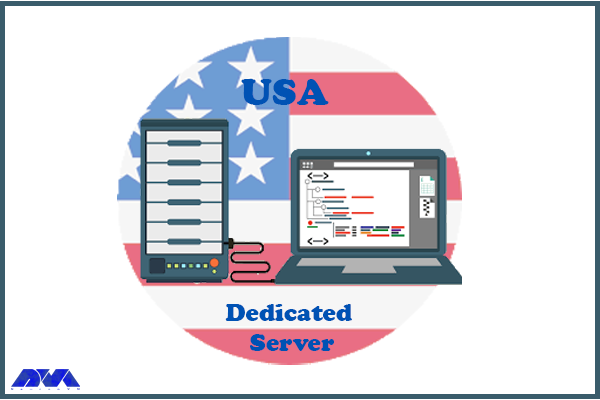
USA RDP (Remote Desktop Protocol) allows users to gain control of a remote computer located in the United States from anywhere in the world. This technology provides individuals with the flexibility to access and use a computer that is physically located in the US, giving them the ability to perform various tasks remotely. In this article, we will explain to you how to Gain Control and Flexibility with USA RDP.
How can we have more control over our online activities?
Using USA RDP can provide you with increased control over your online activities and enhance your overall internet experience. Here are some steps you can take to gain control:
1. Choose a reliable RDP provider: Select a reputable provider that offers USA-based servers. Look for providers with a solid track record, good customer reviews, and affordable pricing plans.
2. Check server locations: Ensure that the provider has multiple server locations in the USA. This will give you more flexibility in choosing the location that best suits your needs.
3. Opt for dedicated resources: Consider opting for a dedicated USA RDP instead of a shared one. Shared RDPs can be more affordable, but they might have limitations in terms of resource allocation and performance. A dedicated RDP will offer you a more stable and reliable connection
4. Strong security measures: Make sure the RDP provider offers robust security measures like data encryption and two-factor authentication. This will help protect your online activities and ensure that your connection is secure.
5. Customization options: Look for an RDP provider that allows you to customize your RDP environment. This could include selecting the operating system, installing specific software, or adjusting resource allocation according to your requirements. This level of customization will give you more control over your RDP experience.
6. Reliable customer support: Ensure that the RDP provider offers reliable customer support that is available 24/7. In case you encounter any issues or need assistance, having responsive customer support will be crucial in gaining control over your RDP.
By following these steps, you can gain control and enjoy a seamless online experience with a USA RDP. Remember to also comply with the terms of service and laws in your country to ensure that your activities are legal and ethical.
Flexible Work Solutions: Discover the Benefits of USA RDP
Flexible work solutions have become increasingly popular in today’s workforce, and one of the tools that enables this flexibility is the use of USA RDP. This service allows individuals to access their work computers or servers remotely from anywhere in the world, using only an internet connection.
Here are some of the key benefits of using USA RDP for flexible work solutions:
1. Location Independence: One of the biggest advantages of USA RDP is that it allows individuals to work from anywhere, as long as they have an internet connection. This is particularly beneficial for individuals who prefer a nomadic lifestyle or need to travel extensively for work. It eliminates the need for physical office space and allows individuals to work from the comfort of their own homes or any other location of their choice.
2. Cost Savings: With USA RDP, businesses can save on various costs associated with maintaining physical office spaces. This includes rent, utilities, office equipment, and other operational expenses. Instead, employees can work remotely, reducing the need for a physical office and enabling businesses to allocate their budget to other important areas.
3. Increased Productivity: Studies have shown that remote workers tend to be more productive compared to those working in traditional office settings. USA RDP provides individuals with the flexibility to work during their most productive hours without the distractions often found in office environments. This results in increased efficiency and output.
4. Work-Life Balance: USA RDP allows individuals to achieve a better work-life balance. Remote work enables employees to spend more time with their families, reduce commuting time, and have more flexibility in managing their personal commitments. This flexibility often leads to higher job satisfaction and overall happiness.
Choosing the Best USA RDP Provider
Choosing the best provider depends on your specific needs and requirements. Here are some factors to consider while selecting a provider:
– Server Locations: Ensure that the provider has servers located in the USA to ensure low latency and reliable connections.
– Performance and Speed: Look for a provider that guarantees high-performance servers with fast network speeds, as this directly affects your browsing, streaming, and downloading experience.
– Security and Privacy: Prioritize providers that offer strong encryption protocols to protect your data and ensure your online activities remain private.
– Scalability: If you anticipate needing to scale your operations, consider providers that offer flexibility and scalability in terms of server resources and upgrade options.
– Customer Support: Look for providers that offer 24/7 customer support, preferably through multiple channels such as live chat, email, and phone, to assist you in case of any technical issues.
– Pricing and Plans: Compare pricing plans offered by different providers, considering factors such as server specifications, bandwidth allowance, and additional features like dedicated IP or DDoS protection.
Our website (NeuronVM) offers USA RDP service to users at a competitive price compared to other competitors, the highest quality and efficiency, and 24/7 support.
Buying USA RDP involves selecting a reliable service provider, comparing pricing plans, selecting the desired specifications, and making an online payment. Once the payment is confirmed, the user receives the RDP credentials to access a remote desktop located in the USA. You can learn how to Buy USA Admin RDP by Crypto from NeuronVM by referring to the article.
Conclusion
In conclusion, utilizing USA RDP provides individuals with the advantage of increased control and flexibility in their online activities. Whether it is for personal or business purposes, having access to a reliable and secure RDP can greatly enhance productivity and efficiency in today’s digital world.
With the increasing importance of digital currencies in the global market and significant developments in this field, new coins have grown continuously and are stable. All those who are interested in making money and are interested in this field want a piece of their pie and are looking for better and cheaper ways to reach their goals. Servers are a great way to gain crypto. So, in this article, we will focus on mining on a dedicated server.
A Comprehensive Guide About Mining
Mining on a dedicated server typically refers to cryptocurrency mining, where individuals or groups use dedicated servers to perform the computational work required to validate and secure transactions on a blockchain network. The emergence of various servers with high capabilities has made the path smoother for users. NeuronVM’s dedicated server has good mining options and is a wise choice for people who want to mine hassle-free:
Step 1: Choosing the Right Dedicated Server Provider
When you want to buy a hosting provider and a dedicated server for mining purposes, the factors you consider should not be limited only to price and resources. There are essential factors to consider when choosing the right provider. These factors include:
– Server Specifications: Consider your specific resource requirements, such as CPU, RAM, storage, and bandwidth. Ensure the provider offers servers with the specifications you need to meet your performance goals.
– Security Features: Verify the security features in place, such as firewalls, DDoS protection, and physical security at the data center. Data security is crucial to protect your server and the data it holds.
– Support: Assess the quality of customer support. Look for providers with responsive support teams available 24/7, especially if you’re not experienced in server administration.
– Pricing: Understand the pricing structure and contract terms. Make sure there are no hidden fees, and choose a provider that fits your budget.
– Reliability: Look for a provider with a strong track record of uptime. Uptime guarantees of 100%. This is crucial to ensure your website or application is accessible to users at all times.
– Data Center Locations: Choose a provider with data centers in locations that are geographically close to your target audience. This can help reduce latency and improve performance.
NeuronVMis one of the most reliable and robust providers to offer dedicated server services for miners. One of its biggest goals is to pay attention to all these factors and provide better services.
Step 2: Server Preparation and Setup
When you want to prepare for mining on a dedicated server, you have to consider some important hardware. Most mining applications need these:
– Graphical Processing Unit (GUI)
– Central Processing Unit (CPU).
Tip: High-performance servers are generally preferred for mining.
Step 3: Installing Mining Software
Miners install specialized mining software on their dedicated server. This software is designed to interact with the cryptocurrency network, solve complex mathematical problems, and facilitate the mining process Of mining cryptocurrencies like Ethereum. One of the most popular mining software is CGMining. Let’s see how to install this great tool:
1- Update your system using the command below:
sudo apt update
sudo apt upgtrade
2- The next step is todownload CGMiner on a dedicated server. Unzip the downloaded package. Open .bat file in your desired text editor.
The other way is the following command that helps you to get the CGMiner repository. (replace <version>) with the desired version:
wget http://ck.kolivas.org/apps/cgminer//cgminer-.tar.bz2 tar -xvf cgminer-.tar.bz2
3- CGMiner may require certain dependencies to be installed. The specific dependencies can vary, but common ones include:
4- Navigate to the extracted CGMiner directory and run the following commands to configure and compile CGMiner:
cd cgminer- ./configure make
5- Now you can start your mining software using the related command:
./cgminer
You’ll need to create a configuration file to specify your mining pool, username, and other settings. Refer to CGMiner’s documentation for details on how to configure it:
cgminer.conf
Step 4: Mining Pool Selection
To increase their chances of successfully mining a cryptocurrency and receiving rewards, miners often join mining pools. A mining pool is a group of miners who combine their computational power and share the rewards based on the amount of work contributed.
You have various mining pool options to choose from, like Slush Pool, ViaBTC, Poolin, Ethermine, Dwarfpool, and so on. So choose the best and most suitable one for you:
It’s essential to research and choose a reputable and reliable mining pool based on your specific needs and preferences. Additionally, the cryptocurrency mining landscape is constantly evolving, so it’s important to stay informed about any changes or developments in the industry.
Step 5: Monitoring and Optimization
Regularly monitor the performance of your mining server, and be prepared to address any issues that may arise. Here’s a step-by-step guide on how to monitor and optimize your mining operation:
Hardware Monitoring: Use monitoring tools like HWiNFO, MSI Afterburner (for GPUs), or built-in system monitoring tools to keep an eye on your server’s hardware health.
Mining Software Monitoring: Most mining software provides real-time statistics on your mining operation. Keep an eye on hash rates, accepted shares, and rejected shares.
Temperature Control: Ensure that your server’s temperature remains within safe limits. Use cooling solutions like fans and heat sinks to regulate temperatures.
Power Monitoring: Monitor your server’s power consumption to optimize energy usage. Use power meters or built-in power monitoring tools.
Uptime Monitoring: Set up a monitoring system to track server uptime and receive alerts in case of unexpected downtime.
Mining Software Configuration: Adjust the configuration settings in your mining software to optimize performance.
Overclocking/Underclocking: Experiment with overclocking or underclocking your GPUs and CPUs to find the right balance between hash rate and power consumption.
Mining Pool Selection: Periodically review the mining pool you’re using. Switch to a more profitable pool if necessary.
Coin Selection: Consider mining different cryptocurrencies based on their profitability. Some coins may be more profitable to mine at different times.
Optimize Power Efficiency: Configure your server’s power settings to maximize energy efficiency.
Hardware Maintenance: Regularly clean and maintain your server’s hardware. Dust buildup can lead to overheating and reduced performance.
Regular Backups: Back up your mining configuration files and important data regularly.
Step 6: Maintenance and Troubleshooting
Dedicated server mining involves using dedicated servers or hardware to solve complex mathematical problems and validate transactions on a blockchain network. While it can be profitable, it also has several issues and challenges. Here are some common issues and potential solutions for dedicated server mining:
1- Mining requires a significant amount of energy, which can be costly and environmentally unsustainable.
Solution:
To address this issue, consider renewable energy sources, energy-efficient hardware, or mining in regions with lower electricity costs.
2- Mining equipment generates a lot of heat, which can lead to overheating and reduced hardware lifespan.
Solution:
Adequate cooling solutions, such as fans, air conditioning, or immersion cooling, can help manage this issue.
3- The mining industry is a target for cyberattacks and is risky.
Solution:
Implementing robust security measures, such as firewalls, encryption, and regular software updates, can help protect your mining operation.
4- Regular maintenance is essential to keep your mining hardware running smoothly.
Solution:
Develop a maintenance schedule and have backup hardware in case of unexpected downtime.
Conclusion
Before starting mining on a dedicated server, it’s important to do thorough research and understand the specific requirements and risks associated with the cryptocurrency you want to mine. Mining can be competitive and complex, so careful planning and ongoing maintenance are necessary to achieve success. We hope this post was useful for you. Enjoy mining!