Category: Tutorials

  • Empowering Digital Marketing Strategies with Windows VPS

    Empowering Digital Marketing Strategies with Windows VPS

    Nowadays, businesses are constantly seeking ways to stand out from the competition and enhance their online presence. One effective strategy that has gained significant traction is the use of Windows Virtual Private Servers (VPS) in digital marketing. Windows VPS offers numerous benefits and features that can empower businesses to achieve their marketing goals more efficiently and effectively. In this article, we will explore the various ways in which Windows VPS can bolster digital marketing efforts and help businesses stay ahead in the rapidly evolving online landscape.

    Introduction to Windows VPS in Digital Marketing

    Before delving into the benefits of Windows VPS, let’s first grasp the concept behind it. A Virtual Private Server is essentially a virtual machine that provides dedicated resources and a unique IP address. This allows businesses to control their online operations seamlessly. Windows VPS, specifically designed to run on Windows operating systems, offers enhanced compatibility and familiarity to businesses already using Windows-based software for their digital marketing campaigns.

    Windows VPS Introduction

    The Benefits of Windows VPS for Digital Marketing

    Digital Marketing Windows VPS offers several advantages that can significantly boost marketing strategies. Firstly, by utilizing a VPS, businesses gain complete control over their hosting environment, ensuring maximum uptime and stability. Additionally, Windows VPS allows for easy scalability, enabling businesses to adapt to fluctuating demands and accommodate sudden spikes in website traffic or marketing campaigns.

    Moreover, Windows VPS offers robust security features, protecting sensitive data and customer information, essential in the age of cyber threats and data breaches.

    Windows VPS offers numerous benefits and features that can empower businesses to achieve their marketing goals more efficiently and effectively.

    Enhancing Website Performance with Windows VPS

    One of the most crucial aspects of any digital marketing strategy is a well-optimized website. Windows VPS can play a vital role in enhancing website performance. With dedicated resources and lower server load compared to shared hosting, businesses can experience faster page load times, smoother user experience, and decreased bounce rates. This improved website performance not only leads to higher conversion rates but also positively impacts search engine rankings, contributing to better organic visibility.

    Enhancing Website Performance with Windows VPS

    Harnessing SEO Capabilities through Windows VPS

    Search Engine Optimization (SEO) is integral to any digital marketing campaign. Windows VPS offers businesses additional tools and resources to improve their SEO efforts. With dedicated IPs, businesses can build a strong backlink profile without the risk of sharing an IP with potentially malicious websites.

    Harnessing SEO Capabilities through Windows VPS

    Windows VPS also enables businesses to run SEO tools and software continuously, ensuring comprehensive analysis, optimization, and monitoring of their website’s SEO performance.

    Leveraging Windows VPS for Social Media Marketing

    Social media marketing has become an indispensable part of digital marketing strategies. Windows VPS provides businesses with a reliable and controlled environment to execute their social media initiatives seamlessly.

    By utilizing Windows VPS, businesses can automate social media scheduling, manage multiple social media accounts simultaneously, and leverage powerful social media management tools. Such capabilities enhance productivity, consistency, and engagement, enabling businesses to reach and connect with their target audience more effectively.

    VPS for Social Media Marketing

    Windows VPS: A Powerful Tool for Email Marketing

    Email marketing remains one of the most potent channels for customer engagement. Windows VPS offers exceptional support for email marketing initiatives. With dedicated resources, businesses can send large volumes of emails efficiently without the risk of being classified as spam.

    Email Marketing

    Windows VPS also provides businesses with enhanced deliverability, improved tracking and reporting capabilities, and the ability to efficiently manage email lists and campaigns. These features contribute to a more effective and successful email marketing strategy.

    Conclusion

    In the vast digital marketing landscape, businesses must empower themselves with the right tools and technologies to stand out and succeed. Windows VPS offers a wide array of benefits, from enhancing website performance, harnessing SEO capabilities, leveraging social media marketing, to optimizing email marketing efforts. By embracing Windows VPS, businesses can strengthen their digital marketing strategies, drive growth, and establish a strong online presence. Digital Marketing Windows VPS has become an indispensable tool for businesses aspiring to thrive in the ever-evolving online world.

  • Mint Condition: Getting Started with Linux Mint

    Mint Condition: Getting Started with Linux Mint

    Linux Mint is one of the popular open-source Linux distributions. One of the positive points of this operating system is its adaptability. It also has an intuitive and user-friendly environment that makes users who move from systems like Windows to Linux not get confused. We will also try to review the Linux Mint operating system for you and guide you on how to get started.

    A Brief Explanation of Linux Mint

    As we mentioned here, Linux Mint is a popular open-source operating system (OS) based on the Linux kernel and can be installed on Linux VPS. This operating system is built on top of the Ubuntu distribution, which itself is based on Debian. This means it inherits much of Ubuntu’s stability and package management system.

    It is a powerful system with full multimedia support out of the box, suitable for moderate and advanced users. Having an impressive user interface, stability, and powerful software center has made it popular.

    Starting Linux Mint is a straightforward process, So let’s learn how to start this amazing distribution:

    Step 1- Choosing the Proper Linux Mint Edition

    Linux Mint has three different versions, including Cinnamon, Mate, and XFCE. The difference between these three versions is their desktop environment, which defines the functions and user interface. Let’s examine these three editions of Linux Mint:

    • Cinnamon: It is the most modern version of Cinnamon Mint, which has the most features. At the same time, it offers a balance between speed and features and has an intuitive and comfortable feel.
    • Mate: This version has a classic desktop environment and is lighter than Cinnamon. If you have limited hardware capabilities, Mate is the best choice.
    • XFCE: The lightest version of Linux Mint is XFCE. This version is very suitable for old systems because these systems may have problems with the previous two versions.

    So, choose the best edition which is suitable for your system.

    Step 2- Downloading Linux Mint OS

    Now that you have chosen the right version, you should go to the Linux Mint download page.

    Now, download the version from there. To be able to do this faster, choose a mirror that is closest to you. Select it, and you will see that the iso file will start downloading:

    Linux mint editions

    Step 3- Verifying the ISO file

    It is not mandatory to do this step, but you can make sure of the security and integrity of the downloaded ISO file. MD5 checksums are provided for each ISO file. Therefore, after downloading, you can confirm the ISO file with the checksum tool.

    Step 4- Creating a Bootable USB or DVD

    To be able to install Linux Mint, you need to create a bootable USB or DVD. To do this, you can use tools like Rufus or Balenaetcher. The USB drive used must have at least 2 GB of free space. Or if you want to use a DVD, make sure it is empty.

    Step 5- Installing Linux Mint

    In this section, to start the installation, you need to reboot the DVD or USB file on the computer. Meanwhile, make sure your bios settings are set to boot from USB or DVD. You should now see the Linux Mint logo loading.

    After downloading this operating system, you can see the test or installation option. If you need to test, click the corresponding option; otherwise, choose the Install Linux Mint option to continue the installation.

     Installing Linux Mint

    ***

    install linux mint

    Follow the next instructions on the screen in order and select your appropriate language. Then select your keyboard layout:

    language and keyboad layout

    Now, decide your installation type. In this section, Erase disk and install Linux Mint is usually selected:

    erase disk and install linux mnt

    Finally, create your account and start the installation by giving your username and password.

    username and password for linux mint

    The installation process will take some time, so be patient. Restart your system to apply changes:

    restart linux mint

    Note: After restarting, the system will prompt you to remove USB and press Enter.

    This is it! As you get more familiar with the system, you can explore advanced features, customize your desktop, and get the most out of your operating system experience.

    Troubleshooting Issues about Booting Linux Mint

    Boot issues with Linux Mint can be caused by various factors, including hardware compatibility, configuration problems, or software issues. Here are some common boot issues and potential solutions:

    1- Incompatible or missing graphics drivers can cause boot problems, especially if you’ve recently updated your kernel or graphics drivers.

    Solution:

    Boot into recovery mode, uninstall or reinstall graphics drivers, or try using the open-source drivers. You can also edit the GRUB configuration to add kernel parameters like nomodeset to temporarily disable the kernel mode setting.

    2- GRUB is a common boot loader used in many Linux distributions, including Linux Mint. If there’s an issue with GRUB, it may prevent the system from booting.

    Solution:

    You can try reinstalling GRUB or repairing it using a live CD/USB. Boot into a live environment, open a terminal, and use commands like grub-install and update-grub to reinstall and update GRUB.

    3- Filesystem corruption or errors can prevent the system from booting successfully.

    Solution:

    Boot from a live CD or USB, open a terminal and run filesystem checks. For example, for an ext4 filesystem, you can use the e2fsck command.

    sudo e2fsck /dev/sdXY

    Replace /dev/sdXY with the actual partition device.

    Conclusion

    As mentioned in this section, the Linux Mint operating system is a versatile and user-friendly system that everyone from beginners to professionals can use. The installation process is also very simple, and you can do it successfully in a few simple steps. So install Mint with this guide and enjoy it.

  • The Ultimate Dedicated Servers for Gaming Enthusiasts

    The Ultimate Dedicated Servers for Gaming Enthusiasts

    In the ever-evolving world of gaming, where multiplayer experiences dominate, nothing can enhance your gaming journey more than a dedicated server specifically tailored for this purpose. Dedicated servers for gaming not only guarantee impressive performance but also streamline online interactions, ensuring seamless gameplay. This article will explore the importance of servers in gaming, how they enhance gaming experiences, their advantages such as uninterrupted performance, low latency, customization options, and powerful hardware specifications. Additionally, we will guide you on where to purchase top-quality dedicated servers for gaming.

    Why Dedicated Servers are Crucial for Gaming?

    Dedicated servers play a crucial role in providing an exceptional gaming environment. Unlike shared servers, dedicated servers exclusively allocate resources to a single user or group of users. This level of exclusivity translates into numerous benefits, such as enhanced control, reduced instances of lag, and improved security. Dedicated servers eliminate the inconvenience of relying on peer-to-peer connections, ensuring a stable and reliable gaming experience.

    How Dedicated Servers Can Help Your Gaming Experience?

    Dedicated servers immensely contribute to improving your overall gaming experience. By hosting games on a dedicated server, players gain increased control over various aspects, ranging from rules and regulations to game modifications and expansions. Moreover, these servers facilitate faster and smoother gameplay by reducing latency and optimizing bandwidth allocation.

    Dedicated Servers Can Help Your Gaming Experience

    Consequently, gaming enthusiasts can enjoy faster and more responsive interactions, resulting in an immersive and enjoyable gaming atmosphere.

    Uninterrupted Gaming Performance

    One of the most significant advantages of dedicated servers for gaming is uninterrupted performance. These servers are specifically designed to handle the intense demands of modern multiplayer games, ensuring minimal downtime and a seamless gaming experience.

    Uninterrupted Gaming Performance

    By removing the risk of server overload due to other users’ activities, dedicated servers provide the ideal infrastructure to support heavy gameplay while maintaining consistent performance levels.

    Low Latency and High Bandwidth Network

    Dedicated servers offer low latency and high bandwidth network capabilities, essential for reducing delays and ensuring quick response times in online gaming. When utilizing a dedicated server, data travels directly from the server to the players, eliminating the need for data to pass through multiple intermediate points. This means faster and more precise gameplay, giving gamers a competitive edge in highly dynamic and fast-paced games.

    High Bandwidth Network and Low Ping

    Customization and Flexibility Options

    With dedicated servers for gaming, customization and flexibility options are plentiful. Gaming enthusiasts can tailor server settings to suit their preferences, ranging from choosing specific game modes and implementing mods to controlling player access and security measures. This freedom to customize ensures a unique gaming experience and allows players to establish communities, fostering an inclusive and engaging environment for fellow enthusiasts.

    Customization and Flexibility Options

    Powerful Hardware Specifications

    Top-tier gaming servers feature powerful hardware specifications aimed at delivering optimal gaming performance. With cutting-edge processors, ample storage, and high-performing graphics cards, players can immerse themselves in graphics-intensive games without worrying about hardware limitations. The capabilities of these servers truly unleash the full potential of the gaming experience, enabling gamers to push boundaries and explore vast virtual worlds without compromise.

    Powerful Hardware Specifications in dedicated servers

    Where to Buy a Dedicated Server for Gaming?

    For those seeking the ultimate servers for gaming, several reputable providers cater to this specific niche. Be sure to choose a provider with a proven track record, extensive customer support, and reliable server uptime. Conduct thorough research, read customer reviews, and assess each provider’s offerings, ensuring that you select a dedicated server solution that aligns with your gaming needs and budget.

    Here at NeuronVM, we offer dedicated servers tailored for professional gamers. Play different games like Minecraft, Call of Duty, CS:GO or any other games you fancy on our powerful servers. You can also get a Game VPS if you don’t need the power of a dedicated server just yet. With more than 4 years of experience, 24/7 technical support and various ways for payment, I’m sure you’ll get what you need!

    Final Words

    In conclusion, dedicated servers for gaming are an essential investment for enthusiasts seeking the ultimate playing experience. By providing uninterrupted performance, low latency, high bandwidth, customization options, and powerful hardware specifications, dedicated servers revolutionize the multiplayer gaming landscape. To elevate your gaming adventures to new heights, consider investing in a dedicated server that suits your requirements. Join the ranks of elite gamers and experience the full potential of these servers for gaming.

  • The Clever One’s Guide to Buying Windows 10 VPS

    The Clever One’s Guide to Buying Windows 10 VPS

    Today we gonna learn “The Clever One’s Guide to Buying Windows 10 VPS”. However, before we start this tut there are some points to remember. Whether you are a tech enthusiast, developer, or business owner, our Windows 10 virtual server is tailored to meet your specific requirements. You need a Windows VPS with an uptime % 99.99, Connection without delay, simple, scalable, customizable, and affordable prices.

    Windows 10 virtual server is a virtual machine you can use as a dedicated environment to your web projects, So get ready to elevate productivity.

    How to Order a Windows 10 VPS

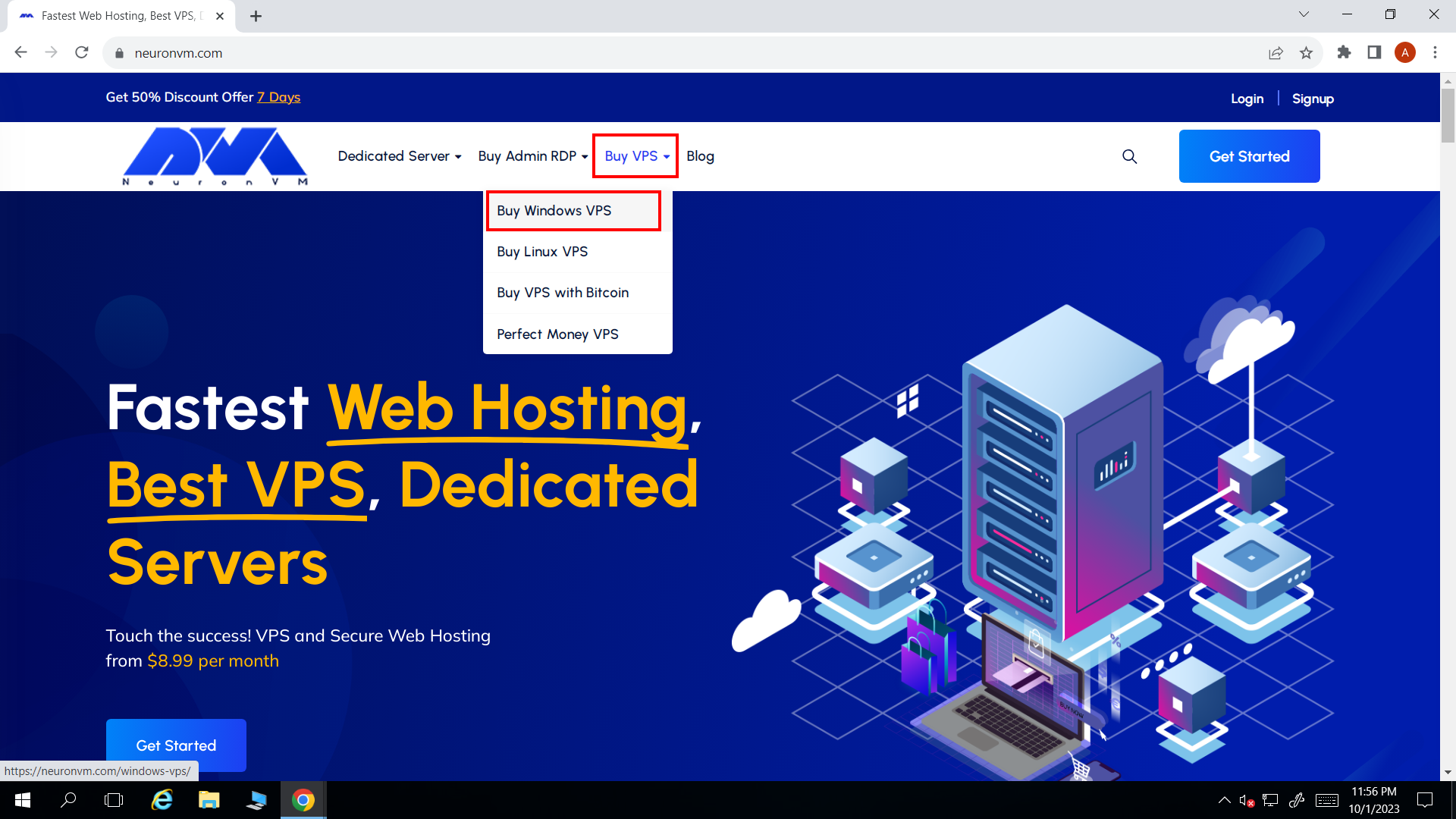
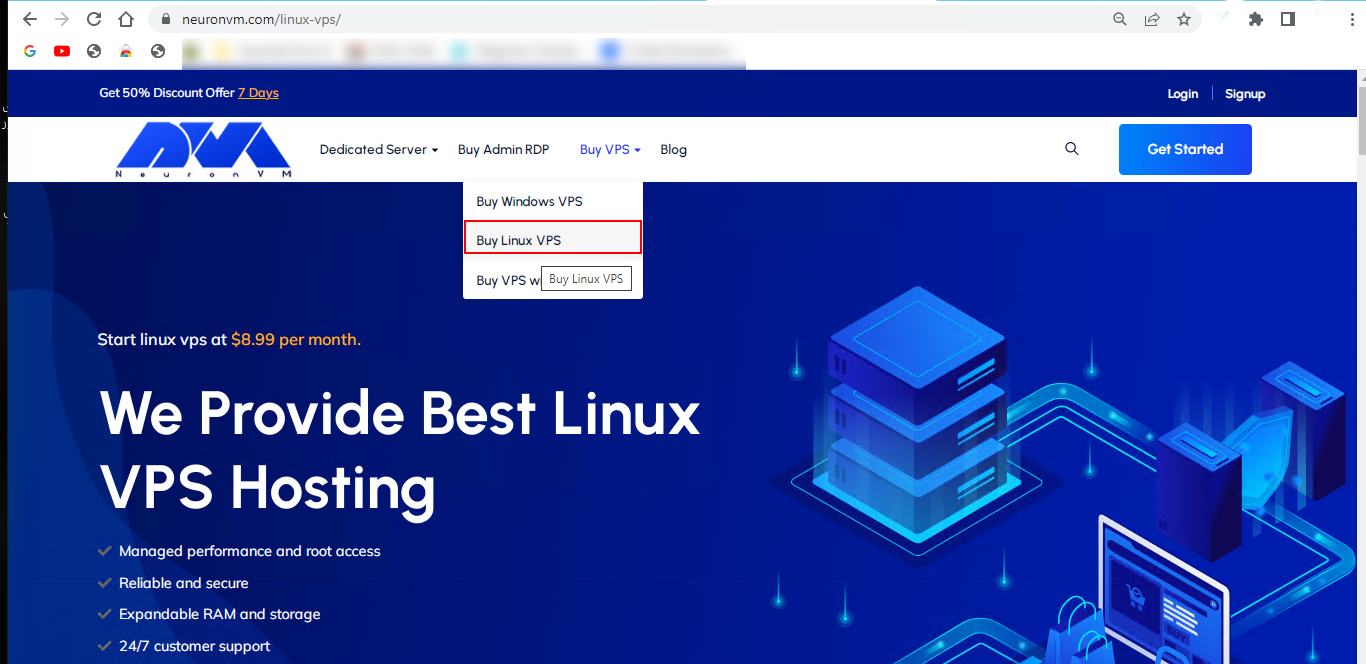
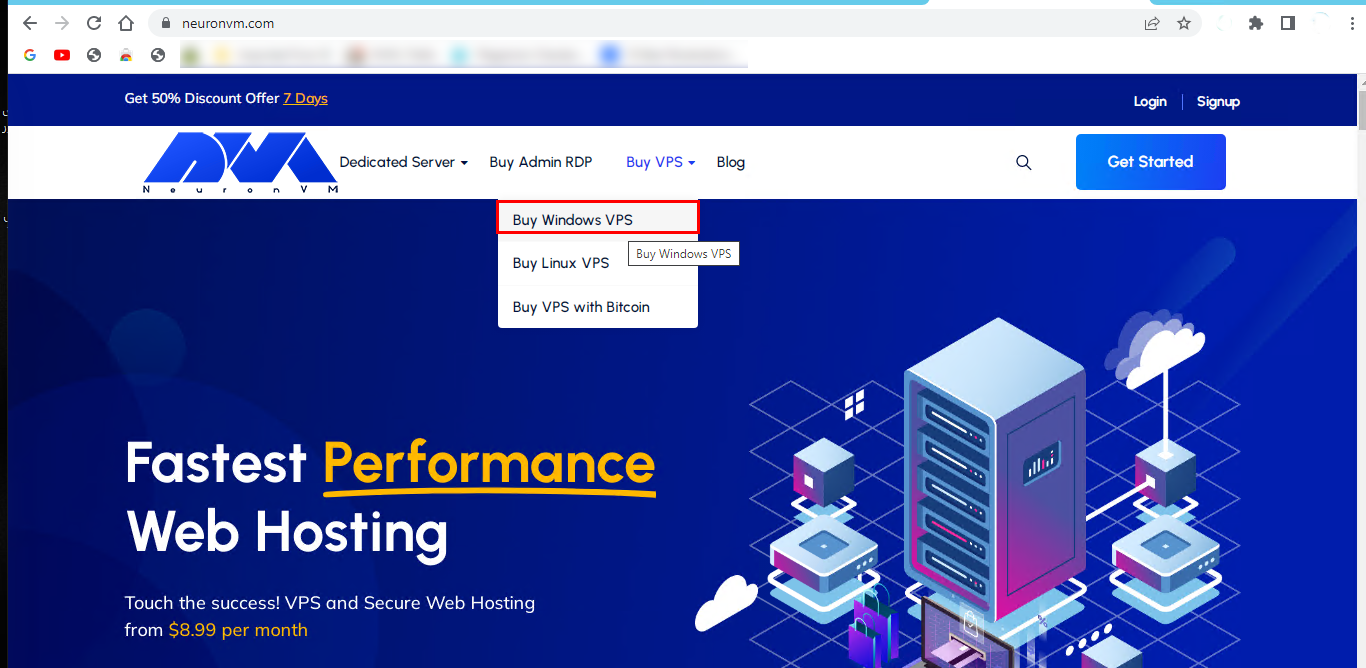
    To begin! Go to the NeuronVM website, Click on “Buy VPS” then choose “Buy Windows VPS“:

    NEURONVM-HOME-PAGE

    Windows 10 Virtual Server Plans

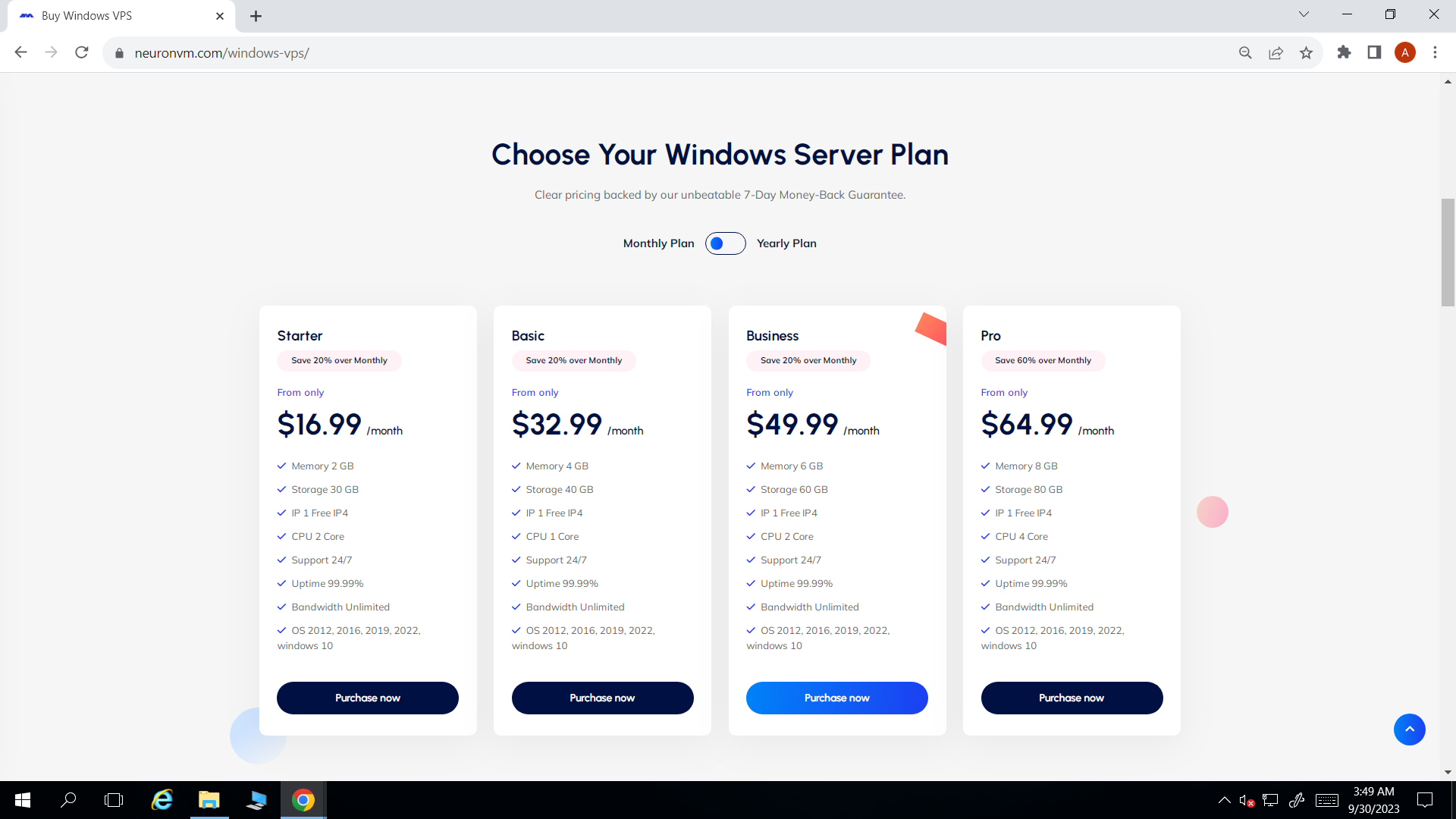
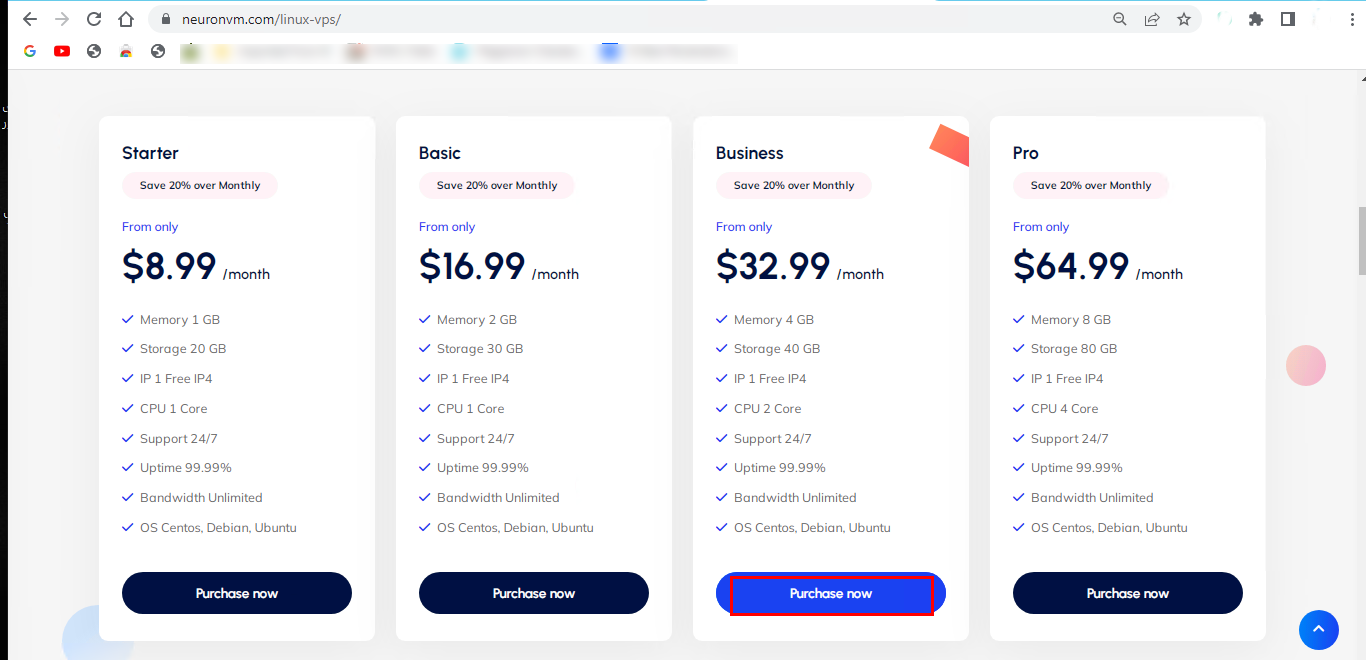
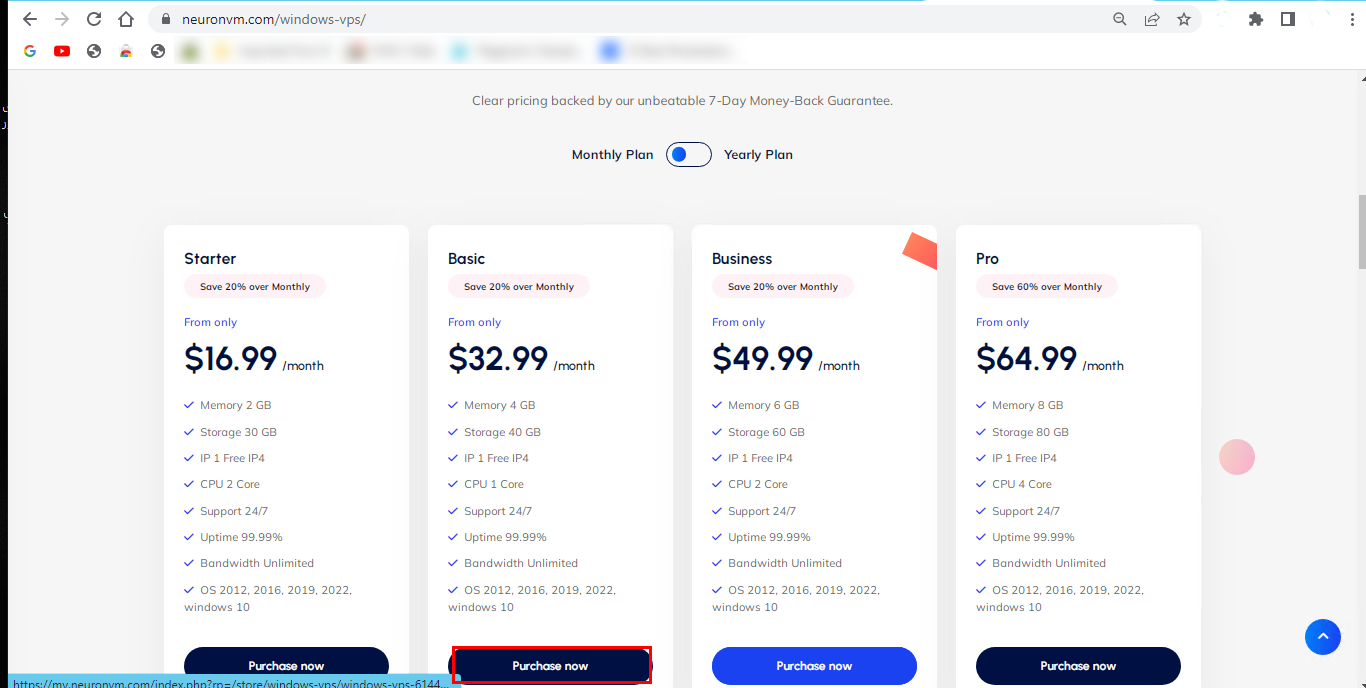
    Choose a plan that fits your goals:

    NEURONVM-AVAILABLE-WINDOWS VPS PLANS

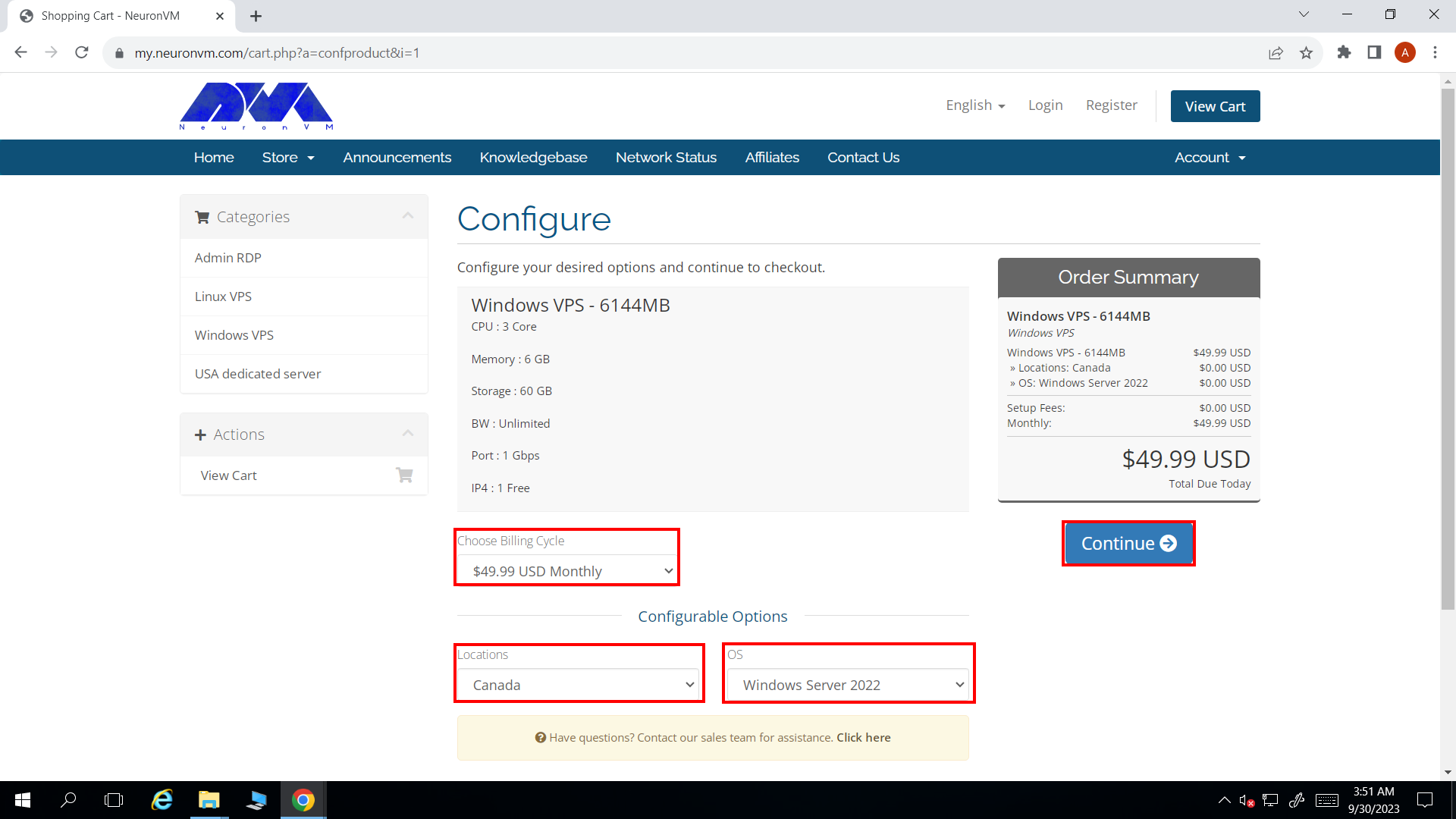
    Choose your ” Billing Cycle “:

    NEURONVM-CONFIGURE-PAGE

    Next, choose one of the 6 available options for the location:

    NEURONVM-SELECT-LOCATION-PAGE

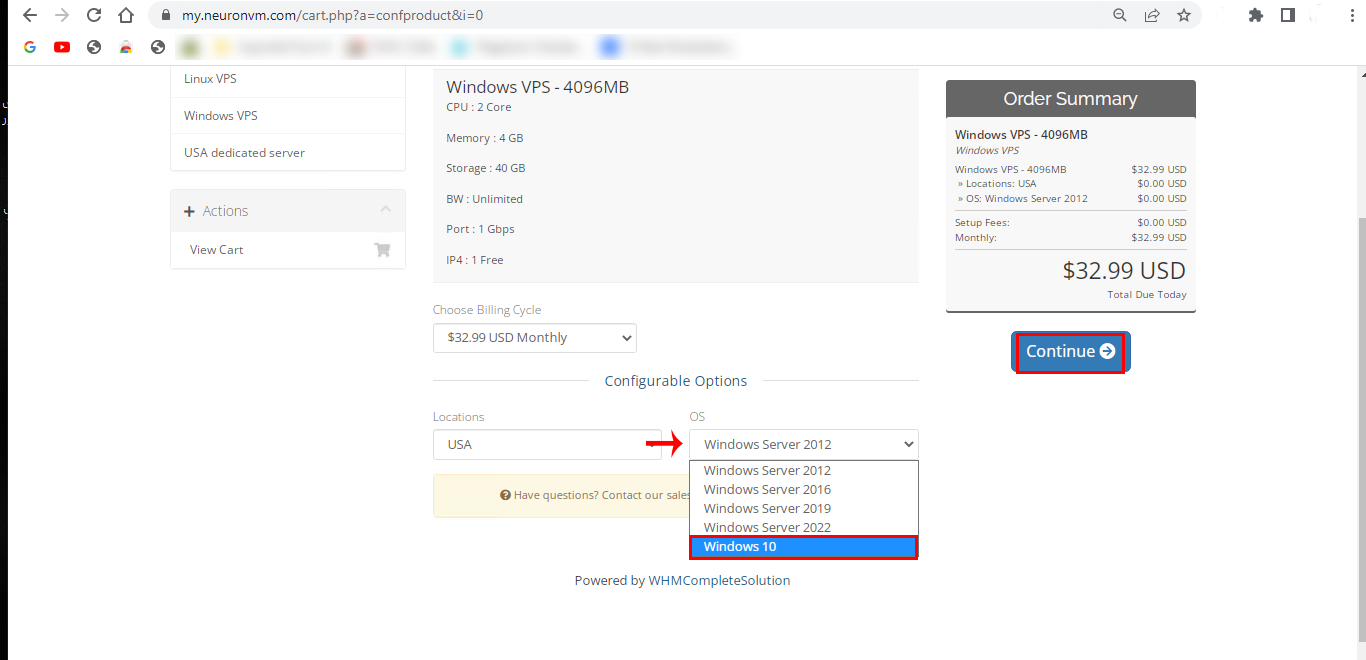
    At this stage, to buy a Windows 10 VPS, select the ” Windows 10 ” option from the operating systems, And press ” Continue “:

    how to select OS for windows VPS

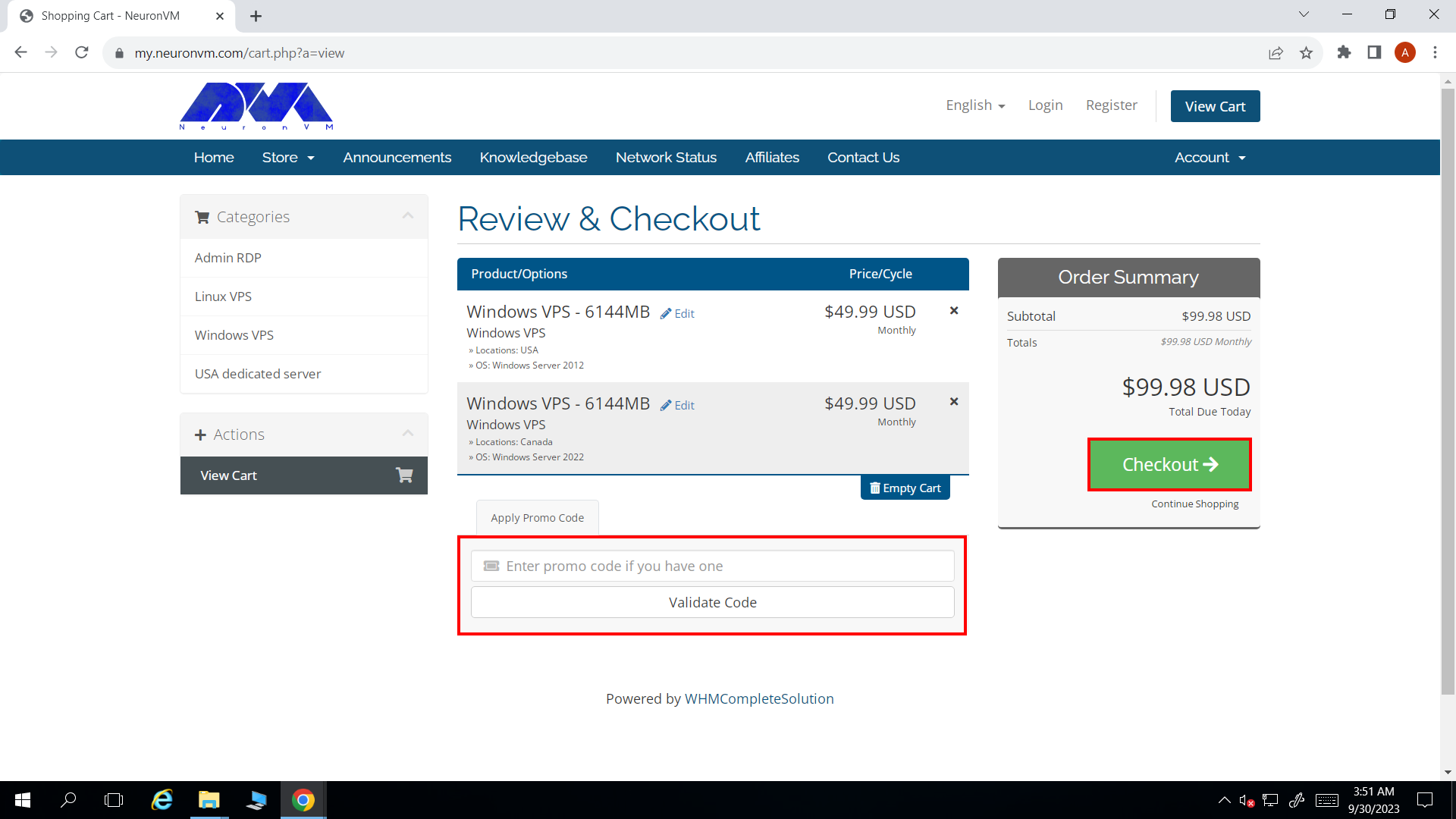
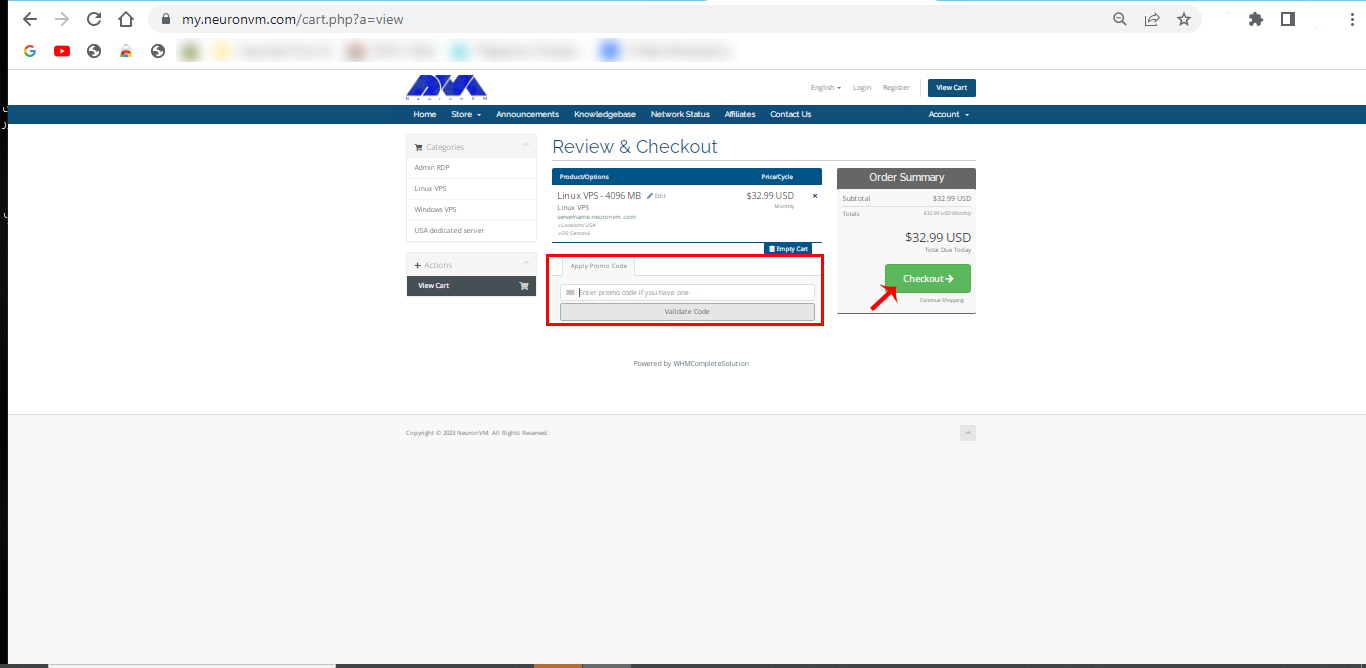
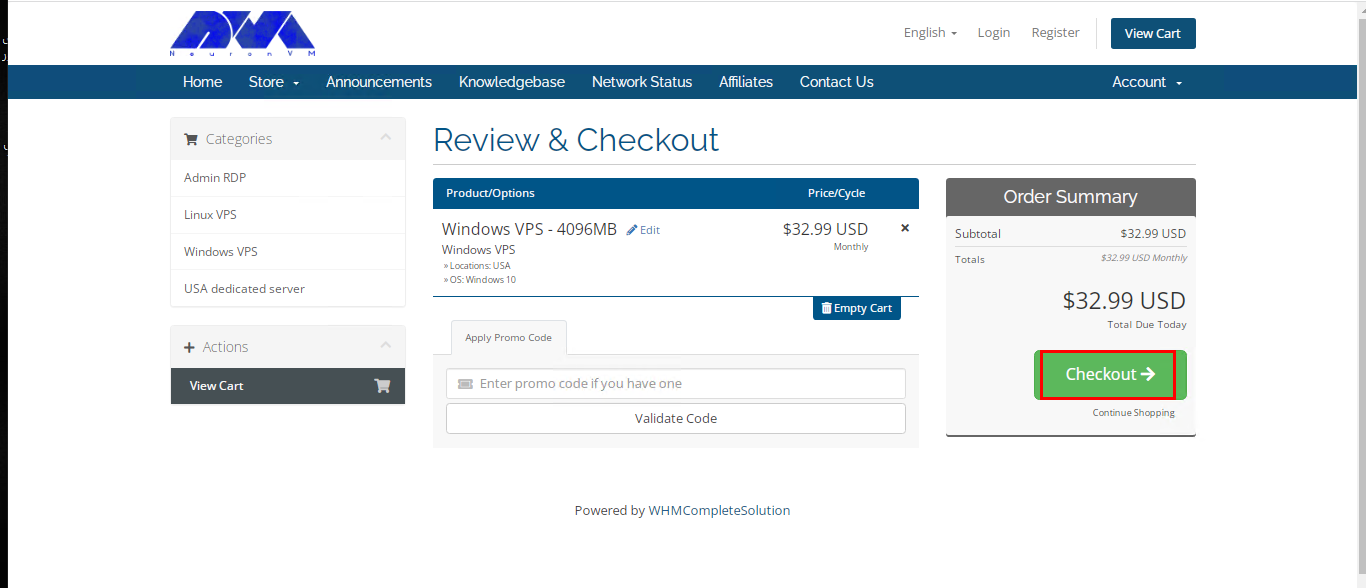
    If you have any promo code apply that and checkout:

    NEURONVM-CHECKOUT-PAGE2

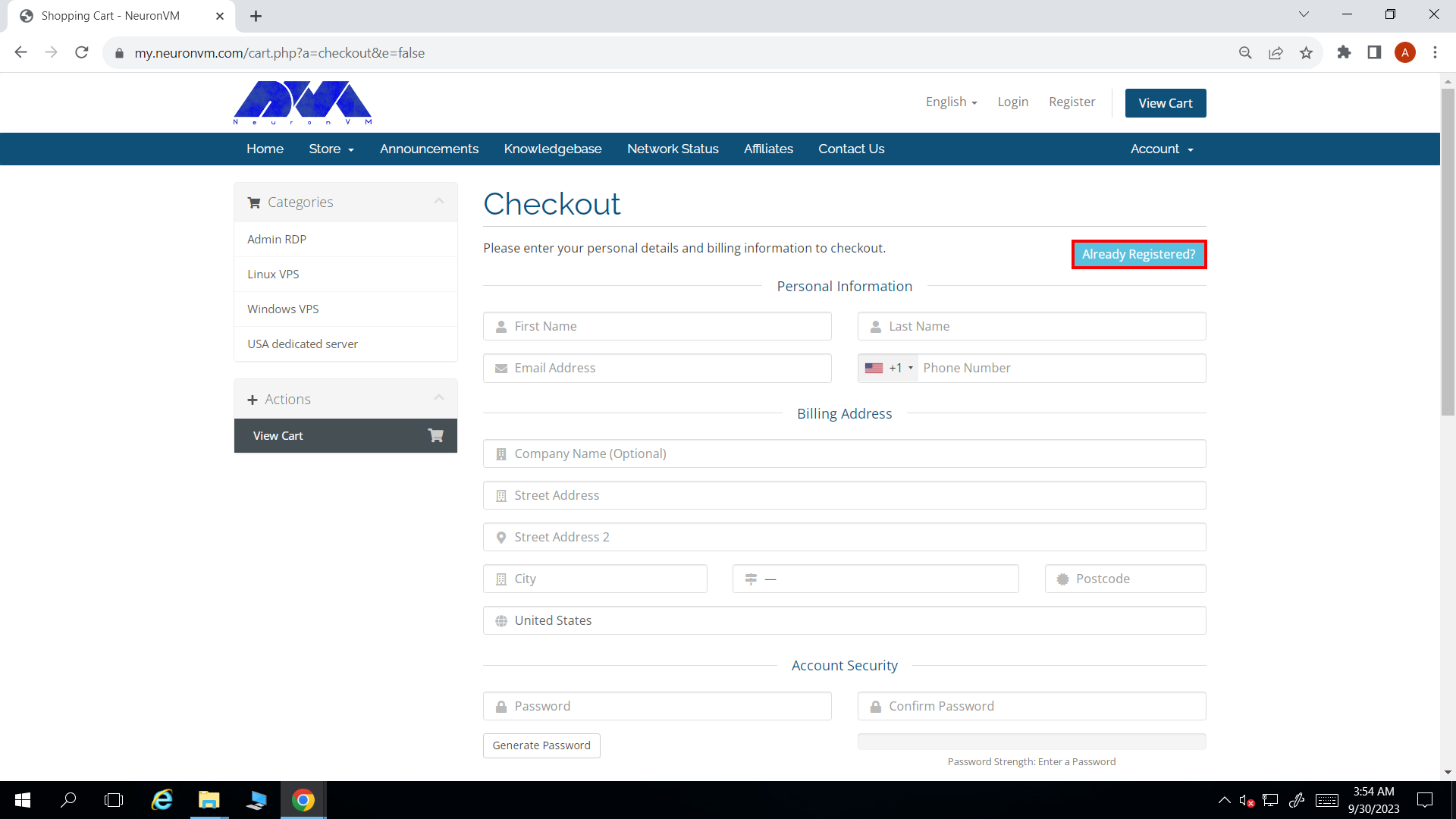
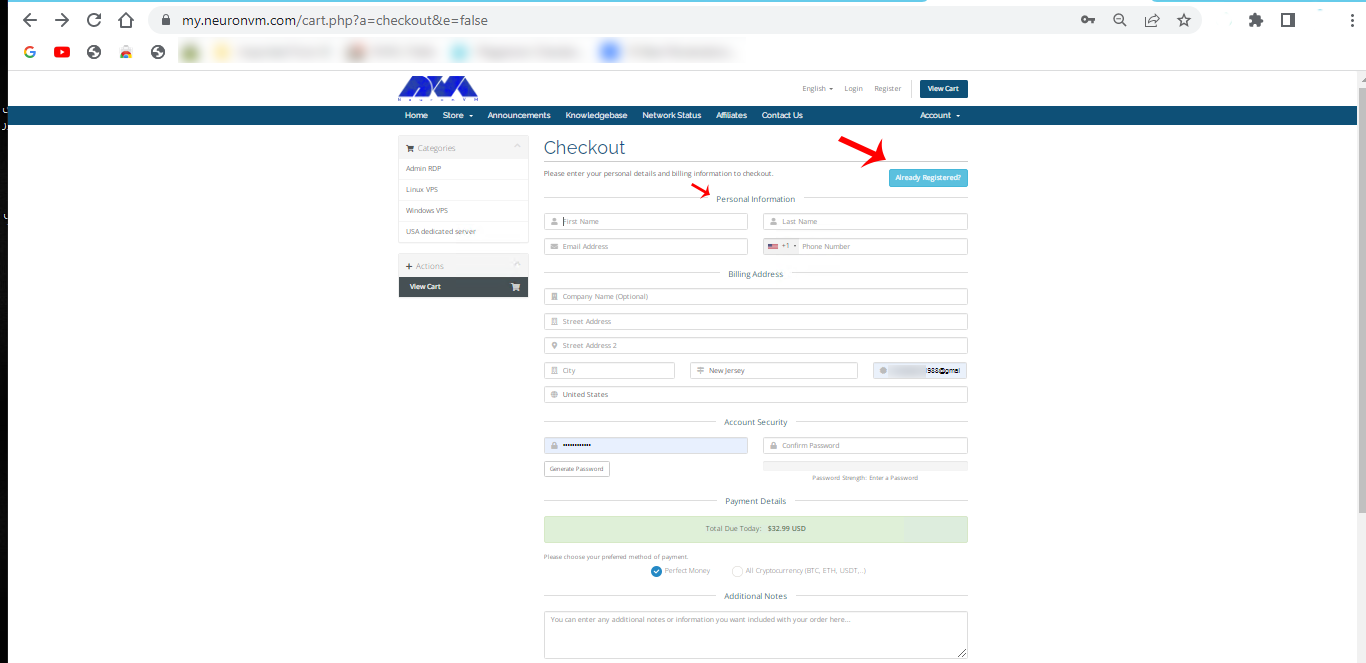
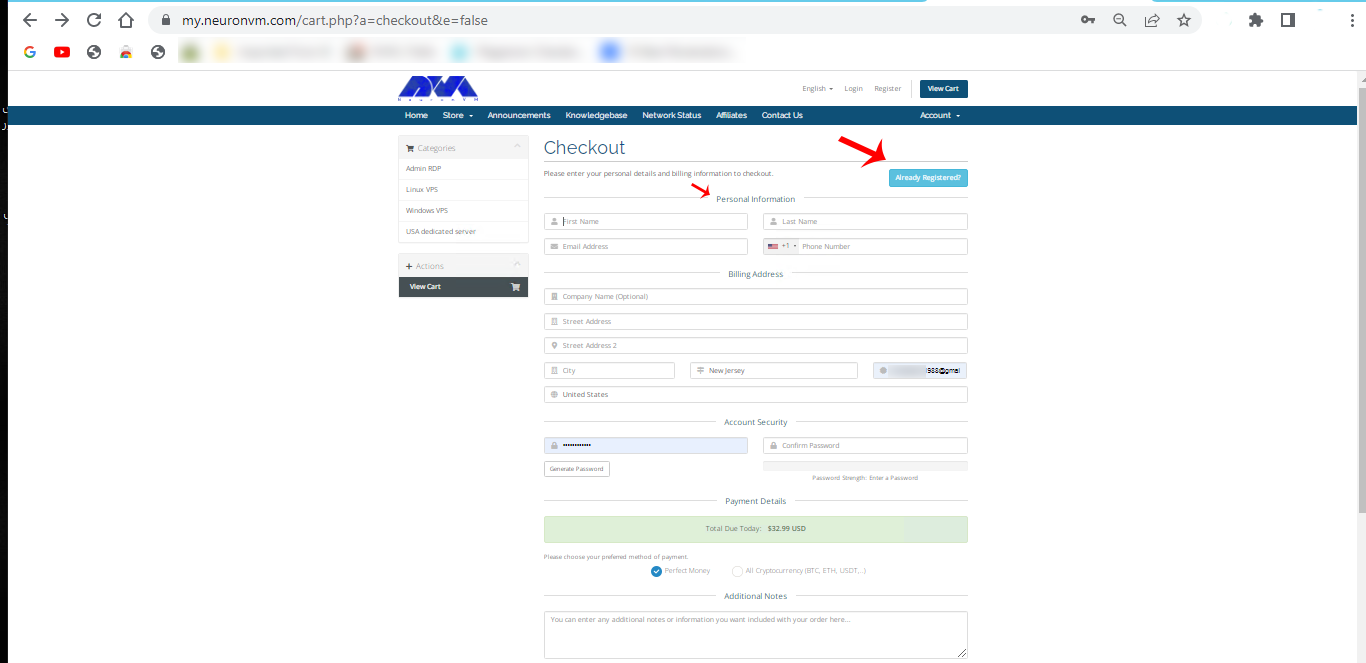
    Fill blanks with your ” Personal Details ” and scroll down for more:

    NEURONVM-CHECKOUT-PAGE2

    Windows 10 Virtual Server Payment Methods

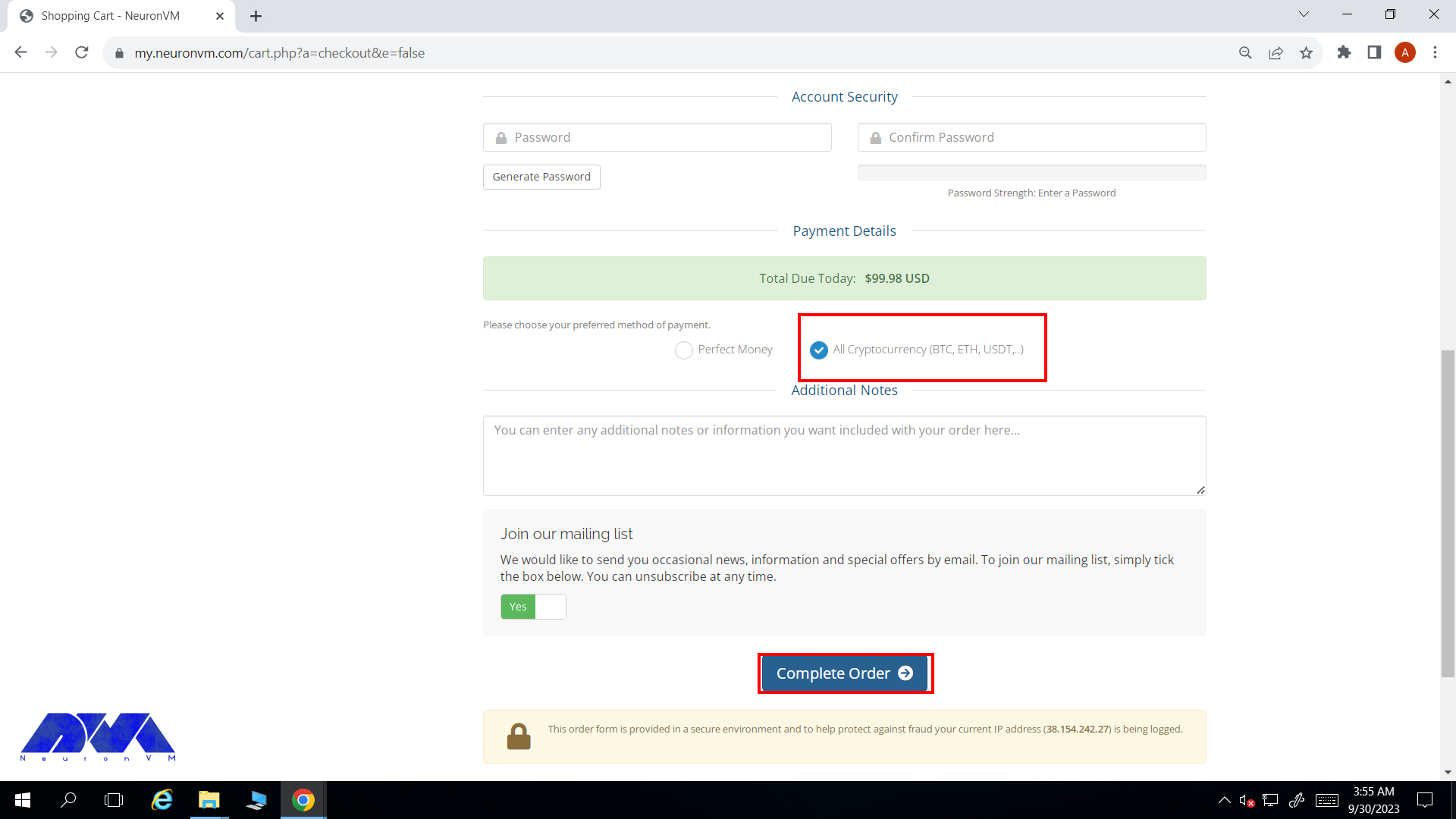
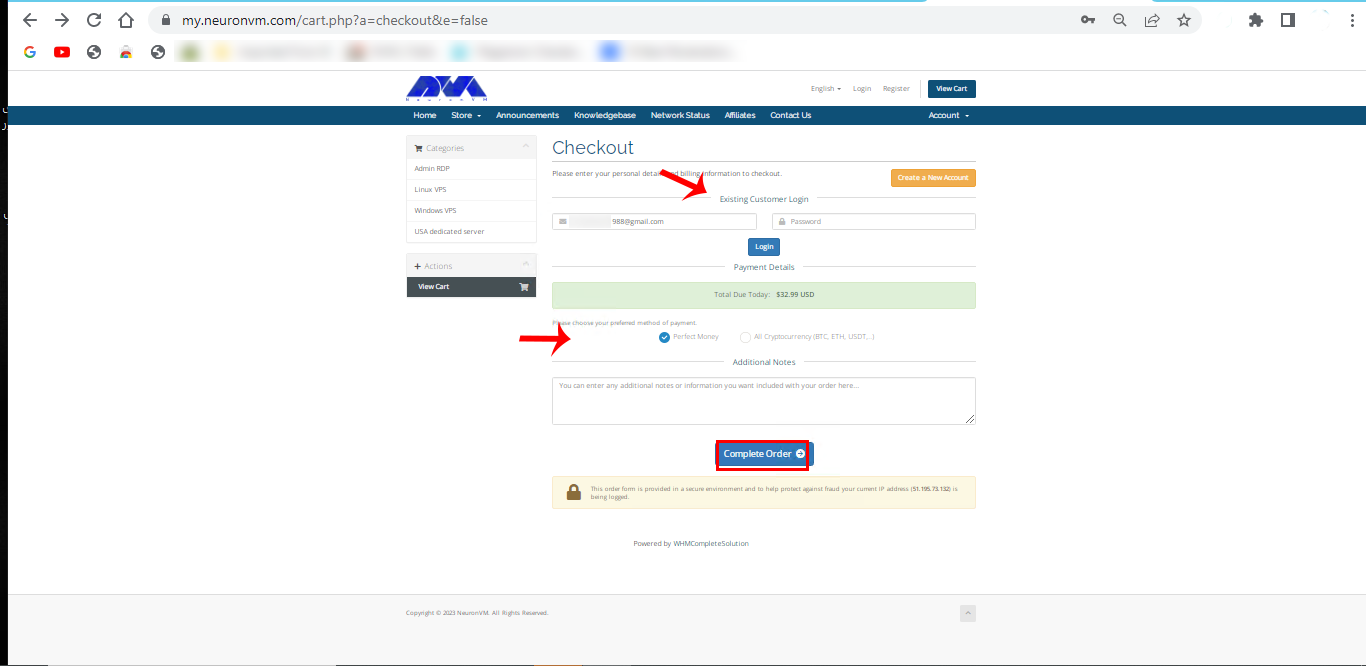
    You can choose your method of payment ” Perfect Money ” Or ” All Cryptocurrency like BTC, ETH, USDT.. “:

    NEURONVM-PAYMENT- for windows 10 vps

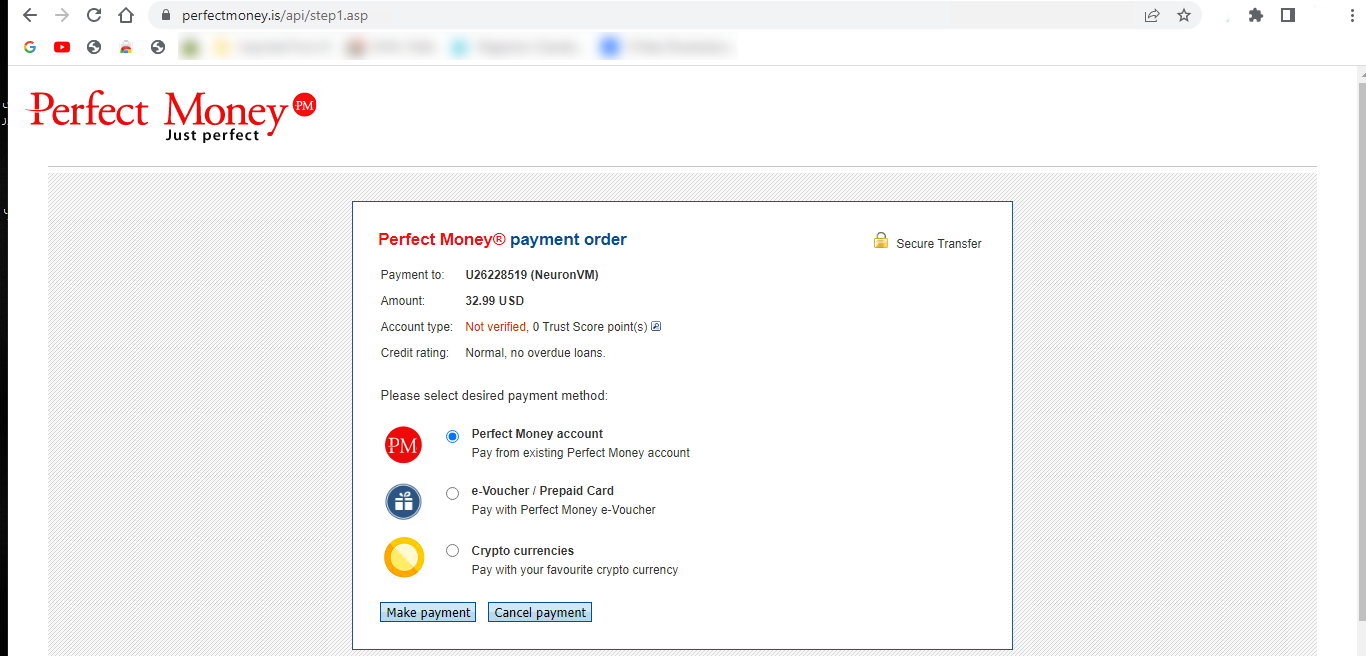
    Please select the desired payment method:

    buy windows 10 vps with perfect money

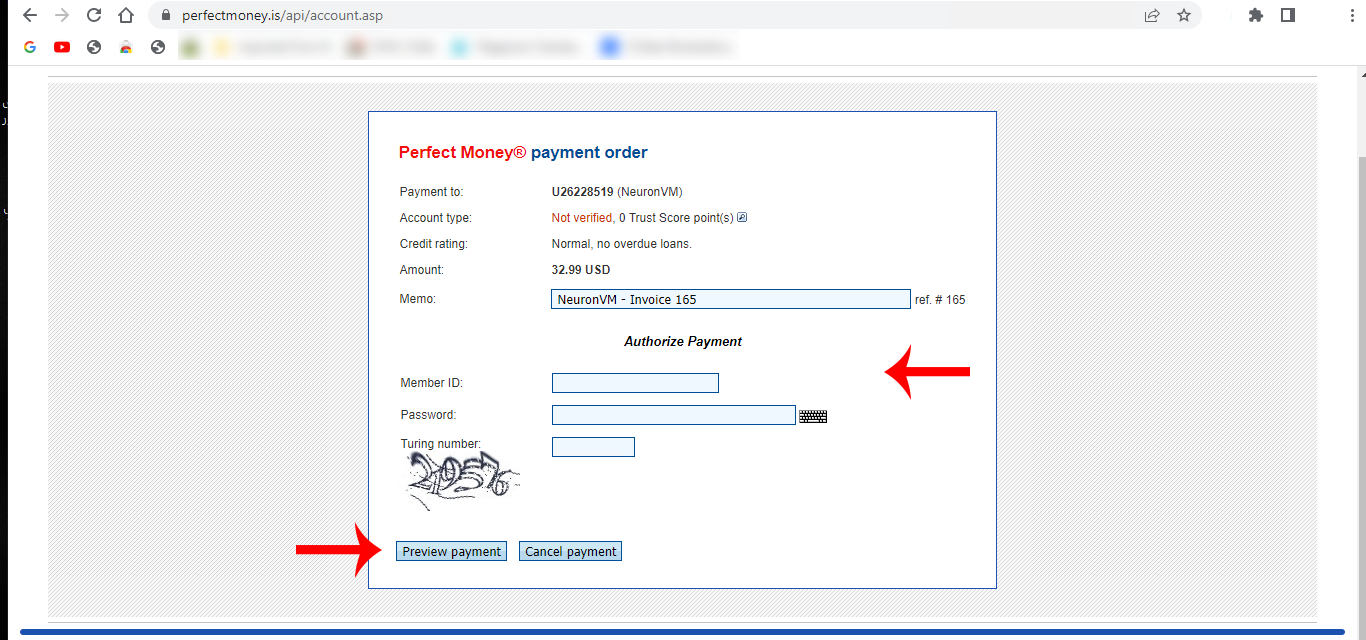
    Please fill “ Member ID “, ” Password ” and ” Turning number “:

    perfect money windows 10 vps

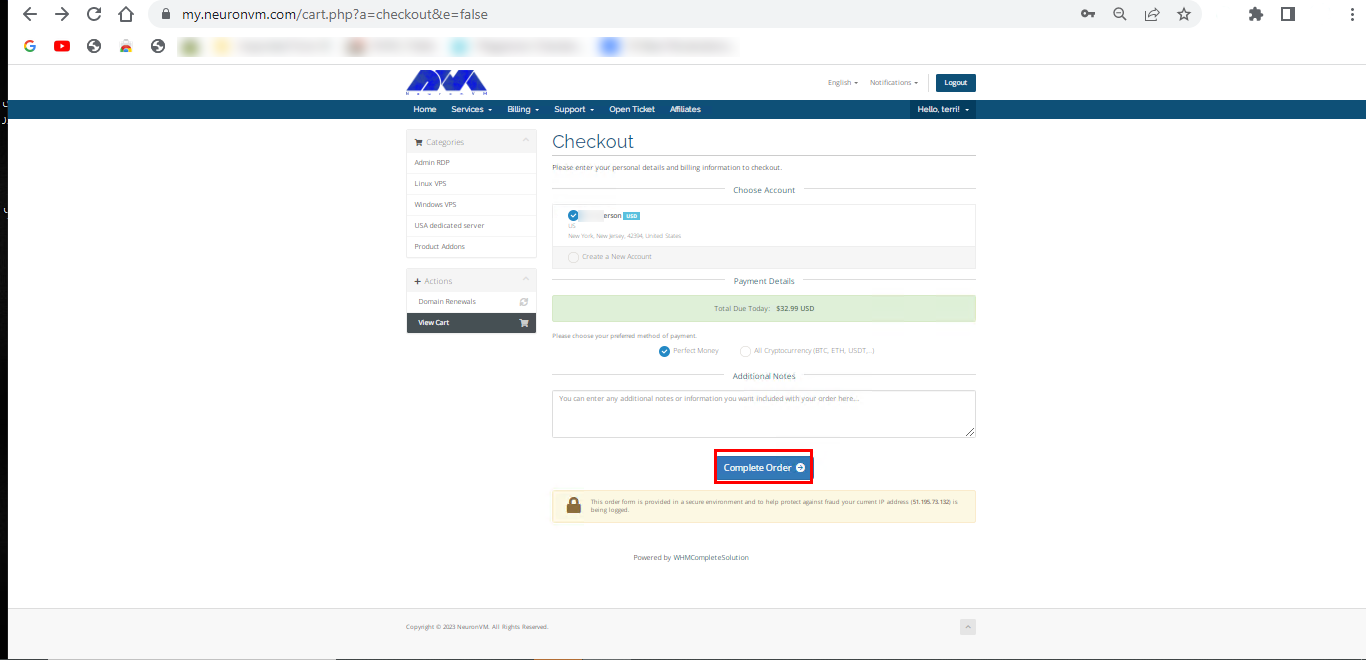
    Your purchase is now completed. Your desired server information will be sent to your email after a few minutes.

    Conclusion

    Thank you for being with us! For more information, visit the website.
    If you have a problem or question in any of the above steps, you can contact our experts 24/7 via ticket section in your user area.

  • The Ultimate Guide to Install GNOME on Debian

    The Ultimate Guide to Install GNOME on Debian

    One of the best desktop environments to use in Linux is Gnome. This platform is also the default GUI for Linux distributions such as Fedora, Debian, or Ubuntu. So it is very useful. There may have been a time when you have chosen a headless system or a server for your work and now you want to use a graphical interface. So read this article carefully because you can get a user interface in your Linux system with two different methods and make your work easier. The focus of this post is how to install Gnome on Debian.

    Prerequisites

    Here are the requirements to have a successful installation process of Gnome on Debian:

    • An up-to-date Debian distro on Linux VPS
    • Root access or an account with sudo privileges

    2 Practical Methods to Install Gnome on Debian

    As we mentioned before, there are two different ways to install Gnome on Debian. These methods are Tasksel and apt.

    Apt is a default package manager and most of you are familiar with that. but what about Tasksel? Tasksel is a practical tool and gives you the opportunity to install different desktop environments on your system. Let’s analyze and see how we can install Gnome using These tools.

    Method 1: Install Gnome Using Tasksel

    Tsksel is a great tool with easy instructions to install Gnome on Debian. It doesn’t require technical knowledge. So, just run it and choose the proper desktop environment. The advantage of Tasksel is that you can choose multiple desktops at the same time. Now, let’s start the process.

    Tasksel is installed by default on Debian, so there is no need to install it. But if for some reason you don’t have it in your system, you can use the following command and install it:

    sudo apt install tasksel

    As you installed Tasksell, the next step is to run it on your Debian system. This command will launch Tasksel directly:

    sudo tasksel

    Another way to install Gnome with Tasksel is by using the following command:

    sudo tasksel install desktop gnome-desktop

    This will install GNOME and all its dependencies. Of course, the download and installation stage takes a little time, so you have to be patient. After installation, type the following commands to restart the system and apply the changes:

    sudo reboot

    Now you will see the Tasksel panel and the list of desktop environments:

    tasksel panel

    Here, you can select the Gnome desktop environment. You can use the arrow keys to scroll between the options of the Tasksel list. You should use the spacebar key to select Gnome and press OK button:

    choose desktop environment

    Now the installation of Gnome will start:

    installing Gnome on debian

    Then use the following command to reboot your system after the installation:

    sudo reboot now

    You will enter the Login screen, so choose Gnome from the upper right icon:

    select Gnome on debian

    Login to Gnome as shown below:

    login Gnome

    Tip: In this section, we have used Lightdm display manager, which also works with gnome. But for better support and performance, you can use gdm3, which is the default display manager for gnome.

    Now you can setup Gnome installation.

    Method 2: Install Gnome Using APT

    Using the apt command to install gnome is very easy and straightforward. Debian has the GNOME packages in its repositories, so just run the following command as sudo to install it.

    Updating the System

    Before the installation using apt, it is recommended to update your system:

    sudo apt update

    Install Gnome Via APT

    Now you can go to the installation stage and install GNOME in your Debian system by applying the following command:

    sudo apt install gnome

    After installation, reboot your system:

    sudo reboot

    It’s time to authenticate and insert a password. After entering your password, press Enter:

    authentication of Gnome on debian

    Press the Y to continue the installation. The installation will start immediately:

    Gnome installation via apt

    Tip: You should keep the terminal open during the installation process. Closing it will interrupt the installation.

    Troubleshooting Issues About Gnome on Debian

    Installing GNOME on Debian is generally a straightforward process, but issues can sometimes arise. Here are some common problems and solutions:

    1- The GNOME installation might not be complete, leading to missing components or features.

    Solution:

    Ensure that you install the gnome package along with the gnome-core package for a minimal installation. You can use the following command:

    sudo apt-get install gnome gnome-core

    2- Problems with graphics drivers can cause issues with GNOME.

    Solution:

    Ensure that your graphics drivers are correctly installed and configured. You can use the lspci command to identify your graphics card and then install the appropriate drivers.

    3- Dependency issues or problems with the Debian repositories can lead to incomplete installations.

    Solution:

    Update your package repositories and upgrade your system before attempting to install Gnome:

    sudo apt-get update sudo apt-get upgrade

    Conclusion

    In this post, we discussed the two main methods for installing GNOME on Debian. As you can see, the installation process is very easy. Gnome is a desktop environment that can be used on Linux distros and will help you understand and manage your operating system or server. We hope this content was helpful to you. Happy coding!

  • The Ultimate Guide to Change IP Address on CentOS

    The Ultimate Guide to Change IP Address on CentOS

    If you intend to change and configure your IP address in the CentOS system, you should know that the IP configuration in CentOS is done automatically. So, to change your IP in CentOS, you have to do it manually. This article examines how to change the IP address with possible methods. So apply the below steps carefully to achieve your desired result.

    Prerequisites

    If you want to change the IP address on CentOS distribution you have to prepare some requirements like:

    • Up-to-date CentOS distribution in Linux VPS
    • A user with root access

    3 Simple Methods to Change IP Address on CentOS

    You can configure and change your IP address using a number of options or methods available in this article. So, keep studying:

    change IP address on centos

    Method 1: Change IP Address on CentOS Via Network Configuration File

    First, run the following command to determine the name of your network adapter:

    sudo lshw -class network -short

    Now use a suitable text editor to open the configuration file of your network adapter and replace x with the name of your network adapter:

    nano /etc/sysconfig/network-scripts/ifcfg-ethX

    As you can see below, you should configure the variables in the file:

    DEVICE=eth0
    NAME=eth0
    Type=Ethernet
    IPADDR=192.168.1.20
    NETMASK=255.255.255.0
    GATEWAY=192.168.1.1
    DNS1=192.168.1.1
    DNS2=8.8.4.4
    ONBOOT=yes
    BOOTPROTO=none
    USERCTL=no
    PEERDNS=yes

    Below are the most common configuration parameters with explanation:

    BOOTPROTO= none, bootp or dhcp
    IPADDR=
    DEVICE=<name> –> where <name> is the name of the physical device.
    DNS{1,2}=<address> –> where <address> is a name server address to be placed in /etc/resolv.conf
    GATEWAY=
    MACADDR=<MAC-address> –> Where <MAC-address> is the hardware address of the Ethernet device in the form AA:BB:CC:DD:EE:F
    NETMASK=
    
    ONBOOT=<answer> –> Where <answer> is one of the following:
    yes — This device should be activated at boot-time.
    no — This device should not be activated at boot-time.
    
    PEERDNS=
    yes – Modify /etc/resolv.conf if the DNS directive is set. If using DHCP, then yes is the default.
    no – Do not modify /etc/resolv.conf.
    
    USERCTL=
    yes  – Non-root users are allowed to control this device.
    no – Non-root users are not allowed to control this device.

    If you have the network manager service and run it, you must configure it so that the network manager does not manage this interface (eth0). You can do this by adding the following line:

    NM_CONTROLLED=no

    Use the command below to stop the network manager service:

    sudo systemctl stop NetworkManager

    Save the changes, shutdown, and bring back the interface:

    sudo ifdown eth0 && sudo ifup ethX

    Now stop the network manager service using the following command:

    sudo systemctl stop NetworkManager

    Go through this command to check the current adapter setting:

    ip addr show

    Method 2: Change IP Address on CentOS Via IP and ifconfig commands

    Note that the ifconfig command is deprecated, but it is still part of the net-tools package and can be installed with this command:

    changing-IP-via-ifconfig
    yum -y install iproute

    For more clarification, we will show both iptools and ifconfig commands.

    If you want to show IP address-related information, use the following command:

    ifconfig
    ip addr

    Then to bring up or down an interface, use the command below:

    sudo ifconfig ethX down
    sudo ip link set dev ethX down

    You can set the static IP using ip or ifconfig commands. be careful, because changes made with these two are not persistent against reboots.

    sudo ifconfig ethX 192.168.1.100 netmask 255.255.255.0
    sudo ip addr add 192.168.1.100/24 dev ethX

    To clear the IP information, run the following command:

    sudo ifconfig ethX del 192.168.1.100
    sudo ip addr del 192.168.1.100/24 dev ethX

    For destinations without static routes defined, you set the default route using ip and ifconfig commands:

    sudo route add default gw 192.168.1.1
    sudo ip route add default via 192.168.1.1

    Method 3: Change IP Address on CentOS Via Network Manager

    The network manager service is used for CentOS management and for dynamic configuration and control of network devices. This service can also be used to keep active connections available.

    You can remove the network manager, but if you just want to disable and then remove it, use the command below:

    systemctl disable NetworkManager
    systemctl remove NetworkManager

    In this section, we will mention commands so that you can use the network manager service using them.

    First, you should check the status of the network manager using these commands:

    systemctl status NetworkManager
    sudo systemctl start NetworkManager

    To bring network interfaces up and down use the network manager with the commands below:

    sudo nmcli connection down ethX
    sudo nmcli connection up ethX

    Configuring A Static IP Via Network Manager

    change IP on centos

    Use this command to list the current connections:

    nmcli con show

    Enter UUID or network name from step 1 to delete connections:

    nmcli con delete eth0

    By running the command below, you can create a network using ethx:

    nmcli con add type ethernet ifname ethX con-name ethx \ autoconnect yes ip4 192.168.1.100 gw4 192.168.1.1

    Now you need to configure DNS. You have to do the network settings manually:

    nmcli con mod ethX ipv4.method manual 
    nmcli con mod ethX ipv4.dns "8.8.8.8 8.8.4.4"

    Use this command to restart the network:

    sudo nmcli con down ethX && sudo nmcli con up eth0

    Running the following command, helps you to view the connection ethx:

    nmcli con show ethX

    Troubleshooting Issues About Change IP Address on CentOS

    Here are some problems with changing IP address CentOS:

    1- Lost connection after IP changes.

    Solution:

    If you lose connection to the server after changing the IP, it could be due to an incorrect configuration. Revert the changes and check for typos or mistakes.

    2- Incorrect Syntax in Configuration File

    Solution:

    Ensure that the syntax in the configuration file is correct. A small typo can cause issues.

    3- There may be firewall problems

    Solution:

    Update firewall rules to allow traffic to the new IP address. Use the firewall-cmd or iptables command to configure firewall settings.

    Conclusion

    As mentioned in this article, IP is configured automatically and the service used to manage CentOS is called network manager. But if you need to change your IP, you have to do it manually. We also tried to show you how to change and configure the IP in three different ways. So follow the steps carefully and if you have any questions, contact us in the comments section.

  • Mastering Traceroute on CentOS: A Clever How-to Guide

    Mastering Traceroute on CentOS: A Clever How-to Guide

    Traceroute, is a computer network diagnostic tool that tracks the path of network packets from a source to a destination. It helps identify the route taken by packets as they travel across the internet or any IP-based network. Traceroute also provides information about the time taken for each hop (intermediate network node) that the packets encounter on their journey and reveals potential network issues or congestions. This information is useful in troubleshooting network problems and determining the exact location or point of failure in a network connection. In the rest of this article, you will learn how to master and work with Traceroute on CentOS intelligently and step by step.

    Recommended service:

    Buy Linux VPS
    Bitcoin VPS

    Traceroute Options and Flags

    Some common options and flags used with the traceroute command are:

    -I: Use ICMP echo requests instead of UDP datagrams. This is useful for systems that block UDP packets.

    -T: Use TCP SYN packets instead of UDP datagrams. This is useful for systems that block UDP or ICMP packets.

    -4: Use IPv4 addresses only.

    -6: Use IPv6 addresses only.

    -n: Do not resolve IP addresses to their hostnames.

    -w <timeout>: Set the timeout value in milliseconds for each probe. Default is 5 seconds.

    -q <probes>: Set the number of probes per hop. Default is 3 probes.

    -m <max_ttl>: Set the maximum number of hops to reach the destination. Default is 30 hops.

    -f <first_ttl>: Set the initial time-to-live (TTL) value for the first probe. Default is 1.

    -p <port>: Set the destination port number for the UDP or TCP probe packets. Default is 33434 for UDP and 80 for TCP.

    traceroute on centos

    Prerequisites for Traceroute on CentOS

    To use Traceroute on CentOS, you must have the following prerequisites:

    – A Linux VPS Server that runs CentOS.

    – Root access to install and run the required packages.

    – A working internet connection.

    Installing Traceroute on CentOS: Step-by-Step Guide

    Step1: At the first step, you should update your CentOS system using the following commands:

    sudo yum clean all
    sudo yum update

    Step2: Now you can install Traceroute on CentOS easily and using the below command:

    sudo yum install traceroute

    Step3: Once the installation is complete, you can use the Traceroute utility on CentOS by opening the terminal and running the traceroute command followed by the target host or IP address. For example:

    traceroute google.com

    This command will display a list of IP addresses, indicating the path that packets take from your computer to the target host or IP address. To discover more usage, showcase the help for essential command-line options:

    traceroute --help

    Conclusion

    In conclusion, Traceroute on CentOS is a useful network troubleshooting tool that allows users to track the path of their internet packets. It helps identify network bottlenecks, latency issues, and determine the effectiveness of network routing. With its ability to display hop-by-hop information, Traceroute on CentOS is an essential tool for network administrators and users.

  • The Clever Guide to Securing phpMyAdmin

    The Clever Guide to Securing phpMyAdmin

    Phpmyadmin is used in the production and development environment by developers and system administrators, considering the nature of data that is used to create and manage, Phpmyadmin is a critical component for security. This cross-platform PHP-based web application is free and open-source. Here you will learn securing PhpMyAdmin using step-by-step instructions.

    How To Secure PhpMyAdmin

    Securing PhpMyAdmin is essential for protecting your MySQL databases and sensitive data. Here are the step-by-step instructions to secure PhpMyAdmin effectively.

    Attention: We have implemented all the installation processes in the Linux VPS with Ubuntu distribution.

    Tip: Change the root username to a difficult one or disable the root login.

    Configure PhpMyAdmin to Work With Apache2

    To configure and enable PhpMyAdmin to work with Apache 2, follow the step-by-step instructions here.

    In the default Apache 2 configuration section, include the PhpMyAdmin configuration file. You can do it by editing the configuration file found in this directory:

    vim /etc/apache2/apache2.conf

    Then add the following command to the /etc/apache2/apache2.conf file, in order to include the PhpMyAdmin configuration:

    Include /etc/phpmyadmin/apache2.conf

    Now that you have saved the file, you must restart Apache 2 and access PhpMyAdmin from your browser with the address entered in this section see the greeting page of Phpmyadmin:

    https:///<SERVER IP>/phpmyadmin

    phpmyadmin welcome page

    Now you have PhpMyAdmin working on your system. So, login with the created user:

    Change the PhpMyDdmin Alias

    To secure PhpMyAdmin you need to change the alias of the default directory that is used to access the application. That is, any user can access phpmy admin by obtaining the server URL, which is as follows: https:///<SERVER IP/DOMAIN>/phpmyadmin.

    This is considered a security threat because hackers can easily find out about the domain name and can obtain it without restriction.
    To prevent this, we can do the following:

    Attacks can be reduced by up to 80% by changing the default directory alias. You can do this by renaming the /etc/phpmyadmin/apache.conf file. You must use a text editor to perform these actions.

    To change the default name and make it difficult to guess the name, go through this way:

    # phpMyAdmin default Apache configuration
    Alias /phpmyadmin /usr/share/phpmyadmin
    
    <Directory /usr/share/phpmyadmin>
       Options SymLinksIfOwnerMatch
       DirectoryIndex index.php

    As you can see in the Image, it is better to use a random string generator to create an extension for the alias, or you can use another agnostic directory name, although this may be guessed by attackers.

    # phpMyAdmin default Apache configuration
    Alias /phpmyadmin-n543rdsol /usr/share/phpmyadmin
    
    <Directory /usr/share/phpmyadmin>
        Options SymLinksIfOwnerMatch
        DirectoryIndex index.php

    Now that you have changed the alias, restart Apache 2 for the changes to take effect. Finally, your alias name has been changed.

    Setup Password-Based Authentication for Securing PhpMyAdmin

    It is also possible to use the Apache 2 authentication function to integrate username and password authentication form. This form is configured to protect the PhpMyAdmin directory/URL. You can do this using the methods in the following section.

    In the first step, allowoverride should be added in the directory configuration section of the PhpMyAdmin apache2 file. This file is found in the directory /etc/phpmyadmin/apache.conf and allows us to override the Apache 2 configuration in the .htaccess file:

    vim /etc/phpmyadmin/apache.conf


    ****

    # phpMyAdmin default Apache configuration
    Alias /phpmyadmin-nh543rdsol /usr/share/phpmyadmin
    
    <Directory /usr/share/phpmyadmin>
        Options SymLinksIfOwnerMatch
        DirectoryIndex index.php
        AllowOverride All

    Apache 2 authentication can be done by creating .htaccess configuration in the default Phpmyadmin directory on i. You can then configure the authentication according to the following list:

    AuthType Basic
    AuthName "Stay Away"
    AuthUserFile /etc/phpmyadmin/.htpasswd
    Require valid-user

    Now you can create a new username and password. As can be seen above, the .htaccess file contains credentials and is stored in the /etc/phpmyadmin/ directory.

    We will use the .htpasswd tool to create a username and password. note that the username should be hard to guess.

    sudo htpasswd -c /etc/phpmyadmin/.htpasswd

    Now you should specify your password. Then reboot Apache 2 to apply configuration and activate your authentication.

    You can try to access to PhpMyAdmin directory in your browser and test the authentication.

    specify password for phpmyadmin

    This will be a great deterrent to attackers because you are adding a second layer of security called two-factor authentication and securing your PhpMyAdmin.

    Restrict Access to a Specific IP and secure PhpMyAdmin

    You can secure PhpMyAdmin by restricting this application access to a specific IP or a set of IPs. To do this, follow the steps below:

    You can do the configuration from the /etc/phpmyadmin/apache.conf file under the configuration directory. You can do the necessary configuration as described in this section to give access to a specific IP and take precautions to replace the IP with other IPs.

    Alias /phpmyadmin-nh543rdsol /usr/share/phpmyadmin
    
    <Directory /usr/share/phpmyadmin>
        Options SymLinksIfOwnerMatch 
        DirectoryIndex index.php 
        AllowOverride All 
        # limit libapache2-mod-php to files and directories necessary by pma 
        <IfModule mod_php7.c>
           php_admin_value upload_tmp_dir /var/lib/phpmyadmin/tmp 
           php_admin_value open_basedir /usr/share/phpmyadmin/:/etc/phpmyadmin/:/var/lib/phpmyadmin/:/usr/share/php/php-gettext/:/usr/share/php/php-php-gettext/:/usr/share/javascript/:/usr/share/php/tcpdf/:/usr/share/doc/phpmyadmin/:/usr/share/php/phpseclib/:/usr/share/php/PhpMyAdmin/:/usr/share/php/Symfony/:/usr/share/php/Twig/:/usr/share/php/Twig-Extensions/:/usr/share/php/ReCaptcha/:/usr/share/php/Psr/Container/:/usr/share/php/Psr/Cache/:/usr/share/php/Psr/Log/:/usr/share/php/Psr/SimpleCache/ 
    </IfModule>
    Order Deny,Allow 
    Deny from All 
    Allow from 192.168.1.1

    As you add your IP address configuration, restart Apache 2 to confirm the changes. As a result, if an unknown or unspecified IP intended to enter the program, it will encounter the following response:

    how to secure phpmyadmin

    Conclusion

    By following these best practices, you can significantly enhance the security of your PhpMyAdmin installation and protect your MySQL databases from unauthorized access and potential threats. Regularly review and update your security measures to stay ahead of new vulnerabilities and threats. Stay tuned to get more tutorials and good guidance from our website.

  • Gain Control and Flexibility with USA RDP

    Gain Control and Flexibility with USA RDP

    USA RDP (Remote Desktop Protocol) allows users to gain control of a remote computer located in the United States from anywhere in the world. This technology provides individuals with the flexibility to access and use a computer that is physically located in the US, giving them the ability to perform various tasks remotely. In this article, we will explain to you how to Gain Control and Flexibility with USA RDP.

    How can we have more control over our online activities?

    Using USA RDP can provide you with increased control over your online activities and enhance your overall internet experience. Here are some steps you can take to gain control:

    How can we have more control over our online activities

    1. Choose a reliable RDP provider: Select a reputable provider that offers USA-based servers. Look for providers with a solid track record, good customer reviews, and affordable pricing plans.

    2. Check server locations: Ensure that the provider has multiple server locations in the USA. This will give you more flexibility in choosing the location that best suits your needs.

    3. Opt for dedicated resources: Consider opting for a dedicated USA RDP instead of a shared one. Shared RDPs can be more affordable, but they might have limitations in terms of resource allocation and performance. A dedicated RDP will offer you a more stable and reliable connection

    4. Strong security measures: Make sure the RDP provider offers robust security measures like data encryption and two-factor authentication. This will help protect your online activities and ensure that your connection is secure.

    5. Customization options: Look for an RDP provider that allows you to customize your RDP environment. This could include selecting the operating system, installing specific software, or adjusting resource allocation according to your requirements. This level of customization will give you more control over your RDP experience.

    6. Reliable customer support: Ensure that the RDP provider offers reliable customer support that is available 24/7. In case you encounter any issues or need assistance, having responsive customer support will be crucial in gaining control over your RDP.

    How can we have more control over our online activities 2

    By following these steps, you can gain control and enjoy a seamless online experience with a USA RDP. Remember to also comply with the terms of service and laws in your country to ensure that your activities are legal and ethical.

    Flexible Work Solutions: Discover the Benefits of USA RDP

    Flexible work solutions have become increasingly popular in today’s workforce, and one of the tools that enables this flexibility is the use of USA RDP. This service allows individuals to access their work computers or servers remotely from anywhere in the world, using only an internet connection.

    Flexible Work Solutions Discover the Benefits of USA RDP

    Here are some of the key benefits of using USA RDP for flexible work solutions:

    1. Location Independence: One of the biggest advantages of USA RDP is that it allows individuals to work from anywhere, as long as they have an internet connection. This is particularly beneficial for individuals who prefer a nomadic lifestyle or need to travel extensively for work. It eliminates the need for physical office space and allows individuals to work from the comfort of their own homes or any other location of their choice.

    2. Cost Savings: With USA RDP, businesses can save on various costs associated with maintaining physical office spaces. This includes rent, utilities, office equipment, and other operational expenses. Instead, employees can work remotely, reducing the need for a physical office and enabling businesses to allocate their budget to other important areas.

    3. Increased Productivity: Studies have shown that remote workers tend to be more productive compared to those working in traditional office settings. USA RDP provides individuals with the flexibility to work during their most productive hours without the distractions often found in office environments. This results in increased efficiency and output.

    4. Work-Life Balance: USA RDP allows individuals to achieve a better work-life balance. Remote work enables employees to spend more time with their families, reduce commuting time, and have more flexibility in managing their personal commitments. This flexibility often leads to higher job satisfaction and overall happiness.

    Choosing the Best USA RDP Provider

    Choosing the best provider depends on your specific needs and requirements. Here are some factors to consider while selecting a provider:
    Choosing the best USA RDP provider

    – Server Locations: Ensure that the provider has servers located in the USA to ensure low latency and reliable connections.
    – Performance and Speed: Look for a provider that guarantees high-performance servers with fast network speeds, as this directly affects your browsing, streaming, and downloading experience.

    – Security and Privacy: Prioritize providers that offer strong encryption protocols to protect your data and ensure your online activities remain private.

    – Scalability: If you anticipate needing to scale your operations, consider providers that offer flexibility and scalability in terms of server resources and upgrade options.

    – Customer Support: Look for providers that offer 24/7 customer support, preferably through multiple channels such as live chat, email, and phone, to assist you in case of any technical issues.

    – Pricing and Plans: Compare pricing plans offered by different providers, considering factors such as server specifications, bandwidth allowance, and additional features like dedicated IP or DDoS protection.

    Our website (NeuronVM) offers USA RDP service to users at a competitive price compared to other competitors, the highest quality and efficiency, and 24/7 support.

    Read in this article Why NeuronVM is the Best Place to Buy USA Admin RDP?

    How to Buy USA RDP from NeuronVM

    How to Buy USA RDP from NeuronVM

    Buying USA RDP involves selecting a reliable service provider, comparing pricing plans, selecting the desired specifications, and making an online payment. Once the payment is confirmed, the user receives the RDP credentials to access a remote desktop located in the USA. You can learn how to Buy USA Admin RDP by Crypto from NeuronVM by referring to the article.

    Conclusion

    In conclusion, utilizing USA RDP provides individuals with the advantage of increased control and flexibility in their online activities. Whether it is for personal or business purposes, having access to a reliable and secure RDP can greatly enhance productivity and efficiency in today’s digital world.