Category: Tutorials

  • Why a Dedicated Server is Essential for High-Traffic Websites

    Why a Dedicated Server is Essential for High-Traffic Websites

    Websites need servers for all the information they provide to their users 24 hours a day. This server stores all the texts, images, and data displayed on a website. With the increase in visits and traffic of your website and due to the limitations of shared hosting and VPS server, the need for a dedicated server will become necessary. Therefore, in this post, we will explain the reasons for the importance of a dedicated server for highly visited websites.

    What is a Dedicated Server?

    At the beginning of the way of setting up a website, it is more likely to use shared hosting. Because the costs of renting shared hosting are much lower than the costs of renting or buying a dedicated server. But with the growth of a website and the increase in its visits or the need to increase security, the efficiency of the shared server decreases. Because the resources of a shared server are shared among several websites. But the resources of a dedicated server are dedicated to only one website. Therefore, a dedicated server will provide a more stable and reliable user experience in case of heavy traffic. You can test our dedicated servers for easy control of your website during visits and high traffic. With a cheap dedicated server from our website, you will experience the best feedback.

    Dedicated Server for High-Traffic Websites

    Features of Dedicated Server

    The advantages of buying a dedicated server are:

    • 24/7 Uptime
    • Faster Connection Speed
    • Less risk of virus attacks
    • Automatic Maintenance
    • Dedicated to High Performance
    • Better Security
    • More Reliability
    • Custom Configuration
    • High availability and Monitoring

    The Reasons for the Importance of a Dedicated Server for High-traffic Websites

    Most of the websites start their work with shared hosting. But usually after some time and with the increase in visits and website traffic, they move to a dedicated server. In the following, we will introduce the reasons for the importance of a dedicated server on popular websites.

    1- Increasing website traffic

    Some of the greats of the digital marketing world believe that a website should be ready for 30 times more traffic than its usual daily traffic. Being prepared to handle increased traffic volume in the event of promotions, product enhancements, or other special events is critical. Otherwise, the website may crash or lead to a negative user experience (UX) resulting in financial loss.

    Therefore, it is very important to switch to a dedicated server as soon as you foresee the possibility of growth and an increase in site visits. Although dedicated server costs are high, with shared hosting, the possibility of losing customers and financial losses is more.

    2- Website information security

    In the web world, despite all its advantages, there are also risks such as viruses, hackers, etc. On the other hand, some websites contain confidential emails, card numbers, or other sensitive customer information. So to protect customers’ privacy (like medical information), you absolutely cannot share a server with another company.

    It is important to know that if one of the websites hosted on a shared server is identified as a source of spam, other neighboring websites are also at risk. Because if that website is spam or malicious, it can also open the way for viruses or other malware to spread to your website. For this reason, the use of a dedicated server is considered vital to guarantee the website’s security to some extent. Because the configuration and optimization of a dedicated server are completely based on the opinion and ideals of the website owner.

    Dedicated Server is Essential for High-Traffic Websites

    3- Optimizing Website Loading Time

    Neighbors on a shared server have no idea where a server’s resources are being used the most. In a shared server, the bandwidth used cannot be equal, and this can lead to a decrease in the loading time of the pages of a good blog. As a result of the low interaction of users and the high bounce rate of the site, the SEO of the website is also reduced and its rank is lowered. But choosing a dedicated server ensures that you have enough bandwidth to increase your page load times.

    4- Increasing Website Speed and Improving SEO

    Undoubtedly, more processing resources increase the speed of the site. This increase in speed has a direct impact on improving SEO. Site speed is one of the factors that Google uses to determine the rank of the site in the search engine and to determine the position of the site.

    According to experts, Google uses the “time to first byte” measure as an official site speed measurement tool. Therefore, out of a slow website and a fast website but with equal content, the fast website will rank higher in Google search results. A slow website will have a lower visitor-to-customer conversion rate and therefore less revenue generation. So that every second of the loading time is equal to a 7% less conversion rate, 11% fewer visits, and 16% less customer satisfaction. According to research, 46% of people abandon their shopping carts due to the slow speed of the website.

    5- Coping with the concept of Throttling

    Throttling is the intentional slowing down of online services in response to increased server traffic and demand. That is, the shared server provider can reduce the speed of a particular user or group of users. This action is usually applied due to exceeding a certain usage threshold or excessive pressure on the network. But the bandwidth (data transfer rate through a network path) on a dedicated server is specific to a website. Therefore, it will not suffer from these problems.

    Conclusion

    In all the cases mentioned above, the word control is hidden. Full control over your website server is very important. A dedicated host gives you complete control over the settings and responsibilities of your website. You can freely install any software, operating system, hardware, program, etc. you want on your server. In fact, all the configuration of the server is done by you or based on your opinions and ideals, but by a third party. Two-step authentication, strong firewalls, regular security updates, etc. are all possible through a dedicated server.

  • The Benefits of Using a Bitcoin VPS Server for Your Business

    The Benefits of Using a Bitcoin VPS Server for Your Business

    Did you know that you can have a hosting solution that can come with the benefits of a virtual server and provide you with the high security and compatibility of a dedicated server at an affordable price? This server is an adaptable option for users who want to use Bitcoin for payment and full control of their online presence. Our goal in this article is to focus on Bitcoin Servers and review the benefits of using a Bitcoin (BTC) VPS server for your business.

    What is a Bitcoin VPS Server?

    When we talk about Bitcoin VPS, that is you can buy VPS services using Bitcoin or other cryptocurrencies as a form of payment. This crypto payment will help you to quickly access a Windows or Linux VPS anonymously, regardless of your location. This service provides a cost-effective and private solution for web hosting:

    What Is a Bitcoin VPS Server?

    Bitcoin (BTC) VPS server

    What Are the Benefits of Bitcoin VPS?

    Since you got an overview of the Bitcoin VPS server and realized how useful this service can be for you. Now, keep reading to realize some benefits of this perfect service for you:

    Ability to Pay Via Bitcoin

    The ability to pay using digital currencies, especially Bitcoin, is one of the key advantages of this VPS server. It is not necessary to use usual payment methods such as credit cards or bank transfers, and this payment method will make the purchase process faster and safer.

    Possibility of Customization

    Bitcoin VPS gives you complete control over your online appearance. That is, it makes you able to install personalized software and adjust the server you need according to your taste and needs.

    Enhanced Security and Privacy

    Bitcoin VPS increases the security and privacy of your server. Since the blockchain technology used by Bitcoin has encryption and strong security measures, hackers cannot easily access your data. Because, in general VPS is such that you use a central server and are exposed to intrusions and attacks.

    Providing Dedicated Resources

    All your VPS resources are yours alone. You can also access more RAM and CPU. So these things make you run more programs and handle more traffic. The good news is that VPS servers allow you to receive these benefits without spending more.

    Improved Performance

    When it comes to using a Bitcoin VPS server and allocating more resources to your business, you can experience a higher level of performance. In addition, with the increase in capacity and processing power, the loading of your site in the visitor’s browser will increase, and as a result, the interaction will be done at a higher level, and even the SERP ranking will increase.

    How to Buy a Bitcoin VPS from NeuronVM?

    Bitcoin can be ordered for Windows VPS, Linux, Admin RDP, Mikrotik, and even a dedicated server with fast deployment. Therefore, with the increasing use of this currency, a secure encrypted payment system has been created so that customers can pay for their orders with it.

    You can purchase a Bitcoin VPS server, such as NL RDP Server, from the NeuronVM and enjoy your fast and safe purchase. Bitcoin VPS server is provided on our website from different locations like Russia, Canada, Australia, Germany, Japan, France, the United States, Hong Kong, the United Kingdom, the Netherlands, Singapore, Romania, Hungary, Thailand, the Philippines, Ukraine, Bulgaria, etc.

    Conclusion

    If you want to use Bitcoin to pay for your server and maintain your online presence at the same time, Bitcoin VPS is a good option for you. You can use Bitcoin to pay for VPS servers while maintaining your security and staying anonymous. Our goal in this article was to introduce you to Bitcoin VPS so that you can understand its benefits and use it.

    FAQ

    Who is responsible for managing Bitcoin servers?

    Nobody owns a Bitcoin network. Bitcoin is under the control of all of the users around the world.

    Which locations are providing Bitcoin VPS servers?

    Locations like the Netherlands, Australia, Germany, Japan, France, Turkey, Russia, Canada, Singapore, the United States, Hong Kong, the United Kingdom, Romania, Hungary, Thailand, the Philippines, Ukraine, Bulgaria, etc.

  • What is a DNS Server and How Does it Work?

    What is a DNS Server and How Does it Work?

    Every domain or website you visit uses one or more specific DNS. Now what is DNS and where is it located on the website and how does it work? These are the questions that may arise in the minds of users. DNS is a universal system that all websites and domains use, and without it, no website will survive. In this article, we are going to tell you What is a DNS Server and How Does it Work? We suggest that you do not miss this interesting post and stay with us until the end.

    What is DNS?

    DNS stands for Domain Name System, which converts a website’s domain name to an IP address. All computers on the Internet, from smartphones or laptops to website servers, identify and communicate with each other using numbers. These are called IP numbers.

    When you want to enter a website and communicate with its server, you don’t need to enter its IP address. Instead, you only need to enter the domain name of the website and leave the operation of converting the “domain name to IP” to DNS. By doing this, the human-understandable domain name becomes a machine-understandable IP.

    what is dns server

    There are various plans for a dedicated server on our website. You can do the DNS configuration on a cheap dedicated server provided on our website.

    What is a DNS Server or Nameserver?

    When you enter a website address, you need to connect to the server IP associated with your domain. Now, where is this information and how does the system understand which domains belong to which server? A DNS server or Nameserver acts like a phone book and records all DNS records and IPs related to them. In other words, its task is to provide DNS information related to domains.

    Usually, web hosting services manage nameservers. Every host or server you buy has its own IP address that needs to be registered. Each DNS server is responsible for storing information about the domain and IP servers in itself so that it can send the information when called. The DNS inside the Nameservers are spread all over the world and it should be available to all of them for identification. Therefore, domain DNS registration may take up to 48 hours.

    how does dns work

    Each Nameserver has its own DNS address that can store records of many domains and IPs. For example:

    Ns1.neuronvm.com

    Ns2.neuronvm.com

    Each domain name must be at least two-way bound to DNS. Because the server and the main server and subsequent servers are used for times when the main server is not available. When a website’s domain address is called, your server’s IP information is read from the DNS server and sent to the browser, and then a request to receive the information is sent to your server.

    How Does DNS Work?

    As we said, DNS is responsible for returning the IP from the domain. This operation is carried out in several steps until finally, a valid and healthy IP address reaches the user. It is a little difficult to find the IP address of the website among all the DNS servers in the world, which is made easy by the DNS architecture. Each of these steps will help you find the original DNS by sorting out where the DNS is stored. For example, first, the DNS zone and then the DNS servers related to their back-domain are checked in order to reach a suitable location.

    1) DNS Recursor

    In the first step, the user’s request is sent to this section. This section communicates with the set DNS servers to find the IP. To do this, it sends queries to the next three parts, i.e. Root Nameservers, Top-level Domain Nameservers, and Authoritative Nameservers, to find the right IP.

    2) Root Nameservers

    This section is for finding the DNS root zone or DNS from its zone. This section is responsible for responding to requests placed in the same DNS zone. Finally, a list of valid servers matching the domain’s TLD will help find the IP address.

    3) Top-level Domain Nameservers

    It is responsible for keeping the IP related to the TDL of the domain and sends the existing IP and reaches the fourth stage.

    4) Authoritative Nameserver

    Returns the real and final IP address. At this stage, there are two types of servers: the first server is the main server, which is the main IP set in the first DNS, and the second server is your alternate and backup DNS. If the primary server fails, it uses the secondary server and returns the final IP.

    What is a DNS Cache?

    A cache system means temporarily storing data in a closer location, which leads to improved performance and faster response. DNS caching means storing DNS information in the closest location to the user. When sending subsequent requests, the DNS response is read from the user’s cache and no more requests are sent to the DNS chain. Finally, CPU bandwidth consumption decreases, and website loading speed increases. DNS data can be stored in various cache locations and for a specific time period in terms of TTL.

    DNS Cache Location in the Browser

    By default, web browsers support DNS caching and store information about each DNS for a certain period of time so that the DNS response can be read from the browser when it is reloaded. When you open a domain address, before sending a DNS request, the browser cache is first checked, and if there is no information, the request is sent to the DNS chain. In the Chrome browser, you can see the status of the current DNS cache by going to the following address:

    chrome://net-internals/#DNS

    The Best DNS Servers

    Usually, the web hosting service provides you with DNS servers, but you can still change your domain’s DNS. There are free and paid DNS servers that are very fast and secure and use security tools such as firewalls and request filters. Next, we will introduce some of the top DNS servers.

    Cloudflare: Cloudflare is one of the DNS provider services that provides many features to users. In addition to security, Cloudflare prevents DDoS attacks and other attacks and optimizes the security and loading speed of your website with security services and optimized architecture.

    Google Public DNS: Google’s DNS service, which is called Google Public DNS, is slightly different from Cloudflare’s service and is designed for more experienced users. This service has its own uses and facilities that you can use if needed.

    Quad9: Quad9 DNS service is famous for its speed. Also, the service claims to be able to block malicious websites and users using its data.

    Conclusion

    DNS is the communication system between the domain name and the server IP, which ultimately shows the server information to the user. DNS consists of 4 parts, all of which eventually reach the IP server. Also, there are different ways to change domain DNS records (such as NS records and A records) you can connect your server IP to your domain in different ways. Another point is that you can use DNS services to maintain security and speed.

    FAQ

    Is it safe to change DNS?

    It depends. They are always at risk of hacking and to increase security, you can use DNS services.

    Should we use private DNS?

    Yes, private DNS can provide you with more security compared to other DNS.

  • Comparison of VDI vs RDS; Advantages and Disadvantages

    Comparison of VDI vs RDS; Advantages and Disadvantages

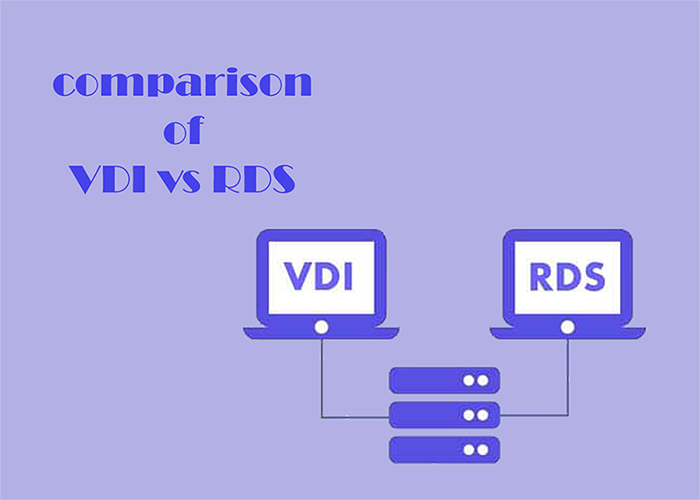
    Here, we will discuss VDI and RDS technologies types for virtual desktops. These two are alternative desktop virtualization and remote desktop technologies. These solutions were created to achieve desktop virtualization. VDI and RDS have their own characteristics. So, we decided to examine these technologies and presented an article including the comparison of VDI vs RDS, advantages and disadvantages to give you a clear guide and help you to decide between them.

    What is VDI?

    The way it works in the virtualization system VDI (Virtual Desktop Infrastructure) is in such a way that a desktop operating system is managed and controlled by a remote server. Users use this technology to log into a remote server and create a separate virtual operating system that runs for users on top of a hypervisor. When the user logs in, the connection broker connects their session to the virtual machine.

    What is RDS?

    Remote Desktop Services (RDS), was developed by Microsoft with the aim of making users less dependent on their local desktop. This technology was known as Terminal Services prior to 2008. RDS is very useful because it is helpful for users in accessing desktops and applications from different types of client applications and devices via Microsoft’s Remote Desktop Protocol (RDP).

    What is the Difference Between VDI and RDS?

    RDS and VDI offer similar functionality. With both of these technologies, users log on to a remote system, which provides users with a desktop containing all the software they need to carry out their work. You can store all files and applications remotely.
    Troubleshooting issues is very easy and also handles software upgrades. We suggest you choose and use the Admin RDP plans of our website.

    VDI vs RDS

    VDI vs RDS

    The experience of using RDS or VDI is almost the same for users. However, there are significant differences between the two that focus on aspects such as:

    – Flexibility

    – Reliability

    – Maintenance

    These differences make each solution compatible with different types of organizations based on the requirements.

    Now, we will analyze the advantages and disadvantages of VDI and RDS.

    What are the Advantages of VDI?

    Here are some advantages of Virtual Desktop Infrastructure:

    Improved User Experience

    As VM is separated from the rest of the system, you will have no connection problems. This will cause to allocate more power to the users who really need that. For example, users who use memory-intensive software such as Photoshop can run a Windows desktop operating system instead of a Windows server with the help of virtual machines, and in this way, things go faster and easier.

    The Possibility to Choose Application

    If you use VDI you can have a wider range of applications to use and there will be fewer compatibility issues.

    Offline Working

    Offline working is supported by VDI. As a result, users can continue to work even without the Internet, so that when they come back online, data can be easily synchronized with the server.

    Device Flexibility

    VDI is created in a way that users can connect with their own smartphone, laptop, tablet, or desktop.

    What are the Disadvantages of VDI?

    These are the disadvantages of VDI:

    Higher Upfront Costs

    Using VDI involves a lot of costs. These costs include Hardware costs, software costs, and finally IT support costs.

    IT Staff that are Dedicated

    VDI server has a skilled and professional team or IT provider to set up and manage virtual machines and systems.

    What are the Advantages of RDS?

    Everyone on your team can log in to the same Windows server to execute the applications, and each user can have their own session. Some other advantages are:

    Lower costs

    RDS Includes minimal cost. Also, low costs include minimal demand for hardware costs.

    Simplicity

    This solution is really simple to setup and you can add new users for a split second.

    Easier Maintenance

    Maintenance is also easier and quicker in RDS.

    What are the Disadvantages of RDS?

    In the end, we will point to some disadvantages of RDS:

    Limited Application Use

    You can not run every application on RDS.

    Connectivity Problems

    To use this server you should always be online.

    Limited Personalization

    You can not customize the desktop or applications you use on this server.

    Performance

    The performance of the server may decrease if users use the system at the same time.

    Which Solution Is Better; VDI or RDS?

    There is no definite answer. It depends on your goal. That is if the users are more and they should use the same server and do similar tasks and applications, RDS is a better choice. Also, you will pay less. But, if you are willing to use less-common programs and your users are different with different types of work, it’s better to use VDI.

    Conclusion

    As mentioned here, VDI or RDS are two great solutions for you to ease your work when you want to connect to the server or systems and use different applications. We tried to compare these two (VDI vs RDS) and specify their characteristics, and also help you to make a better and clear choice. We hope you enjoy the article.

    FAQ

    Can we use VDI and RDS together?

    Yes, this option is possible in a hybrid deployment. So, you can leverage all of the benefits of these solutions at the same time.

    Which Solution is more secure; VDI or RDS?

    In VDI each user has its own server so VDI offers higher security than RDS.

  • What is VMware?

    What is VMware?

    VMware is a virtualization software vendor based in Palo Alto, California, founded in 1998 and now a subsidiary of Dell Technologies. Also, bases its virtualization technologies on the ESX/ESXi metal hypervisor in the x86 architecture. In this comprehensive article, we will explain to you what is VMware. 

    A Brief Explanation of VMware

    VMware products now include virtualization, network and security management tools, data center software, and storage software, and VMware vSphere is a server virtualization platform for implementing and managing large-scale VM infrastructures. Desktop products include VMware Workstation, VMware Fusion, and VMware Player.

    VMware’s server software line includes VMware ESX Server, VMware ESXi Server, and VMware Server. Since 2004, VMware has been working as a partner of SUSE Alliance, and supporters the Linux system in VMware software, and supports Linux on VMware software, on-premises, or in the cloud. Also, apart from providing a reliable data center virtualization solution, SUSE, and VMware have partnered to provide cloud solutions for both private and public clouds. SUSE Linux Enterprise Server is currently certified and supported on the latest version of vSphere.

    You can visit the Windows VPS server plans offered on our website and then run VMware on it.

    Introduction of VMware products

    Currently, VMware products include virtualization, network and security management tools, data center software, and storage software.

    Cloud infrastructure and Data Center

    VMware vSphere is VMware’s suite of virtualization products, known as VMware Infrastructure before 2009, and includes:

    – ESXi

    – vCenter Server

    – vSphere Client

    – vMotion

    vSphere is available in three versions: Standard, Enterprise Plus, and Platinum. In addition, there are two three-server kits for small and medium businesses called vSphere Essentials and Essentials Plus. Also with VMware Cloud on AWS, customers can run a cluster of vSphere hosts with vSAN and NSX in an Amazon data center and manage their workloads with VMware’s famous tools and skills.

    Introduction to Network and Security Tools

    In the rest of the article, we will introduce VMware tools.

    VMware NSX

    It provides virtual networking and security software and was created when VMware acquired Nicera in 2012. NSX allows the administrator to virtualize network components. It also enables them to develop, extend, and configure virtual networks and switches through software rather than hardware.

    In this network, a software layer is placed on top of the hypervisor to allow the administrator to divide a physical network into several virtual networks. With the latest version of this product, the NSX-T data center, network virtualization can be added to both ESXi and KVM as hypervisors and bare-metal servers, and containerized workloads can be virtualized and protected in a Kubernetes cluster.

    The NSX-T data center now offers network performance virtualization, which enables functions such as firewalls, load balancers, and VPNs to be implemented within the virtualization software stack.

    VMware vRealize Network Insight

    VMware vRealize Network Insight is a network operations management tool that enables admins to schedule micro-partitioning and monitor the health of VMware NSX. VRealize Network Insight also relies on technology from VMware’s 2016 acquisition of Arkin. VRealize Network Insight collects information from NSX Manager and displays errors in its user interface to help troubleshoot an NSX environment.

    Understanding the SDDC platform

    VMware Cloud Foundation

    It is an integrated software stack that brings together vSphere, VMware vSAN, and VMware NSX into a single platform through SDDC Manager, and an administrator can deploy the software package on-premise as a private cloud or as a service in a public cloud. Run, the administrator can also instantly provision an application for network or storage.

    Storage and availability Training

    VMware vSAN

    It is now a software-based storage feature built into the ESXi hypervisor and integrated with vSphere that aggregates disk space from multiple ESXi hosts and allocates it through intelligent policies, such as protection limits, thin provisioning, and clean-up coding. It also combined with vSphere High Availability to increase compute and storage availability.

    VMware Site Recovery Manager (SRM)

    A disaster recovery management product that allows administrators to create recovery plans that run automatically in the event of a disaster and allows administrators to automatically configure failover and failback of virtual machines, as well as SRM with NSX Integrated to protect network and security policies on migrated VMs.

    VMware vCloud NFV

    Network functions virtualization platform that allows a service provider to run network functions as virtualized applications from different vendors. It also offers the benefits of virtualization and the cloud for a communications service provider that previously relied on hardware.

    Getting to Know the Cloud Management Platform

    vRealize Suite

    There is now a group of software that allows users to create and manage hybrid clouds, and the vRealize suite includes vRealize Operations for monitoring, vRealize Log Insight for centralized logging, vRealize Automation for data center automation, and vRealize Business for Cloud for management. It is a cost.

    VMware Tanzu

    VMware Tanzu allows customers to build containerized applications, run enterprise Kubernetes, and manage Kubernetes for developers and IT. Also, with the help of the software package, an administrator can deploy and manage VMs on multiple hypervisors or cloud platforms from a single management console.

    Introduction of Virtual Desktop Infrastructure

    VMware Horizon

    Here, VMware Horizon allows organizations to run Windows desktops in the data center or in the VMware Cloud on AWS, eliminating the need to place and manage entire desktops in the workplace, as well as management and security for the environment. Centralizes the user and integrates with VMware App Volume and Dynamic Environment Manager products for application delivery and Windows desktop management.

    Organizational Mobility and digital workspace Management Departments

    Workspace ONE

    The Workspace ONE suite includes VMware AirWatch, Horizon Air, and Identity Manager, which allow administrators to manage mobile devices and cloud-hosted virtual desktops and applications from a single management platform. Cloud or on-premise control.

    Identity Manager

    It enables SSO access to any application from any device based on established policies and is an identity-as-a-service product that provides single sign-on (SSO) capabilities for web, cloud, and mobile applications.

    VMware AirWatch

    VMware AirWatch is also an enterprise mobility management (EMM) software platform, where administrators are empowered to deploy and manage mobile devices, applications, and data.

    Personal Desktop

    VMware Workstation

    It is the first product offered by a software company that allows users to create and run on a Windows or Linux desktop or laptop, and VMs run concurrently with the physical machine. In fact, each virtual machine runs its own operating system such as Windows or Linux, and this allows users to simultaneously run Windows on a Linux machine with the native operating system installed, or vice versa.

    VMware Fusion

    Currently, VMware Fusion is software like VMware Workstation that virtualizes Windows or Linux operating systems on Mac computers.

    Advantages and necessity of using VMware Products

    – Better provision of applications and resources and simple data center management

    – Increasing efficiency along with the agility of data center systems

    – Security based on a zero-trust model and more secure than container systems like Kubernetes

    Disadvantages of VMware Products

    – Suitability of Hyper-V and Xen Hypervisor alternatives and high licensing costs

    – Lack of support and  the existence of various bugs when used alongside Oracle products and hardware compatibility issues

    Introducing Alternative Virtual Machines

    Other VMware vSphere hypervisors

    – Linux KVM

    – Microsoft Hyper-V

    – Red Hat Virtualization

    – Proxmox VE

    – Virtuozzo

    – Citrix XenServer

    – Oracle VM server

    VMware Workstation alternatives for Personal Desktop use

    – VirtualBox

    – QEMU

    – bhyve

    – Parallels

    Introducing the top 27 tools for VMware Administrators

    As-Built Report

    As Built Report is an open-source configuration documentation framework that generates and builds documents in XML, Text, HTML, and MS Word formats using Windows PowerShell and PScribo. It is also used to easily run and generate reports against the IT environment, allowing contributors to easily create new reports for any vendor and IT technology with RESTful API and/or Windows PowerShell support.
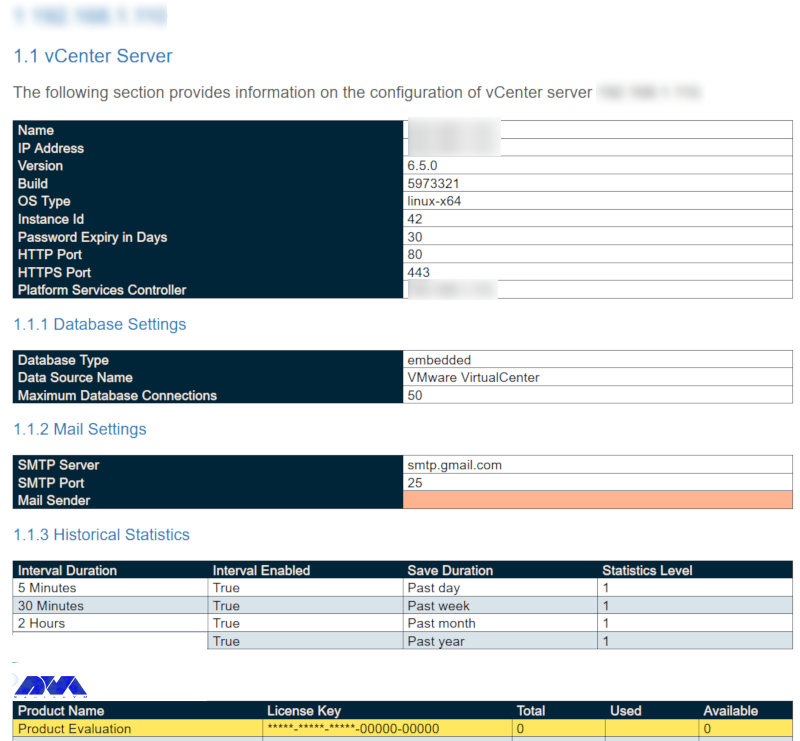
    As-Built Report - vcenter server

    Cross vCenter Workload Migration Utility

    It is now a tool to easily move virtual machines between vCenter Servers through the Cross-vCenter vMotion feature using a GUI. Also automatically fills this inventory for ease of management and enables batch migration of multiple virtual machines in parallel. It then implements a REST API to automate migration tasks.
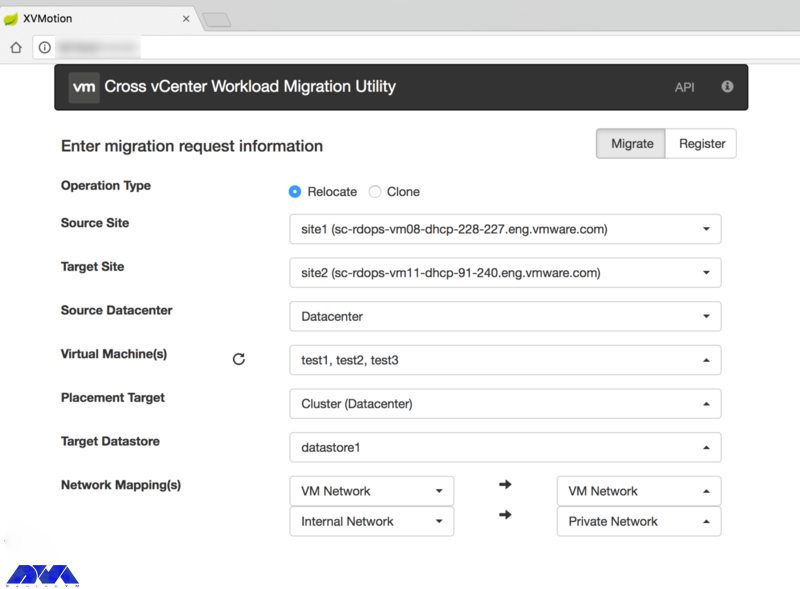
    Cross vCenter Workload Migration Utility

    ESXTOP

    A powerful command-line tool is included with vSphere to help administrators identify and fix performance issues in real-time, and then provide information about the resource management of the vSphere environment with details on disk, CPU, network, and memory usage. Displays real-time.
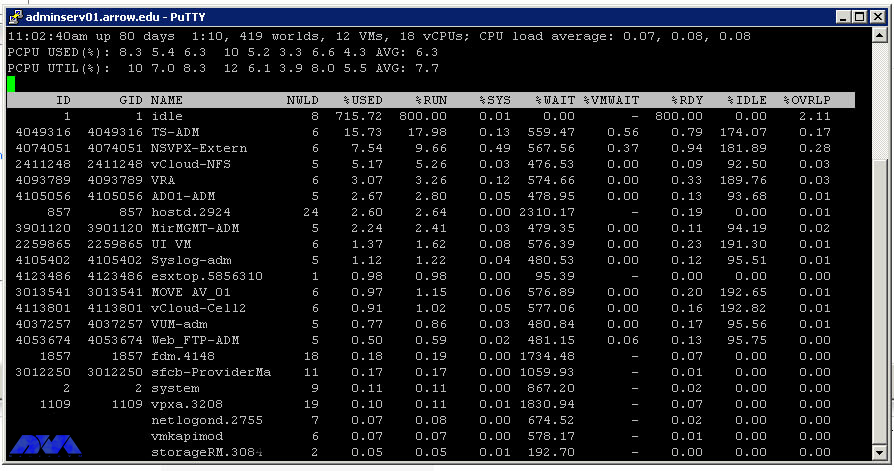
    ESXTOP

    Vmware Git

    Git is an open-source version control system created by Linux developer Mr. Linus Torvalds in 2005. In fact, this system has thousands of contributors, a large community base for support, and is also compatible with several IDEs and operating systems, including VMware.

    HCI Bench

    Here, HCI Bench aims to accelerate customer POC performance testing through a controlled and consistent method by fully automating the end-to-end process of setting up test virtual machines, setting workloads, collecting test results, and collecting valuable data for troubleshooting. Also, the Hyperconverged Infrastructure Benchmark, defined as HCI Bench, is an automated wrapper for the open-source VDbench benchmark tool that simplifies automated testing on HCI clusters.

    Hyper

    A cross-platform, customizable, open-source terminal program built on modern web standards and aiming to be the simplest and most powerful of its kind.
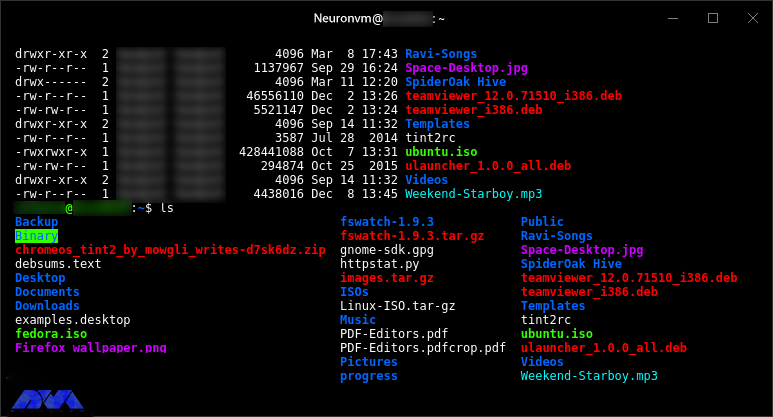
    Hyper-Linux-Terminal-App-4

    IOInsight

    It is a virtual appliance that comes with VMware. Allows users to understand the storage I/O behavior of their virtual machine. It also has a web-based user interface through which users can select a VMDK to monitor and display the results to make better choices about tuning performance and storage capacity.
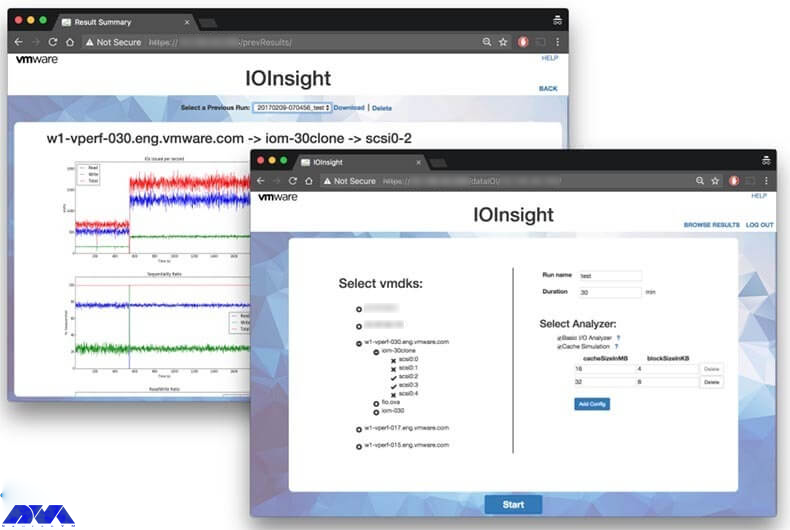
    VMware-IOInsight-Tool

    Linux VSM

    There is now an improved port of Linux Software Manager for VMware, which allows users to log into My VMware and access download information, then view the subsets of downloads that VSM allows. Also, Linux VSM is designed to be smarter than the version of VSM for macOS and Linux, for example, instead of breaking operations, it also ignores missing files.

    vRealize Log Insight

    A virtual tool that administrators can use to view, manage, and analyze Syslog data, and then gain the ability to troubleshoot vSphere and perform compliance and security checks.
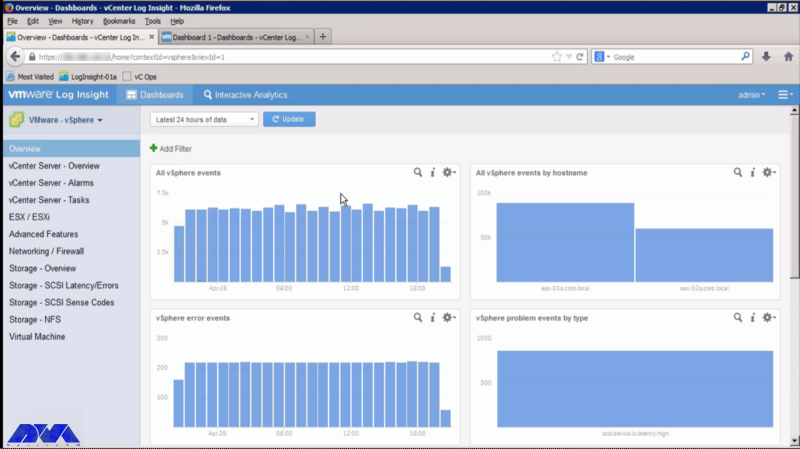
    vRealize Log Insight

    mRemoteNG

    Remote Connection Manager is a multi-protocol and tabbed resource created as a fork of mRemote with new features and bug fixes. In fact, the software supports Virtual Network Computing (VNC), SSH, rlogin, HTTP[S], Citrix Independent Computing Architecture (ICA), and Remote Desktop/Terminal Server (RDP).
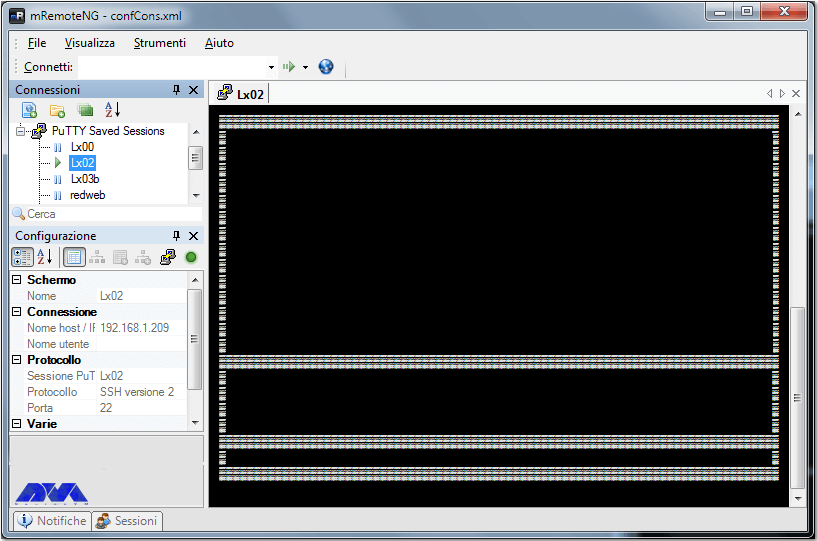
    mRemoteNG

    pgAdmin

    It is one of the most popular feature-rich tools for managing PostgreSQL and its derivative databases. One of its most important features is its availability of Windows, macOS, and Linux extensive online documentation. It also has a powerful search tool for syntax highlighting, multiple deployment models, and support for most PostgreSQL server-side encryptions, among other features of pgAdmin.
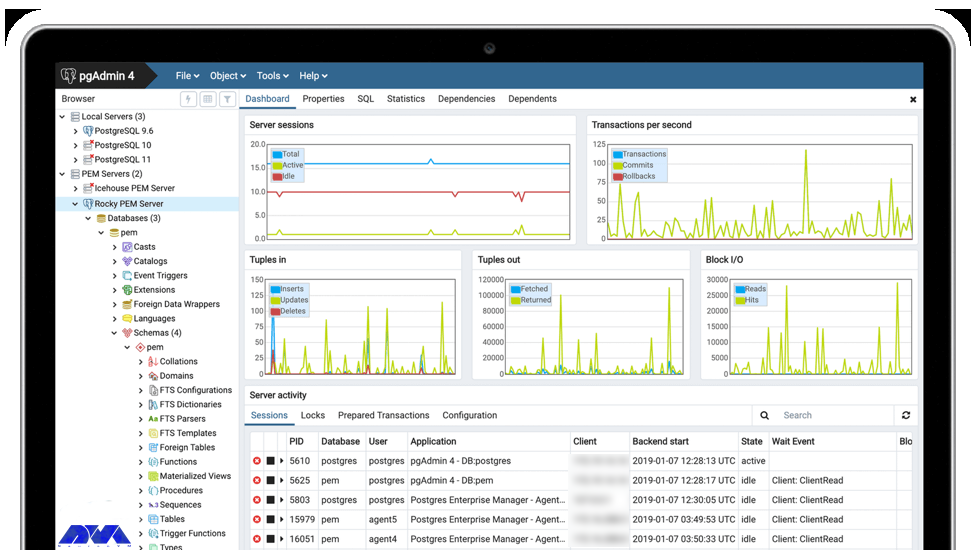
    pgAdmin

    Pocli

    It is a Python-based tool that provides a lightweight command-line client for ownCloud for basic file operations such as uploading, downloading, and directory management. Pocli was also motivated by the lack of a tool to quickly upload or download files on computers without The GUI working.

    Postman

    In fact, Postman is free for individuals and small teams but also offers monthly subscriptions with advanced features for teams of up to 50 users and enterprise solutions. Currently, the HTTP client is very suitable for testing web services and was created to simplify the process of developing, testing, and documenting APIs by allowing users to create simple and complex HTTP requests quickly.

    PowerCLI

    Here this command-line tool is built on Windows PowerShell to provide more than 600 cmdlets to manage not only vSphere and VMware but also vCloud, vSAN, VMware Site Recovery Manager, NSX-T, VMware HCX, and more. It is also a powerful program for automating and managing VMware vSphere settings and is able to work with any VMware product.
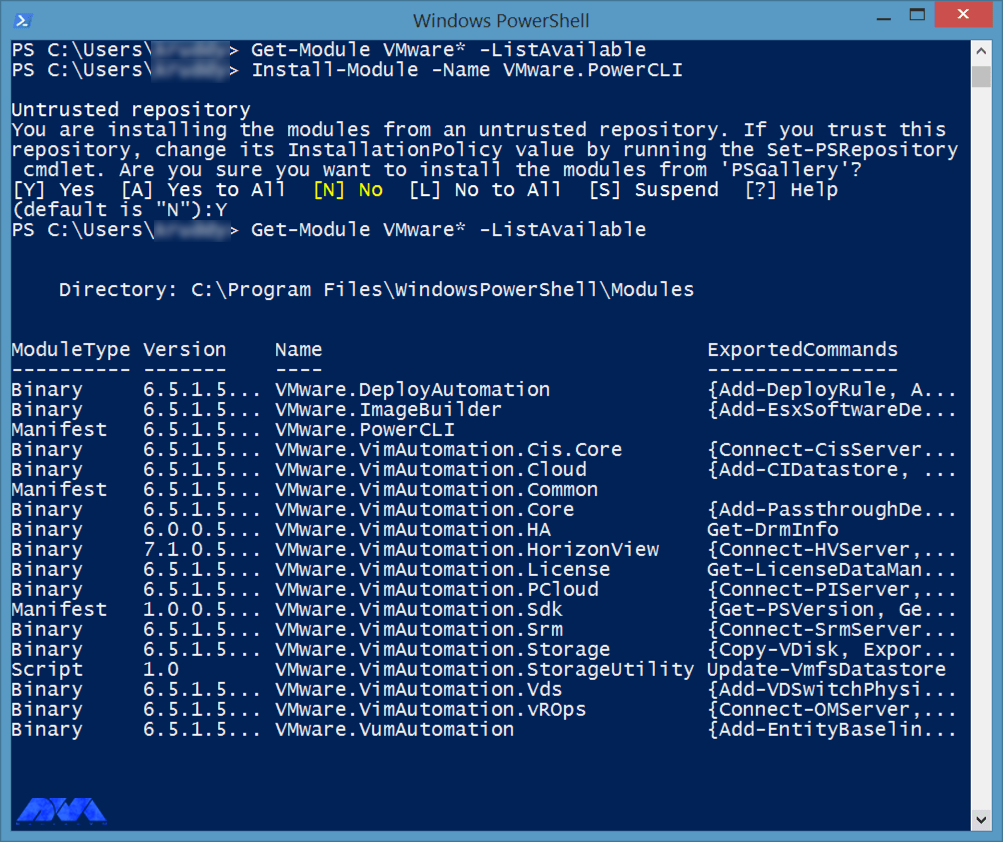
    PowerCLI

    RVTools

    With over a million downloads, RVTools excels at displaying information about your virtual environment’s CD drive, snapshots, ESX hosts, VM cores, data stores, health checks, license information, resources, and more. Use it to update. It is actually a .NET application that uses the VI SDK to display critical data about your virtual environments and is compatible with several technologies including VirtualCenter Appliance, ESX Server 4i, ESX Server 4.x, ESX Server 3i, VirtualCenter 2.5 It interacts. You can also update your VMTools to the latest version. It is free to download and use after subscribing to the Veeam mailing list, which provides subscribers with excellent VMware product offerings.
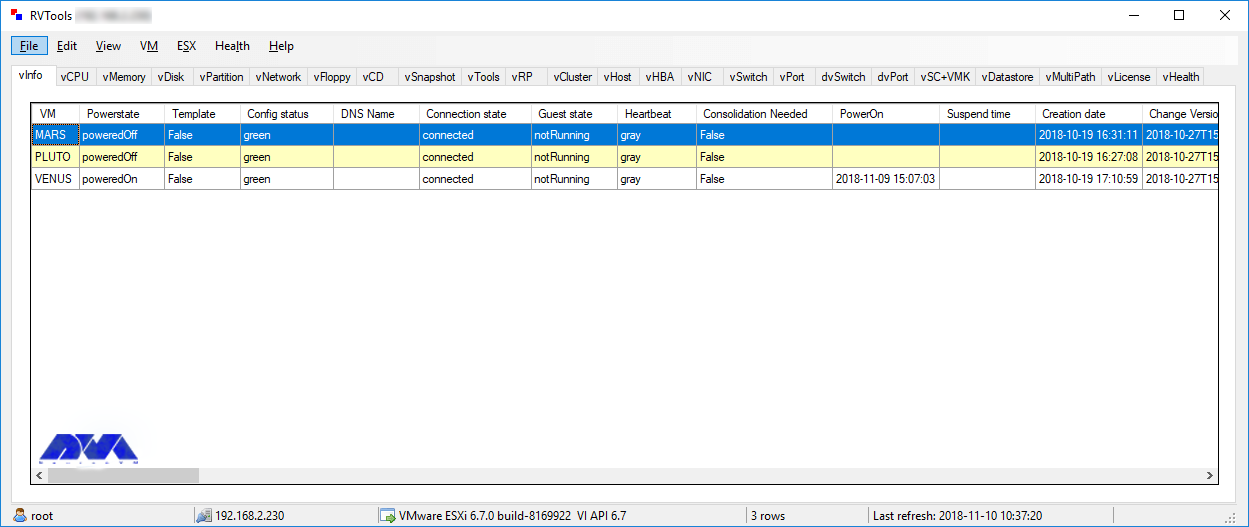
    RVTools

    vCenter Converter

    It is one of the tools to convert local and remote physical machines to virtual machines without any downtime and also has a centralized console to manage multiple simultaneous conversions both locally and remotely.

    vCheck

    vCheck is actually an HTML framework script designed to work with PowerShell to schedule automated tasks to send you the information in a readable format via email. If there is enough space, you will not get any information about the storage disk space. It is now a smart script and sends you vital information. It also removes unnecessary details.
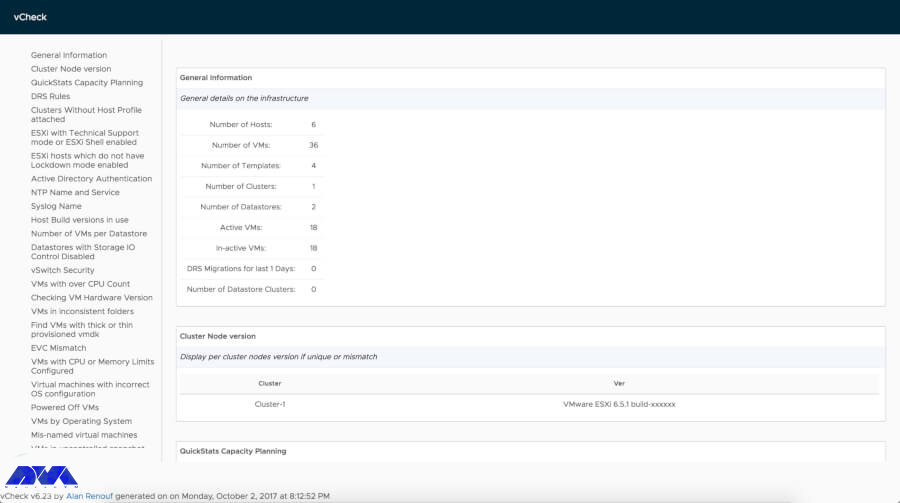
    vCheck

    vDocumentation

    vDocumentation, maintained by Ariel and Edgar Sanchez, provides a set of PowerCLI scripts created by the PowerShell community to give users with infrastructure documentation of vSphere environments in CSV or Excel formats.
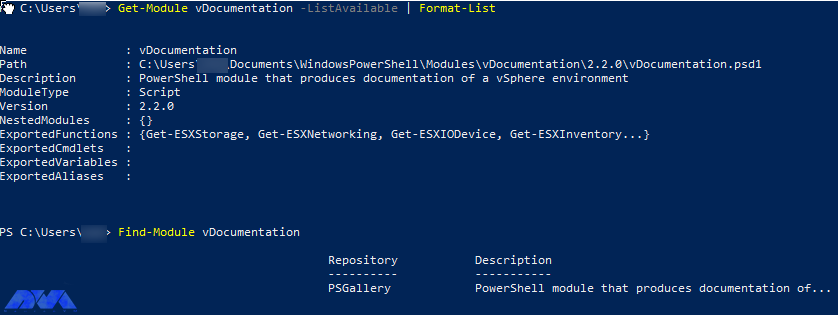
    vDocumentation

    VMware API Explorer

    This platform helps you browse, search, and inspect APIs on every major VMware platform except vRealize, NSX, vCloud Suite, and vSphere. Also use the explorer for easy access to SDKs and code samples, among other resources, specific to selected APIs.

    VMware Capacity Planner

    The tool allows managers to analyze, predict and plan the required capacity of their virtual desktop environment or data centers.

    VMware Health Analyzer

    This tool helps evaluate VMware environments based on standard practices. It is also used by VMware partners and solution providers. Currently available only to customers with access to Partner Central and VMware employees.

    VMware OS Optimization Tool

    Its top features include customizable templates across multiple systems that you can use to optimize VMware OS, manage templates, optimize history and rollback, and perform remote and local analytics. Currently, this is a VMware operating system optimization tool that allows administrators to optimize Windows 7 to 10 systems for use with VMware Horizon View.
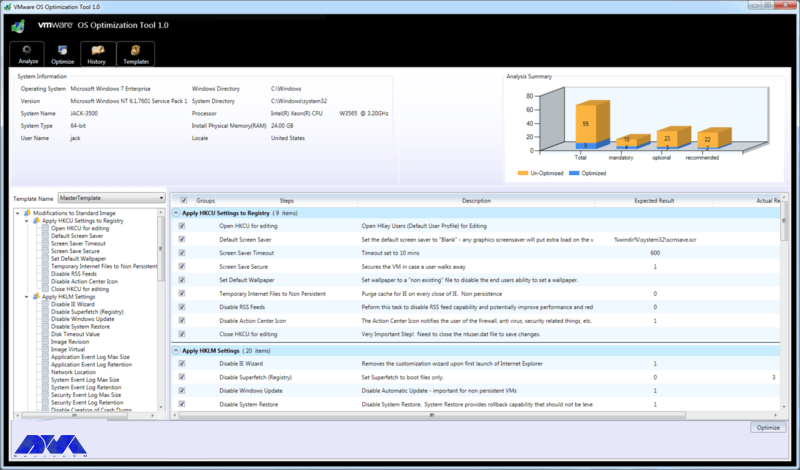
    VMware OS Optimization Tool - what is VMware

    VMware Project Onyx

    Project Onyx monitors the network communication between vSphere Client and vCenter Server and translates it into executable PowerShell code that can be turned into a reusable script or function. It’s also a tool for generating code based on mouse clicks made in the vSphere client and aims to make it easy to visualize what’s going on under the hood to speed up script development.

    VMware Skyline

    It has automated support technology that aims to improve the overall reliability of VMware environments and increase team productivity by helping customers avoid potential problems.

    VMware vRealize Orchestrator

    The tool has an extensive library of plugins on the VMware Solution Exchange for third-party solutions and extends its features. Currently one of the most potent VMware management tools, it allows users to create workflows that automate multiple daily tasks using a drag-and-drop graphical interface.

    WinSSHterm

    A production-ready SSH client tool for Windows combines WinSCP, PuTTY/KiTTY, and VcXsrv into one tabbed solution. It also features the use of a master password, template variables, eye-friendly terminal colors, and keyboard shortcuts.
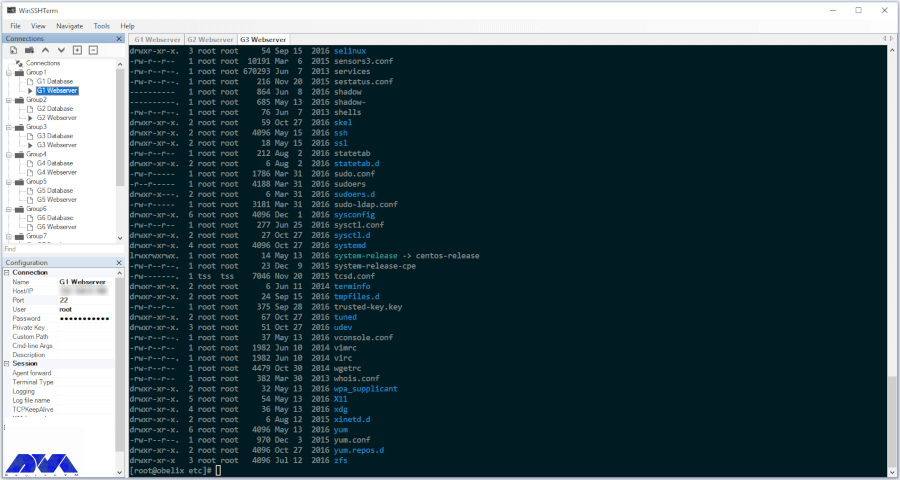
    WinSSHterm - what is VMware

    Runecast

    This tool empowers users to perform proactive troubleshooting, analyze specific patterns in reports, and implement VMware SDDC best practices without sacrificing speed and simplicity. In fact, Runecast is the real-time security and compliance analyzer for BSI security audits.
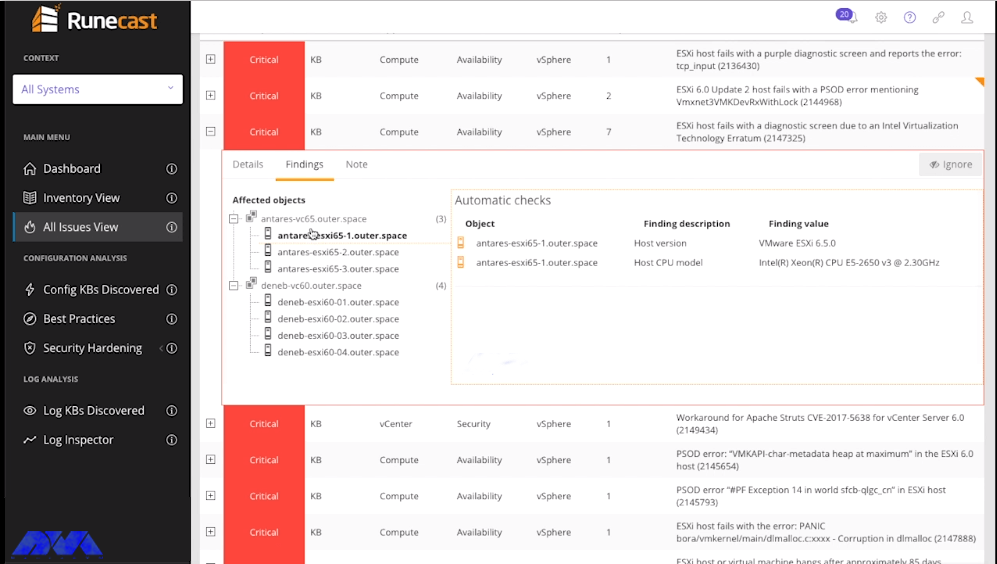
    WinSSHterm - what is VMware

    Conclusion

    VMware is known as a cloud operating system or a virtual data center platform. It also enables IT departments to place application workloads on the most cost-effective computing resources available. It offers applications for desktops as well as servers and VMware desktop software with Linux, Microsoft Windows, and Mac. OS X is compatible. In this educational article, you learned What is VMware? Also got acquainted with many of its tools. We hope this educational article was useful for you. Share your comments with us through the form below.

    FAQ

    Can we use WMvare for free?

    Yes, you can use the free version for non-commercial, personal, and home usage.

  • What is KVM?

    What is KVM?

    KVM stands for Kernel-based Virtual Machine, an open-source Linux virtualization technology that allows the Linux kernel to be used as a hypervisor. Introduced in 2006 and was then integrated into the original version of the Linux kernel. Also, it is part of the Linux code and uses every Linux feature, maintenance, and development without engineering. In this article, we are going to teach you What is KVM?

    What is Virtualization?

    Virtualization refers to a simulated computing resource that mimics the corresponding real resource and makes many resources, from software to specialized hardware devices, to complete hardware platforms. It also covers virtual machines, which include devices such as CPU, memory, network card, disk, graphics adapter, and operating system. The software in question that creates and runs virtual machines is called a hypervisor.

    Necessities and Benefits of Virtualization

    Years ago, in data centers, development, and practice organizations, all machines ran a version of the same operating system, such as Windows, FreeBSD, and Linux. But today, different operating systems such as Linux and Windows and even different versions of an operating system are placed in a computer environment without virtual machines; several physical machines are deployed and maintained to run programs on multiple operating platforms. Virtualization also allows multiple virtual machines, each potentially running a different operating system, to run on a single physical machine.

    In the rest of this article, we are going to introduce the KVM to you.

    Introduction to KVM

    KVM is classified as a type 2 hypervisor, which means it runs on a host operating system. It is also based on the kernel, more precisely, the Linux kernel. It only supports Linux as its host operating system. If you need a type 2 open-source multi-platform hypervisor, VirtualBox is the right choice. VirtualBox also runs natively on Windows, Linux, Mac OS X, and Solaris.

    We recommend that you visit the cheap dedicated server that is offered on our website, and after choosing the plan you want, install KVM on it.


    what is kvm

    It competes in an industry with open-source alternatives such as Xen VirtualBox and proprietary products such as VMware vSphere, Citrix XenServer, and Microsoft Hyper-V. In the past, hypervisor solutions at the time, such as Xen and VirtualBox, were all software-based, and the x86 architecture could not support virtualization. It wasn’t until 2005 that the introduction of the Intel VT and AMD-V extension instruction sets permanently changed the virtualization landscape.

    You can currently install KVM on any 32-bit or 64-bit x86 computer, the “host machine” in Hypervisory parlance, that supports the Intel VT or AMD-V plug-in. Today, modern hypervisors typically support hybrid virtualization, which is hardware-assisted and software-assisted for older chipsets.

    KVM Features

    KVM supports the virtualization of the following guest operating systems:

    1- Linux distributions including Debian, Ubuntu, Centos, Fedora, RedHat Enterprise Linux

    2- BSD like OpenBSD, FreeBSD, and NetBSD

    3- Solaris

    4- Windows

    It currently runs unmodified guest OS images. This feature is also known as full virtualization, in contrast to para-virtualization, where the guest operating system is modified to specifically handle operations that are much more difficult to execute on the virtual machine than on the host machine.

    How does KVM Work?

    KVM has 2 technology components: kernel and user space. The kernel component consists of 2 loadable kernel modules: kvm.ko and kvm-intel.ko or kvm-amd.ko

    kvm.ko module: provides kernel architecture-independent virtualization processing.

    kvm-intel.ko and kvm-amd.ko modules: correspond to modules for Intel and AMD processors. Also, these modules were integrated into the Linux kernel version 2.6.20.

    KVM uses QEMU, which runs in user space, to create virtual machines that interact with the guest operating system. Each virtual machine is simply a normal Linux process, and you can use Linux commands like top and kill to monitor and manage virtual machines.

    Virtual Machine Manager appears in the Applications -> System Tools menu. First, create a new connection to the local QEMU instance from the File -> Add Connection menu. Localhost (QEMU) or QEMU/KVM should appear in the virtual machine list. You can now create a virtual machine by pressing the top left button and the new virtual machine toolbar button.

    Conclusion

    After more than several years of development and operation, KVM has become the standard machine-level virtualization tool in many Linux distributions. In this educational article, you learned What is KVM? We hope this educational article was useful for you. Share your comments with us through the form below.

  • How to Buy NL RDP Server with Bitcoin

    How to Buy NL RDP Server with Bitcoin

    The way RDP Protocol works is that it connects a computer to a remote computer and the client computer can view the remote computer screen. The purpose of this post is to teach How to Buy NL RDP Server with Bitcoin.

    What is an RDP Server?

    Remote Desktop is the ability of computers to connect to each other remotely and also control their desktop. In Remote Desktop, the user controls that system, except that this connection is established through the network platform. It should be noted that Remote Desktop or RDP is a protocol owned by Microsoft and is available for most versions of Windows and other Operating Systems, including Linux, macOS, iOS, Unix, and Android.

    The port for this protocol is 3389 by default and you can change it to another desired port by making settings in the Windows registry. The Remote Desktop feature should enable the destination operating system to connect to a remote destination computer or server. The username that is authenticating on the destination system should be used. To use the Remote Desktop protocol, the user should use RDP client software or Remote Desktop Connection, while the host computer should run the RDP Server service software.

    Introducing Bitcoin

    Bitcoin is an electronic currency that allows you to send money anywhere in the world or use it to buy goods and services. Bitcoin is a digital currency based on blockchain. Blockchain is a platform for recording digital transactions. Blockchain actually does the job of the Central Bank differently, and the platform is officially cryptocurrency-based. Compared to other online payment gateways, Bitcoin charges a lower fee for moving customers. It is interesting to know that Bitcoin is managed in a decentralized manner, and it isn’t controlled by any entity or organization.

    Get NL RDP Server with Bitcoin

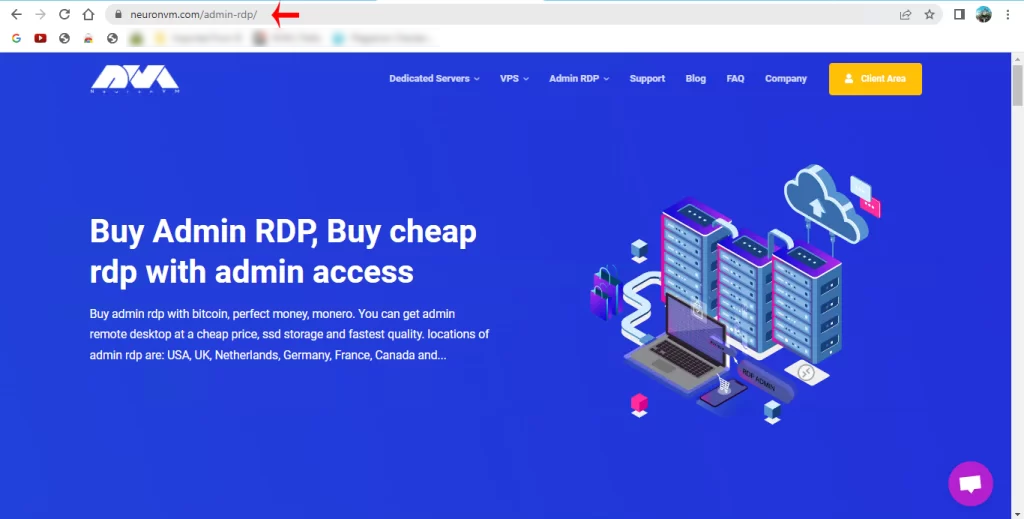
    In the first step, you should go to our website and select Admin RDP on the main page or directly go to the Admin RDP page:

    how to buy rdp server with btc

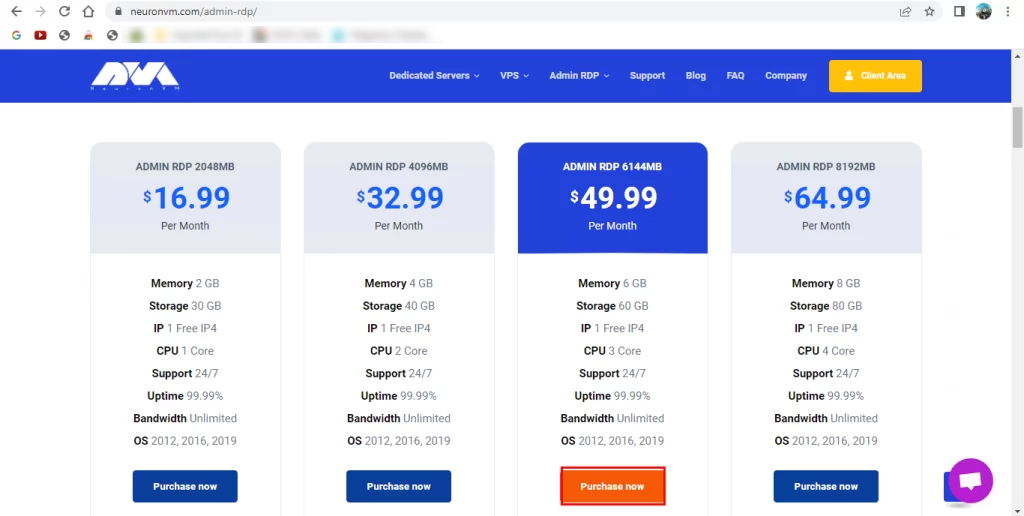
    Now go down to this page, choose your favorite Admin RDP plan to purchase, and click on the Purchase Now button:

    choose the rdp plan on neuronvm

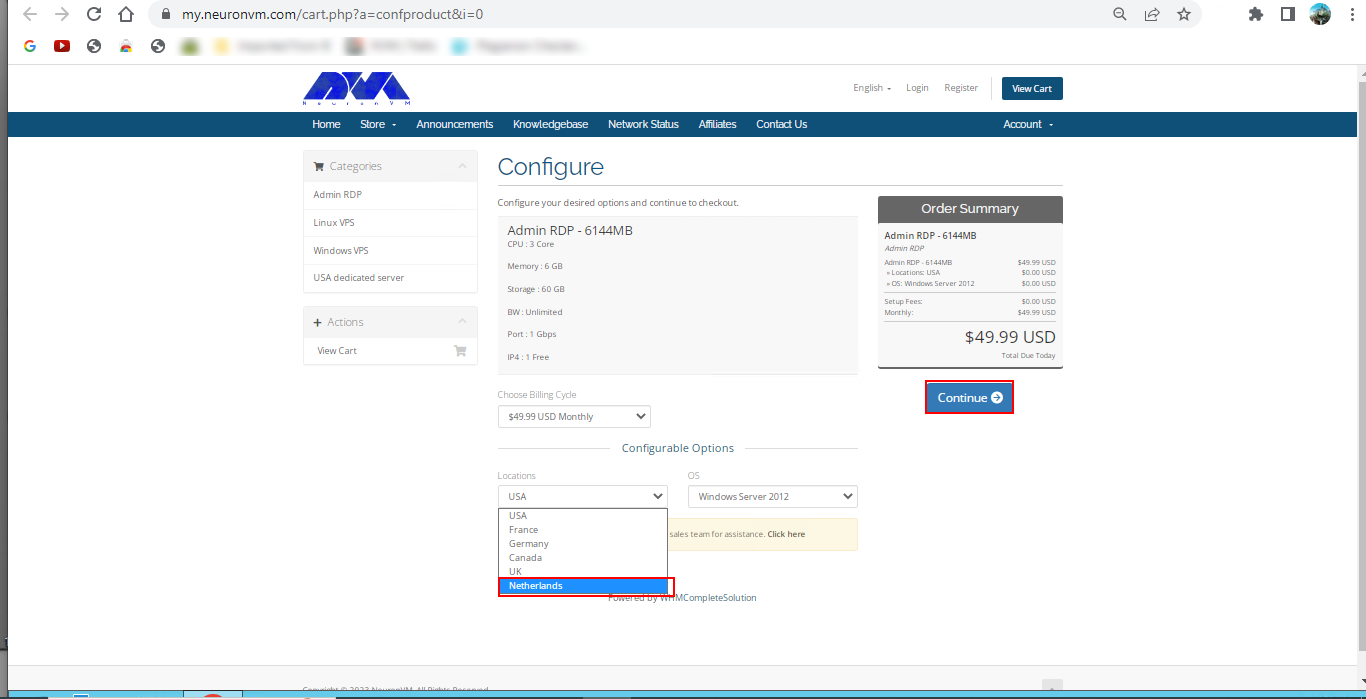
    Next, you should choose the Netherlands (NL) from the Location section and also choose your desired Operating System, and then click Continue:

    choose rdp location

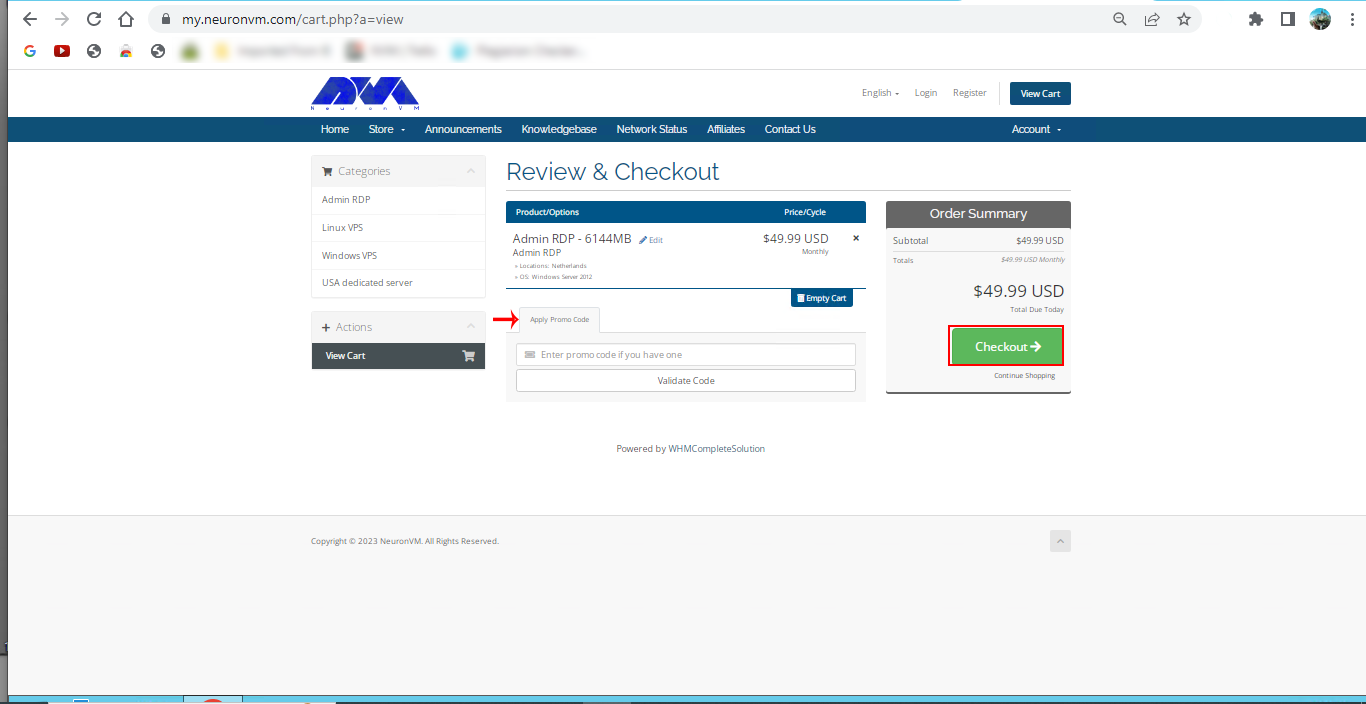
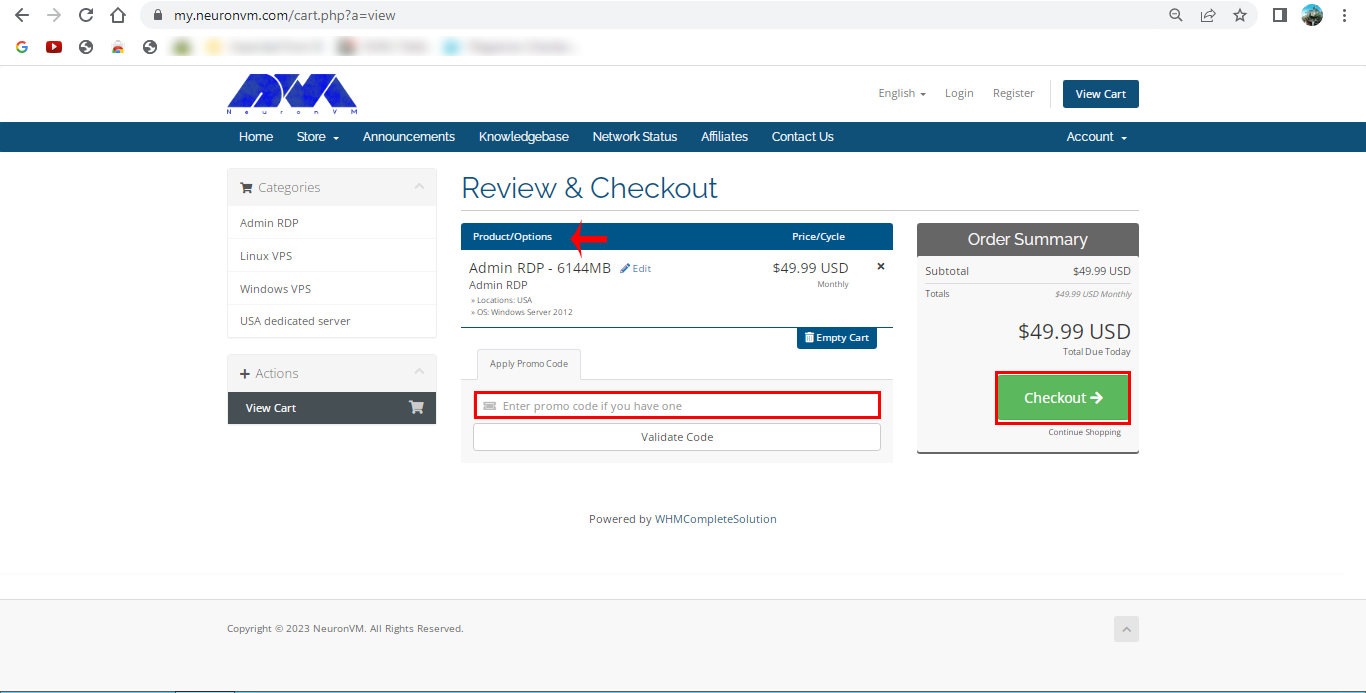
    Check the details and Click on Checkout.

    Tip: If there are any Promo Codes, insert them in the box for discount.

    purchase details of rdp plan on neuronvm - buy nl rdp server with bitcoin

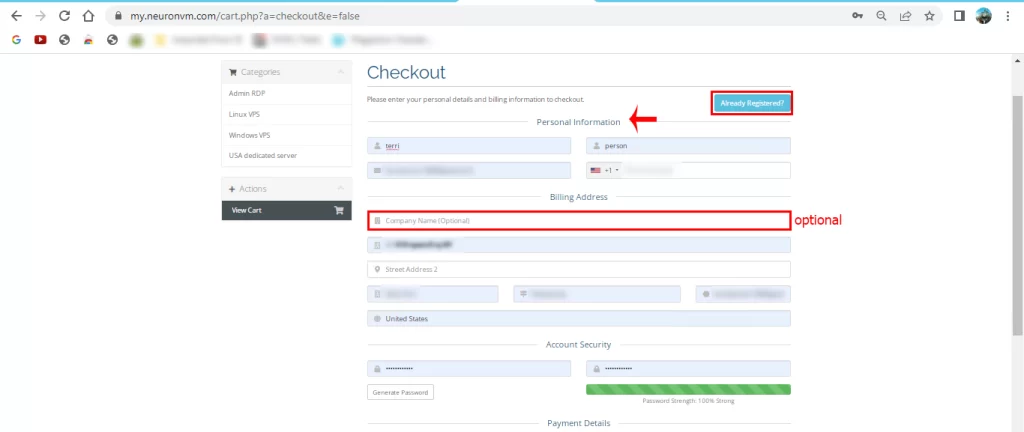
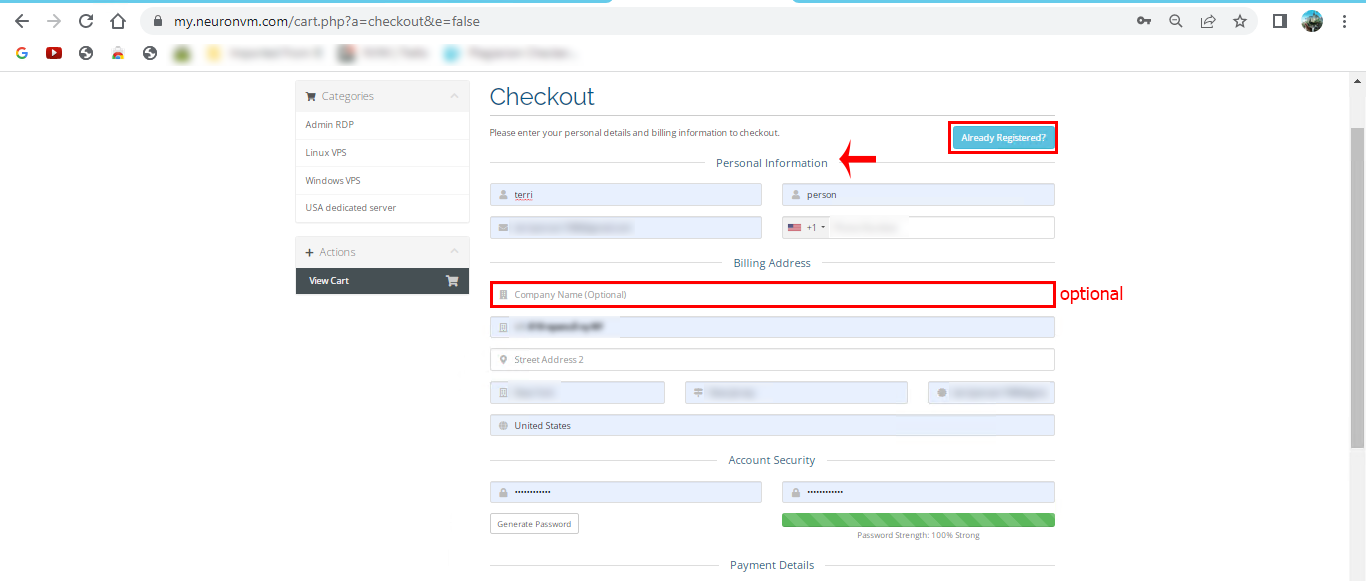
    Here, you should fill in your personal information and sign in to the NeuronVM website, or if you have an account, click on the Already Registered button:

    registration part of neuronvm

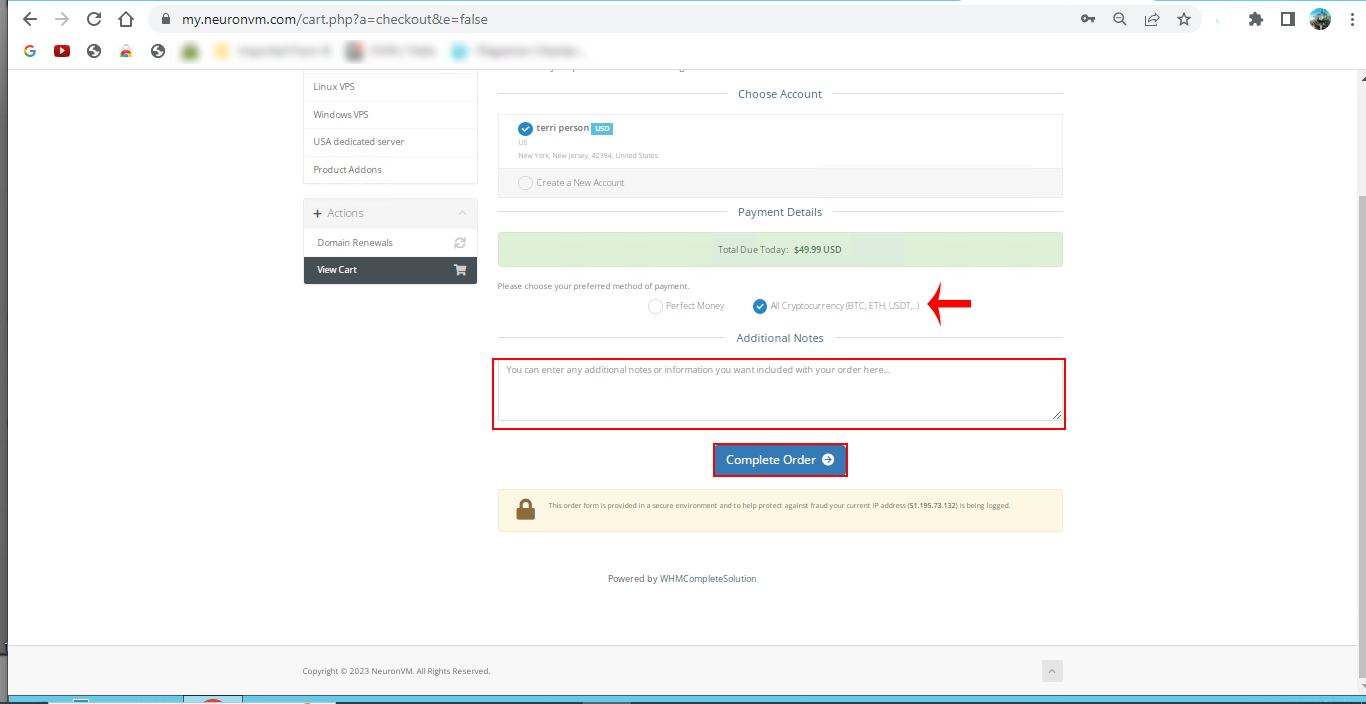
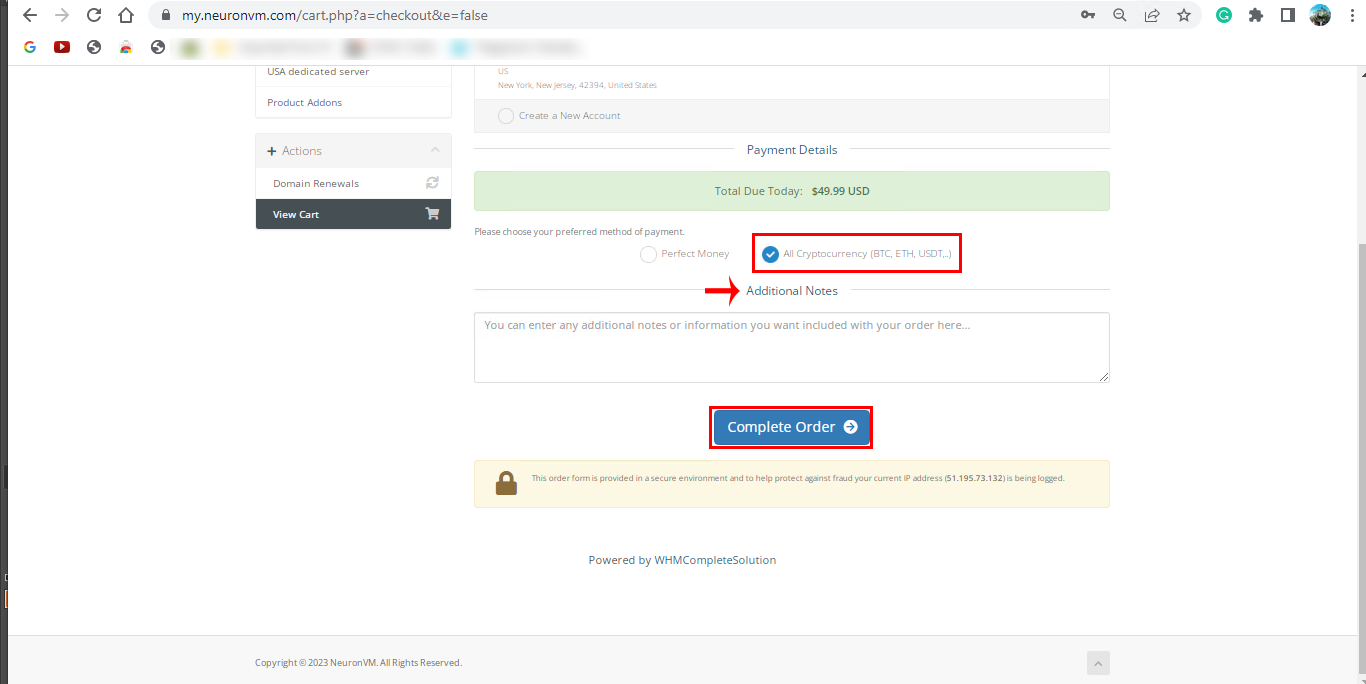
    In this step, as the last option on this page, select the All Cryptocurrency option. Also, you can add extra information about your purchase in the Additional Note box and click on Complete Order:

    get nl rdp server with bitcoin

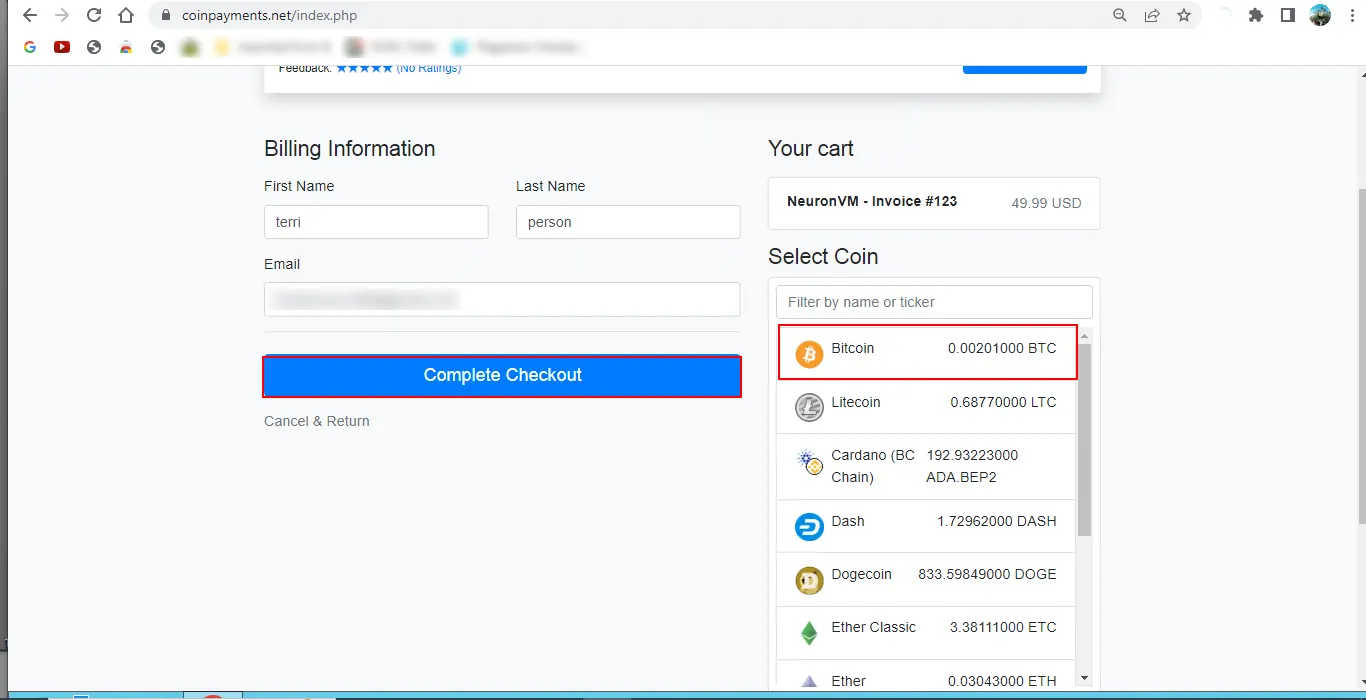
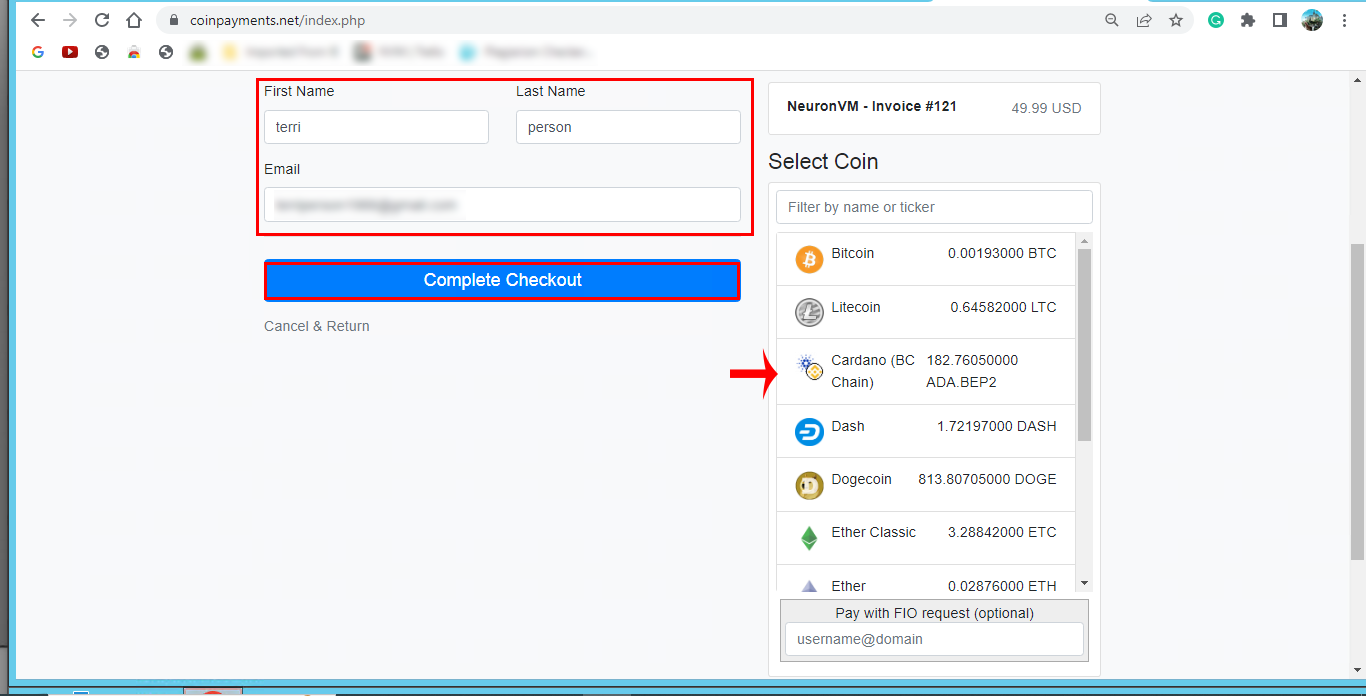
    Finally, you will be redirected to the payment page. Choose Bitcoin as your preferred currency and click on Complete Checkout:


    how to buy admin rdp wit btc

    At last, you should open the relevant code in your wallet and complete the payment process:

    payment ID for purchasing rdp

    Conclusion

    In this article, the Remote Desktop protocol and Bitcoin digital currency were introduced. In the continuation of the article, how to register on NeuronVM and how to buy NL RDP Server with Bitcoin were taught. I hope you can easily buy the Netherlands RDP Server from our site with the help of this article.

    FAQ

    What is an NL RDP server?

    It refers to the Netherland server, which is physically located in the Netherlands and provides remote desktop access to users.

    Can we use any payment methods to buy Admin RDP?

    Yes, you can use most of the cryptocurrencies and perfect money to make the payment.

  • Easy Purchase Admin RDP with Cardano (ADA)

    Easy Purchase Admin RDP with Cardano (ADA)

    Cardano is one of the largest digital currencies worldwide and the cryptocurrency associating with it was calling ADA. Of course, it should note that most people use these terms interchangeably. In this post, we will show the way to easily purchase Admin RDP with Cardano. Admin RDP is a good server that gives you administrator access and is known as a dedicated RDP. Here, you can have a dedicated IP and dedicated resources too. Our website will give you the opportunity to buy Admin RDP using Cardano.

    Benefits of Admin RDP

    Buying Admin RDP will bring lots of benefits for you. It is the cheapest RDP with admin access and is fast enough to give you a good experience of using a remote desktop. Admin RDP provides a secure connection to computers running the Windows operating system. Using Admin RDP for Windows, you can restrict access to specific computers through IP address or hostname.

    Steps to Buy Admin RDP With Cardano

    In previous articles, we provided a full explanation of Cardano digital currency. In this section, we will show the steps to buy Admin RDP with Cardano. So, follow the instructions of this post, to find out how to go through this process.

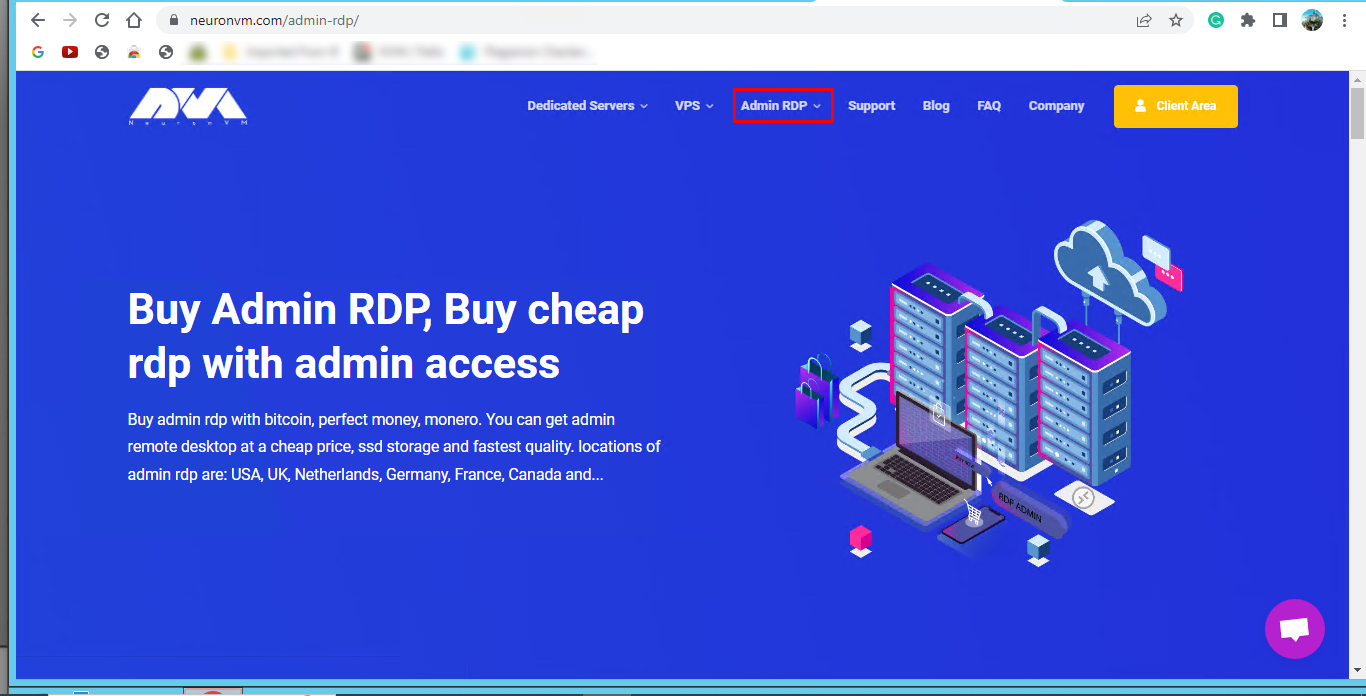
    – First, you should go to the main page of our website and click on the Admin RDP tab or directly refer to the Admin RDP page.:

    Buy Admin RDP With Cardano

    – Scroll down to see the plans. Here, you can choose the desired plan for Admin RDP to purchase:

    choose the proper plan for admin rdp

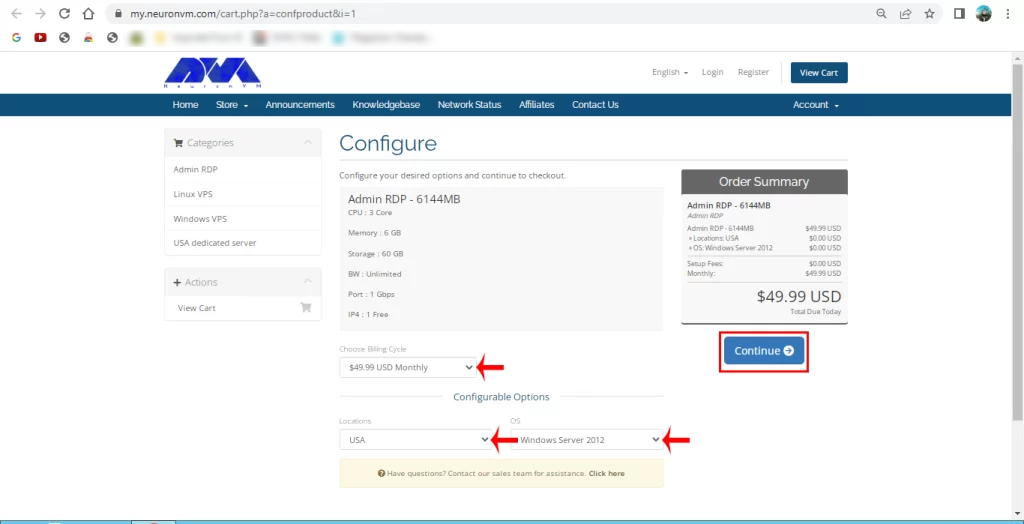
    – This section is related to the configuration part. In this part, you can choose the proper Operating System, the desired server Location, and the cycle of your payment and press Continue:

    choose admin rdp location and operating system

    – Then, you will redirect to the Review & Checkout section. Review the details of the chosen plan and click on the Checkout button.

    Tip: If you received any Promo Code for a discount. Enter the code inside the box below:

    review and checkout admin rdp payment

    On this page, you should sign up and insert your personal information, or click on the Already Registered button, if you created an account before:

    how to register on neuronvm

    – The next step is related to the payment details. Select the All Cryptocurrency icon and add notes or extra information if it is requiring, and select the Complete Order button:

    choose admin rdp payment method

    – Here, you can enter the needed Billing information. So scroll to select the Cardano cryptocurrency and press Complete Checkout to finish the purchase process:

    how to buy admin rdp with ada

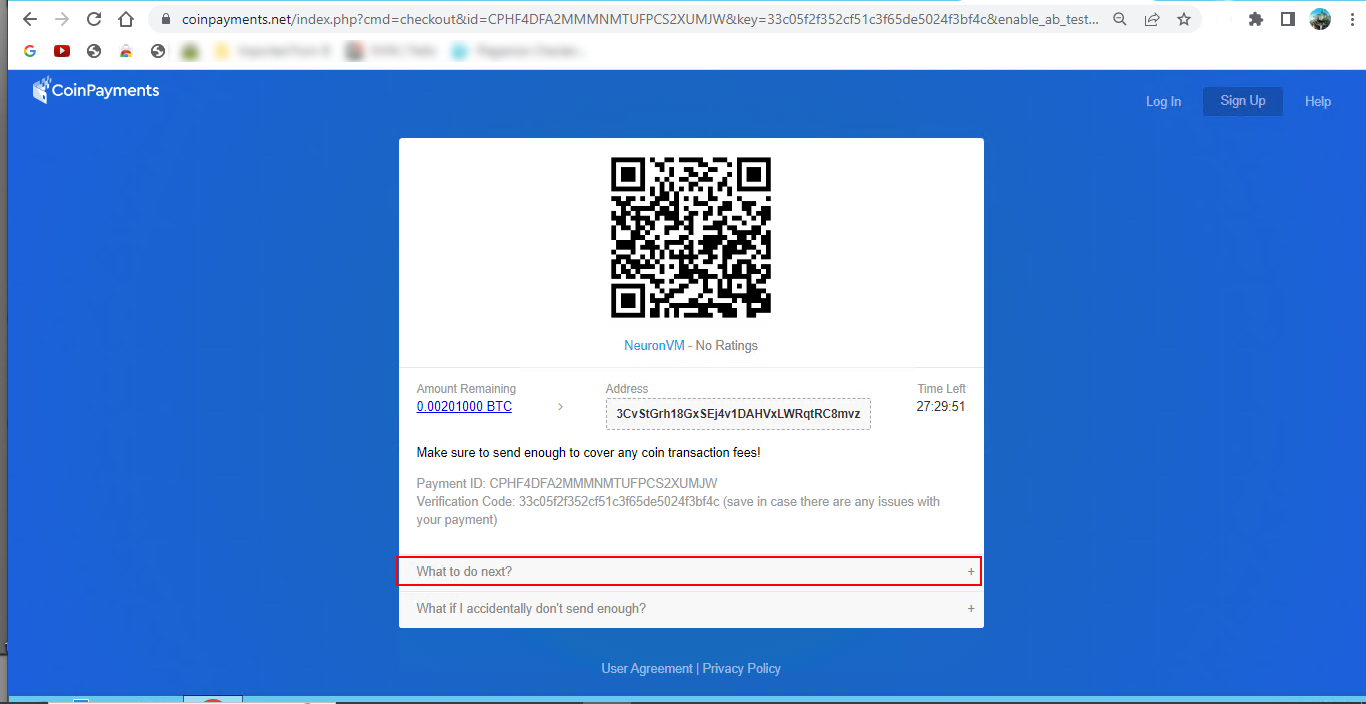
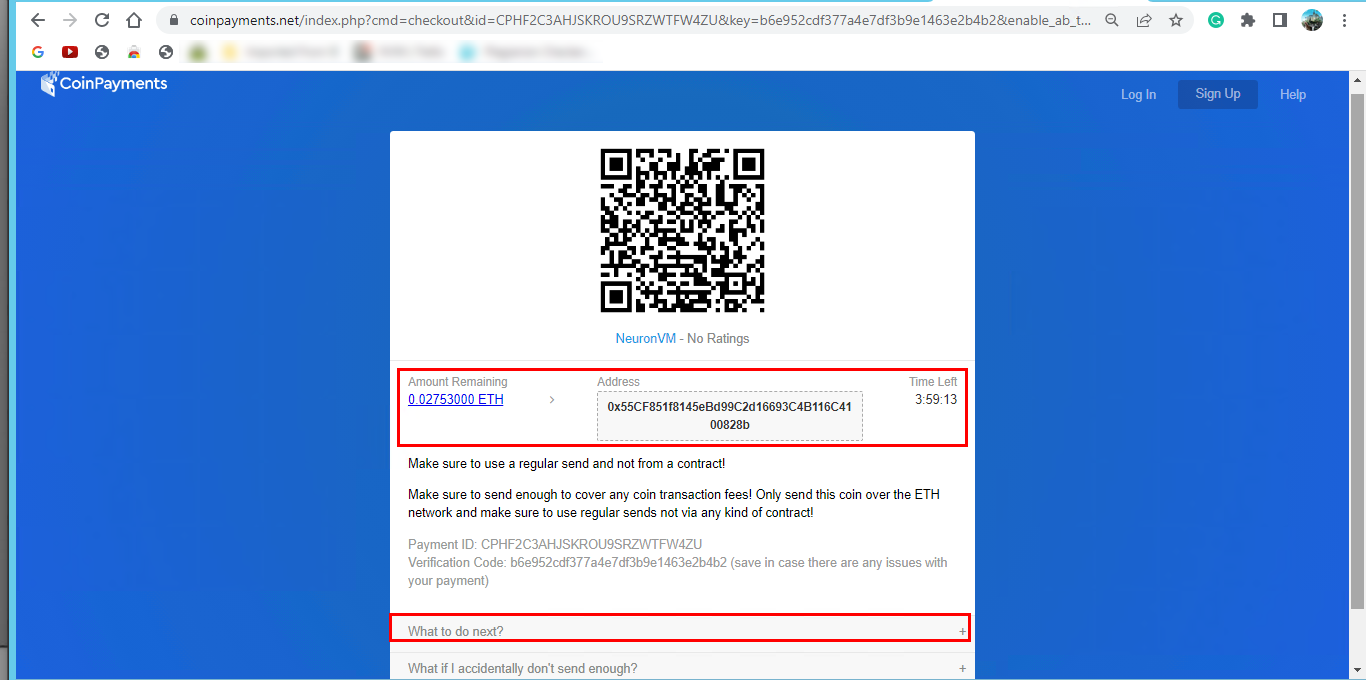
    The last step is to identify the crypto Payment ID and Verification Mode. To achieve more information about your payment refer to the What to do Next Icon and click to see the information and confirm the payment:

    how to buy admin rdp with ada

    The purchase details will be sent to you by email.

    Conclusion

    This tutorial was prepared to help you learn the way of purchase Admin RDP with Cardano. Use the instructions and have an easy payment process. Admin RDP would be a great choice for you. Get this practical server for a more reasonable price and feel the difference. If you need any help or have any questions, just leave a comment.

    FAQ

    What is important about buying Admin RDP?

    It is very important to understand the legal implications and ensure that the purchase is on the way of applicable laws and regulations.

    How many users allow to access RDP?

    As a default, just 2 users are allowed to access Admin RDP, and if you want to connect more than 2 at the same time, then you have to install the RD session host role on your virtual machine.

  • A Full Introduction to CWP

    A Full Introduction to CWP

    CWP or Control Web Panel is an application software for server management in Linux systems, which was previously known as a Linux panel. This system has many features for managing servers, which makes learning easy for beginners who don’t have much experience in using the command line. So, here we will analyze and try to give a full introduction to CWP.

    What is CWP?

    As we mentioned before, CWP is a management system that is created for Linux distributions specifically AlmaLinux. It is produced to allow users to manage, edit, and maintain website content without requiring advanced technical knowledge. This control panel has a simple and understandable area where the navigation menu is in the form of a sidebar with other subsections. We suggest that you choose and buy from the cheap but high-quality Linux VPS server plans offered on our website to set up the CWP control panel.

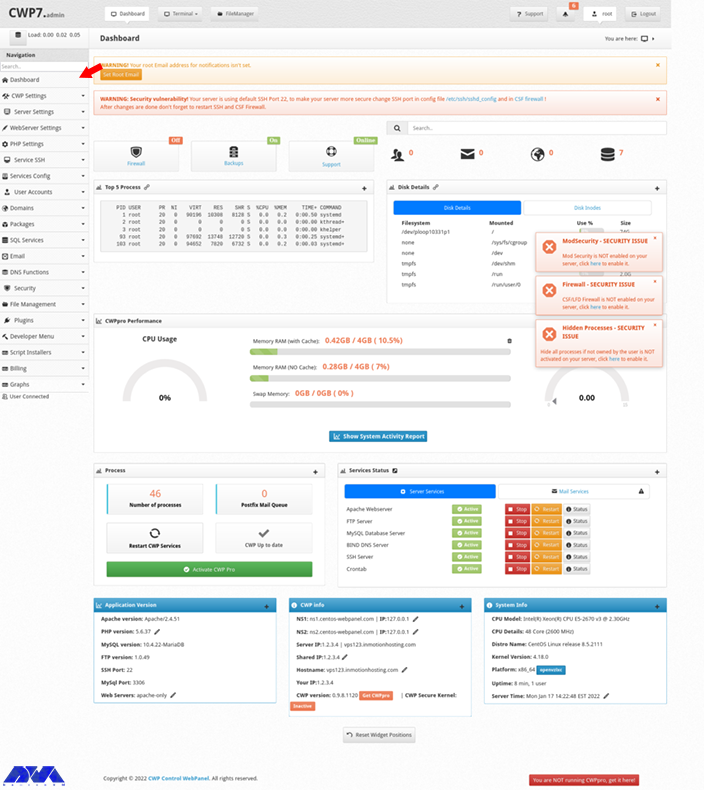
    The dashboard is like the image below:

    cwp dashboard

    Important Features of CWP

    CentOS Web Hosting servers or the CWP has many features. In this section, we try to analyze the most notable ones for you:

    – CWP is equipped with user-advanced features and makes it possible to easily manage websites with modern and advanced user interfaces.

    – This control panel provides complete support for the automation of processes. You can set a billing software to help with the creation of user accounts or run user backups or cronjobs, etc.

    – It contains a powerful file manager. Also, you can manage FTP users and user limits with CWP.

    – The advanced file manager is equipping with a code editor that makes it easy to manage your websites.

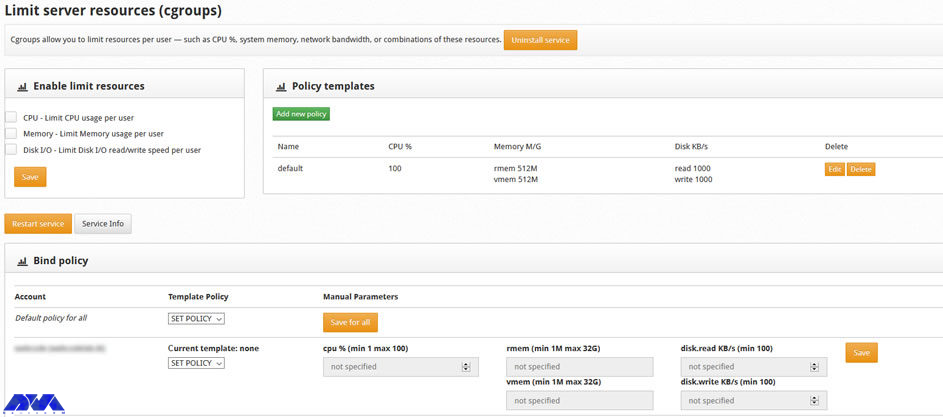
    – This control panel contains many security and safety features that are dedicating to you. These security functions are integrating into CWP:

    cwp security

    – CWP has several monitoring tools. These tools are NetData, Live monitoring of MySQL process, an AI bot, and so on.

    – An advanced backup system with daily, weakly, and monthly backup options in all fields.

    – CWP helps you configure client packages and service plans so easily.

    – Multiple billing systems are supporting by CWP. These systems are WHMCS, Hostbill, Wisecp, and Blesta.

    What Is the difference between Free and CWPpro?

    As the name suggests, you can get the free version of CWP and use it without any payment, but it has features that require a premium version. These features are:

    – The ability to create unlimited CWP users

    – Having sales agents

    – Immediate update of CWP and ModeSecutity

    – Using multiple versions of PHP simultaneously

    – Migration tools for Cpanel

    – Providing additional system security solutions

    Note that, these are all for use in the CWP interface and you can log into the terminal to update the software or install your web security.

    Conclusion

    This article is prepared to introduction to CWP or Control Web Panel and makes a clear understanding of it for you. By studying the features and analyzing this control panel, you can see how useful and applicable is CWP. We hope you enjoyed the content.

    FAQ

    How secure is CWP

    The security in this control panel depends on various factors like implementation, authentication mechanisms, regular updates, and secure coding practices that are completely effective in this field.

    Cpanel or CWP; Which one is better?

    CWP provides a completely free package, whereas, Cpanel is a paid version.