Tag: VPS Server

  • Discover the Best Affordable RDP Providers in 2023

    Discover the Best Affordable RDP Providers in 2023

    RDP is an acronym for Remote Desktop Protocol, which is specific to Windows servers. You can use RDP as a graphical user interface (GUI) to connect to other computers and monitor or control hosted servers. The noteworthy point is that RDP is specific to Windows systems, but it is also compatible with other operating systems such as Linux and Mac.

    In the meantime, there are companies that provide RDP servers for users. These providers include services like RDP VPS that are provided for personal users and businesses. Here we will try to introduce some of these providers and give you a list of the best affordable RDP providers in 2023. Stay tuned!

    An Introduction to RDP Servers

    As mentioned above, Remote Desktop Protocol (RDP) or Admin RDP servers are software or systems that enable remote access and control of a computer or server over a network. RDP is a proprietary protocol developed by Microsoft that allows users to connect to a remote Windows-based computer or server from another device, usually a client computer.

    This technology is widely used in corporate and personal settings for a variety of purposes, including remote management, technical support, and telecommuting.

    The main advantage of RDP servers is that they perform tasks that usually do not require close contact with the user and run 24/7. To name a few, the most common uses to buy Admin RDP servers include running BOTS (automated scripts/programs), Bitcoin mining, SEO tools, online video streaming, Forex trading software, etc.

    Affordable RDP Providers in 2023

    What Are the Important Factors in Choosing a Good Provider to Buy RDP Servers?

    RDP hosting providers are service companies that maintain high-performance servers in data centers, divide these servers into multiple virtual servers, and then rent these virtual servers or VPS to their customers. The magic of this service is remote access. Here we introduce you to key factors in choosing a good RDP provider:

    • Uptime and Reliability: You need a provider with a high uptime percentage to ensure that your RDP servers are accessible when you need them.
    • Performance: Ensure that the provider offers high-performance servers with sufficient resources (CPU, RAM, and storage) to handle your workload without lag or bottlenecks.
    • Server Location: Choose a provider with servers strategically located to minimize latency for your target users or clients.
    • Cost: Compare pricing plans and make sure they align with your budget. Be cautious of providers offering extremely cheap Admin RDP servers, as they may compromise on quality or security. NeuronVM is one of these affordable providers.
    • Scalability: Look for a provider that allows you to easily scale your RDP infrastructure up or down as your needs change.
    • Support: Responsive customer support can be crucial when dealing with technical issues or downtime.
    • Security: The provider should offer robust security measures, including firewalls, encryption, and regular security updates to protect against unauthorized access and data breaches.
    • Bandwidth: Consider the amount of bandwidth and data transfer included in your plan. Make sure it meets your needs, especially if you have high data transfer requirements.
    • User interface: Evaluate the provider’s control panel or user interface. It should be user-friendly and provide you with the necessary tools to manage your RDP servers effectively.

    Top 5 Most Affordable RDP Providers in 2023

    According to the reviews, in this section, we will list some affordable RDP providers in 2023 for you and explain their specifications:

    1- NeuronVM

    NeuronVM is one of the great affordable RDP providers that offers cheap and high-performance RDP servers. You can get rid of complicated installations and costly licenses. This provider contains cheap Admin RDP plans that are proper and suit your needs. If you are looking for cheap, fast, and reliable RDP connections, it is recommended to visit NeuronVM. At last, we can mention a significant feature of the services of this site, it will definitely be administrative access.

    Advantages of NeuronVM Admin RDP:

    – Having instant delivery

    – 60+ locations worldwide

    – 24/7 support system

    – 7 days money back guarantee

    – Having 100% uptime

    neuronvm website - Affordable RDP Providers in 2023

    2- 99RDP

    You can use 99rdp as a great alternative for your business. One of the main advantages is not needing an administrator or specialist and it is a high-performance solution with various features. This provider easily covers your remote desktop needs. 99RDP provides private RDP, affordable RDP, and a dedicated server that has a 100% clean IP and full root admin access. Also, it offers an unlimited amount of bandwidth.

    Advantages of 99rdp:

    – Affordable plans

    – 15 high-demand locations

    – 24 hour money-back guarantee

    – Great 24/7 support system

    99rdp website

    3- AmazingRDP

    The goal of AmazingRDP is to provide the best service for its customers. One of the highlights of this company is that they try to provide cheap RDP servers. Different services that this company provides include Dedicated RDP, GPU, GPU RDP, and Residential VPS. You can get RDP servers through AmazingRDP and enjoy the services.

    Advantages of AmazingRDP:

    – High-performance hardware

    – Root administrator access

    – Offering bespoke OS like Windows server

    – Configuration option depends on your needs with affordable price

    amazingrdp website

    4- HomeRDP

    If you are looking for flawless websites and game-changing online programs or profitable trading bots, homeRDP is a good choice provided by KVM. Full root access, raw computing capacity, and access to fully dedicated server resources from homeRDP with a variety of customization options provide unlimited control over servers.

    You can also have free operating systems and high-level control panels. The cost-effectiveness of VPS is also one of its significant advantages. Features such as IDM and SSD storage, backup, and usage control are also possible in this cheap solution.

    Advantages of HomeRDP:

    – Simple integration of devices.

    – Risk-free service with a money-back guarantee

    – 24/7 live chat and email support

    – 24/7 proactive real-time professional service helps to improve stability and efficiency

    – Round-the-clock help to provide the best customer services

    homerdp website

    5- QuickRDP

    For more than six years, quickRDP has been the leading provider of hosting RDP, private RDP, RDP, and finally dedicated servers. This team consists of experts who work in the hosting department. The privacy of users is also their priority, and they have taken this issue very seriously among the other affordable RDP providers. In such a way that all information is strictly controlled regardless of the importance of the information.

    Advantages of QuickRDP:

    – 99.9% uptime

    – 24/7 support in all plans and unrestricted bandwidth

    – Providing installed application

    – Powerful servers and great resources ensuring maximum performance

    quickrdp website

    What Is the Role of RDP Providers?

    RDP providers play a crucial role in enabling remote access to computers and servers. Here are the key roles and responsibilities of RDP providers:

    • RDP providers facilitate remote access to computers and servers. They allow users to connect to a remote desktop session and give them control over the remote machine’s graphical user interface (GUI).
    • IT professionals and support teams use RDP to remotely troubleshoot and maintain servers and workstations. This allows them to diagnose and fix issues without physically being on-site.
    • In some cases, RDP providers support multi-user environments, where multiple users can connect to a single remote server simultaneously.
    • RDP providers often offer features to manage and allocate resources efficiently. This includes options to limit the amount of CPU, memory, and network bandwidth that a remote session can consume, ensuring fair usage and system stability.
    • RDP providers implement security measures such as two-factor authentication, firewall rules, and user access controls to protect against unauthorized access and security breaches.
    • They often provide logging and monitoring capabilities, allowing administrators to track and audit remote sessions for security and compliance purposes.
    • RDP providers must ensure compatibility with different operating systems and devices.
    • RDP providers are responsible for ensuring secure connections between the client and the host. They implement encryption and authentication protocols to protect data transmitted over the network.
    • For organizations with a high number of remote users, RDP providers may offer load balancing and scalability features.

    What Are the Different Cases of Using Admin RDP?

    Admin RDP includes various programs. These programs can be web hosting or running other complex programs. Here we will discuss the practical uses of these applicable servers:

    – They can host websites and online applications.

    – These servers perform tasks automatically and execute scripts easily.

    – You can host game servers using RDP.

    – Data can be saved and backed up using RDP.

    Conclusion

    In short, RDP servers enable remote access and control of Windows-based computers and servers over a network. They play an important role in various scenarios, from IT management to remote work, and provide features to ensure security and access control. Now that you have a clear vision of RDP and find out the factors to choose the right provider, you can choose wisely and get the most affordable RDP provider.

  • Exploring the Impact of VPS on Algorithmic Trading

    Exploring the Impact of VPS on Algorithmic Trading

    Using Virtual Private Servers (VPS) allows you to protect your system and reduce the risk percentage, so you can safely focus on creating a path to becoming a successful trader. The usage of VPS is also a simple and affordable task in trading. Indeed, VPS has had a significant impact on algorithmic trading due to its ability to provide reliable and low-latency computing environments. Algorithmic trading involves the use of complex mathematical models and algorithms to make trading decisions in financial markets. So, This article will focus on exploring the impact of VPS on algorithmic trading.

    What Is Algorithmic Trading?

    Algorithmic trading is a process in the field of business to execute orders with the help of automatic and pre-programmed trading instructions to calculate elements such as time, price, and volume. If we want to explain the meaning of algorithm to you more clearly, it means a set of directions to solve a problem. These computer algorithms send part of the complete orders to the market over time.

    In general, algorithmic transactions use a series of mathematical equations along with human supervision to buy and sell financial securities in the stock market. This allows companies to perform tens of thousands of transactions per second. These transactions can be used in different situations such as order execution, trend trading strategies, or arbitrage. You can use our Cheep Windows VPS services to robot your algorithmic trading.

    What Is Algorithmic Trading?

    These algorithms are designed to follow predefined sets of rules and instructions to make trading decisions. Algorithmic trading aims to execute trades at the best possible prices and speeds, taking advantage of market inefficiencies, price discrepancies, or other opportunities that may arise.

    Benefits of Using VPS for Algorithmic Trading

    The benefits of VPS on algorithmic trading can be understood through the following points:

    – Security: VPS providers often implement robust security measures, including firewalls, encryption, and regular updates, to protect trading algorithms and sensitive financial data. This can enhance the overall security of algorithmic trading operations.

    – Lower Latency and slippage: Usage of VPS for algorithmic trading reduces the latency. VPS providers often host their servers in data centers close to major financial exchanges, which minimizes the time it takes for trading orders to be transmitted. In algorithmic trading, even milliseconds can make a significant difference. So low latency can lead to better execution of trades.

    – Reliability and Stability: The VPS hosting service is a reliable and stable environment for all business activities. Unlike shared hosting, VPS servers are designed for stable performance and complete downtime. They also ensure uninterrupted access to trading platforms.

    – Remote Access: VPS allows traders to access their trading algorithms remotely from various devices. This is especially useful for traders who need to make adjustments or monitor their strategies while on the go.

    – Reduced Infrastructure Costs: VPS eliminates the need for traders to invest in costly hardware and IT infrastructure, as they can simply rent the necessary computing resources from the VPS provider.

    – Isolation from Local Factors: Algorithmic traders may face issues related to their local internet connectivity, power outages, and other factors that could impact their trading performance. Using VPS can isolate trading operations from such local disruptions.

    – 24/7 Availability: Algorithmic trading often requires continuous monitoring and execution of trades, even outside regular trading hours. VPS allows traders to keep their algorithms running 24/7 without the need to keep their personal computers on all the time.

    What Are the Components of Algorithmic Trading?

    In this section, we will define the main elements of developing a trading algorithm system:

    Exploring the Impact of VPS on Algorithmic Trading
    • Identifying a strategy: You have to choose which markets you want to trade, then develop your trading logic and define the necessary parameters for your trading logic.
    • Backtesting your strategy: You should backtest your strategy, that is, analyze your performance based on historical data and eliminate other biases.
    • Executing the strategy: In this case, you should link to a brokerage and underestimate transaction costs like trading fees.
    • Managing Risks: Make pre and post-trade checks to avoid losses.

    Is Algorithmic Trading Easy to Do?

    Whether algorithm trading is easy or not depends on various factors, including your background, experience, resources, and the complexity of the strategies you want to implement. Here are some considerations:

    • Financial Markets Knowledge: You need to understand how markets operate to create effective trading strategies. A solid understanding of financial markets, trading mechanisms, and asset classes (stocks, commodities, forex, etc.) is essential for you.
    • Strategy Development: Designing trading strategies that are profitable and can adapt to changing market conditions is a challenge. It requires a deep understanding of quantitative, technical, and fundamental analysis.
    • Data Analysis: Successful algorithm trading relies heavily on data analysis. You need historical and real-time market data to backtest and validate your strategies.
    • Technical Skills: Algorithmic trading requires a good understanding of programming languages, such as Python or R, as well as knowledge of data analysis, statistics, and financial markets.
    • Risk Management: Implementing robust risk management protocols is crucial to avoid significant financial setbacks.
    • Backtesting and Optimization: Before deploying a trading strategy in real markets, it’s important to thoroughly backtest it using historical data to see how it would have performed in the past.
    • Regulations and Compliance: Depending on your location and the markets you’re trading in, there might be legal and regulatory considerations to take into account.
    • Technology and Infrastructure: Setting up the necessary technological infrastructure, including reliable and fast data feeds, execution platforms, and server hosting, requires technical knowledge and resources.

    Is Algorithmic Trading Easy to Do?

    Which VPS Platform Is Suitable for Algorithmic Trading?

    Algorithms can analyze market data, identify trends, and execute trades without human intervention. Algorithmic trading has also gained popularity due to its potential for high-speed and high-frequency trading, allowing traders to take advantage of market inefficiencies and opportunities.

    But if we are asked to introduce a suitable platform for doing these transactions, our suggestion is a Windows VPS is one of the most practical services of our website. A Windows Virtual Private Server can play an important role in algorithmic trading for several reasons:

    – Algorithmic trading often requires round-the-clock monitoring and execution of trades. Windows VPS offers 24/7 availability.

    – Windows VPS providers usually offer high uptime rates and reliable internet connections and minimize the risk of downtime.

    – You can access your VPS remotely from anywhere with an internet connection.

    – A Windows VPS hosted in a data center with proximity to the exchange servers can help reduce latency, ensuring faster order execution.

    – Running the algorithmic trading software on a VPS can isolate it from your personal computer’s environment, reducing the risk of interference from other applications or activities.

    How Can You Boost the Performance of Algorithmic Trading By VPS?

    Virtual Private Servers (VPS) have had a significant impact on enhancing the performance of algorithmic trading in the financial markets. Here we will give a summary of the factors that affect trading by VPS:

     Boost the Performance of Algorithmic Trading

    You should choose a VPS plan that provides sufficient computing resources (CPU, RAM, storage) to handle your algorithmic trading strategies efficiently. In other words, a plan with dedicated resources ensures consistent performance.

    The other factor is reviewing and optimizing your trading algorithms to reduce computational complexity. Efficient algorithms require less processing time, enabling faster order execution.

    Focus on order types that offer faster execution, such as market orders or limit orders with a high likelihood of being filled quickly.

    You can regularly monitor your VPS for performance issues, network stability, and potential bottlenecks.

    Also, it is good to Implement backup and redundancy measures to ensure continuity in case of hardware or network failures. Redundant setups can help minimize downtime.

    Keep your trading platform and algorithms up to date with the latest software releases and bug fixes. This can improve stability and performance.

    Use latency monitoring tools to track the time it takes for your orders to be executed. This can help you identify any latency issues and optimize accordingly.

    Utilize smart order routing algorithms to automatically route orders to the exchange with the best execution conditions at any given moment.

    In the end, Before deploying a new algorithm or strategy, thoroughly test it in a simulated environment to ensure it performs as expected. This can help avoid costly errors in a live trading scenario.

    Conclusion

    It’s important to note that while VPS offers many benefits, it’s not a one-size-fits-all solution. Relying solely on VPS doesn’t guarantee success in algorithmic trading. Effective strategy development, risk management, and market knowledge remain crucial components of a successful algorithmic trading operation. By the way, we tried to give beneficial information and guide you to understand algorithmic trading and the way VPS servers can help to robot your trading.

  • Activating Windows Defender Security: Importance of Antivirus and Firewall in Admin RDP

    Activating Windows Defender Security: Importance of Antivirus and Firewall in Admin RDP

    Regarding using Remote Desktop Protocol (RDP) for administrative tasks, the importance of having both an antivirus and a firewall cannot be overstated. RDP allows you to remotely access and manage a computer, which introduces specific security risks that need to be addressed. Your organization may require to enable Windows Defender and other Windows security features to ensure that your device is secure. This tutorial will represent the way for activating Windows Defender security and explain some points to show the importance of antivirus and firewall in admin RDP.

    A Short Definition of Windows Defender Security

    Windows Defender Security, commonly known as Windows Defender, is a built-in antivirus and security software solution developed by Microsoft for the Windows operating system. It is designed to protect users’ computers from various types of malware, including viruses, spyware, ransomware, and other malicious software threats. Windows Defender provides real-time scanning, automatic updates, and a range of security features. This security option helps ensure the safety and privacy of a user’s data and activities while using a Windows-based device like Windows VPS. You can achieve services like Windows VPS from our site.

    What Are Important Features of Windows Defender?

    Windows Defender offers a range of important features aimed at providing comprehensive security for Windows-based devices. Some of the key features are as follows:

    • Windows Defender constantly monitors your system in real-time, scanning files, programs, and downloads as they are accessed.
    • It offers browser extensions and features that help protect you from phishing websites and malicious downloads while browsing the internet.
    • Windows Defender integrates with the Windows Firewall to provide network protection. It monitors incoming and outgoing network traffic to identify and block potentially malicious connections
    • It detects and removes various types of malware, such as viruses, worms, trojans, spyware, adware, and potentially unwanted programs.
    • Windows Defender integrates with the Windows Security Center, providing a centralized location to manage various security settings and features on your device.
    • Windows Defender operates with minimal impact on system performance. It uses resource-efficient scanning techniques to avoid slowing down your computer.
    • Windows Defender includes parental control features. These features allow you to manage and monitor your children’s online activities, ensuring they are safe while using the computer.
    • Windows Defender SmartScreen helps protect you from phishing attacks and malicious websites by analyzing the URLs you visit and warning you about potential risks.
    • Windows Defender includes features to safeguard against ransomware attacks, which encrypt your files and demand a ransom for their release.
    • Windows Defender is regularly updated to stay up-to-date with the latest threats and security measures

    How Can We Activate Windows Defender Security?

    To activate Windows Defender security on your Microsoft systems like Windows VPS, you should follow the instructions below:

    – Go to the Start menu.

    – Type Group Policy on your Search bar and Select Edit Group Policy from the list. Now you will see Local Group Policy Editor opens:

    Local Group Policy Editor

    – Then you should go through this path: Computer Configuration => Administrative Templates => Windows Components => Microsoft Defender Antivirus.

    local group policy editor

    Turn off Microsoft Defender Antivirus

    activate windows defender to enhance security

    Turn off Microsoft Defender Antivirus - Activating Windows Defender Security

    – In the list that appears, scroll down and select the option Turn off Microsoft Defender Antivirus:

    Turn off Microsoft Defender Antivirus

    – In this part, you have to do an unusual thing, and that is to click the Disable option or not configured because the names indicate disabling Windows Defender. Don’t worry because these options indicate that it is turn on:

    Activating Windows Defender Security

    As the last step, click on Apply and then OK.

    Tip: Windows Defender offers real-time protection that monitors your computer for threats as they occur. This feature is typically enabling by default, but you can verify its status in the Windows Security Center.

    Conclusion

    Notice that Windows Defender is a basic level of security and while it provides a good baseline protection. It’s also recommending to practice safe browsing habits, regularly update your software, and consider additional security measures if you’re looking for more advanced protection. So we concentrated on this security action and gave simple guidance about activating Windows Defender Security to ease your mind about your Windows system. We hope this content was helpful to you.

  • A comprehensive overview of Admin RDP 2016 and its features

    A comprehensive overview of Admin RDP 2016 and its features

    Remote Desktop Protocol is a technology developed by Microsoft that allows users to remotely connect to and control a computer or server over a network connection. Windows Server 2016 is a server operating system released by Microsoft. Admin RDP refers to the use of RDP by administrators to manage and control servers. Here we are going to present a comprehensive overview of Admin RDP 2016 and its features.

    An Introduction to Admin RDP 2016

    Admin RDP, also known as Administrative Remote Desktop Protocol, refers to the practice of using the Remote Desktop Protocol (RDP) technology for administrative purposes. RDP is a dedicated protocol developed by Microsoft that allows users to connect to and control another computer or server over a network connection.

    what is admin RDP

    Admin RDP involves using RDP to remotely manage and administer servers, systems, or computers. It’s a common practice in IT and system administration, where administrators need to maintain and troubleshoot remote machines without physically being present at the location of the servers. With Admin RDP, administrators can access the graphical user interface (GUI) of the remote system, just as if they were sitting in front of it. We recommend using the Cheap Admin RDP plans prepared on our website.

    Features of Admin RDP 2016

    Windows Server 2016, introduced several new features and improvements in the realm of remote desktop administration (RDP). Here are some key features of Admin RDP in Windows Server 2016:

    – Improved computing: With higher security, better resource use, fewer updates, and faster reboots servers like Nano can manage remotely. Also, containers in this server allow users to isolate apps, and make it easy to administer and provide better virtualization. capabilities.

    – Administration (Powershell feature): This way with improved usability and security, users can have more control over the management of a Windows-based environment. You can run Powershell on a nano server.

    – User Profile Disks: This feature simplifies the management of user profiles in remote desktop environments. User Profile Disks allow user profiles to be stored as virtual hard disks, making them easier to manage and back up.

    – Credential Security Support Provider (CredSSP): CredSSP is a security support provider that enhances security for RDP connections by providing an additional layer of protection during the authentication process. It helps prevent man-in-the-middle attacks and provides more secure authentication.

    – Remote Desktop Web Access: This feature enables users to access remote desktops and applications using a web browser. It provides a web-based interface for launching remote sessions without requiring the installation of a dedicated client.

    – Security: Windows Server 2016 introduced improved security measures for RDP, including support for Remote Credential Guard. These measures help protect user credentials by preventing the storage of sensitive information in the remote session.

    – Remote Desktop Gateway: The Remote Desktop Gateway role allows authorized users to connect to remote desktops and resources over the internet using the Remote Desktop Protocol (RDP) while maintaining security through SSL encryption.

    What are the Use Cases of Admin RDP?

    In this section, we will introduce you to the main use cases for admin rdp:

    use cases of Admin RDP

    1- Remote troubleshooting: This can be done by the company’s help desk or by a person trying to help someone else.

    2- The possibility of remote system management: In this way, remote configuration changes can be made in network servers.

    What are the Best Practices for Admin RDP 2016

    Here, are the best practices for Admin RDP 2016:

    – Use Strong Passwords: Ensure that strong, unique passwords are used for accounts with remote access privileges.

    Network Security: Implement firewalls, network segmentation, and VPNs to enhance the security of remote connections.

    – Two-Factor Authentication: Consider implementing two-factor authentication for an added layer of security.

    – Regular Auditing: Monitor and log remote access activities for security and compliance purposes.

    – Regular Updates: Keep the server’s operating system, RDP software, and security tools up to date to address potential vulnerabilities.

    Troubleshooting Issues to Admin RDP 2016

    Now let’s analyze some common problems of RDP on Windows Server 2016 and their solutions;

    1: Unable to Connect to RDP Server

    Solution: Verify that the Remote Desktop service is running on the server. Try to reboot it by following these steps:

    – Open the “Services” management console (run services.msc).

    – Find “Remote Desktop Services” or “TermService,” right-click, and select Restart.

    2: RDP Port Blocked

    Solution: Check if the default RDP port (3389) is blocking by a firewall. If so, you can change the RDP listening port:
    Open the Registry Editor (run regedit).

    Navigate to HKEY_LOCAL_MACHINE\SYSTEM\CurrentControlSet\Control\Terminal Server\WinStations\RDP-Tcp. Then, Find the PortNumber DWORD and change its value to the desired port. Restart the Remote Desktop Services.

    3: Network Connectivity Problems

    Solution: Verify network connectivity using ping and tracert commands to ensure the server is reachable from the client. Examine if there is high latency or packet loss.

    4: Licensing Problems

    Solution: Ensure Remote Desktop Licensing is configuring correctly:

    – Set up a Remote Desktop Licensing server.

    – Install and activate the required Client Access Licenses (CALs).

    Conclusion and End Point

    Admin RDP is a good way for someone who needs to check and have control of systems remotely. Using this server makes it easy and enjoyable to control, manage, or configure other systems so it is going to be a well-known and useful assistant for you. As a result, we gave you a comprehensive and helpful guide to make you more familiar with Admin RDP and its features. We hope this guide was helpful for you.

  • Top 5 Android Emulators with Excellent Performance on Admin RDP

    Top 5 Android Emulators with Excellent Performance on Admin RDP

    Have you ever heard about Android emulators? This emulator is a software program that simulates an Android device on your computer. It enables you to run and test Android applications (apps) and games on your PC or Mac without needing an actual physical Android device. When using Android emulators on remote desktop environments like Admin RDP, it’s essential to consider the specifications of the remote machine and ensure that it meets the emulator’s system requirements for optimal performance. Here, you will find the top 5 Android emulators with excellent performance on Admin RDP.

    What Is the Role of Android Emulator?

    The role of an Android emulator is to simulate the behavior of an Android device on a different platform, typically a computer. Emulators play a crucial role in various scenarios, catering to both developers and regular users. Here are some of the key roles of Android emulators:

    1) You can use this emulator by app developers to create, test, and debug Android applications.

    2) Emulators help developers by allowing them to quickly test their Android apps on a non-Android environment, such as a Windows or macOS computer.

    3) Emulators enable developers to rapidly prototype and iterate on their app ideas without the need for physical Android devices.

    4) Many users use Android emulators to play mobile games on their computers.

    5) Emulators offer a way for users to run Android apps on their computers, bringing mobile apps to a larger screen.

    6) Android emulators are used in educational settings to teach Android app development and mobile computing concepts.

    7) Users can explore and review Android apps without needing a physical Android device.

    8) Emulators can provide a way to run older Android apps that might not be compatible with the latest Android versions or devices.

    What Are the Advantages of Android Emulator on Admin RDP?

    In the beginning, we recommend you use the cheap Admin RDP services that are prepared in various plans on our site. Here are some advantages of Android Emulator on Admin RDP:

    – Transferring files in virtual machines is faster because here you can transfer the file by drag and drop.

    – This simulator enables the programmer to work with physical sensors such as accelerometer, gyroscope, etc.

    – You can play games, search the internet, or change settings with the help of these emulators.

    – An Android emulator helps you to choose any desired version so that a developer can build an app.

    – If you need a case test, the developer can do it through the Android simulator.

    What Are the Best Android Emulators for Admin RDP?

    According to the report of a number of users, Android virtualizations may not work on VPS due to their nature. Therefore, it is difficult to find powerful and efficient simulations. In this section, we tried to collect the top 5 Android virtualizations for you, which are used in Admin RDP:

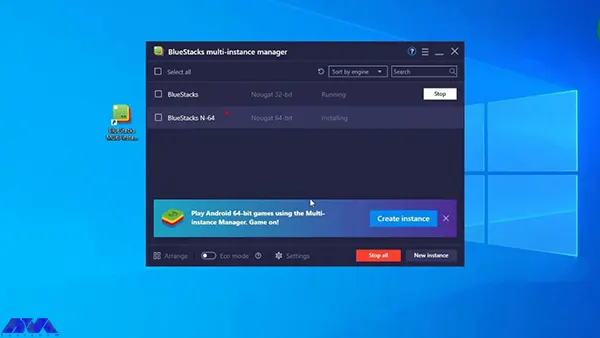
    1) Bluestacks

    Bluestacks is a popular Android emulator that allows users to run Android applications and games on their Windows PC or Mac. As an important action, it creates a virtualized environment in which Android apps can be installed and used. Also, it offers a way to enjoy mobile experiences on a larger screen with the convenience of keyboard and mouse controls.

    Bluestacks on admin rdp

    2) Android Studio

    The Android Studio emulator is a software tool that was developed by Google as part of the Android Studio IDE (Integrated Development Environment). This emulator is used by developers to simulate and test Android applications on their computers before deploying them to actual Android devices. The emulator helps developers ensure that their apps work correctly on various device configurations, screen sizes, and Android versions.

    android studio emulator

    3) LDplayer

    LDplayer emulator is an Android emulator designed for playing mobile games and running Android applications on a Windows PC. Emulators like LDPlayer allow users to experience Android apps and games on a larger screen and with the potential for better performance, making it especially useful for gaming enthusiasts.

    ldplayer emulator

    4) Memu

    MEmu is another popular Android emulator. It allows users to run Android applications and games on a Windows PC. Like LDPlayer and other similar emulators, MEmu provides an environment for users to experience Android apps and games on a larger screen and with potential performance enhancements.

    memu  emulator

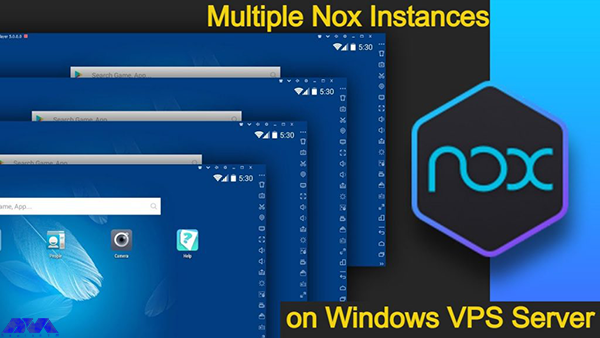
    5) Noxplayer

    NoxPlayer is another popular Android emulator designed to run Android applications and games on a Windows PC or Mac. It provides users with the ability to experience mobile apps and games on a larger screen and with potential performance improvements.

    nloxplayer emulator

    Common Issues of Using Android Emulator on Admin RDP

    You can use Android emulators and top emulators easily to utilize different apps on RDP systems. Now let’s analyze some troubles that you may encounter during the usage of these emulators:

    • Low Volume as an audio problem:

    Solution: Check both software and hardware volume controls. Adjust the volume in your media player, operating system settings, and on your external speakers or headphones.

    • No Sound or Audio Playback:

    Solution: Check if your speakers or headphones are properly connected. Ensure the volume is turned up and not muted. Also, make sure the correct audio output device is selected in your computer’s settings.

    • Emulator Performance is Poor Due to Inadequate Resources

    Solution: Allocate Adequate Resources. It requires a significant amount of resources, including CPU, RAM, and GPU power. Make sure your computer meets the emulator’s system requirements and allocates enough resources to the emulator in its settings.

    • Emulator Can’t Connect to the Internet

    Solution: Troubleshoot Network Connectivity. You can check the emulator network setting, check the host’s system internet connection, you can disable VPN or Proxy, also you can try disabling the firewall and antivirus software.

    Conclusion and Final Thoughts

    If you are looking for good resources to find out a list of applicable Android emulators to use in Admin RDP and use various applications or test different platforms on your RDP server. Note that some of the emulators are useless as we mentioned above, so we tried to represent useful ones. Also, here we mentioned some problems and their solution that you may encounter while working with these emulators. we will be pleased if you share your comments with us.

    FAQ

    What are the prerequisites before using an Android emulator?

    For the best performance, use 16 GB RAM, 64-bit Windows, and also, 16 GB disk space.

  • Unleashing the Power of Admin RDP

    Unleashing the Power of Admin RDP

    Admin RDP is a term that refers to the use of Remote Desktop Protocol (RDP) to access and control a computer with administrative privileges. RDP is a protocol that allows a user to interact with another computer’s graphical user interface over a network connection. Admin RDP can use for various purposes, such as managing servers, troubleshooting problems, performing maintenance tasks, or running applications that require high. In the rest of this post, stay with us as we explain Unleashing the Power of Admin RDP to you.

    Advantages of using Admin RDP

    Nowadays, the term Admin RDP has become very popular among network professionals. Using this service allows users to do their work easily by accessing their desired location. Some of the most important advantages of Admin RDP are:

    • Admin RDP has a dedicated IP.
    • It has dedicated resources. These resources include CPU, RAM, and Storage.
    • Full access to the server is possible.
    • Installation of any program is possible.
    • RDP security is covered by yourself.
    • You can change the RDP port.
    • It is possible to add multiple RDP users.
    • It is possible to choose a custom operating system.
    • Created by virtualization technology.
    • There is access to the server administrator.
    • Hardware can be upgraded.
    Power of Admin RDP

    Understanding performance optimization for Admin RDP

    Optimizing performance for Admin RDP is a topic that involves various factors and settings that can affect the speed and quality of your remote desktop sessions. Depending on network conditions, hardware specifications, and application requirements, you may need to adjust some parameters to achieve the best performance.

    It is interesting to note that using a modern RDP client supports the latest protocols and features such as RemoteFX, UDP transport, and adaptive graphics. Then you can try the new Remote Desktop client from the Microsoft Windows 10 Store, which is designed to work with Windows Virtual Desktop and offers better performance than the standard Remote Desktop Client.

    Another important and interesting point is that you will be able to compress the data transfer between the client and the server by using Configure compression for RemoteFX. This can help reduce network bandwidth consumption and improve the responsiveness of your sessions. You can choose memory, network bandwidth, or a balance of both.

    We recommend adjusting the programs you run on the server to make them more suitable for remote desktop sessions. For example, you can reduce the resolution, color depth, or frame rate of graphics-intensive programs, or disable some features that aren’t necessary for your tasks. In other words, it is better to adjust the visual effects and display settings on the server to reduce the graphic complexity and improve the rendering speed of your sessions. You can use the System Properties dialog box to select the Adjust for best performance option, which disables most animations, shadows, and transparency effects on the server.

    Choosing the right Windows distribution for your VPS

    Choosing the right Windows distribution for your server is a decision that depends on a variety of factors, including your budget, performance requirements, security needs, and compatibility with other software and hardware. There are different editions and versions of Windows Server that offer different features and capabilities. Some of the most common are:

    1) Windows Server 2012 R2: This is the older version of Windows Server that was released in October 2013. Windows Server 2012 R2 enhanced the virtualization, storage, networking, and management capabilities of the server platform. It also added new features such as Work Folders, Storage Tiering, Desired State Configuration, and Workplace Join. Windows Server 2012 R2 is available in four editions: Essentials, Foundation, Standard, and Datacenter.

    2) Windows Server 2016: This version of Windows Server was released in September 2016. It introduced new features such as Nano Server, Storage Spaces Direct, Shielded Virtual Machines, and Windows Server Containers. It also improves the security, scalability, and reliability of the server platform. Windows Server 2016 comes in three editions: Essentials, Standard and Datacenter.

    3) Windows Server 2019: This version of Windows Server was released in October 2018. It offers improved security, hybrid cloud integration, container support, and faster innovation for applications. It also supports Linux workloads and has a new Windows admin center for managing servers. Windows Server 2019 comes in four editions: Essentials, Standard, Datacenter, and Hyper-V Server.

    4) Windows Server 2022: Windows Server 2022 has provided new and advanced features for users in the field of virtualization, network, storage, user experience, cloud computing, automation, etc. Simply put, Windows Server 2022 will help you make your company’s IT operations much easier and at a whole new level while reducing costs. In the 2022 version, the Microsoft Edge browser has replaced the old browser in the Windows Server version.

    Steps to secure your Admin RDP

    Securing Admin RDP is a very important step to protect your computer and data from unauthorized access. There are several steps you can take to secure your admin RDP, such as:

    1) Enable Network Level Authentication (NLA) in your RDP settings. This requires the user to authenticate before establishing a remote connection, which can prevent man-in-the-middle attacks.

    2) Use a strong and complex password for your account and change it regularly. You can also use a password manager to store and generate your passwords securely.

    3) Encrypt your RDP connection with SSL/TLS. This method ensures that the data transferred between the client and the server is protected from eavesdropping and manipulation.

    4) Change the default RDP port from 3389 to a random port number. This makes it more difficult for attackers to scan and find your RDP service on the network.

    5) Use a firewall to restrict access to your RDP port and only allow connections from trusted IP addresses or networks. You can also use a gateway service to create a secure tunnel for your RDP traffic.

    6) Use the privileged access management (PAM) solution to manage your administrator credentials and access policies. It allows you to store your passwords in an encrypted vault, give access only when needed, and monitor and inspect your RDP sessions.

    Hardening your Admin RDP for enhanced security

    RDP is a convenient way to access and manage remote systems, but it can also pose security risks if not configured properly. Here are some tips and resources to help you secure your RDP connections.

    The first step is to use the latest version of RDP and Windows. Older versions of RDP may have vulnerabilities that can be exploited by attackers. Make sure you have the latest updates and security patches for your Windows operating system and your RDP client and server.

    The next step is to enable SSL/TLS encryption for RDP. This prevents your RDP traffic from being intercepted or tampered with. You can use the Microsoft Remote Desktop Services gateway to encrypt RDP connections using SSL/TLS.

    Restrict RDP access with Windows Firewall. You can use Windows Firewall to prevent unauthorized hosts and networks from accessing your system through RDP. You can also specify which ports and protocols are allowed for RDP.

    Use multi-factor authentication (MFA) for RDP. MFA adds an extra layer of security by requiring a second factor, such as a code or biometric, to verify your identity before granting RDP access. You can use Windows Hello for Business or other third-party solutions to enable MFA for RDP.

    Finally, you can configure session security and auditing policies for RDP. You can use Group Policy or Local Security Policy to set various options for RDP sessions, such as encryption level, idle time, clipboard redirection, and printer redirection. You can also enable auditing and logging of RDP events to monitor and track remote access activities.

    Optimizing your Admin RDP for speed and efficiency

    RDP can consume a lot of network bandwidth and affect the performance of your applications. Here are some tips and resources to help you improve your RDP experience. Configure transport protocols for RDP. RDP can use both TCP and UDP protocols to send and receive data over the network. TCP is more reliable but slower, while UDP is faster but less reliable. You can choose the protocol to use for your RDP sessions based on your network conditions and requirements.

    On the other hand, you can set up applications to host remote desktop sessions. If you use the Remote Desktop Session Host (RD Session Host) server to host multiple remote sessions, we recommend that you optimize the programs that run on the server. You can use Group Policy or Local Security Policy to set various options for applications, such as process priority, CPU affinity, memory allocation, and more.

    We recommend customizing visual settings for your remote meetings based on your connection speed and preferences. You can enable or disable features like desktop background, font smoothing, menu animations, window dragging, etc. These properties can affect the amount of data transferred over RDP and the responsiveness of your applications.

    Monitoring and managing your Admin RDP

    To monitor remote client activity and status, you can use the Remote Access Management Console on the Remote Access Server. This console allows you to view the list of users connected to the server, connection details, and resource usage. You can also use Windows PowerShell commands to get the same information.

    To secure your Admin RDP, you must use the latest version of RDP and Windows, enable SSL/TLS encryption, restrict access with Windows Firewall, use multi-factor authentication, and configure security policies and session auditing. These measures help you prevent unauthorized access, data interception, and malicious attacks.

    Troubleshooting common issues with Admin RDP

    Here are some of the most common problems and how to troubleshoot them.

    1) Disconnecting from the remote computer: One of the most common problems experienced when trying to use the Remote Desktop Protocol (RDP) is disconnecting from the remote computer. This error can be caused by a variety of factors, including a dropped or unstable user connection, server settings, or authentication issues. To fix this problem, you can try the following steps:

    Solution:

    • Check your network connection and make sure it is stable and reliable. You can use a tool like ping or trace to test the connection between the client and your host computer.
    • Check the server settings and make sure that RDP is enabled and configured correctly. You can use Remote Access Management Console or Windows PowerShell commands to check and change RDP settings on the server.
    • Check your authentication credentials and make sure they are correct and valid. If your credentials have expired or been blocked, you may need to reset your password or use a different account.

    2) Unable to log into the remote computer: One of the most common errors encountered when using Remote Desktop Protocol (RDP) is the “Unable to Log You On” error. This can be due to a variety of issues such as incorrect credentials, server connection issues, or an expired password. To fix this problem, follow the steps below:

    Solution:

    • Verify that you have entered the correct username and password for the remote computer. Make sure you use the domain name or IP address of the remote computer, not the local one.
    • Verify that the remote computer is online and accessible. You can use a tool like ping or trace to test the connection between the client and your host computer.
    • Check that your password has not expired or been changed. If your password is no longer valid, you may need to change your password on the remote computer or use a different account.

    3) Remote Desktop cannot find the computer: The most common reason for this problem is that the Remote Desktop Protocol is not enable on the server. Other possible reasons for this error include an incorrect IP address or hostname of the remote computer, network connectivity issues, port blocking, and more. To solve this problem, you can try the following steps:

    Solution:

    • Enable RDP on the server using the System Properties dialog box or Windows PowerShell commands. You can also check and change the RDP status in the registry editor.
    • Make sure you entered the correct IP address or hostname of the remote computer. You can use a tool like nslookup or ipconfig to find the IP address or hostname of the remote computer.
    • Check your network connection and firewall settings and make sure they are not blocking RDP traffic. You may need to open port 3389 on your firewall or router to allow RDP communication.

    Conclusion and final thoughts

    Admin RDP is a powerful and convenient feature that allows you to remotely access and manage other computers on your network. However, it also has some security and performance challenges that require proper configuration and optimization. In this article, we’ve provided you with tips on how to harden, optimize, monitor, and troubleshoot RDP Admin. If you have any questions about different parts of this article, you can ask us in the comments section.

  • Tutorial Create VPN Connection on RDP 2016

    Tutorial Create VPN Connection on RDP 2016

    Using a VPN (Virtual Private Network) means you’ll leave no trace of yourself on the Internet for the ISP or anyone else. Instead of connecting directly to a crowded and insecure Internet space, a VPN connects you to a private Internet network that is limited to you. A VPN chooses your location based on IP, where it does not belong to you at all. In this way, you can ensure your security in the Internet space. Another use of a VPN is to remotely run a company’s employees to the office’s private network, even if they are not physically present in the office. Due to the importance of VPN, we decided to teach you in this article about the Tutorial Create VPN Connection on RDP 2016.

    Introduction to VPN and its benefits

    Using a VPN can be beneficial for you in two different ways. Firstly, activating it allows you to access the internet from another country through VPN hosting servers, which can be useful for accessing content that is not available in your country of residence. Secondly, and most importantly, using a VPN encrypts all your traffic data over the internet, providing you with enhanced security.

    By connecting to VPN servers, you are provided with an encrypted connection with trusted links, and you can use the Internet normally and without any restrictions. Keep in mind that using a VPN slows down download and upload speed. That’s because when using a VPN data transfer speed reduces.

    How to Create VPN Connection on RDP 2016

    Before starting the training on how to create a VPN account, we recommend you choose and buy the plan you need from the cheap Admin RDP plans provided on our website. The first step is to type PowerShell in the Windows Start menu and right-click on Run as Administrator and open it in Administrative mode.

    Administrative mode

    By running the following command, you will install the Windows Update module for PowerShell:

    Install-Module PSWindowsUpdate

    If you are asked to confirm, you can press Y and enter.

    Then run the following command to get a list of the latest updates:

    Get-WindowsUpdate

    Finally, run the following command to install the updates.

    Install-WindowsUpdate
    Powershell Custom Config

    After the updates are installed, run the following command to restart the computer:

    Restart-Computer

    How to Install a Remote Access Role

    To install the Remote access feature with Direct Access and VPN (RAS) and Routing with the management tools, you must first open PowerShell in administrative mode again and then enter the following commands:

    Install-WindowsFeature RemoteAccess
    
    Install-WindowsFeature DirectAccess-VPN -IncludeManagementTools
    
    Install-WindowsFeature Routing -IncludeManagementTools
    How to Install a Remote Access Role

    How to Configure Routing and Remote Access

    First, open the Server Manager in your RDP 2016 and click on Routing and Remote Access from the Tools section.

    How to Configure Routing and Remote Access

    In this step, you must right-click on the local server and click on Configure and Enable Routing and Remote Access.

    Configure and Enable Routing and Remote Access

    Because the routing and access configuration is done manually, select the Custom Configuration button here and click Next.

    Powershell Custom Config

    Now you must select the VPN and NAT boxes and click Next.

    how to select the VPN and NAT

    Finally, click Finish. Then click on Start Service after seeing the instruction to start Routing and Remote Access Services.

    start Routing and Remote Access Services

    How to Configure VPN Properties

    Now it’s time to configure VPN. First, right-click on your local server and then click Properties.

    how to configure VPN - Create VPN connection on rdp

    Now you need to go to the Security tab and mark the check box of Allow custom IPSec policy for L2TP/IKEv2 connection, insert a very long PSK (Pre-shared key). Remember to write down the PSK as the PSK must be shared with any user who connects to the server. You can use any tool to generate a random key.

    Allow custom IPSec policy for L2TP/IKEv2 connection

    In this step, you have to go to the IPv4 section and select the Static address pool option from the IPv4 address assignment section and click Add. After the pop-up window opens, enter the IP address ranges. You must put the starting address and ending address of the IP address range you want users to assign.

    Static address pool in vpn connection settings

    Now click OK to save the address range and finally click OK again to save the changes. Click OK if you receive the “you need to restart the Routing and Remote Access for changes to apply” warning.

    How to Create VPN User

    In the Start menu, type, and then open the Computer Management window. Open the Local Users and Groups window on the left, right-click Users, and then click New User.

    Computer Management window - Create VPN connection on rdp

    In the New User prompt, you must enter a username, full name, and strong password, Uncheck the “User must change password at next logon” box and then click Create.

    Computer Management window - Create VPN connection on rdp

    After creating the user, if you return to the computer management interface, you can find a new user in the list of users. To view the list of users in the Computer Management section, right-click Users and click Properties.

    Computer Management window - Create VPN connection on rdp

    In the VPN users properties section, go to the Dial-in tab. Then select the Allow access option from the Network Access Permission settings. Finally, click OK to save the properties.

    Computer Management window - Create VPN connection on rdp

    Finally, the L2TP/IPSec VPN server can accept connections.

    To connect to VPN Clients you must share the PSK and Windows username and password with the user who wishes to connect to the remote VPN server.

    Conclusion

    Creating a VPN connection on RDP 2016 is a simple and effective way to enhance security and privacy when accessing remote servers or networks. By following the step-by-step tutorial provided, users can establish a secure connection and ensure that their data remains encrypted and protected. Implementing a VPN not only safeguards sensitive information but also provides a seamless and efficient remote working experience. With the increasing importance of remote access, understanding how to create a VPN connection on RDP 2016 is a valuable skill for any user or organization.

  • Why Linux VPS Hosting is Perfect for Developers

    Why Linux VPS Hosting is Perfect for Developers

    If your website traffic is high or you expect to experience high traffic on the website in the future, then be sure to get information about Linux VPS and learn about its benefits. Also, if you want to have more control over your web hosting server, Linux virtual server will be the best option for you. We will examine why Linux VPS hosting is perfect for developers.

    What is Linux VPS Hosting?

    When it comes to Linux hosting, it means using a Linux operating system as the base server for your web hosting. The most important functional component in running programs on any device, especially servers, is the operating system. A host is a link that allows all hardware on a server to communicate with and respond to application requests.

    An operating system is so essential even for single-user systems and more importantly web servers. Because web servers need to manage all the hardware for multiple users.

    Benefits of Linux VPS Hosting for Developers

    One of the most affordable web solutions on the market is Linux VPS. Here, we will try to introduce some benefits of Linux VPS hosting that can be significant and effective in your choice. Let’s consider some of them:

    Benefits of Linux VPS Hosting for Developers

    Flexibility and Customization Options

    Linux offers web hosting administrators unprecedented flexibility because of the design philosophy with which it was built. The highly adaptable nature of this server means that it can fit into almost any environment imaginable. The concept of building blocks in Linux is what makes it so powerful in this regard. Linux is made up of several distinct areas that generally work together.

    The related areas in Linux VPS are Kernal, Bootloader, Daemons, Shell, Package Managers and Packages, and Desktop Environment. These items are working together to make a Linux distribution. This is the point that flexibility in Linux comes from.

    Cost-Effective Solution

    In general, Linux virtual servers or VPS are more expensive than shared hosting, but their cost is cheaper than dedicated hosting. On our website, a high-performance VPS is not significantly more expensive than shared hosting plans. If we want to mention the advantages of VPS over shared hosting, you will understand why VPS is worth a lot. Especially if you want managed VPS hosting.

    Regarding Linux virtual servers, we should mention that since their operating system is open source and free, as a result, there is no need to pay a monthly license fee. The virtual server means that the prices are adjusted according to the needs of the customers.

    Enhanced Security Measures

    Whatever server you use, Linux or Windows, your server is only as secure as you configure it to be. Fortunately, Linux leads the way in this regard and offers many options that you can work with to make it much harder to break into. Of course, this goes back to how Linux is designed. Of course, you must have managers who are professional enough and give you the necessary knowledge to secure the server.

    The ability of Linux allows users to activate only the services they need and helps to reduce possible vulnerabilities. Any program, service, or open port is a potential weakness through which attackers can use it to infiltrate or attack the server. If you configure Linux properly and tightly enough, attacks have no chance of success. These items are accompanied by the usual defense of most web servers such as scanning and detection of malware.

    Reliable Performance and Scalability

    When your website has high traffic, it means that the server has to do more work and use more resources. Another advantage of Linux VPS servers is that they are scalable so that you can meet the needs of your server and consider a significant amount of resources if needed to ensure stability. This type of fluctuation generally stops a shared server. Linux provides a significant amount of utilities to perform various tasks, one of the most powerful of which is the shell. Finally, if your site suddenly needs more resources, Linux VPS hosts can increase these resources quickly and easily.

    Access to a Wide Range of Development Tools and Technologies

    Shared hosting offers limited control to website owners, so they can’t install whatever tools or technology they want on their environment. But VPS hosts are not like that. Users who use Linux VPS hosting use a wider range of services. For example, if you do not want to use the email functionality on your server, you can turn off or remove programs such as BIND or the webmail program. The Neuronvm website provides root access to VPS for its users, and in this way, you can make any changes, access tools, or delete them.

    Conclusion

    By using virtual private servers, you can manage your website without slowing down and causing damage. Note that the use of VPS hosting is increasing day by day and the demand for it has increased too. So, this article tried to be a helpful guide to introduce you to Linux VPS hosting and some benefits of that for developers.

    FAQ

    What can be the difference between Linux VPS and Windows VPS?

    The flexibility in Linux VPS hosting is more than Windows VPS. The reason is that it is cheaper and easier to add processing resources on Linux. In selecting CMS Linux supports more choices.

  • VPN vs RDP: Which One Offers Better Security for Your Remote Workforce?

    VPN vs RDP: Which One Offers Better Security for Your Remote Workforce?

    Since the creation of the Internet, the priority was to send packets without defects and damage, and for this reason, the Internet space is an inherently insecure space. All the programs you use on the Internet, such as e-mail, web, messaging systems, etc., are built according to global standards, but it is still not possible to talk about their security with certainty. For this reason and due to the importance of security, in this article we are going to compare VPN vs RDP. We will also tell you Which One Offers Better Security for Your Remote Workforce?

    Understanding the Risks of Remote Work

    Nowadays, remote working has become a very popular and common method all over the world. Especially now that companies are allowing their employees to do their jobs remotely. But on the other hand, the rise of remote work has created a new range of challenges for businesses that want to keep their sensitive information safe.

    Among the risks that users may face when working remotely are:

    • Email fraud and phishing
    • Cyber attacks on Remote work infrastructure
    • Increased attack levels
    • Weak passwords
    • Webcam Hacking
    • Insecure Connections
    • Lack of awareness of cyber security
    • Lack of monitoring

    As more employees work outside the traditional office environment, companies must find new ways to manage and monitor access to data. After reading this article, you can choose and buy the plan you want from the high-quality and high-speed Admin RDP plans provided on our website. You can also contact our experts if you need support.

    What is VPN and how does it work?

    A VPN or virtual private network is one of the best tools to protect your internet privacy. A VPN encrypts your connection, hides your IP address, and keeps you private while browsing the web, shopping, and banking online. While virtual private networks were once a new technology solution, they are now an essential tool.

    Using a VPN, all your data traffic is sent through an encrypted virtual tunnel. This encryption prevents hackers and profiteers from accessing your organizational information. A VPN establishes a point-to-point connection between your device and the global Internet and allows a user to access another computer from their PC using tunneling protocols. In order to protect your organization’s data and prevent information from being tracked in transit, traffic is often encrypted with network encryption protocols such as SSH or IPsec.

    what is vpn

    VPN vs RDP

    Enterprise VPNs are now used by various businesses. Encryption increases security and privacy. Encryption is a method of converting plain text into a set of unreadable codes. A key or decryptor converts codes into readable information. When you use a VPN, only your device and the VPN provider contain the decryption key, and if someone tries to spy on you, they will only see a series of characters.

    Note that instead of sending your internet traffic (eg online searches, uploads, and downloads) directly to your ISP, a VPN first routes your traffic through a VPN server. That way, when your data is finally transmitted to the Internet, it will appear to come from the VPN server, not your personal device. Without a VPN, your IP address is visible on the web. It is interesting to know that VPN as an intermediary hides your IP address by redirecting traffic.

    What is RDP and how does it work?

    Remote Desktop Protocol (RDP) is a widely used software that allows you to connect to your Windows server in another location. Using this protocol, you can connect to your Windows server, open files, and use them, just like you use your system. Finally, the RDP protocol puts your Windows system and server under your complete control remotely, so that you can use it without any problems.

    In the following, we intend to describe the use of the RDP protocol:

    • Image transfer between the user’s computer and the Windows server
    • The ability to transfer sound from a Windows server to a computer
    • Encrypt all information exchanged between you and the server
    • The ability to access all computer files inside the server using the File System Redirection system
    • Having access to the printer and any system connected to the server

    To understand how RDP works over the internet, consider a drone. You can control your drone by pressing buttons and through radio waves. The use of multi-user remote desktop protocol (RDP) also has almost the same process; Sending your mouse movements and keyboard keys to the desired Windows server. with the difference that this work is done on the internet and not with radio waves. The Windows server desktop appears on the computer screen as if you were sitting behind the main server.

    rdp-remote-desktop-protocol

    VPN vs RDP

    A remote desktop creates a separate path between you and the RDP server over the Internet, where data is sent and received. Mouse movements, keyboard keys, server screen information, and all other required information are sent in this channel with the help of TCP/IP protocol. Also, the RDP connection encrypts all the information between the user and the server so that the user and the remote desktop can experience a secure connection.

    VPN vs RDP: Key Differences

    RDP is a service that allows you to host your website in a virtual environment, while VPN is a user-centric tool that allows you to browse various websites safely and securely. Probably the only thing that an RDP and a VPN have in common is the virtualization aspect of each service.

    RDP is a type of web hosting service. This means it gives you a personal space on the online server to keep your data safe and secure. This will help you to host your website better to get more traffic. While a VPN is a virtual private network that hides your real IP address from hackers and spammers. This makes all your data unreadable so no one can track your online activities. This significantly helps to maintain your privacy and security.

    In the rest of this article, we will discuss the key differences between RDP and VPN and examine each one thoroughly.

    Security Features of VPN

    VPNs use a variety of different protocols. Older protocols, such as PPP and PPTP, are considered less secure. Note that VPN security, like other security programs such as antiviruses, may sometimes malfunction and fail to function fully. VPNs protect your IP and internet history, but they cannot prevent outsiders from attacking your system.

    Using a VPN alone cannot protect you from Trojans, viruses, bots, or other malware. It is better to use an antivirus on your system. This is because once malware gets into your system, it can steal your data, whether you have a VPN or not. For this reason, do not forget to use antivirus. Of course, when your VPN has a problem, you are definitely at risk. For this reason, be sure to use a reliable VPN provider so that you are at less risk.

    Here are some types of security protocols:

    • IP Security Protocol (IP Sec)
    • Layer Two Tunneling Protocol (L2TP)
    • SSL and TLS protocols
    • Point-to-Point Tunneling Protocol (PPTP)
    • SSH protocol (Secure Shell)
    • Secure Socket Tunneling Protocol (SSTP)
    • Internet Key Exchange, Version 2 Protocol (IKEv2)
    • OpenVPN

    Security Features of RDP

    remote desktop provides users with various security settings such as 128-bit encryption and NLA; So you won’t necessarily need a VPN. Of course, due to its high popularity and the existence of Remote Desktop in most modern versions of Windows, this software has become the main target of many hackers. To solve this problem, in recent years, Microsoft has defined several security updates for the RDP protocol. Because of this, an RDP connection can be very secure. However, remember that it is the responsibility of admins and technical support to ensure security patches are installed, and remote users only have access to the hardware resources they need to do their jobs.

    Pros and Cons of VPN

    Geolocation Spoofing: With a VPN, it appears as if your connection to the Internet is coming from a different location. This issue allows users to remove the restrictions of their country regarding access to some specific sites or the restrictions of the sites themselves due to geographical location.

    High Security: Since the communication goes through the encrypted tunnel, no one but the VPN provider can know about it. These encrypted communications prevent data collection by ISPs, hackers, and other malicious and spying agents. If the site you are looking for uses HTTPS, the VPN server will not be able to see the content of your request and will only be informed of the website you have visited.

    Better Privacy: Because your ISP prevents your activity from being tracked, the websites you visit also cannot identify your geographic location.

    Cost and Variety: With a little effort, you can create your own VPN. Also, there are many providers that provide access to servers in hundreds of countries. Some of these providers offer mobile and desktop apps, while others simply require you to connect to a server through open-source software.

    Lower Speed: A VPN connection is often slower than a regular connection. This makes sense once you put at least one extra step between your device and websites. For example, if you’re in the UK and using an Australian server, not only should you expect some lag, but the server’s download and upload speeds will also slow down.

    Legal Issues: Some countries have banned the use of VPNs and identify users by implementing methods such as Deep Packet Inspection. In these countries, trying to hide internet traffic can lead to legal issues.

    Pros and Cons of RDP

    If we want to tell you about the benefits of RDP, we must mention the following:

    • Exclusivity of processor resources, main memory, and information storage space
    • The possibility of dedicated remote management
    • Ability to install desired software
    • The ability to upgrade resources in the shortest possible time
    • Having a dedicated IP
    • Ability to manage the server such as turning off or turning on the server by accessing the server control panel
    • Ability to quickly troubleshoot and transfer information to another RDP machine

    Among the disadvantages of RDP, we can mention the dependence on the network and the need to have a powerful RDS.

    Need Powerful RDS: If there is a need to use RDP on a large scale, a powerful Remote Desktop Service (RDS) is needed to monitor all RDP connections.

    Requires a powerful network: A reliable network connection is required for the client computer to successfully connect to the host computer. Otherwise, the entire Remote Desktop service may fail.

    By connecting to a remote PC, the destination computer is locked for local use and the local user cannot use the system at the same time or see what the remote person is doing.

    Choosing the Right Solution for Your Remote Workforce

    All in all, both services are very valuable for businesses. RDP increases website performance, while VPN increases the security of your data. If your business is growing, an RDP may be right for you. This type of hosting has a high level of customization, which is suitable for those who need to use specific software or programs. In addition, you can do almost everything over an RDP on a dedicated server, but at a lower cost.

    On the other hand, a VPN is very useful for those who travel a lot, work remotely, or hold client meetings in public places. No matter where your destination is, it hides your IP address and provides you with a secure network. For any job where data security is critical, it’s best to invest in a VPN.

    Conclusion

    Both RDP and VPN services have their uses in the business world, and many online companies choose to use one or both services. RDP is a premium hosting option for businesses that need speed to scale and maintain a website with consistently high traffic. For those who work remotely or travel a lot, a VPN can also be a useful solution. In fact, both technologies can be valuable additions to your online toolbox.