Category: Tutorials

  • Tutorial Configure Nginx on WHM/Cpanel

    Tutorial Configure Nginx on WHM/Cpanel

    Nginx is a popular web server software widely used for its high performance and scalability. WHM (Web Host Manager) and Cpanel are widely used hosting control panels that provide an intuitive interface for managing web hosting accounts. In this tutorial, we will guide you to Configure Nginx on WHM/Cpanel to enhance the performance and security of your website.

    Remarkable Points Before Installation

    If you install and configure Nginx on your WHM, it will help you perform actions such as installation, removal, and changes with reverse proxy. Suppose Nginx is not installed on your system. In that case, the administration entry page allows you to install this web server on the Cpanel server by clicking the Nginx button, but, if it is preinstalled, the default interface is placed in the system settings tab.

    Finally, if the server has already installed a Nginx-Standalone package, it will ask for the installation interface of Nginx with the reverse proxy cache. For this reason, click on the switch to Nginx reverse proxy mode and the package will be installed.

    Configure Nginx on WHM-Cpanel

    Requirements

    To configure Nginx on WHM/CPanel, you will need:

    – Processor: At least 2 cores, but more cores will provide better performance.

    – RAM: Minimum of 2GB, but more RAM is recommended for better performance.

    – Hard Disk Space: At least 20GB of available disk space for the operating system and Nginx installation.

    – Root Access

    – WHM/CPanel License

    If you want to install cPanel on VPS server, we suggest you use the Linux VPS server plans that are presented on our website with a wide variety of locations.

    Installing Nginx on WHM

    You can install Nginx on Cpanel in 3 different ways:

    _ The first method is to use the easyApache 4 interface in Cpanel.

    _ The second one is to use the WHM manager interface by going to the software part in WHM

    _ And the last method is to run the bellow command on the command line as the root user:

    yum install ea-nginx

    The most user-friendly method is to install the Nginx manager on WHM. Now, click on the install button and you will see a new interface appears. Then WHM installs the Nginx web server on your system. This way all Cpanel accounts will be configured to use Nginx and cache feature by default.

    After the installation is done, you will see an option with the content “Go to Nginx manager“. Now you can click on it to return to the interface. You should then open the system setting tab:

    install-nginx-cpanel

    Configure Nginx on WHM

    Here we will analyze the way of configuring Nginx. So follow the rest of the article carefully.

    Configuration changes on Nginx

    The Nginx installation process, changes the Apache server installation, to use different ports. Then Nginx will proxy all requests to Apache. The Apache ports will only change if the Apache configuration uses the default ports (80, 443).

    By installing Nginx, this process will also install the Apache module ea-ruby27-mod_passenger to install and create a Ruby application on Cpanel.

    Main Configuration for Nginx

    You can use the command below for the default Nginx configuration file:

    /etc/nginx/conf.d/ea-nginx.conf

    Then for user configuration and customizing every server that the user owns create your own .conf file in the directory:

    /etc/nginx/conf.d/users/username 

    Customize a specific server block for a specific domain and create your .conf file in this directory:

    /etc/nginx/conf.d/users/username/domainname/

    To add global configuration, go to the following directory:

    /etc/nginx/conf.d/

    To set every server block on your server, create your .conf file in the directory below:

    /etc/nginx/conf.d/server-includes/

    Configuration for Apache

    If you install Nginx, it will change the Apache port to the first available port under 1024. this will be port 81. Also, Nginx installation will change Apache SSL to the first available port 1024 which is 444.

    At last, this installation will add the details below to the directory /etc/nginx/conf.d/ea-nginx.conf.

    map $host $CPANEL_APACHE_PROXY_IP {
    default 127.0.0.1;
    }
    map $host $CPANEL_APACHE_PROXY_PORT {
    default 81;
    }

    If you want to customize the server blocks for Nginx, you should create the .conf file in the appropriate location. The server block is the same as the virtual host in Apache, and each block includes .conf file in the /etc/nginx/conf.d/server-includes/ directory.

    In Cloudflare configuration, Nginx installation will detect when a domain is using Cloudflare. Then it will configure the system to work properly and the location in which the Cloudflare configuration will be saved is /etc/nginx/conf.d/includes-optional/cloudflare.conf.

    Troubleshooting

    1) Check the Nginx configuration file: Make sure that the Nginx configuration file, located typically at /etc/nginx/nginx.conf, is properly configured. Check for any syntax errors or missing directives.

    2) Verify Nginx service status: Ensure that the Nginx service is running and active. You can use the following command to check the status:

    systemctl status nginx

    If it is not running, start the service using the below command:

    systemctl start nginx

    3) Check Nginx listening ports: Nginx should be listening on the appropriate ports for HTTP (port 80) and HTTPS (port 443). You can use the following command to check the listening ports. If Nginx is not listening on the required ports, check your Nginx configuration:

    netstat -tuln

    Conclusion

    With this article, you can now configure Nginx on WHM/Cpanel. It is really easy to use as you can use Nginx Manager and control Nginx on the Cpanel web server with only a few clicks. If you have any other ideas, please share by leaving a comment.

  • How to Install minecraft on Windows Server

    How to Install minecraft on Windows Server

    Minecraft is a popular sandbox video game. It has been so successful that it has attracted the attention of professional gamers. It helps players to build structures with different blocks in a 3D virtual world. Of course, the possibility of playing and having fun is only part of this story, and there are other advantages in this amazing game. This article deals with how to install Minecraft on Windows Server. Users must connect to a central computer that acts as a host. Let’s explore the continuation of this guide in the content below.

    Prerequisites to Install a Minecraft

    If you plan to install Minecraft on a Windows server, you must provide the necessary prerequisites. These prerequisites include:

    – A Windows VPS with Windows Server 2012, 2016, 2019, 2022

    – 4 GB of RAM

    – High-speed internet connection

    Note: To have a hassle-free performance, for a multiplayer server, you should have a lightning-fast CPU.

    Install Minecraft on the Windows Server

    Follow the seven steps below to get an easy and fast installation of the Minecraft server.

    Step 1: Downloading Java

    Go to the official website of Java and download the latest version on your Windows server:

    Downloading Java

    As you can see, a .exe file will be downloaded. Open the file and click on the Install button. When you finish the installation process, restart your computer.

    installing java on windows server

    Note: Try to download the latest version of Java.

    Step 2: Download Minecraft Server

    After downloading the latest version of Java, it is time to download Minecraft files from its official website.

    Find the minecraft_server.1.20.4.jar file and click on it to download the Minecraft jar file. Then move the Minecraft server file from your default downloads folder to your desired location. It is better to create a special folder for this file:

    download minecraft server

    Step 3: Extracting Files From Minecraft Server File

    You need to extract the required installation files, so double-click on the downloaded server.jar file. These files will be used in the next steps to configure Minecraft on the Windows server:

    how to setup a minecraft server on windows

    Step 4: Configuring the Server Properties

    Now you can set server properties with configuration files:

    configure the server properties

    You must agree to the Minecraft End User License Agreement (EULA) to proceed. So open this agreement and read it. Then open the eula.txt file, and change eula=false to eula=true and save. Now accept the contract.

    Use the server.properties file to configure server properties. Essential server settings include memory, game settings, and server port. The default server port is 25565.

    Note that you can change and adjust the server settings according to your desire from the server.properties file. So make the required changes and save it on your Windows server.

    Step 5: Running Minecraft Java File

    Remember the Minecraft Java file that we extracted in step 3. Now, by configuring all the server settings, you can run the same Minecraft Java file in your Windows server environment.

    Step 6: Allowing Access

    At this point, you need to allow access to the Minecraft server installed in your Windows firewall. This way you can successfully connect to the Minecraft server. Now click on the Allow access button so that the Minecraft server works in the firewall. (If needed)

    Step 7: Connecting Minecraft Server

    After a successful installation and setup, you will see the Minecraft stats window:

    configure the server properties

    If your system can’t keep up with the details required to run a multiplayer server even after providing the prerequisites, you can use a cloud server for a seamless experience:

    configure the server properties

    For this, you can install a cloud server and connect to it from your Minecraft server. Now select multiplayer and select the add server option:

    configure the server properties

    The only step is to enter the details and voila. Finally, the Minecraft server is ready to run on your Windows server. simply!

    If you need to know the IP address of your Minecraft server, you can simply ‘What’s my IP address?‘. Please enter it in Google so that you can find it. You can also use the server IP example your_server_ip:25565.

    If your teammates can’t connect to the game, you can provide them access directly through your router from port 25565. Also, your IP address keeps changing. That’s why you should give your teammates the latest information.

    Get ready and hit the play button to start the game.

    minecraft on windows server

    Note: To use a cloud platform like AWS or Google Cloud, enable the port from security groups.

    Using Command Prompt to Install Minecraft on Windows Server

    Another easy way to install Minecraft is to use the command line. So, open the command line and go to the Minecraft folder because the downloaded jar file is located there. If the desired folder is located in Documents, use the following command:

    cd Documents/Minecraft

    Now insert the following command:

    java -Xmx1024M -Xms1024M -jar minecraft_server.1.20.4.jar nogui

    Well done! Now you can see the Minecraft server screen:

    minecraft on windows server

    Troubleshooting Common Issues Of Minecraft on Windows Server

    Minecraft server administrators on Windows may encounter various issues. Here we will examine some common problems and their solutions:

    1- Running the wrong version of Java can cause problems.

    Solution:

    Ensure you’re using the correct version of Java that’s compatible with your Minecraft server version.

    2- Server not accessible due to firewall blocking or incorrect port forwarding.

    Solution:

    Check your Windows firewall settings and ensure that the necessary ports (default is 25565) are open. Set up port forwarding on your router if hosting from home.

    3- The server fails to start or crashes.

    Solution:

    Check the server logs for error messages, update Java, and ensure you have enough system resources allocated to the server.

    4- Players experience lag or poor server performance.

    Solution:

    Optimize server settings, limit excessive resource-intensive mods/plugins, and allocate more resources if needed.

    Conclusion

    As mentioned, Minecraft is a popular game that can be played by various users in the virtual space. Now you can connect with other players through the Minecraft gameplay that you have installed on your Windows server and enjoy it. You can also customize mods and add-ons to your liking in your Minecraft server. Install the game and feel the pleasure of a dedicated gaming environment.

  • The Easiest Way To Buy a Minecraft Server With Bitcoin

    The Easiest Way To Buy a Minecraft Server With Bitcoin

    In the ever-evolving world of gaming, Minecraft has emerged as a popular and immersive universe where players can create, explore, and collaborate. As the game continues to captivate individuals of all ages, the demand for dedicated Minecraft servers has skyrocketed. To cater to the growing needs of Minecraft enthusiasts, this article presents the easiest and most convenient method to buy a Minecraft server with Bitcoin. As cryptocurrencies gain traction in various industries, the intersection of Minecraft and Bitcoin offers a seamless solution for gamers seeking an efficient means of accessing their own dedicated server. We delve into the benefits and steps required to acquire a Minecraft server with Bitcoin, revolutionizing the way enthusiasts indulge in the endless possibilities of Minecraft’s virtual realm.

    Introduction to Bitcoin and Minecraft Servers

    Bitcoin is a digital currency that has gained immense popularity over the years. It is a decentralized form of currency that allows users to make transactions directly without the need for intermediaries such as banks. Minecraft, on the other hand, is a popular sandbox video game that allows players to build and explore virtual worlds. These two seemingly different entities have found a unique connection in the form of Bitcoin payments for Minecraft servers.

    Minecraft and Bitcoin

    Minecraft servers are private multiplayer networks that allow players from all over the world to connect and play together. These servers require hosting and maintenance costs, which are typically paid for with real-world currency.

    However, with the introduction of Bitcoin payments, players now have the option to purchase Minecraft servers using their Bitcoin funds. This not only provides a convenient and secure mode of payment but also opens up new opportunities for players who may have limited access to traditional payment methods.

    Benefits of Purchasing a Minecraft Server with Bitcoin

    There are several benefits to purchasing a Minecraft server with Bitcoin. Firstly, Bitcoin payments offer a higher level of privacy and security compared to traditional payment methods. When using Bitcoin, users can make transactions without revealing any personal information, ensuring their financial details remain anonymous. This added layer of security can be particularly appealing to Minecraft players, who may be concerned about their online privacy.

    Benefits of Bitcoin Minecraft Server

    Secondly, Bitcoin transactions are generally faster and more efficient than traditional payment methods. With Bitcoin, payments can be processed in a matter of minutes, eliminating the need for lengthy verification processes or waiting periods. This means that players can quickly set up and enjoy their Minecraft servers without any unnecessary delays.

    Additionally, Bitcoin transactions are not subject to geographical boundaries or financial institutions, so that players from any part of the world have equal access to purchase Minecraft servers.

    Choosing the Right Minecraft Server Hosting Provider

    Choosing the right Minecraft server hosting provider is crucial for an optimal gaming experience. There are several factors to consider when making this decision.

    Firstly, the server provider should offer reliable and high-performance servers that can handle the demands of Minecraft gameplay. It should have a strong infrastructure that minimizes lag and ensures smooth gameplay for all players.

    Additionally, the provider should offer good customer support, so that any issues or concerns can be addressed promptly. It is also important to consider the pricing plans and packages offered by the provider, ensuring that they align with your budget and gaming requirements.

    By carefully considering these factors, players can find a server hosting provider that enhances their Minecraft experience.

    At NeuronVM, we pride ourselves on being a leading Minecraft server hosting provider that offers top-quality servers at a competitive price.

    Our servers are equipped with the latest hardware and high-speed connections, ensuring excellent performance and minimal lag. Additionally, we offer a wide range of plugins that cater to various gaming preferences, providing an immersive and customizable experience.

    Our team of dedicated professionals is available round the clock to provide reliable customer support. With our affordable pricing plans, we strive to make Minecraft server hosting accessible to all gamers, without compromising on quality or performance.

    Choose NeuronVM for the best Minecraft servers and take your gaming experience to the next level.

    How to Buy Minecraft server with Bitcoin?

    I’m sure there are many of you out there who may need a fast and strong Minecraft dedicated server. I’m sure because I was in a need of the same thing a few months back. After scrolling through a lot of websites who claimed that their servers are the best. Bought one, used it for a short while and wasn’t really happy with the results.

    At NeuronVM, we started to provide Minecraft servers and so far the feedback has been great! You buy it and you use it for one week and if it didn’t fulfil your requirements (which is unlikely), you can get your money back, no question asked. So here’s a small guideline on how to buy Minecraft server with Bitcoin to make things easier for you:

    Buy Minecraft server with Bitcoin
    • Choose the plan you need click on Buy Now.
    minecraft Server Plans
    • It will direct you to the page shown below. There’s a small form to fill under the “Configure Server” section. You can also change the options like Operating System, Location and Additional IP.
    minecraft server Shopping Cart
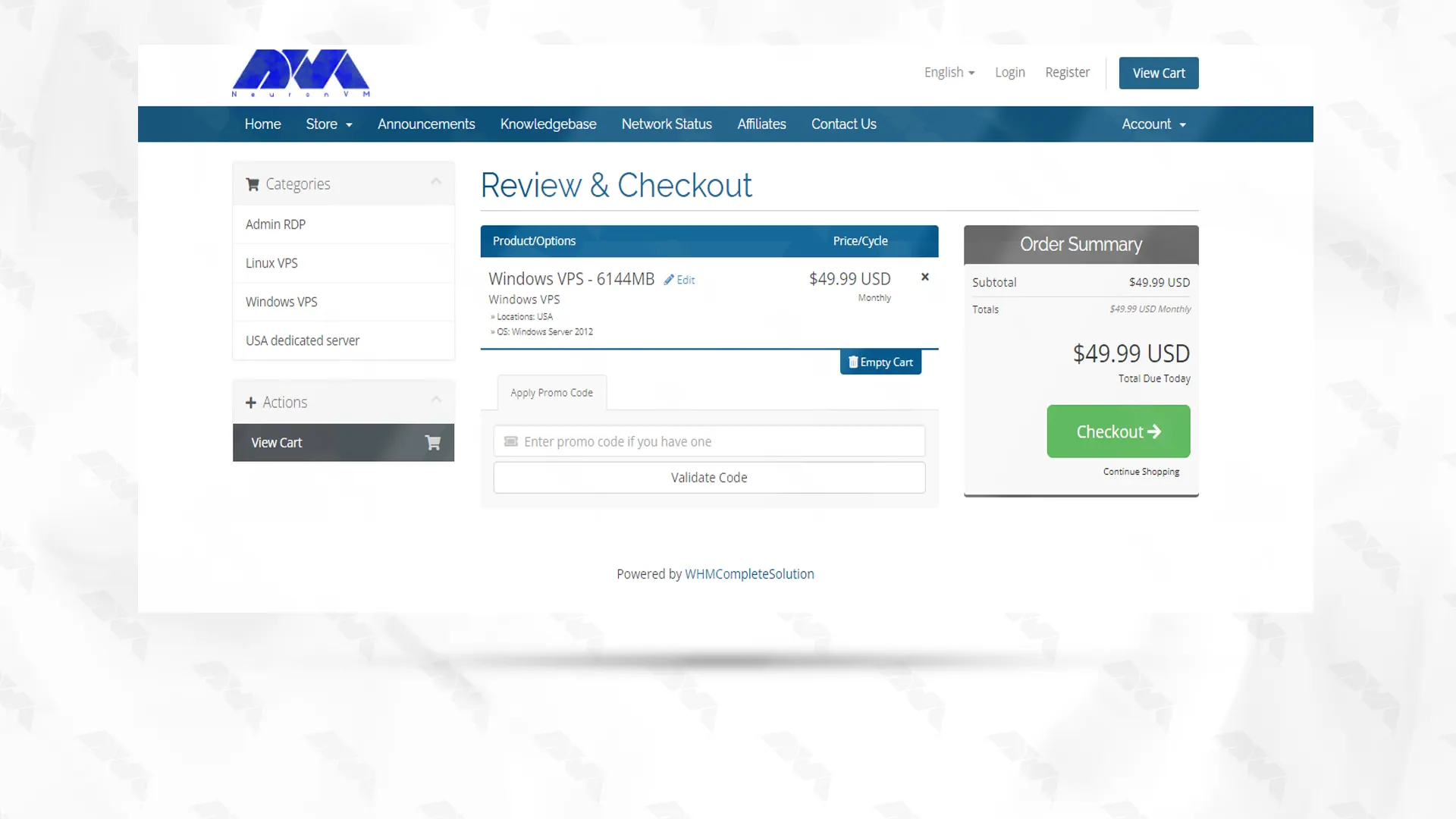
    • You’ll be landed on Review and Checkout pay where you can simply review the items in your shopping card and enter a promo code to apply discounts. After you’re done, click on Checkout button and proceed.
    Review & Checkout about game servers
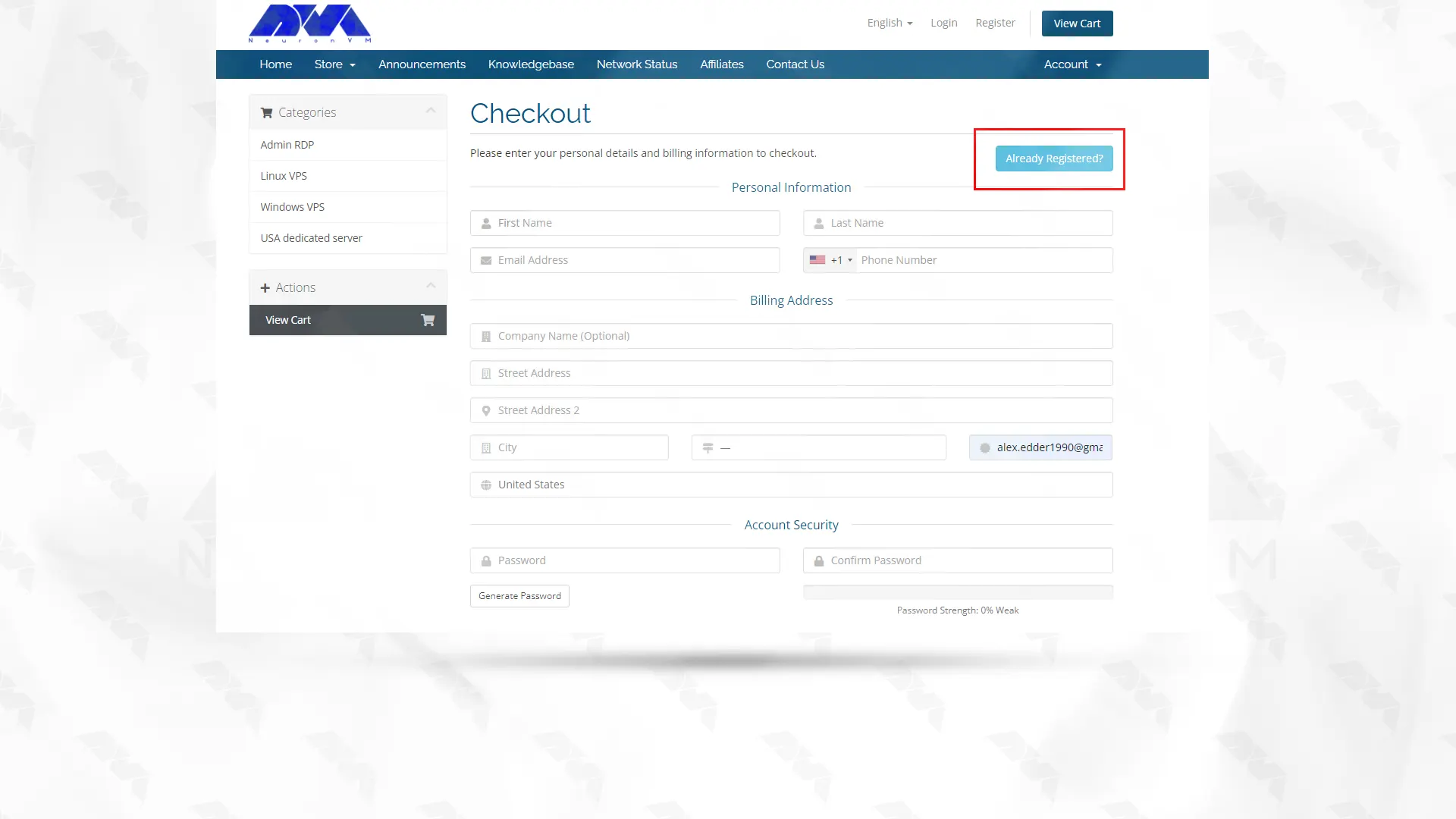
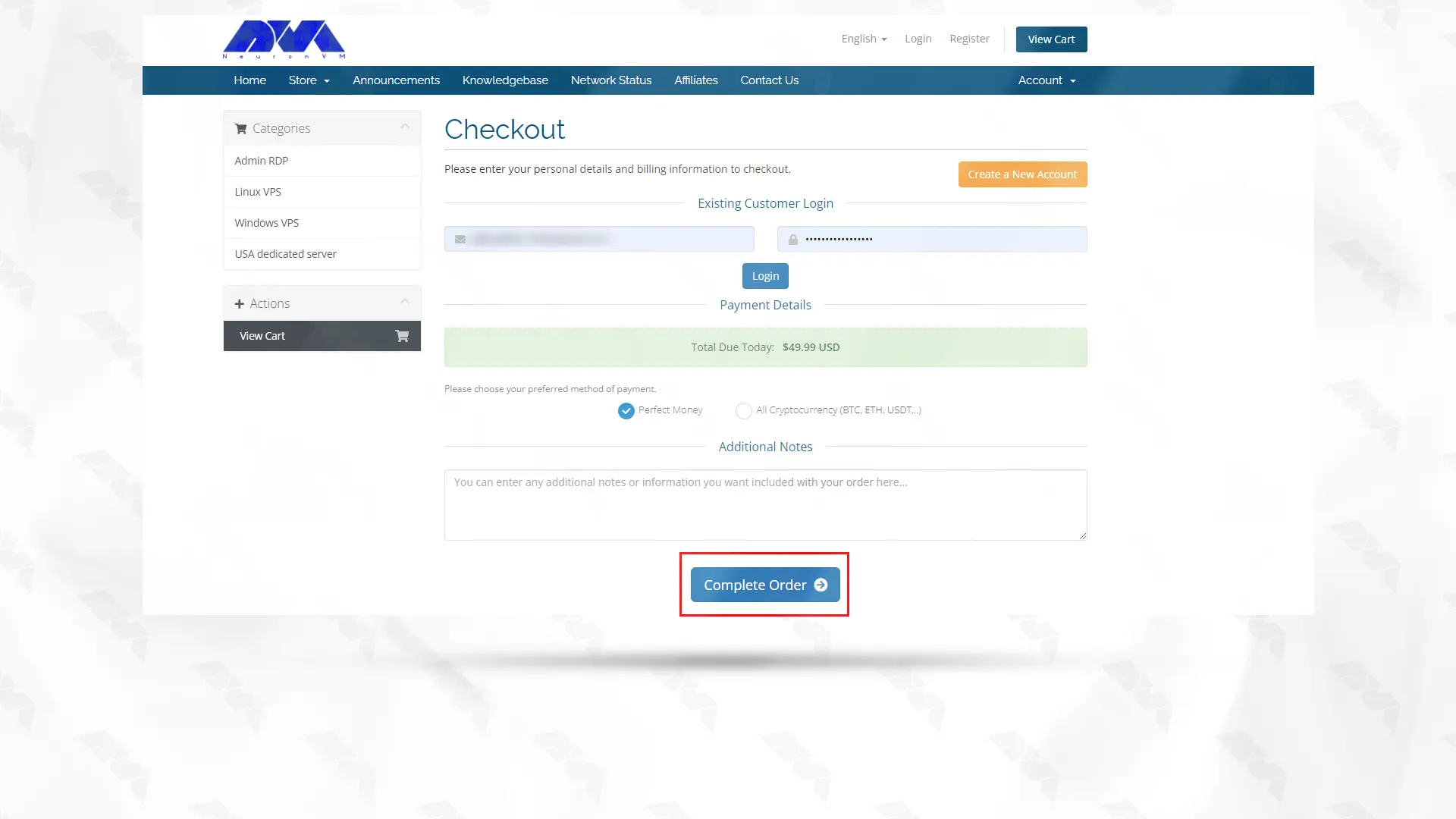
    • Fill the form if you haven’t signed up before. After that you can choose your preferred method on payment and click on Complete Order button down below.
    login to neuronvm website
    • Now select Bitcoin from the Select Coin section and then click on Complete Checkout.
    buy server pay with bitcoin
    • Copy your bitcoin wallet information and pay easily.
    server with bitcoin

    That’s it! Our specialists will deliver your server to you in no time and you’ll be able to run your Minecraft server without worrying about anything! Remember if you had any questions you can contact us through different ways, or you can comment under this post and I will answer any related question to this topic!

    Final Words

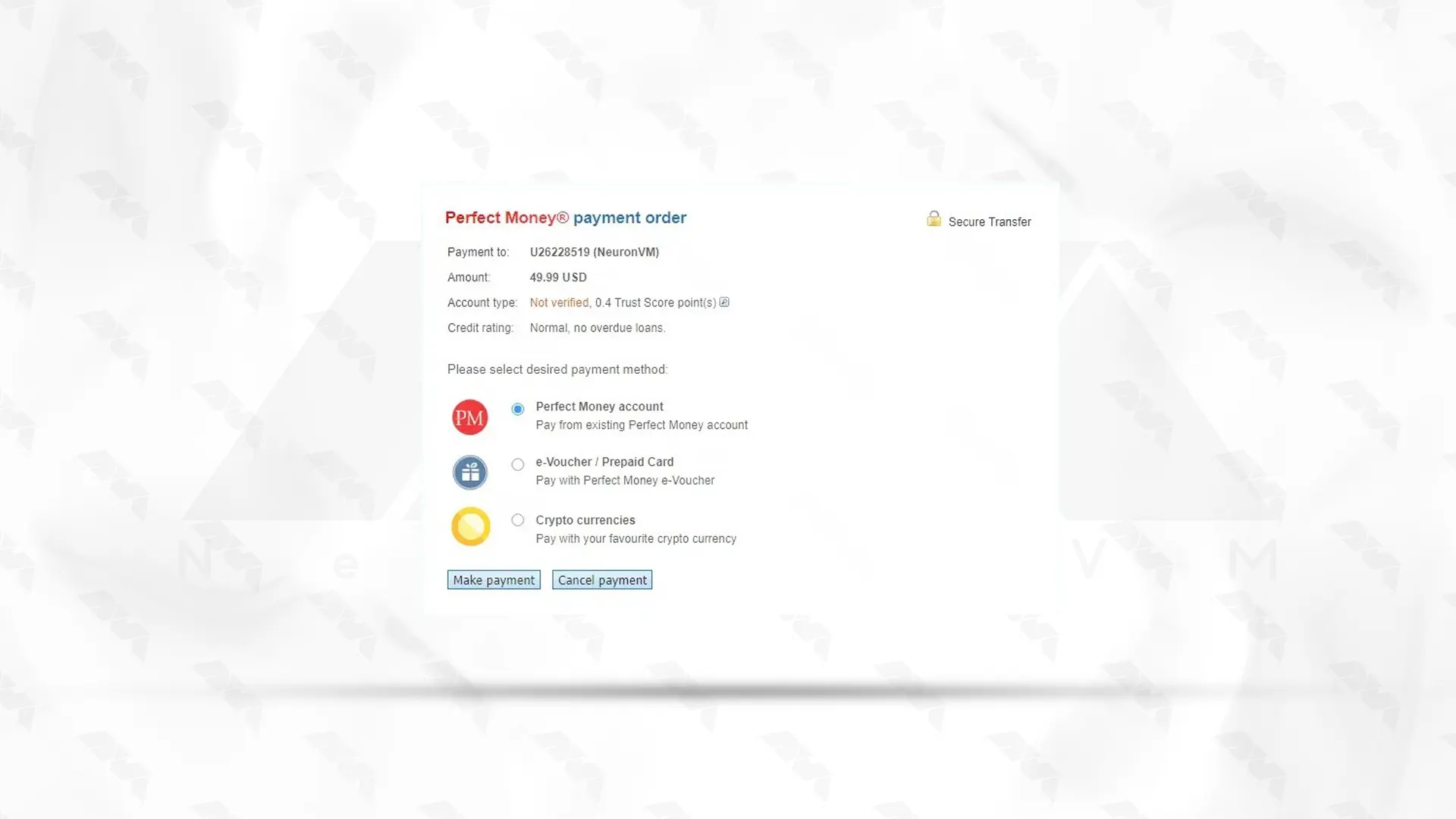
    Playing Minecraft is so fun and engaging, but it’s most enjoyable when there’s no obstacle slowing you down. Having a strong dedicated server can really boost your experience and all the other players that you host! Plus, you don’t have to worry about paying high commissions to online payment gateways. At NeuronVM you can simply get a Minecraft server with Perfect Money, Bitcoin or any other cryptocurrency!

  • How to Install Minecraft on Ubuntu 20.04

    How to Install Minecraft on Ubuntu 20.04

    Minecraft is a popular sandbox video game created by Markus Persson and developed by Mojang Studios. It allows players to build and explore virtual worlds made up of blocks in a 3D procedurally generated environment. In Minecraft, players have the freedom to gather resources, craft tools and items, and engage in various activities such as mining, farming, and combat. The game features different modes, including survival mode where players must gather resources to stay alive and creative mode where they have unlimited resources to build and create. Minecraft has a large community and is available on various platforms, including PC, consoles, and mobile devices. In the continuation of this article, we will teach you step by step How to Install Minecraft on Ubuntu 20.04.

    Prerequisites

    Before install Minecraft on Ubuntu 20.04, you should first ensure that your system meets the following prerequisites:

    – A Linux VPS server with Ubuntu OS.

    Java Development Kit (JDK): Install OpenJDK using the following command:

    sudo apt install default-jdk

    X Window System: Ubuntu 20.04 typically comes with a default X Window System, but you can verify it by running the following command:

    echo $DISPLAY

    – Internet connection: Ensure you have a stable internet connection.

    Once you have met these prerequisites, you can proceed with installing Minecraft on Ubuntu 20.04.

    Download and Install Minecraft on Ubuntu

    In this section, we are going to teach about installing Minecraft on Ubuntu 20.04. Be with us at the following steps:

    Step1: Download the Minecraft Debian Package

    wget -O ~/Minecraft.deb http://launcher.mojang.com/download/Minecraft.deb

    Step2: After downloading the Debian package, install the DEB file by running the gdebi command:

    sudo apt install gdebi-core

    Step3: Finally, install the Minecraft.deb file using the following command:

    sudo gdebi ~/Minecraft.deb

    Tip: During the installation process, if you encounter the question “Do you want to install the software package?” hit “y” and press enter to complete the installation process successfully.

    How to Launch Minecraft on Ubuntu 20.04

    In the Ubuntu desktop manager environment, search for Minecraft in the application search section and click on it:

    launch to minecraft on ubuntu

    ***

    how to launch minecraft on ubuntu 20.04

    Troubleshooting Minecraft on Ubuntu 20.04

    You may encounter issues while running Minecraft on Ubuntu 20.04, here are some troubleshooting steps you can follow:

    1- Graphics/Performance Issues:

    – Make sure your graphics drivers are up to date.

    – Adjust the graphics settings within Minecraft.

    – Allocate more memory to Minecraft. Open the launcher, go to Installations, select your Minecraft version, and click on “More Options“. Under “JVM Arguments” increase the value of -Xmx to allocate more memory.

    – Try enabling vsync in the Minecraft options, which can help with screen tearing.

    2- Authentication/Login Issues:

    – Make sure you are using the correct Minecraft account credentials.

    – Check if the Minecraft login servers are experiencing any downtime by visiting the official Minecraft server status page.

    – Try logging in with your account on the Minecraft website to ensure there are no account-related issues.

    – Reset your password if necessary through the Minecraft website.

    3- Multiplayer Connection Issues:

    – Ensure that both you and the server are using the same Minecraft version.

    – Check if you can connect to other multiplayer servers to ensure it’s not a network issue.

    – If connecting to a specific server fails, check if the server is online and if there are any IP or port-related issues.

    – Verify that your firewall is not blocking the Minecraft application or port used by the server.

    – Attempt to connect using direct IP address rather than domain name to rule out DNS issues.

    4- Mods/Modpack Issues:

    – Ensure that the mods you’re using are compatible with your version of Minecraft.

    – Check if the mods require any specific dependencies or additional setup steps.

    – Verify that you have installed the necessary mod loader, such as Forge or Fabric, and correctly set it up.

    Conclusion

    In conclusion, installing Minecraft on Ubuntu 20.04 is a straightforward process. By downloading the official Minecraft launcher and setting appropriate permissions, users can easily install and run the game on their Ubuntu system. The installation process ensures compatibility with Ubuntu 20.04, allowing players to enjoy Minecraft seamlessly on their Ubuntu machines.

  • A Clever and Comprehensive Guide to Install Plesk on Ubuntu 20.04

    A Clever and Comprehensive Guide to Install Plesk on Ubuntu 20.04

    Plesk is a popular web hosting control panel that simplifies server management and allows you to easily host multiple websites on a single server. In this guide, we will walk you through the step-by-step process of installing Plesk on Ubuntu 20.04.

    Prerequisites

    To install Plesk on Ubuntu 20.04, you will need the following prerequisites:

    – A freshly installed and updated Ubuntu 20.04 on a Linux VPS server.

    – A static IP address assigned to the server.

    – SSH access to the server with the root user or a user with sudo privileges.

    – Sufficient disk space (at least 10 GB is recommended).

    – A fully qualified domain name (FQDN) pointing to the server’s IP address.

    A Clever and Comprehensive Guide to Install Plesk on Ubuntu 20.04

    How to Install Plesk using a Web Installer

    Installing Plesk on Ubuntu 20.04 is a straightforward process. This guide will walk you through the steps to ensure a successful installation. Follow the next steps with us.

    Step.1: Update Your Server

    Login to the server as a regular user with permissions using Putty or SSH and then run the following command:

    sudo apt-get update

    Step.2: Configuring UFW

    To proceed, you must configure UFW using the specified commands. Executing these commands will grant access to the ports necessary for the Plesk web interface, such as 80, 443, 8443, and 8880.

    sudo ufw allow 80/tcp
    sudo ufw allow 443/tcp
    sudo ufw allow 8443/tcp
    sudo ufw allow 8447/tcp
    sudo ufw allow 8880/tcp
    sudo ufw enable
    sudo ufw reload

    Please be aware that port 8447 is exclusively utilized during the initial installation process.

    Step.3: Download the Plesk Installer Script

    Now you can easily download the Plesk installer script by running the following command:

    wget https://autoinstall.plesk.com/plesk-installer

    Step.4: Setup and Access Plesk on Ubuntu

    You must be careful to enable the read, write and execute permissions of the downloaded Plesk script using the following command:

    sudo chmod 755 plesk-installer

    Start the Plesk web installation interface using the following command:

    sudo ./plesk-installer --web-interface

    Open your favorite browser. Then type your IP server with port 8447 in the address field of the browser as below and run it.

    https://example.com:8447/

    To continue the installation process, you need to type your server login name and password in the fields you see and log in:

    install plesk on ubuntu

    As shown in the image, you must now click Install or upgrade product:

    install and update plesk

    Then you have to tick Plesk and click on continue:

    plesk version

    Here you can choose the type of installation you want with the following explanations:

    – Recommended: Installs default Plesk components.

    – Full: Installs all supported programs and features.

    – Custom: Allows you to choose which components you want to install on your Plesk panel.

    plesk type

    If you choose Custom from the available options, a list of components available for installation on the Plesk server will be displayed to you as shown in the image below:

    plesk configuration

    Allow the installation to complete. Then open the terminal session again and stop the script by pressing CTRL+C.

    Then, restart your server using the following command:

    sudo shutdown -r 0

    To acquire a one-time login link, execute the subsequent command. This link is vital for establishing a Plesk administrator account and inserting your license key:

    plesk login

    Finally, to finish, you need to agree to the license agreement and press Enter to continue.

    To access the Plesk control panel, open a browser and execute one of the following commands:

    https://your.server.example.com:8443
    http://your.server.example.com:8880

    Conclusion

    By following the above steps, you have successfully installed Plesk on Ubuntu 20.04. You can now utilize Plesk’s intuitive interface to manage your websites, domains, email accounts, and other services effectively. Take advantage of its vast range of features to simplify your server administration tasks and enhance your web hosting experience.

  • Troubleshooting Guide: phpMyAdmin Not Working in cPanel

    Troubleshooting Guide: phpMyAdmin Not Working in cPanel

    PhpMyAdmin is a web-based application that provides a graphical interface to manage MySQL databases. It enables users to easily perform various administrative tasks like creating, editing, and deleting databases, tables, rows, and fields. Sometimes we may encounter errors while working with phpMyAdmin. For this reason, in this article, we decided to prepare a guide for when phpMyAdmin is not working in cPanel.

    Requirements to Setup phpMyAdmin in cPanel

    To setup phpMyAdmin in cPanel, you need to meet the following requirements:

    – A Linux VPS Server

    – Access to the cPanel account

    – Make sure that your cPanel account supports phpMyAdmin

    – MySQL Database

    Requirements to Setup phpMyAdmin in cPanel

    Troubleshooting phpMyAdmin Not Working errors in cPanel

    If phpMyAdmin is not working in cPanel, there could be a few possible reasons for this. Here is a troubleshooting guide to help you resolve the issue:

    Check Server Requirements

    – Ensure that your server meets the minimum requirements for running phpMyAdmin. Confirm that PHP and MySQL are properly installing and up to date.

    – Make sure the PHP extension mysqli is enabled in your server’s PHP configuration file (php.ini).

    Check cPanel error logs

    Check the cPanel error logs for any specific error messages related to phpMyAdmin. The error logs can be accessed from cPanel -> Metrics -> Errors.

    Check phpMyAdmin configuration file

    Verify that the phpMyAdmin configuration file (config.inc.php) is properly configuring The configuration file is located in the phpMyAdmin installation directory. Make sure the database credentials and other settings are correct.

    Confirm phpMyAdmin is enabled

    Check that phpMyAdmin is enabling in the cPanel feature manager. To do this, go to cPanel -> Feature Manager and ensure phpMyAdmin is checked.

    Clear Browser Cache

    – Firstly, clear your browser cache and try accessing phpMyAdmin again.

    Sometimes, cached data can cause issues with loading the application.

    Troubleshooting phpMyAdmin Not Working errors in cPane

    Verify Permissions

    – Check the permissions of the phpMyAdmin directory and its files. The appropriate permissions are usually 755 for directories and 644 for files.

    – If the permissions are incorrect, correct them using a FTP client or the file manager in cPanel.

    Disable Extensions

    If you have any browser extensions or add-ons installed, try disabling them temporarily. Extensions like ad blockers and privacy tools can sometimes interfere with phpMyAdmin’s functionality.

    Check PHP Configuration

    – Make sure that the “upload_max_filesize” and “post_max_size” settings in your server’s “php.ini” file are large enough to accommodate the size of the SQL files you are trying to import/export.

    – For example: “upload_max_filesize = 50M” and “post_max_size = 50M” should allow a maximum file upload size of 50 megabytes.

    – Restart the web server (Apache or Nginx) after making any changes to the “php.ini” file.

    Verify cPanel Access

    Confirm that you have proper access to cPanel and that your account has sufficient privileges. If you are not the server administrator or do not have root access, contact your hosting provider for assistance.

    Check for Errors

    – Review the cPanel error logs for any relevant error messages. These logs can often provide clues about the root cause of the phpMyAdmin issue.

    – You can find the error logs within cPanel. Look for the “Error logs” or “Logs” section and check the appropriate log file(s).

    Conclusion

    phpMyAdmin is a web-based application used to manage and manipulate MySQL databases in cPanel. PhpMyAdmin errors in cPanel can occur due to various reasons, including database connection issues, incorrect configuration, or insufficient privileges. If none of the above steps solve the problem, write us your problem in the comments section so that we can answer you as soon as possible.

  • How to Seamlessly Install Multicraft on Windows

    How to Seamlessly Install Multicraft on Windows

    Multicraft is a powerful and versatile control panel software for managing and managing game servers. It is specifically designed to host multiple Minecraft servers, but can be used for other types of game servers as well. We recommend that you read this article, an Easy Guide to Install Multicraft on Windows.

    What is Multicraft?

    Multicraft is a popular game server control panel that allows users to easily manage and configure game servers. It supports various games such as Minecraft, Rust, Ark: Survival Evolved, and more.

    With Multicraft, server owners have full control over their game servers, allowing them to modify settings, install mods and plugins, create and manage game worlds, and monitor server performance. The control panel provides an intuitive and user-friendly interface, making it accessible for both beginners and experienced server administrators.

    One of the key features of Multicraft is its extensive support for customization. Users can access a wide range of configuration options, enabling them to tailor their game server to their specific preferences. Additionally, Multicraft supports automatic server backups, making it easier to restore data in case of any issues.

    Multicraft also provides tools for server owners to interact with their player base. Through the control panel, admins can manage player permissions, ban players, and monitor server chat. It also offers a web-based console, allowing server owners to execute commands and troubleshoot any issues without launching the game client.

    We recommend you to use our Windows VPS plans to better understand the high speed, great performance and 24/7 support.

    Prerequisites to Install Multicraft on Windows

    CPU: A multi-core CPU with at least 2 cores, but more is better for better performance.

    RAM: At least 2GB of RAM is recommended for the VPS, but you may need more if you plan to host multiple servers or have a large number of players. Consider allocating more RAM to each Minecraft server as well.

    Storage: Sufficient storage space to store the Multicraft application files and any Minecraft server data.

    Network: A stable and fast internet connection is essential to ensure smooth gameplay and reduce latency. A minimum of 100Mbps dedicated bandwidth is recommended.


    Step-by-Step Guide: Setting up Multicraft on Windows

    To install Multicraft on Windows, you can follow these steps:

    Open your desired web browser and open Multicraft website. Then, Click on Pricing from the menu. Here you can choose the plan you want and buy it. We choose the free plan:

    get account for multicraft

    Download the latest version of Multicraft from the official website. Make sure to download the Windows version:

    download multicraft on windows

    Once the download is complete, navigate to the folder where the Multicraft installation file is located:

    multicraft file location

    Double-click the installation file to start the installation process:

    how to run multicraft

    Follow the on-screen instructions to proceed with the installation. You will be prompted to choose the installation directory. It’s recommended to keep the default directory, but you can choose a different one if needed:

    setup multicraft on vps

    To confirm the agreement, click I accept and then click Next:

    setup multicraft on vps

    Click Next:

    setup multicraft on vps

    If you want to enter the desired port, click on Yes and select it. Otherwise, click No:

    setup multicraft on vps

    Enter the desired password in the first field and repeat it in the second field:

    setup multicraft on vps

    Enter the license key you purchased and click Next:

    setup multicraft on vps

    Click on Next:

    setup multicraft on vps

    ***

    setup multicraft on windows

    Click on Install to start Multicraft installation:

    setup multicraft on windows os

    ***

    setup multicraft on windows

    Finally, click on Finish:

    setup multicraft on windows

    After the installation is complete, open your web browser and enter the IP address of your VPS followed by “:8080“:

    http://your-server-ip:8080

    The Multicraft web installer will open in your browser. Follow the on-screen instructions to setup your Multicraft server:

    login to multicraft - Install Multicraft on Windows

    To create a new server and start working, it is necessary to click on Create Server from the Servers menu:

    multicraft setting from panel - Install Multicraft on Windows

    In the next section, you need to configure your server as shown below:

    “Name”: The name of the new server

    “Slots Player”: Maximum number of slots for players

    “Port”: The port required by the client to access the Minecraft server must be specified. (Port 25565 is used by default.

    “Memory”: Maximum allowed RAM size

    Finally, click on the “Create” button.

    configuration of minecraft server with multicraft

    Multicraft Installation Troubleshooting on Windows

    To troubleshoot the setup of Multicraft on a Windows, you can follow these steps:

    Verify System Requirements:

    • Ensure that your server meets the minimum system requirements for Multicraft, including the supported Windows version, Java version, and hardware specifications.
    • Check that you have administrative access to the server.

    Install Required Software:

    • Install the latest version of Java Development Kit (JDK) on your server.
    • Download and install any dependencies required by Multicraft, such as Microsoft Visual C++ Redistributable Packages.

    Firewall and Network Configuration:

    • Make sure that the required ports used by Multicraft are open in your server’s firewall and network settings.
    • Check if any other software, such as antivirus or firewall programs, are blocking Multicraft’s access to the necessary resources. Temporarily disable them to see if it resolves the issue.

    Verify Installation and Setup Steps:

    • Carefully go through the installation and setup steps provided by the Multicraft documentation.
    • Check if you have followed all the required configurations, such as providing the correct paths, database information, and permissions.
    • Review the logs and error messages generated during the installation and setup process. They can provide valuable insights into the issues you’re facing.

    Test Multicraft Functionality:

    • Start the Multicraft service and check if it is running without any errors. Look for any error messages in the logs.
    • Access the Multicraft web interface using the server IP address and the configured port. If it fails, check if the port is open and accessible.
    • Try creating a server instance and check if it starts without any issues.

    Conclusion

    In, installing Multicraft on a Windows provides a user-friendly control panel for managing a Minecraft server. It allows for easy configuration, monitoring, and control of various server settings. The installation process involves downloading and running the setup file, following step-by-step instructions, and providing necessary information. Once installed, Multicraft enhances the server management experience and enables efficient administration of Minecraft servers on a Windows platform.

  • Troubleshooting Unknown collation: utf8mb4_0900_ai_ci

    Troubleshooting Unknown collation: utf8mb4_0900_ai_ci

    When dealing with database management systems, such as MySQL, it is common to encounter errors or issues related to character sets and collations. One such error is “Unknown collation: utf8mb4_0900_ai_ci.” This error indicates that the specified collation is not recognized by the database server. In this comprehensive guide, we will delve into the causes of this error and provide step-by-step troubleshooting solutions to resolve it.

    We recommend you to use our Windows VPS plans to better understand the high speed, great performance and 24/7 support.

    Understanding collation

    Collation refers to the rules that determine how characters are compared and sorted in a database. MySQL supports various collations, including utf8mb4_0900_ai_ci, which is commonly using to support Unicode characters.

    Troubleshooting Unknown collation utf8mb4_0900_ai_ci

    Checking MySQL version and compatibility

    The utf8mb4_0900_ai_ci collation was introduced in MySQL version 8.0. While earlier versions of MySQL only supported utf8mb3 as the default character set, it is crucial to ensure that your MySQL version is compatible with utf8mb4_0900_ai_ci. If you are using an older version, consider upgrading to a compatible version.

    Verifying support for utf8mb4 character set

    Apart from collation, the character set plays a vital role in determining the encoding and representation of characters. Before using utf8mb4_0900_ai_ci collation, check if your MySQL installation supports the utf8mb4 character set. If not, you may need to modify MySQL settings or upgrade to a version that supports utf8mb4.

    Checking database and table collation

    Ensure that the database and table collation match the collation you are trying to use. Use the following SQL query to verify and change database and table collations:

    1- To check a database collation:

    SELECT @@collation_database;

    2- To change a database collation:

    ALTER DATABASE database_name CHARACTER SET utf8mb4 COLLATE utf8mb4_0900_ai_ci;

    3- To check a table collation:

    SHOW CREATE TABLE table_name;

    4- To change a table collation:

    ALTER TABLE table_name CONVERT TO CHARACTER SET utf8mb4 COLLATE utf8mb4_0900_ai_ci;

    Modifying MySQL configuration

    If you have verified that your MySQL version and character set support utf8mb4_0900_ai_ci collation, but the error still persists, it might be necessary to modify MySQL configuration files. Locate your MySQL configuration file (my.cnf or my.ini) and add the following lines under the [mysqld] section:

    [mysqld]
    ...
    character_set_server=utf8mb4
    collation_server=utf8mb4_0900_ai_ci

    Save the changes and restart the MySQL server for the modifications to take effect.

    Encoding issues

    Sometimes, this error occurs due to encoding issues with the client application. Ensure that your client application, such as a web application or database management software, is using UTF-8 encoding. This can often be configure in the application settings or connection parameters.

    Conclusion

    The “Unknown collation: utf8mb4_0900_ai_ci” error in MySQL can be resolved by ensuring the compatibility of the MySQL version, character set support, and correct collation settings. By following the comprehensive troubleshooting steps outlined in this guide, you should be able to resolve the error and successfully use the utf8mb4_0900_ai_ci collation in your database environment. Remember to check the MySQL version, modify collations at the database and table levels, adjust MySQL configuration files if necessary, and verify encoding settings in client applications.

  • A Clever Guide to Importing Math in Java

    A Clever Guide to Importing Math in Java

    Importing math in Java is essential for performing advanced mathematical operations and calculations. Java provides a built-in package called “java.lang.Math” that includes various math methods. In this comprehensive guide, we will cover the basics of importing math in Java, explore different math methods, and provide examples to illustrate their usage.

    We recommend you to use our Windows VPS plans to better understand the high speed, great performance and 24/7 support.

    Importing the Math package

    Importing the Math package is necessary to access all the math-related methods and functions provided by Java. To import the package, include the following line at the beginning of your Java class:

    import java.lang.Math;
    imprting math in java

    Basic Math Operations

    The Math package offers several basic mathematical operations, such as addition, subtraction, multiplication, and division. Here are a few commonly used methods:

    – Math.addExact(a, b): Returns the sum of two integers a and b without any overflow.

    – Math.subtractExact(a, b): Returns the difference between two integers a and b without any overflow.

    – Math.multiplyExact(a, b): Returns the product of two integers a and b without any overflow.

    – Math.divide(a, b): Returns the quotient of dividing a by b as a double value.

    Example:

    int a = 10;
    int b = 5;
    
    int sum = Math.addExact(a, b);
    int difference = Math.subtractExact(a, b);
    int product = Math.multiplyExact(a, b);
    double quotient = Math.divide(a, b);
    
    System.out.println("Sum: " + sum);
    System.out.println("Difference: " + difference);
    System.out.println("Product: " + product);
    System.out.println("Quotient: " + quotient);

    Output:

    Sum: 15
    Difference: 5
    Product: 50
    Quotient: 2.0

    Trigonometric Functions

    The Math package also includes several trigonometric functions, useful for dealing with angles and triangles. Some commonly used trigonometric methods include:

    – Math.sin(angle): Returns the sine of the specified angle.

    – Math.cos(angle): Returns the cosine of the specified angle.

    – Math.tan(angle): Returns the tangent of the specified angle.

    – Math.toRadians(degrees): Converts degrees to radians.

    Example:

    double angle = Math.toRadians(30);
    
    double sine = Math.sin(angle);
    double cosine = Math.cos(angle);
    double tangent = Math.tan(angle);
    
    System.out.println("Sine: " + sine);
    System.out.println("Cosine: " + cosine);
    System.out.println("Tangent: " + tangent);

    Output:

    Sine: 0.5
    Cosine: 0.86602540378
    Tangent: 0.57735026919

    Exponential and Logarithmic Functions

    Java’s Math package also provides methods for dealing with exponential and logarithmic functions. Here are a few commonly used ones:

    – Math.exp(x): Returns the exponential value of x (e^x).

    – Math.log(x): Returns the natural logarithm (base e) of x.

    – Math.pow(a, b): Returns the value of a raised to the power of b.

    Example:

    double x = 2.0;
    double y = 3.0;
    
    double exponential = Math.exp(x);
    double logarithm = Math.log(x);
    double power = Math.pow(x, y);
    
    System.out.println("Exponential: " + exponential);
    System.out.println("Logarithm: " + logarithm);
    System.out.println("Power: " + power);

    Output:

    Exponential: 7.38905609893065
    Logarithm: 0.6931471805599453
    Power: 8.0

    Conclusion

    In this comprehensive guide, we have explored the process of importing math in Java. We covered the basics of importing the Math package, discussed various math methods, and provided examples to demonstrate their usage. By utilizing the powerful math functions offered by Java, you can perform complex calculations and solve mathematical problems efficiently within your Java programs.