Category: Tutorials

  • How to Choosing the Perfect Dedicated Server for Business Success

    How to Choosing the Perfect Dedicated Server for Business Success

    With the increase in users’ embrace of the digital world and its developments, the use of advanced technologies has become a critical factor in the success of their business. Among these technologies, dedicated servers are the most essential tools. These servers are robust, separate platforms organizations use to host applications, websites, and databases with high security and performance. The point that should be paid attention to is choosing the right dedicated server provider. This tutorial is aimed at analyzing how to choose a perfect dedicated server for business success.

    Advantages of using Dedicated Servers

    A dedicated server is a perfect platform to manage your website and business especially when you have higher traffic and high profile clients. Here we recommend you to buy and use the Cheap Dedicated Server plans provided on our website. Let’s analyze some of the advantages of this platform:

    perfect dedicated server for your business

    Perfect Dedicated Server

    Dedicated Hardware

    The most significant advantage of this server is that it offers dedicated hardware, and you don’t have to share it with anyone. Also, all of the resources belong to you.

    Higher Level of Security

    As your server is completely private and dedicated, there is no risk of penetration risk from other sites. Also, you are able to install various security software that is proper for your needs and modify them to the website.

    No Purchase or maintenance cost

    Another advantage that you will have with a dedicated server is that there is no cost to buy or maintain hardware equipment.

    Dedicated IP Address

    Each dedicated server comes with its own unique IP address, which is important for certain applications and SSL certificate implementations.

    Full Administrative Control

    With a dedicated server, you have root access or full administrative control. This level of control allows you to install and configure software and applications according to your preferences.

    Performance and Reliability

    Dedicated servers provide exclusive access to all server resources, like CPU, RAM, and storage. This translates to better performance and reliability, as there are no competing users or applications that can impact server performance.

    Quick Customization

    You have complete control over the server’s configuration using a dedicated server. You can choose the hardware specifications, operating system, software, and security settings to meet your specific needs.

    Factors to consider when choosing a dedicated server

    There are factors to consider when you want to choose a dedicated server:

    – You have to consider the performance requirements of your website. For example, the number of users expected for the website or the type of service you want to provide with your server are some of these factors.

    – Potential downtime is another factor to consider. You should keep in mind that most visitors do not stay on your site for more than 3 seconds. So, be careful in choosing your dedicated server because your server must have excellent uptime and stability.

    – When choosing a dedicated server, you should consider scalability, as your website traffic may increase steadily over the next few years. That is, you should choose a host that does not have to change its provider with increasing activities. So scalability of your server is important.

    – Try to consider the final monthly prices for the dedicated server over the anticipated time of use. When choosing a hosting provider your budget should include the setup fees.

    – Make sure your dedicated server is capable of providing 24/7 support.

    – Server backup is among the most critical points to consider when you want to choose a dedicated server. Be careful about available options for backing up your data.

    Types of Dedicated Servers

    You can choose your server from different types of dedicated servers. the following are 7 main types of them:

    – Standard dedicated server

    – Cheap dedicated server

    – Enterprise dedicated server

    – High-performance dedicated server

    – Unmetered dedicated server

    – Managed dedicated server

    – High bandwidth dedicated server

    Server specifications and performance

    According to your needs, the specific requirements of your dedicated server vary. The most important requirements are as follows:

    Storage: The choice of storage depends on your performance and capacity needs. For optimal performance, consider using Solid State Drives (SSDs) as they offer much faster read/write speeds compared to traditional Hard Disk Drives (HDDs).

    RAM: The amount of RAM you need will depend on the applications and services you plan to run. For most general-purpose servers, a minimum of 8GB RAM is recommended. However, for more resource-intensive tasks like virtualization or large databases, you may need 16GB or more.

    Processor or CPU: Choose a server with a modern and powerful CPU. Multi-core processors like Intel Xeon or AMD EPYC are commonly used for dedicated servers. The number of cores and clock speed will determine the server’s processing capabilities.

    Operating System: Choose an operating system that suits your applications and expertise. Popular choices for dedicated servers include various Linux distributions (e.g., CentOS, Ubuntu Server) and Windows Server.

    Data Center Location: Select a data center location that is geographically close to your target audience to reduce latency and improve the overall user experience.

    Scalability and future growth

    Scalability and future growth are essential considerations when choosing a dedicated server for your business or project. A dedicated server is a powerful hosting solution that provides exclusive resources and full control over the server’s configuration, making it an ideal option for high-traffic websites, resource-intensive applications, and large-scale projects.

    Security features and protocols

    Dedicated servers are equipped with robust security features and protocols to protect both the server and data. Here, we will introduce some of the security features:

    – Firewalls

    – Encryption

    – Access Control

    – Two-factor Autentication

    – Regular updates and Patching

    – Monitoring and Logging

    – Backups and Disaster Recovery

    – Denial-of-service Protection

    – Antivirus Softwares

    Managed vs. Unmanaged Dedicated Servers

    Managed and unmanaged dedicated servers refer to two different types of hosting services for websites or applications. Here we will analyze the differences between these two:

    Managed Dedicated Server:
    A type of hosting service is managed dedicated server where the hosting provider considers all the technical aspects and maintenance of the server on behalf of the client. That is, the hosting company manages server setup, security updates, configuration, troubleshooting, monitoring, and regular maintenance tasks.

    Unmanaged Dedicated Server:
    An unmanaged dedicated server, on the other hand, is a hosting service where the client is responsible for all server-related tasks, including server setup, software installation, security, monitoring, and maintenance. The hosting provider only ensures that the server is connected to the network and functional.

    Choosing the right Hosting Provider

    There are some factors to consider if you are going to choose a dedicated server hosting provider. These factors can be hardware specifications, security features, network performance, customer support, or price. So check and evaluate these factors to choose a provider that meets your needs and can effectively support your website needs.

    choose the right hosting provider

    Perfect Dedicated Server

    Budgeting and pricing considerations

    In this section, we will discuss the things that should be considered when considering the budget and prices of a dedicated server for businesses:

    Server specifications: The hardware configuration of a dedicated server will have a significant impact on its price. Key components to consider include a processor (CPU), RAM, storage type (HDD or SSD), storage capacity, and network bandwidth.

    Server Location: The physical location of the server can affect pricing due to differences in data center costs and regional demand. Servers located in popular data center locations or high-demand areas may be more expensive.

    Billing cycle: The frequency of billing can affect the total cost. Most providers offer options such as monthly, quarterly, or annual billing. Choosing longer billing cycles often comes with a discount.

    Bandwidth and data transfer: Some providers may have data transfer limits or charge additional fees for exceeding bandwidth limits. Make sure you understand the data transfer terms to avoid unexpected charges.

    Server Scalability: If your resource needs increase in the future, look for providers that offer scalable solutions. In this way, you can upgrade your server without having to migrate.

    Credibility and Support: Evaluate the credibility and customer support of the dedicated server provider. Look for reviews and testimonials to ensure you choose a reliable company that offers excellent customer service.

    Long-term planning: Consider your long-term hosting needs when setting your budget. A server that meets your current needs may not be sufficient for future growth.

    Special Offers and Discounts: Be on the lookout for promotions, discounts, and special offers from dedicated server providers. These can save money, especially if you commit to long-term contracts.

    Case studies and success stories

    Some general success stories and benefits of using a perfect dedicated server are mentioned here. So you can take a look and get more information about them:

    Resource-Intensive Applications: Certain applications, such as machine learning algorithms, simulations, and rendering tasks, require significant computational power and memory. Dedicated servers with powerful CPUs and ample RAM can efficiently handle these resource-intensive workloads.

    Gaming Servers: Online gaming companies often utilize dedicated servers to host multiplayer games. Dedicated servers offer low latency and high performance, providing a seamless gaming experience for players around the world.

    Large-scale Web Applications: High-traffic web applications and websites, like social media platforms and content-sharing sites, benefit from dedicated servers to manage vast user databases and deliver real-time content updates to a global audience.

    Big Data and Analytics: Organizations dealing with big data and complex analytics tasks often employ dedicated servers to handle data processing and storage requirements efficiently. Dedicated servers can be optimized for specific data-intensive tasks, providing faster data analysis.

    High-Performance Databases: Large-scale databases that require fast read and write operations, like in banking or logistics, benefit from dedicated servers with high-speed storage solutions, such as NVMe SSDs.

    Software Development and Testing: Software development companies often use dedicated servers to host development environments and testing platforms. This approach allows them to create isolated and stable environments for testing without impacting production systems.

    E-commerce Websites: Many successful e-commerce websites have relied on dedicated servers to handle their growing traffic and ensure fast loading times. These websites often experience spikes in traffic during sales events, and dedicated servers offer the necessary resources and reliability to handle such surges without compromising performance.

    Conclusion and final thoughts

    This tutorial was presented to give you a clear understanding of choosing a perfect dedicated server for business success. Here, you figured out the advantages of a dedicated server, factors you should consider when choosing a server, and different types of dedicated servers. Also, we tried to compare managed and unmanaged servers, some points about budgeting, and other noticeable factors you need to know before choosing the proper server. we hope you enjoyed this article.

    FAQ

    Is it possible to use a dedicated server for small businesses?

    If you are a small business owner with needs such as high resources, sensitive security requirements, or features such as customization and server control, you can use dedicated servers. But if your budget is limited, a dedicated server will not be affordable.

    Is it possible to upgrade or downgrade the dedicated server?

    You have the possibility to upgrade or downgrade server resources such as CPU or RAM and memory according to your needs. Of course, the related costs may change according to the providers.

  • Top 5 Android Emulators with Excellent Performance on Admin RDP

    Top 5 Android Emulators with Excellent Performance on Admin RDP

    Have you ever heard about Android emulators? This emulator is a software program that simulates an Android device on your computer. It enables you to run and test Android applications (apps) and games on your PC or Mac without needing an actual physical Android device. When using Android emulators on remote desktop environments like Admin RDP, it’s essential to consider the specifications of the remote machine and ensure that it meets the emulator’s system requirements for optimal performance. Here, you will find the top 5 Android emulators with excellent performance on Admin RDP.

    What Is the Role of Android Emulator?

    The role of an Android emulator is to simulate the behavior of an Android device on a different platform, typically a computer. Emulators play a crucial role in various scenarios, catering to both developers and regular users. Here are some of the key roles of Android emulators:

    1) You can use this emulator by app developers to create, test, and debug Android applications.

    2) Emulators help developers by allowing them to quickly test their Android apps on a non-Android environment, such as a Windows or macOS computer.

    3) Emulators enable developers to rapidly prototype and iterate on their app ideas without the need for physical Android devices.

    4) Many users use Android emulators to play mobile games on their computers.

    5) Emulators offer a way for users to run Android apps on their computers, bringing mobile apps to a larger screen.

    6) Android emulators are used in educational settings to teach Android app development and mobile computing concepts.

    7) Users can explore and review Android apps without needing a physical Android device.

    8) Emulators can provide a way to run older Android apps that might not be compatible with the latest Android versions or devices.

    What Are the Advantages of Android Emulator on Admin RDP?

    In the beginning, we recommend you use the cheap Admin RDP services that are prepared in various plans on our site. Here are some advantages of Android Emulator on Admin RDP:

    – Transferring files in virtual machines is faster because here you can transfer the file by drag and drop.

    – This simulator enables the programmer to work with physical sensors such as accelerometer, gyroscope, etc.

    – You can play games, search the internet, or change settings with the help of these emulators.

    – An Android emulator helps you to choose any desired version so that a developer can build an app.

    – If you need a case test, the developer can do it through the Android simulator.

    What Are the Best Android Emulators for Admin RDP?

    According to the report of a number of users, Android virtualizations may not work on VPS due to their nature. Therefore, it is difficult to find powerful and efficient simulations. In this section, we tried to collect the top 5 Android virtualizations for you, which are used in Admin RDP:

    1) Bluestacks

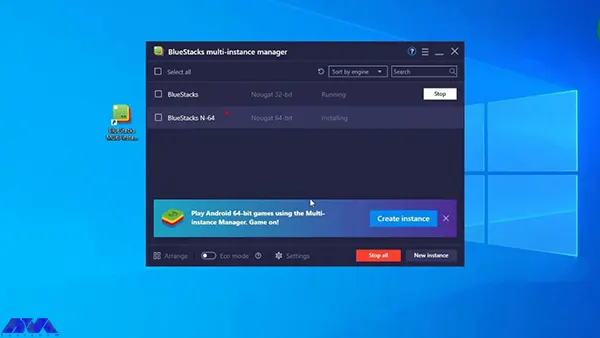
    Bluestacks is a popular Android emulator that allows users to run Android applications and games on their Windows PC or Mac. As an important action, it creates a virtualized environment in which Android apps can be installed and used. Also, it offers a way to enjoy mobile experiences on a larger screen with the convenience of keyboard and mouse controls.

    Bluestacks on admin rdp

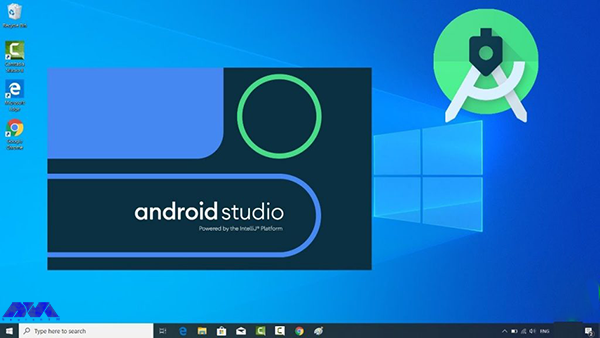
    2) Android Studio

    The Android Studio emulator is a software tool that was developed by Google as part of the Android Studio IDE (Integrated Development Environment). This emulator is used by developers to simulate and test Android applications on their computers before deploying them to actual Android devices. The emulator helps developers ensure that their apps work correctly on various device configurations, screen sizes, and Android versions.

    android studio emulator

    3) LDplayer

    LDplayer emulator is an Android emulator designed for playing mobile games and running Android applications on a Windows PC. Emulators like LDPlayer allow users to experience Android apps and games on a larger screen and with the potential for better performance, making it especially useful for gaming enthusiasts.

    ldplayer emulator

    4) Memu

    MEmu is another popular Android emulator. It allows users to run Android applications and games on a Windows PC. Like LDPlayer and other similar emulators, MEmu provides an environment for users to experience Android apps and games on a larger screen and with potential performance enhancements.

    memu  emulator

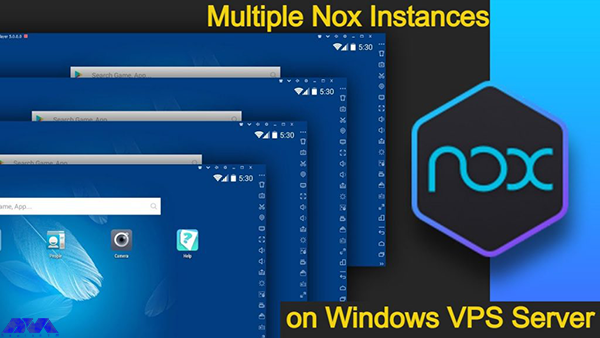
    5) Noxplayer

    NoxPlayer is another popular Android emulator designed to run Android applications and games on a Windows PC or Mac. It provides users with the ability to experience mobile apps and games on a larger screen and with potential performance improvements.

    nloxplayer emulator

    Common Issues of Using Android Emulator on Admin RDP

    You can use Android emulators and top emulators easily to utilize different apps on RDP systems. Now let’s analyze some troubles that you may encounter during the usage of these emulators:

    • Low Volume as an audio problem:

    Solution: Check both software and hardware volume controls. Adjust the volume in your media player, operating system settings, and on your external speakers or headphones.

    • No Sound or Audio Playback:

    Solution: Check if your speakers or headphones are properly connected. Ensure the volume is turned up and not muted. Also, make sure the correct audio output device is selected in your computer’s settings.

    • Emulator Performance is Poor Due to Inadequate Resources

    Solution: Allocate Adequate Resources. It requires a significant amount of resources, including CPU, RAM, and GPU power. Make sure your computer meets the emulator’s system requirements and allocates enough resources to the emulator in its settings.

    • Emulator Can’t Connect to the Internet

    Solution: Troubleshoot Network Connectivity. You can check the emulator network setting, check the host’s system internet connection, you can disable VPN or Proxy, also you can try disabling the firewall and antivirus software.

    Conclusion and Final Thoughts

    If you are looking for good resources to find out a list of applicable Android emulators to use in Admin RDP and use various applications or test different platforms on your RDP server. Note that some of the emulators are useless as we mentioned above, so we tried to represent useful ones. Also, here we mentioned some problems and their solution that you may encounter while working with these emulators. we will be pleased if you share your comments with us.

    FAQ

    What are the prerequisites before using an Android emulator?

    For the best performance, use 16 GB RAM, 64-bit Windows, and also, 16 GB disk space.

  • The Benefits of Using Varnish Cache on Website Speed and Performance

    The Benefits of Using Varnish Cache on Website Speed and Performance

    When you request a website page in a web browser, it involves some steps. The browser sends the request to the server, the server returns the assets, and the browser finally provides a response. But in reality, the performance is not that simple. Varnish cache is one of the technologies that web servers use to provide content faster. This technology is a reverse proxy. We prepared this article and discussed the benefits of using Varnish Cache on website speed and performance.

    What is Varnish Cache?

    As mentioned in the introduction, Varnish is a reverse proxy and works by storing a copy of the page in memory and serving it when you want to revisit the page. The basis for choosing this copy is based on request headers such as URL and request method, which is also calling page cache.

    With the help of Varnish cache, you no longer need to reload the pages of your online store, and this is very beneficial for you because you will have a lightning-fast online store. We suggest that you use the Windows VPS server plans provided on our website to launch your website and run Varnish Cache on it. When you request a web page, you’ll see the cached version instead of waiting for the original web server to generate it from scratch. This reduces loading and makes websites more responsive, thus improving the user experience. It should also be noted that Varnish helps you control how pages are cached using HTTP cache control headers.

    What are the Benefits of Varnish Cache on Website Speed and Performance?

    Varnish Cache is used for both static and dynamic content. This applicable solution is an excellent way to increase not only your website speed but also your performance:

    benefits of varnish cache on website

    Benefits of Varnish Cache on Website Speed

    One of the most impressive advantages that varnish provides is a speed boost for your website. The reason for this effect is due to the following:

    – When delivering objects, the cache server acts faster than the origin server because the workload is less intensive and varied on the first one.

    – The Cache server provides assets that don’t change frequently. These can be files like CSS and Javascript. So, it causes a reduction in the burden on the origin server.

    – The processing time for the backend server database is lower and it causes a decrease in the TTFB (Time to First Byte).

    – When the server is experiencing downtime, the varnish can act as part of a highly available environment that serves cache content.

    – When the original server becomes unavailable, Varnish cache can continue to serve cached content and provide users with some access to the site instead of a complete outage.

    – Varnish Cache can accelerate HTTP requests by handling tasks such as compression, SSL termination, and connection pooling. This frees up your web server to focus on generating dynamic content.

    – Varnish Cache can reduce network latency by serving content from servers that are physically closer to the user.

    – Search engines, like Google, consider website speed as a factor when ranking search results. websites with faster loading shows higher rank in search engine results pages, leading to increased organic traffic.

    Benefits of Varnish Cache on Website Performance

    The level of performance which is associated with Varnish cache, is one of the prime advantages of using this app. Let’s see what can be the benefits of Varnish for your website performance:

    – Varnish Cache can be deployed on multiple servers or instances, distributing the caching load and enhancing the overall scalability of your web infrastructure. This is particularly useful for handling traffic spikes and high loads.

    – Varnish allows you to set rules for cache expiration and cache invalidation. This ensures that when content changes on your website, the old cached versions are automatically removed, and users receive the most up-to-date content.

    – Varnish can act as an SSL/TLS termination point, offloading the encryption and decryption workload from your web servers. This can improve performance by allowing your web servers to focus on serving content rather than handling encryption.

    – Varnish allows you to proactively load certain content into the cache before it’s even requested. This can be especially useful for anticipating traffic spikes or for ensuring that critical content is readily available.

    – Varnish Cache offers extensive configuration options that allow you to fine-tune caching behavior to match your specific website’s needs. This includes setting cache lifetimes and defining cache variations based on headers, cookies, and so on.

    – Varnish is capable of caching both static and dynamic content. It can intelligently cache dynamic content by respecting certain rules or parameters, enabling you to serve frequently requested dynamic pages faster without constantly hitting your application server.

    – By serving cached content directly from memory, Varnish Cache offloads a significant portion of the requests from your web server.

    Conclusion

    As we mentioned in this article, you can use Varnish Cache to boost your website’s speed and performance. The benefits of Varnish Cache on your website can be more than what we presented here, but these two are significant. Varnish configuration is complicated and needs specialist knowledge but it is worthwhile because, with the right parameters, a great performance boost will be achieved. we hope you enjoyed this content.

    FAQ

    Is varnish still using on websites?

    Yes, many providers use Varnish as part of their technology stack and make it a vital part of the modern web infrastructure.

    Is it possible to cache dynamic contents by Varnish?

    Varnish caches all the server responses and refreshes every two minutes. So, yes, it helps with caching dynamic content.

  • Unleashing the Power of Admin RDP

    Unleashing the Power of Admin RDP

    Admin RDP is a term that refers to the use of Remote Desktop Protocol (RDP) to access and control a computer with administrative privileges. RDP is a protocol that allows a user to interact with another computer’s graphical user interface over a network connection. Admin RDP can use for various purposes, such as managing servers, troubleshooting problems, performing maintenance tasks, or running applications that require high. In the rest of this post, stay with us as we explain Unleashing the Power of Admin RDP to you.

    Advantages of using Admin RDP

    Nowadays, the term Admin RDP has become very popular among network professionals. Using this service allows users to do their work easily by accessing their desired location. Some of the most important advantages of Admin RDP are:

    • Admin RDP has a dedicated IP.
    • It has dedicated resources. These resources include CPU, RAM, and Storage.
    • Full access to the server is possible.
    • Installation of any program is possible.
    • RDP security is covered by yourself.
    • You can change the RDP port.
    • It is possible to add multiple RDP users.
    • It is possible to choose a custom operating system.
    • Created by virtualization technology.
    • There is access to the server administrator.
    • Hardware can be upgraded.
    Power of Admin RDP

    Understanding performance optimization for Admin RDP

    Optimizing performance for Admin RDP is a topic that involves various factors and settings that can affect the speed and quality of your remote desktop sessions. Depending on network conditions, hardware specifications, and application requirements, you may need to adjust some parameters to achieve the best performance.

    It is interesting to note that using a modern RDP client supports the latest protocols and features such as RemoteFX, UDP transport, and adaptive graphics. Then you can try the new Remote Desktop client from the Microsoft Windows 10 Store, which is designed to work with Windows Virtual Desktop and offers better performance than the standard Remote Desktop Client.

    Another important and interesting point is that you will be able to compress the data transfer between the client and the server by using Configure compression for RemoteFX. This can help reduce network bandwidth consumption and improve the responsiveness of your sessions. You can choose memory, network bandwidth, or a balance of both.

    We recommend adjusting the programs you run on the server to make them more suitable for remote desktop sessions. For example, you can reduce the resolution, color depth, or frame rate of graphics-intensive programs, or disable some features that aren’t necessary for your tasks. In other words, it is better to adjust the visual effects and display settings on the server to reduce the graphic complexity and improve the rendering speed of your sessions. You can use the System Properties dialog box to select the Adjust for best performance option, which disables most animations, shadows, and transparency effects on the server.

    Choosing the right Windows distribution for your VPS

    Choosing the right Windows distribution for your server is a decision that depends on a variety of factors, including your budget, performance requirements, security needs, and compatibility with other software and hardware. There are different editions and versions of Windows Server that offer different features and capabilities. Some of the most common are:

    1) Windows Server 2012 R2: This is the older version of Windows Server that was released in October 2013. Windows Server 2012 R2 enhanced the virtualization, storage, networking, and management capabilities of the server platform. It also added new features such as Work Folders, Storage Tiering, Desired State Configuration, and Workplace Join. Windows Server 2012 R2 is available in four editions: Essentials, Foundation, Standard, and Datacenter.

    2) Windows Server 2016: This version of Windows Server was released in September 2016. It introduced new features such as Nano Server, Storage Spaces Direct, Shielded Virtual Machines, and Windows Server Containers. It also improves the security, scalability, and reliability of the server platform. Windows Server 2016 comes in three editions: Essentials, Standard and Datacenter.

    3) Windows Server 2019: This version of Windows Server was released in October 2018. It offers improved security, hybrid cloud integration, container support, and faster innovation for applications. It also supports Linux workloads and has a new Windows admin center for managing servers. Windows Server 2019 comes in four editions: Essentials, Standard, Datacenter, and Hyper-V Server.

    4) Windows Server 2022: Windows Server 2022 has provided new and advanced features for users in the field of virtualization, network, storage, user experience, cloud computing, automation, etc. Simply put, Windows Server 2022 will help you make your company’s IT operations much easier and at a whole new level while reducing costs. In the 2022 version, the Microsoft Edge browser has replaced the old browser in the Windows Server version.

    Steps to secure your Admin RDP

    Securing Admin RDP is a very important step to protect your computer and data from unauthorized access. There are several steps you can take to secure your admin RDP, such as:

    1) Enable Network Level Authentication (NLA) in your RDP settings. This requires the user to authenticate before establishing a remote connection, which can prevent man-in-the-middle attacks.

    2) Use a strong and complex password for your account and change it regularly. You can also use a password manager to store and generate your passwords securely.

    3) Encrypt your RDP connection with SSL/TLS. This method ensures that the data transferred between the client and the server is protected from eavesdropping and manipulation.

    4) Change the default RDP port from 3389 to a random port number. This makes it more difficult for attackers to scan and find your RDP service on the network.

    5) Use a firewall to restrict access to your RDP port and only allow connections from trusted IP addresses or networks. You can also use a gateway service to create a secure tunnel for your RDP traffic.

    6) Use the privileged access management (PAM) solution to manage your administrator credentials and access policies. It allows you to store your passwords in an encrypted vault, give access only when needed, and monitor and inspect your RDP sessions.

    Hardening your Admin RDP for enhanced security

    RDP is a convenient way to access and manage remote systems, but it can also pose security risks if not configured properly. Here are some tips and resources to help you secure your RDP connections.

    The first step is to use the latest version of RDP and Windows. Older versions of RDP may have vulnerabilities that can be exploited by attackers. Make sure you have the latest updates and security patches for your Windows operating system and your RDP client and server.

    The next step is to enable SSL/TLS encryption for RDP. This prevents your RDP traffic from being intercepted or tampered with. You can use the Microsoft Remote Desktop Services gateway to encrypt RDP connections using SSL/TLS.

    Restrict RDP access with Windows Firewall. You can use Windows Firewall to prevent unauthorized hosts and networks from accessing your system through RDP. You can also specify which ports and protocols are allowed for RDP.

    Use multi-factor authentication (MFA) for RDP. MFA adds an extra layer of security by requiring a second factor, such as a code or biometric, to verify your identity before granting RDP access. You can use Windows Hello for Business or other third-party solutions to enable MFA for RDP.

    Finally, you can configure session security and auditing policies for RDP. You can use Group Policy or Local Security Policy to set various options for RDP sessions, such as encryption level, idle time, clipboard redirection, and printer redirection. You can also enable auditing and logging of RDP events to monitor and track remote access activities.

    Optimizing your Admin RDP for speed and efficiency

    RDP can consume a lot of network bandwidth and affect the performance of your applications. Here are some tips and resources to help you improve your RDP experience. Configure transport protocols for RDP. RDP can use both TCP and UDP protocols to send and receive data over the network. TCP is more reliable but slower, while UDP is faster but less reliable. You can choose the protocol to use for your RDP sessions based on your network conditions and requirements.

    On the other hand, you can set up applications to host remote desktop sessions. If you use the Remote Desktop Session Host (RD Session Host) server to host multiple remote sessions, we recommend that you optimize the programs that run on the server. You can use Group Policy or Local Security Policy to set various options for applications, such as process priority, CPU affinity, memory allocation, and more.

    We recommend customizing visual settings for your remote meetings based on your connection speed and preferences. You can enable or disable features like desktop background, font smoothing, menu animations, window dragging, etc. These properties can affect the amount of data transferred over RDP and the responsiveness of your applications.

    Monitoring and managing your Admin RDP

    To monitor remote client activity and status, you can use the Remote Access Management Console on the Remote Access Server. This console allows you to view the list of users connected to the server, connection details, and resource usage. You can also use Windows PowerShell commands to get the same information.

    To secure your Admin RDP, you must use the latest version of RDP and Windows, enable SSL/TLS encryption, restrict access with Windows Firewall, use multi-factor authentication, and configure security policies and session auditing. These measures help you prevent unauthorized access, data interception, and malicious attacks.

    Troubleshooting common issues with Admin RDP

    Here are some of the most common problems and how to troubleshoot them.

    1) Disconnecting from the remote computer: One of the most common problems experienced when trying to use the Remote Desktop Protocol (RDP) is disconnecting from the remote computer. This error can be caused by a variety of factors, including a dropped or unstable user connection, server settings, or authentication issues. To fix this problem, you can try the following steps:

    Solution:

    • Check your network connection and make sure it is stable and reliable. You can use a tool like ping or trace to test the connection between the client and your host computer.
    • Check the server settings and make sure that RDP is enabled and configured correctly. You can use Remote Access Management Console or Windows PowerShell commands to check and change RDP settings on the server.
    • Check your authentication credentials and make sure they are correct and valid. If your credentials have expired or been blocked, you may need to reset your password or use a different account.

    2) Unable to log into the remote computer: One of the most common errors encountered when using Remote Desktop Protocol (RDP) is the “Unable to Log You On” error. This can be due to a variety of issues such as incorrect credentials, server connection issues, or an expired password. To fix this problem, follow the steps below:

    Solution:

    • Verify that you have entered the correct username and password for the remote computer. Make sure you use the domain name or IP address of the remote computer, not the local one.
    • Verify that the remote computer is online and accessible. You can use a tool like ping or trace to test the connection between the client and your host computer.
    • Check that your password has not expired or been changed. If your password is no longer valid, you may need to change your password on the remote computer or use a different account.

    3) Remote Desktop cannot find the computer: The most common reason for this problem is that the Remote Desktop Protocol is not enable on the server. Other possible reasons for this error include an incorrect IP address or hostname of the remote computer, network connectivity issues, port blocking, and more. To solve this problem, you can try the following steps:

    Solution:

    • Enable RDP on the server using the System Properties dialog box or Windows PowerShell commands. You can also check and change the RDP status in the registry editor.
    • Make sure you entered the correct IP address or hostname of the remote computer. You can use a tool like nslookup or ipconfig to find the IP address or hostname of the remote computer.
    • Check your network connection and firewall settings and make sure they are not blocking RDP traffic. You may need to open port 3389 on your firewall or router to allow RDP communication.

    Conclusion and final thoughts

    Admin RDP is a powerful and convenient feature that allows you to remotely access and manage other computers on your network. However, it also has some security and performance challenges that require proper configuration and optimization. In this article, we’ve provided you with tips on how to harden, optimize, monitor, and troubleshoot RDP Admin. If you have any questions about different parts of this article, you can ask us in the comments section.

  • DNS or FTP: Which One is the Backbone of Your Website’s Functionality?

    DNS or FTP: Which One is the Backbone of Your Website’s Functionality?

    DNS servers or Domain Name Server is responsible for converting URLs and domain names into IP addresses so that computers can understand and use them. On the other hand, we have FTP or File Transfer Protocol which is a standard network protocol used for transferring files from one host to another over a TCP-based network. We will present this tutorial to give a full explanation of DNS and FTP and also find out which one is the backbone of your website’s functionality.

    Understanding DNS (Domain Name System)

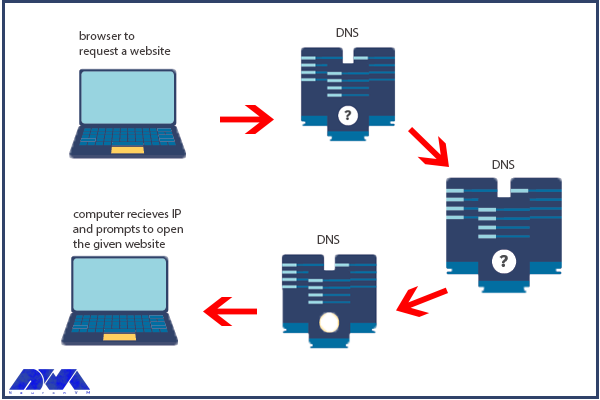
    It is very important to know the concept of DNS and its functionality. If a user tries to enter a website from a personal computer, laptop, or tablet using the internet, the user should use DNS. So, understanding the usage of DNS is very important:

    DNS role

    Browsers and other Internet activities rely on DNS to provide the information needed to connect users to remote hosts as quickly as possible. DNS mapping is distributed across the Internet in a chain of authorities. ISPs, access companies, as well as governments, universities, and other organizations typically have dedicated ranges of IP addresses and an assigned domain name. They also run DNS servers to manage the mapping of those names to those addresses. Most URLs are built around the domain name of the web server responsible for receiving client requests. Before we start and deal with the main issue, we recommend you use the cheap dedicated server plans of our website to setup DNS.

    Importance of DNS in Website Functionality

    DNS is a critical component of website functionality. Without DNS, users would have to remember the IP address of every website they want to visit, which would be impractical. DNS allows users to access websites using user-friendly domain names, making it easier to navigate the internet. In addition, DNS helps to distribute traffic to different servers, ensuring that the load is evenly balanced and the website remains accessible even under heavy traffic.

    DNS Configuration Process

    Configuring DNS can be a complex process, but most web hosting providers offer tools and guides to make it easier. The first step is to choose a DNS provider. It can be either your web hosting provider or a third-party provider like Cloudflare or Google DNS. Once you’ve chosen a provider, you’ll need to set up your DNS records. These records include information about your domain name, IP address, and other settings. This process can vary depending on your web hosting provider and the type of DNS records you need to setup.

    One common issue with DNS configuration is DNS propagation, which refers to the time it takes for DNS changes to take effect. This can be frustrating for website owners who need to make changes quickly. Note that it’s important to be patient and allow time for the changes to propagate. Another common issue is DNS caching, which can cause outdated information to be displayed. Clearing your DNS cache can help resolve this issue.

    Common DNS Problems and How to Troubleshoot Them

    Even with proper configuration, DNS issues can still occur. One common issue is DNS resolution failure, which occurs when a DNS server is unable to resolve a domain name. The reason may be a variety of factors, including incorrect DNS records, network connectivity issues, or DNS server errors. To troubleshoot this issue, start by checking your DNS records to ensure they are correct. You can also try using a different DNS server or contacting your web hosting provider for assistance.

    Another common issue is DNS hijacking. This problem occurs when a malicious actor redirects traffic from a legitimate website to a fake website. This can be difficult to detect, but there are tools available to help identify and prevent DNS hijacking. It’s also important to keep your DNS records secure and to use strong passwords to prevent unauthorized access.

    Understanding FTP (File Transfer Protocol)

    Understanding FTP (File Transfer Protocol)

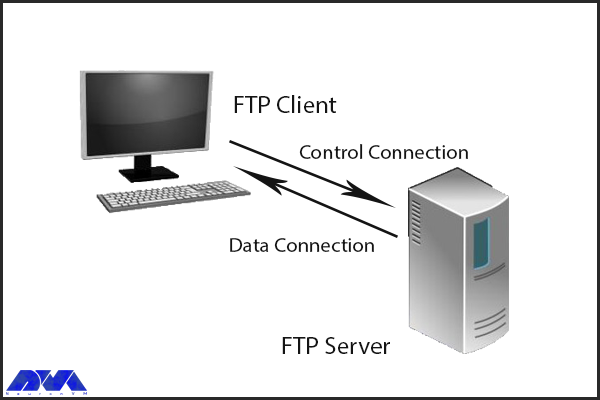
    FTP, or File Transfer Protocol, is another critical component of website functionality. It is used to transfer files between computers and servers, allowing website owners to upload and manage their website files. FTP works by using a client-server model, where the client (usually a web developer or website owner) connects to the server using a username and password and then transfers files between the two computers. The importance of FTP in website functionality cannot be overstated. Without FTP, website owners would need to manually upload and manage their website files, which would be a time-consuming and error-prone process. FTP also allows website owners to easily make changes to their website files, ensuring that their website stays up-to-date and secure.

    Importance of FTP in Website Functionality

    FTP is an essential component of website functionality, as it allows website owners to upload and update content on websites. Without FTP, website owners would need to manually upload files to their servers, which would be time-consuming and prone to errors. FTP makes it easy to update content and ensure that the website is always up-to-date.

    FTP Configuration Process

    Configuring FTP is typically done through a web hosting control panel or FTP client software. The first step is to create an FTP account, which includes a username and password that the client will use to connect to the server. Once the account is created, the client can then connect to the server using an FTP client like FileZilla or Cyberduck. From there, they can transfer files between their computer and the server.

    One common issue with FTP configuration is connection errors, which can be caused by incorrect login credentials or firewall settings. To troubleshoot this issue, double-check your login credentials and ensure that your firewall is not blocking FTP traffic. Another common issue is file transfer errors. It can be caused by file permissions or file size limits. To troubleshoot this issue, ensure that your file permissions are properly configured and your FTP client is set up to handle large file transfers.

    Common FTP Issues and How to Troubleshoot Them

    Even with proper configuration, FTP issues can still occur. One common issue is FTP connection timeouts, which occur when the client is unable to connect to the server. This can be caused by network connectivity issues or server errors. To troubleshoot this issue, try connecting to the server from a different network or contacting your web hosting provider for assistance.

    Another common issue is FTP data transfer errors, which occur when files are transferred incompletely or with errors. This can be caused by a variety of factors, including file size limits, file permissions, or network connectivity issues. To troubleshoot this issue, ensure that your file permissions are properly configured and that your FTP client is set up to handle large file transfers.

    DNS vs FTP: Which one is the backbone of your website’s functionality?

    Both DNS and FTP are critical components of website functionality, but they serve different purposes. DNS is responsible for translating domain names into IP addresses, allowing users to access websites using human-readable names. FTP, on the other hand, is used to transfer files between computers and servers, allowing website owners to upload and manage their website files.

    While both DNS and FTP are important, DNS is arguably the more critical component. Without DNS, users would be unable to access your website, regardless of how well it’s configured. FTP, on the other hand, is important for website management but does not directly impact user experience. That being said, both DNS and FTP are essential to ensuring that your website runs smoothly and efficiently.

    Conclusion

    In conclusion, DNS and FTP are both critical components of website functionality. DNS is responsible for translating domain names into IP addresses. While FTP is used to transfer files between your computer and your website’s server. Both are essential for ensuring that your website runs smoothly and remains accessible to users. While configuring DNS and FTP can be a complex process, website owners need to understand how they work and how to troubleshoot common issues. Whether you’re a seasoned webmaster or a newbie to the world of website management, understanding DNS and FTP is essential for the success of your website.

    FAQ

    What is the exact role of DNS?

    It turns domain names into IP addresses and allows browsers to find websites and other resources.

    Is there any need for IP in FTP?

    FTP client and internet connection are needed for using FTP. Aso you will need to know the FTP server’s IP addresses or hostname.

  • How Netdata is Revolutionizing Monitoring on Rocky Linux

    How Netdata is Revolutionizing Monitoring on Rocky Linux

    If you are looking for an open-source and real-time server monitoring tool, Netdata is definitely a good choice that offers hundreds of tools to monitor servers, CPU, system processes, memory usage, disk usage, IPv4 and IPv6 networks, a firewall, and more. Netdata works in such a way that it uses collectors to help you collect metrics from your favorite programs and services, and you can view them in interactive and simultaneous graphs. Here we will examine how Netdata is revolutionizing monitoring on Rocky Linux.

    Traditional Monitoring vs. Netdata Monitoring

    Traditional system monitoring involves collecting performance data from servers and network devices and analyzing that data to identify issues. This process can be time-consuming and prone to errors, and it often fails to provide the level of real-time insight that businesses need to stay ahead of potential problems. Netdata, on the other hand, provides real-time monitoring of system metrics, with dashboards and alerts that allow organizations to quickly detect and respond to issues as they arise.

    Netdata’s approach to monitoring is significantly different from traditional methods. Rather than collecting data at set intervals, Netdata continuously monitors system metrics, providing real-time insights into system performance. This approach allows businesses to detect and address issues faster than ever before, minimizing downtime and improving overall system performance.

    Benefits of Using Netdata on Rocky Linux

    Here we will show you some benefits of using the Netdata monitoring tool on Rocky Linux:

    Scalability

    Storing distributed data as close to the edge as possible has made Netdata incredibly scalable. Whether in bare-metal servers or containers, cloud deployments, and IoT devices, Netdata offers lightweight operations, high fidelity, protected privacy, and even good scalability at a fraction of the cost.

    Open-Source

    Netdata is provided as an open-source program. This means that the entire software and the main building block of the ecosystem (the Netdata agent) is distributed as open-source under the GPL-v3+ license. This tool collects thousands of hardware and software metrics from physical and virtual systems that we call nodes. Also, these criteria are organized in an easy-to-use interface.

    Enjoyable Monitoring

    Monitoring with Netdata is fun because it doesn’t force you to have a deep understanding of each metric and spend a lot of time configuring monitoring. The tool itself collects, stores, queries, sets alerts, visualizes, and even trains machine learning models for everything. This makes it easier to understand the metrics when you are reviewing your infrastructure and applications or trying to troubleshoot application problems.

    Cost Effective

    The database you install on your system is the Netdata agent. Cloud Netdata is also such that it integrates all agents into a large distributed database. It uses memory, CPU, and disk resources that can be stored and accessed in your production systems in the current state. Each Netdata installation can scale to millions of benchmarks per second, even when you need centralized points to provide higher data access. These things make this tool affordable.

    Features of Netdata Monitoring

    Netdata includes lots of significant features which you can not ignore. These features are:

    – Netdata is an easy-to-use and easy and fast setup with full automation.

    – It has more than 1000 Plugins and Integrations.

    – Real-time and high-fidelity and low latency are other features of Netdata.

    – It is equipped with powerful visualizations and dashboards.

    – There are powerful notifications and alerts.

    – It is flexible and scalable.

    – Netdata provides high Security and Privacy.

    How to install Netdata on Rocky Linux

    As mentioned, Netdata is a real-time server monitoring tool that collects real-time data such as CPU, RAM, SWAP usage, bandwidth, etc. We suggest you choose from the Linux VPS servers offered on our website to use the Rocky Linux operating system. Now we will show how to install this applicable tool on Rocky Linux:

    The first step is to update your system to the latest version, so use the following command:

    dnf update

    Then you should run this command to install EPEL repositories:

    dnf install epel-release -y

    The next step is to install the necessary packages for Netdata. Here is the related command:

    wget -O /tmp/netdata-kickstart.sh https://my-netdata.io/kickstart.sh && sh /tmp/netdata-kickstart.sh

    Tip: If the script prompts you to enter before installing each package, you must type y or yes and accept the package being installed.

    As you finished the installation, start and enable Netdata to boot or reboot automatically and verify the status of the application:

    systemctl start netdata
    systemctl enable netdata
    systemctl status netdata

    It is time to configure the firewall on Netdata. The default port for Netdata is 19999. Enable ports in the firewall to use Netdata from your browser:

    firewall-cmd --permanent --add-port=19999/tcp
    firewall-cmd --reload

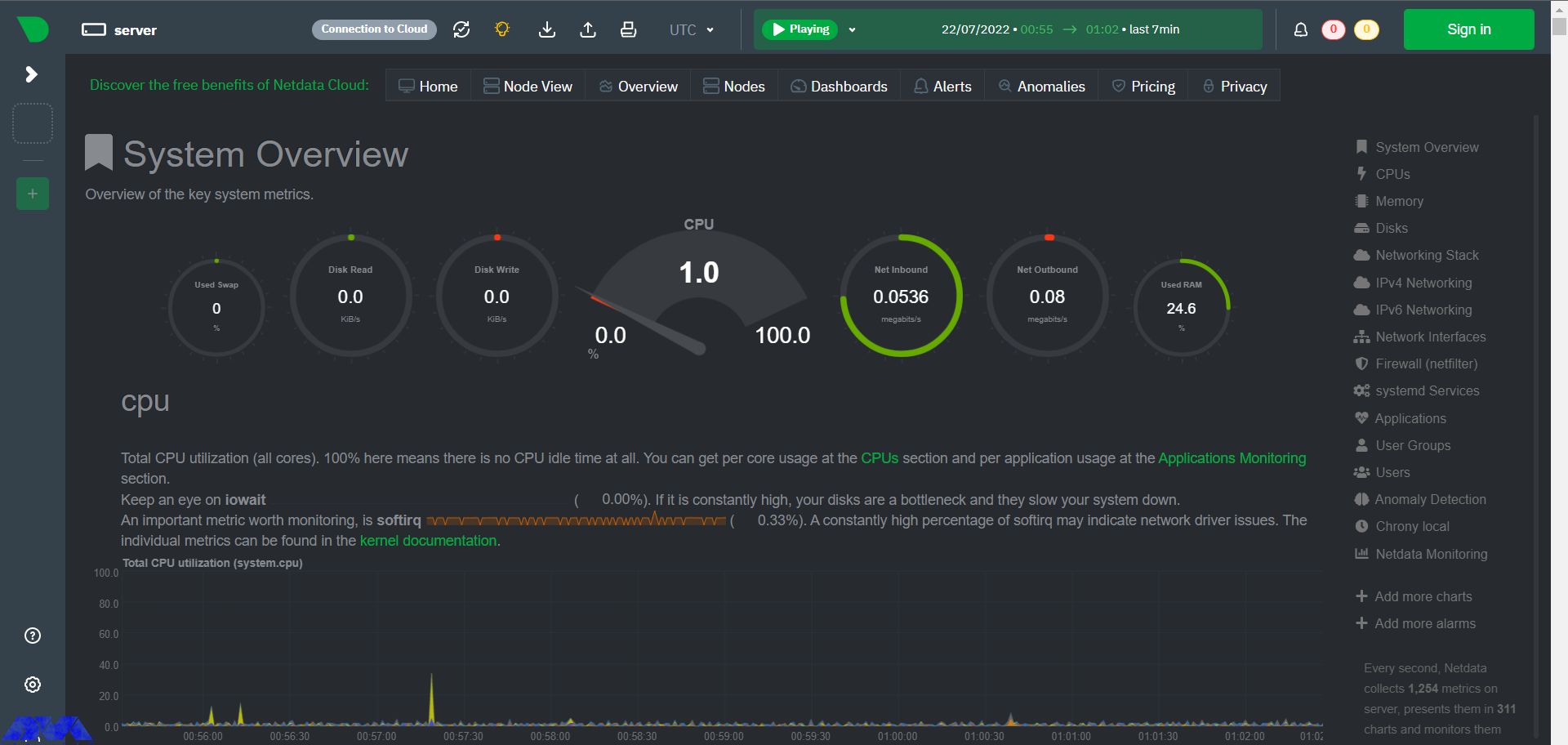
    Use the URL below on the browser to access the Netdata dashboard:

    http://<your IP address>:19999/
    netdata dashboard

    Configuring Netdata for optimal performance

    Use the configuration file to configure and modify Netdata. This configuration file is located at the at /etc/netdata/netdata.conf directory. You can find this setting by referring to the following URL in your browser:

    https://netdata.example.com/netdata.conf

    The default configuration will be enough to get started. You can use the desired text editor like Nano to make changes to the configuration options based on your requirements. At last, you have to restart the Netdata service using the following command to apply the changes:

    sudo systemctl restart netdata

    Real-time monitoring with Netdata

    Netdata agent searches hundreds of standard applications and groups them by purpose. These applications are supported through aggregators. Now for better understanding suppose you want to monitor MySQL database using Netdata. The NetData agent knows that it should look for processes with the string MYSQL along with a few others and put them in the SQL group. After this process, the SQL group is changed to one dimension in all process-specific graphs. Process and group settings are done by two special and powerful collectors.

    apps.plugin: This plugin monitors the Linux process tree every moment, like fax top or ps, and collects resource usage information on each running process. Then adds a layer of meaningful visualization automatically on top of these metrics and makes charts for each application.

    ebpf.plugin: This plugin collects Berkeley Packet Filter or ebpf in Netdata which monitors Linux kernel-level metrics for file descriptors, process management, or virtual file system IO and then passes processes-specific metrics to apps.plugin in order to monitor. This aggregator aggregates metrics at event frequency. This is more accurate than the standard Netdata detail per second.

    Advanced monitoring with Netdata plugins

    Netdata includes a comprehensive set of built-in plugins, but there are also several advanced monitoring plugins to improve its performance, here we will mention some of the best ones:

    – Redis: Monitor status by reading the server response to the INFO ALL command from any number of database instances.

    – Elasticsearch: With this plugin, you can collect dozens of search engine performance metrics from local nodes and local indexes, including cluster health and statistics.

    – Solr: This plugin helps to collect application search requests, search errors, update requests, and error statistics.

    – Apache: Apache web server performance metrics can be collected with this plugin through an automated server health endpoint.

    – MongoDB: This can be used to collect server, database, replication and sharing performance, and health metrics.

    – Nginx: Monitor web server status information by collecting metrics via the ngx_http_stub_status_module.

    – MySQL: This widely used plugin collects global database, replication, and statistics for each user.

    Netdata vs. other monitoring tools

    Netdata is not the only monitoring tool available, but it is one of the most powerful and feature-rich. Here are some of the key differences between Netdata and other monitoring tools:

    – Real-time monitoring: Netdata provides real-time monitoring of system metrics, allowing businesses to quickly detect and address issues as they arise.

    – Highly customizable dashboard: Netdata’s dashboard is highly customizable, allowing businesses to track the metrics that matter most to them. This can help businesses stay on top of potential problems and improve overall system performance.

    – Advanced analytics and troubleshooting tools: Netdata provides a range of advanced analytics and troubleshooting tools, including the ability to analyze historical data and identify trends over time.

    – Plugin architecture: Netdata’s plugin architecture allows businesses to extend its monitoring capabilities beyond the built-in metrics, providing a more comprehensive view of their systems and applications.

    Conclusion

    If you are interested in Monitoring tools, you should know that Netdata is one of the best. So we focused on this amazing tool to give a clear understanding of Netdata and give a full explanation about its benefits, features and also show how you can install and configure it on Rocky Linux. You can also figure out some differences between Netdata and other monitoring tools. We hope this tutorial was helpful enough for you.

    FAQ

    What is the related command to uninstall Netdata?

    Use the following commands:

    wget -O /tmp/netdata-kickstart.sh https://my-netdata.io/kickstart.sh && sh /tmp/netdata-kickstart.sh –uninstall.

    curl https://my-netdata.io/kickstart.sh > /tmp/netdata-kickstart.sh && sh /tmp/netdata-kickstart.sh –uninstall.

    Is it possible to extend Netdata’s functionality with plugins?

    Yes, you can use plugins because Netdata architecture supports plugins and allows you to extend functionality.

  • Why Linux VPS Hosting is Perfect for Developers

    Why Linux VPS Hosting is Perfect for Developers

    If your website traffic is high or you expect to experience high traffic on the website in the future, then be sure to get information about Linux VPS and learn about its benefits. Also, if you want to have more control over your web hosting server, Linux virtual server will be the best option for you. We will examine why Linux VPS hosting is perfect for developers.

    What is Linux VPS Hosting?

    When it comes to Linux hosting, it means using a Linux operating system as the base server for your web hosting. The most important functional component in running programs on any device, especially servers, is the operating system. A host is a link that allows all hardware on a server to communicate with and respond to application requests.

    An operating system is so essential even for single-user systems and more importantly web servers. Because web servers need to manage all the hardware for multiple users.

    Benefits of Linux VPS Hosting for Developers

    One of the most affordable web solutions on the market is Linux VPS. Here, we will try to introduce some benefits of Linux VPS hosting that can be significant and effective in your choice. Let’s consider some of them:

    Benefits of Linux VPS Hosting for Developers

    Flexibility and Customization Options

    Linux offers web hosting administrators unprecedented flexibility because of the design philosophy with which it was built. The highly adaptable nature of this server means that it can fit into almost any environment imaginable. The concept of building blocks in Linux is what makes it so powerful in this regard. Linux is made up of several distinct areas that generally work together.

    The related areas in Linux VPS are Kernal, Bootloader, Daemons, Shell, Package Managers and Packages, and Desktop Environment. These items are working together to make a Linux distribution. This is the point that flexibility in Linux comes from.

    Cost-Effective Solution

    In general, Linux virtual servers or VPS are more expensive than shared hosting, but their cost is cheaper than dedicated hosting. On our website, a high-performance VPS is not significantly more expensive than shared hosting plans. If we want to mention the advantages of VPS over shared hosting, you will understand why VPS is worth a lot. Especially if you want managed VPS hosting.

    Regarding Linux virtual servers, we should mention that since their operating system is open source and free, as a result, there is no need to pay a monthly license fee. The virtual server means that the prices are adjusted according to the needs of the customers.

    Enhanced Security Measures

    Whatever server you use, Linux or Windows, your server is only as secure as you configure it to be. Fortunately, Linux leads the way in this regard and offers many options that you can work with to make it much harder to break into. Of course, this goes back to how Linux is designed. Of course, you must have managers who are professional enough and give you the necessary knowledge to secure the server.

    The ability of Linux allows users to activate only the services they need and helps to reduce possible vulnerabilities. Any program, service, or open port is a potential weakness through which attackers can use it to infiltrate or attack the server. If you configure Linux properly and tightly enough, attacks have no chance of success. These items are accompanied by the usual defense of most web servers such as scanning and detection of malware.

    Reliable Performance and Scalability

    When your website has high traffic, it means that the server has to do more work and use more resources. Another advantage of Linux VPS servers is that they are scalable so that you can meet the needs of your server and consider a significant amount of resources if needed to ensure stability. This type of fluctuation generally stops a shared server. Linux provides a significant amount of utilities to perform various tasks, one of the most powerful of which is the shell. Finally, if your site suddenly needs more resources, Linux VPS hosts can increase these resources quickly and easily.

    Access to a Wide Range of Development Tools and Technologies

    Shared hosting offers limited control to website owners, so they can’t install whatever tools or technology they want on their environment. But VPS hosts are not like that. Users who use Linux VPS hosting use a wider range of services. For example, if you do not want to use the email functionality on your server, you can turn off or remove programs such as BIND or the webmail program. The Neuronvm website provides root access to VPS for its users, and in this way, you can make any changes, access tools, or delete them.

    Conclusion

    By using virtual private servers, you can manage your website without slowing down and causing damage. Note that the use of VPS hosting is increasing day by day and the demand for it has increased too. So, this article tried to be a helpful guide to introduce you to Linux VPS hosting and some benefits of that for developers.

    FAQ

    What can be the difference between Linux VPS and Windows VPS?

    The flexibility in Linux VPS hosting is more than Windows VPS. The reason is that it is cheaper and easier to add processing resources on Linux. In selecting CMS Linux supports more choices.

  • VPN vs RDP: Which One Offers Better Security for Your Remote Workforce?

    VPN vs RDP: Which One Offers Better Security for Your Remote Workforce?

    Since the creation of the Internet, the priority was to send packets without defects and damage, and for this reason, the Internet space is an inherently insecure space. All the programs you use on the Internet, such as e-mail, web, messaging systems, etc., are built according to global standards, but it is still not possible to talk about their security with certainty. For this reason and due to the importance of security, in this article we are going to compare VPN vs RDP. We will also tell you Which One Offers Better Security for Your Remote Workforce?

    Understanding the Risks of Remote Work

    Nowadays, remote working has become a very popular and common method all over the world. Especially now that companies are allowing their employees to do their jobs remotely. But on the other hand, the rise of remote work has created a new range of challenges for businesses that want to keep their sensitive information safe.

    Among the risks that users may face when working remotely are:

    • Email fraud and phishing
    • Cyber attacks on Remote work infrastructure
    • Increased attack levels
    • Weak passwords
    • Webcam Hacking
    • Insecure Connections
    • Lack of awareness of cyber security
    • Lack of monitoring

    As more employees work outside the traditional office environment, companies must find new ways to manage and monitor access to data. After reading this article, you can choose and buy the plan you want from the high-quality and high-speed Admin RDP plans provided on our website. You can also contact our experts if you need support.

    What is VPN and how does it work?

    A VPN or virtual private network is one of the best tools to protect your internet privacy. A VPN encrypts your connection, hides your IP address, and keeps you private while browsing the web, shopping, and banking online. While virtual private networks were once a new technology solution, they are now an essential tool.

    Using a VPN, all your data traffic is sent through an encrypted virtual tunnel. This encryption prevents hackers and profiteers from accessing your organizational information. A VPN establishes a point-to-point connection between your device and the global Internet and allows a user to access another computer from their PC using tunneling protocols. In order to protect your organization’s data and prevent information from being tracked in transit, traffic is often encrypted with network encryption protocols such as SSH or IPsec.

    what is vpn

    VPN vs RDP

    Enterprise VPNs are now used by various businesses. Encryption increases security and privacy. Encryption is a method of converting plain text into a set of unreadable codes. A key or decryptor converts codes into readable information. When you use a VPN, only your device and the VPN provider contain the decryption key, and if someone tries to spy on you, they will only see a series of characters.

    Note that instead of sending your internet traffic (eg online searches, uploads, and downloads) directly to your ISP, a VPN first routes your traffic through a VPN server. That way, when your data is finally transmitted to the Internet, it will appear to come from the VPN server, not your personal device. Without a VPN, your IP address is visible on the web. It is interesting to know that VPN as an intermediary hides your IP address by redirecting traffic.

    What is RDP and how does it work?

    Remote Desktop Protocol (RDP) is a widely used software that allows you to connect to your Windows server in another location. Using this protocol, you can connect to your Windows server, open files, and use them, just like you use your system. Finally, the RDP protocol puts your Windows system and server under your complete control remotely, so that you can use it without any problems.

    In the following, we intend to describe the use of the RDP protocol:

    • Image transfer between the user’s computer and the Windows server
    • The ability to transfer sound from a Windows server to a computer
    • Encrypt all information exchanged between you and the server
    • The ability to access all computer files inside the server using the File System Redirection system
    • Having access to the printer and any system connected to the server

    To understand how RDP works over the internet, consider a drone. You can control your drone by pressing buttons and through radio waves. The use of multi-user remote desktop protocol (RDP) also has almost the same process; Sending your mouse movements and keyboard keys to the desired Windows server. with the difference that this work is done on the internet and not with radio waves. The Windows server desktop appears on the computer screen as if you were sitting behind the main server.

    rdp-remote-desktop-protocol

    VPN vs RDP

    A remote desktop creates a separate path between you and the RDP server over the Internet, where data is sent and received. Mouse movements, keyboard keys, server screen information, and all other required information are sent in this channel with the help of TCP/IP protocol. Also, the RDP connection encrypts all the information between the user and the server so that the user and the remote desktop can experience a secure connection.

    VPN vs RDP: Key Differences

    RDP is a service that allows you to host your website in a virtual environment, while VPN is a user-centric tool that allows you to browse various websites safely and securely. Probably the only thing that an RDP and a VPN have in common is the virtualization aspect of each service.

    RDP is a type of web hosting service. This means it gives you a personal space on the online server to keep your data safe and secure. This will help you to host your website better to get more traffic. While a VPN is a virtual private network that hides your real IP address from hackers and spammers. This makes all your data unreadable so no one can track your online activities. This significantly helps to maintain your privacy and security.

    In the rest of this article, we will discuss the key differences between RDP and VPN and examine each one thoroughly.

    Security Features of VPN

    VPNs use a variety of different protocols. Older protocols, such as PPP and PPTP, are considered less secure. Note that VPN security, like other security programs such as antiviruses, may sometimes malfunction and fail to function fully. VPNs protect your IP and internet history, but they cannot prevent outsiders from attacking your system.

    Using a VPN alone cannot protect you from Trojans, viruses, bots, or other malware. It is better to use an antivirus on your system. This is because once malware gets into your system, it can steal your data, whether you have a VPN or not. For this reason, do not forget to use antivirus. Of course, when your VPN has a problem, you are definitely at risk. For this reason, be sure to use a reliable VPN provider so that you are at less risk.

    Here are some types of security protocols:

    • IP Security Protocol (IP Sec)
    • Layer Two Tunneling Protocol (L2TP)
    • SSL and TLS protocols
    • Point-to-Point Tunneling Protocol (PPTP)
    • SSH protocol (Secure Shell)
    • Secure Socket Tunneling Protocol (SSTP)
    • Internet Key Exchange, Version 2 Protocol (IKEv2)
    • OpenVPN

    Security Features of RDP

    remote desktop provides users with various security settings such as 128-bit encryption and NLA; So you won’t necessarily need a VPN. Of course, due to its high popularity and the existence of Remote Desktop in most modern versions of Windows, this software has become the main target of many hackers. To solve this problem, in recent years, Microsoft has defined several security updates for the RDP protocol. Because of this, an RDP connection can be very secure. However, remember that it is the responsibility of admins and technical support to ensure security patches are installed, and remote users only have access to the hardware resources they need to do their jobs.

    Pros and Cons of VPN

    Geolocation Spoofing: With a VPN, it appears as if your connection to the Internet is coming from a different location. This issue allows users to remove the restrictions of their country regarding access to some specific sites or the restrictions of the sites themselves due to geographical location.

    High Security: Since the communication goes through the encrypted tunnel, no one but the VPN provider can know about it. These encrypted communications prevent data collection by ISPs, hackers, and other malicious and spying agents. If the site you are looking for uses HTTPS, the VPN server will not be able to see the content of your request and will only be informed of the website you have visited.

    Better Privacy: Because your ISP prevents your activity from being tracked, the websites you visit also cannot identify your geographic location.

    Cost and Variety: With a little effort, you can create your own VPN. Also, there are many providers that provide access to servers in hundreds of countries. Some of these providers offer mobile and desktop apps, while others simply require you to connect to a server through open-source software.

    Lower Speed: A VPN connection is often slower than a regular connection. This makes sense once you put at least one extra step between your device and websites. For example, if you’re in the UK and using an Australian server, not only should you expect some lag, but the server’s download and upload speeds will also slow down.

    Legal Issues: Some countries have banned the use of VPNs and identify users by implementing methods such as Deep Packet Inspection. In these countries, trying to hide internet traffic can lead to legal issues.

    Pros and Cons of RDP

    If we want to tell you about the benefits of RDP, we must mention the following:

    • Exclusivity of processor resources, main memory, and information storage space
    • The possibility of dedicated remote management
    • Ability to install desired software
    • The ability to upgrade resources in the shortest possible time
    • Having a dedicated IP
    • Ability to manage the server such as turning off or turning on the server by accessing the server control panel
    • Ability to quickly troubleshoot and transfer information to another RDP machine

    Among the disadvantages of RDP, we can mention the dependence on the network and the need to have a powerful RDS.

    Need Powerful RDS: If there is a need to use RDP on a large scale, a powerful Remote Desktop Service (RDS) is needed to monitor all RDP connections.

    Requires a powerful network: A reliable network connection is required for the client computer to successfully connect to the host computer. Otherwise, the entire Remote Desktop service may fail.

    By connecting to a remote PC, the destination computer is locked for local use and the local user cannot use the system at the same time or see what the remote person is doing.

    Choosing the Right Solution for Your Remote Workforce

    All in all, both services are very valuable for businesses. RDP increases website performance, while VPN increases the security of your data. If your business is growing, an RDP may be right for you. This type of hosting has a high level of customization, which is suitable for those who need to use specific software or programs. In addition, you can do almost everything over an RDP on a dedicated server, but at a lower cost.

    On the other hand, a VPN is very useful for those who travel a lot, work remotely, or hold client meetings in public places. No matter where your destination is, it hides your IP address and provides you with a secure network. For any job where data security is critical, it’s best to invest in a VPN.

    Conclusion

    Both RDP and VPN services have their uses in the business world, and many online companies choose to use one or both services. RDP is a premium hosting option for businesses that need speed to scale and maintain a website with consistently high traffic. For those who work remotely or travel a lot, a VPN can also be a useful solution. In fact, both technologies can be valuable additions to your online toolbox.

  • How to choose the best USA RDP for your business

    How to choose the best USA RDP for your business

    In today’s digital era, Remote Desktop Protocol (RDP) has become an essential tool for businesses to enhance their productivity and streamline operations. Choosing the right USA RDP provider can greatly impact your business’s efficiency, security, and overall success. This article will guide you through the key factors to consider when selecting the best USA RDP for your business needs.

    Advantages of using USA RDP

    USA Admin RDP offers a range of benefits that make it an ideal choice for businesses and individuals alike. One of the key advantages of using USA Admin RDP is the enhanced security measures it provides. The United States has stringent data protection regulations, ensuring that your sensitive information and data are safe. With USA Admin RDP, you can benefit from robust encryption protocols and firewall protection, reducing the risk of unauthorized access and data breaches. This added layer of security is crucial, especially for businesses that handle confidential client information or conduct financial transactions online.

    Furthermore, USA Admin RDP offers excellent network performance and reliability. The United States boasts a highly developed and advanced internet infrastructure, ensuring fast and stable connections. This is particularly advantageous for businesses that rely on seamless remote access to their systems and applications. With USA Admin RDP, you can experience minimal latency and downtime, enabling you to work efficiently and effectively. Additionally, the reliable network infrastructure ensures that your data transfers are smooth and uninterrupted, allowing for quick and easy file sharing and collaboration. Overall, USA Admin RDP provides a secure and reliable remote access solution that is essential for businesses operating in today’s digital landscape.

    Advantages of using USA RDP - best USA RDP

    Factors to consider when choosing USA RDP

    Certain parameters should be taken into account when choosing USA RDP. Starting with security, it is a crucial metric when it comes to accessing remote systems. Look for an RDP solution that offers robust encryption to protect data during transmission. Features like SSL/TLS encryption, two-factor authentication, and session recording can enhance the security of your remote connections. It’s also necessary to ensure that the RDP solution is compatible with the operating systems and devices you plan to use. It should support various platforms such as Windows, macOS, Linux, iOS, and Android. Compatibility with different versions of RDP and remote desktop clients is also important.

    You better look for an RDP that offers fast and responsive performance. This includes low latency, smooth screen rendering, and quick file transfer speeds. Consider the network bandwidth requirements and the ability to optimize performance for different network conditions. Not only that, you’ll also need an RDP solution that provides good technical support. Look for a vendor with a good track record, regular updates, and responsive customer support.

    If you need to support multiple simultaneous connections or a large number of users, consider the scalability of the RDP solution. Look for features like load balancing, session management, and centralized administration tools that can handle your scalability requirements.

    Last but not least, pricing is an important factor for almost everyone these days. Be sure the choose a plan that is budget-friendly, but doesn’t cut the quality because of the low price.

    Factors to consider when choosing USA RDP

    Types of USA RDP

    There are several types of RDPs that we’ve listed below:

    ICA: Independent Computing Architecture is a proprietary protocol developed by Citrix that works with Citrix-based remote desktop software, such as Citrix Virtual Apps and Desktops, Citrix Workspace app, and Citrix Receiver. ICA supports multiple monitors, dynamic resolution, smart sizing, device redirection, and multi-factor authentication.

    VNC: Virtual Network Computing is an open-source protocol that works with cross-platform remote desktop software, such as RealVNC, TightVNC, UltraVNC, and TigerVNC. VNC supports multiple monitors and smart sizing.

    NX: NX is a proprietary protocol developed by NoMachine that works with Linux-based remote desktop software, such as NoMachine NX Server and X2Go. NX supports multiple monitors and dynamic resolution.

    SPICE: Simple Protocol for Independent Computing Environments is an open-source protocol that works with virtualization-based remote desktop software, such as Red Hat Virtualization and oVirt. SPICE supports multiple monitors and dynamic resolution.

    Server specifications and performance

    When choosing the right USA RDP, server specifications and performance play a crucial role. The server specifications determine the capabilities and resources of the RDP server, such as the processor, memory, storage, and network connectivity. These specifications directly impact the overall performance and responsiveness of the RDP connection.

    A powerful processor and ample memory ensure smooth multitasking and fast data processing, while sufficient storage allows for storing and accessing files and data. Additionally, a stable and high-speed network connection is essential for seamless remote access and efficient data transfer. Therefore, carefully considering and selecting the appropriate server specifications and performance is vital in ensuring a reliable and satisfactory RDP experience.

    Scalability and future growth

    Scalability refers to the ability of the RDP service to handle increasing demands and accommodate growth in terms of users, data, and functionality. It is essential to choose an RDP provider that offers flexible and scalable solutions, allowing businesses to easily scale up or down their resources as needed. Future growth is equally important, as businesses must consider their long-term goals and ensure that the chosen RDP service can support their anticipated growth and expansion. By selecting an RDP service that prioritizes scalability and future growth, businesses can seamlessly adapt to changing needs and ensure a smooth and uninterrupted workflow.

    So it goes without saying that if you have a long-term plan for your business, you should definitely see your business in one year, five years, or even ten years from now. This makes scalability an important factor that must be taken into consideration.

    Scalability and future growth

    Security features and protocols

    These features and protocols are like the superheroes of the digital world, protecting your data and privacy from potential threats. They help create a secure tunnel between your device and the RDP server, encrypting your data so that it can’t be intercepted by cyber-criminals. Think of it as a virtual fortress that shields your information from unauthorized access, giving you peace of mind while you navigate the vast online landscape. So, when choosing a USA RDP, make sure it has robust security features and protocols in place because, in this digital age, it’s better to be safe than sorry!

    USA admin RDP can provide you with the safety you need for your business. As mentioned, The United States has rigid data protection regulations, ensuring that your sensitive information and data are safe.

    Choosing the right hosting provider

    When you’re choosing a USA RDP hosting provider, there are several factors to ensure you make the right decision. Firstly, reliability and uptime should be a top priority. Look for a hosting provider that guarantees high uptime and has a robust infrastructure to minimize any potential downtime.

    Secondly, consider the server’s performance and speed. Search for a hosting provider that offers fast and efficient servers to ensure smooth operation and quick response times. Additionally, security is crucial when dealing with remote desktop protocols. Ensure the hosting provider offers robust security measures, such as firewalls and encryption, to protect your data from potential threats. Lastly, consider the customer support provided by the hosting provider. Look for a company that offers 24/7 customer support to address any issues or concerns promptly. By considering these factors, you can choose the right hosting provider for your USA RDP needs, ensuring a reliable, secure, and high-performing hosting experience.

    Here at NeuronVM, we offer reliable USA Admin RDP with 24/7 customer support, tailored for your personal or business needs.

    Budgeting and pricing considerations

    It’s important to strike a balance between affordability and the quality of service you receive. First and foremost, assess your needs and determine the features and specifications required for your specific tasks. This will help you avoid overspending on unnecessary resources. Additionally, consider the pricing structure offered by different providers. Some may charge a flat rate, while others offer flexible plans based on usage. Take into account any additional costs such as data transfer or storage fees. Lastly, don’t forget to check for any discounts or promotions that could help you save money without compromising on performance. By carefully considering your budget and pricing options, you can find a USA RDP that meets your needs without breaking the bank.

    Case studies and success stories

    An international company that deals with software development, faced challenges in managing their remote workforce spread across different countries. They decided to invest in USA-based Remote Desktop Protocol (RDP) services to improve their efficiency and productivity. By purchasing USA RDP, they gained access to high-speed internet connections, superior infrastructure, and advanced security features. As a result, their teams were able to collaborate seamlessly, share resources effortlessly, and complete projects promptly. The USA RDP solution significantly enhanced their remote work setup, leading to improved team performance and increased client satisfaction.

    There are also many entrepreneurs selling products to customers worldwide. In a case study, some of them planned to provide a smooth and reliable shopping experience and they used USA RDP services. By purchasing USA RDP, they gained access to a stable and high-speed internet connection, enabling them to manage their online store efficiently. The USA RDP solution allowed them to handle large volumes of customer orders, process payments securely, and maintain a responsive website. This resulted in increased sales, improved customer satisfaction, and expanded their business reach globally.

    Conclusion and final thoughts

    All in all, finding the best USA RDP is crucial for individuals and businesses alike. By carefully considering factors such as performance, security, customer support, and pricing, users can ensure they make an informed decision. Whether it’s for remote work, accessing geo-restricted content, or enhancing online privacy, selecting a reliable and efficient USA RDP will undoubtedly contribute to a seamless and productive online experience.