Category: Docs

  • How to Buy a VPS from NeuronVM

    How to Buy a VPS from NeuronVM

    Have you ever thought about this? Why would someone buy a VPS? Let me help you out! For a successful online presence and unmatched performance, You need to buy VPS. If you are a web developer, E-commerce business, remote worker, freelancer, or gaming community member, this service is specific to your needs. Continuing this post, We have the right solution for you to buy a VPS from NeuronVM, decent quality at a reasonable price.

    Get VPS from NeuronVM

    To get started, you should log in to the NeuronVM website and click on Buy VPS:
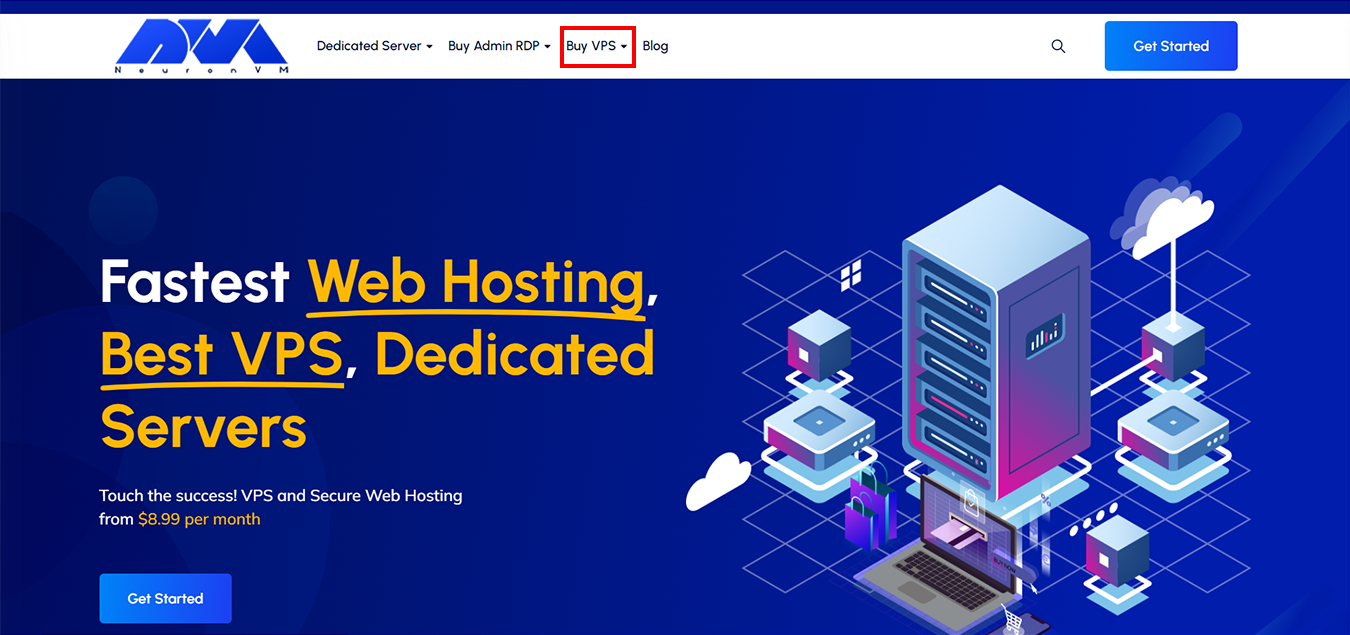
    neuronvm home page

    Then scroll down to view the available plans, according to your needs select one of the Admin RDP, Windows VPS, and Linux VPS plans, Select your package, and click on Purchase Plan to continue.

    Note: Here we select the Admin RDP plan.
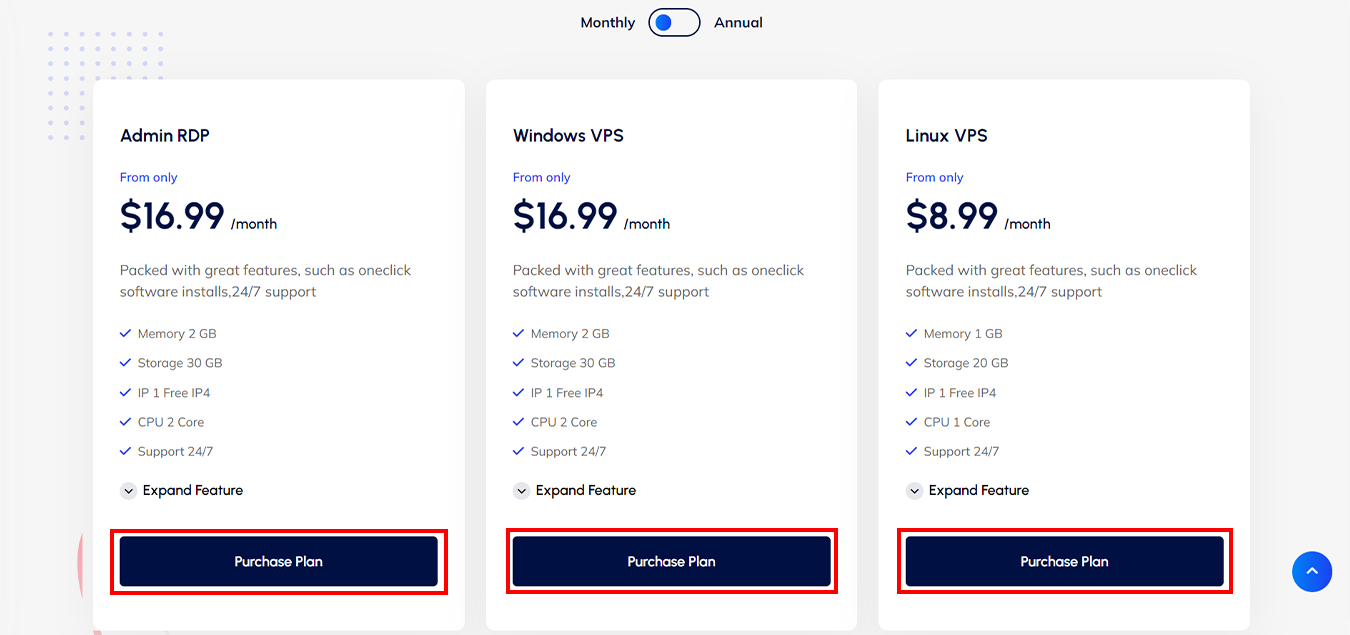
    NEURONVM-AVAILABLE-VPSPLANS

    Check out the features of the plans, Select one of them press the “Order” button, and then configure it:
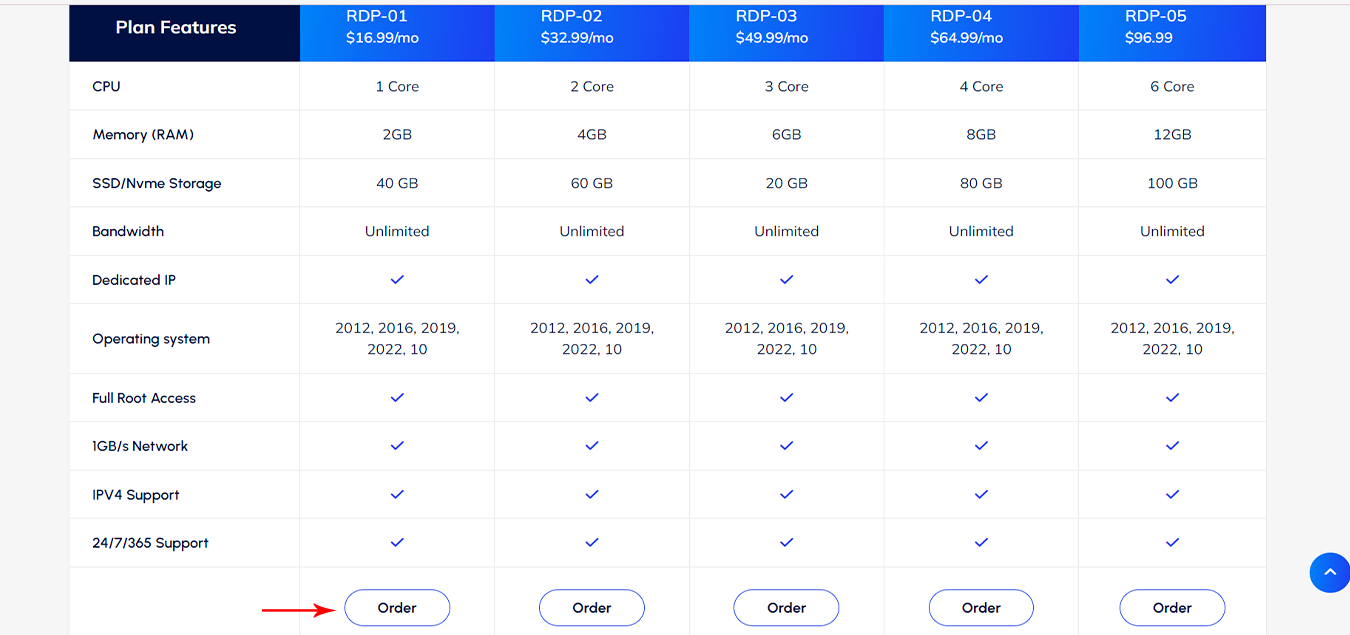
    NEURONVM-AVAILABLE-ORDER

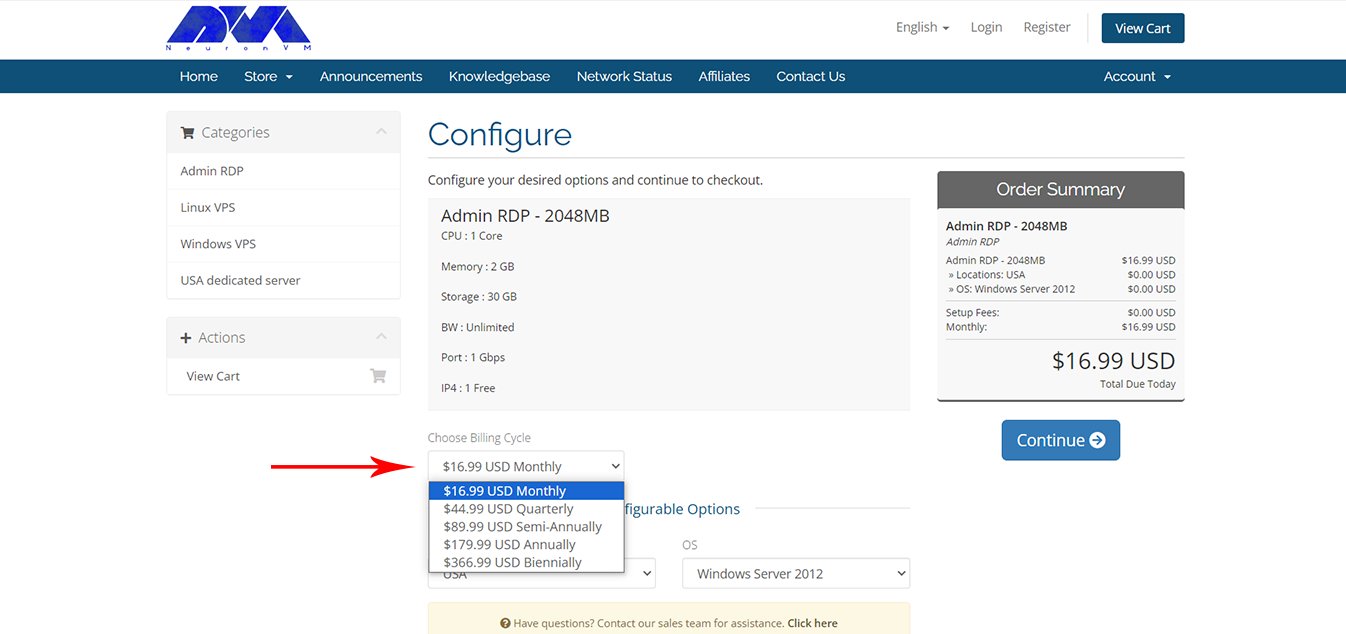
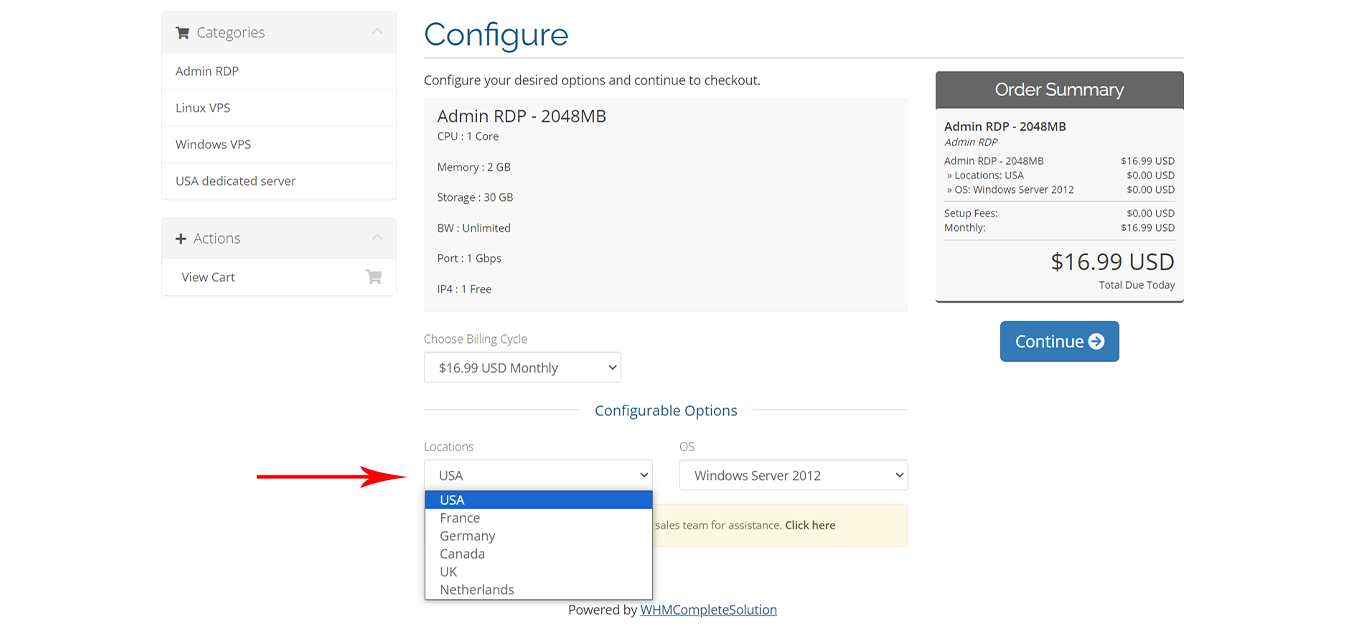
    At this step, you need to configure your order. Choose the billing cycle and select your desired payment plan:
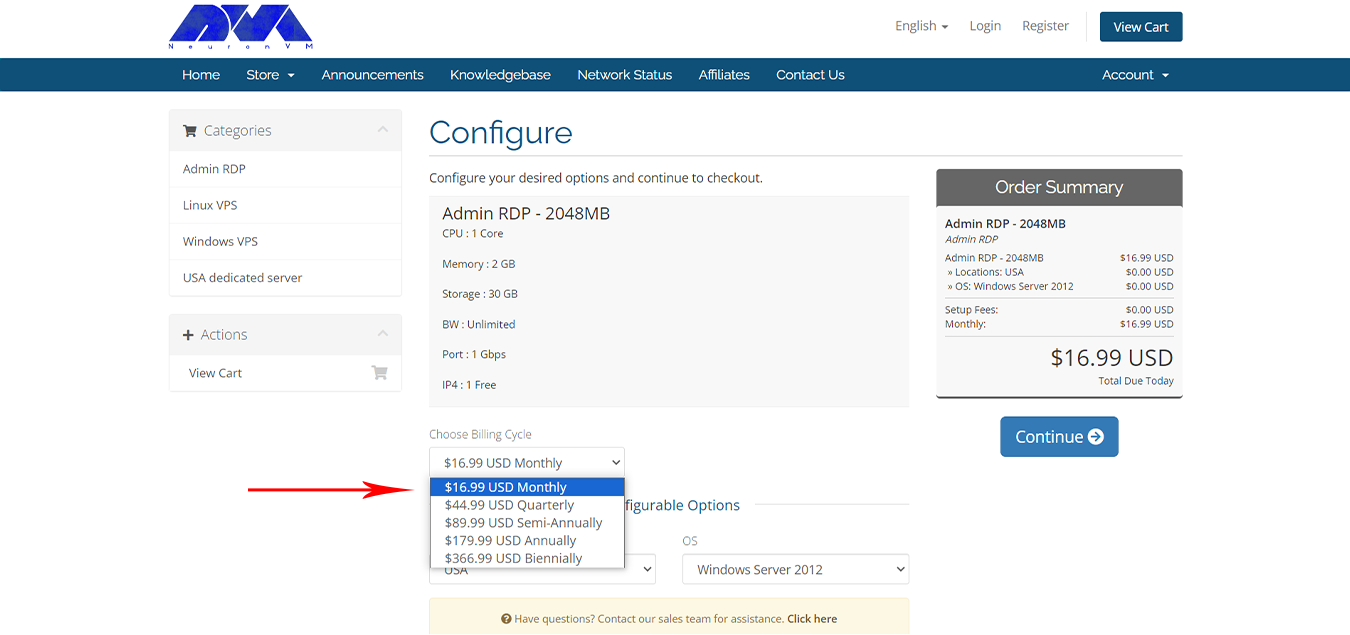
    Buy a VPS from NeuronVM

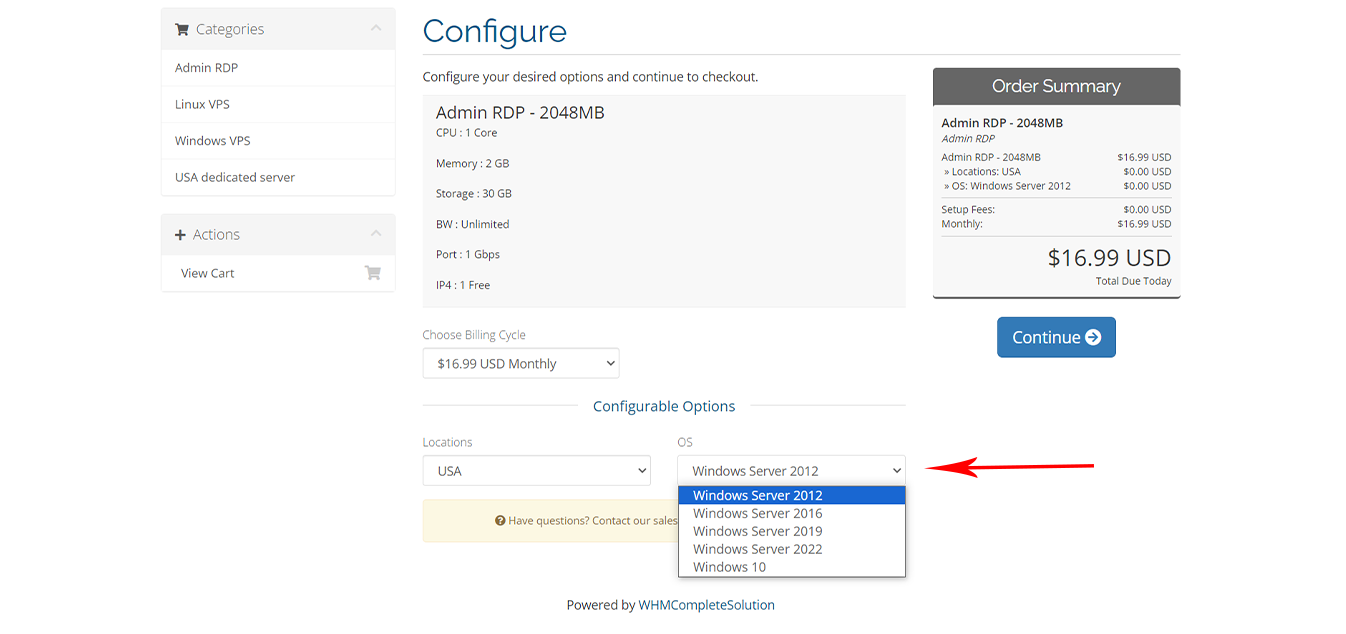
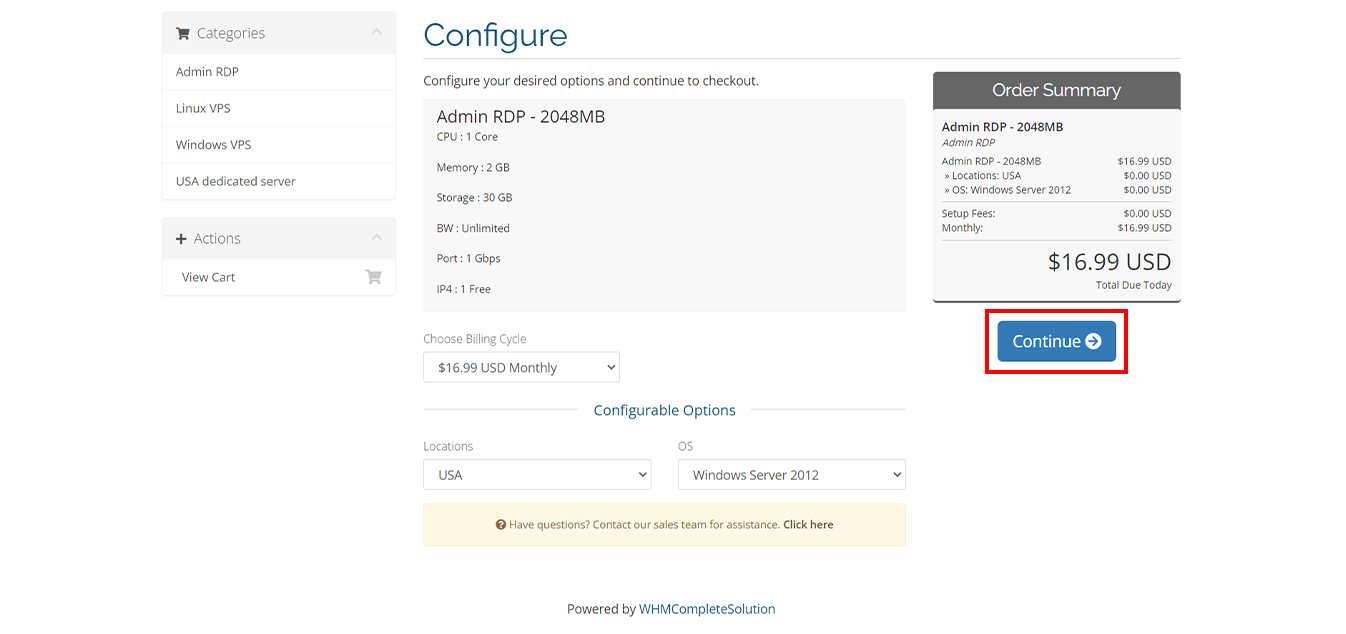
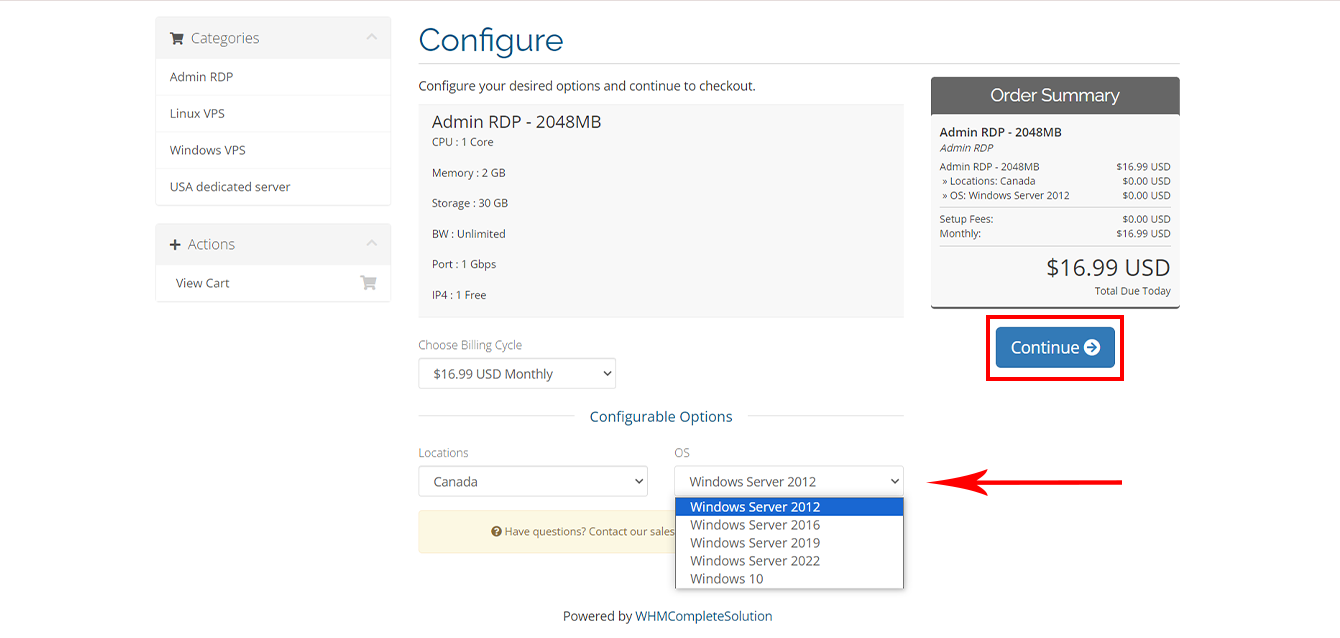
    Then complete configurable options like Locations and operating system (OS), After implementing the necessary configurable options settings, Click on “Continue” :
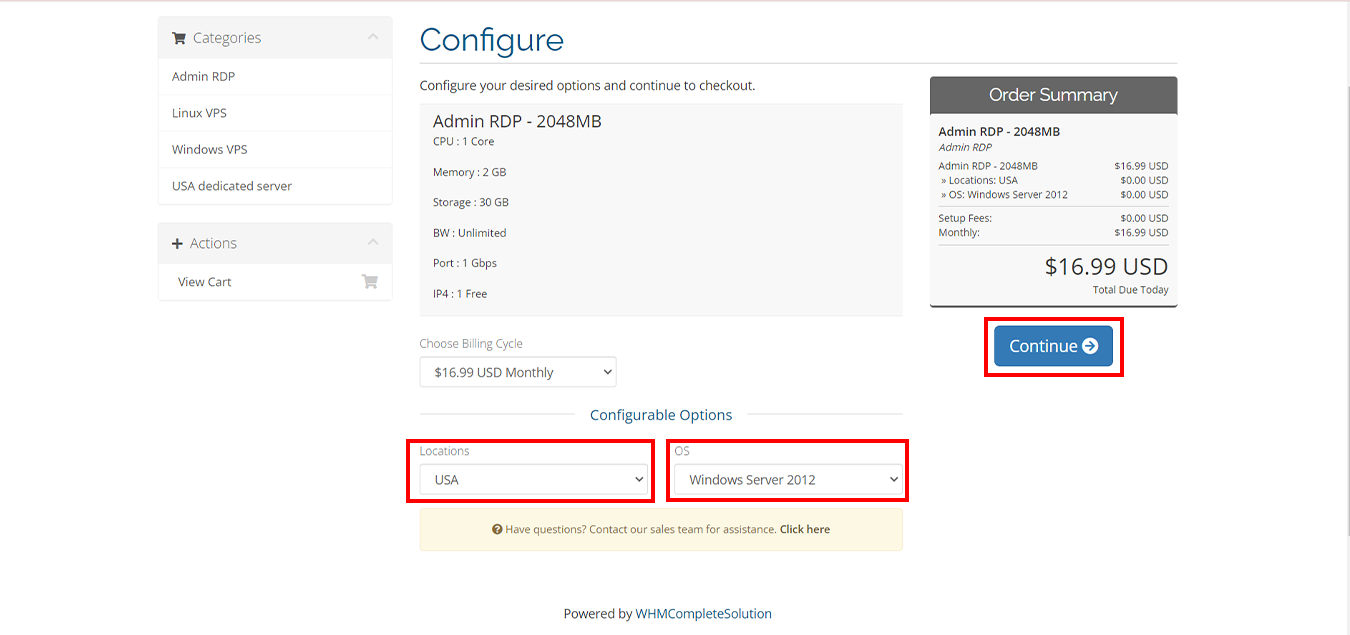
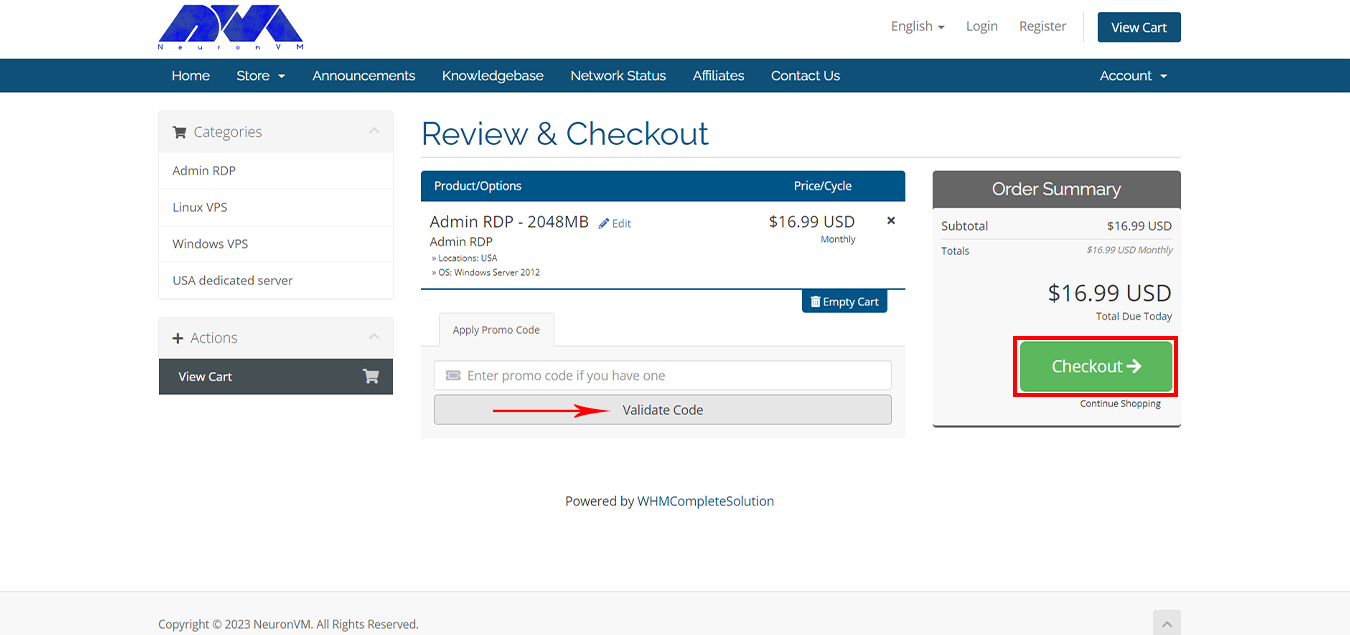
    Buy a VPS from NeuronVM
     
     
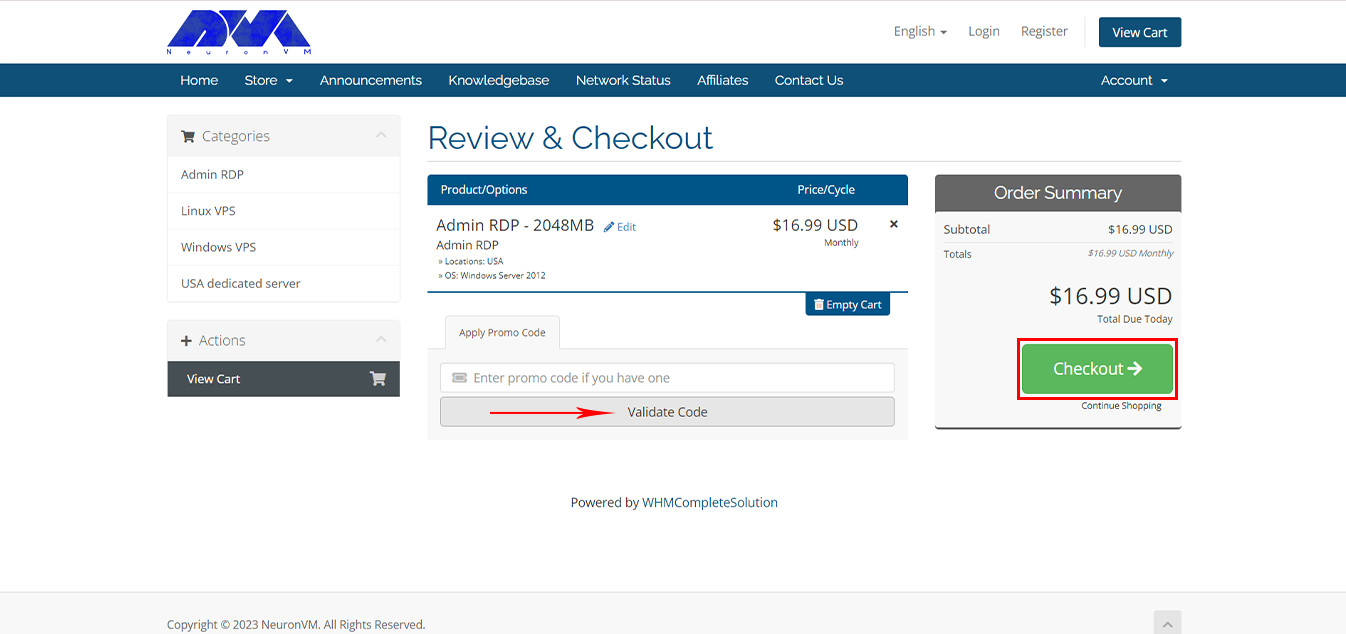
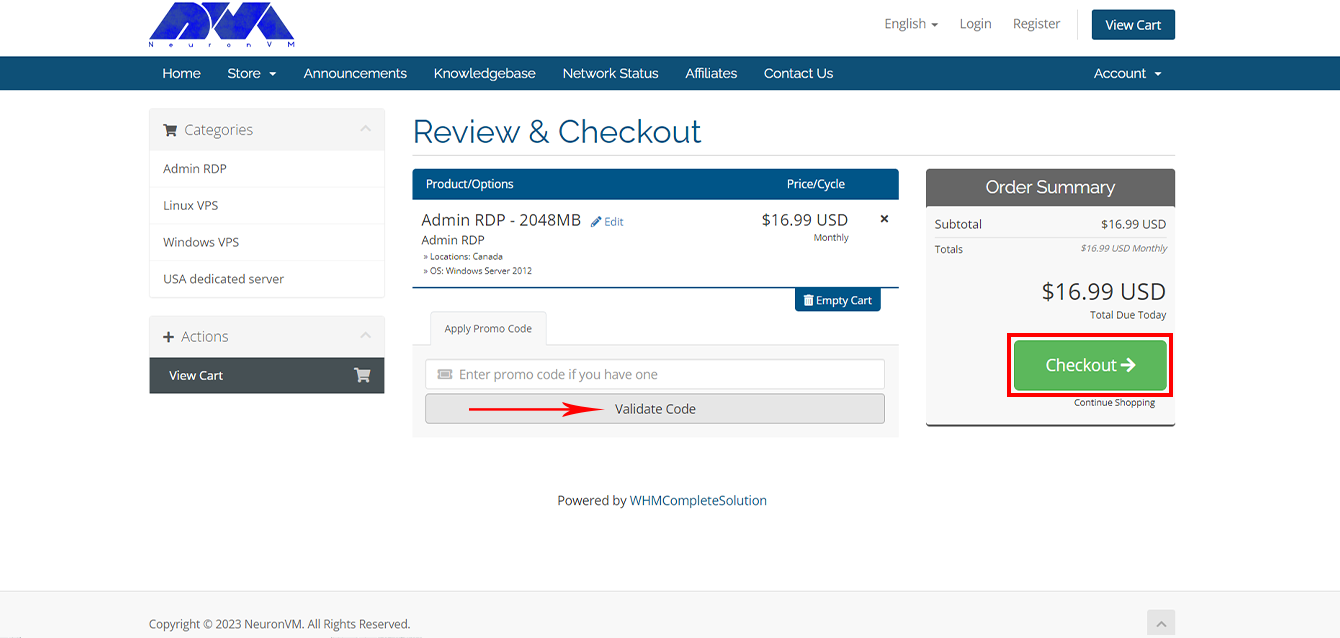
    If you have a promo code apply that and enjoy the benefits, Press Checkout to continue shopping:
     
    Buy a VPS from NeuronVM
     
     
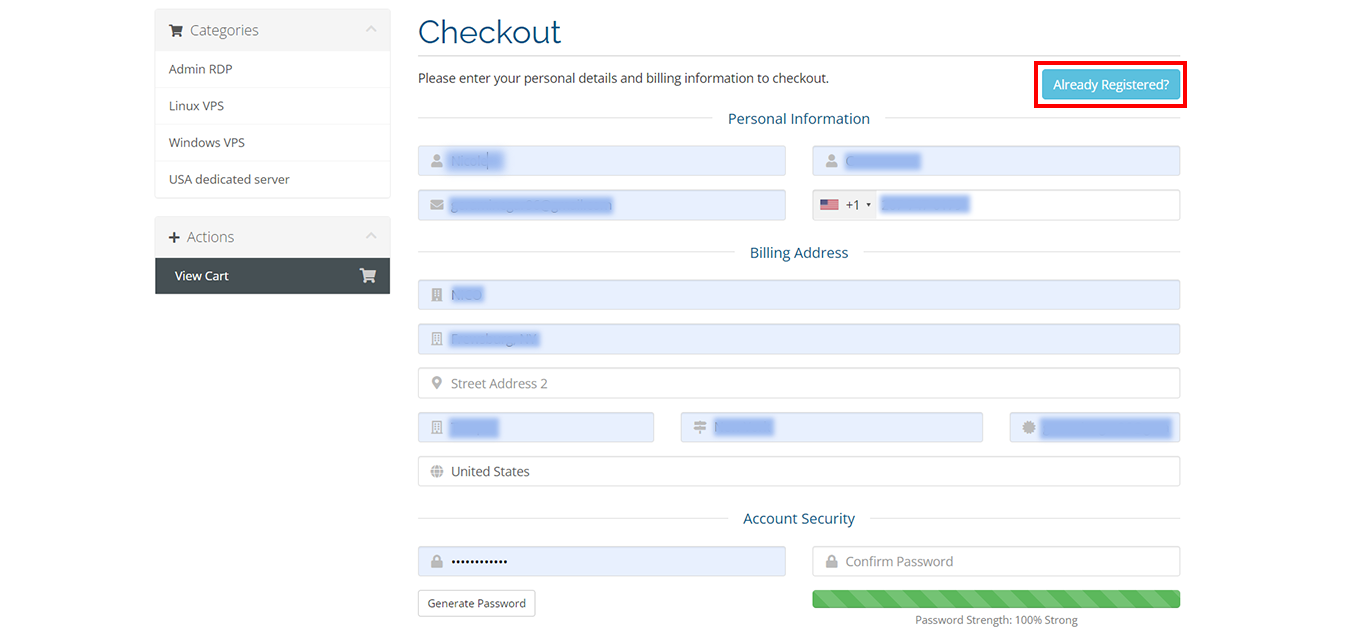
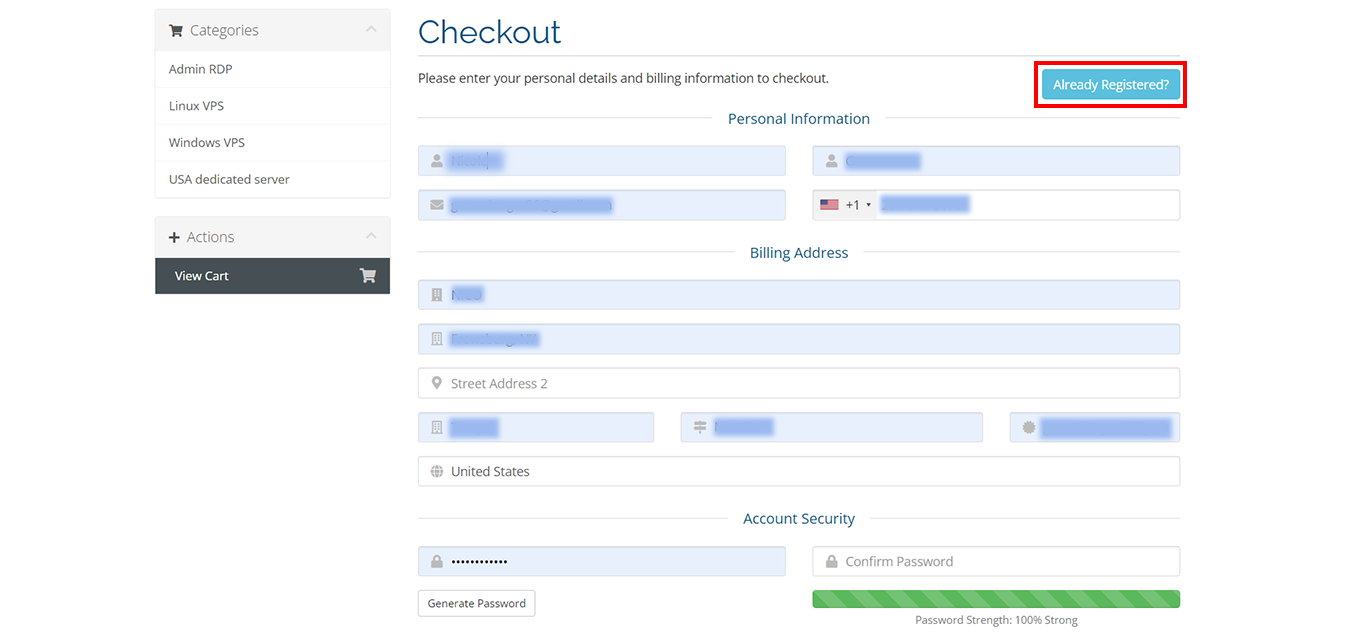
    In this step, if you don’t have an account fill in your personal information accurately. But if you already have an account click Already Registered:
     
    NEURONVM-CHECKOUT-PAGE2
     
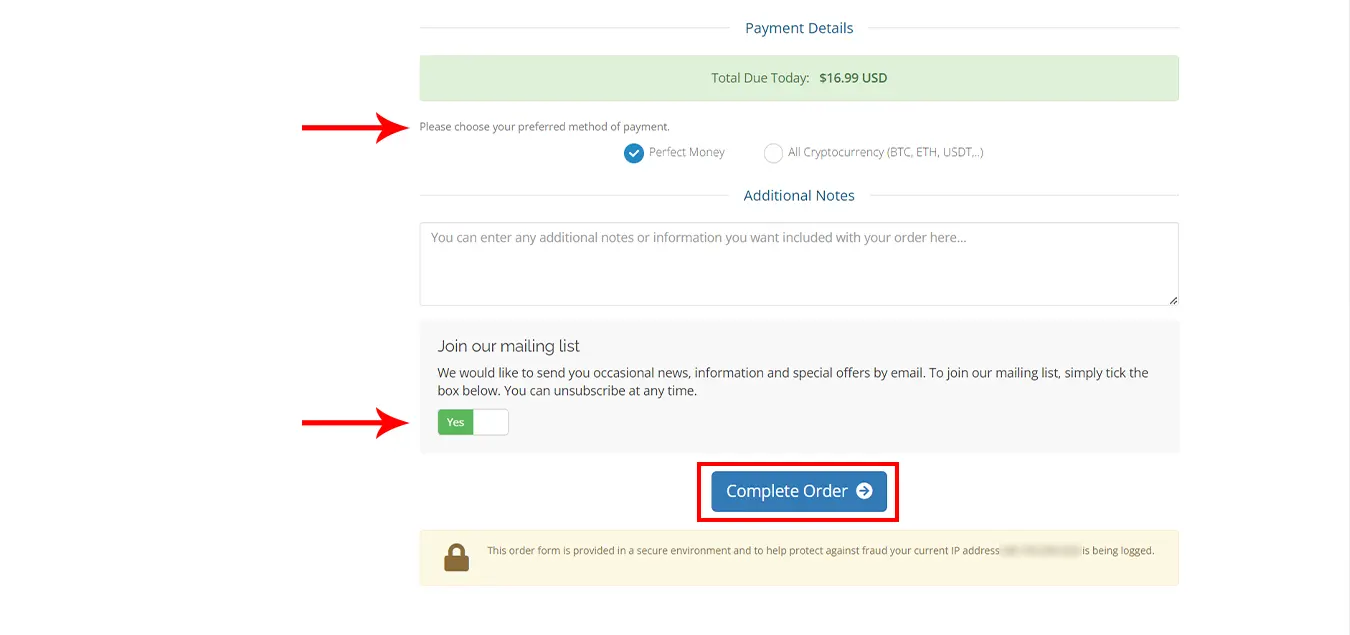
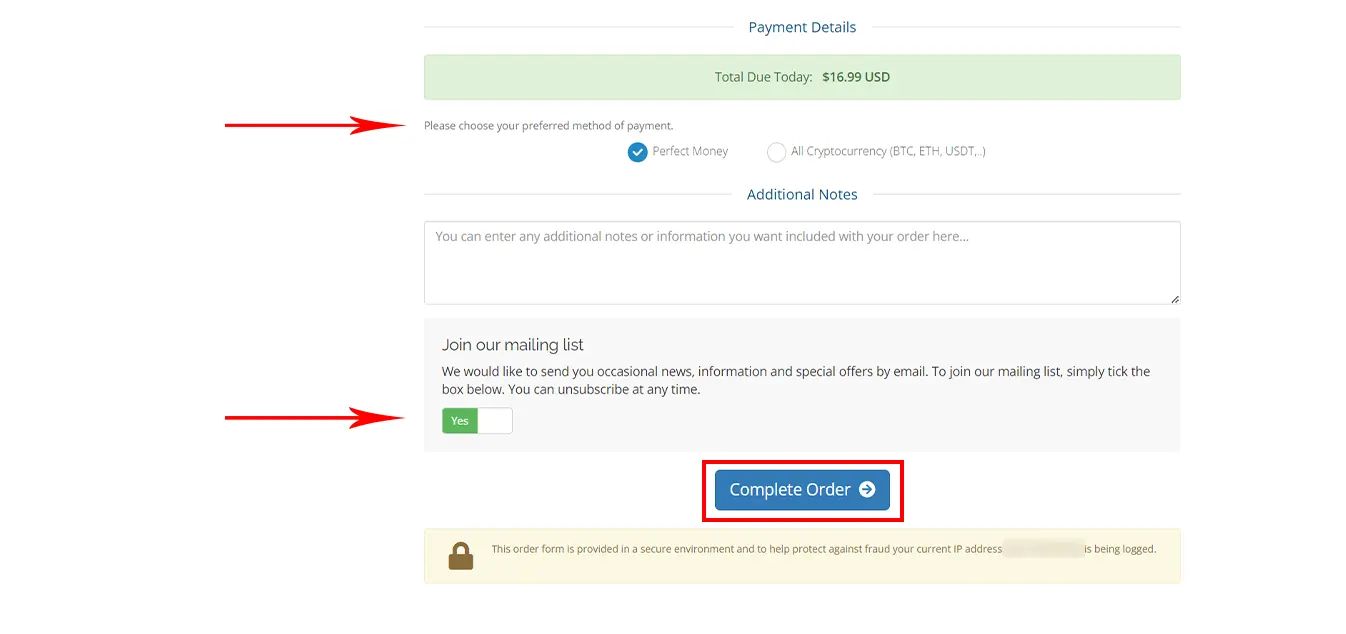
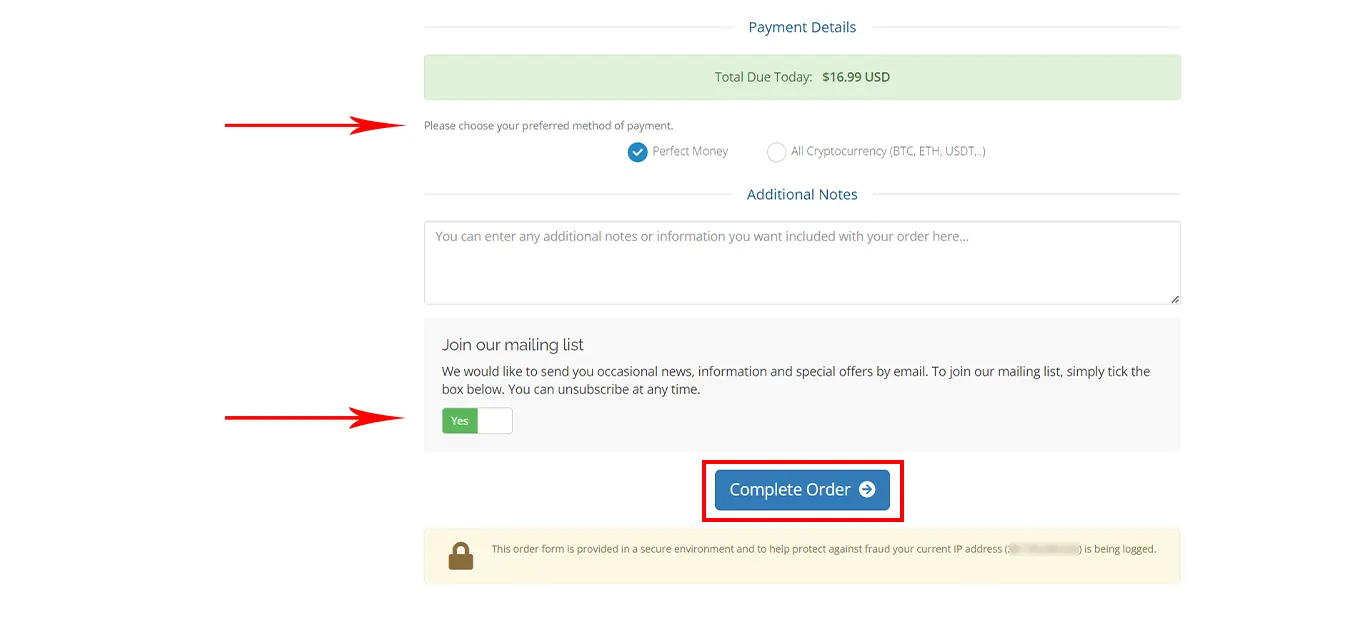
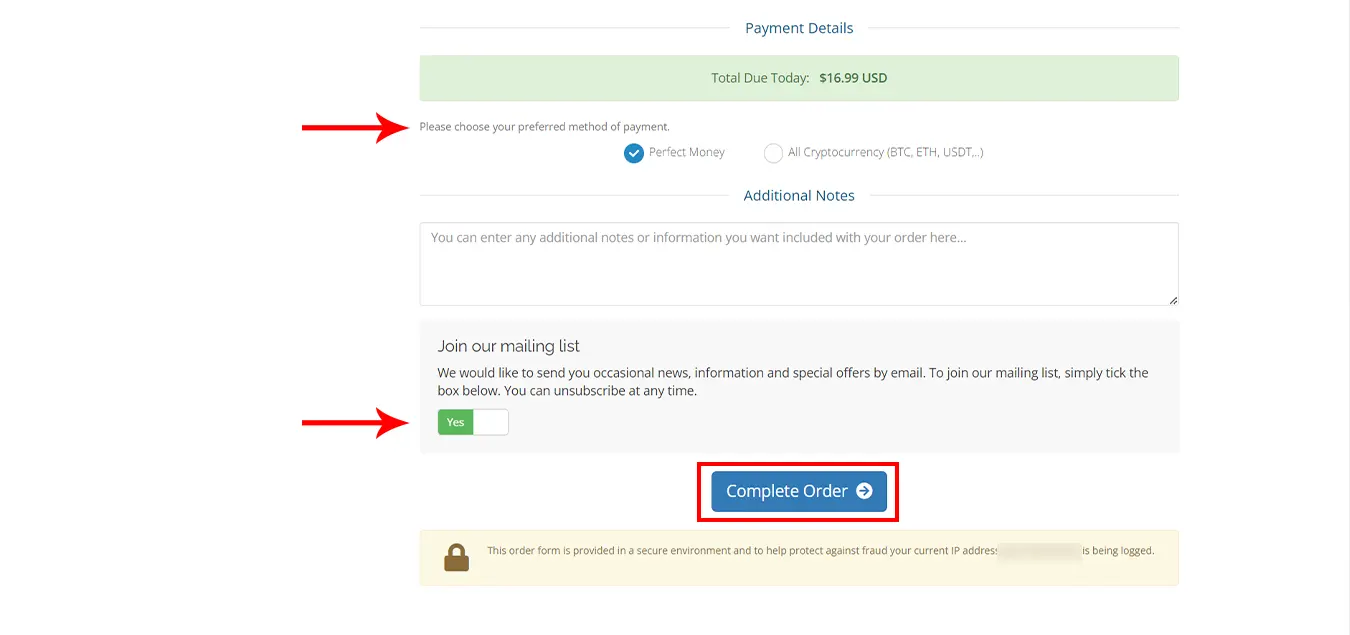
    After completing the mentioned step, Scroll down, There are two payment methods, Choose one of them and “Complete Order“.
     
     
    NEURONVM-PAYMENT-PAGE
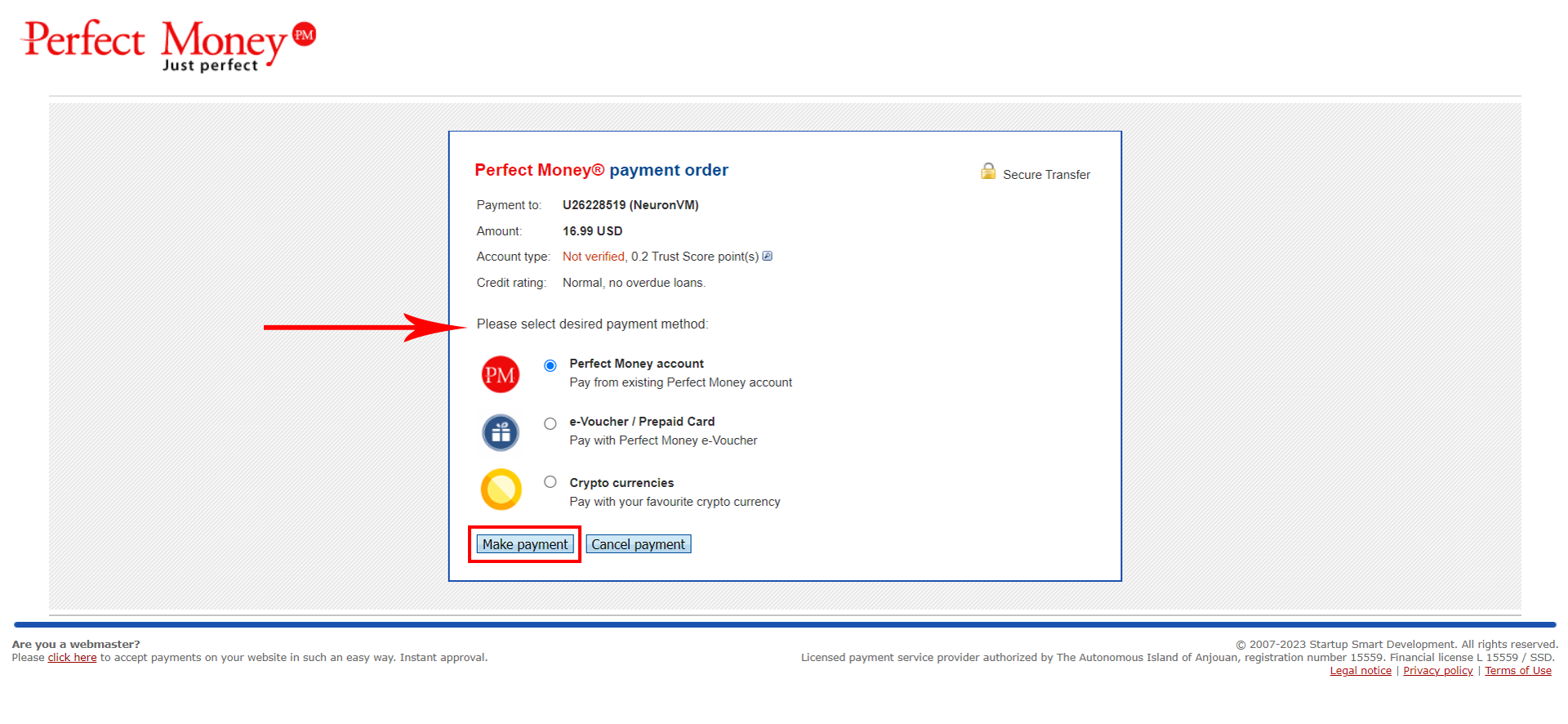
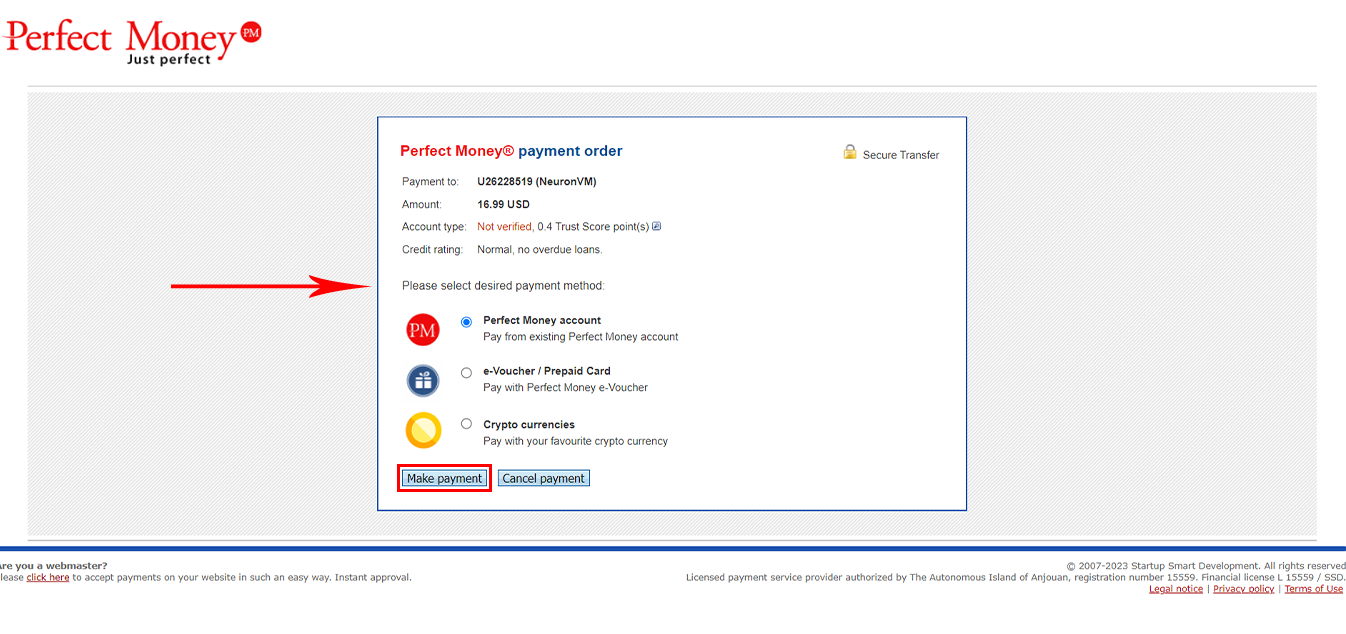
    Choose one of these payment methods:

    NEURONVM-PAYMENT-PAGE3

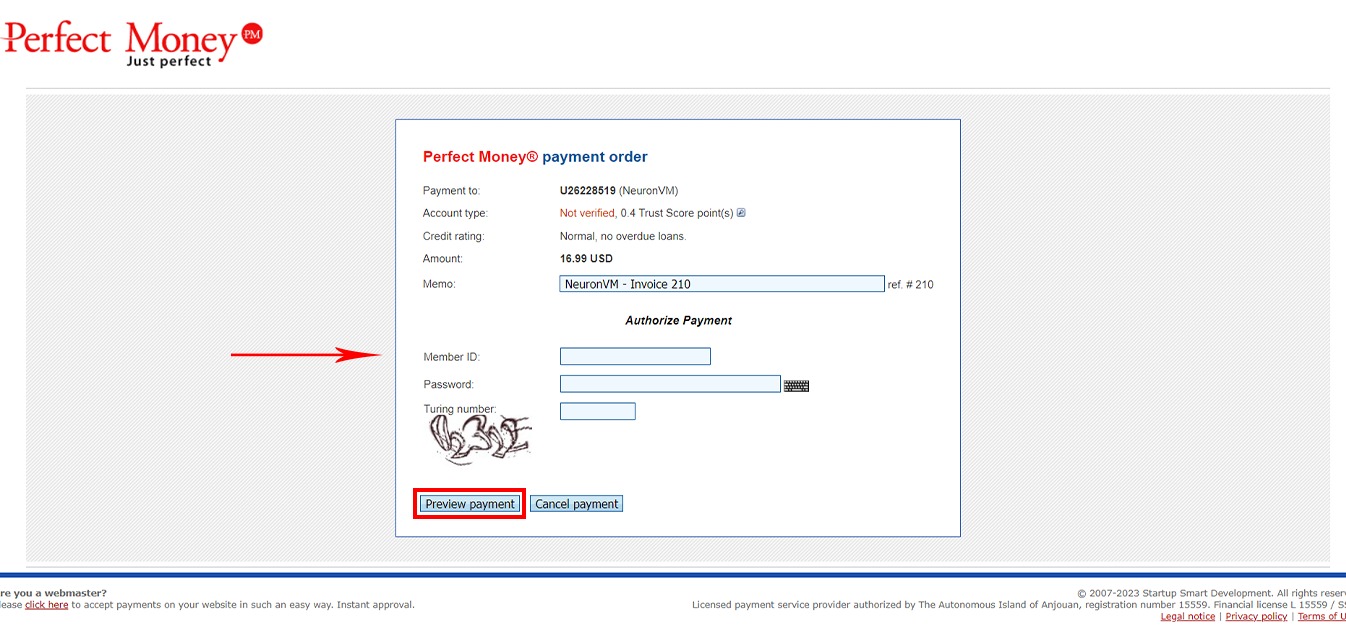
    After this step, Please enter your card information:
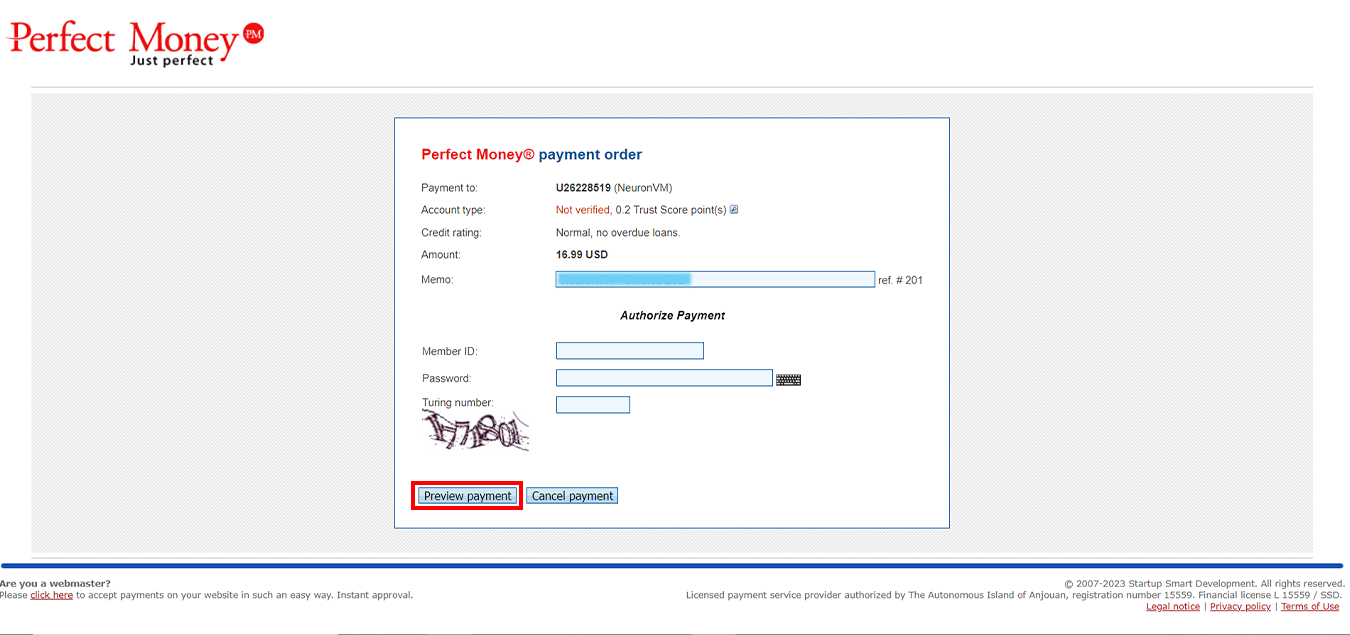
    NEURONVM-PAYMENT-PAGE2

    If the payment is made correctly, the sales invoice will be displayed to you and the server information will be sent to you via email.

    Conclusion

    Here it is! You can easily buy a VPS using these few steps! Thanks for your support and remember if you have a question you can leave a comment here, We will get back to you in no time!
  • How to Purchase USA RDP from NeuronVM

    How to Purchase USA RDP from NeuronVM

    USA RDP is one of the options that you can consider for your career development, If looking for web hosting with features like instant delivery, unlimited bandwidth, and low ping time, NeuronVM will be with you. Today, I want to talk about how to purchase USA RDP that is suitable for all businesses, So stay with us until the end of this tutorial.

    Get USA RDP from NeuronVM

    To start the process of purchasing USA RDP, follow the steps below carefully.

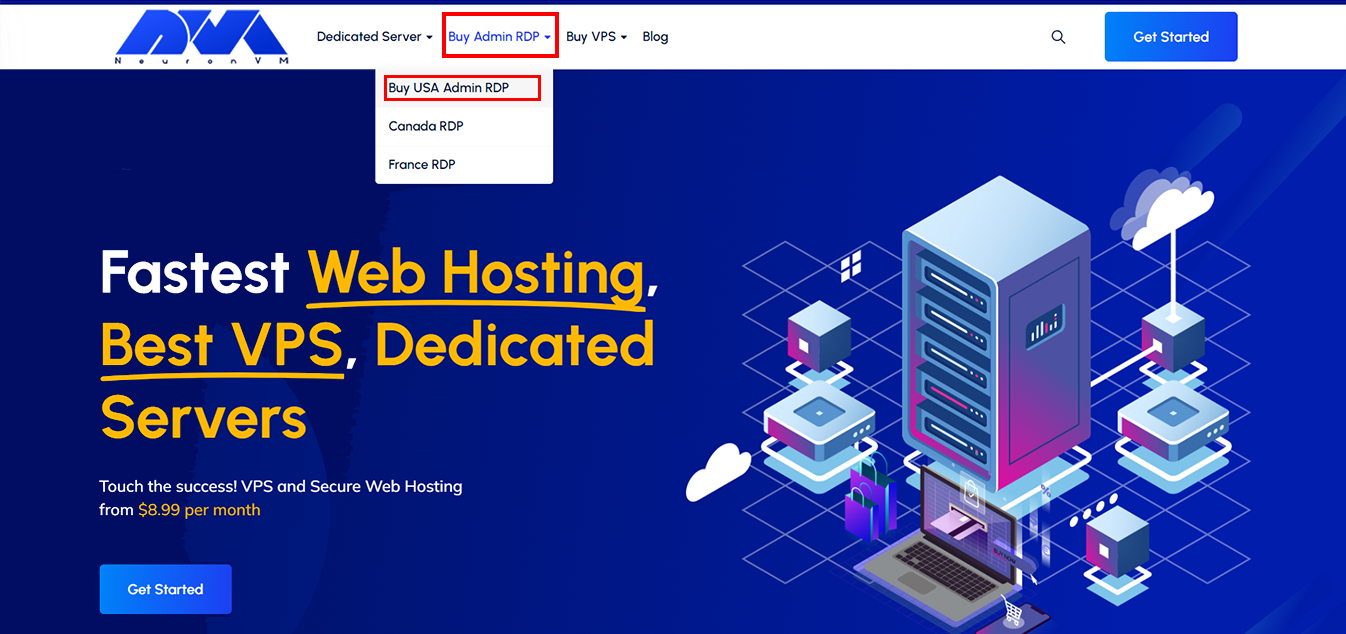
    Open the NeuronVM website. Then hold the mouse over the Buy Admin RDP option in the main menu and click on Buy USA Admin RDP:

    buy admin rdp from neuronvm

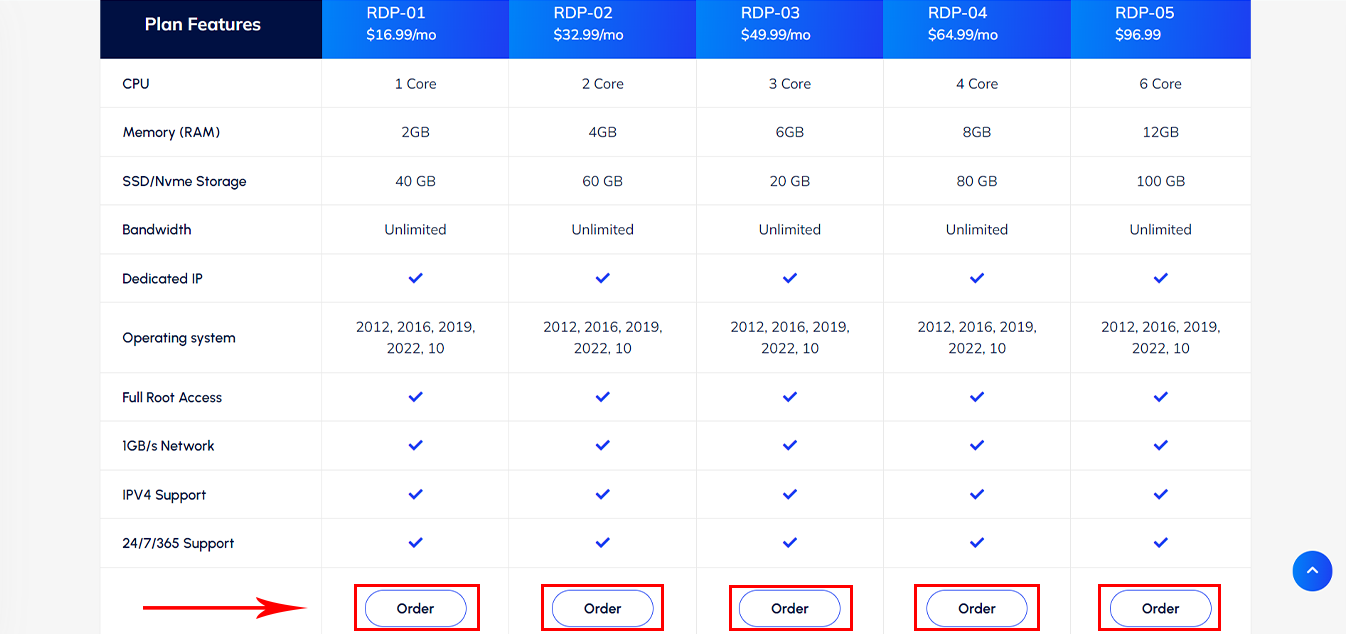
    We have prepared ” Various Plans ” with different specifications for you, read them and choose the most suitable one:

    usa rdp plans in neuronvm

    Please select your “Billing Cycle” from the options provided on the page below:

    NEURONVM-CONFIGURE-PAGE

    In the “Location” section, you must select the USA:

    NEURONVM-SELECT-LOCATION-PAGE

    You also have an option to choose the “Operating System“:

    NEURONVM-AVAILABLE-USA-RDP-LOCATIONS

    After making the necessary settings, click the ” Checkout ” option:

    NEURONVM-CONFIGURE-PAGE

    If you have a “Discount Code“, enter it in the box below to enjoy its benefits. Then, click on Checkout:

    buy usa rdp

    To connect to the payment stage, you must enter the information requested from you in the boxes below, but if you already have an account, click on the “Already Registered” option:

    how to register on neuronvm.com

    You can choose how to pay for the service as you wish, (Perfect Money | All Cryptocurrency). Also If you want, you can keep the email-sending option active to receive special offers. Click on Complete Order:

    get usa rdp from neuronvm

    Please choose one of the alternatives below, and click on the “Make Payment” button:

    perfect money usa rdp

    Finally, enter payment information to complete your order:

    buy usa admin rdp with perfect money

    After a few minutes, your server information will be sent to you via email. Now, your USA RDP service is ready for use!
    Conclusion

    I hope that the above steps have been a good guide for you to purchase USA RDP from NeuronVM. Also, you can get free RDP from NeuronVM by doing some simple stuff. In case of any problem, you can contact NeuronVM experts 24/7 via the ticket section in your client area.

  • How to Get Cheap Canada RDP From NeuronVM

    How to Get Cheap Canada RDP From NeuronVM

    Knowing and understanding the RDP protocol is very important, Both normal users and people working in the field of computer networks, security, and network monitoring should have Remote Desktop Protocol to avoid security risks and attacks through RDP. In this tutorial, we will introduce you to how to buy Canadian RDP, which is one of the best, if you are planning to buy Cheap Canada RDP, follow this tutorial.

    Buy Cheap Canada RDP From NeuronVM

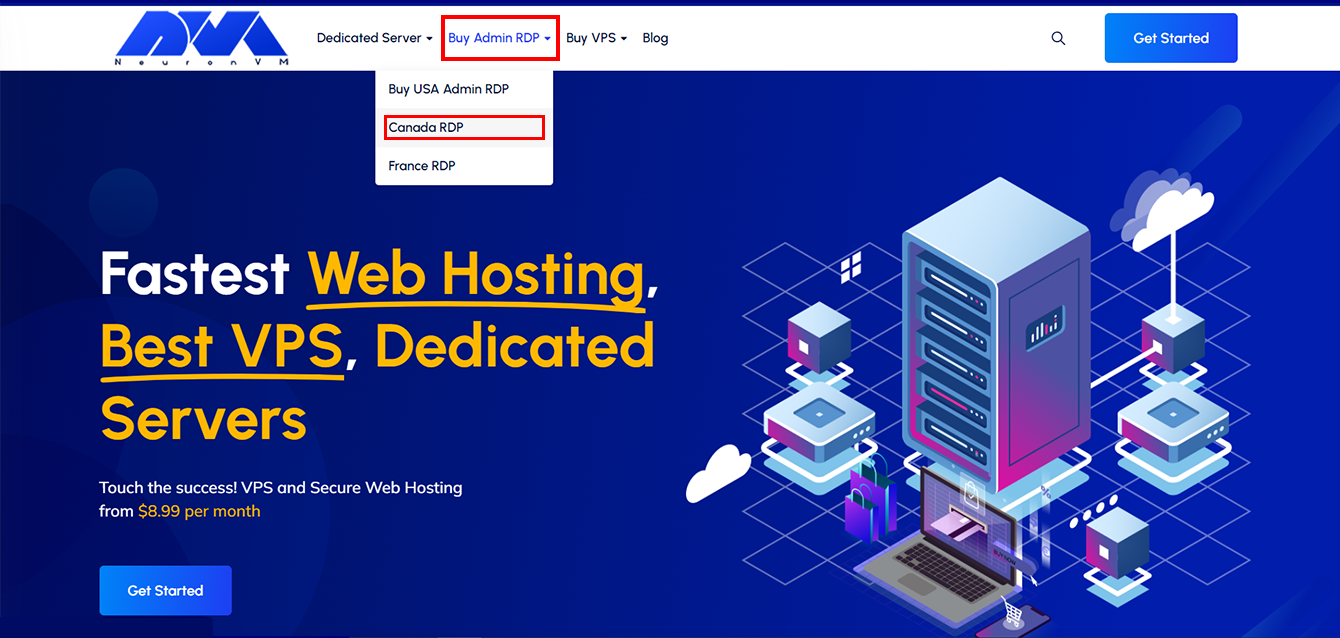
    To start, on the first page of the “NeuronVM” website, click on “Buy Admin RDP” in the menu bar and then click on “Canada RDP“.

    NEURONVM-HOME-CANADA-RDP-PAGE

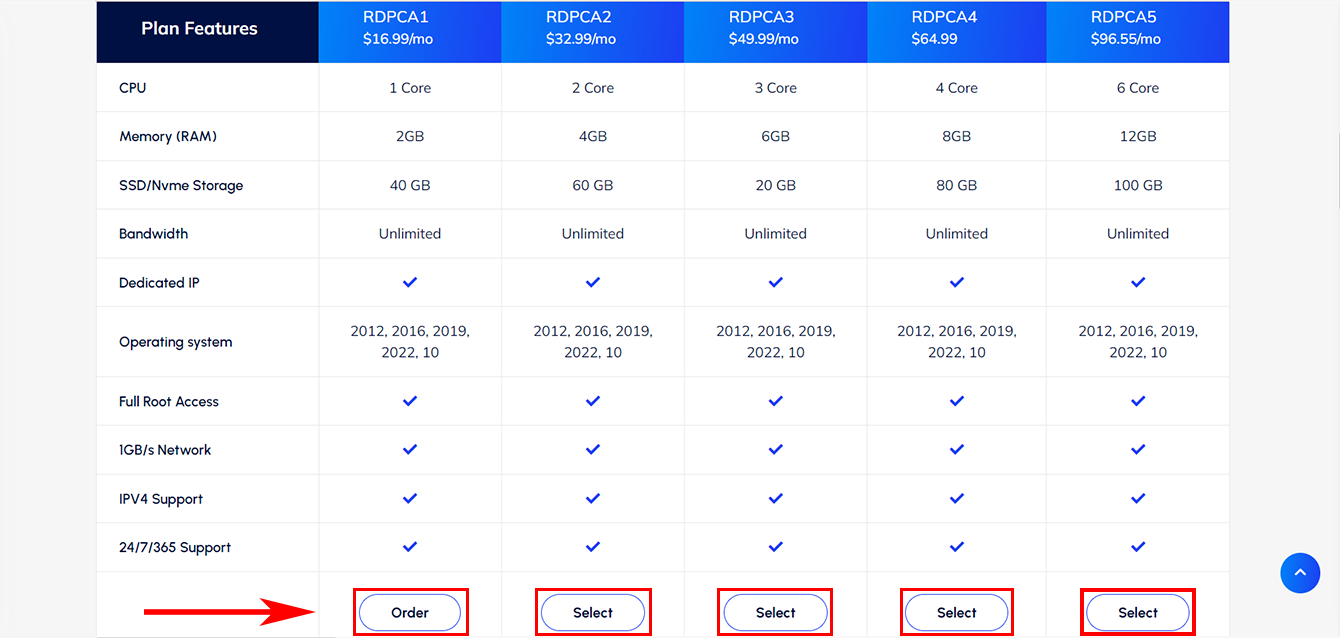
    We have prepared 5 useful plans for you. Please study the features of each plan and choose one that best suits your needs by clicking on “Order“:

    NEURONVM-CANADA RDP-PLANS

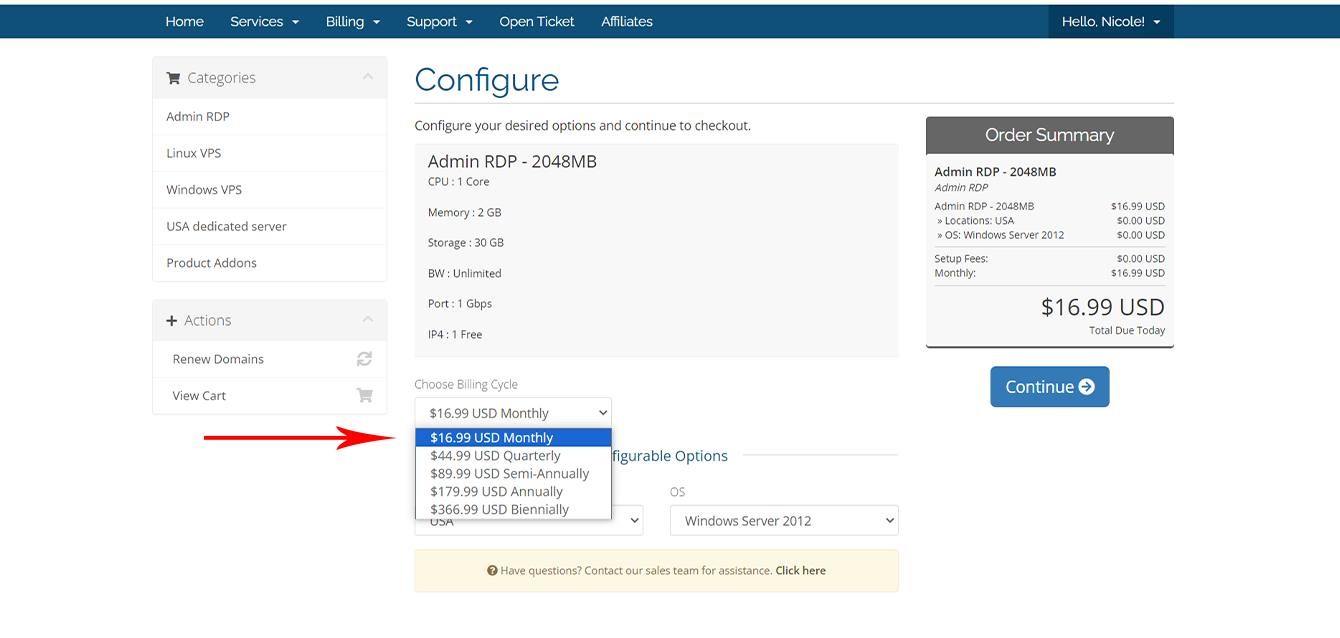
    On this page, you need to personalize your order, for this first select the duration of Canada RDP service:

    NEURONVM-CONFIGURE-CANADA-RDP

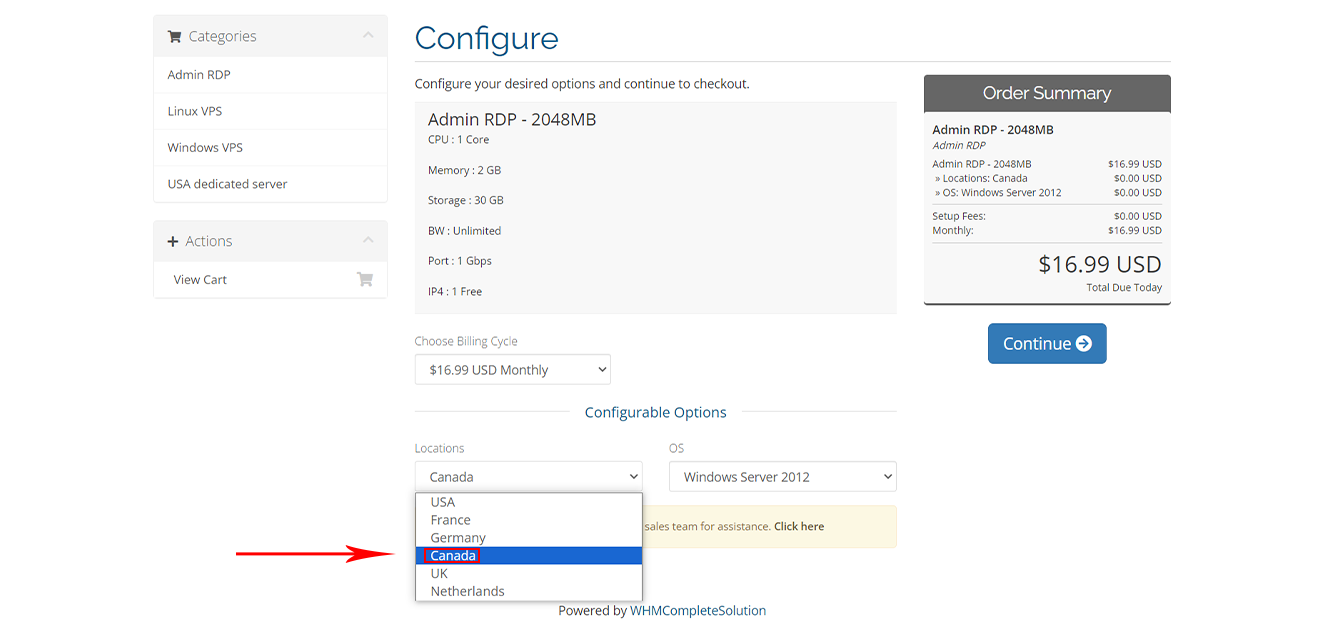
    Set your location to “Canada“:

    NEURONVM-CANADA-RDP-CONFIGURATION

    Select your desired operating system, and “Continue“:

    NEURONVM-CONFIGURE-RDP-SERVER

    Enter your valid “Discount Code” and  click on “Validate Code” to enjoy its benefits:

    NEURONVM-PROMO-CODE-TO-BUY-RDP

    Fill in the requested information in the boxes below, if you have already registered, select the “Already Registered” option:

    NEURONVM-BUY-CANADA-RDP-WITH-BTC

    We have two “Payment Methods” here that you can select from your preferred method, Also, if you want to receive discount codes and the latest news of NeuronVM, activate the green option:

    NEURONVM-PAYMENT

    Choose one of the Payment options:

    NEURONVM-BUY-CANADA-RDP-WITH-PERFECT-MONEY

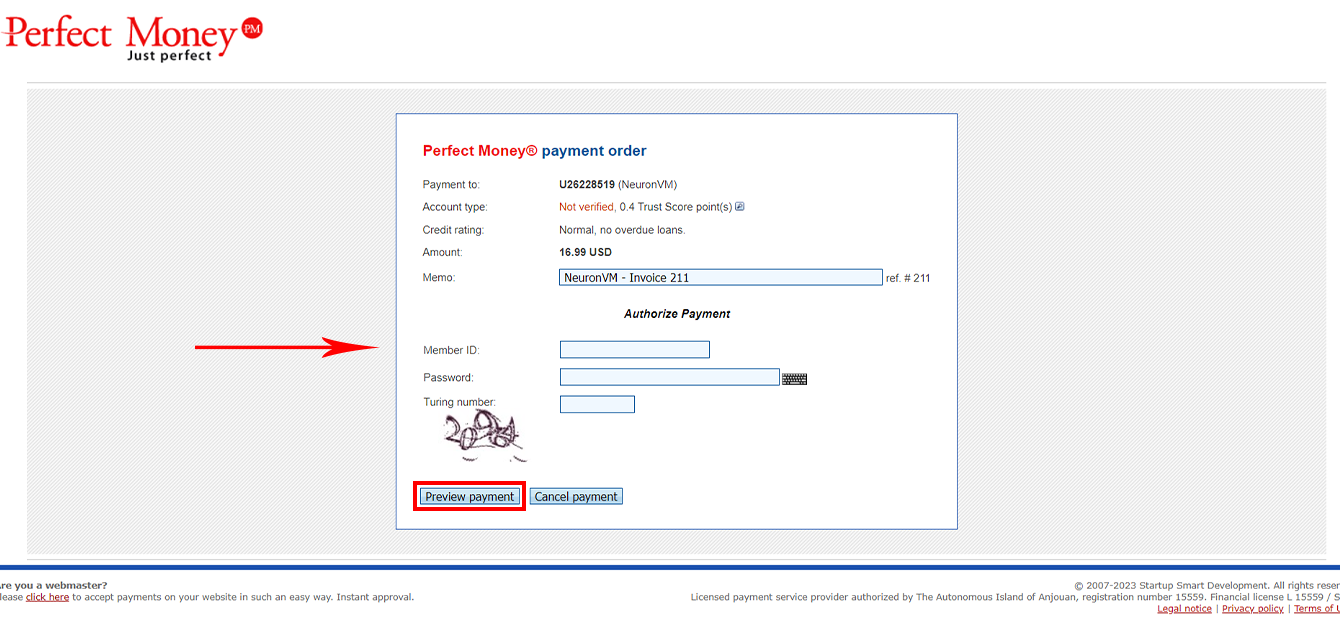
    For the “Final Payment“, enter the requested information and click the Preview Payment option:

    NEURONVM-RDP-SERVICES

    Your “Canada RDP” order is now complete, and you are now able to access the Canada RDP that you ordered.

    Conclusion

    Thank you for staying with us until the end of this tutorial. Also, you can get free RDP from NeuronVM by doing some simple stuff. If you have any questions, you can contact the support section of the NeuronVM website 24 hours a day.

  • The Smart Guide to Purchasing Linux VPS with LTC

    The Smart Guide to Purchasing Linux VPS with LTC

    Most organizations use virtual servers to reduce server hardware costs and reduce electricity and energy costs. Also, Virtual servers play a key role in building applications, tools, or environments.

    Another one of the best features of a Linux virtual server is its unlimited ability to provide the resources you need. If you need the best Linux VPS, follow the instructions in this guide to the end of this tutorial

    How to Select Linux VPS

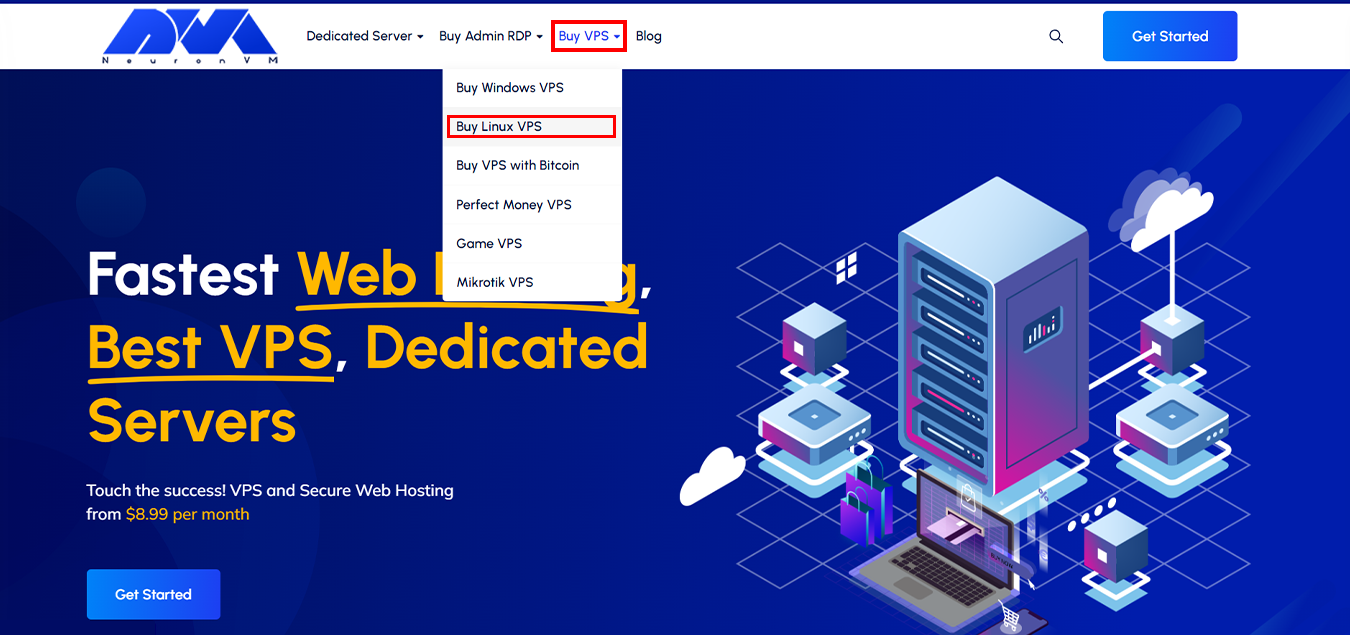
    To start the process, On the home page of Neuronvm, Select “Buy Linux VPS” option from the  “Buy VPS” menu:

    NEURONVM-HOME-PAGE

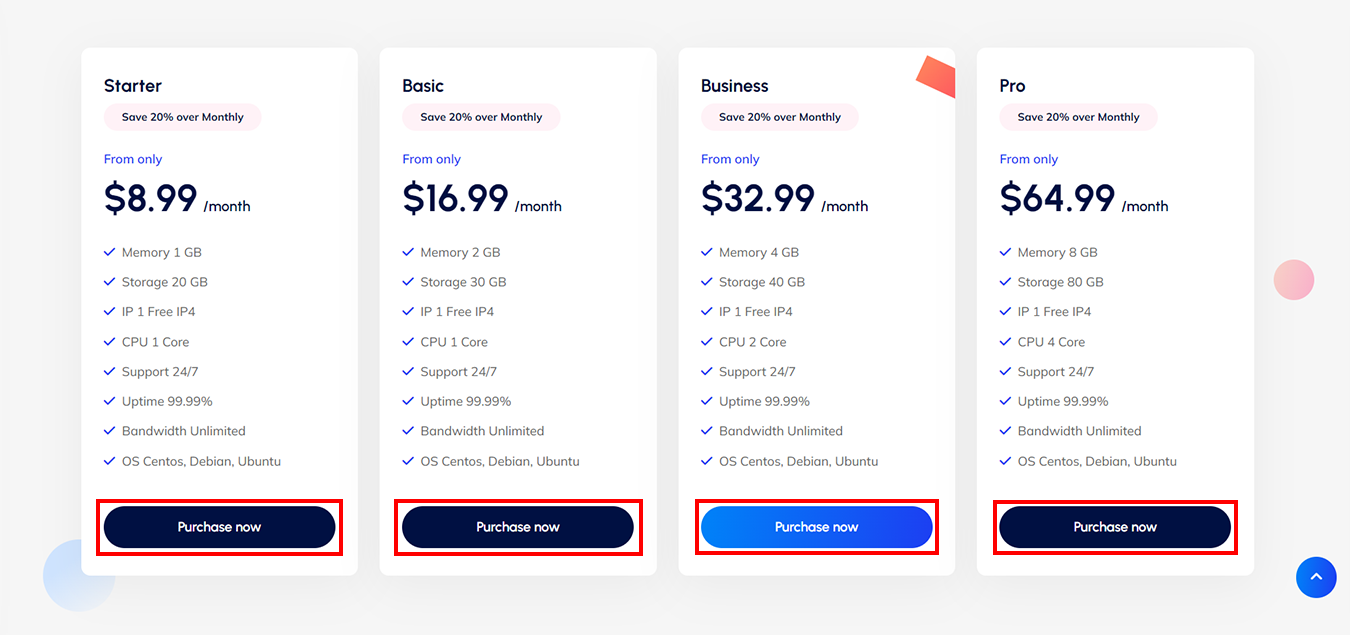
    Scroll down to choose the plan that suits your business goals:

    NEURONVM-AVAILABLE-LINUXVPSPLANS

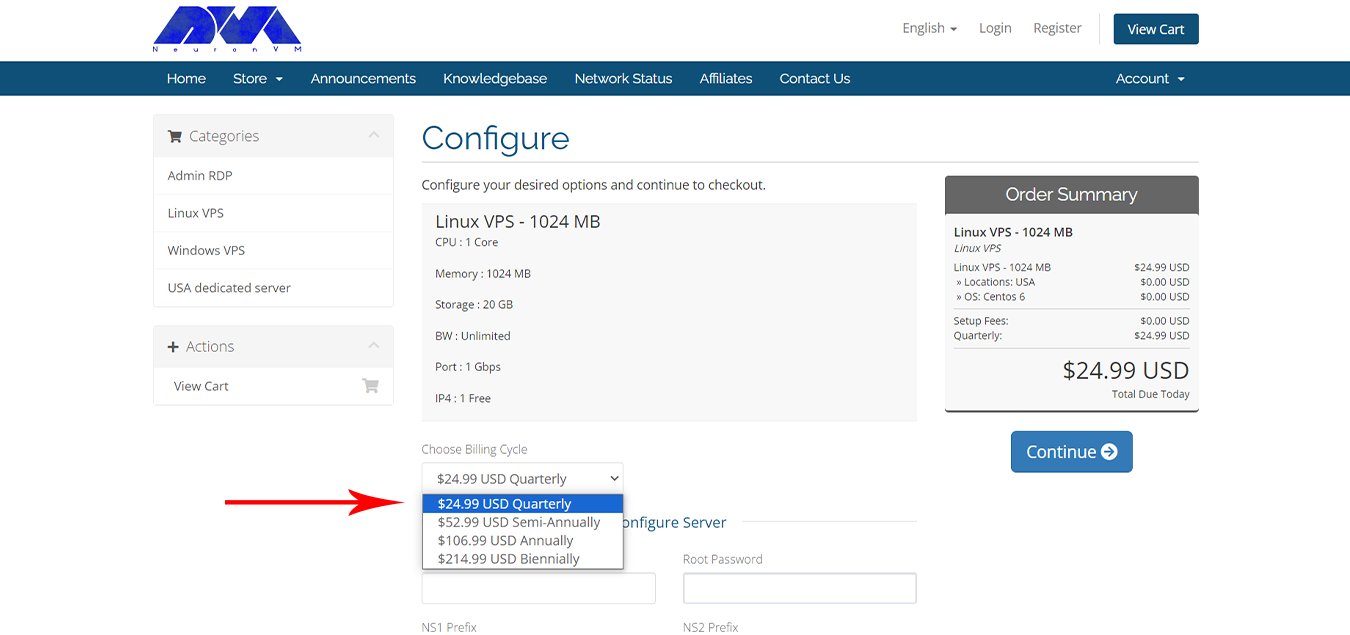
    Please choose the billing cycle slots, for your service according to your preference:

    NEURONVM-CONFIGURE-PAGE4

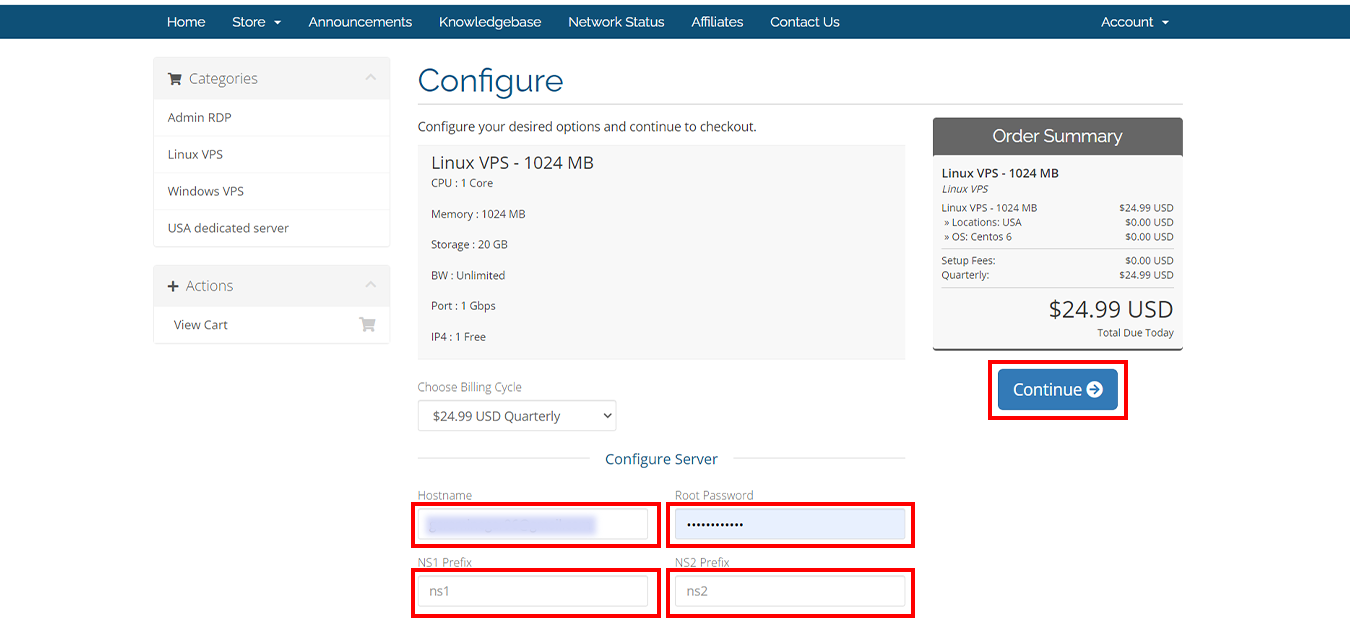
    On the configuration page, Carefully complete the billing cycle and server configuration options:

    Attention: Fill in the fields with “ns1” and “ns2“.

    NEURONVM-LINUXVPS-CONFIGURE-PAGE

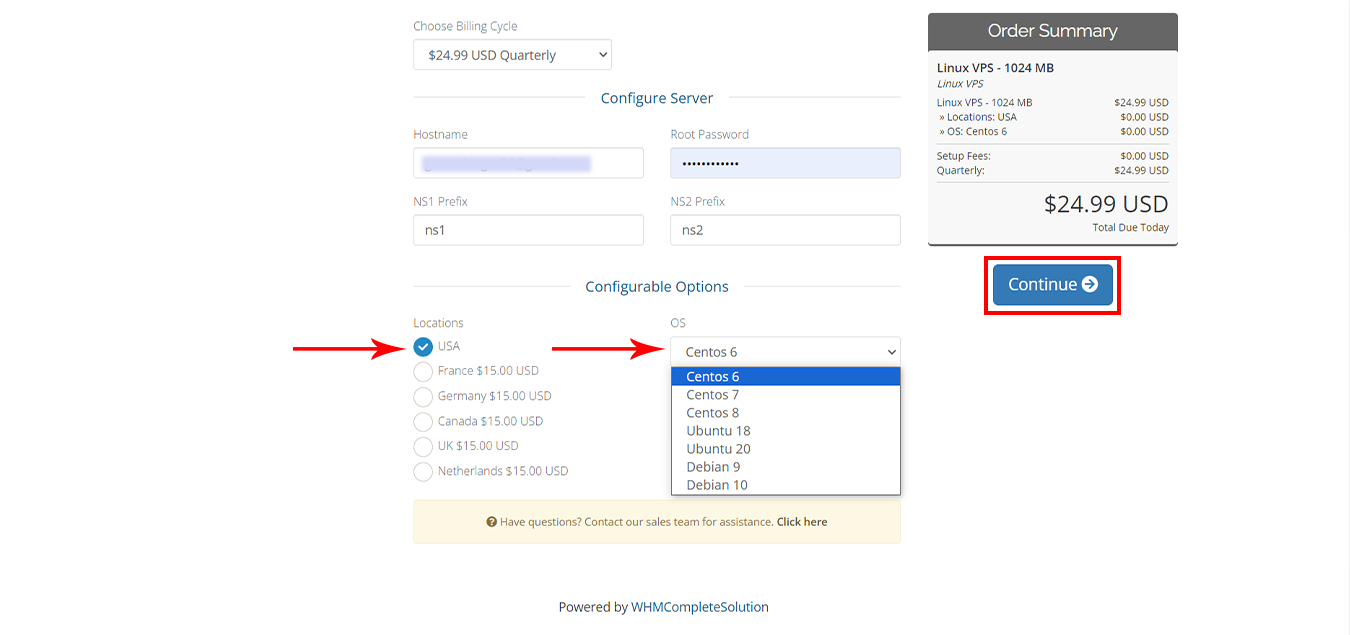
    Choose your desired location and operating system. Afterward, select “Continue“:

    NEURONVM-CONFIGURE-PAGE5

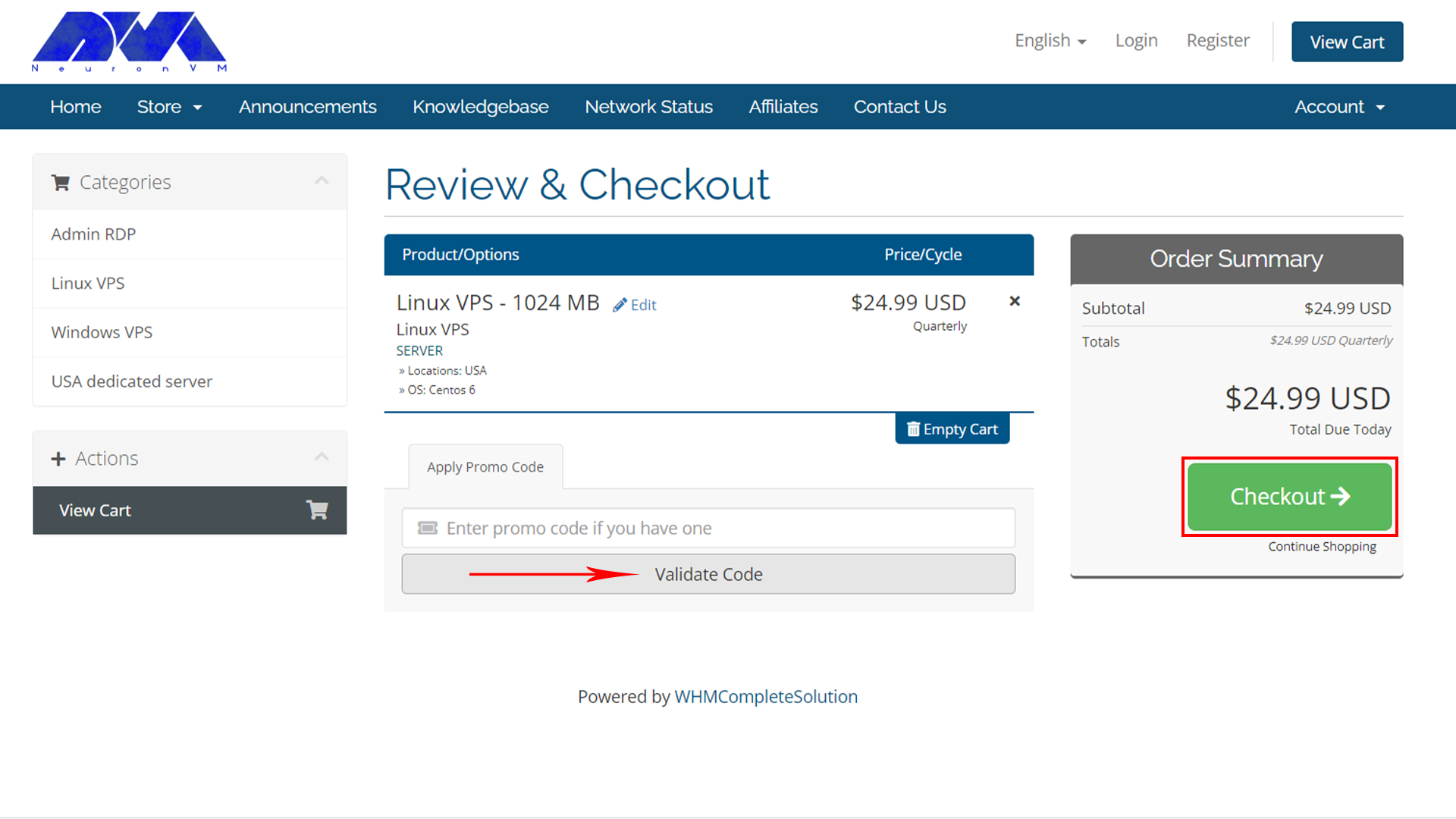
    At this stage, Please enter your own discount code and checkout:

    NEURONVM-CHECKOUT-PAGE

    Fill in your personal information with accuracy, But if you already have an account click on “already registered“:

    NEURONVM-CHECKOUT-PAGE2

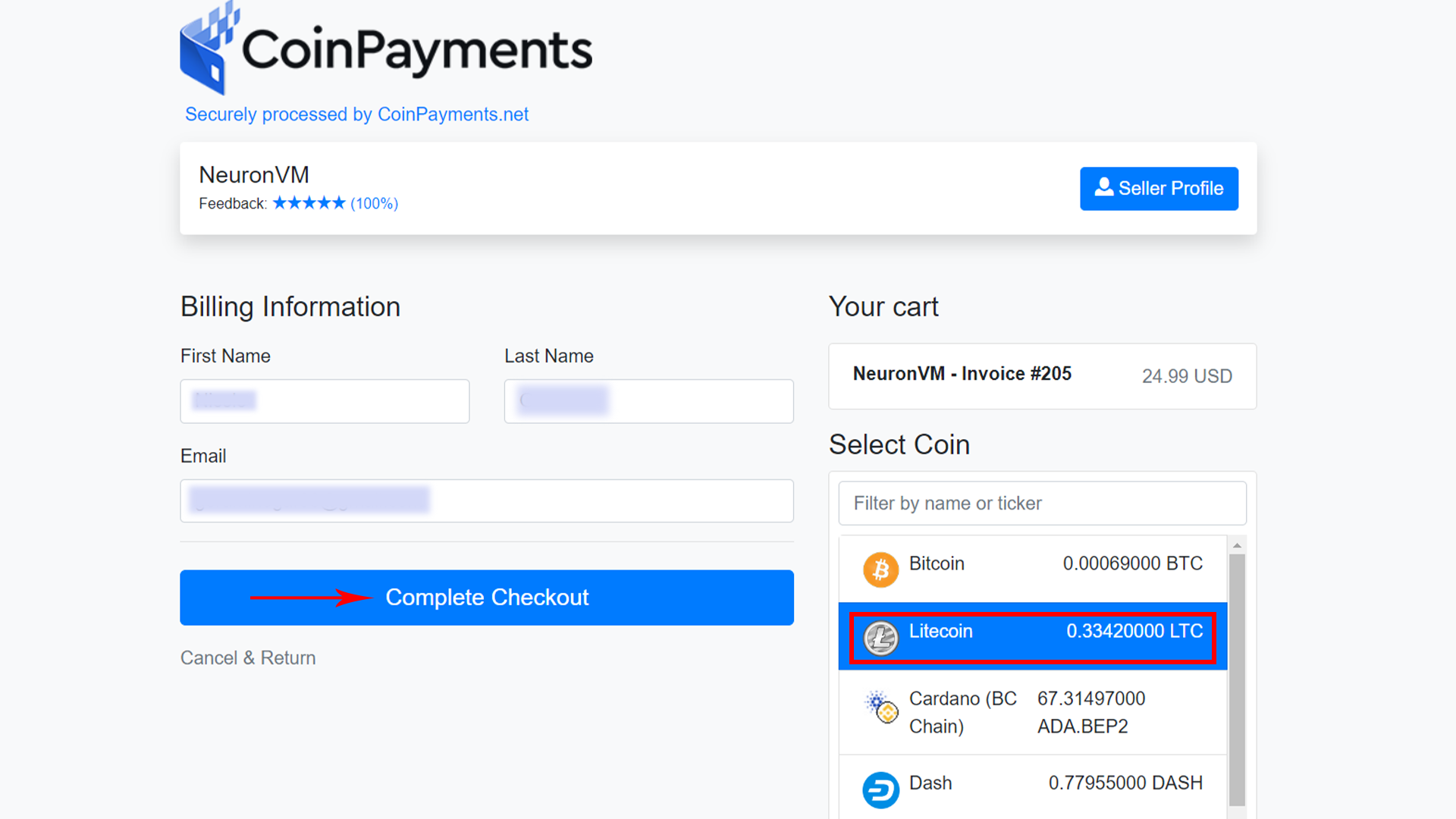
    Select “All Cryptocurrency (BTC, ETH, USDT, …)” to pay through LTC, And tap to “Complete Order“:


    To complete the order choose “Litecoin” and click on “Complete Checkout“:

    NEURONVM-LTC-PAYMENT-PAGE

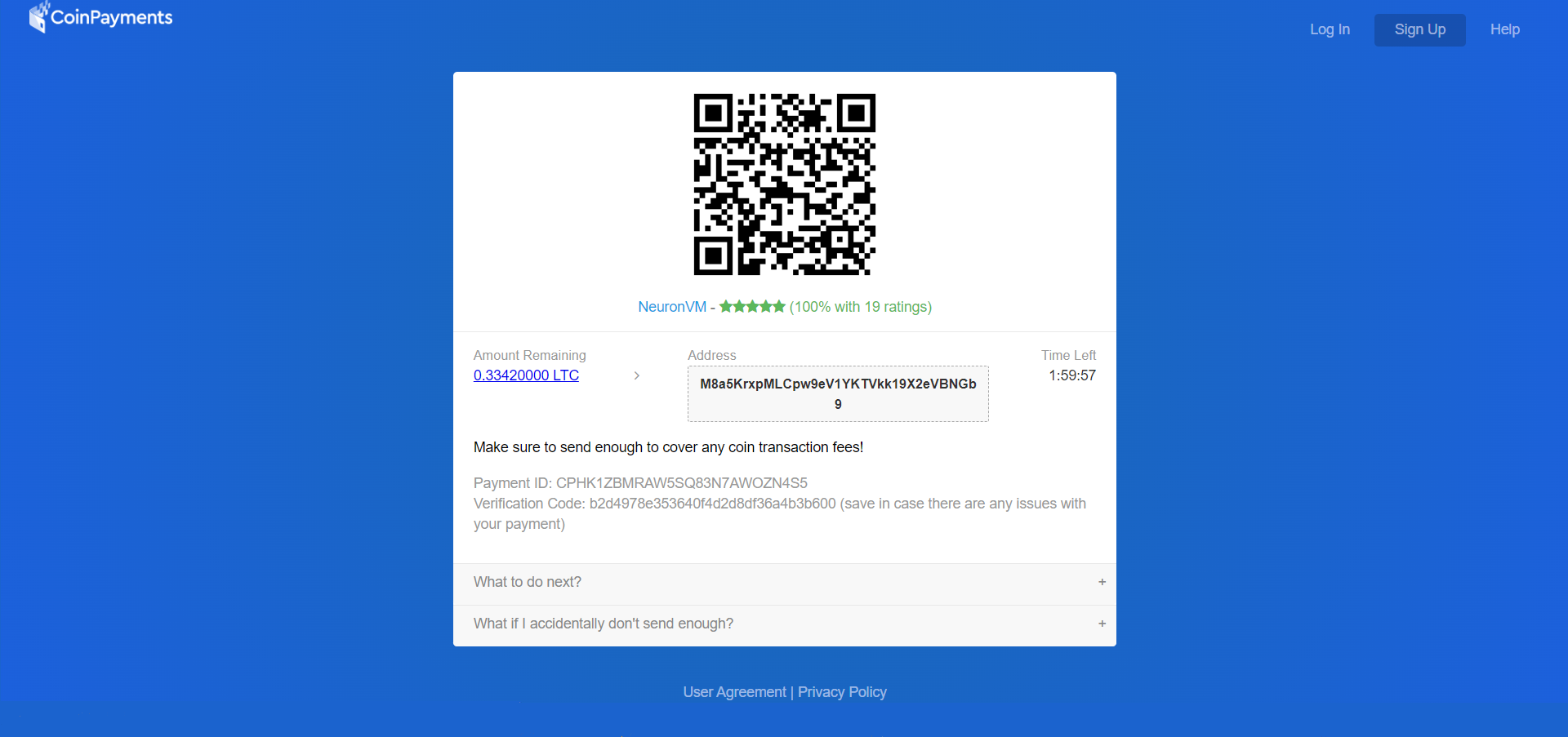
    Complete your payment by the indicated deadline:

    NEURONVM-LTC-PAGE

    If the sales invoice is completed, it will be displayed.

    Conclusion

    In this article, we tried “How to Purchase Linux VPS with LTC from NeuronVM”, In case of problems, We are ready to serve you around the clock, We will get back to you in no time!

    NEURONVM-PAYMENT- for windows 10 vps