Category: Ubuntu

  • The Great Linux Rivalry: Debian vs Ubuntu

    The Great Linux Rivalry: Debian vs Ubuntu

    The world of Linux is vast and diverse, with numerous distributions catering to different preferences and needs. Among these, Debian and Ubuntu stand out as two of the most popular choices. Both Debian and Ubuntu share a common ancestry, but they have distinct characteristics and qualities that fuel the never-ending debate of “Debian vs Ubuntu.” In this article, we will delve into the intricacies of these two operating systems, examining their origins, usability, package management, and community support to shed light on the great Linux rivalry.

    By the way, you can get a Linux VPS today with the distribution of your choice and start your Linux journey.

    The Origin Story

    The Origin Story Debian and Ubuntu both trace their roots back to the Linux operating system, but their paths diverge in terms of their origins. Debian, founded in 1993 by Ian Murdock, was one of the pioneering Linux distributions. Its primary aim was to create a stable and reliable operating system by adhering to rigorous quality standards.

    Debian’s commitment to the principles of free software, emphasizing the importance of open-source code and community collaboration, has been a defining feature. As a result, it has built a strong reputation among developers and users who value stability, security, and the ability to customize their Linux environment extensively.

    Understanding the origins of Debian and Ubuntu sheds light on the ongoing Debian vs Ubuntu debate. While both distributions share a common heritage, they have evolved to serve different user needs.

    On the other hand, Ubuntu emerged in 2004 as a Debian-based distribution, with Mark Shuttleworth leading its development. Ubuntu aimed to bring the power of Linux to a broader audience by prioritizing user-friendliness and ease of installation. Unlike Debian, which had a reputation for being more suitable for experienced users, Ubuntu targeted newcomers to Linux with its intuitive interface and straightforward installation process.

    This focus on accessibility helped Ubuntu gain popularity rapidly, especially among home users, students, and those transitioning from other operating systems.

    Debian vs Ubuntu Origin Story

    Debian vs Ubuntu: Usability and User Experience

    One of the key factors that differentiates Debian and Ubuntu is their approach to usability and user experience. Debian emphasizes stability and reliability over ease of use, making it an ideal choice for experienced users and server environments.

    On the contrary, Ubuntu places great importance on providing a user-friendly interface, intuitive installation process, and comprehensive device compatibility, catering to a broader audience, including newcomers to the Linux ecosystem. This variance in usability often leads to divergent opinions among Linux enthusiasts evaluating Debian vs Ubuntu.

    Debian vs Ubuntu: Usability and User Experience

    Package Management Systems

    Another critical aspect that sets Debian and Ubuntu apart is their package management systems. Debian utilizes its advanced package management tool, Advanced Package Tool (APT), along with Debian packages (DEB). APT ensures effective dependency resolution, seamless updates, and a vast repository of software packages.

    Ubuntu leverages the same APT system but evolves it further with its own graphical front-end package manager called Ubuntu Software Center. Moreover, Ubuntu also introduced Snap packages, allowing for enhanced software distribution with stronger isolation.

    The differences in packaging systems between Debian and Ubuntu can greatly influence the software installation and management experiences for users on each platform.

    Package Management Systems

    Community Support and Philosophies

    In the world of open-source software, community support plays a vital role, and Debian and Ubuntu boast vibrant and dedicated communities.

    Debian, with its focus on stability and free software principles, has built a devoted community centered around openness and transparency.

    Ubuntu, with its emphasis on user-friendliness, attracts users seeking a more polished and accessible experience.

    Both distributions benefit from active communities that provide extensive documentation, support forums, and constant development efforts, contributing to the longevity and success of Debian and Ubuntu.

    Community Support Debian and Ubuntu

    General Overview: Debian vs Ubuntu

    Here’s a quick comparison between these two popular Linux distributions:

    FeaturesDebianUbuntu
    Target AudienceExperienced users, developers, and server administratorsGeneral desktop and server users
    Release CycleStable and conservative release cycle with longer intervals between major updatesSix-month release cycle with a focus on the latest software packages
    Package ManagementUses apt package manager with .deb packagesAlso uses apt package manager with .deb packages
    Snap PackagesDoes not natively support Snap packages by defaultSupports Snap packages for easy software installation
    Desktop EnvironmentOffers a wide range of desktop environments and window managersUses GNOME as the default desktop environment, but provides several other options
    Commercial SupportProvides community support and professional support through third-party companiesOffers professional support through Canonical Ltd, the company behind Ubuntu
    PopularityHighly respected in the open-source community with a strong focus on stabilityOne of the most popular Linux distributions for desktop and server usage

    Final Words

    While the Debian vs Ubuntu rivalry sparks lively debates among Linux enthusiasts, the reality is that both distributions offer valuable and distinct experiences. Debian’s stability and principles are favored by those seeking control and reliability. On the other hand, Ubuntu appeals to a broader audience, with its user-friendly interface and ease of use. Ultimately, choosing between Debian and Ubuntu boils down to personal preferences, and the desired balance between stability and convenience. Regardless of which camp one aligns with, both Debian and Ubuntu serve as powerful representatives of the Linux ecosystem, pushing the boundaries of open-source software.

    FAQ

    Q: Which operating system is more up-to-date in terms of software packages?

    A: Generally, Ubuntu tends to have more up-to-date software packages compared to Debian. Ubuntu’s release cycle is more frequent, allowing for quicker updates. Debian, on the other hand, follows a more conservative approach to ensure stability.

    Q: Which operating system has better community support? Debian or Ubuntu?

    A: Both Debian and Ubuntu have strong and active communities. Although Ubuntu’s community support is often considered more extensive and user-friendly due to its larger user base and focus on a user-friendly experience. Debian also has an active community, particularly among experienced users and developers.

    Q: Can software developed Debian run on the Ubuntu and vise versa?

    A: Yes, software developed for Debian can generally run on Ubuntu without issues since Ubuntu is based on Debian. However, compatibility issues may arise in some cases when dealing with very specific system configurations or software packages.

    Q: Is Debian or Ubuntu recommended for servers?

    A: Debian is considered the go-to choice for servers due to its stability, extensive software repositories, and long-term support options. Its robust security updates and conservative nature make it reliable for critical server environments. Ubuntu also offers server editions with similar features, but Debian’s reputation makes it a popular choice among server administrators.


  • The best way to Install MySQL on Ubuntu 22.04

    The best way to Install MySQL on Ubuntu 22.04

    In today’s developing world and big data ecosystem, MySQL has become one of the most well-known technologies and is one of the most popular databases in many industries. If you want to master this database, you only need a basic understanding. MYSQL can be used on various Linux distributions and one of these distros is Ubuntu. Here, we will be going to show the best way to install MYSQL on Ubuntu 22.04. Keep studying carefully.

    How to Install MySQL on Ubuntu 22.04

    MySQL is an open-source database management system that is usually installed as a part of the popular LAMP stack. As you learn how to install MySQL, you will have a working relational database to build your next website or application. Now, follow the instructions step-by-step to install MySQL on Ubuntu Linux VPS.

    How to install MySQL on Ubuntu

    Prerequisites to Install MySQL

    To install MySQL you will need the following requirements:

    • A Linux VPS with Ubuntu OS.
    • A non-root administrative user
    • A firewall configured with UFW

    Installing MySQL on Ubuntu

    To start the installation process, first of all, you should update the system repository. Press CTRL+ALT+T to open a terminal on Ubuntu. Now run the command below to update the system repository:

    sudo apt update

    Now you can run the following command to install MySQL on your system:

    sudo apt-get install mysql-server

    You need a few minutes to complete the installation and continue.

    Note that you can verify MySQL status using the following command:

     systemctl is-active MySQL

    The installation was straightforward and simple. So you can configure it on your system.

    Configuring MySQL on Ubuntu

    If you want to perform an initial and interactive configuration of your MySQL server, you can execute the command line below:

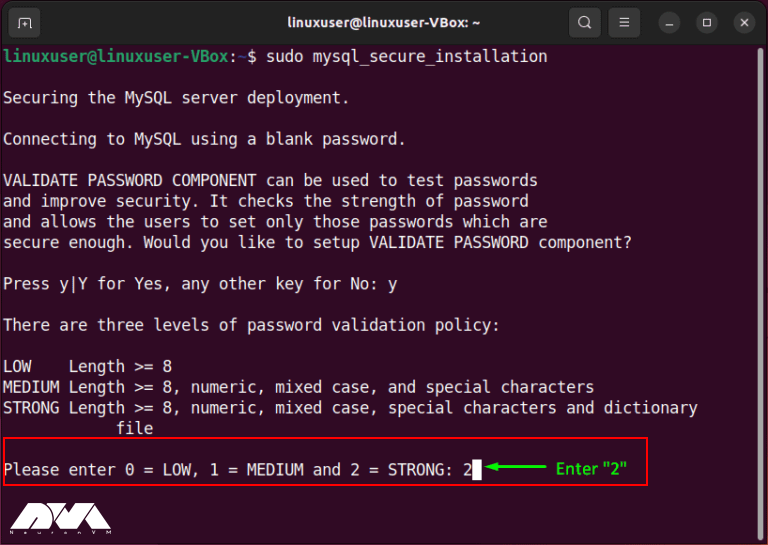
    sudo mysql_secure_installation

    At the beginning of the configuration step, you will be asked to set the level for the password validation policy. So, according to your validation requirements, choose a number from the menu in front of you.

    configuring MySQL

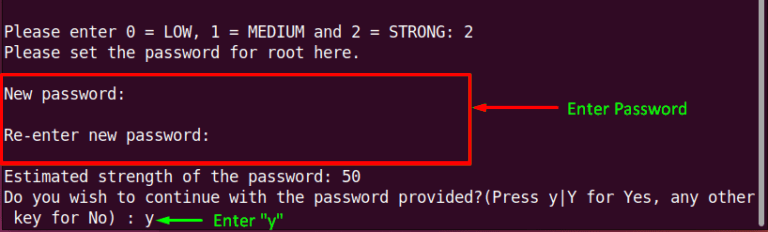
    Now enter the new password for root and press Y to continue the process with your new password:

    configuration of MySQL 2

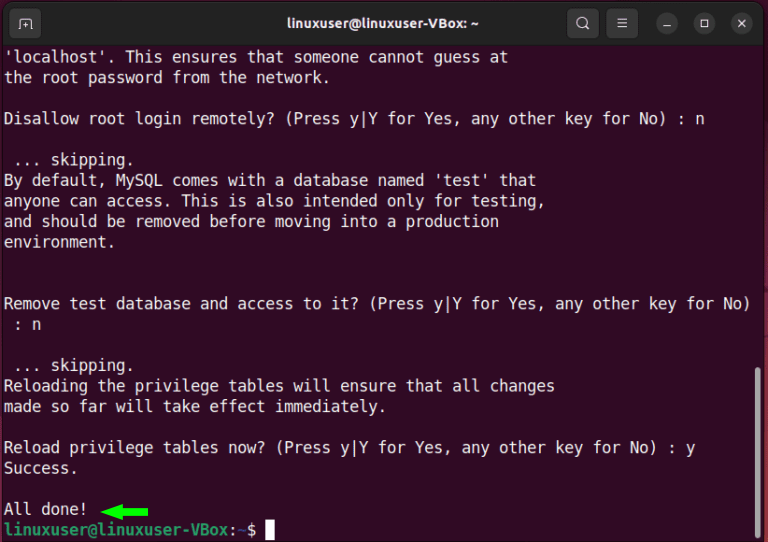
    Finally, do the rest of the configuration section accordingly:

    final part to configure mysql

    Login to MySQL on Ubuntu

    Now, create a native password for the root by logging into the MySQL server and setting the default authentication method to “mysql_native_password”:

     sudo MySQL

    Now you will see a query that sets the root password to “Password123#@!” and determines the authentication method to “mysql_native_password“:

    ALTER USER 'root'@'localhost'
    IDENTIFIED WITH mysql_native_password BY 'Password123#@!';

    To be able to apply the changes without restarting the MySQL service, you can reload the grant table in the MySQL database:

    FLUSH PRIVILEGES;

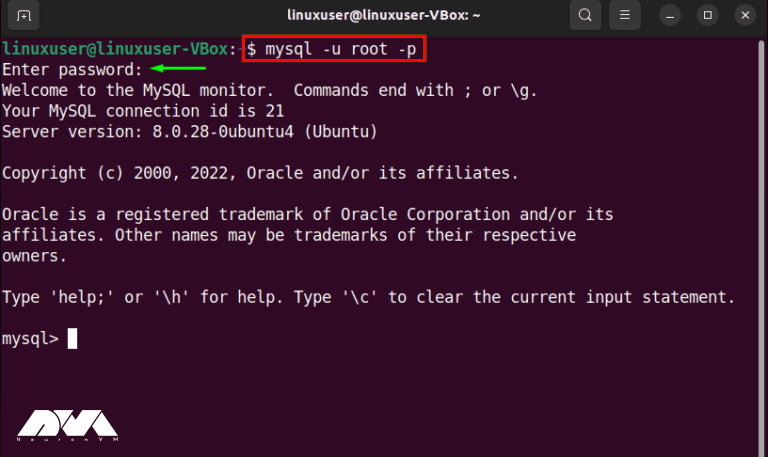
    Now, you can login to the MySQL server with your new password and enjoy the server.

    login mysql

    Now that you have installed MySQL successfully, you can ensure MySQL service is active and running with the following command:

    systemctl status mysql.service

    That’s it! Login to MySQL and use this great database as you wish.

    Troubleshooting Some Common Issues of MySQL on Ubuntu

    Like any software, it can encounter various issues. Here are some common issues with MySQL on Ubuntu and their potential solutions:

    1- You cannot connect to the MySQL server.

    Solutions:

    • Ensure that MySQL is running: sudo service mysql status.
    • Check if MySQL is bound to the correct IP address and port.
    • Check for firewall rules blocking MySQL connections.

    2- You’ve forgotten the MySQL root password.

    Solutions:

    Stop MySQL:

    sudo service mysql stop.

    Start MySQL in safe mode:

    sudo mysqld_safe --skip-grant-tables.

    Connect to MySQL:

    mysql -u root.

    Change the root password:

    UPDATE mysql.user SET authentication_string = PASSWORD('new_password') WHERE User = 'root'; FLUSH PRIVILEGES;.

    Stop MySQL safe mode:

    sudo service mysql stop.

    3- Your MySQL database is corrupted.

    Solutions:

    • Create a backup of your data.
    • Try repairing the database: mysqlcheck -r -u username -p dbname.
    • If the repair fails, restore from the backup.

    4- Running out of disk space can cause MySQL to stop working.

    Solutions:

    • Identify and delete unnecessary data or log files.
    • Resize your server or storage volume.

    5- MySQL fails to start

    Solutions:

    • Check the MySQL error log for the cause of the failure.
    • Ensure no other services are using the MySQL port.
    • Repair or reinstall MySQL if necessary.

    Conclusion

    As mentioned, MySQL is a popular database. In this article, we examined how to install it in Ubuntu and explained to you from updating the repositories to configuring and running it. So that you can enter the MySQL server by setting a new password and using it. We hope that the above information is useful for you. Happy coding!

  • How to Configure Minecraft on Ubuntu 20.04

    How to Configure Minecraft on Ubuntu 20.04

    Have you ever heard the name of the game Minecraft? This game is one of the well-known and popular sandbox games, which has sold more than 100 million copies. Users can do Minecrafting together in this game world. If you have a public Minecraft server, you can create larger structures with the cooperation of other players. Keep in mind that each player is independent and you do not control others. As a result, buy a Minecraft server to have more management and control in the game. Learn how to configure Minecraft on Ubuntu 20.04.

    A Brief Explanation of Minecraft Server

    A Minecraft server is a computer system or a hosted online service that allows players to connect and play the popular sandbox video game, Minecraft, together in a multiplayer environment. Minecraft servers come in various forms, from small private servers run by individuals or groups of friends to large public servers that can accommodate hundreds or even thousands of players simultaneously.

    Minecraft servers have played a significant role in the game’s enduring popularity, allowing players to create and join diverse communities and experiences within the Minecraft universe. Whether you’re interested in creative building, survival challenges, or unique mini-games, there’s likely a Minecraft server out there that caters to your preferences.

    Prerequisites to Install Minecraft

    You can get Minecraft from various providers. NeuronVM is one of the recommended providers that offers Minecraft servers. But you should prepare some prerequisites to run this amazing gameplay. Here are the requirements to run and configure Minecraft on Ubuntu:

    • 64-Bit architecture
    • Appropriate version of Java
    • strong internet access
    • A license key that you can purchase from the Minecraft website

    How to Configure Minecraft and Run it on Ubuntu

    The first step to run Minecraft server is to install Java because Minecraft is a Java-based gameplay. So follow the command below to install Java:

    apt-get install openjdk-11-jre-headless git build-essential -y

    To check the installed version use the following command:

    java -version

    Installing Minecraft on Ubuntu

    You can use two methods to install Minecraft on Ubuntu. We will show you both of them:

    • Use Debian package
    • Use Snap package

    Installing Minecraft By Debian Package

    First download the Microsoft Debian package using the command below:

    wget -o ~/Minecraft.deb https://launcher.mojang.com/download/Minecraft.deb

    Now, install the downloaded package by the following command:

    sudo apt install ~/Minecraft.deb

    As you run the command successfully, Minecraft will be installed on your Ubuntu system.

    Installing Minecraft By Snap Package

    The second way or snap is an easier method than Debian for Linux packages. Because Ubuntu 20.04 and later versions have a default snap profile configured. In this method, to install the game launcher, create a terminal and type the following:

    sudo snap install mc-installer

    That’s it! Now you have Minecraft on your server and you can start using this great application.

    How to Start Minecraft on Ubuntu

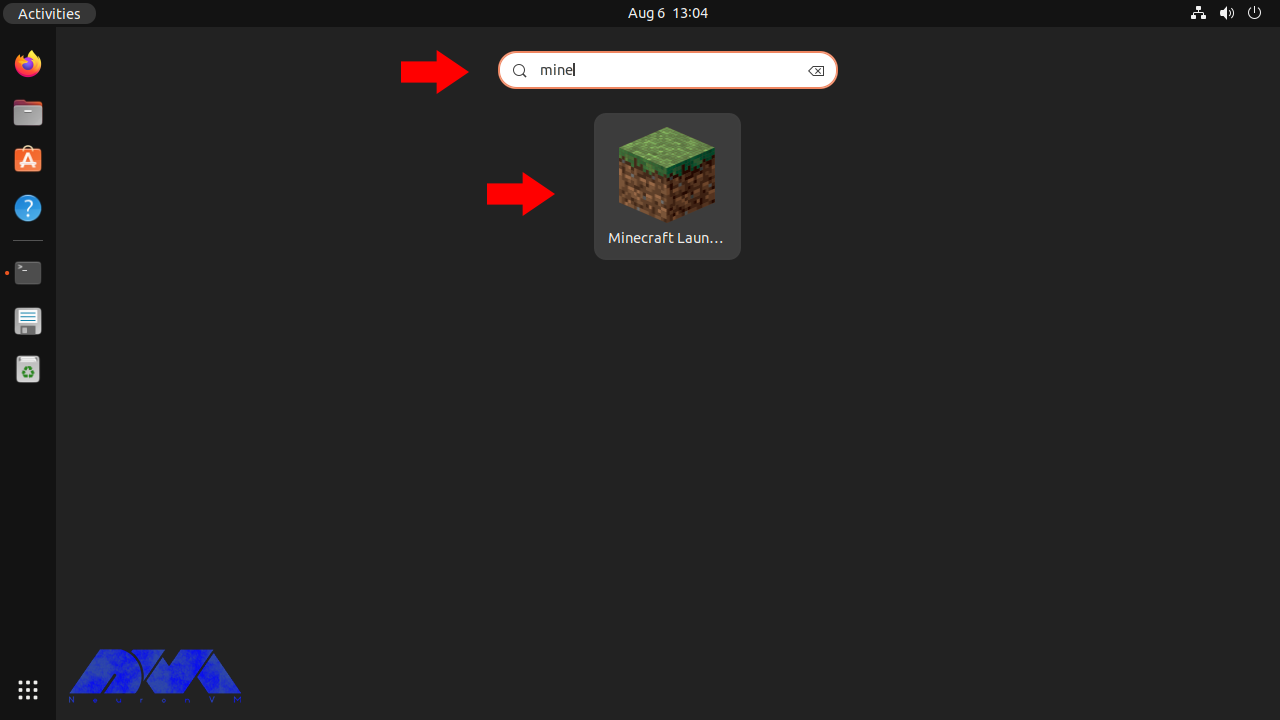
    In this section, you will access the Minecraft launcher icon. So, login to your Ubuntu desktop manager and click on Show Applications then search for Minecraft in the search box:

    launch minecraft server

    As you see the Minecraft icon, click on it and start the application:

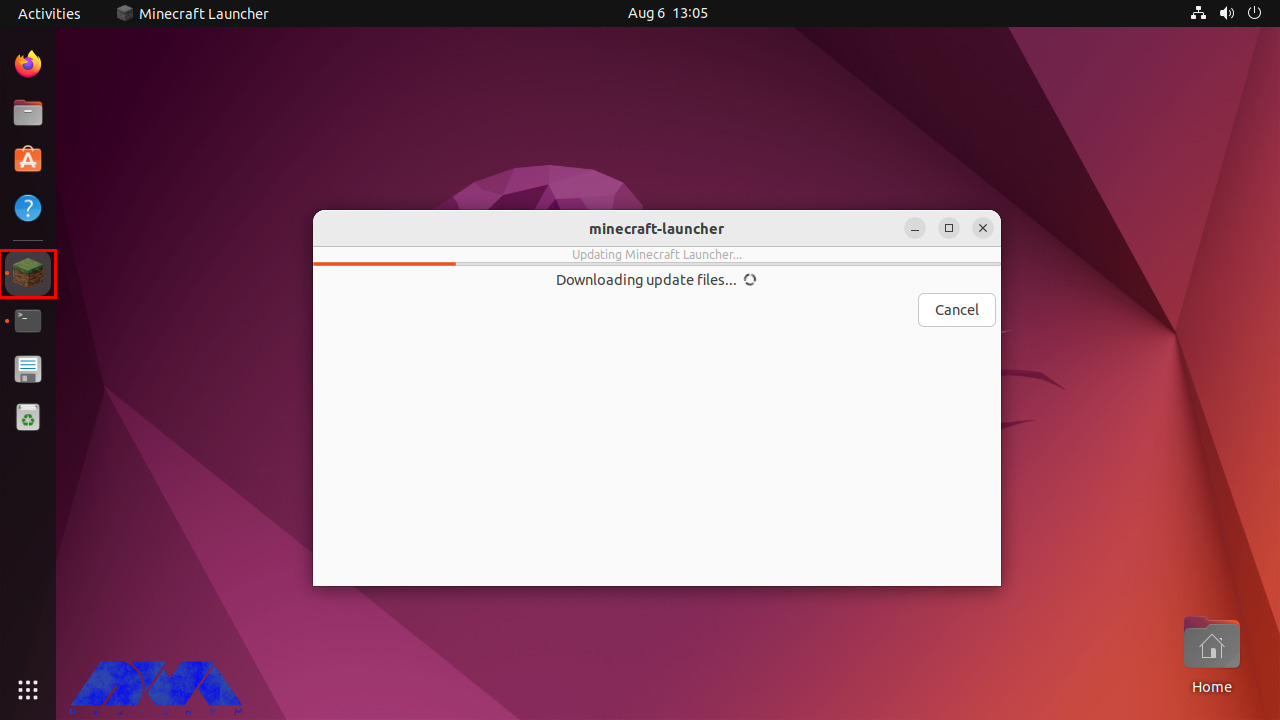
    Tip: the application will update automatically during the start.

    update minecraft - Configure Minecraft on ubuntu

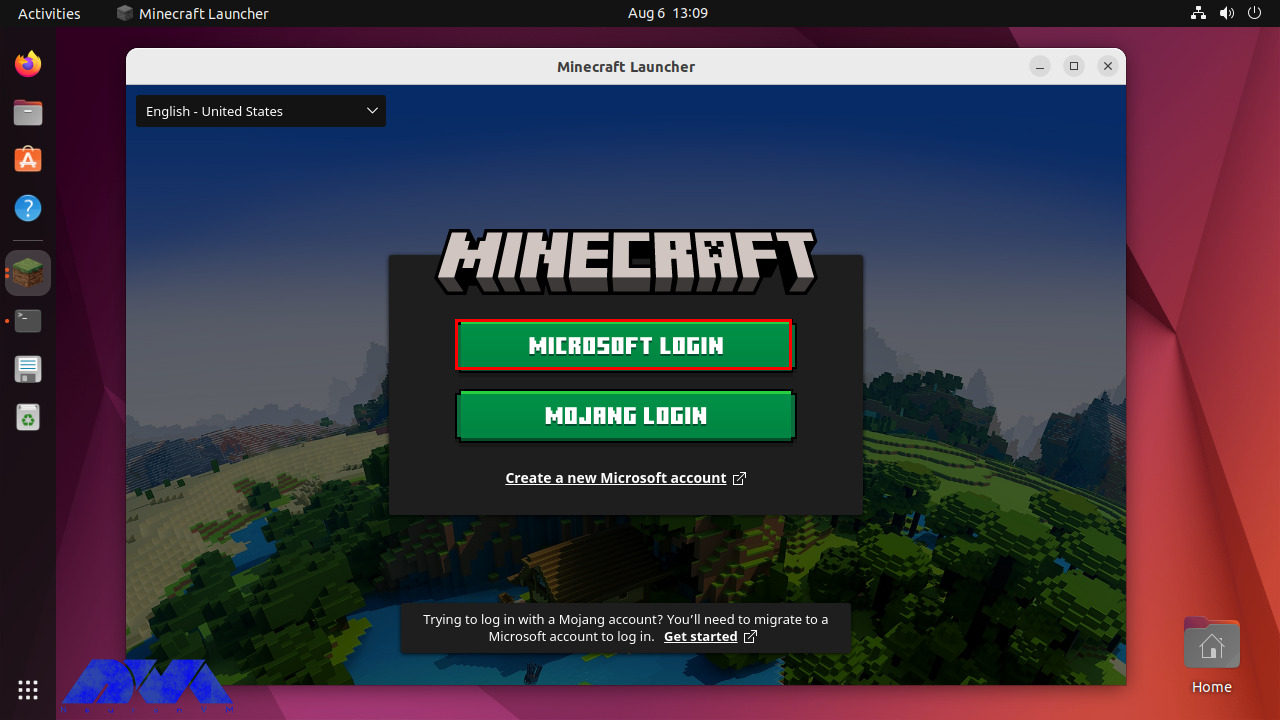
    The login screen will appear as soon as you start the game. You should use your Microsoft account to login and run the game:

    Login to the minecraft - Configure Minecraft on ubuntu

    Troubleshooting Common Issues About Minecraft Server

    Minecraft server issues can vary from technical problems to gameplay-related issues. Here are some common Minecraft server issues and their solutions:

    1- Server not starting

    Solution:

    Check that you have the correct version of Java installed, and ensure you are using the correct server JAR file. Review server logs for error messages that can provide more specific clues.

    2- Connection problems

    Solution:

    Verify that the server IP and port are correct. Ensure that your firewall or router is not blocking the server’s port (default is 25565). If hosting locally, use “localhost” as the server address.

    3- Lag and Performance Problems

    Solution:

    Optimize server settings, allocate more RAM if needed, use performance-enhancing server software like PaperMC, and consider upgrading your server hardware or hosting plan if lag persists.

    4- Whitelist and Permissions Problems

    Solution:

    Check your server configuration files for whitelist settings and permissions. Make sure players are added to the whitelist (if required) and have the necessary permissions to join and interact.

    Best Practices to Use Minecraft

    Whether you’re a beginner or an experienced player, here are some best practices to enhance your Minecraft experience:

    1- If you’re new to Minecraft, start with Survival mode. It introduces you to the core mechanics of the game, such as gathering resources, crafting, and surviving against hostile mobs.

    2- Minecraft has a vast and diverse world to explore. Go on adventures, discover new biomes, and look for hidden treasures.

    3- Let your creativity shine by building structures, houses, farms, and more. Download and use mods and resource packs to customize your gameplay and visuals.

    4- During your first nights, prioritize building a basic shelter to protect yourself from hostile mobs like zombies and skeletons. Later, consider building a more substantial base with defensive features.

    5- Establish a reliable source of food through farming. Wheat, carrots, potatoes, and livestock (cows, pigs, chickens) can provide a consistent food supply.

    6- Explore caves and mineshafts for valuable resources like iron, coal, and diamonds.

    7- Enchanting your weapons, armor, and tools can give you powerful advantages. Set up an enchantment table and explore the world for experience points to use in enchanting.

    8- If playing on a multiplayer server, communication and collaboration with other players can be rewarding.

    9- Regularly backup your Minecraft worlds, especially if you’ve invested a lot of time and effort into them.

    Minecraft is a highly customizable game, and you can tailor your experience to suit your preferences. Whether you enjoy building, exploring, farming, or surviving, there’s a place for you in the Minecraft world.

    Conclusion

    In summary, Minecraft servers enhance the game’s experience by enabling multiplayer gameplay, fostering communities, offering customization options, and providing unique game modes and events. Whether you’re looking for a collaborative building experience or competitive challenges, there’s likely a Minecraft server that suits your preferences and interests.

  • Why MongoDB is the Best NoSQL Database for Ubuntu: Benefits and Features

    Why MongoDB is the Best NoSQL Database for Ubuntu: Benefits and Features

    We live in a data-driven world and these data should be organized and easily accessible information. This leads to the need for a database. The database is the structured data or information that is organized and stored in a computer for fast searching and retrieval. The purpose of this guide is to introduce MongoDB and examine why MongoDB is the best NoSQL database for Ubuntu. Read the article carefully to understand the benefits of this great database.

    What is MongoDB?

    We can use two main types of databases: SQL (relational) and NoSQL (non-relational). MongoDB is a non-relational database system. It is a non-relational database system. This database is flexible and is now used as backup information storage for many prominent businesses and organizations such as Forbes and Facebook. If we want to compare two databases, it should be said that relational databases store data in columns and rows. Organizations such as Oracle use a relational database management system (RDBMS). However, NoSQL databases store schema-less and unstructured data inside multiple collections and nodes. Non-relational databases do not require static tables, scale horizontally, and support bounded join queries. If you need to set up a virtual server, we recommend you use the Linux VPS server plans provided on our website.

    Why MongoDB is the Best NoSQL Database for Ubuntu

    MongoDB Database for Ubuntu

    Benefits of using MongoDB

    MongoDB has lots of features that we will introduce most important ones:

    – It is easier and cheaper to maintain the Nosql database. Also, NoSQL databases have features such as easier data distribution, automatic repair, and simpler data models. All these benefits require lower administrative costs and thus lower costs.

    – This database is open-source, so include lower server costs. NoSQL databases like MongoDB use cheaper servers, which means that the price of storing and processing data per gig is significantly lower.

    – MongoDB is highly scalable and easy to use. Because NoSQL databases like MongoDB scale horizontally, you are able to scale by adding more machines to your resources.

    – MongoDB has an integrated cache system. System cache improves data output performance.

    – There are no scheme problems for MongoDB. It means you can put data into a NoSQL database without a predefined schema, so you are able to change data models and formats without any disruption in applications.

    – MongoDB offers many useful features (Ad-hoc queries, aggregates, bounded aggregates, file storage, indexing, load balancing, replication, and server-side JavaScript execution), so we can say it is user-friendly.

    Features of MongoDB

    In this section, you can find out 5 most important features of the MongoDB database:

    – Scalability: vertical and horizontal scaling is supported by MongoDB.

    – MongoDB keeps and stores data in documents using key-value pairs instead of rows and columns, which makes the data more flexible.

    – MongoDB performs load balancing through vertical or horizontal scaling, without a separate or dedicated load balancer.

    – There is no need for a blueprint for managing data cause MongoDB is a schema-less database.

    – High availability is provided in MongoDB because two or more MongoDB instances are used, so it is replicable.

    MongoDB vs. other NoSQL databases

    We mentioned before that MongoDB is a type of NoSQL. It is an open-source and user-friendly software written in C++ that makes it fast and flexible. The main difference between NoSQL and MongoDB is that NoSQL is a tool that you can store and retrieve data in a non-relational database while MongoDB is actually document-oriented and belongs to NoSQL.

    NoSQL is the abbreviation of “not only SQL” or “no SQL”. which is called We have different types of NoSQL databases like documents, key-value, graphs, etc. and MongoDB is a type of NoSQL. As a result, MongoDB is easy to use and free. It is scalable and has high performance. On the other hand, NoSQL databases have distributed architecture and help increase data consistency.

    MongoDB and Ubuntu compatibility

    MongoDB and Ubuntu have been widely compatible, which seems to continue in later versions. It is a popular NoSQL database, and Ubuntu is a widely used Linux distribution. Both are well-supported platforms with active communities, making it relatively straightforward to run MongoDB on Ubuntu.

    To check the compatibility with the latest versions available in 2023, I recommend consulting the official documentation and release notes for MongoDB and Ubuntu. The official websites for MongoDB and Ubuntu will provide you with the most up-to-date information on system requirements and compatibility.

    Setting up MongoDB on Ubuntu

    MongoDB and Ubuntu have been widely compatible, which seems to continue in later versions. MongoDB is a popular NoSQL database, and Ubuntu is a widely used Linux distribution. Both are well-supported platforms with active communities, making it relatively straightforward to run MongoDB on Ubuntu. To check the compatibility with the latest versions available in 2023, it is recommended to consult the official documentation and release notes for MongoDB and Ubuntu. The official websites for MongoDB and Ubuntu will provide you with the most up-to-date information on system requirements and compatibility.

    Key features of MongoDB for Ubuntu users

    As told before, MongoDB is a popular NoSQL database that provides a flexible and great platform to manage and process large amounts of unstructured data. Here you will figure out some other features of MongoDB for Ubuntu users:

    1- There is no need for predefined schema. MongoDB can store any type of data so users have flexibility to create fields in a document.

    2- A good feature of using documents is that they map to native data types in various programming languages. Also, embedded documents reduce the need for database joins.

    3- Mongodb is a useful database for companies with big data applications because horizontal scalability is its main function.

    4- Various storage engines are supported by MongoDB and it provides pluggable storage engine APIs to let third parties develop their own storage engines.

    5- One of the most impressive features of DBMS is the built-in aggregation that allows the user to run MapReduce code directly on the database. MongoDB also has its own file system called GridFS. The advantage of using a file system is to save files larger than the limit of 16 MB per document.

    Best practices for using MongoDB on Ubuntu

    Here, we will show some of the best practices for using MariaDB on Ubuntu:

    – By default, MongoDB allows access without authentication, which can be a security risk. Always enable authentication and create strong passwords for users with appropriate privileges. This can help protect your data from unauthorized access.

    – Configure your firewall to restrict access to the MongoDB server. Limit access to only the necessary IP addresses or ranges, and block public access if not required.

    – Keep an eye on your MongoDB server’s performance. Use tools like MongoDB’s built-in profiler and third-party monitoring tools to identify performance bottlenecks and optimize your queries and indexes accordingly.

    – Implement a backup strategy to prevent data loss. MongoDB provides various backup methods, such as mongodump or replica sets. Choose the one that suits your needs and schedule regular backups.

    – Query performance can be improved by properly designed indexes. Analyze your queries and create lists of frequently used fields in queries to speed up data retrieval.

    – High availability and data redundancy is provided by replica sets. They ensure that your data is replicated across multiple servers and prevent data loss in case of hardware failure.

    – Journaling helps ensure data consistency in the event of a system failure. It is recommended to enable journaling in the MongoDB configuration.

    – Updating large documents in MongoDB, can lead to fragmentation. Instead, consider using the “$set” operator to change specific fields in the document.

    – Connection pooling helps manage the number of open connections to the MongoDB server, optimizing resource usage and improving performance.

    – It is recommended to use the official MongoDB repository. This ensures that you get the latest stable version and updates.

    Conclusion

    Many organizations use MongoDB for their customer service applications. This applicable database is an open-source and document-oriented tool to save your data. Our tutorial is a good guide to give a brilliant comprehension of MongoDB structure and helps you get more information about its benefits and features on the Ubuntu operating system. Also, some points to compare this database and its relation to NoSQL were examined for a better result. Finally, if you have any questions, leave a comment here.

    FAQ

    What makes MongoDB prominent among others?

    MongoDB offers many advantages. A full cloud-based developer data platform is the significant one. Also, flexible document schema and code native data access are other good features of this tool.

    How many spaces are needed for MongoDB?

    1 GB of RAM per 100,000 assets is required for MongoDB.

  • A Step-by-Step Guide: How to Install RabbitMQ Server on Ubuntu

    A Step-by-Step Guide: How to Install RabbitMQ Server on Ubuntu

    Today we want to talk about one of the relational applications, the RabbitMQ message broker, which plays an important role in providing reliable and stable communication. The task of these programs is to store received requests in a queue and provide them one by one to receive services. So, make your services more scalable by decoupling them. Let’s figure out how to install RabbitMQ server on Ubuntu.

    Understanding the Ubuntu Operating System

    Ubuntu is a well-known Linux-based distribution. It is free and open-source and can be widely used on a computer and system or virtual private server (VPS). One of the significant features of Ubuntu is the use of Gnome, which is a graphical user interface. The Ubuntu Canonical maintenance center is a community of developers. It is updated every six months and its support is two years. This operating system contains most of the applications like LibreOffice, Thunderbird, and some other simple games. 

    If you want to add additional applications, you can install them using the APT package management system or Ubuntu software. This package is the default app store for Ubuntu. 

    Preparing the Ubuntu Environment for RabbitMQ Installation

    Here are the requirements before you start the installation:

    – A Linux VPS with the Ubuntu operating system

    – A user account with sudo privileges

    – Python 3 with pip package installed

    Installing RabbitMQ on Ubuntu

    Now you can start the installation steps of RabbitMQ on Ubuntu. The first step is to install the related prerequisites:  

    apt-get install curl gnupg apt-transport-https -y

    The next step is to add a repository that is not available by default, so add signing keys and a related repository:

    curl -1sLf "https://keys.openpgp.org/vks/v1/by-fingerprint/0A9AF2115F4687BD29803A206B73A36E6026DFCA" | sudo gpg --dearmor | sudo tee /usr/share/keyrings/com.rabbitmq.team.gpg > /dev/null

    curl -1sLf "https://keyserver.ubuntu.com/pks/lookup?op=get&search=0xf77f1eda57ebb1cc" | sudo gpg --dearmor | sudo tee /usr/share/keyrings/net.launchpad.ppa.rabbitmq.erlang.gpg > /dev/null

    curl -1sLf "https://packagecloud.io/rabbitmq/rabbitmq-server/gpgkey" | sudo gpg --dearmor | sudo tee /usr/share/keyrings/io.packagecloud.rabbitmq.gpg > /dev/null

    Tip: Make a new file at /etc/apt/sources.list.d/rabbitmq.list directory and add the repositories for ErLang and RabbitMQ that are proper for Ubuntu 22.04 jammy release:

    deb [signed-by=/usr/share/keyrings/net.launchpad.ppa.rabbitmq.erlang.gpg] http://ppa.launchpad.net/rabbitmq/rabbitmq-erlang/ubuntu jammy main

    deb-src [signed-by=/usr/share/keyrings/net.launchpad.ppa.rabbitmq.erlang.gpg] http://ppa.launchpad.net/rabbitmq/rabbitmq-erlang/ubuntu jammy main

    deb [signed-by=/usr/share/keyrings/io.packagecloud.rabbitmq.gpg] https://packagecloud.io/rabbitmq/rabbitmq-server/ubuntu/ jammy main

    deb-src [signed-by=/usr/share/keyrings/io.packagecloud.rabbitmq.gpg] https://packagecloud.io/rabbitmq/rabbitmq-server/ubuntu/ jammy main

    Now update the package list for the second time after saving the file:

    apt-get update -y

    Go on installing ErLang packages:

    apt-get install -y erlang-base \

    As the final part, you can install the RabbitMQ server and other dependencies:

    apt-get install rabbitmq-server -y --fix-missing

    As you passed all of the levels well, you can see the RabbitMQ server process is working correctly: 

    systemctl status rabbitmq-server

    That’s it. You finished the installation part.

    Configuring RabbitMQ for optimal performance

    A Management Console plugin has been implemented in RabbitMQ that allows you to perform various management and monitoring tasks through a web-based interface. So if you need to check the list of all RabbitMQ plugins, run the following command:

    rabbitmq-plugins list

    You will see that all the plugins are disabled. Use the command below to enable them:

    rabbitmq-plugins enable rabbitmq_management 

    Managing RabbitMQ Server on Ubuntu

    Now it is time to setup and manage RbbitMQ on your system. 

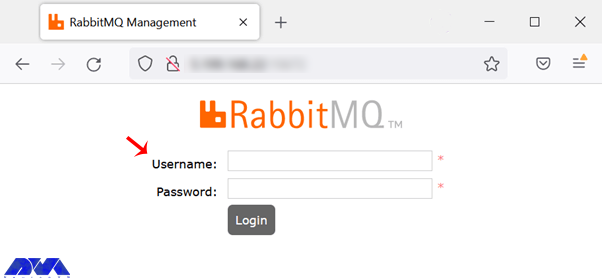
    The first step is connecting to the RabbitMQ web interface. You should open the web browser and type the related URL which is http://your-server-ip:15672:

    managing rabbitmq

    Install RabbitMQ Server on Ubuntu

    The default username and password are guest, but you are allowed to choose any other user. If you forget or don’t know your IP address, type the following command:

    hostname -I

    The next step is to setup an administrative user. It would be beneficial if you create a new user and assign administrative permissions to it as you want to setup a RabbitMQ server. Choose a unique username and set a reliable password:

    Tip: Our preferred administrator username is Thewhiterabbit.

    rabbitmqctl add_user thewhiterabbit MyS3cur3Passwor_d

    Now use the command below to set a tag for your user:

    rabbitmqctl set_user_tags rabbitadmin administrator

    It is good to delete the default user because of security reasons:

    rabbitmqctl delete_user guest

    To check the list of users, you can also this command:

    rabbitmqctl list_users

    In the next part, you should create RabbitMQ virtual host. A virtual host is suitable for providing logical grouping and separating different resources.  These resources include connections, exchanges, user permissions, and other objects. So run the command below to add a new virtual host:

    rabbitmqctl add_vhost neuronvm_broker

    You can do many configuration settings on a virtual host. These settings can be the maximum number of queues or the maximum number of concurrent client connections. Run the command below to list the available virtual hosts:

    rabbitmqctl list_vhosts

    It is good to delete the default virtual host:

    rabbitmqctl delete_vhost /

    To assign user permissions on your virtual host, you should adjust specific user permissions for the administrative user on the virtual host. Use the following command:

    sudo rabbitmqctl set_permissions -p <virtual_host> <user_name> <permissions>

    Then to have full permissions execute the following command:

    sudo rabbitmqctl set_permissions -p cherry_broker thebigrabbit ".*" ".*" ".*"

    To see the permissions go through this way:

    sudo rabbitmqctl list_permissions -p neuronvm_broker

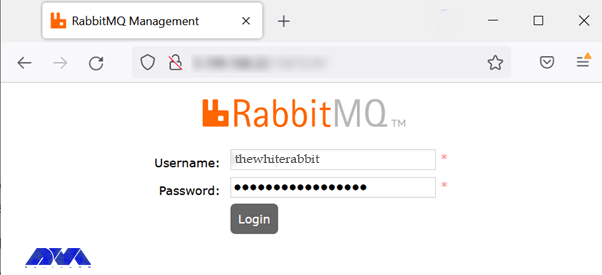
    After all these instructions, it is time to setup RabbitMQ by web management console. To connect to the management console and insert your newly created username and password:

    authenticate username and password in rabbitmq - Install RabbitMQ Server on Ubuntu

    Install RabbitMQ Server on Ubuntu

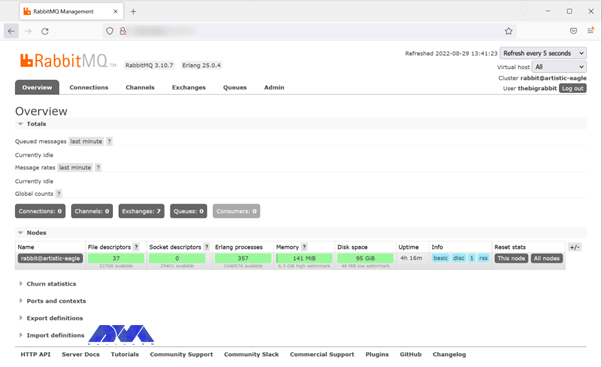
    After the authentication process, you can see the dashboard:

    rabbitmq dashboard - Install RabbitMQ Server on Ubuntu

    Install RabbitMQ Server on Ubuntu

    Integrating RabbitMQ with Other Applications

    If you want to add messaging functionality to your system, the best way is to integrate RabbitMQ with other applications in Ubuntu. This allows different programs to communicate with each other in a scalable and flexible way. Note that to make this action possible you need a library that supports AMQP and the most common one is Pika for Python applications. So to install Pika go through this command:

    You have to be sure that you have the appropriate package manager:

    sudo apt-get install python-pip git-core

    Now install Pika:

    pip install pika

    You should find the appropriate library or client for the other programming languages.

    Troubleshooting Common RabbitMQ Installation Issues

    When you decide to install the RabbitMQ server, you may encounter some problems. In this section, we will mention some of them for you:

    – Connection Problems: 

    If you have any trouble connecting to RabbitMQ from clients, you should ensure that the client application uses the correct credentials, port, hostname, and virtual host settings.

    By checking the listener configuration in the RabbitMQ configuration file, note that the RabbitMQ server is listening on the correct interface and port.

    – Your plugins are not loading:

    Use sudo rabbitmq-plugins enable <plugin_name>. to verify that you have enabled the plugins correctly. 

    If you have problems with plugin loading, Check the RabbitMQ Logs.

    Best Practices for RabbitMQ Server Management on Ubuntu

    Here are the best practices to ensure optimized performance, reliability, and security:

    – Regularly back up your RabbitMQ data, including configurations and message data, to facilitate recovery in case of data loss or system failure.

    – Configure the firewall to allow only necessary ports to be accessible from external sources. By default, RabbitMQ listens on port 5672 for AMQP and 15672 for the management interface. Restrict access to these ports as needed.

    – Always keep your Ubuntu system up to date with the latest security patches and updates. Run sudo apt update followed by sudo apt upgrade to update all packages, including RabbitMQ.

    – For high availability and fault tolerance, consider setting up RabbitMQ clustering with multiple nodes. This way, if one node goes down, the others can continue to handle messages.

    – Instead of using the Ubuntu default repositories, use the official RabbitMQ repository for the latest stable versions. This ensures you get the most recent updates and features.

    – Change default credentials for the RabbitMQ management interface. Create a new administrative user with a strong password and configure RabbitMQ to use it. Remove or disable the default guest user to minimize security risks.

    – RabbitMQ can be resource-intensive, especially when handling large amounts of data. Ensure your server has enough CPU, memory, and disk space to handle the expected workload.

    – Configure resource and connection limits in RabbitMQ configuration files to prevent resource exhaustion and potential denial-of-service attacks.

    – Implement monitoring tools to keep track of RabbitMQ performance and identify potential issues proactively. Enable logging to record important events for troubleshooting purposes

    Conclusion

    This tutorial presented to introduces RabbitMQ and presents a comprehensive guide about this message broker and the installation process, configuration, and management of RabbitMQ on the Ubuntu operating system. Also, you learned what can be useful practices to optimize the performance of this tool. For any additional information, you can refer to the RabbitMQ official page.  

    FAQ

    Is it necessary to change the default admin name?

    Yes, it is recommended to change the administrator’s name and choose a unique one.

    Is it possible to access the RabbitMQ server remotely?

    Yes, you can create a new RabbitMQ user and set permissions for that. So open the browser and use the http://localhost:15672/ URL.

  • The Great Linux Debate: Comparing CentOS and Ubuntu

    The Great Linux Debate: Comparing CentOS and Ubuntu

    Choosing an operating system for your server can be a really confusing task due to the huge list of options available. Especially if you want to use your own server with a Linux distribution. There are many choices, but none are as popular as Ubuntu or CentOS. Whether you’re a pro or a beginner, it usually comes down to choosing between the two options. It is safe to say that there is no direct decision. In the post you will read, the comparison of CentOS and Ubuntu will be done using different parameters.

    What is Linux?

    The Unix operating system was developed and expanded in 1971 by the American Telephone and Telegraph Company. This operating system was expensive and not all people could easily use it. Therefore, the Linux system, which is very similar to Unix and its sub-branches, was chosen as a successor.

    In 1991 Torvalds Linux created the Linux kernel. Linux operating system is supported by many companies. Among the most important tasks of the Linux kernel, the following can be mentioned:

    • Data storage: Data storage is done in memory that works with random access, in permanent memory, or virtual file system.
    • Access to the computer network
    • Timing
    • Using input and output tools such as a mouse, keyboard, webcam, and USB flash drive
    • Security: This security can include the security of resources as well as users and different user groups.

    Types of Linux distribution (distro) is an operating system that is made of a software package based on the Linux kernel and often a package management system. Linux users usually get their operating system by downloading one of the Linux distributions. A typical Linux distribution includes the Linux kernel, GNU tools and libraries, additional software, documentation, a window system, a window manager, and a desktop environment.

    To know more about Linux software, you should know its famous distributions. The following distributions are among the most famous:

    • Debian
    • Cloud Linux
    • CentOS
    • AlmaLinux
    • Rocky Linux
    • Ubuntu
    • Mint
    • Kali Linux
    • OpenSUSE

    In the rest of this article, we will do a full review of CentOS and Ubuntu distributions and compare them in terms of security, stability, ease of use, and package management.

    centos vs ubuntu

    What is CentOS?

    The CentOS operating system (Community Enterprise Operating System) is a server operating system. CentOS is a free distribution of Linux supported by communities and there is no need to pay for it. CentOS is based on the Enterprise version, which is known as the server version of the RedHat Linux distribution. The versions of CentOS that enter the market are basically the mirror version of the versions introduced in Red Hat Enterprise Linux. By choosing this popular distribution, there is no need to pay exorbitant fees to buy Enterprise products.

    In most organizations, RHEL is used as the main server, and CentOS is used as a backup and redundant server. This issue will cause other organizations not to need to hire several system administrators, and only by hiring a system administrator who has mastered RHEL, the organization’s CentOS management will be done.

    From the perspective of architecture, this distribution has the ability to support x86, x64, and i386 architectures and even PowerPCs. CentOS also supports GNOME and KDE desktops and this operating system can be used as a server and workstation.

    Advantages of CentOS:

    This operating system is chosen by many users and organizations for several reasons. Some of the important advantages of CentOS are:

    • Open-Source
    • Establishment in the industry
    • Long term support
    • Active community
    • Stability

    What is Ubuntu?

    Ubuntu is a popular free and open-source Linux-based operating system that you can use on your PC or Linux VPS server. It’s a massive project that helps millions of people worldwide run machines built with free and open-source software on various devices.

    Linux comes in many shapes and sizes, with Ubuntu being the most popular version on desktops and laptops. Note that when we say Ubuntu is free, we don’t mean that it costs only; Rather, unlike most proprietary software (such as Windows and macOS), free and open-source software allows you to edit its code and install and distribute as many copies as you like. You don’t pay to use it; So, so not only is Ubuntu free to download; But you can use it as you want.

    Advantages of Ubuntu:

    There are many reasons to use Ubuntu, but here are the most important ones:

    • This program is free and open source.
    • It is easy to install and test. In fact, you don’t need to be an expert to install it.
    • It is beautiful and user-friendly.
    • It’s stable and fast, typically loading in less than a minute on modern computers.
    • It does not have any important viruses and is immune to harmful Windows viruses.
    • is up to date; Because Canonical releases new versions every 6 months and provides regular updates for free.
    • It is supported and you can get all the backups and guidance you need from the global FOSS community and Canonical.
    • Among the different versions of the Linux operating system, Ubuntu has the most support.

    The differences between CentOS and Ubuntu

    CentOS and Ubuntu are both popular operating systems for web servers in the software operations market. CentOS is basically built on the Linux framework and Linux distribution to provide a free and supported computing platform. Ubuntu is also basically an open-source distribution of Linux and it is considered one of the popular cloud operating systems it runs in most cases and places such as desktop and cloud environments and almost everything related to the Internet.

    In the rest of this article, we will compare Ubuntu and CentOS in terms of security, stability, ease of use, and package management.

    CentOS vs. Ubuntu: Security

    Ubuntu is updated frequently. A new version is published every six months. Ubuntu offers LTS (Long Term Support) releases every two years, supported for five years. These different versions allow users to choose whether they want the “latest and greatest” or the “tried-and-true”. Due to frequent updates, Ubuntu often includes newer software in newer versions. This feature can be fun to play with new features and technologies but can conflict with existing software and configurations.

    CentOS is rarely updated. This is partly because the CentOS development team is smaller. It is also due to extensive testing on each component before release. CentOS versions are supported for ten years from the release date and include security and compatibility updates. However, a slow release cycle means a lack of access to software updates. If they have failed to release these updates to the main repository, you can either install the updates manually.

    CentOS, on the other hand, is based on the Linux framework and is therefore very secure and protected through 3 layers of security. Ubuntu also has good security layers, but sometimes it may be prone to web threats due to frequent updates.

    Regardless of the differences between CentOS and Ubuntu, both are secure with regular updates.

    CentOS vs. Ubuntu: Stability

    The stability of an operating system means that its bugs are fixed quickly. Stability is one of the most important things that affect the performance of servers because an error can lead to the loss of information or server down. This in itself is considered an irreparable disaster, which is associated with a large financial burden. CentOS operating system consists of a strong kernel so its stability is guaranteed and it is better than other Linux distributions.

    One of the reasons that makes Ubuntu suitable for beginners is its stability. You may have heard that if you use Linux, you should be well aware of how to manually fix things and use the command line. This is definitely not the case with Ubuntu. Stability is the main reason why Ubuntu is the first choice of operating system for beginners. Once you’re done with the installation process, all you have to do is keep the packages up-to-date on your system, nothing else. Since packages are tested before being included in the official repositories, you can be sure that your system won’t crash when you install new software. Ubuntu is stable enough to run on servers where uptime and performance are a priority.

    CentOS vs. Ubuntu: Ease of Use

    Ubuntu has gone a long way in designing its system to be user-friendly. The graphical interface is intuitive and easy to manage with useful functionality. Running applications from the command line is simple. But on the other hand, CentOS is more suitable for users with more expertise in this field.

    CentOS is primarily based on Red Hat Linux and is more difficult to learn than Ubuntu due to its smaller community and less documentation. In Ubuntu, it is easier to learn due to the support of more communities and the large number of tutorials and books on the market and the Internet.

    CentOS vs. Ubuntu: Package Management

    A software package is an archive of compiled binary files, resources needed to build the software, and scripts to install and run the software. A package also includes a list of packages in the form of dependencies that must be installed on the system to run the desired software. While the features and facilities of this package manager are very similar in different Linux distributions, the format of packages, tools, and commands are different.

    In Ubuntu, the package format is deb. APT (Advanced Packaging Tool) provides commands for various tasks with packages, including installing, updating, removing, and finding packages in repositories. APT commands act as front-end and high-level commands for the low-level dpkg tool. dpkg can be used to install package files that are on the system. You can also use the apt-get and apt-cache commands (the older version of the apt command) to manage packages in most Debian-based distributions.

    CentOS uses rpm format packages. In CentOS, the yum tool is used to manage the packages in the repositories as well as the packages on the system. The low-level rpm tool can also be used to install the package files that are on the system. In recent versions, the dnf command is used instead of yum.

    Which is better for your needs: CentOS or Ubuntu?

    In this section, in general, by providing several different parameters, including the origin, purpose, support model, how to install programs and application communities, we will give you the opportunity to decide which is better for your needs depending on your needs.

    CentOS and Ubuntu are both Linux operating systems, but they are based on different Linux distributions. Next, we explore the key differences between CentOS and Ubuntu.

    1) Origin: CentOS is developed from Red Hat’s commercial operating system. For this reason, CentOS is commonly used as a commercial-grade Linux distribution. While Ubuntu is developed from the roots of Debian and is known as a Linux distribution based on the Debian family.

    2) Purpose: CentOS is primarily designed for server environments and business and enterprise uses. Ubuntu is often considered a general purpose, desktop distribution and is suitable for everyday use, servers, and desktop systems.

    3) Support model: CentOS typically uses a long-term support model. This means that released versions of CentOS will be updated and supported for a long time. In contrast, Ubuntu comes with two standard versions, namely LTS (Long-Term Support) and regular (non-LTS) versions. LTS versions receive security updates and support for five years, while non-LTS versions receive support for about nine months.

    CentOS consists of a set of Red Hat software, including the Apache web service, MySQL, and Python programming language. On the other hand, Ubuntu uses software such as LibreOffice, Evolution e-mail program, and Firefox browser.

    4) How to install applications: CentOS uses the YUM (Yellowdog Updater Modified) package manager, while Ubuntu uses the APT (Advanced Package Tool) package manager. These two package managers work with differences in syntax and functionality.

    5) User Communities: Both CentOS and Ubuntu have strong and active user communities. However, the Ubuntu user community is much larger and more active, and there are more discussions about Ubuntu. This means more resources, online tutorials, and community support from users.

    Ultimately, choosing between CentOS and Ubuntu depends on your needs, preferences, and uses. If you need a stable and reliable operating system for servers and business use, CentOS is a good choice. If you need a desktop Linux distribution for daily use and development of software and games, Ubuntu can be a good option. Also, if you’re looking for a larger user community and the most training and support resources, Ubuntu might be the best option. However, to choose between CentOS and Ubuntu, it is better to consider your personal needs, skills, and experience and determine the best option for you by testing and experimenting with both distributions.

    Conclusion

    To conclude this comparison of CentOS and Ubuntu, both are famous and one of the best Linux distributions that have their own advantages and disadvantages. Choosing one is easy if you consider your needs and are willing to do some work. The purpose of this article was to compare CentOS and Ubuntu and provide an overview of the differences between these two Linux distributions to facilitate the decision-making process.

  • Protecting Your Ubuntu Server: A Comprehensive Guide to Firewalls

    Protecting Your Ubuntu Server: A Comprehensive Guide to Firewalls

    If you want to secure your Ubuntu system, you should configure a firewall. If you want to setup and manage a firewall, various flexible utilities are designed by Linux. One of these tools is called iptables. But, it should note that new users in network security may be a little afraid of iptables, so it is better to start with UFW first. This article proposes to give a comprehensive guide to firewalls.

    What is UFW on Ubuntu?

    UFW or Uncomplicated Firewall is a default firewall configuration tool. This user-friendly tool has been developed to facilitate the configuration of iptables firewalls and is provided for creating ipv4 or ipv6 host-based firewalls. It is initially disabled by default from the UFW man page. Also, UFW gives an easy way to add or remove simple rules, but it is not intended to provide complete firewall functionality.

    How to Configure a Firewall on Ubuntu Server?

    Here, we are going to show how you can setup a firewall on Ubuntu servers using UFW with a Comprehensive Guide to Firewalls. Follow the steps to protect your Ubuntu system. But, first of all, you should prepare the necessary requirements.

    setup firewall on ubuntu

    A Comprehensive Guide to Firewalls

    Prerequisites

    – A Linux VPS Server with Ubuntu operating system

    – A user account with sudo privileges

    – accessing a Windows command line

    Installing UFW on Ubuntu

    UFW is disabled by default. So, the first thing to do is to enable it from the terminal prompt:

    sudo ufw enable

    Note that UFW is installed by your Ubuntu server as default, if not, you can check the status and install it using the commands below and then enable it:

    sudo ufw status
    sudo apt install ufw

    Wait to complete the installation process. Now you have UFW enabled on your server.

    Configuring UFW on Ubuntu

    Now that you enabled UFW, you can configure UFW using both IPv4 and IPv6. To support both protocols you should modify the UFW configuration file, so go through these instructions.

    First, you can use Nano or any text editor to open the default settings file:

    sudo nano /etc/default/ufw

    In your output, you will see the IPv6. If this value is set as no, change the value to yes and enable your IP. Then save and close the file.

    Setting up Default UFW Policy

    By default, UFW is set to allow all outgoing connections and deny all incoming connections. These rules are typical for PCs that do not need to respond to incoming requests. So, if you have changed the default settings and want to return to the default settings, run the following command:

    sudo ufw default deny incoming

    To allow outgoing connections use the following command:

    sudo ufw default allow outgoing

    So return the statute to the default settings by these comments.

    Allowing SSH Connections

    If your connection is from remote locations, you should setup UFW to allow incoming SSH connections.

    Use the command below to configure UFW to allow the SSH connections:

    sudo ufw allow ssh

    To add a rule for IPv4 (or IPv6 if enabled) use this command and allow incoming and outcoming traffic from SSH connections.

    Enabling UFW

    After the configuration, to apply changes, disable and enable the UFW firewall again:

    sudo ufw disable
    sudo ufw enable

    With these actions, you succeeded in setting up and activating the firewall.

    Checking the Status of UFW

    If you need to check the status and get detailed information, execute the following command:

    sudo ufw status verbose

    How to Work with UFW Rules?

    UFW determines the rules for how the server communicates with other devices. Now you need to specify which connections are allowed to control firewall settings and which are prohibited.

    Allowing Incoming Connections on Other Ports

    You should allow specific incoming connections to control additional connections, depending on the purpose of the server. Now create UFW rules to add connections. Below is a list of commands requiring for configuration:

    1- Apply the command below to set the server and listen to HTTP:

    sudo ufw allow http

    You can use port 80 as an alternative for HTTP connection:

    sudo ufw allow 80

    You can see the rule in UFW status:

    sudo ufw status verbose

    2- Run the following command to enable HTTPS connections:

    sudo ufw allow https

    You can use port number 443 as an alternative for HTTPS connection:

    sudo ufw allow 443

    Now to check the status run this command:

    sudo ufw status verbose

    3- Apply the command below to modify a rule that allows access to all ports from a specific IP:

    sudo ufw allow from to any port

    This allows all traffic from a remote server to a local machine or local server.

    4- Apply this command to allow access from a particular machine to a specific port. This rule will limit access to the specific port:

    sudo ufw allow from to any port

    5- Determine the range values and the protocol type to allow access to a range of sports. The following is using to allow connections from 2000 to 2004 for TCP:

    sudo ufw allow 2000:2004/tcp

    To change the protocol for UDP use the following command:

    sudo ufw allow 2000:2004/udp

    Denying Incoming Connections on the Other Ports

    If you want to forbid connection from a specific IP address create a deny rule:

    sudo ufw deny from

    Or, you can use the following command to deny access to particular ports:

    sudo ufw deny from to any port

    How to Delete UFW Ports

    It is possible to delete UFW rules. You can use two ways for this reason:

    1- You can disable the list of all rules and find the determined number of the rule. Now you can see the list in your output:

    sudo ufw status numbered

    Choose the related rule number and use the command below to delete the rule, so the rule will be removed from the list:

    sudo ufw delete

    2- The second way is to specify it word for word:

    sudo ufw delete

    For Example:

     sudo ufw delete allow 2000

    Checking Application Profiles

    Since you use the apt command to install UFW, each package has an application profile in the /etc/ufw/applications.d directory. This profile includes information about the software and its UFW settings. So to see the list of the application profiles use this command:

    sudo ufw app list

    To see more detailed information about a specific package run this command:

    sudo ufw app info 'package name'

    To give an example, put Apache full to see all the information about this application profile:

    sudo ufw app info 'Apache Full'

    Conclusion

    Security is one of the most important parts of servers and to provide this security, you should set a firewall for your server. Here, we taught how to setup a firewall using UFW on the Ubuntu server after a Comprehensive Guide to Firewalls. We also gave some extra commands and instructions to show the way it works. We hope you enjoyed this article.

  • Tutorial Encrypt and Decrypt with PGP on Ubuntu 20.04

    Tutorial Encrypt and Decrypt with PGP on Ubuntu 20.04

    PGP is used to encrypt and decrypt data. Methods such as hashing, public key encryption, and data compression are used in PGP encryption. In the continuation of this comprehensive article, you will learn how to Encrypt and Decrypt with PGP on Ubuntu 20.04. Therefore, we recommend that you stay with us until the end.

    Introduction to PGP

    GPG or GnuPG, which is a free PGP-based signature and encryption software, uses it to export and import public and private keys, and to encrypt and decrypt data. GPG key pairs include two types of keys: private and public keys. Use the public key to encrypt the data, and the encrypted data will be decrypted using the recipient’s secret or private key.

    Prerequisites

    The process of encrypting and decrypting files with PGP involves a few simple steps. First, the sender must issue your public key and send it to the recipient. Second, the receiver enters the public key into its key. The recipient can then encrypt any file using the sender’s public key. Also, the recipient decrypts the shared file using his private key.

    To start at the beginning Create two pairs of GPG keys for the purpose of display for two people in two separate systems (Linda and Dominique). Now, issue the public key and then enter it into another system.

    We also recommend you use Linux VPS server plans available on our website to Encrypt and Decrypt with PGP on Ubuntu 20.04.

    Encrypt and Decrypt with PGP on Ubuntu 20.04

    How to Export Public Key with GPG

    Before sending your public key to a reporter, you must first issue it using the GPG command. In the GPG command, an additional argument is specified to identify the public key that will be the user ID, and the “-a” or “-armor” option is added to generate the output of the export file in ASCII format. In the “GPG” command. To export a specific public key, first list the GPG keys generated on the system and select the key you want to export.

    To do this, use the following “GPG” command:

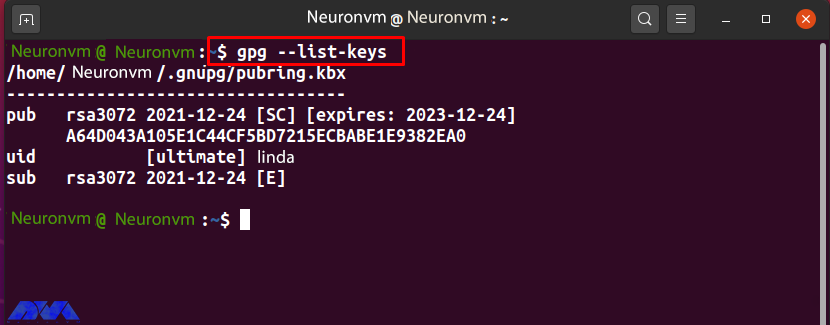
    gpg --list-keys

    For example, to issue the public key “Linda“, note the “uid” user ID from the list:

    How to Export Public key with GPG

    Now add the “-export” option to the GPG command to export the “Linda” public key. Here, the “-a” option is used to create an ASCII display of the public key, and the redirect operator “>” is used to redirect the output of the GPG command to the “public.key” file:

    gpg --export -a Linda > public.key

    The “.key” extension indicates that there is encrypted content inside the specified file.

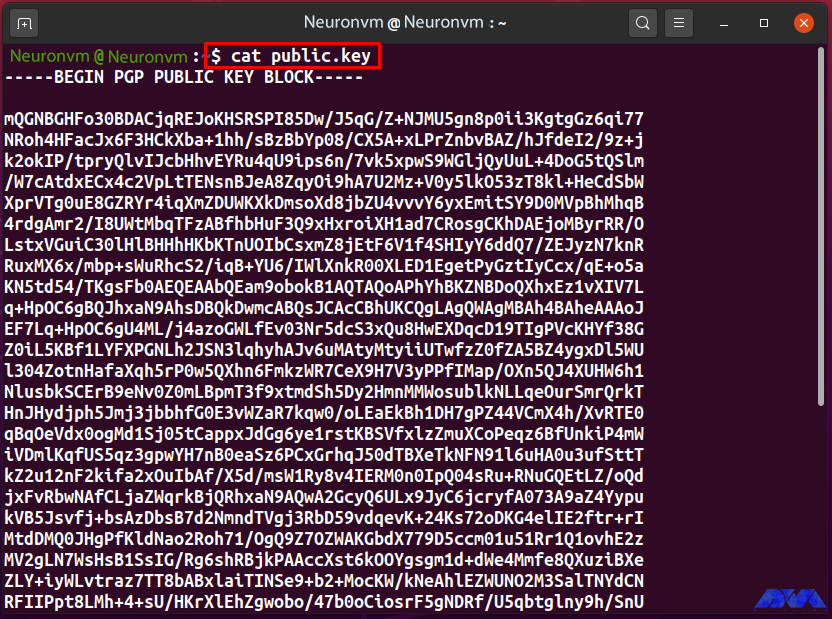
    If the output is error-free, it declares that the “public.key” file is ready for export. To check its content, run the following “cat” command:

    cat public.key

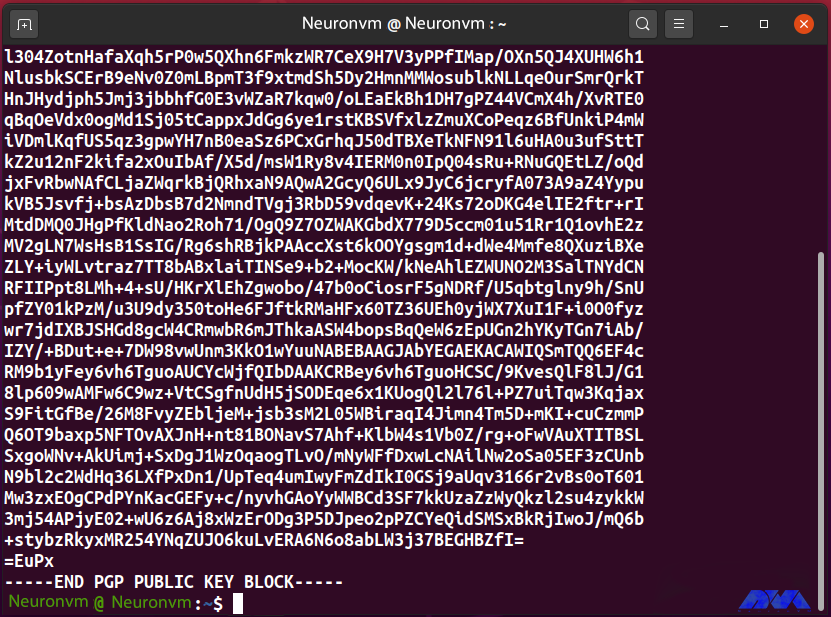
    “public.key” saves the ASCII display of Linda’s public key as follows:

    How to export public key with GPG

    #####

    How to export public key with GPG

    In this step, you created the “public.key” file that contains the ASCII display of the public key “Linda”. Now, share the file with another system user so that the “new user” can enter the GPG key into their key.

    How to Enter a Public Key with GPG

    With the GPG command, inserting a public key into a key is simply exporting them. Decrypt incoming encrypted files, documents, or emails by entering the sender’s public key. Before entering “public.key”, list the keys in the new user key:

    gpg --list-keys

    “Neuronvm” now has a pair of GPG keys for “Dominique” uid, which can be seen in the following output:

    How to Export Public key with GPG

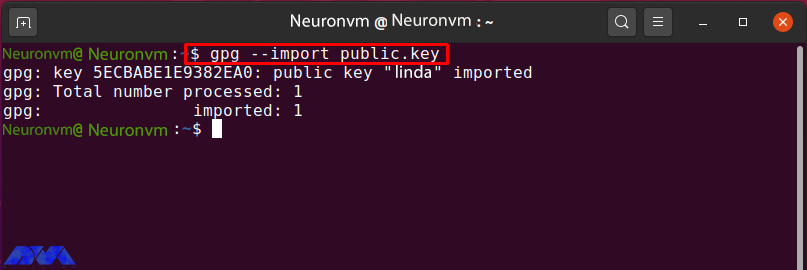
    To enter Linda’s “public.key”, run the “gpg” command with the “import” option:

    gpg --import public.key

    The following output indicates that the public key “Linda” has been entered correctly:

    Encrypt and Decrypt with PGP on Ubuntu

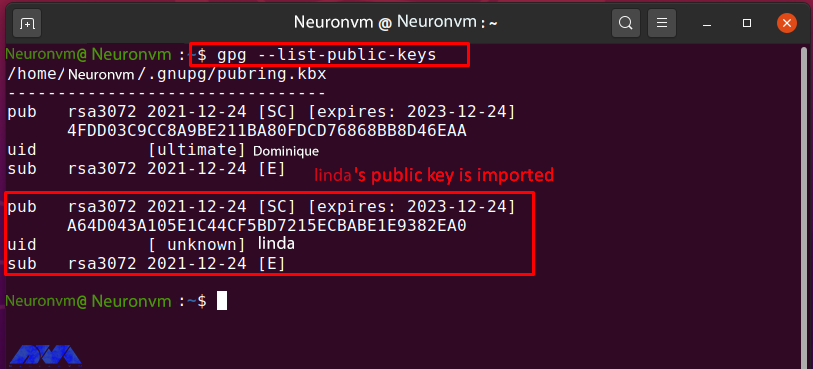
    List the “Neuronvm” public key to confirm the specified operation:

    gpg --list-public-keys

    The successfully entered Linda public key can be seen in the image below:

    How to enter a public key with GPG

    How to Edit the key trust Value with GPG

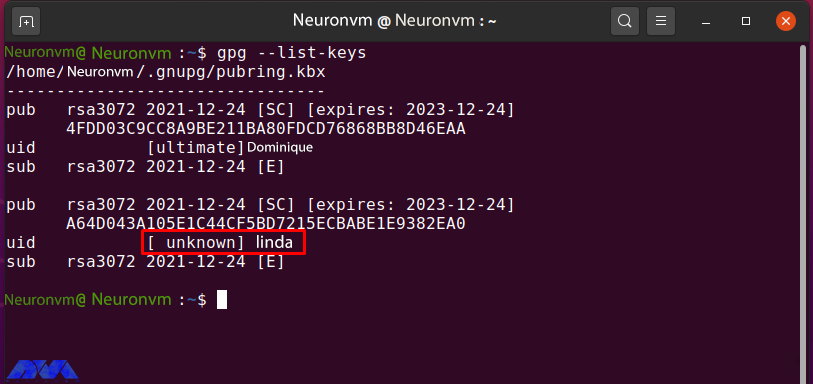
    After entering Linda’s public key into the “Neuronvm” key, enter the amount of trust that is unknown at this point:

    gpg --list-keys

    How to Editing the key trust Value with GPG

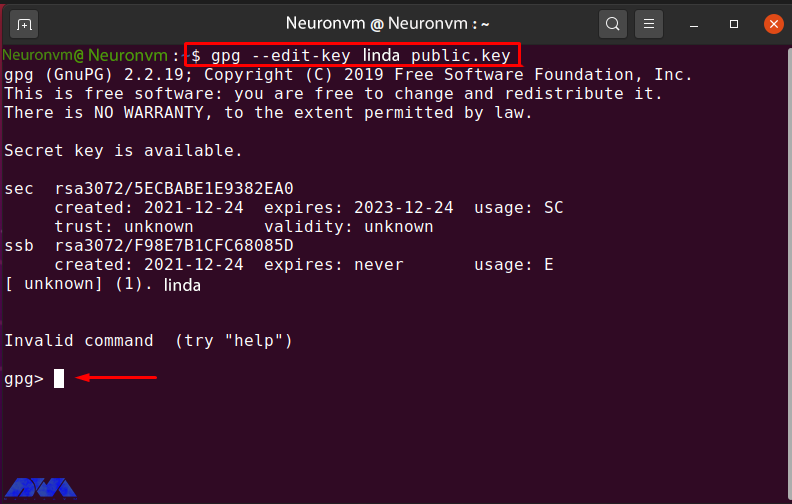
    Enter the following GPG command to edit Linda’s public key trust value:

    gpg --edit-key linda public.key

    How to editing the key trust value with GPG

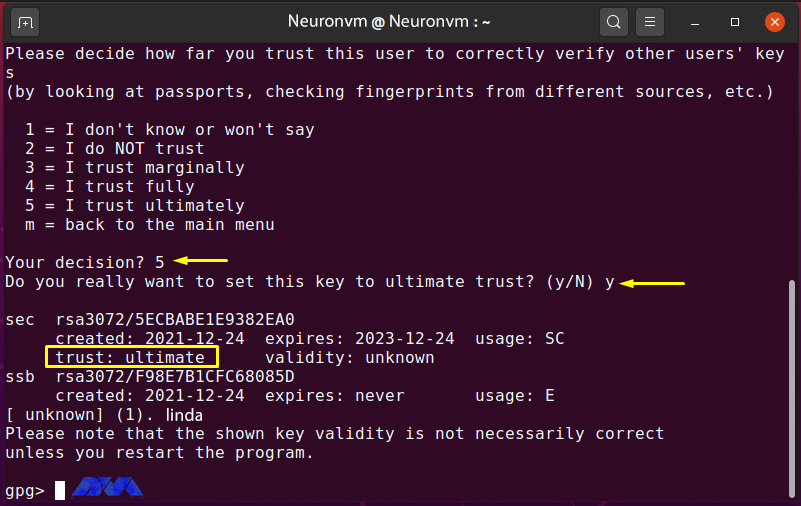
    Type “trust” and hit “Enter” to check the trust menu options:

    gpg> trust

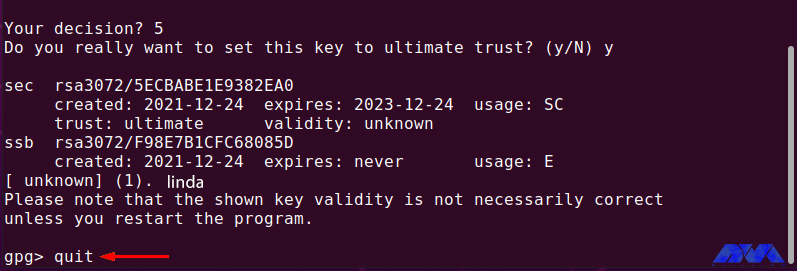
    Then enter “5” to make sure you “finally” trust Linda’s public key:

    Encrypt and Decrypt with PGP on Ubuntu

    Exit GPG edit by typing “quit” and pressing “Enter“:

    gpg> quit

    How to edit the key trust value with GPG

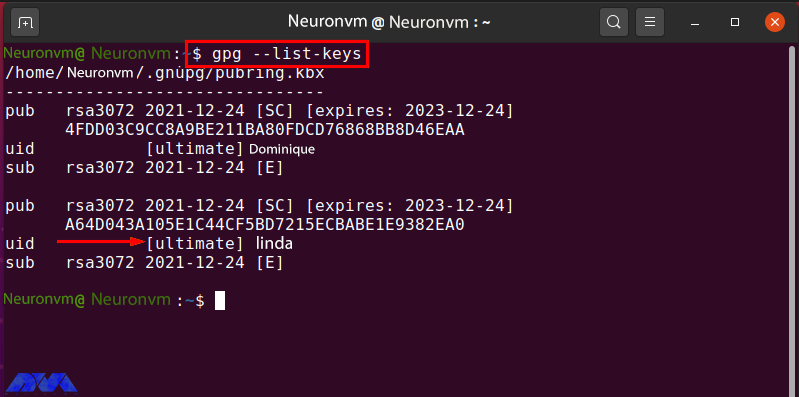
    Now list the “gpg” keys again and check the trust value of the “linda” key:

    gpg --list-keys

    How to editing the key trust value with GPG

    How To Encrypt Files with GPG 

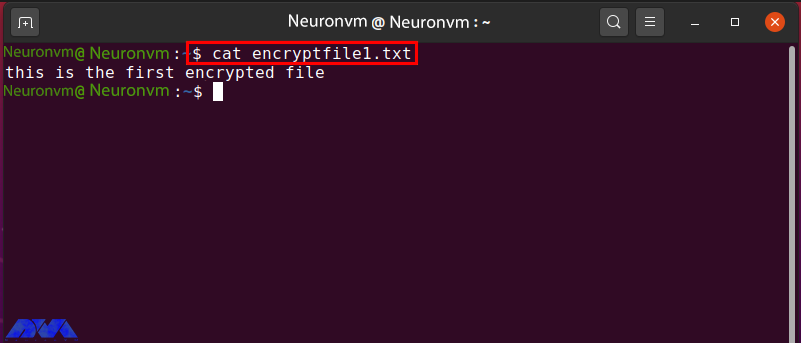
    In the “Neuronvm” system there is a file called “encryptfile1.txt” which is encrypted with the public gpg key of Linda. Before moving on to the encryption procedure, check the content in the specified file:

    How To encrypt file with GPG 

    To encrypt a file using the gpg command, enter the following command:

    gpg -e -u [Sender_uid] -r [Receiver_uid] [Filename]

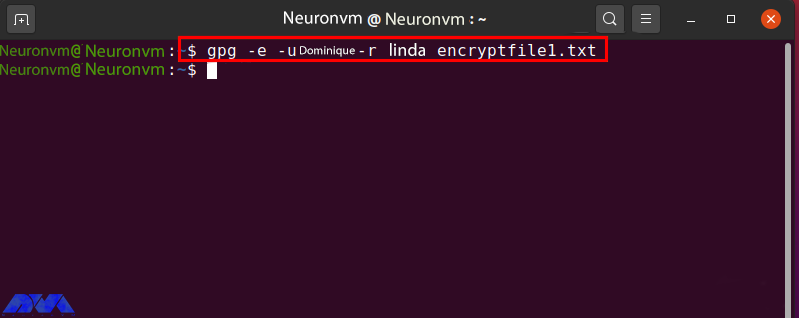
    The “-u” option is now used to specify the sender uid and the “-r” option for the receiver. The secret key of the sender and the public key of the receiver is used to encrypt the file. Now enter the following command to encrypt “encryptfile1.txt” with the individual secret key and Linda’s public key:

    gpg -e -u Dominique-r linda encryptfile1.txt

    How To encrypt file with GPG 

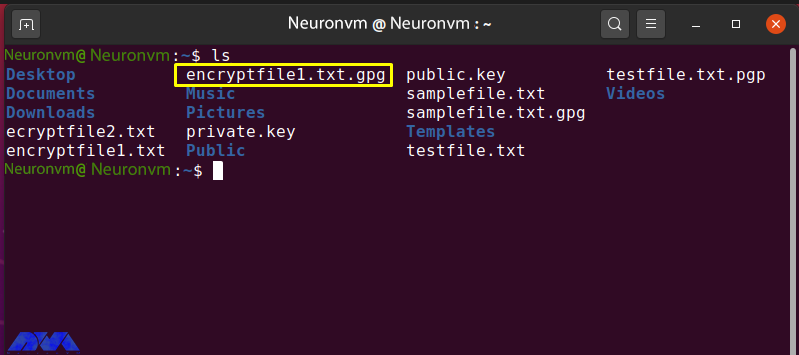
    If the output is error-free, it means that an encrypted file has been successfully registered. To confirm this step, browse the contents of the current directory:

    ls

    The following output indicates that “encrypt file1.txt.gpg” was created for the file of your choice:

    Encrypt and Decrypt with PGP on Ubuntu

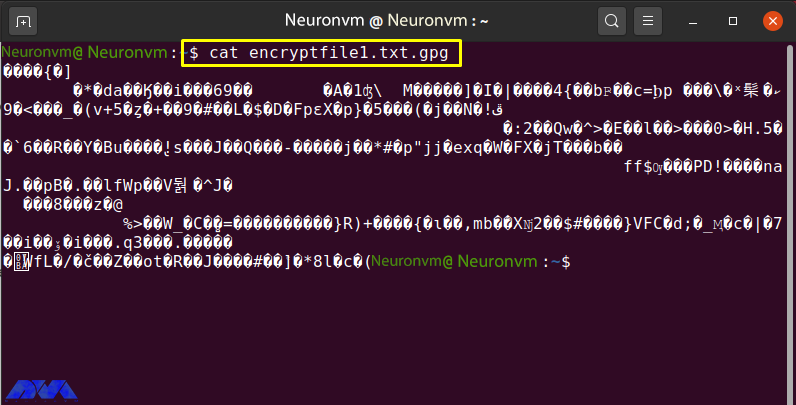
    Check the contents of “encryptfile1.txt.gpg” by running the “cat” command:

    cat encryptfile1.txt.gpg

    The encrypted content “encryptfile1.txt.gpg” in the terminal is shown as follows:

    How To encrypt file with GPG 

    Share the encrypted file with the recipient via email or another method.

    How To Decrypt Files with GPG

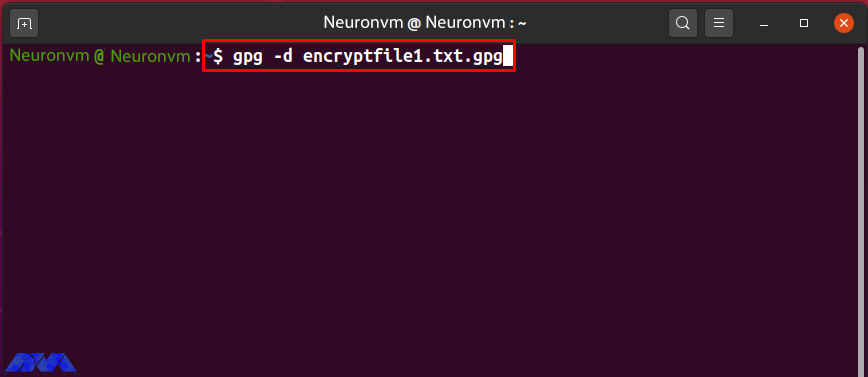
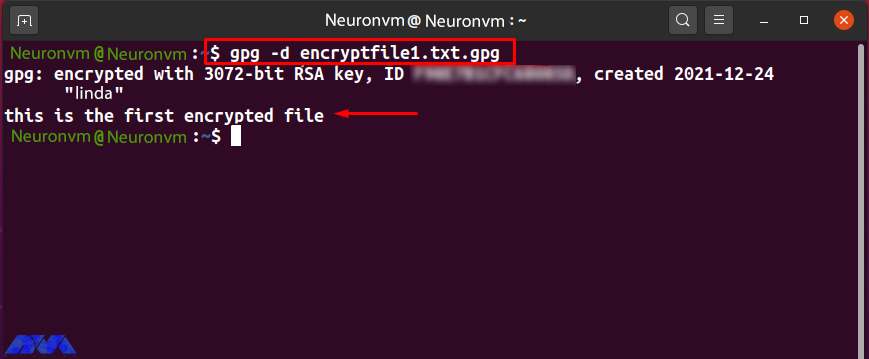
    The “-d” option is added to the “gpg” command to decrypt the encrypted file. Share “encryptfile1.txt.gpg” with the “Neuronvm” user who owns the Linda GPG key pair. Now to decrypt the received file, type the following command:

    gpg -d encryptfile1.txt.gpg

    Decrypt Files with GPG

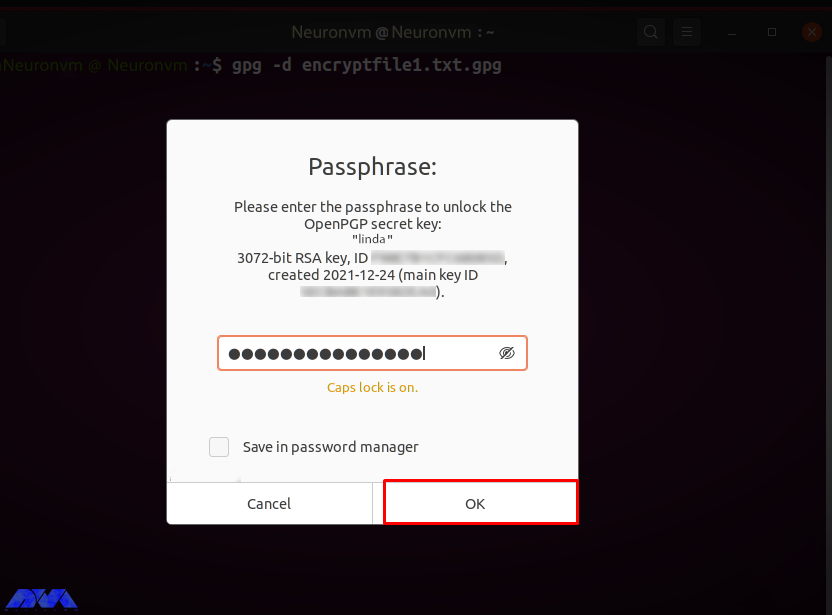
    You are prompted to enter “Passphrase” to unlock Linda’s secret key. Enter the password in the input field and click the “OK” button:

    Encrypt and Decrypt with PGP on Ubuntu

    After entering the correct password, the specified file is decrypted and its contents are displayed in the terminal as follows:

    Encrypt and Decrypt with PGP on Ubuntu

    Conclusion

    PGP encryption is used by companies to exchange data such as files, documents, and emails over the Internet. Also, Protects important information from being misused through email attacks. Public and private GPG keys are used to encrypt and decrypt files. Without the GPG key, no one can decrypt the data. In this tutorial, you learned how to encrypt and decrypt with PGP on Ubuntu 20.04. We hope you find this tutorial useful. Share your comments with us via the form below.

    FAQ

    How many keys are needed in the PGP encryption and decryption process?

    There should be two different keys for encrypting and decrypting each file, and also, two more keys to sign and verify each file.

    Is it possible to break PGP encryption?

    It is almost impossible to hack or break PGP encryption.

  • Tutorial Install and enable OpenSSH on Ubuntu 22.04

    Tutorial Install and enable OpenSSH on Ubuntu 22.04

    OpenSSH is the premier connection tool for remote login with SSH protocol. If you follow us until the end of this article, you will learn the steps to install and enable OpenSSH on Ubuntu 22.04.

    Introduction To OpenSSH

    OpenSSH encrypts all traffic and eliminates eavesdropping, hijacking, and other attacks. It also provides a large set of secure tunneling capabilities, multiple authentication methods, and sophisticated configuration options. The OpenSSH suite consists of remote operation tools using ssh, scp, and sftp. It also includes key management with ssh-add, ssh-keysign, ssh-keyscan and ssh-keygen.

    Prerequisites

    First, before starting the OpenSSH installation process, you should have a Linux VPS with Ubuntu 22.04. Then, open Ubuntu 22.04 terminal by pressing CTRL+ALT+T then confirm that your system is updated.

    How to Install OpenSSH on Ubuntu 22.04

    Use the following command to update the repository list:

    sudo apt update
    sudo apt upgrade

    Now install the SSH Server package using the following apt command:

    sudo apt install openssh-server
    sudo apt install openssh-client

    How To Enable OpenSSH on Ubuntu 22.04

    At this point, the SSH server service should start automatically, check the status of the SSH server service by running the following commands:

    sudo systemctl start ssh
    sudo systemctl enable ssh

    Now in this step confirm that OpenSSH is working correctly and there are no problems with the help of the following systemctl command:

    sudo systemctl status ssh

    How To Connect SSH Server on Ubuntu 22.04

    After the installation of OpenSSH is complete, once it is in working mode, now connect to another remote system, computer, or server. However, you must ensure that OpenSSH is installed and enabled on the remote system. Before connecting to the server, have the internal/external IP address or hostname or username of the account you want to connect. Then run the following command:

    ssh username@ip-address/hostname

    How To Disable OpenSSH on Ubuntu 22.04

    If you don’t want to use OpenSSH, use the following command to disable it for security purposes so that you don’t get detected by malicious bots:

    sudo systemctl disable ssh –now

    Conclusion

    In this article, you have learned how to Install and enable OpenSSH on Ubuntu 22.04. Now after enabling OpenSSH, you can connect to other devices that have OpenSSH installed and enabled on their systems. We hope this educational article was useful for you. Share your comments with us through the form below.