Category: Rocky Linux

  • Tutorial Set Up Time Synchronization on Rocky Linux

    Tutorial Set Up Time Synchronization on Rocky Linux

    Accurate timekeeping is a critical component in the deployment of modern software. On the other hand, it should be noted that out-of-sync time can cause errors, data corruption, and other difficult debugging issues. By reading this article, you will learn how to Set Up Time Synchronization on Rocky Linux. Therefore, if you are interested in Rocky Linux distribution, we suggest that you stay with us until the end of this article.

    What is Time Synchronization?

    Time Synchronization is the process of synchronizing the time of independent clocks. Clocks will diverge without synchronization. Clocks and timepieces often use relatively low-cost components that are not accurate. Time Synchronization creates time accuracy between computer clocks in an Ethernet system.

    A client’s time may be synchronized with another server, a reference time source such as a radio or satellite receiver, or a GPS time server. Typical time service configurations use additional servers and diverse network paths to provide high accuracy and reliability. In the continuation of this article, learn about the setup time synchronization on Rocky Linux.

    How to Set Up Time Synchronization on Rocky Linux

    First, you should buy a Linux VPS with the Rocky Linux Operating system. We recommend that you visit the quality and affordable plans on our website. In the beginning, you should list the available time zone by entering the following command:

    sudo timedatectl list-timezones

    Now you need to set the timezone of your location using the following command:

    sudo timedatectl US/Canada

    There are two types of NTP daemons including chronyd and ntpd. To avoid two NTP daemons from running on the same machine at a time, select one and use it.

    In this article, you can synchronize time with the help of two NTP daemons:

    1) Time Synchronization using chronyd which is suitable for virtual systems.

    2) Time Synchronization using ntpd which is suitable for the network systems.

    Time Synchronization Using chronyd

    First, you can install the chronyd package with the following command:

    sudo yum install chrony

    chronyd can be used to manually synchronize Rocky Linux server time with the remote NTP server:

    chronhyd -q 'server 0.europe.pool.ntp.org iburst'

    Then run the following command to start the chronyd service:

    sudo systemctl start chronyd

    Now you should edit the configuration file:

    sudo vi /etc/chrony.conf

    Next, you should add the following lines:

    server 0.centos.pool.ntp.org iburst
    server 1.centos.pool.ntp.org iburst
    server 2.centos.pool.ntp.org iburst
    server 3.centos.pool.ntp.org iburst
    server 0.rhel.pool.ntp.org iburst
    server 1.rhel.pool.ntp.org iburst
    server 2.rhel.pool.ntp.org iburst
    server 3.rhel.pool.ntp.org iburst

    Now save the file and exit and then restart the services by entering the following command to apply the changes:

    sudo systemctl restart chronyd

    You need to enable these services to run at every boot:

    sudo systemctl enable chronyd

    You can verify if your time system is synchronized or not with the following command:

    chronyc tracking

    Reference ID is the ID and name of the server with which your system time is currently synchronized. Stratum indicates the number of hops away from the server connected to the reference clock.

    The following command can list information about the current time sources that chronyd uses:

    chronyc sources

    You can list information about drift speed and offset estimation of any source that uses chronyd with the following command:

    chronyc sourcestats -v

    Time Synchronization Using ntpd

    First of all, install the ntpd package by executing the following command:

    sudo yum install ntp

    Next, you need to start the ntpd services using the following command:

    sudo systemctl start ntpd

    Now you should edit the configuration file.

    sudo vi /etc/ntp.conf

    Then you should add the following lines:

    server 0.centos.pool.ntp.org iburst
    server 1.centos.pool.ntp.org iburst
    server 2.centos.pool.ntp.org iburst
    server 3.centos.pool.ntp.org iburst
    server 0.rhel.pool.ntp.org iburst
    server 1.rhel.pool.ntp.org iburst
    server 2.rhel.pool.ntp.org iburst
    server 3.rhel.pool.ntp.org iburst

    Save the file and exit.

    Now you need to restart the services by executing the following command for the changes to take effect:

    sudo systemctl restart ntpd

    Finally, you should enable services using the following command to run them on every boot:

    sudo systemctl enable ntpd

    Conclusion

    Time Synchronization is essential to determine certain activities of a computer. Every modern system has a mechanism that automatically sets the time of the machine. NTP is one of these mechanisms, and this article taught you how to synchronize time with your NTP server. In this article, you were taught how to set up Time Synchronization on Rocky Linux.

  • Tutorial Install WHM/Cpanel on Rocky Linux

    Tutorial Install WHM/Cpanel on Rocky Linux

    One of the most popular web hosting control panels in Linux is Cpanel, Which uses a graphical interface to manage and host websites on a server. So you can easily control your website. Follow the instructions to have this useful web server. After reading this post, if you follow all the mentioned steps carefully, you will learn how to Install WHM/Cpanel on Rocky Linux.

    Installing WHM/Cpanel on Rocky Linux

    Let’s see how you can do the installation step by step to have WHM then access to management part and manage your website.

    Prerequisites

    _ A Linux VPS with Rocky Linux OS

    _1.1 GHz processor and 2 GB RAM (1 is also fine)

    _ Having a license for the cpanel web server (go to the Cpanel Store to provide a license)

    _ A valid static IP address

    _ Configuration of your Ethernet device with a static IP address and fully qualified hostname

    _ Disabling the Linux OS firewall before the installation process

    How to Install WHM/Cpanel

    Follow the commands to have a successful installation process for Cpanel.

    1- Update your exciting package to the latest version:

    yum update 
    yum upgrade

    2- As Cpanel is written in Perl, install the Perl command and install curl to download Cpanel installation script:

    yum install perl curl

    3- use the command below to start the automatic installation of WHM/cpanel:

    cd /home && curl -o latest -L https://securedownloads.cpanel.net/latest && sh latest

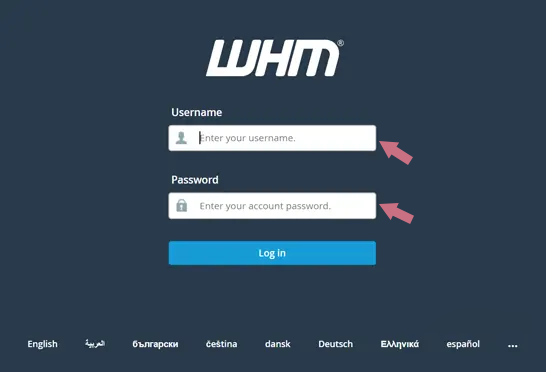
    4- Now you should log into WHM. So enter (https://Server_IP:2087) in your browser’s address bar. Then enter your Rocky Linux root user and password to access data and confirm the terms and conditions:

    how to install whm/cpanel on rocky linux

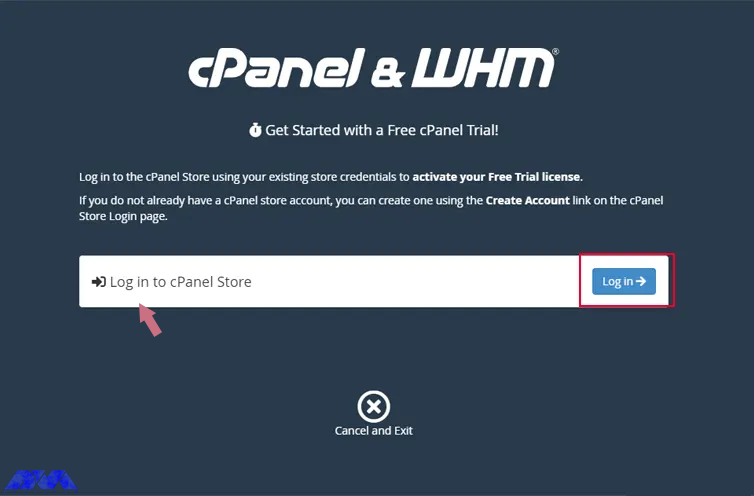
    5- Here, you can get the license on Cpanel Store or use the free 15-day trial to create an account with the WHM service by clicking the Log in button:

    cpanel license from Cpanel Store

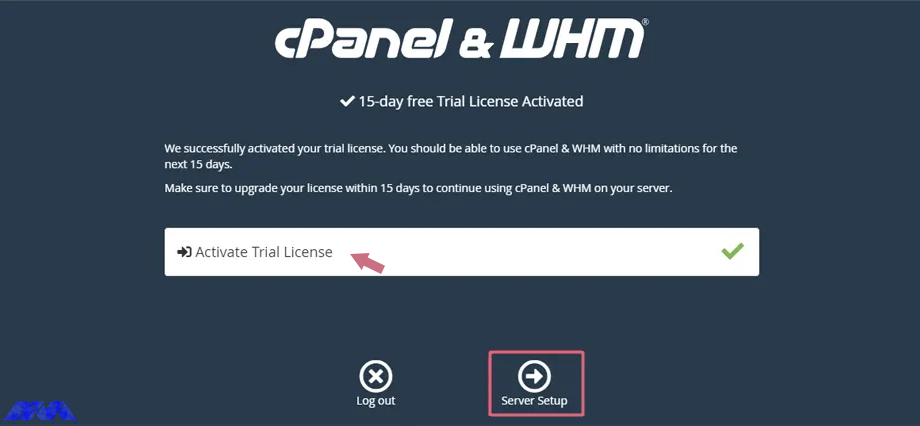
    After visiting the Cpanel store, you can buy the license you want. You can also activate it for free testing and use it for 15 days. Here we use a free license.

    activate license

    WHM Dashboard and Directories

    In case you need to access different parts of Cpanel, you can go through the directories for Cpanel installed stuff, here are some of the directories:

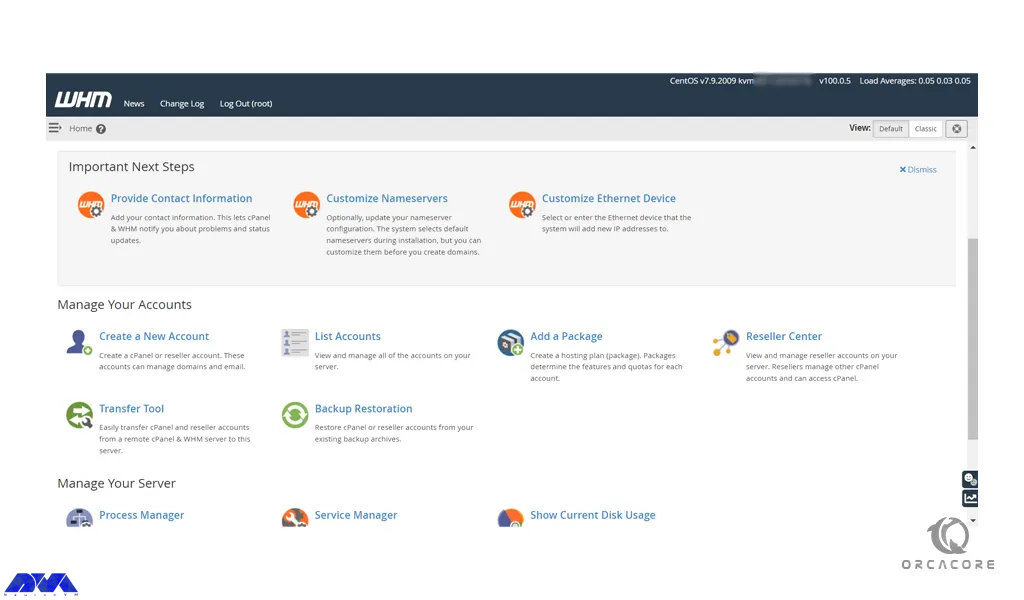
    WHM dashboard

    _ The pass for Cpanel directories: /usr/local/cpanel

    _ Cpanel binaries: /usr/local/cpanel/bin/

    _ Third-party tools: /usr/local/cpanel/3rdparty/

    _ Cpanel add-ones or directories: /usr/local/cpanel/addons/

    _ WHM files: /usr/local/cpanel/whostmgr/

    _ CGI files: /usr/local/cpanel/cgi-sys/

    _ Basic files and themes: /usr/local/cpanel/base/

    _ The configuration part for Apache: /etc/httpd/conf/httpd.conf

    _ The configuration directory for Exim mail server: /etc/exim.conf

    _ Configuration files for named: /etc/named.conf/

    _ Cpanel user files: /var/cpanel/users/username

    _ Cpanel configuration files: /var/cpanel/cpanel.config

    _ Directory for configuration files Proftp and pure ftpd: /etc/proftpd.conf and /etc/pure-ftpd.conf

    _ Cpanel update files: /etc/cpupdate.conf

    _ Configuration files for MySQL: /etc/my.cnf

    _ Configuration files for PHP.ini: /usr/local/lib/php.ini

    Conclusion

    Here, we tried to show how you can install WHM/Cpanel on Rocky Linux. Then we showed you some directories to access different parts of Cpanel. Also, you can find out what is needed before installation. We hope you enjoy this article. For any questions or ideas, just leave a comment.

    FAQ

    What is the proper disk space for Cpanel?

    20-40 GB of disk space is suitable for cpanel.

    Does Cpanel support Rocky Linux?

    Yes, it does. Cpanel supports all of the official product release kernels for the Rocky Linux.

  • Tutorial Install DirectAdmin on Rocky Linux

    Tutorial Install DirectAdmin on Rocky Linux

    DirectAdmin helps you manage your web server and website easily. Also, this control panel manages files and provides web server hosting, DNS, backup, and a database. Although DirectAdmin does not include many features of Cpanel, it is still cheaper. After reading this article, you will learn how to install DirectAdmin on Rocky Linux step by step.

    What Is DirectAdmin?

    As we explained before, DirectAdmin is a control panel for hosting websites and allows you to manage all aspects of your site. The technology which is used on this control panel is based on the solid LAMP stack. DirectAdmin is available to install and use on almost all popular Linux operating systems like FreeBSD.

    Prerequisites 

    – Having root access

    – A Linux VPS Server with the Rocky Linux operating system

    – Minimum of 2 GB free space

    – Minimum of 4 GB RAM 

    – 500 GHz CPU 

    Installing DirectAdmin on Rocky Linux

    Here are step-by-step instructions to install DirectAdmin. So follow this guide carefully to have this useful tool on your system.

    In DirectAdmin Installation, first of all, you must obtain the IP license of the server you intend to install. In this regard, you can go to the DirectAdmin website and create an account. Here, you will get a username and password. Now, create a trial license from the created user account and add the IP address of the server where you want this control panel to be installed.  

    Use the command below to find the server IP:

    ip a

    After creating the license, you should return to your Rocky Linux server and run the system update using the following command. This way, you can be sure all the system default packages are up to date. Also, the repo is flushed:

    dnf update

    Now, to install DirectAdmin, you should log in as a root user and run the following script. So, there is no need to go through many commands to do this task cause everything is preconfigured in this script:

    bash <(curl -Ss https://www.directadmin.com/setup.sh || wget -O - https://www.directadmin.com/setup.sh) auto

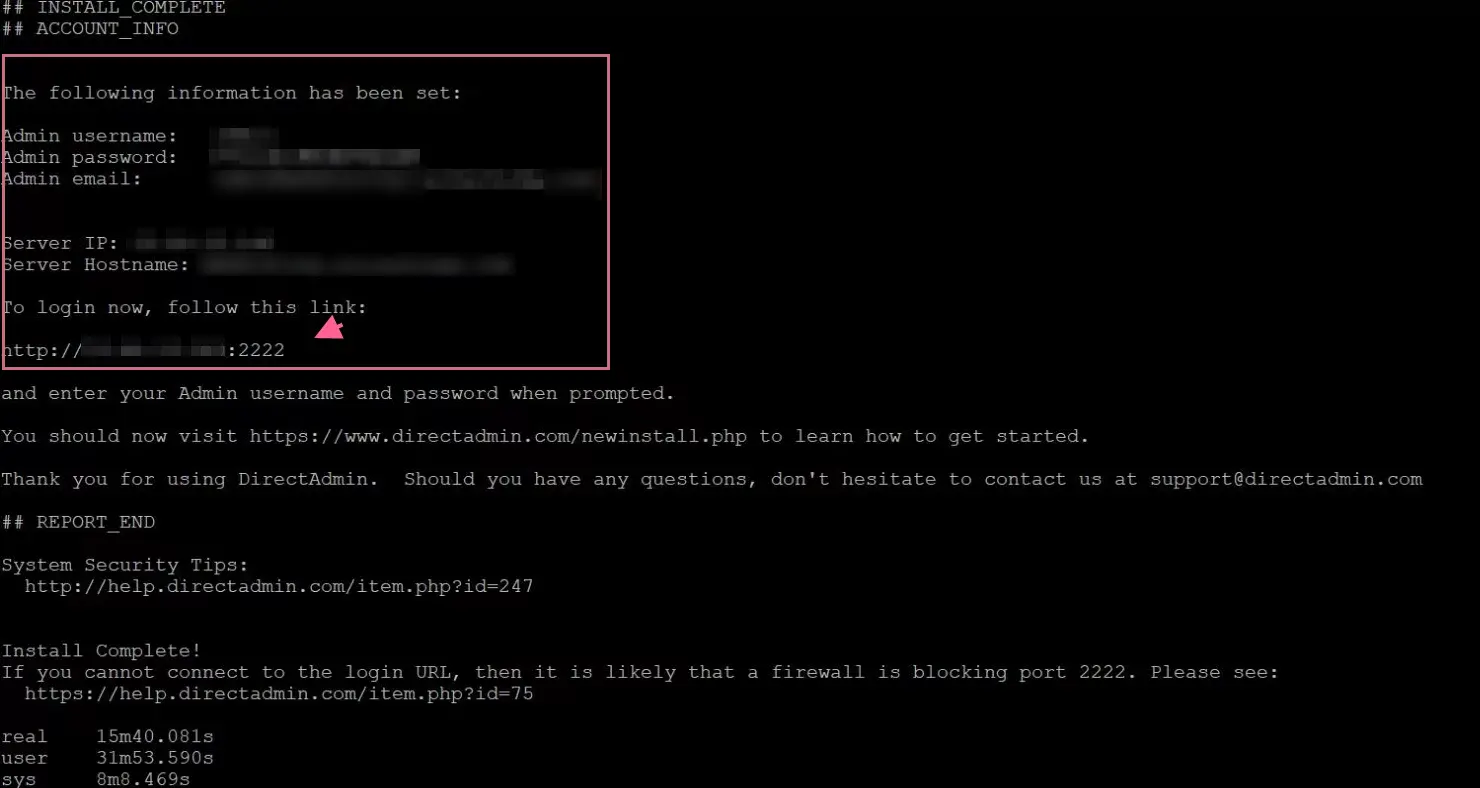
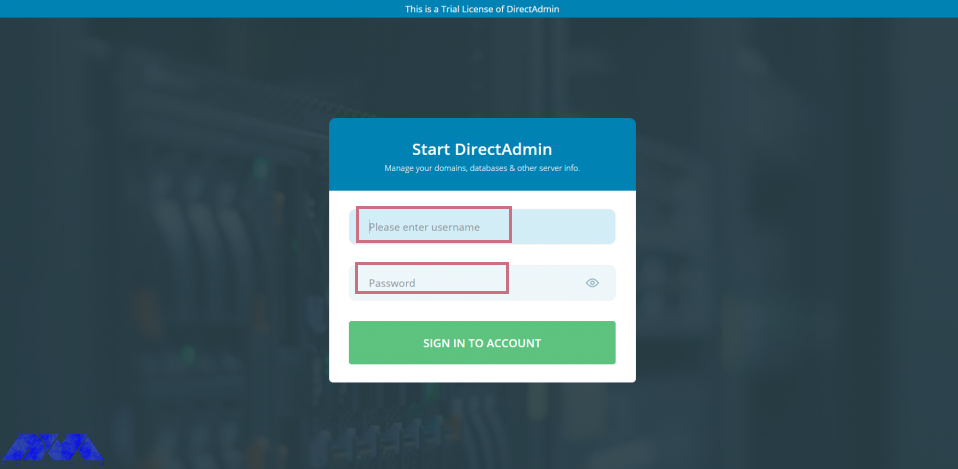
    When you have finished the installation part successfully, it’s time to set by entering the admin username and password along with the login URL, which is your server IP and 2222 port:

    install directadmin on rocky linux

    In case, you don’t have your password or forget it, then there is a command which will help you to recover it.

    So login to the server as root user and run one of the commands below:

    grep adminpass /usr/local/directadmin/scripts/setup.txt

    or

    cat /usr/local/directadmin/scripts/setup.txt

    How to use DirectAdmin

    You can use any system browser to access your server IP address along with the 2222 port:

    http://your-server-ip-address:2222

    Tip: Open the 2222 port in the system or cloud firewall if you can’t access the web interface:

    start direct admin

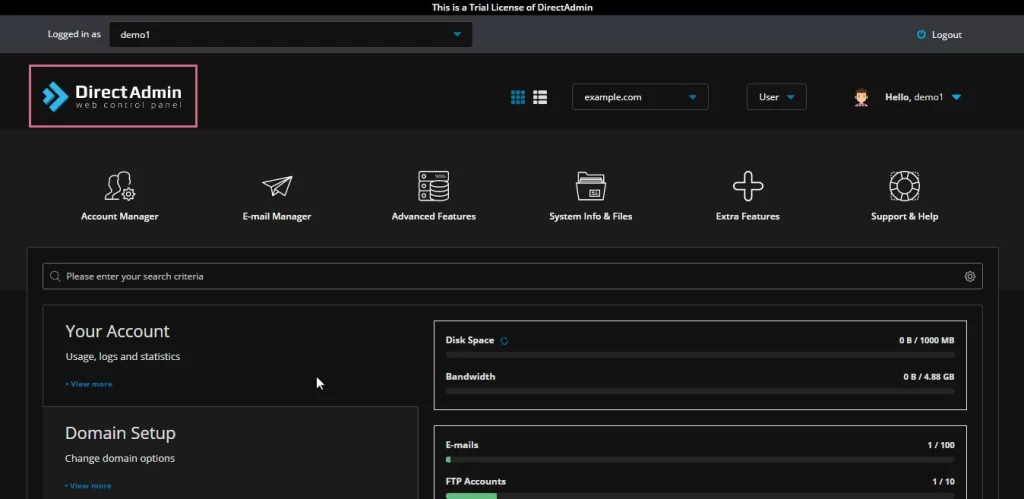
    As the final step, you can see the interface to create user, manager domains, reseller, and all other settings:

    direct admin dashboard

    Conclusion

    In this article, you learned how to install DirectAdmin on Rocky Linux. Now, you are familiar with this useful control panel, and you can manage your website easily. We hope you enjoy it. For any question or idea, just leave a comment.

    FAQ

    How can we Uninstall DirectAdmin?

    It is not possible to uninstall DirectAdmin completely. So you have to reinstall your server if you need another web control hosting panel.