Category: Debian

  • Fedora vs Debian: The Ultimate Linux Showdown

    Fedora vs Debian: The Ultimate Linux Showdown

    Choosing the right Linux distribution can be overwhelming for many users with the vast array of options available. In this blog post, we will explore the differences between Fedora vs Debian, two popular and widely-used Linux distributions. By examining their histories, popularity, user experience, usability, community support, and more, we aim to assist users in making a well-informed decision between Fedora and Debian.

    Fedora vs Debian: Origin Story

    Both Fedora and Debian have a rich history and have grown to become pillars in the world of open source software. Fedora, initially released in 2003, is the upstream distribution of Red Hat Enterprise Linux. It was created as a community-driven project aimed at providing the latest features and technologies to Linux users.

    On the other hand, Debian, originating in 1993, focuses on stability, reliability, and adherence to the Free Software Foundation’s philosophy. It was one of the first Linux distributions and has gained immense popularity due to its commitment to open source principles.

    Popularity and Reasons for Creation: Fedora and Debian enjoy a significant user base, each with its own unique appeal.

    Fedora, backed by Red Hat, benefits from its association with a reputable enterprise software provider. This association has attracted developers, enthusiasts, and those seeking cutting-edge technologies.

    Debian, known for its stability, reliability, and the extensive amount of software available in its repositories, has amassed a dedicated user community over the years. The creation of both distributions aimed to address specific user needs and preferences, providing alternatives in the Linux ecosystem.

    Fedora vs Debian Origin Story

    User Experience and Usability

    When it comes to User Experience (UX) and Usability, Fedora and Debian offer different approaches.

    Fedora is often considered more suitable for users looking for a modern and user-friendly interface. Its default desktop environment, GNOME, provides a visually appealing and intuitive user interface.

    On the other hand, Debian prioritizes stability and reliability over the latest features, which might result in a more conservative user experience. However, Debian offers a broad range of desktop environments, such as GNOME, KDE Plasma, Xfce, and more, allowing users to choose the environment that best suits their preferences.

    User Experience

    Fedora vs Debian: Community and Support

    Community support is an essential aspect when choosing a Linux distribution. Both Fedora and Debian benefit from active and vibrant communities, ensuring continuous development and support.

    Fedora’s community-driven approach encourages collaboration and innovation among its users. It also organizes regular release cycles to deliver the newest features and improvements.

    In contrast, Debian’s community emphasizes stability through rigorous testing processes and conservative updates. This focus ensures long-term support and security for its users.

    Fedora vs Debian: Community and Support

    Package Management, Security, and More

    Another important consideration is package management.

    Fedora utilizes the RPM package manager, which simplifies the installation, upgrade, and removal of software packages.

    Debian, on the other hand, employs the APT package management system, known for its simplicity and robustness.

    In addition to package management, security is another crucial aspect to consider when comparing Fedora and Debian. Both operating systems have their own approaches to ensuring the security of the software packages they offer.

    Fedora has a strong focus on security and incorporates several features to protect its users. One such feature is SELinux (Security-Enhanced Linux), which provides enhanced access control security policies. SELinux helps to enforce mandatory access control, minimizing the potential damage that could be caused by an exploited vulnerability or malicious software.

    On the other hand, Debian has a reputation for being a highly secure operating system. The Debian Security Team actively monitors and patches vulnerabilities in the software packages it maintains. They have an established process for handling security issues, which includes providing timely security updates and advisories to users. Debian’s commitment to security has led it to be recognized as one of the most reliable and stable distributions in terms of security.

    Fedora utilizes the RPM package manager, which simplifies the installation, upgrade, and removal of software packages. Debian, on the other hand, employs the APT package management system, known for its simplicity and robustness.

    Apart from security and package management, there are various other factors that differentiate Fedora and Debian. These include their release cycles, available software repositories, and overall target audience.

    Fedora follows a more frequent release cycle, with new versions being released approximately every six months. This provides users with access to the latest software innovations, features, and improvements. In contrast, Debian has a more conservative release cycle, with major releases occurring at longer intervals. This stability-oriented approach ensures a more thoroughly tested and reliable operating system.

    Fedora vs Debian In depth comparison

    Fedora vs Debian: Overview

    Here’s a quick overview of these two operating system and their features:

    FeaturesFedoraDebian
    Popularity Popular among developers and enthusiastsOne of the oldest and widely used Linux distributions Package Management
    Target AudienceMost suitable for intermediate to advanced usersSuitable for beginner to advanced users
    Release CycleFrequent releases (approximately 6 months)Stable releases (approximately every 2 years)
    StabilityFedora has a version named “Fedora Workstation” which is quite stableDebian is known for its stability
    Package ManagementDNF (Dandified Yum)APT (Advanced Package Tool)
    Community SupportActive and vibrant communityHuge and strong community support Software Availability
    PhilosophyEmphasis on showcasing latest technologiesFocuses on stability and reliability
    Comparing Fedora vs Debian

    Final Words

    In the Fedora vs Debian showdown, the right choice ultimately depends on the user’s needs and preferences. Fedora appeals to those seeking cutting-edge technologies and a visually appealing user experience. On the other hand, Debian provides a stable and reliable environment with extensive software repositories, offering flexibility in choosing desktop environments. Both distributions boast active communities and solid support networks. We hope this comparison has shed light on the key differences between Fedora and Debian, helping users make an informed decision while exploring the vast world of Linux.

  • The Ultimate Guide to Install Mysql on Debian

    The Ultimate Guide to Install Mysql on Debian

    One of the best relational database systems available for free and open-source to store data is MySQL. This database provides data in table format and with two versions of community server or enterprise server. The source code is the same in both versions, but Enterprise is not free. It is provided in a special way and has the ability to add other plugins. Developers and those with online businesses use MySQL to store data in electronic websites, content management systems, and more. This guide will examine how to install MySQL on Debian.

    Prerequisites

    Here are some requirements before installing MySQL on Debian on Linux VPS or operating systems:

    • An up-to-date Debian distribution
    • Root access or an account with sudo privileges

    4 Simple Steps to Install MySQL on Debian

    Follow the instructions below to have a successful and hassle-free installation process for MySQL on Debian.

    Step 1. Adding MySQL Dev APT Repository

    You can find MySQL packages on the official MySQL dev apt repository:

    sudo apt update && sudo apt -y  install wget
    wget https://repo.mysql.com//mysql-apt-config_0.8.26-1_all.deb
    sudo dpkg -i mysql-apt-config_0.8.26-1_all.deb

    You should press OK and agree to configure MySQL repositories. Also, you will encounter a prompt that asks you to confirm the addition of MySQL repositories as default. Press OK:

    add MySQL repository

    Finally, press Enter/OK to confirm the version installation.

    Tip: If the version of Debian is 12, select the Bullseye repository and then add this:

    echo "deb http://security.debian.org/debian-security bullseye-security main" | sudo tee /etc/apt/sources.list.d/bullseye-security.list

    Step 2. Installing MySQL Packages

    Now that you have added the repository, use the following command to install MySQL on Debian. The first command will update the repository:

    sudo apt update
    sudo apt install mysql-server

    Provide a password, cause you will be asked to give a root password:

    provide password for MySQL

    To confirm the new password, you have to re-enter it:

    root password confirmation - Install Mysql on Debian

    Finally, you must select the authentication plugin and click OK to complete the installation of MySQL on Debian:

    select authentication plugin - Install Mysql on Debian

    Use the apt-policy command to check the version installed:

    apt policy mysql-server
    mysql-server:
      Installed: 8.0.34-1debian11
      Candidate: 8.0.34-1debian11
      Version table:
     *** 8.0.34-1debian11 500
            500 http://repo.mysql.com/apt/debian bullseye/mysql-8.0 amd64 Packages
            100 /var/lib/dpkg/status

    After following the steps above, the MySQL database should start by default. To know the status of the service, you can use the following command:

    systemctl status mysql 
    ● mysql.service - MySQL Community Server
         Loaded: loaded (/lib/systemd/system/mysql.service; enabled; vendor preset: enabled)
         Active: active (running) since Wed 2023-09-27 14:10:16 UTC; 22s ago
           Docs: man:mysqld(8)
                 http://dev.mysql.com/doc/refman/en/using-systemd.html
        Process: 26431 ExecStartPre=/usr/share/mysql-8.0/mysql-systemd-start pre (code=exited, status=0/SUCCESS)
       Main PID: 26590 (mysqld)
         Status: "Server is operational"
          Tasks: 38 (limit: 2340)
         Memory: 358.2M
            CPU: 1.831s
         CGroup: /system.slice/mysql.service
                 └─26590 /usr/sbin/mysqld
    
    Sep 27 14:10:15 debian11 systemd[1]: Starting MySQL Community Server...
    Sep 27 14:10:16 debian11 systemd[1]: Started MySQL Community Server.

    Step 3: Testing the MySQL Installation

    To check if the MySQL service is working correctly, you can test it.

    You should login as the root user and enter the password you created before:

    mysql -u root -p 
    Enter password: 
    Welcome to the MySQL monitor.  Commands end with ; or \g.
    Welcome to the MySQL monitor.  Commands end with ; or \g.
    Your MySQL connection id is 8
    Server version: 8.0.34 MySQL Community Server - GPL
    
    Copyright (c) 2000, 2023, Oracle and/or its affiliates.
    
    Oracle is a registered trademark of Oracle Corporation and/or its
    affiliates. Other names may be trademarks of their respective
    owners.
    
    Type 'help;' or '\h' for help. Type '\c' to clear the current input statement.
    
    mysql> SELECT VERSION();
    +-----------+
    | VERSION() |
    +-----------+
    | 8.0.34    |
    +-----------+
    1 row in set (0.00 sec)

    In this section, you can create a database and user but just for testing:

    CREATE USER 'test_user'@'localhost' IDENTIFIED BY "Jek1oleiboafei4eeghu";
    CREATE DATABASE test_db;
    GRANT ALL PRIVILEGES ON test_db.* TO 'test_user'@'localhost';
    FLUSH PRIVILEGES;
    QUIT

    Now that you have a test user, try to access the database console:

    mysql -u test_user -p 
    ...
    Type 'help;' or '\h' for help. Type '\c' to clear the current input statement.
    
    mysql> SHOW DATABASES;
    +--------------------+
    | Database           |
    +--------------------+
    | information_schema |
    | test_db            |
    +--------------------+
    2 rows in set (0.01 sec)
    
    mysql> QUIT

    If your login is approved, and you are able to use the assigned database. It means your installation has been successful. Now log in as root again and drop the test database:

    mysql> DROP DATABASE test_db;
    Query OK, 0 rows affected (0.11 sec)
    
    mysql> DROP USER 'test_user'@'localhost';
    Query OK, 0 rows affected (0.11 sec)
    
    mysql> SELECT USER FROM mysql.user;
    +------------------+
    | USER             |
    +------------------+
    | mysql.infoschema |
    | mysql.session    |
    | mysql.sys        |
    | root             |
    +------------------+
    4 rows in set (0.00 sec)
    
    mysql> QUIT
    Bye

    Conclusion

    MySQL is a great database to use on different online platforms. One of the advantages of this technology is that you can use it for free. Here we tried to give you a straightforward guide to teach you how to install it on different versions of the Debian operating system. Follow the steps and enjoy using this useful database. let us know if you encounter any problems with this tutorial.

  • Setting Up phpMyAdmin on Debian: A Comprehensive Guide

    Setting Up phpMyAdmin on Debian: A Comprehensive Guide

    phpMyAdmin is a widely-used open-source tool for managing MySQL databases through a web interface. As one of the most popular database management tools, phpMyAdmin provides a user-friendly interface to handle various database tasks. This comprehensive guide will walk you through the process of setting up phpMyAdmin on Debian, ensuring you have a smooth and hassle-free experience in managing your MySQL databases. For applying all of these steps, we recommend you to get a Linux VPS with Debian OS and get going.

    What is phpMyAdmin?

    phpMyAdmin is a free and open-source web-based application written in PHP, specifically designed to handle the administration and management of MySQL and MariaDB databases. It allows users to interact with their databases through a user-friendly graphical interface, eliminating the need to manually input queries through the command line.

    Some of the uses of phpMyAdmin include:

    1. Database administration: phpMyAdmin provides a comprehensive set of tools for managing databases, including creating, modifying, and deleting databases, tables, fields, and indexes.
    2. Data manipulation: Users can easily perform operations like inserting, updating, and deleting data from the database tables. It offers an intuitive interface to interact with the data and make changes.
    3. Query execution: phpMyAdmin allows users to execute SQL queries directly within the application. This makes it a valuable tool for database developers and administrators to write and test queries without relying solely on command line interfaces.
    4. Database import and export: phpMyAdmin supports importing and exporting databases in various formats, such as SQL, CSV, XML, etc. This feature enables users to move data between different databases or backup and restore their database contents.
    5. User management: It offers functionalities to manage user privileges and permissions, allowing administrators to create and manage multiple users with different levels of access to the database.
    6. Database maintenance: phpMyAdmin provides tools to optimize and repair database tables, allowing users to improve their database performance and maintain data integrity.
    phpMyAdmin on Debian

    Overall, phpMyAdmin simplifies the management and administration of MySQL and MariaDB databases, making it easier for users to perform various database-related tasks without extensive knowledge of SQL or command line interfaces.

    Installing the Required Packages

    Before we can set up phpMyAdmin on Debian, we need to make sure that the necessary packages are installed. The first step is to update the package lists using the following command:

    sudo apt update

    Once the package lists are updated, we can proceed to install phpMyAdmin and other required packages by executing the command:

    sudo apt install phpmyadmin php-mbstring php-gettext php-mcrypt

    During the installation process, you will be prompted to choose the web server that should handle phpMyAdmin. Select the appropriate web server (such as Apache or Nginx) and click “Ok.”

    Requirements to install phpMyAdmin

    Configuring phpMyAdmin on Debian

    After installing the required packages, you need to configure phpMyAdmin to work properly. By default, Debian does not enable the phpMyAdmin Apache configuration, so we need to enable it manually. Run the following command to enable the configuration:

    sudo phpenmod mbstring

    Next, we need to add the phpMyAdmin Apache configuration to the Apache configuration file. Execute the command below:

    sudo ln -s /etc/phpmyadmin/apache.conf /etc/apache2/conf-available/phpmyadmin.conf

    Once you created the symlink, we can enable the configuration by running:

    sudo a2enconf phpmyadmin

    Finally, restart the Apache web server to apply the changes:

    sudo systemctl restart apache2
    Configuring phpMyAdmin on Debian

    Practical Guide to Setting Up phpMyAdmin on Debian

    Now that you installed and configured phpMyAdmin, we can access it through a web browser. Open your favorite browser and enter your server’s IP address or domain name, followed by “/phpmyadmin” (for example, http://your-server-ip/phpmyadmin). You will be presented with the phpMyAdmin login screen.

    Practical guide to setting up phpMyAdmin

    Enter the MySQL username and password to log in to phpMyAdmin. Once logged in, you can start managing your databases, creating new tables, running queries, and performing various database operations through the intuitive web interface offered by phpMyAdmin.

    Conclusion

    By following this comprehensive guide, you have successfully setup phpMyAdmin on Debian, allowing you to efficiently manage your MySQL databases through a web interface. Now you can take advantage of phpMyAdmin’s powerful features to simplify your database management tasks and streamline your workflow. Whether you are a beginner or an experienced user, phpMyAdmin on Debian is an excellent tool to enhance your database administration capabilities.

  • The Great Linux Rivalry: Debian vs Ubuntu

    The Great Linux Rivalry: Debian vs Ubuntu

    The world of Linux is vast and diverse, with numerous distributions catering to different preferences and needs. Among these, Debian and Ubuntu stand out as two of the most popular choices. Both Debian and Ubuntu share a common ancestry, but they have distinct characteristics and qualities that fuel the never-ending debate of “Debian vs Ubuntu.” In this article, we will delve into the intricacies of these two operating systems, examining their origins, usability, package management, and community support to shed light on the great Linux rivalry.

    By the way, you can get a Linux VPS today with the distribution of your choice and start your Linux journey.

    The Origin Story

    The Origin Story Debian and Ubuntu both trace their roots back to the Linux operating system, but their paths diverge in terms of their origins. Debian, founded in 1993 by Ian Murdock, was one of the pioneering Linux distributions. Its primary aim was to create a stable and reliable operating system by adhering to rigorous quality standards.

    Debian’s commitment to the principles of free software, emphasizing the importance of open-source code and community collaboration, has been a defining feature. As a result, it has built a strong reputation among developers and users who value stability, security, and the ability to customize their Linux environment extensively.

    Understanding the origins of Debian and Ubuntu sheds light on the ongoing Debian vs Ubuntu debate. While both distributions share a common heritage, they have evolved to serve different user needs.

    On the other hand, Ubuntu emerged in 2004 as a Debian-based distribution, with Mark Shuttleworth leading its development. Ubuntu aimed to bring the power of Linux to a broader audience by prioritizing user-friendliness and ease of installation. Unlike Debian, which had a reputation for being more suitable for experienced users, Ubuntu targeted newcomers to Linux with its intuitive interface and straightforward installation process.

    This focus on accessibility helped Ubuntu gain popularity rapidly, especially among home users, students, and those transitioning from other operating systems.

    Debian vs Ubuntu Origin Story

    Debian vs Ubuntu: Usability and User Experience

    One of the key factors that differentiates Debian and Ubuntu is their approach to usability and user experience. Debian emphasizes stability and reliability over ease of use, making it an ideal choice for experienced users and server environments.

    On the contrary, Ubuntu places great importance on providing a user-friendly interface, intuitive installation process, and comprehensive device compatibility, catering to a broader audience, including newcomers to the Linux ecosystem. This variance in usability often leads to divergent opinions among Linux enthusiasts evaluating Debian vs Ubuntu.

    Debian vs Ubuntu: Usability and User Experience

    Package Management Systems

    Another critical aspect that sets Debian and Ubuntu apart is their package management systems. Debian utilizes its advanced package management tool, Advanced Package Tool (APT), along with Debian packages (DEB). APT ensures effective dependency resolution, seamless updates, and a vast repository of software packages.

    Ubuntu leverages the same APT system but evolves it further with its own graphical front-end package manager called Ubuntu Software Center. Moreover, Ubuntu also introduced Snap packages, allowing for enhanced software distribution with stronger isolation.

    The differences in packaging systems between Debian and Ubuntu can greatly influence the software installation and management experiences for users on each platform.

    Package Management Systems

    Community Support and Philosophies

    In the world of open-source software, community support plays a vital role, and Debian and Ubuntu boast vibrant and dedicated communities.

    Debian, with its focus on stability and free software principles, has built a devoted community centered around openness and transparency.

    Ubuntu, with its emphasis on user-friendliness, attracts users seeking a more polished and accessible experience.

    Both distributions benefit from active communities that provide extensive documentation, support forums, and constant development efforts, contributing to the longevity and success of Debian and Ubuntu.

    Community Support Debian and Ubuntu

    General Overview: Debian vs Ubuntu

    Here’s a quick comparison between these two popular Linux distributions:

    FeaturesDebianUbuntu
    Target AudienceExperienced users, developers, and server administratorsGeneral desktop and server users
    Release CycleStable and conservative release cycle with longer intervals between major updatesSix-month release cycle with a focus on the latest software packages
    Package ManagementUses apt package manager with .deb packagesAlso uses apt package manager with .deb packages
    Snap PackagesDoes not natively support Snap packages by defaultSupports Snap packages for easy software installation
    Desktop EnvironmentOffers a wide range of desktop environments and window managersUses GNOME as the default desktop environment, but provides several other options
    Commercial SupportProvides community support and professional support through third-party companiesOffers professional support through Canonical Ltd, the company behind Ubuntu
    PopularityHighly respected in the open-source community with a strong focus on stabilityOne of the most popular Linux distributions for desktop and server usage

    Final Words

    While the Debian vs Ubuntu rivalry sparks lively debates among Linux enthusiasts, the reality is that both distributions offer valuable and distinct experiences. Debian’s stability and principles are favored by those seeking control and reliability. On the other hand, Ubuntu appeals to a broader audience, with its user-friendly interface and ease of use. Ultimately, choosing between Debian and Ubuntu boils down to personal preferences, and the desired balance between stability and convenience. Regardless of which camp one aligns with, both Debian and Ubuntu serve as powerful representatives of the Linux ecosystem, pushing the boundaries of open-source software.

    FAQ

    Q: Which operating system is more up-to-date in terms of software packages?

    A: Generally, Ubuntu tends to have more up-to-date software packages compared to Debian. Ubuntu’s release cycle is more frequent, allowing for quicker updates. Debian, on the other hand, follows a more conservative approach to ensure stability.

    Q: Which operating system has better community support? Debian or Ubuntu?

    A: Both Debian and Ubuntu have strong and active communities. Although Ubuntu’s community support is often considered more extensive and user-friendly due to its larger user base and focus on a user-friendly experience. Debian also has an active community, particularly among experienced users and developers.

    Q: Can software developed Debian run on the Ubuntu and vise versa?

    A: Yes, software developed for Debian can generally run on Ubuntu without issues since Ubuntu is based on Debian. However, compatibility issues may arise in some cases when dealing with very specific system configurations or software packages.

    Q: Is Debian or Ubuntu recommended for servers?

    A: Debian is considered the go-to choice for servers due to its stability, extensive software repositories, and long-term support options. Its robust security updates and conservative nature make it reliable for critical server environments. Ubuntu also offers server editions with similar features, but Debian’s reputation makes it a popular choice among server administrators.

  • Boosting Performance: How to Optimize MongoDB on Your Debian Server

    Boosting Performance: How to Optimize MongoDB on Your Debian Server

    What is your suggestion to boost the performance of your server? This article has been prepared to examine how to optimize MongoDB on your Debian server and boost your performance. This database’s work depends on how it uses the underlying resources, and its task is to store data on disk and memory. MongoDB uses a CPU for its performance and a network for communication with users or clients. So, let’s go deeper and examine this issue from different aspects.

    Understanding the performance bottlenecks in MongoDB

    When performance issues appear, it indicates that the database is running at full capacity, so it’s time to add extra capacity to the system database. Especially, since the working program of the system must be located in the physical memory. Of course, performance problems may be temporary and related to high traffic load. Here, are some common issues with the performance of MongoDB:

    – It is possible that the high network delay between applications and MongoDB servers will cause a delay in data recovery and updating.

    – If the profiles are misused, it can severely affect the performance of the query, so you need to create the appropriate profiles for administrators.

    – As mentioned before, the performance of MongoDB completely depends on the underlying hardware. So if the RAM is insufficient or the disks are slow or the processor is weak, they will cause problems.

    – Poorly designed queries that do not use indexes effectively can cause significant performance degradation.

    – If the replication is done slowly, it may affect the data access among the members of the replica set and lead to an increase in the read latency.

    – The mechanism that MongoDB uses to maintain data integrity is the locking mechanism. Excessive lock contention may reduce concurrency and cause performance problems.

    – In sharding, the wrong choice of shard key or unbalanced distribution of data among shards may cause uneven distribution of queries and performance loss.

    Analyzing Server Hardware Requirements for MongoDB

    Note that the following requirements are crucial before you start to use MongoDB on your server:

    – A Linux VPS Server with Debian OS

    – A minimum of 10 GB of free disk space and also extra necessary space to hold MongoDB data.

    – A minimum of 4 GB RAM

    – A proper network connection

    – 64-bit architecture

    Optimizing MongoDB configuration parameters

    If you need to optimize MongoDB configuration parameters, you can follow the following settings:

    optimizing performance in MongoDB

    Optimize MongoDB on Your Debian Server

    Locking Performance

    Databases receive different data from users and these operations are not sequentially. In a way, one user may access data while the other is in the middle of updating. these may cause conflict. To solve this problem, the concept of locks for locking documents and collections was introduced by databases. By initiation of the lock, no other user can read or modify your data until the lock is released.

    MongoDB provides valuable metrics to help you check whether the lock is degrading your database performance. the related commands are:

    db.serverStatus().globalLock
    db.serverStatus().locks

    Using these parameters, you can examine the request that created the lock and take the necessary action to improve MongoDB performance.

    MongoDB Logging

    Mongodb entry is in the log path settings and is located in the /var/log/mongodb/mongod.log directory. You can also find the MongoDB configuration file in /etc/mongod.conf.

    In order to change the verbosity of a component, the following query is helpful:

    db.setLogLevel(2, "query")

    Run the following command to clear the log file before doing profiling:

    db.runCommand({ logRotate : 1 });

    WieredTiger Cache

    Wieredtiger is the storage engine that was created after mmapv1 and you need to replace this storage engine with mmapv1 which is deprecated. Also, when it comes to concurrent management and performance, the second option is a better choice.

    Note that the cache size is important to ensure the correct performance of Wiredtiger. So you should check if you need to change its default size or not. In order to store the entire working set of the application in the cache, it must be large enough.

    Now, to check the cache usage status, apply the following command:

    db.serverStatus().wiredTiger.cache

    You will encounter a large amount of data but you should consider three of them:

    – For the maximum size of the cache => wiredTiger.cache.maximum bytes configured

    – For the size of the data currently stored in the cache => wiredTiger.cache.bytes currently in the cache

    – And for the size of the dirty data => wiredTiger.cache.tracked dirty bytes in the cache

    By finding out the size of the parameters used, you will know whether you should increase the size of the cache or not. If the applications are read-heavy, you can use wiredTiger.cache.bytes read into cache parameter.

    Free Performance Monitoring

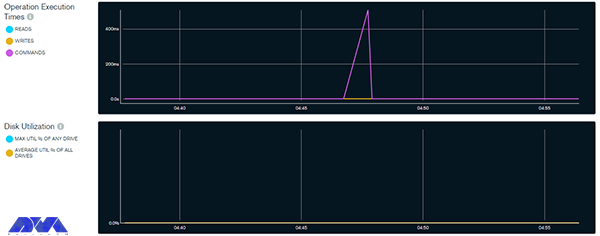
    MongoDB has a free performance monitoring feature for parallel collections and standalone instances in the cloud. When you enable this feature by configuration, the data that has been checked will be sent to the cloud service. There is only one command for this configuration and then you are provided with a web address so that you can access the performance statistics. To enable free monitoring, run the following command:

    db.enableFreeMonitoring()

    As you get the URL in your output, paste it on the web browser and monitor performance statistics after a single MongoDB command. As a result, the dashboard will show the necessary metrics:

    Performance Monitoring on MongoDB

    Optimize MongoDB on Your Debian Server

    Use the command below to disable this feature:

    db.disableFreeMonitoring()

    Indexing strategies for improved query performance

    One of the crucial aspects of database management systems that can significantly impact query performance is indexing. By creating appropriate indexes on the columns frequently used in queries, you can speed up data retrieval and improve overall system efficiency. Here are some indexing strategies for improved query performance:

    – Using the ESR rule which means Equility, Sort, and Range

    – Creating indexes for supporting queries:

    – Sorting query results by using indexes:

    – Using component indexing

    – Avoiding over-indexing

    – Ensuring indexes fit in RAM

    – Creating queries to ensure selectivity

    – And etc.

    Utilizing replica sets and sharding for scalability

    If we want to understand the concept of sharding more, it should be said that it is a form of scaling known as horizontal scaling or downscaling. The reason is that additional nodes are introduced for load sharing. Limitless scalability is provided with this horizontal scaling to manage large data volumes and excessive workloads. You can access infinite scalability using sharding, but in practice, you will scale proportionally to the number of servers you add. The possibility of having each additional piece increases storage and operational space, so the server can store more data.

    A replica set in a MongoDB database refers to a group of MongoDB instances or servers that store the same data. Here the instance acts as the master node that handles all write operations. This is while other nodes act as secondary nodes and repeat the data from the primary node. In the meantime, if the primary node is unreachable, it will automatically go to one of the secondary nodes.

    When you combine replica sets and sharding in MongoDB, you create a highly available and horizontally scalable database architecture.

    Monitoring and troubleshooting MongoDB performance issues

    Monitoring and troubleshooting MongoDB performance issues are crucial to maintaining a healthy and efficient database. MongoDB is a famous database, but like all platforms, it may contain some problems. Here are troubleshooting and how to do monitoring MongoDB issues:

    – You can use monitoring tools to obtain information about the performance of the MongoDB instance. One of these tools is (MMS) or MongoDB cloud manager, which can be used to track and analyze various performance metrics. Also, you can use third-party monitoring solutions.

    – Establish baseline performance metrics during normal operations. This will help you identify deviations when problems occur.

    – Pay attention to server-level metrics such as CPU usage, memory usage, disk I/O, and network activity. Resource bottlenecks can affect database performance.

    – Monitor the lock percentage to identify potential contention issues. Long-running or blocked operations can lead to performance bottlenecks.

    – Review your MongoDB configuration settings and adjust them based on your hardware capabilities and workload needs.

    – If your database grows and reaches its hardware limits, consider sharding to distribute data across multiple servers.

    – Keep your MongoDB version up to date to take advantage of performance improvements and bug fixes.

    – Monitor the health of your server’s hardware components (such as disks, and RAID controllers) to identify potential problems.

    – Regularly run benchmark tests to measure database performance under simulated real-world conditions.

    Note that troubleshooting the performance problems of this database may require a combination of the above steps or some trial and error. So before applying changes to production systems, test the changes in a controlled environment and be sure to make a backup before making changes.

    Best practices for backing up and restoring MongoDB databases

    Back up and restoring MongoDB databases is important to ensure data integrity and disaster recovery. In this part, we will try to show some best practices to follow:

    – Use automation tools or scripts to perform backups automatically. This helps avoid human errors and ensures consistency in the backup process.

    – Maintain multiple copies of backups in different locations, such as on different servers or in cloud storage. This ensures that if one backup fails, you have another copy available for restoration.

    – Versioning Backups: Consider versioning your backups to track changes over time. This can be helpful if you need to restore a specific point-in-time snapshot.

    – MongoDB provides built-in tools like Mongodump and mongorestore for backing up and restoring data. These tools are efficient and straightforward to use.

    – Set up monitoring and alerts for backup jobs to ensure they run as expected. Monitoring can also help you identify any anomalies in the backup process.

    – Back up the system databases like admin, local, and config. These databases contain essential metadata and configuration information for the MongoDB cluster.

    – Keep your backup files secure and restricted to authorized personnel only. Encryption of backup files is recommended, especially if they are stored in external storage or cloud services.

    – Schedule regular backups of your MongoDB databases. The frequency of backups may depend on the volume of data and how frequently it changes. Daily backups are generally recommended for most scenarios.

    When taking backups, ensure that data is in a consistent state by using the –oplog option with mongodump. This includes the database and any related data.

    Performance optimization tools and techniques for MongoDB

    You can use different tools and techniques to improve performance in MongoDB we will mention some of them for you:

    – Sharding

    – Replica set

    – Avoiding a huge number of indexes

    – Using projections

    – Journaling

    – Batch operations

    -Using appropriate data types

    Conclusion and final thoughts

    MongoDB is one of the most well-known and practical databases used to gather and store data. It is a flexible and non-relational documentation database. This article was prepared to give a full and comprehensive guide about MongoDB and tried to examine some aspects to boost performance and optimize MongoDB on the Debian operating system. We will be pleased if you share your ideas and questions on this field.

    FAQ

    Is MongoDB suitable for large data?

    Definitely. This database is great for large-data

    Which one is slower; MongoDB or SQL?

    Regarding storing unstructured data, it should be said that MongoDB works much faster than SQL. So depending on the type of data you collect, you may benefit significantly from this.

  • The Ultimate Guide to Install MariaDB on Debian

    The Ultimate Guide to Install MariaDB on Debian

    MariaDB is a popular database and enables you to meet all your workload. MariaDB platform contains more features, better performance, and new storage engines. It is very similar to MySQL and in fact, it is a fork of MySQL. This article will give an ultimate guide to install MariaDB on Debian operating system.

    What is MariaDB?

    MariaDB is an open-source relational database management system used as an alternative to MySQL in the database components of the LAMP (Linux, Apache, MySQL, PHP/Python/Perl) stack. This platform is used for different proposes such as data warehousing, enterprise-level features, E-commerce, and logging applications. You can use it on any scale and any cloud database. MariaDB is well-documented, so if you need to solve a problem, you can get plenty of help online.

    Steps to Install MariaDB on Debian

    If you decide to install MariaDB and you use the Debian operating system, you can follow the step-by-step instruction presented in this article. Before starting the process of installing MariaDB on Debian, we recommend you buy and use the Linux VPS server plans provided on our website and enjoy its high quality and speed.

    install mariaDB on debian

    Prerequisites

    These are the requirements before you start the installation process:

    – Updated Debian operating system

    – Non-root administrative user

    – Firewall Configured with UFW

    Installing MariaDB on Debian

    The first step you have to do before installation is to update your system. You can use the following apt command:

    sudo apt update

    Now, install the necessary packages using the command below:

    sudo apt install mariadb-server

    You should use the script that the mariadb-server package provides so that it can restrict access to the server and makes it possible to remove unused accounts. You should do this cause the default configuration leaves your installation insecure.

    Configuring MariaDB on Debian

    If you want to do a fresh installation of MariaDB, your next step is to run the existing security script. This script is highly effective because it overrides some of the less secure options, such as remote root login and sample users. The command below is to run the security script:

    sudo mysql_secure_installation

    Using this command will take you to a series of prompts with which you can make changes to your MariaDB installation security options.

    As you have a protected root account you can skip the next step by typing n and then pressing enter.

    At the next prompt, you will be asked to change your root password. Answer the question by Typing n and answering no. It’s better to not change the configured authentication methods for that account.

    At the next prompt, you can choose Y and press enter to accept the defaults for all other questions. This action will remove some anonymous users and the test database and also the login to the root will be disabled. After all these steps, you successfully finished MariaDB’s initial security configuration.

    Creating an Administrative User that Uses Password Authentication (Optional)

    Changing the root account is not recommended because most things like rotating logs or stopping the server are done by this user. This change in the /etc/mysql/debian.cnf configuration file may work initially, but updating the package will potentially overwrite these changes. So, instead of changing the root account, it is recommended to create a separate administrative account with a password.

    You should open the MariaDB terminal and use the command below:

    sudo mariadb

    Create a new user with root privileges and password-base access. To match your preferences, you should ensure to change the username and password:

    GRANT ALL ON . TO 'admin'@'localhost' IDENTIFIED BY 'password' WITH GRANT OPTION;

    If you want to ensure that changes are saved and available in your current section, flush the privileges:

    FLUSH PRIVILEGES; 

    The last step is to exit the MariaDB shell:

    exit

    Testing MariaDB

    Now, it is time to test the MariaDB installation. As you installed the repositories, MariaDB will start running automatically. Use the following command to check the status:

    sudo systemctl status mariadb

    If you couldn’t start MariaDB, use the command below for this reason:

    sudo systemctl start mariadb

    Tip: For further checkout, you can connect to the database using mysqladmin tool. This will allow you to run administrative commands.

    Conclusion

    This Guide was a simple and step-by-step explanation for installing MariaDB on Debian operating system. Here, you learned how to install, configure, and as the last action, how to test MariaDB on your system. You also learned how to create an extra administrative user. We hope this was a useful tutorial for you.

    FAQ

    What is the default user for MariaDB in Debian?

    Default MariaDB user accounts and privileges
    The default configuration consists of: A privileged account with a username of root. The root user has remote access to the database.

    Why use MariaDB instead of MySQL?

    When it comes to performing queries or replication, MariaDB is faster than MySQL. So if you need a high-performance relational database solution, MariaDB is a good choice. In addition, MariaDB also easily supports a high concurrent number of connections without much performance degradation.

  • Tutorial Install and Access Plex Media Server on Debian 11

    Tutorial Install and Access Plex Media Server on Debian 11

    Plex is a free media server that lets you organize your music, videos, and TV shows into a user interface. The purpose of this tutorial is to teach you How to Install and Access Plex Media Server on Debian 11. Therefore, we recommend you stay with us until the end of this article.

    Introduction to Plex Media

    Plex is versatile; media can be accessed and shared using a client app such as a mobile app, Roku, etc. Plex Media runs on a variety of platforms that may run on a single desktop computer. The most obvious examples are Windows and Mac. It should be noted that Plex also supports Linux, FreeBSD, and several NAS platforms. You’ll find Plex apps for most platforms and smart TV boxes like Apple TV, Chromecast, and Fire TV, as well as consoles like Xbox One and PlayStation 4.

    Features of Plex Media

    – Supports cloud sync and encrypted connections with multiple accounts.

    – You can also easily select and share what you want.

    – It has a media optimizer and supports video streaming from one device to another.

    – It supports voice fingerprinting and automatic photo tagging and encrypted connections with multiple accounts.

    Prerequisites 

    – A Linux VPS with Debian OS

    – Update Debian packages to the latest version

    How to Install Plex Media Server on Debian 11

    First, before starting the installation process, update the Debian package using the following command:

    sudo apt update
    sudo apt upgrade -y

    Also, install the required packages with the help of the following command:

    sudo apt install apt-transport-https curl vim wget -y

    Plex Repository on Debian 11

    The available repository provides Plex packages. To install Plex on Debian 11, add the repository to your system. Add the Plex repository using the following command:

    echo "deb https://downloads.plex.tv/repo/deb public main" | sudo tee /etc/apt/sources.list.d/plexmediaserver.list

    Enter the required GPG keys for the repository using the following command:

    curl https://downloads.plex.tv/plex-keys/PlexSign.key | sudo apt-key add -

    Installing Plex Media Server on Debian 11

    After the repository is added, continue the steps in order and install the latest version of Plex on Debian 11 and also update the APT package list using the following command:

    sudo apt update

    Now create the added Plex repository and then install the Plex media server using the following command:

    sudo apt install plexmediaserver

    After finishing the installation process, the Plex service will start automatically. Verify the item using the command:

    systemctl status plexmediaserver

    Use the following command to get started:

    sudo systemctl start plexmediaserver

    Now enable the service to run automatically at system boot using the following command:

    sudo systemctl enable plexmediaserver

    How to Configure the Apache Reverse Proxy for Plex

    Now, the Plex dashboard can be accessed using the URL http://localhost:32400/web. Configure a reverse proxy to access Plex remotely. Also, secure it with HTTPS. Install the Apache web server on Debian, Debian 11 with the following command:

    sudo apt install apache2 -y

    After you finish installing Apache, create a virtual host file for Plex:

    sudo vim /etc/apache2/sites-available/plex.conf

    In the desired file, add the following commands:

    <VirtualHost *:80>
    ServerName plex.neuronvm.com
    ErrorDocument 404 /404.html
    
    #HTTP proxy
    ProxyPreserveHost On
    ProxyPass / http://localhost:32400/
    ProxyPassReverse / http://localhost:32400/
    
    #Websocket proxy
    <Location /:/websockets/notifications>
    ProxyPass wss://localhost:32400/:/websockets/notifications
    ProxyPassReverse wss://localhost:32400/:/websockets/notifications
    </Location>
    </VirtualHost>

    Now save the file, then activate the site and proxy module using the following command:

    sudo a2enmod proxy_http
    sudo a2enmod rewrite
    sudo a2ensite plex.conf

    Move the Assumption Apache Conf to a backup file using the following command:

    sudo mv /etc/apache2/sites-enabled/000-default.conf /etc/apache2/sites-enabled/000-default.conf.bak

    Now restart Apache using the following command:

    sudo systemctl restart apache2

    How to Access Plex Web UI on Debian 11

    You can also access the plex at this stage using the URL http://IP_address/web or http://domain_name/web:

    Install-and-Configure-Plex-Media-Server-on-Debian

    Login to Plex using the preferred methods then go to the page that explains what Plex is and how it works:

    How Plex Works

    Now configure Plex as follows, starting by setting the server name:

    Install-and-Configure-Plex-Media-Server-on-Debian

    Now launch the media library. This step allows you to add media lists if you have already imported them. Click on Add Library and proceed as follows:

    Install and Access Plex Media Server on Debian

    Select the Library type, then search for media in your local storage and add it:

    Install and Access Plex Media Server on Debian

    With the media library configured, proceed to the next step and finish setting up the server:

    plex server setup

    The Plex dashboard will now be displayed as below:

    Install and Access Plex Media Server on Debian

    Go ahead and watch live TV, movies, podcasts, and listen to music. For example, while watching live TV, you have to select the live TV channel from the list provided:

    Access Plex Web UI

    Now click More to view the local storage files and your media server will appear with the libraries added. Also, more libraries can be added here:

    Access Plex Web UI

    Then add settings like language, interface, plugins, etc. for Plex in the settings tab:

    Setup a Plex Client

    How to Setup a Plex Client on Debian 11

    Plex client can be installed on multiple platforms such as Android, Mac, Apple TV, Windows, etc. Client applications are provided on the Plex Applications page. Also, using an Android client, you can play media libraries. Added view of watched channels in your account. You can now sign in to your Plex account. Now choose how to sign in to your Plex account as below:

    sign up plex

    Select how to sign in to your Plex account as shown in the image:

    sign up plex-2

    Now if you have more than one Plex server, go ahead and select the server you want to connect to:

    Setup a Plex Client

    Now optimize the navigation in the Plex client, then go to the Plex dashboard as below:

    Setup a Plex Client

    Also in the More section, you can view media from the Plex server media library as below:

    Setup a Plex Client

    Conclusion

    With the Plex media server running on Debian 11, you can easily store digital media like music, video, photos, etc., and access them anywhere on the Internet. In this article, you learned how to Install and Access Plex Media Server on Debian 11. We hope this educational article was useful for you. Share your comments with us through the form below.

    FAQ

    Which one is better; Plex or Netflix?

    Netflix is produced to manage TV shows and movies and is not a free app, plex puts you in charge of finding all the stuff to watch. The exception is just ad-supported content.

    What is Plex used for?

    It is software that is used to store, locate and access all of your media in one place.

  • Tutorial Install RainLoop on Debian 11

    Tutorial Install RainLoop on Debian 11

    RainLoop is a webmail application that allows you to access your external mail server from a web server. This article is presented to show How to Install RainLoop on Debian 11. Rainlop is an alternative program to web email programs like Squirrelmail and Roundcube and supports two-step authentication, so it’s highly secure.   

    What is RainLoop?

    RainLoop is a free, web-based, open-source, and web-based email application written in PHP and is an alternative to other web-based email applications such as RoundCube and SquirrelMail. RainLoop is a simple, modern solution, powerful and flexible. It is interesting to know that RainLoop email has an internal storage mechanism that improves the overall performance of the application while reducing the load on the web server and email server, supports two-step authentication with SMTP and IMAP, and can be done with Facebook.

    RainLoop Features

    – Sieve scripts

    – Direct access to the email server

    – Administrative panel for configuring main options

    – Modern user interface

    – Integrating with Facebook, Google, Twitter, and Dropbox

    – Autocomplete email addresses

    – Minimalistic resources requirements

    – Manage folders list

    – Drag and drop option for emails and attachments

    – Simple installation and update

    – The configurable multi-level caching system

    – Keyboard shortcuts support

    – Additional identities

    – Extend the functionality with plugins installed via the admin panel

    – Perfect rendering of complex HTML mails

    – Ability to add multiple accounts to the primary account

    Prerequisites

    1) PHP and PHP-required packages

    2) Nginx

    3) MariaDB

    4) A non-root user account with sudo access

    5) A Linux VPS with a Debian 11 server

    How to Install RainLoop on Debian 11

    It’s better to check your Debian version with the help of the following command:

    lsb_release -ds

    Now update your system by entering the following command:

    apt update
    apt upgrade -y

    Then you should install the necessary packages by running the following command:

    apt install -y sudo dirmngr wget curl vim

    You can create a non-root user account with sudo access by executing the following command:

    adduser lindaevanty --gecos "Linda Evanty"
    usermod -aG sudo lindaevanty
    su - lindaevanty

    Tip: Remember to replace your username with “lindaevanty”.

    Now you should setup the timezone by executing the following command:

    sudo dpkg-reconfigure tzdata

    In this step, you should download and install PHP and the necessary extensions by entering the following command:

    sudo apt install -y php7.0 php7.0-cli php7.0-fpm php7.0-curl php7.0-json php7.0-mbstring php7.0-mysql php7.0-pgsql php7.0-sqlite3 php7.0-common php7.0-xml

    To check the PHP version just run the following command:

    php --version

    In this step, you can install MariaDB by executing the following command:

    sudo apt install -y mariadb-server

    To check the MariaDB version just enter the following command:

    mysql --version

    You can run the following command to improve the security of the MariaDB installation:

    sudo mysql_secure_installation

    Then you should log into MariaDB as the root user by entering the following command:

    sudo mysql -u root -p
    # Enter password:

    Now you should create a MariaDB database by executing the following command:

    CREATE DATABASE dbname;

    Then you need to create a MariaDB user. To do this just enter the following command:

    CREATE USER 'username'@'localhost' IDENTIFIED BY 'password';
    GRANT ALL ON 'dbname'.*TO 'username'@'localhost';
    FLUSH PRIVILEGES;
    EXIT;

    Next, you need to install Nginx using the following command:

    sudo apt install -y nginx

    You can check the Nginx version by executing the following command:

    sudo nginx -v

    Now you should configure Nginx for RainLoop. To do this first enter the following command:

    sudo vim /etc/nginx/sites-available/rainloop.conf

    And then enter the following configuration:

    server {
    
      listen 80;
    
      server_name example.com;
      root /var/www/rainloop;
    
      index index.php;
    
      location / {
        try_files $uri $uri/ /index.php?$query_string;
      }
    
      location ~ \.php$ {
        fastcgi_index index.php;
        fastcgi_split_path_info ^(.+\.php)(.*)$;
        fastcgi_keep_conn on;
        include fastcgi_params;
        fastcgi_pass unix:/var/run/php/php7.0-fpm.sock;
        fastcgi_param SCRIPT_FILENAME $document_root$fastcgi_script_name;
      }
    
      location ~ /\.ht {
        deny all;
      }
    
      location ^~ /data {
         deny all;
      }
    
    }

    Now you need to activate the new rainloop.conf configuration. To do this link the file to the sites-enabled directory:

    sudo ln -s /etc/nginx/sites-available/rainloop.conf /etc/nginx/sites-enabled

    You can test the configuration with the help of the following command:

    sudo nginx -t

    Finally, reload Nginx with the following command:

    sudo systemctl reload nginx.service

    You need to create a document root directory before downloading Rainloop:

    sudo mkdir -p /var/www/rainloop

    Then you should change the ownership of the /var/www/rainloop directory to your name as shown below:

    sudo chown -R lindaevanty:lindaevanty /var/www/rainloop

    If you do not have the unzip app, you can install it with the following command:

    sudo apt install -y unzip

    Now it’s time to download Rainloop. To do this, just run the following command:

    cd /var/www/rainloop
    wget http://www.rainloop.net/repository/webmail/rainloop-latest.zip

    Then you should unzip it with the following command:

    unzip rainloop-latest.zip -d /var/www/rainloop
    rm rainloop-latest.zip

    Finally, you have to change the ownership of the /var/www/rainloop directory to www-data:

    sudo chown -R www-data:www-data /var/www/rainloop

    How to Access RainLoop Dashboard on Debian 11

    First, you need to open your web browser and access the RainLoop Dashboard using the following URL:

    http://rainloop.example.com/?admin


    rainloop dashboard


    Then you should enter the default username admin and password 12345 and click on the “>” button. You should see the following screen:


    rainloop admin access


    You can change the default admin password by clicking the Change Password button. After entering the new password, click the Update Password button to change the password:


    install rainloop on debian 11


    Conclusion

    This article taught you how to install RainLoop on Debian 11. After installing RainLoop with the help of this article, you can add your email server from the RainLoop web interface and access your email through a web browser.

    FAQ

    Where can I find additional support for Rainloop?

    Refer to the Rianloop documentation and community support.

    What is the limitation of file size for Rainloop?

    You can use a maximum of 1 GB file size limit set by Nginx.

  • How to Configure DNS Server on Debian 11

    How to Configure DNS Server on Debian 11

    Did you know that you can have your own DNS server to manage name resolution for domain names instead of using your domain registration’s DNS server? So you should definitely setup an authoritative server. This authoritative server can be used to store DNS records by the owners of the domain. After reading this article, you will learn how to configure DNS Server on Debian 11 completely.

    What Is DNS Server?

    DNS is a type of internet service and its function is in a way that it can be used to assign a domain name to an IP address and vice versa. DNS translates the domain name to a specific IP so that the initiating client can download the requested internet resources. this system actually works like a phone book.

    what is dns server

    Here we’re going to use Bind as a flexible, open-source, and full-featured DNS software that works as a valid DNS server and is responsible convert domain names to IP addresses.

    Configure DNS Server on Debian 11

    First, we recommend you choose and purchase a plan from the Linux VPS server plans provided on the NeuronVM website to configure DNS Server on Debian 11. Then install the Debian 11 operating system on it.

    Before you start the configuration part, you should install a DNS server which here is Bind, and follow the steps below:

    1. Installing Bind DNS Server

    The first step before starting the installation process is to update the Debian 11 system. You can run the following command to update your system:

    sudo apt update -y

    Now, you are ready to install the DNS server. Here we use the name bind9 for our DNS server and you can find it in the default base repository. To install this server use the APT command:

    sudo apt-get install -y bind9 bind9utils bind9-doc dnsutils

    2. Configuring Bind Master DNS Server

    /etc/bind/ is the configuration directory for Bind9. This directory is holding both configuration files and Zone lookup files. On the other hand, /etc/bind/named.conf is a global configuration that is not used for local DNS configuration. You can use /etc/bind/named.conf.local instead.

    Creating Zone

    In this section, you can use /etc/bind/named.conf.local file and create zones by editing the content of this file. For this reason, you can choose your favorite editor like Vim. Use the following command to install Vim:

    sudo vim /etc/bind/named.conf.local

    To create forward and reverse zone. You can create an entry for your forward zone for neuronvm.local domain. Then replace it with your set domain name:

    zone "neuronvm.local" IN { // Domain name
    type master; // Primary DNS
    
     file "/etc/bind/forward.neuronvm.local.db"; // Forward lookup file
    
     allow-update { none; }; // Since this is the primary DNS, it should be none.
    };

    As you can see, in this file forward.neuronvm.local.db is the name of forward lookup zone.

    Here, to create a forward zone for neuronvm.local.db follow the instructions below. In the exciting file, add the lines you see below instead of your parameters such as the front area:

    zone "1.168.192.in-addr.arpa" IN { //Reverse lookup name, should match your network in reverse order
    type master; // Primary DNS
    
     file "/etc/bind/reverse.neuronvm.local.db"; //Reverse lookup file
    allow-update { none; }; //Since this is the primary DNS, it should be none.
    };

    The name of the reverse DNS in the file above is 1.168.192.in-addr.arpa. Also, reverse.neuronvm.local.db is the reverse DNS lookup zone.

    3. Configuring Bind DNS Lookup Files

    If you want to keep DNS records for both forward and reverse zone, use lookup zones.

    The first step here is to create the front area lookup file, which we copy the sample zone lookup file as below:

    sudo cp /etc/bind/db.local /etc/bind/forward.neuronvm.local.db

    We have syntax here and all domain names end with a dot (.)

    Here are some acronyms that you should understand:

    _ MX: To show mail for exchange

    _ A: To show A record

    _ CN: To show the canonical name

    _ SOA: To show starting of authority

    _ AS: To show the name server

    Here, you can see how to edit the zone file:

    sudo vim /etc/bind/forward.neuronvm.local.db

    You should change it as per your set domain name:

    $TTL 604800
    @ IN SOA ns1.neuronvm.local. root.ns1.neuronvm.local. (
    3 ; Serial
    604800 ; Refresh
    86400 ; Retry
    2419200 ; Expire
    604800 ) ; Negative Cache TTL
    ;
    ;@ IN NS localhost.
    ;@ IN A 127.0.0.1
    ;@ IN AAAA ::
    ;Name Server Information
    @ IN NS ns1.neuronvm.local.
    ;IP address of Name Server
    ns1 IN A 192.168.1.12
    ;Mail Exchanger
    neuronvm.local. IN MX 10 mail.neuronvm.local.
    ;A – Record HostName To Ip Address
    www IN A 192.168.1.13
    mail IN A 192.168.1.14
    ;CNAME record
    ftp IN CNAME www.neuronvm.local.

    Here, also we have some acronyms:

    _ PTR: To show the pointer

    _ SOA: To show starting of authority

    Use the /etc/bind directory to copy your sample reverse zone file called reverse.neuronvm.local.db:

    sudo cp /etc/bind/db.127 /etc/bind/reverse.neuronvm.local.db

    Then, edit the content of your file:

    sudo vim /etc/bind/reverse.neuronvm.local.db

    Now, in the file, replace your IP and domain name in the proper way:

    ; BIND reverse data file for local loopback interface
    ;
    $TTL 604800
    @ IN SOA neuronvm.local. root.neuronvm.local. (
    3 ; Serial
    604800 ; Refresh
    86400 ; Retry
    2419200 ; Expire
    604800 ) ; Negative Cache TTL
    ;
    ;Name Server Information
    @ IN NS ns1.neuronvm.local.
    ns1 IN A 192.168.1.12
    ;Reverse lookup for Name Server
    12 IN PTR ns1.neuronvm.local.
    ;PTR Record IP address to HostName
    13 IN PTR www.neuronvm.local.
    14 IN PTR mail.neuronvm.local.

    4. Checking Bind DNS Syntax

    Use the instructions below to check the syntax of created config files. We will use named-checkconf to check syntax and if you encounter no error, the command will return to shell:

    By doing the following steps, you can check the syntax of forward and reverse zone files:

    – For forwarding zone files use:

    sudo named-checkzone neuronvm.local /etc/bind/forward.neuronvm.local.db

    – For reverse zone files, use:

    sudo named-checkzone 1.168.192.in-addr.arpa /etc/bind/reverse.neuronvm.local.db

    You should note that the serial output from both checks should be the same. If not, edit the configuration part.

    By using the following command, you can restart and enable the Bind DNS server:

    sudo systemctl restart bind9
    sudo systemctl enable bind9

    For checking the status of your service, go through this command:

    systemctl status bind9

    5. Testing Bind DNS Server

    For testing your DNS you can go to a client machine and add a new DNS IP address in /etc/resolv.conf file:

    sudo vim /etc/resolv.conf

    Now you can add the DNS IP address:

    nameserver ***.***.*.**

    Save changes and Exit. Then go on as shown here.

    We have two options to use in this section:

    nslookup and dig command

    dig www.neuronvm.local

    Use the command below to confirm your reverse lookup:

    you -x ***.***.*.**

    Conclusion

    In this article, we tried to show how to configure DNS server on Debian 11. After a successful installation, now you know how to configure the DNS server yourself. A DNS server is very useful for admins who have applications to communicate over domain names. We hope you enjoy this tutorial.

    FAQ

    Is DNS the same as address IP?

    It is the resolution of a domain name to an IP address through a DNS server.

    Do we have a DNS for every IP address?

    Every domain has DNS and this DNS is pointing to servers that redirect different domains.